Access Control Lists

Feature History for ACLs

This table provides release and platform support information for the features explained in this module.

These features are available in all the releases subsequent to the one they were introduced in, unless noted otherwise.

Release

Feature Name and Description

Supported Platform

Cisco IOS XE 17.18.1

Access Control Lists:

Access control lists (ACLs) are sequential collections of permit and deny conditions that apply to packets

Cisco C9350 Series Smart Switches

Cisco C9610 Series Smart Switches

ACLs

Access control lists (ACLs) are sequential collections of permit and deny conditions that apply to packets. ACLs filter traffic as it passes through a device and permit or deny packets crossing specified interfaces.

ACEs

Access Control Entries (ACEs) are individual rules within an ACL. Each ACE defines specific conditions for a packet and specifies whether packets that meet these conditions should be permitted or denied. The decision to permit or deny packets depends on how the ACL is applied.

How ACLs work

When a packet is received on an interface, the switch compares the fields in the packet against any applied ACLs to verify that the packet has the required permissions to be forwarded, based on the criteria specified in the access lists.

One by one, it tests packets against the conditions in an access list. The first match decides whether the switch accepts or rejects the packets. Because the switch stops testing after the first match, the order of conditions in the list is critical. If no conditions match, the switch rejects the packet. If there are no restrictions, the switch forwards the packet. All packets that are forwarded is processed by the ACLs.

How ACLs can be used

You configure access lists on or to decide which types of traffic areforwarded or blocked at device interfaces. For example, you can allow e-mail traffic to be forwarded but not Telnet traffic.

Packet filtering can help limit network traffic and restrict network use by certain users or devices.

Classification of ACLs based on the traffic

ACLs can be categorized according to the type of network traffic they are designed to filter. The classification depends on the criteria used for filtering, such as IP addresses, protocol types, MAC addresses, and the location in the network where the ACL is applied. The main types include:

Table 1. Classification of ACLs based on the traffic

Filtering of traffic based on

ACL type

The source IP address of the packets

Standard IP ACLs

Both source and destination IP addresses and optional protocol type information

Extended IP ACLs

Both source and destination MAC addresses and optional protocol type information

MAC (extended) ACLs

IPv4 packets, including TCP, User Datagram Protocol (UDP), and Internet Control Message Protocol (ICMP)

IP ACLs

Non-IP packets

Ethernet ACLs

QoS packets

QoS ACLs

Packets entering a Layer 2 interface

Port ACLs

Packets transmitted between VLANs (Layer 3)

Router ACLs

Packets transmitted between VLANs (Layer 2)

VLAN ACLs

Packets based on a time range

Time-based ACLs

Object groups

Object-group ACLs (OGACLs)

Port ACLs

  • Port ACLs are configured on Layer 2 interfaces on a switch.

  • Port ACLs support Standard IP ACLs, extended IP ACLs, and MAC extended ACLs.

  • Port ACLs are supported on physical interfaces and EtherChannel interfaces but not on EtherChannel member interfaces.

  • Port ACLs can be configured on an interface in both inbound and outbound directions.

  • With port ACLs, you can filter IP traffic by using IP access lists and non-IP traffic by using MAC ACLs.

  • You can filter both IP and non-IP traffic on the same Layer 2 interface by applying both an IP access list and a MAC ACL to the interface.

Port ACLs on a different types of port

Trunk Port: When you apply a port ACL to a trunk port, the ACL filters traffic on all VLANs present on the trunk port.

Voice VLAN port: When you apply a port ACL to a port with voice VLAN, the ACL filters traffic on both data and voice VLANs.

How Port ACLs work

Port ACLs are configured on the Layer 2 interfaces of the switch. Inbound traffic packets are processed with the configured ACLs on the ingress interface. Packets that need to be forwarded are processed with the configured ACLs on the egress interface.

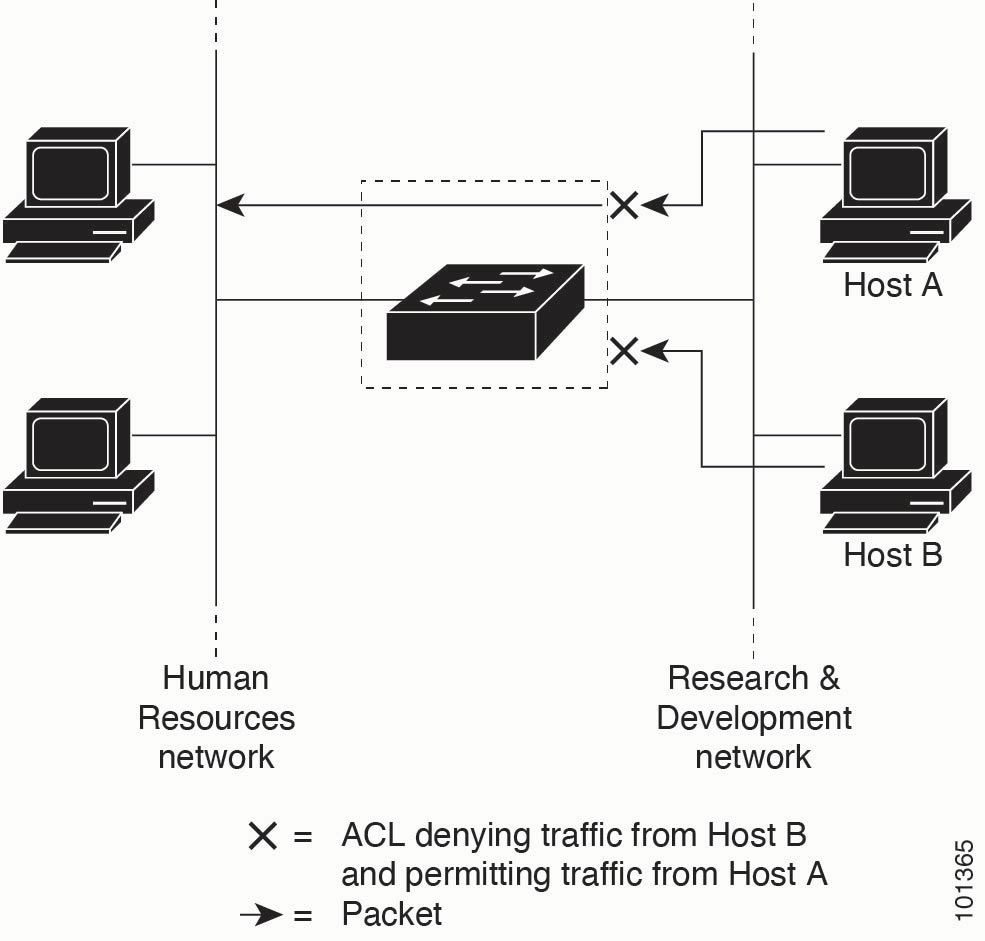
The following example shows how port ACLs can be used to control access in a network.

In the following figure, all workstations are configured on the same VLAN. Port ACLs are configured on the ingress interfaces of the switch. This mean that inbound traffic packets are processed with the configured ACLs.

The Port ACLs are configured to allow packets from Host A and deny packets from Host B into the Human Resources network.

Figure 1. Using ACLs to Control Traffic in a Network

Router ACLs

  • Router ACLs are configured on Layer 3 interfaces of a switch.

  • Router ACLs are supported on physical Layer 3 interfaces, switch virtual interfaces (SVIs) (identified as Layer 3 interfaces to VLANs) or Layer 3 EtherChannel interfaces.

  • Router ACLs can be applied on an interface in both inbound and outbound directions.

  • Only one router ACLs can be configured on each direction of an interface.

  • Packets are forwarded or dropped based on how the packet matches the entries in the ACL table, and can be used to control access to a network or to part of a network.

How Router ACLs work

Router ACLs are configured on the Layer 3 interface of the switch. Inbound traffic packets are processed with the configured ACLs on the ingress interface. After packets are routed and before they are forwarded to the next hop, packets are processed with the configured ACLs on the egress interface.

VLAN ACLs

  • VLAN ACLs (also known as VLAN maps) are configured on Layer 2 VLANs to control bridged traffic within the VLAN.

  • VLAN ACLs process all packets that are routed into, out of, or bridged within a VLAN.

  • VLAN ACLs are used strictly for security packet filtering and redirecting traffic to specific physical interfaces.

  • VLAN ACLs are not direction-specific (not inbound or outbound).

  • VLAN ACLs are processed on packets travelling through the switch. VLAN ACLs are not processed on packets travelling between hosts on a hub or another switch connected to the VLAN ACLs-configured switch.

  • Only one VLAN ACL can be applied to a VLAN.

  • All non-IP protocols are subject to access control using MAC VLAN maps. This access control works by filtering on MAC addresses (source and/or destination) and Ethertype values (which indicate the protocol type at Layer 2).

  • IP traffic (IPv4 and IPv6) is not filtered or access-controlled by MAC VLAN maps. Instead, this traffic is typically managed and filtered by other mechanisms such as ACLs applied at Layer 3.

How VLAN ACLs work

VLAN ACLs are configured on Layer 2 VLANs and impact bridged traffic only. VLAN maps are configured to provide access control based on Layer 3 addresses for IPv4. After a VLAN map is applied to a VLAN, all packets (routed or bridged) entering the VLAN are checked against the VLAN map. Packets can either enter the VLAN through a switch port or through a routed port after being routed.

This figure shows how a VLAN map is applied to prevent a specific type of traffic from Host A in VLAN 10 from being forwarded.

Figure 2. Using VLAN Maps to Control Traffic

Time-based access lists using time ranges

Time-based access lists allow you to control network access based on the time of day or day of the week. This feature uses named time ranges that define specific periods when an ACL is active. Packets are filtered by the ACL only when the current time falls within the defined time range.

ACLs and their characteristics

These sections provide information about ACLs and their characteristics.

Access list numbers

The number you use to denote your ACL shows the type of access list that you are creating.

This table lists the access-list number and corresponding access list type, and shows whether or not they are supported in the switch. The switch supports IPv4 standard and extended access lists, numbers 1 to 199 and 1300 to 2699.

Table 2. Table 1. Access List Numbers
Access List Number Type Supported
1–99 IP standard access list Yes
100–199 IP extended access list Yes
200–299 Protocol type-code access list No
300–399 DECnet access list No
400–499 XNS standard access list No
500–599 XNS extended access list No
600–699 AppleTalk access list No
700–799 48-bit MAC address access list No
800–899 IPX standard access list No
900–999 IPX extended access list No
1000–1099 IPX SAP access list No
1100–1199 Extended 48-bit MAC address access list No
1200–1299 IPX summary address access list No
1300–1999 IP standard access list (expanded range) Yes
2000–2699 IP extended access list (expanded range) Yes

Packet filtering order with VLAN Maps, Router ACLs, and Port ACLs

  • When VLAN maps, Port ACLs, and router ACLs are configured on the same switch, the filtering precedence, from greatest to least for ingress traffic is:

    1. Port ACL

    2. VLAN map

    3. Router ACL

    For egress traffic, the filtering precedence is:

    1. Router ACL

    2. VLAN map

    3. Port ACL

  • When both a port ACL and a VLAN map are configured, incoming packets on ports with a port ACL are filtered by the port ACL, while all other packets are filtered by the VLAN map.

  • When both an input router ACL and an input port ACL are present on a switch virtual interface (SVI), incoming packets on ports with a port ACL are filtered by the port ACL. Routed IP packets received on other ports are filtered by the router ACL, while all other packets are not filtered.

  • When both an output router ACL and an input port ACL are configured on an SVI, incoming packets on ports with a port ACL are filtered by the port ACL, while outgoing routed IP packets are filtered by the router ACL. All other packets are not filtered.

  • When a VLAN map, input router ACL, and input port ACL are all configured on an SVI, incoming packets on ports with a port ACL are filtered only by the port ACL. Incoming routed IP packets on other ports are filtered by both the VLAN map and the router ACL. All other packets are filtered only by the VLAN map.

  • When a VLAN map, output router ACL, and input port ACL are all configured on an SVI, incoming packets on ports with a port ACL are filtered only by the port ACL. Outgoing routed IP packets are filtered by both the VLAN map and the router ACL. All other packets are filtered only by the VLAN map.

ACL comments (or remarks)

ACLs can include comments or remarks within their configuration. These comments are not processed by the device for filtering purposes but serve as important documentation for administrators. They improve the readability and understanding of complex ACLs, making future troubleshooting and modifications easier.

ACL Sequence Numbering

Each access control entry (ACE) within an ACL is assigned a sequence number. This number dictates the order in which ACEs are evaluated when a packet is compared against the ACL. When new entries are added, they can be inserted at specific sequence numbers, allowing for precise control over the ACL logic without re-creating the entire list.

ACEs and Fragmented and Unfragmented Traffic

IP packets can be fragmented as they cross the network. When this happens, only the fragment containing the beginning of the packet contains the Layer 4 information, such as TCP or UDP port numbers, ICMP type and code. All other fragments are missing this information.

Some access control entries (ACEs) do not check Layer 4 information and therefore can be applied to all packet fragments. ACEs that do test Layer 4 information cannot be applied in the standard manner to most of the fragments in a fragmented IP packet. When the fragment contains no Layer 4 information and the ACE tests some Layer 4 information, the matching rules are modified:

  • Permit ACEs that check the Layer 3 information in the fragment (including protocol type, such as TCP, UDP, and so on) are considered to match the fragment regardless of what the missing Layer 4 information might have been.


    Note


    For TCP ACEs with L4 Ops, the fragmented packets will be dropped per RFC 1858.


  • Deny ACEs that check Layer 4 information never match a fragment unless the fragment contains Layer 4 information.

TCP flags filtering

Extended IP access lists can be configured to filter TCP traffic based on specific TCP flags. This allows for granular control over TCP sessions, enabling policies that permit or deny connections based on their state (for example., SYN for new connections or ACK for established connections).

Unsupported ACL features

The following ACL-related features are not supported:

  • Non-IP protocol ACLs

  • IP accounting

ACLs and Switch Stacks

ACL support is the same for a switch stack as for a standalone switch. ACL configuration information is propagated to all switches in the stack. All switches in the stack, including the active switch, process the information and program their hardware.

Active Switch and ACL functions

The active switch performs these ACL functions:

Workflow

  1. Processes the ACL configuration and propagates the information to all stack members.
  2. Distributes the ACL information to any switch that joins the stack.
  3. Forwards packets only after applying ACLs on the packets, if packets must be forwarded by software for any reason (for example, not enough hardware resources).
  4. Programs its hardware with the ACL information it processes.

Stack Member and ACL functions

Stack members perform these ACL functions:

  • Receives the ACL information from the active switch and programs the hardware.

  • Performs the functions of the active switch in the event the active switch fails (if configured as a standby switch).

Active switch failure and ACLs

Both the active and standby switches have the ACL information. When the active switch fails, the standby takes over. The new active switch distributes the ACL information to all stack members.

Standard and Extended IPv4 ACLs

An ACL is a sequential collection of permit and deny conditions. One by one, the device tests packets against the conditions in an access list. The first match determines whether the device accepts or rejects the packet. Because the device stops testing after the first match, the order of the conditions is critical. If no conditions match, the device denies the packet.

The software supports these types of ACLs or access lists for IPv4:

  • Standard IP access lists use source addresses for matching operations.

  • Extended IP access lists use source and destination addresses for matching operations and optional protocol-type information for finer granularity of control.

Numbered standard IPv4 ACLs

When creating an ACL, remember that, by default, the end of the ACL contains an implicit deny statement for all packets that it did not find a match for before reaching the end. With standard access lists, if you omit the mask from an associated IP host address ACL specification, 0.0.0.0 is assumed to be the mask.

When using the show ip access-list acl_name or the show run section acl_name command, the ACEs are displayed in ascending order according to their sequence numbers.

After creating a numbered standard IPv4 ACL, you can apply it to VLANs, to terminal lines, or to interfaces.

Numbered extended IPv4 ACLs

Although standard ACLs use only source addresses for matching, you can use extended ACL source and destination addresses for matching operations and optional protocol type information for finer granularity of control. When you are creating ACEs in numbered extended access lists, remember that after you create the ACL, any additions are placed at the end of the list. You cannot reorder the list or selectively add or remove ACEs from a numbered list.

The device does not support dynamic or reflexive access lists. It also does not support filtering based on the type of service (ToS) minimize-monetary-cost bit.

Some protocols also have specific parameters and keywords that apply to that protocol.

You can define an extended TCP, UDP, ICMP, or other IP ACL. The device also supports these IP protocols:


Note


Control packets may not be denied using regular ACE rules.


These IP protocols are supported:

  • Authentication Header Protocol (ahp)

  • Encapsulation Security Payload (esp)

  • Enhanced Interior Gateway Routing Protocol (eigrp)

  • Generic routing encapsulation (gre)

  • Internet Control Message Protocol (icmp)

  • Any Interior Protocol (ip)

  • IP in IP tunneling (ipinip)

  • KA9Q NOS-compatible IP over IP tunneling (nos)

  • Open Shortest Path First routing (ospf)

  • Payload Compression Protocol (pcp)

  • Protocol-Independent Multicast (pim)

  • Transmission Control Protocol (tcp)

  • User Datagram Protocol (udp)

Named IPv4 ACLs

You can identify IPv4 ACLs with an alphanumeric string (a name) rather than a number. You can use named ACLs to configure more IPv4 access lists in a device than if you were to use numbered access lists. If you identify your access list with a name rather than a number, the mode and command syntax are slightly different. However, not all commands that use IP access lists accept a named access list.


Note


The name you give to a standard or extended ACL can also be a number in the supported range of access list numbers. For example, the name of a standard IP ACL can be 1 to 99. The advantage of using named ACLs instead of numbered lists is that you can delete individual entries from a named list.


Consider these guidelines before configuring named ACLs:

  • Numbered ACLs are also available.

  • A standard ACL and an extended ACL cannot have the same name.

  • You can use standard or extended ACLs (named or numbered) in VLAN maps.

IPv6 access lists function similarly to IPv4 access lists, providing traffic filtering capabilities for IPv6 networks. They can be standard or extended, named or numbered, and applied to various interfaces to control IPv6 packet flow.

Restrictions for IPv4 access control lists

General network security restrictions

The following are restrictions for configuring network security with ACLs:

  • Not all commands that accept a numbered ACL accept a named ACL. ACLs for packet filters and route filters on interfaces can use a name. VLAN maps also accept a name.

  • A standard ACL and an extended ACL cannot have the same name.

  • Though visible in the command-line help strings, appletalk is not supported as a matching condition for the deny and permit MAC access-list configuration mode commands.

  • ACLs cannot be configured on management ports.

  • ACL wildcard is not supported in downstream client policy.

  • When you apply a scale ACL to an interface that does not program TCAM for a protocol and the ACLs that have been unloaded, it can impact the existing normal movement of traffic for other protocols.

  • Router ACL is enforced on all types of traffic, including CPU generated traffic.

  • FFTime-to-live (TTL) classification is not supported on ACLs.

  • If a downloadable ACL contains any type of duplicate entries, the entries are not auto-merged. As a result, the 802.1X session authorization fails. Ensure that the downloadable ACL is optimized without any duplicate entries, for example, port-based and name-based entries for the same port.

  • Egress ACL lookup is not supported for injected traffic that is forwarded by the software.

IPv4 ACL network interface restrictions

The following restrictions apply to IPv4 ACLs on network interfaces:

  • When controlling access to an interface, you can use a named or numbered ACL.

  • If you apply an ACL to a Layer 2 interface that is a member of a VLAN, the Layer 2 (port) ACL takes precedence over an input Layer 3 ACL applied to the VLAN interface or a VLAN map applied to the VLAN.

  • If you apply an ACL to a Layer 3 interface and routing is not enabled on the switch, the ACL only filters packets that are intended for the CPU, such as SNMP, Telnet, or web traffic.

  • If the preauth_ipv4_acl ACL is configured to filter packets, the ACL is removed after authentication.

  • You do not have to enable routing to apply ACLs to Layer 2 interfaces.

MAC ACLs on a Layer 2 interface

After you create a MAC ACL, you can apply it to a Layer 2 interface to filter non-IP traffic coming in that interface. When you apply the MAC ACL, consider these guidelines:

  • You can apply no more than one IP access list and one MAC access list to the same Layer 2 interface. The IP access list filters only IP packets, and the MAC access list filters non-IP packets.

  • A Layer 2 interface can have only one MAC access list. If you apply a MAC access list to a Layer 2 interface that has a MAC ACL configured, the new ACL replaces the previously configured one.

IP access list entry sequence numbering

This feature does not support dynamic, reflexive, or firewall access lists.

How to configure IPv4 access control lists

These sections provide configuration information on IPv4 access control lists.

Configure IPv4 ACLs

Procedure


Step 1

Create an ACL by specifying an access list number or name and the access conditions.

Step 2

Apply the ACL to interfaces or terminal lines. You can also apply extended IP ACLs to VLAN maps.


Create a numbered standard ACL

To create a numbered standard ACL, perform this task.

Procedure

Step 1

enable

Example:
Device> enable

Enables privileged EXEC mode.

Enter your password, if prompted.

Step 2

configure terminal

Example:
Device# configure terminal

Enters global configuration mode.

Step 3

access-list access-list-number {deny | permit} source source-wildcard]

Example:
Device(config)# access-list 2 deny your_host

Defines a standard IPv4 access list by using a source address and wildcard.

The access-list-number is a decimal number from 1 to 99 or 1300 to 1999.

Enter deny or permit to specify whether to deny or permit access if conditions are matched.

The source is the source address of the network or host from which the packet is being sent specified as:

  • The 32-bit quantity in dotted-decimal format.

  • The keyword any as an abbreviation for source and source-wildcard of 0.0.0.0 255.255.255.255. You do not need to enter a source-wildcard.

  • The keyword host as an abbreviation for source and source-wildcard of source 0.0.0.0.

(Optional) The source-wildcard applies wildcard bits to the source.

Note


Logging is supported only on ACLs attached to Layer 3 interfaces.

Step 4

end

Example:
Device(config)# end

Exits global configuration mode and returns to privileged EXEC mode.


Create a numbered extended ACL

To create a numbered extended ACL, perform this task.

Procedure

Step 1

enable

Example:
Device> enable

Enables privileged EXEC mode.

Enter your password, if prompted.

Step 2

configure terminal

Example:
Device# configure terminal

Enters global configuration mode.

Step 3

access-list access-list-number {deny | permit} protocol source source-wildcard destination destination-wildcard [precedence precedence] [tos tos] [fragments] [time-range time-range-name] [dscp dscp]

Example:
Device(config)# access-list 101 permit ip host 10.1.1.2 any precedence 0 tos 0 log

Defines an extended IPv4 access list and the access conditions.

The access-list-number is a decimal number from 100 to 199 or 2000 to 2699.

Enter deny or permit to specify whether to deny or permit the packet if conditions are matched.

Source, source-wildcard, destination, and destination-wildcard can be specified as:

  • The 32-bit quantity in dotted-decimal format.

  • The keyword any for 0.0.0.0 255.255.255.255 (any host).

  • The keyword host for a single host 0.0.0.0.

The other keywords are optional and have these meanings:

  • precedence : Enter to match packets with a precedence level specified as a number from 0 to 7 or by name:

    routine(0), priority (1), immediate (2), flash (3), flash-override (4), critical (5), internet (6), network (7) .

  • fragments : Enter to check non-initial fragments.

  • tos : Enter to match by type of service level, specified by a number from 0 to 15 or a name:

    normal (0) , max-reliability (2), max-throughput (4), min-delay (8) .

  • time-range : Specify the time-range name.

  • dscp : Enter to match packets with the DSCP value specified by a number from 0 to 63, or use the question mark (?) to see a list of available values.

Note


If you enter a dscp value, you cannot enter tos or precedence . You can enter both a tos and a precedence value with no dscp.

Step 4

access-list access-list-number {deny | permit} tcp source source-wildcard [operator port] destination destination-wildcard [operator port] [established] [precedence precedence] [tos tos] [fragments] [time-range time-range-name] [dscp dscp] [flag]

Example:
Device(config)# access-list 101 permit tcp any any eq 500

Defines an extended TCP access list and the access conditions.

The parameters are the same as those described for an extended IPv4 ACL, with these exceptions:

(Optional) Enter an operator and port to compare source (if positioned after source source-wildcard ) or destination (if positioned after destination destination-wildcard ) port. Possible operators include eq (equal), gt (greater than), lt (less than), neq (not equal), and range (inclusive range). Operators require a port number (range requires two port numbers separated by a space).

Enter the port number as a decimal number (from 0 to 65535) or the name of a TCP port. Use only TCP port numbers or names when filtering TCP.

The other optional keywords have these meanings:

  • established : Enter to match an established connection. This has the same function as matching on the ack or rst flag.

  • flag : Enter one of these flags to match by the specified TCP header bits:

    ack (acknowledge), fin (finish), psh (push), rst (reset), syn (synchronize), or urg (urgent) .

Step 5

access-list access-list-number {deny | permit} udp source source-wildcard [operator port] destination destination-wildcard [operator port] [precedence precedence] [tos tos] [fragments] [time-range time-range-name] [dscp dscp]

Example:
Device(config)# access-list 101 permit udp any any eq 100

(Optional) Defines an extended UDP access list and the access conditions.

The UDP parameters are the same as those described for TCP except that the [operator [port]] port number or name must be a UDP port number or name, and the flag and established keywords are not valid for UDP.

Step 6

access-list access-list-number {deny | permit} icmp source source-wildcard destination destination-wildcard [icmp-type | [[icmp-type icmp-code] | [icmp-message]] [precedence precedence] [tos tos] [fragments] [time-range time-range-name] [dscp dscp]

Example:
Device(config)# access-list 101 permit icmp any any 200

Defines an extended ICMP access list and the access conditions.

The ICMP parameters are the same as those described for most IP protocols in an extended IPv4 ACL, with the addition of the ICMP message type and code parameters.

These optional keywords have these meanings:

  • icmp-type : Enter to filter by ICMP message type, a number from 0 to 255.

  • icmp-code : Enter to filter ICMP packets that are filtered by the ICMP message code type, a number from 0 to 255.

  • icmp-message : Enter to filter ICMP packets by the ICMP message type name or the ICMP message type and code name.

Step 7

access-list access-list-number {deny | permit} igmp source source-wildcard destination destination-wildcard [igmp-type] [precedence precedence] [tos tos] [fragments] [time-range time-range-name] [dscp dscp]

Example:
Device(config)# access-list 101 permit igmp any any 14

(Optional) Defines an extended IGMP access list and the access conditions.

The IGMP parameters are the same as those described for most IP protocols in an extended IPv4 ACL, with this optional parameter.

  • igmp-type : To match IGMP message type, enter a number from 0 to 15, or enter the message

  • name : dvmrp, host-query, host-report, pim, or trace .

Step 8

end

Example:
Device(config)# end

Exits global configuration mode and returns to privileged EXEC mode.


Create named standard ACLs

To create a standard ACL using names, perform this task.

Procedure

Step 1

enable

Example:
Device> enable

Enables privileged EXEC mode.

Enter your password, if prompted.

Step 2

configure terminal

Example:
Device# configure terminal

Enters global configuration mode.

Step 3

ip access-list standard name

Example:
Device(config)# ip access-list standard 20

Defines a standard IPv4 access list using a name, and enter access-list configuration mode.

The name can be a number from 1 to 99.

Step 4

Choose one of the following:

  1. deny {source [source-wildcard] | host source | any} [log]

  2. permit {source [source-wildcard] | host source | any} [log]

Example:

Device(config-std-nacl)# deny 192.168.0.0 0.0.255.255 255.255.0.0 0.0.255.255
OR
Device(config-std-nacl)# permit 10.108.0.0 0.0.0.0 255.255.255.0 0.0.0.0

In access-list configuration mode, specify one or more conditions denied or permitted to decide if the packet is forwarded or dropped.

  • host source: A source and source wildcard of source 0.0.0.0.

  • any: A source and source wildcard of 0.0.0.0 255.255.255.255.

Step 5

end

Example:
Device(config-std-nacl)# end

Exits access-list configuration mode and returns to privileged EXEC mode.


Create extended named ACLs

To create an extended ACL using names, perform this task.

When you are creating extended ACLs, remember that, by default, the end of the ACL contains an implicit deny statement for everything if it did not find a match before reaching the end. For standard ACLs, if you omit the mask from an associated IP host address access list specification, 0.0.0.0 is assumed to be the mask.

After you create an ACL, any additions are placed at the end of the list. You cannot selectively add ACL entries to a specific ACL. However, you can use no permit and no deny access-list configuration mode commands to remove entries from a named ACL.

Being able to selectively remove lines from a named ACL is one reason you might use named ACLs instead of numbered ACLs

Procedure

Step 1

enable

Example:
Device> enable

Enables privileged EXEC mode.

Enter your password, if prompted.

Step 2

configure terminal

Example:
Device# configure terminal

Enters global configuration mode.

Step 3

ip access-list extended name

Example:
Device(config)# ip access-list extended 150

Defines an extended IPv4 access list using a name, and enter access-list configuration mode.

The name can be a number from 100 to 199.

Step 4

{deny | permit} protocol {source [source-wildcard] | host source | any} {destination [destination-wildcard] | host destination | any} [precedence precedence] [tos tos] [established] [log] [time-range time-range-name]

Example:
Device(config-ext-nacl)# permit 0 any any

In access-list configuration mode, specify the conditions allowed or denied. Use the log keyword to get access list logging messages, including violations.

  • host source: A source and source wildcard of source 0.0.0.0.

  • host destintation: A destination and destination wildcard of destination 0.0.0.0.

  • any : A source and source wildcard or destination and destination wildcard of 0.0.0.0 255.255.255.255.

Step 5

end

Example:
Device(config-ext-nacl)# end

Exits access-list configuration mode and returns to privileged EXEC mode.


What to do next

After creating a named ACL, you can apply it to interfaces or to VLANs.

Configure time ranges for ACLs

To configure a time-range parameter for an ACL, perform this task.

Repeat the steps if you have multiple items that you want in effect at different times.

Procedure

Step 1

enable

Example:
Device> enable

Enables privileged EXEC mode.

Enter your password, if prompted.

Step 2

configure terminal

Example:
Device# configure terminal

Enters global configuration mode.

Step 3

time-range time-range-name

Example:
Device(config)# time-range workhours

Assigns a meaningful name (for example, workhours) to the time range to be created, and enters time-range configuration mode. The name cannot contain a space or quotation mark and must begin with a letter.

Step 4

Choose one of the following:

  1. absolute [start time date] [end time date]

  2. periodic day-of-the-week hh:mm to [day-of-the-week] hh:mm

  3. periodic {weekdays | weekend | daily} hh:mm to hh:mm

Example:

Device(config-time-range)# absolute start 00:00 1 Jan 2006 end 23:59 1 Jan 2006
OR
Device(config-time-range)# periodic weekdays 8:00 to 12:00

Specifies when the function it will be applied to is operational.

  • You can use only one absolute statement in the time range. If you configure more than one absolute statement, only the one configured last is executed.

  • You can enter multiple periodic statements. For example, you could configure different hours for weekdays and weekends.

Step 5

end

Example:
Device(config-time-range)# end

Exits time-range configuration mode and returns to privileged EXEC mode.


Apply an IPv4 ACL to a terminal line

To restrict incoming and outgoing connections between a virtual terminal line and the addresses in an ACL, perform this task.

You can use numbered ACLs to control access to one or more terminal lines. You cannot apply named ACLs to lines. You must set identical restrictions on all the virtual terminal lines because a user can attempt to connect to any of them.

Procedure

Step 1

enable

Example:
Device> enable

Enables privileged EXEC mode.

Enter your password, if prompted.

Step 2

configure terminal

Example:
Device# configure terminal

Enters global configuration mode.

Step 3

line [console | vty] line-number

Example:
Device(config)# line console 0

Identifies a specific line to configure, and enter in-line configuration mode.

  • console : Specifies the console terminal line. The console port is DCE.

  • vty : Specifies a virtual terminal for remote console access.

The line-number is the first line number in a contiguous group that you want to configure when the line type is specified. The range is from 0 to 16.

Step 4

access-class access-list-number {in | out}

Example:
Device(config-line)# access-class 10 in

Restricts incoming and outgoing connections between a particular virtual terminal line (into a device) and the addresses in an access list.

Step 5

end

Example:
Device(config-line)# end

Exits line configuration mode and returns to privileged EXEC mode.


Apply an IPv4 ACL to an interface

To control access to an interface, perform this task.

Procedure

Step 1

enable

Example:
Device> enable

Enables privileged EXEC mode.

Enter your password, if prompted.

Step 2

configure terminal

Example:
Device# configure terminal

Enters global configuration mode.

Step 3

interface interface-id

Example:
Device(config)# interface gigabitethernet1/0/1

Identifies a specific interface for configuration, and enters interface configuration mode.

The interface can be a Layer 2 interface (port ACL), or a Layer 3 interface (router ACL).

Step 4

ip access-group {access-list-number | name} {in | out}

Example:
Device(config-if)# ip access-group 2 in

Controls access to the specified interface.

Step 5

end

Example:
Device(config-if)# end

Exits interface configuration mode and returns to privileged EXEC mode.


Create named MAC extended ACLs

To create a named MAC extended ACL, perform this task.

You can filter non-IPv4 traffic on a VLAN or on a Layer 2 interface by using MAC addresses and named MAC extended ACLs. The procedure is similar to that of configuring other extended named ACLs.

Procedure


Step 1

enable

Example:

Device> enable

Enables privileged EXEC mode.

Enter your password if prompted.

Step 2

configure terminal

Example:

Device# configure terminal

Enters global configuration mode.

Step 3

mac access-list extended name

Example:

Device(config)# mac access-list extended mac1

Defines an extended MAC access list using a name.

Step 4

{deny | permit} {any | host source MAC address | source MAC address mask} {any | host destination MAC address | destination MAC address mask} [type mask | lsap lsap mask | aarp | amber | dec-spanning | decnet-iv | diagnostic | dsm | etype-6000 | etype-8042 | lat | lavc-sca | mop-console | mop-dump | msdos | mumps | netbios | vines-echo | vines-ip | xns-idp | 0-65535] [cos cos]

Example:


Device(config-ext-macl)# deny any any decnet-iv
OR
Device(config-ext-macl)# permit any any

In extended MAC access-list configuration mode, specifies to permit or deny any source MAC address, a source MAC address with a mask, or a specific host source MAC address and any destination MAC address, destination MAC address with a mask, or a specific destination MAC address.

(Optional) You can also enter these options:

  • type mask : An arbitrary EtherType number of a packet with Ethernet II or SNAP encapsulation in decimal, hexadecimal, or octal with optional mask of don’t care bits applied to the EtherType before testing for a match.

  • lsap lsap mask : An LSAP number of a packet with IEEE 802.2 encapsulation in decimal, hexadecimal, or octal with optional mask of don’t care bits.

  • aarp | amber | dec-spanning | decnet-iv | diagnostic | dsm | etype-6000 | etype-8042 | lat | lavc-sca | mop-console | mop-dump | msdos | mumps | netbios | vines-echo | vines-ip | xns-idp : A non-IP protocol.

  • cos cos : An IEEE 802.1Q cost of service number from 0 to 7 used to set priority.

Step 5

end

Example:

Device(config-ext-macl)# end

Exits extended MAC access-list configuration mode and returns to privileged EXEC mode.


Apply a MAC ACL to a layer 2 interface

To apply a MAC access list to control access to a Layer 2 interface, perform this task.

After receiving a packet, the device checks it against the inbound ACL. If the ACL permits it, the device continues to process the packet. If the ACL rejects the packet, the device discards it. When you apply an undefined ACL to an interface, the device acts as if the ACL has not been applied and permits all packets. Remember this behavior if you use undefined ACLs for network security.

Procedure

Step 1

enable

Example:
Device> enable

Enables privileged EXEC mode.

Enter your password, if prompted.

Step 2

configure terminal

Example:
Device# configure terminal

Enters global configuration mode.

Step 3

interface interface-id

Example:
Device(config)# interface gigabitethernet1/0/2

Identifies a specific interface, and enters interface configuration mode. The interface must be a physical Layer 2 interface (port ACL).

Step 4

mac access-group {name} {in | out}

Example:
Device(config-if)# mac access-group mac1 in

Controls access to the specified interface by using the MAC access list.

Port ACLs are supported in the outbound and inbound directions.

Step 5

end

Example:
Device(config-if)# end

Exits interface configuration mode and returns to privileged EXEC mode.

Step 6

show mac access-group [interface interface-id]

Example:
Device# show mac access-group interface gigabitethernet1/0/2

Displays the MAC access list applied to the interface or all Layer 2 interfaces.


Configure VLAN maps

To create a VLAN map and apply it to one or more VLANs, perform this task.

Before you begin

Create the standard or extended IPv4 ACLs or named MAC extended ACLs that you want to apply to the VLAN.

Procedure


Step 1

enable

Example:

Device> enable

Enables privileged EXEC mode.

Enter your password, if prompted.

Step 2

configure terminal

Example:

Device# configure terminal

Enters global configuration mode.

Step 3

vlan access-map name [number]

Example:

Device(config)# vlan access-map map1 20

Creates a VLAN map, and give it a name and (optionally) a number. The number is the sequence number of the entry within the map.

When you create VLAN maps with the same name, numbers are assigned sequentially in increments of 10. When modifying or deleting maps, you can enter the number of the map entry that you want to modify or delete.

VLAN maps do not use the specific permit or deny keywords. To deny a packet by using VLAN maps, create an ACL that would match the packet, and set the action to drop. A permit in the ACL counts as a match. A deny in the ACL means no match.

Entering this command changes to access-map configuration mode.

Step 4

match {ip | mac} address {name | number} [name | number]

Example:

Device(config-access-map)# match ip address ip2

Match the packet (using either the IP or MAC address) against one or more standard or extended access lists. Note that packets are only matched against access lists of the correct protocol type. IP packets are matched against standard or extended IP access lists. Non-IP packets are only matched against named MAC extended access lists.

Note


If the VLAN map is configured with a match clause for a type of packet (IP or MAC) and the map action is drop, all packets that match the type are dropped. If the VLAN map has no match clause, and the configured action is drop, all IP and Layer 2 packets are dropped.

Step 5

Enter one of the following commands to specify an IP packet or a non-IP packet (with only a known MAC address) and to match the packet against one or more ACLs (standard or extended):

  • action {forward}
  • action {drop}

Example:


Device(config-access-map)# action forward
OR
Device(config-access-map)# action drop

Sets the action for the map entry.

Step 6

exit

Example:

Device(config-access-map)# exit

Exits access-map configuration mode. and returns to global configuration mode.

Step 7

vlan filter mapname vlan-list list

Example:

Device(config)# vlan filter map1 vlan-list 20-22

Applies the VLAN map to one or more VLAN IDs.

The list can be a single VLAN ID (22), a consecutive list (10-22), or a string of VLAN IDs (12, 22, 30). Spaces around the comma and hyphen are optional.

Step 8

end

Example:

Device(config)# end

Exits global configuration mode and returns to privileged EXEC mode.


Apply a VLAN map to a VLAN

To apply a VLAN map to one or more VLANs, perform this task.

Procedure

Step 1

enable

Example:
Device> enable

Enables privileged EXEC mode.

Enter your password, if prompted.

Step 2

configure terminal

Example:
Device# configure terminal

Enters global configuration mode.

Step 3

vlan filter mapname vlan-list list

Example:
Device(config)# vlan filter map 1 vlan-list 20-22

Applies the VLAN map to one or more VLAN IDs.

The list can be a single VLAN ID (22), a consecutive list (10-22), or a string of VLAN IDs (12, 22, 30). Spaces around the comma and hyphen are optional.

Step 4

end

Example:
Device(config)# end

Exits global configuration mode and returns to privileged EXEC mode.


Monitor IPv4 ACLs

You can monitor IPv4 ACLs by displaying the ACLs that are configured on the device, and displaying the ACLs that have been applied to interfaces and VLANs.

When you use the ip access-group interface configuration command to apply ACLs to a Layer 2 or 3 interface, you can display the access groups on the interface. You can also display the MAC ACLs applied to a Layer 2 interface. You can use the privileged EXEC commands as described in this table to display this information.

Table 3. Commands for Displaying Access Lists and Access Groups
Command Purpose
show access-lists [number | name] Displays the contents of one or all current IP and MAC address access lists or a specific access list (numbered or named).
show ip access-lists [number | name] Displays the contents of all current IP access lists or a specific IP access list (numbered or named).
show ip interface interface-id Displays detailed configuration and status of an interface. If IP is enabled on the interface and ACLs have been applied by using the ip access-group interface configuration command, the access groups are included in the display.
show running-config [interface interface-id] Displays the contents of the configuration file for the device or the specified interface, including all configured MAC and IP access lists and which access groups are applied to an interface.
show mac access-group[interface interface-id] Displays MAC access lists applied to all Layer 2 interfaces or the specified Layer 2 interface.

Configuration Examples for ACLs

These sections provide configuration examples for ACLs

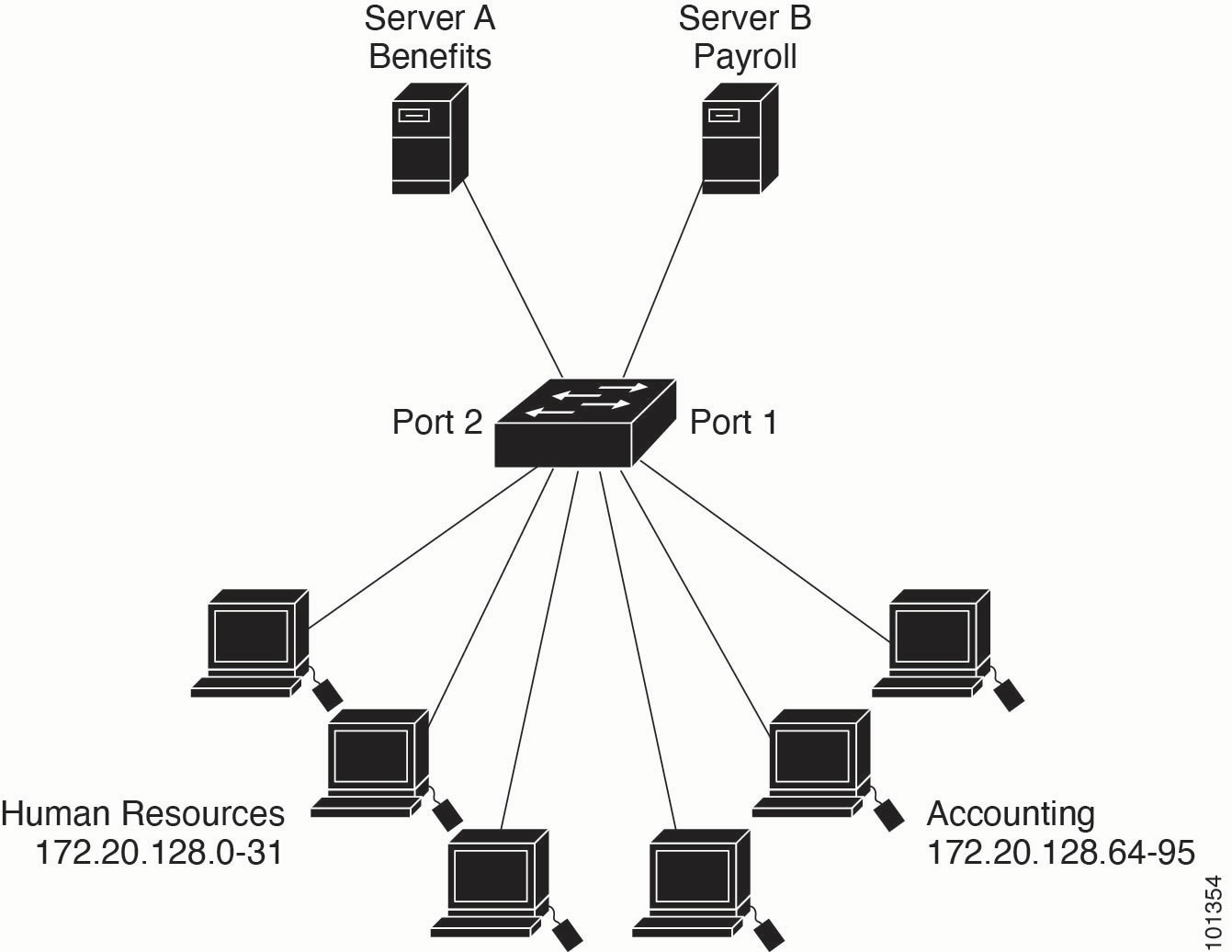
Example: Configure ACLs in a small networked office

Consider a small networked office environment that consists of the following:

  • Server A stores company information that can be accessed by all employees.

  • Server B stores confidential information that must have restricted access.

  • Routed Port 1 is connected to Server B.

  • Router Port 2 is connected to Server A

Figure 3. Small networked office environment

Use router ACLs to do this in one of two ways:

  • Create a standard ACL, and filter traffic coming to the server from Port 1.

  • Create an extended ACL, and filter traffic coming from the server into Port 1.

Standard ACL

This example shows how to configure a standard ACL that permits traffic only from source addresses within the range 172.20.128.64 to 172.20.128.95. This ACL is applied to traffic exiting a routed port from these specified source addresses.


Device enable
Device# configure terminal
Device(config)# access-list 6 permit 172.20.128.64 0.0.0.31
Device(config)# exit

Device# show access-lists
        Standard IP access list 6
        10 permit 172.20.128.64, wildcard bits 0.0.0.31
        
Device# configure terminal
Device(config)# interface gigabitethernet1/0/1
Device(config-if)# ip access-group 6 out
Device(config-if)# end

Extended ACL

This example shows how to configure an extended ACL that permits traffic from any source address to the destination addresses within the range from 172.20.128.64 to 172.20.128.95. The ACL is applied to traffic entering a routed port that permits access only for the specified destination addresses.


Note


The protocol (IP) must be specified before the source and destination details for extended ACLs.


Device(config)# access-list 106 permit ip any 172.20.128.64 0.0.0.31
Device(config)# exit
Device# show access-lists
        Extended IP access list 106
        10 permit ip any 172.20.128.64 0.0.0.31
Device# configure terminal
Device(config)# interface gigabitethernet1/0/1
Device(config-if)# ip access-group 106 in
Device(config-if)# end

Example: Configure Numbered ACLs

Consider a Class A network with IP address 10.0.0.0. The second octet specific the subnet mask which is 255.255.0.0. The third and fourth octets specify a particular host.

This example shows how to configure an access list 2. The access list permits a single address on subnet 48 and denies all other addresses on the subnet. The access list also allows traffic from all other subnets within the 10.0.0.0 network. The ACL is applied to packets entering a port.


Device> enable
Device# configure terminal
Device(config)# access-list 2 permit 10.48.0.3
Device(config)# access-list 2 deny 10.48.0.0 0.0.255.255
Device(config)# access-list 2 permit 10.0.0.0 0.255.255.255
Device(config)# interface gigabitethernet2/0/1
Device(config-if)# ip access-group 2 in
Device(config-if)# end

Example: Configure Extended ACLs

This example shows how to configure an extended ACL that

  • permits any incoming TCP connections with destination ports greater than 1023.

  • permits incoming TCP connections to the Simple Mail Transfer Protocol (SMTP) port of host 172.16.0.0.

  • permits incoming ICMP messages for error feedback.


Device> enable
Device# configure terminal
Device(config)# access-list 102 permit tcp any 172.16.0.0 0.0.255.255 gt 1023
Device(config)# access-list 102 permit tcp any host 172.16.1.2 eq 25
Device(config)# access-list 102 permit icmp any any
Device(config)# interface gigabitethernet 2/0/1
Device(config-if)# ip access-group 102 in
Device(config-if)# end

Consider a network connected to the Internet. You want any host on the network to be able to form TCP connections to any host on the Internet. You want to restrict IP hosts to form TCP connections to hosts on your network expect to the mail server (SMTP) port of a dedicated mail host.

SMTP uses TCP port 25 on one end of the connection and a random port number on the other end. The same port numbers are used throughout the life of the connection. Mail packets coming in from the Internet have a destination port of 25. Because the secure system of the network always accepts mail connections on port 25, the incoming sevices are separately controlled.


 Device> enable
 Device# configure terminal
 Device(config)# access-list 102 permit tcp any 172.16.0.0 0.0.255.255 eq 23
Device(config)# access-list 102 permit tcp any 172.16.0.0 0.0.255.255 eq 25
Device(config)# interface gigabitethernet 1/0/1
Device(config-if)# ip access-group 102 in
Device(config-if)# end

In this example, the network uses the Class B address 172.16.0.0, with a mail server located at 172.16.1.2. The access list utilizes the established keyword for TCP traffic to permit only packets that are part of an existing connection (those with the ACK or RST bits set). Gigabit Ethernet interface 1 connects the device to the Internet.


Device> enable 
Device# configure terminal
Device(config)# access-list 102 permit tcp any 172.16.0.0 0.0.255.255 established
Device(config)# access-list 102 permit tcp any host 172.16.1.2 eq 25
Device(config)# interface gigabitethernet 1/0/1
Device(config-if)# ip access-group 102 in
Device(config-if)# end

Example: Configure Named ACLs

Creating named standard and extended ACLs

This example shows how to configure a standard ACL named internet_filter and an extended ACL named marketing_group . The internet_filter ACL must allow all traffic from the source address 10.2.3.4.


Device> enable
Device# configure terminal
Device(config)# ip access-list standard Internet_filter
Device(config-ext-nacl)# permit 10.2.3.4
Device(config-ext-nacl)# exit
Device(config-ext-nacl)# end

The marketing_group ACL must allow any TCP Telnet traffic to the destination address and wildcard 172.16.0.0 0.0.255.255 and deny any other TCP traffic. It permits ICMP traffic, denies UDP traffic from any source to the destination address range 172.16.0.0 through 172.16.255.255 with a destination port less than 1024, denies any other IP traffic, and provides a log of the result.


Device> enable
Device# configure terminal
Device(config)# ip access-list extended marketing_group
Device(config-ext-nacl)# permit tcp any 172.16.0.0 0.0.255.255 eq telnet
Device(config-ext-nacl)# deny tcp any any
Device(config-ext-nacl)# permit icmp any any
Device(config-ext-nacl)# deny udp any 172.16.0.0 0.0.255.255 lt 1024
Device(config-ext-nacl)# deny ip any any log
Device(config-ext-nacl)# end

The Internet_filter ACL is applied to outgoing traffic and the marketing_group ACL is applied to incoming traffic on a Layer 3 port.


Device> enable
Device# configure terminal
Device(config)# interface gigabitethernet3/0/2
Device(config-if)# no switchport
Device(config-if)# ip address 10.0.5.1 255.255.255.0
Device(config-if)# ip access-group Internet_filter out
Device(config-if)# ip access-group marketing_group in
Device(config-if)# end

Deleting individual ACEs from named ACLs

This example shows how to delete individual ACEs from the named access list border-list :


Device> enable
Device# configure terminal
Device(config)# ip access-list extended border-list
Device(config-ext-nacl)# no permit ip host 10.1.1.3 any
Device(config-ext-nacl)# end

This example is a named extended access list ext1 that permits ICMP packets from any source to 10.1.1.0 0.0.0.255 and denies all UDP packets.


Device> enable
Device# configure terminal
Device(config)# ip access-list extended ext1
Device(config-ext-nacl)# permit icmp any 10.1.1.0 0.0.0.255 log
Device(config-ext-nacl)# deny udp any any log
Device(config-std-nacl)# exit
Device(config)# interface gigabitethernet1/0/2
Device(config-if)# ip access-group ext1 in
Device(config)# end

This is a an example of a log for an extended ACL:


01:24:23:%SEC-6-IPACCESSLOGDP:list ext1 permitted icmp 10.1.1.15 -> 10.1.1.61 (0/0), 1 packet
01:25:14:%SEC-6-IPACCESSLOGDP:list ext1 permitted icmp 10.1.1.15 -> 10.1.1.61 (0/0), 7 packets
01:26:12:%SEC-6-IPACCESSLOGP:list ext1 denied udp 0.0.0.0(0) -> 255.255.255.255(0), 1 packet
01:31:33:%SEC-6-IPACCESSLOGP:list ext1 denied udp 0.0.0.0(0) -> 255.255.255.255(0), 8 packets

Note that all logging entries for IP ACLs start with %SEC-6-IPACCESSLOG with minor variations in format depending on the kind of ACL and the access entry that has been matched. This is an example of an output message when the log-input keyword is entered:


00:04:21:%SEC-6-IPACCESSLOGDP:list inputlog permitted icmp 10.1.1.10 (Vlan1 0001.42ef.a400) ->
10.1.1.61 (0/0), 1 packet

A log message for the same sort of packet using the log keyword does not include the input interface information:

00:05:47:%SEC-6-IPACCESSLOGDP:list inputlog permitted icmp 10.1.1.10 -> 10.1.1.61 (0/0), 1 packet

Example: Configure ACEs and fragmented and unfragmented traffic

The following example shows how to configure an access list 102 that can be applied to three fragemented packets.

Consider access list 102, configured with these commands, applied to three fragmented packets:


Device> enable
Device# configure terminal
Device(config)# access-list 102 permit tcp any host 10.1.1.1 eq smtp
Device(config)# access-list 102 deny tcp any host 10.1.1.2 eq telnet
Device(config)# access-list 102 permit tcp any host 10.1.1.2
Device(config)# access-list 102 deny tcp any any
Device(config)# end
        

Note


In the first and second ACEs in the examples, the eq keyword after the destination address means to test for the TCP-destination-port well-known numbers equaling Simple Mail Transfer Protocol (SMTP) and Telnet, respectively.


  • Packet A:

    This is a TCP packet from host 10.2.2.2, source port 65000, destined for host 10.1.1.1 on the SMTP port. If the packet is fragmented, the first fragment matches the first ACE (permit) because it contains all Layer 4 information, including the destination port. The remaining fragments, though missing Layer 4 details, still match the first ACE since it checks only Layer 3 information for fragments. The key matching information is that the protocol is TCP and the destination address is 10.1.1.1.

  • Packet B:

    This packet comes from host 10.2.2.2, source port 65001, and is destined for host 10.1.1.2 on the Telnet port. If fragmented, the first fragment matches the second ACE (deny) because it includes all necessary Layer 3 and Layer 4 information. The subsequent fragments, lacking Layer 4 details, do not match the second ACE and instead match the third ACE (permit). However, since the initial fragment is denied, host 10.1.1.2 cannot reassemble the packet, effectively blocking it. Despite this, the permitted later fragments still use network bandwidth and resources as the host attempts reassembly.

  • Packet C:

    This is a fragmented TCP packet from host 10.2.2.2, source port 65001, going to host 10.1.1.3, destination port FTP. The first fragment matches the fourth ACE (deny). All subsequent fragments also match the fourth ACE because it evaluates only Layer 3 information, and they are addressed to 10.1.1.3; previous permit ACEs apply to different destinations.

Examples: Configure time ranges with ACLs

This example shows how to verify after you configure time ranges for workhours and to configure January 1, 2006, as a company holiday.

Device# show time-range 
time-range entry: new_year_day_2003 (inactive) 
  absolute start 00:00 01 January 2006 end 23:59 01 January 2006 
time-range entry: workhours (inactive) 
  periodic weekdays 8:00 to 12:00 
periodic weekdays 13:00 to 17:00 

To apply a time range, enter the time-range name in an extended ACL that can implement time ranges. This example shows how to create and verify extended access list 188 that denies TCP traffic from any source to any destination during the defined holiday times and permits all TCP traffic during work hours.

Device> enable
Device# configure terminal 
Device(config)# access-list 188 deny tcp any any time-range new_year_day_2006 
Device(config)# access-list 188 permit tcp any any time-range workhours 
Device(config)# exit
Device# show access-lists
Extended IP access list 188 
  10 deny tcp any any time-range new_year_day_2006 (inactive) 
  20 permit tcp any any time-range workhours (inactive) 

This example uses named ACLs to permit and deny the same traffic.


Device> enable
Device# configure terminal
Device(config)# ip access-list extended deny_access
Device(config-ext-nacl)# deny tcp any any time-range new_year_day_2006
Device(config-ext-nacl)# exit 
Device(config)# ip access-list extended may_access
Device(config-ext-nacl)# permit tcp any any time-range workhours
Device(config-ext-nacl)# end
Device# show ip access-lists
Extended IP access list lpip_default 
  10 permit ip any any 
Extended IP access list deny_access 
  10 deny tcp any any time-range new_year_day_2006 (inactive) 
Extended IP access list may_access 
  10 permit tcp any any time-range workhours (inactive) 

Example: Apply time range to an ACL

This example denies HTTP traffic on IP on Monday through Friday between the hours of 8:00 a.m. and 6:00 p.m (18:00). The example allows UDP traffic only on Saturday and Sunday from noon to 8:00 p.m. (20:00).

Device> enable
Device# configure terminal
Device(config)# time-range no-http
Device(config)# periodic weekdays 8:00 to 18:00
Device(config)# time-range udp-yes
Device(config)# periodic weekend 12:00 to 20:00
Device(config)# ip access-list extended strict
Device(config-ext-nacl)# deny tcp any any eq www time-range no-http D
evice(config-ext-nacl)# permit udp any any time-range udp-yes
Device(config-ext-nacl)# exit
Device(config)# interface gigabitethernet2/0/1
Device(config-if)# ip access-group strict in 
Device(config-if)# end 

Examples: Include comments in ACLs

You can use the remark keyword to include comments (remarks) about entries in any IP standard or extended ACL. The remarks make the ACL easier for you to understand and scan. Each remark line is limited to 100 characters.

The remark can go before or after a permit or deny statement. You should be consistent about where you put the remark so that it is clear which remark describes which permit or deny statement. For example, it would be confusing to have some remarks before the associated permit or deny statements and some remarks after the associated statements.

To include a comment for IP numbered standard or extended ACLs, use the access-list access-list number remark remark global configuration command. To remove the remark, use the no form of this command.

In this example, the workstation that belongs to user1 is allowed access, and the workstation that belongs to user2 is not allowed access:

Device> enable
Device# configure terminal
Device(config)# access-list 1 remark Permit only user1 workstation through 
Device(config)# access-list 1 permit 171.69.2.88 
Device(config)# access-list 1 remark Do not allow user2 through 
Device(config)# access-list 1 deny 171.69.3.13 
Device(config)# end

For an entry in a named IP ACL, use the remark access-list configuration command. To remove the remark, use the no form of this command.

In this example, the subnet1 subnet is not allowed to use outbound Telnet:

Device> enable 
Device# configure terminal 
Device(config)# ip access-list extended telnetting 
Device(config-ext-nacl)# remark Do not allow subnet1 subnet to telnet out 
Device(config-ext-nacl)# deny tcp host 171.69.2.88 any eq telnet 
Device(config-ext-nacl)# end

Example: Create an ACL and a VLAN Map to deny a packet

This example shows how to create an ACL and a VLAN map to deny a packet. In the first map, any packets that match the ip1 ACL (TCP packets) would be dropped. You first create the ip1 ACL to permit any TCP packet and no other packets. Because there is a match clause for IP packets in the VLAN map, the default action is to drop any IP packet that does not match any of the match clauses.

Device> enable
Device# configure terminal 
Device(config)# ip access-list extended ip1 
Device(config-ext-nacl)# permit tcp any any 
Device(config-ext-nacl)# exit 
Device(config)# vlan access-map map_1 10 
Device(config-access-map)# match ip address ip1 
Device(config-access-map)# action drop 
Device(config-access-map)# end

Example: Create an ACL and a VLAN map to permit a packet

This example shows how to create a VLAN map to permit a packet. ACL ip2 permits UDP packets and any packets that match the ip2 ACL are forwarded. In this map, any IP packets that did not match any of the previous ACLs (that is, packets that are not TCP packets or UDP packets) would get dropped.

Device> enable 
Device# configure terminal 
Device(config)# ip access-list extended ip2 
Device(config-ext-nacl)# permit udp any any 
Device(config-ext-nacl)# exit 
Device(config)# vlan access-map map_1 20 
Device(config-access-map)# match ip address ip2 
Device(config-access-map)# action forward 
Device(config-access-map)# exit 

Example: Default action of dropping IP packets and forwarding MAC packets

In this example, the VLAN map has a default action of drop for IP packets and a default action of forward for MAC packets. Used with standard ACL 101 and extended named access lists igmp-match and tcp-match , the map will have the following results:

  • Forward all UDP packets

  • Drop all IGMP packets

  • Forward all TCP packets

  • Drop all other IP packets

  • Forward all non-IP packets

Device> enable 
Device# configure terminal 
Device(config)# access-list 101 permit udp any any 
Device(config)# ip access-list extended igmp-match 
Device(config-ext-nacl)# permit igmp any any 
Device(config)# action forward 
Device(config-ext-nacl)# permit tcp any any 
Device(config-ext-nacl)# exit 
Device(config)# vlan access-map drop-ip-default 10 
Device(config-access-map)# match ip address 101 
Device(config-access-map)# action forward 
Device(config-access-map)# exit 
Device(config)# vlan access-map drop-ip-default 20 
Device(config-access-map)# match ip address igmp-match 
Device(config-access-map)# action drop 
Device(config-access-map)# exit 
Device(config)# vlan access-map drop-ip-default 30 
Device(config-access-map)# match ip address tcp-match 
Device(config-access-map)# action forward 
Device(config-access-map)# end 

Example: Default action of dropping MAC packets and forwarding IP packets

In this example, the VLAN map has a default action of drop for MAC packets and a default action of forward for IP packets. Used with MAC extended access lists good-hosts and good-protocols , the map will have the following results:

  • Forward MAC packets from hosts 0000.0c00.0111 and 0000.0c00.0211

  • Forward MAC packets with decnet-iv or vines-ip protocols

  • Drop all other non-IP packets

  • Forward all IP packets

Device> enable 
Device# configure terminal 
Device(config)# mac access-list extended good-hosts 
Device(config-ext-macl)# permit host 000.0c00.0111 any 
Device(config-ext-macl)# permit host 000.0c00.0211 any 
Device(config-ext-nacl)# exit 
Device(config)# action forward 
Device(config-ext-macl)# mac access-list extended good-protocols 
Device(config-ext-macl)# permit any any vines-ip 
Device(config-ext-nacl)# exit 
Device(config)# vlan access-map drop-mac-default 10 
Device(config-access-map)# match mac address good-hosts 
Device(config-access-map)# action forward 
Device(config-access-map)# exit 
Device(config)# vlan access-map drop-mac-default 20 
Device(config-access-map)# match mac address good-protocols 
Device(config-access-map)# action forward 
Device(config-access-map)# end

Example: Default action of dropping all packets

In this example, the VLAN map has a default action of drop for all packets (IP and non-IP). Used with access lists tcp-match and good-hosts from Examples 2 and 3, the map will have the following results:

  • Forward all TCP packets

  • Forward MAC packets from hosts 0000.0c00.0111 and 0000.0c00.0211

  • Drop all other IP packets

  • Drop all other MAC packets

Device> enable 
Device# configure terminal 
Device(config)# vlan access-map drop-all-default 10 
Device(config-access-map)# match ip address tcp-match 
Device(config-access-map)# action forward 
Device(config-access-map)# exit 
Device(config)# vlan access-map drop-all-default 20 
Device(config-access-map)# match mac address good-hosts 
Device(config-access-map)# action forward 
Device(config-access-map)# end

Example: Configure VLAN maps in a network

Wiring closet configuration

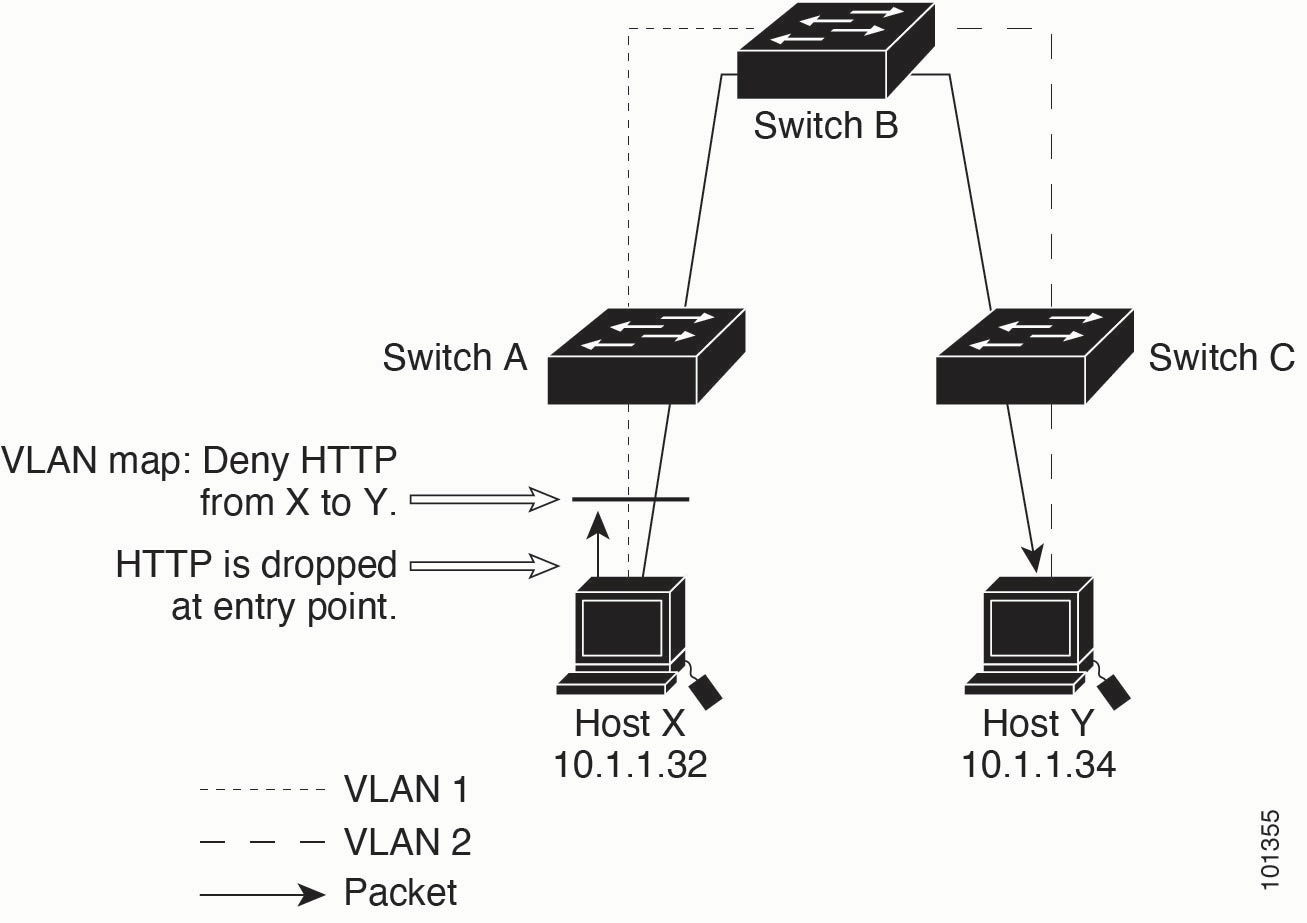
In a wiring closet configuration, routing might not be enabled on the switch. In this configuration, the switch can still support a VLAN map and a QoS classification ACL. Assume that Host X and Host Y are in different VLANs and are connected to wiring closet switches A and C. Traffic from Host X to Host Y is eventually being routed by Switch B, a Layer 3 switch with routing enabled. Traffic from Host X to Host Y can be access-controlled at the traffic entry point, Switch A.

Figure 4. Wiring Closet Configuration

If you do not want HTTP traffic switched from Host X to Host Y, you can configure a VLAN map on Switch A to drop all HTTP traffic from Host X (IP address 10.1.1.32) to Host Y (IP address 10.1.1.34) at Switch A and not bridge it to Switch B.

First, define the IP access list http that permits (matches) any TCP traffic on the HTTP port.

Device> enable
Device# configure terminal
Device(config)# ip access-list extended http
Device(config-ext-nacl)# permit tcp host 10.1.1.32 host 10.1.1.34 eq www
Device(config-ext-nacl)# end

Next, create VLAN access map map2 so that traffic that matches the http access list is dropped and all other IP traffic is forwarded.

Device> enable
Device# configure terminal
Device(config)# vlan access-map map2 10
Device(config-access-map)# match ip address http
Device(config-access-map)# action drop
Device(config-access-map)# exit
Device(config)# ip access-list extended match_all
Device(config-ext-nacl)# permit ip any any
Device(config-ext-nacl)# exit
Device(config)# vlan access-map map2 20
Device(config-access-map)# match ip address match_all
Device(config-access-map)# action forward
Device(config-access-map)# end

Then, apply VLAN access map map2 to VLAN 1.

Device> enable
Device# configure terminal
Device(config)# vlan filter map2 vlan 1
Device(config)# end

Restrict access to a server on another VLAN

You can restrict access to a server on another VLAN. For example, server 10.1.1.100 in VLAN 10 needs to have access denied to these hosts:

  • Hosts in subnet 10.1.2.0/8 in VLAN 20 should not have access.

  • Hosts 10.1.1.4 and 10.1.1.8 in VLAN 10 should not have access.

Figure 5. Restrict Access to a Server on Another VLAN.

Deny access to a server on another VLAN

This example shows how to deny access to a server on another VLAN by creating the VLAN map SERVER 1 that denies access to hosts in subnet 10.1.2.0.8, host 10.1.1.4, and host 10.1.1.8 and permits other IP traffic. The final step is to apply the map SERVER1 to VLAN 10.

Define the IP ACL that will match the correct packets.

Device> enable
Device# configure terminal
Device(config)# ip access-list extended SERVER1_ACL
Device(config-ext-nacl)# permit ip 10.1.2.0 0.0.0.255 host 10.1.1.100
Device(config-ext-nacl)# permit ip host 10.1.1.4 host 10.1.1.100
Device(config-ext-nacl)# permit ip host 10.1.1.8 host 10.1.1.100
Device(config-ext-nacl)# end

Define a VLAN map using this ACL that will drop IP packets that match SERVER1_ACL and forward IP packets that do not match the ACL.

Device> enable
Device# configure terminal
Device(config)# vlan access-map SERVER1_MAP
Device(config-access-map)# match ip address SERVER1_ACL
Device(config-access-map)# action drop
Device(config)# vlan access-map SERVER1_MAP 20
Device(config-access-map)# action forward
Device(config-access-map)# end

Apply the VLAN map to VLAN 10.

Device> enable
Device# configure terminal
Device(config)# vlan filter SERVER1_MAP vlan-list 10
Device(config)# end