Introduction

Welcome to the Cisco Secure Malware Analytics Appliance Administration Guide. This chapter provides a brief description of the appliance, the intended audience and how to access relevant product documentation.

About the Secure Malware Analytics Appliance

The Secure Malware Analytics Appliance provides safe and highly secure on-premises advanced malware analysis, with deep threat analytics and content. The appliance provides the complete malware analysis platform, installed on a Cisco Secure Malware Analytics M6 Applicance server (v.2.19 and later) or M5 Appliance server (v2.7.2 and later). It empowers organizations operating under various compliance and policy restrictions to submit malware samples to the appliance.


Note


Cisco UCS C220 M4 (TG5400) servers are still supported for Secure Malware Analytics Appliance, but the servers are end of life. The software version for M4 servers is capped at 2.19.6.


Many organizations that handle sensitive data, such as banks and health services, must follow various regulatory rules and guidelines that do not allow certain types of files, such as malware artifacts, to be sent outside of the network for malware analysis. By maintaining a Cisco Secure Malware Analytics Appliance on-premises, organizations are able to send suspicious documents and files to it to be analyzed without leaving the network.

With a Secure Malware Analytics Appliance, security teams can analyze all samples using proprietary and highly secure static and dynamic analysis techniques. The appliance correlates the analysis results with hundreds of millions of previously analyzed malware artifacts, to provide a global view of malware attacks and campaigns, and their distributions. A single sample of observed activity and characteristics can quickly be correlated against millions of other samples to fully understand its behaviors within a historical and global context. This ability helps security teams to effectively defend the organization against threats and attacks from advanced malware.
What's new in this release

Release 2.20.2 adds support for non-bootable airgap update media that can be attached to a running appliance and applied from the Update Appliance page in OpAdmin. This release also fixes an issue with user creation in the web UI.

Updates and Fixes
Web UI:
  • Fixed an issue that prevented Organization Admins from creating users in the web UI.

  • Fixed an issue where in-progress samples would override the display of some rows on the Samples page.

Elasticsearch Migration: Fixed an earlier known issue where a reconfiguration during the Elasticsearch migration could cause the process to fail.

Documentation: Removed references to the Content Update information in the admin guide.

Major Upgrades
Airgap update:: Added support for airgap update media written to a USB device or mounted as virtual media using the Cisco Integrated Management Controller (CIMC) interface.

Known Issues

Password Expiration Screen After Reset: After a successful password reset, the password expiration splash screen may continue to appear.

Audience

This guide is intended to be used by the Secure Malware Analytics Appliance administrator after the appliance has been set up and configured, and an initial test malware sample has been successfully submitted and analyzed. It describes how to manage organizations and users for the malware analysis tool, appliance updates, backups, and other server administration tasks.

This guide also provides information for administrators who are integrating the Secure Malware Analytics Appliance with other Cisco products and services, such as Cisco Email Security Appliance, Cisco Web Security Appliance, and Secure Endpoint Private Cloud devices.


Note


For information about Secure Malware Analytics Appliance setup and configuration, see the Cisco Threat Grid Appliance Getting Started Guide.


About This Guide

This guide provides planning information, configuration tasks, and general administrative tasks, and is organized as follows:

Chapter

Description

Introduction

Provides brief description of the appliance, the intended audience, how to access relevant product documentation, log in names and passwords, how to reset the administrator password, and contacting Support.

SMA User Interfaces

Describes the 3 different user interfaces available in Secure Malware Analytics for different set of users.

Planning

Describes the environmental, hardware, and network requirements that should be reviewed prior to setup and configuration.

Network Configuration Using the TGSH Dialog

Provides information about using the Admin TUI to make changes to your initial network configuration, reconnecting to the Admin TUI, and configuring the network in recovery mode.

Home

Provides information about using the Home screen of the OpAdmin.

Configuration

Provides information about using the OpAdmin to make configuration changes to your appliance.

Status

Provides information about viewing system information in the OpAdmin, such as installed system packages and their version, detailed logs, and available storage.

Operations

Provides information about activating configuration changes, reloading the OpAdmin, managing jobs and power settings, and installing updates.

Support

Provides instructions for starting a live support session and taking support snapshots to aid in resolving issues with the appliance.

Organizations and Users

Provides instructions for creating organizations, managing users, and activating a new device user account.

Inbound and Outbound Connections

Provides information about connecting other Cisco appliances (ESA and WSA), and Secure Endpoint Private Cloud to the Secure Malware Analytics Appliance.

Removing All Data with the Wipe Appliance Boot Option

Describes how to use the Wipe Appliance boot option to remove all data from the Secure Malware Analytics Appliance, including clusters.

Updating Firmware with FirmwareUp

Describes how to update firmware.

CIMC Configuration

Provides information about using the CIMC utility to set up remote server management.

User Documentation

Secure Malware Analytics Appliance User Guides

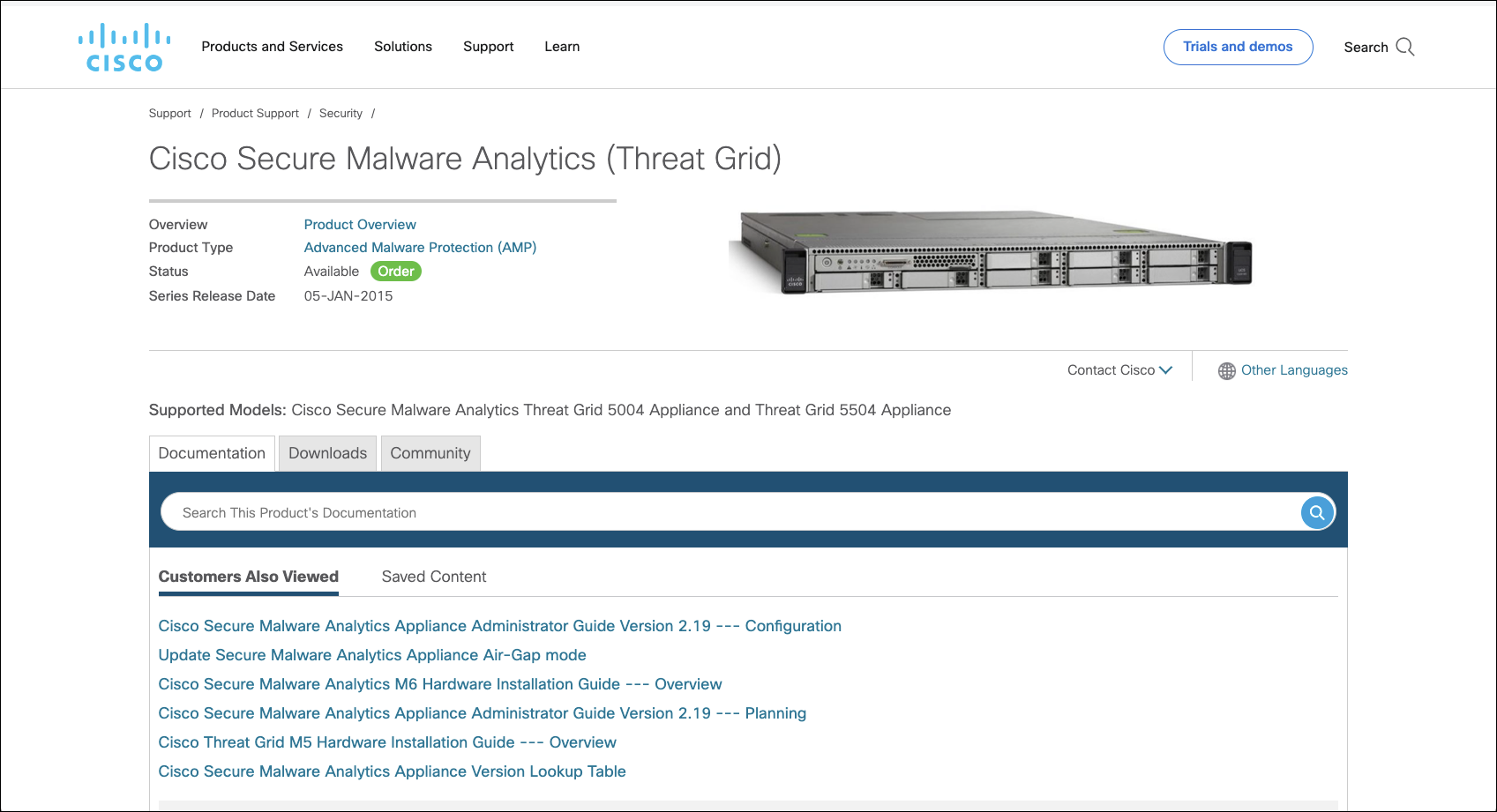
The latest versions of Cisco Secure Malware Analytics Appliance product documentation can be found on Cisco.com.

Figure 1. User Guides on Cisco.com

Secure Malware Analytics Portal UI Online Help

Secure Malware Analytics Portal user documentation, including Release Notes, Using Secure Malware Analytics Online Help, API documentation, and other information is available from the ? (Help) icon located in the navigation bar in the upper right corner of the Secure Malware Analytics user interface. The help for this interface, including API documentation, is available directly within the product and is not public.

Email Security Appliance and Web Security Appliance Documentation

For information on connecting an Email Security Appliance (ESA) or Web Security Appliance (WSA), see Integrations.

See the instructions for Enabling and Configuring File Reputation and Analysis Services in the online help or user guide for your ESA/WSA:

Login Names and Passwords (Default)

The default login names and passwords are listed in the following table:

User

Login/Password

OpAdmin and Shell User

Use the initial Secure Malware Analytics/Admin TUI randomly generated password, and then the new password entered during the first step of the OpAdmin configuration workflow.

If you lose the password, follow the instructions in Resetting the Administrator Password.

Secure Malware Analytics Web portal UI Administrator

Login: admin

Password: Initialize with the first OpAdmin password, and then it becomes independent.

CIMC

Login: admin

Password: password

Password Criteria

Passwords must include the following:

  • Minimum of 8 characters

  • At least one number

  • At least one special character

  • Uppercase and lowercase characters

Resetting the Administrator Password

The default administrator password is only visible in the Admin TUI during the initial appliance setup and configuration. Once the initial configuration is completed, the password is no longer displayed in visible text.


Note


LDAP/RADIUS authentication is available for Admin TUI and OpAdmin login when you have multiple administrators. If the appliance is configured for LDAP or RADIUS authentication only, resetting the password in recovery mode will reconfigure the authentication mode to allow login with system password as well.


If you lose the administrator password and are unable to log in to the OpAdmin, do one of the following to reboot the appliance.

Procedure


Step 1

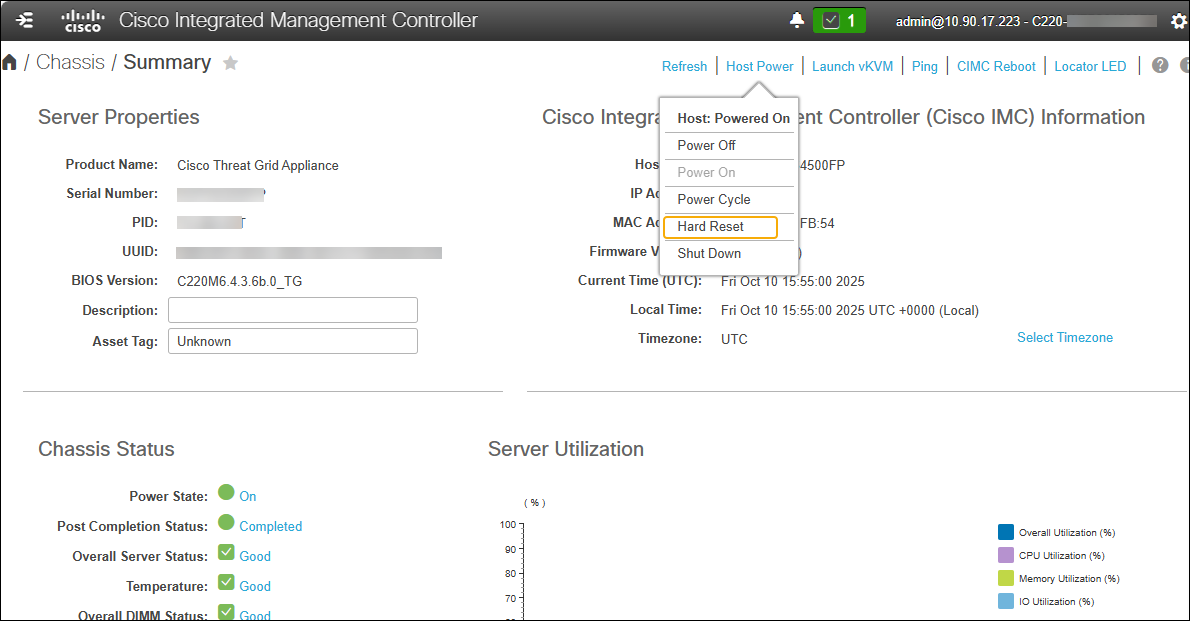
In CIMC, click Host Power > Hard Reset

Figure 2. CIMC - Hard Reset

Step 2

Press the Power on button on the Secure Malware Analytics Appliance. When you physically press the power on button, the appliane reboots, and opens the BIOS.

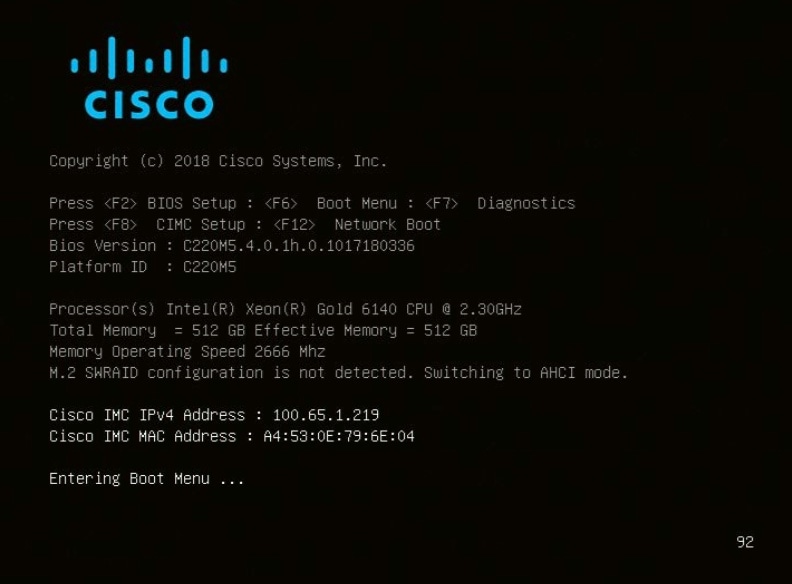
  1. In the BIOS window, press F6 to open the Boot menu.

    Figure 3. BIOS Window - Choose Boot Menu <F6> for Recovery Mode
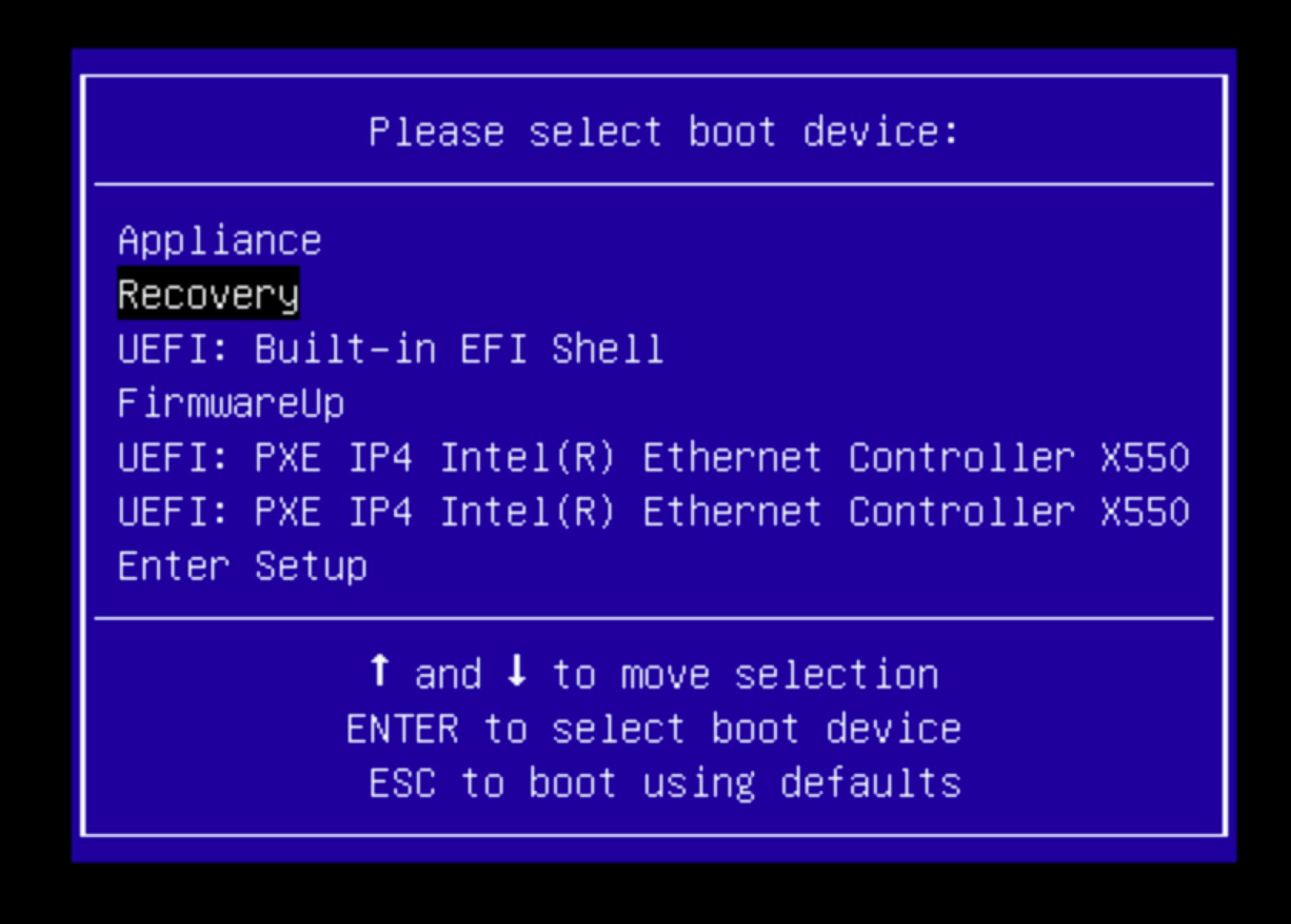
  2. Choose Recovery and press Enter.

    Figure 4. Boot Menu

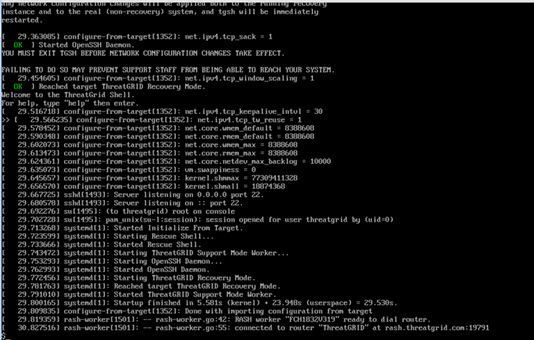
    The Secure Malware Analytics Shell opens in Recovery Mode.

    Figure 5. Secure Malware Analytics Shell (tgsh) in Recovery Mode
  3. Run passwd to change the password.

    Figure 6. Enter New Password

    Note


    Recovery mode now includes basic password validation to ensure minimum security standards are met during the emergency reset.

Step 3

Enter the password and press Enter.

Step 4

Re-type the password and press Enter.

Note


As you type, the password characters will not be displayed, and there will be no visual feedback (such as asterisks or dots).

Step 5

Type reboot and press Enter to start the appliance in normal mode.

Important


The system now automatically forces a password reset after a recovery mode change. Upon the first login following the use of the recovery image, you will be automatically prompted to set a new, compliant password. Because the system enforces this transition upon login, a manual reset via OpAdmin is no longer required to ensure compliance.