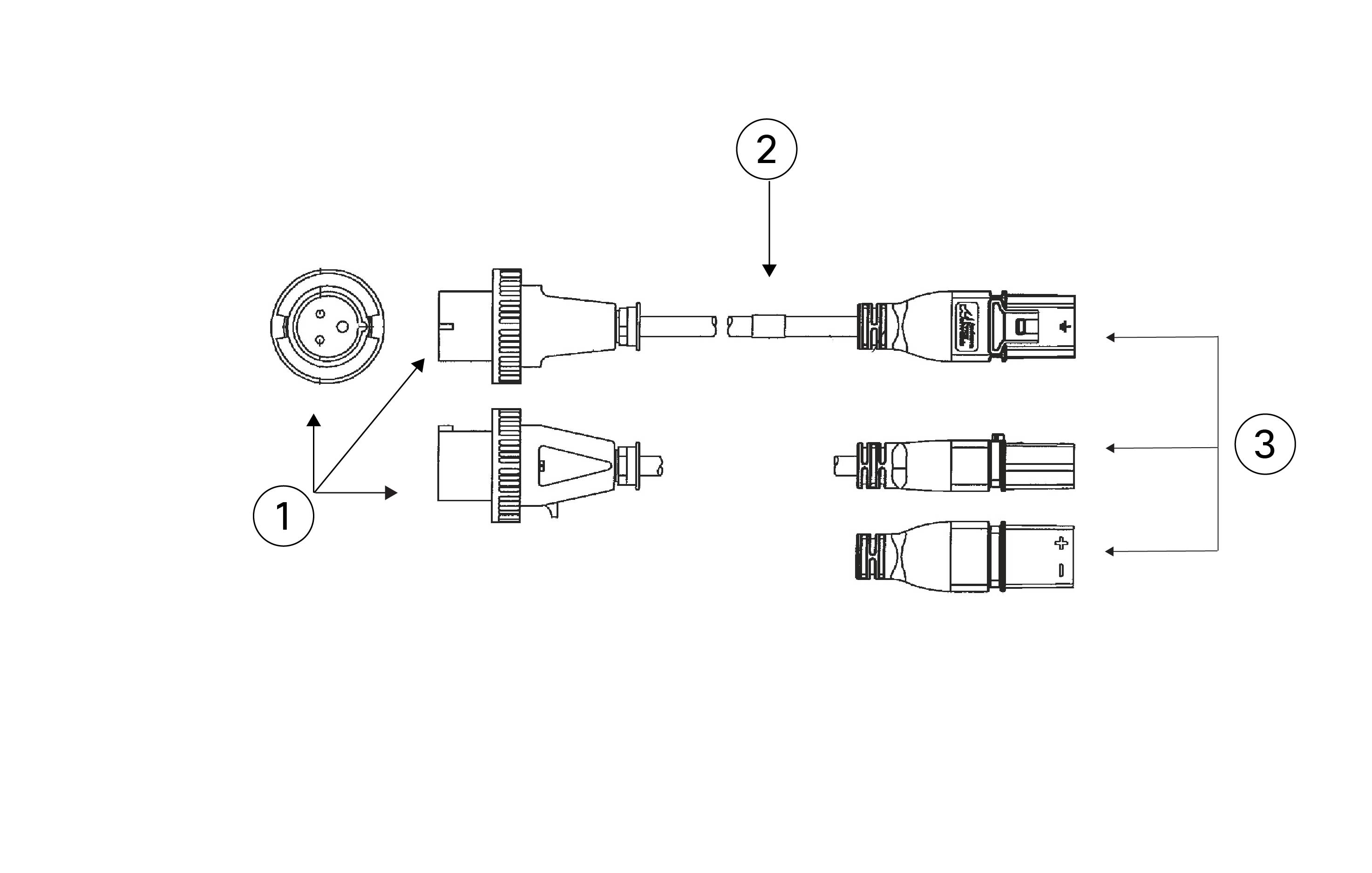
Overview

Features

The Cisco Secure Firewall 6100 series is a standalone modular security services platform that includes the 6160 and 6170. See Product ID numbers for a list of the product IDs (PIDs) associated with the 6100 series

The Secure Firewall 6100 series supports Cisco Secure Firewall Threat Defense Version 10.0.0 and Cisco Secure ASA Version 9.24.1 software. See the Cisco Secure Firewall Threat Defense Compatibility Guide and the Cisco Secure Firewall ASA Compatibility guides, which provide Cisco software and hardware compatibility, including operating system and hosting environment requirements, for each supported version.

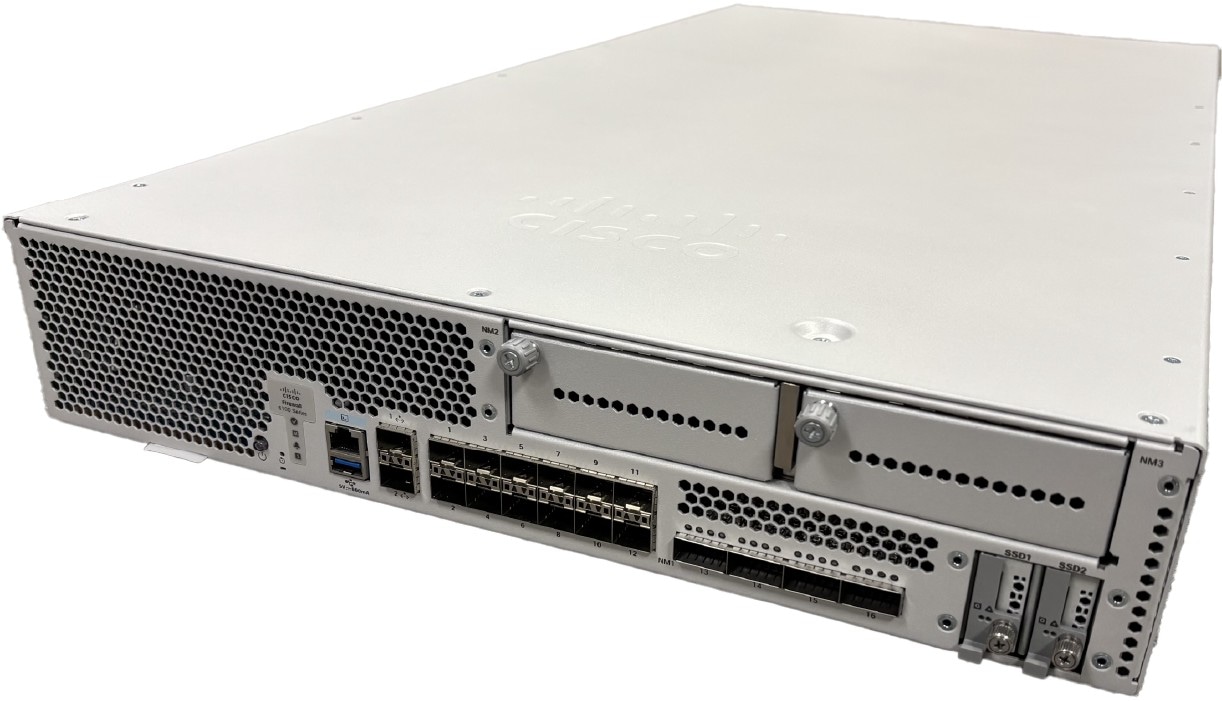
The following figure shows the Secure Firewall 6100 series.

Figure 1. CSF-6160 and CSF-6170

The following table lists the features for the Secure Firewall 6100 series.

Table 1. CSF-6160 and CSF-6170 features

Feature

CSF-6160

CSF-6170

Form factor

2 RU

Fits a standard 19-inch (48.3-cm) rack

Rack mount

Two slide-rail mounting brackets and two slide rails

4-post Electronic Industries Association (EIA)-310-D rack

Airflow

Front to rear (I/O side to non-I/O side)

Cold aisle to hot aisle

System memory

24 x 64 GB

24 x 96 GB

Management ports

Two 1/10/25-Gbps SFP28 ports

Console port

One Cisco Serial (RS-232 on RJ-45)

USB port

One USB 3.0 with a 5-W Type A port

Network ports

Twelve fixed 1/10/25/50-Gbps SFP56 fiber ports (named Ethernet 1/1 through 1/12)

Four fixed 4x40/100/200 QSFP56 ports (named Ethernet 1/13 to 1/16)

Network modules

Two (hot-swappable)

Note


Hot-swapping of identical modules is supported, but if you replace a network module with another type, you must reboot the system so that the new network module is recognized.

Supported network modules

  • 8-port 1/10-Gbps SFP+ (CSF6K-XNM-8X10G)

  • 8-port 1/10/25-Gbps SFP+ (CSF6K-XNM-8X25G)

  • 4-port 40-Gbps QSFP/QSFP+ (CSF6K-XNM-4X40G)

  • 4-port 40/100/200-Gbps QSFP56/QSFP (CSF6K-XNM-4X200G)

  • 2-port 100-Gbps QSFP56/QSFP28/QSFP (CSF6K-XNM-2X100G)

  • 6-port 1-Gbps SFP SX multimode hardware bypass (CSF6K-XNM-6X1SXF)

  • 6-port 10-Gbps SFP SR multimode hardware bypass (CSF6K-XNM-6X10SRF)

  • 6-port 10-Gbps SFP LR single mode hardware bypass (CSF6K-XNM-6X10LRF)

  • 6-port 25-Gbps SFP SR multimode hardware bypass (CSF6K-XNM-6X25SRF)

  • 6-port 25-Gbps SFP LR single mode hardware bypass (CSF6K-XNM-6X25LRF)

  • 8-port copper 1-Gbps 1000Base-T hardware bypass (CSF6K-XNM-8X1GF)

  • 2-port 400-Gbps QSFP-DD (CSF6K-XNM-2X400G)

Power supply

Dual high-voltage AC/DC power supplies

Supports HVAC, HVDC and LVDC (-48VDC)

  • High-line AC: Up to 3000 W per power supply,load-sharing redundancy, hot-swappable

  • Low-line AC: Up to 1500 W per power supply, load sharing with no redundancy

  • Both DC inputs connected: Up to 3000 W per power supply, load-sharing redundancy, hot-swappable

  • One DC input connected: Up to 1500 W per power supply, load sharing with no redundancy

Redundant power

Yes

1 + 1 redundancy with dual HVAC/HVDC, or dual inputs on LVDC

Note


Ships with two power supplies.

Fans

Four redundant dual-rotor fan modules; every module has 2 fans (hot-swappable)

Storage

Two SSD drives

Ships with two 3.6-TB SSDs; factory-configured for RAID1.

Two SSD drives

Ships with two 7.2-TB SSDs; factory-configured for RAID1.

Pullout asset card

Displays the serial number and a QR code that points to the Documentation Portal

Grounding

Grounding pad on the left side of chassis facing the rear panel

Power button

Controls the system's power; on front left panel

See Power button and reset button for more information on the power button.

Reset button

Resets the system to factory default without requiring serial console access; on front left panel.

See Power button and reset button for more information on the reset button.

Package contents

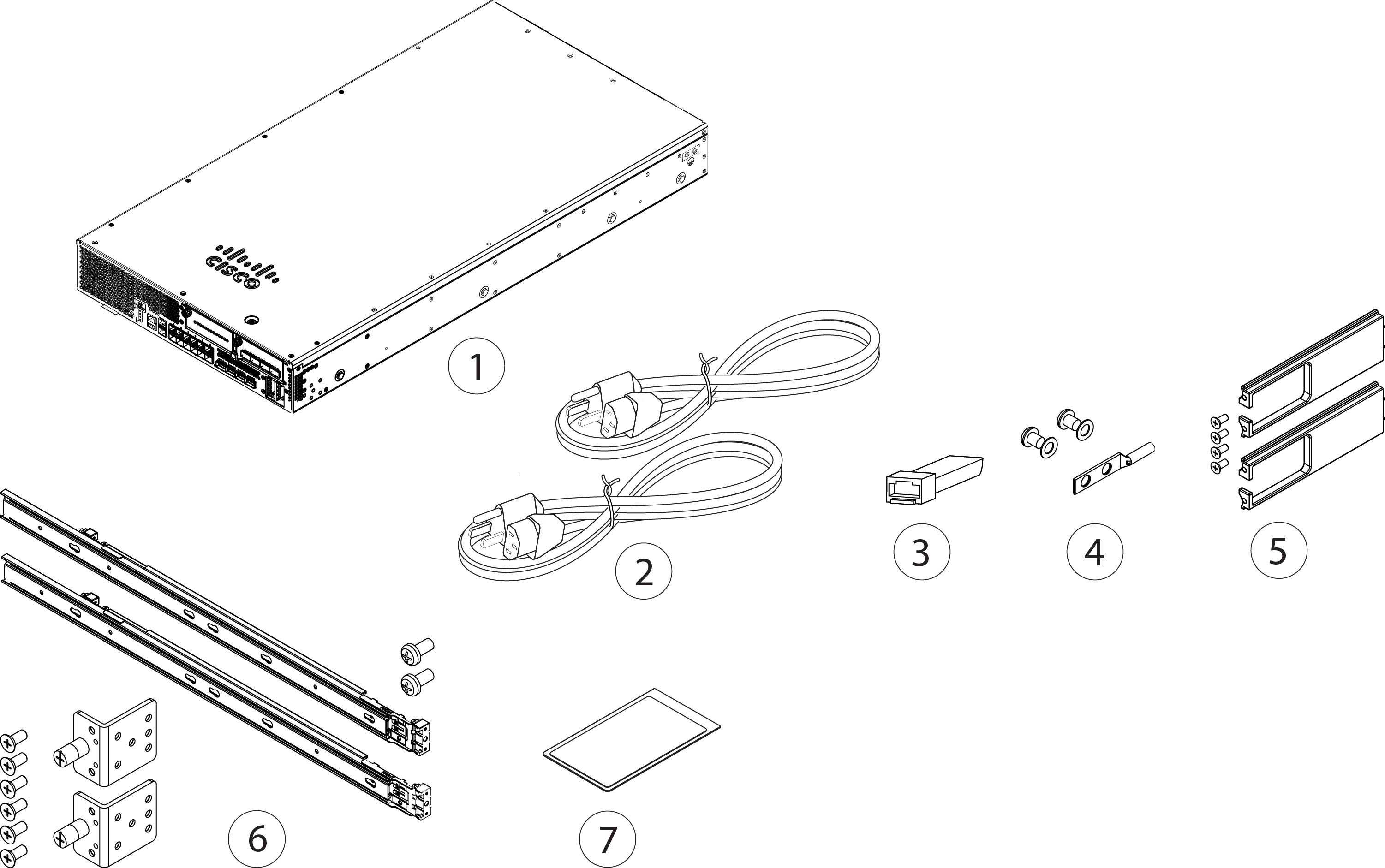
The following figure shows the package contents for the Secure Firewall 6100 series. The contents are subject to change and your exact contents contain additional or fewer items depending on whether you order the optional parts. See Product ID numbers for a list of PIDs associated with the package contents.

Figure 2. CSF-6160 and CSF-6170 package contents

1

Secure Firewall 6100 series chassis

2

Two power cords (country-specific)

See Power cord specifications for a list of supported power cords.

3

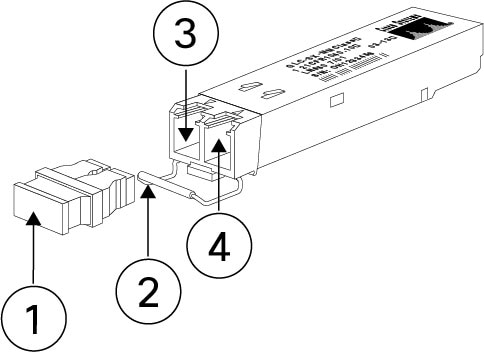
SFP transceiver

(Optional; in package if ordered)

4

Ground lug, screws, and washers

  • One ground lug #6AWG 0.25-inch hole

  • Two ¼-20 x 0.297-inch screws

  • Two 0.469-inch OD, 0.261-inch ID, 0.025-inch T washers

5

Cable management bracket kit

  • Two cable management brackets

  • Four 8-32 x 0.375-inch Phillips screws

(Optional; in package if ordered)

6

Slide rail accessories kit:

  • Two slide rails

  • Two slide rail mounting brackets

  • Six 8-32 x 0.302-inch slide rail mounting bracket Phillips screws for securing the brackets to the chassis

  • Two M3 x 0.5 x 6-mm Phillips screws for securing the chassis to your rack

7

Cisco Secure Firewall 6100

This document has links to the hardware installation guide, regulatory and safety information guide, and warranty and licensing information. It also contains a QR code and URL that point to the Digital Documentation Portal. The portal contains links to the product information page, the hardware installation guide, the regulatory and safety information guide, and the getting started guide.

—

Serial number and documentation portal QR code

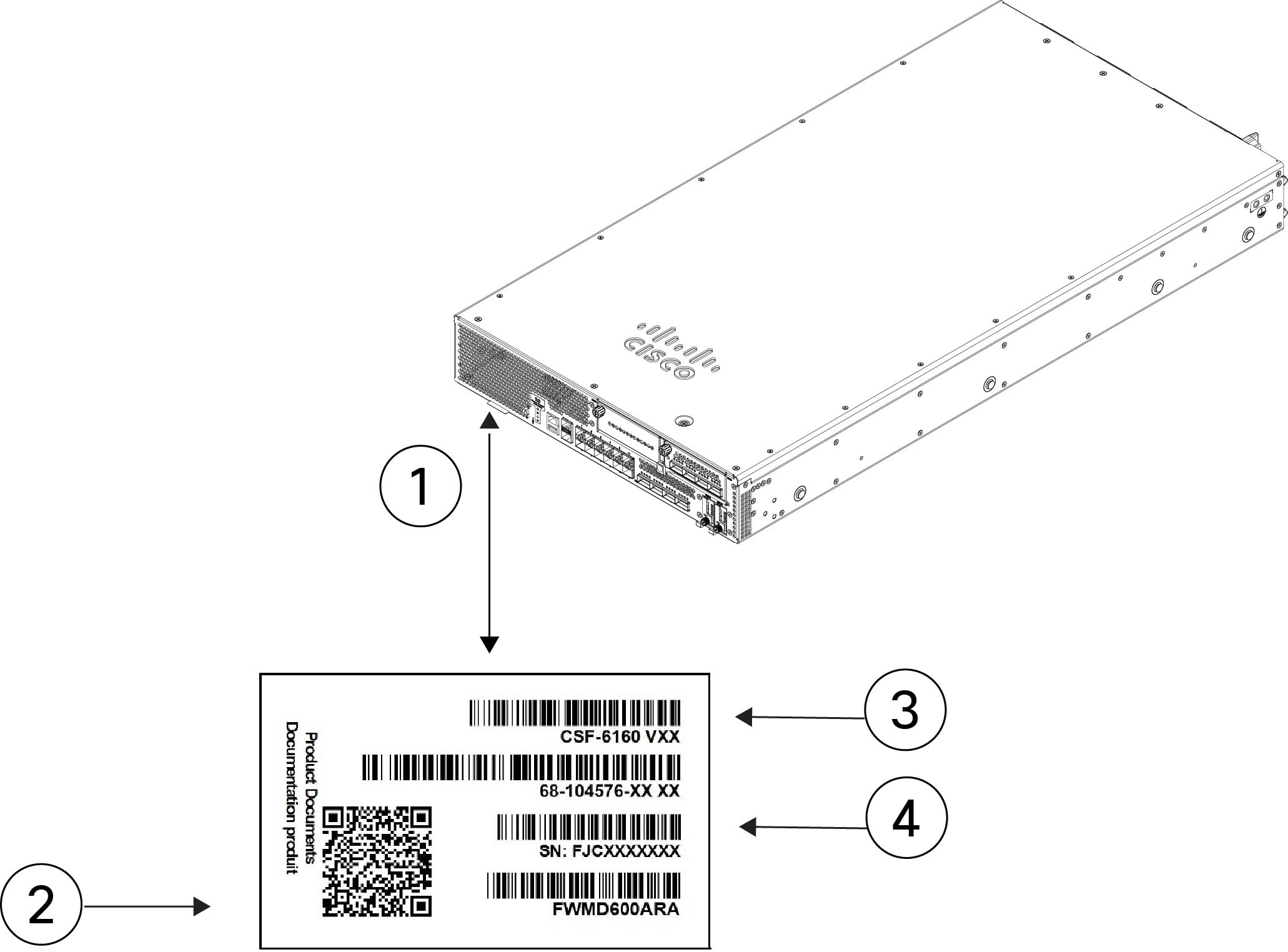
The pullout asset card on the front panel of your Secure Firewall 6100 series chassis contains the chassis serial number and the Documentation Portal QR code, which points to product information, the getting started guide, the regulatory and compliance guide, the hardware installation guide and the zero-touch provisioning guide.

Figure 3. Pullout asset card

1

Pullout asset tag

2

Documentation Portal QR code

3

Chassis model number

4

Chassis serial number

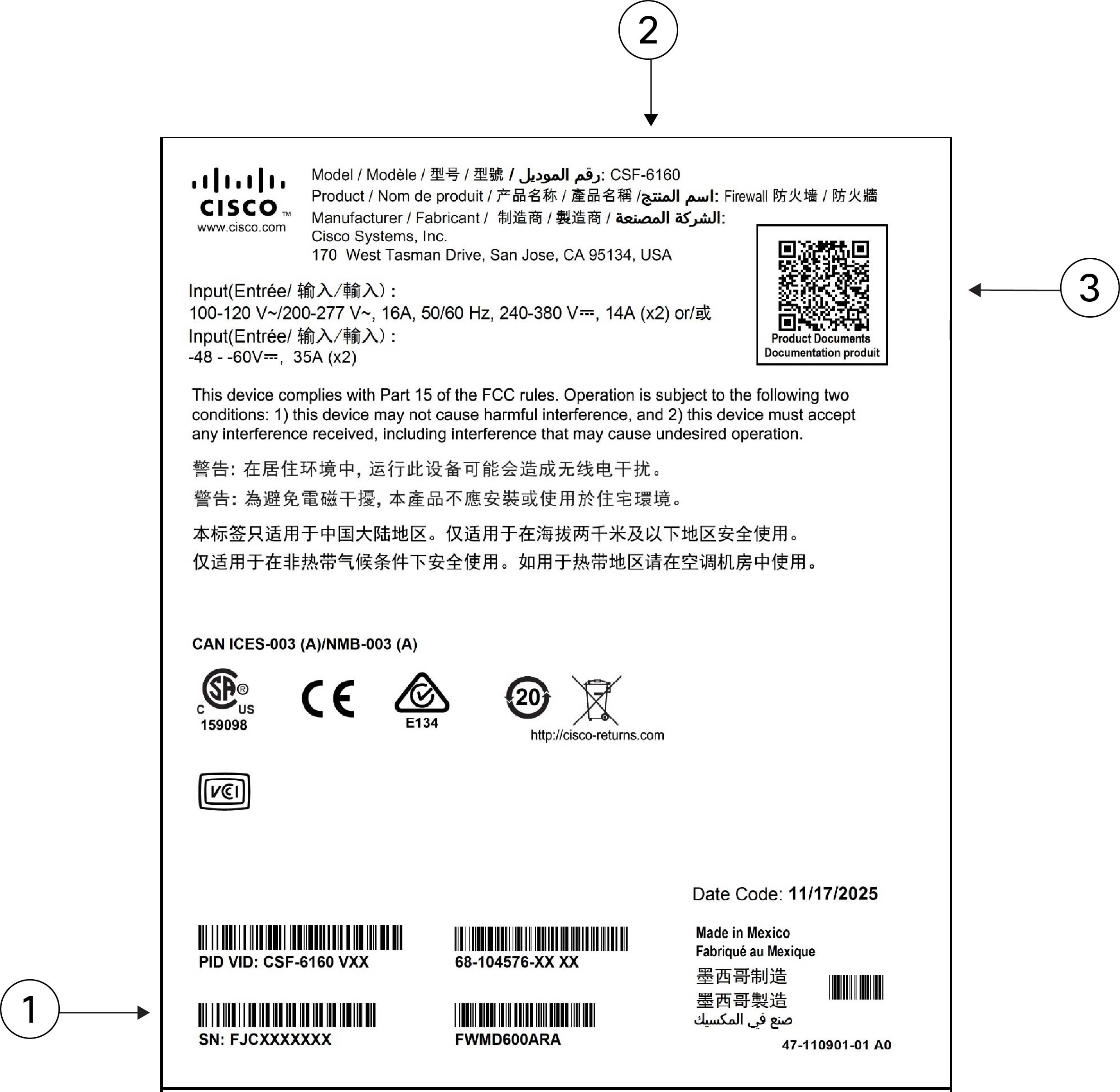
The compliance label on the bottom of the chassis contains the chassis serial number, regulatory compliance marks, and also the Documentation Portal QR code that points to the guides listed above. The following figure shows an example compliance label found on the bottom of the chassis.

Figure 4. Example compliance label

1

Serial number

2

Chassis model number

3

Documentation Portal QR code

—

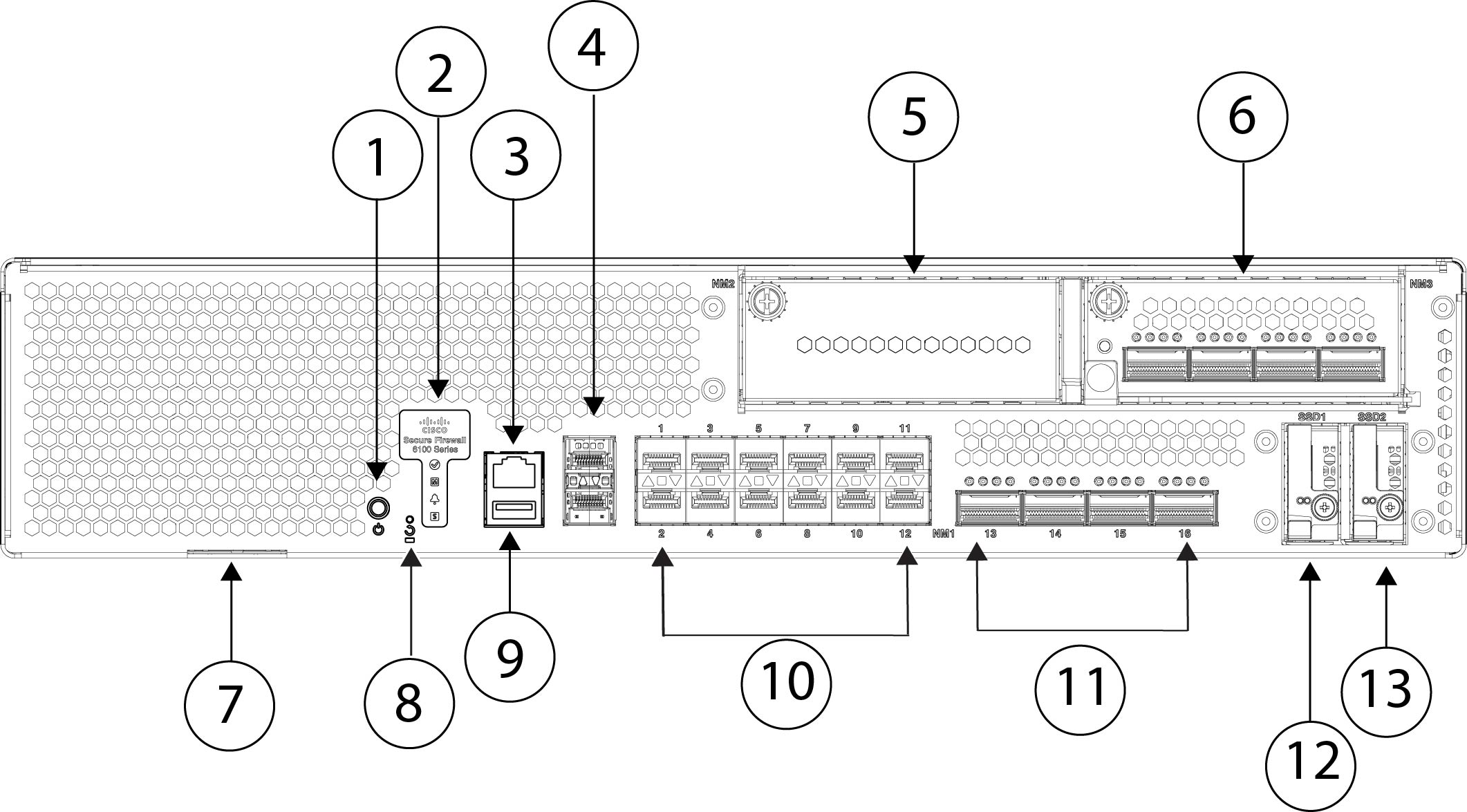
Front panel

The following figure shows the front panel of the Secure Firewall 6100 series. See Front panel LEDs for a description of the LEDs.

Figure 5. CSF-6160 and CSF-6170 front panel

1

Push ON/OFF button

Multi-function push button that controls the power cycle, shut down, and power up.

2

System LEDs

3

RJ-45 (8P8C) console port

4

Dual stacked management ports (supports 1/10/25-Gbps)

Top port:

  • Secure Firewall Threat Defense—Management 0 (also referred to as Management 1/1)

  • ASA—Management 1/1

Bottom port:

  • Secure Firewall Threat Defense—Management 1 (also referred to as Management 1/2)

  • ASA—Management 1/2

5

Network module slot (NM-2)

6

Network module slot (NM-3)

7

Pullout asset card with chassis serial number and QR code to the Digital Documentation Portal that has links to the getting started guide, hardware guide, and regulatory and compliance guide.

8

Recessed factory reset button

9

Type A USB 3.0 port

10

Twelve 1/10/25/50-Gbps SFP56 fixed fiber ports (NM-1)

Fiber ports named 1/1 through 1/12 left to right

11

Four 40/100/200-Gbps QSFP56 fixed fiber ports (NM-1)

Fiber ports named 1/13 through 1/16 left to right

12

SSD slot (SSD-1)

13

SSD slot (SSD-2)

—

Power button and reset button

The Secure Firewall 6100 series has a push power button on the front panel that controls system power. The system powers on automatically when AC power is applied. The button is ON when pushed in and OFF when sticking out. For a power cycle, press and hold for 5 seconds; for a graceful shutdown, hold for 15 seconds. Always wait for LEDs to turn off before unplugging power cables to prevent disk corruption.

A recessed factory reset button is also present. Holding it for 5 seconds resets the system to factory defaults, erasing configurations and user files. Use this if credentials are lost and console access is unavailable. If power is lost during the reset, the process must be restarted after power restoration.

Power button

The power button is a nonlatching push button for system power control. It is located on the left side of the front panel. When the AC power is first turned on, you do not have to press the button because the system turns on by default. During the shutdown process the power LED flashes green indicating that the process has started. Once the shutdown is complete, the system is powered off. Wait for the system power LEDs to turn solid amber before unplugging the AC power cables. See Front panel LEDs for a detailed description of the power status LED.

At the ROMMON or FX-OS prompt:

  • Press the power button for 5 seconds and release it to initiate a system power cycle. The power LED flashes green at a rate of 2 Hz.

  • Press the power button for 15 seconds and release it to initiate a graceful shutdown. The power LED flashes green at a rate of 10 Hz.


Note


Threat Defense requires a graceful shutdown. See the Getting Started Guide for the procedure.


Note


After removing power from the chassis by unplugging the power cord, wait at least 10 seconds before turning power back ON. You want to keep the system power off, including the standby power, for 10 seconds.


Caution


If you remove the system power cords before the graceful shutdown is complete, disk corruption can occur.


Factory reset button

The chassis has a recessed reset button that resets the system to the factory default. Pressing the button down for five seconds deletes the current configuration and current files.


Note


Use the reset button if the current credentials are lost and you want to initialize the box without having console access.


The following occurs:

  • ROMMON NVRAM is cleared and returned to default.

  • All extra images are removed; the current running image remains.

  • FXOS logs, core files, SSH keys, certificates, FXOS configuration, and Apache configuration are removed.


Note


If power is lost between when you pushed the reset button and when the reset process is complete, the process stops and you have to push the button again after the system powers back on.


Management port, console port, and USB port

Management port

The Secure Firewall 6100 series chassis has two management ports. They are 1/10/25-Gbps SFP28 ports that support fiber as well as DAC or GLC-TE.

RJ-45 console port

The Secure Firewall 6100 series does not ship with an RJ-45 serial cable unless you order it with the chassis. You can obtain a cable, for example, a USB-to-RJ-45 serial cable. You can use the CLI to configure your Secure Firewall 6100 series through the RJ-45 serial console port by using a terminal server or a terminal emulation program on a computer.

The RJ-45 (8P8C) port supports RS-232 signaling to an internal UART controller. The console port does not have any hardware flow control, and does not support a remote dial-in modem. The default console port settings are displayed as follows:

  • 9,600 BAUD rate

  • 8 data bits

  • No parity

  • 1 stop bit

  • No flow control

Type A USB 3.0 port

You can use the external Type A USB port to attach a data-storage device. The external USB drive identifier is usb:. The Type A USB port supports the following:

  • Hot swapping

  • USB drive formatted with FAT32

  • Boot kickstart image from ROMMON for discovery recovery purposes

  • Copy files to and from workspace:/ and volatile:/ within local-mgmt. The most relevant files are:

    • Core files

    • Ethanalyzer packet captures

    • Tech-support files

    • Security module log files

  • Platform bundle image upload using download image usbA:

The Type A USB port does not support Cisco Secure Package (CSP) image upload support.

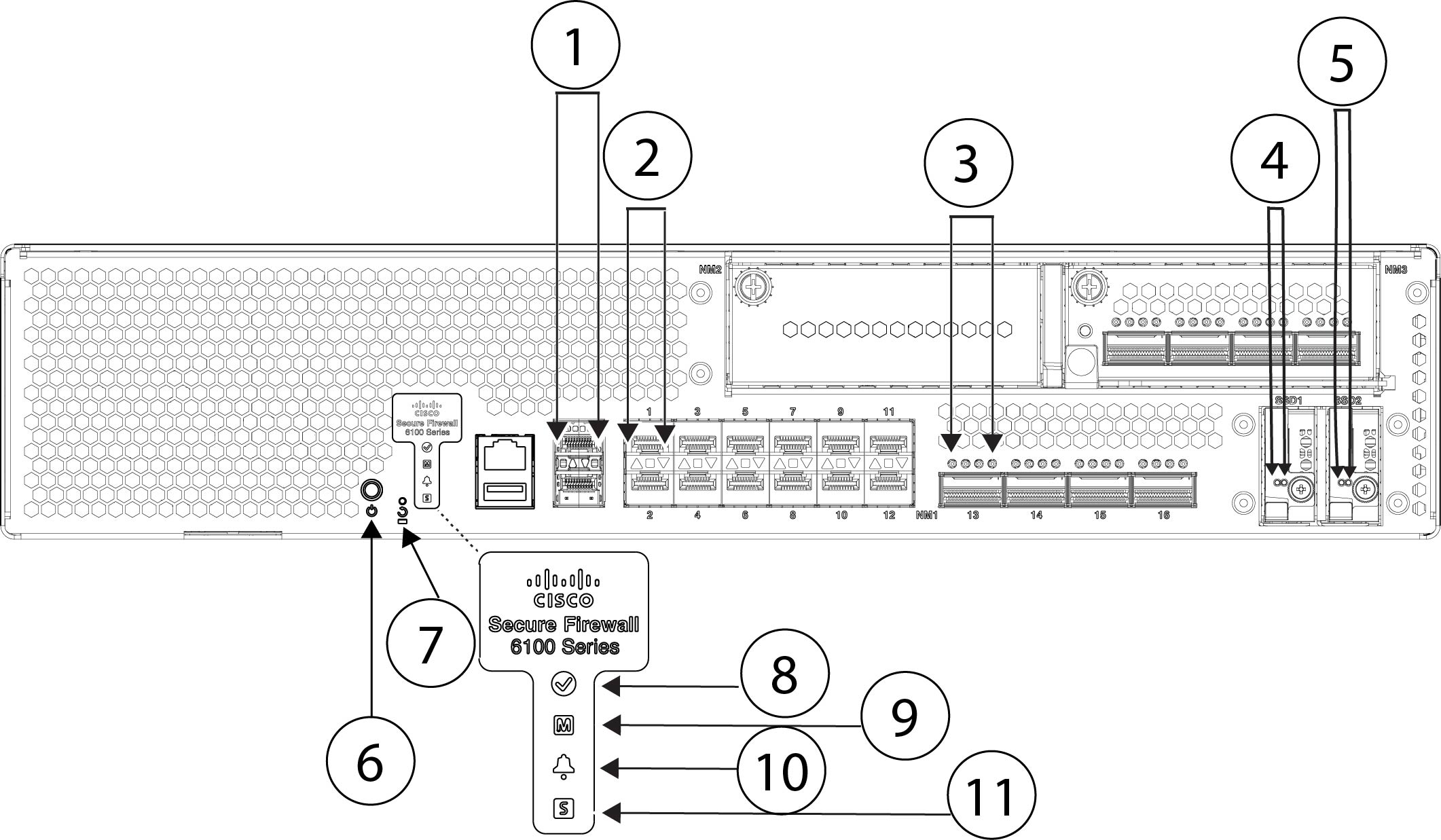
Front panel LEDs

The following figure shows the Secure Firewall 6100 series front panel LEDs.

Figure 6. CSF-6160 and CSF-6170 front panel LEDs

1

Management port

The 1/10/25-Gbps fiber management port has a bicolor LED under the SFP cage that indicates link/activity/fault:

  • Off—No SFP.

  • Green—Link up.

  • Green, flashing—Network activity.

  • Amber—SFP present, but no link.

2

Fixed fiber port link/activity

Each fiber port has one dual color LED under the SFP cage.

  • Off—No SFP.

  • Green—Link up and active.

  • Green, flashing—Network activity.

  • Amber—No link or network failure.

3

QSFP fixed port link/activity

Each fiber port has one bicolor LED under the QSFP cage.

  • Off—No SFP.

  • Green—Link up and active.

  • Green, flashing—Network activity.

  • Amber—No link or network failure.

Note


There are four LEDs for each QSFP socket.

When running native 40/100/200 Gbps, only the left LED is active (out of 4 LEDs per port). However, in the 4x10/25G/50G breakout mode, all four LEDs on a port are active and behave depending on the respective channel activity.

4

SSD-1

Note


The left LED is active. The right LED is always off.

  • Off—The SSD is not present.

  • Green—The SSD is present; no activity.

  • Green, flashing—The SSD is active.

  • Amber—The SSD has a problem or failure.

5

SSD-2

Note


The left LED is active. The right LED is always off.

  • Off—The SSD is not present.

  • Green—The SSD is present; no activity.

  • Green, flashing—The SSD is active.

  • Amber—The SSD has a problem or failure.

6

Power

  • Off—System is powered off. If the AC power cord is plugged in, and the LED on the power supply is blinking green, standby power is still on.

  • Green, flashing—The system has detected a power button event, and initiated the shutdown sequence. Do not remove the AC or DC power source while this LED is blinking so that the system has time to perform a graceful shutdown.

  • Green—The system is fully powered up.

  • Amber—A graceful shutdown has been completed or power failures in the system have been detected.

7

Factory reset button
  • Green, flashing—Flashes 5 seconds after you depress the button.

  • Off—Reset is complete.

Note


The factory reset button begins flashing after it has been depressed for at least 5 seconds, and persists until the software has completely applied all factory default settings or it is interrupted by a power cycle.

8

Active (Role of a high-availability pair)

  • Off—The unit is not configured or enabled in a high-availability pair.

  • Green—The unit is in active mode.

  • Yellow—The unit is in standby mode.

9

Managed

Reserved for future use.

10

Alarm

  • Off—While system is powering and booting up.

  • Yellow—Power supply, overtemperature, and/or fan failure.

  • Green—No alarms.

11

System

  • Off—While system is booting up.

  • Green, flashing quickly—System is booting up.

  • Green—Normal system function.

  • Yellow—System boot up has failed.

  • Yellow, flashing—Alarm condition, system needs service or attention and may not boot properly.

—

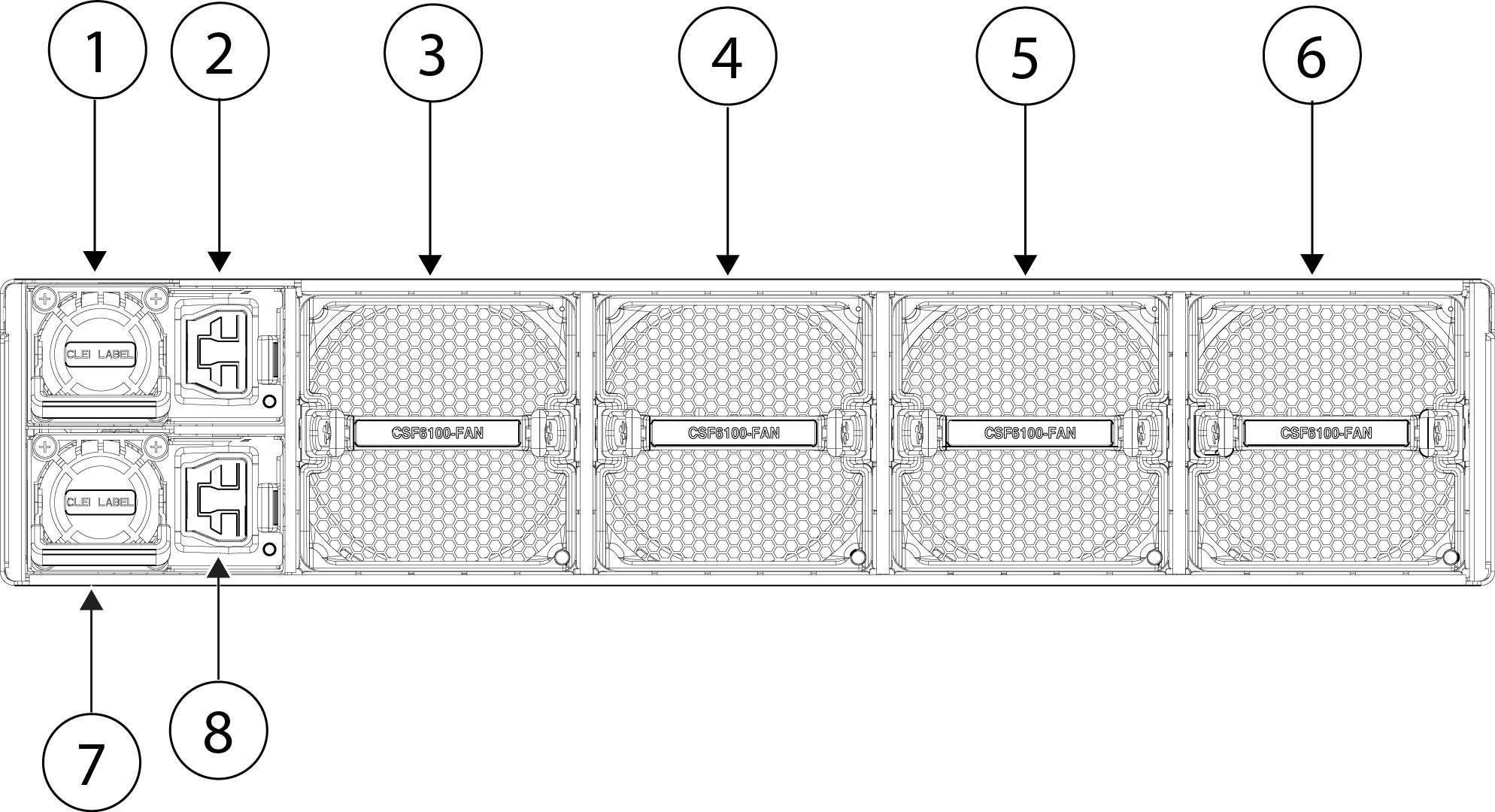
Rear panel

The following figure shows the rear panel of the Secure Firewall 6100 series. See Power supply modules and Fan modules for a description of the power supply and fan LEDs.

Figure 7. CSF-6160 and CSF-6170 rear panel

1

Power supply module (PSU-1)

2

Power supply module (PSU-1) connector

3

Dual fan module (FAN-1)

4

Dual fan module (FAN-2)

5

Dual fan module (FAN-3)

6

Dual fan module (FAN-4)

7

Power supply module (PSU-2)

8

Power supply module (PSU-2) connector

For more information

  • See Remove and replace the power supply module for the procedure for removing and replacing the power supply module in the Secure Firewall 6100 series.

  • See for the procedure for removing and replacing the dual fan module in the Secure Firewall 6100 series.

  • See Ground the chassis for the procedure for using the grounding lug to ground the chassis.

  • See Power supply modules for a description of the power supply module LEDs.

  • See Fan modules for a description of the fan LEDs.

8-Port 1/10/25-Gbps network module (CSF6K-XNM-8X10G)

The Secure Firewall 6100 chassis has two network module slots named NM-2 and NM-3 (left to right on the front panel). Network modules are optional, removable I/O modules that provide either additional ports or different interface types. The network module plugs into the chassis on the front panel. See Front panel for the location of the network module slots on the chassis.

CSF6K-XNM-8X10G supports 1 Gbps and 10 Gbps full-duplex Ethernet traffic per port and is supported on all Secure Firewall 6100s. FPR6K-XNM-8X25G supports 1 Gbps, 10 Gbps, or 25 Gbps full-duplex Ethernet traffic per port and is supported on all Secure Firewall 6100s.

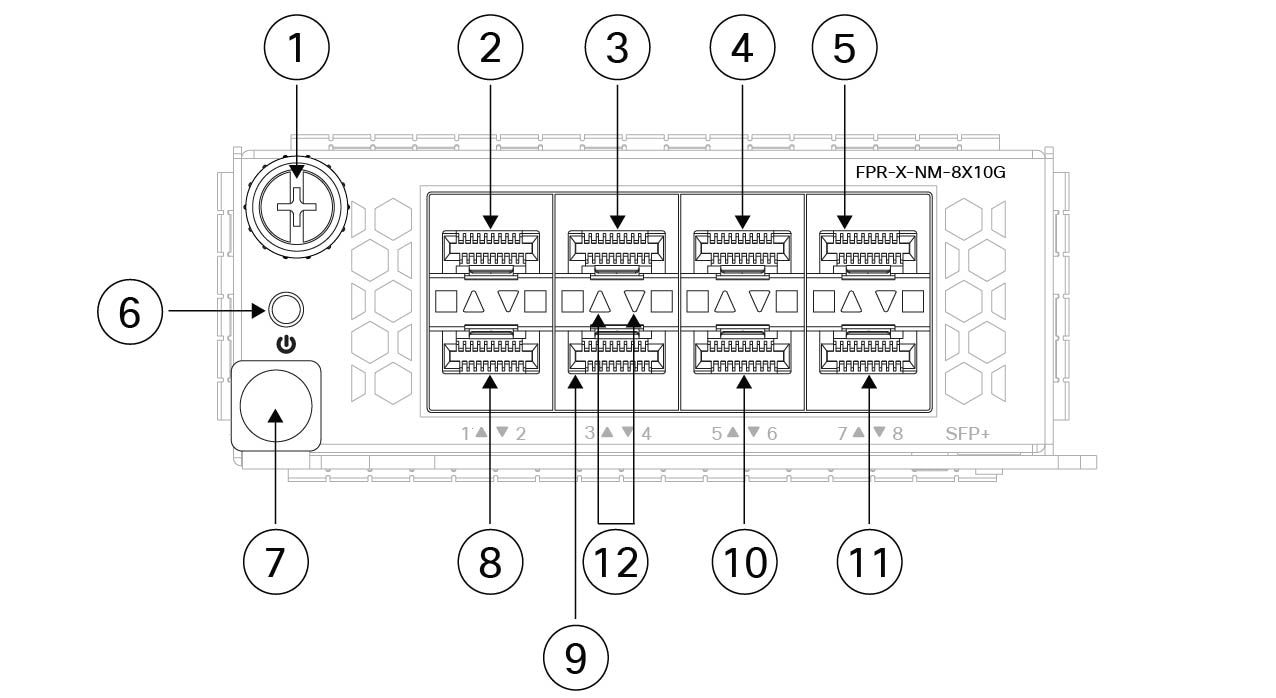
The top ports are numbered from left to right—Ethernet 2/1 or 3/1, Ethernet 2/3 or 3/3, Ethernet 2/5 or 3/5, and Ethernet 2/7 or 3/7. The bottom ports are numbered from left to right—Ethernet 2/2 or 3/2, Ethernet 2/4 or 3/4, Ethernet 2/6 or 3/6, and Ethernet 2/8 or 3/8 (see the figure below). Up arrows are the top ports and down arrows are the bottom ports (see the figure below). This network module supports SFP/SFP+/SFP28 transceivers.


Note


The hardware and the system support hot swapping if you are replacing a network module with the same type of network module. You must first disable the network port and then reenable it after replacement. If you replace the 8-port 1/10/25-Gbps network module with another supported network module, you must reboot the chassis so that the new network module is recognized. See the configuration guide for your operating system for the detailed procedures for managing network modules.


The following figure shows the front panel of the 1/10-Gbps and 1/10/25-Gbps network module.

Figure 8. CSF6K-XNM-8X10G and 8-Port 1/10/25-GbpsCSF6K-XNM-8X25G

1

Captive screw

2

Ethernet 2/1 or 3/1

3

Ethernet 2/3 or 3/3

4

Ethernet 2/5 or 3/5

5

Ethernet 2/7 or 3/7

6

Power on LED

7

Ejector handle

8

Ethernet 2/2 or 3/2

9

Ethernet 2/4 or 3/4

10

Ethernet 2/6 or 3/6

11

Ethernet 2/8 or 3/8

12

Network activity LEDs

The up arrows represent the top ports and the down arrows represent the bottom ports.

  • Off—No SFP.

  • Amber—No link or network failure.

  • Green—Link up.

  • Green, flashing—Network activity.

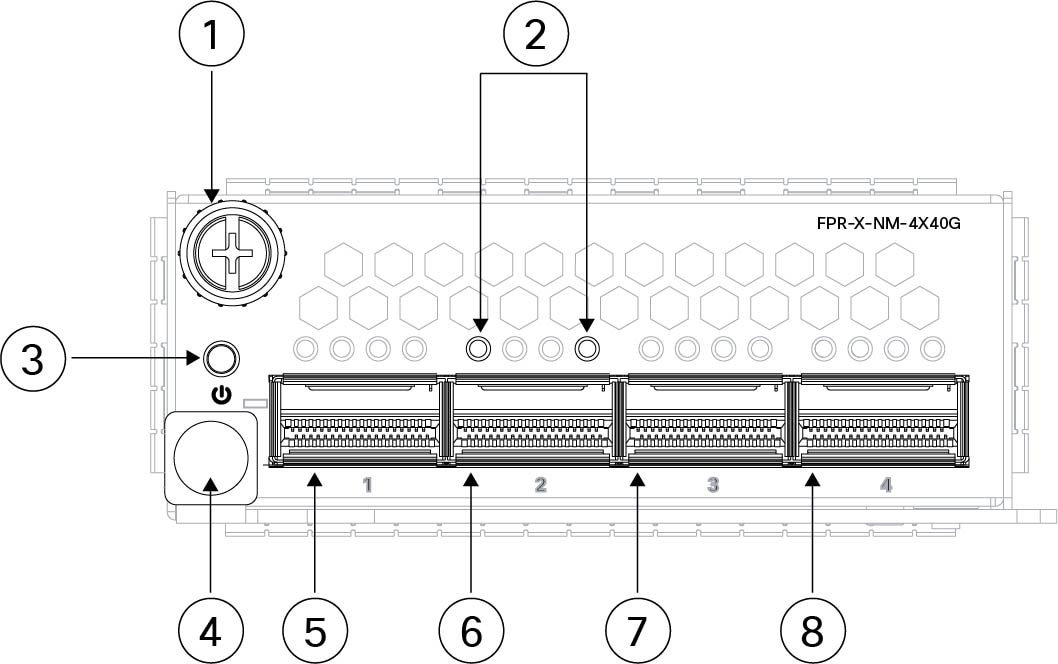
4-Port 40-Gbps network module (CSF6K-XNM-4X40G)

The Secure Firewall 6100 chassis has two network module slots named NM-2 and NM-3 (left to right on the front panel). Network modules are optional, removable I/O modules that provide either additional ports or different interface types. The network module plugs into the chassis on the front panel. See Front panel for the location of the network module slots on the chassis.

The CSF6K-XNM-4X40G supports 40-Gbps operation. This network module provides full-duplex Ethernet traffic per port. The 40-Gb network module has four QSFP+ ports. The 40-Gb ports are numbered left to right, Ethernet 2/1 or 3/1 through Ethernet 2/4 or 3/4.

You can break each of the four 40-Gbps ports into four 10-Gbps ports using the supported breakout cables. With the four-port 40-Gbps network module, you now have 16 10-Gbps interfaces. The added interfaces are Ethernet 2/1/1 or 3/1/1 through Ethernet 2/4/4 or 3/4/4.


Note


The hardware and the system support hot swapping if you are replacing a network module with the same type of network module. If you replace the 4-port 40-Gbps network module with another supported network module, you must reboot the chassis so that the new network module is recognized. See the configuration guide for your operating system for the detailed procedures for managing network modules.


The following figure shows the front panel of the 4-port 40-Gbps network module.

Figure 9. CSF6K-XNM-4X40G

1

Captive screw

2

Network activity LEDs

The up arrows represent the top ports and the down arrows represent the bottom ports.

  • Off—No SFP.

  • Amber—No link or a network failure.

  • Green—Link is up.

  • Green, flashing—Network activity.

3

Power on LED

4

Ejector handle

5

Ethernet 2/1 or 3/1

6

Ethernet 2/2 or 3/2

7

Ethernet 2/3 or 3/3

8

Ethernet 2/4 or 3/4

2-Port 100-Gbps network module (CSF6K-XNM-2X100G)

The Secure Firewall 6100 chassis has two network module slots named NM-2 and NM-3 (left to right on the front panel). Network modules are optional, removable I/O modules that provide either additional ports or different interface types. The network module plugs into the chassis on the front panel. See Front panel for the location of the network module slots on the chassis.

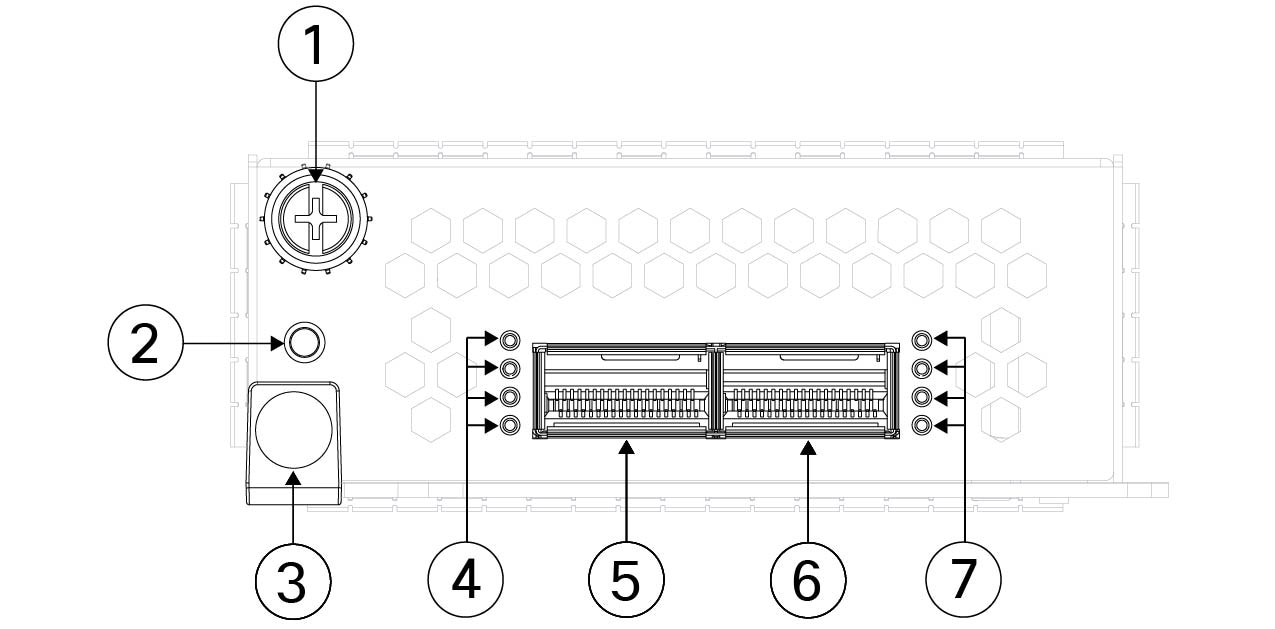
The CSF6K-XNM-2X100G supports 40/100-Gbps operation. This network module has two QSFP/QSFP28 ports and provides full-duplex Ethernet traffic per port. The maximum bandwidth supported is 200 Gbps full duplex, where each port operates at 100 Gbps. The 100-Gbps ports are numbered left to right, Ethernet 2/1 or 3/1 through Ethernet 2/2 or 3/2.

The network module has two 100-Gbps ports named E2/1 and E2/2. You can break each 100-Gbps port into four 10-Gbps or four 25-Gbps ports using the supported breakout cables. For E2/1 the new interfaces are named E2/1/1, E2/1/2, E2/1/3 and E2/1/4. For E2/2 the new interfaces are named E2/1/2, E2/2/2, E2/2/3, and E2/2/4.


Note


The hardware and the system support hot swapping if you are replacing a network module with the same type of network module. If you replace the 100-Gbps network module with another supported network module, you must reboot the chassis so that the new network module is recognized. See the configuration guide for your operating system for the detailed procedures for managing network modules.


The following figure shows the front panel of the 2-port 100-Gbps network module.


Note


When a port operates in a 40-Gbps mode, only the left-most LED of the port indicates the link/activity status.


Figure 10. CSF6K-XNM-2X100G

1

Captive screw

2

Network activity LEDs

  • Off—No SFP.

  • Amber—No link or a network failure.

  • Green—Link is up.

  • Green, flashing—Network activity.

3

Network activity LEDs

  • Off—No SFP.

  • Amber—No link or a network failure.

  • Green—Link is up.

  • Green, flashing—Network activity.

4

Power on LED

5

Ejector handle

6

Ethernet 2/1 or 3/1

7

Ethernet 2/2 or 3/2

—

4-Port 200-Gbps network module (CSF6K-XNM-4X200G)

The Secure Firewall 6100 chassis has two network module slots NM-2 and NM-3 (left to right on the front panel). Network modules are optional, removable I/O modules that provide either additional ports or different interface types. The network module plugs into the chassis on the front panel. See Front panel for the location of the network module slots on the chassis.

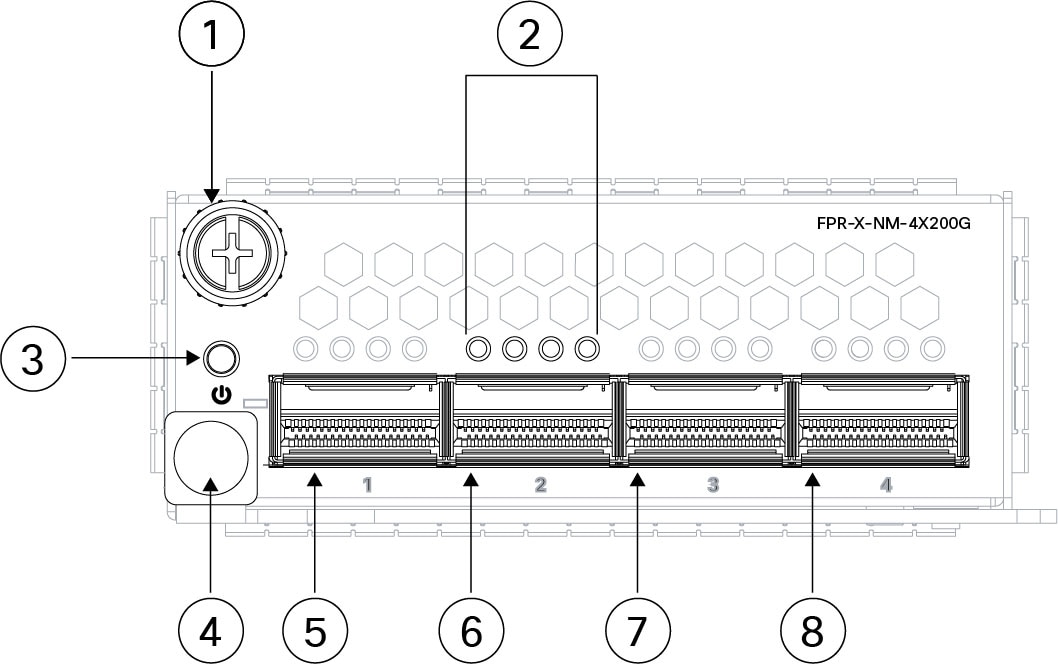
The CSF6K-XNM-4X200G supports 40/100/200-Gbps operation. This network module provides full-duplex Ethernet traffic per port. The 200-Gbps network module has four QSFP56 ports. The ports are numbered left to right, Ethernet 2/1 or 3/1 through Ethernet 2/4 or 3/4.

You can break each 100-Gbps port into four 10-Gbps or 25-Gbps ports using the supported breakout cables. With the four-port 200-Gbps network module, you now have 16 10-Gbps or 25-Gbps interfaces. The added interfaces are Ethernet 2/1/1 or 3/1/1 through Ethernet 2/4/4 or 3/4/4.


Note


The hardware and the system support hot swapping if you are replacing a network module with the same type of network module. If you replace the 4-port 200-Gbps network module with another supported network module, you must reboot the chassis so that the new network module is recognized. See the configuration guide for your operating system for the detailed procedures for managing network modules.


The following figure shows the front panel of the 4-port 200-Gbps network module.


Note


When a port operates in 40-Gvps or 100-Gbps mode, only the left-most LED of the port indicates link/activity status.


Figure 11. CSF6K-XNM-4X200G

1

Captive screw

2

Network activity LEDs

The up arrows represent the top ports and the down arrows represent the bottom ports.

  • Off—No SFP.

  • Amber—No link or a network failure.

  • Green—Link is up.

  • Green, flashing—Network activity.

3

Power on LED

4

Ejector handle

5

Ethernet 2/1 or 3/1

6

Ethernet 2/2 or 3/2

7

Ethernet 2/3 or 3/3

8

Ethernet 2/4 or 3/4

2-Port 400-Gbps network module (CSF6K-XNM-2X400G)

The Secure Firewall 6100 chassis has two network module slots named NM-2 and NM-3, which are left to right on the front (I/O side) panel. Network modules are optional, removable I/O modules that provide either additional ports or different interface types. The network module plugs into the chassis on the front panel. See Front panel for the location of the network module slots on the chassis.

The CSF6K-XNM-2X400G supports 400-Gbps operation, and is also designed to support 200-Gbps, 100-Gbps, and 40-Gbps per port. This network module provides full-duplex Ethernet traffic per port. The 400-Gbps network module supports two QSFP-DD transceivers and is designed to also support 200-Gbps QSFP56, 100-Gbps QSFP28, and 40-Gbps QSFP+ transceivers. The 400-Gbps ports are numbered left to right, Ethernet 2/1 or 3/1 through Ethernet 2/2 or 3/2.


Note


The hardware and the system support hot swapping if you are replacing a network module with the same type of network module. If you replace the 2-port 200/400-Gbps network module with another supported network module, you must reboot the chassis so that the new network module is recognized. See the configuration guide for your operating system for the detailed procedures for managing network modules.


The following figure shows the front panel of the 2-port 200/400-Gbps network module.


Note


When a port operates in 40-Gbps, 100-Gbps, or 200-Gbps mode, only the left-most LED indicates link/activity status.


Figure 12. CSF6K-XNM-2X400G

1

Captive screw

2

Power on LED

3

Ejector handle

4

Network activity LEDs

  • Off—No SFP.

  • Amber—No link or a network failure.

  • Green—Link is up.

  • Green, flashing—Network activity.

5

Ethernet 2/1 or 3/1

6

Ethernet 2/2 or 3/2

7

Network activity LEDs

  • Off—No SFP.

  • Amber—No link or a network failure.

  • Green—Link is up.

  • Green, flashing—Network activity.

—

8-Port 1000Base-T network module with hardware bypass (CSF6K-XNM-8X1GF)

The Secure Firewall 6100 chassis has two network module slots named NM-2 and NM-3 (left to right on the front panel). Network modules are optional, removable I/O modules that provide either additional ports or different interface types. The network module plugs into the chassis on the front panel. See Front panel for the location of the network module slots on the chassis.

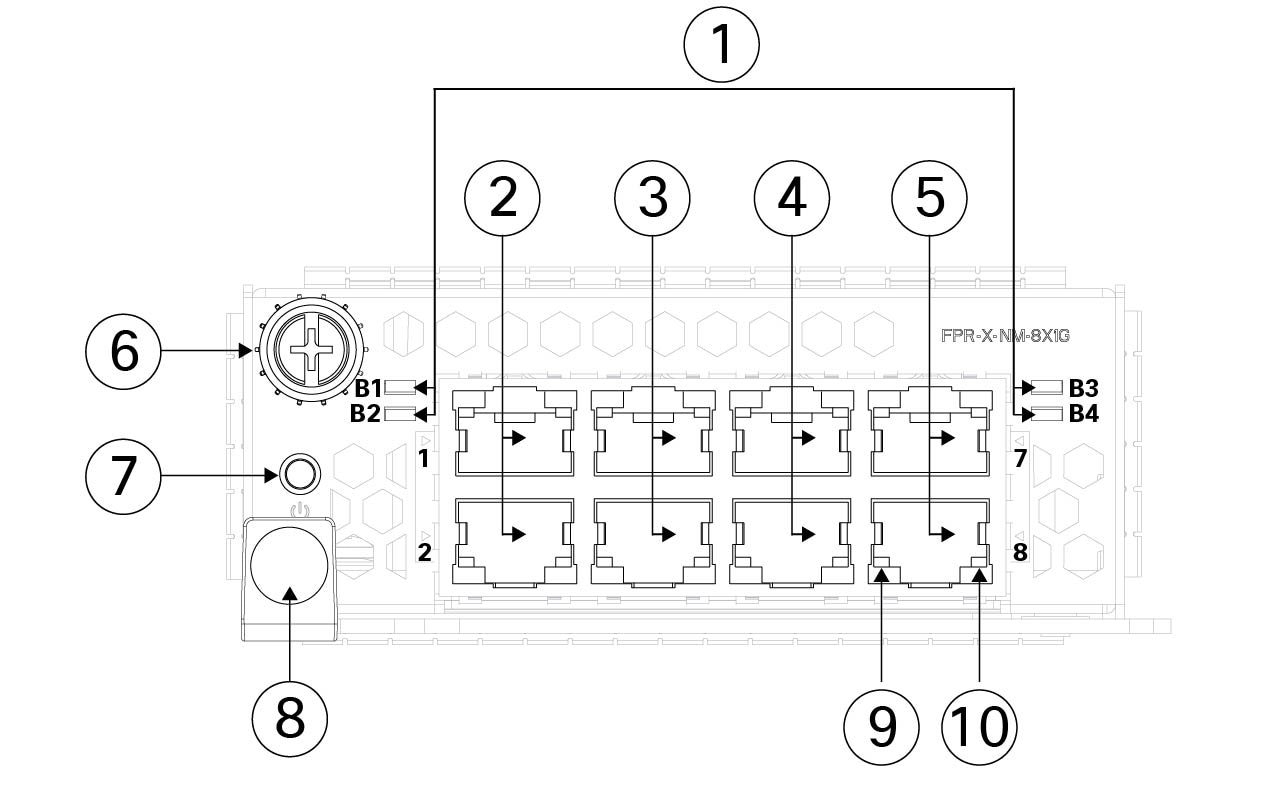
CSF6K-XNM-8X1GF is an 8-port 1000Base-T hardware bypass network module. The eight ports are numbered from top to bottom, left to right. Ports 1 and 2, 3 and 4, 5 and 6, and 7 and 8 are paired for hardware bypass mode. In hardware bypass mode, data is not processed by the Secure Firewall 6100 but is routed to the paired port.

Hardware bypass (also known as fail-to-wire) is a physical layer (Layer 1) bypass that allows paired interfaces to go into bypass mode so that the hardware forwards packets between these port pairs without software intervention. Hardware bypass provides network connectivity when there are software or hardware failures. Hardware bypass is useful on ports where the secure firewall is only monitoring or logging traffic. The hardware bypass network modules have a switch that is capable of connecting the two ports when needed.


Note


Hardware bypass is only supported with threat defense, although you can use these modules in nonbypass mode in threat defense or ASA.


Hardware bypass is supported only on a fixed set of ports. You can pair Port 1 with Port 2, Port 3 with Port 4, but you cannot pair Port 1 with Port 4 for example.

When the appliance switches from normal operation to hardware bypass or from hardware bypass back to normal operation, traffic may be interrupted for several seconds. A number of factors can affect the length of the interruption; for example, behavior of the link partner such as how it handles link faults and debounce timing; spanning tree protocol convergence; dynamic routing protocol convergence; and so on. During this time, you may experience dropped connections.


Note


If you have an inline interface set with a mix of hardware bypass and nonhardware bypass interfaces, you cannot enable hardware bypass on this inline interface set. You can only enable hardware bypass on an inline interface set if all the pairs in the inline set are valid hardware bypass pairs.


The hardware and the system support hot swapping if you are replacing a network module with the same type of network module. If you replace the 8-port 1000Base-T network module with another supported network module, you must reboot the chassis so that the new network module is recognized. See the configuration guide for your operating system for the detailed procedures for managing network modules.

Make sure you have the correct firmware package and software version installed to support this network module. See the configuration guide for your software for the procedures for updating the firmware package and verifying the software version. See the Cisco Secure Firewall Threat Defense Compatibility Guide and the Cisco Secure Firewall ASA Compatibility guide, which provide Cisco software and hardware compatibility, including operating system and hosting environment requirements, for each supported version.

The following figure shows the front panel of the 8-port 1000Base-Tnetwork module.


Note


When a port operates in 400-Gbps, 200-Gbps, 100-Gbps, or 40-Gbps mode, only the top LED of the port indicates link/activity status.


Figure 13. CSF6K-XNM-8X1GF

1

Bypass LEDs B1 through B4

  • Green—In standby mode.

  • Amber, flashing—Port is in hardware bypass mode, failure event.

2

Ethernet 2/1 and 2/2 or Ethernet 3/1 and 3/2

Ports 1 and 2 are paired together to form a hardware bypass pair. LED B1 applies to this paired port.

3

Ethernet 2/3 and Ethernet 2/4 or Ethernet 3/3 and 3/4

Ports 3 and 4 are paired together to form a hardware bypass pair. LED B2 applies to this paired port.

4

Ethernet 2/5 and 2/6 or Ethernet 3/5 and 3/6

Ports 5 and 6 are paired together to form a hardware bypass pair. LED B3 applies to this paired port.

5

Ethernet 2/7 and 2/8 or Ethernet 3/7 and 3/8

Ports 7 and 8 are paired together to form a hardware bypass pair. LED B4 applies to this paired port.

6

Captive screw

7

Power LED

8

Handle

9

Left Port LED

  • Unlit—No connection or port is not in use.

  • Green—Link up.

  • Green, flashing—Network activity.

10

Right Port LED

  • Unlit—No connection or port is not in use.

  • Green—Link up.

  • Green, flashing—Network activity.

6-Port 1-Gbps SX/10-Gbps SR/10-Gbps LR/25-Gbps SR/25-Gbps LR network module with hardware bypass (CSF6K-XNM-6X10SRF, CSF6K-XNM-6X10LRF, CSF6K-XNM-6X25SRF, and CSF6K-XNM-6X25LRF)

The Secure Firewall 6100 chassis has two network module slots named NM-2 and NM-3 (left to right on the front panel). Network modules are optional, removable I/O modules that provide either additional ports or different interface types. The network module plugs into the chassis on the front panel. See Front panel for the location of the network module slots on the chassis.

The CSF6K-XNM-6X10SRF, CSF6K-XNM-6X10LRF, CSF6K-XNM-6X25SRF, and CSF6K-XNM-6X25LRF hardware bypass network modules have six ports that are numbered from top to bottom, left to right. Pair ports 1 and 2, 3 and 4, and 5 and 6 to form hardware bypass paired sets. In hardware bypass mode, data is not processed by the Secure Firewall 6100 but is routed to the paired port. This network module has built-in SFP transceivers. Hot swapping and field replacement of transceivers are not supported.

Hardware bypass (also known as fail-to-wire) is a physical layer (Layer 1) bypass that allows paired interfaces to go into bypass mode so that the hardware forwards packets between these port pairs without software intervention. Hardware bypass provides network connectivity when there are software or hardware failures. Hardware bypass is useful on ports where the secure firewall is only monitoring or logging traffic. The hardware bypass network modules have a switch that is capable of connecting the two ports when needed. This hardware bypass network module has built-in SFPs.


Note


Hardware bypass is only supported with threat defense, although you can use these modules in nonbypass mode in threat defense or ASA.


Hardware bypass is supported only on a fixed set of ports. You can pair Port 1 with Port 2, Port 3 with Port 4, but you cannot pair Port 1 with Port 4 for example.


Note


When the appliance switches from normal operation to hardware bypass or from hardware bypass back to normal operation, traffic may be interrupted for several seconds. A number of factors can affect the length of the interruption; for example, behavior of the link partner such as how it handles link faults and debounce timing; spanning tree protocol convergence; dynamic routing protocol convergence; and so on. During this time, you may experience dropped connections.


Note


If you have an inline interface set with a mix of hardware bypass and nonhardware bypass interfaces, you cannot enable hardware bypass on this inline interface set. You can only enable hardware bypass on an inline interface set if all the pairs in the inline set are valid hardware bypass pairs.


Note


The hardware and the system support hot swapping if you are replacing a network module with the same type of network module. If you replace the 6-port 10/25-Gbps network module with another supported network module, you must reboot the chassis so that the new network module is recognized. See the configuration guide for your operating system for the detailed procedures for managing network modules.


Note


Make sure you have the correct firmware package and software version installed to support this network module. See the configuration guide for your software for the procedure to verify your firmware package and software version. See the Cisco Secure Firewall Threat Defense Compatibility Guide and the Cisco Secure Firewall ASA Compatibility guide, which provide Cisco software and hardware compatibility, including operating system and hosting environment requirements, for each supported version


The following figure shows the front panel of the 6-port 1/10/25-Gbps network module.
Figure 14. CSF6K-XNM-6X10SRF, CSF6K-XNM-6X10LRF, CSF6K-XNM-6X25SRF, and CSF6K-XNM-6X25LRF

1

Port 1

Ethernet 2/1 or 3/1

Ports 1 and 2 are paired together to form a hardware bypass pair.

2

Port 2

Ethernet 2/2 or 3/2

Ports 1 and 2 are paired together to form a hardware bypass pair.

3

Port 3

Ethernet 2/3 or 3/3

Ports 3 and 4 are paired together to form a hardware bypass pair.

4

Port 4

Ethernet 2/4or 3/4

Ports 3 and 4 are paired together to form a hardware bypass pair.

5

Port 5

Ethernet 2/5 or 3/5

Ports 5 and 6 are paired together to form a hardware bypass pair.

6

Port 6

Ethernet 2/6 or 3/6

Ports 5 and 6 are paired together to form a hardware bypass pair.

7

Captive screw

8

Power LED

9

Handle ejector

10

Bypass LEDs B1 through B3:

  • Off—Bypass mode is disabled.

  • Green—Port is in standby mode.

  • Amber, flashing—Port is in hardware bypass mode, failure event.

11

Six network activity LEDs:

  • Amber—No connection, or port is not in use, or no link or network failure.

  • Green—Link up, no network activity.

  • Green, flashing—Network activity.

—

Power supply modules

The Secure Firewall 6100 series supports two power supply modules so that dual power supply redundancy protection is available. Facing the back of the chassis, the power supply modules are numbered top to bottom—PSU-1 and PSU-2.

The power supply module is hot-swappable. See Product ID numbers for a list of the PIDs associated with the Secure Firewall 6100 series power supply modules.


Note


After removing power from the chassis by unplugging the power cord, wait at least 10 seconds before turning power back ON. You want to keep the system power off, including the standby power, for 10 seconds.


Attention


Make sure that one power supply module is always active.


The CSF6100-PWR-AC power supply is triple input, AC (low line), HVAC (high line) and HVDC. The dual power supply modules can supply up to 3000-W each of power across the input voltage range (220 VAC). The load is shared when both power supply modules are plugged in and running at the same time.

The HVAC/HVDC power supply module can operate at 110 VAC (low line) input, but output power is cut in half (1500 W each). With two power supply modules installed, the system is capable of 3000 W consumption, but redundancy is not available.


Note


The system does not consume more than the capacity of one power supply module, so it always operates in full redundancy mode when two power supply modules are installed.


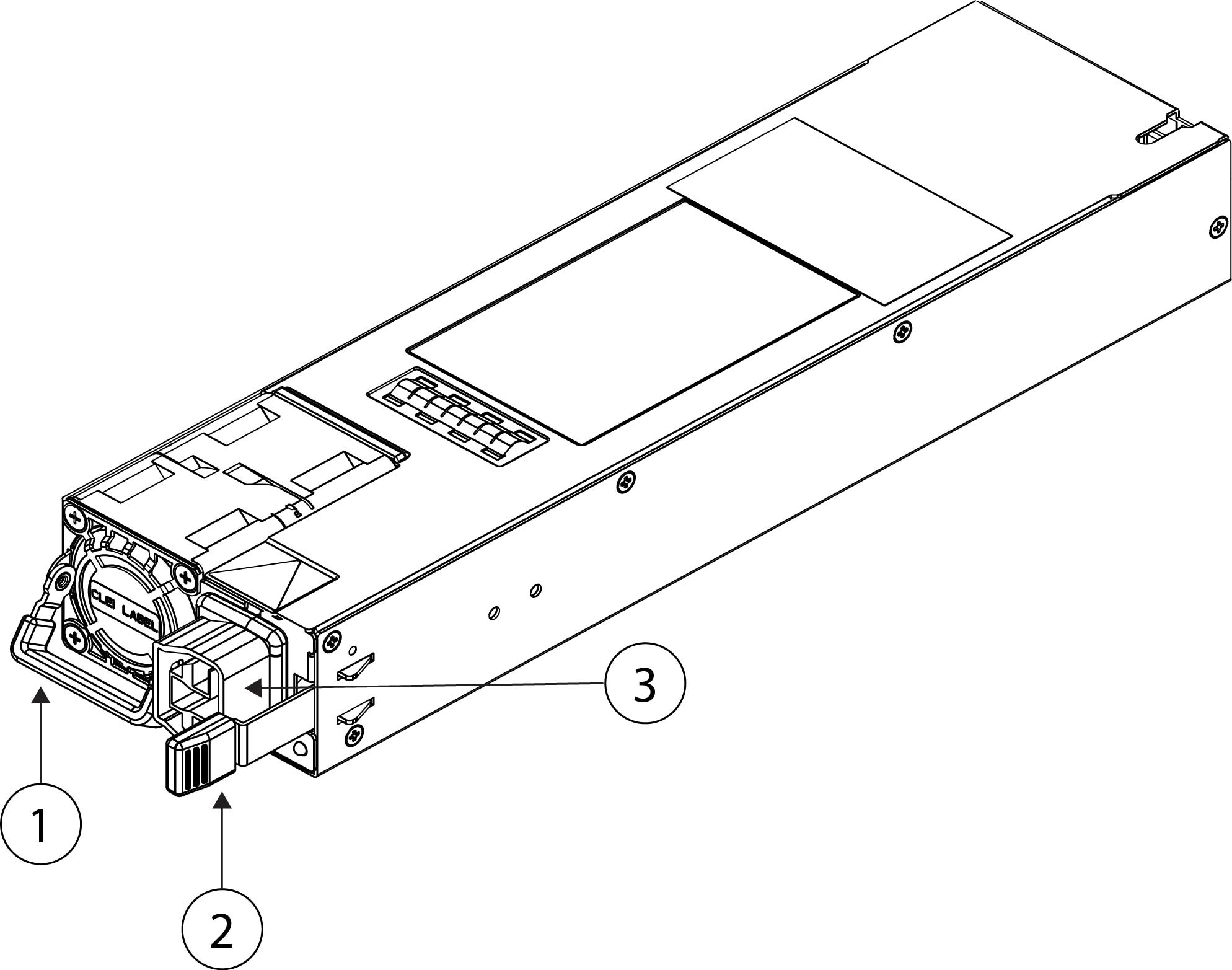
Figure 15. Power supply module

1

Handle

2

Release tab

3

Power cord connector

—

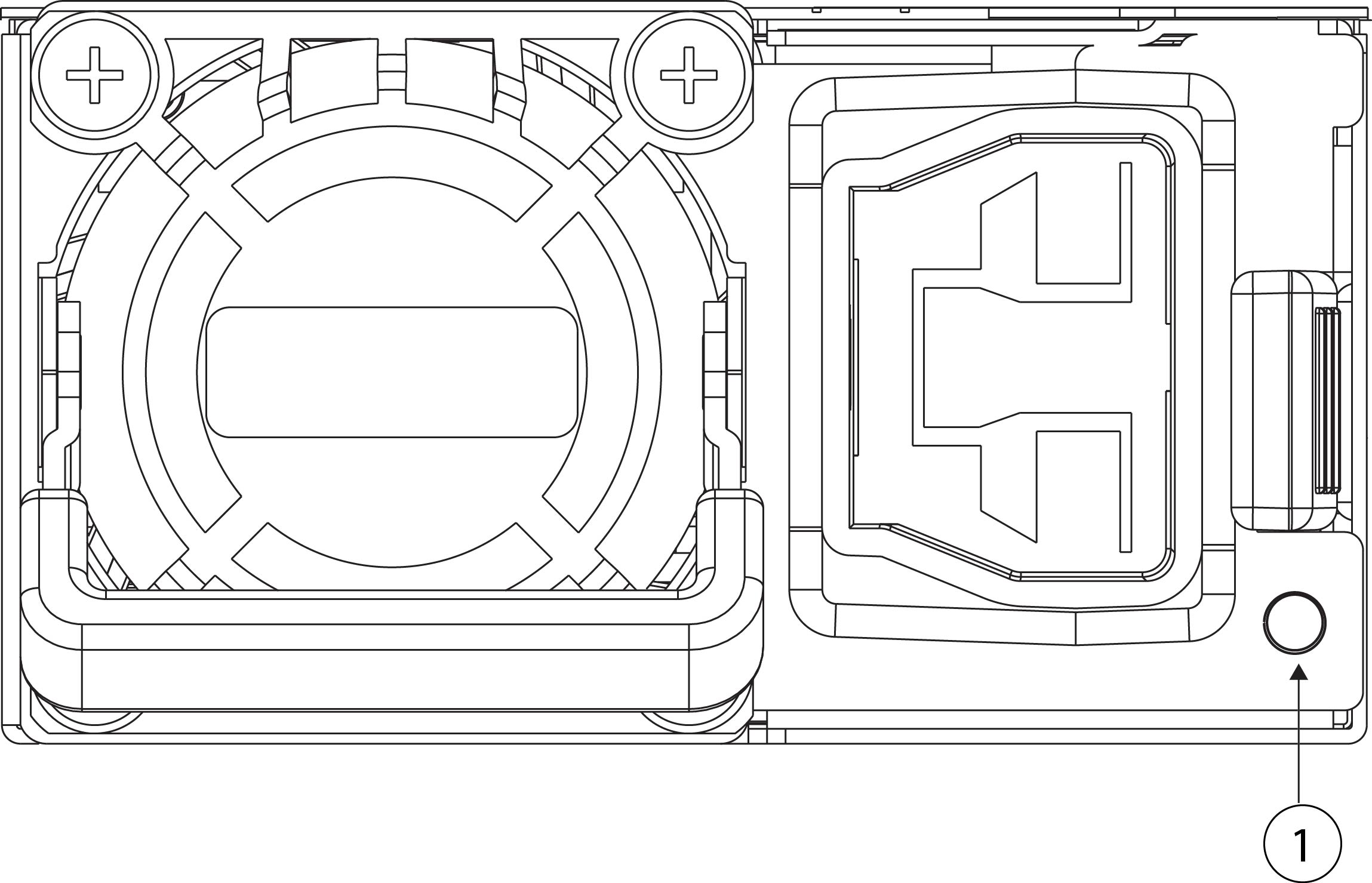
The following figure shows the bicolor power supply LED on the power supply module.

Figure 16. Power supply module LED

1

Power supply LED:

  • Green—Active mode

  • Green, flashing—Standby mode

  • Green, flashing—Boot loading process

  • Amber—No AC power, but the other power supply module in the system is operating

  • Amber, flashing—Warning event (high temperature or fan fault)

  • Off—No input power

For more information

Fan modules

The Secure Firewall 6100 series has four dual-rotor axial fan modules.When one fan fails, the other fan modules spin at maximum speed so that the system continues to function. The fan modules are hot-swappable and installed in the rear of the chassis. They are labeled FAN-1 though FAN-4 from left to right on the rear of the chassis.


Caution


If a fan module fails, remove it from the chassis and replace it within 30 seconds. After 30 seconds the CPU temperature can exceed the operating temperature, which can reduce performance. See Remove and replace the fan module for the procedure for removing and replacing the fan module.


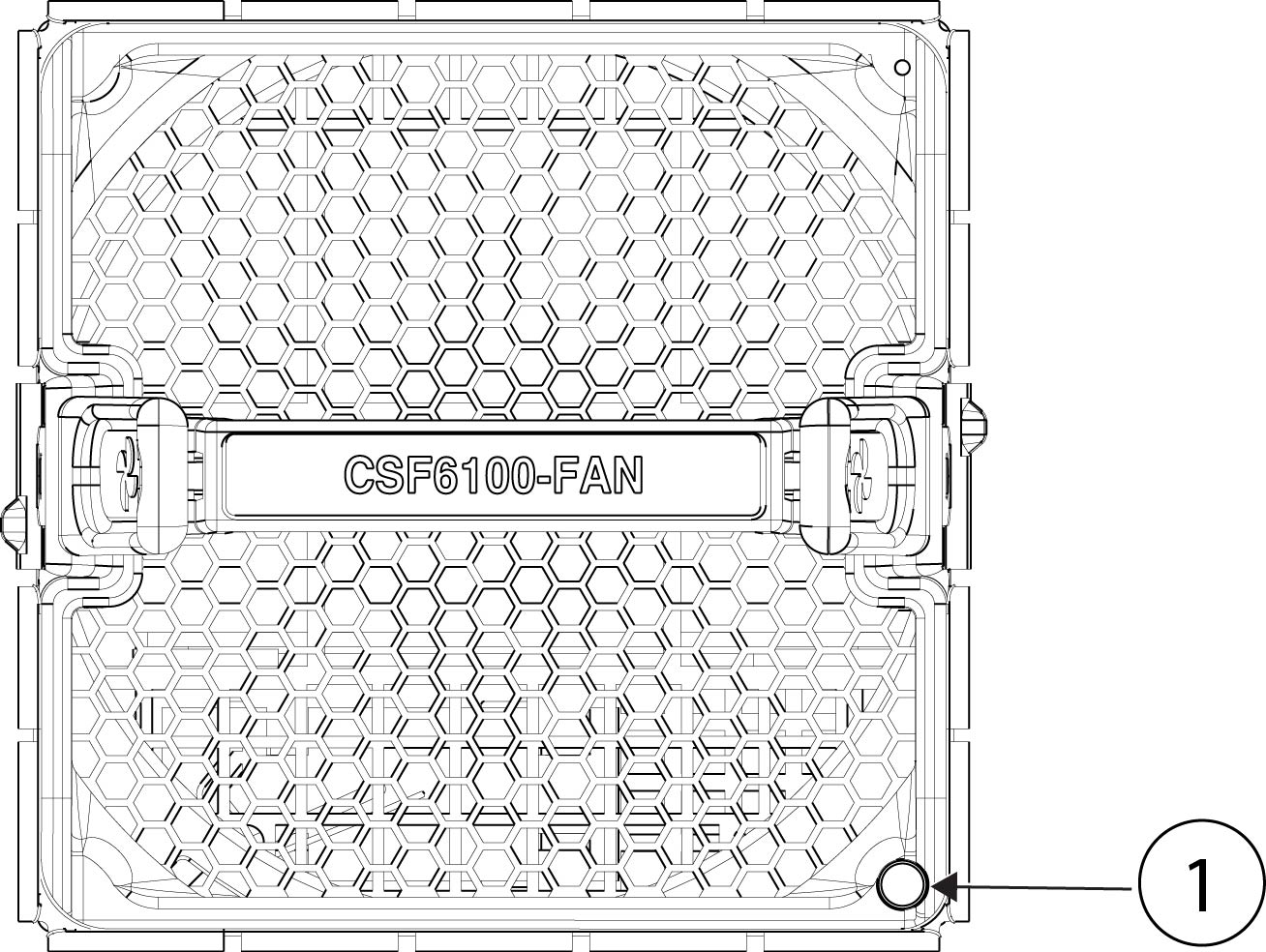
The following figure shows the location of the fan LED on the fan module.

Figure 17. Fan module LED

1

Two-color LED (green and yellow)

The fan module has one two-color LED, which is located on the upper left corner of the fan.

  • Off—No power or the system is powering up.

  • Green—Fans are running normally. It may take up to one minute for the LED status to turn green after power is on.

  • Yellow, flashing—One or more fan rotor RPMs is not normal. Immediate attention is required.

  • Yellow—One or more fan rotors have failed. The system can continue to operate normally, but fan service is required.

For more information

SSDs

The Secure Firewall 6100 series has two SSD slots that each hold one Non-Volatile Memory Express (NVMe) SSD. By default the Secure Firewall 6160 series ships with two 3.6-TB SSDs installed in slot 1 and slot 2. The Secure Firewall 6170 ships with two 7.2-TB SSDs installed in slot 1 and slot 2. Software RAID1 is shipped already configured.

Hot swapping is supported. You can swap SSDs without powering off the chassis. However, before hot swapping SSDs you must issue the raid remove-secure local-disk 1|2 command to prepare the SSD for removal. This command preserves the data on the SSD. After you remove and replace the SSD, you must add it again to the RAID1 configuration using the raid add local-disk 1|2 command. See Hot Swap an SSD on the Secure Firewall 3100/4200 for the procedures for safely removing an SSD.


Caution


The raid remove-secure local disk command securely erases the specified SSD data.


See Product ID numbers for a list of the PIDs associated with the Secure Firewall 6100 series SSDs. The SSD drive identifiers are disk0: and disk1:.

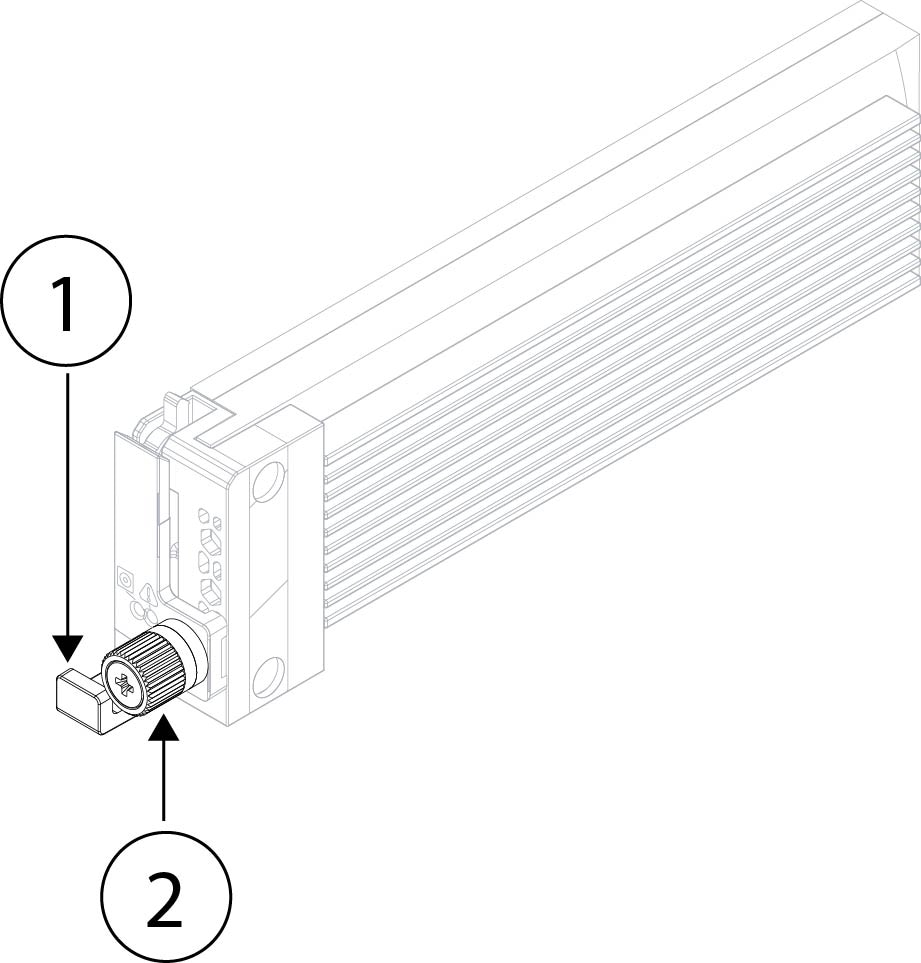
Figure 18. SSD

1

SSD release tab

2

Captive screw

For more information

  • See Front panel LEDs for the location and description of the SSD LEDs on the front panel.

  • See Remove and replace the SSD for the procedure for removing and replacing the SSD.

  • See the configuration guide for your software for the procedures for removing and adding an SSD from the RAID1 configuration.

Hardware specifications

The following table contains hardware specifications for the Secure Firewall 6100 series.

Table 2. CSF-6160 and CSF-6170 hardware specifications

Specification

CSF-6160

CSF-6170

Chassis

Chassis dimensions (H x W x D)

3.5 x 16.9 x 32.5 inches (8.89 x 42.926 x 82.55 cm)

Network module dimensions (H x W x D)

1.41 x 3.66 x 9.94 inches (3.58 x 9.3 x 25.25 cm)

Chassis weight (fully loaded)

66 lb (29.93 kg)

Power Supply

Power supply module dimensions

1.575 x 2.657 x 9.92 inches (40.0 x 67.5 x 252 mm)

Configuration

2 power supply modules; up to 3000 W each, hot-swappable, load-sharing redundancy

AC input voltage

100 to 120 VAC (HVAC low line)

200 to 277 VAC (HVAC high line)

AC input frequency

50 to 60 Hz (nominal)

HVDC input voltage

240 to 380 VDC

LVDC input voltage

–48 VDC to –60 VDC

AC current draw (maximum)

13 A (high line AC)

14 A (high line AC)

System HVDC current draw (maximum)

11 A

12 A

System LVDC current draw (maximum)

29 A

33 A

Input power consumption

1740 W (typical)

2440 W (maximum)

2010 W (typical)

2760 W (maximum)

Environmental

Temperature

Operating: 32 to 104°F (0 to 40°C)

Above 6000 feet, derate the maximum operating temperature by 1°C/1000 ft.

Nonoperating: -40 to 85°F (-40 to 65°C)

Operating: 32 to 95°F (0 to 35°C)

Above 6000 feet, derate the maximum operating temperature by 1°C/1000 ft.

Nonoperating: -40 to 85°F (-40 to 65°C)

Humidity

Operating: 5 to 90% noncondensing

Nonoperating: 5 to 95% noncondensing

Altitude

Operating: 0 to 10,000 ft (0 to 3048 m)

Operating: 0 to 6562 ft (0 to 2000 m) in China

Derate the maximum operating temperature 1°C/1K-ft above 6000 ft.

Nonoperating: 40,000 ft (12,192 m) maximum

Sound pressure

<=74 dBA (typical)

<= 90 dBA (maximum)

Note


This system may exceed 85 dBA when operating in high ambient environments. For environments above 85 dBA, hearing protection for sound pressure is required.

Sound power

<=81 dB (typical)

<=98 dB (maximum)

Product ID numbers

The following table lists the product IDs (PIDs) associated with the Secure Firewall 6100 series. All of the PIDs in the table are field-replaceable. If you need to get a return material authorization (RMA) for any component, see Cisco Returns Portal for more information.


Note


See the show inventory command in the Cisco Secure Firewall Threat Defense Command Reference or the Cisco ASA Series Command Reference to display a list of the PIDs for your Secure Firewall 6100 series.
Table 3. CSF-6160 and CSF-6170 PIDs

PID

Description

Chassis

CSF6160-A-ASA-K9

Secure Firewall 6160 appliance, ASA

CSF6170-A-ASA-K9

Secure Firewall 6170 appliance, ASA

CSF6160-A-TD-K9

Secure Firewall 6160 appliance, threat defense

CSF6170-A-TD-K9

Secure Firewall 6170 appliance, threat defense

Modular Components

CSF6100-PWR-AC

AC/HVAC/HVDC power supply

CSF6100-PWR-AC=

AC/HVAC/HVDC power supply (spare)

CSF6100-FAN

Fan module

CSF6100-FAN=

Fan module (spare)

CSF6100-SSD3600

SSD module for the Secure Firewall 6160

CSF6100-SSD3600=

SSD module for the Secure Firewall 6160 (spare)

CSF6100-SSD7200

SSD module for the Secure Firewall 6170

CSF6100-SSD7200=

SSD module for the Secure Firewall 6170 (spare)

Memory

CSF6100-MEM-C1X64-

Secure Firewall 6160 CPU 1 x 64 GB

CSF6100-MEM-C1X96-

Secure Firewall 6170 CPU 1 x 96 GB

Kits

CSF6100-ACC-KIT

Hardware accessory kit (rack mounts, cables)

CSF6100-ACC-KIT=

Hardware accessory kit (rack mounts, cables) (spare)

CSF6100-MEM-C1X64=

Secure Firewall 6160 CPU 1 x 64 GB memory kit (spare)

CSF6100-MEM-C1X96=

Secure Firewall 6170 CPU 1 x 96 GB memory kit (spare)

CSF6100-SLD-RAILS

Slide rail kit

CSF6100-SLD-RAILS=

Slide rail kit (spare)

CSF6100-CBL-MGMT

Cable management brackets

CSF6100-CBL-MGMT=

Cable management brackets (spare)

Network modules

CSF6K-XNM-6X1SXF

6-port 1-Gbps SFP hardware bypass network module, SX multimode

CSF6K-XNM-6X1SXF=

6-port 1-Gbps SFP hardware bypass network module, SX multimode (spare)

CSF6K-XNM-6X10SRF

6-port 10-Gbps SFP hardware bypass network module, SR multimode

CSF6K-XNM-6X10SRF=

6-port 10-Gbps SFP hardware bypass network module, SR multimode (spare)

CSF6K-XNM-6X10LRF

6-port 10-Gbps SFP hardware bypass network module, LR single mode

CSF6K-XNM-6X10LRF=

6-port 10-Gbps SFP hardware bypass network module, LR single mode (spare)

CSF6K-XNM-6X25SRF

6-port 25-Gbps SFP hardware bypass network module, SR multimode

CSF6K-XNM-6X25SRF=

6-port 25-Gbps SFP hardware bypass network module, SR multimode (spare)

CSF6K-XNM-6X25LRF

6-port 25-Gbps SFP hardware bypass network module, LR single mode

CSF6K-XNM-6X25LRF=

6-port 25-Gbps SFP hardware bypass network module, LR single mode (spare)

CSF6K-XNM-8X1GF

8-port 10/100/1000Base-10 hardware bypass network module

CSF6K-XNM-8X1GF=

8-port 10/100/1000Base-10 hardware bypass network module (spare)

CSF6K-XNM-8X10G

8-port 1/10-Gbps SFP+ network module

CSF6K-XNM-8X10G=

8-port 1/10-Gbps SFP+ network module (spare)

CSF6K-XNM-8X25G

8-port 1/10/25-Gbps ZSFP network module

CSF6K-XNM-8X25G=

8-port 1/10/25-Gbps ZSFP network module (spare)

CSF6K-XNM-4X40G

4-port 40-Gbps QSFP+ network module

CSF6K-XNM-4X40G=

4-port 40-Gbps QSFP+ network module

CSF6K-XNM-2X100G

2-port 100-Gbps QSFP+ network module

CSF6K-XNM-2X100G=

2-port 100-Gbps QSFP+ (spare)

CSF6K-XNM-4X200G

4-port 40/100/200-Gbps QSFP+ network module

CSF6K-XNM-4X200G=

4-port 40/100/200-Gbps QSFP+ network module (spare)

CSF6K-XNM-2X400G

2-port 40/100/200/400-Gbps QSFP-DD

CSF6K-XNM-2X400G=

2-port 40/100/200/400-Gbps QSFP-DD (spare)

CSF6100-NM-BLANK

Network module blank slot cover

CSF6100-NM-BLANK=

Network module blank slot cover (spare)

Power cord specifications

Each power supply has a separate power cord. Standard power cords or jumper power cords are available for connection to the secure firewall. The jumper power cords for use in racks are available as an optional alternative to the standard power cords.

If you do not order the optional power cord with the system, you are responsible for selecting the appropriate power cord for the product. Using a incompatible power cord with this product may result in electrical safety hazard. Orders delivered to Argentina, Brazil, and Japan must have the appropriate power cord ordered with the system.


Note


Only the approved power cords or jumper power cords provided with the Secure Firewall 6100 series are supported.


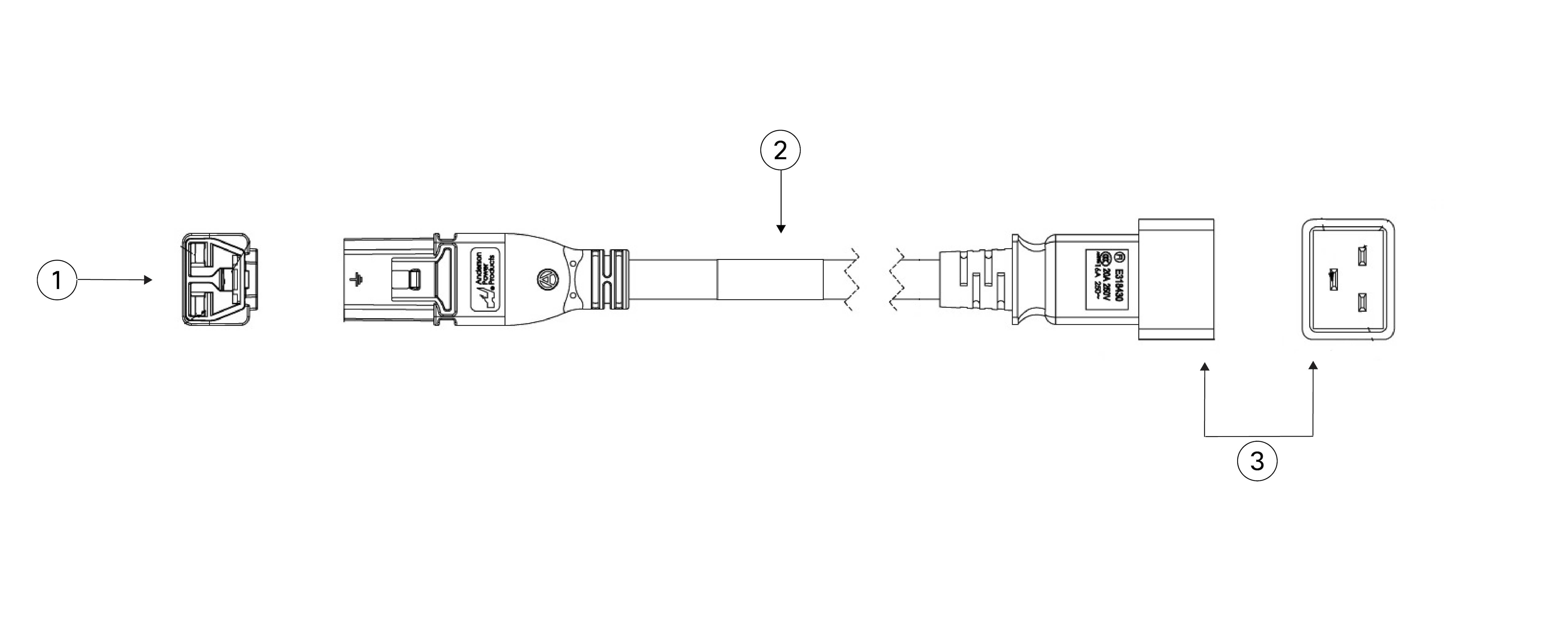
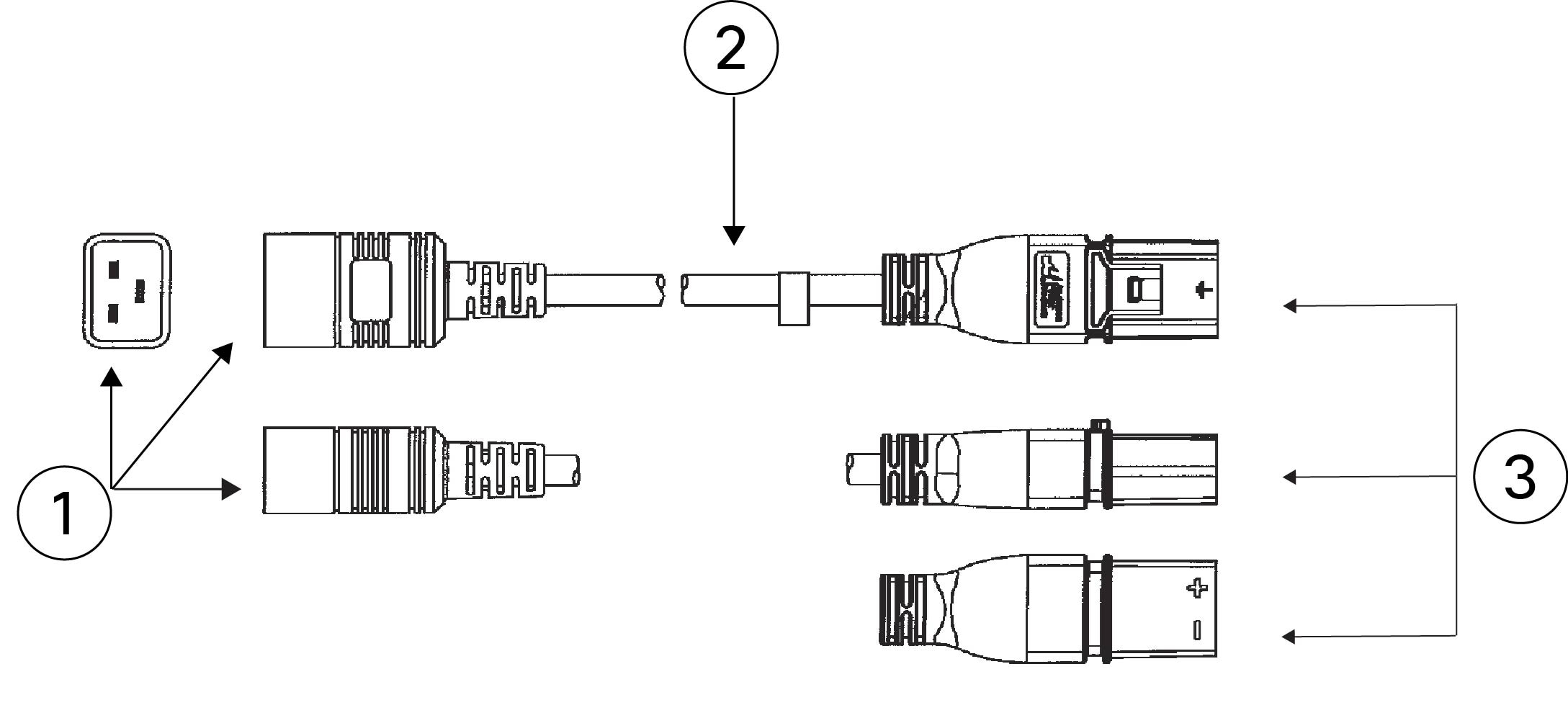
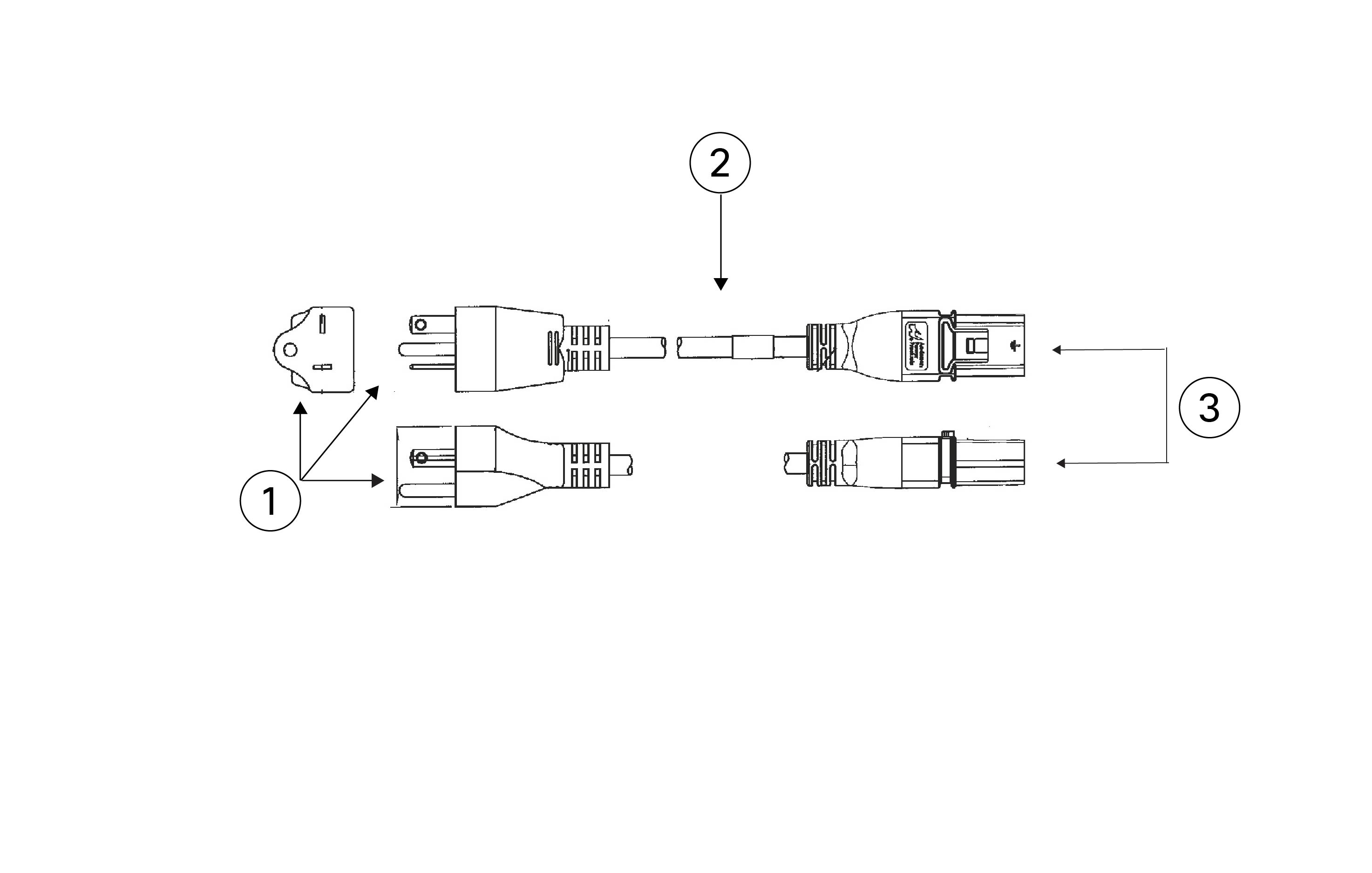
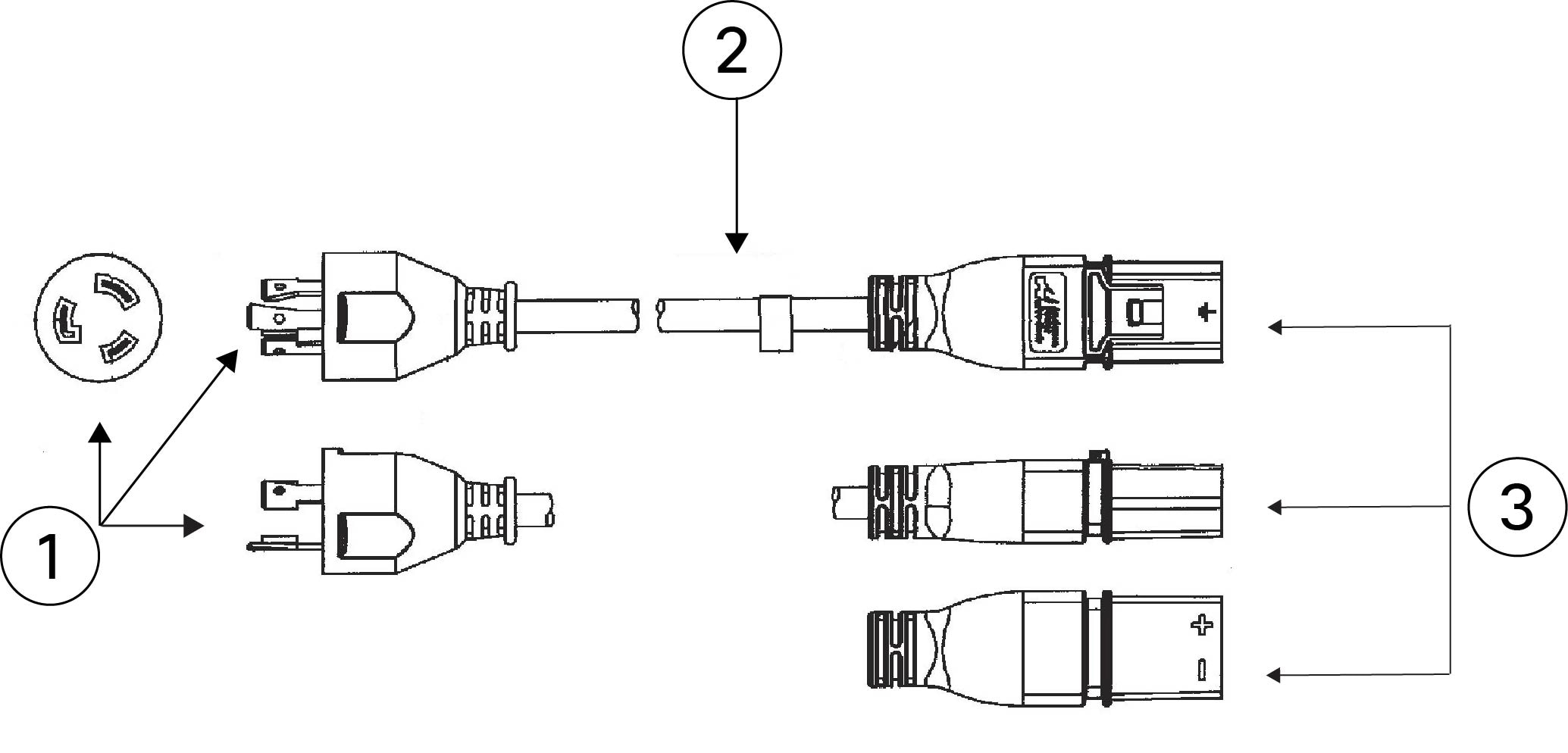
The following HVAC power cords are supported. One end of the cable has the Anderson Saf-D-Grid plug.

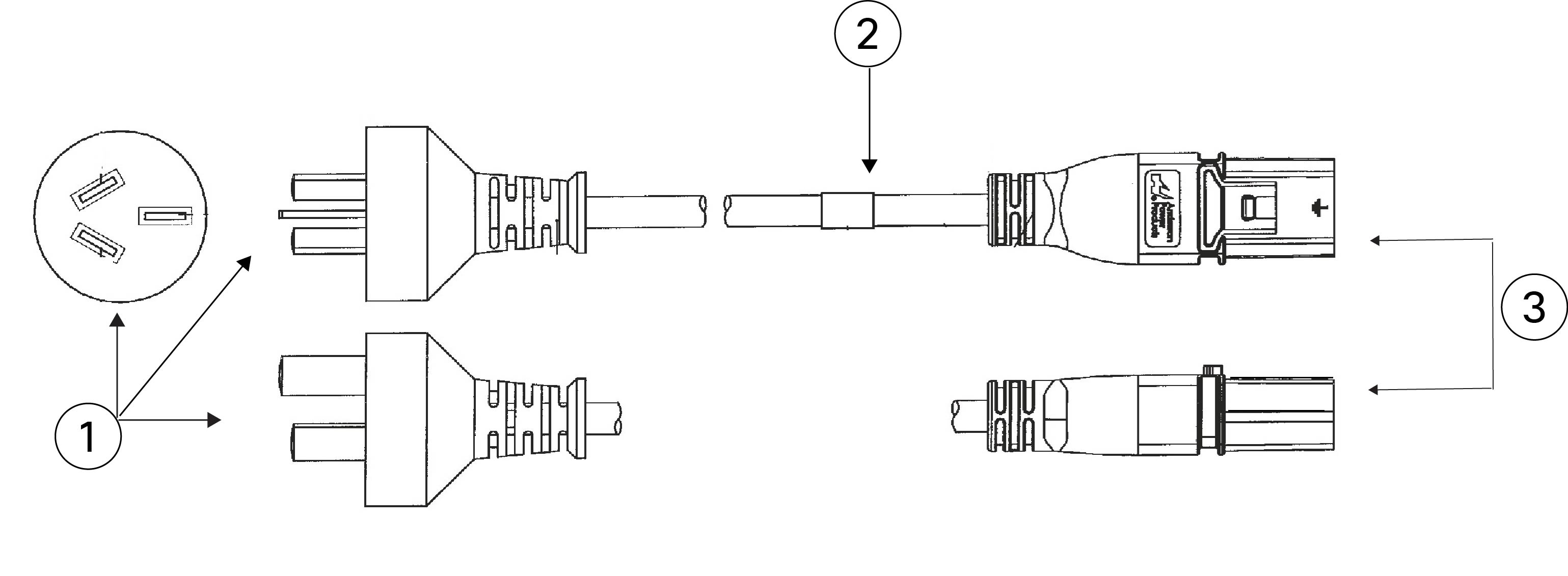
Figure 19. Argentina
PID: CAB-AC-16A-SG-AR Part number: 37-1649-01

1

Plug: IRAM 2073

2

Cord set rating: 16 A, 250 V

3

Connector: Saf-D-Grid

Cord length: 14 ft (4.3 m)

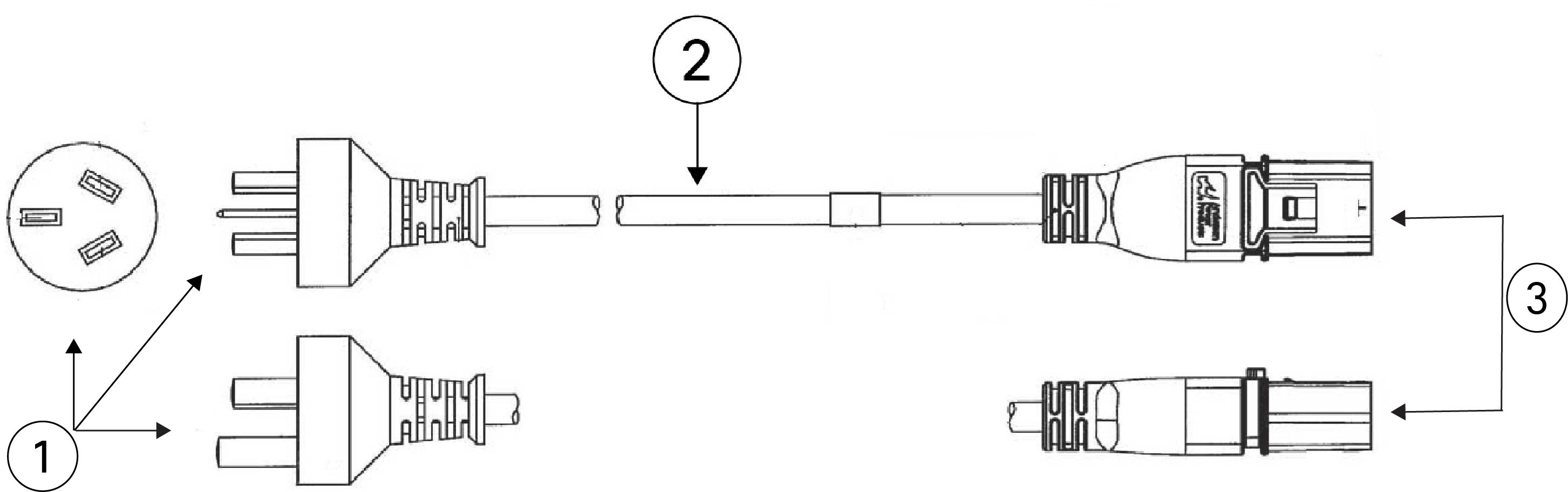
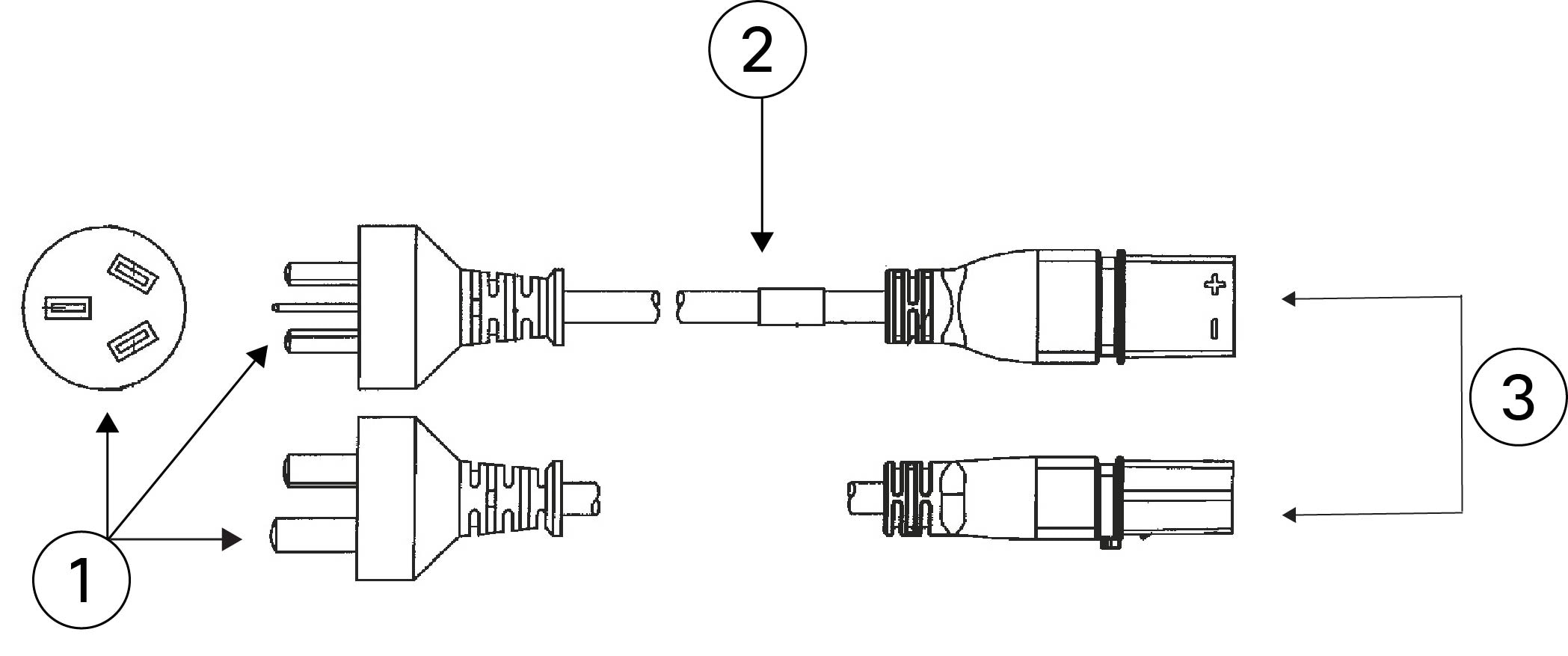
Figure 20. Australia/New Zealand
PID: CAB-AC-16A-SG-AZ Part number: 37-1661-01

1

Plug: AU20LS3

2

Cord set rating: 16 A, 250 V

3

Connector: Saf-D-Grid

Cord length: 14 ft (4.3 m)

Figure 21. Brazil
PID: CAB-AC-16A-SG-BR Part number: 37-1650-01

1

Plug: EL224

2

Cord set rating: 16 A, 250 V

3

Connector: Saf-D-Grid

Cord length: 14 ft (4.3 m)

Figure 22. China
PID: CAB-AC-16A-SG-CH Part number: 37-1655-01

1

Plug: GB 16C

2

Cord set rating: 16 A, 250 V

3

Connector: Saf-D-Grid

Cord length: 14 ft (4.3 m)

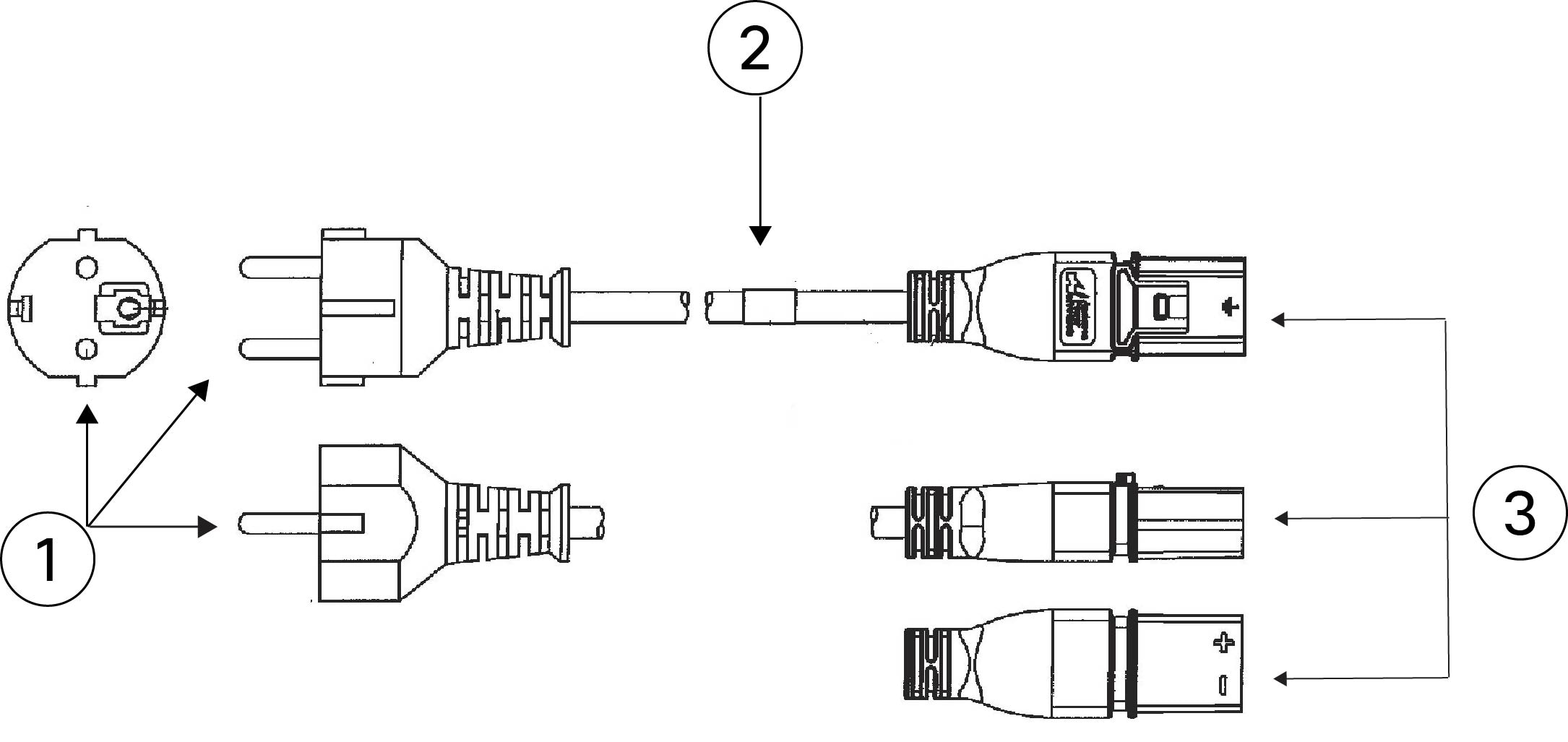
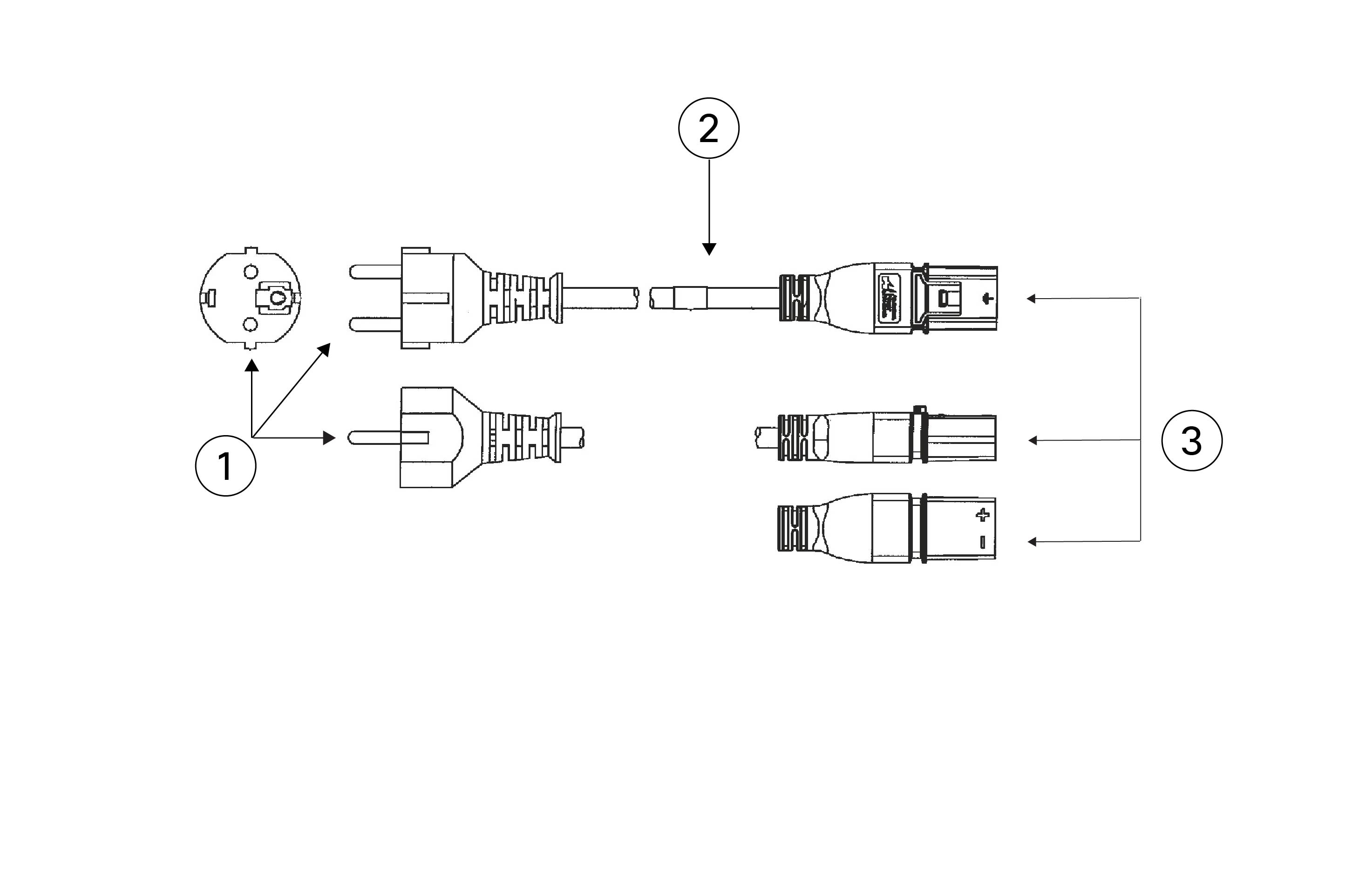
Figure 23. Europe
PID: CAB-AC-16A-SG-EU Part number: 37-1660-01

1

Plug: CEE 7/7

2

Cord set rating: 16 A, 250 V

3

Connector: Saf-D-Grid

Cord length: 14 ft (4.3 m)

Figure 24. India
PID: CAB-AC-16A-SG-IND Part number: 37-1863-01

1

Plug: SABS 164-1

2

Cord set rating: 16 A, 250 V

3

Connector: Saf-D-Grid

Cord length: 14 ft (4.3 m)

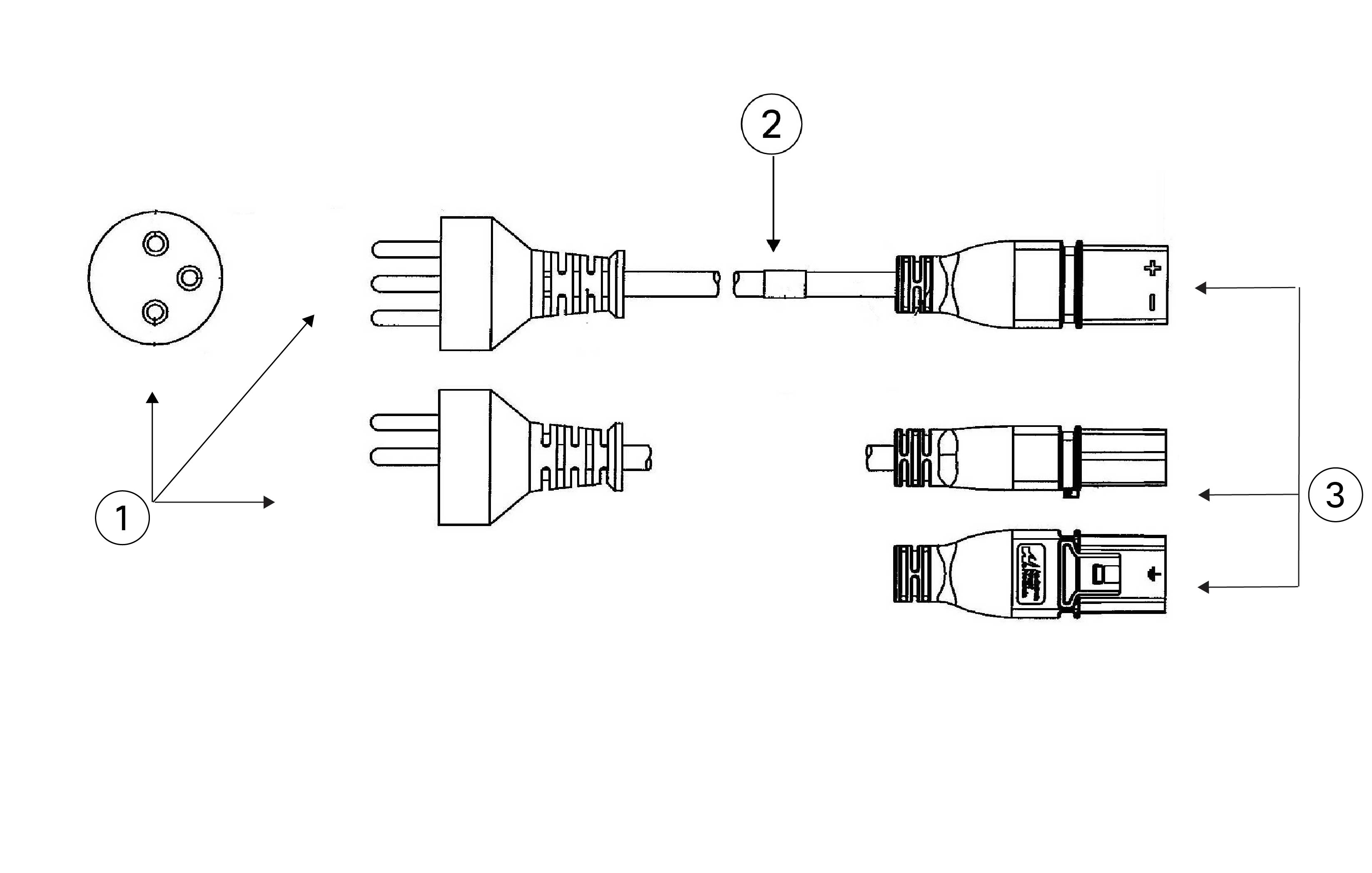
Figure 25. Israel
PID: CAB-AC-16A-SG-IS Part number: 37-1658-01

1

Plug: SI-16S3

2

Cord set rating: 16 A, 250 V

3

Connector: Saf-D-Grid

Cord length: 14 ft (4.3 m)

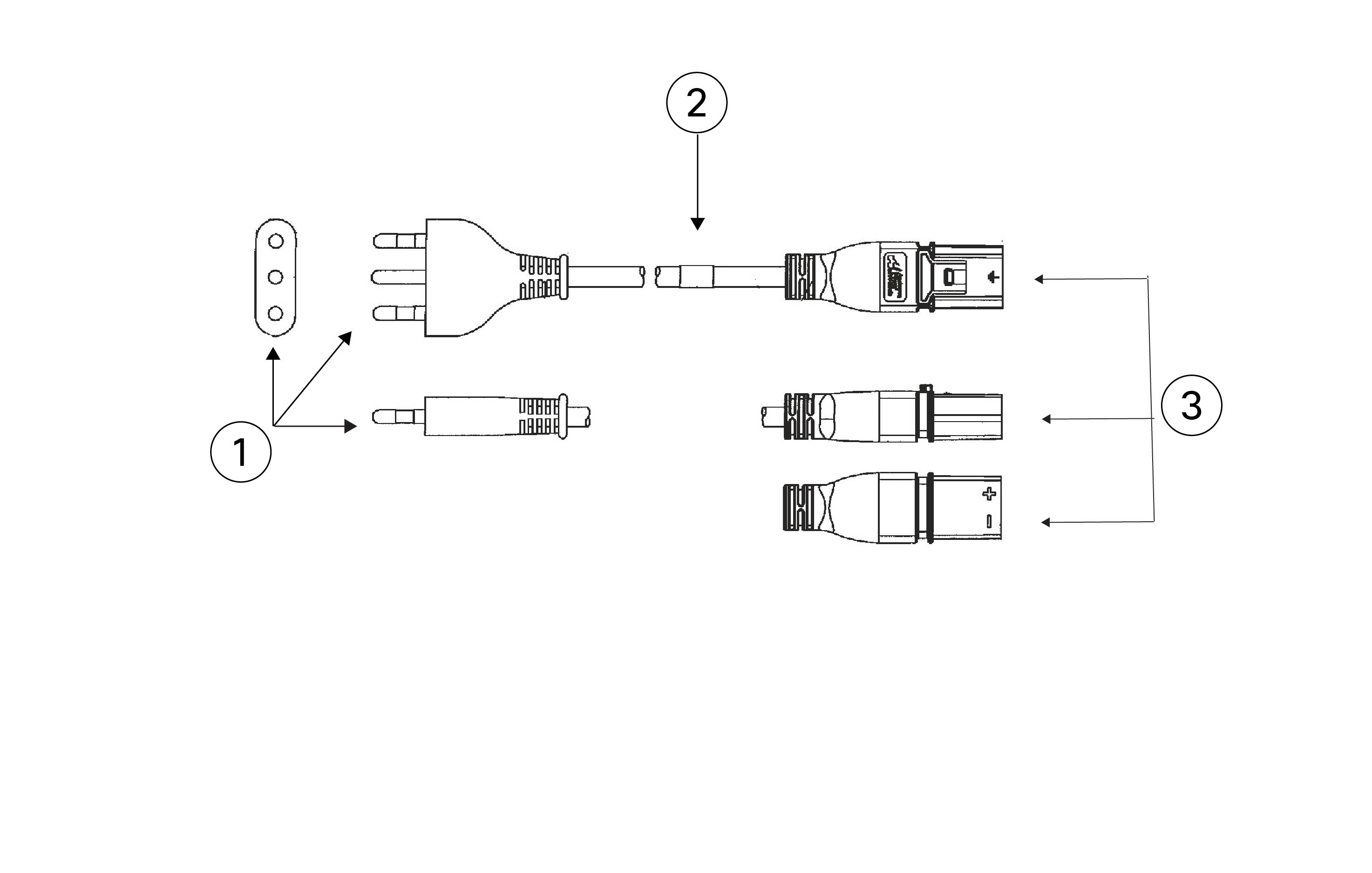
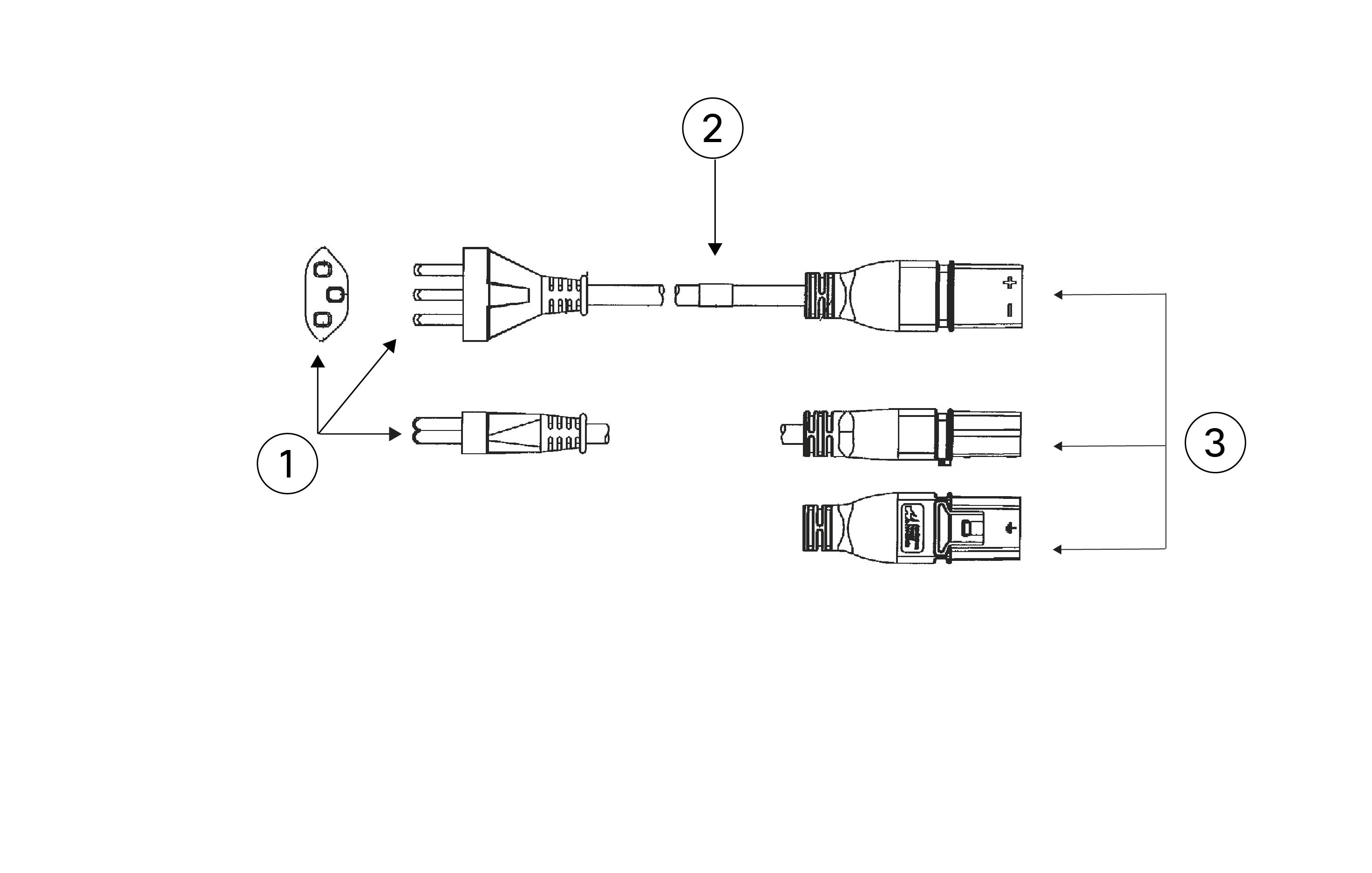
Figure 26. Italy
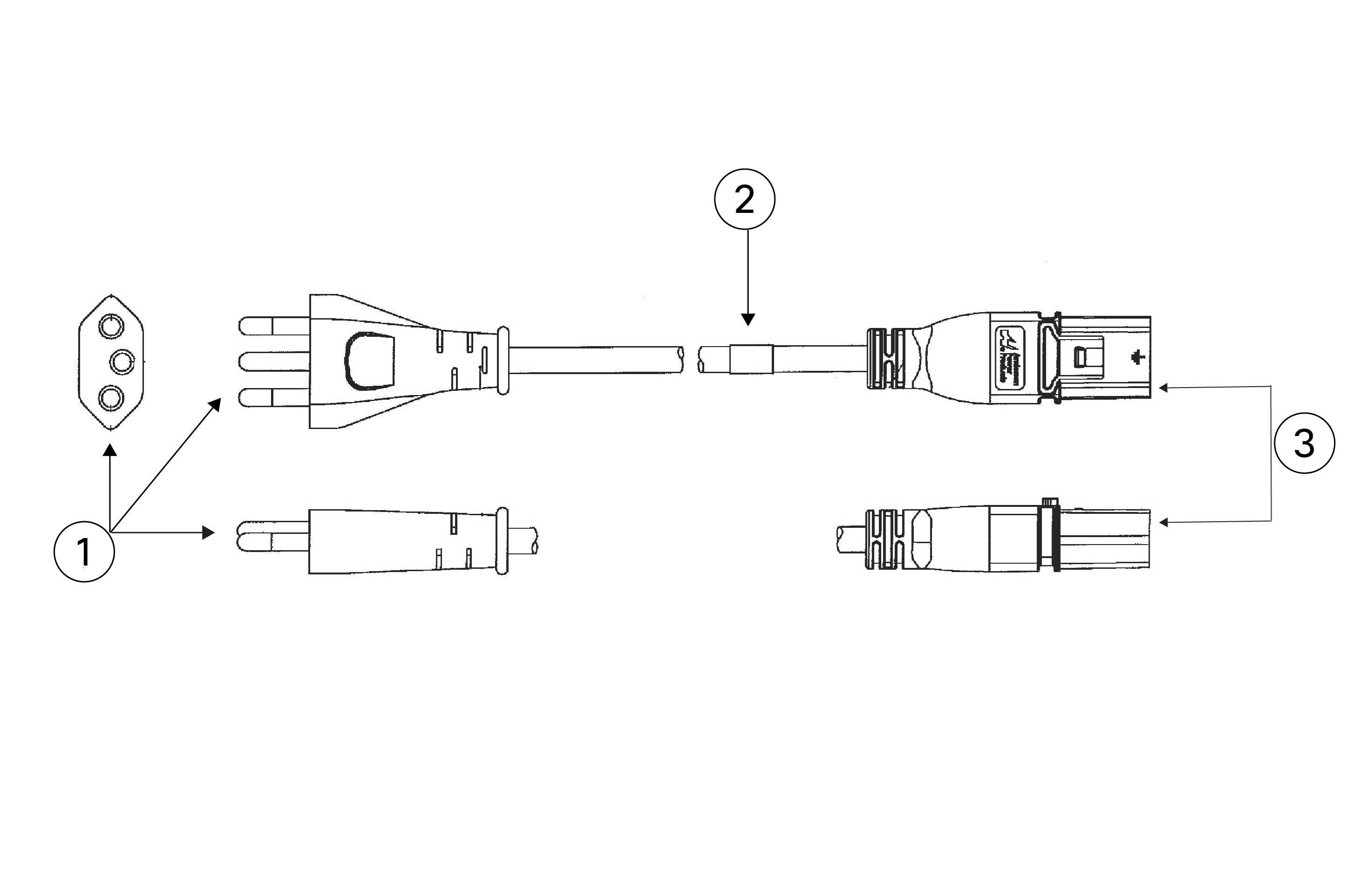
PID: CAB-AC-16A-SG-IT Part number: 37-1651-01

1

Plug: CEI 23-50

2

Cord set rating: 16 A, 250 V

3

Connector: Saf-D-Grid

Cord length: 14 ft (4.3 m)

Figure 27. Japan
PID: CAB-AC-16A-SG-JPN Part number: 37-1656-01

1

Plug: NEMA L6-20

2

Cord set rating: 16 A, 250 V

3

Connector: Saf-D-Grid

Cord length: 14 ft (4.3 m)

Figure 28. Korea
PID: CAB-AC-16A-SG-SK Part number: 37-1646-01

1

Plug: Src

2

Cord set rating: 16 A, 250 V

3

Connector: Saf-D-Grid

Cord length: 14 ft (4.3 m)

Figure 29. North America cabinet jumper PDU
PID: CAB-AC-20A-SG-C20 Part number: 37-1653-01

1

Plug: IEC C20

2

Cord set rating: 20 A, 250 V

3

Connector: Saf-D-Grid

Cord length: 14 ft (4.3 m)

Figure 30. North America straight blade 125 V
PID: CAB-AC-20A-SG-US Part number: 37-1662-01

1

Plug: NEMA 5-20P

2

Cord set rating: 20 A, 125 V

3

Connector: Saf-D-Grid

Cord length: 14 ft (4.3 m)

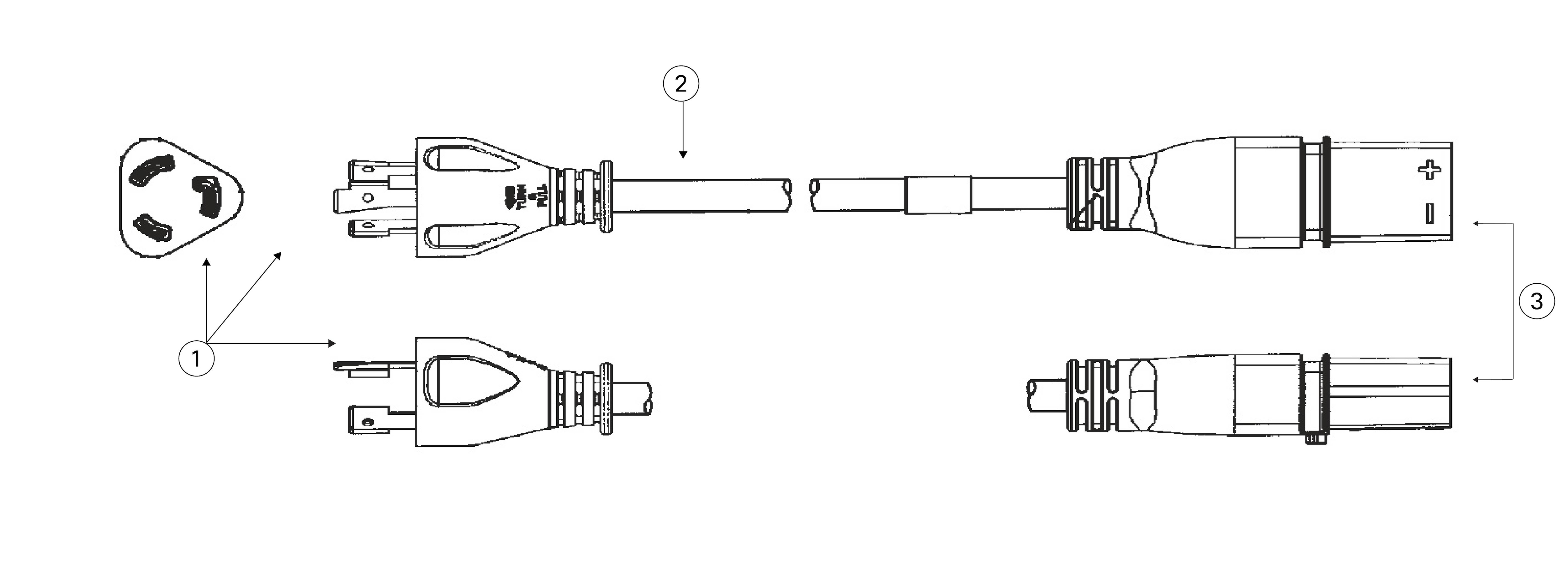
Figure 31. North America twist lock 125 V
PID: CAB-AC-20A-SG-US1 Part number: 37-1652-01

1

Plug: NEMA L5-20

2

Cord set rating: 20 A, 125 V

3

Connector: Saf-D-Grid

Cord length: 14 ft (4.3 m)

Figure 32. North America straight blade 250 V
PID: CAB-AC-20A-SG-US2 Part number: 37-1657-01

1

Plug: NEMA 6-20

2

Cord set rating: 20 A, 250 V

3

Connector: Saf-D-Grid

Cord length: 14 ft (4.3 m)

Figure 33. North America twist lock 250 V
PID: CAB-AC-20A-SG-US3 Part number: 37-1656-01

1

Plug: NEMA L6-20

2

Cord set rating: 20 A, 250 V

3

Connector: Saf-D-Grid

Cord length: 14 ft (4.3 m)

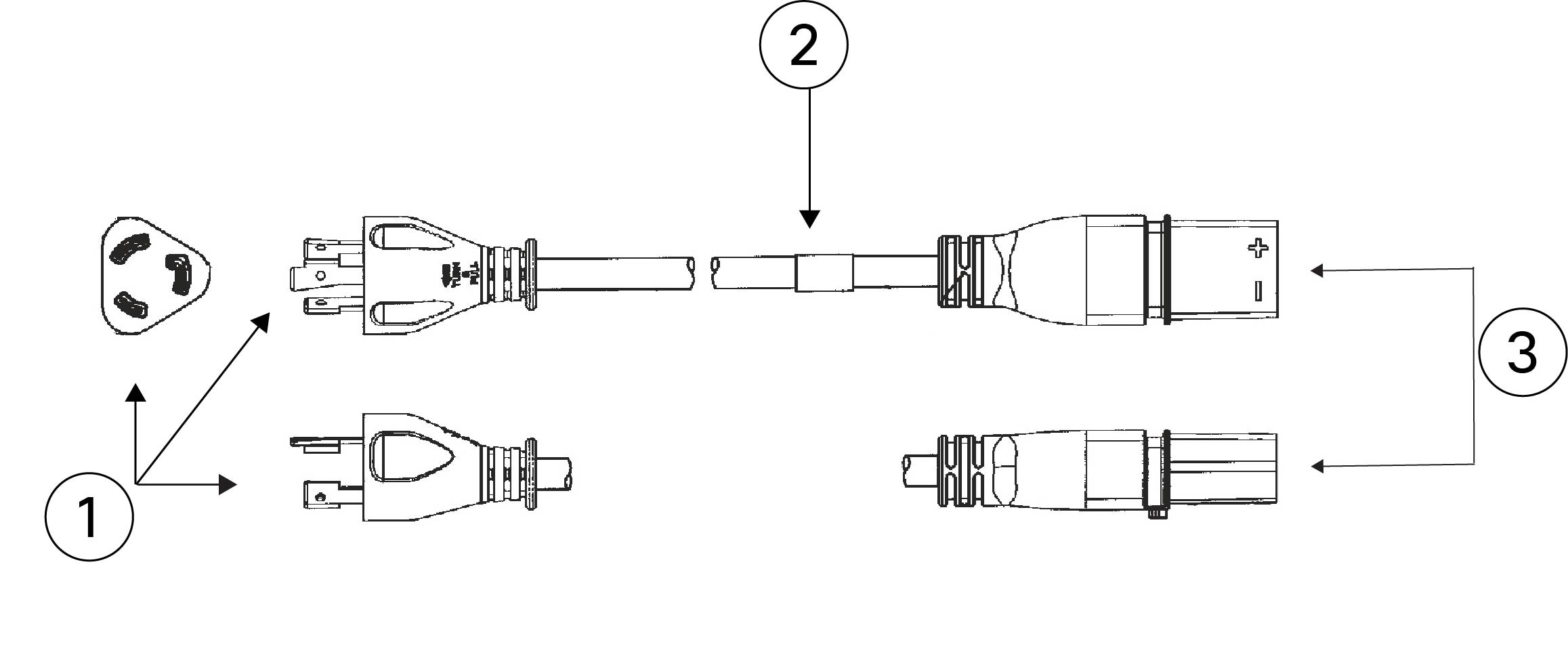
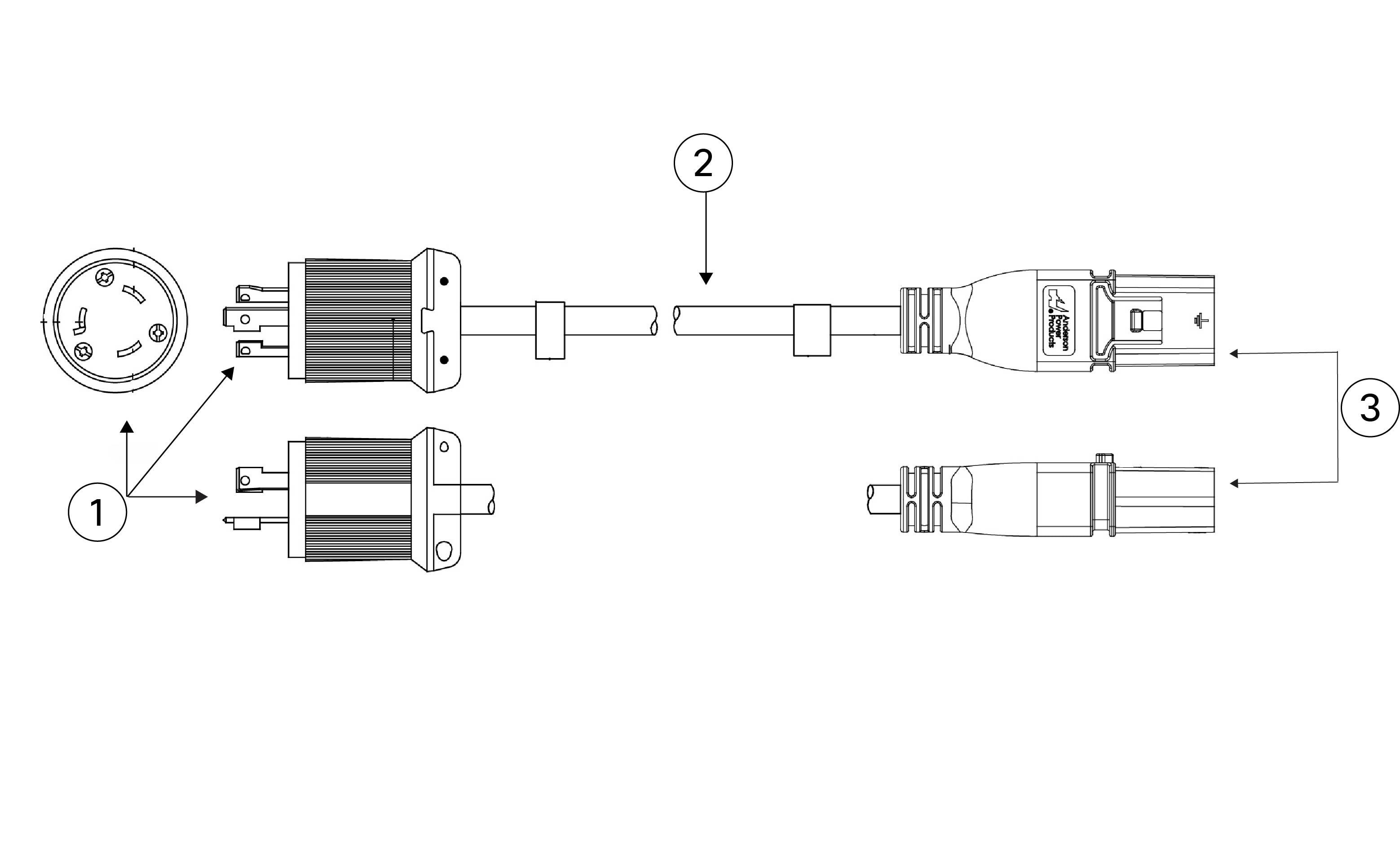
Figure 34. North America Twist Lock 277 V
PID: CAB-AC-20A-SG-US4 Part number: 37-1645-01

1

Plug: NEMA L7-20P

2

Cord set rating: 20 A, 277 V

3

Connector: Saf-D-Grid

Cord length: 14 ft (4.3 m)

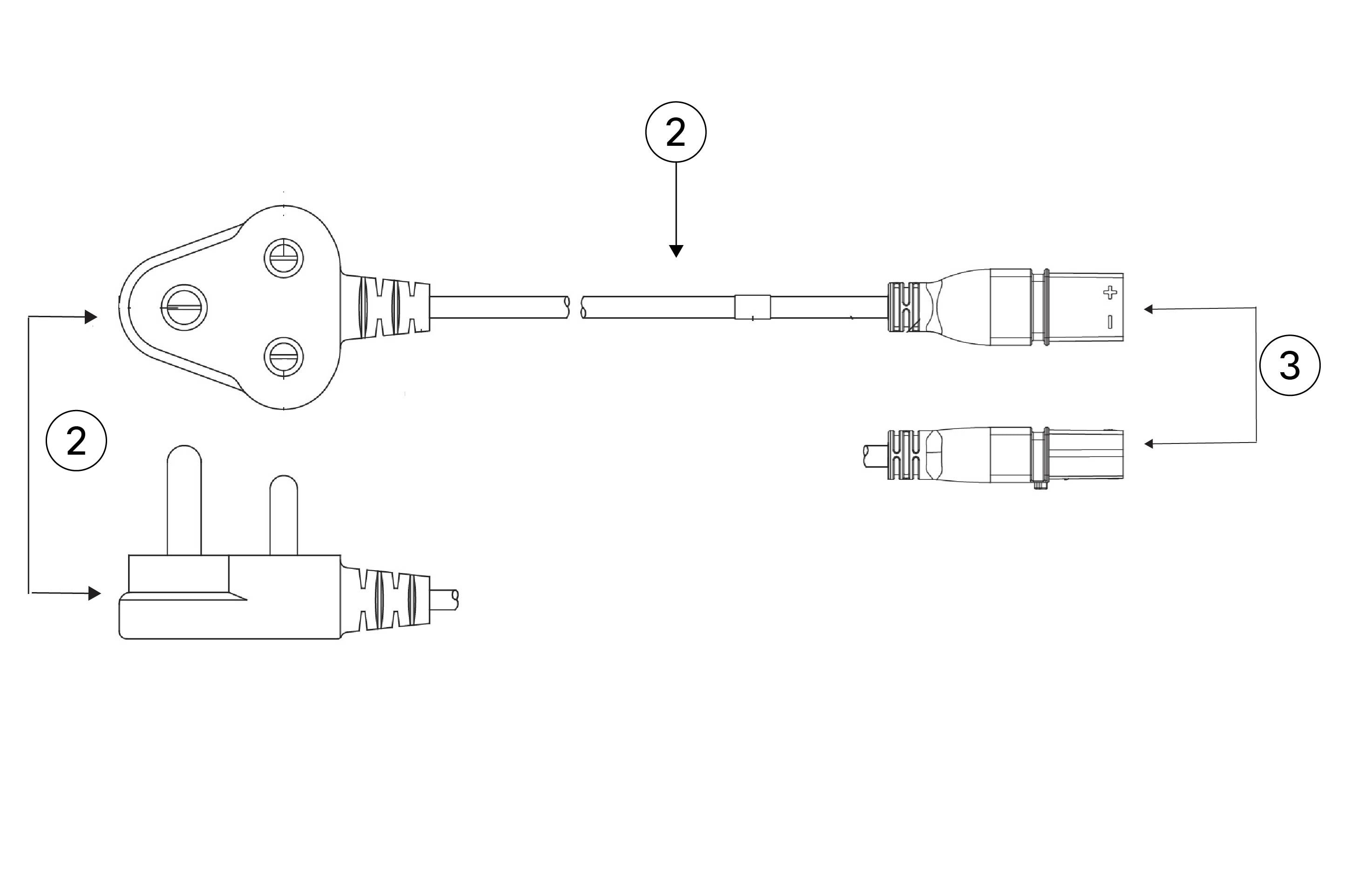
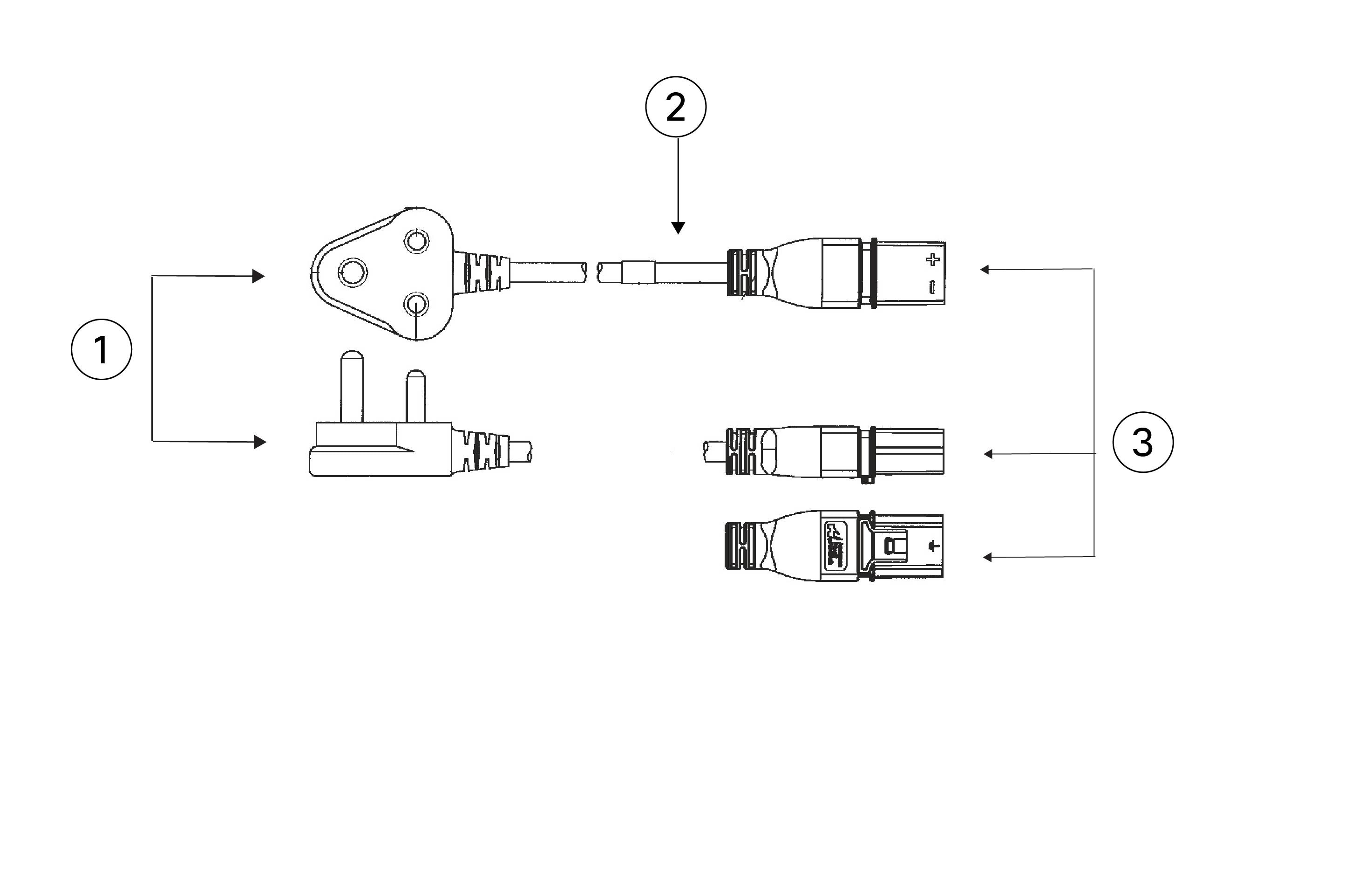
Figure 35. South Africa
PID: CAB-AC-16A-SG-SA Part number: 37-1647-01

1

Plug: EL

2

Cord set rating: 16 A, 250 V

3

Connector: Saf-D-Grid

Cord length: 14 ft (4.3 m)

Figure 36. Switzerland
PID: CAB-AC-16A-SG-SW Part number: 72-1654-01

1

Plug: SEV 5934-2

2

Cord set rating: 16 A, 250 V

3

Connector: Saf-D-Grid

Core length: 14 ft (4.3 m)

Figure 37. United Kingdom
PID: CAB-AC-16A-SG-IN Part number: 37-1659-01

1

Plug: IEC 60309

2

Cord set rating: 16 A, 250 V

3

Connector: Saf-D-Grid

Cord length: 14 ft (4.3 m)

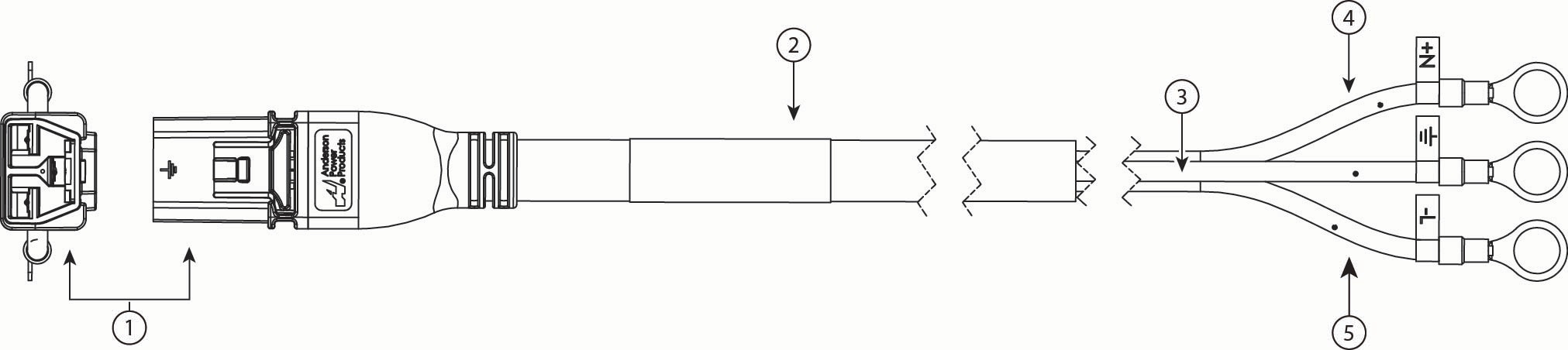
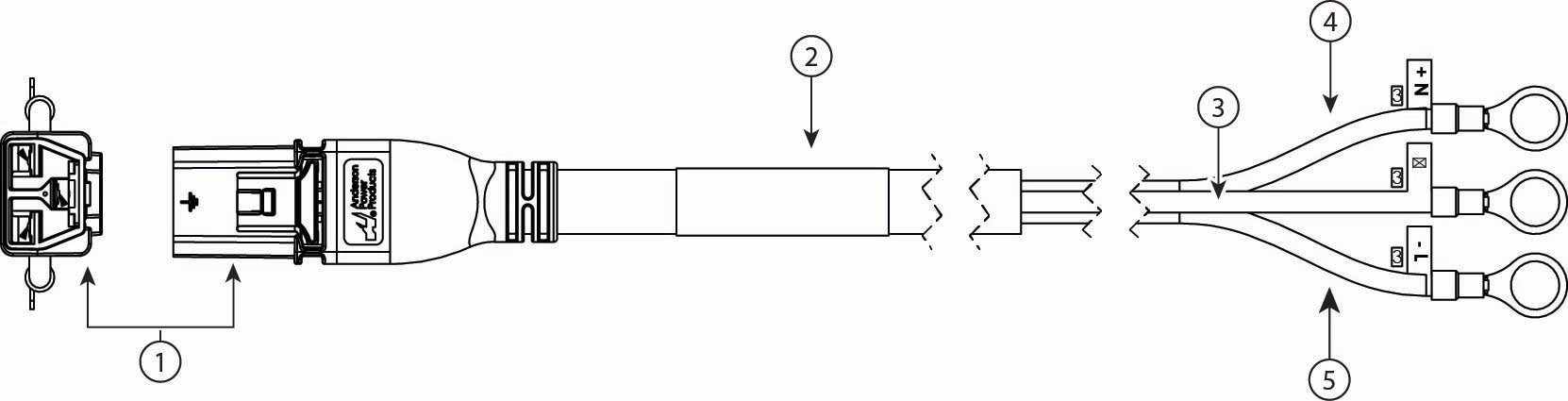
The following HVDC power cords are supported. One end of the cable has the Anderson Saf-D-Grid plug and the other end is three pigtail wires. The pigtail stud size for the insulated ring terminal for both of the following cables is 3/8 inch (9.5 mm).

Figure 38. HVDC North America
North America
PID: CAB-HVDC-2M Part number: 72-100766-01

1

Connector: Saf-D-Grid

2

Cord set rating: 18 A, 400 VDC

3

Green wire

4

White wire

5

Black wire

Cord length: 6.6 ft (2.0 m)

Figure 39. HVDC International and China CCC-compliant
North America
PID: CAB-HVDC-3T-2M Part number: 72-100812-01

1

Connector: Saf-D-Grid

2

Cord set rating: 25 A, 400 VDC

3

Green/yellow wire

4

Blue wire

5

Brown wire

Cord length: 6.6 ft (2.0 m)