Use this workflow to get started with Security Cloud Control.
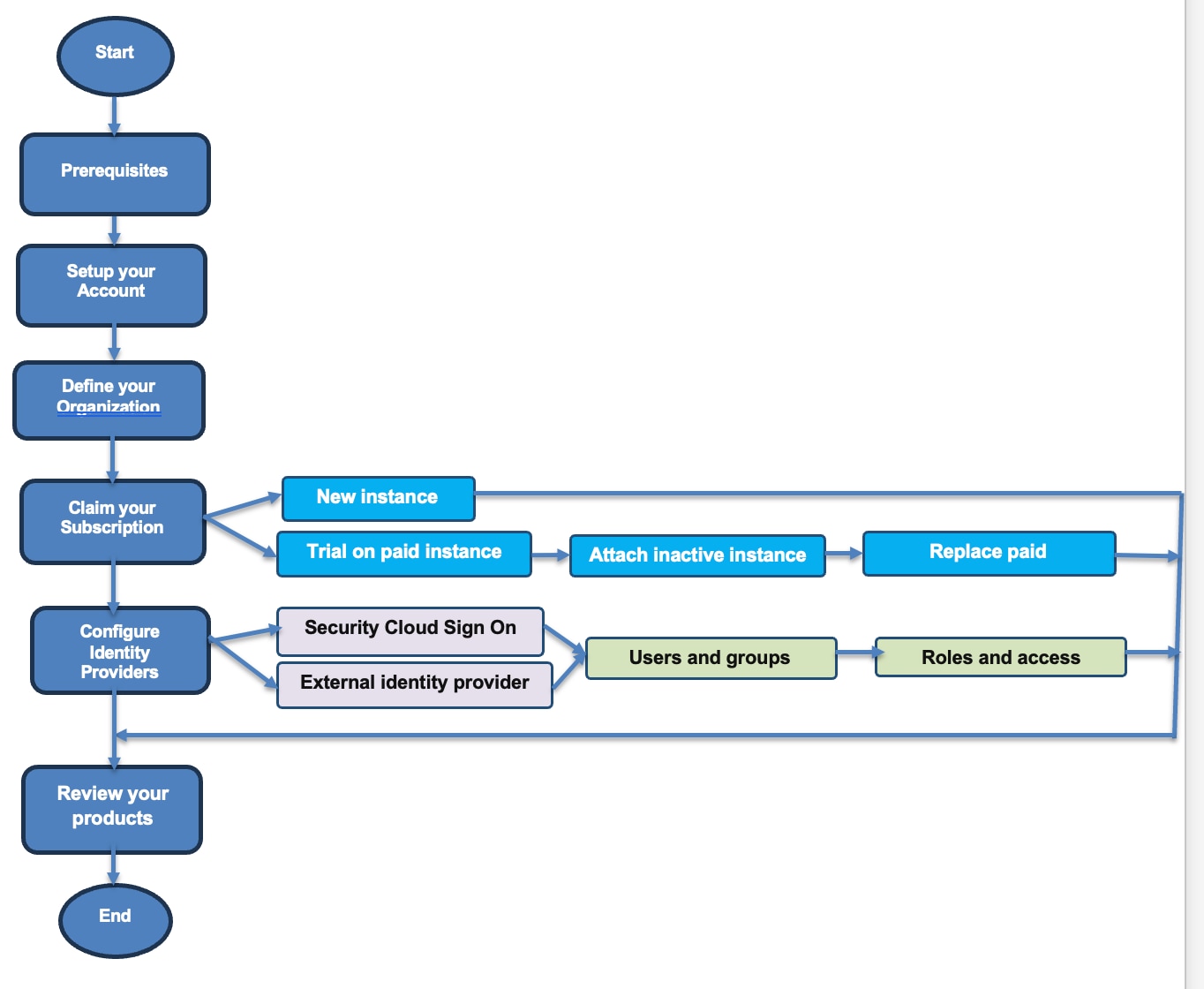
| Onboarding Phase | New deployments | Migrated deployments |
| Prerequisited |
|
|
| Account Setup |
Setup your Security Cloud Sign on account or sign in to Security Cloud Control. For more details refer to the Create your Security Cloud Sign On Account |
Watch for a migration notification from Cisco once your product is migrated to Security Cloud Control. For more details, refer to the Security Cloud Sign On account and with organizations |
|
Define your Organization |
Create your organization and select your preferred region before you claim products. For more details, refer to the Organizations and Regions Video: Create an organization |
Review the organization's region, which uses the existing product's region, and create another organization if necessary. For more details, refer to the Organizations and Regions Video: Create an organization |
|
Claim your Subscription |
Obtain your claim code, then choose a new, trial, inactive-instance, or paid-replacement path. Review the subscription details before you claim. For more details, refer to the claim Code Email for Subscription Video: Claim a Subscription |
Migrated product is already active. You can deactivate an existing product subscription and replace with a new claim code. For more details, refer to the Deactivate a product instance Video: Claim a Subscription |
|
Review |
Review and manage your subscriptions. For more details refer to the Manage subscription and Services |
Review and manage your subscriptions. For more details refer to the Manage subscription and Services |
|
Users,Groups and Roles |
Create new users, establish groups, and assign administrative roles. For more details refer to the Administrator access |
Create new users, establish groups, and assign administrative roles. For more details refer to the Administrator access |
|
Configure Identity providers |
Choose Security Cloud Sign On or an external identity provider. Map groups only when you need federated role management. For more details refer to the Integrate Identity Providers You can also refer to the Invite Users, Import a User, Create Local Groups, or use Federated Groups. Video: Invite a User | Import Multiple Users You can assign product roles directly to users or through groups. Video: Add Users to Groups and Assign Group Roles For more details on Users, Identity settings, and activity log refer to https://securitydocs.cisco.com/docs/scc/admin/95952.dita |
Add and verify enterprise domain and integrate IdentityProvider (IdP) if needed. Formore details, refer to the Organizations and Regions You can also refer to the Invite Users, Import a User, Create Local Groups, or use Federated Groups. Video: Invite a User | Import Multiple Users You can assign product roles directly to users or through groups. |
|
Completion |
View your product subscription details. For more details refer to the Product Configuration |
View your product subscription details. For more details refer to the Product Configuration |
|
Product Configuration |
View your product configuration details. For details on product-specific configuration, refer to the AdditionalDocumentation and Support |
View your product configuration details. For details on product-specific configuration, refer to the AdditionalDocumentation and Support |
| Support Information | CiscoCustomer Support | Cisco Customer Support |
| Reference |
Additional reference: |
Additional reference: |