Install the Appliance

Installation warnings and guidelines


Note


Before you install, operate, or service a server, review the Regulatory Compliance and Safety Information for Cisco UCS C-Series Servers for important safety information.


Warning


IMPORTANT SAFETY INSTRUCTIONS

Before you work on any equipment, be aware of the hazards involved with electrical circuitry and be familiar with standard practices for preventing accidents. Read the installation instructions before using, installing, or connecting the system to the power source. Use the statement number at the beginning of each warning statement to locate its translation in the translated safety warnings for this device.

SAVE THESE INSTRUCTIONS



Warning


This product relies on the building’s installation for short-circuit (overcurrent) protection. To reduce risk of electric shock or fire, ensure that the protective device is rated not greater than:


Warning


This unit is intended for installation in restricted access areas. Only skilled, instructed, or qualified personnel can access a restricted access area.


Warning


To reduce risk of electric shock or fire, installation of the equipment must comply with local and national electrical codes.


Caution


To ensure proper airflow, it is necessary to rack the servers using rail kits. Physically placing the units on top of one another or stacking without the use of the rail kits blocks the air vents on top of the servers, which could result in overheating, higher fan speeds, and higher power consumption. We recommend that you mount your servers on rail kits when you are installing them into the rack because these rails provide the minimal spacing required between the servers. No additional spacing between the servers is required when you mount the units using rail kits.


Follow these guidelines while installing the appliance:

  • Ensure that there is adequate space around the server to allow for accessing the server and for adequate airflow.

  • Ensure that the air conditioning meets the thermal requirements listed in the Environmental specifications.

  • Ensure that the cabinet or rack meets the requirements listed in Rack requirements.

  • Ensure that the site power meets the power requirements listed in Power specifications.
Rack requirements

The rack must be of this type:

  • A standard 19-inch (48.3-cm) wide, four-post EIA rack, with mounting posts that conform to English universal hole spacing, per section 1 of ANSI/EIA-310-D-1992.

  • The rack-post holes can be square 0.38-inch (9.6 mm), round 0.28-inch (7.1 mm), #12-24 UNC, or #10-32 UNC when you use the Cisco-supplied slide rails.

  • The minimum vertical rack space per appliance must be one rack unit (RU), equal to 1.75 inch (44.45 mm).

Rack installation tools required

The slide rails sold by Cisco for this appliance do not require tools for installation.

Slide rail and cable management arm dimensions

The slide rails for this appliance have an adjustment range of 24 to 36 inches (610 to 914 mm).

The optional cable management arm (CMA) adds additional length requirements:

  • The additional distance from the rear of the appliance to the rear of the CMA is 5.4 inches (137.4 mm).

  • The total length of the appliance including the CMA is 35.2 inches (894 mm).

Install the appliance in a rack

This section describes how to install the appliance in a rack using the supported rail kit that is sold by Cisco.


Warning


To prevent bodily injury when mounting or servicing this unit in a rack, you must take special precautions to ensure that the system remains stable. The following guidelines are provided to ensure your safety:

  • This unit should be mounted at the bottom of the rack if it is the only unit in the rack.

  • When mounting this unit in a partially filled rack, load the rack from the bottom to the top with the heaviest component at the bottom of the rack.

  • If the rack is provided with stabilizing devices, install the stabilizers before mounting or servicing the unit in the rack.


Procedure


Step 1

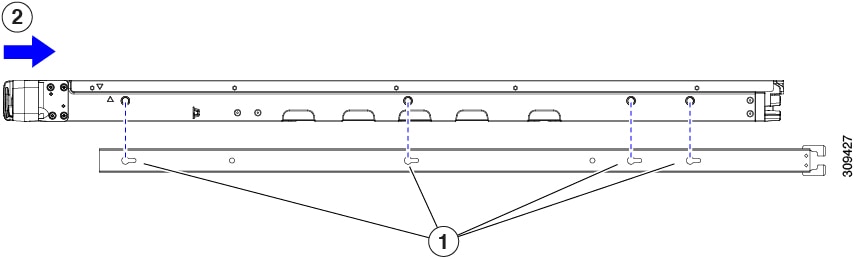
Attach the inner rails to the sides of the appliance:

  1. Align an inner rail with one side of the appliance so that the three keyed slots in the rail align with the three pegs on the side of the appliance.

  2. Set the keyed slots over the pegs, and then slide the rail toward the front to lock it in place on the pegs.

  3. Install the second inner rail to the opposite side of the appliance.

Figure 1. Attaching the inner rail to the side of the appliance

1

Keyed slots in rail

2

Front of appliance slides into keyed slots

Step 2

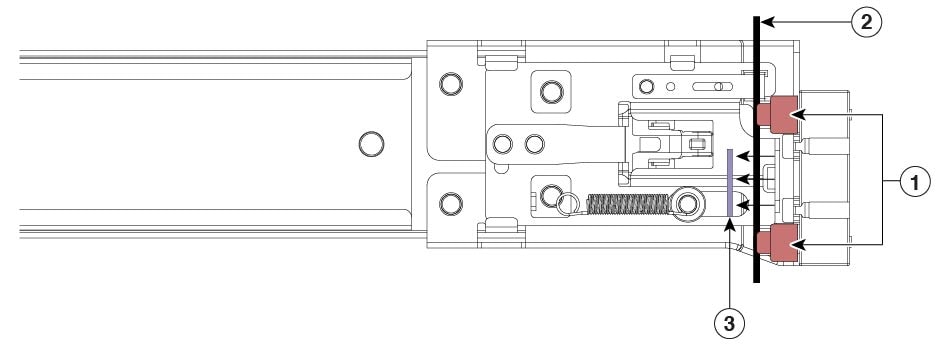
Open the front securing plate on both slide-rail assemblies.

The front end of the slide-rail assembly has a spring-loaded securing plate that must be open before you insert the mounting pegs into the rack-post holes.

Outside the assembly, push the green-arrow button toward the rear to open the securing plate.

Figure 2. Front securing mechanism, inside of front end

1

Front mounting pegs

3

Securing plate pulled back to the open position

2

Rack post between mounting pegs and opened securing plate

-

Step 3

Install the outer slide rails into the rack:

  1. Align one slide-rail assembly front end with the front rack-post holes that you want to use.

    The slide rail front-end wraps around the outside of the rack post and the mounting pegs enter the rack-post holes from the outside-front.

    Note

     
    The rack post must be between the mounting pegs and the open securing plate.
  2. Push the mounting pegs into the rack-post holes from the outside-front.

  3. Press the securing plate release button, marked Push. The spring-loaded securing plate closes to lock the pegs in place.

  4. Adjust the slide-rail length, and then push the rear mounting pegs into the corresponding rear rack-post holes. The slide rail must be level front-to-rear.

    The rear mounting pegs enter the rear rack-post holes from the inside of the rack post.

  5. Attach the second slide-rail assembly to the opposite side of the rack. Ensure that the two slide-rail assemblies are at the same height and are level front-to-back.

  6. Pull the inner slide rails on each assembly, toward the rack front until they hit the internal stops and lock in place.

Step 4

Insert the appliance into the slide rails:

Caution

 
This appliance can weigh up to 60 pounds (27 kilograms) when fully loaded with components. We recommend that you use a minimum of two people or a mechanical lift when lifting the appliance. Attempting this procedure alone could result in personal injury or equipment damage.
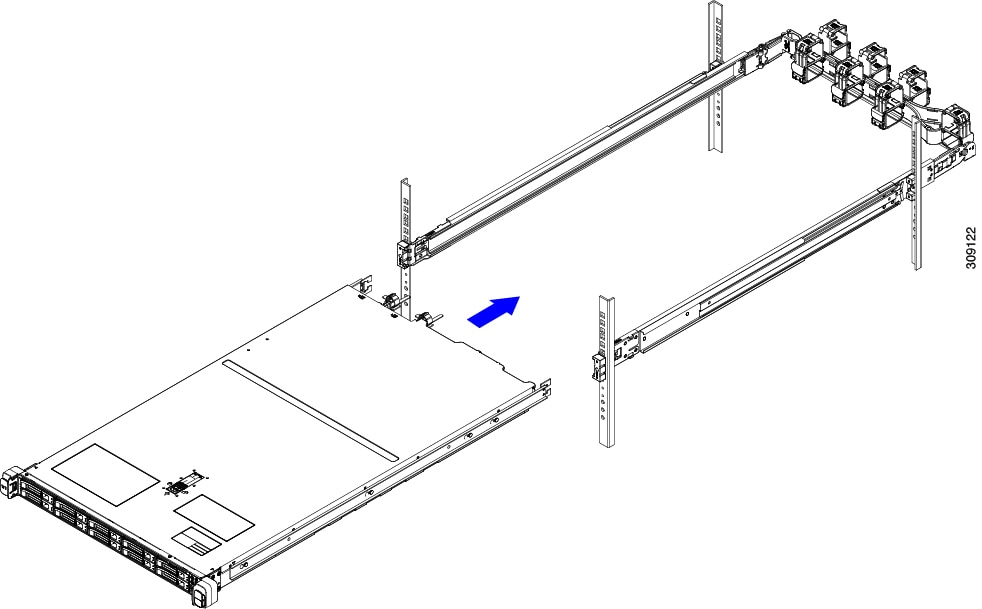
  1. Align the rear ends of the inner rails that are attached to the appliance sides with the front ends of the empty slide rails on the rack.

  2. Push the inner rails into the slide rails on the rack until they stop at the internal stops.

  3. Slide the inner-rail release clip toward the rear on both inner rails, and then continue pushing the appliance into the rack until its front slam latches engage with the rack posts.

Figure 3. Inner-rail release clip

1

Inner-rail release clip

3

Outer slide rail attached to rack post

2

Inner rail attached to appliance and inserted into outer slide rail

-

Step 5

(Optional) Secure the appliance in the rack more permanently by using the two screws that are provided with the slide rails. Perform this step if you plan to move the rack with the appliance installed.

With the appliance fully pushed into the slide rails, open a hinged slam latch lever on the front of the appliance, and insert a screw through the hole that is under the lever. The screw threads into the static part of the rail on the rack post and prevents the appliance from being pulled out. Repeat for the opposite slam latch.

Step 6

(Optional) If applicable, do this:

  1. Attach the cable management arm. See Install the cable management arm.

  2. Attach the locking bezel.


Install the cable management arm


Note


The CMA is reversible left-to-right. To reverse the CMA, see Reverse the cable management arm before installation.

Procedure


Step 1

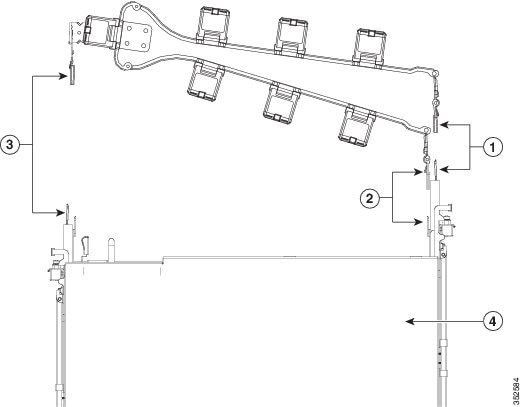
With the appliance pushed fully into the rack, slide the CMA tab of the CMA arm that is farthest from the appliance onto the end of the stationary slide rail that is attached to the rack post. Slide the tab over the end of the rail until it clicks and locks.

Figure 4. Attaching the CMA to the rear ends of the slide rails

1

CMA tab on arm farthest from appliance attaches to end of stationary outer slide rail

3

CMA tab on width-adjustment slider attaches to end of stationary outer slide rail

2

CMA tab on arm closest to the appliance attaches to end of inner slide rail attached to appliance

4

Rear of appliance

Step 2

Slide the CMA tab, which is closest to the appliance, over the end of the inner rail that is attached to the appliance. Slide the tab over the end of the rail until it clicks and locks.

Step 3

Pull out the width-adjustment slider that is at the opposite end of the CMA assembly until it matches the width of your rack.

Step 4

Slide the CMA tab that is at the end of the width-adjustment slider onto the end of the stationary slide rail that is attached to the rack post. Slide the tab over the end of the rail until it clicks and locks.

Step 5

Open the hinged flap at the top of each plastic cable guide and route your cables through the cable guides, as required.


Reverse the cable management arm

Procedure


Step 1

Rotate the entire CMA assembly 180 degrees, left-to-right. The plastic cable guides must remain pointing upward.

Step 2

Flip the tabs at the ends of the CMA arms so that they point toward the rear of the appliance.

Step 3

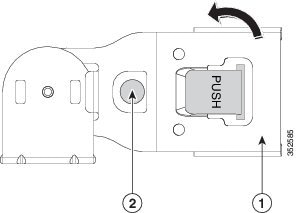
Pivot the tab that is at the end of the width-adjustment slider. Depress and hold the metal button on the outside of the tab and pivot the tab 180 degrees so that it points toward the rear of the appliance.

Figure 5. Reversing the CMA

1

CMA tab on end of width-adjustment slider

2

Metal button outside the tab


Initial setup

This section describes how to connect to the system for initial setup.

Appliance default settings

The appliance is shipped with these default settings:

  • If the appliance does not have any VIC, the default NIC mode is Dedicated. If the appliance has a VIC, the default NIC mode is OCP.

    If you want to use the dedicated management ports to access Cisco IMC, you can connect to the appliance and change the NIC mode as described in Set up the system with the Cisco IMC configuration utility.

  • In Dedicated mode, NIC redundancy is set to None.

  • DHCP is enabled.

  • IPv4 and IPv6 are enabled.

Connection methods

There are two methods for connecting to the system for initial setup:

  • Local setup: Use this method to connect a keyboard and monitor directly to the system for setup. This method uses the VGA and USB ports on the front of the appliance.

  • Remote setup: Use this method to perform setup through your dedicated management LAN.


Note


To configure the system remotely, you must have a DHCP appliance on the same network as the system. Your DHCP appliance must be preconfigured with the range of MAC addresses for this appliance node. The MAC address is printed on a label that is on the pull-out asset tag on the front panel. This appliance node has a range of six MAC addresses assigned to the Cisco IMC. The MAC address printed on the label is the beginning of the range of six contiguous MAC addresses.

Connect to the appliance locally for setup

This procedure requires this equipment:

  • VGA monitor

  • USB keyboard

  • Either the supported Cisco KVM cable or a USB cable and a VGA DB-15 cable

Procedure


Step 1

Attach a power cord to each power supply in your appliance, and then attach each power cord to a grounded power outlet.

Wait for approximately two minutes for the appliance to boot to standby power during the initial setup. You can verify the system's power status by looking at the Power Status LED on the front panel. The system is in standby power mode when the LED is amber.

Step 2

Connect a USB keyboard and VGA monitor to the appliance using one of these methods:

  • Connect an optional KVM cable to the KVM connector on the front panel. Connect your USB keyboard and VGA monitor to the KVM cable.

  • Connect a USB keyboard and VGA monitor to the corresponding connectors on the rear panel.

Step 3

Open the Cisco IMC configuration utility and do these steps:

  1. Press and hold the front panel power button for four seconds to boot the appliance.

  2. When prompted, press F8 to open the Cisco IMC configuration utility.

    When you access the Cisco IMC configuration utility for the first time, you are prompted to change the default password, which is password.

    The Strong Password feature is enabled by default. A strong password must:

    • Contain from 8 to 14 characters.

    • Not contain the username.

    • Contain characters from three of these categories:

      • English uppercase letters (A through Z)

      • English lowercase letters (a through z)

      • Base 10 digits (0 through 9)

      • Nonalphabetic characters !, @, #, $, %, ^, &, *, -, _, =, “

Step 4

Continue this procedure by following the instructions in Set up the system with the Cisco IMC configuration utility.


Connect to the appliance remotely for setup

Before you begin

To configure the system remotely, you must have a DHCP server on the same network as the system. Your DHCP server must be preconfigured with the range of MAC addresses for this server node. The MAC address is printed on a label that is on the pull-out asset tag on the front panel. This server node has a range of six MAC addresses assigned to the Cisco IMC. The MAC address printed on the label is the beginning of the range of six contiguous MAC addresses.

Procedure


Step 1

Attach a power cord to each power supply in your appliance, and then attach each power cord to a grounded power outlet.

Wait for approximately two minutes for the appliance to boot to standby power during the initial setup. You can verify the system's power status by looking at the Power Status LED on the front panel. The system is in standby power mode when the LED is amber.

Step 2

Plug your management Ethernet cable into the dedicated management port on the rear panel.

Step 3

Allow your preconfigured DHCP server to assign an IP address to the server node.

Step 4

Use the assigned IP address to access and log in to the Cisco IMC for the server node.

The default username for the server is admin. The default password is password.

Step 5

On the Cisco IMC Server Summary page, click Launch KVM Console.

A KVM console window opens.

Step 6

On the Cisco IMC Summary page, click Power Cycle Server.

The system reboots.

Step 7

Open the KVM console window.

Note

 
The KVM console window must be the active window for the keyboard actions to work.

Step 8

When prompted, press F8 to enter the Cisco IMC configuration utility.

When you open the Cisco IMC configuration utility for the first time, you are prompted to change the default password. The default password is password.

A strong password must:

  • Contain from 8 to 14 characters.

  • Not contain the username.

  • Contain characters from three of these categories:

    • English uppercase letters (A through Z)

    • English lowercase letters (a through z)

    • Base 10 digits (0 through 9)

    • Non-alphabetic characters !, @, #, $, %, ^, &, *, -, _, =, “

Step 9

Continue this procedure by following the instructions in Set up the system with the Cisco IMC configuration utility.


Set up the system with the Cisco IMC configuration utility

Before you begin

Perform this procedure after you connect to the system and open the Cisco IMC configuration utility.

Procedure


Step 1

Set the NIC mode to choose the ports to use to access Cisco IMC for server management:

  • Shared LOM EXT (default): This is the factory-default setting. In this mode, both the Shared LOM and Cisco Card interfaces are enabled. If you select this option, you must select the default Active-Active NIC redundancy setting in Step 2.

  • Shared LOM: The 1-Gb or 10-Gb Ethernet ports are used to access Cisco IMC. If you select this option, you must select the Active-Active or Active-standby NIC redundancy setting in Step 2.

  • Dedicated: The dedicated management port is used to access Cisco IMC. If you select this option, you must select the None NIC redundancy setting in Step 2.

  • Cisco Card: The VIC ports are used to access the Cisco IMC. If you select this option, you must select the Active-Active or Active-standby NIC redundancy setting in Step 2.

  • VIC Slot: Only if you use the Cisco Card NIC mode, you must select this setting to match where your VIC is installed.

Step 2

Choose one of these options for NIC redundancy:

  • None: The Ethernet ports operate independently and do not fail over if there is a problem. This setting can be used only with the Dedicated NIC mode.

  • Active-standby: If an active Ethernet port fails, traffic fails over to a standby port. Shared LOM and Cisco Card modes can use the Active-standby or Active-active settings.

  • Active-active (default): All Ethernet ports are utilized simultaneously. You must use only this NIC redundancy setting if you have selected the Shared LOM EXT mode. Shared LOM and Cisco Card modes can use the Active-standby or Active-active settings.

Step 3

Choose whether to enable DHCP for dynamic network settings, or to enter static network settings.

Note


Before you enable DHCP, you must preconfigure your DHCP server with the range of MAC addresses for this server. The MAC address is printed on a label on the rear of the server. This server has a range of six MAC addresses assigned to Cisco IMC. The MAC address printed on the label is the beginning of the range of six contiguous MAC addresses.

The Static IPv4 and IPv6 Settings include:

  • Cisco IMC IP address: For IPv6, valid values are 1 to 127.

  • Gateway: For IPv6, if you do not know the gateway, you can set it as none by entering :: (two colons).

  • Preferred DNS server address: For IPv6, you can set this as none by entering :: (two colons).

Step 4

(Optional) Configure VLAN settings.

Step 5

Press F1 to go to the second settings window, and then continue with the next step.

From the second window, you can press F2 to switch back to the first window.

Step 6

Perform these steps, if required:

  • (Optional) Set a hostname for the server.

  • (Optional) Enable dynamic DNS (DDNS) and set a DDNS domain.

  • (Optional) Set a default user password.

    Note

     
    The factory default username for the server is admin. The default password is password.
  • (Optional) Enable auto-negotiation of port settings or set the port speed and duplex mode manually.

    Note

     
    Auto-negotiation is applicable only when you use the Dedicated NIC mode. Auto-negotiation sets the port speed and duplex mode automatically based on the switch port to which the server is connected. If you disable auto-negotiation, you must set the port speed and duplex mode manually.
  • (Optional) Reset port profiles and the port name.

Step 7

Press F5 to refresh the settings.

Step 8

Press F10 to save your settings and reboot the server.

Note

 
If you chose to enable DHCP, the dynamically assigned IP and MAC addresses are displayed on the console screen when you boot the server.

Update the BIOS and Cisco IMC firmware


Caution


When you upgrade the BIOS firmware, you must also upgrade the Cisco IMC firmware to the corresponding version. If you don't do this, the server will not boot.


Cisco provides the Cisco Host Upgrade Utility to assist with simultaneously upgrading the BIOS, Cisco IMC, and other firmware to compatible levels.

The appliance uses the firmware obtained from and certified by Cisco. Cisco provides release notes with each firmware image.

You can upgrade the Cisco IMC and BIOS firmware by using the Cisco IMC GUI or CLI.

Access the system BIOS

Procedure


Step 1

Enter the BIOS Setup Utility by pressing the F2 key when prompted during the initial setup.

The version and build of the current BIOS are displayed on the main page of the utility.

Step 2

Use the arrow keys to select the BIOS menu page.

Step 3

Use the arrow keys to highlight the field to modify.

Step 4

Press Enter to select the field that you want to change, and then modify the value in the field.

Step 5

Press the right arrow key until the Exit menu screen is displayed.

Step 6

Follow the instructions on the Exit menu screen to save your changes and exit the setup utility (or press F10).

You can exit without saving the changes by pressing Esc.


Smart Access Serial support

This server supports the Smart Access Serial feature. This feature allows you to switch between host serial and Cisco IMC CLI.

  • This feature has these requirements:

    • A serial cable connection, which can use either the RJ-45 serial connector on the server rear panel, or a DB-9 connection when using the KVM cable on the front-panel KVM console connector.

    • Console redirection must be enabled in the server BIOS.

    • Terminal type must be set to VT100+ or VTUFT8.

    • Serial-over-LAN (SOL) must be disabled.

  • To switch from host serial to Cisco IMC CLI, press Esc+9.

    You must enter your Cisco IMC credentials to authenticate the connection.

  • To switch from Cisco IMC CLI to host serial, press Esc+8.

    You cannot switch to Cisco IMC CLI if the SOL feature is enabled.

  • After a session is created, it is shown in the CLI or web GUI by the name serial.

Configure the RAID controller after replacing the HDD or SSD

Perform this procedure to configure the RAID controller cards after replacing the HDD or SSD.


Note


Cisco SNS 3800 appliances are preloaded with Cisco ISE software.


Procedure


Step 1

Replace the existing HDD or SSD.

Step 2

Configure RAID controller.


Replace the existing HDD or SSD

Follow these steps to replace the existing HDD or SSD.

Procedure


Step 1

Log in to the appliance.

Step 2

Click the Menu icon in the top-left corner.

Step 3

Choose Storage > Cisco RAID Controller > Controller Info.

Step 4

Click Clear Boot Drive.

Step 5

Click OK to clear the boot drive.

Step 6

Click Virtual Drive Info.

Step 7

In the Virtual Drives window, select the virtual drive and click Delete Virtual Drive.

Step 8

Click Physical Drive Info.

Step 9

In the Physical Drives window, choose the physical drives and click Prepare for Removal.

Note


Cisco ISE is uninstalled when you delete the drives. You must reinstall Cisco ISE after replacing the HDD or SSD.


Configure the RAID controller

To configure the RAID controller, follow these steps.

Procedure


Step 1

Log in to the appliance and click the Menu icon in the top-left corner.

Step 2

Choose Storage > Controllers.

Step 3

Click the Actions drop-down list and select Storage > Create Virtual Drive.

Step 4

Select MRAID controller for the RAID volume and click Next.

Step 5

Select From Unused Physical Drives and click Next.

Step 6

Select the appropriate RAID type from the drop-down list.

For information about the RAID types supported for Cisco SNS 3800 series appliances, see Table 1.

Step 7

Select the drives from the Physical Drives pane, move them to the Drives and Spans pane, and click Next.

You can create different drive groups based on your requirements.

Step 8

In the VD Properties pane, select these options and click Next:

  • From the Read Policy drop-down list, select Always Read Ahead.

  • From the Write Policy drop-down list, select Write Back Good BBU.

Step 9

On the Summary page, click Create to complete the virtual drive creation.

To verify task completion, click the Tasks Collection icon.

After the task completes, verify the RAID configuration in the Virtual Drive Info tab.


Enable drive security for SED

If you are using SED or SED-FIPS drives, follow these steps to enable Remote Key Management.

Procedure


Step 1

Click the Menu icon in the top-left corner.

Step 2

Choose Admin > Security Management > Secure Key Management.

Step 3

Enter the Key Management Interoperability Protocol (KMIP) server details.

Attach the root CA certificate, client certificate, and client private key certificate.

Step 4

Check the Enable Secure Key Management check box.

Step 5

Choose Storage > Cisco 12G SAS RAID Controller > Controller Info.

Step 6

Click Enable Drive Security.

Step 7

Click the Remote Key Management radio button and then click Save.

Step 8

Click Virtual Drive Info.

Step 9

In the Virtual Drives window, choose the virtual drive and click Secure Virtual Drive.

A lock icon appears in the Virtual Drive Number column for the drive for which drive security is enabled.


Configuring Network Time Protocol settings

Before you begin

Perform this procedure to configure Network Time Protocol (NTP) settings. When you configure NTP, you cannot use the IPMI Set SEL time command.

You must log in with admin privileges to perform this task.

Procedure


Step 1

In the Navigation pane, click the Admin menu.

Step 2

In the Admin menu, click Networking.

Step 3

In the Networking pane, click NTP Setting.

Step 4

In the NTP Properties area, update these properties.

Name

Description

NTP Enabled check box

Check this box to enable the NTP service.

Server 1 field

Enter the IP address or DNS address of one of the four servers that act as an NTP server or a time source.

Server 2 field

Enter the IP address or DNS address of one of the four servers that act as an NTP server or a time source.

Server 3 field

Enter the IP address or DNS address of one of the four servers that act as an NTP server or a time source.

Server 4 field

Enter the IP address or DNS address of one of the four servers that act as an NTP server or a time source.

Status message

This field indicates whether or not the server is able to synchronize its time with the remote NTP server. This value is an 8-bit integer that shows the stratum level of the local clock. The status can be:

  • 0—Unspecified or invalid

  • 1—Primary server

  • 22–15—Secondary server (via NTP)

  • 16—Unsynchronized

  • 17–255—Reserved

Step 5

Click Save Changes.