Cisco ISE on Azure Cloud Services

Cisco ISE on Azure cloud

Cisco ISE is available on Azure cloud services. To configure and install Cisco ISE on Azure cloud, you must be familiar with Azure cloud features and solutions. Familiarize yourself with these Azure cloud concepts before starting:

  • Subscriptions and resource groups

  • Azure Virtual Machines. Refer to Instances, Images, SSH Keys, Tags, and VM Resizing.

Azure deployment methods

You can deploy Cisco ISE on Microsoft Azure using an Azure application or an Azure VM.

There are no differences in cost or Cisco ISE features when you deploy Cisco ISE using an Azure application or an Azure VM.

We recommend using the Azure application for these advantages it offers in comparison to the Azure VM:

  • Azure application allows you to easily configure Cisco ISE-specific choices directly through its UI instead of a user-data field as in the case of Azure VM configuration.

  • At the initial configuration of an Azure application, you can choose an OS disk volume ranging between 300 and 2400 GB. However, during the initial configuration of an Azure VM, you can change the OS disk volume to a fixed set of values provided in the Azure portal.

    You must carry out more steps after Cisco ISE installation and launch to reconfigure the virtual machine.

  • You can directly choose from the specific Azure VM sizes that Cisco ISE supports.

  • You can configure a static private IP address at the initial configuration.

You can use the Azure VM if:

  • you do not use the Azure portal UI to deploy Cisco ISE.

  • you need to use one of the additional settings that are available in the Azure VM configuration workflow.

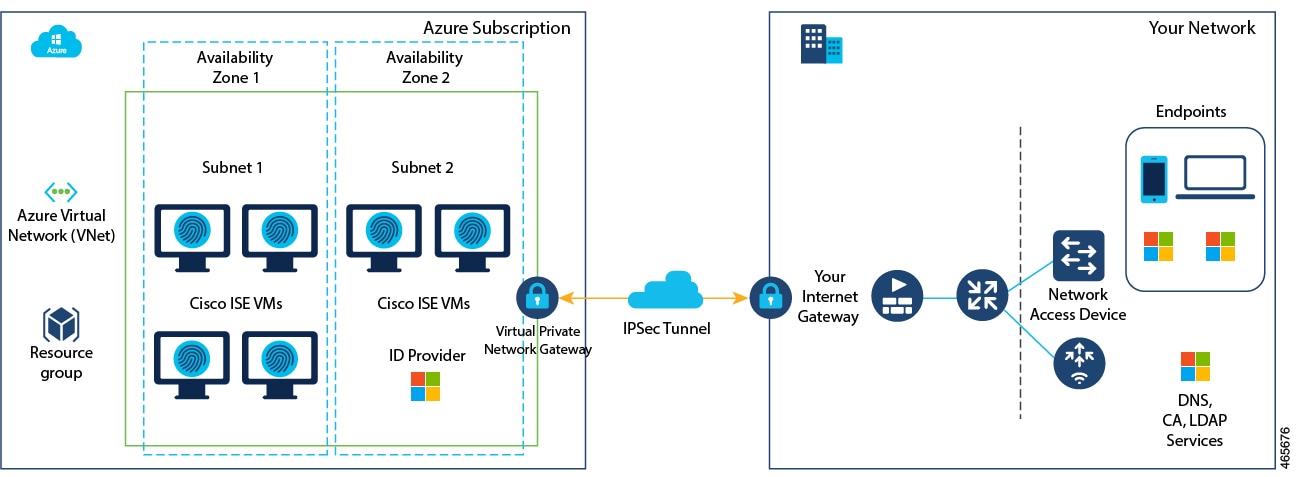
This is an example of a deployment connected to the Azure cloud.

Figure 1. Example of a deployment connected to Azure cloud

In addition to these deployment methods, you can also use Cisco Developed Terraform Script to install and automatically create multi-node Cisco ISE deployments on Azure.


Note


Do not clone an existing Azure cloud image to create a Cisco ISE instance.


Azure VM sizes supported by Cisco ISE

Cisco ISE can be installed by using one of these Azure VM sizes.

Table 1. Azure VM sizes that are supported by Cisco ISE

Azure VM sizes

vCPU

RAM (in GB)

Standard_D4s_v4

This instance supports the Cisco ISE evaluation use case. 100 concurrent active endpoints are supported.

4

16

Standard_D8s_v4

8

32

Standard_F16s_v2

16

32

Standard_F32s_v2

32

64

Standard_D16s_v4

16

64

Standard_D32s_v4

32

128

Standard_D64s_v4

64

256

From Cisco ISE release 3.5, Standard_D4s_v4 and Standard_D16s_v4 VMs are not supported.

The Fsv2-series Azure VM sizes are compute-optimized and are best suited for use as PSNs for compute-intensive tasks and applications.

The Dsv4-series are general purpose Azure VM sizes that are best suited for use as PAN or MnT nodes or both and are intended for data processing tasks and database operations.

If you use a general purpose instance as a PSN, the performance numbers are lower than the performance of a compute-optimized instance as a PSN.

The Standard_D8s_v4 VM size must be used as an extra small PSN only.

For information on the scale and performance data for Azure VM sizes, refer to the Performance and Scalability Guide for Cisco Identity Services Engine.

Known limitations of Cisco ISE in Microsoft Azure cloud services

These are the known limitations with using Cisco ISE with Microsoft Azure cloud services:

Support limitations

  • Dual NIC supports only two NICs: Gigabit Ethernet 0 and Gigabit Ethernet 1. To configure a secondary NIC in your Cisco ISE instance, you must first create a network interface object in Azure, power off your Cisco ISE instance, and then attach this network interface object to Cisco ISE.

    After you install and launch Cisco ISE on Azure, use the Cisco ISE CLI to manually configure the IP address of the network interface object as the secondary NIC.

  • The public cloud supports Layer 3 features only. Cisco ISE nodes on Microsoft Azure do not support Cisco ISE functions that depend on Layer 2 capabilities. For example, working with DHCP SPAN profiler probes and CDP protocol functions through the Cisco ISE CLI are functions that are currently not supported.

  • The Cisco ISE CLI access in Azure requires a secure key pair; password-based authentication is not supported.

    If you are using a Private Key (or PEM) file and you lose the file, you will not be able to access the Cisco ISE CLI.

    Any integration that uses a password-based authentication method to access Cisco ISE CLI is not supported, for example, Cisco Catalyst Center release 2.1.2 and earlier.

  • Azure's VPN gateway in Gen 8 cannot be used due to fragmentation. This is a limitation of Azure's first-party gateway.

  • Cisco ISE deployments on Azure Cloud do not support the Accelerated Networking feature. If you enable this feature in a Cisco ISE deployment, it might cause operations such as node registration and deregistration to fail.

  • After patch installation on Cisco ISE on Azure, you cannot increase disk space.

  • In Cisco ISE release 3.3, if you configure a VM with a 300 GB disk and then attempt to increase the disk size, you may encounter defect CSCwk20591. To resolve the resulting IMS service issue, restart the service. Once the service has restarted, you can proceed with installing the patch.

IP address limitation

If you create Cisco ISE using the Azure Virtual Machine, Microsoft Azure assigns private IP addresses to VMs by default through DHCP servers.

Before you create a Cisco ISE deployment on Microsoft Azure, you must update the forward and reverse DNS entries with the IP addresses assigned by Microsoft Azure.

Alternatively, after you install Cisco ISE, assign a static IP address to your VM by updating the Network Interface object in Microsoft Azure. To do this:

  1. Stop the VM.

  2. Choose Private IP address settings > Assignment > Static.

  3. Restart the VM.

  4. In the Cisco ISE serial console, assign the IP address to the Gi0 interface.

  5. Restart the Cisco ISE application server.

Upgrade limitations

  • The Cisco ISE upgrade workflow is not available in a Microsoft Azure environment. Only fresh installations are supported. However, you can carry out backup and restore of configuration data. For information on upgrading hybrid Cisco ISE deployments, refer to Upgrade Guidelines for Hybrid Deployments.

  • When you carry out the restore and backup function of configuration data, after the backup operation is complete, first restart Cisco ISE through the CLI. Then, initiate the restore operation from the Cisco ISE GUI. For more information, refer to the Chapter "Maintain and Monitor" in the Cisco ISE Administrator Guide for your release.

Out-of-order fragmentation issue

  • In Azure, the networking virtual network stack drops out-of-order fragments by default without forwarding them to the end virtual machine host. This design aims to address the network security vulnerability FragmentSmack, as documented in Azure and fragmentation.

    Cisco ISE deployments on Azure typically use on-premises connectivity modes like Site-to-Site VPN solutions and Azure ExpressRoute, which are prone to fragmentation issues. In such scenarios, Cisco ISE may not receive complete RADIUS packets, leading to authentication failures​.

    Microsoft cannot enable the option that prevents the dropping of out-of-order fragments on Azure VPN Gateway, Azure ExpressRoute (with FastPath disabled), and Azure vWAN. As a result, out-of-order fragments may not be received and processed properly.

    As a workaround, Cisco has validated third-party VPN gateways like Cisco Catalyst 8000V as Azure Virtual Machine to terminate VPN tunnels from on-premises deployment. You must do these configurations for third-party VPN gateways: ​

    • Enable IP virtual-reassembly on the third-party gateway. This ensures that even if the received packets are out of order, the third-party VPN gateway can reassemble and send fragmented packets in the right order. ​

    • Enable IP forwarding on the inside and outside network interfaces on the Microsoft Azure portal.

    • Ensure that the routing table in the Microsoft Azure portal is properly configured to allow the necessary virtual networks through the third-party VPN gateway to connect with the on-premises resources.

    In addition to third-party VPN gateway configuration, do one of these to ensure proper handling of out-of-order UDP packets:

    • Choose the regions where Microsoft Azure Cloud has already implemented the fixes: Central Canada (CanadaCentral), Central France (FranceCentral), Central India (CentralIndia), Central Poland (PolandCentral), Central Sweden (SwedenCentral), Central UAE (UAECentral), Central US (uscentral), East Asia (eastasia), East Australia (australiaeast), East Canada (CanadaEast), East Japan (japaneast), East Norway (NorwayEast), East US (eastus), North Central US (northcentralus), North Germany (GermanyNorth), North EU (EUNorth), North Switzerland (SwitzerlandNorth), North UAE (UAENorth), South Africa North (SouthAfricaNorth), South Brazil (brazilsouth), South US (ussouth), South Central US (southcentralus), South East Asia (southeastasia), South East Australia (australiasoutheast), South India (SouthIndia), South UK (uksouth), West Central US (westcentralus), West Central Germany (GermanyWestCentral), West Europe (westeurope), West UK (ukwest), and West US (westus).

      Cisco ISE customers should raise a Microsoft Azure support ticket to enable the option to allow out-of-order fragments to reach the destination instead of being dropped.

    • For other regions, Cisco ISE customers should raise a Microsoft Azure support ticket to update these configurations:​

      • Pin the subscription to ensure all instances within that subscription are deployed on hardware generation 7.

      • Enable the option to allow out-of-order fragments.

Create a Cisco ISE instance using Azure VM

Prerequisites to create a Cisco ISE Azure instance

  • Create an SSH key pair.

  • Create the virtual network gateways, required subnets, and security groups.

  • Ensure that the subnet that you want to use with Cisco ISE can reach the internet. In Microsoft Azure, in the Public Route Table window, configure the next hop of the subnet as the internet.

Follow these steps to create a Cisco ISE instance using an Azure VM.

  1. Navigate to the Cisco ISE option on the Azure console

  2. Configure instance details

  3. Configure OS disk size

  4. Configure network interface

  5. Configure user details

  6. Configure tags

  7. Review and create

Navigate to the Cisco ISE option on the Azure console

Follow these steps to navigate to the Cisco ISE option on the Azure console.

Procedure


Step 1

Go to https://portal.azure.com and log in to your Microsoft Azure account.

Step 2

Use the search field at the top of the window to search for Marketplace.

Step 3

Use the Search the Marketplace search field to search for Cisco Identity Services Engine (ISE).


Configure instance details

Follow these steps to configure the instance details on the Azure console.

Procedure


Step 1

Click Virtual Machine.

Step 2

In the new window that is displayed, click Create.

Step 3

In the Basics tab, perform these actions:

  1. In the Project details area, choose the required values from the Subscription and Resource group drop-down lists.

  2. In the Instance details area, enter a value in the Virtual Machine name field.

  3. From the Image drop-down list, choose the Cisco ISE image.

  4. From the Size drop-down list, choose the instance size that you want to install Cisco ISE with. Choose an instance that is supported by Cisco ISE.

  5. In the Administrator account > Authentication type area, click the SSH Public Key radio button.

  6. In the Username field, enter iseadmin.

    Note


    The only permitted username is iseadmin. Use of any other username is not supported.

  7. From the SSH public key source drop-down list, choose Use existing key stored in Azure.

  8. From the Stored keys drop-down list, choose the key pair that you created as a prerequisite for this task.

  9. In the Inbound port rules area, click the Allow selected ports radio button.

  10. From the Select inbound ports drop-down list, choose the required protocol ports.

  11. In the Licensing area, from the Licensing type drop-down list, choose Other.


Configure OS disk size

Follow these steps to configure OS disk size.

Procedure


Step 1

Click Next: Disks.

Step 2

In the Disks tab, select a disk size from the OS Disk Size drop-down list or retain the default value.

Note

 
We recommend that you use a customer-managed key for disk encryption in the Key Management field. A platform-managed key is used by default. For more information on key creation, refer to About encryption key management.

For the rest of the mandatory fields, you can retain the default values.


Configure network interface

Follow these steps to configure a network interface.

Procedure


Step 1

Click Next: Networking.

Step 2

In the Network Interface area, from the Virtual network and Subnet drop-down lists, select the virtual network and subnet that you have created.

Note that a subnet with a public IP address receives online and offline posture feed updates, while a subnet with a private IP address receives only offline posture feed updates.


Configure user details

Follow these steps to configure the user details.

Procedure


Step 1

Click Next: Management.

Step 2

In the Management tab, retain the default values for the mandatory fields and click Next: Advanced.

Step 3

In the User data field, enter the parameters in the correct format.

You must use the correct syntax for each of the fields that you configure through the user data entry. The information you enter in the User data field is not validated. If you use incorrect syntax, Cisco ISE services might not start when you launch the image.

Follow these guidelines for the configurations that you submit through the User data field:

Table 2. Configuration guidelines for User Data field
Field Name Field Description Compliance and Behavior Changes
hostname

Enter a hostname that contains only alphanumeric characters and hyphen (-). The length of the hostname must be less than 19 characters and must not contain underscores (_).

Syntax must meet recommendations.
primarynameserver

Enter the IP address of the primary name server. Only IPv4 addresses are supported.

From Cisco ISE release 3.4:
  • You can configure secondary and tertiary name servers during installation by using the secondarynameserver and tertiarynameserver fields.

secondarynameserver

(From Cisco ISE release 3.4)

Enter the IP address of the secondary name server. Only IPv4 addresses are supported.

  • If you leave the secondarynameserver field blank and use only the tertiarynameserver field, the Cisco ISE services will not start.

tertiarynameserver

(From Cisco ISE release 3.4)

Enter the IP address of the tertiary name server. Only IPv4 addresses are supported.

Use only after secondarynameserver value is set.
dnsdomain

Enter the FQDN of the DNS domain. The entry can contain ASCII characters, numerals, hyphens (-), and periods (.).

Syntax must meet recommendations.

ntpserver

(renamed as primaryntpserver from Cisco ISE release 3.4)

Enter the IPv4 address or FQDN of the NTP server that must be used for synchronization, for example, time.nist.gov.

From Cisco ISE release 3.4:
  • The ntpserver field name is changed to primaryntpserver. If you use ntpserver, Cisco ISE services will not start.

secondaryntpserver

(From Cisco ISE release 3.4)

Enter the IPv4 address or FQDN of the secondary NTP server.
  • If you leave the secondaryntpserver field blank and use only the tertiaryntpserver field, the Cisco ISE services will not start.

tertiaryntpserver

(From Cisco ISE release 3.4)

Enter the IPv4 address or FQDN of the tertiary NTP server. Use only after secondaryntpserver value is set.
timezone

Enter a timezone, for example, Etc/UTC. We recommend that you set all the Cisco ISE nodes to the Coordinated Universal Time (UTC) timezone, especially if your Cisco ISE nodes are installed in a distributed deployment. This procedure ensures that the timestamps of the reports and logs from the various nodes in your deployment are always synchronized.

Syntax must meet recommendations.
password

Configure a password for GUI-based login to Cisco ISE. The password that you enter must comply with the Cisco ISE password policy. The password must contain 6 to 25 characters and include at least one numeral, one uppercase letter, and one lowercase letter. The password cannot contain or be the same as the username or its reverse (iseadmin or nimdaesi), cisco, or ocsic. The allowed special characters are @~*!,+=_-.  .

Refer to "User Password Policy" section in the chapter "Basic Setup" of the Cisco ISE Administrator Guide for your release.
ersapi

Enter yes to enable ERS, or no to disallow ERS.

Syntax must meet recommendations.
openapi

Enter yes to enable OpenAPI, or no to disallow OpenAPI.

From Cisco ISE release 3.4, OpenAPI services are enabled by default. You don't have to specify OpenAPI-related options when launching an instance.

pxGrid

Enter yes to enable pxGrid, or no to disallow pxGrid.

Syntax must meet recommendations.
pxgrid_cloud

Enter yes to enable pxGrid Cloud, or no to disallow pxGrid Cloud.

To enable pxGrid Cloud, you must enable pxGrid. If you disallow pxGrid, but enable pxGrid Cloud, pxGrid Cloud services are not enabled at launch.

From Cisco ISE release 3.5, pxGrid Cloud can be enabled only from Cisco ISE Cisco ISE GUI. Therefore, this field is not included in the user data.


Configure tags

Follow these steps to configure your tags:

Procedure


Step 1

Click Next: Tags.

Step 2

To create name-value pairs that allow you to categorize and consolidate multiple resources and resource groups, enter values in the Name and Value fields.


Review and create

Follow these steps to review the configurations you have created so far and to create a Cisco ISE instance.

Procedure


Step 1

Click Next: Review + Create.

Step 2

Review the information that you have provided so far and click Create.

The Deployment is in progress window is displayed. It takes about 30 minutes for the Cisco ISE instance to be created and available for use. The Cisco ISE VM instance is displayed in the Virtual Machines window (use the main search field to find the window).


Edit disk size

This section is applicable only if the disk size of your Cisco ISE VM is 300 GB. If you have chosen any other disk size, then these steps are not applicable.

Due to Microsoft Azure default settings, the Cisco ISE VM is configured with only 300 GB disk size. Cisco ISE nodes typically require more than 300 GB disk size. You might see the Insufficient Virtual Memory alarm when you first launch Cisco ISE from Microsoft Azure.

After you create the Cisco ISE VM, log in to the Cisco ISE administration portal to verify that Cisco ISE is set up correctly. Then, in the Microsoft Azure portal, carry out these steps in the Virtual Machines page to edit the disk size:

Procedure


Step 1

Stop the Cisco ISE instance.

Step 2

Click Disk in the left pane, and click the disk that you are using with Cisco ISE.

Step 3

Click Size + performance in the left pane.

Step 4

In the Custom disk size field, enter the disk size you want in GiB.


Create a Cisco ISE instance using Azure application

Before creating a Cisco ISE instance, create the Azure resources that you need, such as Resource Groups, Virtual Networks, Subnets, SSH keys, and so on.

Follow these steps to create your Cisco ISE instance using the Azure application.

  1. Navigate to the Cisco ISE option on the Azure console

  2. Add instance details

  3. Configure network settings

  4. Configure services

  5. Add user details

  6. Review and create

Navigate to the Cisco ISE option on the Azure console

Follow these steps to navigate to the Cisco ISE option on the Azure console.

Procedure


Step 1

Go to https://portal.azure.com and log in to your Microsoft Azure account.

Step 2

Use the search field at the top of the window to search for Marketplace.

Step 3

Use the Search the Marketplace search field to search for Cisco Identity Services Engine (ISE).


Add instance details

Follow these steps to add the basic configuration details for the Cisco ISE instance.

Procedure


Step 1

Click Azure Application.

Step 2

In the new window that is displayed, click Create.

A five-step workflow is displayed.

Step 3

In the Basics tab:

  1. From the Resource Group drop-down list, choose the option that you want to associate with Cisco ISE.

  2. From the Region drop-down list, choose the region in which the Resource Group is placed.

  3. In the Hostname field, enter the hostname.

  4. From the Time zone drop-down list, choose the time zone.

  5. From the VM Size drop-down list, choose the Azure VM size that you want to use for Cisco ISE.

  6. From the Disk Encryption Key drop-down list, choose your key for disk encryption.

    From Cisco ISE release 3.3, we recommend that you use a customer-managed key for disk encryption in the Disk Encryption Key field. By default, a platform-management key is used. For more information, refer to About encryption key management.

  7. From the Disk Storage Type drop-down list, choose an option.

  8. In the Volume Size field, enter the volume that you want to assign to the Cisco ISE instance in GB. The default value is 600 GB.

    We recommend selecting the appropriate disk size, ranging from 300 GB to 2400 GB, during node creation in the Azure application template rather than starting with 300 GB and planning to increase it later.


Configure network settings

Follow these steps to configure the network settings.

Procedure


Step 1

Click Next.

Step 2

In the Network Settings tab, enter these details:

  1. From the Virtual Network drop-down list, select a virtual network.

  2. From the Subnet drop-down list, choose a subnet associated with the selected virtual group.

  3. (Optional) From the Network Security Group drop-down list, choose the required security groups.

  4. From the SSH public key source drop-down list, choose whether you want to create a new key pair or use an existing key pair by clicking the corresponding option.

  5. If you chose the Use existing key stored in Azure option in the previous step, from the Stored Keys drop-down list, choose the key you want to use.

  6. To assign a static IP address to Cisco ISE, enter an IP address in the Private IP address field. Ensure that this IP address is not being used by any other resource in the selected subnet.

  7. From the Public IP address drop-down list, choose the address that you want to use with Cisco ISE. If this field is left blank, a public IP address is assigned to the instance by the Azure DHCP server.

  8. In the DNS Name field, enter the DNS domain name.

    You can add only one DNS server in this step. You can add additional DNS servers through the Cisco ISE CLI after installation.
  9. In the Name Server field, enter the IP address of the name server.

    From Cisco ISE release 3.4,

    • the Name Server field name is changed to Primary Name Server.

    • the IP address of the secondary name server can be entered in the Secondary Name Server field.

    • the IP address of the tertiary name server can be entered in the Tertiary Name Server field. To use this field and to launch the application successfully, you must not leave the Secondary Name Server field blank.

  10. In the NTP Server field, enter the IP address or hostname of the NTP server. Your entry is not validated upon input.

From Cisco ISE release 3.4,

  • the NTP Server field name is changed to Primary NTP Server.

  • the IP address or hostname of the secondary NTP server can be entered in the Secondary NTP Server field. Your entry is not validated upon input.

  • the IP address or hostname of the tertiary NTP server can be entered in the Tertiary NTP Server field. Your entry is not validated upon input. To use this field and to launch the application successfully, you must not leave the Secondary NTP Server field blank.

You can add only one NTP server in this step. You can add additional NTP servers through the Cisco ISE CLI after installation.

Note


If the entered IP address is incorrect or not reachable, Cisco ISE services may not be launched.


Configure services

Follow these steps to configure the services.

Procedure


In the Services tab:

  1. From the ERS drop-down list, choose Yes or No.

  2. From the Open API drop-down list, choose Yes or No. From Cisco ISE release 3.4, OpenAPIs are enabled by default. Therefore, this field is unavailable.

  3. From the pxGrid drop-down list, choose Yes or No.

  4. From the pxGrid Cloud drop-down list, choose Yes or No. From Cisco ISE release 3.5, pxGrid Cloud can be enabled only from the Cisco ISE GUI. Therefore, this field is unavailable.


Add user details

Follow these steps to add the user details.

Procedure


Step 1

Click Next to go to the User Details tab.

Step 2

In the User Details tab, enter the password in the Enter Password for iseadmin and Confirm Password fields.

The password must comply with the Cisco ISE password policy and contain a maximum of 25 characters.


User data parameters

Field Format Cisco ISE release 3.1 Cisco ISE release 3.2 Cisco ISE release 3.3 Cisco ISE release 3.4 Cisco ISE release 3.5
hostname hostname=<hostname of Cisco ISE> Supported Supported Supported Supported Supported
primarynameserver primarynameserver=<IPv4 address>

(primarynameserver=<IPv6 address> supported for AWS from Cisco ISE release 3.5)

Supported Supported Supported Supported Supported

Cisco ISE release 3.5 and later support IPv6 addresses in AWS deployments.

secondarynameserver secondarynameserver=<IPv4 address>

(secondarynameserver=<IPv6 address> supported for AWS from Cisco ISE release 3.5)

Not supported Not supported Not supported Supported.

You must enter a value in this field if you want to use the tertiarynameserver field.

Supported.

You must enter a value in this field if you want to use the tertiarynameserver field.

Cisco ISE release 3.5 and later support IPv6 addresses in AWS deployments.

tertiarynameserver tertiarynameserver=<IPv4 address>

(tertiarynameserver=<IPv6 address> supported for AWS from Cisco ISE release 3.5)

Not supported Not supported Not supported Supported.

You must first enter a value in the secondarynameserver field if you want to use this field.

Supported.

You must first enter a value in the secondarynameserver field if you want to use this field.

Cisco ISE release 3.5 and later support IPv6 addresses in AWS deployments.

dnsdomain dnsdomain=<example.com> Supported Supported Supported Supported Supported
ntpserver ntpserver=<IPv4 address or FQDN of the NTP server>

(ntpserver=<IPv6 address or FQDN of the NTP server> supported for AWS from Cisco ISE release 3.5)

Supported Supported Supported Not supported.

This field is replaced by primaryntpserver in Cisco ISE release 3.4 and later. Using ntpserver may prevent Cisco ISE services from starting.

Not supported. Use primaryntpserver instead.
primaryntpserver primaryntpserver=<IPv4 address or FQDN>

(primaryntpserver=<IPv6 address or FQDN of the NTP server> supported for AWS from Cisco ISE release 3.5)

Not supported Not supported Not supported Supported.

This field replaces ntpserver in Cisco ISE release 3.4 and later.

Supported.

Cisco ISE release 3.5 and later support IPv6 addresses in AWS deployments.

secondaryntpserver secondaryntpserver=<IPv4 address or FQDN>

(secondaryntpserver=<IPv6 address or FQDN of the NTP server> supported for AWS from Cisco ISE release 3.5)

Not supported Not supported Not supported Supported.

You must enter a value in this field if you want to use the tertiaryntpserver field.

Supported.

You must enter a value in this field if you want to use the tertiaryntpserver field.

Cisco ISE release 3.5 and later support IPv6 addresses in AWS deployments.

tertiaryntpserver tertiaryntpserver=<IPv4 address or FQDN>

(tertiaryntpserver=<IPv6 address or FQDN of the NTP server> supported for AWS from Cisco ISE release 3.5)

Not supported Not supported Not supported Supported.

You must first enter a value in the secondaryntpserver field if you want to use this field.

Supported.

You must first enter a value in the secondaryntpserver field if you want to use this field.

Cisco ISE release 3.5 and later support IPv6 addresses in AWS deployments.

timezone timezone=<timezone> Supported Supported Supported Supported Supported
username username=<admin> Supported (example: <admin>)

Supported from Cisco ISE release 3.1 patch 1.

Not supported.

iseadmin is the default user.

Not supported.

iseadmin is the default user.

Not supported.

iseadmin is the default user.

Not supported.

iseadmin is the default user.

username username=iseadmin Not mandatory Mandatory Mandatory Mandatory Mandatory
password password=<password> Supported Supported Supported Supported Supported
ersapi ersapi=<yes/no> Supported Supported Supported Supported Supported
openapi openapi=<yes/no> Supported Supported Supported OpenAPI is enabled by default. OpenAPI is enabled by default.
pxGrid pxGrid=<yes/no> Supported Supported Supported Supported Supported
pxgrid_cloud pxgrid_cloud=<yes/no> Not supported Not supported Supported.

This is only supported for Cisco ISE releases 3.3 and 3.4.

Supported.

This is only supported for Cisco ISE releases 3.3 and 3.4.

Not supported.

From Cisco ISE release 3.5, pxGrid Cloud can be enabled only from the Cisco ISE GUI.

Parameter syntax requirements

When specifying user data parameters for Cisco ISE on Cloud, do not enclose any attribute or value in single or double quotes. You must enter all values in plain text, without quotes.

Invalid entry

Valid entry

hostname="i34a"

hostname=i34a

primarynameserver="9.9.9.9"

primarynameserver=9.9.9.9

dnsdomain="example.com"

dnsdomain=example.com

primaryntpserver="north-america.pool.ntp.org"

primaryntpserver=north-america.pool.ntp.org

From Cisco ISE release 3.3, validation output messages are displayed in the serial console. These messages are visible only if the serial console is open at the time the output is generated.

Review and create

Follow these steps to review your configurations and create a Cisco ISE instance.

Procedure


Step 1

In the Review + create tab, review the details of the instance.

Step 2

Click Create.

The Overview window displays the progress of the instance creation.

Step 3

Use the search bar and navigate to the Virtual Machines window.

Your Cisco ISE instance is listed in the Virtual Machines window. It takes about 30 minutes to create a Cisco ISE instance.


Postinstallation tasks

For information about the postinstallation tasks that you must carry out after creating a Cisco ISE instance, refer to the chapter "Installation Verification and Postinstallation Tasks" in the Cisco ISE Installation Guide for your release.

Compatibility information for Cisco ISE on Azure cloud

This section provides compatibility information that is unique to Cisco ISE on Azure cloud. For general compatibility details for Cisco ISE, refer to the Cisco Identity Services Engine Network Component Compatibility guide for your release.

Load balancer integration support

You can integrate the Azure Load Balancer with Cisco ISE for load balancing RADIUS traffic. However, these caveats are applicable:

  • The Change of Authorization (CoA) feature is supported only if client IP preservation is enabled when you configure Session Persistence property in the load balancing rule in the Azure portal.

  • Unequal load balancing might occur as the Azure Load Balancer supports only source IP affinity and does not support calling station ID-based sticky sessions.

  • Traffic can be sent to a PSN even if the RADIUS service is not active on the node, because the Azure Load Balancer does not support RADIUS-based health checks.

For more information on the Azure Load Balancer, refer to What is Azure Load Balancer?.

You can integrate the Azure Load Balancer with Cisco ISE for load balancing TACACS traffic. However, traffic might be sent to a Cisco ISE PSN even if the TACACS service is not active on the node, because the Azure Load Balancer does not support health checks based on TACACS+ services.

Password recovery and reset on Azure cloud

You can reset or recover your Cisco ISE VM password using these tasks. Select the necessary tasks and follow the detailed steps.

The Help > Reset Password option in the Azure portal is not supported for Cisco ISE Azure VM.

Reset Cisco ISE GUI password through serial console

Procedure


Step 1

Log in to Azure Cloud and choose the resource group that contains your Cisco ISE virtual machine.

Step 2

From the list of resources, click the Cisco ISE instance for which you want to reset the password.

Step 3

From the left-side menu, in the Help section, click Serial console.

The Azure Cloud Shell is displayed in a new window.

If the screen is black, press Enter to view the login prompt.

If you view an error message here, you may have to enable boot diagnostics by carrying out these steps:

  1. From the left-side menu, click Boot diagnostics.

  2. Click Enable with custom storage account.

  3. Choose the storage account and click Save.

Step 4

Log in to the serial console.

To log in to the serial console, you must use the original password that was configured at the installation of the instance.

Use the application reset-passwd ise iseadmin command to configure a new GUI password for the iseadmin account.


Create new public key pair for SSH access

Follow these steps to add additional key pairs to a repository.

The existing key pair that was created at the time of Cisco ISE instance configuration is not replaced by the new public key that you create.

Procedure


Step 1

Create a new public key in Azure Cloud. Refer to Generate and store SSH keys in the Azure portal.

Step 2

Log in to the Azure Cloud serial console.

Step 3

To create a new repository to save the public key, refer to Azure Repos documentation.

If you already have a repository that is accessible through the CLI, skip to step 4.

Step 4

To import the new public key, use this command:

crypto key import <public key filename> repository <repository name>

When the import is complete, you can log in to Cisco ISE via SSH using the new public key.