Configure the Firepower Management Center

Before you can manage devices and control access to the network, you must configure the Firepower Management Center with additional internet settings and a license.

Configure the Firepower Management Center for the First Time

Before you begin

See Connect the Firepower Management Center to the Network.

Procedure


Step 1

In your browser's address or location field, enter https://10.10.2.2.

Step 2

Log in with username admin and password Admin123.

An initial configuration page is displayed. The following steps walk you through the configuration one section at a time.
Step 3

Enter a new Firepower Management Center password in the following fields.

Step 4

Enter the network settings shown in the following figure. Enter DNS server specific to your organization, if applicable.

Step 5

Enter the time server and time zone settings shown in the following figure. If necessary, click America/New York and follow the prompts on your screen to select a time zone.

Step 6

Select options for recurring updates and automatic backup:

  • Recurring Rule Update Imports: As new vulnerabilities become known, the Vulnerability Research Team (VRT) releases intrusion rule updates. Rule updates provide new and updated intrusion rules and preprocessor rules, modified states for existing rules, and modified default intrusion policy settings. Rule updates might also delete rules and provide new rule categories and system variables.

    You can specify the Import Frequency, as well as configure the system to perform an intrusion Policy Reapply after each rule update. To perform a rule update as part of the initial configuration process, check Install Now.

    Rule updates might contain new binaries. Make sure your process for downloading and installing rule updates complies with your security policies. In addition, rule updates may be large, so make sure to import rules during periods of low network use.

  • Recurring Geolocation Updates: Firepower Management Centers can display geographical information about the routed IP addresses associated with events generated by the system, as well as monitor geolocation statistics in the dashboard and Context Explorer.

    The Firepower Management Center’s geolocation database (GeoDB) contains information such as an IP address’s associated Internet service provider (ISP), connection type, proxy information, and exact location. Enabling regular GeoDB updates ensures that the system uses up-to-date geolocation information.

    You can specify the weekly update frequency for the GeoDB. To download the database as part of the initial configuration process, check Install Now.

    GeoDB updates might take up to 45 minutes to install after download. You should update the GeoDB during periods of low network use.

  • Enable Automatic Backups: Creates a scheduled task that creates a weekly backup of the configurations on the Firepower Management Center.

Step 7

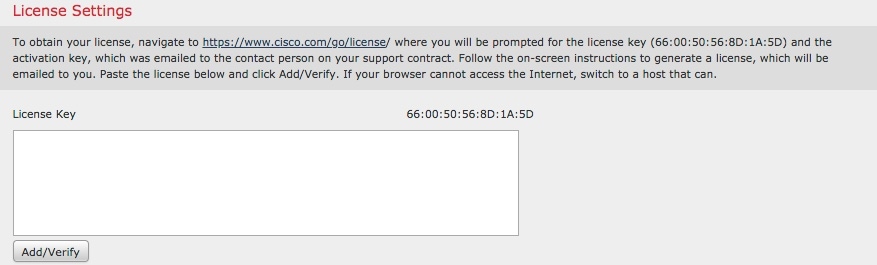
Leave the License Settings section blank because it applies to Classic licenses only; you'll apply a Smart License later.
Step 8

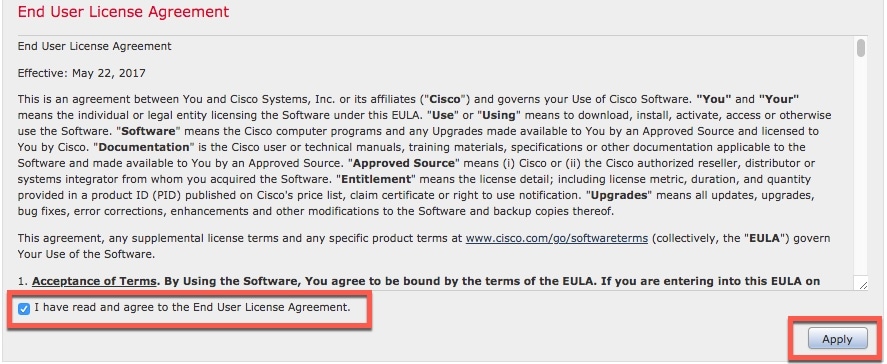
Scroll through the license agreement and, if you agree, check I have read and agree to the End User License Agreement and click Apply.
Step 9

Wait until the Firepower Management Center processes the information you entered. At that point, the Dashboard is displayed.


What to do next

See License the Firepower Management Center.

License the Firepower Management Center

This task discusses how to use a 90-day evaluation license with the Firepower Management Center and managed devices. If you have a Smart License, you can use it instead.

Procedure


Step 1

If necessary, log in to the Firepower Managemet Center.

Step 2

Click System > Licenses > Smart Licenses.

Step 3

Click Evaluation Mode for a 90-day evaluation license or click Register to register with a Smart License.

Step 4

If you are using an evaluation license, click Yes to start the 90-day evaluation period.

If you selected an evaluation license, the following page is displayed.


What to do next

See Configure the Managed Device.
