Synchronizing Global Centers
Use this process to synchronize a Center with a Global Center so that data from multiple Centers can be viewed in a single application.
Summary
This process includes registering the Center, enrolling it with the Global Center, completing the initial synchronization, and monitoring synchronization status.
Workflow
These stages describe the synchronization process.
- Register the Center in the Global Center.
- Enroll the Center with the Global Center.
- Allow the initial synchronization to complete.
- Monitor the synchronization status in the Global Center.
- Unenroll the Center when synchronization is no longer required.
Result
After enrollment succeeds, the Global Center displays synchronized data and status information for the enrolled Center.
Synchronize a Center with a Global Center
Use this procedure to establish synchronization between a Global Center and a Center.
This procedure applies to a Global Center and the Centers that synchronize with it.
To complete this procedure, open the user interface of both the Global Center and the Center.
Before you begin
-
Ensure that the Global Center is installed and accessible.
-
Ensure that the Center is installed and accessible.
-
Ensure that the required network connectivity between the Center and the Global Center is in place.
-
Ensure that certificate fingerprints can be retrieved from both systems.
Procedure
|
Step 1 |
In the Global Center, navigate to Admin > System Management > Management. |
|
Step 2 |
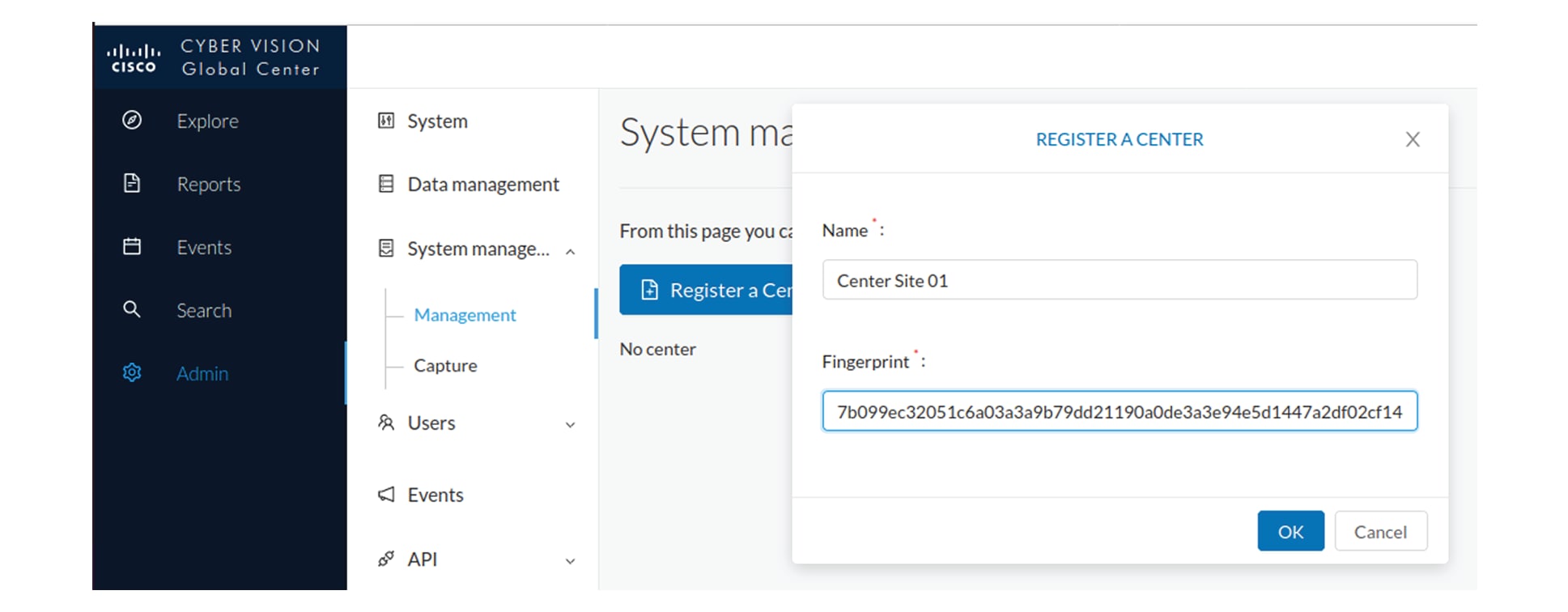
Click the Register a Center button. 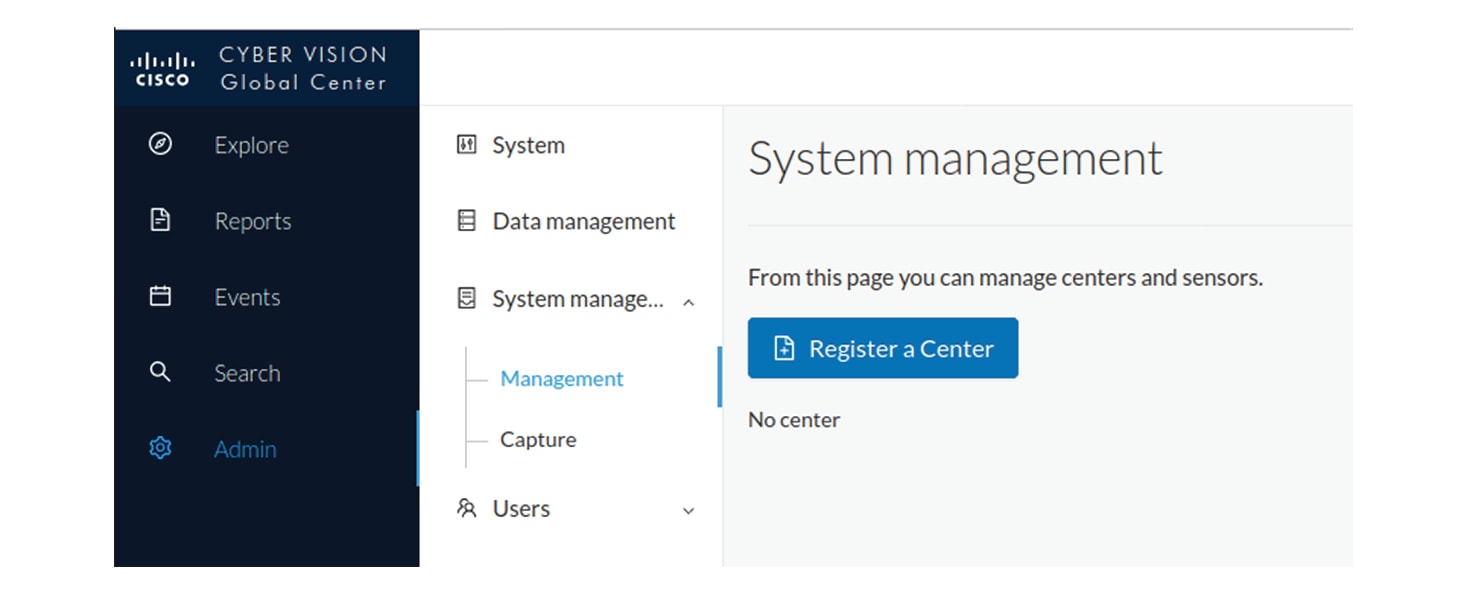
The Register a Center window opens. Leave it open while you retrieve the Center fingerprint. |
|
Step 3 |
In the Center, navigate to Admin > System. |
|
Step 4 |
Scroll down to Certificate fingerprint and copy it. 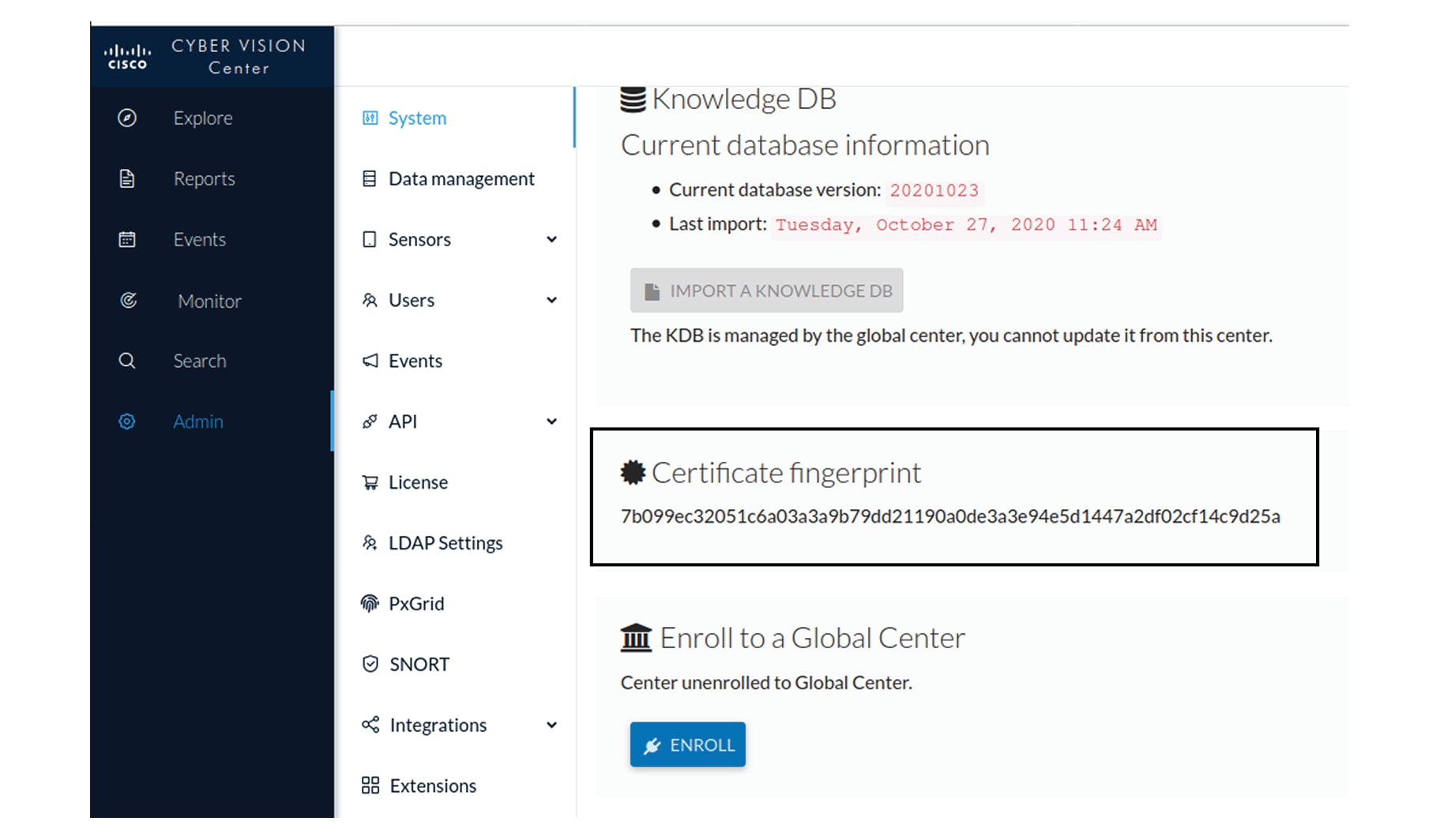
|
|
Step 5 |
In the Global Center, enter a name for the Center and paste the Center fingerprint into the corresponding field.
|
|
Step 6 |
Click OK. The Center appears in the list as unenrolled. 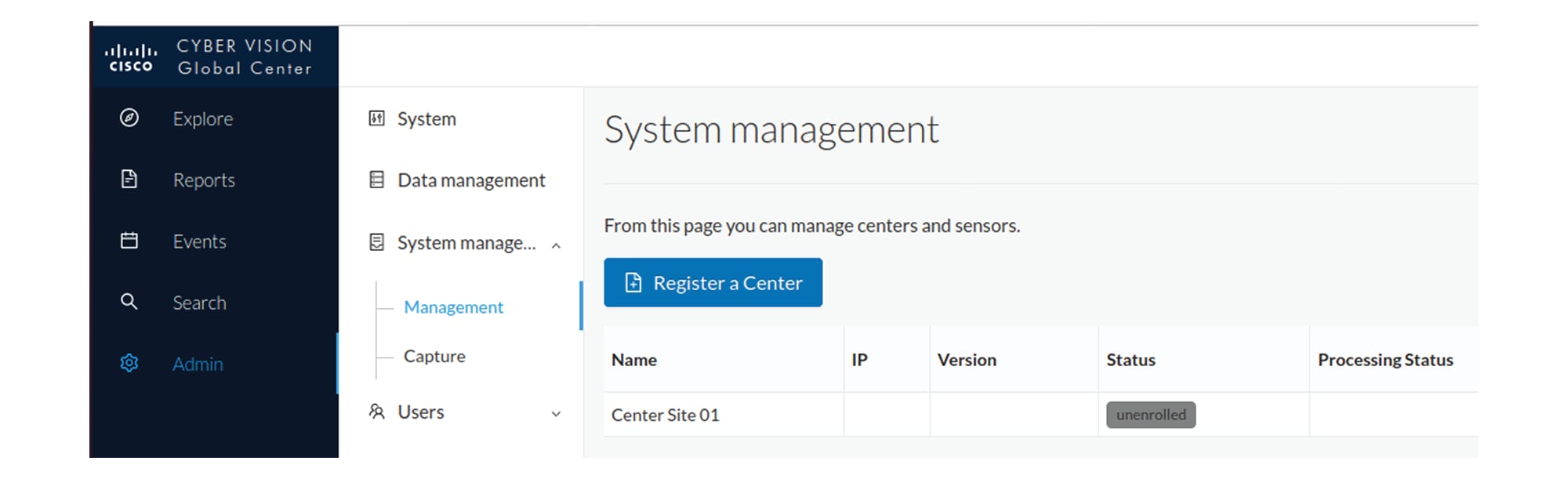
Switch to the Center and enroll it with the Global Center. |
|
Step 7 |
In the Center, scroll down to Enroll a Global Center and click the Enroll button. 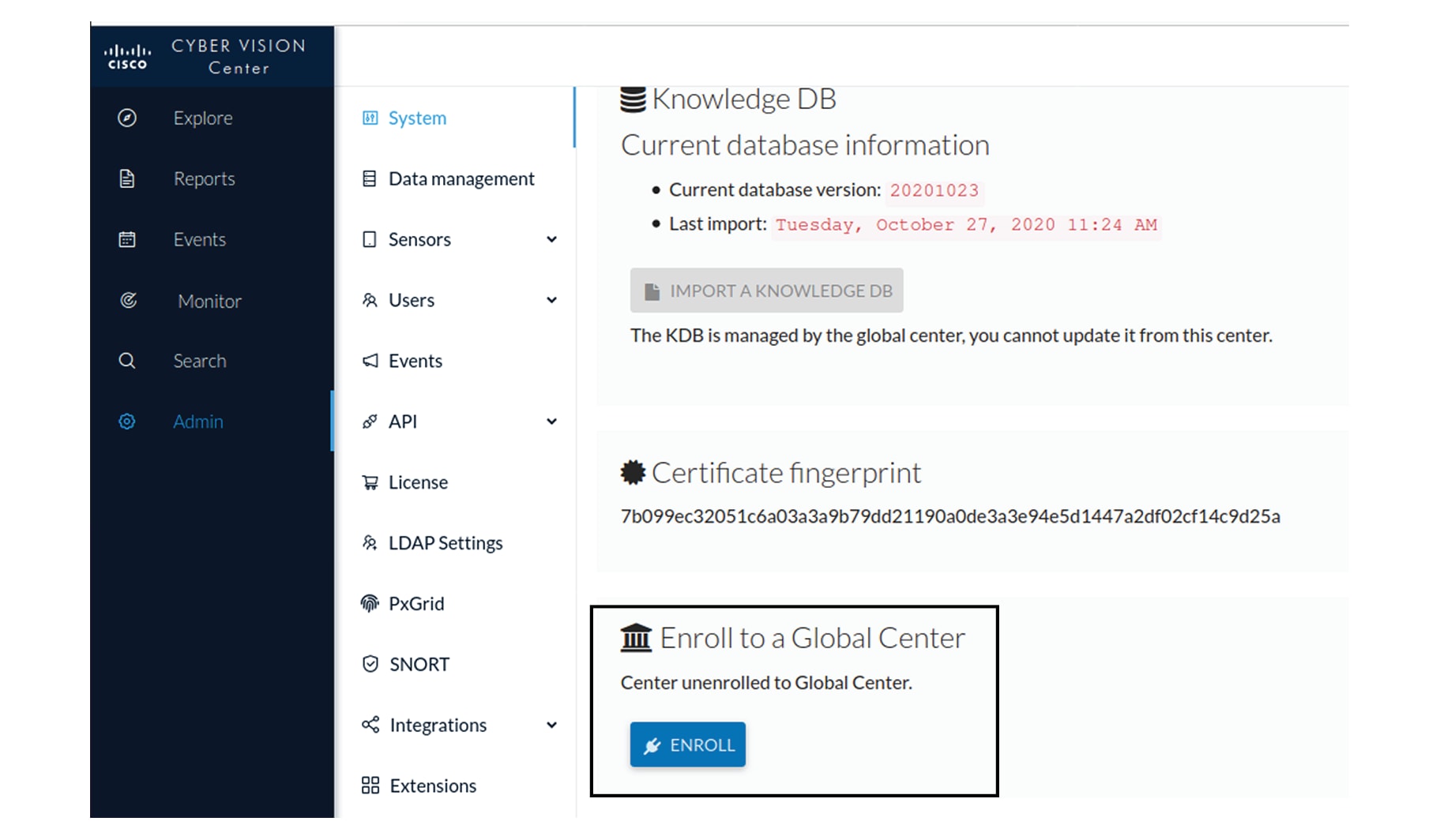
|
|
Step 8 |
In the Global Center, copy the Global Center fingerprint from the System administration page. |
|
Step 9 |
Enter the Global Center fingerprint and IP address, and click Enroll. 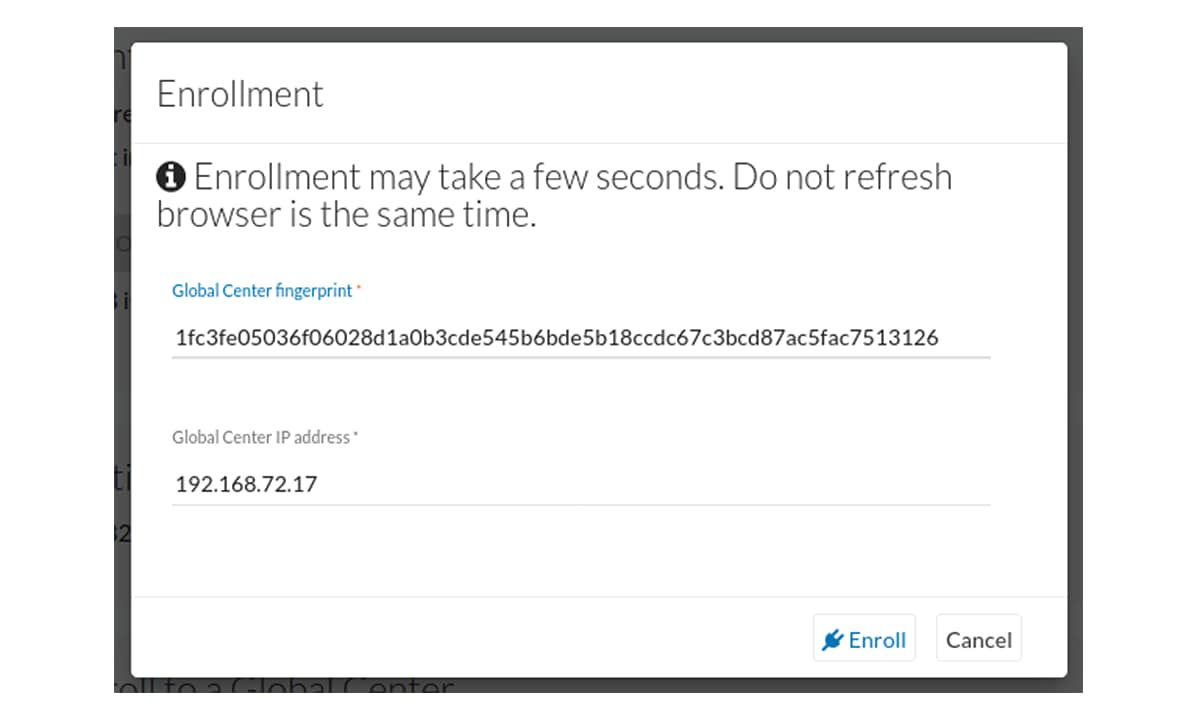
The Center is shown as enrolled with the Global Center after synchronization is complete. |
The Center is enrolled with the Global Center, synchronization begins, and the Center status changes to connected in the Global Center.
What to do next
If additional Centers must be synchronized, repeat this procedure for each one.
Unenroll the Center
Use this procedure to remove a synchronized Center from a Global Center.
Use this procedure when a Center must be removed from synchronization, for example during maintenance or replacement of the Center or the Global Center.
Before you begin
You can unenroll a Center when you need to replace, move, or remove it from a Global Center. Unenrollment deletes the Center data from the Global Center.
Procedure
|
Step 1 |
In Cisco Cyber Vision, navigate to Admin > System Management > Management. All Centers associated with the Global Center are listed. |
|
Step 2 |
Click Unenroll for the required Center.
If you are replacing a Global Center, unenroll all its synchronized Centers. |
|
Step 3 |
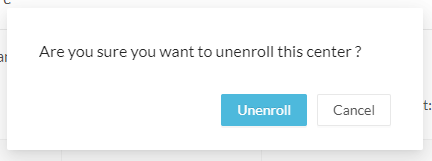
In the confirmation dialog box, click
Unenroll
to start the process.
All Center data is deleted from the Global Center. The Center is ready to be enrolled again in the same Global Center or in another Global Center. |
|
Step 4 |
If the Center is later enrolled in another Global Center, it remains listed in its former Global Center as Not enrolled. You can use the
Unregister
button to remove it from the list.
|
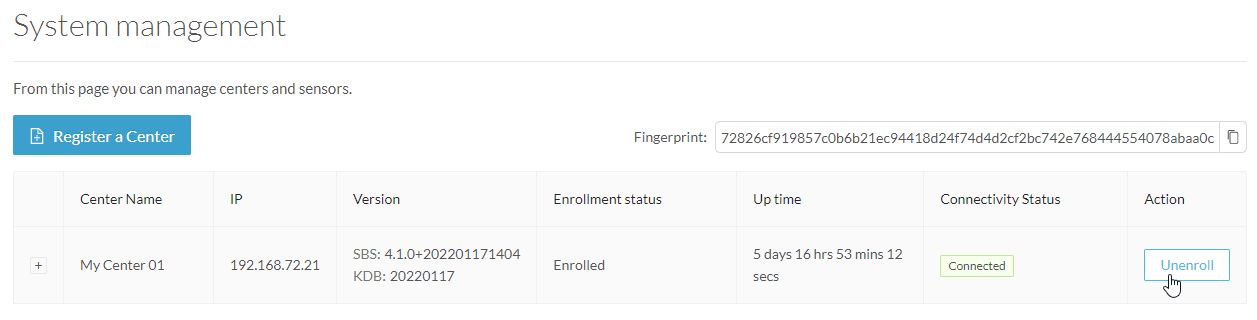

The Center is unenrolled from the Global Center and can be enrolled again in the same Global Center or in another Global Center later.
What to do next
If you are replacing a Global Center, repeat this procedure for each synchronized Center before decommissioning the original Global Center.
Force unenrollment of a Center
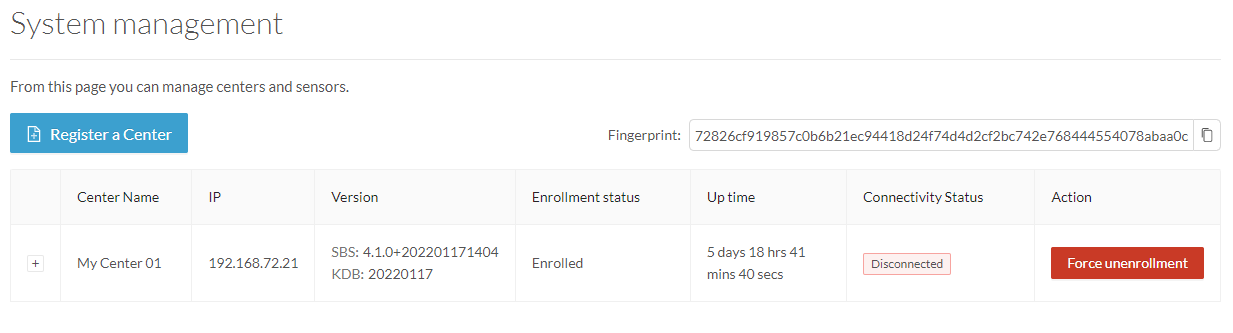
When a synchronized Center has been disconnected for a long time, for example because of a hardware failure, you can force its unenrollment from the Global Center. This deletes all data for that Center from the Global Center and allows the Center to be replaced.
 Important |
Make sure that the disconnected Center is permanently unavailable before performing this action. Because all data for the Center is deleted from the Global Center, a Center that later attempts to send data again can cause significant data synchronization issues. |
-
In Cisco Cyber Vision, navigate to Admin > System Management > Management.
All Centers associated with the Global Center are listed.
-
For the disconnected Center, click Force unenrollment in the Action column.
All data for that Center is deleted from the Global Center, and the Center is removed from the list.
 Feedback