Upgrade Cisco NFVIS

The Cisco NFVIS enabled hardware comes preinstalled with Cisco NFVIS version. Follow the steps below to upgrade it to the latest version of the release.

The Cisco Enterprise NFVIS upgrade image is available as a .iso and .nfvispkg file. Currently, downgrade is not supported. All RPM packages in the Cisco Enterprise NFVIS upgrade image are signed to ensure cryptographic integrity and authenticity. In addition, all RPM packages are verified during Cisco Enterprise NFVIS upgrade.

Ensure that you copy the image to the Cisco NFVIS server before starting the upgrade process. Always specify the exact path of the image when registering the image. Use the scp command to copy the upgrade image from a remote server to your Cisco Enterprise NFVIS server. When using the scp command, you must copy the image to the "/data/intdatastore/uploads" folder on the Cisco Enterprise NFVIS server.


Note


  • In Cisco NFVIS release 4.2.1 and earlier releases, you can upgrade Cisco NFVIS from one release to the very next release using the .nfvispkg file. For example, you can upgrade your NFVIS from Cisco NFVIS release 3.5.2 to Cisco NFVIS release 3.6.1.

  • Starting from Cisco NFVIS release 4.4.1, you can upgrade NFVIS using .iso file.

  • To know if a downloaded file is safe to install, it is essential to compare the file’s checksum before using it. Verifying the checksum helps ensure that the file was not corrupted during network transmission, or modified by a malicious third party before you downloaded it. For more information see, Virtual Machine Security.


Upgrade Matrix for Upgrading Cisco NFVIS


Note


  • Use the following table to upgrade from your current version of Cisco NFVIS software to the latest supported upgrade versions only. If you upgrade to an unsupported version, the system might crash.

  • Upgrading using .iso file is recommended if the supported upgrade image type is both .iso and .nfvispkg.


Table 1. Upgrade Matrix for Upgrading Cisco NFVIS from Cisco NFVIS Release 4.6.1 and later
Running Version Supported Upgrade Version Supported Upgrade Image Type(s)

4.15.4

4.18.1

iso

4.15.3

4.15.4

iso

4.15.2

4.15.4

4.15.3

iso

4.15.1

4.16.1

4.15.4

4.15.3

4.15.2

iso

4.14.1

4.16.1

4.15.4

4.15.3

4.15.2

4.15.1

iso

4.13.1

4.15.4

4.15.3

4.15.2

4.15.1

4.14.1

iso

4.12.5

4.15.4

4.15.3

4.15.2

iso

4.12.4

4.15.4

4.15.1

4.12.5

iso

4.12.3

4.15.4

4.15.3

4.15.2

4.15.1

4.14.1

4.12.5

4.12.4

iso

4.12.2

4.15.4

4.15.3

4.15.2

4.15.1

4.14.1

4.12.5

4.12.4

4.12.3

iso

4.12.1

4.15.4

4.15.3

4.15.2

4.15.1

4.14.1

4.13.1

4.12.5

4.12.4

4.12.3

4.12.2

iso

4.11.1

4.12.5

4.12.4

4.12.3

4.12.2

4.12.1

iso

4.10.1

4.12.5

4.12.4

4.12.3

4.12.2

4.12.1

4.11.1

iso

4.9.6

4.12.5

4.12.4

4.12.3

4.9.6

iso

4.9.5

4.12.4

4.12.3

4.9.6

iso

4.9.4

4.12.3

iso

4.9.5

iso

4.9.3

4.12.3

iso

4.11.1

4.9.4 and 4.9.5

4.9.2

4.12.3

iso

4.11.1

4.9.3, 4.9.4, and 4.9.5

4.9.1

4.12.3

iso

4.11.1

4.10.1

4.9.5, 4.9.4, 4.9.3, and 4.9.2

4.8.1

4.9.4

iso

4.9.3

4.9.2

4.9.1

4.7.1

4.9.4

iso

4.9.3

4.9.2

4.9.1

4.8.1

iso, nfvispkg

4.6.3

4.9.4

iso

4.9.3

4.9.2

4.9.1

4.8.1

4.7.1

nfvispkg

4.6.2

4.9.1 or 4.9.2 or 4.9.3 or 4.9.4

iso

4.8.1

4.7.1

4.6.3

4.6.1

4.9.1 or 4.9.2 or 4.9.3 or 4.9.4

iso

4.8.1

4.7.1

iso, nfvispkg

4.6.3

iso

Table 2. Upgrade Matrix for Upgrading Cisco NFVIS from Cisco NFVIS Release 4.5.1 and earlier
Running Version Supported Upgrade Version Supported Upgrade Image Type(s)
4.5.1 4.7.1 iso
4.6.3 iso, nfvispkg
4.6.2 iso, nfvispkg
4.6.1 iso, nfvispkg
4.4.2 4.6.3 iso
4.6.2 iso
4.6.1 iso
4.5.1 iso, nfvispkg
4.4.1 4.6.3 iso
4.6.2 iso
4.6.1 iso
4.5.1 iso, nfvispkg
4.4.2 iso, nfvispkg
4.2.1 4.4.2 nfvispkg
4.4.1 nfvispkg
4.1.2 4.2.1 nfvispkg
4.1.1 4.2.1 nfvispkg
4.1.2 nfvispkg
3.12.3 4.1.1 nfvispkg
3.11.3 3.12.3 nfvispkg
3.10.3 3.11.3 nfvispkg
3.9.2 3.10.3 nfvispkg
3.8.1 3.9.2 nfvispkg

Restrictions for Cisco NFVIS ISO File Upgrade

  • Cisco NFVIS supports .iso upgrade only from version N to versions N+1, N+2 and N+3 starting from Cisco NFVIS release 4.6.x (except Cisco NFVIS releases 4.7.x and 4.8.x). NFVIS does not support .iso upgrade from version N to version N+4 and above.

  • Image downgrade using .iso file is not supported.


Note


In case of an error while upgrading from version N to N+1 or N+2, Cisco NFVIS rolls back to the image version N.


Upgrade NFVIS Software Using Cisco Enterprise NFVIS Portal

Use this procedure to upgrade the Cisco NFVIS to a newer version by registering the upgrade image and initiating the upgrade process via the Cisco Enterprise NFVIS portal.

The NFVIS upgrade is a two-step process: first, registering the NFVIS upgrade image, and then initiating the upgrade. This ensures the NFVIS platform is running the desired software version and includes any new features or fixes.


Note


  • During the upgrade process, the NFVIS application is not available for use.

  • All VMs in a running state will be powered off automatically.

  • After the upgrade completes, the NFVIS application will be accessible, and all VM will be powered on.

  • The upgrade process typically takes approximately 20-30 minutes to complete.


Register the NFVIS Upgrade Image

  1. From the NFVIS portal, click Operations > Upgrade.

    1. If the upgrade image is on your local computer:

      1. Select the LOCAL tab.

      2. Click Select File (.iso) and choose the NFVIS upgrade image.

        The system will upload the image, validate the supported upgrade path, and register the image.

        Once complete, the image appears in the Upgrade Image List with Status: Valid.

    2. If the upgrade image is on a remote server:

      1. Select the REMOTE tab.

      2. Fill in the following fields:

        Table 3. Upgrade Details

        Field

        Description

        Image Name

        Enter a descriptive name for the upgrade image.

        Protocol

        Select http from the drop-down list.

        Note

         
        Remote registration currently supports only HTTP protocol.

        IP Address

        Enter the server IP address.

        Port

        Enter the port number (optional, defaults to 80).

        Image File Path

        Enter the path to the upgrade image.

        Image Checksum

        Provide the SHA512 checksum value.

      3. Click Submit.

        The system will download the image from the remote server, validate the supported upgrade path, and register the image. A notification is sent upon completion.

        Once complete, the image appears in the Upgrade Image List with Status: Valid.


        Note


        A progress bar for image registration is not available for remote uploads. The image registration and download process runs in the background and the image will appear in the Image Repository table once the process completes.

Verify Image Registration

Before proceeding with the upgrade, verify the image is registered successfully:

  • Check the Upgrade Image List section.

  • Verify the image shows:

    • Status: Valid

    • Version: Correct upgrade version

    • Upload Date: Registration timestamp

Initiate the NFVIS Upgrade

Once the image status is Valid, proceed with the upgrade:

  1. In the Upgrade Image section, click the + icon to schedule an upgrade.

  2. Select the registered upgrade image from the list.

  3. Choose the scheduling option:

    • Upgrade Now: Set the schedule time to 0 hours.

    • Upgrade Later: Specify hours from now for the upgrade to begin.

  4. Click Submit.

    The Status column shows the upgrade status.

Post-Upgrade Verification

After the upgrade completes:

  1. From the NFVIS portal, click Platform > About Platform to verify the new version.

  2. Verify all VMs are powered on and operational.

Upgrade Cisco NFVIS 4.8.1 and Later Using ISO File

The following example shows how to use the scp command to copy the upgrade image:

  • To copy the upgrade image, use the scp command from Cisco NFVIS CLI:
    
    nfvis# scp admin@192.0.2.9:/NFS/2022-01-23/13/nfvis/iso/Cisco_NFVIS-4.8.0-13-20220123_020232.iso intdatastore:Cisco_NFVIS-4.8.0-13-20220123_020232.iso
    
    
  • To copy the upgrade image, use the scp command from remote linux:
    config terminal
    system settings ip-receive-acl 0.0.0.0/0
    service scpd action accept
    commit
    
    scp -P22222 Cisco_NFVIS-4.8.0-13-20220123_020232.iso admin@172.27.250.128:/data/intdatastore/uploads/Cisco_NFVIS-4.8.0-13-20220123_020232.iso

Alternatively, you can upload the image to the Cisco Enterprise NFVIS server using the System Upgrade option from the Cisco Enterprise NFVIS portal.


Note


When the NFVIS upgrade is in progress, ensure that the system is not powered off. If the system is powered off during the NFVIS upgrade process, the system may become inoperable and you may need to reinstall the system.


The upgrade process comprises of two tasks:

  1. Register the image using the system upgrade image-name command.

  2. Upgrade the image using the system upgrade apply-image command.

Register an Image

To register an image, use the following command:

config terminal
system upgrade image-name Cisco_NFVIS-4.8.0-13-20220123_020232.iso location /data/intdatastore/uploads/Cisco_NFVIS-4.8.0-13-20220123_020232.iso
commit

Note


You must verify the image registration status before upgrading the image using the system upgrade apply-image command. The package status must be valid for the registered image.


To verify the image registration status, use the following command:

nfvis# show system upgrade 
                                                                                                           PACKAGE                                             
NAME                                      LOCATION                                                         VERSION   STATUS  UPLOAD DATE                       
---------------------------------------------------------------------------------------------------------------------------------------------------------------
Cisco_NFVIS-4.8.0-13-20220123_020232.iso  /data/upgrade/register/Cisco_NFVIS-4.8.0-13-20220123_020232.iso  4.8.0-13  Valid   2022-01-24T02:40:29.236057-00:00  


nfvis# show system upgrade reg-info 
                                                                                                           PACKAGE                                             
NAME                                      LOCATION                                                         VERSION   STATUS  UPLOAD DATE                       
---------------------------------------------------------------------------------------------------------------------------------------------------------------
Cisco_NFVIS-4.8.0-13-20220123_020232.iso  /data/upgrade/register/Cisco_NFVIS-4.8.0-13-20220123_020232.iso  4.8.0-13  Valid   2022-01-24T02:40:29.236057-00:00  

Upgrade the Registered Image

To upgrade the registered image, use the following command:

config terminal
system upgrade apply-image Cisco_NFVIS-4.8.0-13-20220123_020232.iso scheduled-time 5
commit

To verify the upgrade status, use the show system upgrade apply-image command in the privileged EXEC mode.

nfvis# show system upgrade
                                                     UPGRADE  UPGRADE  
NAME                                      STATUS     FROM     TO       
-----------------------------------------------------------------------
Cisco_NFVIS-4.8.0-13-20220123_020232.iso  SCHEDULED  -        -        

                                                                                                           PACKAGE                                             
NAME                                      LOCATION                                                         VERSION   STATUS  UPLOAD DATE                       
---------------------------------------------------------------------------------------------------------------------------------------------------------------
Cisco_NFVIS-4.8.0-13-20220123_020232.iso  /data/upgrade/register/Cisco_NFVIS-4.8.0-13-20220123_020232.iso  4.8.0-13  Valid   2022-01-24T02:40:29.236057-00:00  

Upgrade APIs and Commands

The following table lists the upgrade APIs and commands:

Upgrade APIs

Upgrade Commands

  • /api/config/system/upgrade

  • /api/config/system/upgrade/image-name

  • /api/config/system/upgrade/reg-info

  • /api/config/system/upgrade/apply-image

  • system upgrade image-name

  • system upgrade apply-image

  • show system upgrade reg-info

  • show system upgrade apply-image

Upgrade Cisco NFVIS 4.7.1 and Earlier Using a .nvfispkg File

The following example shows how to use the scp command to copy the upgrade image:

scp command from NFVIS CLI:


nfvis# scp admin@192.0.2.9:/NFS/Cisco_NFVIS_BRANCH_Upgrade-351.nfvispkg intdatastore:Cisco_NFVIS_BRANCH_Upgrade-351.nfvispkg

scp command from remote linux:


config terminal
system settings ip-receive-acl 0.0.0.0/0
service scpd action accept
commit

scp -P 22222 nfvis-351.nfvispkg admin@192.0.2.9:/data/intdatastore/uploads/nfvis-351.nfvispkg

Alternatively, you can upload the image to the Cisco Enterprise NFVIS server using the System Upgrade option from the Cisco Enterprise NFVIS portal.


Note


When the NFVIS upgrade is in progress, ensure that the system is not powered off. If the system is powered off during the NFVIS upgrade process, the system may become inoperable and you may need to reinstall the system.


The upgrade process comprises two tasks:

  • Registering the image using the system upgrade image-name command.

  • Upgrading the image using the system upgrade apply-image command.

Register an Image

To register an image:


config terminal
system upgrade image-name nfvis-351.nfvispkg location /data/intdatastore/uploads/<filename.nfvispkg>
commit

Note


You must verify the image registration status before upgrading the image using the system upgrade apply-image command. The package status must be valid for the registered image.


Verify the Image Registration

Use the show system upgrade reg-info command in the privileged EXEC mode to verify the image registration.


nfvis# show system upgrade reg-info                  
PACKAGE 
NAME             LOCATION                               VERSION        STATUS UPLOAD DATE 
--------------------------------------------------------------------------------------------------------------------
nfvis-351.nfvispkg /data/upgrade/register/nfvis-351.nfvispkg 3.6.1-722 Valid 2017-04-25T10:29:58.052347-00:00


Upgrade the Registered Image

To upgrade the registered image:


config terminal
system upgrade apply-image nfvis-351.nfvispkg scheduled-time 5
commit

Verify the Upgrade Status

Use the show system upgrade apply-image command in the privileged EXEC mode


nfvis# show system upgrade apply-image
UPGRADE 
NAME   STATUS     FROM     UPGRADE TO 
---------------------------------------------------------------------------------------------
nfvis-351.nfvispkg SUCCESS 3.5.0 3.5.1
  

The only upgrade supported when BIOS secured boot (UEFI mode) is enabled on ENCS 5400 platform is:

NFVIS 3.8.1 + BIOS 2.5(legacy) --> NFVIS 3.9.1 + BIOS 2.6(legacy)

The following upgrade requires re-installation of NFVIS in UEFI mode:

NFVIS 3.8.1 + BIOS 2.5(legacy) --> NFVIS 3.9.1 + BIOS 2.6(UEFI)

NFVIS 3.9.1 + BIOS 2.6(legacy) --> NFVIS 3.9.1 + BIOS 2.6(UEFI)

Upgrade APIs and Commands

The following table lists the upgrade APIs and commands:

Upgrade APIs

Upgrade Commands

  • /api/config/system/upgrade

  • /api/config/system/upgrade/image-name

  • /api/config/system/upgrade/reg-info

  • /api/config/system/upgrade/apply-image

  • system upgrade image-name

  • system upgrade apply-image

  • show system upgrade reg-info

  • show system upgrade apply-image

Firmware Upgrade


Note


Firmware upgrade is supported only on ENCS 5400 series devices.


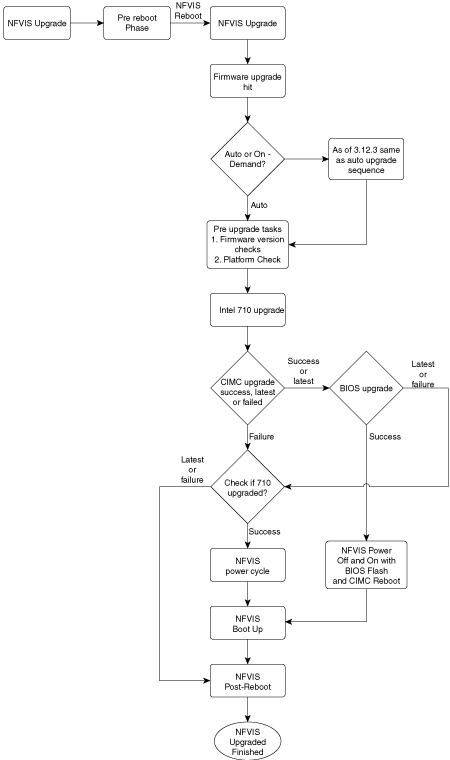
This feature was introduced in NFVIS 3.8.1 release as part of NFVIS auto-upgrade and it supports upgrade of selected firmwares on ENCS 5400 series devices. Firmware upgrade is triggered during NFVIS upgrade as part of the post reboot phase. To trigger the firmware upgrade refer to the NFVIS upgrade feature.

Starting from NFVIS 3.9.1 release, an on demand upgrade is supported which provides a separate firmware package (.fwpkg extension) to be registered and applied through NFVIS CLI. You can also upgrade to the latest firmware through a fresh installation of NFVIS.

The following firmwares can be upgraded:

  • Cisco Integrated Management Controller (CIMC)

  • BIOS

  • Intel 710

  • FPGA

Starting from NFVIS 3.12.3 release, the firmware upgrade script is changed from executable to module format. The code is modularized and each firmware can be individually upgraded. The shell commands are called with subprocess instead of os.system() calls. Each firmware upgrade call is monitored with a time limit. If the call is stuck, the process is killed and execution control will return back to the code flow with appropriate message.

The following table shows the sequence of firmware upgrade:

NFVIS Upgrade

Fresh Install

On Demand Upgrade

Intel 710

  1. NFVIS upgrade

  2. Reboot

  3. Login

  4. Firmware upgrade 710

  5. NFVIS power cycle

  6. Login

  1. Install

  2. Reboot

  3. Login

  4. Firmware upgrade 710

  5. NFVIS power cycle

  6. Login

  1. Firmware upgrade 710

  2. NFVIS power cycle

  3. Login

Intel 710 and BIOS

  1. NFVIS upgrade

  2. Reboot

  3. Login

  4. Firmware upgrade 710 and BIOS

  5. NFVIS power off/on due to BIOS

  6. Login

  1. Install

  2. Reboot

  3. Login

  4. Firmware upgrade 710 and BIOS

  5. NFVIS power off/on due to BIOS

  6. Login

  1. Firmware upgrade 710 and BIOS

  2. NFVIS power off/on due to BIOS

  3. Login

Intel 710 and CIMC

  1. NFVIS upgrade

  2. Reboot

  3. Login

  4. Firmware upgrade 710 and CIMC

  5. CIMC reboot

  6. NFVIS power cycle due to 710

  7. Login

  1. Install

  2. Reboot

  3. Login

  4. Firmware upgrade 710 and CIMC

  5. CIMC reboot

  6. NFVIS power cycle due to 710

  7. Login

  1. Firmware upgrade 710 and CIMC

  2. CIMC reboot

  3. NFVIS power cycle due to 710

  4. Login

CIMC

  1. NFVIS upgrade

  2. Reboot

  3. Login

  4. Firmware upgrade CIMC

  5. CIMC reboot

  6. Login

  1. Install

  2. Reboot

  3. Login

  4. Firmware upgrade CIMC

  5. CIMC reboot

  6. Login

  1. Firmware upgrade CIMC

  2. CIMC reboot

  3. Login

CIMC and BIOS

  1. NFVIS upgrade

  2. Reboot

  3. Login

  4. Firmware upgrade CIMC and BIOS

  5. NFVIS power off

  6. CIMC reboot

  7. BIOS flash

  8. NFVIS power on

  9. Login

  1. Install

  2. Reboot

  3. Login

  4. Firmware upgrade CIMC and BIOS

  5. NFVIS power off

  6. CIMC reboot

  7. BIOS flash

  8. NFVIS power on

  9. Login

  1. Firmware upgrade CIMC and BIOS

  2. NFVIS power off

  3. CIMC reboot

  4. BIOS flash

  5. NFVIS power on

  6. Login

BIOS

  1. NFVIS upgrade

  2. Reboot

  3. Login

  4. Firmware upgrade BIOS

  5. NFVIS power off

  6. BIOS flash

  7. NFVIS power on

  8. Login

  1. Install

  2. Reboot

  3. Login

  4. Firmware upgrade BIOS

  5. NFVIS power off

  6. BIOS flash

  7. NFVIS power on

  8. Login

  1. Firmware upgrade BIOS

  2. NFVIS power off

  3. BIOS flash

  4. NFVIS power on

  5. Login

Intel 710, CIMC and BIOS

  1. NFVIS upgrade

  2. Reboot

  3. Login

  4. Firmware upgrade 710, CIMC and BIOS

  5. NFVIS power off

  6. CIMC reboot

  7. BIOS flash

  8. NFVIS power on

  9. Login

  1. Install

  2. Reboot

  3. Login

  4. Firmware upgrade 710, CIMC and BIOS

  5. NFVIS power off

  6. CIMC reboot

  7. BIOS flash

  8. NFVIS power on

  9. Login

  1. Firmware upgrade 710, CIMC and BIOS

  2. NFVIS power off

  3. CIMC reboot

  4. BIOS flash

  5. NFVIS power on

  6. Login