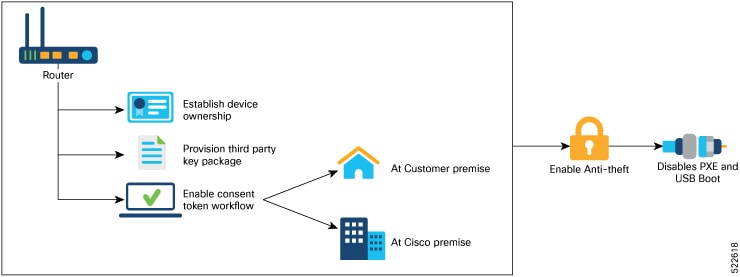
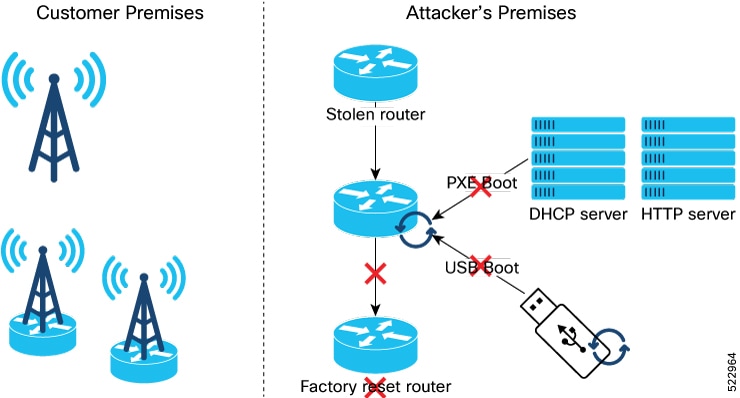
Enable Reimage Protection
Before You Begin
-
You must ensure that the BIOS version supports Reimage Protection. Ensure that your router is running Cisco IOS XR Release 7.6.1 and later.
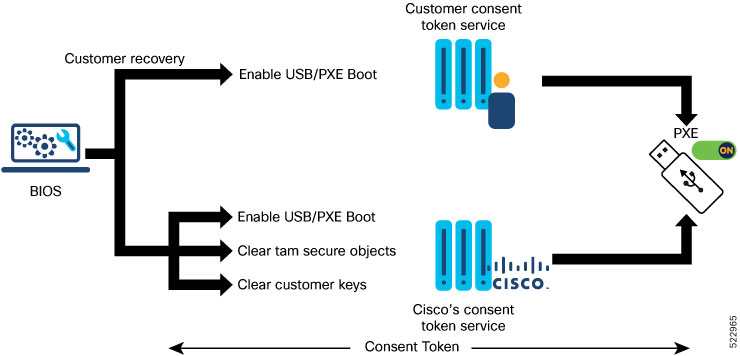
Enabling Reimage Protection Using Cisco Consent Token Key
Procedure
|
Step 1 |
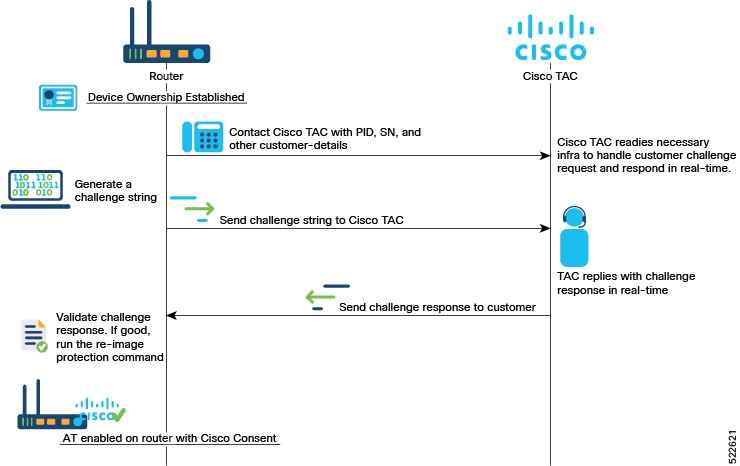
Contact Cisco TAC and provide the details of the Cisco IOS XR router—product identifier (PID) and serial number (SN). |
||
|
Step 2 |
Generate the Cisco challenge string on the router. |
||
|
Step 3 |
Provide the challenge string to Cisco TAC. Cisco TAC authenticates the challenge string and generates a response. |
||
|
Step 4 |
Enter the challenge response on the router. For example,
|
||
|
Step 5 |
Verify that the Reimage Protection is now enabled. |
Enabling Reimage Protection with Customer Consent Token Key
Before you begin
-
You must have established device ownership of the router on which you want to enable Reimage Protection. See .
-
You must have installed the third-party key packages. See .
-
You must have set up the consent token. See .
Procedure
|
Step 1 |
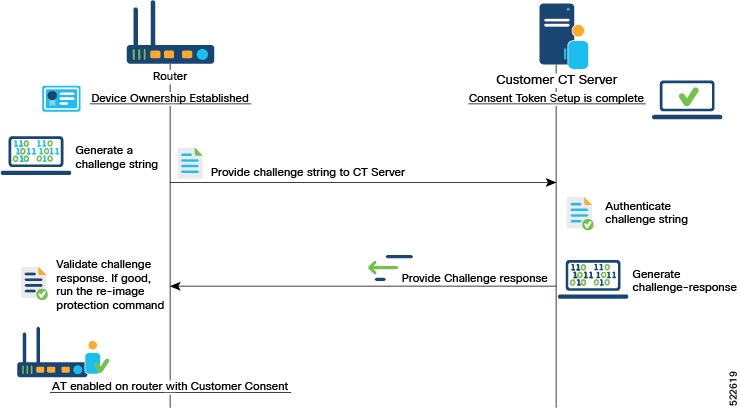
Generate the customer challenge string on the Cisco IOS XR router. |
|
Step 2 |
Provide the challenge string to the Customer Consent Token (CT) Server. The Customer CT server authenticates the challenge string and generates a customer challenge response. |
|
Step 3 |
Enter the customer response string on the router. |
|
Step 4 |
Verify that the Reimage Protection is enabled. |
 Feedback