Introduction to DHCP

The Dynamic Host Configuration Protocol (DHCP) is a client-server network protocol that automatically assigns IP addresses and other configuration parameters to devices on a TCP/IP network. It enables hosts to obtain necessary network settings dynamically, reducing manual configuration and simplifying network management.

A DHCP relay agent is a host that forwards DHCP packets between clients and servers that do not reside on a shared physical subnet. Relay agent forwarding is distinct from the normal forwarding of an IP router where IP datagrams are switched between networks transparently.

DHCP clients use User Datagram Protocol (UDP) broadcasts to send DHCPDISCOVER messages when they lack information about the network to which they belong.

If a client is on a network segment that does not include a server, a relay agent is needed on that network segment to ensure that DHCP packets reach the servers on another network segment. UDP broadcast packets are not forwarded, because most routers are not configured to forward broadcast traffic. You can configure a DHCP relay agent to forward DHCP packets to a remote server by configuring a DHCP relay profile and configure one or more helper addresses in it. You can assign the profile to an interface or a VRF.

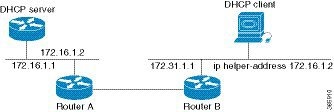
The figure below demonstrates the process. The DHCP client broadcasts a request for an IP address and additional configuration parameters on its local LAN. Acting as a DHCP relay agent, Router B picks up the broadcast, changes the destination address to the DHCP server's address and sends the message out on another interface. The relay agent inserts the IP address of the interface, on which the DHCP client’s packets are received into the gateway address (giaddr) field of the DHCP packet, which enables the DHCP server to determine which subnet should receive the offer and identify the appropriate IP address range. The relay agent unicasts the messages to the server address, in this case 172.16.1.2 (which is specified by the helper address in the relay profile).

Figure 1. Forwarding UDP Broadcasts to a DHCP Server Using a Helper Address

Prerequisites for Configuring DHCP Relay Agent

The following are the prerequisites to configure a DHCP relay agent:

  • You must be in a user group associated with a task group that includes the proper task IDs. The command reference guides include the task IDs required for each command. If you suspect user group assignment is preventing you from using a command, contact your AAA administrator for assistance.

  • A configured and running DHCP client and DHCP server.

  • Connectivity between the relay agent and DHCP server

Limitations for DHCP Relay Feature

These are the limitations for implementing DHCP relay feature:

  • The multicast addresses are not supported. The helper-address command in DHCP relay profile submode supports valid unicast IP address as the helper address.


    Note


    Configuring the helper-address command directly (not using profile) under a interface (such as BVI interface) is not supported.


  • Only interface-id and remote-id DHCP option code are added by a relay agent while forwarding the packet to a DHCP server.


    Note


    Configuring DHCP option code is not supported in DHCP relay profile submode.

DHCP Option-82 with Circuit ID and Remote ID

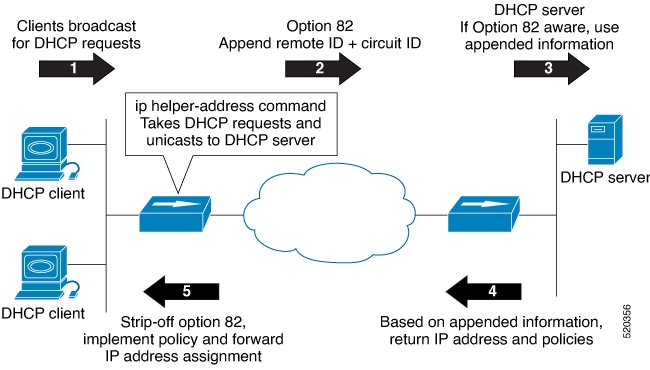
The DHCP relay agent information option (option-82) enables a Dynamic Host Configuration Protocol (DHCP) relay agent to include information about itself when forwarding client-originated DHCP packets to a DHCP server. The DHCP server uses this information to implement IP address or other parameter-assignment policies.

This feature communicates information to the DHCP server using a sub-option of the DHCP relay agent information option called agent remote ID. The information sent in the agent remote ID includes an IP address identifying the relay agent and information about the ATM interface and the PVC over which the DHCP request came in. The DHCP server uses this information to make IP address assignments and security policy decisions.

The figure explains when the DHCP client generates a DHCP request and broadcasts it on the network. The DHCP relay agent intercepts the broadcast DHCP request packet, and inserts relay agent information option (option- 82) in the packet. The relay agent information option contains the related sub-options. The DHCP relay agent unicasts the DHCP packet to the DHCP server. The DHCP server receives the packet and uses the sub-options to assign IP addresses and other configuration parameters and forwards them back to the client. The sub-option fields are stripped off the packet by the relay agent while forwarding it to the client.

Figure 2. Forwarding Packets Using DHCP Relay Option-82

Effective with Cisco IOS XR Release 7.1.1, DHCP IPv4 relay-agent includes the remote ID and circuit ID information for DHCP IPv4 relayed packets.

The DHCP IPv4 packets relayed over a BVI interface displays the relay information option policy for a relay-agent. The DHCP IPv4 application includes the Option-82 remote ID and circuit ID information, and forwards it to the server.

DHCPv4 Relay Agent and Proxy Support for Segment Routing over IPv6 IPv4 L3VPN

DHCPv4 relay agent and proxy are supported on Segment Routing over IPv6 (SRv6) IPv4 L3VPN scenarios. See the How to Configure and Enable DHCP Relay Agent section for relay agent configuration. See the Configure a DHCP Proxy Profile section for proxy configuration.

For information about Segment Routing over IPv6, refer to the “Configure Segment Routing over IPv6 (SRv6)” chapter in the Segment Routing Configuration Guide for Cisco NCS 540 Series Routers.

How to Configure and Enable DHCP Relay Agent

This section contains the following tasks:

Configuring and Enabling the DHCP Relay Agent

Configuration Example

Router# configure
/* Enters the global configuration mode */

Router(config)# dhcp ipv4
/* Configures DHCP for IPv4 and enters the DHCPv4 configuration submode. */

Router(config-dhcpv4)# profile r1 relay
/* Enables DHCP relay profile */

Router(config-dhcpv4-relay-profile)# helper-address vrf A 10.10.10.1 giaddr 40.1.1.2
Router(config-dhcpv4-relay-profile)# broadcast-flag policy check
/* Configures VRF addresses for forwarding UDP broadcasts, including DHCP. */

Router(config-dhcpv4-relay-profile)# relay information option vpn
Router(config-dhcpv4-relay-profile)# relay information option vpn-mode rfc
/* Inserts the DHCP relay agent information option (option-82 field) in forwarded BOOTREQUEST messages to a DHCP server. */


Router(config-dhcpv4-relay-profile)# relay information option allow-untrusted
/* (Optional) Configures the DHCP IPv4 Relay not to discard BOOTREQUEST packets 
that have an existing relay information option and the giaddr set to zero. */

Router(config-dhcpv4-relay-profile)# exit
Router(config-dhcpv4)# interface BVI 1 relay profile r1
Router(config-dhcpv4)# commit
/* Configures DHCP relay on a BVI interface and commits the configuration */

Running Configuration

Router#show running-config
Tue May 23 10:56:14.463 IST
Building configuration...
!! IOS XR Configuration 0.0.0
!! Last configuration change at Tue May 23 10:56:08 2017 by annseque
!
dhcp ipv4
 vrf vrf1 relay profile client
 profile r1 relay
  helper-address vrf A 10.10.10.1 giaddr 40.1.1.2
  broadcast-flag policy check
  relay information option vpn
  relay information option vpn-mode rfc
  relay information option allow-untrusted
 !

Enabling DHCPv6 Relay Agent on an Interface

This task describes how to enable the Cisco IOS XR DHCPv6 relay agent on an interface.


Note


On Cisco IOS XR software, the DHCPv6 relay agent is disabled by default.


RP/0/RSP0RP0/CPU0:router# configure terminal
RP/0/RSP0RP0/CPU0:router(config)# dhcp ipv6
RP/0/RSP0RP0/CPU0:router(config-dhcpv6)# interface type interface-instance relay profile profile-name
RP/0/RSP0RP0/CPU0:router(config-dhcpv6-if)# commit

Disabling DHCP Relay on an Interface

This task describes how to disable the DHCP relay on an interface by using the no keyword on the interface.

Router# configure terminal
Router(config)# dhcp ipv6Router(config-dhcpv6)# no interface type name none
Router(config-dhcpv6-if)# commit

Configure a DHCP Relay Profile with Multiple Helper Addresses

You can configure up to 16 helper IPv4 and IPv6 addresses for a DHCPv4 or DHCpv6 relay profile.

  1. Enter the DHCPv4 or DHCPv6 configuration mode.

    Router(config)# dhcp ipv6
  2. Configure the DHCPv4 or DHCPv6 relay profile.

    Router(config-dhcpv6)# profile helper relay
  3. Configure helper addresses.


    Note


    You can configure up to 16 IPv4 and IPv6 addresses.


    Router(config-dhcpv6-relay-profile)# helper-address vrf default 2001:1:1::2
    
    
  4. Confirm your configuration.

    Router(config-dhcpv6-relay-profile)# show configuration
    
    !! IOS XR Configuration 0.0.0
    dhcp ipv6
     profile helper relay
      helper-address vrf default 2001:1:1::2
     !
    !
    end
  5. Commit your configuration.

    Router(config-dhcpv6-relay-profile)# commit
  6. Exit the configuration mode and verify the configured helper addresses.

    Router# 
    show dhcp ipv6 relay statistics...
    !
    Profile: helper
    Helper Addresses:
            2001:1:1::2, vrf default
    Information Option: Disabled
    Information Option Allow Untrusted: Disabled
    Information Option VPN: Disabled
    Information Option VPN Mode: RFC
    Information Option Policy: Replace
    Information Option Check: Disabled
    GIADDR Policy: Keep
    Broadcast-flag Policy: Ignore
    VRF References:
    Interface References:

    You have successfully configured the DHCPv6 relay helper address.

DHCP Relay Agent Notification for Prefix Delegation

DHCP relay agent notification for prefix delegation allows the router working as a DHCPv6 relay agent to find prefix delegation options by reviewing the contents of a DHCP RELAY-REPLY packet that is being relayed by the relay agent to the client. When the relay agent finds the prefix delegation option, the relay agent extracts the information about the prefix being delegated and inserts an IPv4 or IPv6 subscriber route matching the prefix delegation information onto the relay agent. Future packets destined to that prefix via relay are forwarded based on the information contained in the prefix delegation. The IPv4 or IPv6 subscriber route remains in the routing table until the prefix delegation lease time expires or the relay agent receives a release packet from the client releasing the prefix delegation.

The relay agent automatically does the subscriber route management.

The Ipv4 or IPv6 routes are added when the relay agent relays a RELAY-REPLY packet, and the IPv4 or IPv6 routes are deleted when the prefix delegation lease time expires or the relay agent receives a release message. An Ipv4 or IPv6 subscriber route in the routing table of the relay agent can be updated when the prefix delegation lease time is extended.

This feature leaves an IPv4 or IPv6 route on the routing table of the relay agent. This registered IPv4 or IPv6 address allows unicast reverse packet forwarding (uRPF) to work by allowing the router doing the reverse lookup to confirm that the Tpv4 or IPv6 address on the relay agent is not malformed or spoofed. The IPv6 route in the routing table of the relay agent can be redistributed to other routing protocols to advertise the subnets to other nodes. When the client sends a DHCP_DECLINE message, the routes are removed.

Configuring DHCP Stateful Relay Agent for Prefix Delegation

Perform this task to configure Dynamic Host Configuration Protocol DHCP relay agent notification for prefix delegation.

Configuration Example

  1. Configure a DHCP profile.

  2. Configure the DHCP relay agent.

  3. Enable IPv4 or IPv6 DHCP on an interface that acts as an IPv4 or IPv6 DHCP stateful relay agent.

  4. Configure the profile name.

Configuration

/* Enter the global configuration mode and then enter the DHCPv6 configuration mode. */
Router# config
Router(config)# dhcp ipv6
Router(config-dhcpv6)#

/* Enter the proxy profile configuration mode and configure the DHCPv6 relay agent. */
Router(config-dhcpv6)# profile downstream proxy
Router(config-dhcpv6-profile)# helper-address 2001:db8::1 GigabitEthernet 0/1/0/1

/* Exits from the proxy profile configuration mode and enable IPv6 DHCP on an interface. */
Router(config-dhcpv6-profile)# exit
Router(config-dhcpv6-if)# interface GigabitEthernet 0/1/0/0 proxy

/* Configure a profile name. */

Router(config-dhcpv6-if)# profile downstream
Router(config-dhcpv6-if)# commit

DHCPv6 Relay Over BVI for IANA Address Allocation

DHCPv6 Relay agents relay all packets that are coming from DHCPv6 clients over the access-interfaces towards external DHCPv6 servers to request IP addresses (::/128) through IANA allocation for the DHCPv6 clients. DHCPv6 Relay agents also receive response packets from the DHCPv6 servers and forward the packets towards DHCPv6 clients over BVI interfaces. DHCPv6 Relay agents acts as stateless, by default, for DHCPv6 clients by not maintaining any DHCPv6 binding and respective route entry for the allocated IP addresses. You can enable a DHCPv6 client to get a particular IPv6 address assigned by the DHCPv6 server over a Bridge Virtual Interface (BVI) through Internet Assigned Numbers Authority (IANA) address allocation. Thereby, the DHCPv6 relay agent acts as a stateful relay agents and maintains DHCPv6 binding and respective route entry for the allocated IPv6 addresses.

Restrictions

  • You can configure up to 500 client sessions over a BVI interface for DHCP relay.

  • Each DHCPv6 relay profile can be configured with upto 8 DHCPv6 server addresses.

Configuration Example

To configure DHCPv6 Relay Over BVI for IANA Address Allocation, use the following steps.

  1. Enter the interface configuration mode and configure a BVI interface.

  2. Assign an IPv6 address to the BVI interface.

  3. Route the L2 access interface to the L3 BVI interface of the relay agent.

  4. Enter the DHCP IPv6 configuration mode and then create a DHCP IPv6 Stateful relay profile.

  5. Attach the relay profile to a server address.

  6. Configure a stateful relay agent by enabling route allocation through IANA.

  7. Attach the BVI Interface to the DHCPv6 relay profile.

Configuration

/* Enter the interface configuration mode and configure a BVI interface. */
Router# configure
Router(config)# interface BVI1

Assign an IPv6 address to the BVI interface.
Router(config-if)# ipv6 address 2001:db8::2/64
Router(config-if)# commit
Router(config-if)# exit

/* Route the L2 access interface to the L3 BVI interface of the relay agent. */
Router(config)# l2vpn bridge group 1
Router(config-l2vpn-bg)# bridge-domain 1
Router(config-l2vpn-bg-bd)# interface hundredGigE 0/0/0/1.100
Router(config-l2vpn-bg-bd-ac)# commit
Router(config-l2vpn-bg-bd-ac)# exit
Router(config-l2vpn-bg-bd)# routed interface BVI1
Router(config-l2vpn-bg-bd)# exit
Router(config-l2vpn-bg)# exit
Router(config-l2vpn)# exit
Router(config)# 

/* Enter the DHCP IPv6 configuration mode and then create a DHCP IPv6 Stateful relay profile. */
Router(config)# dhcp ipv6
Router(config-dhcpv6)# profile RELAY1 relay

/* Attach the relay profile to a server address. */
Router(config-dhcpv6-relay-profile)# helper-address vrf default 2001:DB8::1

/* Configure a stateful relay agent by enabling route allocation through IANA. */
Router(config-dhcpv6-relay-profile)# iana-route-add
Router(config-dhcpv6-relay-profile)# exit


/* Attach the BVI Interface to the DHCPv6 relay profile. */
Router(config-dhcpv6-relay-profile)# interface BVI1 relay profile RELAY1
Router(config-dhcpv6-relay-profile)# commit

Running Configuration

Router# show running configuration
interface BVI1
 ipv6 address 2001:db8::2/64
!
l2vpn
 bridge group 1
  bridge-domain 1
   interface HundredGigE0/0/0/1.100
   !
   routed interface BVI1
   !
  !
 !
!
dhcp ipv6
 profile RELAY1 relay
  helper-address vrf default 2001:db8::1
  iana-route-add
  !
 interface BVI1 relay profile RELAY1
!

Verification

Use the following command to verify that more than one DHCP client is bridged over BVI:

Router# show dhcp ipv6 relay binding
Thu Nov 21 05:48:38.463 UTC
 
Summary:
Total number of clients: 500
 
IPv6 Address: 2000::418f/128 (BVI31)
    Client DUID: 000100015dcf28de001094003295
    MAC Address: 0010.9400.3295
    IAID: 0x0
    VRF: default
    Lifetime: 600 secs (00:10:00)
    Expiration: 533 secs (00:08:53)
    L2Intf AC: Bundle-Ether3.1
    SERG State: NONE
    SERG Intf State: SERG-NONE
IPv6 Address: 2000::4190/128 (BVI31)
    Client DUID: 000100015dcf28de001094003296
    MAC Address: 0010.9400.3296
    IAID: 0x0
    VRF: default
    Lifetime: 600 secs (00:10:00)
    Expiration: 531 secs (00:08:51)
    L2Intf AC: Bundle-Ether3.1
    SERG State: NONE
    SERG Intf State: SERG-NONE
IPv6 Address: 2000::4191/128 (BVI31)
    Client DUID: 000100015dcf28de001094003297
    MAC Address: 0010.9400.3297
    IAID: 0x0
    VRF: default
    Lifetime: 600 secs (00:10:00)
    Expiration: 448 secs (00:07:28)
    L2Intf AC: Bundle-Ether3.1
    SERG State: NONE
    SERG Intf State: SERG-NONE
IPv6 Address: 2000::4192/128 (BVI31)
    Client DUID: 000100015dcf28de001094003298
    MAC Address: 0010.9400.3298
    IAID: 0x0
    VRF: default
    Lifetime: 600 secs (00:10:00)
    Expiration: 439 secs (00:07:19)
    L2Intf AC: Bundle-Ether3.1
    SERG State: NONE
    SERG Intf State: SERG-NONE

Use the following command to verify that unique IPv6 address is assigned to a client due to IANA allocation:

Router# show route ipv6
Mon Oct 21 06:16:43.617 UTC
 
Codes: C - connected, S - static, R - RIP, B - BGP, (>) - Diversion path
       D - EIGRP, EX - EIGRP external, O - OSPF, IA - OSPF inter area
       N1 - OSPF NSSA external type 1, N2 - OSPF NSSA external type 2
       E1 - OSPF external type 1, E2 - OSPF external type 2, E - EGP
       i - ISIS, L1 - IS-IS level-1, L2 - IS-IS level-2
       ia - IS-IS inter area, su - IS-IS summary null, * - candidate default
       U - per-user static route, o - ODR, L - local, G  - DAGR, l - LISP
       A - access/subscriber, a - Application route
       M - mobile route, r - RPL, t - Traffic Engineering, (!) - FRR Backup path
 
Gateway of last resort is not set
 
A    2000::/64
      [1/0] via fe80::1, 00:00:37, BVI700
A    2000::1/128
      [1/0] via fe80::210:94ff:fe00:8, 00:00:12, BVI700
C    2007:3019::/64 is directly connected,
      00:00:37, Loopback1
L    2007:3019::1/128 is directly connected,
      00:00:37, Loopback1
C    7001:6018::/64 is directly connected,
      00:00:37, BVI700
L    7001:6018::1/128 is directly connected,
      00:00:37, BVI700
C    7001:6019::/64 is directly connected,
      00:00:37, TenGigE0/0/0/2.2
L    7001:6019::1/128 is directly connected,
      00:00:37, TenGigE0/0/0/2.2
DHCP Relay Profile: Example

The following example shows how to configure the DHCP relay profile:


dhcp ipv4 
 profile client relay
  helper-address vrf foo 10.10.1.1
 !        
! ...

DHCP Relay on an Interface: Example

The following example shows how to enable the DHCP relay agent on an interface:


dhcp ipv4
 interface GigabitEthernet 0/1/1/0 relay profile client
!

DHCP Relay on a VRF: Example

The following example shows how to enable the DHCP relay agent on a VRF:


dhcp ipv4
 vrf default relay profile client
!

Relay Agent Information Option Support: Example

The following example shows how to enable the relay agent and the insertion and removal of the DHCP relay information option:


dhcp ipv4
 profile client relay
relay information option

 !
!

Relay Agent Giaddr Policy: Example

The following example shows how to configure relay agent giaddr policy:


dhcp ipv4
 profile client relay
  giaddr policy drop
 !
!

Configure a DHCP Proxy Profile

The DHCP proxy performs all the functions of a relay and also provides some additional functions. The DHCP proxy conceals DHCP server details from DHCP clients. The DHCP proxy modifies the DHCP replies such that the client considers the proxy to be the server. In this state, the client interacts with the proxy as if it is the DHCP server.

Configuration Example

  1. Enter DHCP IPv4 or DHCP IPv6 profile proxy submode.

  2. Forward UDP broadcasts, including DHCP.


Note


  • The value of the address argument can be a specific DHCP server address or a network address (if other DHCP servers are on the destination network segment). Using the network address enables other servers to respond to DHCP requests.

  • For multiple servers, configure one helper address for each server.


Configuration

/* Enter the DHCP IPv4 profile proxy submode. */
Router(config)# dhcp ipv4
Router(config-dhcpv4)# profile client proxy

/* Forward UDP broadcastrs, including DHCP */
Router(config-dhcpv4-proxy-profile)# helper-address vrf vrf1 foo 10.10.1.1
Router(config-dhcpv4-proxy-profile)# commit

Configuring and Enabling the DHCP Relay Option-82

Configuration Example

The following examples is a DHCP IPv4 relay-agent configuration with the remote ID and circuit ID information. Configure the remote ID configuration within DHCP IPv4 relay profile configuration that is associated with the BVI interface. Also, configure the circuit ID information to the DHCP IPv4 packet configuration of the Layer 2 transport ACs.

Router# configure
/* Enters the global configuration mode */

Router(config)# dhcp ipv4
/* Configures DHCP for IPv4 and enters the DHCPv4 configuration submode. */

Router(config-dhcpv4)# profile test relay
/* Enables DHCP relay profile */

Router(config-dhcpv4-relay-profile)# helper-address vrf1 10.20.0.4 giaddr 10.20.0.1
Router(config-dhcpv4-relay-profile)# broadcast-flag policy check
/* Configures VRF addresses for forwarding UDP broadcasts, including DHCP. */

Router(config-dhcpv4-relay-profile)# relay information option vpn
Router(config-dhcpv4-relay-profile)# relay information check
Router(config-dhcpv4-relay-profile)# relay information option
Router(config-dhcpv4-relay-profile)# relay information policy drop
Router(config-dhcpv4-relay-profile)# relay information option vpn-mode rfc
Router(config-dhcpv4-relay-profile)# relay information option remote-id format-type hex 12
/*Configures the remote ID on DHCP relay */
/* Inserts the DHCP relay agent information option (option-82 field) in forwarded BOOTREQUEST messages to a DHCP server. */

Router(config-dhcpv4-relay-profile)# relay information option allow-untrusted
/* (Optional) Configures the DHCP IPv4 Relay not to discard BOOTREQUEST packets 
that have an existing relay information option and the giaddr set to zero. */

Router(config-dhcpv4-relay-profile)# exit
Router(config-dhcpv4)# interface BVI 1 relay profile test1
Router(config-dhcpv4)# interface Bundle-Ether1.29 relay information option circuit-id format-type ascii 120

/*Configures the circuit ID on the DHCP relay */
Router(config-dhcpv4)# commit
/* Configures DHCP relay on a BVI interface and commits the configuration */

Running Configuration

Router#show running-config
dhcp ipv4

 !
 profile test1 relay
  helper-address vrf vrf1 10.20.0.4 giaddr 10.20.0.1
  relay information option vpn
  relay information check
  relay information option
  relay information policy drop
  relay information option vpn-mode rfc
  relay information option remote-id format-type hex 12
  relay information option allow-untrusted


interface BVI2 relay profile test1
interface Bundle-Ether1.29 relay information option circuit-id format-type ascii 120

interface Bundle-Ether1.29 l2transport
 encapsulation dot1q 29
 rewrite ingress tag pop 1 symmetric
!

l2vpn
 bridge group IRB
  bridge-domain DHCP1
   interface Bundle-Ether1.29
    split-horizon group
   !

DHCP Server

A DHCP server accepts address assignment requests and renewals, and assigns the IP addresses from predefined groups of addresses contained within Distributed Address Pools (DAPS). DHCP servers can also be configured to supply additional information to the requesting client such as subnet mask, domain-name, the IP address of the DNS server, the default router, and other configuration parameters. DHCP servers can accept broadcasts from locally attached LAN segments or from DHCP requests that have been forwarded by other DHCP relay agents within the network.

The DHCP proxy performs all the functions of a relay and also provides some additional functions. The DHCP proxy conceals DHCP server details from DHCP clients. The DHCP proxy modifies the DHCP replies such that the client considers the proxy to be the server. In this state, the client interacts with the proxy as if it is the DHCP server.

When the DHCP server receives an address assignment request, it assigns the IP addresses from groups of IP addresses for DHCP in Distributed Address Pools (DAPS). The IP address used by the DHCP server to complete such requests is automatically excluded from the DAPS so that the DHCP server can safely assume that all the IP addresses available for its use in the DAPS are free.

DHCP Service-based Mode Selection

As part of DHCP service-based mode selection feature, a new mode called DHCP base is introduced. If an interface is configured in the DHCP base mode, then the DHCP selects either the DHCP proxy or the DHCP server mode to process the client request by matching option 60 (class-identifier) value of the client request with the configured value under the DHCP base profile.

The pool is configured under server-profile mode and server-profile-class submode. The class-based pool selection is always given priority over profile pool selection.

The DHCPv6 server-profile-class submode supports configuring DHCP options except few (0, 12, 50, 52, 53, 54, 58, 59, 61, 82, and 255 ).

dhcp ipv6
profile DHCP_BASE base
  match option 60 41424344 profile DHCPv6_PROXY proxy
  match option 60 41424355 profile DHCPv6_SERVER server
  default profile DEFAULT_PROFILE server
  relay information authenticate inserted
   !
profile DHCPv6_PROXY proxy
  helper-address vrf default 10.10.10.1 giaddr 0.0.0.0
!
profile DHCPv6_SERVER server
  lease 1 0 0
  pool IP_POOL
!
profile DEFAULT_PROFILE server
  lease 1 0 0
  pool IP_POOL
!
!
interface gigabitEthernet 0/0/0/0TenGigE 0/0/0/0 base profile DHCP_BASE

Configuring DHCP Server Profile

You can configure routers with DHCPv4 or DHCPv6 server profile.

Perform this task to configure the DHCPv6 server profile.

Router# configure
Router(config)# dhcp ipv6
Router(config-dhcpv6)# profile profile-name server
Router(config-dhcpv6-server-profile)# bootfile boot-file-name
Router(config-dhcpv6-server-profile)# broadcast-flag policy unicast-always
Router(config-dhcpv6-server-profile)# class class-name
Router(config-dhcpv6-server-profile-class)# exit
Router(config-dhcpv6-server-profile)# default-router address1 address2 ... address8 
Router(config-dhcpv6-server-profile)# lease {infinite | days minutes seconds }
Router(config-dhcpv6-server-profile)# limit lease {per-circuit-id | per-interface| per-remote-id} value 
Router(config-dhcpv6-server-profile)# netbios-name server address1 address2 ... address8 
Router(config-dhcpv6-server-profile)# netbios-node-type {number |b-node|h-node |m-node |p-node} 
Router(config-dhcpv6-server-profile)# option option-code {ascii string | hex string |ip address} 
Router(config-dhcpv6-server-profile)# pool pool-name 
Router(config-dhcpv6-server-profile)# requested-ip-address-check disable
Router(config-dhcpv6-server-profile)# commit

Configuring Multiple Classes with a Pool

Perform this task to configure multiple classes with a pool.

RP/0/RSP0RP0/CPU0:router# configure
RP/0/RSP0RP0/CPU0:router(config)# dhcp ipv6
RP/0/RSP0RP0/CPU0:router(config-dhcpv6)# profile profile-name server
RP/0/RSP0RP0/CPU0:router(config-dhcpv6-server-profile)# pool pool-name
RP/0/RSP0RP0/CPU0:router(config-dhcpv6-server-profile)# class class-name
RP/0/RSP0RP0/CPU0:router(config-dhcpv6-server-class)# pool pool-name
RP/0/RSP0RP0/CPU0:router(config-dhcpv6-server-class)# match option option [ sub-option sub-option] [ ascii asciiString | hex hexString ]
RP/0/RSP0RP0/CPU0:router(config-dhcpv6-server-class)# exit 
RP/0/RSP0RP0/CPU0:router(config-dhcpv6-server-profile)# class class-name
RP/0/RSP0RP0/CPU0:router(config-dhcpv6-server-class)# pool pool-name
RP/0/RSP0RP0/CPU0:router(config-dhcpv6-server-class)# match vrf vrf-name 
RP/0/RSP0RP0/CPU0:router(config-dhcpv6-server-class)# commit

Excluding a Range of Addresses from DAPS

This section provides an example of how to exclude a range of addresses from a configured DAPS .

Configuration Example

Router# configure
Router(config)# pool vrf EXAMPLE ipv4 EXAMPLE_POOL
/* Configures an IPv4 pool for the specifed VRF or all VRFs. Use the 'ipv6' keyword for IPv6 pool. */
Router(config-pool-ipv4)# network 10.10.10.0/24 default-Router 10.10.10.1
/* Specifies network for allocation, along with the default Router. */
Router(config-pool-ipv4)# exclude 10.10.10.1 10.10.10.10
/* Specifies the range of addresses that are to be excluded */
Router(config-pool-ipv4)# commit

Verification Example

Router# show running-config pool
pool vrf EXAMPLE ipv4 EXAMPLE_POOL
 network 10.10.10.0/24 default-router 10.10.10.1
 exclude 10.10.10.1 10.10.10.10

Configuring a Server Profile DAPS with Class Match Option

This section discusses configuring a server profile DAPS with class match option.

Configuration Example

router#configure

router(config)#dhcp ipv4
/* The 'dhcp ipv6' command configures DHCP for IPv6 and enters the DHCPv6 configuration submode. */

router(config-dhcpv4)#profile ISP1 server
/* Enters the server profile configuration mode. */

router(config-dhcpv4-server-profile)#pool ISP1_POOL
/* Configures the DAPS pool name. */

router(config-dhcpv4-server-profile)#class ISP1_CLASS
/* Creates and enters server profile class configuration submode. */

router(config-dhcpv4-server-profile-class)#pool ISP1_CLASS_POOL
/* Configures the pool name. */

router(config-dhcpv4-server-profile-class)#match option 60 hex PXEClient_1
/* DHCP server selects a pool from a class by matching options in the received DISCOVER packet with the match option. */

router(config-dhcpv4-server-profile-class)#exit

router(config-dhcpv4-server-profile)#exit

router(config-dhcpv4)#profile ISP2 server
/* Enters the server profile configuration mode. */

router(config-dhcpv4-server-profile)#dns-server 10.20.3.4
/* Configures the name of the DNS server or the IP address. */

router(config-dhcpv4-server-profile)#pool ISP2_POOL
/* Configures the pool name. */

router(config-dhcpv4-server-profile)#class ISP2_CLASS
/* Creates and enters the server profile class. */

router(config-dhcpv4-server-profile-class)#pool ISP2_CLASS_POOL
/* Configures the pool name. */

router(config-dhcpv4-server-profile-class)#match option 60 hex PXEClient_2
/* DHCP server selects a pool from a class by matching options in the received DISCOVER packet with the match option. */

router(config-dhcpv4-server-profile-class)#exit

router(config-dhcpv4-server-profile)#exit

router(config-dhcpv4)#commit

Running Configuration

Router#show running-config dhcp ipv4
dhcp ipv4
profile ISP1 server
pool ISP1_POOL
class ISP1_CLASS
pool ISP1_CLASS_POOL
match option 60 hex PXEClient_1
exit
exit
profile ISP2 server
dns-server 10.20.3.4
pool ISP2_POOL
class ISP2_CLASS
pool ISP2_CLASS_POOL
match option 60 hex PXEClient_2
exit
exit
!

Configuring Server Profile without DAPS Pool Match Option

This section discusses configuring a server profile without DAPS pool match option.

Configuration Example

router#configure

router(config)#dhcp ipv4
/* The 'dhcp ipv6' command configures DHCP for IPv6 and enters the DHCPv6 configuration submode. */

router(config-dhcpv4)#profile ISP1 server
/* Enters the server profile configuration mode. */

router(config-dhcpv4-server-profile)#dns-server 10.10.10.10
/* Configures the name of the DNS server or IP address. */

router(config-dhcpv4-server-profile)#exit

router(config-dhcpv4)#profile ISP2 server
/* Enters the server profile configuration mode. */

router(config-dhcpv4-server-profile)#dns-server 11.11.11.11
/* Configures the name of the DNS server or IP address. */

router(config-dhcpv4-server-profile)#exit

router(config-dhcpv4)#commit

Running Configuration

Router#show running-config dhcp ipv4
dhcp ipv4
 profile ISP1 server   
   
dns-server 10.10.10.10
  exit
 profile ISP2 server
  
dns-server 11.11.11.11
  exit
!

Configuring an Address Pool for Each ISP on DAPS

This section discusses configuring an address pool for each ISP on DAPS.

Configuration Example

router#configure

router(config)#pool vrf ISP_1 ipv4 ISP1_POOL
/* Configures an IPv4 pool for the specifed VRF or all VRFs. Use the 'ipv6' keyword for IPv6 pool. */

router(config-pool-ipv4)#network 10.10.10.0
/* Specifies network for allocation. */

router(config-pool-ipv4)#exit

router(config)#pool vrf ISP_2 ipv4 ISP2_POOL
/* Configures an IPv4 pool for the specifed VRF or all VRFs. */

router(config-pool-ipv4)#network 10.20.20.0
/* Specifies network for allocation. */

router(config-pool-ipv4)#exit

router(config-dhcpv4)#commit

Running Configuration

Router#show running-config pool
pool vrf ISP_1 ipv4 ISP1_POOL 
 network 10.10.10.0 255.255.255.0
 exit
pool vrf ISP_2 ipv4 ISP2_POOL
 network 10.20.20.0 255.255.255.0
!

DHCP Client

The Dynamic Host Configuration Protocol (DHCP) client functionality enables the router interfaces to dynamically acquire the IPv4 or DHCPv4 or DHCPv6 server, and forwards the responses back to the correct Layer 2 address so that the correct device gets the correct configuration information.

DHCP has the ability to allocate IP addresses only for a configurable period of time, called the lease period. If the client is required to retain this IP address for a longer period beyond the lease period, the lease period must be renewed before the IP address expires. The client renews the lease based on configuration that was sent from the server. The client unicasts a REQUEST message using the IP address of the server. When a server receives the REQUEST message and responds with an ACK message. The lease period of the client is extended by the lease time configured in the ACK message.

Restrictions and Limitations

  • DHCPv4 or DHCPv6 client can be enabled only on management and BVI interfaces.

  • Either DHCPv4, DHCPv6, static IPv4, or static IPv6 can be configured on an interface.

Enable DHCP client on a BVI interface

Use these steps to enable DHCP client on a BVI interface.

Procedure


Step 1

Enter global configuration mode.

Example:

Router# configure

Step 2

Enter interface configuration mode for the specific BVI interface.

Example:

Router(config)# interface BVI 1

Step 3

Configures the BVI interface to obtain an IPv4 or IPv6 address dynamically from a DHCPv4 or DHCPv6 server respectively.

Example:

Router(config-if)# ipv6 address dhcp

Step 4

Exit the interface configuration mode and return to privileged EXEC mode.

Example:

Router(config-if)# end

DHCP Proxy Binding Table Reload Persistency

The Cisco IOS-XR Dynamic Host Configuration Protocol (DHCP) application is responsible for maintaining the DHCP binding state for the DHCP leases allocated to clients by the DHCP application. These binding states are learned by the DHCP application (proxy/relay/snooping). DHCP clients expect to maintain a DHCP lease regardless of the events that occur to the DHCP application.


Note


From Release 6.2.2 onwards, 200K sessions are supported on a proxy or server running DHCPv4 or DHCPv6.


This feature enables the DHCP application to maintain bind state through the above events:
  • Process restart – Local checkpoint

  • RP failover – Hot standby RP through checkpoint

  • LC IMDR – Local checkpoint

  • LC OIR – Shadow table on RP

  • System restart – Bindings saved on local disk

Configuring DHCP Relay Binding Database Write to System Persistent Memory

Perform this task to configure the DHCP relay binding database write to the system persistent memory. This helps to recover the DHCP relay binding table after a system reload. The file names used for a full persistent file write are dhcpv4_srpb_{nodeid}_odd or dhcpv6_srpb_{nodeid}_odd and dhcpv4_srpb_{nodeid}_even or dhcpv6_srpb_{nodeid}_even. The nodeid is the actual node ID of the node where the file is written. The incremental file is named the same way as the full file, with a _inc appended to it.

Router# configure
Router(config)# dhcp ipv6
Router(config-dhcpv6)# database [relay] [full-write-interval full-write-interval] [incremental-write-interval incremental-write-interval]
Router(config-dhcpv6)# commit

Jumbo Packet Handling for DHCPv6

Table 1. Feature History Table

Feature Name

Release Information

Feature Description

Jumbo packet handling for DHCPv6

Release 7.4.1

This release introduces the handle-jumbo-packet configuration command under the dhcp ipv6 mode. This command enables processing of incoming DHCPv6 packets greater than 1280 bytes and upto 12,800 bytes in size. Prior to this release, the router discarded incoming DHCPv6 packets greater than 1280 bytes.

The newly introduced command is:

By default, the router allows incoming DHCPv6 packets with maximum size of 1280 bytes and drops any packet that is larger. If you configure the handle-jumbo-packet command under dhcp ipv6 configuration mode, then the router allows incoming DHCPv6 packets upto 12,800 bytes in size. The router drops incoming packets larger than 12,800 bytes. You can configure this command for all modes of DHCPv6, that is, server, proxy and relay, as well as for both BNG (Broadband Network Gateway) and non-BNG networks.

Configuration Example

This example shows you how to configure handle-jumbo-packet :

Router# config
Router(config)# dhcp ipv6
Router(config-dhcpv6)# handle-jumbo-packet
Router(config-dhcpv6)# commit

DHCP snooping

DHCP snooping is a Layer 2 security feature that

  • protects authorized network clients and DHCP servers from DHCP-based attacks such as denial-of-service from rogue servers

  • distinguishes trusted uplink ports from untrusted downlink ports on Cisco switches, and

  • filters DHCP messages received on untrusted ports.

When DHCP snooping is enabled, network administrators can designate certain switch ports as trusted. These are typically the ports that are connected to legitimate DHCP servers. All other ports are considered untrusted by default. Only DHCP messages received on trusted ports are allowed to pass. Messages from untrusted ports are filtered to prevent potential attacks.

Table 2. Feature History Table

Feature Name

Release Information

Description

DHCP snooping for Layer 2 networks

Release 25.4.1

Support for this feature is now extended to these variants:

This feature is supported on:

  • N540X-16Z4G8Q2C-A/D

  • N540X-16Z8Q2C-D

  • N540X-12Z16G-SYS-A/D

  • N540X-4Z14G2Q-A/D

  • N540X-8Z16G-SYS-A/D

  • N540X-6Z18G-SYS-A/D

  • N540X-16Z4G8Q2C-A/D

  • N540X-16Z8Q2C-D

  • N540X-12Z16G-SYS-A/D

  • N540X-4Z14G2Q-A/D

  • N540X-8Z16G-SYS-A/D

  • N540X-6Z18G-SYS-A/D

DHCP snooping for Layer 2 networks

Release 7.9.1

DHCP snooping helps protect your network from unauthorized DHCP servers. DHCP snooping operates at Layer 2 and monitors DHCP messages exchanged between clients and servers. By filtering messages and allowing only those from trusted sources, DHCP snooping ensures that only authorized DHCP server responses reach your network devices.

Comparison of trusted and untrusted ports for DHCP snooping

A Dynamic Host Configuration Protocol (DHCP) server plays a crucial role in an organization's network by automatically assigning IP addresses to most end-user devices. These devices obtain their IP address leases from the DHCP server. To safeguard hosts within the organization's network from unauthorized rogue DHCP servers, it is necessary to enable DHCP snooping on the Layer 2 switch ports where these unauthorized devices might connect. DHCP snooping functions by:

  • Inspecting DHCP messages received on ports connected to untrusted end-user devices.

  • Not inspecting DHCP messages received on ports connected to trusted devices, such as legitimate DHCP servers or uplink ports.

Table 3. Comparison of trusted and untrusted ports for DHCP snooping

Port Type

Typical use

Default state

DHCP snooping behavior

Configuration requirement

Trusted port

Uplinks to routers or core infrastructure

Untrusted

DHCP messages are forwarded without inspection or filtering

Must be explicitly configured by an administrator

Untrusted port

Downlinks to end-user devices

Untrusted

DHCP messages are inspected and filtered to prevent attacks

Remains untrusted unless explicitly changed

DHCP snooping profiles

A profile is a set of rules or a configuration template that defines how DHCP snooping behaves on trusted and untrusted ports within a bridge domain.

There are typically two main profiles used:

  • Trusted profile: Assigned to ports that connect to DHCP servers or network infrastructure devices. These ports are considered secure, so DHCP snooping allows DHCP messages to pass without inspection.

  • Untrusted profile: Assigned to ports that connect to client devices. These ports are considered potentially insecure, so DHCP snooping actively monitors and controls DHCP traffic to prevent attacks.

In a bridge domain, because there are usually many client-facing ports and only a few server-facing ports, the untrusted profile is assigned to the entire bridge domain by default. This means all ports are initially treated as untrusted.

Then, the trusted profile is specifically assigned to the server-facing ports to override the default untrusted setting on those ports.

How DHCP snooping works

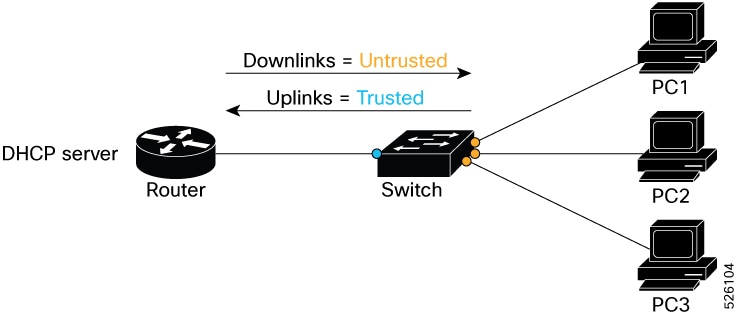
The router functions as the DHCP server, and end hosts obtain their IP addresses from the router using DHCP. Configure the switch ports that connect to these end hosts—referred to as downlink ports—as untrusted. This configuration is necessary because the network administrator does not have direct control over the end-user devices, and a malicious user could launch DHCP-based attacks from one of these devices. To mitigate such risks, it is best to leave these downlink ports in their default untrusted state.

Conversely, configure the uplink ports on the switch, which connect toward the router as trusted ports. The devices connected to these uplink ports, including the router and network administrator’s equipment, are considered secure and are not expected to initiate DHCP-based attacks. DHCP snooping does not inspect DHCP messages on trusted ports, allowing legitimate DHCP server traffic to pass freely.

Summary

The key components involved in DHCP snooping are:

  • DHCP client: Sends the initial DHCP request packet on an untrusted port. The client is bound to a specific bridge port by DHCP snooping.

  • Switch with DHCP snooping enabled:

    • Receives DHCP packets on untrusted and trusted ports.

    • Maintains the DHCP snooping binding database, associating the client’s MAC address, IP address, lease time, VLAN, and bridge port.

    • Processes and forwards packets from the client only on the bound bridge port.

    • Drops packets from the client received on other bridge ports to prevent IP address spoofing.

  • DHCP server: Connected to trusted ports, it sends DHCP offer, ACK, and other DHCP server packets that are allowed through trusted interfaces.

Workflow

Figure 3. DHCP snooping client binding and packet validation process

These stages describe DHCP snooping behavior when processing DHCP packets on untrusted ports.

  1. When the first DHCP BOOTREQUEST packet from a client is received on an untrusted port, DHCP snooping binds the client to that specific bridge port and begins tracking the client’s IP address lease.
  2. The switch maintains this binding in the DHCP snooping binding database, associating the client’s MAC address, IP address, lease time, VLAN, and the bridge port.
  3. Packets from this client received on the bound bridge port are processed and forwarded as long as the binding exists.
  4. Packets from this client received on any other bridge port are dropped while the binding exists, preventing spoofing or unauthorized use of the IP address on other ports.
  5. DHCP snooping only forwards DHCP BOOTREPLY packets for this client on the bridge port to which the client is bound.
  6. DHCP BOOTREPLY packets received on untrusted ports that are not the client’s bound port are not forwarded.
  7. When the client’s IP address lease expires, the client is removed from the DHCP snooping binding database and unbound from the bridge port, ending the tracking and forwarding rules for that client.

DHCP snooping support matrix

This table provides DHCP snooping support information based on:

  • Cisco IOS XR release

  • Platform

Cisco IOS XR Release

Platform

Release 25.4.1

  • N540X-16Z4G8Q2C-A/D

  • N540X-16Z8Q2C-D

  • N540X-12Z16G-SYS-A/D

  • N540X-4Z14G2Q-A/D

  • N540X-8Z16G-SYS-A/D

  • N540X-6Z18G-SYS-A/D

  • N540-28Z4C-SYS-A/D

  • N540-12Z20G-SYS-A/D

  • N540-6Z18G-SYS-A/D

  • N540-6Z14S-SYS-D

  • N540-FH-AGG-SYS

  • N540-FH-CSR-SYS

Release 7.9.1

  • N540-ACC-SYS

  • N540X-ACC-SYS

  • N540-24Z8Q2C-SYS

Restrictions for DHCP snooping

  • The Layer 2 bridge feature must operate within a Layer 2 Bridge Domain. Within this domain, any Ethernet Flow Point (EFP) that receives Broadcast, Unknown-unicast, or Multicast (BUM) traffic must forward this traffic to all other EFPs in the same bridge domain, except the EFP that originally received the traffic.

  • The router does not forward any DHCP packets to an EFP that already has another DHCP client associated with it.

  • Supports only DHCP IPv4 snooping for Layer 2 networks.

Enable DHCP snooping (Task)

The purpose of this task is to enable DHCP snooping on a bridge domain and selected ports to protect your network from rogue DHCP servers that may assign unauthorized IP addresses.

You can enable DHCP snooping on both the bridge domain and individual bridge ports.

Before you begin

  • Identify ports acting as client-facing (untrusted) and server-facing (trusted).

  • Ensure your user group has the necessary permissions for DHCP snooping commands. If you lack access, contact your AAA administrator.

  • Verify DHCP client and DHCP server are configured and running on the network.

Follow these steps to configure DHCP snooping on the router.

Procedure


Step 1

Define DHCP snooping profiles, trusted and untrusted, under dhcp ipv4 configuration.

Example:

Router# config
Router(config)# dhcp ipv4
Router(config-dhcpv4)# profile UnTrustedClientProfile snoop
Router(config-dhcpv4-snoop-profile)#commit
Router(config-dhcpv4-snoop-profile)#exit
Router(config-dhcpv4)# profile trustedServerProfile snoop
Router(config-dhcpv4-snoop-profile)#trusted
Router(config-dhcpv4-snoop-profile)#commit
Router(config-dhcpv4-snoop-profile)#exit

Step 2

Enter l2vpn configuration mode and create a bridge group and bridge domain.

Example:

Router(config-dhcpv4)# l2vpn
Router(config-l2vpn)# bridge group bg1
Router(config-l2vpn-bg)# bridge-domain bd1

Step 3

Assign the untrusted DHCP snooping profile to the bridge domain.

Example:

Router(config-l2vpn-bg-bd)#dhcp ipv4 snoop profile UnTrustedClientProfile
Router(config-l2vpn-bg-bd)#commit
Router(config-l2vpn-bg-bd)#exit

Step 4

Assign the trusted DHCP snooping profile to individual bridge ports as appropriate.

Example:

Router(config-l2vpn-bg-bd)#interface tenGigE 0/0/0/17
Router(config-l2vpn-bg-bd-ac)#dhcp ipv4 snoop profile UnTrustedClientProfile
Router(config-l2vpn-bg-bd-ac)#commit
Router(config-l2vpn-bg-bd-ac)#exit

Step 5

Assign the untrusted DHCP snooping profile to individual bridge ports as appropriate.

Example:

Router(config-l2vpn-bg-bd)#interface tenGigE 0/0/0/18
Router(config-l2vpn-bg-bd-ac)#dhcp ipv4 snoop profile trustedServerProfile
Router(config-l2vpn-bg-bd-ac)#commit
Router(config-l2vpn-bg-bd-ac)#exit

Step 6

Use the show l2vpn forwarding interface command to verify if DHCP snooping is enabled and the correct profiles are assigned.

Example:

Router #show l2vpn forwarding interface tenGigE 0/0/0/18 detail location 0/0/CPU0
Fri Oct 24 06:39:29.942 UTC
Local interface: TenGigE0/0/0/17, Xconnect id: 0x7, Status: up
  Segment 1
    AC, TenGigE0/0/0/17, Ethernet port mode, status: Bound
    Statistics:
      packets: received 3779 (multicast 0, broadcast 0, unknown unicast 0, unicast 0), sent 1254
      bytes: received 671584 (multicast 0, broadcast 0, unknown unicast 0, unicast 0), sent 413820
      MAC move: 0
      packets dropped: PLU 0, tail 0
      bytes dropped: PLU 0, tail 0
  Segment 2
    Bridge id: 2, Split horizon group id: 0, status: Bound
    Storm control: disabled
    MAC learning: enabled
    Software MAC learning: disabled
    MAC port down flush: enabled
    Flooding:
      Broadcast & Multicast: enabled
      Unknown unicast: enabled
    MAC aging time: 300 s, Type: inactivity
    MAC limit: none
    MAC Secure: disabled, Logging: disabled, Accept-Shutdown: enabled
    DHCPv4 snooping: profile not known on this node, enabled
    Trusted: enabled
    Dynamic ARP Inspection: disabled, Logging: disabled
    IP Source Guard: disabled, Logging: disabled
    IGMP snooping profile: profile not known on this node
    MLD snooping profile: profile not known on this node
    Router guard disabled
    P2MP PW: disabled
    PD System Data: AF-LIF-IPv4: 0x00000000  AF-LIF-IPv6: 0x00000000 FRR-LIF: 0x00000000

Step 7

(Optional) Use the dhcp ipv4 none command under the desired interface configuration mode to disable DHCP snooping on a specific bridge port.

Example:


Router(config)# interface gigabitethernet 0/0/0/19
Router(config-if)# dhcp ipv4 none

Dynamic address resolution protocol inspection

Dynamic Address Resolution Protocol (ARP) inspection or Dynamic ARP inspection (DAI) is a Layer 2 network security feature that

  • prevents malicious ARP attacks by rejecting unknown ARP packets

  • uses the DHCP snooping binding database to check for sender's MAC-to-IP address bindings and then accepts or rejects an ARP packet, and

  • works on untrusted interfaces connected to hosts in a network.

Table 4. Feature History Table

Feature Name

Release Information

Description

Dynamic Address Resolution Protocol (ARP) Inspection

Release 25.4.1

Support for this feature is now extended to these variants:

  • N540X-16Z4G8Q2C-A/D

  • N540X-16Z8Q2C-D

  • N540X-12Z16G-SYS-A/D

  • N540X-4Z14G2Q-A/D

  • N540X-8Z16G-SYS-A/D

  • N540X-6Z18G-SYS-A/D

  • N540X-16Z4G8Q2C-A/D

  • N540X-16Z8Q2C-D

  • N540X-12Z16G-SYS-A/D

  • N540X-4Z14G2Q-A/D

  • N540X-8Z16G-SYS-A/D

  • N540X-6Z18G-SYS-A/D

Dynamic Address Resolution Protocol (ARP) Inspection

Release 7.9.1

Dynamic ARP Inspection (DAI) helps protect your network from attackers who attempt to intercept, modify, or disrupt data through ARP poisoning attacks. DAI achieves this by allowing routers to forward only valid ARP requests and responses. By using the trusted MAC-to-IP address bindings that are dynamically built at runtime in the DHCP snooping binding database, DAI verifies the authenticity of these ARP packets.

How DAI works

Dynamic ARP Inspection (DAI) prevents ARP poisoning attacks by intercepting all ARP requests and responses. DAI uses DHCP snooping to determine the validity of an ARP packet.

Summary

DAI intercepts all ARP requests and responses to prevent ARP poisoning attacks. It validates MAC-to-IP address bindings against DHCP snooping entries. Only valid ARP packets are processed, and invalid packets are dropped. The key components involved in DHCP snooping are:

  • DAI (Dynamic ARP Inspection) feature on the switch/router: This intercepts all incoming ARP requests and responses on the port.

  • The router or switch running DAI: It holds the DHCP snooping binding database, which contains valid MAC-to-IP address bindings.

  • End hosts or devices: These send ARP requests and responses on the network.

  • DHCP snooping process: It builds and maintains the binding database used by DAI to validate ARP packets.

Workflow

These stages describe how DAI works.

  1. Intercept ARP traffic: DAI intercepts all incoming ARP requests and responses on the port.
  2. Verify MAC-to-IP bindings: For each intercepted ARP packet, DAI validates MAC-to-IP address bindings against DHCP snooping entries.
    When... And... Then...

    DAI checks the ARP packet's MAC address, Source IP address, and Source Interface information against the DHCP snooping entries stored in the router.

    a valid match is found

    the packet is sent to its appropriate destination.

    DAI checks the ARP packet's MAC address, Source IP address, and Source Interface information against the DHCP snooping entries stored in the router.

    a valid match is not found

    the router drops the ARP packet.

Configure Dynamic ARP Inspection

Enable Dynamic ARP Inspection (DAI) on the router to protect against ARP spoofing attacks.

DAI inspects ARP packets on the network to ensure data integrity. DHCP snooping must be enabled before configuring DAI, because DAI relies on the DHCP snooping binding table.

Before you begin

Enable DHCP snooping on the router.

Follow these steps to configure DAI on the router.

Procedure


Step 1

Create a bridge group.

Example:

Router(config-l2vpn)# bridge group bg1

Step 2

Create a bridge domain within the bridge group.

Example:

Router(config-l2vpn-bg)# bridge-domain bd1

Step 3

Enable Dynamic ARP Inspection for the bridge domain.

Example:

Router(config-l2vpn-bg-bd)# dynamic-arp-inspection

Step 4

Use the show l2vpn bridge-domain bd-name <bridge-domain> detail command to verify that Dynamic ARP Inspection is enabled.

Example:

Router(config)# show l2vpn bridge-domain bd-name bd1 detail
Legend: pp = Partially Programmed.
Bridge group: evpn-aa-irb-inter, bridge-domain: evpn, id: 1797, state: up, ShgId: 0, MSTi: 0
  Coupled state: disabled
  VINE state: EVPN-IRB
  MAC learning: enabled
  MAC withdraw: enabled
    MAC withdraw for Access PW: enabled
    MAC withdraw sent on: bridge port up
    MAC withdraw relaying (access to access): disabled
  Flooding:
    Broadcast & Multicast: enabled
    Unknown unicast: enabled
  MAC aging time: 300 s, Type: inactivity
  MAC limit: 64000, Action: none, Notification: syslog
  MAC limit reached: no, threshold: 99%
  MAC port down flush: enabled
  MAC Secure: disabled, Logging: disabled
  Split Horizon Group: none
  Dynamic ARP Inspection: enabled, Logging: disabled  
  IP Source Guard: disabled, Logging: disabled
  DHCPv4 Snooping: disabled
  DHCPv4 Snooping profile: none
  IGMP Snooping: disabled
  IGMP Snooping profile: none
  MLD Snooping profile: none
  Storm Control: disabled
  Bridge MTU: 1500
  MIB cvplsConfigIndex: 1798
  Filter MAC addresses:
  P2MP PW: disabled
  Multicast Source: Not Set
  Create time: 11/12/2020 02:02:56 (04:55:20 ago)
  No status change since creation
  ACs: 2 (2 up), VFIs: 0, PWs: 0 (0 up), PBBs: 0 (0 up), VNIs: 0 (0 up)
  List of EVPNs:
    EVPN, state: up
      evi: 2001
      XC ID 0x800006a7
     Statistics:
       packets: received 0 (unicast 0), sent 0
       bytes: received 0 (unicast 0), sent 0
       MAC move: 0
  List of ACs:
    AC: BVI10001, state is up
      Type Routed-Interface
      MTU 2000; XC ID 0x80000fa3; interworking none
      BVI MAC address:
        0088.0088.0088
      Split Horizon Group: Access
      PD System Data: AF-LIF-IPv4: 0x00000000  AF-LIF-IPv6: 0x00000000 FRR-LIF: 0x00000000

    AC: Bundle-Ether30001.2001, state is up
      Type VLAN; Num Ranges: 1
      Outer Tag: 3001
      Rewrite Tags: []
      VLAN ranges: [2001, 2001]
      MTU 1500; XC ID 0xa00005e0; interworking none; MSTi 1
      MAC learning: enabled
      Flooding:
        Broadcast & Multicast: enabled
        Unknown unicast: enabled
      MAC aging time: 300 s, Type: inactivity
      MAC limit: 64000, Action: none, Notification: syslog
      MAC limit reached: no, threshold: 99%
      MAC port down flush: enabled
      MAC Secure: disabled, Logging: disabled
      Split Horizon Group: none
      E-Tree: Root
      Dynamic ARP Inspection: disabled, Logging: disabled
      IP Source Guard: disabled, Logging: disabled
      DHCPv4 Snooping: disabled
      DHCPv4 Snooping profile: none
      IGMP Snooping: disabled
      IGMP Snooping profile: none
      MLD Snooping profile: none
      Storm Control: bridge-domain policer
      Static MAC addresses:
      Statistics:
        packets: received 404672709 (multicast 0, broadcast 0, unknown unicast 0, unicast 0), sent 0
        bytes: received 30835628366 (multicast 0, broadcast 0, unknown unicast 0, unicast 0), sent 0
        MAC move: 0
      Storm control drop counters: 
        packets: broadcast 0, multicast 0, unknown unicast 0 
        bytes: broadcast 0, multicast 0, unknown unicast 0 
      Dynamic ARP inspection drop counters: 
        packets: 0, bytes: 0
      IP source guard drop counters: 
        packets: 0, bytes: 0
      PD System Data: AF-LIF-IPv4: 0x00018919  AF-LIF-IPv6: 0x0001891a FRR-LIF: 0x00000000

  List of Access PWs:
  List of VFIs:
  List of Access VFIs:
Dynamic ARP Inspection is enabled and operational on the configured bridge domain. The router inspects ARP traffic and validates address bindings. This helps prevent network attacks.

IP Source Guard

IP Source Guard (IPSG) is a Layer 2 security feature that

  • prevents IP spoofing by validating source IP addresses against the DHCP snooping binding database

  • blocks all IP traffic except DHCP packets allowed by DHCP snooping, and

  • works on untrusted interfaces connected to hosts in a network.

Table 5. Feature History Table

Feature Name

Release Information

Description

IP Source Guard

Release 7.9.1

IP Source Guard (IPSG) helps prevent IP address spoofing attacks where a host tries to use the IP address of another device on the network.

This capability is achieved by verifying that the source IP address of incoming packets matches the MAC address of the connected host, using trusted MAC-to-IP address bindings dynamically built at runtime in the DHCP snooping binding database. When IPSG is enabled on an interface, it blocks all IP traffic except DHCP packets until a valid binding is established, thereby preventing unauthorized devices from using IP addresses assigned to others on the network.

IPSG and DHCP snooping

IPSG filters traffic based on MAC-to-IP address bindings found in the DHCP snooping database. When IPSG is enabled on an interface, the router blocks all IP traffic on that interface except for DHCP packets permitted by DHCP snooping. After a client obtains an IP address through DHCP and a binding entry is created, the router allows IP traffic from that source IP address and associated MAC address. Traffic from other hosts is denied. This feature helps prevent IP address spoofing attacks, where a host attempts to use another device's IP address.

Example

Host A connects to a switch port configured with IPSG and receives an IP address through DHCP. IPSG allows only traffic sourced from Host A’s assigned IP address on that port; all other IP traffic is blocked.

Configure IP Source Guard

Enable IP Source Guard (IPSG) to prevent IP spoofing. IPSG validates source IP addresses against DHCP snooping binding database.

IPSG can be enabled at either the bridge domain or bridge port level. By default, bridge ports inherit the IPSG configuration from their parent bridge. IPSG is initially disabled on all bridges.

Before you begin

Enable DHCP snooping on the router.

Follow these steps to enable IPSG logging on the router.

Procedure


Step 1

Create a bridge group.

Example:

Router(config-l2vpn)#bridge group bg1

Step 2

Create a bridge domain within the bridge group.

Example:

Router(config-l2vpn-bg)#bridge-domain bd1

Step 3

Enable IPSG for the bridge domain.

Example:

Router(config-l2vpn-bg-bd)#ip-source-guard

Step 4

Use the show l2vpn forwarding interface <interface-name> detail location command to verify that IPSG is enabled for the interface.

Example:

RP/0/RP0/CPU0:ios#show l2vpn forwarding interface tenGigE 0/0/0/17 detail location 0/0/CPU0
Thu Nov 13 13:56:53.990 UTC
Local interface: TenGigE0/0/0/17, Xconnect id: 0x3, Status: up
  Segment 1
    AC, TenGigE0/0/0/17, Ethernet port mode, status: Bound
    Segment Down Flags: none (UP)
    Statistics:
      packets: received 0 (multicast 0, broadcast 0, unknown unicast 0, unicast 0), sent 0
      bytes: received 0 (multicast 0, broadcast 0, unknown unicast 0, unicast 0), sent 0
      MAC move: 0
      packets dropped: PLU 0, tail 0
      bytes dropped: PLU 0, tail 0
  Segment 2
    Bridge id: 4, Split horizon group id: 0, status: Bound
    Segment Down Flags: none (UP)
    Storm control: disabled
    MAC learning: enabled
    Software MAC learning: disabled
    MAC port down flush: enabled
    Flooding:
      Broadcast & Multicast: enabled
      Unknown unicast: enabled
    MAC aging time: 300 s, Type: inactivity
    MAC limit: none
    MAC Secure: disabled, Logging: disabled, Accept-Shutdown: enabled
    DHCPv4 snooping: profile not known on this node, enabled
      Trusted: enabled
    Dynamic ARP Inspection: enabled, Logging: disabled
 IP Source Guard: enabled, Logging: disabled
    IGMP snooping profile: profile not known on this node
    MLD snooping profile: profile not known on this node
    Router guard disabled
    Main port: TenGigE0/0/0/17, MSTI: 0
    P2MP PW: disabled