About PowerOn Auto Provisioning
PowerOn Auto Provisioning (POAP) automates the process of upgrading software images and installing configuration files on devices that are being deployed in the network for the first time.
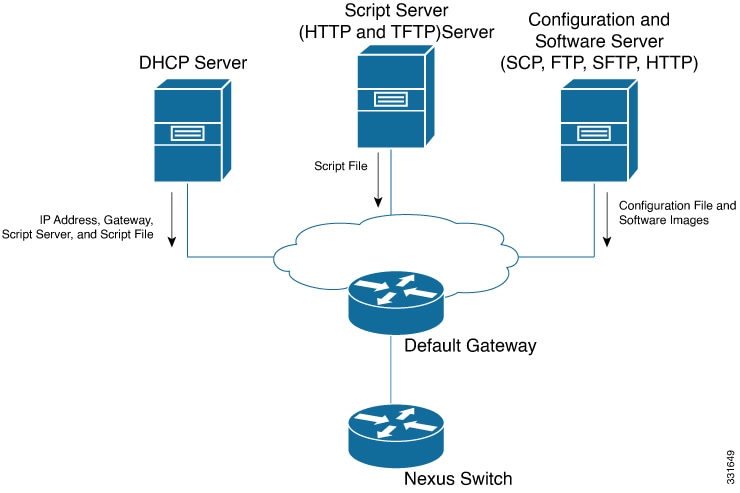
When a device with the POAP feature boots and does not find the startup configuration, the device enters POAP mode, locates a DHCP server, and bootstraps itself with its interface IP address, gateway, and DNS server IP addresses. The device also obtains the IP address of a TFTP server and downloads a configuration script that enables the switch to download and install the appropriate software image and configuration file.
 Note |
The DHCP information is used only during the POAP process. If the backup configuration file does not have the administrative username and the password, POAP causes a console lockout after completion. It is a mandatory step to add the username and the password in the configuration file. |
Network Requirements for POAP
POAP requires the following network infrastructure:
-
A DHCP server to bootstrap the interface IP address, gateway address, and Domain Name System (DNS) server.
-
A TFTP server that contains the configuration script used to automate the software image installation and configuration process.
-
One or more servers that contains the desired software images and configuration files.
-
If you use USB, then no DHCP server or TFTP server are required for POAP.
Secure Download of POAP Script
Beginning with Cisco NX-OS Release 10.2(3)F, you have the option of securely downloading the POAP script. When a device with the POAP feature boots and does not find the startup configuration, the device enters POAP mode, locates a DHCP server, and bootstraps itself with its interface IP address, gateway, and DNS server IP addresses. The device also obtains the IP address of an HTTPS server and downloads POAP script securely. The script enables the switch to download and install the appropriate software image and configuration file.
To download the POAP script securely, you need to select specific POAP options. Until Cisco NX-OS Release 10.2(3)F, POAP used options 66 and 67 for IPv4, and options 77 and 15 for IPv6 to extract the booting script information. However, the transfer of the script uses http, and is not very secure. Beginning with Cisco NX-OS Release 10.2(3)F, option 43 specifies the secure POAP related provisioning script information for IPv4 and option 17 specifies the same for IPv6. Additionally, these options allow the POAP to reach the file server in a secure manner. The POAP options 66, 67, 77, and 15 continue to be supported in Cisco NX-OS Release10.2(3)F. Furthermore, if you are using option 43 or 17, you can use the earlier options as fallback options, if required. From Cisco NX-OS Release 10.4(1)F, you can use Root-CA bundles instead of single .pem certificate for Secure POAP.
Note |
The maximum character length is 512 bytes for both option 43 and option 17. |
The sub-options available for option 43 and option 17 are discussed in the following sections:
IPv4
Option 43 has the following sub-options for IPv4:
-
option space poap length width 2;
-
option poap.version code 1 = unsigned integer 8;
Note
This sub-option is mandatory.
-
option poap.ca_list code 50 = text;
-
option poap.url code 2 = text;
Note
This sub-option is mandatory.
-
option poap.debug code 51 = unsigned integer 8;
-
option poap.ntp code 3 = ip-address;
Note
This sub-option is only supported for IPv4 (Option 43).
-
option poap.flag code 52 = unsigned integer 8;
Note
Flag is used to skip server certificate validation in the client.
 host dhclient-n9kv {
 hardware ethernet 00:50:56:85:c5:30;
 fixed-address 3.3.3.1;
 default-lease-time 3600;
 option broadcast-address 192.168.1.255;
 #option log-servers 1.1.1.1;
 max-lease-time 3600;
 option subnet-mask 255.255.255.0;
 option routers 10.77.143.1;
 #option domain-name-servers 1.1.1.1;
           vendor-option-space poap;
 option poap.version 1;
 option poap.ca_list "https://<ip>/poap/ca_file1.pem, https://<ip>/poap/ca_file2.pem";
 option poap.url "https://<url>/poap.py";
 option poap.debug 1;
 option poap.ntp 10.1.1.39;
 option poap.flag 0;
   }
IPv6
Option 17 has the following sub-options for IPv6:
-
option space poap_v6 length width 2;
-
option poap_v6.version code 1 = unsigned integer 8;
Note
This sub-option is mandatory.
-
option poap_v6.ca_list code 50 = text;
-
option poap_v6.url code 3 = text;
Note
This sub-option is mandatory.
-
option poap_v6.debug code 51 = unsigned integer 8;
-
option vsio.poap_v6 code 9 = encapsulate poap_v6;
 option dhcp6.next-hop-rt-prefix code 242 = { ip6-address, unsigned integer 16,
unsigned integer 16, unsigned integer 32, unsigned integer 8, unsigned integer 8, ip6-address };
 option dhcp6.bootfile-url code 59 = string;

 default-lease-time 3600;
 max-lease-time 3600;
 log-facility local7;
 subnet6 2003::/64 {

   # This statement configures actual values to be sent
 # RTPREFIX option code = 243, RTPREFIX length = 22
 # Ignore value 22. It is something related to option-size RT_PREFIX option length.
 # lifetime = 9000 seconds
 # route ETH1_IPV6_GW/64
 # metric 1
 option dhcp6.next-hop-rt-prefix 2003::2222 243 22 9000 0 1 ::;
 #ipv6 ::/0 2003::2222
 #Another example - support not there in NXOS - CSCvs05271:
 #option dhcp6.next-hop-rt-prefix 2003::2222 243 22 9000 112 1 2003::1:2:3:4:5:0;
 #ipv6 2003::1:2:3:4:5:0/112 2003::2222

   # Additional options
 #option dhcp6.name-servers fec0:0:0:1::1;
 #option dhcp6.domain-search "domain.example";


 range6 2003::b:1111 2003::b:9999;
 option dhcp6.bootfile-url "tftp://2003::1111/poap_github_v6.py";
 vendor-option-space poap_v6;
 option poap_v6.version 1;
 option poap_v6.ca_list "https://<ip>/new_ca.pem,https://<ip>/another_ca.pem";
 option poap_v6.url "https://<ip>/poap_github_v4.py";
 option poap_v6.debug 1;
   }
Network Requirements for Secure POAP
Secure POAP requires the following network infrastructure:
-
A DHCP server to bootstrap the interface IP address, gateway address, and Domain Name System (DNS) server.
-
An HTTPS server that contains the POAP script used for software image installation and configuration process.
Note
-
In case of secure download of POAP script, the TFTP server is replaced with the HTTPS server. Hence, when you read the content related to the TFTP server in this chapter, remember to read the TFTP server as the HTTPS server.
-
-
One or more servers that contain the desired software images and configuration files.
Deployment Scenarios
Cisco devices have a unique identifier known as the Secure Unique Device Identifier (SUDI). The hardware SUDI can be used for authentication, as it can be used for asymmetric key operations such as encryption, decryption, signing, and verifying that allow passage of the data to be operated upon. All non-Cisco devices are classified as non-SUDI devices. For a non-SUDI device, the root-CA bundle is required to authenticate the file server. However, the file server can be hosted on either a SUDI or a non-SUDI device.
Based on all these capabilities, you can use one of the following deployment scenarios to download the POAP script in a secure way:
SUDI Supported Device as File Server
The SUDI supported devices are Cisco devices. Unlike the earlier implementation, the DHCP server now provides a https location rather than http/tftp. In this scenario, only the DHCP server and the SUDI supported script server (HTTPS server) are required, other than one or more servers that contain the required software images and configuration files.
Note |
SUDI only supports TLSv1.2 or below. Also, the SUDI solution only considers secure download using https, but not sftp. |
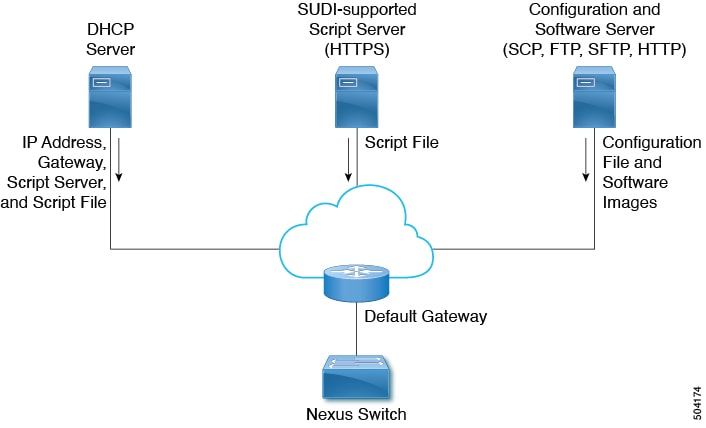
The workflow for SUDI supported devices is as follows:
-
Booting device is SUDI capable and has the needed trust store to verify a SUDI certificate
-
Booting device sends out DHCP discover
-
DHCP server responds to booting device with https server details
-
Device establishes the secure channel using standard SSL APIs
-
Authentication is done by verifying SUDI on both sides
-
Downloads poap.py
Non-SUDI Supported Device as a File Server
In this scenario, the Root-CA bundle must be installed in the booting device. The Root-CA bundle is required for authentication. Here, the DHCP server, intermediate device, and non-SUDI supported script server (HTTPS server) are required, other than one or more servers that contain the required software images and configuration files.
The DHCP offer has the details of intermediate server that has the Root-CA bundle available. The intermediate device should support SUDI. The booting device uses the intermediate device to download the Root-CA bundle, install it, and then communicate with the file server. The intermediate devices should be provisioned first.
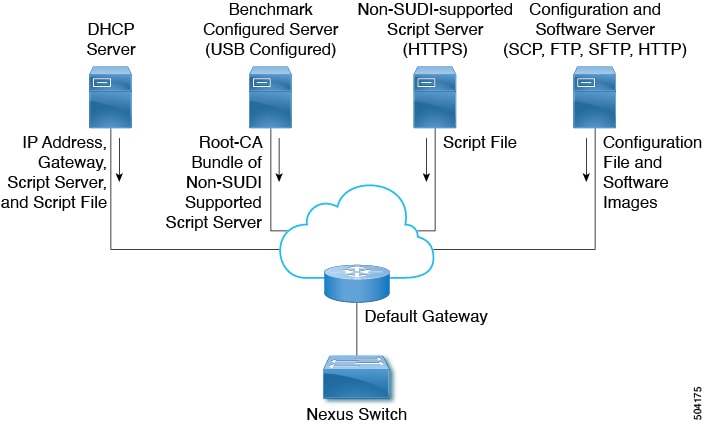
The workflow for non-SUDI supported devices is as follows:
-
Booting device is SUDI capable and has the needed trust store to verify a SUDI certificate
-
Intermediate device that hosts a server with Root-CA bundle is also SUDI capable
-
Booting device sends out DHCP discover
-
DHCP server responds to booting device with https server details and Root-CA server details
-
Booting device reaches to intermediate device, gets the CA bundle, adds it to the trust store
-
Booting device reaches the file server to download poap.py
Benchmark Configured Device
The root CA certificate chain file for the Non-SUDI-supported script server must be placed in /bootflash/poap/sudi_fs on the Benchmark Configured Server.
Note |
To change port on the Benchmark Configured Device, use the file-server <port-number> command. Avoid using standard ports such as port 80 (http) and port 443 (https). The file-server <port-number> command only serves content over the management interface. |
Secure POAP on a Device Shipped with Old Image
Support for secure POAP will be available only for devices that are shipped with image that has secure POAP feature.
If the device does not have the secure POAP feature, then use the legacy DHCP options to move the device to a later version of the image that supports secure POAP. Then these devices can be reloaded and use the secure POAP feature.
Troubleshooting Secure POAP
Perform the following steps to collect debugging information regarding secure POAP:
-
Set the debug option for IPv4 in option 43 to 1 and for IPv6 in option 17.
The debug option enables additional logs.
-
Allow the switch to run one cycle of POAP.
-
Abort POAP.
-
When the system boots up, run the show tech-support poap command.
This command displays POAP status and configuration.
Disabling POAP
POAP is enabled when there is no configuration in the system. It runs as a part of bootup. However, you can bypass POAP enablement during initial setup. If you want to disable POAP permanently (even when there is no configuration in the system), you can use the 'system no poap' command. This command ensures that POAP is not started during the next boot (even if there is no configuration). To enable POAP, use the 'system poap' command or the 'write erase poap' command. The 'write erase poap' command erases the POAP flag and enables POAP.
-
Example: Disabling POAP
switch# system no poap switch# sh boot Current Boot Variables: sup-1 NXOS variable = bootflash:/nxos.9.2.1.125.bin Boot POAP Disabled POAP permanently disabled using 'system no poap' Boot Variables on next reload: sup-1 NXOS variable = bootflash:/nxos.9.2.1.125.bin Boot POAP Disabled POAP permanently disabled using 'system no poap' switch# sh system poap System-wide POAP is disabled using exec command 'system no poap' POAP will be bypassed on write-erase reload. (Perpetual POAP cannot be enabled when system-wide POAP is disabled) -
Example: Enabling POAP switch# system poap switch# sh system poap System-wide POAP is enabled -
Example: Erase POAP
switch# write erase poap
This command will erase the system wide POAP disable flag only if it is set.
Do you wish to proceed anyway? (y/n)  [n] y
System wide POAP disable flag erased.

switch# sh system poap
System-wide POAP is enabled
POAP Configuration Script
The reference script supplied by Cisco supports the following functionality:
-
Retrieves the switch-specific identifier, for example, the serial number.
-
Downloads the nx-os software image if the files do not already exist on the switch. The nx-os image is installed on the switch and is used at the next reboot.
-
Schedules the downloaded configuration to be applied at the next switch reboot.
-
Stores the configuration as the startup configuration.
Cisco has sample configuration scripts that were developed using the Python programming language and Tool Command Language (Tcl). You can customize one of these scripts to meet the requirements of your network environment. You can access the Python script to perform POAP on the Cisco Nexus 9000 Series switch at this link: https://github.com/datacenter/nexus9000/tree/master/nx-os/poap.
The Python programming language uses two APIs that can execute CLI commands. These APIs are described in the following table. The arguments for these APIs are strings of the CLI commands.
|
API |
Description |
|---|---|
|
cli() |
Returns the raw output of CLI commands, including the control/special characters. |
|
clid() |
For CLI commands that support XML, this API puts the command output in a Python dictionary. This API can be useful to help search the output of show commands. |
POAP Configuration Script
We provide a sample configuration script that is developed using the Python programming language. We recommend using the provided script and modifying it to meet the requirements of your network environment.
The POAP script can be found at https://github.com/datacenter/nexus9000/blob/master/nx-os/poap/poap.py.
To modify the script using Python, see the Cisco NX-OS Python API Reference Guide for your platform.
Using the POAP Script and POAP Script Options
Before using the POAP script, perform the following actions:
-
Edit the options dictionary at the top of the script to ensure that all relevant options for your setup are included in the script. Do not change the defaults (in the default options function) directly.
-
Update the MD5 checksum of the POAP script as shown using shell commands.
f=poap_nexus_script.py ; cat $f | sed '/^#md5sum/d' > $f.md5 ; sed -i "s/^#md5sum=.*/#md5sum=\"$(md5sum $f.md5 | sed 's/ .*//')\"/" $f -
If the device has a startup configuration, perform a write erase and reload the device.
The following POAP script options can be specified to alter the POAP script behavior. When you download files from a server, the hostname, username, and password options are required. For every mode except personality, the target_system_image is also required. Required parameters are enforced by the script, and the script aborts if the required parameters are not present. Every option except hostname, username, and password has a default option. If you do not specify the option in the options dictionary, the default is used.
-
username
The username to use when downloading files from the server.
-
password
The password to use when downloading files from the server.
-
hostname
The name or address of the server from which to download files.
-
mode
The default is serial_number.
Use one of the following options:
-
personality
A method to restore the switch from a tarball.
-
serial_number
The serial number of the switch to determine the configuration filename. The format for the serial number in the configuration file is conf.serialnumber. Example: conf.FOC123456
-
hostname
The hostname as received in the DHCP options to determine the configuration filename. The format for the hostname in the configuration file is conf_hostname.cfg. Example: conf_3164-RS.cfg
-
mac
The interface MAC address to determine the configuration filename. The format for the hostname in the configuration file is conf_macaddress.cfg. Example: conf_7426CC5C9180.cfg
-
raw
The configuration filename is used exactly as provided in the options. The filename is not altered in any way.
-
location
The CDP neighbors are used to determine the configuration filename. The format for the location in the configuration file is conf_host_intf.cfg, where host is the host connected to the device over the POAP interface, and intf is the remote interface to which the POAP interface is connected. Example: conf_remote-switch_Eth1_8.cfg
-
-
required_space
The required space in KB for that particular iteration of POAP. The default is 100,000. For multi-step upgrades, specify the size of the last image in the upgrade path of the target image.
-
transfer_protocol
Any transfer protocol such as http, https, ftp, scp, sftp, or tftp that is supported by VSH. The default is scp.
-
config_path
The path to the configuration file on the server. Example: /tftpboot. The default is /var/lib/tftpboot.
-
target_system_image
The name of the image to download from the remote server. This is the image you get after POAP completes. This option is a required parameter for every mode except personality. The default is "".
-
target_image_path
The path to the image on the server. Example: /tftpboot. The default is /var/lib/tftpboot.
-
destination_path
The path to which to download images and MD5 sums. The default is /bootflash.
-
destination_system_image
The name for the destination image filename. If not specified, the default will be the target_system_image name.
-
user_app_path
The path on the server where the user scripts, agents, and user data are located. The default is /var/lib/tftpboot.
-
disable_md5
This is True if MD5 checking should be disabled. The default is False.
-
midway_system_image
The name of the image to use for the midway system upgrade. By default, the POAP script finds the name of any required midway images in the upgrade path and uses them. Set this option if you prefer to pick a different midway image for a two-step upgrade. The default is "".
-
source_config_file
The name of the configuration file when raw mode is used. The default is poap.cfg.
-
vrf
The VRF to use for downloads and so on. The VRF is automatically set by the POAP process. The default is the POAP_VRF environment variable.
-
destination_config
The name to use for the downloaded configuration. The default is poap_replay.cfg.
-
split_config_first
The name to use for the first configuration portion if the configuration needs to be split. It is applicable only when the configuration requires a reload to take effect. The default is poap_1.cfg.
-
split_config_second
The name to use for the second configuration portion if the configuration is split. The default is poap_2.cfg.
-
timeout_config
The timeout in seconds for copying the configuration file. The default is 120. For non-legacy images, this option is not used, and the POAP process times out. For legacy images, FTP uses this timeout for the login process and not for the copy process, while scp and other protocols use this timeout for the copy process.
-
timeout_copy_system
The timeout in seconds for copying the system image. The default is 2100. For non-legacy images, this option is not used, and the POAP process times out. For legacy images, FTP uses this timeout for the login process and not for the copy process, while scp and other protocols use this timeout for the copy process.
-
timeout_copy_personality
The timeout in seconds for copying the personality tarball. The default is 900. For non-legacy images, this option is not used, and the POAP process times out. For legacy images, FTP uses this timeout for the login process and not for the copy process, while scp and other protocols use this timeout for the copy process.
-
timeout_copy_user
The timeout in seconds for copying any user scripts and agents. The default is 900. For non-legacy images, this option is not used, and the POAP process times out. For legacy images, FTP uses this timeout for the login process and not for the copy process, while scp and other protocols use this timeout for the copy process.
-
personality_path
The remote path from which to download the personality tarball. Once the tarball is downloaded and the personality process is started, the personality will download all files in the future from locations specified inside the tarball configuration. The default is /var/lib/tftpboot.
-
source_tarball
The name of the personality tarball to download. The default is personality.tar.
-
destination_tarball
The name for the downloaded personality tarball after it is downloaded. The default is personality.tar.
Setting up the DHCP Server without DNS for POAP
Beginning with Cisco NX-OS Release 7.0(3)I6(1), the tftp-server-name can be used without the DNS option. To enable POAP functionality without DNS on earlier releases, a custom option of 150 must be used to specify the tftp-server-address.
To use the tftp-server-address option, specify the following at the start of your dhcpd.conf file.
option tftp-server-address code 150 = ip-address;
For example:
host MyDevice {
    option dhcp-client-identifier "\000SAL12345678";
    fixed-address 2.1.1.10;
    option routers 2.1.1.1;
    option host-name "MyDevice";
    option bootfile-name "poap_nexus_script.py";
    option tftp-server-address 2.1.1.1;
}
The below example shows Configuring DHCPv6 for POAP over IPv6:
default-lease-time 3600;
max-lease-time 3600;
log-facility local7;
subnet6 2003::/64 {

        # This statement configures actual values to be sent
        # RTPREFIX option code = 243, RTPREFIX length = 22
        # Ignore value 22. It is something related to option-size RT_PREFIX option length.
        # lifetime = 9000 seconds
        # route ETH1_IPV6_GW/64
        # metric 1
        option dhcp6.next-hop-rt-prefix 2003::2222 243 22 9000 0 1 ::;
        #ipv6 ::/0 2003::2222
        #Another example - support not there in NXOS - CSCvs05271:
        #option dhcp6.next-hop-rt-prefix 2003::2222 243 22 9000 112 1 2003::1:2:3:4:5:0;
        #ipv6 2003::1:2:3:4:5:0/112 2003::2222

        # Additional options
        #option dhcp6.name-servers fec0:0:0:1::1;
        #option dhcp6.domain-search "domain.example";

        range6 2003::b:1111 2003::b:9999;
        #range6 2003::c:2222 2003::c:2222;
        option dhcp6.bootfile-url "tftp://2003::1111/poap_github_v6.py";
Downloading and Using User Data, Agents, and Scripts as part of POAP
Under the options dictionary, you can find the download_scripts_and_agents function. If you choose to download user scripts and data, uncomment the first poap_log line and then use a series of download_user_app function calls to download each application. Since older Cisco NX-OS versions do not support recursive copy of directories, such directories must be put into a tarball (TAR archive) and then unpacked once on the switch. The parameters for the download_scripts_and_agents function are as follows:
-
source_path - The path to where the file or tarball is located. This is a required parameter. Example: /var/lib/tftpboot.
-
source_file - The name of the file to download. This is a required parameter. Example: agents.tar, script.py, and so on.
-
dest_path - The location to download the file on the switch. Any directories that do not exist earlier will be created. This is an optional parameter. The default is /bootflash.
-
dest_file - The name to give the downloaded file. This is an optional parameter. The default is unchanged source_file.
-
unpack - Indicates whether a tarball exists for unpacking. Unpacking is done with tar -xf tarfile -C /bootflash . This is an optional parameter. The default is False.
-
delete_after_unpack - Indicates whether to delete the downloaded tarball after unpack is successful. There is no effect if unpack is False. The default is False.
Using the download functionality, you can download all the agents and files needed to run POAP. To start the agents, you should have the configuration present in the running configuration downloaded by POAP. Then the agents, scheduler, and cron entry, along with EEM, can be used.
POAP Process
The POAP process has the following phases:
-
Power up
-
USB discovery
-
DHCP discovery
-
Script execution
-
Post-installation reload
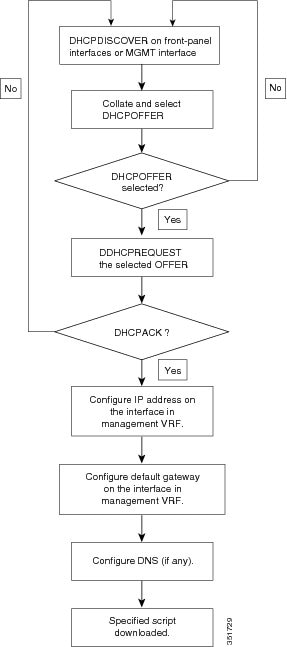
Within these phases, other process and decision points occur. The following illustration shows a flow diagram of the POAP process.

Power-Up Phase
When you powerup the device for the first time, it loads the software image that is installed at manufacturing and tries to find a configuration file from which to boot. When a configuration file is not found, POAP mode starts.
During startup, a prompt appears asking if you want to abort POAP and continue with a normal setup. You can choose to exit or continue with POAP.
Note |
No user intervention is required for POAP to continue. The prompt that asks if you want to abort POAP remains available until the POAP process is complete. |
If you exit POAP mode, you enter the normal interactive setup script. If you continue in POAP mode, all the front-panel interfaces are set up in the default configuration.
USB Discovery Phase
When POAP starts, the process searches the root directory of all accessible USB devices for the POAP script file (the Python script file, poap_script.py), configuration files, and system and kickstart images.
If the script file is found on a USB device, POAP begins running the script. If the script file is not found on the USB device, POAP executes DHCP discovery. (When failures occur, the POAP process alternates between USB discovery and DHCP discovery, until POAP succeeds or you manually abort the POAP process.)
If the software image and switch configuration files specified in the configuration script are present, POAP uses those files to install the software and configure the switch. If the software image and switch configuration files are not on the USB device, POAP does some cleanup and starts DHCP phase from the beginning.
DHCP Discovery Phase
The switch sends out DHCP discover messages on the front-panel interfaces or the MGMT interface that solicit DHCP offers from the DHCP server or servers. (See the following figure.) The DHCP client on the Cisco Nexus switch uses the switch serial number in the client-identifier option to identify itself to the DHCP server. The DHCP server can use this identifier to send information, such as the IP address and script filename, back to the DHCP client.
POAP requires a minimum DHCP lease period of 3600 seconds (1 hour). POAP checks the DHCP lease period. If the DHCP lease period is set to less than 3600 seconds (1 hour), POAP does not complete the DHCP negotiation.
The DHCP discover message also solicits the following options from the DHCP server:
-
TFTP server name or TFTP server address—The DHCP server relays the TFTP server name or TFTP server address to the DHCP client. The DHCP client uses this information to contact the TFTP server to obtain the script file.
-
Bootfile name—The DHCP server relays the bootfile name to the DHCP client. The bootfile name includes the complete path to the bootfile on the TFTP server. The DHCP client uses this information to download the script file.
When multiple DHCP offers that meet the requirement are received, the one arriving first is honored and the POAP process moves to next stage. The device completes the DHCP negotiation (request and acknowledgment) with the selected DHCP server, and the DHCP server assigns an IP address to the switch. If a failure occurs in any of the subsequent steps in the POAP process, the IP address is released back to the DHCP server.
If no DHCP offers meet the requirements, the switch does not complete the DHCP negotiation (request and acknowledgment) and an IP address is not assigned.
Beginning with Cisco NX-OS Release 10.6(3)F, if the PID is identified as a hight-speed PID, POAP attempts provisioning over the MGMT interface for 5 DHCP cycles (where 1 cycle counts as 1 IPv4 and 1 IPv6 DHCP attempt). If no DHCP offer is received on the MGMT interface after these attempts, POAP falls back to the existing DHCP discovery flow. The following high speed PIDs are supported:
-
N9364E-SG2-Q
-
N9364E-SG2-O
POAP Dynamic Breakout
Beginning with Cisco NX-OS Release 7.0(3)I4(1), POAP dynamically breaks out ports in an effort to detect a DHCP server behind one of the broken-out ports. Previously, the DHCP server used for POAP had to be directly connected to a normal cable because breakout cables were not supported.
POAP determines which breakout map (for example, 10gx4, 50gx2, 25gx4, or 10gx2) will bring up the link connected to the DHCP server. If breakout is not supported on any of the ports, POAP skips the dynamic breakout process. After the breakout loop completes, POAP proceeds with the DHCP discovery phase as normal.
Note |
For more information on dynamic breakout, see the interfaces configuration guide for your device. |
Script Execution Phase
After the device bootstraps itself using the information in the DHCP acknowledgement, the script file is downloaded from the TFTP server.
The switch runs the configuration script, which downloads and installs the software image and downloads a switch-specific configuration file.
However, the configuration file is not applied to the switch at this point, because the software image that currently runs on the switch might not support all of the commands in the configuration file. After the switch reboots, it begins running the new software image, if an image was installed. At that point, the configuration is applied to the switch.
Note |
If the switch loses connectivity, the script stops, and the switch reloads its original software images and bootup variables. |
Post-Installation Reload Phase
The switch restarts and applies (replays) the configuration on the upgraded software image. Afterward, the switch copies the running configuration to the startup configuration.
 Feedback