Cisco Nexus 9000 Series NX-OS Interfaces Configuration Guide, Release 10.4(x)
Bias-Free Language
The documentation set for this product strives to use bias-free language. For the purposes of this documentation set, bias-free is defined as language that does not imply discrimination based on age, disability, gender, racial identity, ethnic identity, sexual orientation, socioeconomic status, and intersectionality. Exceptions may be present in the documentation due to language that is hardcoded in the user interfaces of the product software, language used based on RFP documentation, or language that is used by a referenced third-party product. Learn more about how Cisco is using Inclusive Language.
A virtual port channel (vPC) allows links that are physically connected to two Cisco Nexus 9000 Series devices to appear as
a single port channel by a third device (see figure). The third device can be a switch, server, or any other networking device
that supports port channels. A vPC can provide Layer 2 multipathing, which allows you to create redundancy and increase the
bisectional bandwidth by enabling multiple parallel paths between nodes and allowing load balancing traffic.
Allows a single device to use a port channel across two upstream devices
Eliminates Spanning Tree Protocol (STP) blocked ports
Provides a loop-free topology
Uses all available uplink bandwidth
Provides fast convergence if either the link or a device fails
Provides link-level resiliency
Assures high availability
The virtual port channel (vPC) is a technology that allows a single downstream device to connect to two upstream devices as
though they were one logical device.
Layer 2 port channel support
Link Aggregation Control Protocol (LACP) optional
Enables redundancy and load balancing
vPC supports trunk mode port channels with or without LACP, and improves network stability and convergence.
Protocol Details and Recommendations
You can use only Layer 2 port channels in the vPC. You configure the port channels by using one of the following:
No protocol
Link Aggregation Control Protocol (LACP)
When you configure the port channels in a vPC—including the vPC Peer-Link channel—without using LACP, each device can have
up to 32 active links in a single port channel. When using LACP, each device can have 32 active links and eight standby links.
Note
You must enable the vPC feature before you can configure or run the vPC functionality.
The system automatically takes a checkpoint prior to disabling the feature, and you can roll back to this checkpoint.
After you enable the vPC functionality, you create the peer-keepalive link, which sends heartbeat messages between the two
vPC peer devices.
To ensure that you have the correct hardware to enable and run a vPC, enter the show hardware feature-capability command. If you see an X across from the vPC in your command output, your hardware cannot enable the vPC feature.
Note
Devices attached to a vPC domain using port channels should be connected to both of vPC peers.
You can create a vPC Peer-Link by configuring a port channel on one Cisco Nexus 9000 Series chassis by using two or more Ethernet
ports higher speed than 1-Gigabit Ethernet.
We recommend that you configure the vPC Peer-Link Layer 2 port channels as trunks. On another Cisco Nexus 9000 Series chassis,
you configure another port channel again using two or more Ethernet ports with speed higher than 1-Gigabit in the dedicated
port mode.
Connecting these two port channels creates a vPC Peer-Link in which the two linked Cisco Nexus devices appear as one device
to a third device.
Incorrect Hardware or Module Usage
If you are not using the correct module, the system displays an error message.
Once you configure this feature and if the primary vPC peer device fails, the system automatically suspends all the vPC links
on the primary vPC peer device.
Track Object Recommendation
You can create a track object and apply that object to all links on the primary vPC peer device that connect to the core and
to the vPC Peer-Link.
If you must configure all the vPC Peer-Links and core-facing interfaces on a single module, you should configure a track object.
vPC Terminology
This section provides definitions for key vPC terminology.
The terminology used in vPCs is as follows:
vPC—The combined port channel between the vPC peer devices and the downstream device.
vPC peer device—One of a pair of devices that are connected with the special port channel known as the vPC Peer-Link.
vPC Peer-Link—The link used to synchronize state between the vPC peer devices. This link must use a 10-Gigabit Ethernet interface
at a minimum. Higher-bandwidth interfaces (such as 25-Gigabit Ethernet, 40-Gigabit Ethernet, 100-Gigabit Ethernet, and so
on) may also be used.
vPC member port—An interface that belongs to a vPC.
Host vPC port—A Fabric Extender host interface that belongs to a vPC.
vPC domain—This domain includes both vPC peer devices, the vPC peer-keepalive link, and all of the port channels in the vPC
connected to the downstream devices. It is also associated to the configuration mode that you must use to assign vPC global
parameters.
vPC peer-keepalive link—The peer-keepalive link monitors the vitality of a vPC peer Cisco Nexus 9000 Series device. The peer-keepalive
link sends configurable, periodic keepalive messages between vPC peer devices.
We recommend that you associate a peer-keepalive link to a separate virtual routing and forwarding (VRF) instance that is
mapped to a Layer 3 interface in each vPC peer device. If you do not configure a separate VRF, the system uses the management
VRF by default. However, if you use the management interfaces for the peer-keepalive link, you must put a management switch
connected to both the active and standby management ports on each vPC peer device (see figure).
Figure 3. Separate Switch Required to Connect Management Ports for vPC Peer-Keepalive Link
No data or synchronization traffic moves over the vPC peer-keepalive link; the only traffic on this link is a message that
indicates that the originating switch is operating and running a vPC.
Dual-active—Both vPC peers act as primary. This situation occurs when the peer-keepalive and vPC Peer-Link go down while both
peers are still active. In this case, the secondary vPC assumes that the primary vPC is inactive and acts as the primary vPC.
Recovery—When the peer-keepalive and the vPC Peer-Link come up, one switch becomes the secondary vPC. On the switch that becomes
the secondary vPC, the vPC links go down and come back up.
vPC Peer-Links
You can have only two devices as vPC peers; each device can serve as a vPC peer to only one other vPC peer. The vPC peer devices
can also have non-vPC links to other devices.
Reference Information
See the following figure for invalid vPC peer configurations.
Figure 4. vPC Peer Configurations That Are Not Allowed
To make a valid configuration, you first configure a port channel on each device and then configure the vPC domain. You assign
the port channel on each device as a vPC Peer-Link, using the same vPC domain ID. For redundancy, we recommend that you should
configure at least two of the dedicated ports into the port channel because if one of the interfaces in the vPC Peer-Link
fails, the device automatically falls back to use another interface in the vPC Peer-Link.
Note
We recommend that you configure the Layer 2 port channels in trunk mode.
Compatibility and Configuration Consistency
Many operational parameters and configuration parameters must be the same in each device connected by a vPC Peer-Link (see
the Compatibility Parameters for vPC Interfaces section). Because each device is completely independent on the management plane, you must ensure that the devices are compatible
on the critical parameters. vPC peer devices have separate control planes. After configuring the vPC Peer-Link, you should
display the configuration on each vPC peer device to ensure that the configurations are compatible.
Note
You must ensure that the two devices connected by the vPC Peer-Link have certain identical operational and configuration parameters.
For more information on required configuration consistency, see the Compatibility Parameters for vPC Interfaces section.
Primary and Secondary Device Roles
When you configure the vPC Peer-Link, the vPC peer devices negotiate that one of the connected devices is the primary device
and the other connected device is the secondary device (see the “Configuring vPCs” section). By default, the Cisco NX-OS software uses the lowest MAC address to elect the primary device. However, if the role priority
is set, then the device with the lowest priority will be elected as the primary device. The software takes different actions
on each device—that is, the primary and secondary—only in certain failover conditions. If the primary device fails, the secondary
device becomes the new primary device when the system recovers, and the previously primary device is now the secondary device.
You can also configure which of the vPC devices is the primary device. Changing the priority of the vPC peer devices can cause
the interfaces in your network to go up and down. If you want to configure the role priority again to make one vPC device
the primary device, configure the role priority on both the primary vPC device with a lower priority value and the secondary
vPC device with the higher value. Then, shut down the port channel that is the vPC Peer-Link on both devices by entering the
shutdown command, and finally reenable the port channel on both devices by entering the no shutdown command.
Note
We recommend that you use two different modules for redundancy on each vPC peer device on each vPC Peer-Link.
Traffic Flow and Load Balancing
The software keeps all traffic that forwards across the vPC peer devices as local traffic. A packet that ingresses the port
channel uses one of the local links rather than moving across the vPC Peer-Link. Unknown unicast, multicast, and broadcast
traffic (including STP BPDUs) are flooded across the vPC Peer-Link. The software keeps the multicast forwarding state synchronized
on both of the vPC peer devices.
You can configure any of the standard load-balancing schemes on both the vPC Peer-Link devices and the downstream device (see
the Configuring Port Channels chapter for information about load balancing).
Configuration and MAC Address Synchronization
Configuration information flows across the vPC Peer-Links using the Cisco Fabric Services over Ethernet (CFSoE) protocol.
(See the section for more information about CFSoE.)
All MAC addresses for those VLANs configured on both devices are synchronized between vPC peer devices. The software uses
CFSoE for this synchronization. (See the section for information about CFSoE.)
vPC Peer-Link Failure and Peer-Keepalive
If the vPC Peer-Link fails, the software checks the status of the remote vPC peer device using the peer-keepalive link, which
is a link between vPC peer devices that ensures that both devices are up. If the vPC peer device is up, the secondary vPC
device disables all vPC ports on its device, to prevent loops and disappearing or flooding traffic. The data then forwards
down the remaining active links of the port channel.
The software learns of a vPC peer device failure when the keepalive messages are not returned over the peer-keepalive link.
Use a separate link (vPC peer-keepalive link) to send configurable keepalive messages between the vPC peer devices. The keepalive
messages on the vPC peer-keepalive link determines whether a failure is on the vPC Peer-Link only or on the vPC peer device.
The keepalive messages are used only when all the links in the vPC Peer-Link fail. See the “Peer-Keepalive Link and Messages”
section for information about the keepalive message.
Features That You Must Manually Configure on the Primary and Secondary Devices
You must manually configure the following features to conform to the primary/secondary mapping of each of the vPC peer devices.
STP Root Configuration
STP root—Configure the primary vPC peer device as the STP primary root device and configure the vPC secondary device to be
the STP secondary root device. See the “vPC Peer-Links and STP” section for more information about vPCs and STP.
We recommend that you configure the vPC Peer-Link interfaces as STP network ports so that Bridge Assurance is enabled on all
vPC Peer-Links.
We recommend that you configure Rapid per VLAN Spanning Tree plus (PVST+) so that the primary device is the root for all VLANs
and configure Multiple Spanning Tree (MST) so that the primary device is the root for all instances.
Layer 3 VLAN Network Interface Configuration
Layer 3 VLAN network interface—Configure Layer 3 connectivity from each vPC peer device by configuring a VLAN network interface
for the same VLAN from both devices.
HSRP Active Configuration
HSRP active—If you want to use Hot Standby Router Protocol (HSRP) and VLAN interfaces on the vPC peer devices, configure the
primary vPC peer device with the HSRP active highest priority. Configure the secondary device to be the HSRP standby and ensure
that you have VLAN interfaces on each vPC device that are in the same administrative and operational mode. (See the “vPC Peer-Links
and Routing” section for more information on vPC and HSRP.)
UDLD Configuration Recommendations
While you configure Unidirectional Link Detection (UDLD), note the following recommendations:
If LACP is used as port-channel aggregation protocol, UDLD is not required in a vPC domain.
If LACP is not used as the port-channel aggregation protocol (static port-channel), use UDLD in normal mode on vPC member
ports.
If STP is used without Bridge Assurance and if LACP is not used, use UDLD in normal mode on vPC orphan ports.
Peer-Keepalive Links and Messages
The Cisco NX-OS software uses the peer-keepalive link between the vPC peers to transmit periodic, configurable keepalive messages.
You must have Layer 3 connectivity between the peer devices to transmit these messages; the system cannot bring up the vPC
Peer-Link unless the peer-keepalive link is already up and running.
Note
We recommend that you associate the vPC peer-keepalive link to a separate VRF mapped to a Layer 3 interface in each vPC peer
device. If you do not configure a separate VRF, the system uses the management VRF and management ports by default. Do not
use the vPC Peer-Link itself to send and receive vPC peer-keepalive messages.
Failure Detection and Keepalive Timers
If one of the vPC peer devices fails, the vPC peer device on the other side of the vPC Peer-Link senses the failure by not
receiving any peer-keepalive messages. The default interval time for the vPC peer-keepalive message is 1 second, and you can
configure the interval between 400 milliseconds and 10 seconds.
You can configure a hold-timeout value with a range of 3 to 10 seconds; the default hold-timeout value is 3 seconds. This
timer starts when the vPC Peer-Link goes down. During this hold-timeout period, the secondary vPC peer device ignores vPC
peer-keepalive messages, which ensures that network convergence occurs before a vPC action takes place. The purpose of the
hold-timeout period is to prevent false-positive cases.
You can also configure a timeout value with a range of 3 to 20 seconds; the default timeout value is 5 seconds. This timer
starts at the end of the hold-timeout interval. During the timeout period, the secondary vPC peer device checks for vPC peer-keepalive
hello messages from the primary vPC peer device. If the secondary vPC peer device receives a single hello message, that device
disables all vPC interfaces on the secondary vPC peer device.
Hold-Timeout vs. Timeout Parameters
The difference between the hold-timeout and the timeout parameters is as follows:
During the hold-timeout, the vPC secondary device does not take any action based on any keepalive messages received, which
prevents the system taking action when the keepalive might be received just temporarily, such as if a supervisor fails a few
seconds after the vPC Peer-Link goes down.
During the timeout, the vPC secondary device takes action to become the vPC primary device if no keepalive message is received
by the end of the configured interval.
See the “Configuring vPC Keepalive Link and Messages” section for information about configuring the timer for the keepalive
messages.
Note
Ensure that both the source and destination IP addresses used for the peer-keepalive messages are unique in your network and
these IP addresses are reachable from the VRF associated with the vPC peer-keepalive link.
Peer-keepalive IP addresses must be global unicast addresses. Link-local addresses are not supported.
Configuring Trusted Ports for Peer-Keepalive
Use the command-line interface (CLI) to configure the interfaces you are using the vPC peer-keepalive messages as trusted
ports. Leave the precedence at the default (6) or configure it higher.
vPC Domains
You can use the vPC domain ID to identify the vPC Peer-Links and the ports that are connected to the vPC downstream devices.
The vPC domain is also a configuration mode that you use to configure the keepalive messages and other vPC Peer-Link parameters
rather than accept the default values. See the “Configuring vPCs” section for more information about configuring these parameters.
vPC Domain Creation and Peer-Link Configuration
To create a vPC domain, you must first create a vPC domain ID on each vPC peer device using a number from 1 to 1000. You can
have only one vPC domain per vPC peer.
You must explicitly configure the port channel that you want to act as the vPC Peer-Link on each device. You associate the
port channel that you made a vPC Peer-Link on each device with the same vPC domain ID to form a single vPC domain. Within
this domain, the system provides a loop-free topology and Layer 2 multipathing.
You can only configure these port channels and vPC Peer-Links statically. You can configure the port channels and vPC Peer-Links
either using LACP or no protocol. We recommend that you use LACP with the interfaces in active mode to configure port channels
in each vPC, which ensures an optimized, graceful recovery in a port-channel failover scenario and provides configuration
checks against configuration mismatches among the port channels themselves.
vPC System MAC Address Assignment
The vPC peer devices use the vPC domain ID that you configure to automatically assign a unique vPC system MAC address. Each
vPC domain has a unique MAC address that is used as a unique identifier for the specific vPC-related operations, although
the devices use the vPC system MAC addresses only for link-scope operations, such as LACP. We recommend that you create each
vPC domain within the contiguous Layer 2 network with a unique domain ID. You can also configure a specific MAC address for
the vPC domain, rather than having the Cisco NX-OS software assign the address.
See the “vPC and Orphan Ports” section for more information about displaying the vPC MAC table.
vPC Domain System Priority
After you create a vPC domain, the Cisco NX-OS software creates a system priority for the vPC domain. You can also configure
a specific system priority for the vPC domain.
Note
When manually configuring the system priority, you must ensure that you assign the same priority value on both vPC peer devices.
If the vPC peer devices have different system priority values, vPC does not come up.
How VPC Topologies Work
In both topologies, port channels P020 and P0200 must be configured identically on the peer switches and configuration synchronization
is used to synchronize the configurations of the vPC switches.
Summary
This document describes two common vPC topologies: a basic configuration with directly connected Cisco Nexus 9000 Series devices
and a configuration involving Fabric Extenders (FEXs) for host vPC.
Workflow
These stages describe how vPC topologies work.
The first topology shows a basic configuration in which the Cisco Nexus 9000 Series device ports are directly connected to
another switch or host and are configured as part of a port channel that becomes part of a vPC.
Figure 5. Switch vPC Topology
In this configuration, vPC 20 is configured on port channel 20, which has Eth1/10 on the first device and Eth2/1 on the second
as member ports.
The second topology illustrates how to configure a vPC from the peer devices through Fabric Extenders (FEXs).
Figure 6. FEX Straight-Through Topology (Host vPC)
In this FEX straight-through topology, each FEX is single-homed with a Cisco Nexus 9000 Series device. The host interfaces
on this FEX are configured as port channels, and those port channels are configured as vPCs. For example, Eth101/1/1 and Eth102/1/5
are configured as members of PO200, and PO200 is configured for vPC 200.
Many configuration and operational parameters must be identical on all interfaces in the vPC. We recommend that you configure
the Layer 2 port channels that you use for the vPC Peer-Link in trunk mode.
After you enable the vPC feature and configure the vPC Peer-Link on both vPC peer devices, Cisco Fabric Services (CFS) messages
provide a copy of the configuration on the local vPC peer device configuration to the remote vPC peer device. The system then
determines whether any of the crucial configuration parameters differ on the two devices. (See the “vPC and Orphan Ports”
section for more information about CFS.)
The vPC Peer-Link is a core component of vPC functionality, requiring consistent configuration across both peer devices.
Layer 2 port channels for vPC Peer-Link must be configured in trunk mode.
Compatibility parameters must be identical across all interfaces in the vPC.
For example, the compatibility check process differs for vPCs compared to regular port channels.
Configuration and Guidelines
After enabling the vPC feature and configuring the vPC Peer-Link, Cisco Fabric Services (CFS) ensures configuration consistency
between the local and remote vPC peer devices.
Note
Enter the show vpc consistency-parameters
command to display the configured values on all interfaces in the vPC. The displayed configurations are only those that would
limit the vPC Peer-Link and vPC from coming up.
Note
The port channel compatibility parameters must be the same for all the port channel members on the physical switch. You cannot
configure shared interfaces to be part of a vPC.
See the “Configuring Port Channels” chapter for more details about regular port channels.
Configuration Parameters That Must Be Identical
The configuration parameters in this section must be configured identically on both devices of the vPC Peer-Link; otherwise,
the vPC moves fully or partially into a suspended mode.
You must ensure that all interfaces in the vPC have the identical operational and configuration parameters listed in this
section.
Enter the show vpc consistency-parameters command to display the configured values on all interfaces in the vPC. The displayed configurations are only those configurations
that would limit the vPC Peer-Link and vPC from coming up.
The devices automatically check for compatibility for some of these parameters on the vPC interfaces. The per-interface parameters
must be consistent per interface, and the global parameters must be consistent globally.
Port-channel mode: on, off, or active (port-channel mode can, however, be active/passive on each side of the vPC peer)
Link speed per channel
Duplex mode per channel
Trunk mode per channel:
Native VLAN
VLANs allowed on trunk
Tagging of native VLAN traffic
Spanning Tree Protocol (STP) mode
STP region configuration for Multiple Spanning Tree
Enable/disable state per VLAN
STP global settings:
Bridge Assurance setting
Port type setting
Loop Guard settings
STP interface settings:
Port type setting
Loop Guard
Root Guard
Maximum Transmission Unit (MTU)
If any of these parameters are not enabled or defined on either device, the vPC consistency check ignores those parameters.
To ensure that none of the vPC interfaces are in the suspend mode, enter the show vpc brief and show vpc consistency-parameters commands and check the syslog messages.
In the output of show vpc or show vpc brief command, after every 50th configured vPC port-channel the following message will be displayed:
Please check "show vpc consistency-parameters vpc <vpc-num>" for the consistency reason of down vpc and for type-2 consistency
reasons for any vpc.
Configuration Parameters That Should Be Identical
Configure the following parameters identically on both vPC peer devices to prevent misconfiguration and undesirable traffic
behavior.
MAC aging timers
Static MAC entries
VLAN interface—Each device on the end of the vPC Peer-Link must have a VLAN interface configured for the same VLAN on both
ends and they must be in the same administrative and operational mode. Those VLANs configured on only one device of the vPC
Peer-Link do not pass traffic using the vPC or vPC Peer-Link. You must create all VLANs on both the primary and secondary
vPC devices, or the VLAN will be suspended.
All ACL configurations and parameters
Quality of Service (QoS) configuration and parameters
Internet Group Management Protocol (IGMP) snooping
Hot Standby Routing Protocol (HSRP)
Protocol Independent Multicast (PIM)
All routing protocol configurations
After configuring the vPC, display the configurations for each vPC peer device to ensure all parameters are compatible.
Consequences of Parameter Mismatches
You can configure the graceful consistency check feature, which suspends only the links on the secondary peer device when
a mismatch is introduced in a working vPC. This feature is configurable only in the CLI and is enabled by default.
Consistency Check Behavior
The graceful consistency-check command is configured by default.
As part of the consistency check of all parameters from the list of parameters that must be identical, the system checks the
consistency of all VLANs.
The vPC remains operational, and only the inconsistent VLANs are brought down. This per-VLAN consistency check feature cannot
be disabled and does not apply to Multiple Spanning Tree (MST) VLANs.
Deleting the vPC port-channel on the switch results in the suspension of the allowed VLANs on the corresponding vPC port-channel
on the peer switch, regardless of the vPC role.
vPC Numbers
Once you have created the vPC domain ID and the vPC Peer-Link, you create port channels to attach the downstream device to
each vPC peer device. That is, you create one port channel to the downstream device from the primary vPC peer device and you
create another port channel to the downstream device from the secondary peer device.
Note
We recommend that you configure the ports on the downstream devices that connect to a host or a network device that is not
functioning as a switch or a bridge as STP edge ports.
On each vPC peer device, you assign a vPC number to the port channel that connects to the downstream device. You will experience
minimal traffic disruption when you are creating vPCs. To simplify the configuration, you can assign the vPC ID number to
every port channel to be the same as the port channel itself (that is, vPC ID 10 for port channel 10).
Note
The vPC number that you assign to the port channel that connects to the downstream device from the vPC peer device must be
identical on both vPC peer devices.
Hitless vPC Role Changes
A virtual port channel (vPC) allows links that are physically connected to two different Cisco Nexus 9000 Series devices to
appear as a single port channel. The vPC role change feature enables you switch vPC roles between vPC peers without impacting
traffic flow. The vPC role switching is done based on the role priority value of the device under the vPC domain. A vPC peer
device with lower role priority is selected as the primary vPC device during the vPC Role switch. You can use the vpc role
preempt command to switch vPC role between peers.
Moving Other Port Channels into vPCs — concept overview.
Note
You must attach a downstream device using a port channel to both vPC peer devices.
To connect to the downstream device, you create a port channel to the downstream device from the primary vPC peer device and
you create another port channel to the downstream device from the secondary peer device. On each vPC peer device, you assign
a vPC number to the port channel that connects to the downstream device. You will experience minimal traffic disruption when
you are creating vPCs.
vPC Object Trackings
vPC Object Trackings — concept overview.
vPC Object Tracking
Note
We recommend that you configure the vPC Peer-Links on dedicated ports of different modules on Cisco Nexus 9500 devices. This
is recommended to reduce the possibility of a failure. For the best resiliency scenario, use at least two modules.
vPC object tracking is used to prevent traffic black-holing in case of failure of a module where both vPC Peer-Link and uplinks
to the core resides. By tracking interface feature can suspend vPC on affected switch and prevent traffic black-holing.
If you must configure all the vPC Peer-Links and core-facing interfaces on a single module, you should configure, using the
command-line interface, a track object and a track list that is associated with the Layer 3 link to the core and on all vPC
Peer-Links on both vPC peer devices. You use this configuration to avoid dropping traffic if that particular module goes down
because when all the tracked objects on the track list go down, the system does the following:
Stops the vPC primary peer device sending peer-keepalive messages, which forces the vPC secondary peer device to take over.
Brings down all the downstream vPCs on that vPC peer device, which forces all the traffic to be rerouted in the access switch
toward the other vPC peer device.
Once you configure this feature and if the module fails, the system automatically suspends all the vPC links on the primary
vPC peer device and stops the peer-keepalive messages. This action forces the vPC secondary device to take over the primary
role and all the vPC traffic to go to this new vPC primary device until the system stabilizes.
You should create a track list that contains all the links to the core and all the vPC Peer-Links as its object. Enable tracking
for the specified vPC domain for this track list. Apply this same configuration to the other vPC peer device. See the Cisco Nexus 9000 Series NX-OS Unicast Routing Configuration Guide for information about configuring object tracking and track lists.
Note
This example uses Boolean OR in the track list and forces all traffic to the vPC peer device only for a complete module failure.
If you want to trigger a switchover when any core interface or vPC Peer-Link goes down, use a Boolean AND in the torack list
below.
To configure a track list to switch over a vPC to the remote peer when all related interfaces on a single module fail, follow
these steps:
Configure track objects on an interface (Layer 3 to core) and on a port channel (vPC Peer-Link).
switch# show vpc brief
Legend:
(*) - local vPC is down, forwarding via vPC peer-link
vPC domain id : 1
Peer status : peer adjacency formed ok
vPC keep-alive status : peer is alive
Configuration consistency status: success
vPC role : secondary
Number of vPCs configured : 52
Track object : 44
vPC Peer-link status
---------------------------------------------------------------------
id Port Status Active vlans
-- ---- ------ --------------------------------------------------
1 Po100 up 1-5,140
vPC status
----------------------------------------------------------------------
id Port Status Consistency Reason Active vlans
-- ---- ------ ----------- -------------------------- ------------
1 Po1 up success success 1-5,140
This example shows how to display information about the track objects:
switch# show track brief
Track Type Instance Parameter State Last
Change
23 Interface Ethernet8/33 Line Protocol UP 00:03:05
35 Interface Ethernet8/35 Line Protocol UP 00:03:15
44 List ----- Boolean
or UP 00:01:19
55 Interface port-channel100 Line Protocol UP 00:00:34
vPC Interactions with Other Features
vPC Interactions with Other Features — concept overview.
vPC and LACP
LACP uses the system MAC address of the vPC domain to form the LACP Aggregation Group (LAG) ID for the vPC. (See the “Configuring
Port Channels” chapter for information about LAG-ID and LACP.)
You can use LACP on all the vPC port channels, including those channels from the downstream device. We recommend that you
configure LACP with active mode on the interfaces on each port channel on the vPC peer devices. This configuration allows
you to more easily detect compatibility between devices, unidirectional links, and multihop connection, and provides dynamic
reaction to run-time changes and link failures.
We recommend that you manually configure the system priority on the vPC Peer-Link devices to ensure that the vPC Peer-Link
devices have a higher LACP priority than the downstream connected devices. A lower numerical value system priority means a
higher LACP priority.
Note
When manually configuring the system priority, you must ensure that you assign the same priority value on both vPC peer devices.
If the vPC peer devices have different system priority values, vPC does not come up.
vPC Peer-Links and STP
Although vPCs provide a loop-free Layer 2 topology, STP is still required to provide a fail-safe mechanism to protect against
any incorrect or defective cabling or possible misconfiguration. When you first bring up a vPC, STP reconverges. STP treats
the vPC Peer-Link as a special link and always includes the vPC Peer-Link in the STP active topology.
We recommend that you set all the vPC Peer-Link interfaces to the STP network port type so that Bridge Assurance is automatically
enabled on all vPC Peer-Links. We also recommend that you do not enable any of the STP enhancement features on vPC Peer-Links.
If the STP enhancements are already configured, they do not cause any problems for the vPC Peer-Links..
When you are running both MST and Rapid PVST+, ensure that the PVST simulation feature is correctly configured.
You must configure a list of parameters to be identical on the vPC peer devices on both sides of the vPC Peer-Link. See the
“Compatibility Parameters for vPC Interfaces” section for information about these required matched settings.
STP is distributed; that is, the protocol continues running on both vPC peer devices. However, the configuration on the vPC
peer device elected as the primary device controls the STP process for the vPC interfaces on the secondary vPC peer device.
The primary vPC device synchronizes the STP state on the vPC secondary peer device using Cisco Fabric Services over Ethernet
(CFSoE). See the “vPC and Orphan Ports” section for information about CFSoE.
The STP process for vPC also relies on the periodic keepalive messages to determine when one of the connected devices on the
vPC Peer-Link fails. See the “Peer-Keepalive Link and Messages” section for information about these messages.
The vPC manager performs a proposal/handshake agreement between the vPC peer devices that set the primary and secondary devices
and coordinates the two devices for STP. The primary vPC peer device then controls the STP protocol on both the primary and
secondary devices. We recommend that you configure the primary vPC peer device as the STP primary root device and configure
the secondary VPC device to be the STP secondary root device.
If the primary vPC peer device fails over to the secondary vPC peer device, there is no change in the STP topology.
The BPDUs uses the MAC address set for the vPC for the STP bridge ID in the designated bridge ID field. The vPC primary device
sends these BPDUs on the vPC interfaces.
STP Configuration Parameters
You must configure both ends of vPC Peer-Link with the identical STP configuration for the following parameters:
STP global settings:
STP mode
STP region configuration for MST
Enable/disable state per VLAN
Bridge Assurance setting
Port type setting
Loop Guard settings
STP interface settings:
Port type setting
Loop Guard
Root Guard
Note
If any of these parameters are misconfigured, the Cisco NX-OS software suspends all interfaces in the vPC. Check the syslog
and enter the show vpc brief
command to see if the vPC interfaces are suspended.
Ensure that the following STP interface configurations are identical on both sides of the vPC Peer-Links or you may see unpredictable
behavior in the traffic flow:
BPDU Filter
BPDU Guard
Cost
Link type
Priority
VLANs (PVRST+)
Note
Display the configuration on both sides of the vPC Peer-Link to ensure that the settings are identical.
We recommend that you configure the ports on the downstream devices as STP edge ports. You should configure all host ports
connected to a switch as STP edge ports. See the Cisco Nexus 9000 Series NX-OS Layer 2 Switching Configuration Guide for more information about STP port types.
vPC Peer Switches
The vPC peer switch feature was added to Cisco NX-OS to address performance concerns around STP convergence. This feature
allows a pair of Cisco Nexus 9000 Series devices to appear as a single STP root in the Layer 2 topology. This feature eliminates
the need to pin the STP root to the vPC primary switch and improves vPC convergence if the vPC primary switch fails.
To avoid loops, the vPC Peer-Link is excluded from the STP computation. In vPC peer switch mode, STP BPDUs are sent from both
vPC peer devices to avoid issues related to STP BPDU timeout on the downstream switches, which can cause traffic disruption.
This feature can be used with the pure peer switch topology in which the devices all belong to the vPC.
Additional Information
Note
Peer-switch feature is supported on networks that use vPC and STP-based redundancy is not supported. If the vPC Peer-Link
fail in a hybrid peer-switch configuration, you can lose traffic. In this scenario, the vPC peers use the same STP root ID
as well as the same bridge ID. The access switch traffic is split in two with half going to the first vPC peer and the other
half to the second vPC peer. With vPC Peer-Link failure, there is no impact to the north/south traffic but the east/west traffic
is lost.
You can configure vPC peer devices to act as the gateway even for packets that are destined to the vPC peer device’s MAC address.
Use the peer-gateway command to configure this feature.
Note
The peer-gateway exclude-vlan command that is used when configuring a VLAN interface for Layer 3 backup routing on vPC peer devices is not supported.
Some network-attached storage (NAS) devices or load balancers might have features that help to optimize the performances of
particular applications. These features enable the device to avoid a routing-table lookup when responding to a request that
originated from a host that is not locally attached to the same subnet. Such devices might reply to traffic using the MAC
address of the sender Cisco Nexus 9000 Series device rather than the common HSRP gateway. This behavior is noncomplaint with
some basic Ethernet RFC standards. Packets that reach a vPC device for the nonlocal router MAC address are sent across the
vPC Peer-Link and could be dropped by the built in vPC loop avoidance mechanism if the final destination is behind another
vPC.
The vPC peer-gateway capability allows a vPC switch to act as the active gateway for packets that are addressed to the router
MAC address of the vPC peer. This feature enables local forwarding of packets without the need to cross the vPC Peer-Link.
In this scenario, the feature optimizes use of the vPC Peer-Link and avoids potential traffic loss.
Configuring the peer-gateway feature must be done on both primary and secondary vPC peers and is nondisruptive to the operations
of the device or to the vPC traffic. The vPC peer-gateway feature can be configured globally under the vPC domain submode.
When you enable this feature, Cisco NX-OS automatically disables IP redirects on all interface VLANs mapped over a vPC VLAN
to avoid generation of IP redirect messages for packets switched through the peer gateway router.
Packets that arrive at the peer-gateway vPC device have their Time to Live (TTL) decremented, so that packets carrying a TTL
of 1 might get dropped in transit due to TTL expiration. You should take this situation into account when the peer-gateway
feature is enabled and particular network protocols that source packets with a TTL of 1 operate on a vPC VLAN.
vPC and ARP or ND
A feature was added to Cisco NX-OS to address table synchronization across vPC peers using the reliable transport mechanism
of the Cisco Fabric Service over Ethernet (CFSoE) protocol. You must enable the ip arp synchronize and ipv6 nd synchronize commands to support faster convergence of address tables between the vPC peers. This convergence overcomes the delay that
occurs in ARP table restoration for IPv4 or ND table restoration for IPv6 when the vPC Peer-Link port channel flaps or when
a vPC peer comes back online.
vPC Multicast—PIM, IGMP, and IGMP Snooping
The Cisco NX-OS software for the Nexus 9000 Series devices supports the following on a vPC:
PIM Any Source Multicast (ASM).
PIM Source-Specific Multicast (SSM) .
Multicast Synchronization and Traffic Flow
The software keeps the multicast forwarding state synchronized on both of the vPC peer devices. The IGMP snooping process
on a vPC peer device shares the learned group information with the other vPC peer device through the vPC Peer-Link; the multicast
states are always synchronized on both vPC peer devices. The PIM process in vPC mode ensures that only one of the vPC peer
devices forwards the multicast traffic to the receivers.
Each vPC peer is a Layer 2 or Layer 3 device. Multicast traffic flows from only one of the vPC peer devices. You might see
duplicate packets in the following scenarios:
Orphan hosts
When the source and receivers are in the Layer 2 vPC cloud in different VLANs with multicast routing enabled and a vPC member
link goes down.
You might see negligible traffic loss in the following scenarios:
When you reload the vPC peer device that is forwarding the traffic.
When you restart PIM on the vPC peer device that is forwarding the traffic.
Note
The Cisco NX-OS software does not support Bidirectional (BIDR) on a vPC.
Overall multicast convergence times are scale and vPC role change / PIM restart duration dependent.
Ensure that you dual-attach all Layer 3 devices to both vPC peer devices. If one vPC peer device goes down, the other vPC
peer device continues to forward all multicast traffic normally.
The following outlines vPC PIM and vPC IGMP/IGMP snooping:
vPC PIM—The PIM process in vPC mode ensures that only one vPC peer device forwards multicast traffic. The PIM process in vPC
mode synchronizes the source state with both vPC peer devices and elects which vPC peer device forwards the traffic.
vPC IGMP/IGMP snooping—The IGMP process in vPC mode synchronizes the designated router (DR) information on both vPC peer devices.
Dual DRs are available for IGMP when you are in vPC mode. Dual DRs are not available when you are not in vPC mode, because
both vPC peer devices maintain the multicast group information between the peers.
Note
A PIM adjacency between a Switched Virtual Interface (SVI) on a vPC VLAN (a VLAN that is carried on a vPC Peer-Link) and a
downstream device is not supported; this configuration can result in dropped multicast packets. If a PIM neighbor relationship
is required with a downstream device, a physical Layer 3 interface must be used on the Nexus switches instead of a vPC SVI.
For SVIs on vPC VLANs, only one PIM adjacency is supported, which is with the vPC peer switch. PIM adjacencies over the vPC
Peer-Link with devices other than the vPC peer switch for the vPC-SVI are not supported.
You should enable or disable IGMP snooping identically on both vPC peer devices, and all the feature configurations should
be identical. IGMP snooping is on by default.
Note
The following commands are not supported in vPC mode:
ip pim spt-threshold infinity
ip pim use-shared-tree-only
See the Cisco Nexus 9000 Series NX-OS Multicast Routing Configuration Guide for more information about multicasting.
Multicast PIM Dual DRs
By default, a multicast router sends PIM joins upstream only if it has interested receivers. These interested receivers can
either be IGMP hosts (they communicate through IGMP reports) or other multicast routers (they communicate through PIM joins).
In the Cisco NX-OS vPC implementation, PIM works in dual designated router (DR) mode. That is, if a vPC device is a DR on
a vPC SVI outgoing interface (OIF), its peer automatically assumes the proxy DR role. IGMP adds an OIF (the report is learned
on that OIF) to the forwarding if the OIF is a DR. With dual DRs, both vPC devices have an identical (*,G) entry with respect
to the vPC SVI OIFs as shown in this example:
When the multicast source is in a Layer 3 cloud (outside the vPC domain), one vPC peer is elected as the forwarder for the
source. This forwarder election is based on the metrics to reach the source. If there is a tie, the vPC primary is chosen
as the forwarder. Only the forwarder has the vPC OIFs in its associated (S,G) and the nonforwarder (S,G) has 0 OIFs. Therefore,
only the forwarder sends PIM (S,G) joins toward the source as shown in this example:
VPC Device1 (say this is Forwarder for Source 'S'):
------------
(*,G)
oif1 (igmp)
(S,G)
oif1 (mrib)
VPC Device2:
------------
(*,G)
oif1 (igmp)
(S,G)
NULL
In the case of a failure (for example, a Layer 3 Reverse Path Forwarding (RPF) link on the forwarder becomes inoperable or
the forwarder gets reloaded), if the current nonforwarder ends up becoming the forwarder, it has to start sending PIM joins
for (S,G) toward the source to pull the traffic. Depending upon the number of hops to reach the source, this operation might
take some time (PIM is a hop-by-hop protocol).
To eliminate this issue and get better convergence, use the ip pim pre-build-spt command. This command enables PIM send joins even if the multicast route has 0 OIFs. In a vPC device, the nonforwarder sends
PIM (S,G) joins upstream toward the source. The downside is that the link bandwidth upstream from the nonforwarder gets used
for the traffic that is ultimately dropped by it. The benefits that result with better convergence far outweigh the link bandwidth
usage. Therefore, we recommend that you use this command if you use vPCs.
vPC Peer-Links and Routing
The First Hop Redundancy Protocols (FHRPs) interoperate with vPCs. The Hot Standby Routing Protocol (HSRP), and Virtual Router
Redundancy Protocol (VRRP) all interoperate with vPCs. We recommend that you dual-attach all Layer 3 devices to both vPC peer
devices.
The primary FHRP device responds to ARP requests, even though the secondary vPC device forwards the data traffic.
To simplify initial configuration verification and vPC/HSRP troubleshooting, you can configure the primary vPC peer device
with the FHRP active router highest priority.
In addition, you can use the priority command in the if-hsrp configuration mode to configure failover thresholds for when
a group state enabled on a vPC Peer-Link is in standby or in listen state. You can configure lower and upper thresholds to
prevent the interface from going up and down.
VRRP acts similarly to HSRP when running on vPC peer devices. You should configure VRRP the same way that you configure HSRP.
When the primary vPC peer device fails over to the secondary vPC peer device, the FHRP traffic continues to flow seamlessly.
We recommend that you configure routing adjacency between the two vPC peer devices to act as a backup routing path. If one
vPC peer device loses Layer 3 uplinks, the vPC can redirect the routed traffic to the other vPC peer device and leverage its
active Layer 3 uplinks.
You can configure the inter-switch link for a backup routing path in the following ways:
Create a Layer 3 link between the two vPC peer devices.
Use the non-VPC VLAN trunk with a dedicated VLAN interface.
Use a vPC Peer-Link with a dedicated VLAN interface.
We do not recommend that you configure the burnt-in MAC address option (use-bia) for HSRP or manually configure virtual MAC
addresses for any FHRP protocol in a vPC environment because these configurations can adversely affect vPC load balancing.
The HSRP use-bia option is not supported on vPCs. When you are configuring custom MAC addresses, you must configure the same
MAC address on both vPC peer devices.
You can use the delay restore command to configure a restore timer that delays the vPC coming back up until after the peer adjacency forms and the VLAN
interfaces are back up. This feature enables you to avoid packet drops when the routing tables might not be converged before
the vPC is once again passing traffic. Use the delay restore command to configure this feature.
To delay the VLAN interfaces on the restored vPC peer device from coming up, use the interfaces-vlan option of the delay restore command.
You can use VLAN network interfaces on the vPC peer devices to link to Layer 3 of the network for such applications as HSRP
and PIM. Ensure that you have a VLAN network interface configured on each peer device and that the interface is connected
to the same VLAN on each device. Also, each VLAN interface must be in the same administrative and operational mode. For more
information about configuring VLAN network interfaces, see the “Configuring Layer 3 Interfaces” chapter.
If a failover occurs on the vPC Peer-Link, the VLAN interfaces on the vPC peer devices are also affected. If a vPC Peer-Link
fails, the system brings down associated VLAN interfaces on the secondary vPC peer device.
You can ensure that specified VLAN interfaces do not go down on the vPC secondary device when the vPC Peer-Link fails.
CFSoE
The Cisco Fabric Services over Ethernet (CFSoE) is a reliable state transport mechanism that is used to synchronize the actions
of the vPC peer devices. CFSoE carries messages and packets for many features linked with vPC, such as STP and IGMP. Information
is carried in CFS/CFSoE protocol data units (PDUs).
When you enable the vPC feature, the device automatically enables CFSoE, and you do not have to configure anything. CFSoE
distributions for vPCs do not need the capabilities to distribute over IP or the CFS regions. You do not need to configure
anything for the CFSoE feature to work correctly on vPCs.
The CFSoE transport is local to each VDC.
Reference Information
You can use the show mac address-table command to display the MAC addresses that CFSoE synchronizes for the vPC Peer-Link.
Note
Do not enter the no cfs eth distribute or the no cfs distribute command. You must enable CFSoE for vPC functionality. If you do enter either of these commands with vPC enabled, the system
displays an error message.
When you enter the show cfs application command, the output displays “Physical-eth,” which shows the applications that are using CFSoE.
When a device that is not vPC-capable connects to each peer, the connected ports are known as orphan ports because they are
not members of a vPC. The device’s link to one peer will be active (forwarding) and the other link will be standby (blocking)
due to STP.
If a vPC Peer-Link failure or restoration occurs, an orphan port’s connectivity might be bound to the vPC failure or restoration
process. For example, if a device’s active orphan port connects to the secondary vPC peer, the device loses any connections
through the primary peer if a vPC Peer-Link failure occurs and the vPC ports are suspended by the secondary peer. If the secondary
peer were to also suspend the active orphan port, the device’s standby port becomes active, provides a connection to the primary
peer, and restores connectivity. You can configure in the CLI that specific orphan ports are suspended by the secondary peer
when it suspends its vPC ports and are restored when the vPC is restored.
Virtualization Supports
All ports in a given vPC must be in the same VDC. This version of the software supports only one vPC domain per VDC. You can
use the numbers from 1 to 4096 in each VDC to number the vPC.
vPC Recovery After an Outage
In a data center outage, both the vPC peer in vPC domain get reloaded. Occasionally only one peer can be restored. With no
functioning peer-keepalive or vPC Peer-Link, the vPC cannot function normally, a method might be available to allow vPC services
to use only the local ports of the functional peer.
Autorecoveries
You can configure the Cisco Nexus 9000 Series device to restore vPC services when its peer fails to come online by using the
auto-recovery command. You must save this setting in the startup configuration. On reload, if the vPC Peer-Link is down and three consecutive
peer-keepalive messages are lost, the secondary device assumes the primary STP role and the primary LACP role. The software
reinitializes the vPCs, bringing up its local ports. Because there are no peers, the consistency check is bypassed for the
local vPC ports. The device elects itself to be the STP primary regardless of its role priority and also acts as the primary
device for LACP port roles.
Autorecovery Reload-Delay
vPC peer auto recovery can be delayed using auto-recovery reload-delay command. Auto-recovery reload-delay time is used on peer that comes up first. The reload-delay time command is used to wait for both peers to recover and to keep existing roles before auto recovery starts. The device then
resumes primary role to recovered switch.
vPC Peer Roles After a Recovery
When the other peer device completes its reload and adjacency forms, the following process occurs:
The first vPC peer maintains its current role to avoid any transition reset to other protocols. The peer accepts the other
available role.
When an adjacency forms, consistency checks are performed and appropriate actions are taken.
High Availability
During an In-Service Software Upgrade (ISSU), the software reload process on the first vPC device locks its vPC peer device
by using CFS messaging over the vPC communications channel. Only one device at a time is upgraded. When the first device completes
its upgrade, it unlocks its peer device. The second device then performs the upgrade process, locking the first device as
it does so. During the upgrade, the two vPC devices temporarily run different releases of Cisco NX-OS, however the system
functions correctly because of its backward compatibility support.
This section describes the scenario and considerations for performing a vPC forklift upgrade on Cisco Nexus 9500 switches.
The following procedure describes a scenario of migrating a pair of Cisco Nexus 9500 switches in a vPC domain to a different
pair of Cisco Nexus 9500 switches with the same type of line cards. Migrating from Cisco Nexus 9504 switches to Cisco Nexus
9508 switches for the need of more interfaces is a typical example of such migration. The following migration scenarios are
not supported:
Migration of Cisco Nexus 9500 switches with a different set of line cards. For example, from a Cisco Nexus 9500 switches with
N9K-X94xx line card to Cisco Nexus 9500 switches with N9K-X97xx line card.
Migration between different generations of Cisco Nexus 9300 switches. For example, migration from Cisco Nexus N9K-C9372PX
to Cisco Nexus N9K-93180YC-EX switches.
Having different generations of Cisco Nexus 9000 switches in a vPC domain is not supported.
Considerations for a vPC forklift upgrade:
vPC Role Election and Sticky-bit
By default, the Cisco NX-OS software uses the lowest MAC address to elect the primary device. However, if the role priority
is set, then the device with the lowest priority will be elected as the primary device. When the primary device is reloaded, the system comes back online and connectivity to the vPC secondary device (now the operational
primary) is restored. The operational role of the secondary device (operational primary) does not change (to avoid unnecessary
disruptions). This behavior is achieved with a sticky-bit, where the sticky information is not saved in the startup configuration.
This method makes the device that is up and running win over the reloaded device. Hence, the vPC primary becomes the vPC operational
secondary. Sticky-bit is also set when a vPC node comes up with vPC Peer-Link and peer-keepalive down and it becomes primary
after the auto recovery period.
vPC Delay Restore
The delay restore timer is used to delay the vPC from coming up on the restored vPC peer device after a reload when the peer
adjacency is already established.
To delay the VLAN interfaces on the restored vPC peer device from coming up, use the interfaces-vlan option of the delay restore command.
vPC Auto-Recovery
During a data center power outage when both vPC peer switches go down, if only one switch is restored, the auto-recovery feature
allows that switch to assume the role of the primary switch and the vPC links come up after the auto-recovery time period.
The default auto-recovery period is 240 seconds.
Table 1. Migration Steps and Expected Behavior
Migration Step
Expected Behavior
Node1 Configured Role (Ex: role priority 100)
Node1 Operational Role
Node2 Configured Role (Ex: role priority 200)
Node2 Operational Role
1
Initial state
Traffic is forwarded by both vPC peers – Node1 and Node2.
Node1 is primary and Node2 is secondary.
primary
Primary
Sticky bit: False
secondary
Secondary
Sticky bit: False
2
Node2 replacement – Shut all vPCs and uplinks on Node2. vPC Peer-Link and vPC peer-keepalive are in administrative up state.
Traffic converged on Primary vPC peer Node1.
primary
Primary
Sticky bit: False
secondary
Secondary
Sticky bit: False
3
Remove Node2.
Node1 will continue to forward traffic.
primary
Primary
Sticky bit: False
n/a
n/a
4
Configure New_Node2. Copy the configuration to startup config. vPC Peer-Link and peer-keepalive in administrative up state.
Power off New_Node2.
Make all connections.
Power on New_Node2.
New_Node2 will come up as secondary. Node1 continue to be primary.
Traffic will continue to be forwarded on Node1.
primary
Primary
Sticky bit: False
secondary
Secondary
Sticky bit: False
5
Bring up all vPCs and uplink ports on New_Node2.
Traffic will be forwarded by both Node1 and New_Node2.
primary
Primary
Sticky bit: False
secondary
Secondary
Sticky bit: False
6
Node1 replacement -
Shut vPCs and uplinks on Node1.
Traffic will converge on New_Node2.
primary
Primary
Sticky bit: False
secondary
Secondary
Sticky bit: False
7
Remove Node1.
New_Node2 will become secondary, operational primary and sticky bit will be set to True.
n/a
n/a
secondary
Primary
Sticky bit: True
8
Configure New_Node1. Copy running to startup.
Power off the new Node1. Make all connections. Power on New_Node1.
New_Node1 will come up as primary, operational secondary.
primary
Secondary
Sticky bit: False
secondary
Primary
Sticky bit: True
9
Bring up all vPCs and uplink ports on New_Node1.
Traffic will be forwarded by both New_Node1 and New_Node2.
primary
Secondary
Sticky bit: False
secondary
Primary
Sticky bit: True
Note
If you prefer to have the configured secondary node as the operational secondary and the configured primary as the operational
primary, then Node2 can be reloaded at the end of the migration. This is optional and does not have any functional impact.
Guidelines and Limitations for vPC
Follow these configuration guidelines and limitations for vPC to ensure proper operation and avoid unsupported scenarios.
All ports for a given vPC must be in the same VDC.
You must enable vPCs before you can configure them.
Only Layer 2 port channels can be in vPCs.
You must configure both vPC peer devices; the configuration is not sent from one device to the other.
In cases of VLAN inconsistency within a vPC environment, only the affected (mismatched) VLANs are suspended rather than bringing
down the entire vPC leg on the secondary switch.
You may experience minimal traffic disruption while configuring vPCs on existing port-channels.
The software does not support CFS regions.
The STP port cost is fixed to 200 in a vPC environment.
To configure multilayer (back-to-back) vPCs, you must assign unique vPC domain ID for each respective vPC.
There might be duplicate multicast streams with Layer 3 links and with the back-to-back vPC when:
SVI is configured on all four switches that are part of a back-to-back vPC.
There are additional L3 links connecting the four switches which are part of vPC.
PIM is enabled on all SVIs and on the L3 links between switches.
To prevent the duplicate streams, remove SVIs or the PIM configuration from one of the vPC switch pairs.
The software does not support BIDR PIM, SSM on vPCs.
The software does not support DHCP snooping, DAI, or IPSG in a vPC environment; DHCP Relay is supported.
Peer-switch can only be configured if both VPC peers share the same priority, and are root for all VLANs or MST instances.
Peer-switch cannot be configured if at least one VLAN or MST instance is not root.
FEX-AA (dual-homed FEX) and FEX-ST (FEX straight-thru) topologies (FEX-AA and FEX-ST) are supported. The following parent
switch combinations are not supported:
Cisco Nexus 9300-EX and 9300 switches.
Cisco Nexus 9300 and 9500 switches.
Cisco Nexus 9300-EX and 9500 switches.
Starting with
Cisco NX-OS Release 9.3(5) Cloud Scale based TOR switches can forward TTL=1 packet destined to vPC peer in hardware/data plane. It is recommended to
use one of these releases or later releases for a seamless operation of the feature.
When you configure a vPC pair for STP priority, you must set the same priority level for both the vPC peer switches in order
to get both vPC peers to work as STP root.
Be aware of additional vPC command and feature limitations and recommendations for Cisco Nexus 9000 Series switches.
show commands with the internal keyword are not supported.
Cisco Nexus 9000 Series switches do not support NAT on vPC topology.
Starting from Cisco NX-OS Release 9.2(1,) the show vpc consistency-checker command is not available on Cisco Nexus 9000 switches.
Starting from Cisco NX-OS Release 9.2(1,) the delay restore interface-bridge-domain and peer-gateway exclude-bridge-domain commands are not available on Cisco Nexus 9500-R platform switches.
We recommend that you configure all the port channels in the vPC using LACP with the interfaces in active mode.
The vpc orphan-ports suspend command also applies to ports in non-vPC VLANs and Layer 3 ports. However, it is recommended to be used with ports in VPC
VLANs.
To form a supported vPC domain, ensure that the following is taken care:
For Cisco Nexus 9300 Series switches, both switches must be of the exact same model.
For Cisco Nexus 9500 Series switches, both switches must consist of the same models of line cards, fabric modules, supervisor
modules, and system controllers inserted in the same slots of the chassis.
All the devices that are attached to a vPC domain through a vPC must be dual homed.
You must run the commands lacp suspend-individual and lacp mode delay to PXE boot the servers that are connected Cisco Nexus 9000 switches via vPC.
Support for VPC on Cisco Nexus 9336C-SE1 and N9300 Series
Cisco Nexus 9336C-SE1 and N9300 Series platforms support VPC starting with specific Cisco NX-OS releases.
Guidelines for vPC Peer Link
Follow these best practices and requirements for configuring the vPC Peer Link.
You must configure the peer-keepalive link and adjacency between peers must be formed before the system can establish the
vPC Peer-Link.
You must ensure that all the necessary configuration parameters are compatible on both sides of the vPC Peer-Link. See the
Compatibility Parameters for vPC Interfaces section for information about compatibility recommendations.
vPC Peer-Link by default has set MTU of 9216.
To accommodate increased traffic when the vPC goes down and traffic needs to cross the vPC Peer-Link, it is a best practice
to use multiple high bandwidth interfaces (such as the 40G interfaces for the Cisco Nexus 9000) across linecards for the vPC
Peer-Link.
If you configure open shortest path first (OSPF) in a vPC environment, use the following timer commands in router configuration
mode on the core switch to ensure fast OSPF convergence when a vPC Peer-Link is shut down:
See the Cisco Nexus 9000 Series NX-OS Unicast Routing Configuration Guide for further details about OSPF.
Jumbo frames are enabled by default on the vPC Peer-Link.
LACP configuration on the vPC port-channel must be consistent on both the Cisco Nexus switches across a vPC Peer-Link.
When peer-switch features are configured under vpc domain configuration mode on two Cisco Nexus 9000 Series switches, the spanning-tree root changes even for VLANs that are not enabled
on the vPC Peer-Link. Both the switches act as one system with one MAC address as the bridge address. This is true even for
non-vPC mst-instance or VLANs. Therefore, a non vPC Peer-Link between the two switches gets blocked as a backup link. This
is an expected behavior.
The first generation Broadcom based Nexus 9300 series switches and Nexus 9500 series linecards does not support Policy Based
Routing (PBR) route map with set ip next-hop configuration for egress interfaces as the vPC Peer-Link for TCAM regions allocated for vPC convergence.
This limitation does not apply to cloud scale based Nexus 9000 series devices such as Cisco Nexus 9200 switches, 9300 switches
with EX/FX/FX2 line-cards and Nexus 9500 platform switches with 9700-EX/FX line-cards.
Guidelines for vPC STP Hitless Role
vPC STP hitless role change feature is supported and requires specific configuration steps.
vPC role change can be performed from either of the peer devices.
If the original secondary device has higher role priority value than the original primary device, role swapping cannot be
performed. Change the role priority on either vPC device so that the value of the original secondary device is lower than
the original primary one. To view the existing role of a device, use the show vpc role command on local and peer switch.
Always check the existing configured role priority before configuring vPC hitless role changefeature In a vPC domain, enable
the peer-switch command, where both vPC peers have same STP priorities, and ensure it is operational before issuing a role
change. If you do not enable the peer-switch command, it can lead to convergence issues. Use show spanning-tree summary | grep peer command to verify whether the peer vPC switch is operational or not.
Guidelines for vPC Peers in HSRP
When using vPC with HSRP or VRRP, follow these guidelines for proper operation and support.
When migrating from a pair of spine nodes to a pair of Cisco Nexus 9000 devices, the HSRP priority should be configured so
that the Cisco Nexus 9000 vPC peers are in Active/Standby state. There is no support for Cisco Nexus 9000 vPC peers in HSRP
state to be in Active/Listen state, or Standby/Listen state
When using vPCs, we recommend that you use default timers for FHRP (HSRP, VRRP), and PIM configurations. Using aggressive
timers in vPC configurations has no advantage in convergence times.
BFD for VRRP/HSRP is not supported in a vPC environment.
Having the same Hot Standby Router Protocol (HSRP)/Virtual Router Redundancy Protocol (VRRP) group on all nodes on a double
sided vPC is supported.
When migrating from a pair of spine nodes to a pair of Cisco Nexus 9000 devices, the HSRP priority should be configured so
that the Cisco Nexus 9000 vPC peers are in Active/Standby state. There is no support for Cisco Nexus 9000 vPC peers in HSRP
state to be in Active/Listen state, or Standby/Listen state.
Guidelines for Layer 3 over vPC
Layer 3 over vPC is supported for unicast only, with specific limitations and requirements.
Layer 3 over vPC is supported on Cisco Nexus 9000 Series switches for Layer 3 unicast communication only.
Layer 3 over vPC is not supported for Layer 3 multicast traffic. For more information please refer to the Best Practices for Layer 3 and vPC Configuration section
By default Layer 3 vPC forwards all the packets (with TTL=1) destined for the peer vPC node. OSPF/BGP can flap due to this
forwarding. You need to carve the ing-sup TCAM to size 768 in order to make the switch hardware forward. Make sure to reload
the switch after the TCAM carving. An example is listed below.
show hardware access-list tcam region | gr ing-sup
     Ingress SUP [ing-sup] size = 768
Cisco NX-OS Release 9.3(4) has this default behavior though a TCAM re-carving option is available for the hardware redirect
of the packets to vPC peer for Cloud Scale based TOR switches. This requires allocating at least 768 space for ing-sup region
and requires reload and has operational overhead.
The default behavior with Layer 3 peer-router and TTL=1 packet destined to IP of vPC peer is to punt packet to CPU and then
forward the software to vPC peer. This is applicable to the Cloud Scale based EOR switches.
You may see the following behavior with unicast packets when you configure Layer 3 peer-router with Cloud Scale ASIC based
switches:
Unicast packets with TTL=0 destined to vPC peer node, will be forwarded to the peer.
Unicast packets with TTL=0 are not dropped by the peer, it gets punted to SUP instead.
Unicast packets with TTL=1 and TTL=0 destined to VPC peer node can be software forwarded and hardware forwarded. So duplicate
packets are seen in the peer node.
Beginning with Cisco NX-OS Release 9.3(9), a syslog is created when peer-gateway and layer 3 peer-router commands are not
configured on both the vPC peers in the vPC domain.
Guidelines for vPC During Upgrade
When upgrading vPC peers, ensure both switches are in the same mode and follow upgrade best practices.
vPC peers must run the same Cisco NX-OS release. During a software upgrade, you must upgrade the primary vPC peer first.
Before performing a non-disruptive upgrade, you must make sure that both vPC peers are in the same mode (regular ISSU mode
or enhance ISSU mode).
Note
vPC peering between an enhanced ISSU mode (boot mode lxc) configured switch and a non-enhanced ISSU mode switch is not supported.
Best Practices for Layer 3 and vPC Configurations
This section describes best practices for using and configuring Layer 3 with vPC.
Layer 3 and vPC Configuration Overviews
Layer 3 and vPC Configuration Overviews — concept overview.
When a Layer 3 device is connected to a vPC domain through a vPC, it has the following views:
At Layer 2, the Layer 3 device sees a unique Layer 2 switch presented by the vPC peer devices.
At Layer 3, the Layer 3 device sees two distinct Layer 3 devices (one for each vPC peer device).
vPC is a Layer 2 virtualization technology, so at Layer 2, both vPC peer devices present themselves as a unique logical device
to the rest of the network.
There is no virtualization technology at Layer 3, so each vPC peer device is seen as a distinct Layer 3 device by the rest
of the network.
Different Views for vPC Peer Devices
The following figure illustrates the two different Layer 2 and Layer 3 views with vPC.
Figure 7. Different Views for vPC Peer Devices
Supported Topologies for Layer 3 and vPC
This section contains examples of Layer 3 and vPC network topologies.
There are two approaches for Layer 3 and vPC interactions. The first one is by using dedicated Layer 3 links to connect the
Layer 3 devices to each vPC peer device. The second one is by allowing the Layer 3 devices to peer with the SVIs defined on
each of the vPC peer device, on a dedicated VLAN that is carried on the vPC connection. The following sections describe all
the supported topologies leveraging the elements that are described in the legends in the following figure.
Legend
Figure 8. Legend
Peering with External Routers Using Layer 3 Links
This example shows a topology that uses Layer 3 links to connect a Layer 3 device to the Cisco Nexus 9000 switches that are
part of a vPC domain.
Note
Interconnecting the two entities together in this way allows to support Layer 3 unicast and multicast communication.
Figure 9. Peering with an External Router Using Layer 3 Links
Layer 3 devices can initiate Layer 3 routing protocol adjacencies with both vPC peer devices.
One or multiple Layer 3 links can be used to connect a Layer 3 device to each vPC peer device. Cisco Nexus 9000 series devices
support Layer 3 Equal Cost Multipathing (ECMP) with up to 16 hardware load-sharing paths per prefix. Traffic from a vPC peer
device to a Layer 3 device can be load-balanced across all the Layer 3 links interconnecting the two devices together.
Using Layer 3 ECMP on the Layer 3 device can effectively use all Layer 3 links from the device to the vPC domain. Traffic
from a Layer 3 device to the vPC domain can be load-balanced across all the Layer 3 links interconnecting the two entities
together.
Follow these guidelines when connecting a Layer 3 device to the vPC domain using Layer 3 links:
Use separate Layer 3 links to connect Layer 3 devices to the vPCdomain. Each link represents a point-to-point Layer 3 connection
and should get assigned an IP address taken from a small IP subnet (/30 or /31).
If the Layer 3 peering is required for multiple VRFs, it is recommended to define multiple sub-interfaces, each mapped to
an individual VRF.
Peering Between vPC Devices for a Backup Routing Path
This example shows peering between the two vPC peer devices with a Layer 3 backup routed path. If the Layer 3 uplinks on vPC
peer device 1 or vPC peer device 2 fail, the path between the two peer devices is used to redirect traffic to the switch that
has the Layer 3 uplinks in the up state.
The Layer 3 backup routing path can be implemented using a dedicated interface VLAN (such as SVI) over the vPC Peer-Link or
by using dedicated Layer 2 or Layer 3 links across the two vPC peer devices.
Peering Between vPC Devices for a Backup Routing Path
Figure 10. Peering Between vPC Devices for a Backup Routing Path
Direct Layer 3 Peerings Between Routers
In this scenario, the Nexus 9000 devices part of the vPC domain are simply used as a Layer 2 transit path to allow the routers
connected to them to establish Layer 3 peering and communication.
Figure 11. Peering Between Routers
The Layer 3 devices can peer with each other in following two methods. Peering also depends on the specific device deployed
for this role.
Defining a VLAN network interface (SVI) for a VLAN that is extended between the Layer 3 devices through the intermediate Cisco
Nexus 9000 vPC peer switches.
Defining a Layer 3 port-channel interface on each Layer 3 device and establishing a point-to-point Layer 3 peering.
Note
In deployments where the Layer 3 peering must be established for multiple VRFs, the first method require the definition on
the Layer 3 devices of a VLAN (and SVI) per VRF. For the second method, it is possible to create a Layer 3 port-channel subinterface
per VRF
Peering Between Two Routers with vPC Devices as Transit Switches
This example is similar to the peering between routers topology. In this case also, the Cisco Nexus 9000 devices that are
part of the same vPC domain are only used as Layer 2 transit paths. The difference here is that there are two pairs of Cisco
Nexus 9000 switches. Each switch that is connected with a Layer 3 device using a vPC connection, also establishes a back-to-back
vPC connection between them. The difference is that the vPC domains are only used as Layer 2 transit paths.
Figure 12. Peering Between Two Routers with vPC Devices as Transit Switches
This topology is commonly used when you want to establish connectivity between separate data centers that are interconnected
with direct links (dark fibers or DWDM circuits). The two pairs of Cisco Nexus 9000 switches, in this case, provide only Layer
2 extension services, allowing the Layer 3 devices to peer with each other at Layer 3.
Peering with External Routers on Parallel Interconnected Routed Ports
When you require both routed and bridged traffic, use individual Layer 3 links for routed traffic and a separate Layer 2 port-channel
for bridged traffic, as shown in following figure.
The Layer 2 links are used for bridged traffic (traffic staying in the same VLAN) or inter-VLAN traffic (assuming vPC domain
hosts the interface VLAN and associated HSRP configuration).
The Layer 3 links are used for routing protocol peering adjacency with each vPC peer device.
The purpose of this topology is to attract specific traffic to go through the Layer 3 device. Layer 3 links are also used
to carry routed traffic from a Layer 3 device to the vPC domain.
Figure 13. Peering with an External Router on Parallel Interconnected Routed Ports
Peering Between vPC Switch Pairs on Parallel Interconnected Routed Ports
An alternative design to what is shown in the previous section (Peering Between Two Routers with vPC Devices as Transit Switches),
uses two pairs of Cisco Nexus 9000 switches that are deployed in each data center for providing both Layer 2 and Layer 3 extension
services. When routing protocol peering adjacency is required to be established between the two pairs of Cisco Nexus 9000
devices, the best practice is to add dedicated Layer 3 links between the two sites as shown in the following example.
Figure 14. Peering Over a vPC Interconnection on Parallel Interconnected Routed Ports
The back-to-back vPC connection between the two data centers carry bridged traffic or inter-VLAN traffic while the dedicated
Layer 3 links carry the routed traffic across the two sites.
Peering Over a PC Interconnections and Dedicated Interswitch Links Using Non-vPC VLANs
This example shows when the Layer 3 device is single-attached to the vPC domain, you can use a non-vPC VLAN with a dedicated
inter-switch link to establish the routing protocol peering adjacency between the Layer 3 device and each vPC peer device.
However, the non-vPC VLAN must be configured to use a static MAC that is different than the vPC VLAN.
Configuring the vPC VLAN (and vPC Peer-Link) for this purpose is not supported.
Figure 15. Peering Over a PC Interconnection and Dedicated Interswitch Link Using Non-vPC VLAN
Peering Directly Over a vPC Connection
Beginning with Cisco NX-OS Release 7.0(3)I5(1), an alternative method has been introduced to establish Layer 3 peering between
a Layer 3 router and a pair of Cisco Nexus 9000 vPC switches.
Note
Peering directly over a vPC connection is supported only for Layer 3 unicast communication but not for Layer 3 multicast traffic.
If you require Layer 3 multicast, you must establish peering over dedicated Layer 3 links
Figure 16. Supported: Peering Over a vPC Interconnection Where the Router Peers with Both the vPC Peers.
In this scenario, the Layer 3 peering between the external router and the Cisco Nexus 9000 switches that are part of a same
vPC domain is established directly on a VLAN carried on the vPC connection. The external router in this case peers with SVI
interfaces defined on each vPC device. As for the scenario shown in previous figure 12, the external router could use an SVI
or a Layer 3 Port-Channel to peer with the vPC devices (multiple SVIs or Port-Channel subinterfaces could be used for a multi-VRF
deployment).
This deployment model requires configuring layer3 peer-router command as part of the vPC domain. You can adopt the same approach for establishing Layer 2 and Layer 3 connectivity on a
vPC back-to-back connection established between two separate pairs of vPC switches.
Figure 17. Supported: Peering Over a vPC Interconnection Where Each Nexus Device Peers with Two vPC Peers.
In this deployment model, SVI interfaces in the same VLAN is configured on all the four Cisco Nexus 9000 switches to establish
routing peering and connectivity between them.
Default Settings for vPC Parameters
The objective of this section is to provide the default settings for vPC parameters.
This section lists the default settings for vPC parameters.
The table below provides the default values for each vPC parameter.
Table 2. Default vPC Parameters
Parameters
Default
vPC system priority
32667
vPC peer-keepalive message
Disabled
vPC peer-keepalive interval
1 second
vPC peer-keepalive timeout
5 seconds
vPC peer-keepalive UDP port
3200
vPCs
vPCs — concept overview.
Configuring vPCs
Note
You must use these procedures on both devices on both sides of the vPC Peer-Link. You configure both of the vPC peer devices
using these procedures.
This section describes how to configure vPCs using the command-line interface (CLI).
Note
If you are familiar with the Cisco IOS CLI, be aware that the Cisco NX-OS commands for this feature might differ from the
Cisco IOS commands that you would use.
Enable the vPC Feature
You must enable the feature vPC before you can configure and use vPCs.
Procedure
Step 1
Use the configure terminal command to enter global configuration mode.
Example:
switch# configure terminal
switch(config)#
Enters global configuration mode.
Step 2
Use the feature vpc command to enable vPCs on the device.
Example:
switch(config)# feature vpc
Enables vPCs on the device.
Step 3
Use the exit command to exit global configuration mode.
Example:
switch(config)# exit
switch#
Exits global configuration mode.
Step 4
Use the show feature command to display which features are enabled on the device.
Example:
switch# show feature
(Optional) Displays which features are enabled on the device.
Step 5
Use the copy running-config startup-config command to copy the running configuration to the startup configuration.
Example:
switch# copy running-config startup-config
(Optional) Copies the running configuration to the startup configuration.
When you disable the vPC functionality, the device clears all the vPC configurations.
Procedure
Step 1
Use the configure terminal command to enter global configuration mode.
Example:
switch# configure terminal
switch(config)#
Enters global configuration mode.
Step 2
Use the no feature vpc command to disable vPCs on the device.
Example:
switch(config)# no feature vpc
Disables vPCs on the device.
Step 3
Use the exit command to exit global configuration mode.
Example:
switch(config)# exit
switch#
Exits global configuration mode.
Step 4
Use the show feature command to display which features are enabled on the device.
Example:
switch# show feature
(Optional) Displays which features are enabled on the device.
Step 5
Use the copy running-config startup-config command to copy the running configuration to the startup configuration.
Example:
switch# copy running-config startup-config
(Optional) Copies the running configuration to the startup configuration.
This example shows how to disable the vPC feature:
switch# configure terminal
switch(config)# no feature vpc
switch(config)# exit
switch#
Create a vPC Domain and Enter vPC-Domain Mode
You can create a vPC domain and put the vPC Peer-Link port channels into the identical vPC domain on both vPC peer devices.
Use a unique vPC domain number throughout a single vPC domain . This domain ID is used to automatically to form the vPC system
MAC address.
You can also use this command to enter vpc-domain command mode.
Procedure
Step 1
Use the configure terminal command to enter global configuration mode.
Example:
switch# configure terminal
switch(config)#
Enters global configuration mode.
Step 2
Use the vpc domaindomain-id command to create a vPC domain and enter vpc-domain configuration mode.
Creates a vPC domain on the device, and enters vpc-domain configuration mode for configuration purposes. There is no default;
the range is from 1 to 1000.
Step 3
Use the exit command to exit vpc-domain configuration mode.
Example:
switch(config)# exit
switch#
Exits vpc-domain configuration mode.
Step 4
(Optional) Use the show vpc brief command to display brief information about each vPC domain.
Example:
switch# show vpc brief
Displays brief information about each vPC domain.
Step 5
(Optional) Use the copy running-config startup-config command to copy the running configuration to the startup configuration.
Example:
switch# copy running-config startup-config
Copies the running configuration to the startup configuration.
This example shows how to enter the vpc-domain command mode to configure an existing vPC domain:
You can configure the destination IP for the peer-keepalive link that carries the keepalive messages. Optionally, you can
configure other parameters for the keepalive messages.
Note
You must configure the vPC peer-keepalive link before the system can form the vPC Peer-Link.
Note
We recommend that you configure a separate VRF instance and put a Layer 3 port from each vPC peer device into that VRF for
the vPC peer-keepalive link. Do not use the vPC Peer-Link itself to send vPC peer-keepalive messages. For information about
creating and configuring VRFs, see the Cisco Nexus 9000 Series NX-OS Unicast Routing Configuration Guide. Ensure that both the source and destination IP addresses use for the peer-keepalive message are unique in your network.
The management port and management VRF are the defaults for these keepalive messages.
Procedure
Step 1
Use the configure terminal command to enter global configuration mode.
Example:
switch# configure terminal
switch(config)#
Enters global configuration mode.
Step 2
Use the vpc domaindomain-id command to create a vPC domain and enter vpc-domain configuration mode.
Configures the IPv4 and IPv6 addresses for the remote end of the vPC peer-keepalive link.
Note
The system does not form the vPC Peer-Link until you configure a vPC peer-keepalive link.
Note
You may get the following error message if you do not specify the source IP address when you configure an IPv6 address for
the remote end of the vPC peer-keepalive link.
Cannot configure IPV6 peer-keepalive without source IPV6 address
The management ports and VRF are the defaults.
Note
We recommend that you configure a separate VRF and use a Layer 3 port from each vPC peer device in that VRF for the vPC peer-keepalive
link. For more information about creating and configuring VRFs, see the Cisco Nexus 9000 Series NX-OS Unicast Routing Configuration Guide.
Step 4
Use the exit command to exit global configuration mode.
Example:
switch(config)# exit
switch#
Exits global configuration mode.
Step 5
(Optional) Use the show vpc statistics command to display information about the configuration for the keepalive messages.
Example:
switch# show vpc statistics
Displays information about the configuration for the keepalive messages.
Step 6
(Optional) Use the copy running-config startup-config command to copy the running configuration to the startup configuration.
Example:
switch# copy running-config startup-config
Copies the running configuration to the startup configuration.
You create the vPC Peer-Link by designating the port channel that you want on each device as the vPC Peer-Link for the specified
vPC domain. We recommend that you configure the Layer 2 port channels that you are designating as the vPC Peer-Link in trunk
mode and that you use two ports on separate modules on each vPC peer device for redundancy.
Procedure
Step 1
Use the configure terminal command to enter global configuration mode.
Example:
switch# configure terminal
switch(config)#
Enters global configuration mode.
Step 2
Use the interface port-channelchannel-number command to select the port channel that you want to use as the vPC Peer-Link for this device and enter interface configuration
mode.
We recommend that you attach the vPC domain downstream port channel to two devices for redundancy.
To connect to the downstream device, you create a port channel from the downstream device to the primary vPC peer device and
you create another port channel from the downstream device to the secondary peer device. On each vPC peer device, you assign
a vPC number to the port channel that connects to the downstream device. You will experience minimal traffic disruption when
you are creating vPCs.
Procedure
Step 1
Use the configure terminal command to enter global configuration mode.
Example:
switch# configure terminal
switch(config)#
Enters global configuration mode.
Step 2
Use the interface port-channelchannel-number command to select the port channel to put into the vPC and enter interface configuration mode.
Configures the selected port channel into the vPC to connect to the downstream device. You can use any module in the device
for these port channels. The range is from 1 and 4096.
Note
The vPC number that you assign to the port channel connecting to the downstream device from the vPC peer device must be identical
on both vPC peer devices.
Step 4
Use the exit command to exit vpc-domain configuration mode.
Example:
switch(config)# exit
switch#
Exits vpc-domain configuration mode.
Step 5
(Optional) Use the show vpc brief command to display information on the vPCs.
Example:
switch# show vpc brief
Displays information on the vPCs.
Step 6
(Optional) Use the copy running-config startup-config command to copy the running configuration to the startup configuration.
Example:
switch# copy running-config startup-config
Copies the running configuration to the startup configuration.
This example shows how to configure a port channel to connect to the downstream device:
Check the Configuration Compatibility on a vPC Peer-Link
After you have configured the vPC Peer-Link on both vPC peer devices, check that the configurations are consistent on all
vPC interfaces. See the “Compatibility Parameters for vPC Interfaces” section for information about consistent configurations
on the vPCs.
Procedure
Step 1
Use the configure terminal command to enter global configuration mode.
Example:
switch# configure terminal
switch(config)#
Enters global configuration mode.
Step 2
(Optional) Use the show vpc consistency-parameters {global | interface port-channelchannel-number} command to display the status of those parameters that must be consistent across all vPC interfaces.
Example:
switch(config)# show vpc consistency-parameters global
switch(config)#
Displays the status of those parameters that must be consistent across all vPC interfaces.
This example shows how to check that the required configurations are compatible across all the vPC interfaces:
switch# configure terminal
switch(config)# show vpc consistency-parameters global
switch(config)#
Note
Messages regarding the vPC interface configuration compatibility are also logged to the syslog.
Configure a Graceful Consistency Check
You can configure the graceful consistency check feature, which is enabled by default. Unless this feature is enabled, the
vPC is completely suspended when a mismatch in a mandatory compatibility parameter is introduced in a working vPC. When this
feature is enabled, only the links on the secondary peer device are suspended. See the “Compatibility Parameters for vPC Interfaces”
section for information about consistent configurations on the vPCs.
Procedure
Step 1
Use the configure terminal command to enter global configuration mode.
Example:
switch# configure terminal
switch(config)#
Enters global configuration mode.
Step 2
Use the vpc domaindomain-id command to create a vPC domain and enter vpc-domain configuration mode.
Creates a vPC domain if it does not already exist, and enters vpc-domain configuration mode.
Step 3
Use the graceful consistency-check command to specify that only the links on the secondary peer device are suspended when a mismatch is detected in a mandatory
compatibility parameter.
Creates a vPC domain if it does not already exist, and enters vpc-domain configuration mode.
Step 3
Use the peer-gateway command to enable Layer 3 forwarding for packets destined to the peer's gateway MAC address.
Example:
switch(config-vpc-domain)# peer-gateway
Note
Disable IP redirects on all interface-vlans of this vPC domain for correct operation of this feature.
Enables Layer 3 forwarding for packets destined to the peer's gateway MAC address.
Step 4
Use the exit command to exit vpc-domain configuration mode.
Example:
switch(config)# exit
switch#
Exits vpc-domain configuration mode.
Step 5
(Optional) Use the show vpc brief command to display information about each vPC, including information about the vPC Peer-Link.
Example:
switch# show vpc brief
Displays information about each vPC, including information about the vPC Peer-Link.
Step 6
(Optional) Use the copy running-config startup-config command to copy the running configuration to the startup configuration.
Example:
switch# copy running-config startup-config
Copies the running configuration to the startup configuration.
vPC Peer Switches
You can configure the Cisco Nexus 9000 Series device to make a pair of vPC devices appear as a single STP root in the Layer
2 topology.
Configure a Pure vPC Peer Switch Topology
Before you begin
Ensure that you have enabled the vPC feature.
Note
When using a non-VPC dedicated trunk link between the VPC peers, the non-VPC VLANs should have a different global priority
on the peers to prevent STP from blocking the VLANs.
You can configure a pure vPC peer switch topology by using the peer-switch command and then setting the best possible (lowest) spanning tree bridge priority value.
Procedure
Step 1
Use the configure terminal command to enter global configuration mode.
Example:
switch# configure terminal
switch(config)#
Enters global configuration mode.
Step 2
Use the vpc domaindomain-id command to enter the vPC domain number that you want to configure and enter vpc-domain configuration mode.
Configures the bridge priority of the VLAN. Valid values are multiples of 4096. The default value is 32768.
Step 5
Use the exit command to exit vpc-domain configuration mode.
Example:
switch(config-vpc-domain)# exit
switch#
Exits vpc-domain configuration mode.
Step 6
(Optional) Use the show spanning-tree summary command to display a summary of the spanning tree port states including the vPC peer switch.
Example:
switch# show spanning-tree summary
Displays a summary of the spanning tree port states including the vPC peer switch.
Step 7
(Optional) Use the copy running-config startup-config command to copy the running configuration to the startup configuration.
Example:
switch# copy running-config startup-config
Copies the running configuration to the startup configuration.
This example shows how to configure a pure vPC peer switch topology:
switch# configure terminal
Enter configuration commands, one per line. End with CNTL/Z.
switch(config)# vpc domain 5
switch(config-vpc-domain)# peer-switch
2010 Apr 28 14:44:44 switch %STP-2-VPC_PEERSWITCH_CONFIG_ENABLED: vPC peer-switch
configuration is enabled. Please make sure to configure spanning tree "bridge" priority as
per recommended guidelines to make vPC peer-switch operational.
switch(config-vpc-domain)# spanning-tree vlan 1 priority 8192
switch(config-vpc-domain)# exit
switch(config)#
Configure the Suspension of Orphan Ports
Before you begin
Ensure that you have enabled the vPC feature.
When a device that is not vPC-capable connects to each peer, the connected ports are known as orphan ports because they are
not members of a vPC. You can explicitly declare physical interfaces as orphan ports to be suspended (shut down) by the secondary
peer when it suspends its vPC ports in response to a vPC Peer-Link or peer-keepalive failure. The orphan ports are restored
when the vPC is restored.
Note
You can configure vPC orphan port suspension only on physical ports, portchannels. However, you cannot configure the same
on individual port channel member ports.
vPC orphan port suspend is not supported under vPC member ports.
Procedure
Step 1
Use the configure terminal command to enter global configuration mode.
Example:
switch# configure terminal
switch(config)#
Enters global configuration mode.
Step 2
(Optional) Use the show vpc orphan-ports command to display a list of the orphan ports.
Example:
switch# show vpc orphan-ports
Displays a list of the orphan ports.
Step 3
Use the interfacetype slot/port command to specify an interface to configure and enter interface configuration mode.
Specifies an interface to configure, and enters interface configuration mode.
Step 4
Use the vpc orphan-port suspend command to configure the selected interface as a vPC orphan port to be suspended by the secondary peer in the case of a vPC
failure.
Example:
switch(config-if)# vpc orphan-ports suspend
Configures the selected interface as a vPC orphan port to be suspended by the secondary peer in the case of a vPC failure.
Step 5
Use the exit command to exit interface configuration mode.
Example:
switch(config-if)# exit
switch#
Exits interface configuration mode.
Step 6
(Optional) Use the copy running-config startup-config command to copy the running configuration to the startup configuration.
Example:
switch# copy running-config startup-config
Copies the running configuration to the startup configuration.
This example shows how to configure an interface as a vPC orphan port to be suspended by the secondary peer in the case of
a vPC failure:
Beginning Cisco NX-OS Release 9.2(1), the output of the show vpc orphan-ports command is slightly different from that of the earlier releases. This example shows the output of show vpc orphan-portscommand:
switch# show vpc orphan-ports
--------::Going through port database. Please be patient.::--------
VLAN Orphan Ports
------- -------------------------
1 Eth1/18, Eth3/23
2 Eth3/23
3 Eth3/23
4 Eth3/23
5 Eth3/23
Configure the vPC Object Tracking Tracking Feature on a Single-Module vPC
Before you begin
Ensure that you have enabled the vPC feature.
Ensure that you have configured the track object and the track list. Ensue that you assign all interfaces that connect to
the core and to the vPC Peer-Link to the track-list object on both vPC peer devices.
If you must configure all the vPC Peer-Links and core-facing interfaces on a single module, you should configure a track object
and a track list that is associated with the Layer 3 link to the core and on all the links on the vPC Peer-Link on both primary
vPC peer devices. Once you configure this feature and if the primary vPC peer device fails, the system automatically suspends
all the vPC links on the primary vPC peer device. This action forces all the vPC traffic to the secondary vPC peer device
until the system stabilizes.
You must put this configuration on both vPC peer devices. Additionally, you should put the identical configuration on both
vPC peer devices because either device can become the operationally primary vPC peer device.
Procedure
Step 1
Use the configure terminal command to enter global configuration mode.
Example:
switch# configure terminal
switch(config)#
Enters global configuration mode.
Step 2
Use the vpc domaindomain-id command to enter the vPC domain number that you want to configure and enter vpc-domain configuration mode.
If an outage occurs, the vPC waits for a peer adjacency to form on a switch reload. This situation can result in an unacceptably
long service disruption. You can configure the Cisco Nexus 9000 Series device to restore vPC services when its peer fails
to come on line.
Configure an Autorecovery
Before you begin
Ensure that you have enabled the vPC feature.
You can configure the Cisco Nexus 9000 Series device to restore vPC services when its peer fails to come online by using the
auto-recovery command.
You can configure the Cisco Nexus 9000 Series device to restore vPC services on the secondary vPC peer when its vPC primary
peer fails and bringing down peer-keepalive and vPC Peer-Link, by using the auto-recovery command. In case of failure of primary switch where both peer-keepalive and vPC Peer-Links are down secondary switch will
suspend vPC member. However, after 3 missed keepalive heartbeats secondary switch resumes the role of a primary switch and
bring up vPC member ports. The auto-recovery reload restore command can be used in scenarios when vPC primary switch reloads, where secondary switch resumes the role of the vPC primary
and bring ip VPC member ports.
Note
The auto-recovery feature is not enabled by default on Cisco Nexus 9000 Switches. When the object tracking is triggered, the
vPC secondary peer device does not change its role to that primary device and it reinitializes the vPC legs. You must manually
configure auto-recovery on the vPC secondary peer device so that it can take over the primary role and reinitialize its vPC
legs.
Procedure
Step 1
Use the configure terminal command to enter global configuration mode.
Example:
switch# configure terminal
switch(config)#
Enters global configuration mode.
Step 2
Use the vpc domaindomain-id command to enter the vPC domain number that you want to configure and enter vpc-domain configuration mode.
Enters the vPC domain number that you want to configure, and enters vpc-domain configuration mode.
Step 3
Use the auto-recovery [reload-delaytime] command to configure the vPC to assume its peer is not functional and to bring up the vPC, and specify the time to wait after
a reload to restore the vPC.
Example:
switch(config-vpc-domain)# auto-recovery
Configures the vPC to assume its peer is not functional and to bring up the vPC, and specifies the time to wait after a reload
to restore the vPC. The default delay is 240 seconds. You can configure a delay from 240 to 3600 seconds.
Use the no form of the command to reset the vPC to its default settings.
Step 4
Use the exit command to exit vpc-domain configuration mode.
Example:
switch(config-vpc-domain)# exit
switch#
Exits vpc-domain configuration mode.
Step 5
(Optional) Use the show running-config vpc command to display information about the vPC, specifically the reload status.
Example:
switch# show running-config vpc
Displays information about the vPC, specifically the reload status.
Step 6
(Optional) Use the show vpc consistency-parameters interface port-channelnumber command to display information about the vPC consistency parameters for the specified interface.
Example:
switch# show vpc consistency-parameters
interface port-channel 1
Displays information about the vPC consistency parameters for the specified interface.
Step 7
(Optional) Use the copy running-config startup-config command to copy the running configuration to the startup configuration.
Example:
switch# copy running-config startup-config
Copies the running configuration to the startup configuration.
Note
To ensure the autorecovery feature is enabled, you should perform this step.
This example shows how to set the vPC autorecovery feature and save it in the switch startup configuration:
switch# configure terminal
Enter configuration commands, one per line. End with CNTL/Z.
switch(config)# vpc domain 5
switch(config-vpc-domain)# auto-recovery
switch(config-vpc-domain)# auto-recovery auto-recovery reload-delay 100
Warning:
Enables restoring of vPCs in a peer-detached state after reload, will wait for 240
seconds to determine if peer is un-reachable
switch(config-vpc-domain)# exit
switch(config)# exit
switch# copy running-config startup-config
Configure the Hitless vPC Role Change
Before you begin
Ensure that the vPC feature is enabled.
Ensure that the vPC Peer-Link is up.
Verify the role priority of devices.
Verify the existing configured role priority before configuring vPC hitless role change feature In a vPC domain, enable the peer-switch command, where both vPC peers have same STP priorities, and ensure it is operational before issuing a role change. If you
do not enable the peer-switch command, it can lead to convergence issues.
Complete these steps to enable hitless vPC role change.
Procedure
Step 1
Use the vpc role preempt command to enable hitless vPC role change.
Example:
switch# vpc role preempt
switch(config)#
Step 2
(Optional) Use the show vpc role command to verify hitless vPC role change feature.
Example:
switch(config)# show vpc role
This example on how to configure hitless vPC role change:
switch# show vpc rolevPC Role status
----------------------------------------------------
vPC role : secondary
vPC system-mac : 00:23:04:ee:be:01
vPC system-priority : 32667
vPC local system-mac : 8c:60:4f:03:84:41
vPC local role-priority : 32668
vPC peer system-mac : 8c:60:4f:03:84:43
vPC peer role-priority : 32667
! Configure vPC hitless role change on the device!
switch(config)# vpc role preempt
! The following is an output from the show vpc role command after the
vPC hitless feature is configured
switch(config)# show vpc role
vPC Role status
----------------------------------------------------
vPC role : primary
vPC system-mac : 00:00:00:00:00:00
vPC system-priority : 32667
vPC local system-mac : 8c:60:4f:03:84:41
vPC local role-priority : 32666
vPC peer system-mac : 8c:60:4f:03:84:43
vPC peer role-priority : 32667
switch(config)#
Use Case Scenario for VPC Role Change
This section describes scenarios where the hitless vPC role change feature can be used.
The hitless vPC role change feature can be used in the following scenarios:
Role change request—When you want to change the roles of the peer devices in a vPC domain.
Primary switch reload—When the devices comes up after a reload and roles are defined, you can use the hitless vPC role change
feature to restore the roles. For example, after a reload if the primary device takes the role of operational secondary and
the secondary device takes the role of primary operational, you can change the vPC peer roles to their original defined roles
using the vpc role preempt command.
Note
Always check the existing device role priority before switching vPC role.
Dual-active recovery—In a dual-active recovery scenario, the vPC primary switch continues to be (operational) primary, but
the vPC secondary switch becomes the targeted primary switch and keeps its vPC member ports up. You can use the vPC hitless
feature and restore the device roles. After the Dual-active recovery, if one side is operational primary and the other side
operational secondary, then you can use the vpc role preempt command to restore the device roles to be primary and secondary
Manually Configure a vPC Domain MAC Address
Before you begin
Ensure that you have enabled the vPC feature.
When you create a vPC domain, the Cisco NX-OS software automatically creates a vPC system MAC address, which is used for operations
that are confined to the link-scope, such as LACP. However, you might choose to configure the vPC domain MAC address manually.
Procedure
Step 1
Use the configure terminal command to enter global configuration mode.
Example:
switch# configure terminal
switch(config)#
Enters global configuration mode.
Step 2
Use the vpc domaindomain-id command to enter vPC domain configuration mode.
When you create a vPC domain, the system automatically creates a vPC system priority. However, you can also manually configure
a system priority for the vPC domain.
Note
We recommend that you manually configure the vPC system priority when you are running LACP to ensure that the vPC peer devices
are the primary devices on LACP. When you manually configure the system priority, ensure that you configure the same priority
value on both vPC peer devices. If these values do not match, vPC does not come up.
Procedure
Step 1
Use the configure terminal command to enter global configuration mode.
Example:
switch# configure terminal
switch(config)#
Enters global configuration mode.
Step 2
Use the vpc domaindomain-id command to enter the vPC domain number that you want to configure. The system enters vpc-domain configuration mode.
By default, the Cisco NX-OS software elects a primary and secondary vPC peer device after you configure the vPC domain and
both sides of the vPC Peer-Link. However, you might want to elect a specific vPC peer device as the primary device for the
vPC. Then, you would manually configure the role value for the vPC peer device that you want as the primary device to be lower
than the other vPC peer device.
vPCs do not support role preemption. If the primary vPC peer device fails, the secondary vPC peer device takes over to become
operationally the vPC primary device. However, the original operational roles are not restored if the formerly primary vPC
comes up again.
Procedure
Step 1
Use the configure terminal command to enter global configuration mode.
Example:
switch# configure terminal
switch(config)#
Step 2
Use the vpc domaindomain-id command to enter the vPC domain number that you want to configure. The system enters vpc-domain configuration mode.
Use the role prioritypriority command to set the role priority for the vPC system priority. A lower value means that this switch has a better chance of
being the primary vPC.
Example:
switch(config-vpc-domain)# role priority 4
switch(config-vpc-domain)#
The range of values is from 1 to 65636, and the default value is 32667.
Step 4
Use the exit command to exit vpc-domain configuration mode.
Example:
switch(config)# exit
switch#
Step 5
(Optional) Use the show vpc role command to display the vPC system priority.
Example:
switch# show vpc role
Step 6
(Optional) Use the copy running-config startup-config command to copy the running configuration to the startup configuration.
Example:
switch# copy running-config startup-config
This example shows how to manually configure the role priority of the vPC peer device:
This procedure enables STP to use the Cisco MAC address (00:26:0b:xx:xx:xx).
Procedure
SUMMARY STEPS
Use the configure terminal command to enter global configuration mode.
Use the vpc domaindomain-id command to create a vPC domain if it does not already exist and enter vpc-domain configuration mode.
Use the [no] mac-address bpdu source version 2 command to enable STP to use the Cisco MAC address (00:26:0b:xx:xx:xx) as the source address of BPDUs generated on vPC ports.
Use the exit command to exit vpc-domain configuration mode.
(Optional) Use the copy running-config startup-config command to copy the running configuration to the startup configuration.
DETAILED STEPS
Step 1
Use the configure terminal command to enter global configuration mode.
Example:
switch# configure terminal
Enters global configuration mode.
Step 2
Use the vpc domaindomain-id command to create a vPC domain if it does not already exist and enter vpc-domain configuration mode.
Example:
switch(config)# vpc domain 5
Creates a vPC domain if it does not already exist, and enters vpc-domain configuration mode.
Step 3
Use the [no] mac-address bpdu source version 2 command to enable STP to use the Cisco MAC address (00:26:0b:xx:xx:xx) as the source address of BPDUs generated on vPC ports.
Example:
switch(config-vpc-domain)# mac-address bpdu source version 2
Enables STP to use the Cisco MAC address (00:26:0b:xx:xx:xx) as the source address of BPDUs generated on vPC ports.
Step 4
Use the exit command to exit vpc-domain configuration mode.
Example:
switch(config-vpc-domain)# exit
Exits vpc-domain configuration mode.
Step 5
(Optional) Use the copy running-config startup-config command to copy the running configuration to the startup configuration.
Example:
switch(confg)# copy running-config startup-config
Copies the running configuration to the startup configuration.
Verify the vPC Configuration
Procedure
Step 1
Use the show feature command to display whether the vPC is enabled or not.
Example:
switch# show feature
Step 2
Use the show vpc brief command to display brief information about the vPCs.
Example:
switch# show vpc brief
Step 3
Use the show vpc consistency-parameters command to display the status of those parameters that must be consistent across all vPC interfaces.
Example:
switch# show vpc consistency-parameters
Step 4
Use the show running-config vpc command to display running configuration information for vPCs.
Example:
switch# show running-config vpc
Step 5
Use the show port-channel capacity command to display how many port channels are configured and how many are still available on the device.
Example:
switch# show port-channel capacity
Step 6
Use the show vpc statistics command to display statistics about the vPCs.
Example:
switch# show vpc statistics
Step 7
Use the show vpc peer-keepalive command to display information about the peer-keepalive messages.
Example:
switch# show vpc peer-keepalive
Step 8
Use the show vpc role command to display the peer status, the role of the local device, the vPC system MAC address and system priority, and the
MAC address and priority for the local vPC device.
Example:
switch# show vpc role
When the vPC Peer-Link is down but the peer-keepalive remains up, the vPC secondary switch shuts down all of its vPC member
ports. In this scenario, the dual active detection status is set to 1 on the operational secondary device to indicate that
its member ports are shut down. The dual active detection status remains 0 on the operational primary device.
This example displays dual active detection status on operational secondary device:
switch# show vpc role
vPC Role status
----------------------------------------------------
vPC role                        :primary, operational secondary
Dual Active Detection Status    : 1
vPC system-mac                  : 00:23:04:ee:be:01
vPC system-priority             : 32667
vPC local system-mac            : 24:6c:84:34:c8:77
vPC local role-priority         : 200
vPC local config role-priority  : 200
vPC peer system-mac             : 24:6c:84:34:bf:df
vPC peer role-priority          : 300
vPC peer config role-priority   : 300
switch#
This example displays the dual active detection status on operational primary device:
switch# show vpc role
vPC Role status
----------------------------------------------------
vPC role                        :secondary, operational primary
Dual Active Detection Status    : 0
vPC system-mac                  : 00:23:04:ee:be:01
vPC system-priority             : 32667
vPC local system-mac            : 24:6c:84:34:bf:df
vPC local role-priority         : 300
vPC local config role-priority  : 300
vPC peer system-mac             : 24:6c:84:34:c8:77
vPC peer role-priority          : 200
vPC peer config role-priority   : 200
switch#
Monitoring vPCs
This section describes how to monitor vPCs using the show vpc statistics command.
The show vpc statistics command is used to display vPC statistics.
This command displays vPC statistics only for the vPC peer device that you are working on.
Configure the vPCs
The following example shows how to configure vPC on device A as shown in the figure:
Figure 18. vPC Configuration Example
Procedure
SUMMARY STEPS
Use the feature vPC and feature lacp commands to enable vPC and LACP.
(Optional) Configure the vPC Peer-Link interfaces in dedicated port mode.
Use the interface ethernet 7/1-2 and channel-group 20 mode active commands to configure the two interfaces for the vPC Peer-Link
as an active Layer 2 LACP port channel.
Use the vlan 1-50 command to create and enable the VLANs.
Use the vrf context pkal and interface ethernet 8/1 commands to create a separate VRF for the vPC peer-keepalive link and
add a Layer 3 interface to that VRF.
Use the vpc domain 1 and peer-keepalive commands to create the vPC domain and add the vPC peer-keepalive link.
Use the interface port-channel 20 and vpc peer-link commands to configure the vPC Peer-Link.
Use the interface ethernet 7/9 and interface port-channel 50 commands to configure the interface for the port channel to the
downstream device of the vPC.
Use the copy running-config startup-config command to save the configuration.
DETAILED STEPS
Step 1
Use the feature vPC and feature lacp commands to enable vPC and LACP.
Use the interface ethernet 7/1-2 and channel-group 20 mode active commands to configure the two interfaces for the vPC Peer-Link
as an active Layer 2 LACP port channel.
Use the vlan 1-50 command to create and enable the VLANs.
Example:
switch(config)# vlan 1-50
switch(config-vlan)# no shutdown
switch(config-vlan)# exit
Step 5
Use the vrf context pkal and interface ethernet 8/1 commands to create a separate VRF for the vPC peer-keepalive link and
add a Layer 3 interface to that VRF.
Example:
switch(config)# vrf context pkal
switch(config-vrf)# exit
switch(config)# interface ethernet 8/1
switch(config-if)# vrf member pkal
switch(config-if)# ip address 172.23.145.218/24
switch(config-if)# no shutdown
switch(config-if)# exit
Step 6
Use the vpc domain 1 and peer-keepalive commands to create the vPC domain and add the vPC peer-keepalive link.
Use the interface ethernet 7/9 and interface port-channel 50 commands to configure the interface for the port channel to the
downstream device of the vPC.

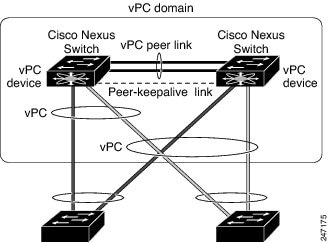
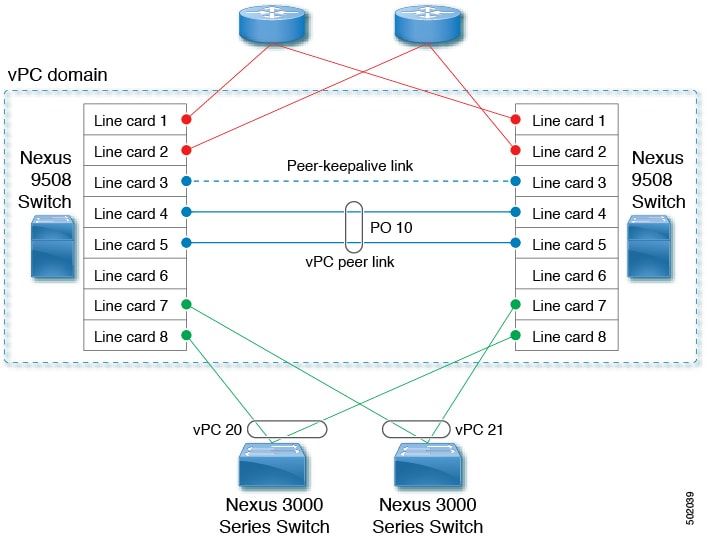
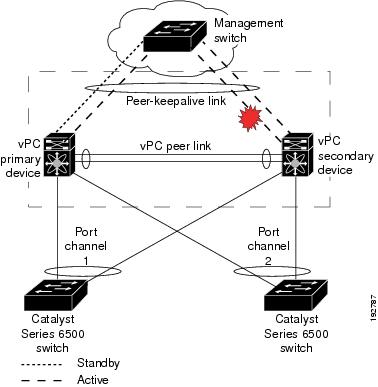
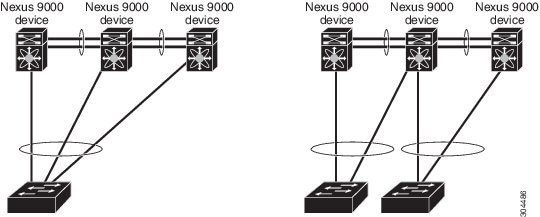
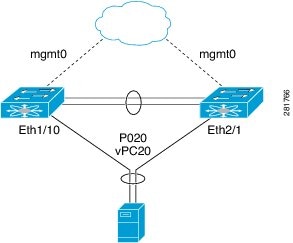
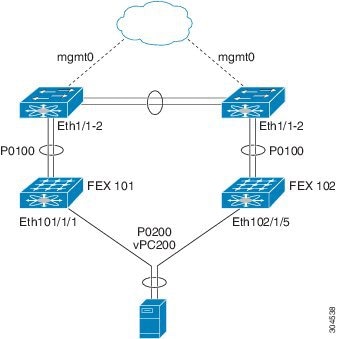
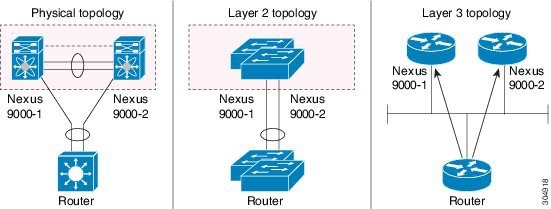
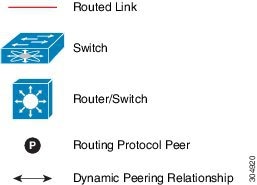
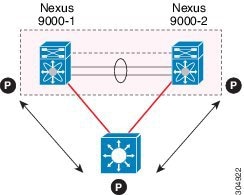
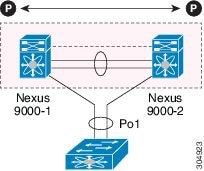
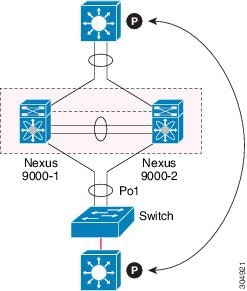
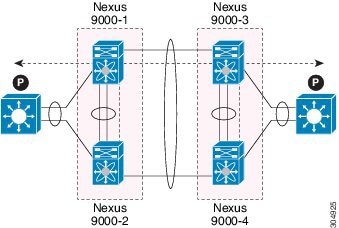
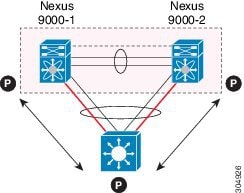
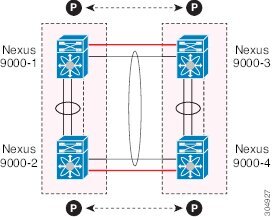
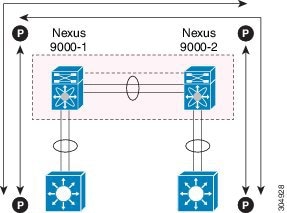
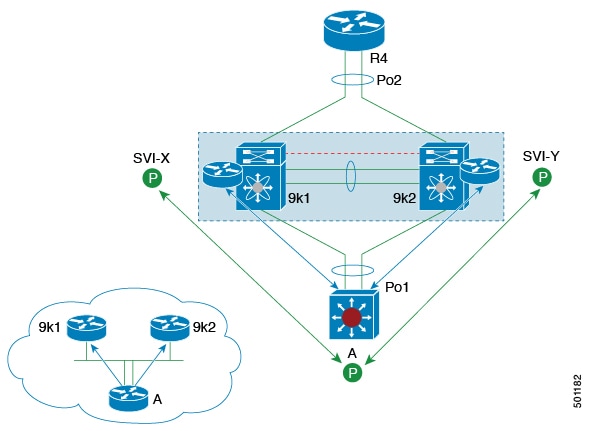
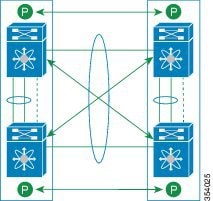
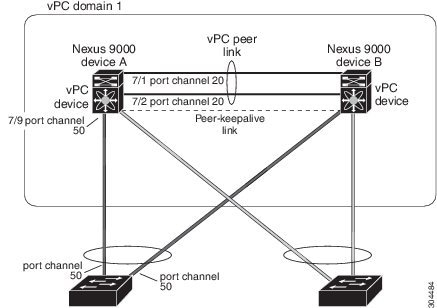
 Feedback