
New and Changed Information
The following table provides an overview of the significant changes up to this current release. The table does not provide an exhaustive list of all changes or of the new features up to this release.
| Release Version | Feature | Description |
|---|---|---|
|
Nexus Dashboard 4.2.1 |
Support for applying SMU images |
Beginning with Nexus Dashboard 4.2.1, you can now apply SMU (Software Maintenance Upgrade) released images on top of your Nexus Dashboard software. See Applying SMU packages on your Nexus Dashboard for more information. |
|
Nexus Dashboard 4.2.1 |
Support for retrying failed software installation or upgrade |
Beginning with Nexus Dashboard 4.2.1, if the software installation fails for any reason at these stages:
A window might appear that describes the issue with the software installation or upgrade failure, with a Retry option now available to repeat the software installation or upgrade process. See Retry software installation for more information. |
|
Nexus Dashboard 4.2.1 |
Ability to view update history for your cluster software |
Beginning with this release, you can now view the update history for your cluster software. See View update history for more information. |
Manage your system software
For the latest upgrade process information, see the online version of the Cisco Nexus Dashboard Deployment and Upgrade Guide.
This section describes how to manage different firmware versions and perform cluster upgrades.
The upgrade process involves uploading a new image and then deploying it. As such, the same workflow can be used for cluster firmware downgrades as well.

The following sections provide reference information for firmware upgrades. For the latest upgrade process information, see the online version of the Cisco Nexus Dashboard Deployment and Upgrade Guide.
These sections provide the necessary information to install or upgrade system software on your Nexus Dashboard:
Prerequisites and guidelines
Before you upgrade your existing Nexus Dashboard cluster:
-
Ensure that you have read the target release’s Release Notes for any changes in behavior, guidelines, and issues that may affect your upgrade.
The upgrade process is the same for all Nexus Dashboard form factors. However, if your existing cluster is deployed using physical servers, VMware ESX, Linux KVM, Azure, or AWS, you will use the target release’s ISO image (nd-dk9.<version>.iso) to upgrade; if your existing cluster is deployed in Red Hat Enterprise Linux, you will use the RHEL-specific image (nd-rhel-<version>.tar).
-
If you are upgrading a physical Nexus Dashboard cluster, ensure that the nodes have a supported CIMC version for the target Nexus Dashboard release.
Supported CIMC versions are listed in the Nexus Dashboard Release Notes for the target release.
CIMC upgrade is described in detail in Upgrade UCS server firmware.
-
You must perform configuration backups of your Nexus Dashboard and services before the upgrade to safeguard data and minimize any potential risk before proceeding with the upgrade.
-
You must have valid DNS and NTP servers configured and reachable by all cluster nodes.
-
Ensure that your current Nexus Dashboard cluster is healthy.
You can check the system status on the Overview page of the Nexus Dashboard’s Admin Console or by logging in to one of the nodes as
rescue-userand ensuring that theacs healthcommand returnsAll components are healthy. -
Ensure that no configuration changes are made to the cluster, such as adding secondary or standby nodes, while the upgrade is in progress.
-
Nexus Dashboard does not support platform downgrades.
If you want to downgrade to an earlier release, you will need to deploy a new cluster and reinstall the services.
-
You can no longer download and install images in parallel for a secondary cluster in a co-location configuration. Instead, you must download and install the image and upgrade the primary cluster first, and then download and install the image and upgrade the secondary cluster afterward.
Upgrading your Nexus Dashboard using images from the Software Download page
This section describes how to add images from the Software Download page and install those images on your Nexus Dashboard.
View currently installed software
-
Navigate to the System Software page.
Admin > System Software
-
Review the information provided in the System Software page.
Field Description Nexus Dashboard releases
Provides information on the Nexus Dashboard release currently installed on your system.
-
Click What’s new? to view the features that are new to this release.
-
Click Release details to view information on the release.
Cluster software
Provides information on the cluster software.
Click View update history to get update history for your cluster software. See View update history for more information.
SMUs
Provides SMU information, if you applied SMU packages in your Nexus Dashboard, such as the SMU ID and Fix details.
Note that the GUI shows a list of the SMUs that are currently active but does not update the release versions. See Applying SMU packages on your Nexus Dashboard for more information.
-
Add images
Before you can upgrade your Nexus Dashboard cluster, you need to make the upgrade image available by adding it using the GUI.
-
Download the Nexus Dashboard image.
-
Browse to the Software Download page.
https://software.cisco.com/download/home/286327743/type/286328258
-
Choose the Nexus Dashboard version you want to download.
-
Download the Cisco Nexus Dashboard image (
nd-dk9.<version>.iso).
You must download the
.isoimage for all upgrades, even if you used the VMware ESX.ova, Linux KVM.qcow2, or a cloud provider’s marketplace for initial cluster deployment.
-
(Optional) Host the image on a web server in your environment.
When you upload the image to your Nexus Dashboard cluster, you will have an option to provide a direct URL to the image.
-
-
Add the image.
-
From the main navigation menu, select Admin > System Software.
-
In the System Software page, review the information provided in the Nexus Dashboard Releases area.
-
The leftmost tile shows the software image that is currently installed and running on your Nexus Dashboard.
-
The rightmost tile shows the software image that is currently uploaded onto your Nexus Dashboard.
In either tile, click What’s new to see the new features available with that particular release, or click Release notes to see the Release Notes for that particular release.
-
-
In the upper right corner of the Nexus Dashboard Releases area, click Add Image.
-
-
In the Add Software Image window that opens, choose whether your image is stored on a local system or a remote server.
-
If you are adding an image from a local system, click Local, then select the image file from your local system by clicking Choose File and navigating to the image file on your local system.
If uploading from a local machine, slow upload speeds may cause the session to timeout which can interrupt the transfer. We recommend at least 40Mbps upload speed and increasing the session timeout to 1800 seconds (from the default 1200).
You can change the session timeout in the Admin > Security page in your Nexus Dashboard GUI. If you are logged out of your Nexus Dashboard session, it may take a minute before you can re-login to the UI.
-
If you are adding an image from a remote location, choose how you will add the image:
-
If you choose HTTP, enter the full URL to the image in the URL field.
-
If you choose SFTP/SCP:
-
In the Remote Storage field, choose an already-configured remote storage location from the list, if available, or click Create Remote Storage Location.
If you click Create Remote Storage Location, follow the procedures provided in the section "Configuring Remote Storage Locations" in Backing Up and Restoring Your Nexus Dashboard, then return here.
-
In the Remote Path Filename field, enter the remote path for the image.
-
-
-
-
Click Add to add the image.
The rightmost tile will show the image upload progress. Wait for it to finish before proceeding to the next section.
Upgrade the cluster
You must have the upgrade image already added to the Nexus Dashboard cluster as described in Add images.
To upgrade your cluster:
-
From the main navigation menu, click Admin > System Software.
These buttons appear in the card in the Nexus Dashboard Releases area in the System Software page.
-
Factory install: The Factory install option wipes all data, including bootstrap configurations. You will have to re-bootstrap the cluster afterward.
-
Upgrade: Click the Upgrade option if you are upgrading from a previous release. You do not have to perform a Factory install before upgrading.
Click Upgrade to upgrade the software.
-
-
Click Set up Update or Modify Details.
If this is the first time you are upgrading your cluster, simply click the Setup Update button in the middle of the page.
If you have previously upgraded the cluster, the last upgrade’s details will be displayed in this page instead of the Setup Update button. In this case, click the Modify Details button at the top right of the screen.
-
In the Setup/Version Selection screen, select the target version and click Next to proceed.
If you uploaded multiple images to your Nexus Dashboard, they will be listed here.
-
Review the validation report and click Install to proceed with the upgrade.
Before the upgrade is triggered, the system will perform a number of validation checks and show the report.
-
In the Setup/Confirmation screen, review the details of the update and click Begin Install to proceed.
The screen will proceed to the Install tab and you will be able to see the progress of each node.
The process can take up to 2 hours and you can navigate away from this screen in the meantime.
-
Wait for the image installation to complete.
-
Click Install.
It may take up to 20 additional minute for all the cluster services to start and the GUI may become unavailable during this process. The page will automatically reload when the process is completed. You can track the activation process in the Activate screen.
If the software installation fails for any reason, see Retry software installation for additional information on retrying the software installation.
-
After the process is complete, check if services are active and verify health of the cluster.
For more information on troubleshooting nodes, see Cisco Nexus Dashboard Troubleshooting.
After upgrading to Nexus Dashboard 4.1.1 or later, ensure the cluster’s management IP addresses are added to the management routes Admin > System Settings > General > Routes. Failure to do so may cause significant delays when accessing API endpoints. Verifying and updating the management routes configuration with the cluster’s management IP addresses as a post-upgrade step ensures proper API functionality.
Retry software installation
You might encounter a software installation failure at these stages:
-
During the system software installation or upgrade, as described in this article.
-
During the Cluster bringup stage that occurs as part of the Journey process, which is available as a drop-down list item under the question mark icon, as described in Exploring Your Nexus Dashboard.
If the software installation fails for any reason, a window might appear that describes the issue with the software installation or upgrade failure, such as this example.
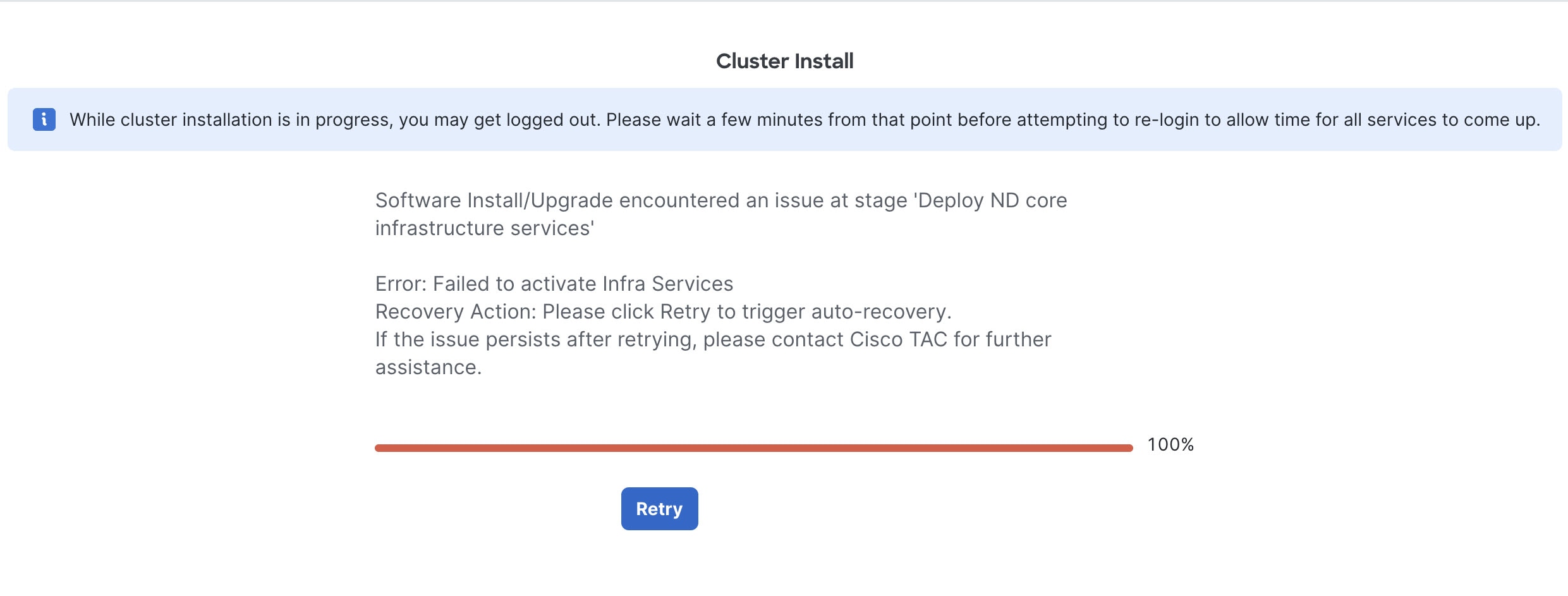
Click Retry to repeat the software installation or upgrade process. If the failure persists, you might be asked to contact Cisco TAC for further assistance, or you might also be asked to use the acs reboot command to correct the issue, as described in Cisco Nexus Dashboard Troubleshooting.
Delete images
After an upgrade is completed, Nexus Dashboard will automatically remove the upgrade image that you uploaded for the upgrade. However, if you upload an upgrade image and then choose not to upgrade, you can delete the uploaded images using the following steps:
-
From the main navigation menu, select Admin > System Software.
-
In the Nexus Dashboard Releases area, click the trash icon next to the specific release image that you want to delete.
-
In the Confirm Delete prompt, click OK to confirm.
View update history
To view the update history for your cluster software:
-
From the main navigation menu, select Admin > System Software.
-
In the Cluster software area, locate the Last update field and click View update history.
The Update history page appears.
Field Description Timestamp
Provides the timestamp for the update.
From version
Shows the previous version of the software before the update.
To version
Shows the updated version of the software.
User
Shows the user who initiated the update.
SMU
Provides SMU information, if applicable. See Applying SMU packages on your Nexus Dashboard for more information.
Fix details
Provides details on fixes provided in the update.
-
Click Back to return to the System Software page.
Applying SMU packages on your Nexus Dashboard
Beginning with Nexus Dashboard release 4.2.1, you can now apply SMU (Software Maintenance Upgrade) released images on your Nexus Dashboard. SMUs are packages that provide bug fixes and security patches for Nexus Dashboard without requiring a full software upgrade. SMU releases are essentially patches that you would install on top of images that you already installed from the Software Download page, as described in Upgrading your Nexus Dashboard using images from the Software Download page.
These sections provide more information on applying SMU packages on your Nexus Dashboard.
Guidelines and limitations: Applying SMU packages
-
SMU packages are not available through the Software Download page the same way that Nexus Dashboard images are. Instead, for critical bugs, Cisco TAC requests an SMU through the Nexus Dashboard SMU management portal, then TAC shares the location of the released SMU directly to the customer.
-
Even though you can view details about active SMUs through the Nexus Dashboard GUI, downloading or applying an SMU package through the GUI is not supported. You can only download and apply SMU packages through the CLI, as described in Install a new SMU package.
If you incorrectly attempt to download an SMU package through the Nexus Dashboard GUI, once the SMU package download is complete, you will not see any information on that SMU package in the Software management page in the Nexus Dashboard GUI. Instead, you will have to use the appropriate CLI (
acs) command to display all of the inactive SMU packages and the progress for downloading and applying the SMU packages. See View available packages for more information. -
You can install multiple SMU packages over time, though you can only install one SMU package at a time. SMU packages are cumulative, so a newer SMU package will automatically supersede any already-installed older SMU packages.
-
You can only download one SMU package at a time. If you have already downloaded an SMU package and you want to download another SMU package, you must first install or delete that already-downloaded SMU package before you can download and install another SMU package. See:
-
Install a new SMU package for instructions on installing a new SMU package, or
-
Remove an inactive SMU package or Remove all active SMU packages for instructions on removing an already-downloaded SMU package.
-
-
You can uninstall an SMU package in case of a failure or for any other reason. SMU packages are cumulative, so there is no selected removal; instead, all SMU packages are deleted when you uninstall an SMU package, and the Nexus Dashboard software will be reverted back to released software. See Remove an inactive SMU package or Remove all active SMU packages for more information.
-
You can only apply SMU patch releases on top of associated releases from the Software Download page. For example, if your Nexus Dashboard is running on release 4.2.1, you can only apply 4.2.1-based SMU patches on top of the 4.2.1 release running on your Nexus Dashboard.
-
You cannot use an SMU release for a fresh installation of your new Nexus Dashboard; you must use releases from the Software Download page for a fresh installation for a new Nexus Dashboard.
-
Similarly, you cannot upgrade directly to an SMU release. For example, if your Nexus Dashboard is running on release 4.1.1, you cannot upgrade directly to a 4.2.1-based SMU patch. You must first upgrade to the Nexus Dashboard release 4.2.1 from the Software Download page in this case, as described in Upgrading your Nexus Dashboard using images from the Software Download page, then you can apply the 4.2.1-based SMU package afterward.
-
You can migrate from one SMU release to another SMU release, but only on the same release branch. Similarly, you can migrate directly to a later SMU release, if necessary, as long as it is on the same release branch.
For example, assume that your Nexus Dashboard is running on release 4.2.1, and:
-
The first 4.2.1-based SMU release (4.2.1.0119007001) becomes available. You could apply that 4.2.1.0119007001 SMU release to your 4.2.1 system.
-
A second 4.2.1-based SMU release (4.2.1.0119007002) then becomes available.
-
If you already applied the first 4.2.1-based SMU release (4.2.1.0119007001), you could then migrate from 4.2.1.0119007001 to 4.2.1.0119007002.
-
Alternatively, you could directly apply the SMU release 4.2.1.0119007002 to your 4.2.1 system without first applying the SMU release 4.2.1.0119007001, if necessary.
-
-
-
You can also upgrade to the next released version of the Nexus Dashboard software after you have applied SMUs for the previously-released version of the Nexus Dashboard software. For example, building on the example scenario above, after you have applied two 4.2.1-based SMU packages (4.2.1.0119007001 and 4.2.1.0119007002) on your 4.2.1 Nexus Dashboard, when the next full release of Nexus Dashboard becomes available (for example, 4.3.1), you can then upgrade to that next full release of Nexus Dashboard software.
Note that in the case of a backup/restore operation, if you take a backup at the time that SMUs are applied, then you can only perform the restore operation on a Nexus Dashboard with the same base software and applied SMU. For example, if you performed a backup with this configuration:
-
Nexus Dashboard release 4.2.1, and
-
A 4.2.1-based SMU release (such as 4.2.1.0119007001) applied on top of the base software
then you can only perform a restore on a system running on Nexus Dashboard 4.2.1, with the 4.2.1.0119007001 also applied.
-
Install a new SMU package
You will use CLI commands to install an SMU package in your Nexus Dashboard.
We highly recommend that you wait for a maintenance window before you install an SMU package in your Nexus Dashboard.
-
Verify that the cluster is healthy before downloading and applying an SMU package to your Nexus Dashboard.
See Exploring Your Nexus Dashboard for more information.
-
SSH into the primary Nexus Dashboard node as
rescue-userand enter these commands through the command line.On multi-node clusters, when you apply an SMU package on the primary node in the cluster, it then applies the SMU package on the remaining nodes in the cluster as well.
-
Download and add the SMU iso package on the Nexus Dashboard cluster.
acs install add <url>Where:
-
The path to the SMU iso package could be through http or https, such as these examples:
acs install add http://server.example.com/smu-package.isoacs install add https://server.example.com/updates/smu-package.iso -
Or the path to the SME iso package could be through scp, such as this example:
acs install add scp://10.10.10.10:/folder/smu-package.iso
If you are using scp to download the SMU iso package, you will have to set up a remote storage scp server in the Systems Settings area prior to the download. See Working with System Settings for more information.
For example:
$ acs install add http://updates.example.com/acs-smu-2024-12.iso
SMU package add operation started. Package ID: abc-123-def
-
-
Display SMU package details to verify that the package is ready to install.
acs show install package <name>or
acs show install inactiveFor example:
acs show install package nd-dk9.4.2.0.0110007001.iso -
Activate the SMU package.
acs install activate <name>For example:
acs install activate nd-dk9.4.2.0.0110007001.isoOutput similar to this appears:
SMU package activate operation started for: nd-dk9.4.2.0.0110007001.iso -
Confirm that the package is active to verify that the installation was successful.
-
Use this command to view only active packages that are currently installed.
acs show install activeOutput similar to the following appears.
PACKAGE NAME                    STATE       PROGRESS    DESCRIPTION
nd-dk9.4.2.0.0110007001.iso     installed   100%        SMU package contains CSCws45780, CSCwp92789
-
Use this command to view specific package details.
acs show install package <name>For example:
acs show install package nd-dk9.4.2.0.0110007001.isoOutput similar to the following appears.
PACKAGE NAME                    STATE       PROGRESS
nd-dk9.4.2.0.0110007001.iso     Processed   100%

Service Status:
SERVICE     VERSION                     STATUS      PROGRESS    ERROR
uiassets    4.1.2030-v1.0.10-0084cdf    Processed   100%        -
-
View available packages
Use the acs show install commands to view packages on your system.
-
To view only inactive packages (ready to activate):
$ acs show install inactive
PACKAGE NAME               STATE       PROGRESS
nd-dk9            processed   100%
-
To view only active packages (currently installed):
$ acs show install active
PACKAGE NAME                    STATE       PROGRESS    DESCRIPTION
nd-dk9.4.2.0.0110007001.iso     installed   100%        SMU package contains CSCws45780, CSCwp92789
-
To view specific package details:
$ acs show install package nd-dk9.4.2.0.0110007001.iso
PACKAGE NAME                    STATE       PROGRESS
nd-dk9.4.2.0.0110007001.iso     Processed   100%

Service Status:
SERVICE     VERSION                     STATUS      PROGRESS    ERROR
uiassets    4.1.2030-v1.0.10-0084cdf    Processed   100%        -
Activate an SMU package
You can only activate an SMU package when the SMU package is in the processed state. See Understand SMU package states for more information.
Use the acs install activate command to apply an inactive package to your system.
acs install activate <package-name>
For example:
$ acs install activate nd-dk9.4.2.0.0110007001.iso
SMU package activate operation started for: nd-dk9.4.2.0.0110007001.iso
The package will transition from the processed (inactive) to the installed (active) state.
To verify the activation:
$ acs show install active
PACKAGE NAME                    STATE       PROGRESS    DESCRIPTION
nd-dk9.4.2.0.0110007001.iso     installed   100%        SMU package contains CSCws45780, CSCwp92789
Remove an inactive SMU package
If you added a package but you do not want to activate it, you can remove it.
-
View inactive packages.
$ acs show install inactive
PACKAGE NAME                    STATE       PROGRESS     DESCRIPTION
nd-dk9.4.2.0.0110007001.iso     processed   100%         SMU package contains CSCws45780, CSCwp92789
-
Remove the inactive package.
Only inactive packages can be removed with this command.
$ acs install remove inactive
This operation will remove the inactive SMU package. Continue? (y/n): y
SMU package remove operation started
-
Verify that the inactive package was removed.
$ acs show install inactive
(no inactive packages)
Remove all active SMU packages
These procedures will deactivate all active SMU packages, so verify that you want to deactivate all active SMU packages before proceeding with these procedures. The system will ask for confirmation before proceeding.
To deactivate and remove all active SMU packages from your system:
-
View currently active packages.
$ acs show install active
PACKAGE NAME                    STATE       PROGRESS    DESCRIPTION
nd-dk9.4.2.0.0110007001.iso     installed   100%        SMU package contains CSCws45780, CSCwp92789
-
Remove all active packages.
$ acs install remove active
This operation will deactivate and remove all active SMU packages. Continue? (y/n): y
Deactivating SMU package: nd-dk9.4.2.0.0110007001.iso
Deactivation started for 1 out of 1 active SMU packages
-
Verify that all active packages were removed.
$ acs show install active
(no active packages)
Understand SMU package states
Understanding SMU package states helps you to track the lifecycle of SMU packages.
| State | Description |
|---|---|
|
|
Package is being downloaded from the specified URL. |
|
|
Package is inactive and is being removed. |
|
|
Package is being activated. |
|
|
Package is active and running on the system. |
|
|
Package is downloaded and ready to activate (inactive). |
|
|
Package is being superseded by another active package. There can only be one active SMU on a system, but an inactive SMU could also be present at the same time. If you are installing multiple SMUs, such as this example:
then If you remove the active SMU ( |
|
|
Package is being deactivated. |
Available commands
These sections provide additional information on available commands when working with SMU packages.
Installation and removal commands
| Command | Description |
|---|---|
|
|
Download and add an SMU package. |
|
|
Activate an added package. |
|
|
Remove all active packages. |
|
|
Remove the inactive package. |
Show commands
| Command | Description |
|---|---|
|
|
Display only active packages. |
|
|
Display only inactive packages. |
|
|
Display specific package details. |
Help commands
| Command | Description |
|---|---|
|
|
Display general help. |
|
|
Display help for install commands. |
|
|
Display help for a specific command. |
Copyright
THE SPECIFICATIONS AND INFORMATION REGARDING THE PRODUCTS IN THIS MANUAL ARE SUBJECT TO CHANGE WITHOUT NOTICE. ALL STATEMENTS, INFORMATION, AND RECOMMENDATIONS IN THIS MANUAL ARE BELIEVED TO BE ACCURATE BUT ARE PRESENTED WITHOUT WARRANTY OF ANY KIND, EXPRESS OR IMPLIED. USERS MUST TAKE FULL RESPONSIBILITY FOR THEIR APPLICATION OF ANY PRODUCTS.
THE SOFTWARE LICENSE AND LIMITED WARRANTY FOR THE ACCOMPANYING PRODUCT ARE SET FORTH IN THE INFORMATION PACKET THAT SHIPPED WITH THE PRODUCT AND ARE INCORPORATED HEREIN BY THIS REFERENCE. IF YOU ARE UNABLE TO LOCATE THE SOFTWARE LICENSE OR LIMITED WARRANTY, CONTACT YOUR CISCO REPRESENTATIVE FOR A COPY.
The Cisco implementation of TCP header compression is an adaptation of a program developed by the University of California, Berkeley (UCB) as part of UCB’s public domain version of the UNIX operating system. All rights reserved. Copyright © 1981, Regents of the University of California.
NOTWITHSTANDING ANY OTHER WARRANTY HEREIN, ALL DOCUMENT FILES AND SOFTWARE OF THESE SUPPLIERS ARE PROVIDED “AS IS" WITH ALL FAULTS. CISCO AND THE ABOVE-NAMED SUPPLIERS DISCLAIM ALL WARRANTIES, EXPRESSED OR IMPLIED, INCLUDING, WITHOUT LIMITATION, THOSE OF MERCHANTABILITY, FITNESS FOR A PARTICULAR PURPOSE AND NONINFRINGEMENT OR ARISING FROM A COURSE OF DEALING, USAGE, OR TRADE PRACTICE.
IN NO EVENT SHALL CISCO OR ITS SUPPLIERS BE LIABLE FOR ANY INDIRECT, SPECIAL, CONSEQUENTIAL, OR INCIDENTAL DAMAGES, INCLUDING, WITHOUT LIMITATION, LOST PROFITS OR LOSS OR DAMAGE TO DATA ARISING OUT OF THE USE OR INABILITY TO USE THIS MANUAL, EVEN IF CISCO OR ITS SUPPLIERS HAVE BEEN ADVISED OF THE POSSIBILITY OF SUCH DAMAGES.
Any Internet Protocol (IP) addresses and phone numbers used in this document are not intended to be actual addresses and phone numbers. Any examples, command display output, network topology diagrams, and other figures included in the document are shown for illustrative purposes only. Any use of actual IP addresses or phone numbers in illustrative content is unintentional and coincidental.
The documentation set for this product strives to use bias-free language. For the purposes of this documentation set, bias-free is defined as language that does not imply discrimination based on age, disability, gender, racial identity, ethnic identity, sexual orientation, socioeconomic status, and intersectionality. Exceptions may be present in the documentation due to language that is hardcoded in the user interfaces of the product software, language used based on RFP documentation, or language that is used by a referenced third-party product.
Cisco and the Cisco logo are trademarks or registered trademarks of Cisco and/or its affiliates in the U.S. and other countries. To view a list of Cisco trademarks, go to this URL: https://www.cisco.com/go/trademarks. Third-party trademarks mentioned are the property of their respective owners. The use of the word partner does not imply a partnership relationship between Cisco and any other company. (1110R)
© 2017-2026 Cisco Systems, Inc. All rights reserved.
Americas Headquarters
Cisco Systems, Inc.
170 West Tasman Drive
San Jose, CA 95134-1706
USA
https://www.cisco.com
Tel: 408 526-4000
800 553-NETS (6387)
Fax: 408 527-0883