
Cisco Nexus Hyperfabric — Multi-Site
Multi-Site
The Multi-Site functionality of Cisco Nexus Hyperfabric uses virtual extensible LAN (VXLAN) Ethernet virtual private network (EVPN) to interconnect multiple fabrics, allowing them to function as a unified network. Multi-Site provides these benefits:
- Centralized management: You can manage all fabrics from a single point.
- Resiliency: If one fabric encounters issues, other fabrics can remain operational.
- Optimized resources: You can distribute applications and services among the fabrics for best performance.
Design considerations for a Multi-Site interconnect
These design considerations for apply for Multi-Site:
- A Multi-Site interconnect can have up to five fabrics.
- A fabric can be part of only one Multi-Site interconnect.
- Fabrics in a Multi-Site interconnect must be in the same organization.
- The fabrics use the full mesh topology. Border gateways will establish Multi-Site interconnect peering with border gateways in other fabrics.
- Multi-Site interconnect provides Layer 2 and Layer 3 VNI extension across fabrics.
- You can use only HF6100-32D and HF6100-60L4D switches as border gateway switches.
- N9300 switches cannot be part of a fabric that participates in Multi-Site. Multi-Site will support N9300 switches in an upcoming release.
- A border gateway switch must not have any existing loopback interface, host port, or routed port. If your spine switches do not have these interface and ports, you do not need to have a dedicated border gateway switch.
- Each fabric can have up to two border gateways and each border gateway can have up to two border gateway ports.
- Ensure all border gateways are connected to the same IP network (the underlay) that has enough MTU size to carry VXLAN packets. Every border gateway will automatically establish an EVPN peering with every border gateway in all other fabrics as shown in Design of a Multi-Site interconnect (full mesh).
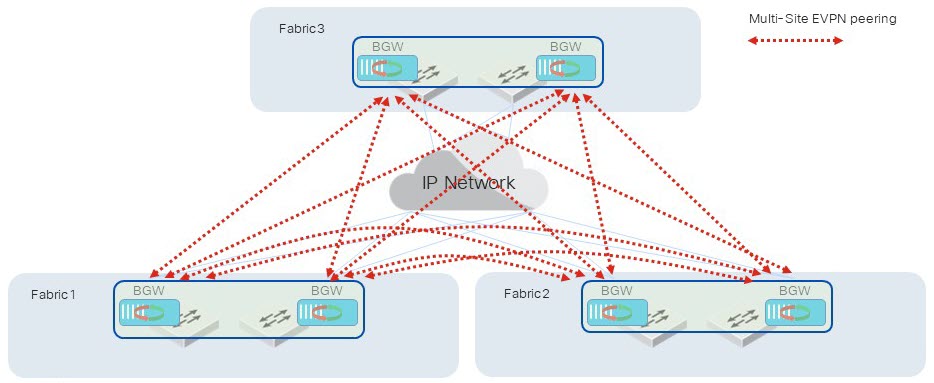
Requirements for Multi-Site
Required switch software versions for Multi-Site
This table specifies the switch software version that some Multi-Site features require.
|
Feature |
Software version |
|---|---|
|
Layer 3 VNI extensions |
20260607 |
Required IP addresses for Multi-Site
Multi-Site requires these IPv4 addresses:
-
Each fabric requires one virtual IP address for the data plane. This is for terminating the external VXLAN tunnel between border gateways. Nexus Hyperfabric uses a shared virtual IP address that is deployed as the same /32 loopback address. The loopback address is indicated by "Lo" in One virtual IP address for the data plane per fabric. VXLAN tunneled traffic from a border gateway in a different fabric can land on either one of the border gateways in the local fabric, and will be properly switched to an internal VXLAN tunnel to the destination switch.
One virtual IP address for the data plane per fabric 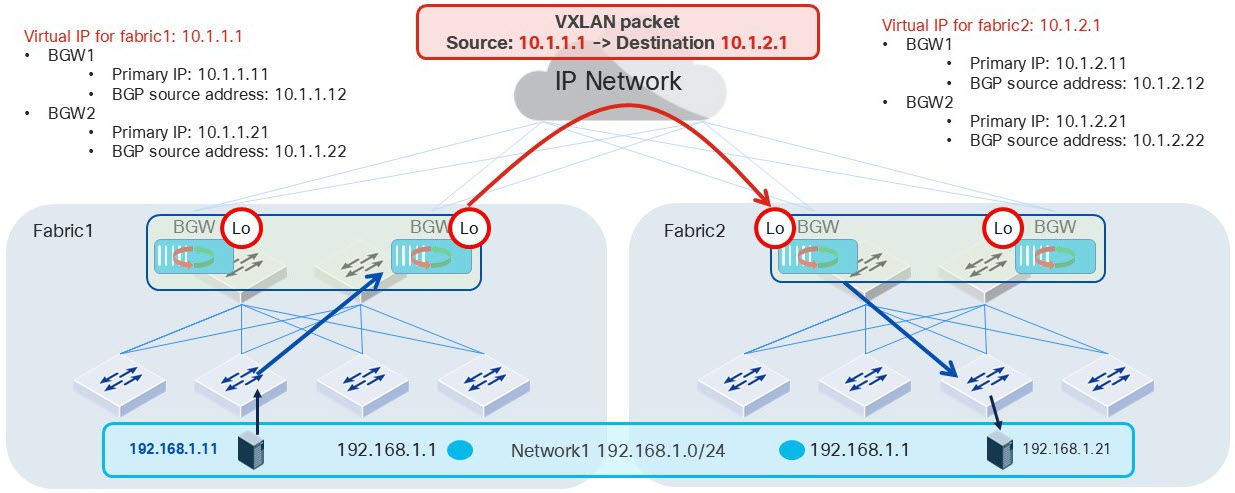
-
Each border gateway requires one BGP source /32 loopback IP address for the control plane, which is for Multi-Site Ethernet virtual private network (EVPN) BGP peering between border gateways in different fabrics.
One BGP source IP address for the control plane per border gateway 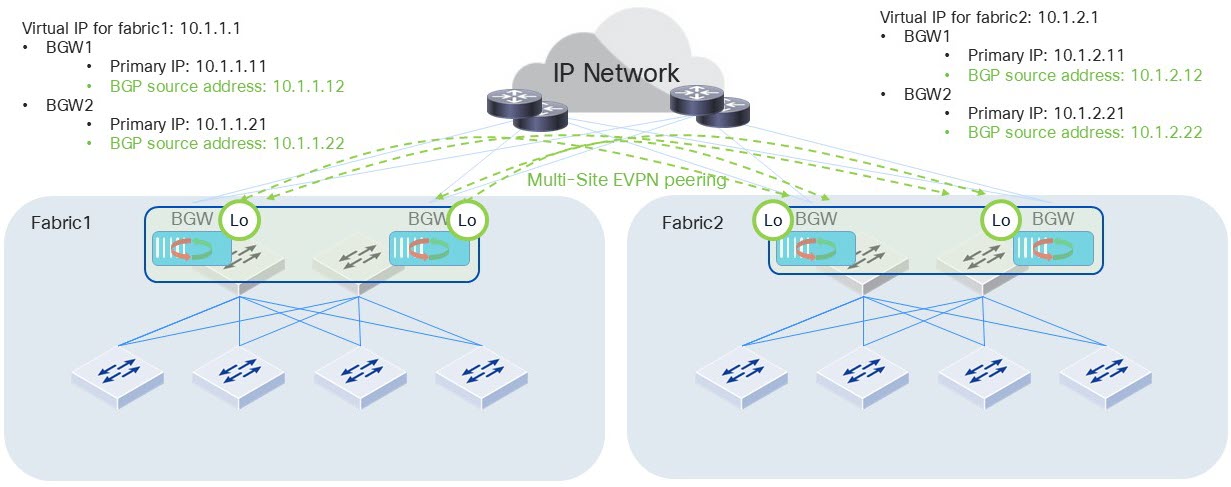
-
Each border gateway requires one or two border gateway port IP addresses for underlay BGP peering. Underlay BGP peering exchanges the route of loopback IP addresses between fabrics and is based on the border gateway port. The fabric administrator
- configures IP addresses for each border gateway port
- establishes the direct connectivity between the border gateway port and the external router interfaces, and
- configures the underlay BGP peerings such as IP addresses and the peer AS number.
Underlay BGP peering 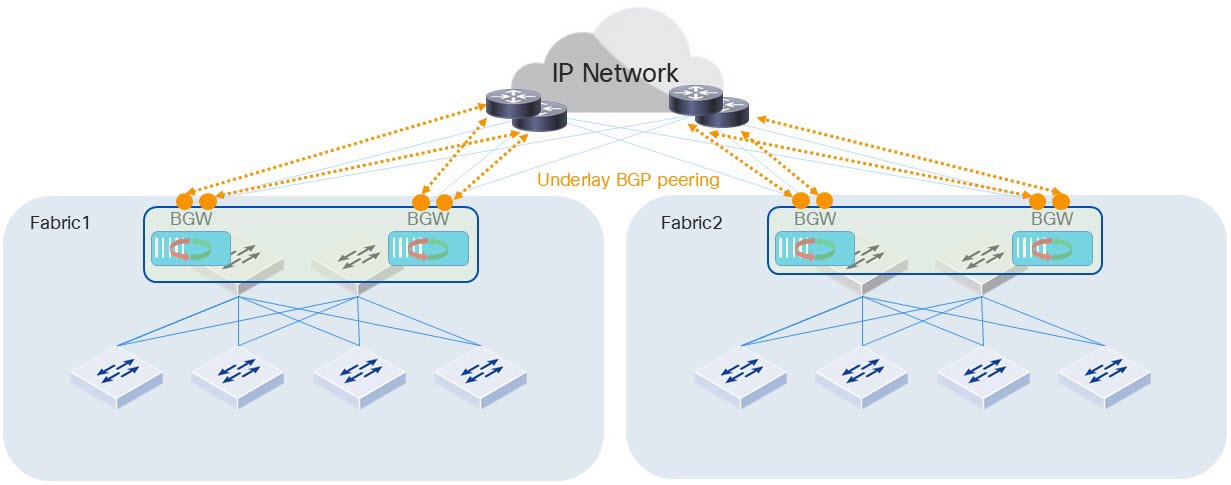
-
Each border gateway requires one primary /32 loopback IP address to support hosts, port channels or routed ports directly attached to the border gateway. This configuration is reserved for a future feature enhancement.
One primary IP address per border gateway 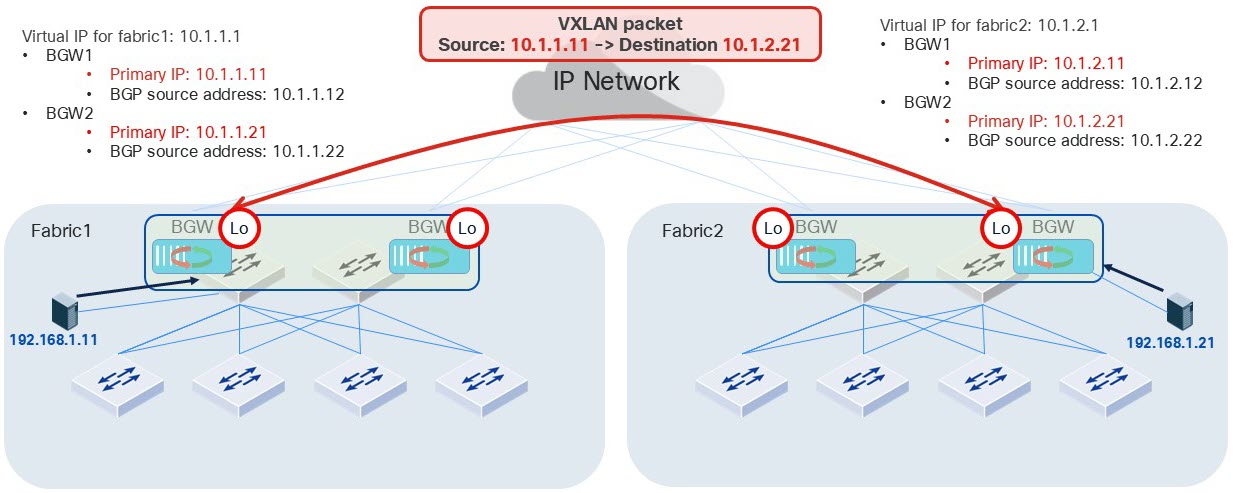
Multi-Site use cases
These are some Multi-Site use cases.
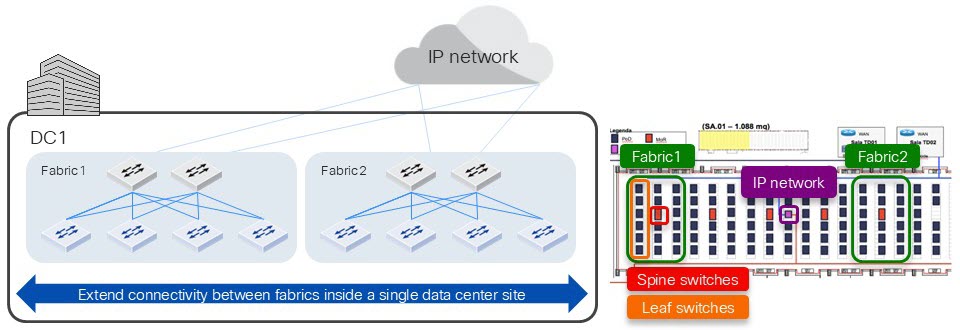
Scale and IP mobility
You can use Multi-Site to extend connectivity between active/active fabrics inside a single data center site, which helps with scale and IP mobility.
Disaster recovery and IP mobility
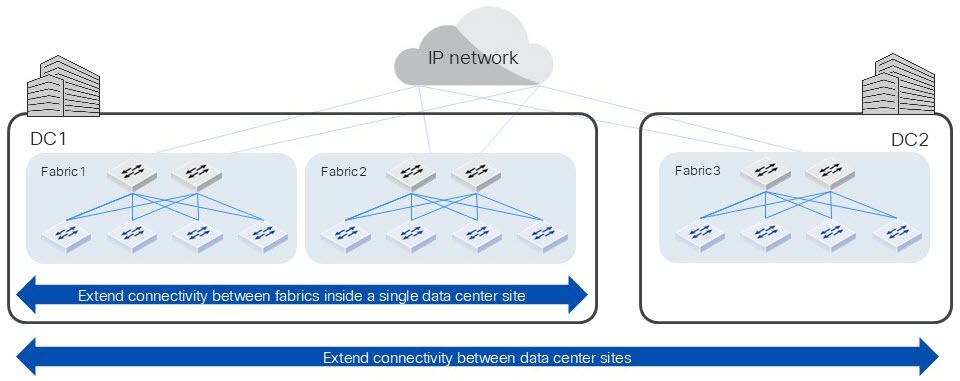
You can use Multi-Site to extend connectivity between a combination of active/active and active/standby fabrics within multiple data center sites, which helps with disaster recovery and IP mobility.
Create a Multi-Site interconnect
To begin the process of interconnecting multiple fabrics, the network administrator must create a Multi-Site interconnect. This task involves specifying the underlay IP MTU, selecting an authentication method, linking the desired fabrics to the interconnect, and configuring the VNI extensions.
Follow these steps to create a Multi-Site interconnect.
Step 1 | Select . |
Step 2 | Select Multi-Site. |
Step 3 | Select + Add new Multi-Site.
|
Step 4 | Link fabrics to the interconnect.
|
Step 5 | Select VNI extensions. All interconnected fabrics must use the same anycast gateway MAC address. You can set the common anycast gateway MAC address, which will override the anycast gateway MAC addresses at each fabric. If you want to set the common anycast gateway MAC address, follow these substeps:
You can add either Layer 3 extensions, which includes Layer 2 extensions, or you can add only Layer 2 extensions. If you want to add a Layer 3 VNI extension, select Layer 3 extensions, then select Add L3 VNI extension and follow these substeps.
If you want to add a Layer 2 VNI extension, select Layer 2 extensions, then select Add L2 VNI extension and follow these substeps.
|
Step 6 | Commit the changes. |
 ).
).What to do next
The fabric administrator must establish the network. See Establish the network for a Multi-Site interconnect.Establish the network for a Multi-Site interconnect
After the network administrator creates a Multi-Site interconnect, the fabric administrator must establish the network.
Follow these steps to establish the network for a Multi-Site interconnect.
Step 1 | Select Fabrics, then select the fabric for which you want to configure a border gateway. |
Step 2 | Select Multi-Site. |
Step 3 | Select Edit. |
Step 4 | Configure a border gateway.
|
Step 5 | Add one underlay BGP peer per border gateway port.
|
Step 6 | Configure the VNI extensions.
If you added Layer 3 VNI extensions, in VNI extensions configuration, select Layer 3 extensions and follow these substeps.
If you added Layer 2 VNI extensions, in VNI extensions configuration, select Layer 2 extensions and follow these substeps.
|
Step 7 | Select Save. |
Step 8 | Commit the changes. |
Step 9 | Repeat Step 4 and the successive steps for each fabric in the Multi-Site interconnect. |
Finish and commit your changes
Your changes are not applied to the fabric until you review, commit, and push them.
 Note
NoteFor a more detailed description of this procedure, see "Modify a fabric" in Cisco Nexus Hyperfabric—Getting Started.
Follow these steps to finish and commit your changes.
Step 1 | Select Review configuration. 
|
Step 2 | Verify your changes in the review list. |
Step 3 | Select Comment and push. |
Step 4 | In the Comment before pushing configuration dialog box, enter the reason for the change. |
Step 5 | Select Push configuration. |
View the status of a Multi-Site interconnect
Follow these steps to view the status of a Multi-Site interconnect.
Step 1 | Select Fabrics, then select the fabric for which you want to view the status of a Multi-Site interconnect. |
Step 2 | Select Multi-Site interconnects. |
Step 3 | In Configuration, select Border gateways.
|
Step 4 | In Configuration, select BGP peering.
|
Step 5 | In Configuration, select VNI extensions. You can view and edit the Layer 2 and Layer 3 VNI extensions. You can also enable or disable the anycast gateway MAC address override. |
Multi-Site reachability
A Multi-Site interconnect has bidirectional reachability probing between border gateways in different sites using the two-way active measurement protocol (TWAMP). Probing measures these things:
- Liveness: Detects whether a remote border gateway is reachable. A border gateway sends one probe to its paired border gateway approximately every 5 seconds with a timeout of 10 seconds per probe. If three consecutive probes fail to reach the other border gateway within the timeout time, Nexus Hyperfabric marks the session as "down". Likewise, if a session is "down" and three consecutive probes successfully reach the other border gateway within the timeout time, Nexus Hyperfabric marks the session as "up".
- Latency: Tracks rolling round-trip latency between border gateway pairs every 5 seconds.
- IP MTU validation: Continuously verifies that the discovered MTU is equal to or greater than the expected (configured) IP MTU between each border gateway pair. Path MTU discovery occurs every 5 minutes.

Limitations of Multi-Site reachability
These limitations apply to Multi-Site reachability:
- Reachability probes use loopback IP addresses that are used for Multi-Site BGP peering. The probes do not use the VXLAN tunnel between the border gateways.
- Reachability probing measures only round-trip latency, not one-way latency.
View Multi-Site reachability
Follow these steps to view Multi-Site reachability.
Step 1 | Select . |
Step 2 | Select Multi-Site. |
Step 3 | Select Reachability. A matrix appears showing the reachability between the border gateway pairs. The color of each box in the matrix corresponds to reachability-related assertions for each pair.
Hover over a box to see more information. |
Common troubleshooting scenarios for Multi-Site
I created a Multi-Site, but the Multi-Site tab in the fabrics is not populated.
You may not have committed some changes in the organization-wide Multi-Site instance, which behaves like a pseudo-fabric with its own commit process. Try to commit changes in the organization-level Multi-Site mesh and check back in the fabric.
Why do I need multiple IP addresses for border gateways?
These addresses are used outside the fabric for border gateways (BGWs) to communicate with each other to establish Multi-Site connectivity. For more information, see Required IP addresses for Multi-Site.