
Cisco Nexus Hyperfabric — Hyperfabricbot
Hyperfabricbot
Hyperfabricbot is a bot assistant designed to help you monitor, query, and troubleshoot your network fabric through integrated messaging platforms like Webex and Discord.
Once you add the bot to your messaging platform, you interact with its interface by entering @AskHyperfabric in Webex or using /ask or / commands in Discord. By using conversational language powered by Natural Language Processing (NLP), and structured commands, the bot provides a way to access real-time fabric data and product documentation without requiring constant access to the Nexus Hyperfabric GUI.
Key advantages of using the Hyperfabricbot:
- GUI independence: Retrieve real-time telemetry, fabric status, and assertion details directly within your messaging platform. This reduces the need to log into the Nexus Hyperfabric GUI for routine monitoring or rapid troubleshooting.
- External visibility: Administrators can provide temporary, read-only access to users who do not have a Nexus Hyperfabric account for specific troubleshooting or inquiry sessions without creating permanent system credentials.
- Documentation access: Ask Hyperfabricbot for configuration steps, troubleshooting procedures, and similar tasks.
Hyperfabricbot specifications and limitations
Operational scope
Hyperfabricbot supports read-only monitoring and troubleshooting queries on Webex and Discord. When you are added to a chat room, you can query individual fabrics or retrieve a list of all fabrics within your organization. You cannot make configuration changes using Hyperfabricbot. For more information, refer to Supported structured commands and query scope.
Organizations, bot users, and chat rooms
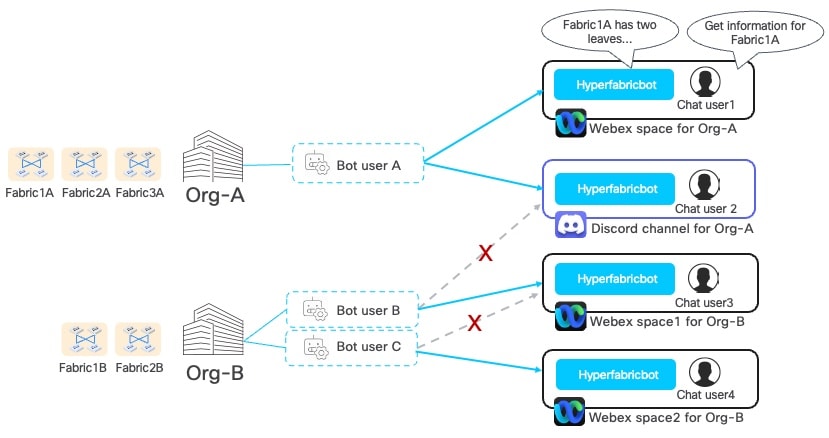
You can configure bot users, organizations, and chat rooms (Webex spaces or Discord channels) in these ways:
- You can bind multiple bot users (Bot user B and Bot user C) to an organization.
- Each bot user can belong to only one organization.
- Each chat room can be associated to only one bot user and one organization.
- A bot user can be bound to multiple chat rooms if it is the only bot user in each room and each room is using a different messaging platform (Bot user A is bound to two chatrooms: a Webex space and a Discord channel). This approach allows you to separate chat rooms for specific needs. For example, use one chat room for a team handling a specific issue, and another chat room for monitoring a fabric.
For setup information and details about bot users, refer to Configuring Hyperfabricbot.
Security and access
The bot uses a linked account model where Nexus Hyperfabric administrators manage user access. The system establishes a connection through a unique binding between a specific chat room (space or channel) and a virtual bot user. When you add a user to a chat room, they can query Hyperfabricbot, regardless of their individual Nexus Hyperfabric account status.
Configuring Hyperfabricbot
To effectively deploy the Nexus Hyperfabric bot, it is essential to understand the distinction between Hyperfabricbot and the virtual bot user. Hyperfabricbot is the bot that you interact with and invite into your chat room (Webex space or Discord channel). The bot user is the "account" created to represent your organization.
Configuring Hyperfabricbot requires three high-level steps.
- Create a bot user: Create a bot user in Nexus Hyperfabric for an organization. You can create multiple bot users in an organization.
- Invite and board the bot: Invite Hyperfabricbot into your specific messaging platform space or channel.
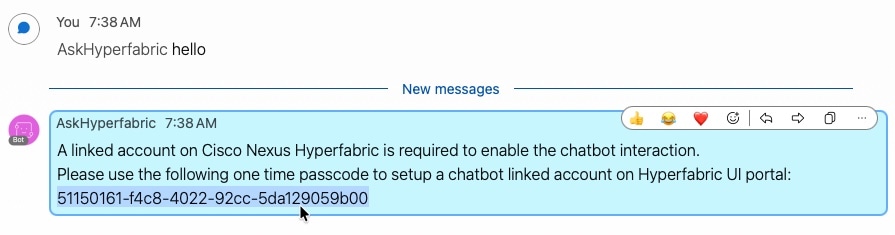
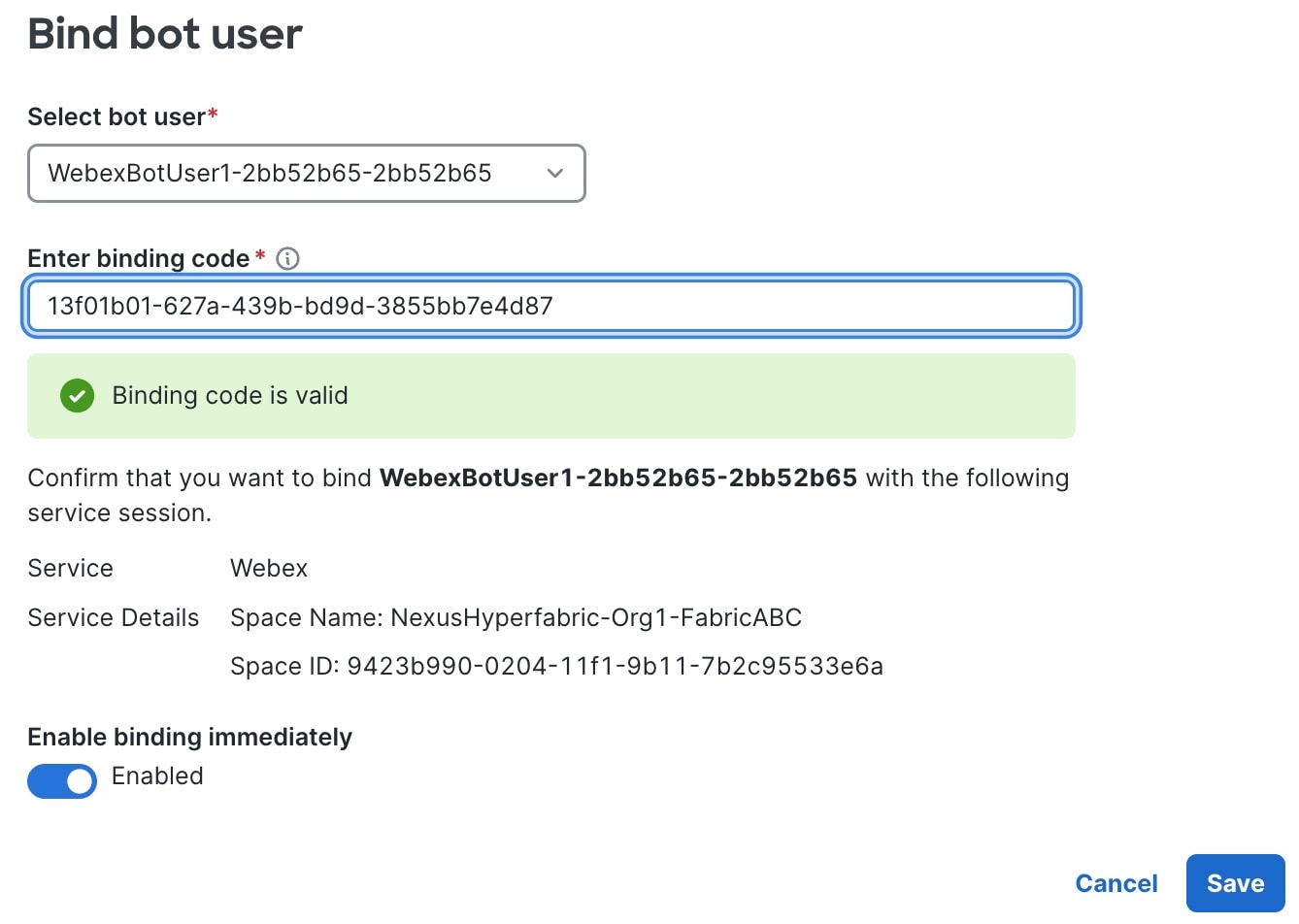
- Bind the bot user (account binding): Link the messaging platform to the bot user using a unique verification ID. You can bind only one bot user for each chat room.
Configure Hyperfabricbot for Webex
Use this procedure to create a virtual bot user, invite Hyperfabricbot to the Webex space, and bind the account for active communication.
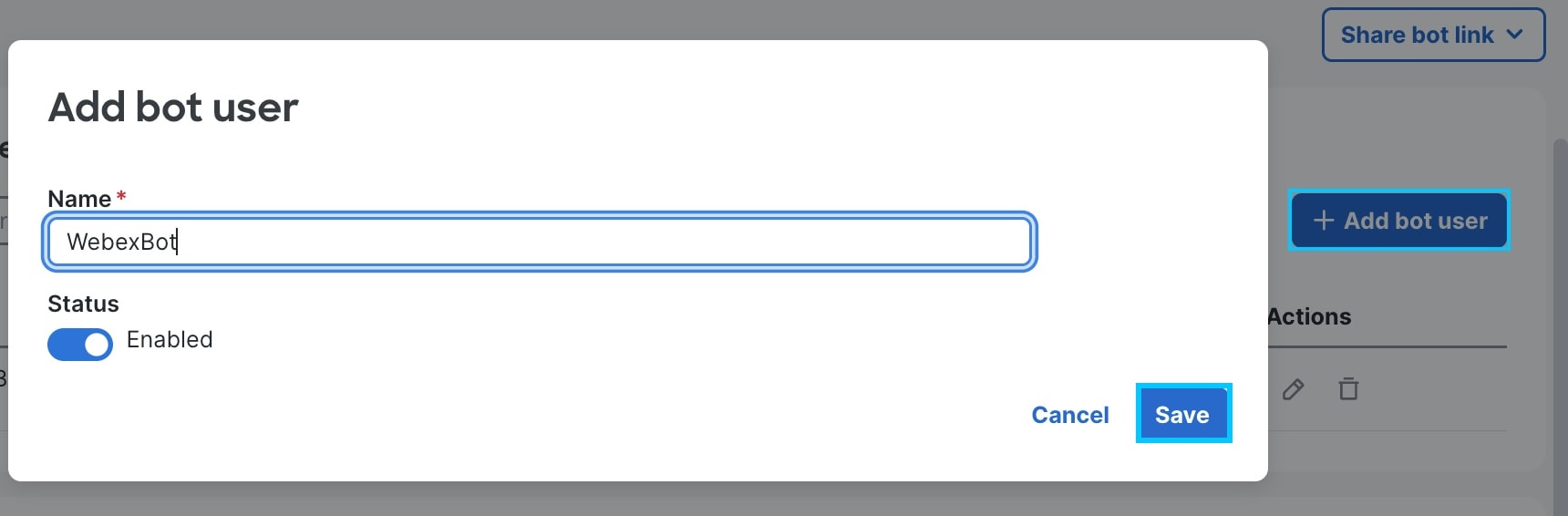
Step 1 | Create a virtual bot user in Nexus Hyperfabric.
|
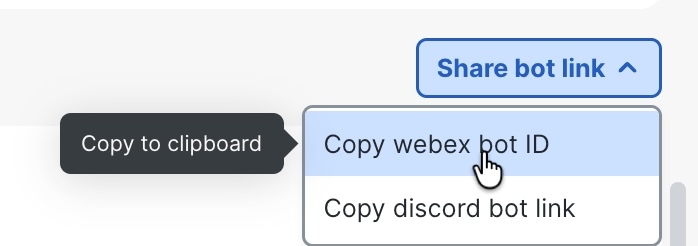
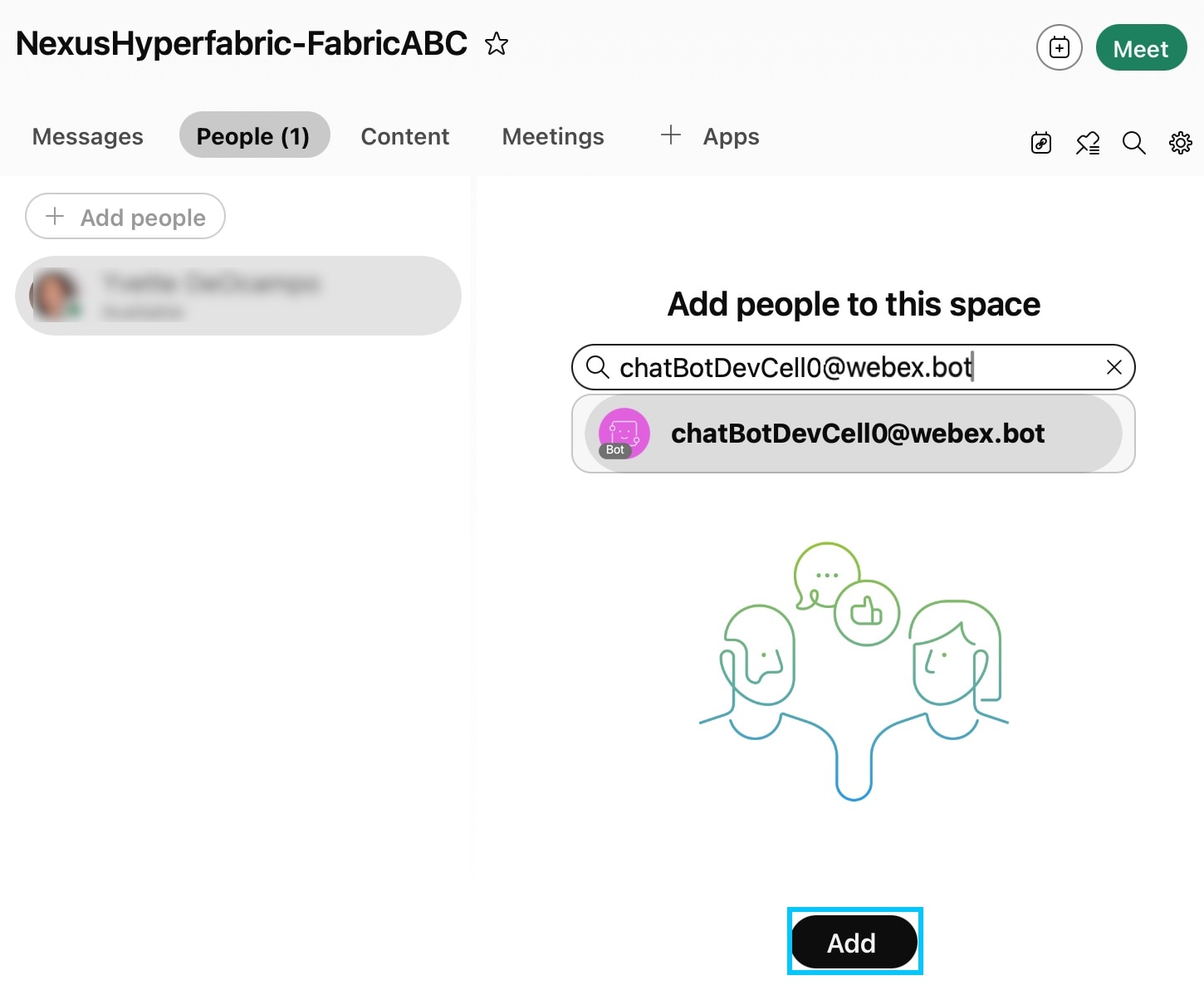
Step 2 | Invite Hyperfabricbot to Webex.
|
Step 3 | Bind the bot user to the Webex space.
|
Step 4 | Start interacting with Hyperfabricbot. Enter @AskHyperfabric followed by a command or question. |

Configure Hyperfabricbot for Discord
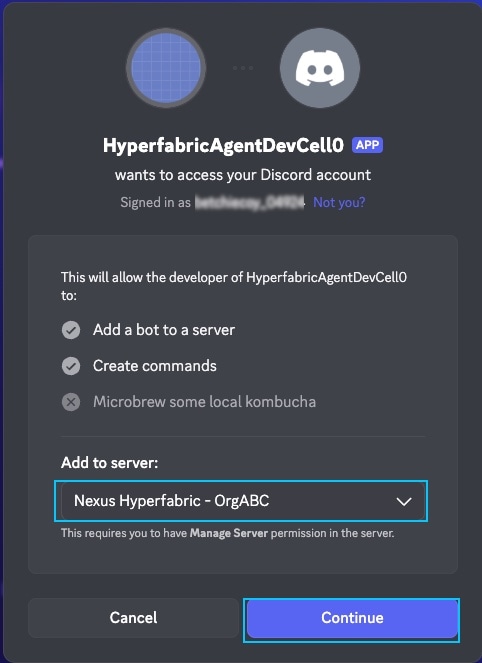
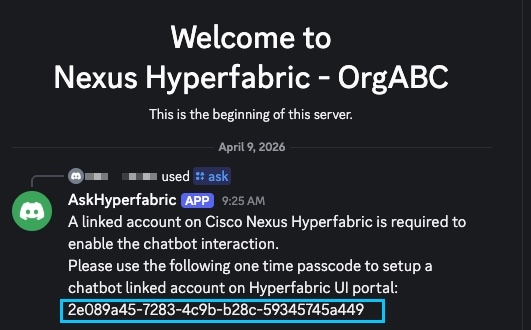
This procedure guides you through authorizing Discord bot access with an invitation link and binding the connection through Nexus Hyperfabric. Images illustrate the process. Because Discord versions can differ, refer to the official Discord documentation for the latest information.
Before you begin this procedure, create a server and channel in Discord where you want to host Hyperfabricbot.
Step 1 | Create a virtual bot user in Nexus Hyperfabric.
| ||||||||
Step 2 | Invite the Hyperfabricbot to Discord.
| ||||||||
Step 3 | Bind the bot user to the Discord channel.
| ||||||||
Step 4 | Start interacting with Hyperfabricbot.
|


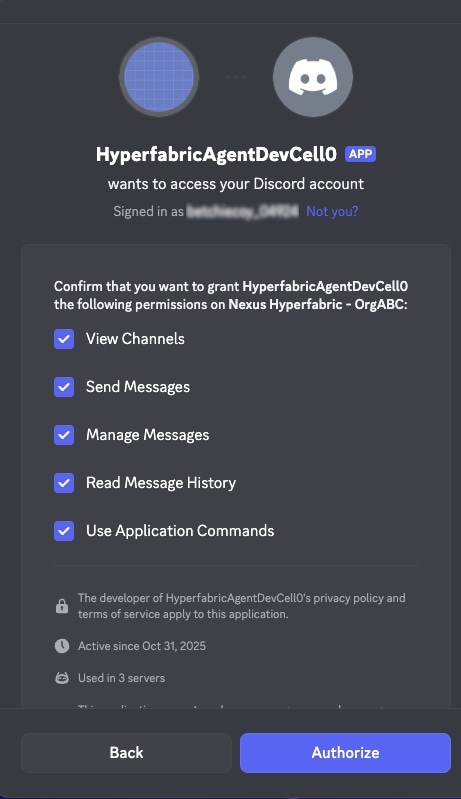

Hyperfabricbot is successfully connected to your Discord server. You can now interact with the bot in your chosen channel and use available commands to manage and communicate with it.
Disable Hyperfabricbot
Use this procedure to temporarily disable Hyperfabricbot.
Step 1 | Choose . |
Step 2 | In the Bot bindings area, locate the bot user you want to disable. |
Step 3 | From the Action column, choose . The bot user account is immediately disabled from the associated messaging platform. To enable it, perform this procedure again, but select Enable. |
Unbind and delete Hyperfabricbot
To delete Hyperfabricbot from a Webex space or Discord channel, first remove the chatbot binding and then delete the bot user.
Step 1 | Choose . |
Step 2 | In the Bot bindings area, locate the bot user you want to delete. |
Step 3 | From the Action column, choose . |
Step 4 | To confirm deletion, select Delete. The system disables the bot user account in the associated messaging platform. |
Step 5 | In the Bot users area, locate the bot user you want to delete and select |
Step 6 | To confirm deletion, select Delete. The bot user is deleted. |
 .
. Interacting with Hyperfabricbot
Learn to query Hyperfabricbot using natural language or structured commands to monitor your network fabric. Use the specific syntax required for your messaging platform.
Webex interaction
In Webex, you must enter @AskHyperfabric to initiate a request.
- Method: Type @AskHyperfabric followed by your command or question.
- Example: @AskHyperfabric Show me information about FabricABC.
Discord interaction
Discord supports both structured slash commands for direct actions and the /ask command for free-form questions.
- Slash commands: Type / to view and select from the list of available structured commands, such as /watch_fabric or /list_fabric.
- Free-form queries: Type /ask followed by your question to initiate a natural language request.
- Example: /ask Show me the port counters.
Query scope and help
The Nexus Hyperfabric bot is designed specifically for fabric operations. If you submit a query that falls outside the scope of Nexus Hyperfabric, Hyperfabricbot will return a "No matching command found" or similar message. To get a list of supported commands, type @AskHyperfabric help in Webex or /ask list in Discord.
Product information queries
You can ask Hyperfabricbot about Nexus Hyperfabric configuration guidelines, troubleshooting procedures, and operational workflows using conversational prompts. Hyperfabricbot provides context-specific answers based on product documentation.
|
Category |
Prompt examples |
|---|---|
|
General |
Tell me about Nexus Hyperfabric. |
|
Configuration |
How do I create a BGP peering? |
|
Operational tasks and requirements |
What are the requirements for AI infrastructure? |
|
Troubleshooting |
How do I troubleshoot BGP session states? |
Fabric management queries
Use fabric management queries to monitor, troubleshoot, and verify your network fabric using conversational prompts or structured commands. The Hyperfabricbot supports these type of fabric management queries:
-
Monitor fabric health: You can identify and track system errors by telling the Hyperfabricbot to "Show me all issues in [fabric-name]" or by using the structured command
list_assert fabric_entity=[fabric-name]. -
Troubleshoot and resolve issues: When you need to restore fabric health, you can ask, "How do I fix the error on [device-name]?" or use the
show_remedy_action fabric_entity=[fabric-name]command to receive clear, actionable steps. -
Track fabric state proactively: You can stay informed about real-time changes by telling the Hyperfabricbot to "Start watching [fabric-name] for events," or by executing the
watch_fabric fabric_entity=[fabric-name]command to receive automated updates. -
Verify device configurations: You can confirm that your devices are set up correctly by asking, "Show me the configuration for [device-name]," or by using the
show_node_config device_entity=[device-name]command to retrieve current settings. -
Access real-time telemetry: You can gain immediate visibility into device-level data by asking, "Can I see the port counters for [device-name]?" or by using the
show_port_counters device_entity=[device-name]command to pull interface statistics.
Supported structured commands and query scope
To see all supported structured commands and their descriptions, type @AskHyperfabric help in Webex or /ask help in Discord.
|
Structured command |
Description |
|---|---|
|
|
Returns a list of all fabrics in the organization. |
|
|
Lists assertions for a specified fabric. |
|
|
Displays high-level details for a specified fabric. |
|
|
Displays neighbor discovery information. |
|
|
Retrieves configuration details for a specific device. |
|
s |
Shows detailed assertions for a device. |
|
|
Displays the Layer 2 Forwarding Database. |
|
|
Displays the Layer 3 routing table. |
|
|
Retrieves interface statistics. |
|
|
Displays the operational state of ports. |
|
|
Retrieves the process table for a specific device. |
|
|
Provides actionable remediation steps. |
|
|
Displays Virtual Network Instance (VNI) details. |
|
|
Shows VLAN configurations. |
|
|
Displays VRF details. |
|
|
Initiates proactive monitoring for a specific fabric |
|
|
Stops proactive monitoring for a specific fabric |
|
|
Lists all currently active fabric watches. |
|
|
Clears current session context. |
Getting started with Hyperfabricbot
Use these conversational examples to retrieve real-time data on fabric health, assertions, and interface statistics without memorizing complex command syntax.
|
Category |
Example prompts |
|---|---|
|
Fabric information and health |
|
|
Assertions |
|
|
Devices |
Show me all devices for fabric-name. |
|
Device issues |
Show me the errors for device-name. |
|
Neighbor discovery |
Who are the neighbors for device-name? |
|
Interface statistics |
Can I see port counters for device-name? |
|
Node configuration |
Show me the configuration for device-name. |
|
VLANs |
|
|
Monitoring |
|
|
Hyperfabricbot session interaction |
|
 Note
NoteHyperfabricbot interaction tips
Use these tips to get the best results when querying Hyperfabricbot.
- Be specific: When using natural language, provide clear, direct questions. Avoid vague or overly complex sentences to ensure the bot understands your intent.
- Use structured commands for complex tasks: While natural language is convenient, structured commands are more precise for retrieving specific telemetry or configuration data.
-
Verify your syntax: Remember that interaction methods vary by platform. Use @AskHyperfabric in Webex and slash commands or
/askin Discord. - Stay within scope: The bot is designed for fabric-related operations or questions that can be answered by documentation. If you receive an error message, verify that your request matches a supported command. Note that errors may also occur if you query for data that does not currently exist in your fabric, such as active assertions or specific device configurations.
- Leverage the help command: If you are unsure of the correct syntax or available options, type @AskHyperfabric help in Webex or /ask list in Discord to view a list of all supported structured commands.