Using the Cisco Modeling Labs Client
Using the Cisco Modeling Labs Client Overview
The Cisco Modeling Labs client is a cross-platform, point-and-click GUI that simplifies topology creation, initial-device configurations, and permits access to the Cisco Modeling Labs server. You can interact directly with your running simulations from this GUI. Additionally, the Cisco Modeling Labs client provides the functionality to generate default router configurations before simulating your topology.
This chapter introduces the main areas and capabilities of the Cisco Modeling Labs client in the following section.
Navigating Within the Cisco Modeling Labs Client
This section describes the functionality of the Cisco Modeling Labs client, which comprises of a workbench containing a menu bar, a toolbar, multiple editors, multiple perspectives, and multiple views.

| Callout | Description | Callout | Description |
|---|---|---|---|
| 1 | Menu Bar | 5 | Canvas |
| 2 | Toolbar | 6 | Palette |
| 3 | Perspectives | 7 | Views |
| 4 | Node Editor | 5+6 combined | Topology Editor |
- Workbench—Refers to the Cisco Modeling Labs client desktop environment. Each time the workbench is exited, it is automatically saved, including all the open perspectives, views, and editors. When the workbench is reopened, it appears exactly as it was when last closed.
- Menu Bar—References all the actions that can be performed when using the Cisco Modeling Labs client.
- Toolbar—Contains a set of icons representing commands. The Toolbar provides shortcuts to actions that are used most often from the Menu bar.
- Cisco Modeling Labs Client
Perspectives—Identifies the
Design and
Simulate
perspectives, each of which is associated with an initial set of views and
editors in your workbench.
- From the Design perspective, you can design your network topology, build the node configurations, and check routing protocols. The Design perspective is the default perspective if you are launching the Cisco Modeling Labs client for the first time.
- From the Simulate perspective, you can enable devices and modify configurations to run the simulations. When the nodes in your topology are fully initialized, you can connect to the consoles as you would connect to a router console.
- Cisco Modeling Labs Client Editors—Provides alternative components within the Cisco Modeling Labs client from which you can create and edit topologies. Two editors are provided: Node Editor and Topology Editor.
- Cisco Modeling Labs Client Views—Provides alternative presentations of your topology, and methods for navigating the information in your workbench.
- Cisco Modeling Labs Client Layout—Enables you to personalize your workbench, allowing you to rearrange, resize, reset, and move between views.
Menu Bar
The menu bar provides access to the complete list of actions that are possible in the Cisco Modeling Labs client.
| Menu | Action(s) | ||
|---|---|---|---|
| File | Enables you to perform actions to a topology project, sub
topology, or topology .virl file; set preferences for resources; and exit the
Cisco Modeling Labs client.
|
||
| Edit | Enables you to manipulate resources on the canvas.
|
||
| View | Enables you to see numerous perspectives within the Cisco Modeling Labs client. | ||
| Zoom | Provides zoom in and zoom out functionality from within the canvas. | ||
| Run | Enables you to start and stop simulations, and to generate node configurations. | ||
| Search | Enables you to perform topology searches and text searches within workspaces, topology projects, files, and working sets. | ||
| Help | Displays the help topics for using the Cisco Modeling Labs
client in a separate browser window.
|
Importing a Topology File
Exporting a Topology File
Generating Problem Reports
The Cisco Modeling Labs client provides functionality that allows you to generate problem reports for any problems encountered in your topology. It is accessible from the menu bar under .
While all options are pre-selected, you can individually select the information you want to include in the report.
 Note | When generating a problem report for your topology, you must have the topology containing the problem open on the canvas. |
| Option | Description |
|---|---|
| Log File | User interface .log file from the user's workspace. |
| Consoles Content | Current content from the Console view messages. These are messages from the server in response to AutoNetkit and simulation launch actions. |
| Topology Editor Contents | Contents of the currently open topology file in the Topology Editor canvas. |
| Screenshot of the User Interface | Screenshot showing the state of the user interface when the problem occurred. |
| Web Services Setting | Report of the Web Services details and errors. |
| Additional Information | Any additional information that users can provide to describe the problem. |
The generated problem report is saved to a .zip file where you can check the contents before sending it to the Cisco Technical Assistance Center (Cisco TAC) for investigation.
Toolbar
The toolbar is a compilation of icons representing commonly used actions. The toolbar is arranged below the menu bar and offers the same actions as the menu bar, in a single click. The following table outlines the actions that can be performed using the Cisco Modeling Labs client toolbar.
| Icon | Function | Description | ||
|---|---|---|---|---|
 |
New Topology Project | Creates a new topology project. A topology project is a folder in which multiple topology files are stored. If you create many different topologies, you can set up different projects for the topologies you create. | ||
 |
New Topology File | Creates a new topology file. A topology file is a .virl file where the network arrangement is designed. | ||
 |
Save | Saves the current topology. | ||
 |
Prints the current topology. | |||
 |
Show Map Background | Uses Global Positioning Satellite (GPS) coordinates to map a
topology to precise geographic locations.
|
||
 |
Reset Node Subtype | Resets the node subtypes. A node subtype defines the virtual machine running a particular operating system, for example, Cisco IOSv virtual software. You can also choose to reset all interface names. | ||
 |
Delete | Deletes the currently selected element within the topology. | ||
 |
Undo | Undoes the most recent action. | ||
 |
Redo | Redoes the most recent undone action. | ||
 |
Zoom In | Enlarges the topology view on the canvas. | ||
 |
Zoom Out | Decreases the topology view on the canvas. | ||
 |
Distribute Nodes | Aligns the nodes on the canvas either vertically or horizontally. Alternatively, arranges the nodes in a grid. | ||
 |
Layout Nodes | Places the nodes on the canvas in a tree layout or an Fruchterman-Reingold (F-R) layout. | ||
 |
Alignment | Aligns the nodes on the canvas either horizontally or vertically, and allows you to position them at various points on the canvas. | ||
 |
Group to Site | Groups two or more nodes within a site. Sites can be nested, forming a hierarchical structure. | ||
 |
Ungroup Site | Ungroups nodes from within a site, removing one layer of nesting. | ||
 |
Launch Simulation | Launches a simulation. | ||
 |
Stop Simulations | Stops a running simulation. | ||
 |
Update Router Configurations | Generates configurations for the topology. |
Cisco Modeling Labs Client Components
The three main components of the Cisco Modeling Labs client are described in the following sections:
- Cisco Modeling Labs Client Editors
- Cisco Modeling Labs Client Perspectives
- Cisco Modeling Labs Client Views
Cisco Modeling Labs Client Editors
Editors are visual components within the Cisco Modeling Labs client. Currently, two editors are available:
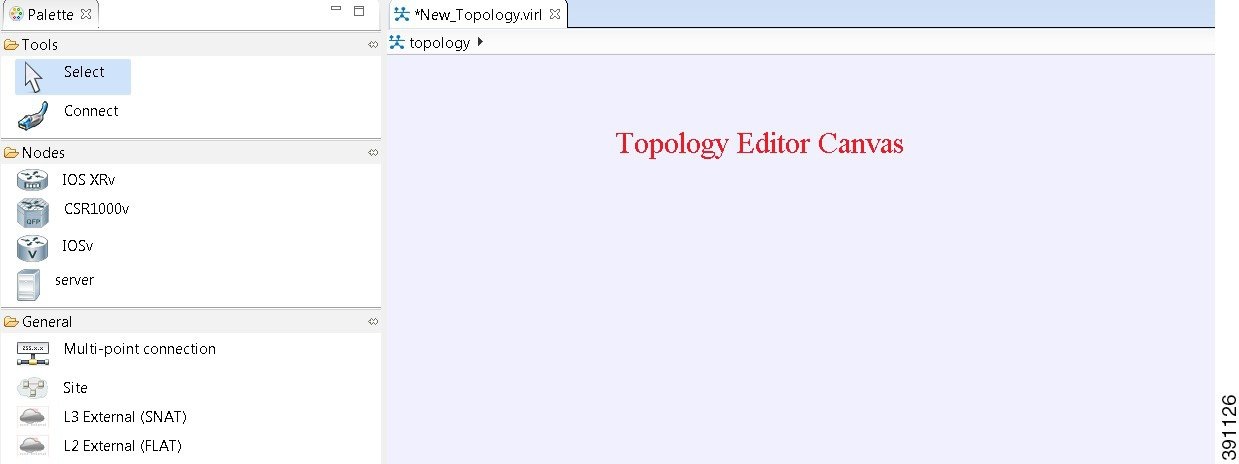
- Topology Editor—Shows the entire topology (or sites). The Topology Editor comprises the canvas and the Palette.
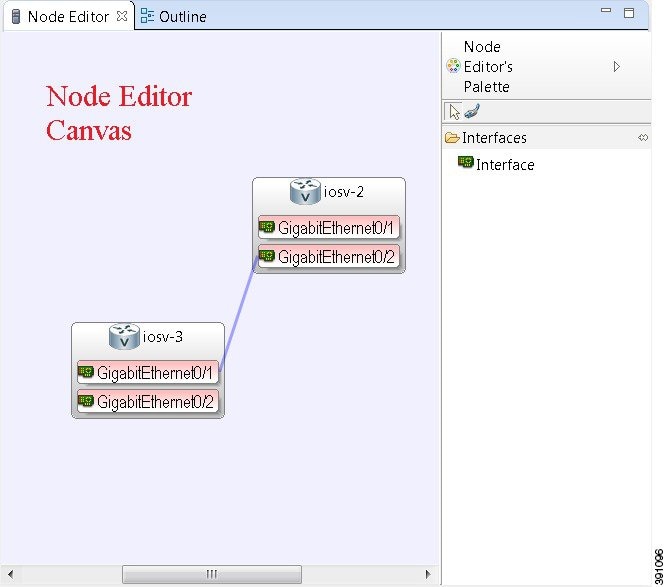
- Node Editor—Shows the interface details for the currently selected elements in the Topology Editor.
Note | Selecting a connection in the Topology Editor shows the details of both the endpoints in the Node Editor. |
Topology Editor
The Topology Editor allows you to:
- Add, move, group, rename, and delete nodes and sites on the canvas, or change the properties.
- Create or remove connections between nodes.
- Use GPS coordinates to map your topology to precise geographic locations.
Node Editor
The Node Editor allows you to:
- Add interfaces to a node.
- Add connections to the interfaces on a node.
- View nodes, their connections, and all the interfaces on the nodes.
- Specify which interface the connection connects to on each node.
- Update properties for interfaces.
Cisco Modeling Labs Client Perspectives
A perspective defines the initial set and layout of views and editors in the workbench. The Cisco Modeling Labs client provides two perspectives. However, you can customize your own user-defined perspectives for use, which can be saved or deleted, as needed.
- Design—Allows you to create and design your topologies, for example, adding devices and defining interfaces, and adding connections to devices within your network. If you are using the Cisco Modeling Labs client for the first time, the Design perspective opens by default.
- Simulation—Allows you to simulate running configurations that are generated from virtual Cisco IOS versions.
Note | The Design and Simulation perspectives that are built into the Cisco Modeling Labs client cannot be deleted. |
One or more perspectives can exist in a single workspace. If multiple perspectives are opened at the same time, you can choose whether to layer them, or open them in a separate workspace.
Working with Perspectives
You can manage the various perspectives defined in the workbench under Perspectives preferences, choosing .
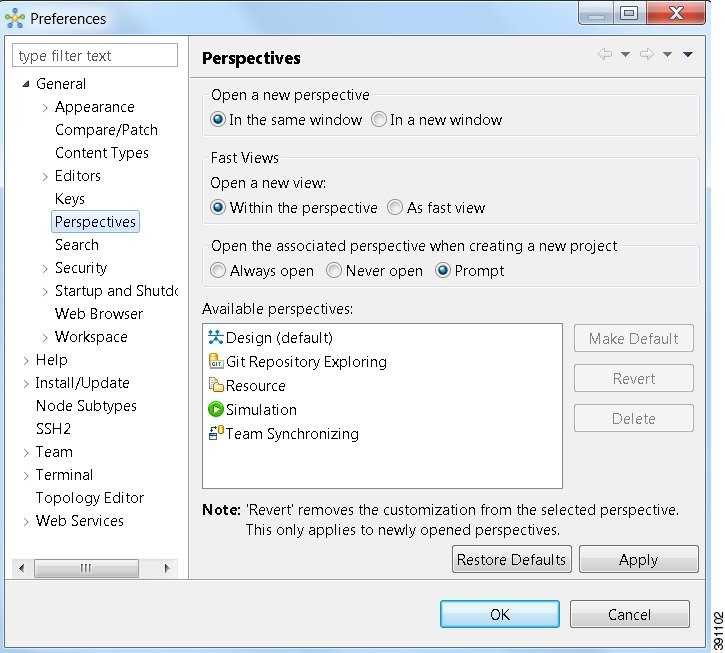
The following table describes the Perspectives options:
| Option | Description |
|---|---|
| Open a new perspective | Defines whether a new perspective opens in the current workbench, or opens in a new window. By default, a new perspective opens in the current workbench. |
| Open a new view | Defines whether a new view opens within the current perspective, or opens docked beside the current perspective (fast view). By default, a new view opens within the current perspective. |
| New project options | Defines perspective behavior when a new project is created. By default, a new project opens the perspective in the same workbench. |
The following table describes the Available Perspectives options:
| Option | Description |
|---|---|
| Make Default | Sets the selected perspective as the default perspective. |
| Revert | Resets the definition of the selected perspective to the default configuration. This option is only applicable to system-defined perspectives. |
| Delete | Deletes the selected perspective. This option is only applicable to user-defined perspectives. (System-defined perspectives cannot be deleted.) |
Customizing Perspectives
Cisco Modeling Labs 1.0 provides two perspectives for use in the workspace: the Design perspective and the Simulation perspective. These perspectives display various views and settings that cannot be changed, nor can they be deleted from the Cisco Modeling Labs 1.0 client. You can, however, customize additional Design and Simulation perspectives for your specific needs.
From the View menu, you can open additional views and arrange them in your perspective. The views can be arranged by dragging them around the workspace. When finished, you can save the perspective.
Note | Right-click the applicable perspective tab to open the context menu, and then click Show Text. The Design perspective and the Simulation perspective buttons will be displayed as text labels instead of icons only. |
| Step 1 | Open the
Design
perspective or
Simulation
perspective in your workspace.
 Use this as an initial template from which to create a customized perspective. |
| Step 2 | To add new views, open the View menu to display the various views for use. Views already in use are shown as dimmed in the list. |
| Step 3 | To add node information, double-click a node to add a Node Editor in the perspective. |
| Step 4 | Click and drag the views and Node Editors to different positions within the workspace. For example, you can move each node's Console view so they are either side-by-side, or stacked in tabs. |
| Step 5 | When you are finished arranging the workspace, right-click the applicable perspective button, and then click Save As. You are prompted to name the new perspective. |
| Step 6 | Enter a name for the perspective and click OK. |
Design Perspective
The Design perspective allows you to create and design your topologies. By default, the Design perspective incorporates the components listed here because they are the most widely used. However, you can customize a Design perspective to include a different set of components.
- Palette view—Provides the node types, connection types, and sites used to design a topology.
- Projects view—Lists topology projects, subfolders, and files defined from the workbench.
- History view—Lists changes made to a file based on date and time stamp.
- Properties view—Identifies node and interface properties.
- Outline view—Lists structural elements of a topology.
- Node Editor—Identifies nodes, node connections, and node interfaces.
- Topology Editor—Develops a network topology.
- Graph Overview—Provides methods for viewing a network topology.
To customize a new Design perspective, choose the desired components from the View menu (for example, ), and then drag that component view to the desired location within the workbench. When you are done adding components to the workbench and the component views are laid out as desired, select Save As from the Design toolbar and enter a name for the new Design perspective.
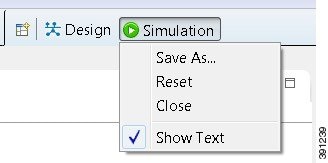
From the Design perspective, right-click the Design icon. This displays the following menu options:
| Operation | Description | ||
|---|---|---|---|
| Save As | Saves the customized workbench layout, views, and editors as a new Design perspective. | ||
| Reset | Resets the current perspective to display the
workbench design that was used when the workbench was first opened.
|
||
| Close | Closes the current perspective. You can reopen it using the Open Perspective tool, which is located at the upper right corner of the window. | ||
| Show Text | Shows perspective names in the toolbar instead
of icons, when selected.
When deselected, shows perspective icons in the toolbar instead of names. |
Simulation Perspective
The Simulation perspective opens after you launch a simulation; you are prompted to switch to the Simulation perspective. Switching to the Simulation perspective means that you can now connect to your running nodes in the Simulations view. By default, it incorporates the Topology Editor, Projects view, Simulations view, Console view, and Terminal view.
From the Simulation perspective, right-click the Simulation icon. This, displays the following menu options:
| Operation | Description | ||
|---|---|---|---|
| Save As | Saves the current perspective. | ||
| Reset | Resets the current perspective to its original configuration
(when the workbench opened initially).
|
||
| Close | Closes the current perspective. (Reopen it using the Open Perspective tool.) | ||
| Show Text | Displays perspective icons only. (No text is displayed in the toolbar.) |
Cisco Modeling Labs Client Views
Views provide alternative methods for presenting topology information and navigating within your workbench. You can drag the view windows and position them anywhere within the workbench. Some views have their own toolbars, and some of the tools on these toolbars are specific to the views being presented.
| View Name | Perspective Where Used | Description |
|---|---|---|
| Console view | Design and Simulation | Design—Displays messages from AutoNetkit when it is used to
generate router configurations.
Simulation—Displays message streams from the Cisco Modeling Labs server after a simulation is launched. For more information, see Console View |
| Graph Overview | Design | Provides you with the ability to view a scaled-down version of
your entire topology.
For more information, see Graph Overview |
| History view | Design | Provides a history of changes made to a file and enables you to select a previous file version from the list. For more information, see History View |
| Outline view | Design | Shows a list of the nodes in the topology and their interface
connections.
For more information, see Outline View |
| Palette view | Design | Allows you to add devices and interface connections to your
topology.
For more information, see Palette View |
| Problems view | Design | Displays errors, warnings, and other information that was
detected within the
Topology
Editor.
For more information, see Problems View |
| Projects view | Design and Simulation | Provides a hierarchical view of topology projects, folders, and
topologies in the workbench.
For more information, see Projects View |
| Properties view | Design | Displays names and properties of nodes and interfaces.
For more information, see Properties View |
| Search view | Design |
Displays the results of a search, which can be based on text strings, regular expressions, and patterns, whole words and case-sensitive characters. For more information, see Search View |
| Simulations view | Simulation | Displays information on all running simulations.
For more information, see Simulations View |
| Terminal view | Simulation | Displays console information when you connect to a node using
Telnet.
For more information, see Terminal View |
- Console View
- Graph Overview
- History View
- Outline View
- Palette View
- Problems View
- Projects View
- Properties View
- Search View
- Simulations View
- Terminal View
Console View
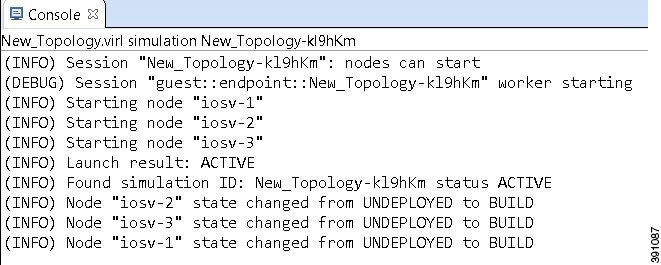
The Console view displays message streams from the Cisco Modeling Labs server after a simulation is launched. It also displays messages from AutoNetkit when it is used to generate router configurations.

| Icon | Function | Description |
|---|---|---|
 |
Clear Console | Removes all the information from the Console view. |
 |
Scroll Lock | Switches scrolling on and off. |
 |
Pin Console | Pins the Console view to the workbench so that subsequent message streams are shown in another Console view. The pinned view remains unchanged. |
 |
Display Selected Console | Displays the Console view for the selected simulation. |
 |
Open New Console | Opens a new Console view. |
 |
Minimize | Reduces the size of the Console view. |
 |
Maximize | Increases the size of the Console view. |
Note | When several simulations are running, use the toolbar button Display Selected Console to toggle between the Console views for the different simulations. |
Graph Overview
Graph Overview enables you to view a scaled-down version of your entire topology. A blue rectangle (representing an overlay) is used to indicate a portion of the topology that is currently being displayed in the Topology Editor. Using this overlay, you can easily see where the displayed portion sits in relation to the entire topology.
The Graph Overview also allows you to navigate around a large topology when it is either too large to fit into the canvas, or is zoomed in and not fully displayed on the canvas.
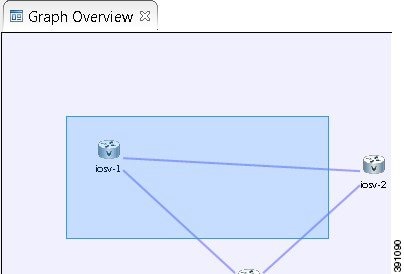
From the Graph Overview, click and drag the overlay to pan around your topology. As you drag the overlay, the corresponding content is reflected in the Topology Editor.
History View
Note | Only changes made to topology files (.virl) are retained locally, changes made to projects and folders are not. |
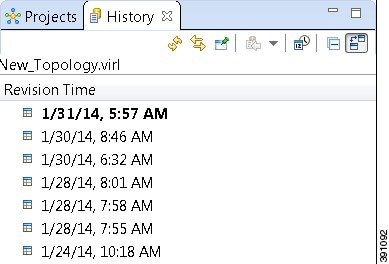
To view the change history of a file, in the Projects view, right-click the applicable file and choose .
The History view displays a list of revision times, with the most recent one highlighted at the top of the list.
Note | If you have a .virl file opened in the workbench, click the History tab to view the list of changes made to the file. |

| Icon | Function | Description |
|---|---|---|
 |
Refresh | Refreshes the contents of the view, retrieving the latest history information for a file from the system. |
 |
Link with Editor and Selection | Toggles when the History view selection is linked to the active editor. When this option is selected, changing the active editor automatically updates the History view selection to the project, folder, and file being edited. |
 |
Pin this History View | Pins the view to the workbench and captures a snapshot of the file history information. New requests for file history are opened in a new instance of the History view. |
 |
Group Revisions by Date | Sorts all history items by date. Options are: |
 |
Collapse All | Collapses all the history items listed in the hierarchical view. |
 |
Compare Mode | Opens the compare editor for file comparison. |
Outline View
The Outline view shows a list of the nodes in the topology and their interface connections. Node connectivity is shown through their interface connections.
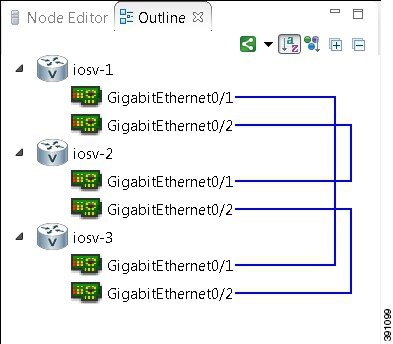
The Outline view toolbar contains the following tools:

| Icon | Function | Description |
|---|---|---|
 |
Change Display Mode of Connection | Allows you to choose various options when displaying
connections:
|
 |
Sort Alphabetically | Sorts and lists the node names in alphabetical order. |
 |
Sort By Node Type | Sorts and lists the node types in alphabetical order. |
 |
Expand All | Expands nodes, interfaces, and connections in the hierarchical view. |
|
|
Collapse All | Collapses all of the items in the hierarchical view. |
Palette View
The Palette view allows you to add devices and interface connections to your topology. Using the Palette view, you can:
- Add nodes, multipoint connections, L3 external Secure Network Address Translation (SNAT) connections, and L2 external (Flat) connections to your topologies.
- Select nodes and connections for repositioning on the canvas.
- Create connections between node interfaces.
- Group nodes into sites.
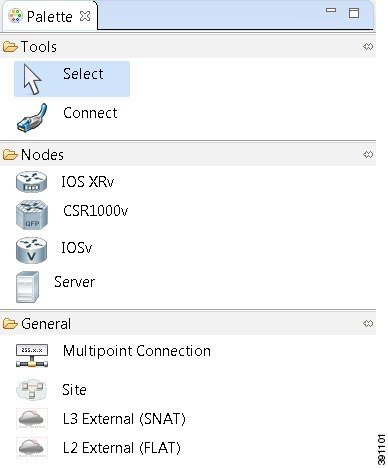
The Palette view is divided into the following categories:
- Tools—Contains the
Select and
Connect tools.
The
Select tool
allows you to select nodes, multipoint connections, L3 external (SNAT)
connections, and L2 external (Flat) connections on the
Topology Editor
canvas. The
Connect tool
creates connections between node interfaces.
Note
The setting affects how the nodes and connections are placed on the canvas. If you check the Revert back to the palette's default tool, check box, you must click a node, connection, or other object each time you place an object on the canvas. If the Revert back to the palette's default tool, check box is not checked, each time you click the canvas, an object is placed until you click the Select tool (the default palette tool). - Nodes—Contains the node
types available for use in topologies. Currently, Cisco Modeling Labs 1.0
includes the Cisco IOSv virtual image.
An Ubuntu 14.04
server has been tested with Cisco Modeling Labs 1.0. The Ubuntu server must be
downloaded separately. To access the server, go to:
http://cloud-images.ubuntu.com/trusty/current.
From this page,
download the clouding-amd64 RAW (img) image
trusty-server-cloudimg-amd64-disk1.img.
Note
Additional node subtypes can be installed separately. See the Release Notes for Cisco Modeling Labs 1.0 for the most up-to-date list of supported virtual images. - General—Contains the different types of connection functions that are supported for nodes. Options are: You can also create sites.
The Palette view toolbar contains the following tools:

| Icon | Tool | Description |
|---|---|---|
|
|
Minimize | Reduces size of Palette view. |
|
|
Maximize | Increases size of Palette view. |
Problems View
Note | By default, the Problems view displays all the errors and warnings for all the topologies in the Projects view, not just the currently open topology. From the Problems view toolbar, choose to filter only those errors and warnings that are applicable to the current project. Alternatively, you can also use the Configure Contents dialog box, which is accessible from the View Menu option, to filter warnings and errors associated with a particular topology or topology project. See Problems View Toolbar for more information. |
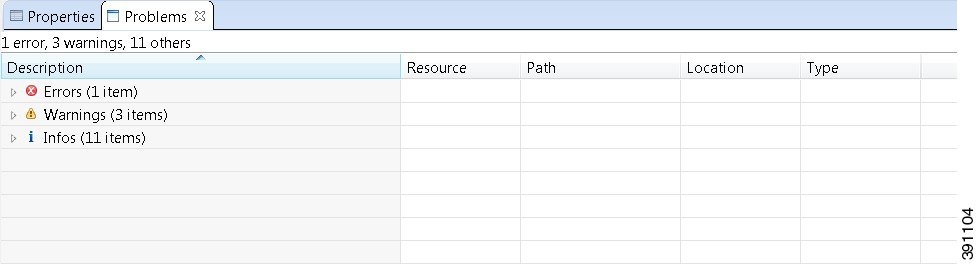
The Problems view groups errors and warnings by severity, with the most critical issues listed first.
Double-click the problem marker in the Problems view, which opens the appropriate editor in the Cisco Modeling Labs client. If the problem relates to an XML file, the XML file opens in a text editor. The problem is highlighted, allowing you to quickly identify the issue and correct it.
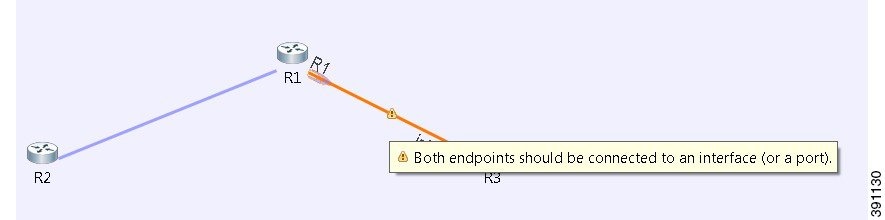

| Icon | Function | Description |
|---|---|---|
 |
View Menu | The
Problems view tool has the following options:
|
|
|
Minimize | Reduces the size of the Problems view. |
|
|
Maximize | Increases the size of the Problems view. |
The Quick Fix Option
Problems displayed in the Problems view are provided with a Quick Fix option, if available. A Quick Fix is indicated by a light-bulb icon that is visible on the marker. When this option is selected, you are presented with one or more possible fixes.
We recommend that you use Quick Fix to resolve the errors discovered, unless the errors have been deliberately created for testing purposes.
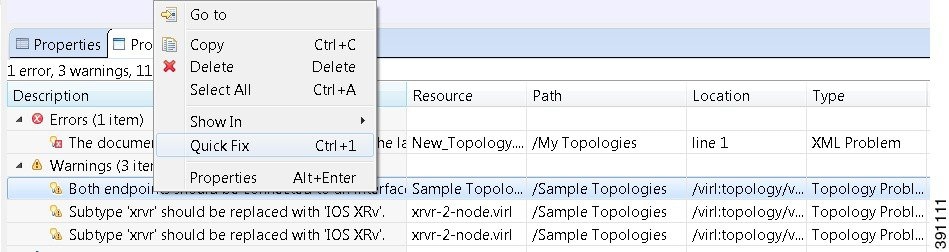
To fix a problem:
- Right-click the line containing
the problem, and select
Quick Fix.
The
Quick
Fix dialog box displays a list of possible solutions.
Figure 18. Quick Fix Dialog Box 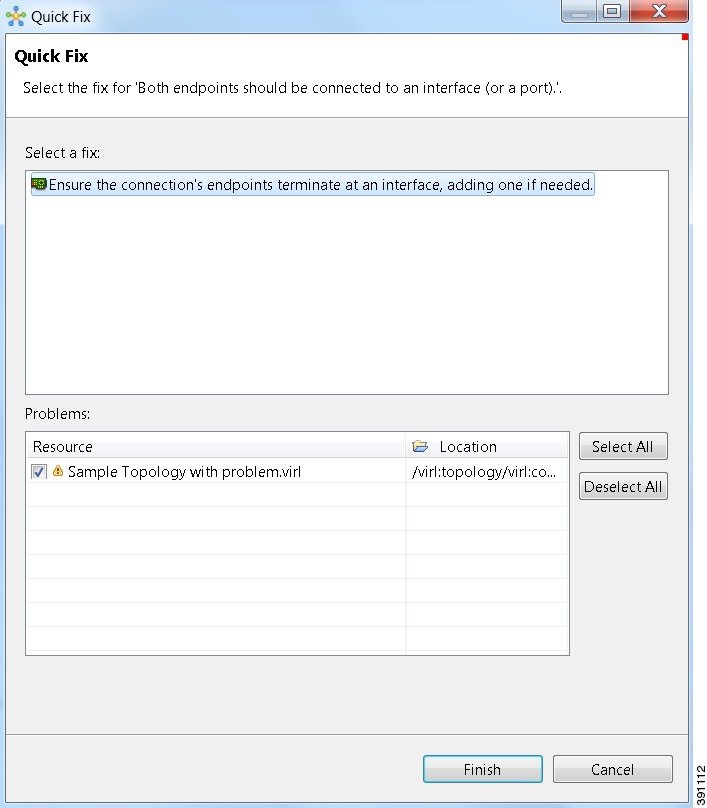
- Select a fix from the list, and then check the check box of any of the Resources listed in the Problems area. You can click Select All to apply the Quick Fix to all the Resources listed. Alternatively, you can click Deselect All to clear all selections.
- Click Finish.
Note | Once a problem has been fixed using the Quick Fix option, the action cannot be undone. |
Projects View
The Projects view provides an hierarchical view of topology projects, folders, and topologies in the workbench. From here, you can open topologies for editing, or select resources for operations, such as exporting.
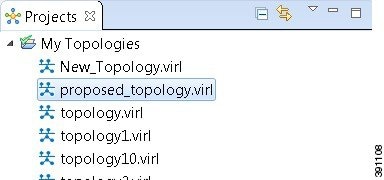
Right-click any topology in the Projects view to open a context menu using which you can copy, move, and create new topology files, view comparison files, and so on.
| Icon | Function | Description |
|---|---|---|
 |
Collapse All | Collapses the hierarchy of all the resources in the Projects view. |
 |
Link with Editor | Links the Projects view with an active editor. A change to an active editor automatically updates the Projects view and allows you to toggle between the two views. |
|
|
View | Provides options for customizing the content displayed in the Projects view. Options are: |
|
|
Minimize | Reduces the size of the Projects view. |
|
|
Maximize | Increases the size of the Projects view. |
The Projects view displays several icons on the toolbar:
| Icon | Name | Description |
|---|---|---|
 |
Topology Project | Indicates an open topology project. |
 |
Folder | Indicates an open folder. Folders are created within a Topology Project so that topology files can be organized into separate areas for greater accessibility. |
 |
Topology | Indicates a topology file. |
Properties View
The Properties view displays the names and properties of nodes and interfaces. If no specific node or interface is selected, the Properties settings apply globally to all the nodes and interfaces within a topology. If a specific node or interface is selected, the Properties settings apply to only that node or interface.
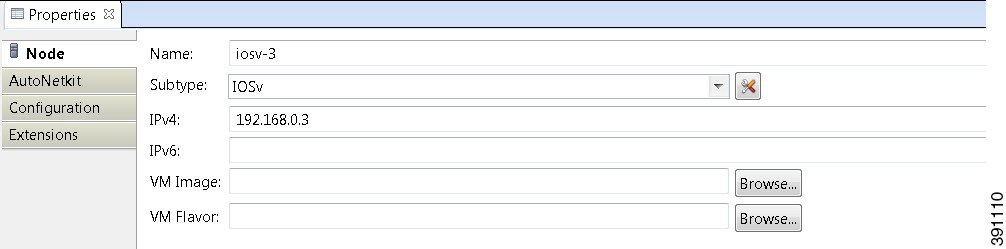

| Icon | Function | Description |
|---|---|---|
 |
Show Categories | Shows the available property categories. |
 |
Show Advanced Properties | Shows all advanced properties. |
 |
Restore Default Value | Restores the default value for the property. |
|
|
Pin to Selection | Pins this property view to the current selection. |
|
|
View Menu | Displays menu items that allow you to: |
|
|
Minimize | Reduces the size of the Properties view. |
|
|
Maximize | Increases the size of the Properties view. |
The properties in the Properties view are discussed in the following sections:
Node Properties
When you select a node on the canvas, the properties for that node are displayed in the Properties view.
Under the Node tab, you can perform the following tasks:
| Property | Description | ||
|---|---|---|---|
| Name | Specify a name for the node.
|
||
| Subtype | Specify a subtype from the list. Cisco Modeling Labs 1.0
includes a Cisco IOSv virtual image. Additional Cisco virtual images are
available for use. However, they must be installed separately. For a list of
supported subtypes, see the
Release
Notes for Cisco Modeling Labs 1.0.
An Ubuntu 14.04 server has been tested with Cisco Modeling Labs 1.0. The Ubuntu server must be downloaded separately. To access the server, go to: http://cloud-images.ubuntu.com/trusty/current. From this page, download the clouding-amd64 RAW (img) image trusty-server-cloudimg-amd64-disk1.img. Use the Manage Subtypes tool to add or remove node subtypes from the list.
|
||
| IPv4 | Specify an IPv4 loopback address. The loopback address is added to the router as interface loopback0. Enter a valid IP address in the correct format. | ||
| IPv6 | Specify an IPv6 loopback address. The loopback address is added to the router as interface loopback0. Enter a valid IP address in the correct format. | ||
| VM Image | Specify a virtual machine (VM) image other than the default. Click Browse to choose a valid VM image from the Select VM Image dialog box. | ||
| VM Flavor | Specify a VM flavor other than the default. Click Browse to choose a valid VM flavor from the Select VM Flavor dialog box. |
Note | Any pre-existing configuration for a node is overwritten when you choose Update Router Configurations from the toolbar. Uncheck this Auto-generate check box if you do not want router configuration for a node updated by AutoNetkit.
|
| Property | Fields | Description | ||
|---|---|---|---|---|
| General | ASN | Specify the autonomous system number, which is used to infer IGP and BGP and should be any valid integer. | ||
| IGP | OSPF | Configure an OSPF area. The default value is 0. | ||
| iBGP | iBGP Role | Specify an iBGP role from the list and use it to create an iBGP topology. Options are: The default value is Peer. | ||
| RR Cluster | Specify the RRC as a name or number. Should be an alphanumeric string. | |||
| HRR Cluster | Specify the HRR Cluster. Should be an alphanumeric string. | |||
| MPLS | VRF Name | Specify an MPLS VPN name for VRF Lite. | ||
| Enable MPLS TE | Configure MPLS Traffic Engineering. Options are: The default value is False. | |||
| Server | Server Username | Specify a username for the server. | ||
| SSH Key | Specify a secure shell key for the server.
|
Under the Extensions tab, all the extensions used to generate the configuration are listed along with Key, Value, and Type attributes.
Topology Properties
When you select an area on the canvas other than a node, the properties for that topology are displayed in the Properties view.
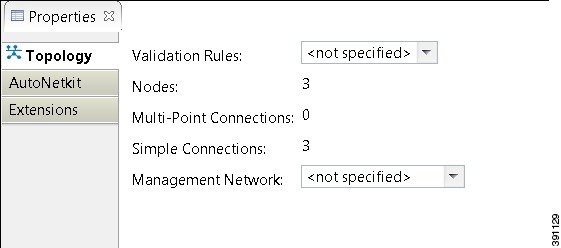
Under the Topology tab, you can perform the following tasks:
| Property | Description |
|---|---|
| Validation Rules | Specify the rule type with which the topology is validated. Options are: For Cisco Modeling Labs 1.0, we recommend you accept the default value, Not specified. |
| Management Networks | Specify the type of Out of Band (OOB) external network access. Options are: |
Note | Nodes in this instance includes node subtypes, Flat, and SNAT port groups.
|
Under the AutoNetkit tab, you can perform the following tasks:
| Property | Fields | Description |
|---|---|---|
| General | Enable CDP | Configure the Cisco Discovery Protocol (CDP). Options are: The default value is False. |
| Enable onePK | Configure the Cisco One Platform Kit (onePK). Options are: The default value is False. | |
| Addressing | IP Address Family | Configure a routing session to use IPv4 address prefixes, IPv6 address prefixes, dual stack (includes both native IPv4 and IPv6), or none. Options are: |
| IPv4 Infrastructure Subnet | Specify the address to use for IPv4 infrastructure address allocations. This is the address assigned to the interface created on the router. The default value is 10.0.0.0. Enter a valid IP address in the correct format. | |
| IPv4 Infrastructure Prefix | Specify the prefix to use for IPv4 infrastructure address allocations. The default value is 8. Enter a valid IP address in the correct format. | |
| IPv4 Loopback Subnet | Specify the address to use for IPv4 loopback address allocations. The default value is 192.168.0.0. Enter a valid IP address in the correct format. | |
| IPv4 Loopback Pool | Specify the prefix size to use for IPv4 loopback address allocations. The default value is 22. Enter a valid IP address in the correct format. | |
| IPv4 VRF Subnet | Specify the address to use for IPv4 VRF address allocations, when specifying the address range for MPLS VRF. The default value is 172.16.0.0. Enter a valid IP address in the correct format. | |
| IPv4 VRF Prefix | Specify the prefix to use for IPv4 VRF address allocations. The default value is 24. | |
| Routing | Enable Routing Protocols | Configure routing protocols (BGP and IGP). Options are: The default value is True. If you specify False, there will be no router configuration for any of the routing protocols. |
| IGP | Configure the Interior Gateway Protocol (IGP). Options are: | |
| MPLS | Enable MPLS OAM | Configure MPLS OAM for all routes on the topology. Options are: The default value is False. |
The following table shows the default IP Address values used by Cisco Modeling Labs. You can update these values as required.
| Viewed from | Option | Default Value | Optional Value(s) |
|---|---|---|---|
| Topology > AutoNetkit > Addressing | IP Address Family | v4 | None, v6, dual_stack |
| IPv4 Infrastructure Subnet | 10.0.0.0 | ||
| IPv4 Infrastructure Prefix | 8 | ||
| IPv4 Loopback Subnet | 192.168.0.0 | ||
| IPv4 Loopback Pool Prefix | 22 | ||
| IPv4 VRF Subnet | 172.16.0.0 | ||
| IPv4 VRF Prefix | 24 |
The following table shows the default routing protocols used by Cisco Modeling Labs. You can update these values as required.
| Viewed from | Option | Default Value | Optional Value(s) |
|---|---|---|---|
| Topology > AutoNetkit > General | Enable CDP | false | true |
| Enable OnePK | false | true | |
| Topology > AutoNetkit > Routing | Enable Routing Protocols | true | false |
| IGP | ospf | isis, eigrp | |
| Topology > AutoNetkit > MPLS | Enable MPLS OAM | false | true |
| Node > AutoNetkit > General | ASN | 1 | None or any valid integer |
| Node > AutoNetkit > IGP | OSPF Area | 0 | None or valid OSPF area number |
| Node > AutoNetkit > iBGP | iBGP Role | Peer | Disabled, RRC, HRR, RR |
| RR Cluster | (none) | None or alphanumeric string | |
| HRR Cluster | (none) | None or alphanumeric string | |
| Node > AutoNetkit > MPLS | VRF Name | (none) | None or alphanumeric string |
| Enable MPLS TE | false | true | |
| Node > AutoNetkit > Server | Server Username | (none) | Valid username |
| Server SSH Key | (none) | (none) |
Note | Only one IGP protocol is supported per simulation. Even though you can create multiple BGP ASs, the choice of IGP applies to all router devices in the simulation. |
Under the Extensions tab, all the extensions used to generate the configuration are listed, along with the Key, Value, and Type attributes.
Interface Properties
In the Node Editor, selecting an interface on the canvas displays properties for the interface in the Properties view.
Under the Interface tab, you can perform the following tasks:
| Property | Description |
|---|---|
| Name | Specify a name for the interface. |
| IPv4 | Specify an IPv4 interface address and an IPv4 subnet prefix length. |
| IPv6 | Specify an IPv6 interface address and an IPv6 subnet prefix length. |
Note | To delete an interface from the Node Editor canvas, select the interface, right-click and choose Delete from the context menu. |
Under the Extensions tab, all the extensions used to generate the configuration are listed, along with the Key, Value, and Type attributes.
Connection Properties
When you select a connection on the canvas, the properties of that connection are displayed in the Properties view.
From Connection properties, you can associate a line style design with a connection between nodes. Line styles are visual aids that help you identify the connections used in your topology design.
Search View
To search for text string and files, click Search on the toolbar. The Search view displays the results of a search. A file search can be based on text strings, regular expressions, and patterns, in addition to whole words and case-sensitive characters. The scope of a file search can encompass a workspace, selected resources, or projects.
Note | Text searches are only performed on expressions contained in files with the extension .virl.
|
The Search view also displays the results of a Git search that can be based on the same criteria as noted in a File search. However, the scope of a Git search can encompass a particular message, resource, or identification number in the code.
Search criteria can be based on either a file or Git. The scope of a search can be general to all the topologies that are defined on Cisco Modeling Labs client, or specific to a particular project or file.
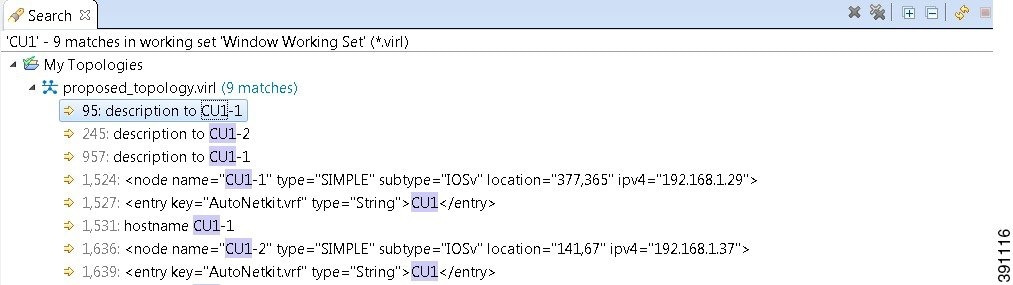
- From the Cisco Modeling Labs client toolbar, click . The Search dialog box appears.
- In the Containing text field, enter the text string to search for. The Containing text field displays a list of recently performed searches to select from. Leave this field empty if you want to search for files only. Check or uncheck the Case sensitive check box depending on whether or not a case-sensitive search is to be performed. You can also check the Regular expression check box to enable more powerful searching capabilities. Check the Whole word check box if you want to search for whole words that are identical to the text string. Specify the types of files to include in the search in the File name patterns field.
- Click Choose to open the Select Types dialog box. This dialog box provides a quick way to select from a list of valid extensions.
- In the Scope area, specify the files and folders to include in the search. Valid options are:
- Click Search to begin your search. The Search view appears with the results of the search listed. You can click the Cancel tool in the Search view to cancel your search while it is still in progress.
The Search view toolbar contains the following tools:

| Icon | Function | Description |
|---|---|---|
 |
Remove Selected Matches | Deletes all the highlighted matches from the search results. |
 |
Remove All Matches | Deletes all the matches from the search results. |
 |
Expand All | Expands each item in the Search view. |
|
|
Collapse All | Collapses each item in the Search view. |
 |
Run the Current Search Again | Reruns the current search to retrieve previous search results or to reflect recent changes. |
 |
Cancel Current Search | Cancels the search currently running. |
 |
Show Previous Searches | Browses previously conducted searches to repeat a previous search, by selecting a previous search from the drop-down menu. You can also clear the search history. |
|
|
Pin the Search View | Pins the Search view so that subsequent search results are displayed in a separate Search view with the pinned view unchanged, in order to compare results. |
|
|
View Menu | Displays the search results as a tree or a list, filters the results using the Filters option, and sets the overall preferences for search using the Preferences option. |
|
|
Minimize | Reduces the size of the Search view. |
|
|
Maximize | Increases the size of the Search view. |
Simulations View
The Simulations view displays information about all the running simulations, including:
- Name of the user running the simulation
- Name of the topology
- Number of nodes in the running simulation
- Current state of each node
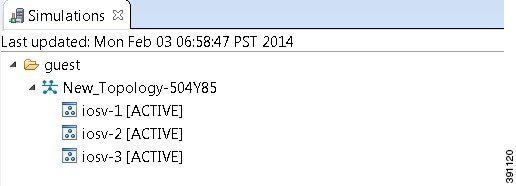
Possible simulation states are:
| State | Description |
|---|---|
| ACTIVE | Indicates that the launch worker process has successfully made all requests to OpenStack to deploy all simulation nodes. |
| DONE | Indicates that a simulation has been successfully stopped and no longer exists in the STD database. |
| FAIL | Indicates that the launch worker process failed. |
| INIT | Indicates that the simulation has just been created and is being launched. |
| LAUNCHING | This is a two-phase state: i) Necessary DB entries are created
in the middleware and ii) Required networks are deployed.
Failure in this phase results in the removal of the simulation; success results in the start of a launch worker process. |
| STOP | Indicates that a stop simulation request has been received. |
Possible node states are:
| State | Description | ||
|---|---|---|---|
| ACTIVE | Indicates that the virtual machine process is successful. It may take a few minutes for the node to boot up and configure. | ||
| BUILD | Indicates that the virtual machine is starting, but the router image has not yet loaded. | ||
| DELETED | Indicates that the node has been requested for BUILD, but OpenStack has no information on the node at this time. Possibly, it was deleted. The node can be started when the simulation itself is ACTIVE. | ||
| ERROR | Indicates that the virtual machine process failed. | ||
| IDLE | Indicates that the virtual machine is in an unused state. | ||
| PAUSED and SUSPENDED | These two states can occur when:
|
||
| SHUTOFF | Indicates that the virtual machine is deployed but not actually
running. This state can occur when:
|
||
| UNDEPLOYED | Indicates that the node has never requested to be deployed in OpenStack (started) or the request failed. This only occurs when the launch worker process is active but has not reached that specific node yet, or if the simulation is in the FAIL state. |
The Simulations view toolbar contains the following tools:

| Icon | Function | Description |
|---|---|---|
 |
Refresh the List | Refreshes the list of simulations displayed in theSimulations view. |
|
|
Minimize | Reduces the size of the Simulations view. |
|
|
Maximize | Increases the size of the Simulations view. |
Topology Options
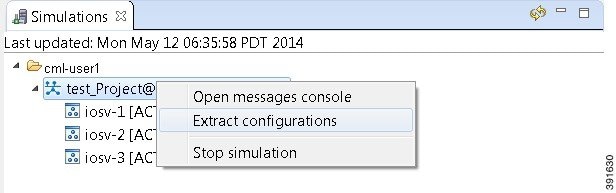
| Operation | Description | ||
|---|---|---|---|
| Open messages console | Opens the Console view, showing the message stream from Cisco Modeling Labs server for the selected topology. Message streams contain information on the topology launch, such as, the name of the launched topology, the date and time of the launch, and the current status of each node in the topology. | ||
| Extract configurations | Extracts router configurations for all the routers to a file
saved locally.
|
||
| Stop simulation | Stops the running simulation. See the chapter Simulate the Topology Overview for more information on stopping and starting simulations. |
Node Options
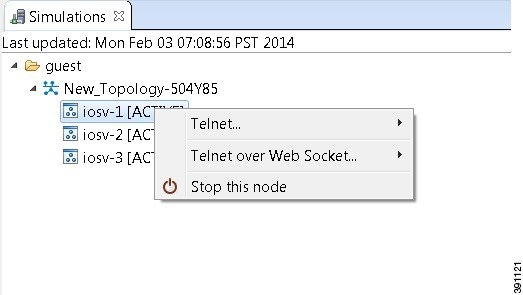
| Operation | Description | ||
|---|---|---|---|
| Telnet | Allows you to connect using Telnet to ports on a node. | ||
| Telnet over Web Socket | Allows you to connect using Telnet over a web socket to ports on a node. Web sockets provide full-duplex communications channels over a single connection. | ||
| Attach to its VNC | Displays a server Virtual Network Computing (VNC) login page.
|
||
| Stop this node | Stops the selected node. | ||
| Start this node | Starts the selected node. See the section Start a Single Node for more information. |
Terminal View
The Terminal view is displayed when you connect via Telnet to a node. Using the Terminal view, you can communicate with and control the operating system running on the node.
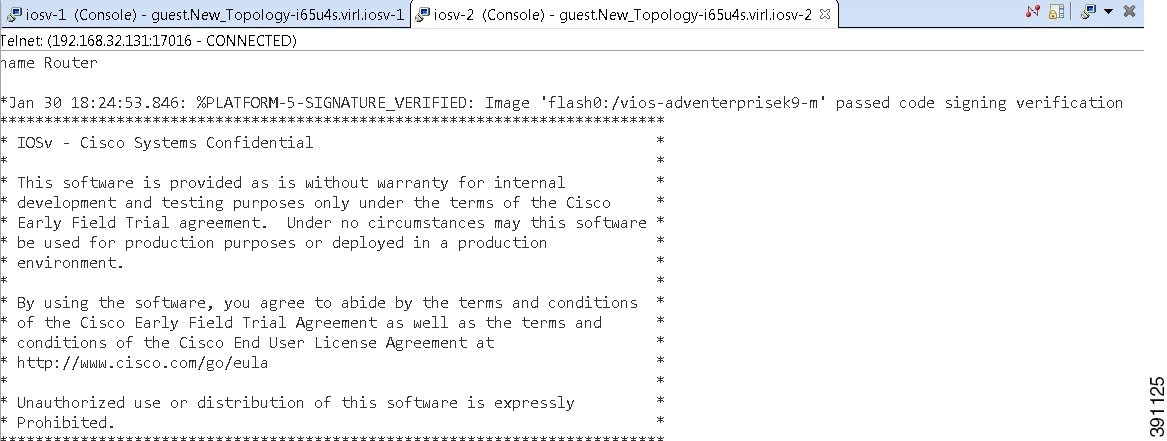
The Terminal view toolbar contains the following tools:

| Icon | Function | Description | ||
|---|---|---|---|---|
 |
Disconnect | Disconnects the terminal connection to the node. | ||
 |
Scroll Lock | Sets scrolling on and off. | ||
 |
Display Selected Connections | Allows you to select a connection from the list of active terminal connections. | ||
 |
Remove Terminal | Closes the Terminal view. | ||
 |
Set Terminal Font | Allows you to set the font to be used in the terminal, from the
Colors
and Fonts dialog box.
|
Setting Preferences for the Cisco Modeling Labs Client
For the Cisco Modeling Labs client to operate, you must first identify certain setting preferences. These preferences are available from the menu bar under :
- Node Subtypes Setting
- Terminal Setting
- Topology Editor Setting
- Web Services Setting
- AutoNetkit Visualization Setting
- Web Browser Setting
- Secure Storage Setting
These are discussed in the following sections.
- Node Subtypes Setting
- Terminal Setting
- Topology Editor Setting
- Web Services Setting
- AutoNetkit Visualization Setting
- Web Browser Setting
- Secure Storage Setting
Node Subtypes Setting
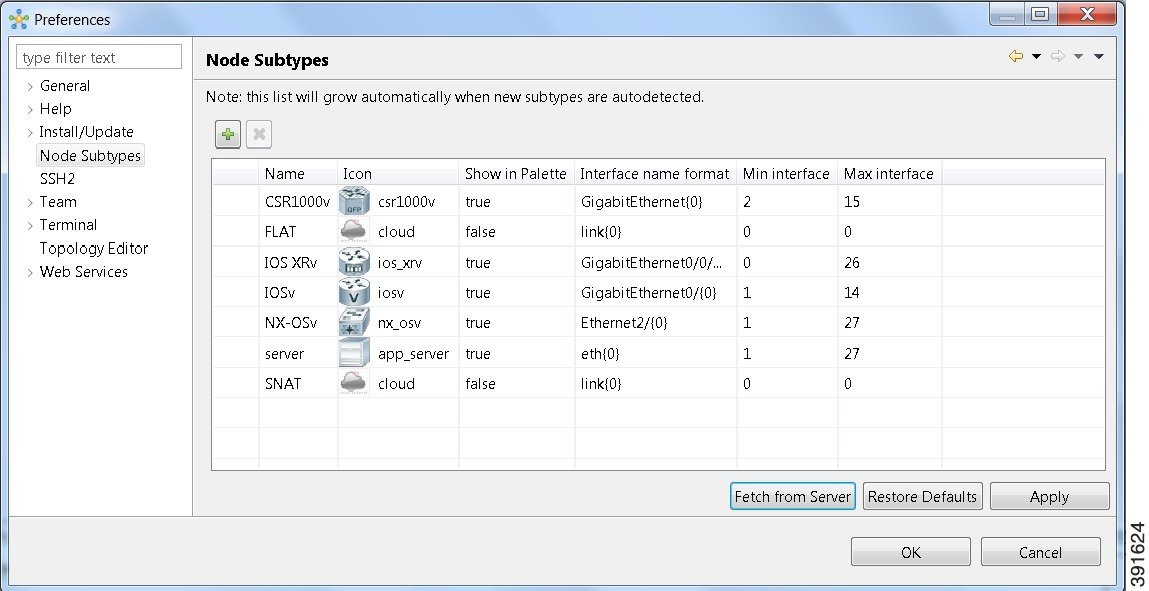
A node subtype defines a virtual machine running a particular operating system. For example, Cisco IOSv is installed with Cisco Modeling Labs, while others such as Cisco IOS XRv and Cisco CSR1000v can be installed separately. This setting allows you to add and remove node subtypes for use with the Cisco Modeling Labs client.
Refer to the chapter User Workspace Management in the Cisco Modeling Labs Corporate Edition System Administrator Installation Guide for information on installing virtual machine images on the Cisco Modeling Labs server.
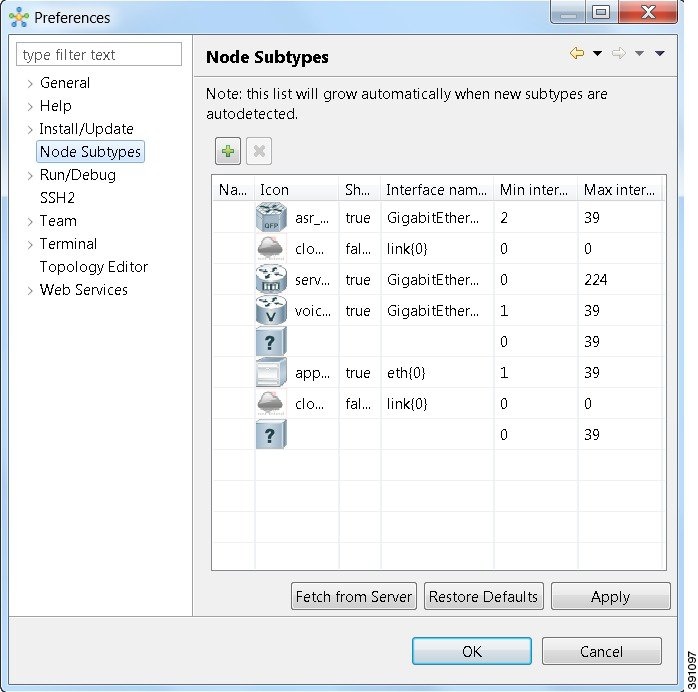
| Icon | Operation | Description |
|---|---|---|
 |
Add new Subtype | Adds a new subtype to the list. To ensure that the new subtype is visible in the Palette view, set the value in the Show in Palette column to true. See Adding a New Node Subtype to the List. |
 |
Remove Subtype | Removes a subtype from the list. |
| Fetch from Server | Updates the local subtypes based on the currently configured Cisco Modeling Labs server. All the subtypes supported on Cisco Modeling Labs server are available with this operation. See Fetching Node Subtypes from the Cisco Modeling Labs Server. | |
| Restore Defaults | Reverts to the original list of subtypes. | |
| Apply | Applies changes. |
Adding a New Node Subtype to the List
To add a new node subtype to the node subtype list, perform the following tasks:
| Step 1 | Click . |
| Step 2 | Click the
Add new subtype
button.
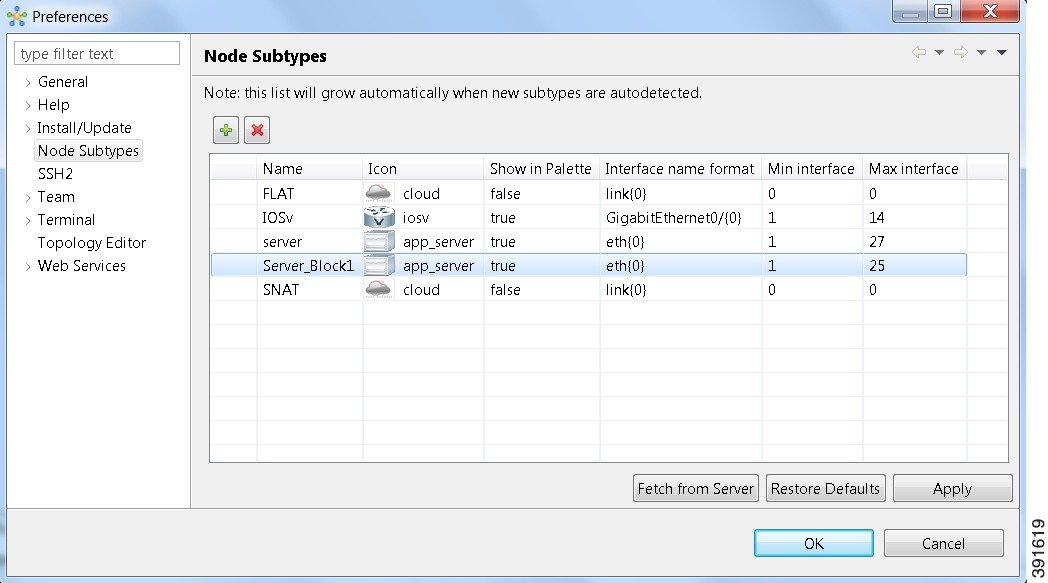 |
| Step 3 | Click Apply and OK to save the updates. |
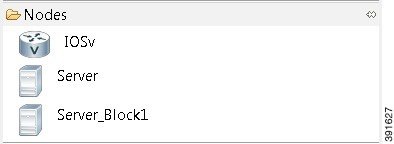
The newly added node subtype
is available for use in the
Palette view.
Fetching Node Subtypes from the Cisco Modeling Labs Server
To fetch new node subtypes from the Cisco Modeling Labs server, perform the following tasks:
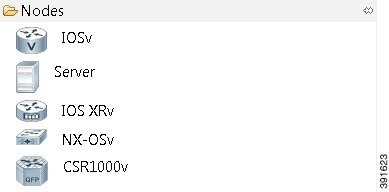
The updated list of node subtypes is available for use in the Palette view.
Contact your system administrator if a specific node subtype is missing from the list, as the system administrator is responsible for adding new node subtypes to the Cisco Modeling Labs server.
Terminal Setting
This setting allows you to launch an external terminal application, such as, SecureCRT or PuTTY, or use the internal Cisco Modeling Labs client Terminal view in a separate window.
Note |
|
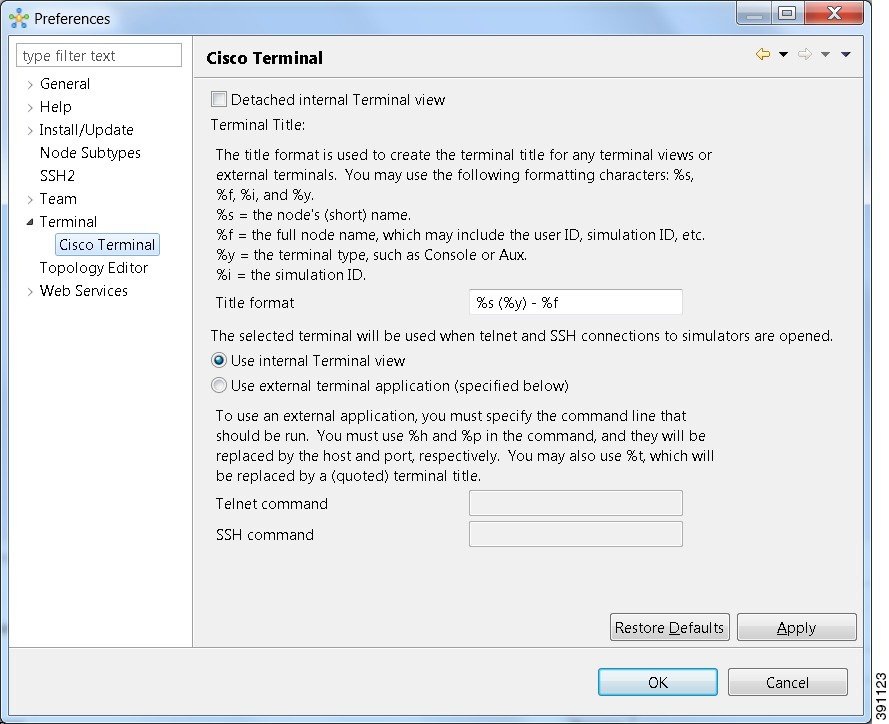
| Operation | Description |
|---|---|
| Detached internal Terminal view | Launches the Terminal view in a separate window. |
| Title format | Allows you to add a Terminal view title using the required formatting characters. |
| Use internal Terminal view | Uses the Cisco Modeling Labs internal Terminal view. |
| Use external terminal application | Uses an external terminal application, such as SSH or PuTTY. |
| Telnet command | Specifies the Telnet command to run if you are using an external terminal application. |
| SSH command | Specifies the SSH command to run if you are using an external terminal application. |
| Restore Defaults | Removes settings specified for an external terminal application and restores terminal settings to the Cisco Modeling Labs internal Terminal view. |
| Apply | Applies changes. |
Topology Editor Setting
This setting allows you to customize the Topology Editor in the Cisco Modeling Labs client.
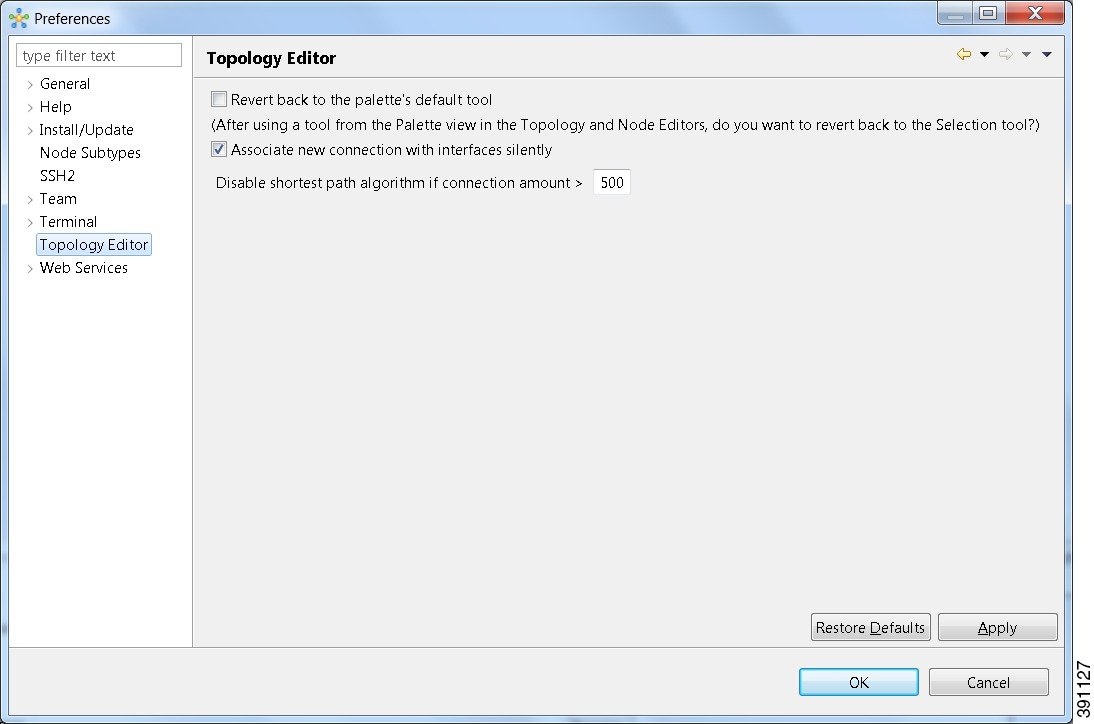
The available operations for this setting are:
| Operation | Description |
|---|---|
| Revert back to the palette's default tool | Resets the definition of the Palette view tools, Select and Connect to their default configuration. This option is disabled by default. |
| Associate new connection with interfaces silently | Enables the following: |
| Disable shortest path algorithm if connection amount > (greater than) | Enables the following: |
| Restore Defaults | Restores settings to the initial default state. |
| Apply | Applies changes. |
Web Services Setting
This setting allows you to configure the Cisco Modeling Labs client to communicate with the Cisco Modeling Labs server. When you first launch the Cisco Modeling Labs client, the Active profile is not specified and the Web Services that are listed display an Unauthorized message in red. This message relates to the Master Credentials, which must be still be set before the Cisco Modeling Labs client can communicate with the Cisco Modeling Labs server.
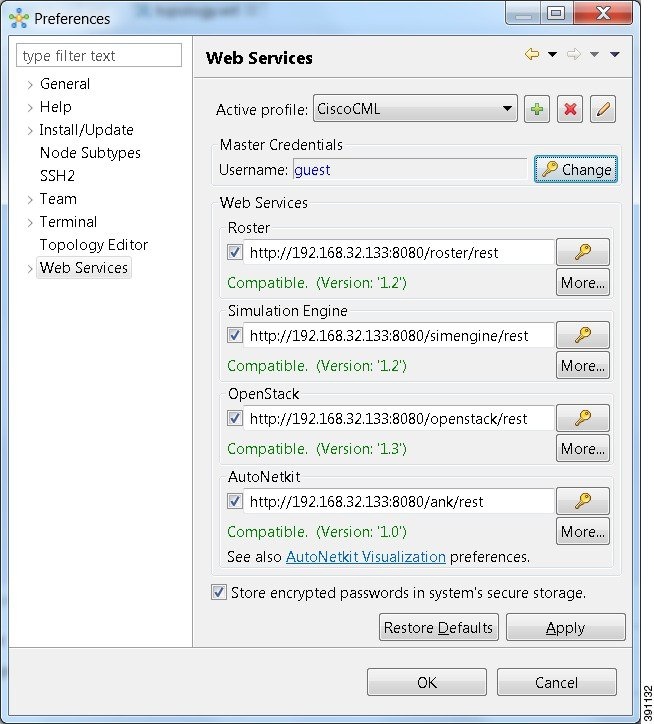
The available operations for this setting are:
| Operation | Description | ||
|---|---|---|---|
| Active profile | Identifies an active profile that has been defined on the Cisco Modeling Labs client. You can define a new active profile, and edit or delete an existing active profile. | ||
| Master Credentials | Specifies a username and password for accessing the Cisco Modeling Labs server. These credentials are provided by the system administrator. | ||
| Web Services |
|
||
| Store encrypted passwords in system's secure storage | Encrypts passwords and stores them locally on the Cisco Modeling Labs client. To change the settings for managing the encrypted passwords, choose . See the Secure Storage Setting for more information. | ||
| Restore Defaults | Restores settings to the initial default state. | ||
| Apply | Applies changes. |
AutoNetkit Visualization Setting
The AutoNetkit Visualization feature is available only when node configurations are built using the parameters defined in AutoNetkit. If AutoNetkit Visualization is turned off, you cannot get a true representation of your topology.
AutoNetkit Visualization is used to determine how AutoNetkit presents graphical representations of topology-specific attributes, such as nodes, links, and interfaces, during the build phase. The graphical representations can be presented as a physical perspective of a network topology or based on a protocol perspective.
For AutoNetkit Visualization to operate, the Cisco Modeling Labs client must be connected to the Cisco Modeling Labs server. The nodes in the network topology must be set to open AutoNetkit Visualization either automatically, or after receiving a prompt.
To access this setting, choose .
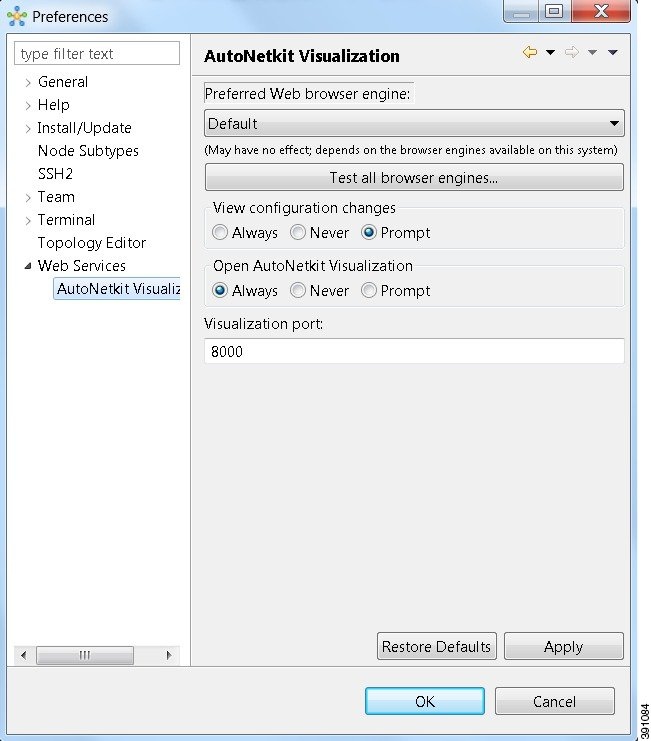
| Operation | Description | ||
|---|---|---|---|
| Preferred Web browser engine | Specifies the external web browser to use when displaying
AutoNetkit Visualization results. Options are:
|
||
| Test all browser engines | Tests the supported browsers that are available. | ||
| View configuration changes | Specifies whether to view configuration changes after a new build is generated. Options are: The default value is Prompt. | ||
| Open AutoNetkit Visualization | Specifies when to open a browser window to display AutoNetkit Visualization. Options are: The default value is Prompt. | ||
| Visualization port | Assigns a port value to the Web Service supporting AutoNetkit
Visualization. The default port is 8000. However, the port might need to be
changed depending on your network, for example, if a firewall is blocking that
port. The port value should be provided by the system administrator.
|
||
| Restore Defaults | Restores the default state for the preferred web browser engine and restores the default port value assigned to AutoNetkit Visualization. | ||
| Apply | Applies changes . |
Web Browser Setting
This setting allows you to add, remove, or edit installed browsers. The selected browser is used by default when web pages are opened in the Cisco Modeling Labs client for AutoNetkit Visualization.
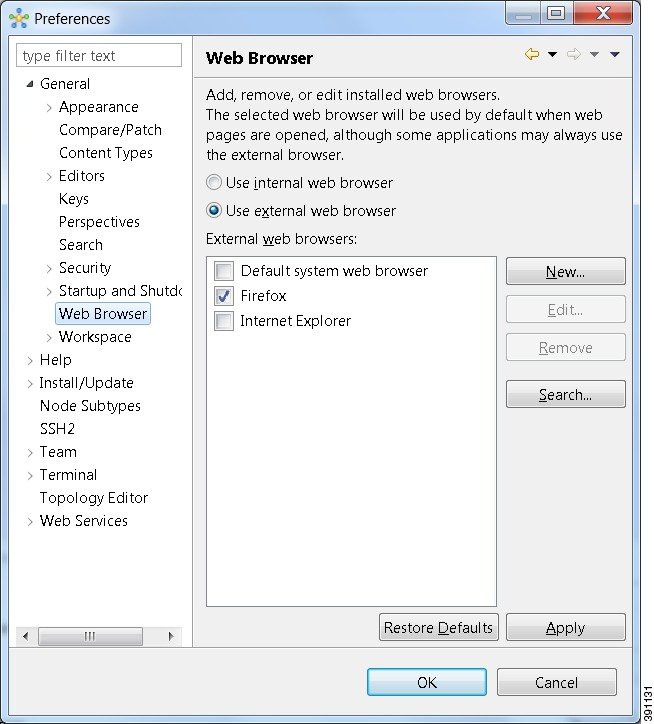
| Operation | Description | ||
|---|---|---|---|
| Use internal web browser | Allows you to use an internal web browser built into the Cisco Modeling Labs client to view AutoNetkit Visualization. | ||
| Use external web browser | Allows you to use an external web browser. You can add new
browsers, delete or edit existing browsers, or search for new browsers to use.
|
||
| Restore Defaults | Restores settings to the initial default state. | ||
| Apply | Applies changes. |
Secure Storage Setting
This setting configures security preferences and encryption requirements for storing system passwords.
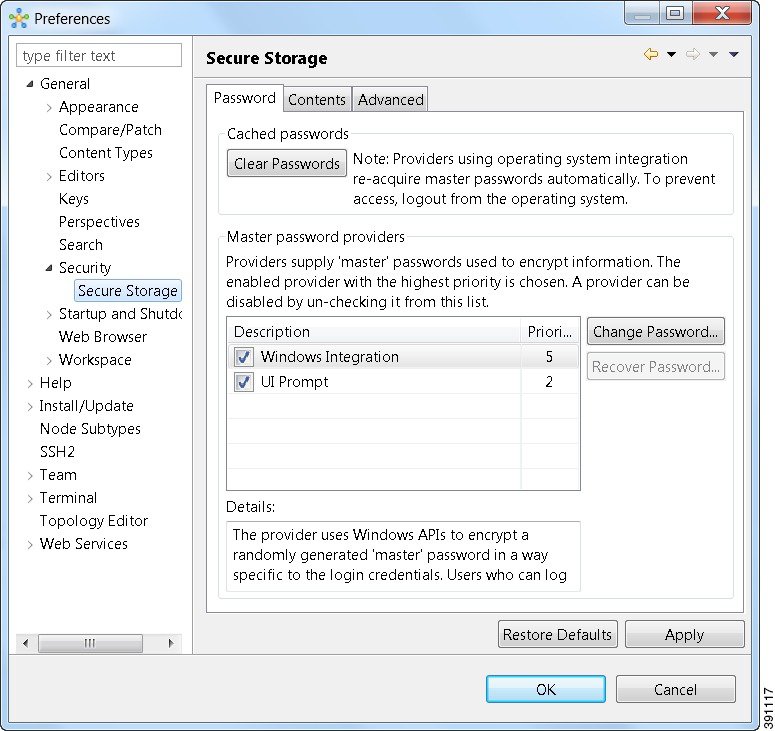
The Password tab pools functionality related to the master password life-cycle and password providers.
| Option | Description | ||
|---|---|---|---|
| Clear Passwords | Clears cached master passwords from memory. | ||
| Master password providers | Lists the currently available password providers. By default,
the enabled provider with the highest priority is used to encrypt the data
added to secure storage. The priority range is from 0 to 10, with 10 being the
highest priority.
|
||
| Change Password | Changes the master password of the selected password provider. | ||
| Recover Password | Opens the password recovery dialog box. Use this option if you
have forgotten the master password and have configured password recovery
questions. The button is disabled if the password recovery setup was cancelled
when the master password was created.
|
||
| Restore Defaults | Restores to the initial default state. | ||
| Apply | Applies changes. |
The Contents tab displays contents of the default secure storage. Secure storage is organized as a tree, where nodes represent the context of information and values associated with each node. Selecting a node in the tree displays a table of values associated with that node. Values stored in a nonencrypted form will be displayed; the encrypted values will be shown as *********. At the bottom of this tab, you will find the actual file location used to persist secure storage data. To force the changes to the contents of secure storage to be saved, click Save.
 Caution | To avoid unexpected errors, we recommend that you restart the application after secure storage has been deleted. |
The Advanced tab provides a list of algorithms to further configure secure storage. Changes in the encryption algorithm are applied only to the data stored after a change. If you have already created a secure storage, you must first delete it and then re-create it to use the newly selected encryption algorithm.
Resetting the Secure Storage Password
When the Secure Storage feature is used for the first time, it generates a master password that is used to encrypt the data. In the future, this same master password will be required to retrieve the data from secure storage. If the master password becomes unavailable, the Secure Storage feature provides optional support for password recovery.
Two methods are used to reset the secure storage password.
Method 1
- From within Cisco Modeling Labs client, choose File > Preferences > General > Security > Secure Storage.
- Click Change Password. The Secure Storage dialog box appears.
- Click Yes. The Password Recovery dialog box appears.
- Enter details for Question 1 and Question 2, along with answers for both. Take note of the answers you provide, as these are treated as secondary passwords.
- Click OK.
Method 2
If you are unable to access the Cisco Modeling Labs client due to a lost or forgotten secure storage password, complete the following steps:
 Feedback