External Connectivity in Cisco Modeling Labs
External Connectivity to a Node
Depending on how the Cisco Modeling Labs environment has been set up by the system administrator, you may have several ways to externally connect to the nodes in a running simulation.
- Bypass the Cisco Modeling Labs client and connect directly to nodes via Out of Band Management IP access using FLAT If enabled by the system administrator, when designing your virtual network, you can specify that you want all nodes to be configured on a reserved management network. All management interfaces are connected to a shared management network segment known as FLAT. This set up will allow you to bypass the Cisco Modeling Labs client and connect directly via Telnet to the nodes.
-
Connecting to
external devices using FLAT Inband access
When enabled, you can configure your virtual topologies to connect and pass data-plane and control-plane packets to one or more external devices such as routers or traffic generators during a simulation. Since FLAT is a Layer 2 solution, the IP addresses in your topology are reachable externally. The L2 External FLAT tool in the Cisco Modeling Labs client GUI is used to enable this option. 
Note
Your simulation continues to be driven through the Cisco Modeling Labs client GUI by communicating with the Cisco Modeling Labs server at its IP address that is bound to the relevant management port.
-
Connecting to
external devices using SNAT Inband access
As an alternative to
Inband access using FLAT, you can set up the Static NAT (SNAT) approach. SNAT
is a Layer 3 solution that leverages the use of an internal SNAT router to hide
the IP addresses in your topology. This router, internal to the Cisco Modeling
Labs server, translates IP addresses inbound and outbound which means that the
addressing schemes used on the virtual topology are not propagated outside the
virtual network.
When configured, an
internal and an external address are assigned to the SNAT-assigned interface on
the nodes. For example, configuring 10.11.12.1 as the internal address, and
mapping it to 172.16.2.51 externally. Traffic sent to 172.16.2.51 will be
translated to the correct internal address and presented to the appropriate
node.
The L3 External SNAT tool in the Cisco Modeling Labs client GUI is used to enable this option.
Note
Your simulation continues to be driven through the Cisco Modeling Labs client GUI by communicating with the Cisco Modeling Labs server at its IP address that is bound to the relevant management port.
Set Up a FLAT Network for Out of Band (OOB) Management Access
By using an out-of-band (OOB) network connection to the Cisco Modeling Labs simulation, you can connect an external application to the Management port of any router node in the simulated network. All management ports will have an IP address on the OOB network, which is a separate network from the other interface IP addresses.
| Step 1 | Log in to the Cisco Modeling Labs client. | ||
| Step 2 | Verify you have connectivity to the Cisco Modeling Labs server. | ||
| Step 3 | Open the Design perspective, if it is not already open. | ||
| Step 4 | Open an existing topology or create your network topology. See the section "Create a Topology" for information on how to do this. | ||
| Step 5 | Configure the OOB management network. The Shared flat network option is what enables the OOB connectivity. | ||
| Step 6 | From the
toolbar, click the
Update Router
Configurations tool.
| ||
| Step 7 | After the build phase is completed, initiate the simulation by clicking the Launch Simulation tool in the toolbar, and then change to the Simulation perspective. | ||
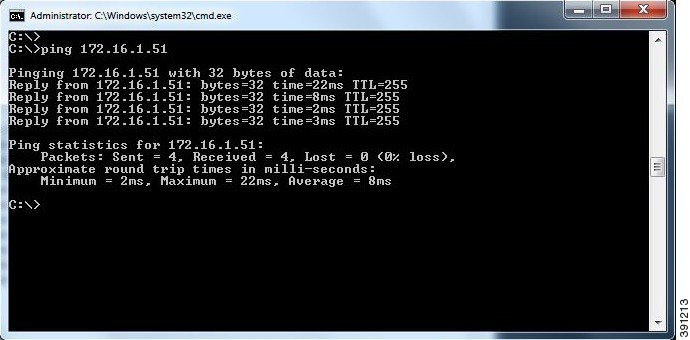
| Step 8 | (Optional) Enter
the
ping command
on the PC to confirm that the management port on a running node can be reached.
| ||
| Step 9 | (Optional) In the
Cisco Modeling Labs client simulation, connect to a console port on a node and
confirm the management network IP address exists. Enter the
show ip interface
brief command to display the IP addresses. For this example, use the IP
address 172.16.1.51.
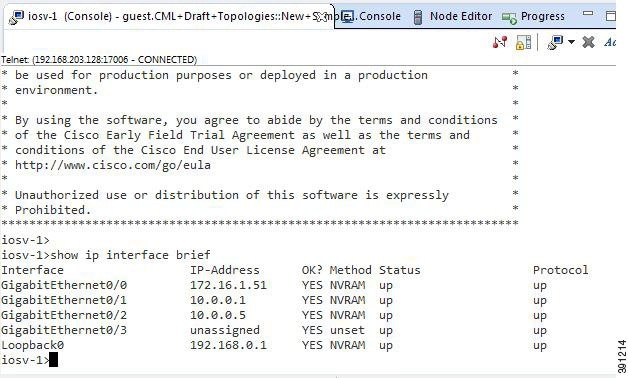 | ||
| Step 10 | Launch and configure a terminal emulator for a Telnet connection to the node management port. In this example, the PuTTY application is used. |
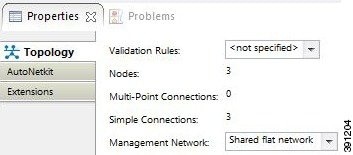
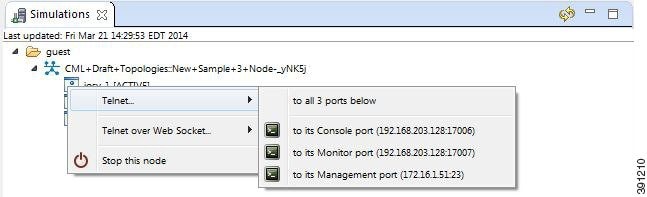
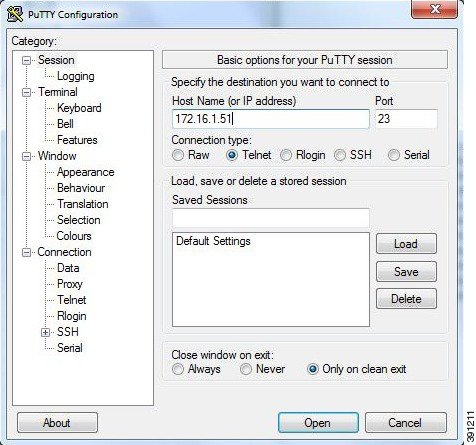
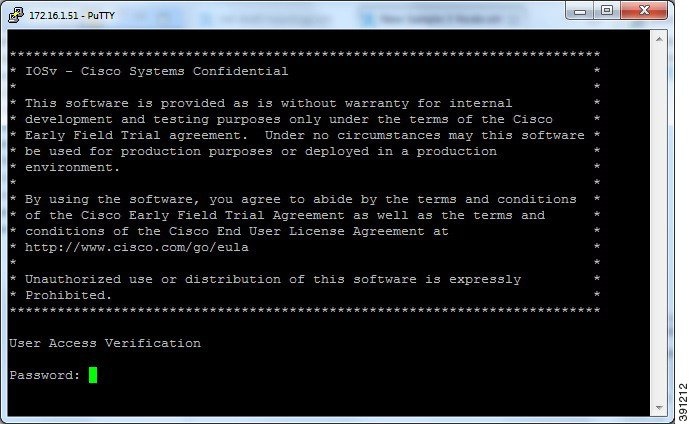
Set Up a FLAT Network for Inband Access
The following procedure describes how to connect your virtual network topology to physical devices that are external to the Cisco Modeling Labs server environment. In this procedure, you will be configuring a FLAT network. A FLAT network uses Layer 2 connectivity in which the IP address information about your virtual network can be viewed externally.
Note | We recommend that you first draw your intended design, and then label the devices with the appropriate IP addresses. |
| Step 1 | Log in to the Cisco Modeling Labs client. | ||
| Step 2 | Verify you have connectivity to the Cisco Modeling Labs server. | ||
| Step 3 | Open the Design perspective, if it is not already open. | ||
| Step 4 | Open an existing topology or create your network topology. See the section "Create a Topology" for information on how to do this. | ||
| Step 5 | Click on the canvas to open the Topology tab in the Properties view and ensure that Management Network displays <not specified>. | ||
| Step 6 | From the Palette view, under General, click the L2 External FLAT tool, and then click the canvas to add one FLAT cloud network icon to each corresponding node icon on the canvas. | ||
| Step 7 | From the
Palette
view, under
Tools, click
the
Connect tool
and connect the
L2 External
FLAT to the desired nodes.
| ||
| Step 8 | From the
toolbar, click the
Update Router
Configurations tool.
The system automatically assigns an IP address to the node interface that is connected to the FLAT cloud during the Simulation phase, not the Build phase. | ||
| Step 9 | After the build phase is completed, start the simulation by clicking the Launch Simulation tool in the toolbar, and then change to the Simulation perspective. | ||
| Step 10 | Log in to the node that is connected to the FLAT network when its state has changed to ACTIVE. | ||
| Step 11 | View the IP address assigned to the FLAT network and determine if it is on the same subnet as the gateway IP address provided by your system administrator. The L2 external address for each node can be viewed from the Simulations view or from each individual node. | ||
| Step 12 | If the external
device is on a different subnet, define a default gateway or a broadcast domain
that points to the IP address of the gateway that the system administrator
supplies.
Prior to completing this step, if you do a show route, you will see that no default gateway is defined in the node. This is the default set up. This step allows you to inform the node what path to take in order to reach the external environment via the gateway. An alternative to defining a gateway or static route, with IOSv devices, is to enable DHCP on the interface used for external connectivity.
| ||
| Step 13 | Test the
connection by pinging from the node to the external (physical) device. If
required, turn on
debug ip
icmp or use the
tracert
command to see the progress through the network.
If the ping does not work, confirm with your system administrator that the Cisco Modeling Labs server is configured to support FLAT connectivity and that the gateway IP address you have been provided is correct. If these items are correct, ping to each of the key devices in the path to determine where the failure occurs and notify your system administrator of the failure source if it is outside your Cisco Modeling Labs environment. |
Set Up a SNAT Network for Inband Access
SNAT functionality also allows connected nodes to connect to external devices. Using SNAT, the connectivity occurs at Layer 3 and allows you to hide the simulated virtual network behind a Static NAT address block. The Cisco Modeling Labs server will do a static IP address translation (hence SNAT), translating the private address range allocated to the SNAT ‘inside’ network into the IP network configured for the SNAT ‘outside' network. By default, Cisco Modeling Labs uses an internal gateway function that acts as a SNAT router.
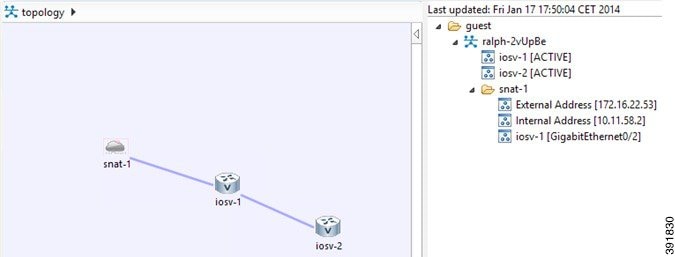
Using SNAT, the iosv-1 host will have an internal IP address from the 10.11.58.0 infrastructure network on its interface facing the SNAT cloud (10.11.58.2). This will be mapped by the SNAT router for that segment into 172.16.22.53. Assuming that the SNAT interface is connected and there is another host on that segment, such as a gateway, you can now connect to the iosv-1 router via the 172.16.22.53 address.
Note | No default gateway is created on the IOSv router. A static route must be added to the iosv-1 router configuration similar to the following example: ip route 0.0.0.0 0.0.0.0 10.11.58.1 where 0.0.0.0 0.0.0.0 refers to all destination IP addresses not found in the routing table and 10.11.58.1 refers to the SNAT router. |
- Ensure that the system administrator has configured the Cisco Modeling Labs server to allow SNAT connections.
- Ensure that the system administrator provides you with the internal and external IP addresses of the SNAT router.
- Ensure that you have the IP address to the default gateway.
- Ensure that you have the IP address of the external device to which the nodes will connect.
| Step 1 | Log in to the Cisco Modeling Labs client. | ||
| Step 2 | Verify you have connectivity to the Cisco Modeling Labs server. | ||
| Step 3 | Open the Design perspective, if it is not already open. | ||
| Step 4 | Open an existing topology or create your network topology. See the section "Create a Topology" for information on how to do this. | ||
| Step 5 | Click on the canvas to open the Topology tab in the Properties view and ensure that Management Network displays <not specified>. | ||
| Step 6 | From the Palette view, under General, click the L3 External SNAT tool, and then click the canvas to add one SNAT cloud network icon to each corresponding node icon on the canvas. | ||
| Step 7 | From the
Palette
view, under
Tools, click
the
Connect tool
and connect the
L3 External
SNAT to the desired nodes.
| ||
| Step 8 | From the
toolbar, click the
Update Router
Configurations tool.
The system automatically assigns the internal and external IP addresses to the node interface that is connected to the SNAT cloud during the Simulation phase, not the Build phase. Therefore, no assigned addresses are visible at this point. | ||
| Step 9 | After the build phase is completed, start the simulation by clicking the Launch Simulation tool in the toolbar, and then change to the Simulation perspective. | ||
| Step 10 | Log in to the node that is connected to the SNAT network when the status of the device has changed to ACTIVE. | ||
| Step 11 | Create a static
route or define a default gateway for the external connection IP addresses that
point to the SNAT router’s internal IP address. For example, if the external
connections are part of the subnet 172.16.2.0/24, and the SNAT router’s
internal IP address is 10.11.11.1, then the route statement would be:
ip route 172.16.2.0 255.255.255.0 10.11.11.1 An alternative to defining a gateway or static route, with IOSv devices, is to enable DHCP on the interface used for external connectivity.
| ||
| Step 12 | Test the
connection by pinging from the node to the external (physical) device. If
required, turn on
debug ip
icmp or use the
tracert
command to see the connectivity between the end points.
If the ping does not work, confirm with your system administrator that the Cisco Modeling Labs server is configured to support SNAT connectivity and that the gateway IP address you have been provided is correct. If these items are correct, ping to each of the key devices in the path to determine where the failure occurs and notify your system administrator of the failure source if it is outside your Cisco Modeling Labs environment. |
 Feedback