Install CWM using Docker Installer Tool
The CWM 2.1 is installed on the Cisco Crosswork platform by first deploying the Crosswork OVA file using a Docker image on the VMware vCenter 7.0 (or higher) and then installing the CWM CAPP file using the installation script.
Prerequisites
-
VMware vCenter Server 7.0 (U3p or later) and ESXi 7.0 (U3p or later). Refer to the Crosswork Network Controller 7.2 installation requirements for more details.
-
Docker version 19 or higher.
-
sshpassinstalled. For Mac, you can usebrew install sshpass. -
jqinstalled. For Mac, you can usebrew install jq. -
bc(basic calculator), if not preinstalled on your system. -
Two network interfaces available for the Crosswork VM:
-
One interface for the **management network**
-
One interface for the **data network**
-
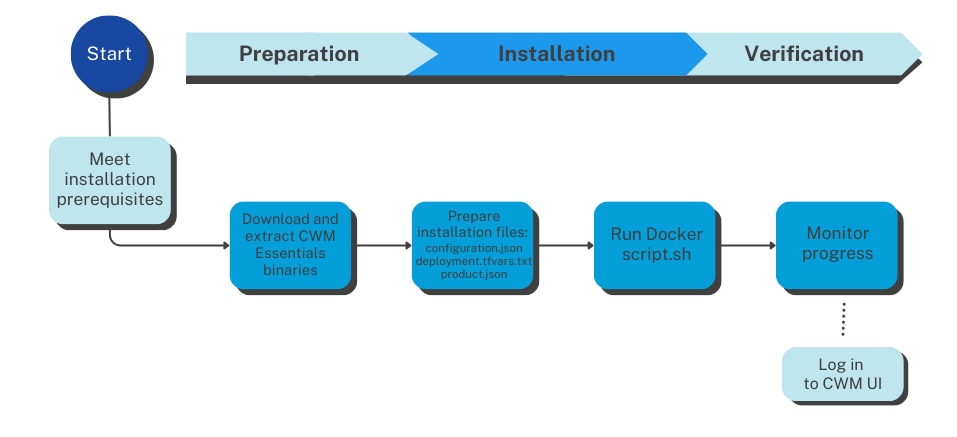
Installation flowchart
The following flowchart outlines the high-level sequence of tasks for installing CWM Essentials in a VMware environment.
Download CWM package
To download the CWM 2.1 package, go to https://software.cisco.com/download/home/286340306/type/286332171/release/2.1.0?i=!pp.There are four downloadable files there, based on two factors:
-
Virtualization format:
-
OVA files are for VMware
-
QCOW2 files are for KVM
-
-
Product edition:
-
Either CWM Essentials or CWM Advantage (indicated in the file name).
-
To install CWM 2.1 Essentials on VMware, download the file with the OVA extension that is labeled for Essentials.
 Note |
These instructions are specifically for the CWM Essentials package using the OVA file format. If you're using a different edition or format (e.g., CWM Advantage or QCOW2), please refer to the appropriate set of instructions. |
Extract CWM Essentials package
Before installing CWM, the software package must be extracted on a system that can access the VMWare environment where CWM will be deployed. This system can be either a local machine or a VM capable of running the installer binaries. For this documentation, we use a Mac laptop for the extraction process.
Note |
Alternatively, a Linux-based VM within the same VMWare setup as the target CWM deployment can be used. |
Procedure
|
Step 1 |
Download the CWM package file named |
||
|
Step 2 |
Open |
||
|
Step 3 |
Run the binary to extract its contents:
|
||
|
Step 4 |
After extraction, the folder will contain:
|
||
|
Step 5 |
Untar the This will create a new folder named CW-CWM-Standalone-2.1.0-20-SVM-7.2.0-45-ova. Rename the folder for convenience. |
Use script to Deploy Crosswork and CWM
Procedure
|
Step 1 |
In your Docker-capable machine, create a directory where you will store all the files you will use during this installation.
|
||
|
Step 2 |
The downloaded file containing the Crosswork Workflow Manager package from cisco.com includes the following files:
|
||
|
Step 3 |
Load the Docker installer image by running the command: |
||
|
Step 4 |
Inside the directory, create a
|
||
|
Step 5 |
Edit the parameters to match your deployment.
|
||
|
Step 6 |
Inside the directory, create another file named
|
||
|
Step 7 |
Open the |
||
|
Step 8 |
From the directory, run the installer script: This will start the installation process for the Crosswork platform and then for CWM once the platform is deployed. |
||
|
Step 9 |
To monitor the progress of the installation, access the Grafana dashboard which provides a visual summary of each stage (e.g., image unpacking, VM deployment, configuration). The dashboard is typically accessible at: |
||
|
Step 10 |
After the deployment status reaches 100% in Grafana, SSH to the Crosswork VM using the management IP address and verify that all Crosswork infrastructure pods are running: Ensure that all pods are in Running or Completed state before proceeding. If any pods are in Pending or Error, wait until they recover or investigate the issue before accessing the Crosswork UI. |
||
|
Step 11 |
Once the installation script is done and the deployment status reaches 100%, go to http://your_mgmt_vip:30603 and log in with
the default |
Upgrade CWM to 2.1
To upgrade CWM from 2.0 to the 2.1 release, follow the procedure laid out in the Manage Crosswork Network Controller Backup and Restore chapter in the Cisco CNC documentation.
 Feedback