Validate Route Origin Information

Validate Route Origin Information

The Route Origin Validation (ROV) tool compares ROA record information against the information received via BGP updates.

Procedure


Step 1

In the main window, click External Routing Analysis > Tools > Route Origin Validation.

Step 2

Enter a single ASN to view associated prefix ROA records and click View. You can remove and add more ASNs later.

Step 3

From the Timeframe drop-down list, select a time period in which you want to view ROA records for.

Step 4

Edit, add, or remove filters. By default, the ROV Status with the Invalid option filter is enabled. This option lists all prefixes with ROA violations.

Example:

Click here to see an example of how to add ASNs, remove the ROV Status filter, and add the ROA Max Length filter.

Step 5

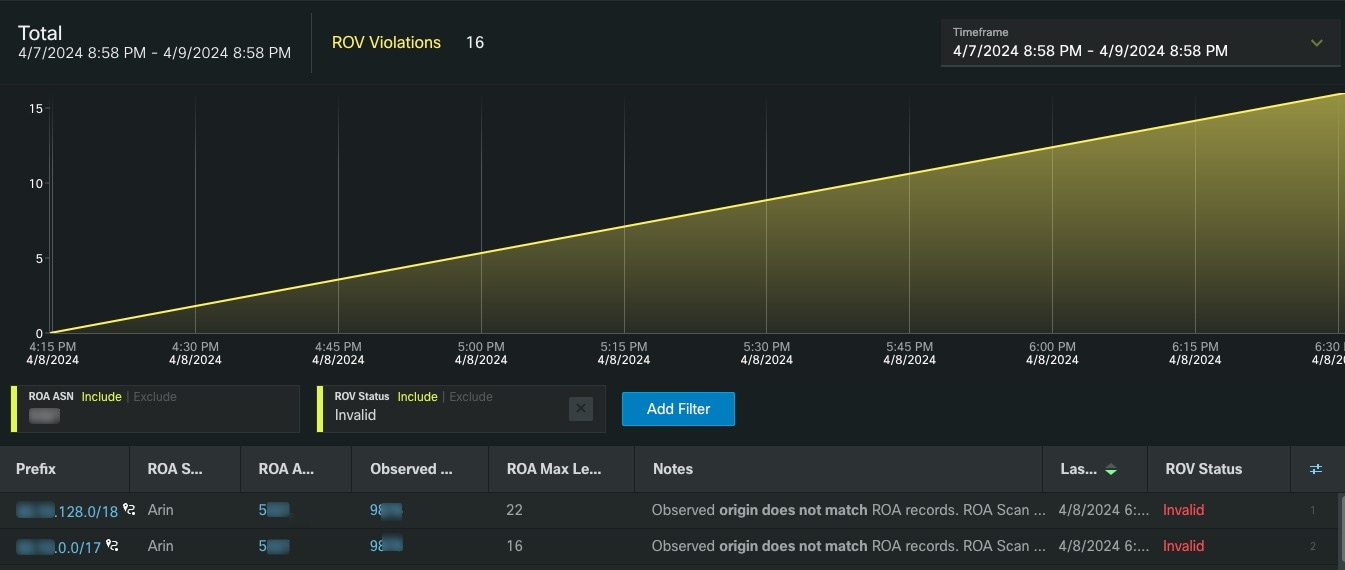
View the information in the ROV table.

Table 1. ROV Table Descriptions

Column/Field

Description

Prefix

The prefix that the ROA authorizes the ASN to advertise.

ROA Source

The organization that published the ROA. Examples:

  • American Registry for Internet Numbers (ARIN)

  • Internet Numbers Registry for Africa (AFRINIC)

  • Asia-Pacific Network Information Centre (APNIC)

  • Latin American and Caribbean Internet Addresses Registry (LACNIC)

  • Réseaux IP Européens (RIPE NCC)

ROA ASN

The AS number that is authorized by the ROA to originate the prefix.

Observed ASN

The origin ASN observed in the BGP update.

ROA Max Length

The maximum prefix length of the most specific IP prefix that the ROA authorizes the ASN to advertise.

Notes

If the ROV Status is Invalid, it will display the reason for the violation. Otherwise, it will display the date and time of the last ROA scan.

Last Updated

The date and time for which this ROA prefix data was last retrieved.

ROV Status

The status of the ROA which can be one of the following:

  • Valid—The ROA information matches the BGP update.

  • Invalid—The ROA information is different than the BGP update.

  • Unknown—This prefix does not have any matching ROAs.

Step 6

(Optional) Visualize the prefix path topology. Next to the prefix, click Path Topology shortcut.


Example

Figure 1. ROV Tool Example

Note


If you are viewing the HTML version of this guide, click on the image to view it in full-size.