
What is Knowledge Graph Explorer?
Knowledge Graph Explorer is a UI-based tool in Crosswork AI that helps administrators and agent developers explore the Knowledge Graph schema, inspect graph data, and run GraphQL queries.
The Knowledge Graph represents network data as connected entities, attributes, and relationships. These entities can include devices, interfaces, links, networks, termination points, and other node types available in the graph.
Use Knowledge Graph Explorer to understand what data is available in the graph, how entities are modeled, and how different entities are related. You can also use it to validate graph data, test queries, and debug agent development workflows.
If the schema has been extended, use Knowledge Graph Explorer to verify that the extended node types, attributes, and relationships are visible and queryable.
Knowledge Graph Explorer capabilities
The Crosswork AI Knowledge Graph Explorer helps users explore and understand network context by providing:
-
Entity exploration: Allows users to browse supported network entity types, such as devices, interfaces, links, network elements, and other node types available in the graph.
-
Schema-driven descriptions: Provides descriptions for node types, attributes, and relationships based on the Knowledge Graph schema.
-
Attribute visibility: Displays available attributes for each node type, including details such as attribute name, type, description, and whether the attribute is required or optional.
-
Relationship exploration: Shows how entities are connected, helping users understand topology, dependencies, and supporting relationships between network elements.
-
GraphQL query support: Provides a GraphQL query console to query graph data and view JSON responses from the backend.
-
Agent context: Provides connected network context that can be used by Crosswork AI agents during analysis and troubleshooting workflows.
Prerequisites
Before you use Knowledge Graph Explorer, make sure that the required Data Retrieval Adapter (DRA) is configured.
Knowledge Graph Explorer displays graph data retrieved through a configured Data Retrieval Apapter (DRA), such as CNC or NSO. If the required DRA is not installed or configured, the node types may be visible, but graph data or entity instances may not be available.
You must have the AI Knowledge Graph permission to access Knowledge Graph Explorer from the Crosswork AI UI.
Access Knowledge Graph Explorer
You can access the Knowledge Graph Explorer in one of the following ways:
-
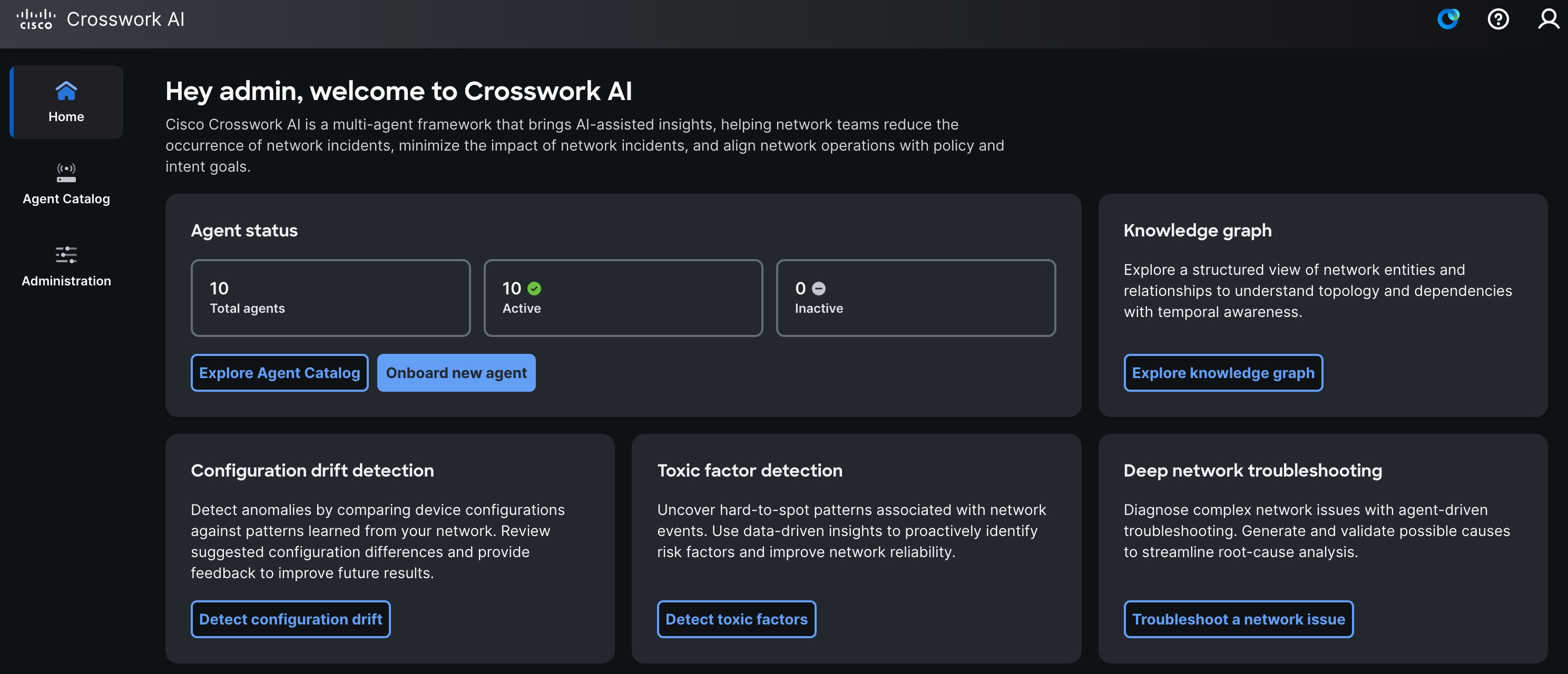
From the Crosswork AI home page, select Explore knowledge graph.
-
From the left navigation select Administration and select Knowledge Graph Explorer.
The Knowledge Graph Explorer page opens.
Explore graph schema and entity data
Use Knowledge Graph Explorer to explore the network entities available in the Knowledge Graph, inspect their schema and attributes, browse available instances, and query graph data.
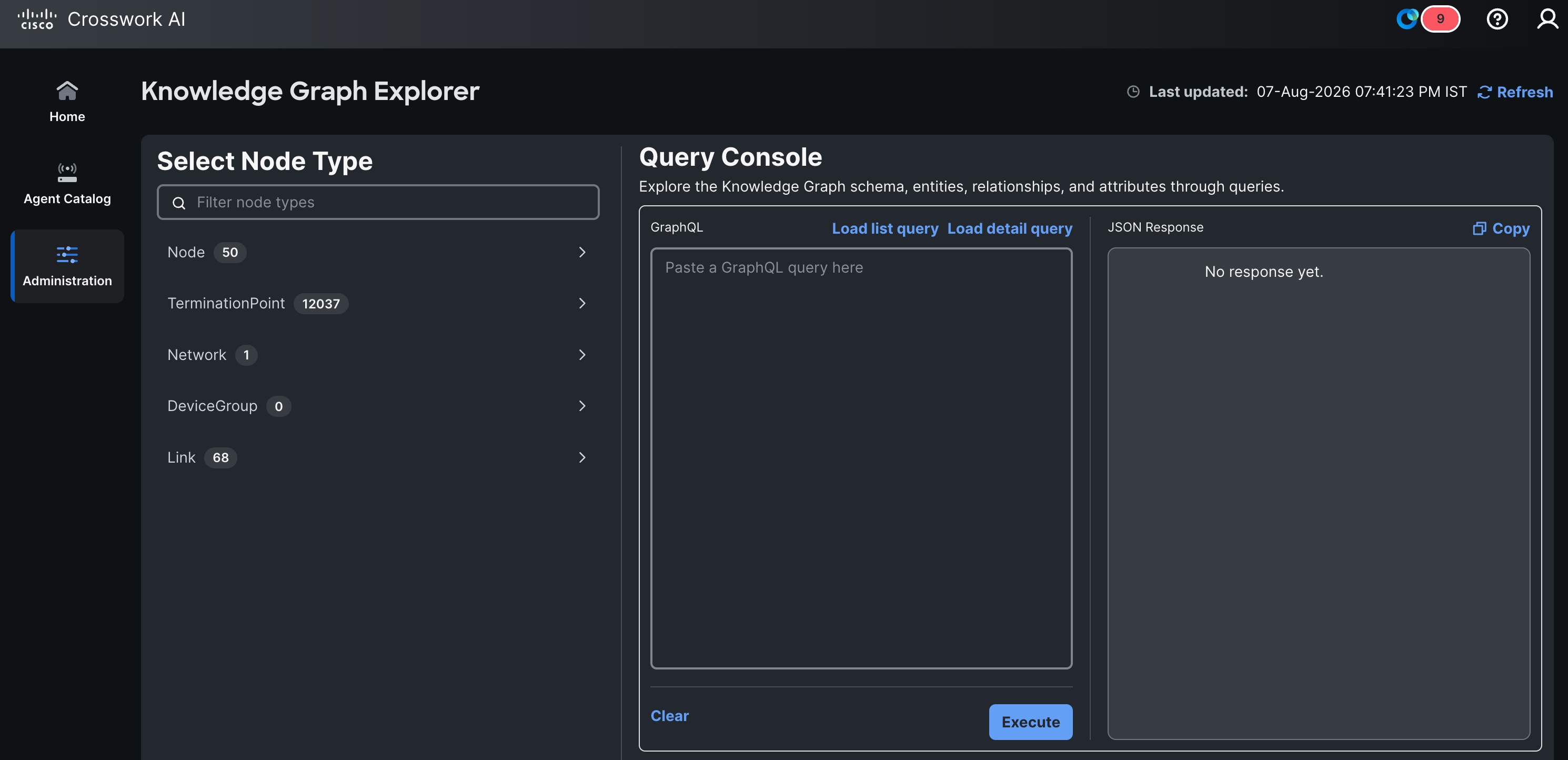
In Knowledge Graph Explorer, you can:
-
Explore available node types — View the types of entities available in the knowledge graph, such as nodes, termination points, networks, device groups, and links.
-
Search for a node type — Filter the list of node types to quickly find the entity type you want to explore.
-
Review node type schema — Select a node type to view its description, YANG path, attributes, and relationship definitions.
-
Inspect attributes — Review the attributes available for a node type, including the attribute name, data type, description, and whether the attribute is required or optional.
-
View relationship details — Review the relationship fields available for a node type to understand how entities can be connected in the knowledge graph.
-
Browse entity instances — View the available instances for a selected node type and inspect populated attribute values for a specific entity.
-
Inspect entity details — Review the populated attributes and relationships for a selected entity instance.
-
Generate GraphQL queries — Load list or detail queries for a selected node type.
-
Run GraphQL queries — Edit and execute queries in the Query Console to retrieve graph data.
-
Review query responses — View the returned data in JSON format to understand entity details, relationships, and source identifiers.
Explore available node types
Use the Select Node Type panel to view the entity types available in the Knowledge Graph.
Each node type displays a count that indicates the number of available entities for that type. For example, the graph can include node types such as Node, TerminationPoint, Network, DeviceGroup, and Link.
To find a node type:
-
In the Filter Node Types field, enter the node type name or part of the node type name.
-
Select the node type that you want to inspect.
Knowledge Graph Explorer displays the schema details for the selected node type.
Review the schema for a node type
Review the schema for a node type to understand how that entity is modeled in the Knowledge Graph.
-
Select a node type from the Select Node Type panel.
-
Review the node type description.
-
Review the YANG path, if available.
-
Review the list of attributes and relationships.
The schema details help you understand what data is available for the selected node type and how the node type relates to other entities in the graph.
Review attributes and relationships
Each node type includes a list of attributes defined in the knowledge graph schema. The attribute list helps you understand what data is available for the selected node type. For each attribute, Knowledge Graph Explorer displays details such as:
-
Attribute name
-
Data type
-
Description
-
Whether the attribute is required or optional
-
Related node type, if the attribute represents a relationship
For example, the Node type includes attributes such as nodeId, parentNetworkId, and tags. The nodeId attribute is required and uniquely identifies a node in the knowledge graph.
Browse instances of a node type
Browse instances to view the actual graph entities available for a selected node type.
-
Select a node type from the Select Node Type panel.
-
Select Browse instances.
-
Select an instance from the list.
Knowledge Graph Explorer displays the populated attribute values for the selected instance.
Inspect details for a selected instance
Inspect instance details to understand the data associated with a specific graph entity.
After you select an instance, review the populated attributes for that entity. Depending on the node type and available data, the details can include:
-
Entity identifiers, such as
nodeId -
Parent identifiers, such as
parentNetworkId -
Tags associated with the entity
-
Alternate identifiers from source systems, such as CNC or NSO
-
Related entities or relationship attributes
Use this information to validate graph data, confirm source mappings, and understand the entity context used by agents.
Run a query
Use the Query Console to query data from the Knowledge Graph. You can write or paste a GraphQL query directly, or load a generated query for the selected node type.
You can use the Query Console to:
-
Run a custom GraphQL query.
-
Load a list query to return multiple entities for a selected node type.
-
Load a detail query to return detailed information for a specific entity.
-
Review the returned data in JSON format.
Run a custom GraphQL query
Use this option when you already know the GraphQL query that you want to run.
-
In the Query Console, enter or paste a GraphQL query in the GraphQL pane.
-
Review the query and update any required values.
-
Select Execute.
The query result appears in the JSON Response pane.

The query must use valid GraphQL syntax and must match the schema available in the Knowledge Graph Explorer.
Example: Query details for a node
The following example shows a detail query for a node. Use a detail query when you want to retrieve detailed information for a specific entity in the Knowledge Graph Explorer.
In this example, the query retrieves details for the node R1.example.com, including basic node attributes, source identifiers, location details, Layer 3 attributes, BGP attributes, and related termination points.
{
  getNode(nodeId: "R1.example.com") {
    nodeId
    name
    description
    deviceClass
    productType
    role
    managementAddress
    softwareRev
    serialNum
    tags
    alternateIds

    parentNetwork {
      networkId
    }

    geoLocation {
      latitude
      longitude
      building
      city
      state
      country
      region
      zip
    }

    l3NodeAttributes {
      l3NodeName
      l3NodeFlags
      l3RouterIds {
        l3RouterId
      }
      l3Prefixes {
        l3Prefix
        l3PrefixMetric
        l3PrefixFlags
      }
    }

    bgpNodeAttributes {
      bgpSpeakers {
        bgpSpeakerRouterId
        bgpAsNumber
        bgpConfederationId
      }
    }

    hasTerminationPoint {
      nodeId
      name
      description
      type
      enabled
      adminStatus
      operStatus
      ifIndex
      speed
      tags
      alternateIds

      ipv4Address {
        ipv4AddressIp
        ipv4AddressPrefixLength
        ipv4AddressNetmask
        ipv4AddressOrigin
      }

      ipv6Address {
        ipv6AddressIp
        ipv6AddressPrefixLength
        ipv6AddressOrigin
        ipv6AddressStatus
      }

      l3TerminationPointAttributes {
        l3InterfaceName
        l3IpAddresses {
          l3IpAddress
        }
      }

      bgpTpAttributes {
        bgpLocalAddress
        bgpLocalPort
      }
    }
  }
}
In this example:
-
nodeIdidentifies the node in the Knowledge Graph. -
alternateIdsshows identifiers from source systems, such as CNC and NSO. -
geoLocationprovides location-related attributes for the node. -
l3NodeAttributesprovides Layer 3 attributes, such as router IDs and prefixes. -
bgpNodeAttributesprovides BGP-related attributes, such as BGP speaker router IDs and AS numbers. -
hasTerminationPointshows related termination points, such as interfaces associated with the node. -
The termination point details include interface status, speed, IP address information, Layer 3 interface attributes, BGP termination point attributes, tags, and alternate source identifiers.
Run a list query
A list query returns multiple entities for the selected node type.
-
In the Select Node Type panel, select a node type.
-
Select Load list query.
-
Review the generated query in the GraphQL pane.
-
Update the query, if required.
-
Select Execute.
The query result appears in the JSON Response pane.
Select a load list query
Query:
{
  queryNode(
    first: 20
    offset: 0
    sort: { field: "name", direction: ASC }
  ) {
        nodeId
        name
  }
}

Response:
{
  "data": {
    "queryNode": [
      {
        "name": "device-1",
        "nodeId": "1111"
      },
      {
        "name": "device-2",
        "nodeId": "2222"
      }
    ]
  }
}
Run a detail query
A detail query returns detailed information for a specific entity.
-
In the Select Node Type panel, select a node type.
-
Select Load detail query.
-
Review the generated query in the GraphQL pane.
-
Replace any placeholder values, if required.
For example, replace placeholder values such as replace-nodeId with a valid entity identifier.
-
Select Execute.
The detailed query result appears in the JSON Response pane.
Review query results
-
After you run a query, review the response in the JSON Response pane.
-
The response is displayed in JSON format and includes the data returned by the knowledge graph backend.
-
Use the response to verify entity details, attribute values, relationships, and source identifiers returned by the query.
The query response is returned in JSON format in the JSON Response pane.
{
  "data": {
    "getNode": {
      "nodeId": "R1.example.com",
      "name": "R1",
      "description": "PE router in us-west-2",
      "deviceClass": "router",
      "productType": "router",
      "role": "PE",
      "managementAddress": "192.0.2.1",
      "softwareRev": "IOS-XR 7.3.3",
      "serialNum": "FDO12345678",
      "tags": [
        "pe",
        "region:us-west"
      ],
      "alternateIds": [
        "cnc:uuid-11111111",
        "nso:R1"
      ],
      "geoLocation": {
        "building": "SFO-DC1",
        "city": "San Francisco",
        "country": "US",
        "region": "us-west"
      },
      "l3NodeAttributes": {
        "l3NodeName": "R1",
        "l3NodeFlags": [
          "is-abr"
        ],
        "l3RouterIds": [
          {
            "l3RouterId": "192.0.2.1"
          }
        ]
      },
      "bgpNodeAttributes": {
        "bgpSpeakers": [
          {
            "bgpSpeakerRouterId": "192.0.2.1",
            "bgpAsNumber": 65001,
            "bgpConfederationId": 0
          }
        ]
      },
      "hasTerminationPoint": [
        {
          "name": "GigabitEthernet0/0/0/0",
          "description": "Uplink to spine",
          "type": "ethernetCsmacd",
          "enabled": true,
          "adminStatus": "up",
          "operStatus": "up",
          "ifIndex": 1,
          "speed": "10000000000",
          "tags": [
            "core",
            "uplink"
          ],
          "alternateIds": [
            "cnc:if-uuid-abc123"
          ]
        }
      ]
    }
  }
}
The values shown in this example are sample values. The attributes returned in your environment depend on the selected node, the available graph data, and the data retrieved from configured source systems such as CNC or NSO.
Copy query results
Select Copy to copy the query response from the JSON Response pane.
Clear the query console
Select Clear to reset the query console.
Troubleshooting
Use the following information to resolve common issues when you use Knowledge Graph Explorer.
Issue: No results are displayed in the JSON Response pane.
Recommended action:
-
Verify that the selected node type has available entities.
-
If you are running a detail query, verify that the entity identifier is valid.
-
If you updated the query manually, verify that the required values are included.
Issue: The query fails to run.
Recommended action:
-
Review the query syntax in the GraphQL pane.
-
Verify that the query matches the schema available in the Knowledge Graph.
-
Replace any placeholder values, if required.
-
Run the query again.
Issue: The selected node type shows zero entities.
Recommended action:
-
The Knowledge Graph does not currently contain entities for that node type.
-
Verify that the required Data Retrieval Adapter, such as CNC or NSO, is installed and configured.
-
Check whether data has been retrieved from the source system.
Issue: The response does not include an expected attribute.
Recommended action:
-
Verify that the attribute is included in the query.
-
Some attributes may be optional or may not be available for all entities.
-
Select the node type in Knowledge Graph Explorer and review the attribute list to confirm whether the attribute is supported.