Autoinstall

Using AutoInstall to Remotely Configure Cisco Networking Devices

AutoInstall enables remote, automatic configuration of networking devices. AutoInstall is typically used to set up new networking devices remotely. You can, however, use AutoInstall to configure existing networking devices after you remove the configuration file from their NVRAM. The AutoInstall process uses preexisting configuration files that are stored on a TFTP server.

In this module the term networking device means a switch that runs Cisco IOS XE software. Also, the following terms are used interchangeably:

  • initial configuration and startup configuration

  • set up and configure

Information About Using AutoInstall to Remotely Configure Cisco Networking Devices

Services and Servers Used by AutoInstall Dynamic Assignment of IP Addresses

The network must be able to provide the dynamic assignment of an IP address to the networking device that is being configured with AutoInstall. The type of IP address assignment server that is used depends on the type of connection that the networking that is being configured with AutoInstall has to the network.

AutoInstall uses these types of IP address servers:

DHCP Servers

Networking devices using AutoInstall over a LAN connection require a DHCP server to provide an IP address dynamically. The network must be configured to provide IP connectivity between the DHCP server and any devices that are using AutoInstall over LAN connections.

DHCP (defined in RFC 2131) is an extension of the functionality provided by the Bootstrap Protocol (defined in RFC 951). DHCP provides the framework for passing configuration information to hosts on a TCP/IP network. DHCP adds the capability of automatic allocation of reusable network addresses and additional configuration options such as a switch (gateway) IP address, a TFTP server IP address, the name of a boot file to load, and the domain name to use. DHCP servers can be configured on switches, Linux servers, Microsoft Windows-based servers, and other platforms.

DHCP servers typically assign IP addresses from a pool of IP addresses randomly. It is possible for a device that uses DHCP to obtain its IP address to have a different IP address every time it is connected to the network. This creates a problem for the AutoInstall process when you want to ensure that a particular device is assigned a specific hostname during the AutoInstall process. For example, if you are installing switches on different floors in a remote site and each switch is supposed to be assigned a name that indicates its location, such as ChicagoHQ-1st and ChicagoHQ-2nd , you need to ensure that each device gets the IP address that will be mapped to its correct hostname.

The process of ensuring that a device is assigned a specific IP address is referred to as creating a reservation . A reservation is a manually configured relationship between an IP address and a physical layer address of a LAN interface on the device. Many Cisco IOS XE-based devices do not use their MAC address when they request an IP address via DHCP. They use a much longer client identifier instead. Due to the complexity of identifying the client identifier so that you can preconfigure a reservation, and the complexity of finding out if the new device uses its MAC address or the client identifier, we recommend that you allow a new device to obtain an IP address without using a DHCP reservation first in order to discover if the device is using its MAC address or a client identifier. When you have learned how the new device is identifying itself to the DHCP server, you can make a note of the format and create a reservation for it. The next time the new device is rebooted it should obtain the IP address that you reserved to ensure that the new device is assigned the correct hostname. Refer to the information on creating DHCP reservations that was provided with your DHCP server software. The process for creating reservations using Cisco IOS XE based DHCP servers is explained in the Using AutoInstall to Set Up Devices Connected to LANs: Example module. This section includes instructions for identifying the client identifier before the device is connected to the network so that you can preconfigure the DHCP reservations.


Note


This document uses a Cisco device (can be a router or switch that supports DHCP server functions) as the DHCP server for using AutoInstall to configure LAN-connected networking devices. If you are using a different device as your DHCP server ensure that you have the user documentation for it available in the event that you need help configuring it.


Note


There are several configuration parameters such as TFTP server addresses, DNS server addresses, domain names and so on, that can be provided to LAN-connected clients by DHCP servers during the process of assigning IP addresses to clients. These parameters are not required by AutoInstall, therefore they are not included in this document. If you know how to use these parameters you can include them in your DHCP server configuration when you are using AutoInstall to setup your networking devices.


For more information on DHCP services visit the IETF RFC site ( http://www.ietf.org/rfc.html ) and look for RFCs about DHCP. Most server operating systems support DHCP servers. Refer to the documentation that was provided with your operating system for more information.

Services and Servers Used by AutoInstall IP-to-Hostname Mapping

If you want the networking device to load a full configuration file during the AutoInstall process, the networking device must be able to determine its hostname so that it can request the configuration file that you created specifically for it.

The following caveats apply to the provisioning of IP address to hostname mapping for AutoInstall:

  • Any networking device that is being configured with AutoInstall can determine its hostname by loading one of the AutoInstall network configuration files (network-confg or cisconet.cfg) from the TFTP server that contain the ip host hostname ip-address commands. For example, to map host AccesSW1 to IP address 198.162.100.3, the network-confg or cisconet.cfg file must contain the ip host AccesSW1 198.162.100.3 command.

  • A networking device that is being configured with AutoInstall over a LAN interface can also determine its hostname by querying a DNS server. If the DNS server is not connected to the same LAN the device must learn the IP address of the DNS server from the DHCP server during the process of obtaining its dynamically assigned IP address from the DHCP server.

DNS Servers

DNS servers are used to provide a network service that maps hostnames to IP addresses and IP addresses to hostnames (reverse DNS lookups). Anytime that you use a hostname to initiate an IP connection to a host, your PC must determine the IP address that is assigned to the hostname that you want to contact. For example, when you visit Cisco’s website (http://www.cisco.com/) your PC sends a DNS query to a DNS server to discover the current IP address that can be used to contact Cisco’s website.

For more information on DNS services visit the IETF RFC site ( http://www.ietf.org/rfc.html ) and look for RFCs about DNS. The Name Server LookUp tool (nslookup) is very useful for learning more about DNS. There are several excellent websites available about nslookup that you can find by searching for them.

Services and Servers Used by AutoInstall Storage and Transmission of Configuration Files

TFTP is a protocol used to transfer files between devices on a network. A TFTP server is a device that uses TFTP to transfer files to devices. TFTP servers can be configured on Linux servers, Microsoft Windows-based PCs and servers, and other platforms.


Tip


If you do not have a TFTP server available you can configure a Cisco IOS-based device as a TFTP server using the tftp-server file-system :filename command. Refer to the Configuring Basic File Transfer Services feature for more information on configuring your switch as a TFTP server.


Cisco switches use TFTP to load the configuration files that are required for AutoInstall. You must have a TFTP server deployed in your network to provide file storage and file transmission services to the devices that will be using AutoInstall.

For more information on TFTP services visit the IETF RFC site ( http://www.ietf.org/rfc.html ) and look for RFCs about TFTP. There are several excellent websites available about TFTP that you can find by searching for them. Several freeware and shareware versions of TFTP servers for various operating systems and hardware platforms are available from the Internet.

The following caveats apply to the provisioning of TFTP servers for AutoInstall:

  • Devices using AutoInstall over a LAN--If the TFTP server and the devices using AutoInstall are on different LAN segments, you must either configure the ip helper-address address command on all of the interfaces that will receive TFTP session initialization requests from the devices that are using AutoInstall.

  • Devices using AutoInstall over a WAN--If the devices using AutoInstall are connected to a WAN, you must configure the ip helper-address address command on all of the interfaces that will receive TFTP session initialization requests from devices that are using AutoInstall.

ip helper-address

If the new device does not learn the IP address of the TFTP server via DHCP option 150, it will transmit the TFTP session initialization requests as network layer broadcasts using the IP destination broadcast address of 255.255.255.255. Switches block network layer broadcast datagrams which prevents the TFTP session initialization requests from reaching the TFTP server, and AutoInstall will fail. The solution to this problem is to use the address command. The ip helper-address address command changes the broadcast address of TFTP session initialization request from 255.255.255.255 to the address that is configured with the address argument. For example, the ip helper-address 172.16.29.252 command will change IP destination broadcast address of 255.255.255.255 to 172.16.29.252.

Networking Devices Used by AutoInstall

Device That Is Being Configured with AutoInstall

A device that is being configured with AutoInstall can be any Cisco IOS XE-based switch that supports AutoInstall and does not have a configuration file in its NVRAM.

Staging Router

A staging router acts as an intermediary between the TFTP server (to which it must have IP connectivity) and a device that is being configured with AutoInstall when the new device and the TFTP server are connected to different networks. In the figure below R1 requires a staging router because it is connected to a different LAN segment than the TFTP server.

Staging routers are required in the following situations:

  • Devices using AutoInstall over a LAN--If the TFTP and/or DHCP servers and the devices using AutoInstall are on different LAN segments you must use a staging router.

  • Devices using AutoInstall over a WAN--If the devices using AutoInstall are connected to a WAN, you must configure the ip helper-address address command on all of the directly connected interfaces that will receive TFTP session initialization requests from the devices that are using AutoInstall.

Figure 1. Example of AutoInstall that requires a Staging Router

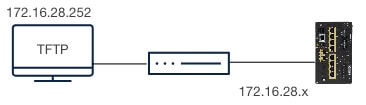
Staging routers are not required when the new device that is being configured with AutoInstall is connected to the same LAN segment as the TFTP and DHCP servers. In the figure below R2 does not require a staging server to use AutoInstall because it is on the same LAN segment as the TFTP server.

Figure 2. Example of AutoInstall that does not require a Staging Router

Configuration Options for AutoInstall

You can provision your network to support AutoInstall using several different combinations of devices and services. For example:

  • You can provision the DHCP service on a Cisco switch.

  • The device using AutoInstall can determine its IP address from a DNS server, or you can use one of the AutoInstall network configuration files (network-confg or cisconet.cfg) that contain the ip host hostname ip-address commands.

  • You can use provision AutoInstall to load a full configuration or a partial configuration onto a device that is using AutoInstall.

This module focuses on some of the most common methods for provisioning AutoInstall. Refer to the How to Use AutoInstall to Remotely Configure Cisco Networking Devices module for information on the most common methods for provisioning AutoInstall.

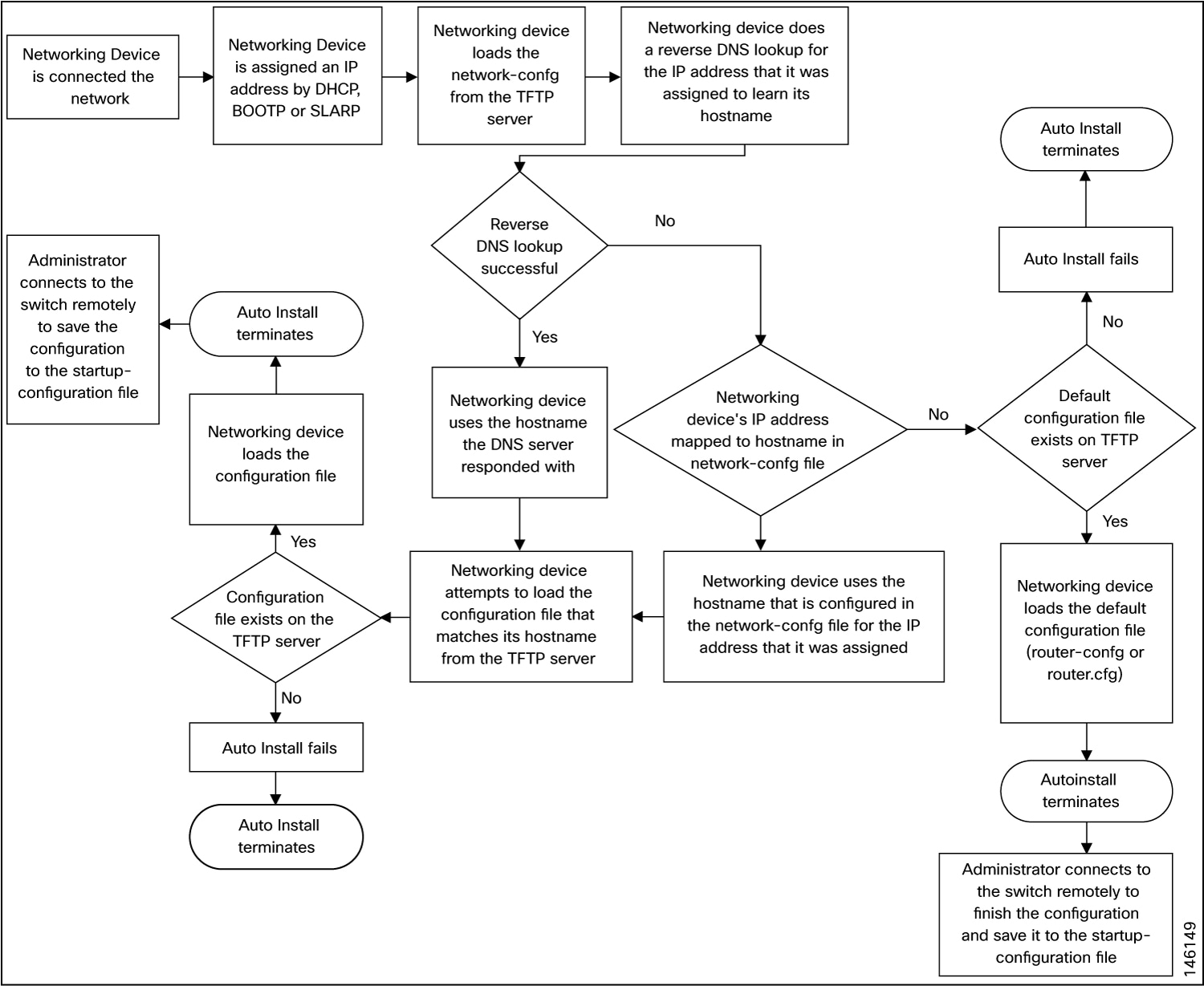
The AutoInstall Process

The AutoInstall process begins when a networking device that does not have any files in its NVRAM is connected to the network.

The following figure shows the basic flow of the AutoInstall process using the configuration files.

Figure 3. AutoInstall Process Flowchart (Using Configuration Files)

Additional References

This section provides references related to the basic configuration of a Cisco networking device.

Related Documents

Related Topic

Document Title

Configuring a networking device for the first time using the Cisco IOS XE software feature AutoInstall.

Using AutoInstall to Remotely Configure Cisco Networking Devices

Configuring a networking device using Cisco IOS XE Setup mode

Using Setup Mode to Configure a Cisco Networking Device

Configuration fundamentals and associated commands

Cisco IOS XE Configuration Fundamentals Configuration Guide for your release and the release-independent Cisco IOS Configuration Fundamentals Command Reference

Technical Assistance

Description

Link

The Cisco Support website provides extensive online resources, including documentation and tools for troubleshooting and resolving technical issues with Cisco products and technologies.

To receive security and technical information about your products, you can subscribe to various services, such as the Product Alert Tool (accessed from Field Notices), the Cisco Technical Services Newsletter, and Really Simple Syndication (RSS) Feeds.

Access to most tools on the Cisco Support website requires a Cisco.com user ID and password.

http://www.cisco.com/techsupport