Introduction
This document describes how to update the device classifier on Catalyst 9800 WLC utilizing the Device Classifier Dynamic XML Support feature.
Prerequisites
Requirements
Knowledge of Cisco 9800 WLC fundamentals and device classification.
Components Used
The information in this document is based on these software and hardware versions:
- C9800-CL v17.12.4, v17.15.4ES and v17.18.2ES
The information in this document was created from the devices in a specific lab environment. All of the devices used in this document started with a cleared (default) configuration. If your network is live, ensure that you understand the potential impact of any command.
Configure
Configurations

Note: This feature is supported starting v17.10.1.
An example of the .xml file can be found under dc_profile_dir folder by default on the WLC:
C9800#dir bootflash:dc_profile_dir
Directory of bootflash:/dc_profile_dir/

393224 -rw- 443023 Dec 23 2025 07:14:35 +00:00 dc_embedded_profiles.txt.bkp
393233 -rw- 303835 Dec 23 2025 07:14:35 +00:00 dc_default_profiles.txt
393222 -rw- 443023 Dec 23 2025 07:14:35 +00:00 dc_embedded_profiles.txt
393223 -rw- 1367 Dec 23 2025 07:14:35 +00:00 dc_user_profiles.xml
393221 -rw- 303835 Dec 18 2025 07:13:57 +00:00 dc_default_profiles.txt.bkp
As an example, these are the client details prior to making any changes:
C9800#show wireless client mac-address 74da.38eb.c01f detail

Client MAC Address : 74da.38eb.c01f
Client MAC Type : Universally Administered Address
Client DUID: NA
Client IPv4 Address : 10.14.42.101
...
Device Classification Information:
Device Type : Microsoft-Workstation
Device Name : DESKTOP-R2CH8G5
Protocol Map : 0x000009 (OUI, DHCP)
Device Vendor : MSFT 5.0
Device Protocol : DHCP
Type : 12 19
Data : 13
00000000 00 0c 00 0f 44 45 53 4b 54 4f 50 2d 52 32 43 48 |....DESKTOP-R2CH|
00000010 38 47 35 |8G5 |
Type : 60 12
Data : 0c
00000000 00 3c 00 08 4d 53 46 54 20 35 2e 30 |.<..MSFT 5.0 |
Type : 55 18
Data : 12
00000000 00 37 00 0e 01 03 06 0f 1f 21 2b 2c 2e 2f 77 79 |.7.......!+,./wy|
00000010 f9 fc |.. |
...
C9800#show device classifier mac-address 74da.38eb.c01f detail
Client Mac: 74da.38eb.c01f
Device Type: Microsoft-Workstation
Confidence Level: 10
Device Name: DESKTOP-R2CH8G5
Device Vendor: MSFT 5.0
The client can be classified based on different protocols.
Classify the Client Based on DHCP
Edit the .xml file, in this example, these rules are applied:
<?xml version="1.0" encoding="UTF-8"?>
<DeviceList>
<CopyRight>Copyright (c) 2021-2022 by Cisco Systems, Inc. All rights reserved.</CopyRight>
<Version>1.0</Version>
<Device>
<DeviceType>Sample_Profile_2</DeviceType>
<RuleName>Sample_Rule_1</RuleName>
<RuleOperator>OR</RuleOperator>
<RuleCertaintyMetric>20</RuleCertaintyMetric>
<Check>
<Protocol>DHCP</Protocol>
<TLV-Type>60</TLV-Type>
<TLV-Value-Type>String</TLV-Value-Type>
<TLV-Value>MSFT</TLV-Value>
</Check>
</Device>
</DeviceList>
The values used here are the same ones extracted from the previous show wireless client mac-address [mac] detail output.
The parts in bold were chosen to avoid spaces as they can result in parsing errors. But it can be the beginning, middle or last part of the output.
For the metric: 20 was chosen to give it a higher metric so it takes precedence. The higher the metric the higher the preference.
Copy the file directly to bootflash.
Either from CLI:
copy {ftp: | tftp:} {flash:}
Or from GUI:
Administration > Management > File Manager
bootflash:
upload
Afterwards, the file must be available on the WLC:
C9800#more bootflash:dc_user_profiles.xml
<?xml version="1.0" encoding="UTF-8"?>
<DeviceList>
<CopyRight>Copyright (c) 2021-2022 by Cisco Systems, Inc. All rights reserved.</CopyRight>
<Version>1.0</Version>
<Device>
<DeviceType>Sample_Profile_2</DeviceType>
<RuleName>Sample_Rule_1</RuleName>
<RuleOperator>OR</RuleOperator>
<RuleCertaintyMetric>20</RuleCertaintyMetric>
<Check>
<Protocol>DHCP</Protocol>
<TLV-Type>60</TLV-Type>
<TLV-Value-Type>String</TLV-Value-Type>
<TLV-Value>MSFT</TLV-Value>
</Check>
</Device>
</DeviceList>
Enable device classifier:
C9800#config t
C9800(config)#device classifier
Now, the profile created is going to appear under this output:
C9800#show device classifier profile type custom
Valid Type Profile Name mCon ID
----------------------------------------------------------------------------
Valid Custom Sample_Profile_2 1 0
Afterwards, the client classification must change:
If the client is already connected, disconnect then reconnect the client.
C9800#clear wireless client device cache
!--- To clear any classification cache
C9800#show wireless client mac-address 74da.38eb.c01f detail

Client MAC Address : 74da.38eb.c01f
Client MAC Type : Universally Administered Address
Client DUID: NA
Client IPv4 Address : 10.14.42.101
...
Device Classification Information:
Device Type : Sample_Profile_2
Device Name : DESKTOP-R2CH8G5
Protocol Map : 0x000009 (OUI, DHCP)
Device Vendor : MSFT 5.0
Device Protocol : DHCP
Type : 12 19
Data : 13
00000000 00 0c 00 0f 44 45 53 4b 54 4f 50 2d 52 32 43 48 |....DESKTOP-R2CH|
00000010 38 47 35 |8G5 |
Type : 60 12
Data : 0c
00000000 00 3c 00 08 4d 53 46 54 20 35 2e 30 |.<..MSFT 5.0 |
Type : 55 18
Data : 12
00000000 00 37 00 0e 01 03 06 0f 1f 21 2b 2c 2e 2f 77 79 |.7.......!+,./wy|
00000010 f9 fc |.. |
...
C9800#show device classifier mac-address 74da.38eb.c01f detail
Client Mac: 74da.38eb.c01f
Device Type: Sample_Profile_2
Confidence Level: 20
Device Name: DESKTOP-R2CH8G5
Device Vendor: MSFT 5.0
Classify the Client Based on OUI Prior to 17.18

Warning: This is currently being fixed in Cisco bug ID CSCws66837  . Track the bug for the fix.
Edit the .xml file, in this example, these rules are applied:
<?xml version="1.0" encoding="UTF-8"?>
<DeviceList>
<CopyRight>Copyright (c) 2021-2022 by Cisco Systems, Inc. All rights reserved.</CopyRight>
<Version>4.3</Version>
<Device>
<DeviceType>Test-3</DeviceType>
<RuleName>Cisco-Rule</RuleName>
<RuleOperator>AND</RuleOperator>
<RuleCertaintyMetric>20</RuleCertaintyMetric>
<Check>
<Protocol>MAC</Protocol>
<TLV-Value-Type>String</TLV-Value-Type>
<TLV-Value>Edimax</TLV-Value>
</Check>
</Device>
</DeviceList>
The string here was chosen based on the prefix of the MAC address. This can be checked from the standard OUIs defined by IEEE.
Copy the file directly to bootflash.
Either from CLI:
copy {ftp: | tftp:} {flash:}
Or from GUI:
Administration > Management > File Manager
bootflash:
upload
Afterwards, the file must be available on the WLC:
C9800#more bootflash:dc_user_profiles.xml
<?xml version="1.0" encoding="UTF-8"?>
<DeviceList>
<CopyRight>Copyright (c) 2021-2022 by Cisco Systems, Inc. All rights reserved.</CopyRight>
<Version>4.3</Version>
<Device>
<DeviceType>Test-3</DeviceType>
<RuleName>Cisco-Rule</RuleName>
<RuleOperator>AND</RuleOperator>
<RuleCertaintyMetric>20</RuleCertaintyMetric>
<Check>
<Protocol>MAC</Protocol>
<TLV-Value-Type>String</TLV-Value-Type>
<TLV-Value>Edimax</TLV-Value>
</Check>
</Device>
</DeviceList>
Enable device classifier:
C9800#config t
C9800(config)#device classifier
Now, the profile created is going to appear under this output:
C9800#show device classifier profile type custom
Valid Type Profile Name mCon ID
----------------------------------------------------------------------------
Valid Custom Test-3 1 0
Afterwards, the client classification must change:
If the client is already connected, disconnect then reconnect the client.
C9800#clear wireless client device cache
!--- To clear any classification cach

C9800#show wireless client mac-address 74da.38eb.c01f detail

Client MAC Address : 74da.38eb.c01f
Client MAC Type : Universally Administered Address
Client DUID: NA
Client IPv4 Address : 10.14.42.101
...
Device Classification Information:
Device Type : Test-3
Device Name : EDIMAX TECHNOLOGY CO. LTD.
Protocol Map : 0x000001 (OUI)
Day Zero Classification : EDIMAX TECHNOLOGY CO. LTD.
...
C9800#show device classifier mac-address 74da.38eb.c01f detail
Client Mac: 74da.38eb.c01f
Device Type: Sample_Profile_2
Confidence Level: 20
Device Name: DESKTOP-R2CH8G5
Device Vendor: MSFT 5.0
Classify the Client Based on OUI Starting 17.18
Warning: This is currently being fixed in Cisco bug IDCSCws66837. Track the bug for the fix.
Edit the .xml file, in this example, these rules are applied:
<?xml version="1.0" encoding="UTF-8"?>
<DeviceList>
<CopyRight>Copyright (c) 2021-2022 by Cisco Systems, Inc. All rights reserved.</CopyRight>
<Version>4.3</Version>
<Device>
<DeviceType>Test-1</DeviceType>
<RuleName>Cisco-Rule</RuleName>
<RuleOperator>AND</RuleOperator>
<RuleCertaintyMetric>20</RuleCertaintyMetric>
<Check>
<Protocol>MAC</Protocol>
<TLV-Value-Type>Regex</TLV-Value-Type>
<TLV-Value>74da.38*</TLV-Value>
</Check>
</Device>
</DeviceList>
Starting 17.18, you can classify using the prefix of the MAC address.
The asterisk (* symbol) here implies that all MAC addresses that start with 74da.38 in this example are going to be classified under this rule.
Another option: The full MAC address can be placed here and this is going to give the opportunity to classify MAC addresses individually.
Copy the file directly to bootflash.
Either from CLI:
copy {ftp: | tftp:} {flash:}
Or from GUI:
Administration > Management > File Manager
bootflash:
upload
Afterwards, the file must be available on the WLC:
C9800#more bootflash:dc_user_profiles.xml
<?xml version="1.0" encoding="UTF-8"?>
<DeviceList>
<CopyRight>Copyright (c) 2021-2022 by Cisco Systems, Inc. All rights reserved.</CopyRight>
<Version>4.3</Version>
<Device>
<DeviceType>Test-1</DeviceType>
<RuleName>Cisco-Rule</RuleName>
<RuleOperator>AND</RuleOperator>
<RuleCertaintyMetric>20</RuleCertaintyMetric>
<Check>
<Protocol>MAC</Protocol>
<TLV-Value-Type>Regex</TLV-Value-Type>
<TLV-Value>74da.38*</TLV-Value>
</Check>
</Device>
</DeviceList>
Enable device classifier:
C9800#config t
C9800(config)#device classifier
Now, the profile created is going to appear under this output:
C9800#show device classifier profile type custom
Valid Type Profile Name mCon ID
----------------------------------------------------------------------------
Valid Custom Test-1 1 0
Afterwards, the client classification must change:
If the client is already connected, disconnect then reconnect the client.
C9800#clear wireless client device cache
!--- To clear any classification cache
C9800#show wireless client mac-address 74da.38eb.c01f detail

Client MAC Address : 74da.38eb.c01f
Client MAC Type : Universally Administered Address
Client DUID: NA
Client IPv4 Address : 10.14.42.101
...
Device Classification Information:
Device Type : Test-1
Device Name : EDIMAX TECHNOLOGY CO. LTD.
Protocol Map : 0x000001 (OUI)
Day Zero Classification : EDIMAX TECHNOLOGY CO. LTD.
...
C9800#show device classifier mac-address 74da.38eb.c01f detail
Client Mac: 74da.38eb.c01f
Device Type: Test-1
Confidence Level: 20
Day Zero Classification: EDIMAX TECHNOLOGY CO. LTD.
Device Name: EDIMAX TECHNOLOGY CO. LTD.
Verify
From CLI:
more bootflash:dc_user_profiles.xml
show device classifier profile type custom
show wireless client mac-address [mac] detail
show device classifier mac-address [mac] detail
From GUI:
1. Navigate to Monitoring > Wireless > Clients.
2. The Device Type can be seen as a column.
 Device Type Under Monitoring Page
Click the client, and the Device Type is also visible under Client 360 View.
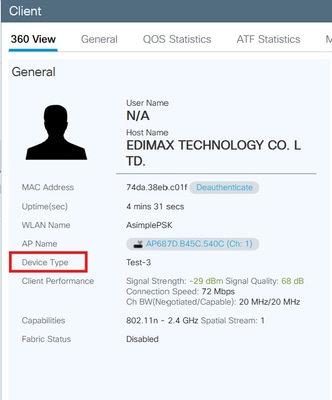 Device Type Under Client 360
Troubleshoot
Make sure the client is sending the protocol that you are using to classify the client with.
For DHCP classification, the client has to send a unique TLV that can be used as a string by the WLC to differentiate the client type.
In terms of OUI classification, be aware of MAC randomization.
Collect Radioactive traces for the client while it is initiating the first connection.
https://www.cisco.com/c/en/us/support/docs/wireless/catalyst-9800-series-wireless-controllers/213949-wireless-debugging-and-log-collection-on.html#toc-hId-2010809796
For further investigation, these traces can be collected:
request platform soft trace rotate all
delete /force bootflash:tracelogs/*

set platform software trace smd chassis active R0 dc-profile noise
set platform software trace smd chassis active R0 dc-sub noise
set platform software trace smd chassis active R0 dc-sm noise
set platform software trace smd chassis active R0 dc-mem noise
set platform software trace smd chassis active R0 dc noise
Reproduce the issue then collect the outputs with this command:
show logging process smd internal start last 20 minutes to-file flash:cls_logging.log
Note: If this feature is already being used and the .xml custom file is already present under bootflash but you would like to edit it, whenever you edit the file, in case the profiles were not getting updated, apply these steps:
1) Delete the existing dc_user_profiles.xml from flash
2) Disable device classifier (no device classifier)
3) Enable device classifier again (device classifier)
4) copy the new dc_user_profiles.xml file to flash
References
https://www.cisco.com/c/en/us/td/docs/wireless/controller/9800/17-18/config-guide/b_wl_17_18_cg/m_device_classifier_dynamic_xml_support.html

 Feedback