Use iPerf on Catalyst 9000 Switches to Perform Bandwidth Tests
Available Languages
Introduction
This document describes how to use iPerf on Catalyst 9000 series switches to perform bandwidth tests.
Prerequisites
Requirements
Cisco recommends that you have knowledge of these topics:
- Application Hosting on Catalyst 9000 series switches
- Linux
Components Used
The information in this document is based on these software and hardware versions:
- C9300
- Cisco IOS® XE 17.3.5
- Cisco IOS® XE 17.6.4

Note: Consult the appropriate configuration guide for the commands that are used to enable these features on other Cisco platforms.
The information in this document was created from the devices in a specific lab environment. All of the devices used in this document started with a cleared (default) configuration. If your network is live, ensure that you understand the potential impact of any command.
Related Products
This document can also be used with these hardware and software versions:
- C9300X
- C9400
Background Information
iPerf3 is a tool for active measurements of the maximum achievable bandwidth on IP networks. iPerf uses the different capacities of TCP and UDP to provide statistics about bandwidth.
Note: Consult iPerf official documentation for more information related with this tool.
Video
iPerf Installation
Restrictions
- Application hosting is not virtual routing and forwarding aware (VRF-aware).
- In releases prior to Cisco IOS® XE Amsterdam 17.3.3, application hosting requires dedicated storage allocations, and is disabled on the bootflash.
- In Cisco IOS® XE Amsterdam 17.3.3 and later releases, application hosting is enabled on the bootflash, however, only Cisco-signed applications are hosted.
- The front-panel Universal Serial Bus (USB) stick is not supported.
- Cisco Catalyst 9300 Series Switches support only back-panel Cisco-certified USB.
- Cisco Catalyst 9500-High Performance Series Switches and Cisco Catalyst 9600 Series Switches do not support front-panel USB for application hosting.
- Cisco Catalyst 9500 and 9500-High Performance Series Switches and Cisco Catalyst 9600 Series Switches do not support AppGigabitEthernet interfaces.
- Cisco Catalyst 9410R Switches do not support application-hosting in release prior to Cisco IOS® XE Bengaluru 17.5.1.
- Configure the enable command on the AppGigabitEthernet interfaces to enable application hosting on Cisco Catalyst 9410R Switches.
Installation Steps
- Download the latest iPerf image and verify it is stored into the USB SSD:
C9300-AC1#dir usbflash1:/
Directory of usbflash1:/

12      -rw-          6043136  Jan 26 2023 21:55:35 +00:00  iPerf.tar
2. Choose a VLAN or configure a new one for iPerf connectivity:
C9300-AC1(config)#interface vlan 10
C9300-AC1(config-if)#ip add 192.168.10.11 255.255.255.0
3. Configure the AppGigabitEthernet interface:
C9300-AC1(config)#int Ap1/0/1
C9300-AC1(config-if)#switchport mode trunk
4. Configure iPerf docker and associate it with a VLAN:
C9300-AC1(config)#app-hosting appid iPerf
C9300-AC1(config-app-hosting)#app-vnic AppGigabitEthernet trunk
C9300-AC1(config-config-app-hosting-trunk)#vlan 10 guest-interface 0
C9300-AC1(config-config-app-hosting-vlan-access-ip)#guest-ipaddress 192.168.10.21 netmask 255.255.255.0
5. Configure as a default gateway for the application the IP of the SVI that you chose for iPerf connectivity:
C9300-AC1(config)#app-hosting appid iPerf
C9300-AC1(config-app-hosting)#app-default-gateway 192.168.10.11 guest-int
6. Start the IOX service and verify it is in running state with show iox-service privileged EXEC command:
C9300-AC1(config)#iox
C9300-AC1(config)#do show iox-service

IOx Infrastructure Summary:
---------------------------
IOx service (CAF)              : Running
IOx service (HA)               : Running
IOx service (IOxman)           : Not Ready
IOx service (Sec storage)      : Not Running
Libvirtd 5.5.0                 : Running
Dockerd 18.03.0                : Running
Sync Status                    : Disabled
7. Install iPerf application from SSD and verify it is deployed:
C9300-AC1#app-hosting install appid iPerf package usbflash1:iPerf.tar
Installing package 'usbflash1:iPerf.tar' for 'iPerf'. Use 'show app-hosting list' for progress.

C9300-AC1#show app-hosting list
App id                                   State
---------------------------------------------------------
iPerf                                    DEPLOYED
8. Activate and start iPerf application:
C9300-AC1#app-hosting activate appid iPerf
iPerf activated successfully
Current state is: ACTIVATED

C9300-AC1#show app-hosting list
App id                                   State
---------------------------------------------------------
iPerf                                    ACTIVATED

C9300-AC1#app-hosting start appid iPerf
iPerf started successfully
Current state is: RUNNING
C9300-AC1#
C9300-AC1#show app-hosting list
App id                                   State
---------------------------------------------------------
iPerf                                    RUNNING
Note: Once iPerf is in runningstate, it runs as a server by default.
Verification
In order to verify application details, you can use show app-hosting utilization appid [app-name] privileged EXEC command:
C9300-AC1#show app-hosting detail appid iPerf
App id                 : iPerf
Owner                  : iox
State                  : RUNNING
Application
  Type                 : docker
  Name                 : mlabbe/iperf3
  Version              : latest
  Description          :
  Author               :
  Path                 : usbflash1:iPerf.tar
  URL Path             :
Activated profile name : default

Resource reservation
  Memory               : 409 MB
  Disk                 : 10 MB
  CPU                  : 1480 units
  CPU-percent          : 20 %
  VCPU                 : 1

Platform resource profiles
  Profile Name                  CPU(unit)  Memory(MB)  Disk(MB)
  --------------------------------------------------------------

Attached devices
  Type              Name               Alias
  ---------------------------------------------
  serial/shell     iox_console_shell   serial0
  serial/aux       iox_console_aux     serial1
  serial/syslog    iox_syslog          serial2
  serial/trace     iox_trace           serial3

Network interfaces
   ---------------------------------------
eth0:
   MAC address         : 52:54:dd:d2:df:af
   IPv4 address        : 192.168.10.21
   IPv6 address        : ::
   Network name        : mgmt-bridge-v10


Docker
------
Run-time information
  Command              :
  Entry-point          : iperf3 -s
  Run options in use   :
  Package run options  :
Application health information
  Status               : 0
  Last probe error     :
  Last probe output    :
In order to verify application utilization, you can use show app-hosting utilization appid [app-name]privileged EXEC command:
C9300-AC1# show app-hosting utilization appid iPerf
Application: iPerf
CPU Utilization:
  CPU Allocation: 1480 units
  CPU Used:       0.00 %
  CPU Cores:
Memory Utilization:
  Memory Allocation: 409 MB
  Memory Used:       1064 KB
Disk Utilization:
  Disk Allocation: 10 MB
  Disk Used:       0.00 MB
In order to verify details in the application container, you can use app-hosting connect appid [app-name] sessionprivileged EXEC command:
C9300-AC1#app-hosting connect appid iPerf session
/ $
/ $ #Verify IP address assigned
/ $
/ $ ifconfig
eth0      <snip>
          inet addr:192.168.10.21  Bcast:0.0.0.0  Mask:255.255.255.0
          <snip>
/ $
/ $ #Verify iPerf is running as server
/ $
/ $ ps
PID   USER     TIME  COMMAND
    1 iperf     0:00 iperf3 -s
  390 iperf     0:00 /bin/sh
  398 iperf     0:00 ps
/ $
Bandwidth Tests
Network Diagram
The methods to perform bandwidth tests explained in this document are based on the network diagram below:
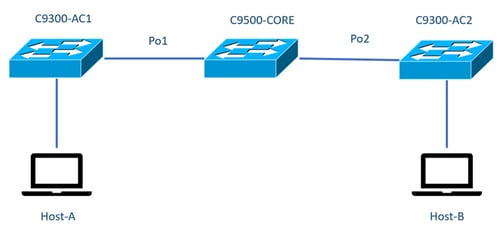
Note: Configuration examples from section iPerf installation were taken from the same lab environment.
IP address assignment for devices above:
| C9300-AC1 |
C9300-AC2 |
| SVI 192.168.10.11 iPerf 192.168.10.21 |
SVI 192.168.10.12 iPerf 192.168.10.22 |
Note: All devices used in these examples are in the same VLAN domain, VLAN 10.
Method 1: Switch as a Client
In this example, bandwidth from C9300-AC1 to C9300-AC2 is measured. C9300-AC1 is the client.
1. Run command app-hosting connect appid iPerf sessionto enter application container prompt:
C9300-AC1#app-hosting connect appid iPerf session
/ $
2. Once you are in application container prompt, use iperf3 -c command to start the bandwidth test:
/ $ iperf3 -c 192.168.10.22
Connecting to host 192.168.10.22, port 5201
[  5] local 192.168.10.21 port 34906 connected to 192.168.10.22 port 5201
[ ID] Interval           Transfer     Bitrate         Retr  Cwnd
[  5]   0.00-1.00   sec   114 MBytes   955 Mbits/sec    2    833 KBytes
[  5]   1.00-2.00   sec   113 MBytes   947 Mbits/sec    3    923 KBytes
[  5]   2.00-3.00   sec   111 MBytes   934 Mbits/sec   77    974 KBytes
[  5]   3.00-4.00   sec   113 MBytes   945 Mbits/sec    1   1.03 MBytes
[  5]   4.00-5.00   sec   112 MBytes   940 Mbits/sec  109   1.08 MBytes
[  5]   5.00-6.00   sec   111 MBytes   931 Mbits/sec  395    820 KBytes
[  5]   6.00-7.00   sec   111 MBytes   933 Mbits/sec  198    882 KBytes
[  5]   7.00-8.00   sec   112 MBytes   944 Mbits/sec    2    970 KBytes
[  5]   8.00-9.00   sec   111 MBytes   933 Mbits/sec    9   1.02 MBytes
[  5]   9.00-10.00  sec   111 MBytes   933 Mbits/sec  524   1.04 MBytes
- - - - - - - - - - - - - - - - - - - - - - - - -
[ ID] Interval           Transfer     Bitrate         Retr
[  5]   0.00-10.00  sec  1.09 GBytes   940 Mbits/sec  1320             sender
[  5]   0.00-10.01  sec  1.09 GBytes   937 Mbits/sec                  receiver

iperf Done.
/ $
3. After the test finishes, type exitto return to switch CLI.
Note: Since iPerf runs as server by default, no further command is needed on server side.
Method 2: PC as a Client
In this example, bandwidth from Host-A to C9300-AC2 (iPerf server) is measured.
- Ensure you have iPerf downloaded in your PC.
- Once you have iPerf stored in your PC, navigate to iperf3.exe from your command prompt:
C:\Users\user\Downloads\iperf-3.1.3-win64\iperf-3.1.3-win64>iperf3.exe3. From your PC, use -c option. This indicates the PC is the client:
C:\Users\user\Downloads\iperf-3.1.3-win64\iperf-3.1.3-win64>iperf3.exe -c 192.168.10.22
Connecting to host 192.168.10.22, port 5201
[  4] local 192.168.10.2 port 56009 connected to 192.168.10.22 port 5201
[ ID] Interval           Transfer     Bandwidth
[  4]   0.00-1.00   sec   109 MBytes   916 Mbits/sec
[  4]   1.00-2.00   sec  0.00 Bytes  0.00 bits/sec
[  4]   2.00-3.00   sec  0.00 Bytes  0.00 bits/sec
[  4]   3.00-4.00   sec  93.6 MBytes   786 Mbits/sec
[  4]   4.00-5.00   sec  15.1 MBytes   127 Mbits/sec
[  4]   5.00-6.02   sec  0.00 Bytes  0.00 bits/sec
[  4]   6.02-7.00   sec  78.2 MBytes   666 Mbits/sec
[  4]   7.00-8.00   sec  42.9 MBytes   360 Mbits/sec
[  4]   8.00-9.00   sec  0.00 Bytes  0.00 bits/sec
[  4]   9.00-10.00  sec  49.4 MBytes   414 Mbits/sec
- - - - - - - - - - - - - - - - - - - - - - - - -
[ ID] Interval           Transfer     Bandwidth
[  4]   0.00-10.00  sec   388 MBytes   326 Mbits/sec              sender
[  4]   0.00-10.00  sec   388 MBytes   326 Mbits/sec              receiver

iperf Done.

Tip: For the traditional method, you need to use 2 PCs, one as a server and one as a client. For the PC acting as a server, use iperf3.exe -s command.
Related Information
- Application Hosting on the Cisco Catalyst 9000 Series Switches White Paper
- Programmability Configuration Guide, Cisco IOS® XE Bengaluru 17.6.x
- Network Performance Monitoring with Catalyst 9300 Application Hosting
Revision History
| Revision | Publish Date | Comments |
|---|---|---|
3.0 |
29-Jul-2026
|
Recertification - Updated Formatting. |
2.0 |
10-Mar-2023
|
Embedded Vidoe version of this |
1.0 |
02-Feb-2023
|
Initial Release |

 Feedback
Contact Cisco
- Open a Support Case

- (Requires a Cisco Service Contract)