Introduction
This document describes how Secure Malware Analytics (SMA) transitions to Security Cloud Sign On (SCSO) as the exclusive authentication method for all users.
Background
This change is intended to provide a centralized and consistent login experience across Cisco Security products.
It explains the updates introduced by this transition and provides guidance on how you can link your SCSO account to Secure Malware Analytics. This feature is available beginning February 24, 2026. After this date, authentication using native SMA usernames and passwords is no longer be supported.

Note: This change applies only to the Secure Malware Analytics (SMA) cloud service. Authentication for the Secure Malware Analytics Appliance remains unchanged. API authentication also remains unchanged.
Security Cloud Sign On (SCSO)
Cisco Security Cloud Sign On is a centralized identity management service designed to provide a unified and highly secure login experience across various Cisco Security applications. A single SCSO account can be used to access multiple Cisco Security services.
Link Existing User
If an existing Secure Malware Analytics (SMA) account has not been linked to Security Cloud Sign On (SCSO) before the SCSO-only login feature becomes effective on February 24, 2026, complete this procedure to link the accounts.
Prerequisite
A registered Security Cloud Sign On (SCSO) account is required.
If an SCSO account has not been created, register at: https://sign-on.security.cisco.com/signin/register
1. Navigate to the appropriate Secure Malware Analytics portal:
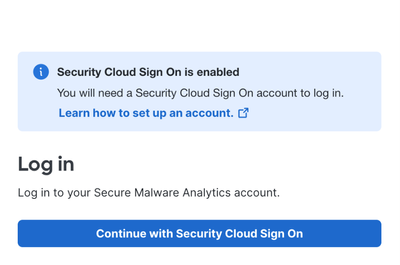
2. On the login screen, select Continue with Security Cloud Sign On to log in using SCSO.
3. Log in to Security Cloud Sign On (SCSO) using the account that was previously created.
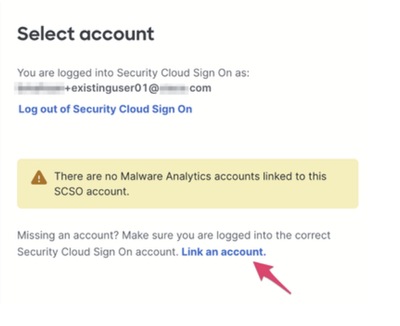
After successful authentication, a message stating “There are no Malware Analytics accounts linked to this SCSO account.” is displayed, along with the option to link an account.
4. Select Link an account to begin linking the existing Secure Malware Analytics (SMA) account to the SCSO account.
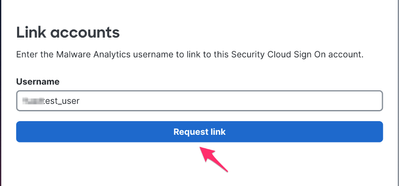
On the next page, an option to link accounts is displayed.
5. Enter the existing Login and select Request link.
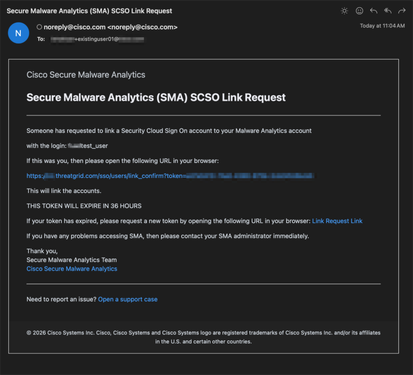
An invitation email is sent to the email address associated with the existing SMA account.
In most cases, this email address matches the SCSO account email address. If the email address must be updated, contact the Organization Administrator or Cisco Support.
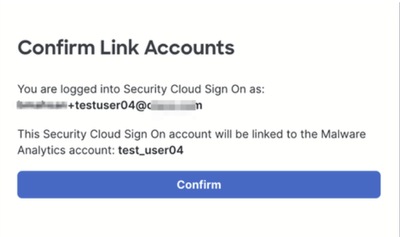
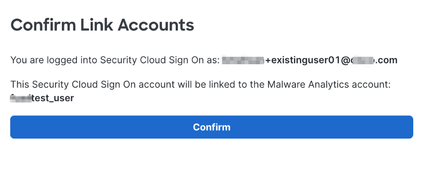
6. Open the URL provided in the invitation email in a browser. After successful authentication, you are prompted to confirm account linking.
7. Verify the account details and select Confirm.
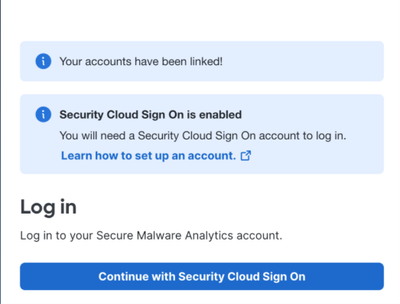
A confirmation message is displayed indicating that the accounts have been linked.
8. Select Continue with Security Cloud Sign On to log in to the existing Secure Malware Analytics account using SCSO.
9. On the next page, select the user account to log in to.
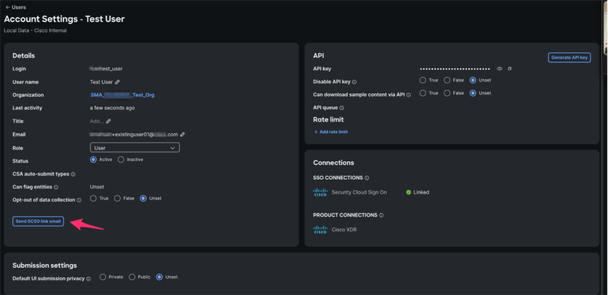
Note: Organization Administrators can also send the SCSO account linking invitation email from the User Management page.
Create New SMA User
The process for creating a new user in Secure Malware Analytics remains unchanged, including that an account-linking invitation email is sent automatically after user creation.
To create a new user:
1. Log in to Secure Malware Analytics as an Organization Administrator.
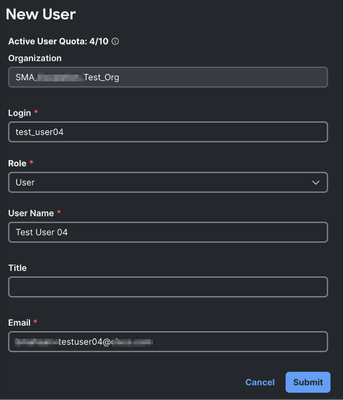
2. Navigate to Administration > Users > New User.
3. Enter the required information:
- Login
- Role
- User Name
- Email Address
4. Click Submit.
Link New User Account to SCSO Account
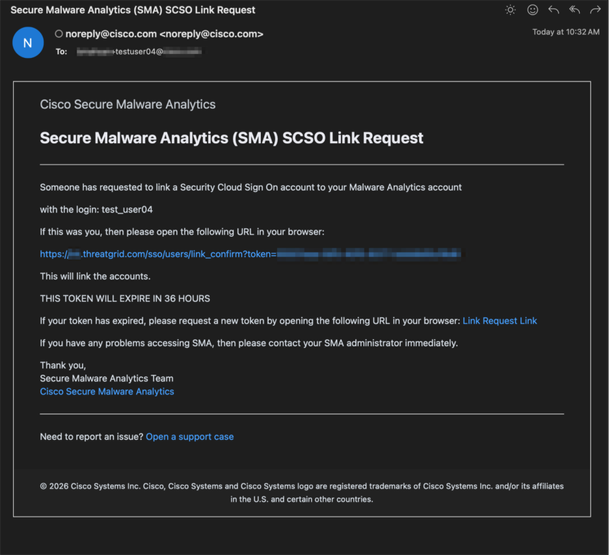
The user account is created, and an invitation email titled Secure Malware Analytics (SMA) SCSO Link Request is sent from noreply@cisco.com to the user email address.
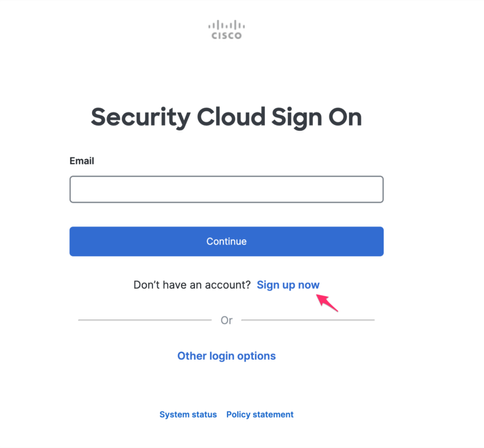
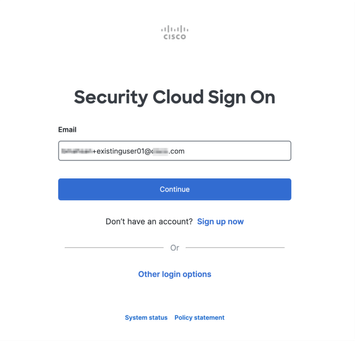
When the new user clicks on the URL or open it in their browser, the user is redirected to Security Cloud Sign On (SCSO) login page.
- If the user has already signed up for SCSO account, they authenticate using their registered email address and link their SMA acccount.
- If the user does not have an SCSO account, they must select Sign up now to start the registration process.
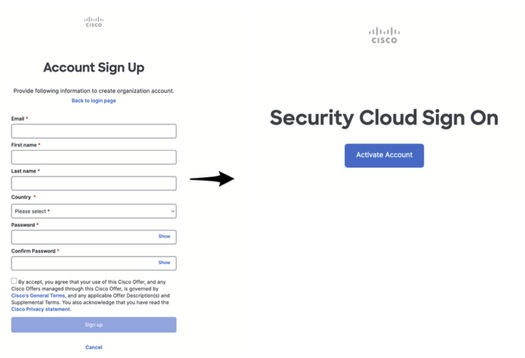
1. Enter account information to sign up for an SCSO account. The user receives an email to activate the new SCSO account.
2. Follow the instructions in the email to Activate the account and enable multi-factor authentication.
3. Once the user has successfully signed up for an SCSO account, return to the previously received Secure Malware Analytics (SMA) SCSO Link Request email and open the URL in a browser.
After successful authentication, the user is presented with the option to link the SMA account with the signed-in SCSO account.
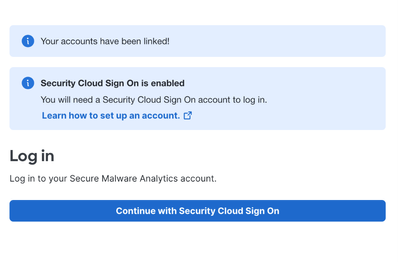
4. Confirm the action. A success message stating “Your accounts have been linked” is displayed.
5. Select Continue with Security Cloud Sign On to log in to the Secure Malware Analytics (SMA) account, and accept the End User License Agreement (EULA) to complete account setup.
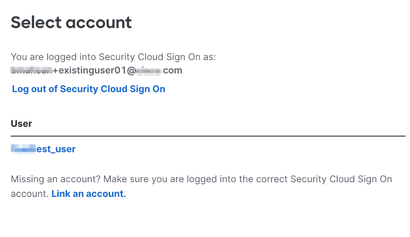
6. On the next page, select the user account to log in to.
Multiple Secure Malware Analytics Accounts Linked to Single SCSO Account
Users can link multiple Secure Malware Analytics (SMA) accounts to the same Security Cloud Sign On (SCSO) account using either the Create New SMA User or Link an Existing User method.
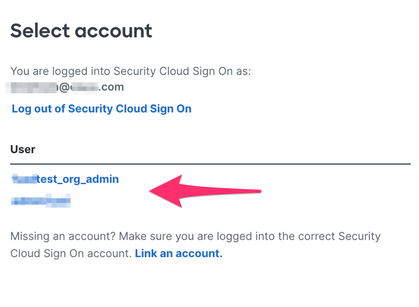
After successful SCSO authentication, the user is presented with an option to select the Secure Malware Analytics account to access.
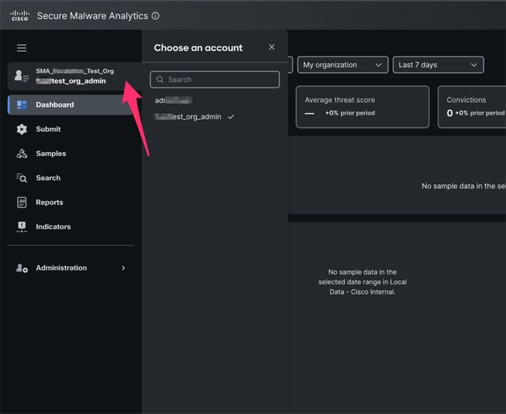
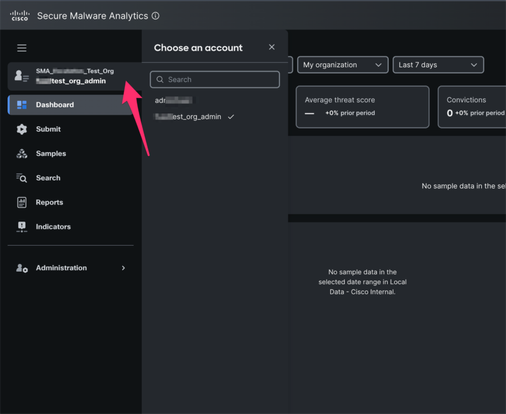
You can also switch between accounts after logging in using the menu in the left-hand navigation.
SCSO-only Login for Integration
Integrations such as Umbrella SIG, Secure Access, Meraki, and Email Threat Defense (ETD) automatically provision either an Organization Administrator or Device Administrator account when they register with Secure Malware Analytics.
An invitation email is sent to the email address provided by the integrating device or service to complete account linking using Security Cloud Sign On (SCSO).
Support

 Feedback