Introduction
This document describes how to reset Duo mobile two-factor authentication on Cisco services that use Cisco Security Cloud Sign-On and aditionally add multiple devices to single email account.
Note: This guide does not apply to two-factor authentication setups that are a part of third party identity provider integrations with Security Cloud SIgn-On or related to cisco.com
Problem
You have lost access to the Duo app and cannot sign into Cisco Security Cloud Sign-On.
Reset Cisco Duo - Another Authentication Method Doesn't Exist
1. If you have no other authentication methods to be able to verify with Duo, you will need to contact Cisco TAC at https://mycase.cloudapps.cisco.com/case
2. Select Products and Services for the case type
3. Select a contract for a product that utilizes Security Cloud Sign-On such as Secure Endpoint or XDR
4. Select Manually Select a Technology and choose Security Cloud Sign On

5. Include the following in the case description:
Name of user that needs Duo reset:
Email of user that needs Duo reset:
Reason Duo needs to be reset:
Reset Cisco Duo - Another Authentication Method Exists
Note: You cannot reset Cisco Duo unless you have another method of authentication to login
1. Log into a Cisco service that uses Cisco Security Cloud Sign-On for authentication, such as Cisco Secure Endpoint (Cisco Secure Endpoint).
Note: If you do not remember your password, it must be reset first.
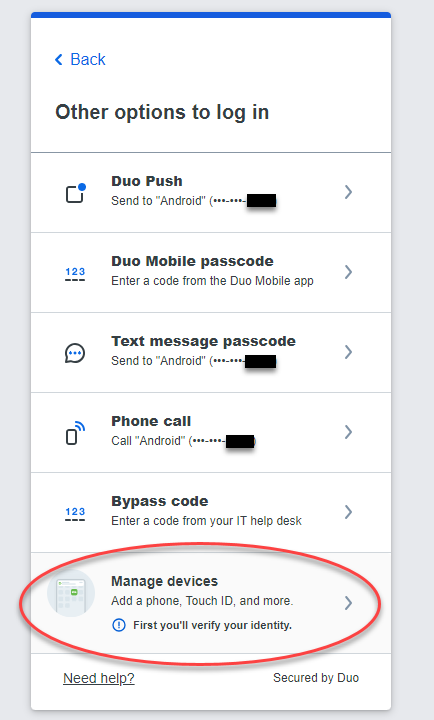
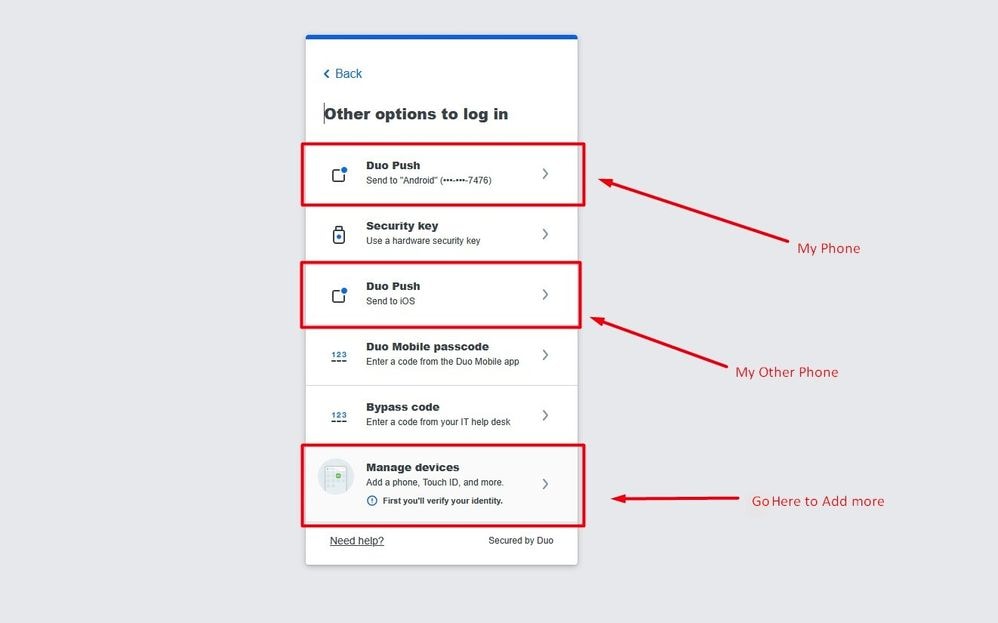
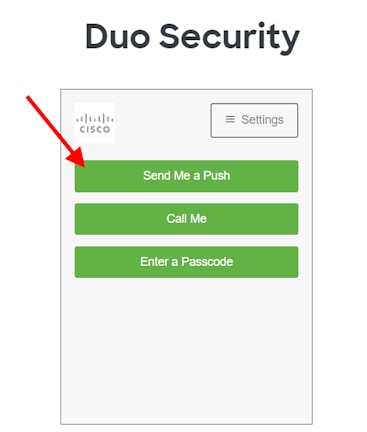
2. After you log in in with your password, you are taken to the Duo authentication page shown. Click the Other Options button and then choose Manage Devices.


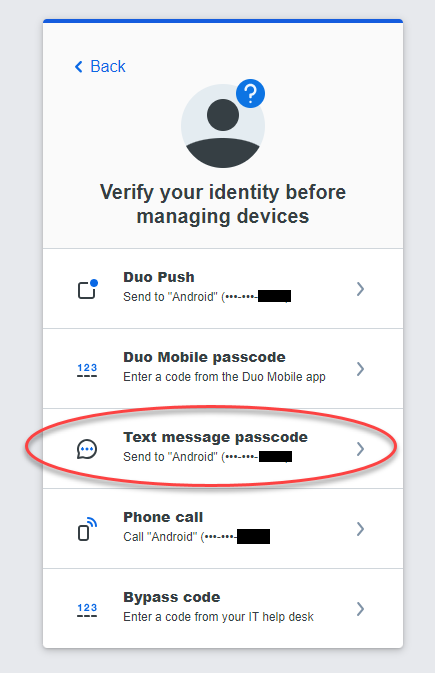
3. Choose a secondary authentication method such as WIndows Hello/Passkey

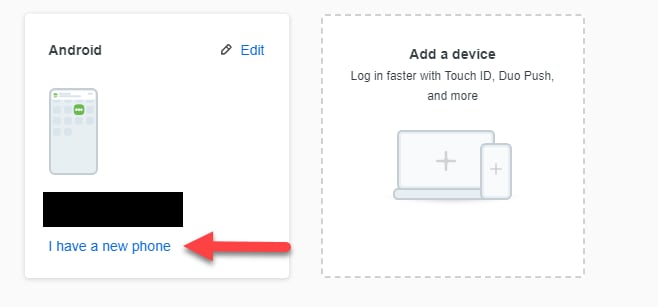
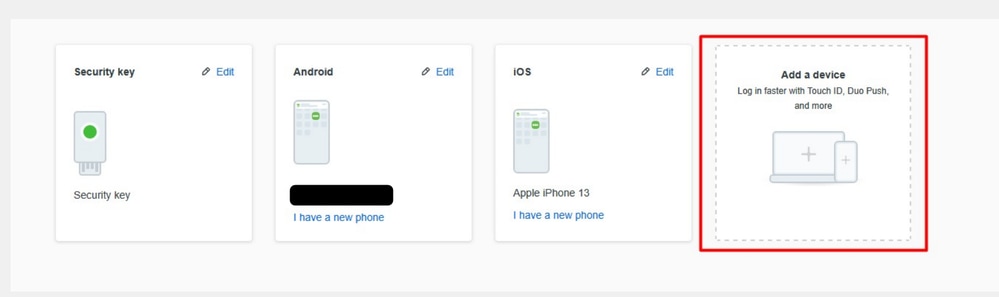
4. On the devices screen, select I have a new phone on your existing phone

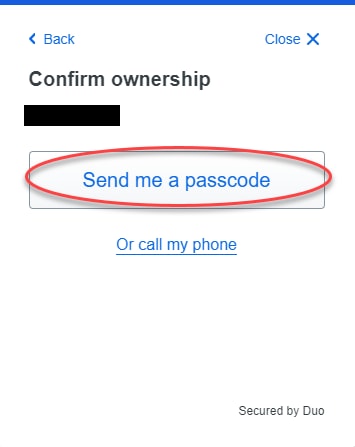
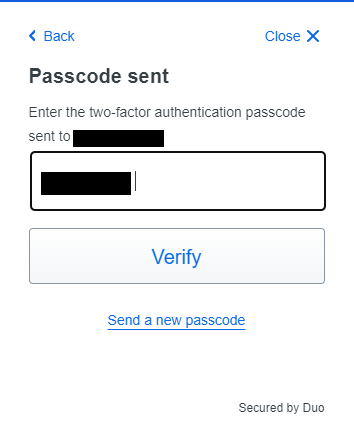
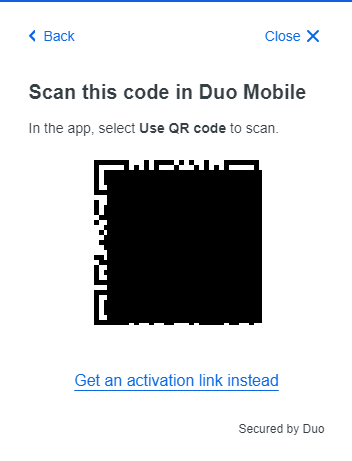
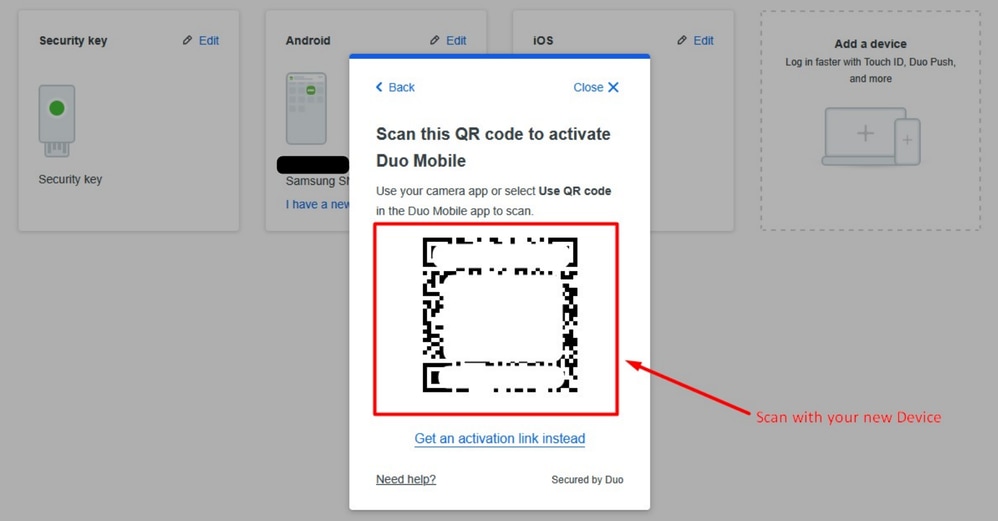
5. Follow the instructions to scan the QR code to re-register your Duo app
Add an Additional Authentication Device
1. Log into a Cisco service that uses Cisco Security Cloud Sign-On for authentication, such as Cisco Secure Endpoint (Cisco Secure Endpoint).
Note: If you do not remember your password, it must be reset first.
2. After you log in in with your password, you are taken to the Duo authentication page shown. Click the Other Options button and then choose Manage Devices.


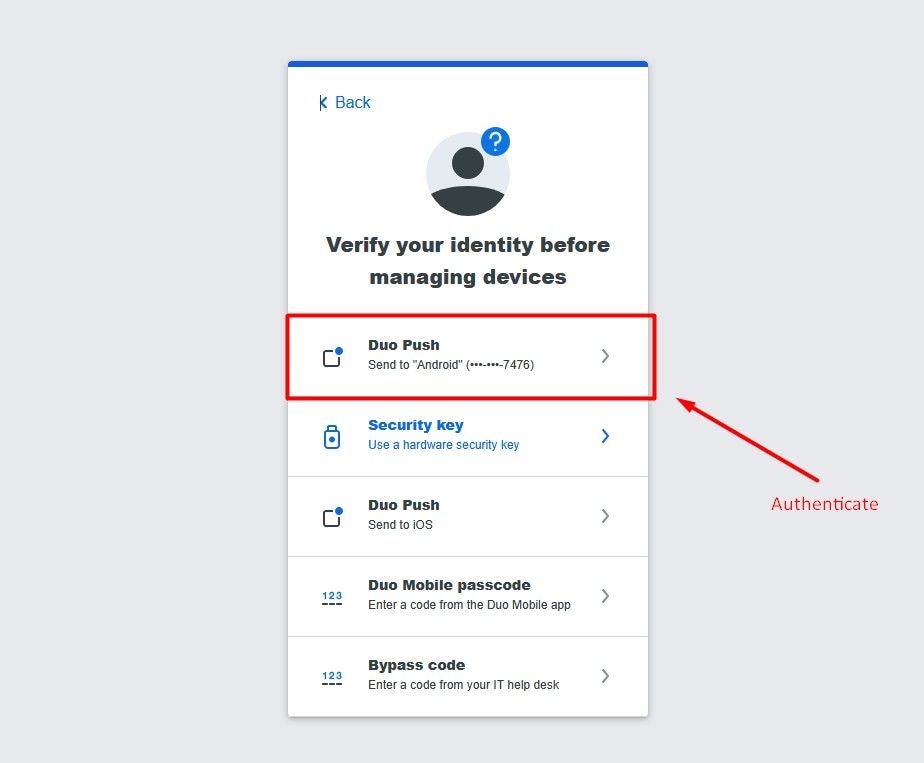
3. Authenticate by using your preferred method.

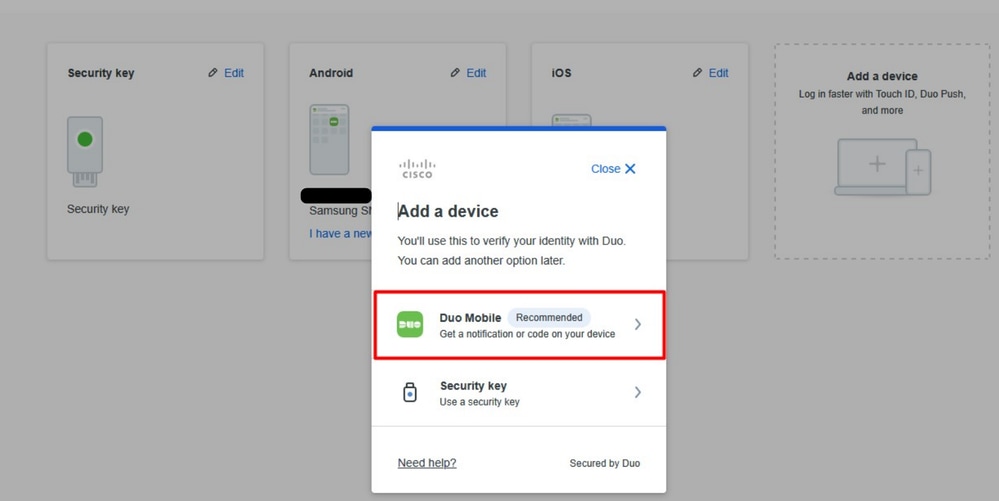
4. Click Add a device.


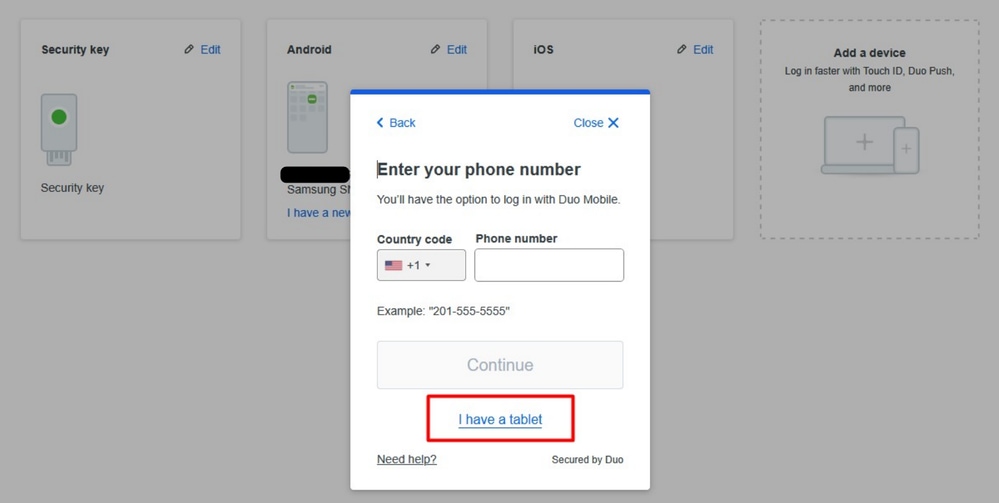
5. Select I have a tablet.
Note: Select this if your phone number is associated with more than one account.

6. Scan QR Code with your new or additional device.

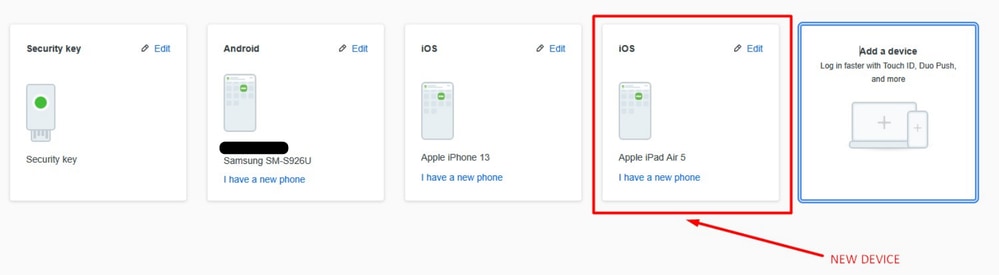
7. New or Additional device will now show in the list of devices.

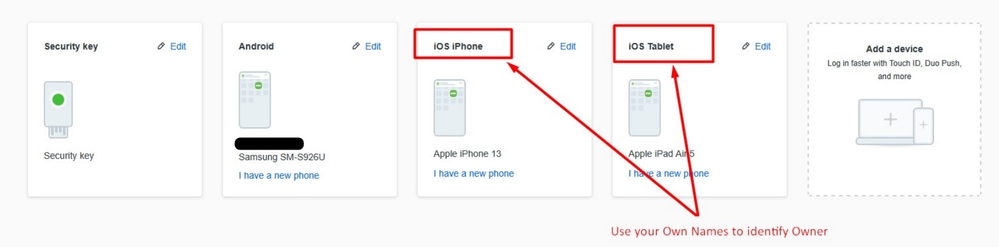
8. Edit device and change the name of the device to assign unique name which will be visible later on from the list of devices on log-in page.

9. Select the device you like to use based on the description / name you edit in previous step.