Mitigate “Not Available” Security Feature Status
Available Languages
This document describes how to troubleshoot and resolve ESA and CES security features showing “Not Available” on mail policies.
Contributed by Alan Macorra and Mathew Huynh Cisco CX Engineers.
Requirements
Prerequistes
- Any ESA (Email Security Appliance)/CES (Cloud Email Security) on any version of AsyncOS.
- Device licensed with available feature keys for security services.
- Understanding of the different levels of cluster configuration and overrides.
Background
The ESA (Email Security Appliance)/CES (Cloud Email Security) device is failing to execute any security scanning from services such as:
- Anti-Spam
- Anti-Virus
- Advanced Malware Protection
- Graymail
- Outbreak filters
- DLP (Outbound only)
Feature keys are available and can be verified on the GUI or CLI.
GUI: System Administration > Feature Keys
CLI: featurekeys
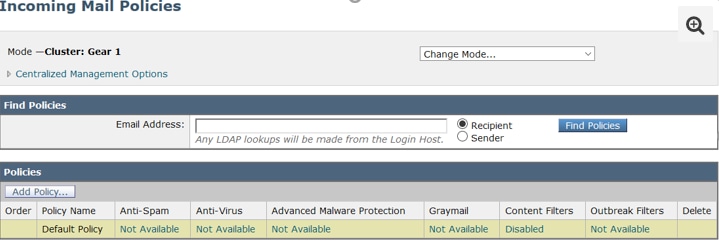
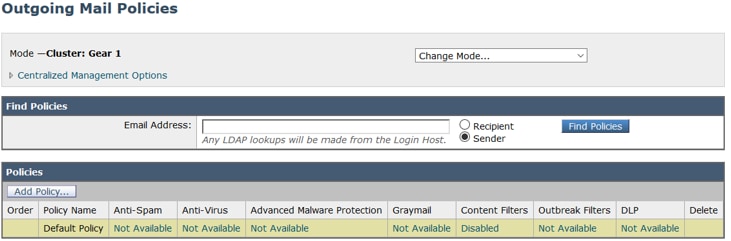
Security features on Incoming and Outgoing Mail Policies display "Not Available" even though the service is enabled.
Problem
- Feature keys are available on the device, however, services display "Not Available" when executing scans.
- When clicking the "Not Available" link on the mail policies, it redirects to the global settings for that specific security service. This displays the service is enabled and imposing any modifications does not change the "Not Available" status on the mail policies.
Solution
This issue occurs when feature keys expire before renewal and license re-installation. When this arises, the End User License Agreement (EULA) must be re-accepted. Since the devices were enabled prior to expiration, the initial feature keys were reinstalled/renewed, the EULA was not presented again and the device(s) were set to the cluster level.
To resolve this, you must override the settings on the ESA/CES to machine level to allow the EULA to present for acceptance. In doing so, the device registers the keys for renewal and re-activate the features again.
On each security service that displays "Not Available":
- Click the Not Available link from the Incoming or Outgoing Mail Policies Page.
- This redirects to the global settings per engine.
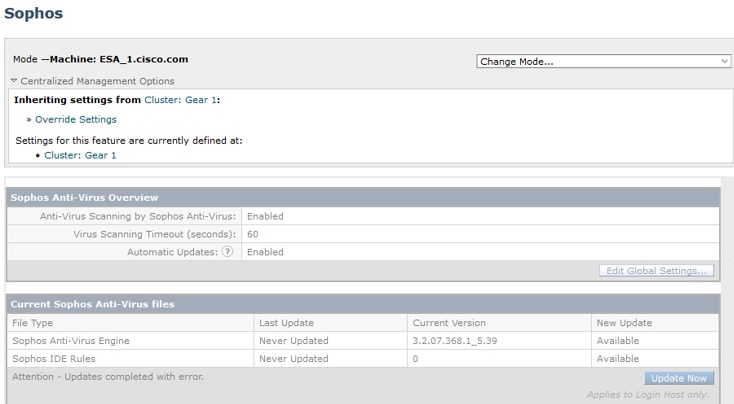
- Select Change Mode… and from the drop-down menu select the machine that is currently logged in.
- Click on Override Settings.
- Select Copy from: Cluster (this copies your current enabled settings from the cluster level down to your machine).
- Click Submit.
- The configuration displays it is enabled. Proceed by clicking on the Edit Global Settings...
- The EULA displays, you can read through and accept the EULA.
- Commit Changes by saving this setting.
- Repeat the steps on your other features, which require you to re-enable.
Sample output:
Using the drop-down on the right, change it to the machine you're logged into:

Copying the settings from the cluster to the machine override: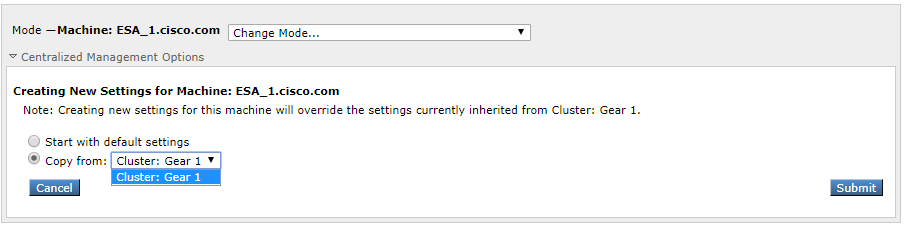
Override setting output:
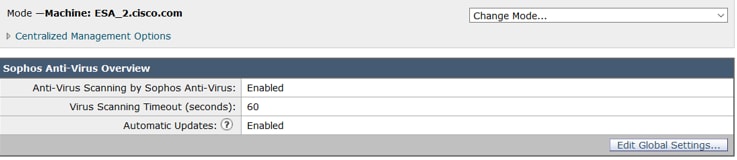
After clicking on the Edit Global Settings... the EULA displays:
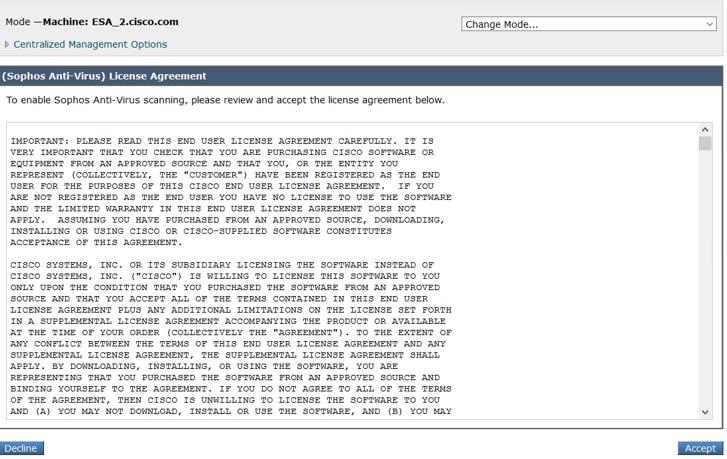
Accept the EULA and your commit changes.
The settings for Sophos is reflected on the mail policy and no longer shows "Not Available".
Remove Machine Override to Fall Back to Cluster Level
To remove the machine override settings:
- Go to Machine Mode from the drop-down menu.
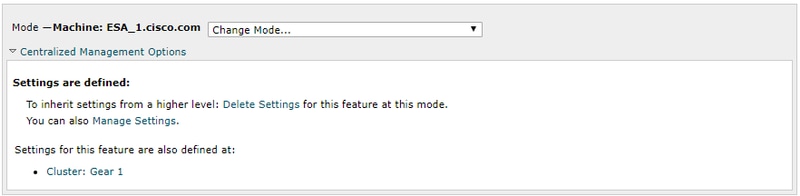
- Click to expand the Centralized Management Options.
- Click on the Delete Settings.
- Click the Delete button and the settings fall back to the higher level (Group or Cluster, whichever is configured).
- Verify the settings are properly configured on the higher level selected.
- Commit Changes to save this setting.
Sample Output:
Related Information
Revision History
| Revision | Publish Date | Comments |
|---|---|---|
2.0 |
03-Jun-2026
|
Updated spelling, grammar, rewrote Introduction and other sentences. |
1.0 |
31-May-2019
|
Initial Release |

 Feedback
Contact Cisco
- Open a Support Case

- (Requires a Cisco Service Contract)