Configure ThousandEyes Agent-to-Server SD-WAN Service-Side with DSCP Marking

Available Languages
Download Options
Bias-Free Language
The documentation set for this product strives to use bias-free language. For the purposes of this documentation set, bias-free is defined as language that does not imply discrimination based on age, disability, gender, racial identity, ethnic identity, sexual orientation, socioeconomic status, and intersectionality. Exceptions may be present in the documentation due to language that is hardcoded in the user interfaces of the product software, language used based on RFP documentation, or language that is used by a referenced third-party product. Learn more about how Cisco is using Inclusive Language.
Introduction
This document describes configuring ThousandEyes Agent-to-Server SD-WAN with DSCP marking for traffic monitoring in a Cisco SD-WAN overlay.
Prerequisites
Requirements
Cisco recommends that you have knowledge of these topics.
- SD-WAN general overview
- Templates
- Thousand Eyes
Components Used
The information in this document is based on these software and hardware versions.
- Cisco Manager Version 20.15.3
- Cisco Validator Version 20.15.3
- Cisco Controller Version 20.15.3
- Integrated Service Routers (ISR)4331/K9 Version 17.12.3a
- thousandeyes-enterprise-agent-5.5.1.cisco
Preliminary configurations
- Configure DNS: The Router can resolve DNS and access the internet on VPN 0.
- Configure NAT DIA: The DIA configuration needs to be present on the router.
The information in this document was created from the devices in a specific lab environment. All of the devices used in this document started with a cleared (default) configuration. If your network is live, ensure that you understand the potential impact of any command.
Agent to Server Test
To run an Agent to Server test, the ThousandEyes agent must be configured on the Service VPN. In this scenario, the server is the TLOC IP address that is monitored. Typically, an Agent to Server test is used to monitor a server; however, in this case, it is used to monitor a TLOC interface located at a different site from where the agent is hosted.
If there are multiple TLOC interfaces, use NAT Direct Internet Access (DIA) and a data policy to redirect traffic to the desired VPN 0 TLOC interface. Set the match criteria based on the DSCP value configured on the agent side in ThousandEyes to be redirected to and through the VPN 0 while at the same time doing the demarking to avoid any overstepping the ISP could have with their own DSCP marking.
Configure
Configure ThousandEyes Test and DSCP
To configure Differentiated Services Code Point (DSCP):
- Log in ThousandEyes account from theCisco ThosandEyes Agentpage.
Verify the Agent installed in the router has communication to ThousandEyes Cloud.
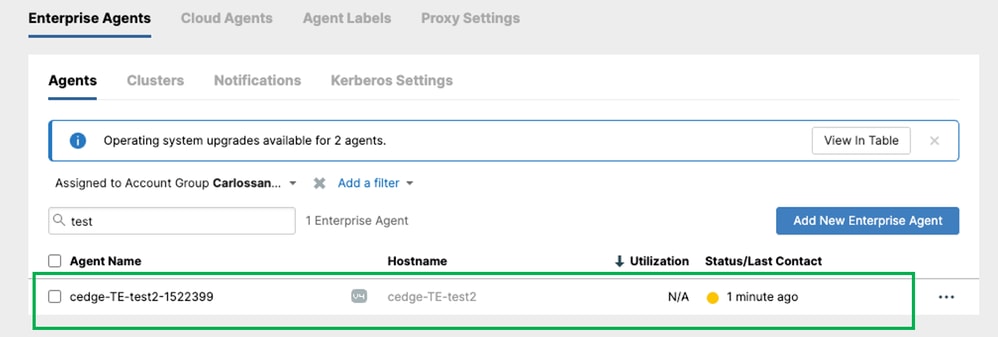
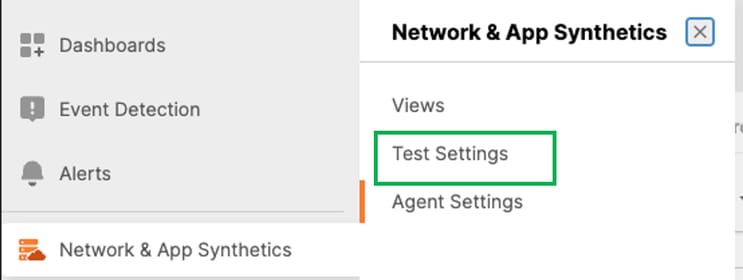
After the agent is installed on the device and communication with the ThousandEyes Cloud is confirmed, create a test. To create a test navigate on Network & App Synthetics >Test Settings.
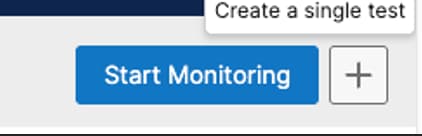
In the upper right screen, click on + icon.
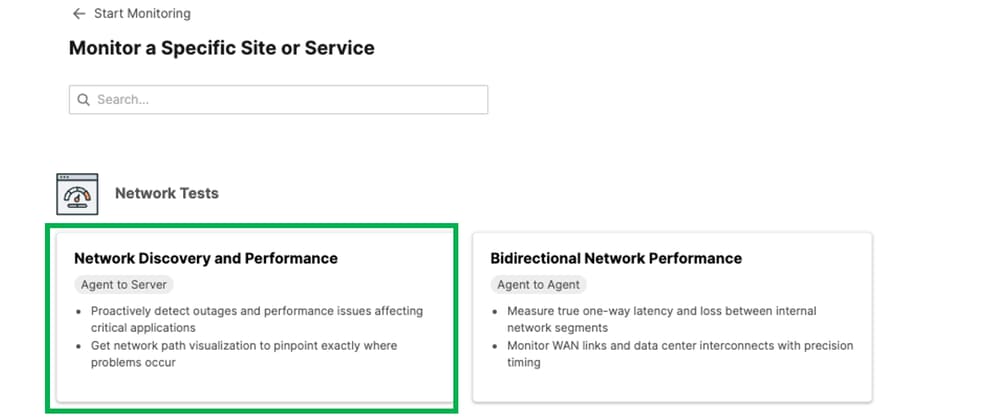
In the new Dashboard select Agent to Server Test.
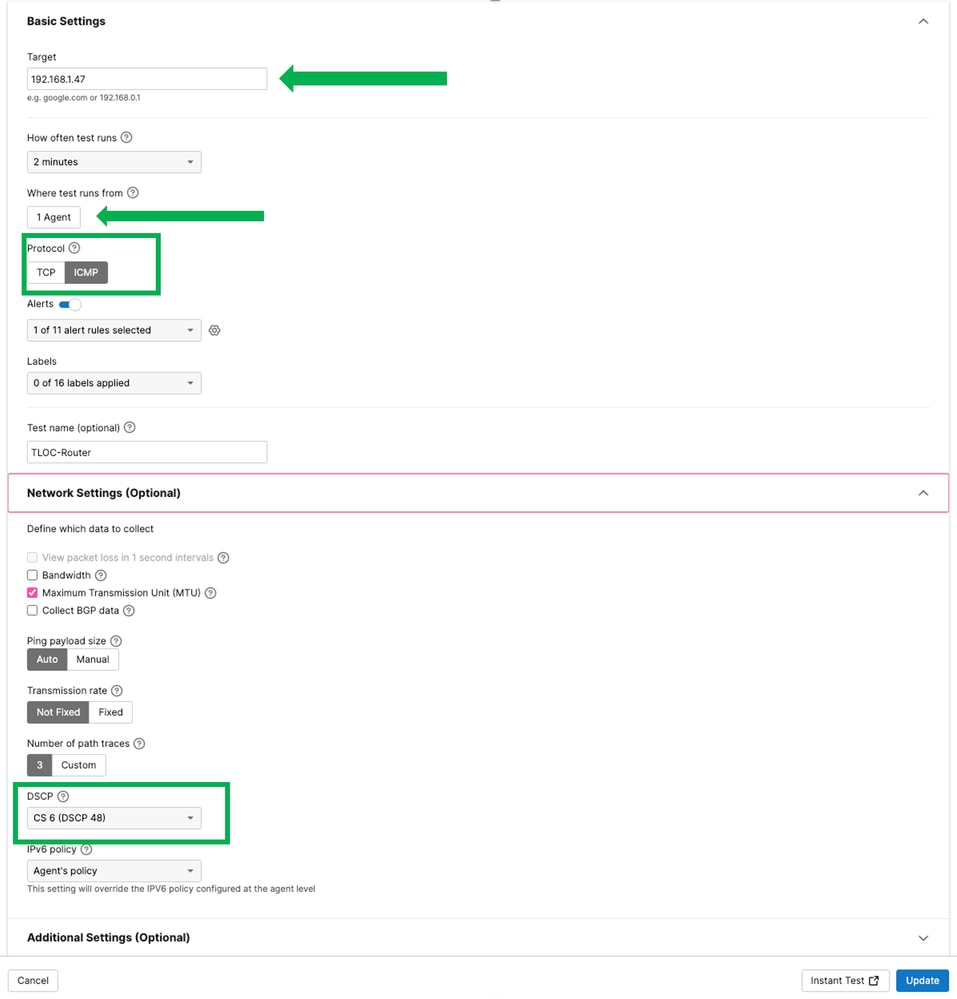
In the "Target" section, select the IP address needed to use for the test. In this example, in this example used 192.168.1.47, which is the IP address of another TLOC on a different router within the same subnet.
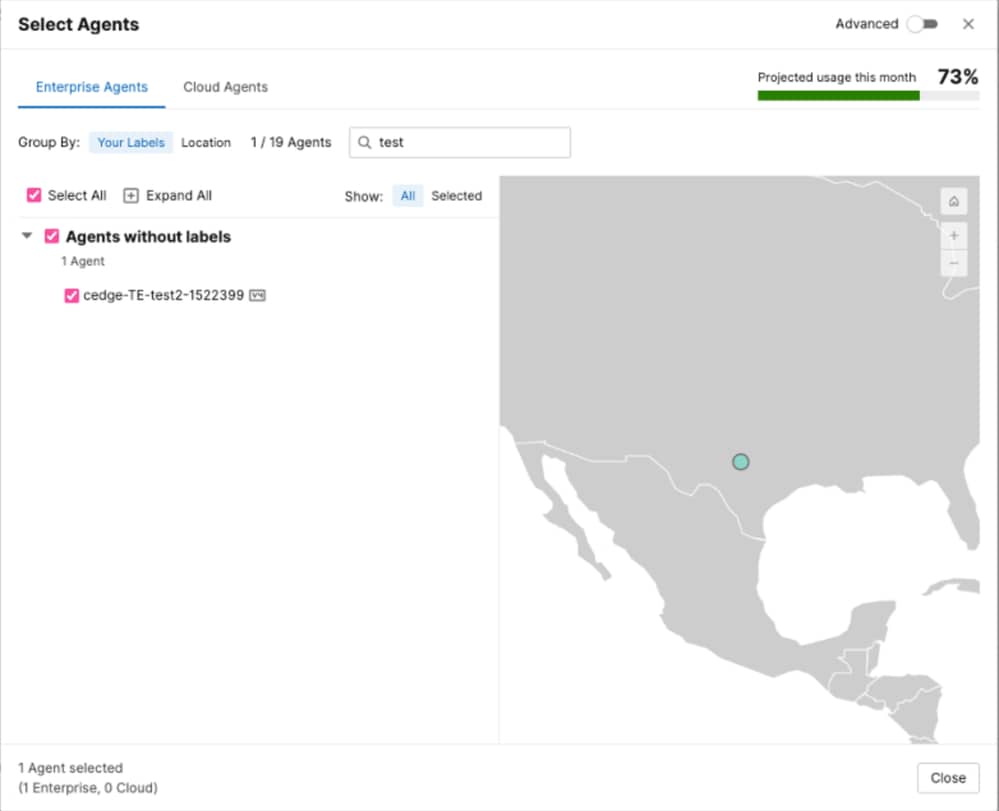
On "Where test runs From", select the agent created for your router (contains the hostname of your router) as show below:
Select ICMP Protocol
On Nework Settings (Optional) section, select the DSCP and click Update.
In the same section click Instant Test.
Configure SD-WAN
Use the reference document to configure Thousand Eyes Agent on Edge Router Configure ThousandEyes on SD-WAN Devices
Once the ThousandEyes Agent is installed on the router, the ThousandEyes template display the information:
Configure DSCP
Navigate to Configuration > Policies >Centralized Policy > Click on Add policy. On create group of interest add Site, VPN and Data Prefix.
Site (Site where ThousandEyes Agent was installed)

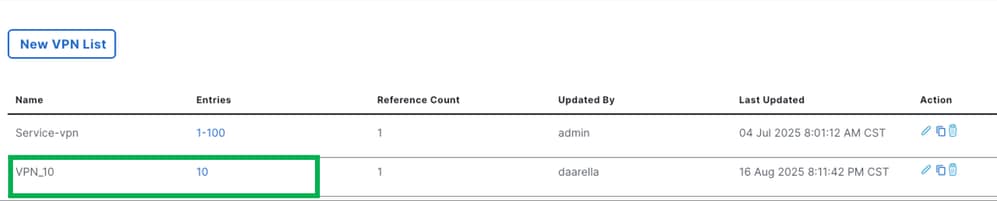
VPN (Service VPN)
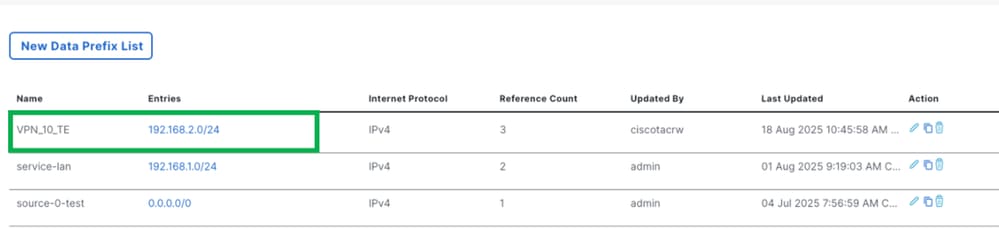
Data Prefix (Include the subnet configured on ThousandEyes Template) in this example used the subnet 192.168.2.0/24.
Click Next > Next, On Configure Traffic Rules section, select Traffic Data and Click on Add Policy.
Select DSCP, in this example used 48
Choose the "Source Data Prefix List" option. Use "VPN_10_TE" (as documented previously), which is the network used for the ThousandEyes configuration on the router.
On actions section:
Select NAT VPN
Fallback
DSCP in this example the DSCP configured is 0
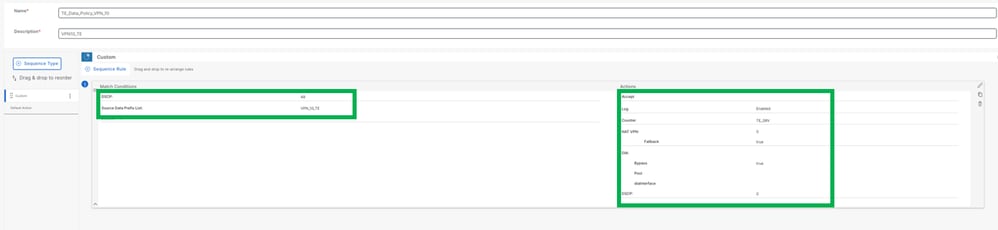
Default action Enabled.
Click Next, add Policy name and Policy Description. On Traffic Data section, click New Site/WAN Region List and VPN List, save policy and activate it,
Once the policy has been activated, verify in the router the policy applied:
Run the command show sdwan policy from-vsmart
cedge-TE-test2#show sdwan  policy from-vsmart
from-vsmart data-policy _VPN_10_TE_Data_Policy_VPN_10
 direction from-service
 vpn-list VPN_10
  sequence 1
   match
    source-data-prefix-list VPN_10_TE
    dscp                    48
   action accept
    count TE_SRV_1549695060
    nat use-vpn 0
    nat fallback
    log
    set
     dscp 0

  default-action accept
from-vsmart lists vpn-list VPN_10
 vpn 10
from-vsmart lists data-prefix-list VPN_10_TE
 ip-prefix 192.168.2.0/24
Verify
To run a Test click on Instat Test and open a new windows.
Once the test has finished, you can see the path that took to reach the 192.168.1.47
Agent192.168.2.2 >>>>>>DG TE 192.168.2.1 >>>>>>Test 192.168.1.47
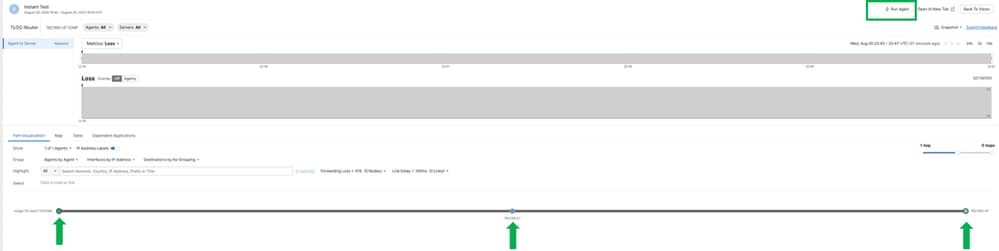
Where was marked as dscp48 before to go for the underlay and after go over the underlay is mark as 0.
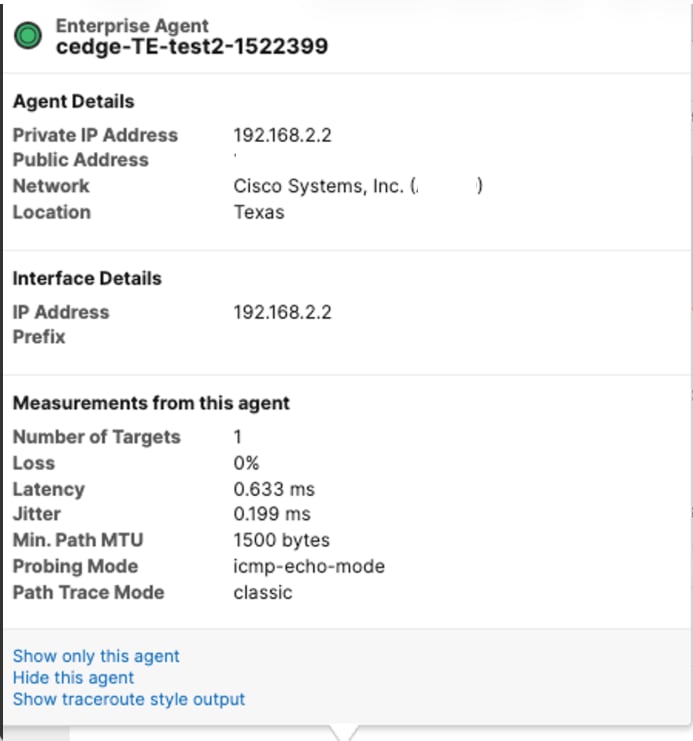
Configure a FIA trace on the Edge Router:
debug platform condition ipv4 <ip address> both

debug platform packet-trace packet 2048 circular fia-trace data-size 4096

debug platform packet-trace copy packet both size 128 L2
Open a a packet:
cedge-TE-test2#show platform  packet-trace  packet 0 decode
Packet: 0           CBUG ID: 3480
Summary
  Input     : VirtualPortGroup4
  Output    : GigabitEthernet0/0/0
  State     : FWD
  Timestamp
    Start   : 149091925690917 ns (08/19/2025 19:30:43.807639 UTC)
    Stop    : 149091925874126 ns (08/19/2025 19:30:43.807822 UTC)
Path Trace
  Feature: IPV4(Input)
    Input       : VirtualPortGroup4
    Output      : <unknown>
    Source      : 192.168.2.2
    Destination : 192.168.1.47
    Protocol    : 1 (ICMP)
  <Omitted output>
  Feature: NBAR
    Packet number in flow: N/A
    Classification state: Final
    Classification name: ping
    Classification ID: 1404 [CANA-L7:479]
    Candidate classification sources:
      DPI: ping [1404]
    Early cls priority: 0
    Permit apps list id: 0
    Sdavc Early prioirty as app: 0
    Classification visibility name: ping
    Classification visibility ID: 1404 [CANA-L7:479]
    Number of matched sub-classifications: 0
    Number of extracted fields: 0
    Is PA (split) packet: False
    Is FIF (first in flow) packet: False
    TPH-MQC bitmask value: 0x0
    Source MAC address: 52:54:DD:82:B5:F8
    Destination MAC address: 00:27:90:64:D6:D0
    Traffic Categories: N/A
  Feature: IPV4_INPUT_STILE_LEGACY
    Entry       : Input - 0x8142ecc0
    Input       : VirtualPortGroup4
    Output      : <unknown>
    Lapsed time : 23615 ns
 <Omitted output>
  Feature: SDWAN Data Policy IN
    VPN ID       : 10
    VRF          : 2
    Policy Name  : _VPN_10_DP_VPN10_TLOC-VPN_10 (CG:5) <<<<<<<<<<<
    Seq          : 1
    DNS Flags    : (0x0) NONE
    Policy Flags : 0x80210018
    Policy Flags2: 0x0
    Action       : POL_LOG
    Action       : SET_DSCP default(0)   <<<<<<<<<<<<<<<<<<<<<<<<<<<<<
    Action       : REDIRECT_NAT
    Action       : NAT_FALLBACK
Related Information
Revision History
| Revision | Publish Date | Comments |
|---|---|---|
1.0 |
09-Jan-2026
|
Initial Release |
Contributed by Cisco Engineers
- Cynthia Lizbeth GomezTechnical Consulting Engineer
 Feedback
Contact Cisco
- Open a Support Case

- (Requires a Cisco Service Contract)