Splunk DB Connect Input Page Fails to Load After Upgrading the DB Connect App between Versions 3.17 to 3.18.0
Available Languages
Applicability
Splunk Enterprise Splunk Cloud Splunk DB Connect (3.17, 3.17.1, 3.17.2 & 3.18)Description
After upgrading Splunk DB Connect to versions 3.17, 3.17.1, 3.17.2, and 3.18, the input page fails to load. This issue occurs exclusively after upgrading to these versions.
Investigation
During the investigation, it was observed that Splunk DB Connect is attempting to check the checkpoint value for inputs that are disabled in the backend. For reference, see the screenshot and error details below:
The input is disabled, yet Splunk DB Connect continues to check for the checkpoint value.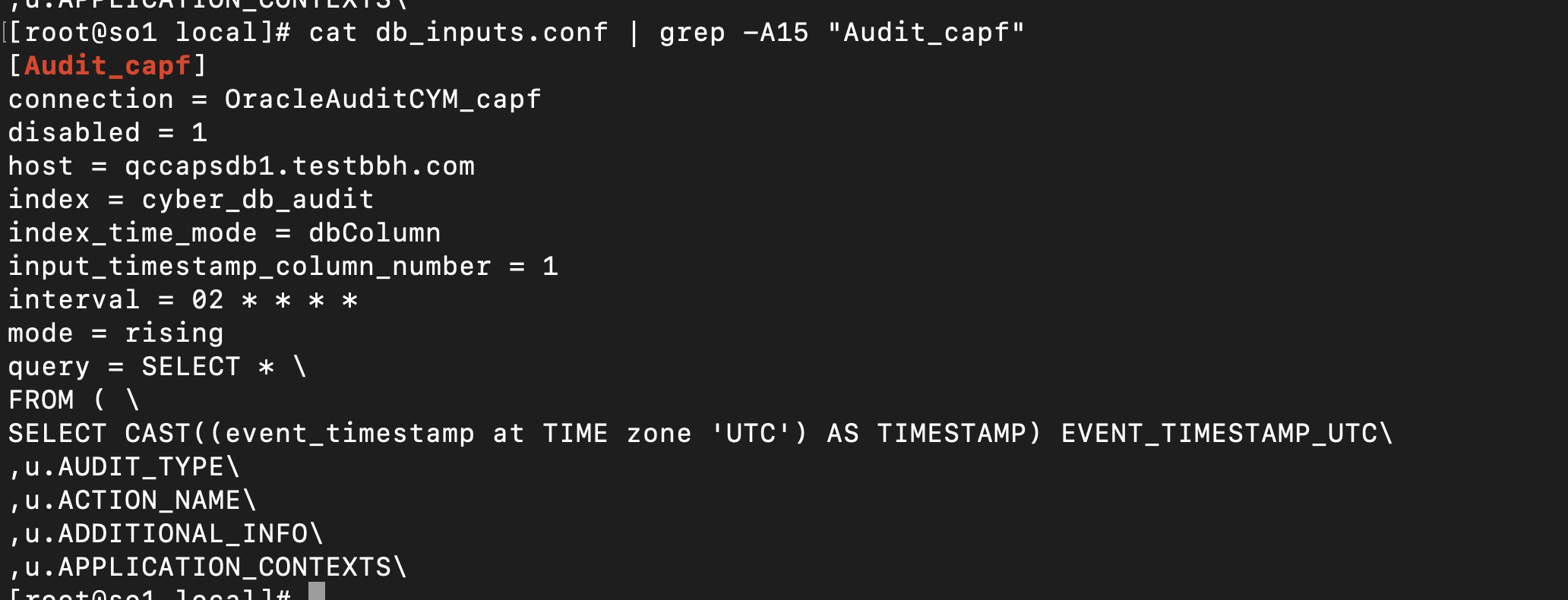
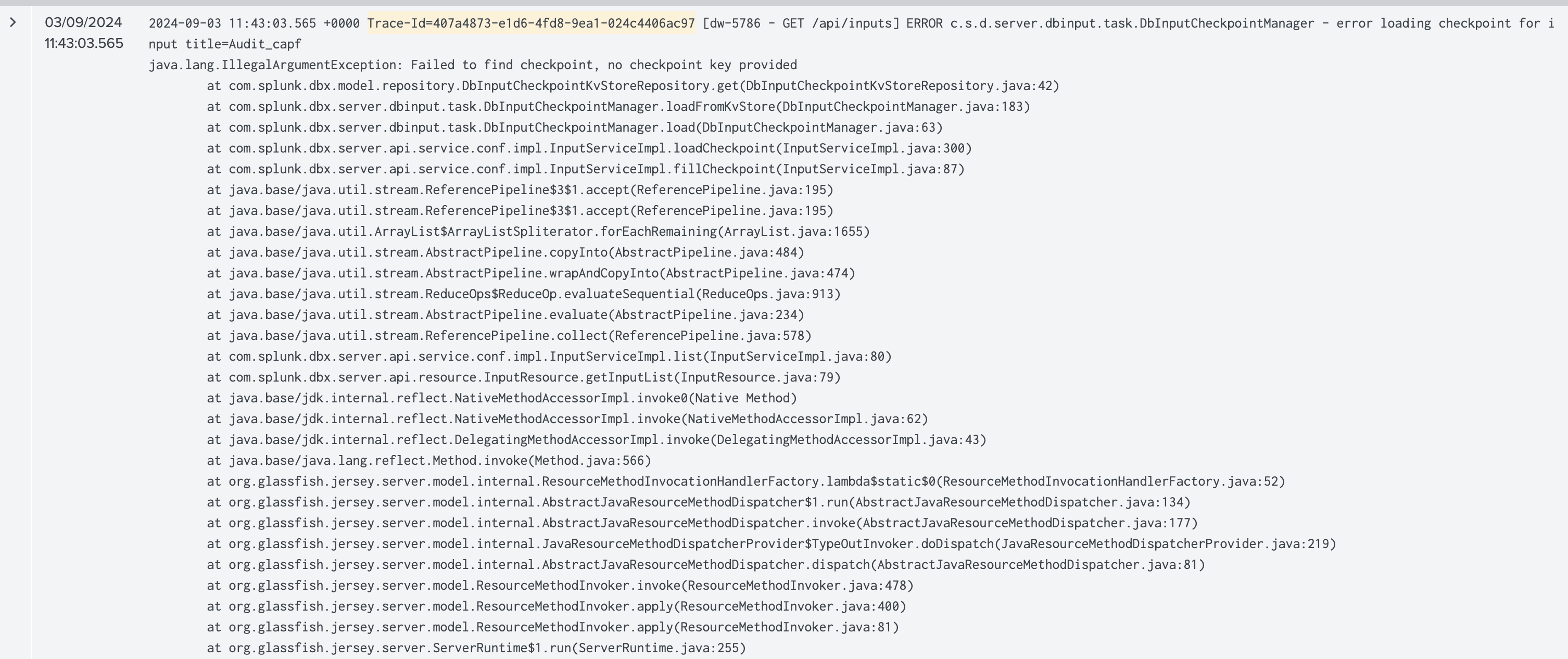
It is suspected that this issue may be related to the pre-checks introduced in version 3.17 and subsequent versions. Specifically, errors are occurring when inputs are disabled, and some required values are not available for these disabled inputs.
Log analysis revealed that Splunk DB Connect continues to check for checkpoint key values even for disabled inputs. The specific error encountered is as follows:
2024-09-03 11:43:04.127 +0000 Trace-Id=407a4873-e1d6-4fd8-9ea1-024c4406ac97 [dw-5786 - GET /api/inputs] ERROR c.s.d.server.dbinput.task.DbInputCheckpointManager - error loading checkpoint for input title=Audit_cbrmonqjava.lang.IllegalArgumentException: Failed to find checkpoint, no checkpoint key provided
Resolution
If you are experiencing issues with the mentioned version, you can resolve the problem by following one of the methods below:
-
Comment Out Disabled Inputs
Comment out disabled inputs and then restart the Splunk service to apply the changes. -
Remove Disabled Inputs
Alternatively, you can remove the disabled inputs entirely and restart the Splunk service. -
Downgrade Splunk DB Connect
Consider downgrading Splunk DB Connect to version 3.16, where the functionality operates as expected. -
Upgrade to the Latest Version
Upgrade to the latest version of Splunk DB Connect (3.18.1), which addresses this issue.
By following these steps, you can effectively resolve the issue at hand. If you need further assistance, please reach out to our support team.
Revision History
| Revision | Publish Date | Comments |
|---|---|---|
1.0 |
29-Sep-2026
|
Initial Release |
 Feedback
Contact Cisco
- Open a Support Case

- (Requires a Cisco Service Contract)
This Document Applies to These Products
Related Articles
- [Splunk DB Connect] DB Connect Task Server Fails to Start after OS Upgrade
- [DB Connect v3.16] Parsing_err="No data" HEC Error in DB Connect App
- [Splunk DB Connect] Resolving the "java.lang.StringIndexOutOfBoundsException: begin 0, end 2208, length 2207" Error When Executing a Splunk DB Connect Input.