Configure and Troubleshoot OAuth Based SMTP Authentication in ISE

Available Languages
Download Options
Bias-Free Language
The documentation set for this product strives to use bias-free language. For the purposes of this documentation set, bias-free is defined as language that does not imply discrimination based on age, disability, gender, racial identity, ethnic identity, sexual orientation, socioeconomic status, and intersectionality. Exceptions may be present in the documentation due to language that is hardcoded in the user interfaces of the product software, language used based on RFP documentation, or language that is used by a referenced third-party product. Learn more about how Cisco is using Inclusive Language.
Introduction
This document describes the OAuth 2.0 configuration in ISE to enable email communication through Microsoft Exchange Online Mail SMTP servers.
Prerequisites
Requirements
Cisco recommends that you have a basic knowledge of the Cisco Identity Services Engine (ISE) and Simple Mail Transfer Protocol (SMTP) Server functionality and OAuth Authorization.
Components Used
ISE version 3.5 P1 (3.2 Patch 8, 3.3 Patch 8, 3.4 Patch 4 also supports this functionality)
Access to Microsoft EntraID and Microsoft 365 admin center
The information in this document was created from the devices in a specific lab environment. All of the devices used in this document started with a cleared (default) configuration. If your network is live, ensure that you understand the potential impact of any command.
Configure
This section describes the configuration on Microsoft Entra ID and ISE in order to support email notifications used to:
- Send email alarm notifications to any internal admin users with the inclusion of system alarms in emails option enabled. To configure the sender email address, click on Administration > System > Settings > Alarm Settings > Alarm Notification and type in the email address to the one configured under Microsoft 365 admin center
- Sponsors to send an email notification to guests with their log in credentials and password reset instructions. For Guest and Sponsor flow, sender email is configured under Work Centers > Guest Access > Settings > Guest email settings > Default 'From' email address to the one configured under Microsoft 365 admin center
- Enable guests to automatically receive their log in credentials after they successfully register themselves and with actions to take before their guest accounts expire.
- Send reminder emails to ISE admin users/Internal network users configured on the ISE prior to their password expiration date.
ISE Nodes that Send Emails
| Purpose of Email | Node That Sends Email |
| Guest access expiration | Primary Policy Administration Node (PAN) |
| Alarms | Active Monitoring and Troubleshooting node (PMnT) |
| Sponsor and guest notifications from guest and sponsor portals | Policy Service node (PSN) |
| Password expiration | Primary PAN |
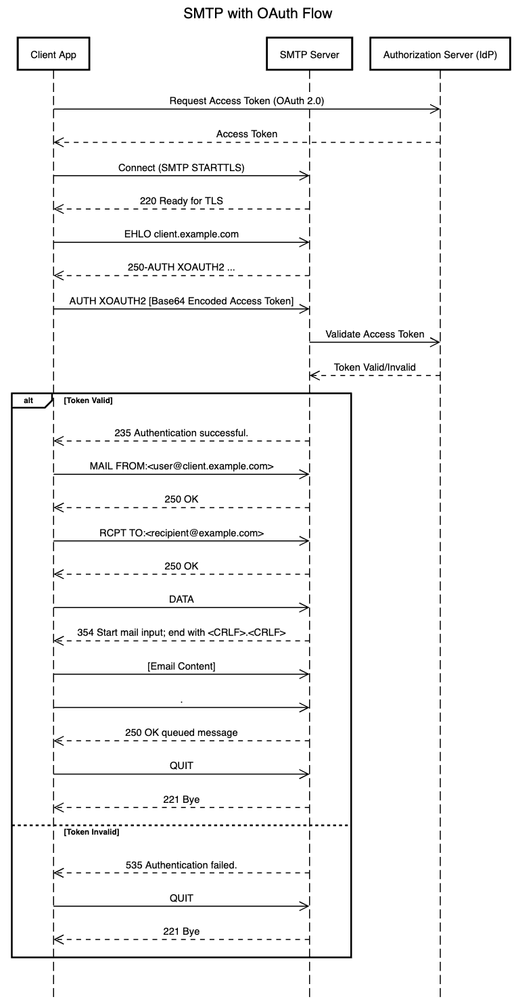
Network Diagram
To use OAuth with ISE, 3 steps are needed:
1. Register ISE application with Microsoft Entra ID
2. Get an access token from the token server (IDP)
3. Authenticate connection requests to SMTP Server with an access token.
Configurations
STEP 1: Create user Email Account
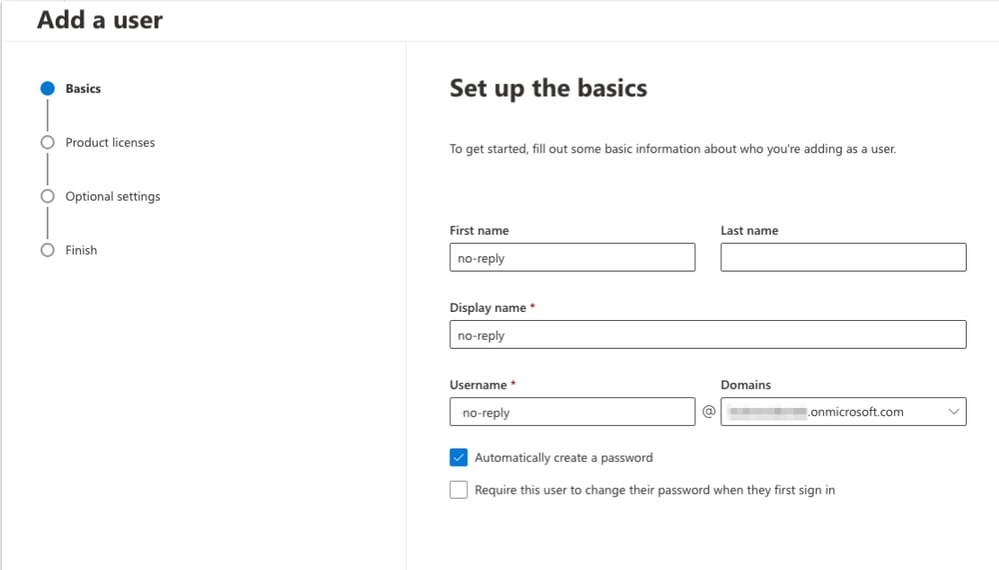
Create user email account in your registered domain from Microsoft 365 admin center. Sample account is created here with the username "no-reply" to connect with the EntraID application and send emails from ISE.
- Navigate to Users > Active users and Add a user to send emails from ISE.
- Setup the basics: Add the First and Last name of the user, Display name, FQDN and Password, click Next.
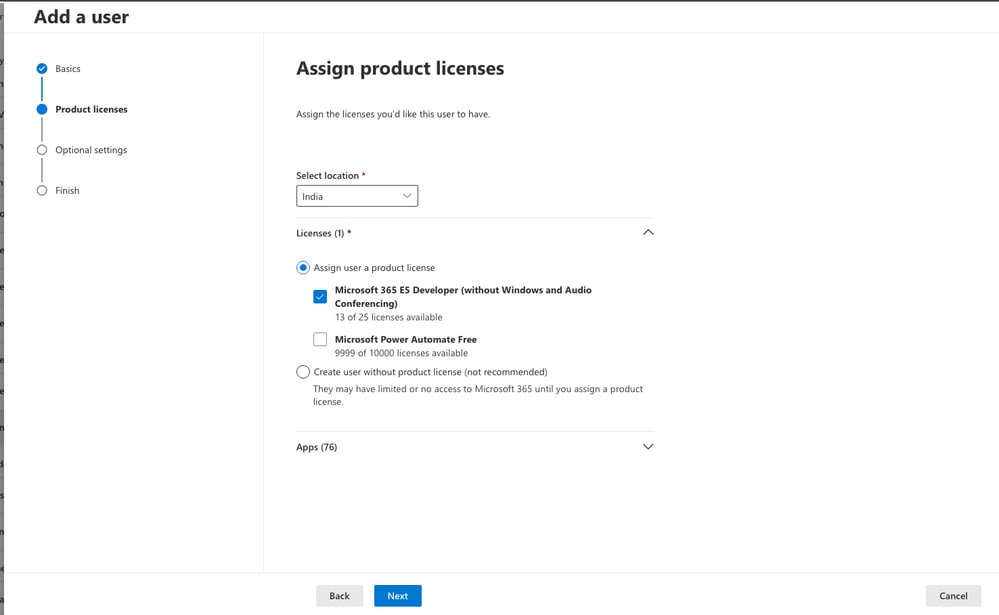
- Select location and Assign user a product license (Microsoft 365 E5 Developer), Click Next
 Add a user
4. Under Optional Settings, Assign the Role User (no admin center access)
5. Review and Click Finish adding.
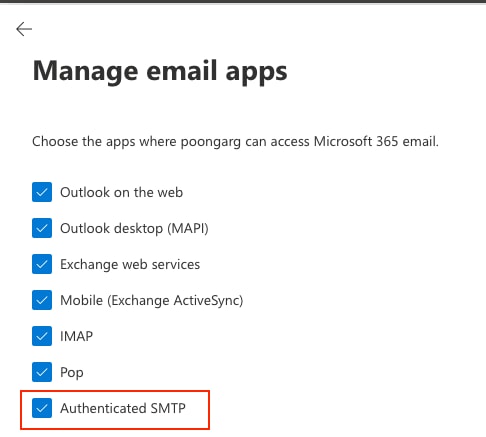
6. Choose the apps where this user account can access Microsoft 365 email: On the Microsoft 365 admin center, Go to Users > Active users > select the user account and Click on Mail. Under Email apps > Manage email apps. Make sure Authenticated SMTP is also selected along with other apps.
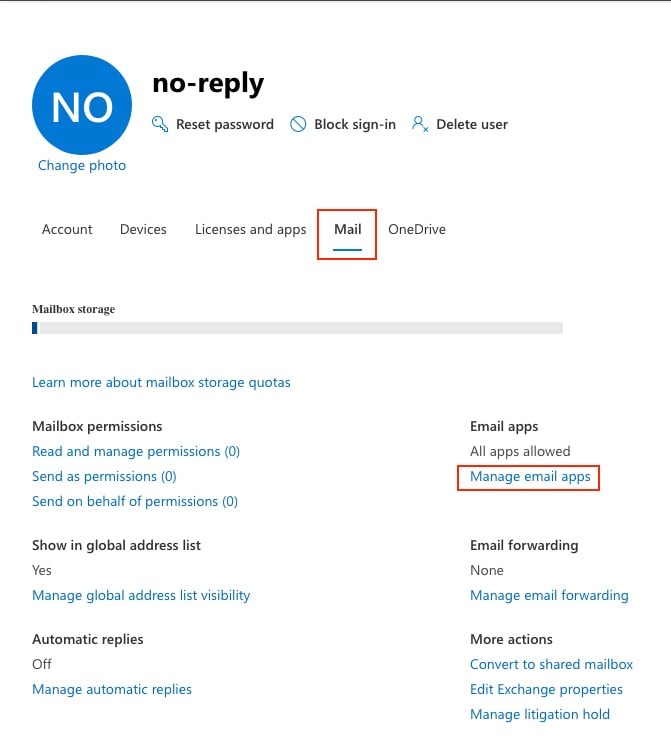 Manage email apps
STEP 2: Register ISE application in Microsoft Entra ID
- Sign in to the Microsoft Entra admin center using your MS Azure account that has active subscription and must be at least a Application Developer.
- Browse to Entra ID. Search for App registrations service, click on New Registration
- Enter a meaningful Name for your app and under Supported account types, specify who can use the application, choose “Single tenant only-your EntraID tenant "and click Register to complete the app registration.
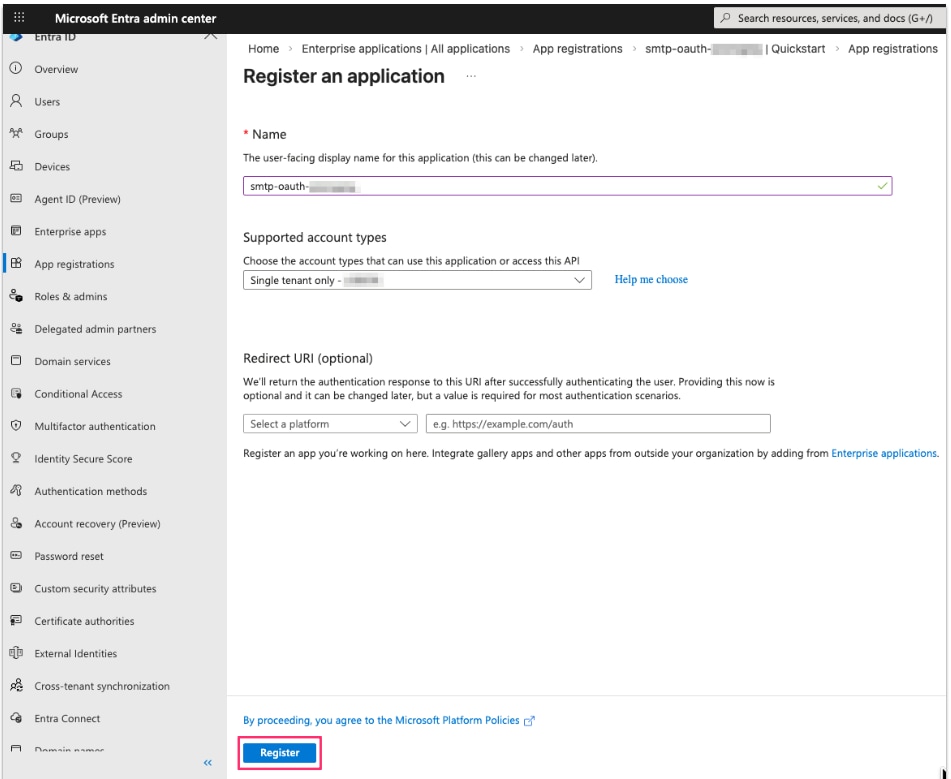 Register an application
4. The application Overview page is displayed. Record the Application (client) ID, which uniquely identifies your application. Also your Directory (tenant) ID, to be used in ISE SMTP configuration.
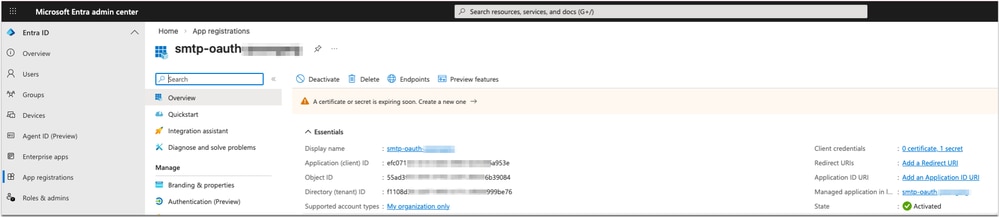 App Registration Details
5. Now add the Application credentials to this MS Entra Application to authenticate itself securely and access web API without user interaction.
- In the newly registered application, browse to Manage > Certificates & secrets. Under the Client secrets click on New client secret. Enter a Description under the Add a client secret and set the Expiration duration and click Add.
- Note down the Client secret Value as Client secret values cannot be viewed, except for immediately after creation. Be sure to save the secret when created before leaving the page.
- Also note down the key expiry date.
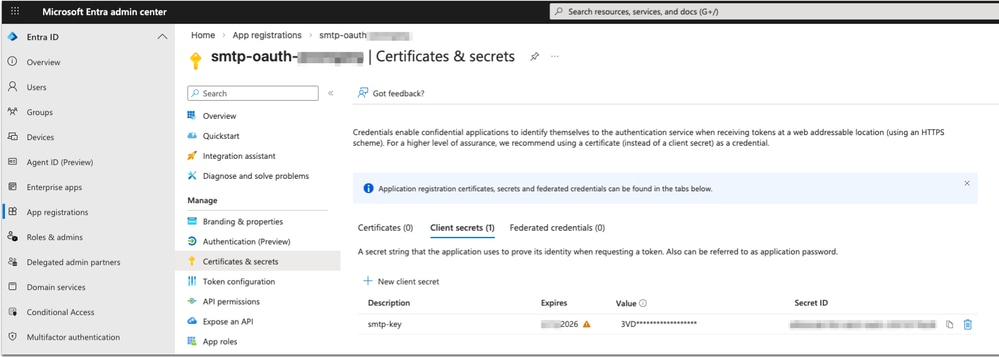 Application Client Secret configuration
6. Applications are authorized to call APIs when they are granted permissions by users/admins. Now add SMTP permissions to the MS Entra Application.
- In the newly registered application, browse to Manage > API permissions. Select Add a permission.
- Select the APIs my organization uses tab and search for "Office 365 Exchange Online".
- Click Application permissions.
- For SMTP access, choose the SMTP.SendAsApp permission.
- Tenant Admin consent is required for this permission. Click on Grant admin consent for <tenant name>
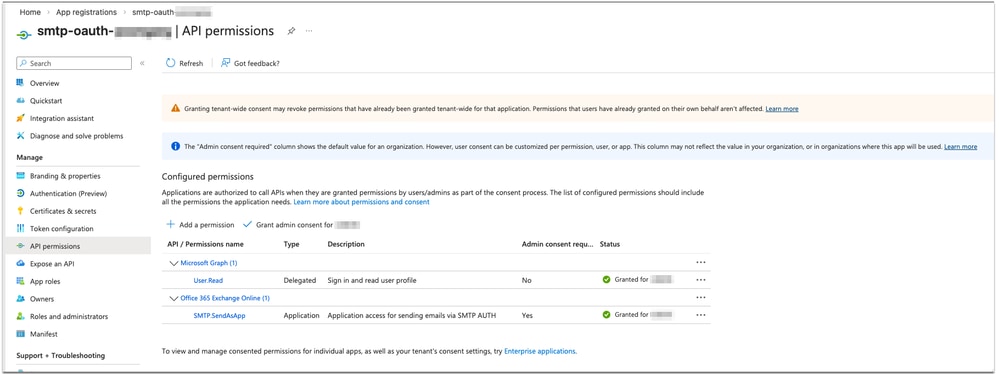 Assign API permission to application
Note: User.Read Permission for Microsoft Graph is added by default (No Admin consent for the tenant)
7. Service principals in Exchange are used to enable applications to access Exchange mailboxes via client credentials flow with the SMTP, POP, and IMAP protocols.
Once a tenant admin consents your Microsoft Entra application, admin must register your Entra application service principal in Exchange via Exchange Online PowerShell. This registration is enabled by the New-ServicePrincipal cmdlet.
- Install Powershell, if not already installed on your laptop
abc@abc-M-506L ~ % brew install --cask powershell
abc@abc-M-506L ~ % sh
sh-3.2$ brew update
sh-3.2$ brew upgrade powershell
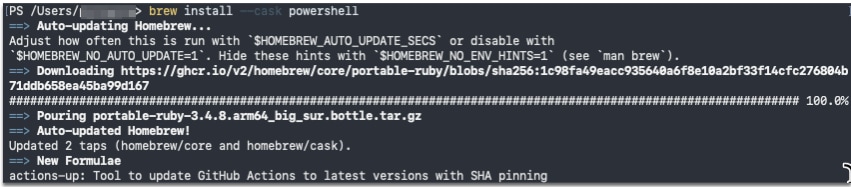 Install Powershell
II. To use the New-ServicePrincipal cmdlet, install ExchangeOnlineManagement and connect to your tenant as shown in the snippet:
sh-3.2$ pwsh
PowerShell 7.5.4

PS/Users/abc> Install-Module -Name ExchangeOnlineManagement
PS/Users/abc> Import-module ExchangeOnlineManagement
PS/Users/abc> Connect-ExchangeOnline -Organization xxxxxxxx-xxxx-xxxx-xxxx-xxxxx999be76 ---->Directory (tenant) ID
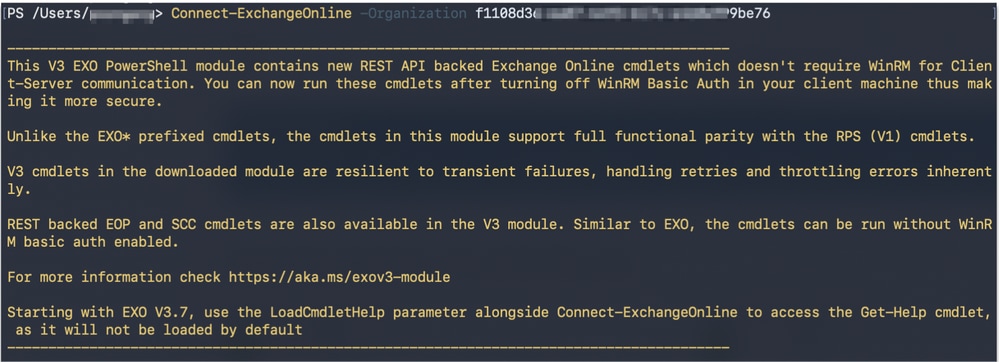 Connect to Exchange Online Tenant
III. Registration of an Microsoft Entra application service principal in Exchange. Use the AppID and ObjectID [The OBJECT_ID is the Object ID from the Overview page of the Enterprise Application node (Azure Portal) for the application registration. It is NOT the Object ID from the Overview page of the App Registrations node. Using the incorrect Object ID results in authentication failure].
PS/Users/abc> New-ServicePrincipal -AppId xxxxxxxx-xxxx-xxxx-xxxx-xxxxxx6a953e -ObjectId b10axxxx-xxxx-xxxx-xxxx-xxxxxxxxxxxx
 Register Entra application service principal in Exchange
IV. Verify your registered service principal identifier using the Get-ServicePrincipal cmdlet
PS/Users/abc> Get-ServicePrincipal | fl
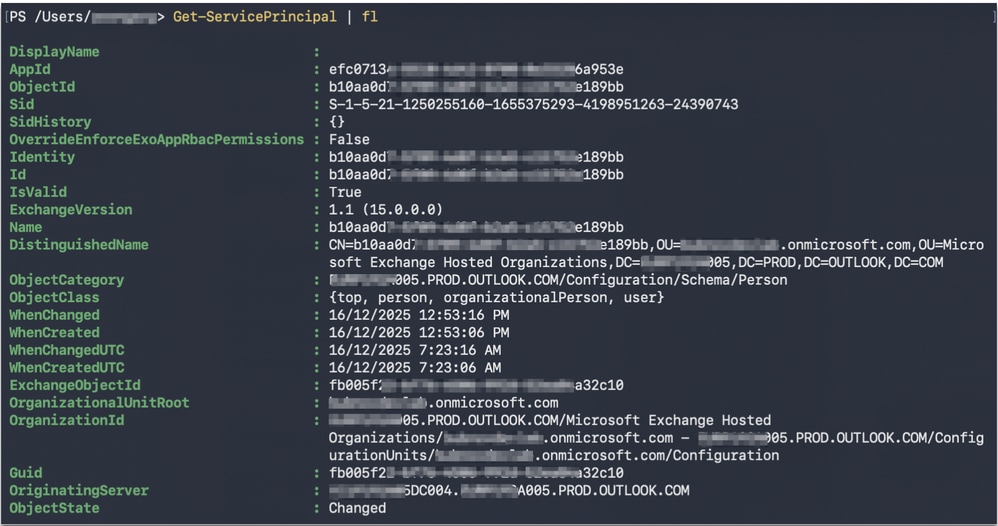 Verify registered service principal identifier
V. Tenant admin can now add the specific mailboxes in the tenant that is be allowed to be accessed by your application. This configuration is done with the Add-MailboxPermission cmdlet.
PS/Users/abc> Add-MailboxPermission -Identity "no-reply@abcdef.onmicrosoft.com" -User b10aa0dx-xxxx-xxxx-xxxx-xxxxxxe189bb -AccessRights FullAccess
 Add mailbox permission to access application
Your Microsoft Entra application can now access the allowed mailboxes via the SMTP, POP, or IMAP protocols using the OAuth 2.0 client credentials grant flow.
STEP 3: Configure ISE SMTP User authentication via MS Exchange Online OAuth
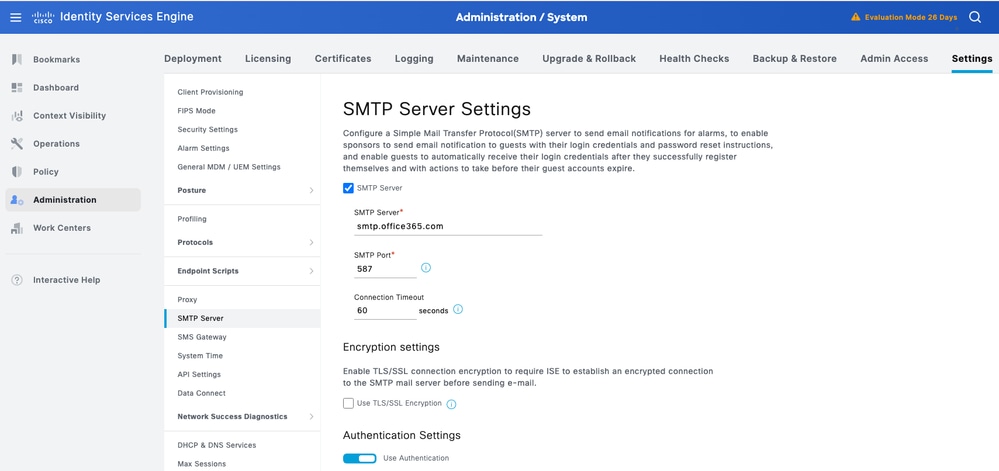
To configure an Simple Mail Transfer Protocol (SMTP) server, click the Menu icon ( ) and choose Administration > System > Settings > SMTP Server. Configure the fields.
- In the SMTP Server Settings area:
- SMTP Server: smtp.office365.com
- SMTP Port: 587
- Connection Timeout: 60 seconds
- In the Authentication Settings area, Use the toggle switch to enable the Use Authentication Settings option.
Choose MS Exchange Online OAuth: Enter these values to configure Microsoft Exchange Online OAuth.
- In the Username field, enter the full email address of the Exchange Online Username.
- In the Client ID field, enter the client ID of the Azure Entra ID application.
- In the Tenant ID field, enter the tenant ID of the Azure Entra ID application.
- In the Client Secret field, enter the client secret of the Azure Entra ID application.
- In the Expiry Date field, enter the expiry date of the client secret.
Client secret expiry alarms are triggered based on this configuration.
- The OAuth Token Endpoint API and Scope files are automatically populated.
Configuration can be saved only after successful Test Connection operation.
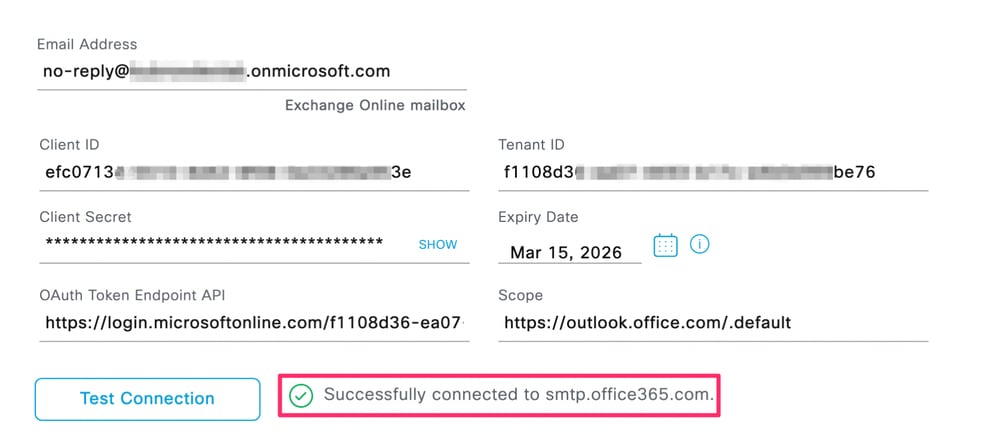 Successful test connection to SMTP sever
Note: To protect sensitive customer data, these configurations are excluded from Backup and Restore operations
Verify
To verify, configure the Guest Email Settings. Navigate to Work Centers > Guest Access > Guest Email Settings. Select the Enable email notifications to guests and configure the Default ‘From’ email Address of no-reply account configured during Step1 of configuration and Save.
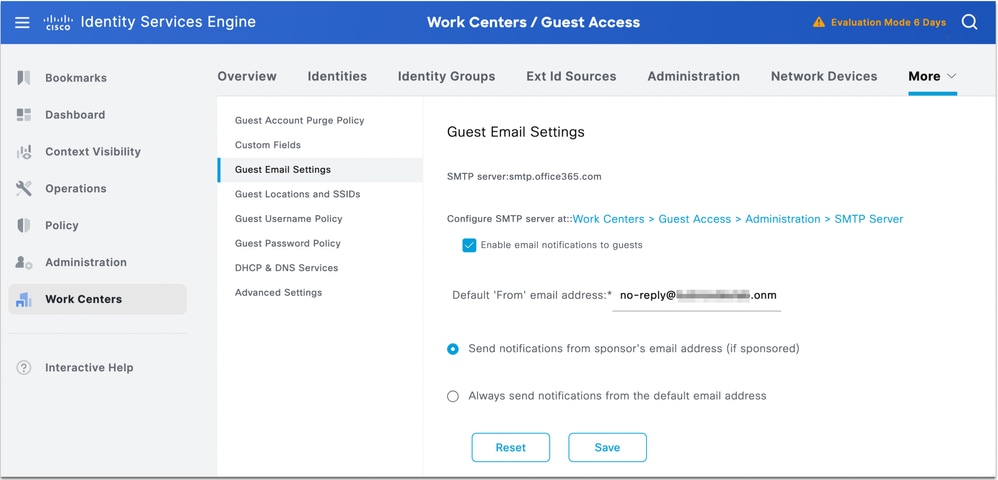 Change Guest Email Settings
Send a test email by navigating to Work Centers > Guest Access > Portal & Components > Guest Portals > Self-Registered Guest Portal (default) > Portal Page Customization > Notifications > Email.
Under preview pane right hand side, click Settings > Send Test Email, Add your email ID and click Send.
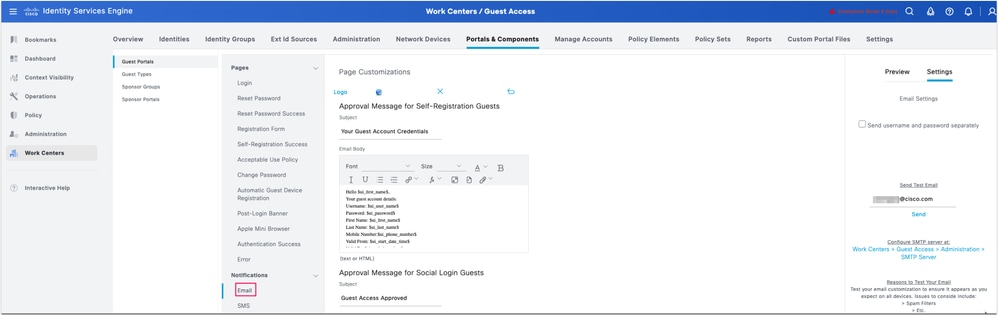 Test Email from Self-Registration Portal
Your Outlook must receive an email from no-reply account configured in step 1 of verification. Sample email in the screenshot.
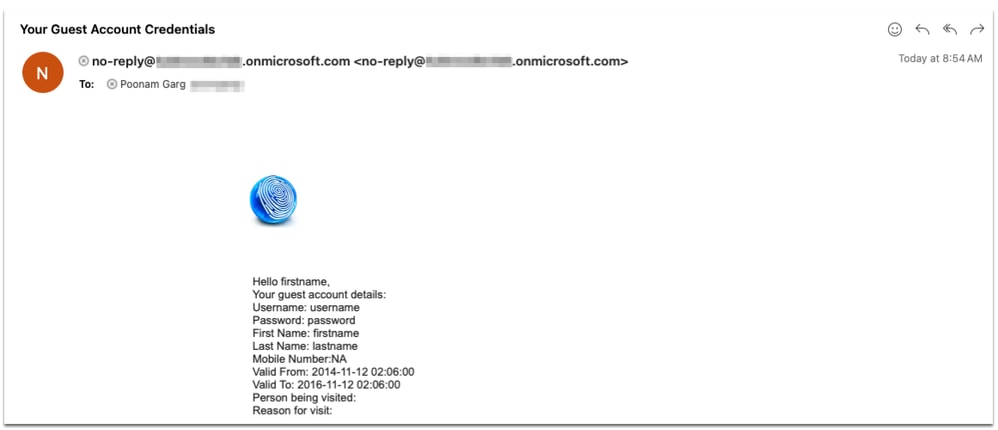 Sample Email received in Outlook
Guest.log at debug level:
2026-02-02 05:17:34,608 INFO   [admin-http-pool139][[]] cpm.guestaccess.apiservices.util.SmtpMsgRetryThreadUtil -::admin:::- sendMailMessage: Submitting Mail Job............
2026-02-02 05:17:34,608 INFO   [admin-http-pool139][[]] cpm.guestaccess.apiservices.util.SmtpMsgRetryThreadUtil -::admin:::- submitMailMsgJob: SMTP server FQDN ==> smtp.office365.com
2026-02-02 05:17:34,609 INFO   [admin-http-pool139][[]] cpm.guestaccess.apiservices.util.SmtpMsgRetryThreadUtil -::admin:::- sendMailMessage: Time taken for Submitting mail job is 1 Milli seconds.
2026-02-02 05:17:34,609 INFO   [admin-http-pool139][[]] cpm.guestaccess.apiservices.util.SmtpMsgRetryThreadUtil -::admin:::- sendMailMessage: Calling Future.get....
2026-02-02 05:17:34,609 INFO   [GUEST_ACCESS_SMTP_RETRY_THREAD][[]] cpm.guestaccess.apiservices.util.SmtpMsgRetryThreadUtil -:::::- submitMailMsgJob: Creating transport object...
2026-02-02 05:17:39,365 INFO   [GUEST_ACCESS_SMTP_RETRY_THREAD][[]] cpm.guestaccess.apiservices.util.SmtpMsgRetryThreadUtil -:::::- submitMailMsgJob: Time taken for transport.sendMessage() call is 4756 Milli Seconds.
2026-02-02 05:17:39,365 INFO   [admin-http-pool139][[]] cpm.guestaccess.apiservices.util.SmtpMsgRetryThreadUtil -::admin:::- sendMailMessage: Future.get status: success Time taken for Future.get method call is 4756 Milliseconds.
Also test from sponsor portal by resending the user credentials to the guest user by sponsor admin.
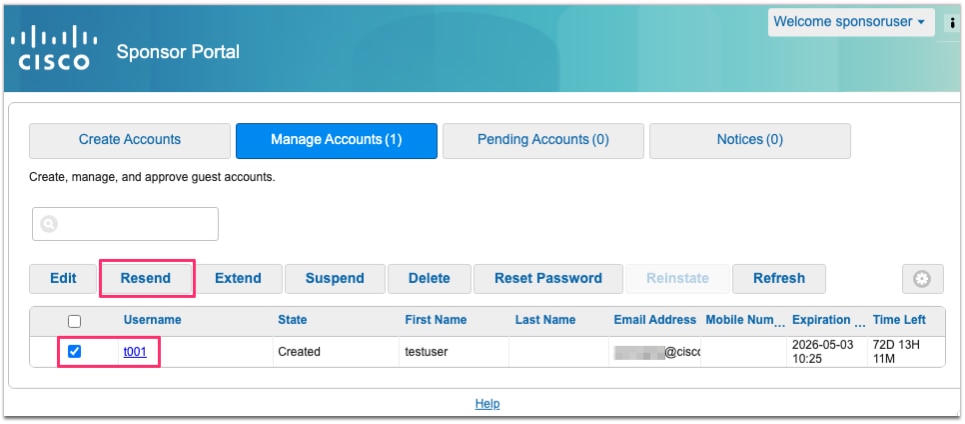 Test from Sponsor Portal
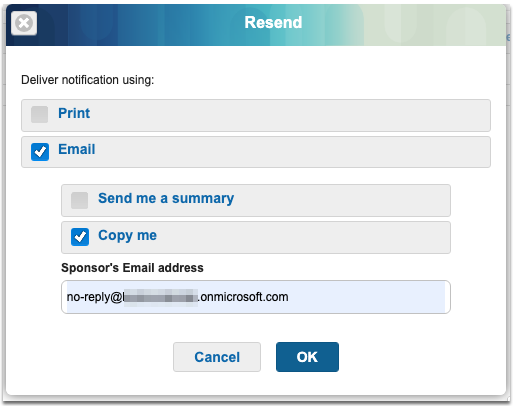 Send credentials to Guest user
Sample email received by guest user:
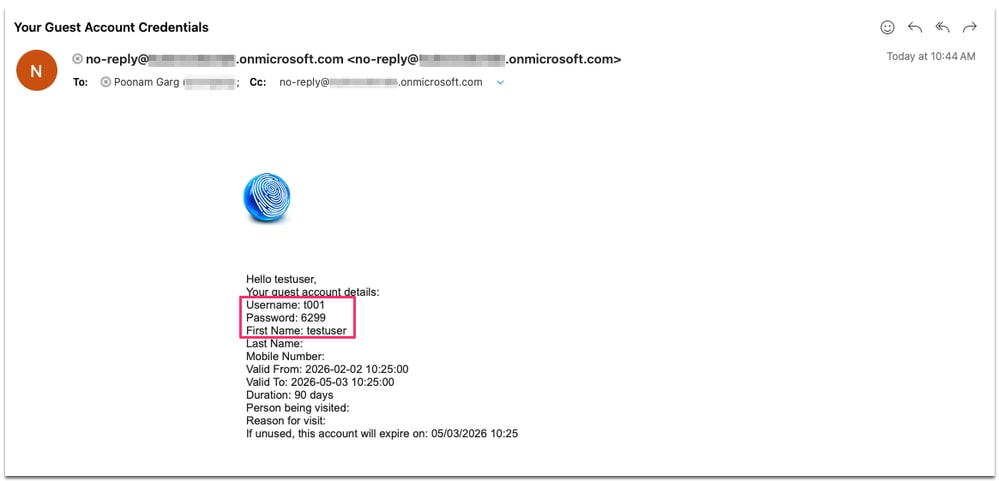 Email notification to guest user
Troubleshoot
Start with checking alarms for Client Secret expiry. New alarms related to SMTP OAuth Client Secret are added in ISE.
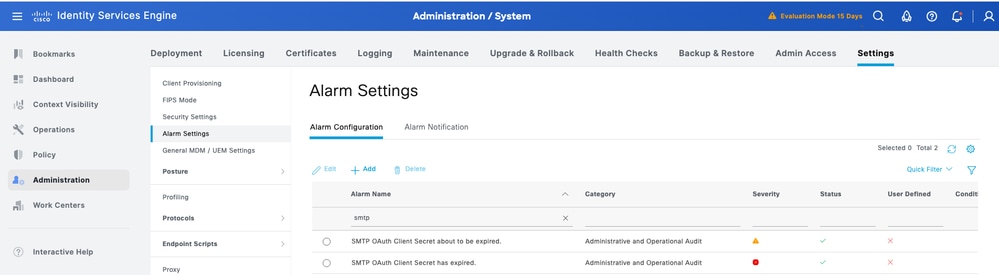
For further troubleshooting, enable debug logs on PAN, PSN or PMnT node as per the issue you are troubleshooting.
- Logging Component: guest-access-admin, guestaccess
- Log File: guest.log
Test Connection Operation
2026-02-02 05:58:21,501 DEBUG [MnT-AlarmWorkerMail-Threadpool-0][[]] cpm.guestaccess.apiservices.util.SmtpSession -:::::- SMTP settings : Username : null Port : 587 timeout : 60 isSSLEnabled: false isAuthEnabled false Server: smtp.office365.com
2026-02-02 05:58:21,501 DEBUG [MnT-AlarmWorkerMail-Threadpool-0][[]] cpm.guestaccess.apiservices.util.SmtpSession -:::::- Setting MailSessionProperties
2026-02-02 05:58:21,501 DEBUG [MnT-AlarmWorkerMail-Threadpool-0][[]] cpm.guestaccess.apiservices.util.SmtpSession -:::::- Set the FQDN : sa-ise35-1.poongarg.local
2026-02-02 05:58:21,513 DEBUG [MnT-AlarmWorkerMail-Threadpool-0][[]] cpm.guestaccess.apiservices.util.SmtpSession -:::::- SMTP settings : Username : null Port : 587 timeout : 60 isSSLEnabled: false isAuthEnabled false Server: smtp.office365.com
2026-02-02 05:58:21,513 DEBUG [MnT-AlarmWorkerMail-Threadpool-0][[]] cpm.guestaccess.apiservices.util.SmtpSession -:::::- Setting MailSessionProperties
2026-02-02 05:58:21,513 DEBUG [MnT-AlarmWorkerMail-Threadpool-0][[]] cpm.guestaccess.apiservices.util.SmtpSession -:::::- Set the FQDN : sa-ise35-1.poongarg.local
2026-02-02 05:59:14,872 DEBUG [admin-http-pool136][[]] cpm.admin.guestaccess.action.SmtpServerSettingsAction -::admin:::- inside smtpServerSettings testConnection
2026-02-02 05:59:14,872 DEBUG [admin-http-pool136][[]] cpm.admin.guestaccess.action.SmtpServerSettingsAction -::admin:::- smtpServerSecureSettings testConnection
2026-02-02 05:59:15,630 DEBUG [admin-http-pool136][[]] cpm.guestaccess.apiservices.oauth.OauthTokenCache -::admin:::- Putting value in OAuth Cache (accessToken, expiry) ..
2026-02-02 05:59:15,630 DEBUG [admin-http-pool136][[]] cpm.guestaccess.apiservices.oauth.ExchangeOnlineProvider -::admin:::- Access token acquired (no caching in this method)
2026-02-02 05:59:15,630 DEBUG [admin-http-pool136][[]] cpm.guestaccess.apiservices.oauth.OauthTokenCache -::admin:::- Putting value in OAuth Cache (accessToken, expiry) ..
2026-02-02 05:59:20,146 DEBUG [admin-http-pool136][[]] cpm.guestaccess.apiservices.util.SmtpSession -::admin:::- Successfully created mail session and connected to mail server.
2026-02-02 05:59:20,146 DEBUG [admin-http-pool136][[]] cpm.admin.guestaccess.action.SmtpServerSettingsAction -::admin:::- Successfully connected to smtp.office365.com.
Save operation
2026-02-02 05:54:07,337 DEBUG [admin-http-pool129][[]] cpm.admin.guestaccess.action.SmtpServerSettingsAction -::admin:::- inside smtpServerSettings editSubmit
2026-02-02 05:54:07,337 DEBUG [admin-http-pool129][[]] cpm.admin.guestaccess.action.SmtpServerSettingsAction -::admin:::- smtpServerSettings in editSubmit
2026-02-02 05:54:07,339 DEBUG [admin-http-pool129][[]] cpm.admin.guestaccess.action.SmtpServerSettingsAction -::admin:::- Set SMTP Server is :smtp.office365.com
2026-02-02 05:54:07,339 DEBUG [admin-http-pool129][[]] cpm.admin.guestaccess.action.SmtpServerSettingsAction -::admin:::- Set SMTP port is :587
2026-02-02 05:54:07,339 DEBUG [admin-http-pool129][[]] cpm.admin.guestaccess.action.SmtpServerSettingsAction -::admin:::- Set Connection Timout is :60
2026-02-02 05:54:07,339 DEBUG [admin-http-pool129][[]] cpm.admin.guestaccess.action.SmtpServerSettingsAction -::admin:::- Set TLS/SSL config is :false
2026-02-02 05:54:07,339 DEBUG [admin-http-pool129][[]] cpm.admin.guestaccess.action.SmtpServerSettingsAction -::admin:::- Set Authentication config is :false
2026-02-02 05:54:07,357 DEBUG [admin-http-pool129][[]] cpm.admin.guestaccess.action.SmtpServerSettingsAction -::admin:::- SMTP server settings successfully saved
Troubleshooting Connectivity Issue
1. GUI Error: Connection to smtp.office365.con failed.
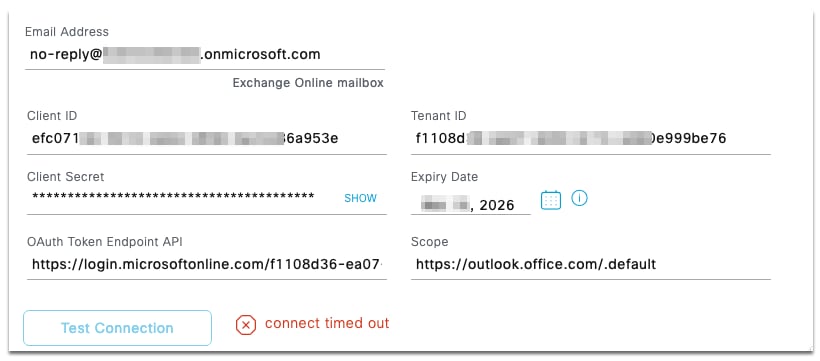 Connect timed out error
2026-02-09 03:24:58,658 ERROR [admin-http-pool11][[]] cpm.guestaccess.apiservices.util.SmtpSession -::admin:::- MessagingException : com.sun.mail.util.MailConnectException: Couldn't connect to host, port: smtp.office365.com, 587; timeout 60000;
nested exception is:
java.net.SocketTimeoutException: connect timed out
Guest.log shows connect timed out. Proxy configuration need to be fixed to resolve this issue.
2. GUI Error: Invalid OAuth endpoint or tenant identifier - Self explanatory. Need to check the Tenant ID.
3. Invalid client secret - Same, need to verify client secret value
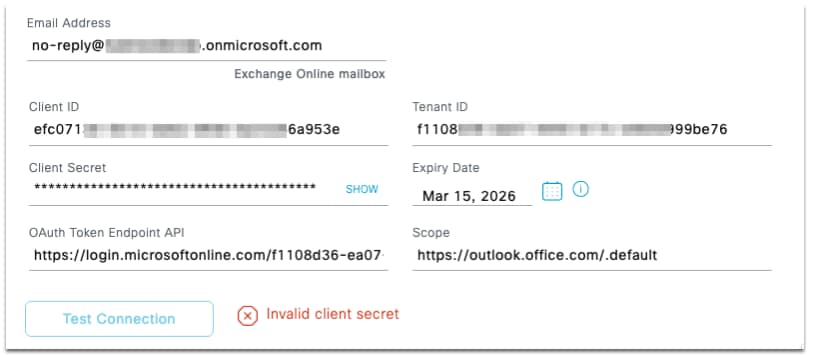 Invalid client secret error
4. Invalid Email Address- Make sure the Service Priciple configuration is correct.
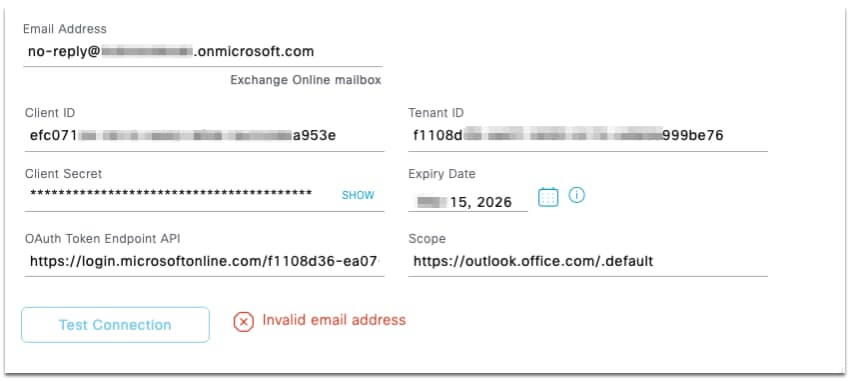 Invalid Email Address Error

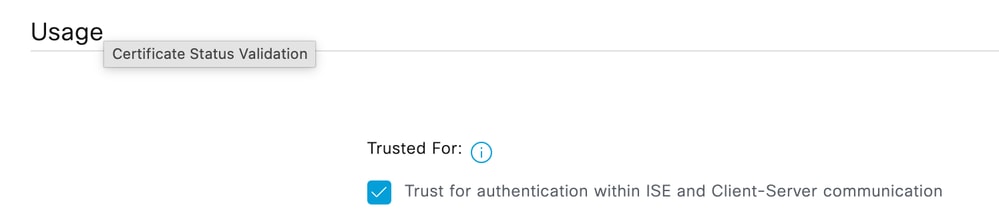
5. Unable to find valid certification path to requested Target: Make sure the Entra ID certificate chain certificates (Microsoft Azure RSA TLS Issuing CA and DigiCert Root CA etc as per the pcap) are present in the Trusted certificate store of ISE and is Trusted for "Trust for authentication within ISE and Client-Server communication (Infrastructure)" role.
Verify all the certificates sent by EntraID by taking a pcap.
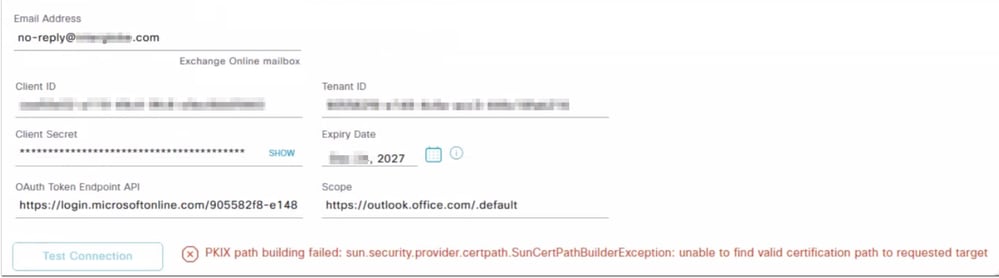 Certificate validation failure
2026-02-10 14:32:47,528 ERROR  [admin-http-pool9][[]] cpm.guestaccess.apiservices.util.SmtpSession -::admin:::- Exception : javax.mail.AuthenticationFailedException: failed to connect
2026-02-10 14:34:06,549 ERROR  [admin-http-pool9][[]] cpm.guestaccess.apiservices.oauth.ExchangeOnlineProvider -::admin:::- Error acquiring token: PKIX path building failed: sun.security.provider.certpath.SunCertPathBuilderException: unable to find valid certification path to requested target
2026-02-10 14:34:28,655 ERROR  [admin-http-pool27][[]] cpm.guestaccess.apiservices.oauth.ExchangeOnlineProvider -::admin:::- Error acquiring token: PKIX path building failed: sun.security.provider.certpath.SunCertPathBuilderException: unable to find valid certification path to requested target
Revision History
| Revision | Publish Date | Comments |
|---|---|---|
1.0 |
23-Feb-2026
|
Initial Release |
Contributed by Cisco Engineers
- Poonam GargCustomer Delivery Engineering Technical Leader
 Feedback
Contact Cisco
- Open a Support Case

- (Requires a Cisco Service Contract)