Configure Advanced Options for BGP on FTD

Available Languages
Introduction
This document describes how to use the Border Gateway Protocol (BGP) to manipulate Path Selection when multiple routes exist for the same destination.
Prerequisites
Requirements
There are no specific requirements for this document.
Components Used
This document is not restricted to specific hardware and software versions.
The information in this document was created from the devices in a specific lab environment. All of the devices used in this document started with a cleared (default) configuration. If your network is live, ensure that you understand the potential impact of any command.
Configure BGP AS Path Prepend
You can use AS Path Prepend to manipulate the path selection. Refer to the BGP Path Selectiondocumentation for more information.
Procedure
Step 1. Click Objects >Route Map.
Step 2. Select the Route Map you have assigned to the BGP peer where you must apply the AS Path Prepend or add a new Route Map by clicking Add Route Map.
Step 3. Configure the name of the Route Map, then click Add under the Entries section.
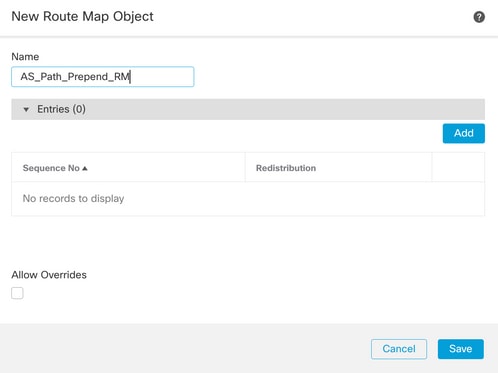
Step 4. Configure at least the next basic settings:
- Sequence No. - Select the number of the sequence.
- Redistribution - Select Allow.
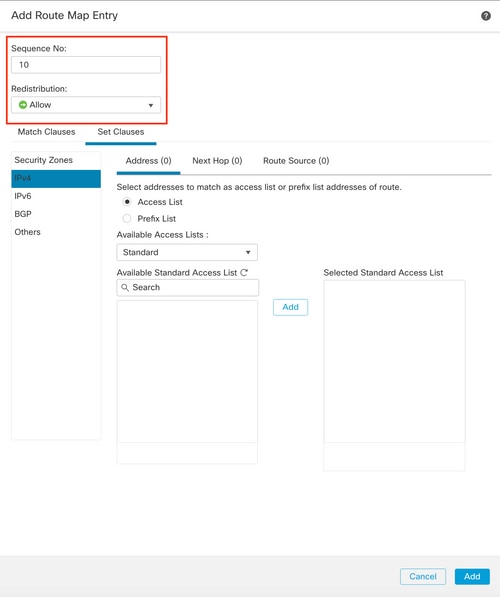
Step 5. Optional: You can specify multiple variables like Prefix-List and Access lists in the Match Classes section.
Step 6.Click Set Clauses> BGP Clauses> AS Path. Configure the Prepend option based on the next options:
- Prepend AS Path - Add the AS you want to add to the Path, separated by commas.
- Prepend last AS to the AS Path - Select the number of times you want to add the last AS to the AS path (you can add the AS up to 10 times).
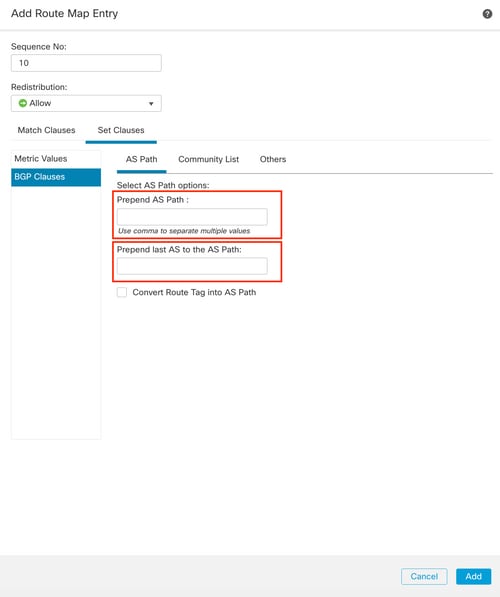
Step 7.Click Add >Save.
Step 8. Click Device >Device Management, and select the Device you want to apply the AS Path Prepend.
Step 9. Click Routing >IPv4 in the BGP section, then Neighbor.
Step 10. Click the Edit icon for the Neighbor you want to apply the AS Path Prepend. On the Filtering Routes section, select the Route Map from the drop-down menu in the Incoming or Outgoing traffic in the Route Map section.
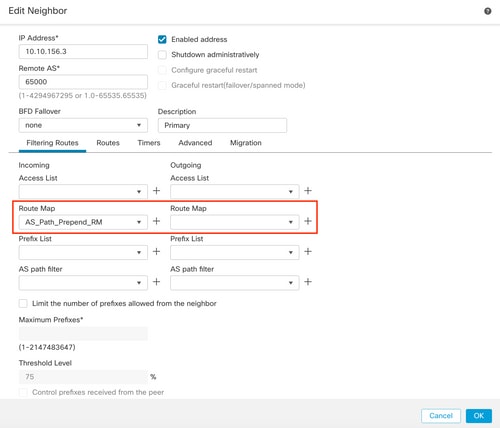
Step 11. Click OK>Save.
Configure BGP Local Preference
You can use Local Preference to manipulate the locally path selection. Refer to the BGP Path Selection for more information on BGP path selection.
Procedure
Step 1.Click Objects >Route Map.
Step 2. Select the Route Map you assigned to the BGP peer where you applied the Local Preference or add a new Route Map by clicking Add Route Map.
Step 3. Configure the Name of the Route Map, then click Add under the Entries section.
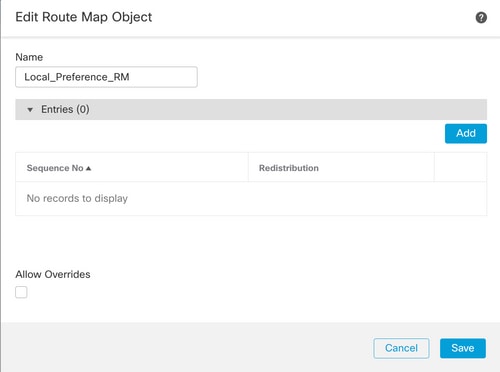
Step 4. Configure at a minimum, the next basic settings:
- Sequence No. - Select the number of the sequence.
- Redistribution - Select Allow.
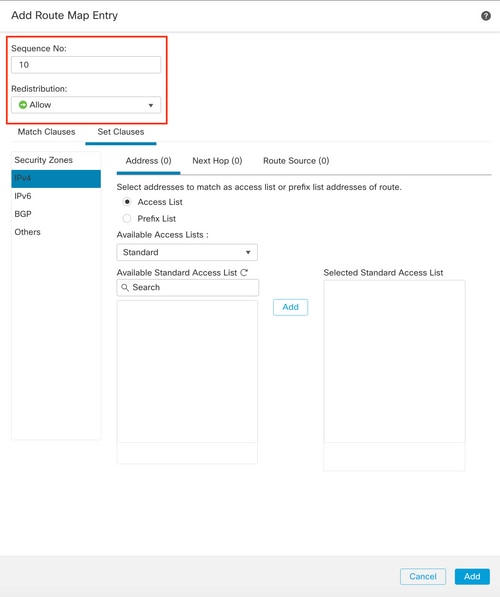
Step 5. Optional - You can specify multiple variables like Prefix-List and Access lists in the Match Classes section.
Step 6. Click Set Clauses> BGP Clauses> Others. Configure the Local Preference where you want to apply to the Local Preference section.
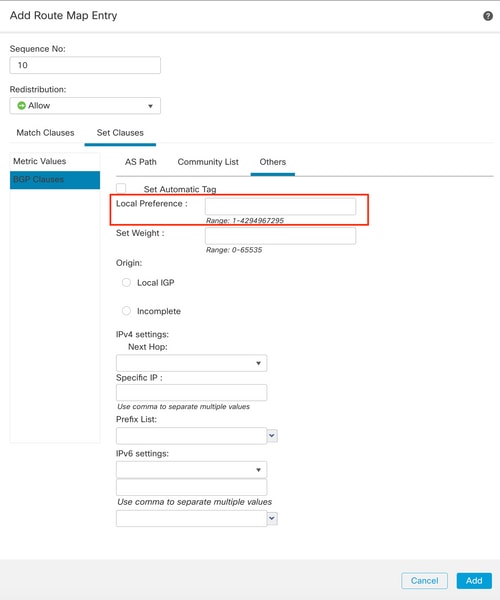
Step 7.Click Add >Save.
Step 8.Click Device> Device Management, and select the Device you want to apply to the Local Preference.
Step 9.Click Routing >IPv4 in the BGP section, then Neighbor.
Step 10. Click the Edit icon for the Neighbor you want to apply the AS Local Preference. On the Filtering Routes section, select the Route Map from the drop-down menu in the Incoming or Outgoing traffic in the Route Map section.
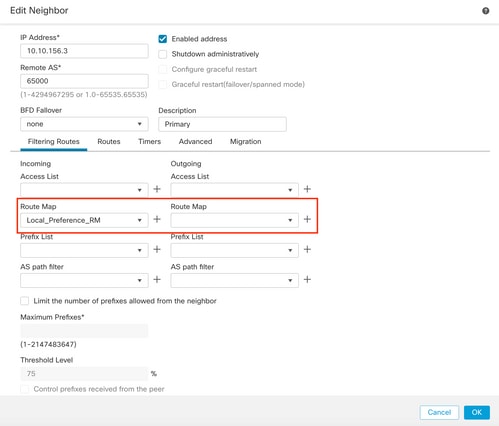
Step 11.Click OK >Save.
Configure BGP Weight
You can use Weight to manipulate the locally path selection. Refer to the BGP Path Selection for more information on BGP path selection.
Procedure
Step 1.Click Objects >Route Map.
Step 2. Select the Route Map you assigned to the BGP peer where you applied the Local Preference or add a new Route Map by clicking Add Route Map.
Step 3. Configure the Name of the Route Map, then click Add under the Entries section.
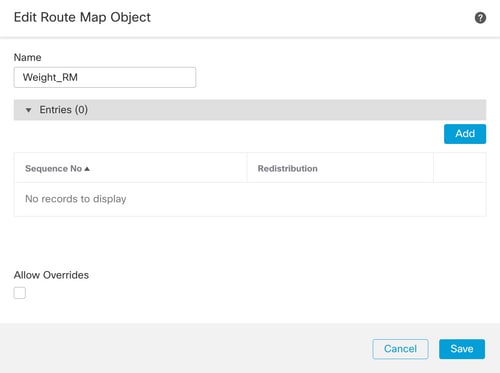
Step 4. Configure at least the next basic settings:
- Sequence No. - Select the number of the sequence.
- Redistribution - Select Allow.
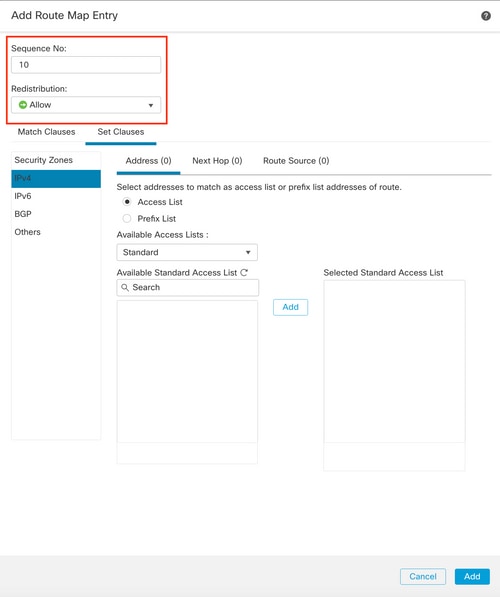
Step 5. Optional: You can specify multiple variables like Prefix-List and Access lists in the Match Classes section.
Step 6.Click Set Clauses >BGP Clauses >Others. Configure the Weight to apply in the Set Weight section.
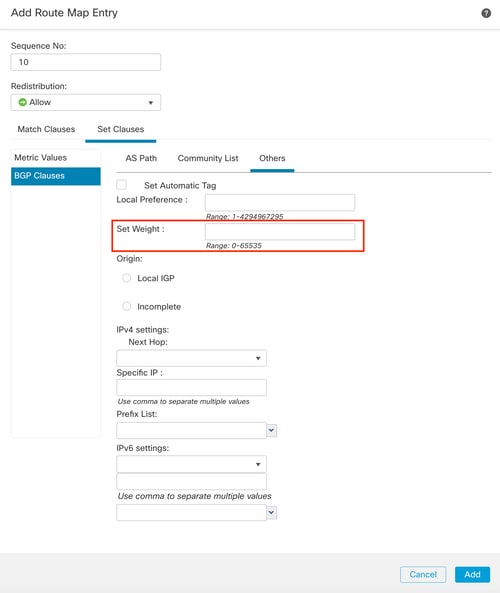
Step 7.Click Add >Save.
Step 8.Click Device >Device Management, and select the Device to apply the Local Preference.
Step 9.Click Routing >IPv4 in the BGP section, then Neighbor.
Step 10.Click the Edit icon for the Neighbor you want to apply the Weight. On the Filtering Routes section, select the Route Map from the drop-down menu in the Incoming or Outgoing traffic in the Route Map section.
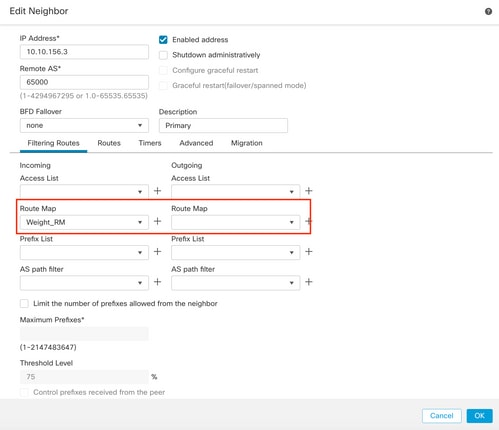
Step 11.Click OK >Save.
BGP AS Path Filter
You can Allow or Block prefixes from certain autonomous systems. FTD allows you to filter based on Regular Expressions. Refer to the documentation for more information on Use on Regular Expressions in BGP.
Procedure
Step 1.Click Objects >AS Path.
Step 2. Configure at least the next basic settings:
- Name - Select the number to the AS Path Object.
- Sequence No. - Click Add under the Entries section, then Allow or Deny based on the action you want to take. Configure the Regular Expression you to use, then click Add >Save.
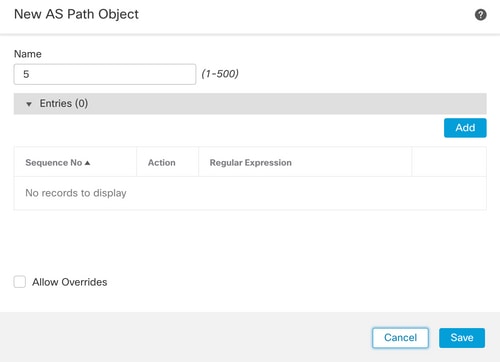
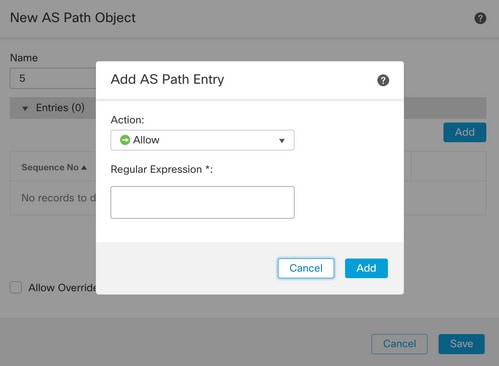
Step 3.Optional: You can configure the AS Path Object directly on the peer or into a Route Map. If you want to configure directly on the peer, click the Edit icon for the Neighbor where you want to apply the AS Path Filter. On the Filtering Routes section, select the AS Path Object from the drop-down menu in the Incoming or Outgoing traffic in the AS Path Filter section.
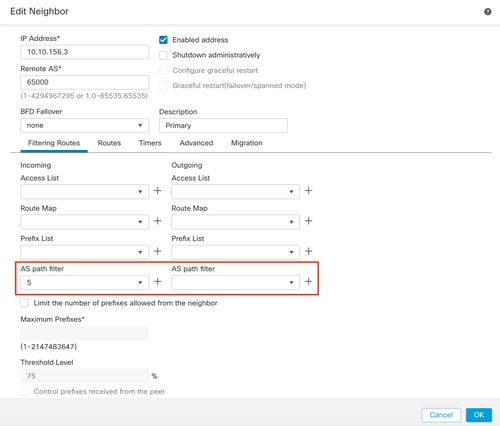
Step 3.Click Objects >Route Map.
Step 4. Select the Route Map you assigned to the BGP peer where applied the Path Filter or add a new Route Map by clicking Add Route Map.
Step 5. Configure the Name of the Route Map, then click Add under the Entries section.
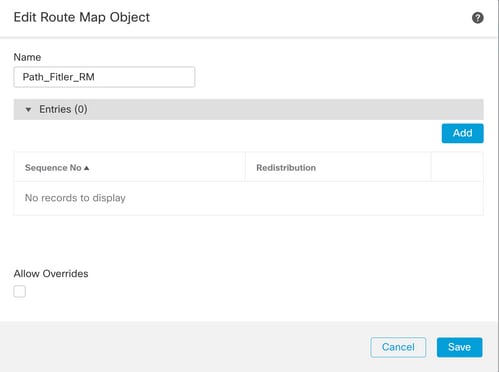
Step 6. Configure at least the next basic settings:
- Sequence No. - Select the number of the sequence.
- Redistribution - Select Allow (the action on the traffic is defined in Sequence No. In Step 2).
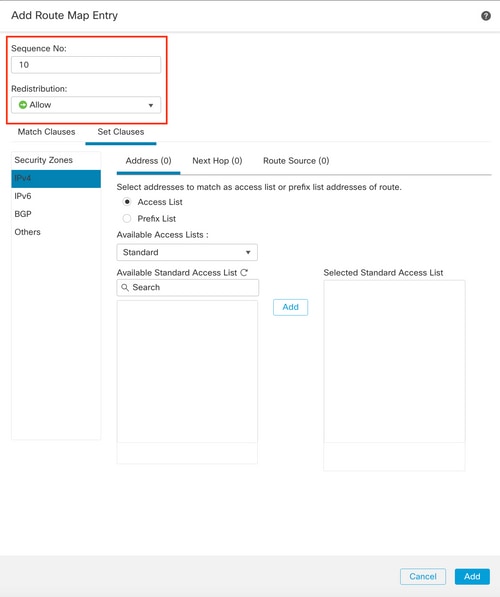
Step 7. Click Match Clauses >BGP and select the AS Path Object created in Step 1, then click Add.
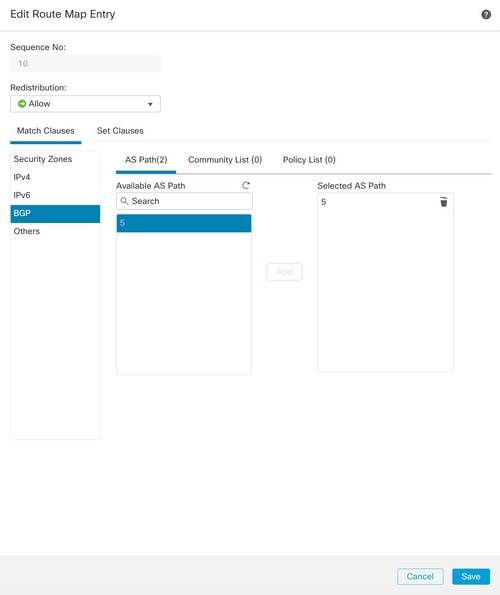
Step 8. Click Save.
Step 9.Click Device >Device Management, and select the Device to apply the Regular Expression.
Step 10.Click Routing >IPv4 in the BGP section, then Neighbor.
Step 11.Click the Edit icon for the Neighbor where you want to apply the AS Path Filter. On the Filtering Routes section, select the Route Map from the drop-down menu in the Incoming or Outgoing traffic in the Route Map section.
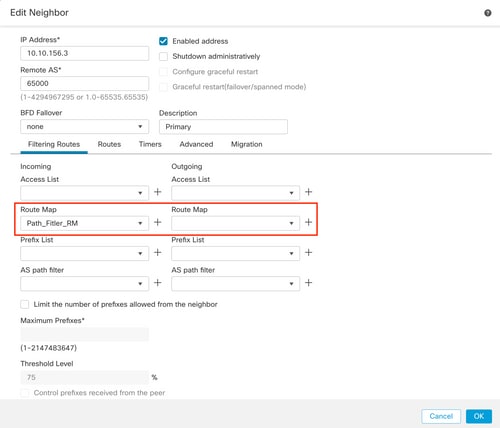
Step 12. Click OK >Save.
Revision History
| Revision | Publish Date | Comments |
|---|---|---|
3.0 |
17-Jul-2026
|
Updated description, spacing, grammar, sentence structure, added lines to separate sections/readability, and fixed any CCW alerts.. |
2.0 |
10-Apr-2025
|
Added Alt Text.
Updated Formatting to meet Cisco Guidelines. |
1.0 |
21-Jul-2023
|
Initial Release |
 Feedback