Configure Debug Level in MPP Phones Registered in Webex Calling
Available Languages
Introduction
This document describes the procedure to set the log level to Debug in MPP (Multiplatform Firmware) Phones from Control Hub.
Prerequisites
Requirements
Cisco recommends that you have knowledge of these topics:
- Webex Calling
- Control Hub
Components Used
The information in this document is based on these software versions:
- Cisco 8851 IP Phone - MPP Firmware 12.0.7
The information in this document was created from the devices in a specific lab environment. All of the devices used in this document started with a cleared (default) configuration. If your network is live, ensure that you understand the potential impact of any command.
Background Information
When an MPP Phone has a problem or error, the log level must be set in Debug before a PRT (Problem Report Tool) is retrieved from the device to troubleshoot.
Set the log level
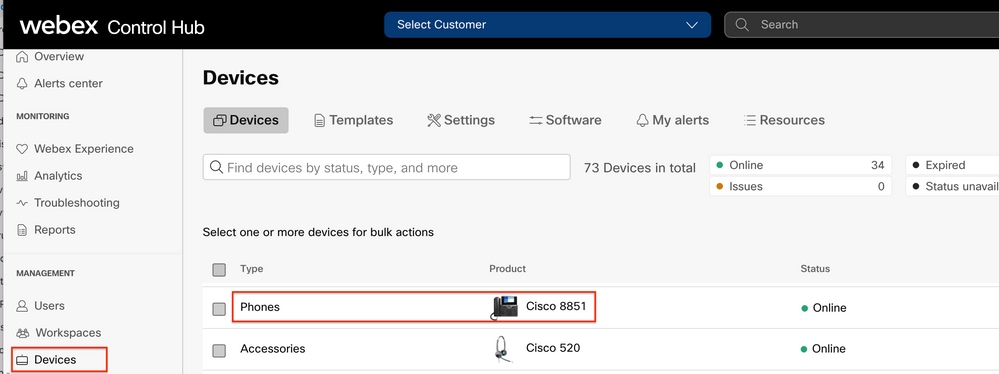
In order to correctly configure the log level, navigate to Control Hub > Devices and select the device that has the issue. Confirm that the device shows Online:
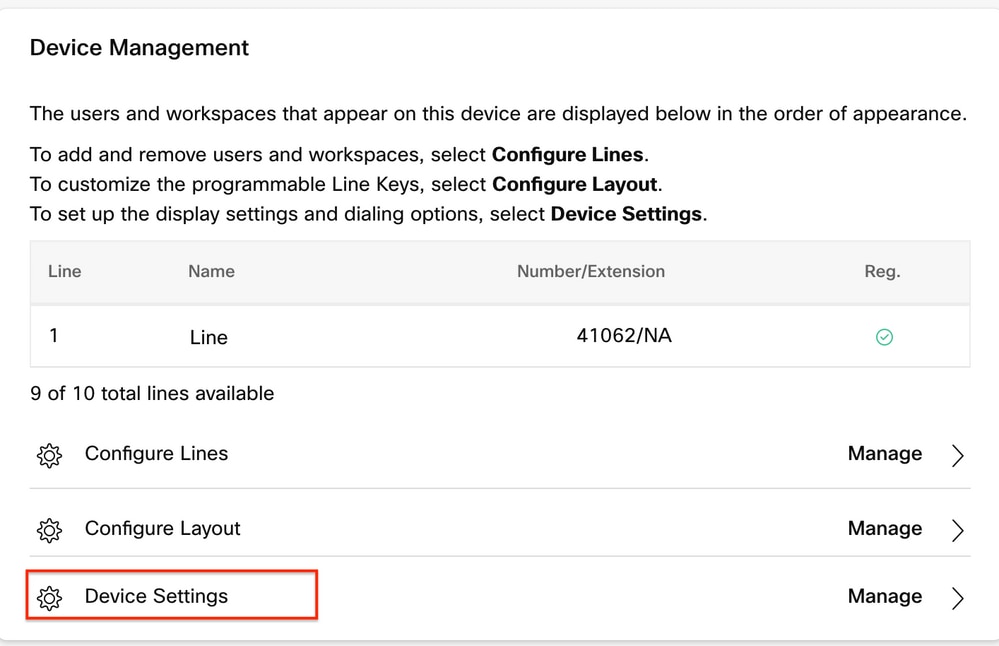
On the Device Page, navigate to the Configurations section and select All Configurations.
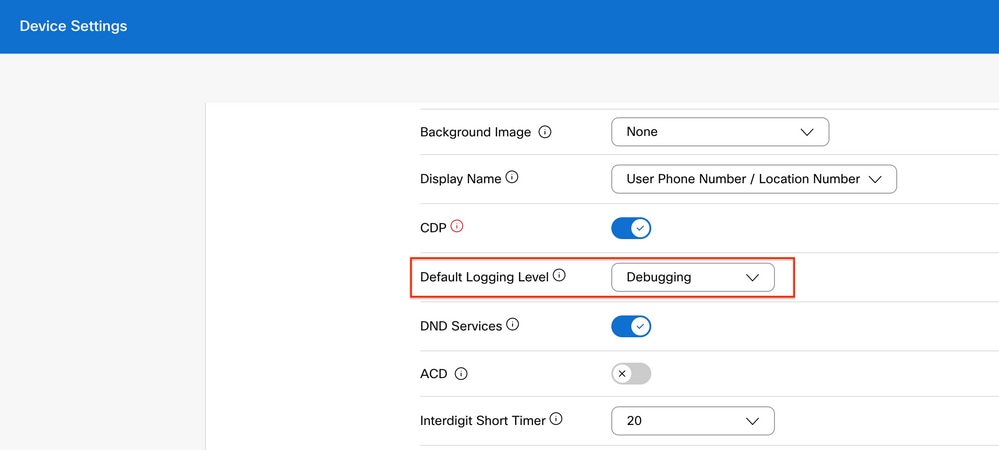
On All configurations, confirm that Default Logging Level is set to DEBUG and select Save.
Generate the PRT
Once the correct log level has been configured in the device, allow time for the problem to occur and generate the PRT.
Generate the PRT from the Device
Step 1. On the device, press the Applications button  .
.
Step 2. Go to Status > Report Problem.
Step 3. Enter Date and Time of the problem.
Step 4. Select a Description from the list.
Step 5. Press Submit.
Generate the PRT from Control Hub
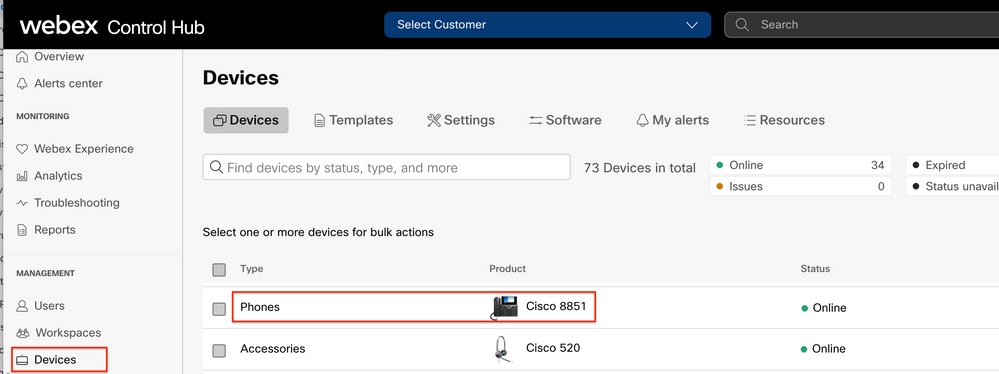
Step 1. Navigate to Control Hub > Devices and select the device:
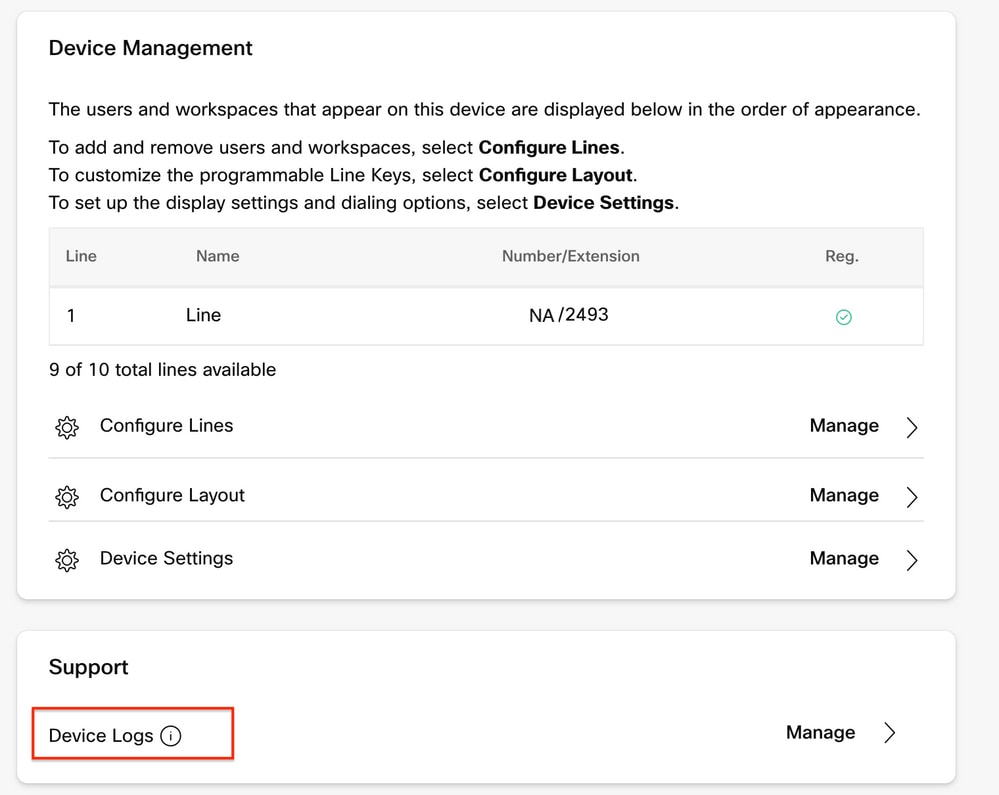
Step 2. On the Phone page go to Support > Device Logs.
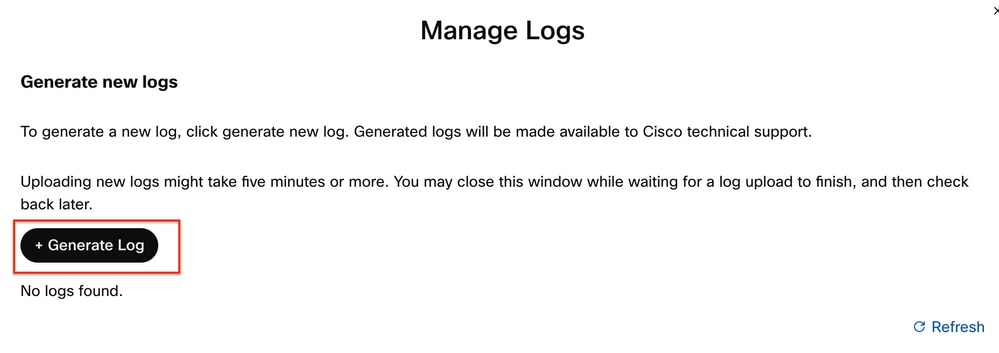
Step 3. On the Manage Logs page, select Generate Log.
Verify
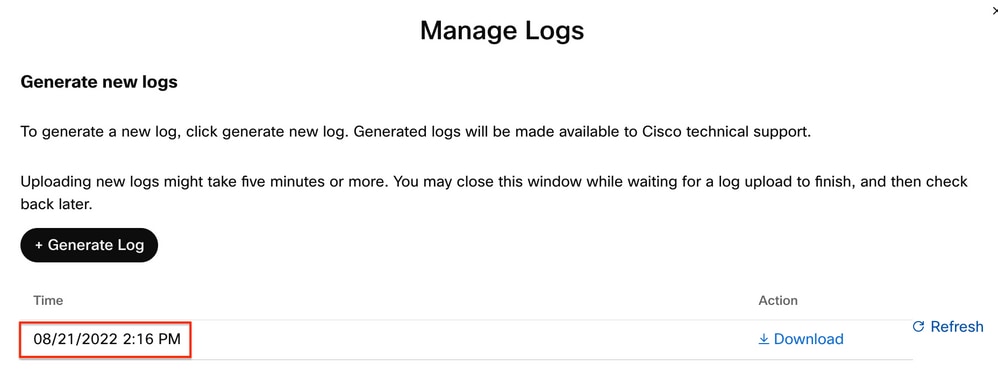
Once the PRT has been submitted either manually or via Control Hub, the available logs are listed on the Manage Logs section:
Related information
Revision History
| Revision | Publish Date | Comments |
|---|---|---|
1.0 |
26-Aug-2022
|
Initial Release |

 Feedback
Contact Cisco
- Open a Support Case

- (Requires a Cisco Service Contract)