Troubleshoot Wireless Devices from Catalyst Center Inventory
Available Languages
Contents
Introduction
This document describes procedures and guidelines for troubleshooting wireless devices inventory issues in Cisco Catalyst Center
Known Issues
Scenario 1. Device Manageability on Internal Error status.
Symptom:
Wireless controller on Internal Error state.
Possible Solution:
- Perform a manual resync from Catalyst Center Inventory page, select the device and then select Actions > Inventory > Resync Deviceonce.
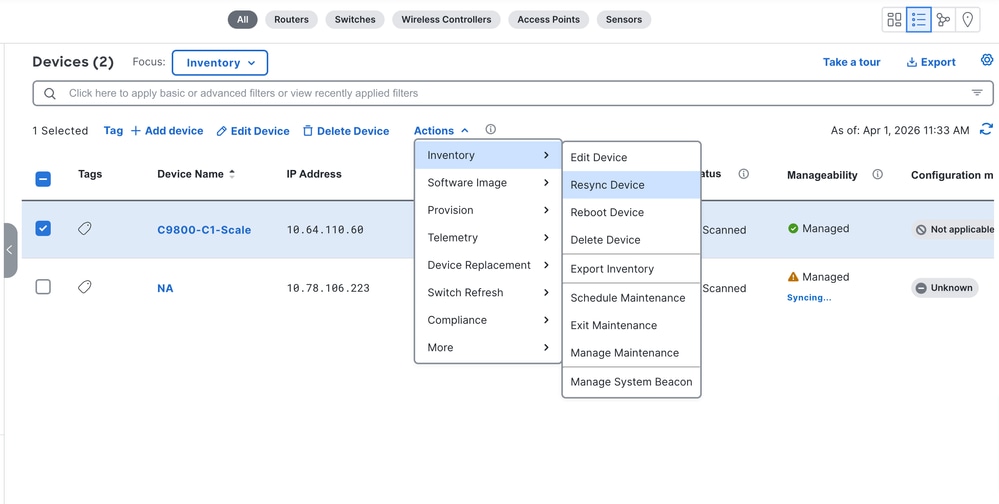
2. Wait for sync completion.
3. Recheck status
Expected Reults:
Network device returns to Manage status.
If not fixed:
Open TAC case with these details: controller hostname/IP, error screenshot, resync timestamp, Support Bundle from Catalyst Center GUI About icon > Support Bundle > Create Support Bundle.
Scenario 2. Device Manageability on Internal Error status due to DB Constraint Errors.
Symptom:
Wireless controller shows Internal Error state as Scenario 1 and Inventory Status detail shows Unknown/DB-constraint-like behavior on the first section of Settings > System 360 > Log explorer > Inventory dashboard.
Possible Solution:
1. Perform a manual resync from Catalyst Center Inventory page, select the device and then select Actions > Inventory > Resync Deviceonce.
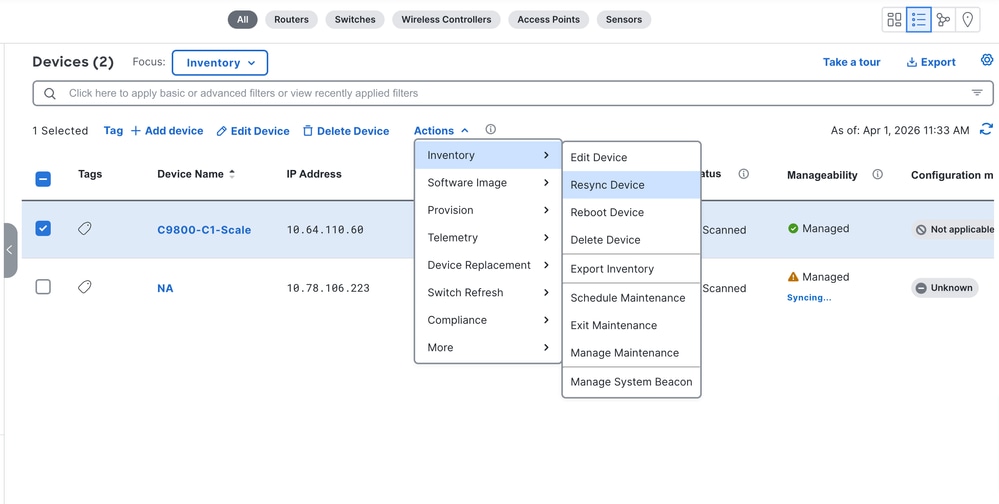
2. Wait for sync completion.
3. Recheck status
Expected Reults:
Network device returns to Manage status.
If not fixed:
Open TAC case with these details: controller hostname/IP, error screenshot, resync timestamp, Support Bundle from Catalyst Center GUI About icon > Support Bundle > Create Support Bundle.
TAC engineer must collect Wireless Related DB Tables.
Scenario 3. Device Manageability on Netconf Connection Failure error.
Symptom:
WLC shows Netconf Connection Failure error on Manageabillity.
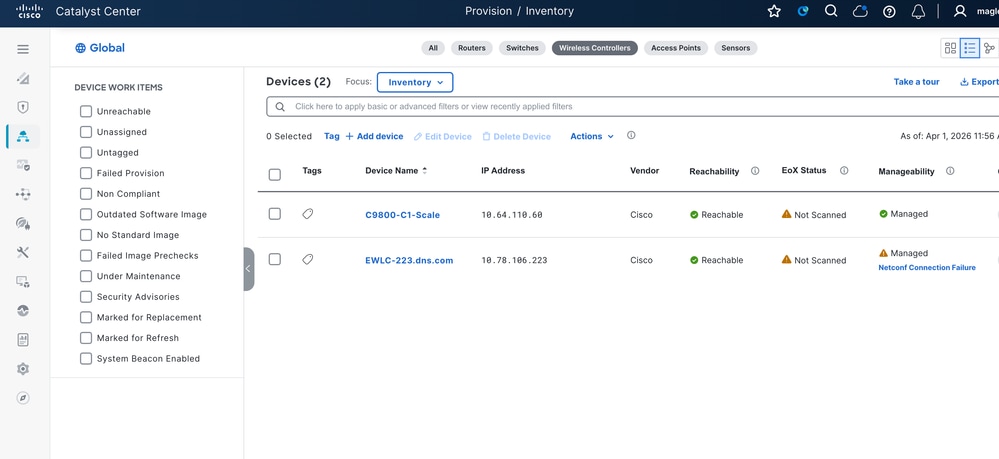
Possible Solution:
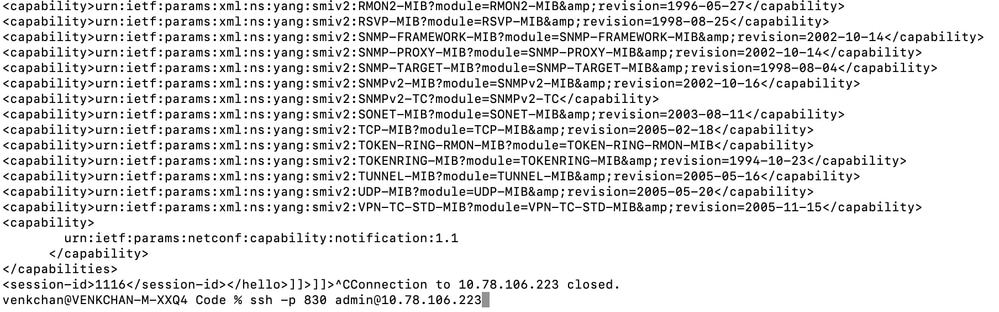
1. Verify IP reachability

2. Verify NETCONF enabled + port open
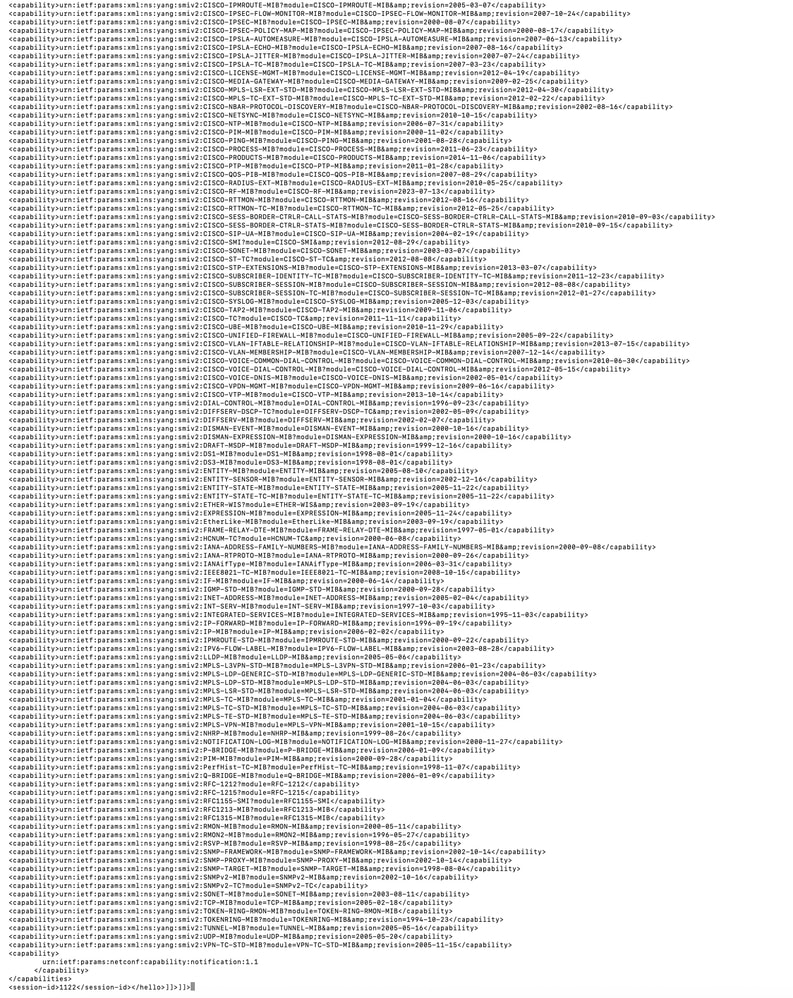
3. Validate direct NETCONF session
Expected Reults:
Connectivity validated and status updates.
If not fixed:
Please Open a TAC Case in case direct NETCONF fails or if direct NETCONF passes but UI still shows the failure.
TAC engineer to collect controller details, NETCONF test result, UI screenshot and inventory debug logs.
Scenario 4. Device Manageability on Internal Error status due to RPC Errors.
Symptom:
Wireless controller shows Internal Error state as Scenario 1 and Inventory Status detail shows RPC errors on the first section of Settings > System 360 > Log explorer > Inventory dashboard.
Possible Solution:
1. Perform a manual resync from Catalyst Center Inventory page, select the device and then select Actions > Inventory > Resync Deviceonce.
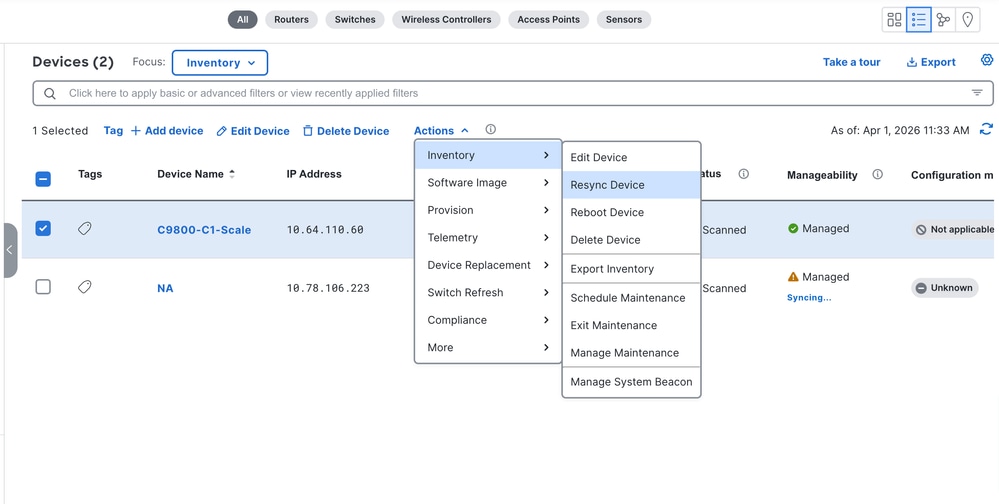
2. Wait for sync completion.
3. Recheck status
Expected Reults:
Network device returns to Manage status.
If not fixed:
Open TAC case with these details: controller hostname/IP, error screenshot, resync timestamp, Support Bundle from Catalyst Center GUI About icon > Support Bundle > Create Support Bundle.
Scenario 5. Device Manageability on Internal Error status due to any other error.
Symptom:
Wireless controller shows Internal Error state as Scenario 1 and there is no specific error.
Possible Solution:
1. Perform a manual resync from Catalyst Center Inventory page, select the device and then select Actions > Inventory > Resync Deviceonce.
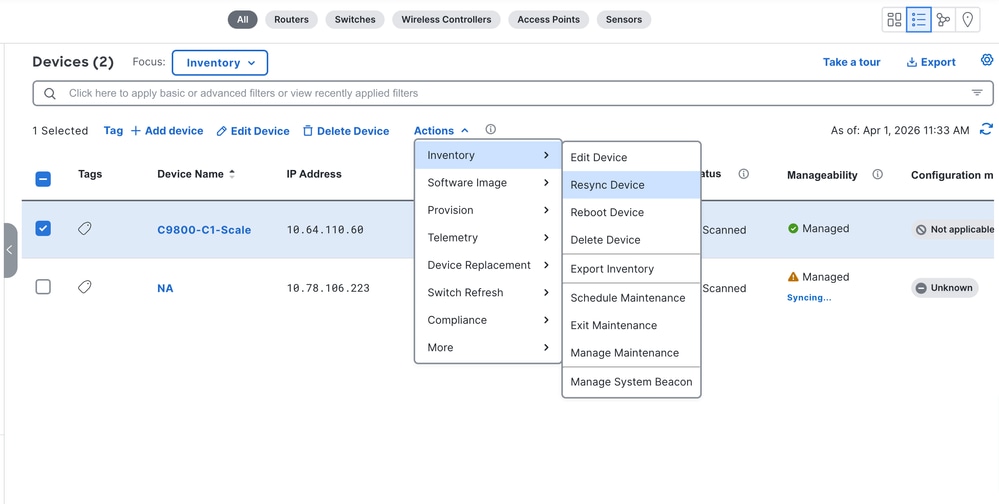
2. Wait for sync completion.
3. Recheck status
Expected Reults:
Network device returns to Manage status.
If not fixed:
Open TAC case with these details: controller hostname/IP, error screenshot, resync timestamp, Support Bundle from Catalyst Center GUI About icon > Support Bundle > Create Support Bundle.
Scenario 6. AP not discovered / wrong associated WLC.
Symptom:
APs are not showing on Catalyst Center Inventory after you added them to a managed WLC.
Possible Solution:
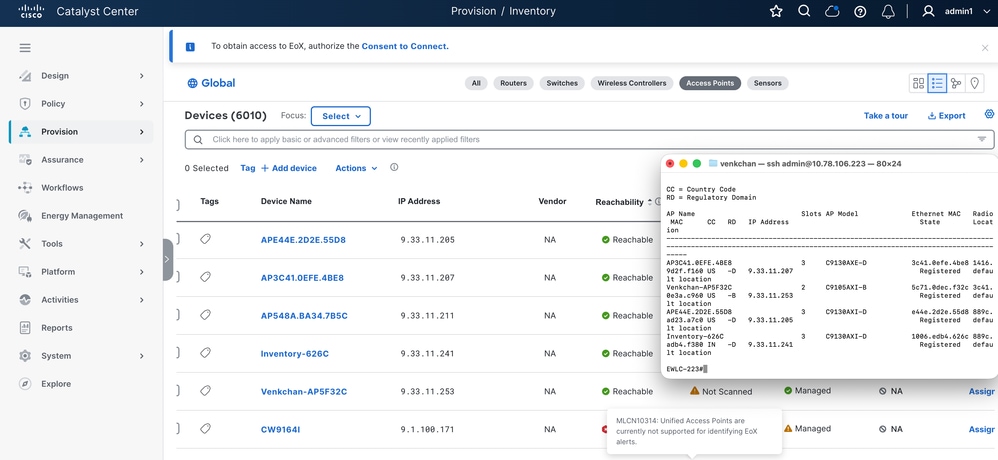
1. Verify AP is present on WLC CLI with command show ap summary.

2. Compare with Catalyst Center Inventory page.
3. Wait for one AP sync cycle.
4. Recheck mapping.
Expected Reults:
AP status and associated WLC align.
If not fixed:
Open TAC case with these details: AP name, AP MAC Address, WLC details, event timestamp, Support Bundle from Catalyst Center GUI About icon > Support Bundle > Create Support Bundle.
Scenario 7. AP PnP Onboarding issues.
Symptm:
PnP AP onboarding fails or incompletes.
Possible Solution:
1. Validate the PnP workflow was successfully completed.
2. Retry onboarding validation once.
Expected Reults:
Device/AP onboarding completes.
If not fixed:
Open TAC case with these details: PnP job logs, AP serial Number, Onboarding timestamp, Support Bundle from Catalyst Center GUI About icon > Support Bundle > Create Support Bundle.
Scenario 8. AP updates delays due to image download more than 5 minutes.
Symptom:
AP discovery is delayed if the image download is suspected.
Possible Solution:
- Check AP join time on controller.
- Confirm prolonged image download.
- Check CAPWAP-related constraints.
Expected Reults:
AP status and associated WLC align.
If not fixed:
Open TAC case with these details: AP join timestamps, Controller evidence of image download delay, Support Bundle from Catalyst Center GUI About icon > Support Bundle > Create Support Bundle.
Scenario 9. AP status stale after provisioning.
Symptom:
Provision job for an AP is other state than completed.
Possible Solution:
1. Confirm AP provisioning workflow is success.
2. Refresh AP/Inventory page.
3. Trigger one manual sync/refresh.
Expected Reults:
AP fields update correctly.
If not fixed:
Open TAC case with these details: Provisioning job ID, AP details, missing fields, timestamps, screenshots, Support Bundle from Catalyst Center GUI About icon > Support Bundle > Create Support Bundle.
Scenario 10. AP deletion failure.
Symptom:
AP delete attempt fails in UI or the deleted AP remains stale in Catalyst Center Inventory.
Possible Solution:
1. Retry deletion once.
2. Capture exact error
3. Record task/subtask IDs
Expected Reults:
AP deleted and removed from inventory.
If not fixed:
Open TAC case with these details: AP details, task/subtask IDs, failure screenshot, Support Bundle from Catalyst Center GUI About icon > Support Bundle > Create Support Bundle.
Scenario 11. WLC deletion failure.
Symptom:
Controller cannot be deleted from Catalyst Center.
Possible Solution:
1. Confirm no dependent workflow is active.
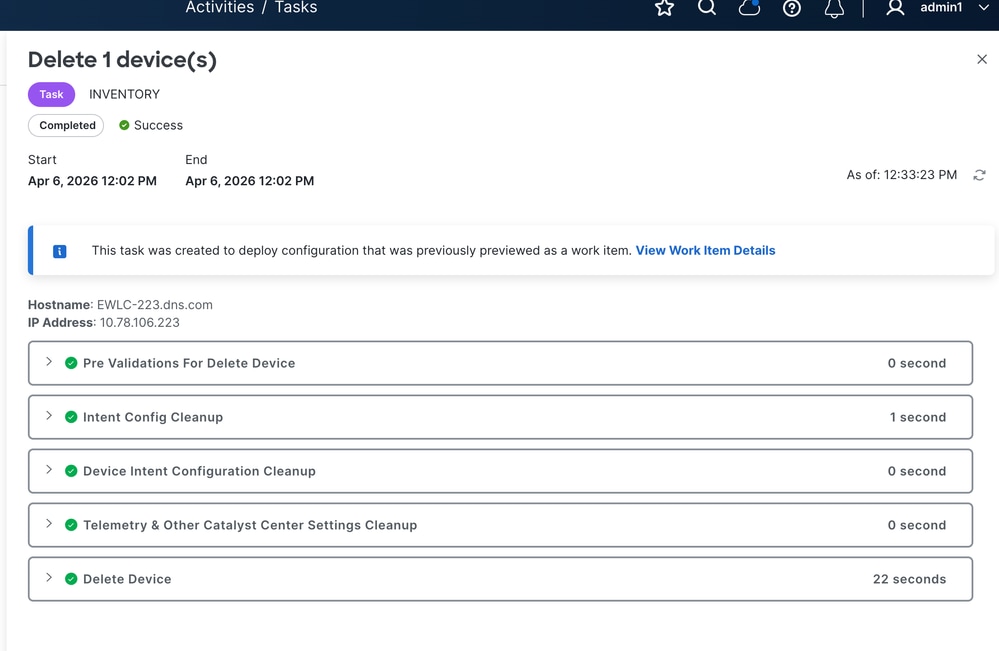
2. Retry deletion once.
3. Capture error details.
Expected Reults:
Controller deletion succeeds.
If not fixed:
Open TAC case with these details: Controller details, Deletion task ID, Error screenshot, Support Bundle from Catalyst Center GUI About icon > Support Bundle > Create Support Bundle.
Scenario 12. Inventory UI sluggishness.
Symptom:
Vavigate over Catalyst Center Invenotry UI feels slow or page are not even loading.
Possible Solution:
1. Record start/end time and frequency.
2. From System 360 page select Monitor and explore CPU and Meomory utilizaiton.
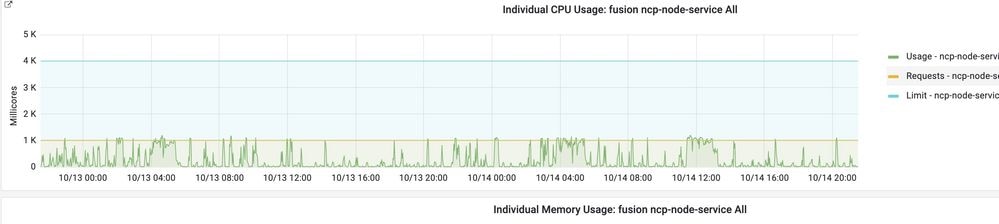
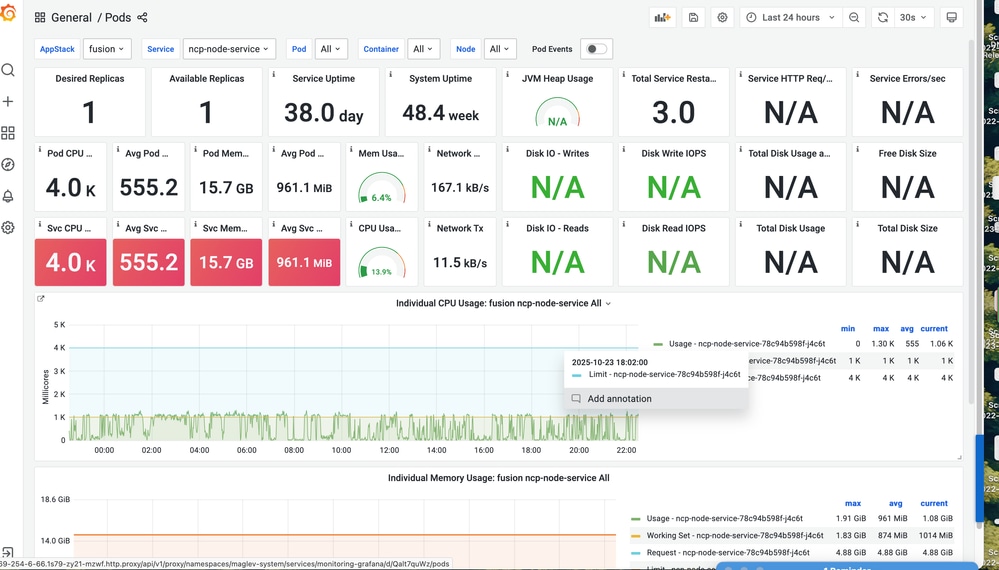
3. Re-test after short interval and try to use an incognito woindow.
Expected Reults:
UI response returns to normal.
If not fixed:
Open TAC case with these details: Time range, screenshots/video, monitoring snapshots, Support Bundle from Catalyst Center GUI About icon > Support Bundle > Create Support Bundle.
Revision History
| Revision | Publish Date | Comments |
|---|---|---|
1.0 |
20-May-2026
|
Initial Release |

 Feedback
Contact Cisco
- Open a Support Case

- (Requires a Cisco Service Contract)