Cisco Secure Access and Island Integration Joint Solution Guide
Available Languages
Bias-Free Language
The documentation set for this product strives to use bias-free language. For the purposes of this documentation set, bias-free is defined as language that does not imply discrimination based on age, disability, gender, racial identity, ethnic identity, sexual orientation, socioeconomic status, and intersectionality. Exceptions may be present in the documentation due to language that is hardcoded in the user interfaces of the product software, language used based on RFP documentation, or language that is used by a referenced third-party product. Learn more about how Cisco is using Inclusive Language.
This solution guide outlines how Cisco® Secure Access integrates with the Island Enterprise Browser to protect user access to private applications with an easy activation process and a simple end user experience. Cisco Secure Access and the Island browser deliver a unified approach to zero trust by combining cloud-delivered Security Service Edge (SSE) protection with browser-native security controls.
Cisco Secure Access provides policy-driven connectivity to private applications using Zero-Trust Network Access (ZTNA) after verifying identity and device posture. Island extends app-specific data protection policies directly to the browser, enabling organizations to control how users interact with data in real time. Together, they create a continuous security model that spans access, activity, and data usage—from login to the end of the session. This integrated approach allows organizations to protect access for an extended set of users and devices while controlling the use of sensitive data during their sessions.
Cisco Secure Access is a cloud-based SSE solution, grounded in zero trust, that provides seamless, transparent, and secure access to applications and resources. It includes all of the core SSE components (Secure Web Gateway, cloud access security broker [CASB], ZTNA, and firewall as a service [FWaaS]) plus an extended set of capabilities (protections for generative AI use, security for AI agents, multimode data loss prevention [DLP], DNS security, Remote Browser Isolation [RBI], sandboxing, Digital Experience Monitoring [DEM] insights, and AI-powered Talos® threat intelligence) in one license and management platform.
By leveraging these capabilities, all under one cloud-delivered platform, organizations can solve a variety of security challenges. Users can now safely and seamlessly access the resources and apps they need, regardless of protocol, port, or level of customization. IT can deliver a broad set of cybersecurity functions to radically reduce risk and delight users while increasing productivity.
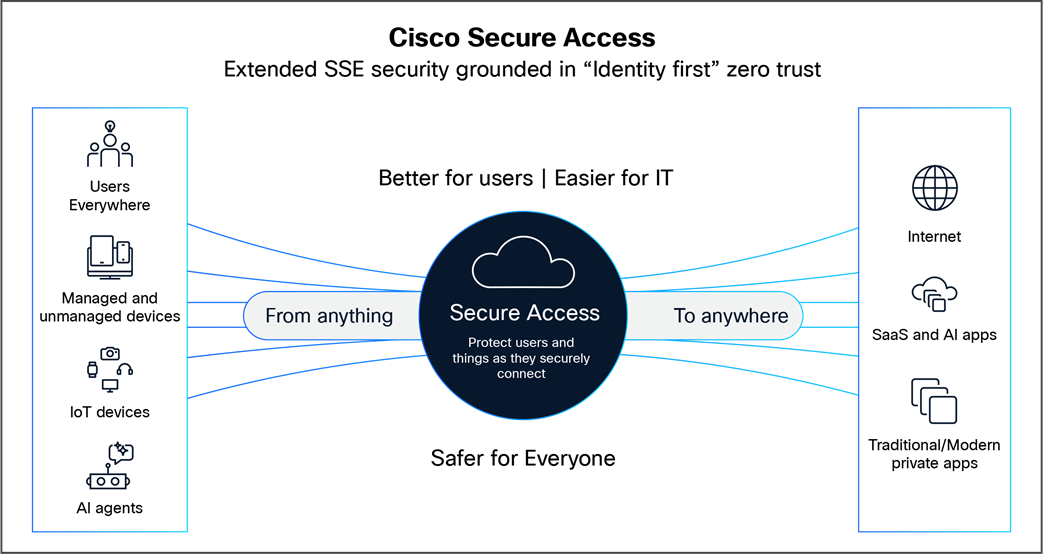
Cisco Secure Access is designed to fundamentally reduce risk, radically simplify IT operational complexity, and minimize the tasks required of end users. For more information, see Cisco Secure Access.
Data Loss Prevention (DLP) policy in the Secure Access dashboard
● The Secure Access dashboard provides a unified interface to define and manage DLP policies across a variety of types of user traffic.
● Enterprise DLP capabilities include:
◦ Real-time DLP: Inline inspection of data in motion using HTTP/S inspection via the Secure Web Gateway. Policies can block or monitor sensitive data transfers based on defined rules.
◦ Software-as-a-Service (SaaS) API DLP: Out-of-band inspection of data at rest in cloud services like Microsoft 365 (OneDrive, SharePoint, Outlook), enabling near-real-time enforcement without impacting user experience.
◦ Email DLP: Inline inspection of outbound mail. Policies can block or monitor sensitive data shared via email communications.
◦ Endpoint DLP: On-device inspection of data in motion using an endpoint agent to block or monitor sensitive data transfers to USB storage, to network shares, or from device to device via Bluetooth and Airdrop.
● DLP policies can be granularly targeted by user identity, groups, locations, cloud applications, and destinations.
● The dashboard allows creation of real-time rules specifying data classifications, severity, actions (monitor or block), and exceptions.
● Additional protections include controls against copying, pasting, printing, and screenshots to prevent data exfiltration.
● The platform also supports AI-driven data classification, enhancing detection accuracy and reducing low-impact events.
Island Enterprise Browser overview
The Island Enterprise Browser is a Chromium-based browser built for enterprise work. It is grounded in zero trust, with the IT, security, and productivity capabilities the organization needs embedded in the browser itself, including application access control, data protection, safe browsing and web filtering, and a complete audit trail of browser actions.
Island secures the last mile—when sensitive data hits the browser. Island knows the user, the device, the network, the application, and the specific action being attempted. It uses this context to apply policy at the point of use: block copy-and-paste from a work app to a personal app, mask sensitive data on the page, and either warn the user before they perform a risky action or allow the action and log it. Island governs a variety of data movements, including print, download, upload, screenshot, and copy/ paste, even when the destination sits outside the browser.
Users authenticate once and work at full speed on any device, managed or unmanaged, in the familiar Chromium experience they already know. IT covers all web and SaaS applications with data protection policies, sees all work activity in high fidelity while keeping personal browsing private, and reduces its reliance on virtual desktops.
Data protection policy in the Island admin console
The Island admin console provides a single interface to define and manage data protection policies across every web and SaaS application, with no application integrations, APIs, or network changes required.
● Includes browser-native data protection capabilities:
◦ Data detection: Built-in and custom detectors use pattern matching, keywords, Exact Data Match (EDM), and data labels.
◦ On-page masking: Island redacts sensitive content in the rendered page, so each user sees only what policy allows.
◦ Last-mile controls: Island governs how and where users can copy and paste, print, download, upload, screenshot, or screenshare sensitive apps and data.
◦ Application boundaries: Data moves freely between sanctioned applications, while the browser stops sensitive data from entering applications outside the organization’s control, including unsanctioned AI tools.
◦ Watermarking: Sensitive apps or pages containing sensitive data can be watermarked with user identity information and timestamps to assist with forensic investigations.
◦ Endpoint posture assessment: Island can assess the user’s device for a wide variety of attributes before allowing access to sensitive apps. This can include operating system, disk encryption status, jailbreak/root status, geolocation, Mobile Device Management (MDM) compliance, and much more.
● Secures users on managed and unmanaged devices without the need for an endpoint agent.
● Enables granular policy-triggered actions. Block an action, warn the user, redirect the user to a different app, ask for a justification, force the user to read terms and conditions, or trigger a Multifactor Authentication (MFA) or approval workflow, among many other actions.
● Logs every policy event with user, device, and action detail, and shares that record with your Security Information and Event Manager (SIEM) for enterprise-wide visibility.
All of this in a familiar Chromium experience that does not require training for the end user.
● Advanced zero-trust security: Granular, identity-based access controls combine with DLP enforcement to protect sensitive data across multiple device types.
● Frictionless user experience: Users gain fast, one-step access to private applications without complex VPN or agent installations.
● Comprehensive data protection: DLP policies cover data in motion and at rest to assist with compliance and reduce the risk of a data breach.
● Support for managed and unmanaged devices: Supports multiple access and data protection features regardless of device ownership or management status.
Simplified private application access process
The joint set of capabilities from Cisco Secure Access and Island delivers both improved security and a better user experience. It enables fine-grained, policy-based private application access with posture checks and security controls, including a deep set of combined DLP capabilities. These capabilities are especially helpful for third-party/contractor access and Virtual Desktop Infrastructure (VDI) migration.
Through ZTNA, Cisco Secure Access uses least privilege principles and contextual insights to deny access by default and allow access to apps as configured for users authenticated to an Island browser. Island provides an additional layer of user and data controls to enhance private app security.
Cisco and Island have combined to deliver a seamless end-user experience, without any agents to install or manage. Organizations get device trust verification and real-time DLP scanning, all built into the browser experience. The user simply has to open their Island browser and go to the private applications they have been given access to.
To get started and access detailed configuration and administration information, visit Cisco Secure Access Help: Get Started.
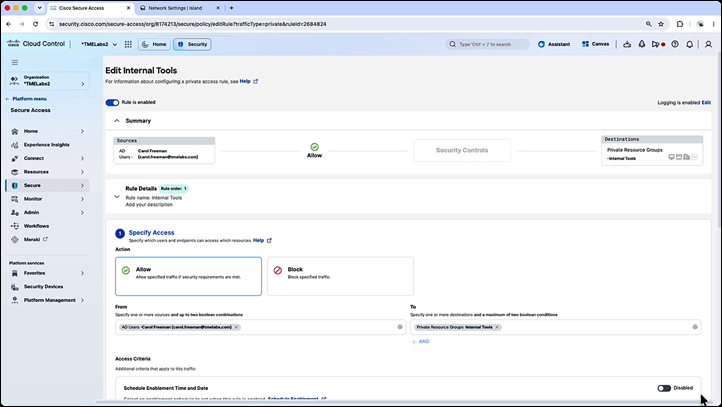
The following section assumes that you have a fully configured and deployed Cisco Secure Access organization. If that’s not the case, see below for additional instructions on setting up private resources and private resource policies. Otherwise, proceed to the next section.
● Configure private resources: Private resources include private subnets and applications deployed and managed by your organization.
For detailed instructions on setting up private resources, see Cisco Secure Access Help: Manage Private Resources.
● Configure private access policies: Private access policies allow you to define granular user-based access to private resources.
Detailed configuration instructions are available at Cisco Secure Access Help: Get Started with Private Access Rules.
Setting up Island.io integration with Cisco Secure Access
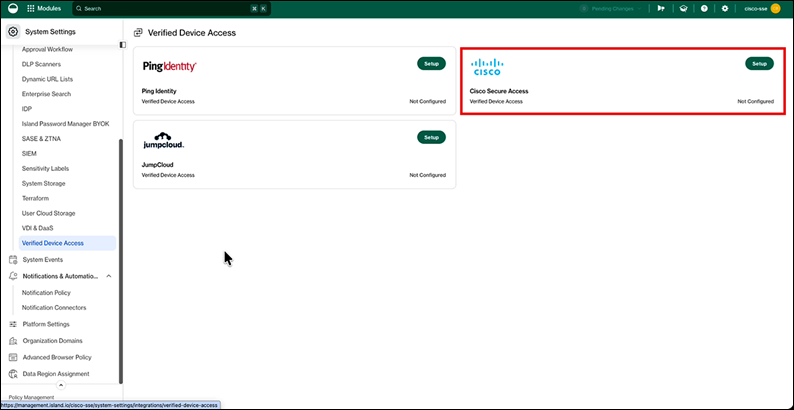
Navigate to Verified Device Access in Island
1. In the Island admin console, go to System Settings and then Verified Device Access. Click Setup to generate a new API key.
Copy the Island API key
2. Copy the API key that is generated.
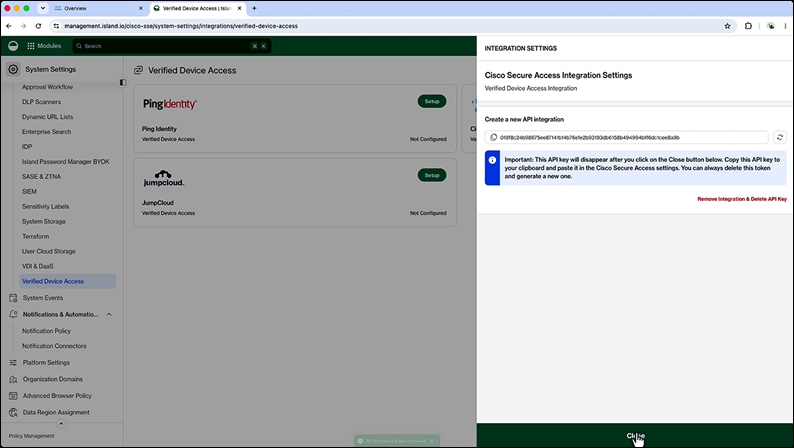
Note: This key is only shown once, so ensure that it is copied before closing the configuration dialog.
Add the API key to Secure Access integrations
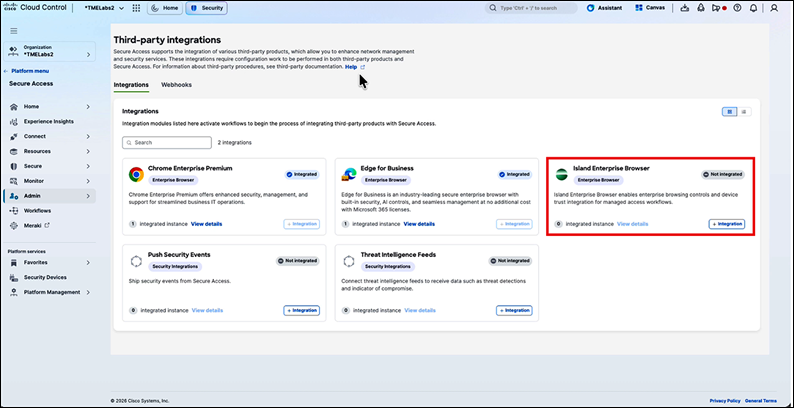
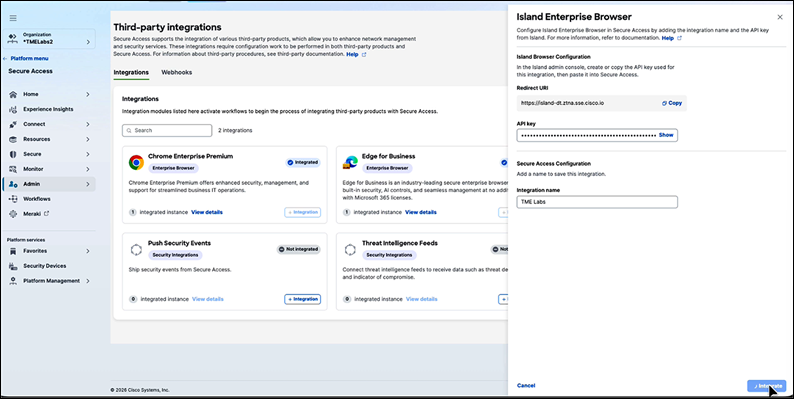
3. In the Secure Access dashboard, navigate to Third-Party Integrations under the Admin menu. Paste the Island API key, give the integration a name, then copy the redirect URI before clicking Integrate.
Open Island Advanced Browser Policy
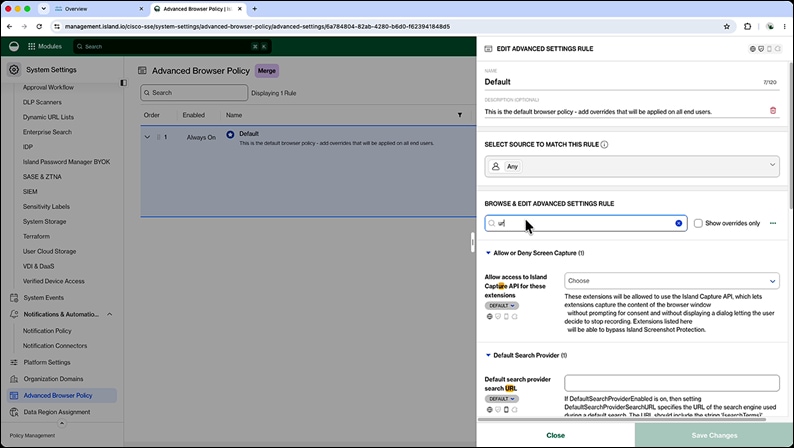
4. Back in the Island console, click the pop-up to open the Advanced Browser Policy, or access it directly from the System Settings menu. Select the policy you want to apply Device Trust to and open it for editing.
Add the Secure Access redirect URI to URL patterns
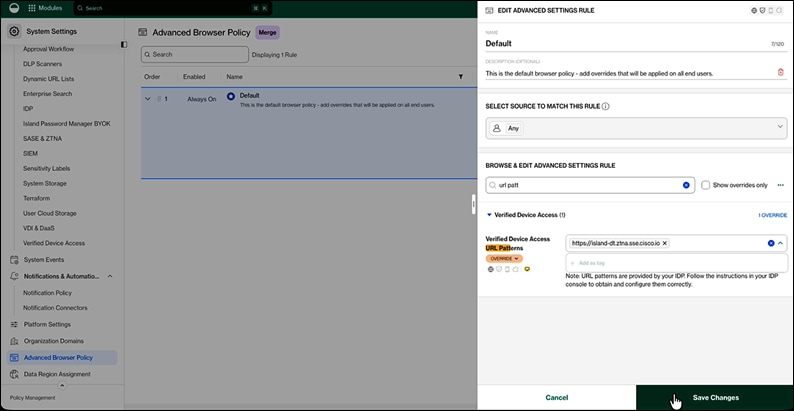
5. Within the selected Island policy, search for “URL patterns” and override the Verified Device Access URL Patterns setting to include the redirect URI copied from Secure Access.
Override the browser user agent to Island brand
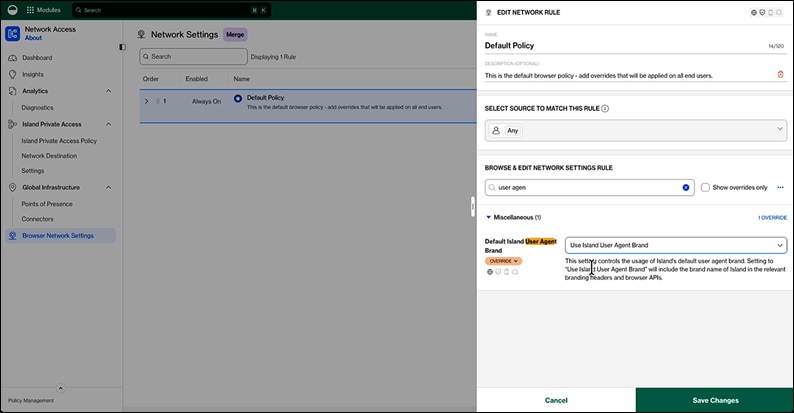
6. In Island, navigate to Network Access and then Browser Network Settings. Search for “user agent” and override the Default Island User Agent Brand setting, enabling Secure Access to identify requests originating from an Island browser.
Apply pending changes in Island
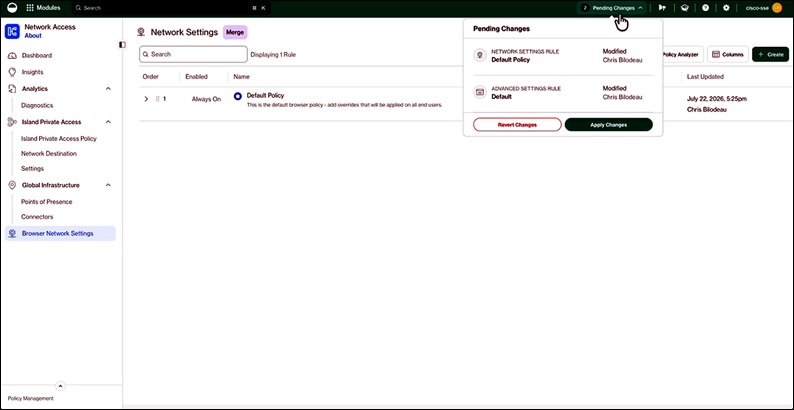
7. Before leaving the Island admin console, click the Pending Changes link and apply all changes. Island will not push the updated settings to clients until this step is completed.
Create a browser-based endpoint posture profile
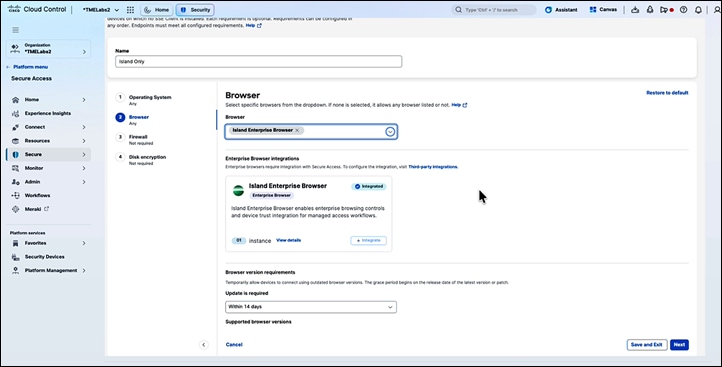
8. In Secure Access, create a new browser-based posture profile that restricts access to verified Island Enterprise Browsers. Optionally configure additional posture signals such as OS version, firewall status, or disk encryption.
Apply the posture profile to an Access Policy rule
9. In Secure Access, under Access Policy, select the rule to modify and, under Endpoint Requirements, choose the newly created posture profile from the Zero Trust Browser- Based posture profile drop-down. Adjust any additional security settings as needed and save the rule.