Working with Cisco Spaces: Environmental Analytics App

Live Map

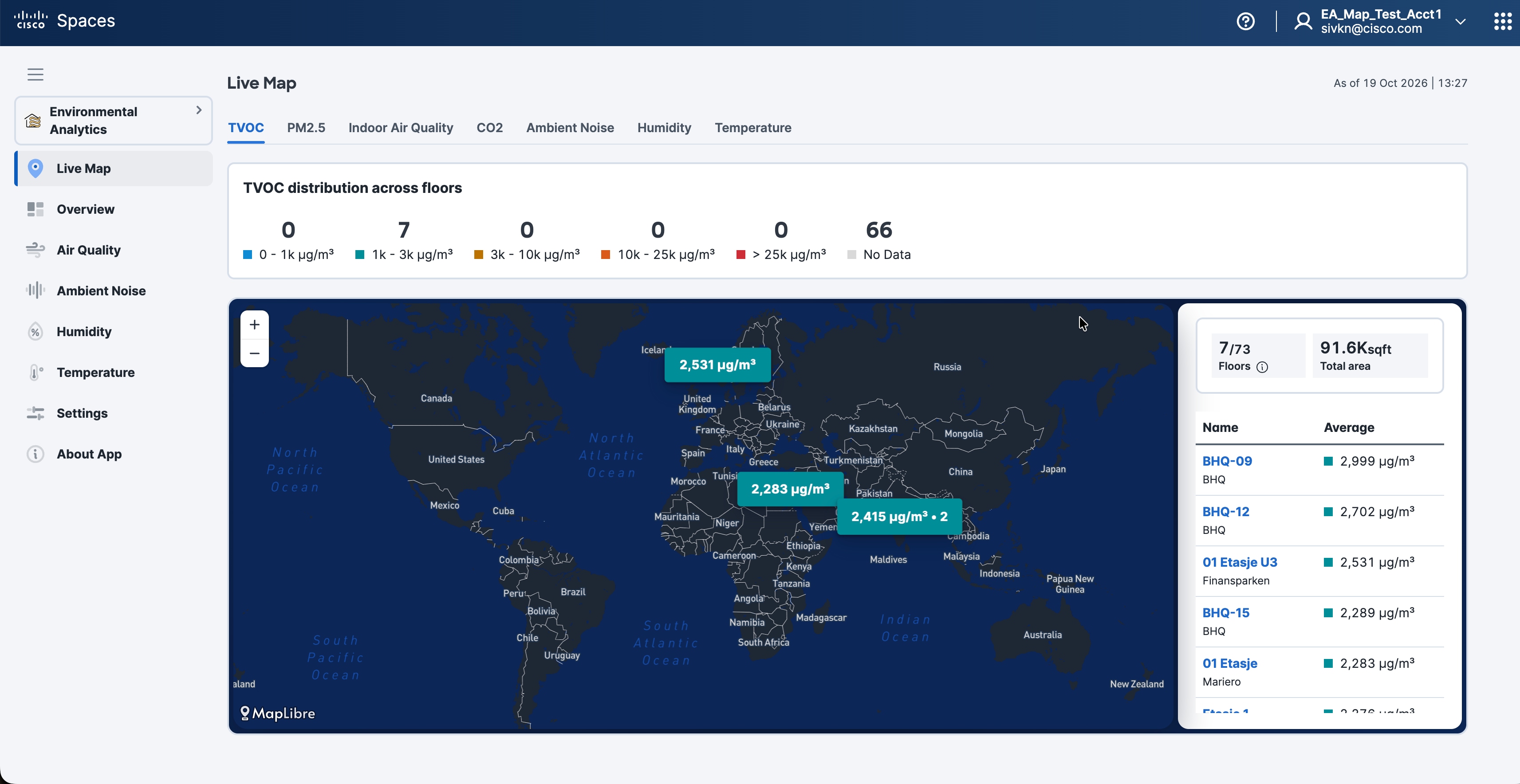
The Live Map view provides a real-time, location-based view of environmental telemetry across the configured locations in Cisco Spaces: Environmental Analytics. Use Live Map to review current environmental conditions for locations and to navigate directly to the floor and rich map associated with a selected metric.

When a telemetry metric is selected, Live Map opens the corresponding floor view when a rich map is available for that floor. The floor view displays the telemetry information for the selected workspace or location. You can switch between floors and open the historical temperature view from the Live Map workflow.

Live Map provides an interactive view of current environmental conditions across configured locations. It is the default view when opening Cisco Spaces: Environmental Analytics.

Customers can review color-coded readings, compare floor conditions, and view workspace readings on floor Rich Maps. Supported telemetry types and their range definitions are available on the About App page.

These environmental metrics are available for review, subject to the telemetry supported and enabled for the deployment:

  • CO₂

  • TVOC

  • Indoor Air Quality

  • PM 2.5

  • Ambient Noise

  • Humidity

  • Temperature

The Live Map view is intended for monitoring and navigation.
View Environmental Data in Live Map

Use this procedure to view current environmental telemetry for configured locations and to open the corresponding floor view.

Before you begin

  • Verify that Environmental Analytics is available to your Cisco Spaces account.

  • Configure Rich Maps for the required floors.

  • Ensure environmental telemetry is being received and the relevant sensor types are enabled in Settings.

Procedure


Step 1

Open Live Map. On the Cisco Spaces dashboard, choose Environmental Analytics.

The Live Map opens by default. From another section, select Live Map in the left navigation pane.

If the feature introduction appears, click Done to continue. Select Don’t show this to me again to hide it on subsequent visits.

Step 2

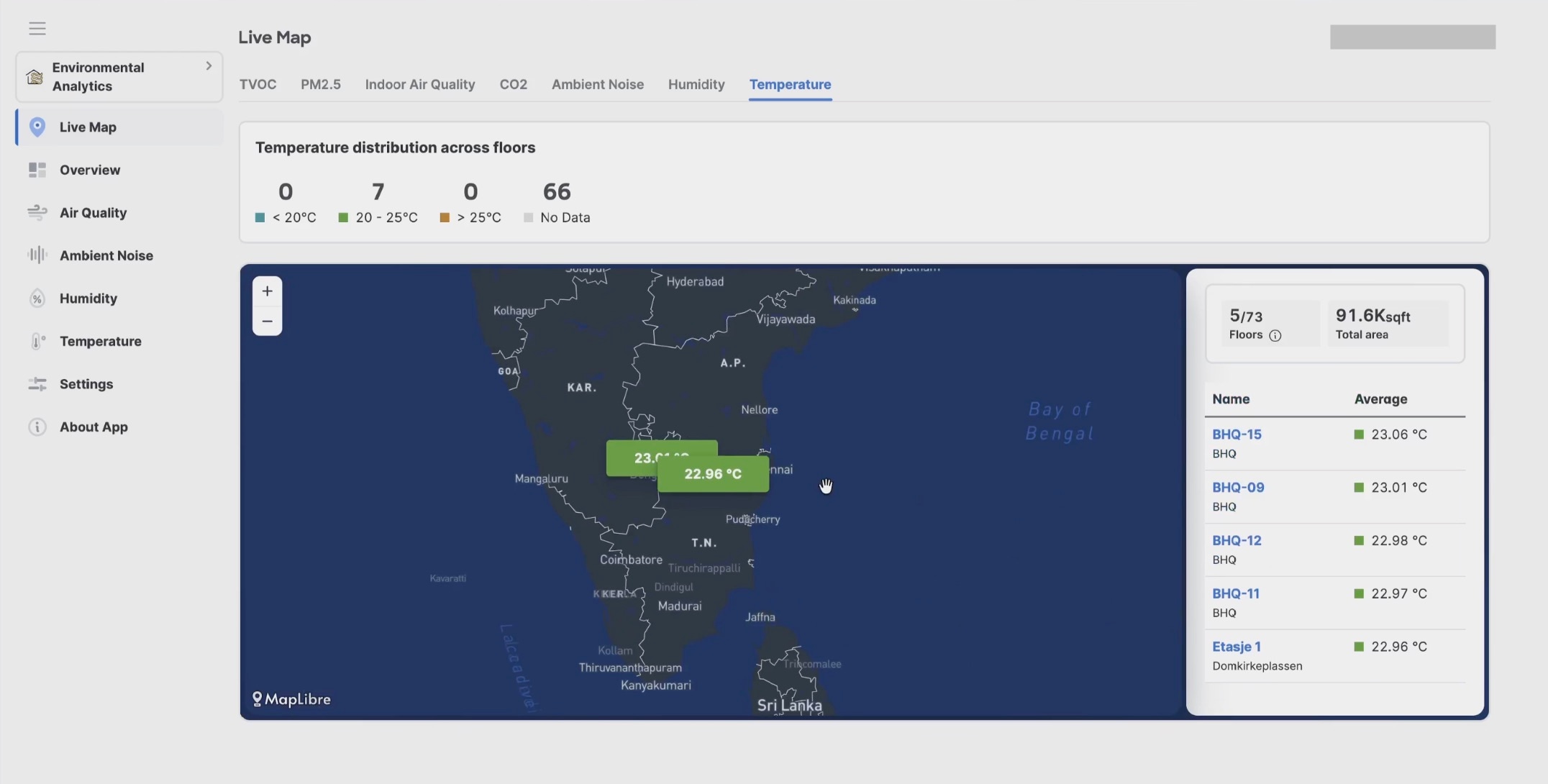
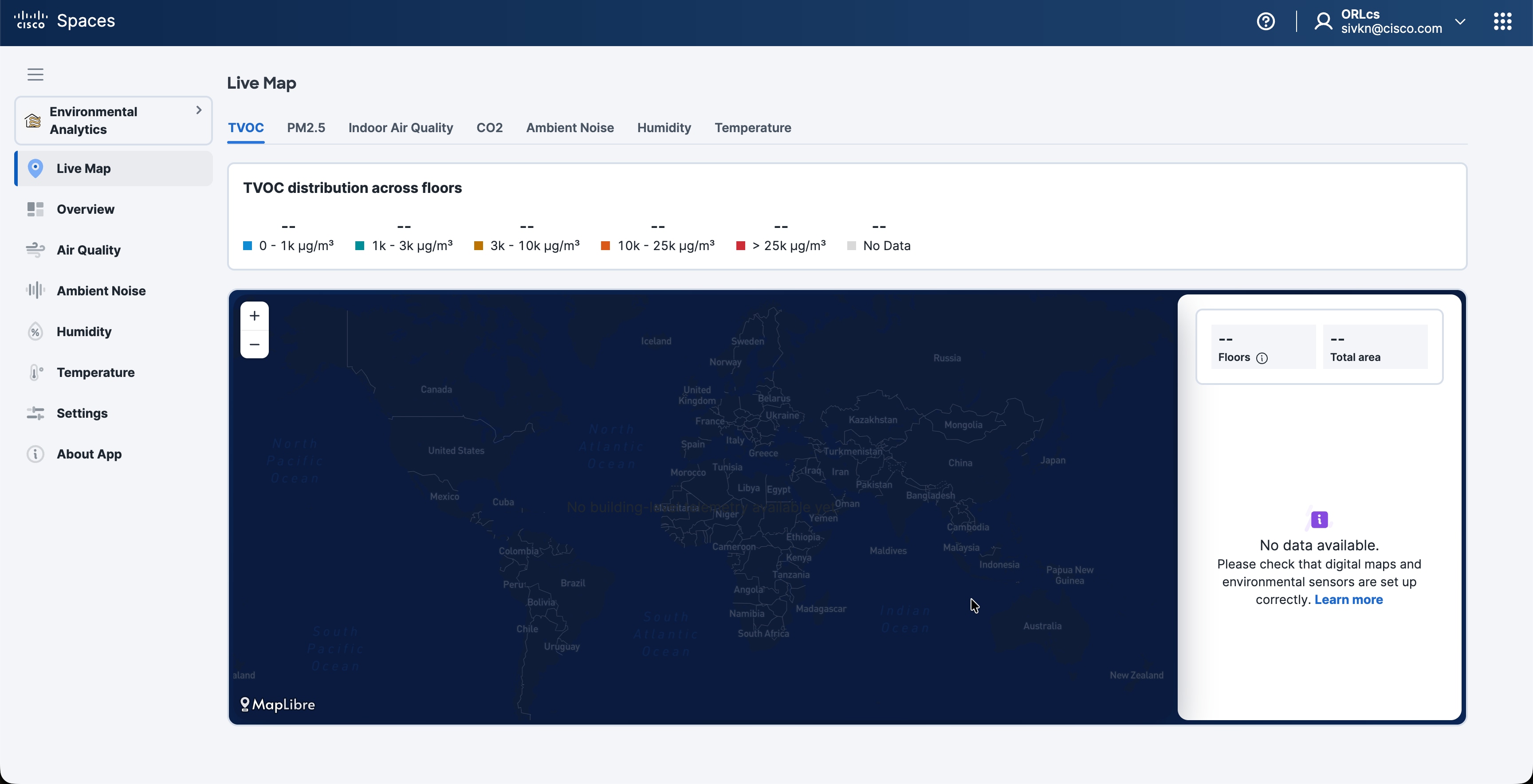
Select a telemetry. Select the telemetry tab that you want to review. The map readings, floor list, and floor distribution update for that telemetry. Colors correspond to its ranges, and the distribution shows the number of floors in each range, including No Data.

Figure 1. Environmental Analytics Live Map

Step 3

Review floor readings and coverage. Review the available telemetry metrics, such as PM 2.5, Indoor Air Quality, CO₂, TVOC, Ambient Noise, Humidity, and Temperature.

The floor list displays each floor’s name, parent location, and average reading. Indoor Air Quality displays classifications under Median.

The summary displays Floors, the number of floors with Rich Maps reporting data out of all floors with available data, and Total area, the total floor area.

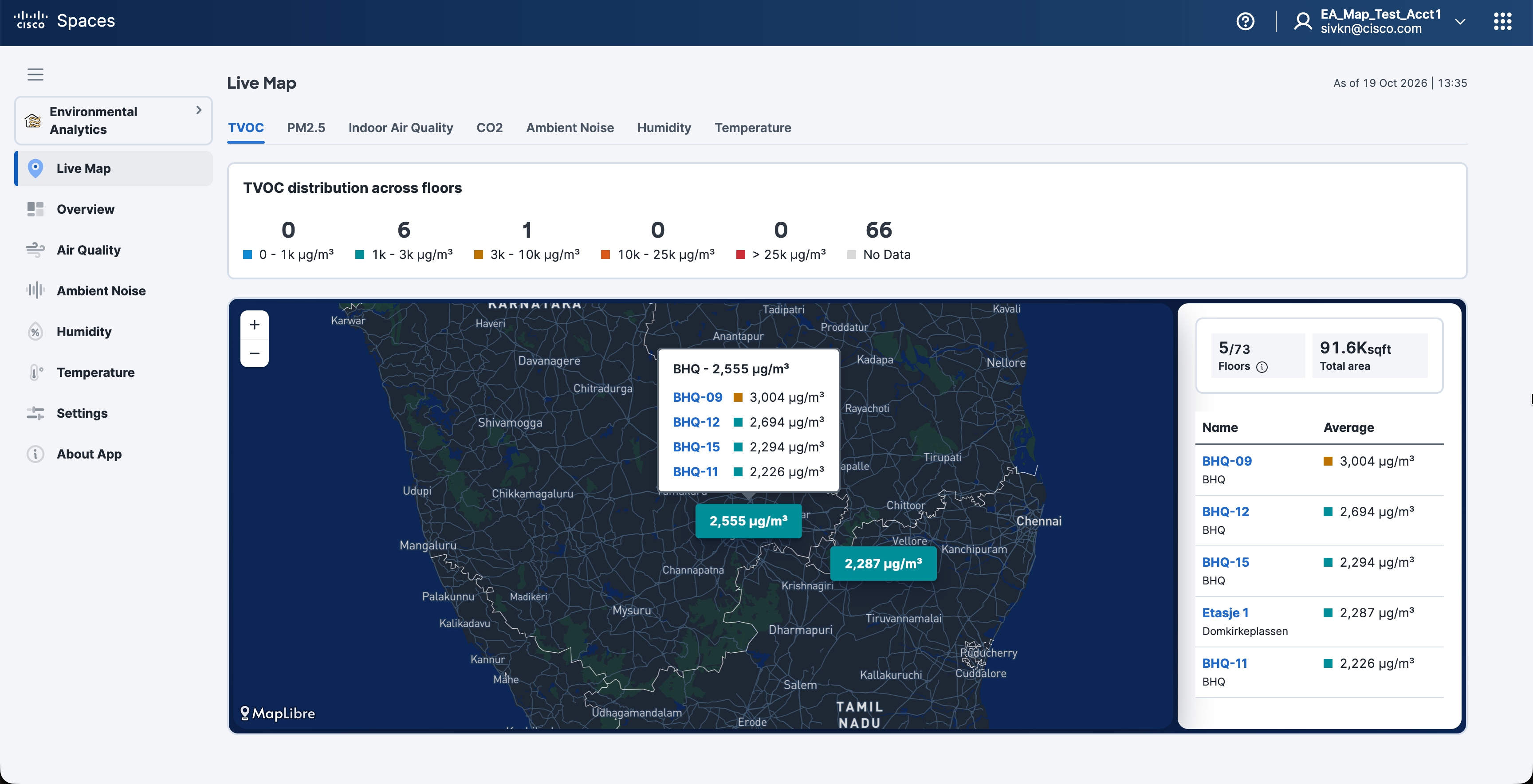
Figure 2.
Live map in environmental analytics

Step 4

Explore map markers.

Select a grouped marker to expand the cluster and display individual building markers. Select a building marker to view its floors and their readings.

Building markers summarize readings across their floors. Cluster markers show a combined reading and the number of buildings represented.

Figure 3. Map Clusters and Building Floor Readings

Step 5

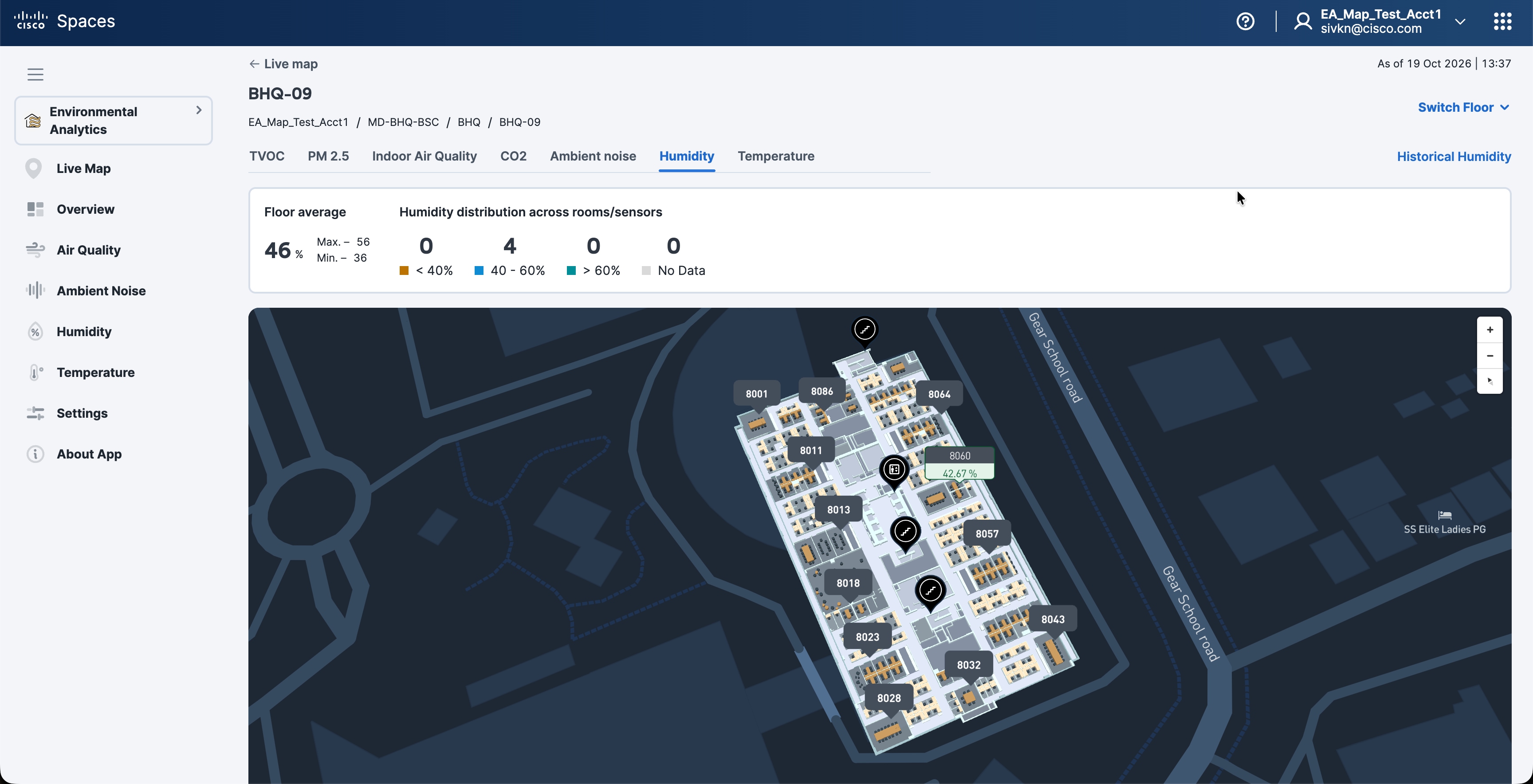
Open live floor details. Select a floor name from the marker popup or the Name column.

The floor view displays workspace readings on the floor’s Rich Map, the floor average, minimum and maximum values, and color-coded distribution across rooms and sensors. It also shows the floor name, location path, and latest update time. Indoor Air Quality uses descriptive classifications.

Figure 4. Live Floor View

Step 6

Review another telemetry. Select another telemetry tab to update the readings for the same floor.

Step 7

Switch floors. Open Switch Floor and select a floor. The floor details and Rich Map update while retaining the selected telemetry.

Step 8

View historical information. Select Historical [telemetry name] to open the existing historical report for the selected floor and telemetry. For example, Historical Temperature opens that floor’s temperature report.

Step 9

Return to Live Map. From the live floor view, select Live map above the floor name to return to the main map view.


Live Map telemetry and navigation

The Live Map view uses the rich map associated with each floor to render floor-specific environmental information.

  • A floor without a rich map cannot display the corresponding floor-level map information in the Live Map workflow.

  • Configure the required rich maps before using Live Map for floor-level monitoring.

Table 1. Live Map Controls and Navigation

Metrics

Result of selection

Live Map

Opens the map, floor distribution, and floor list.

Telemetry tab

Updates readings and distribution for the selected telemetry in the current map or floor view.

Map cluster

Expands the grouped building markers.

Building marker

Displays individual floor names and readings.

Floor name

Opens live details for that floor and the selected telemetry.

Switch Floor

Changes the floor while retaining the selected telemetry.

Historical [telemetry name]

Opens the existing historical report for the selected floor and telemetry.

Live map return link

Returns from live floor details to the main map view.

Map readings require both a Rich Map and available telemetry for the selected metric.

Table 2. Map and Data Availability

Condition

Display and Available Action

Rich Map available, but no telemetry

The floor has no telemetry reading to display.

Telemetry available, but no Rich Map

Readings cannot be plotted. Select Overview to view available environmental data without maps.

No available map or sensor data in the selected view

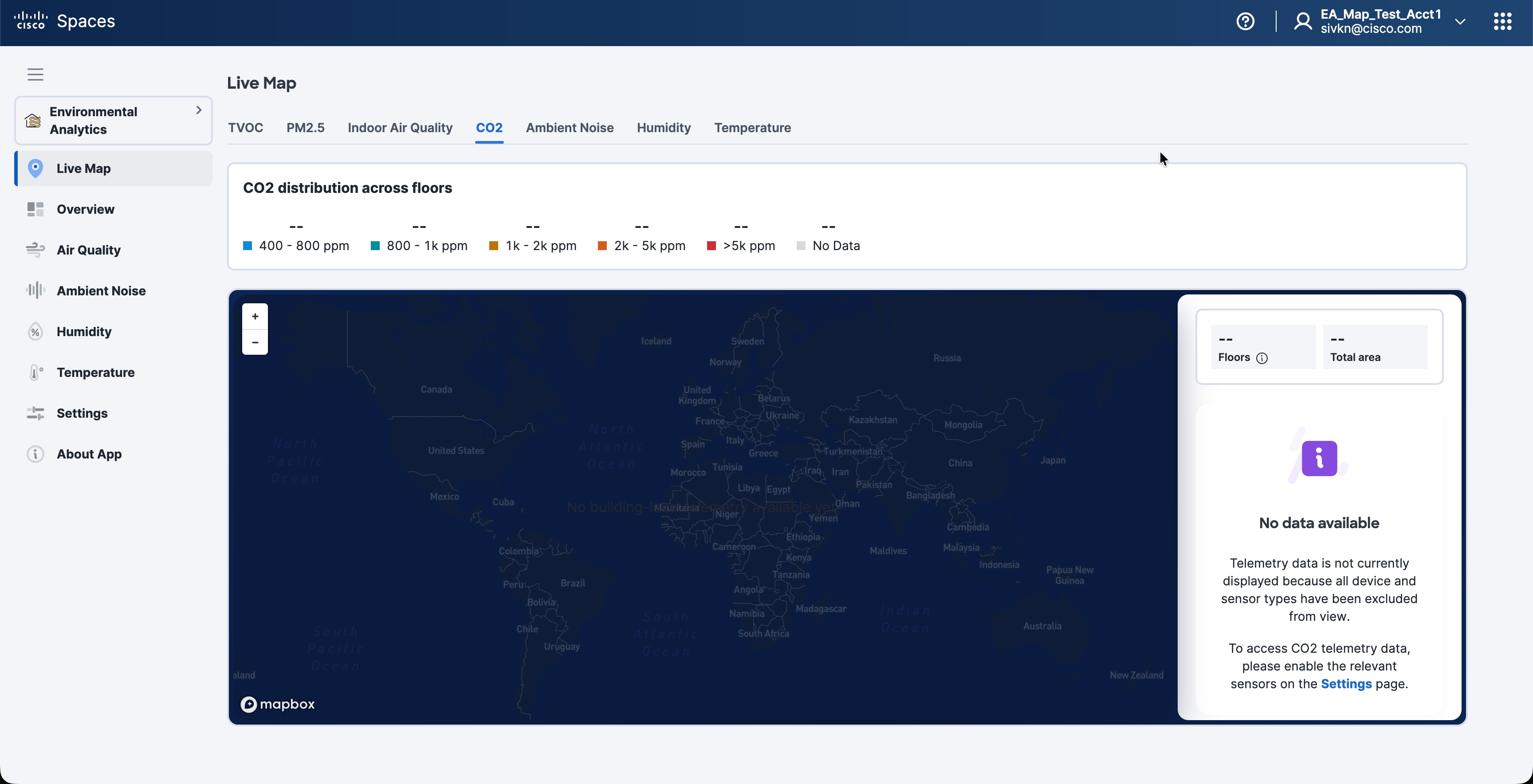
The screen displays “No data available,” setup guidance, and a Learn more link to About App.

All sensor types for the selected telemetry excluded

A message explains why readings are hidden and links to Settings to enable the relevant sensors

Figure 5. Map or Sensor Data Unavailable
Figure 6. Telemetry Excluded

Viewing Sensor Performance Data

The Overview window displays the performance data of the active sensors available in the floors of the building. The data is displayed for the selected floor for the selected month. Use this data for your analysis.

Procedure


Step 1

From the Dashboard drop-down list (left navigation pane of the Cisco Spaces Home page), choose Environmental Analytics.

The Environmental Analytics window is displayed.

Step 2

In the left navigation pane, click Overview.

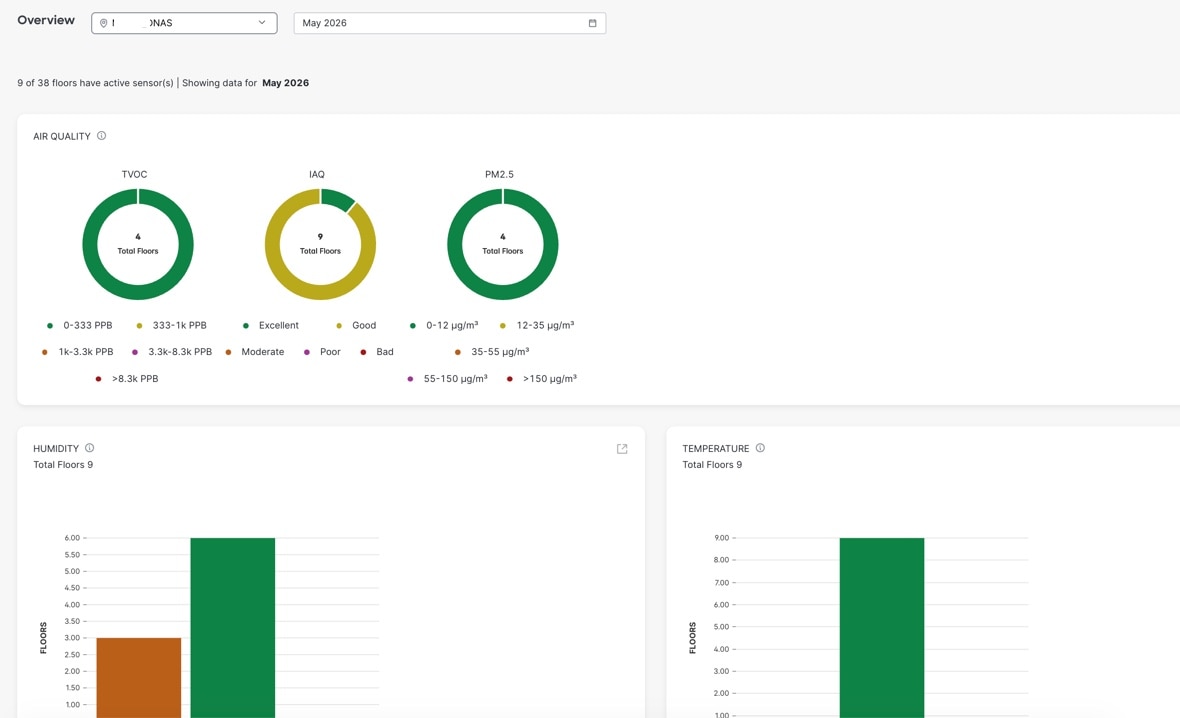
The Overview window displays the sensor performance data of the active sensors available in the selected root location (default view) or the floor for the month.

Figure 7. Overview

Step 3

View the sensor data organized as per the following sections:

  • Air Quality: Displays the sensor performance data for TVOC, IAQ and PM2.5.

  • Ambient Noise: Displays the sensor performance data for ambient noise levels.

  • Humidity: Displays the sensor performance data for humidity levels.

  • Temperature: Displays the sensor performance data for temperature levels.

Step 4

(Optional) To view the sensor data for a different floor or month:

  1. From the Location drop-down list, select the root location or floor.

  2. From the Month drop-down list, select another month.

Step 5

Click the icon to open the corresponding parameter configuration window to perform the required updates.

Configuring Environmental Analytics Parameters

Use the Settings tab in the Environmental Analytics app to configure the parameters. Configure these parameters to view the sensor data in the other tabs.

Procedure


Step 1

From the Dashboard drop-down list (left navigation pane of the Cisco Spaces Home page), choose Environmental Analytics.

The Environmental Analytics window is displayed.

Step 2

In the left navigation pane, click Settings.

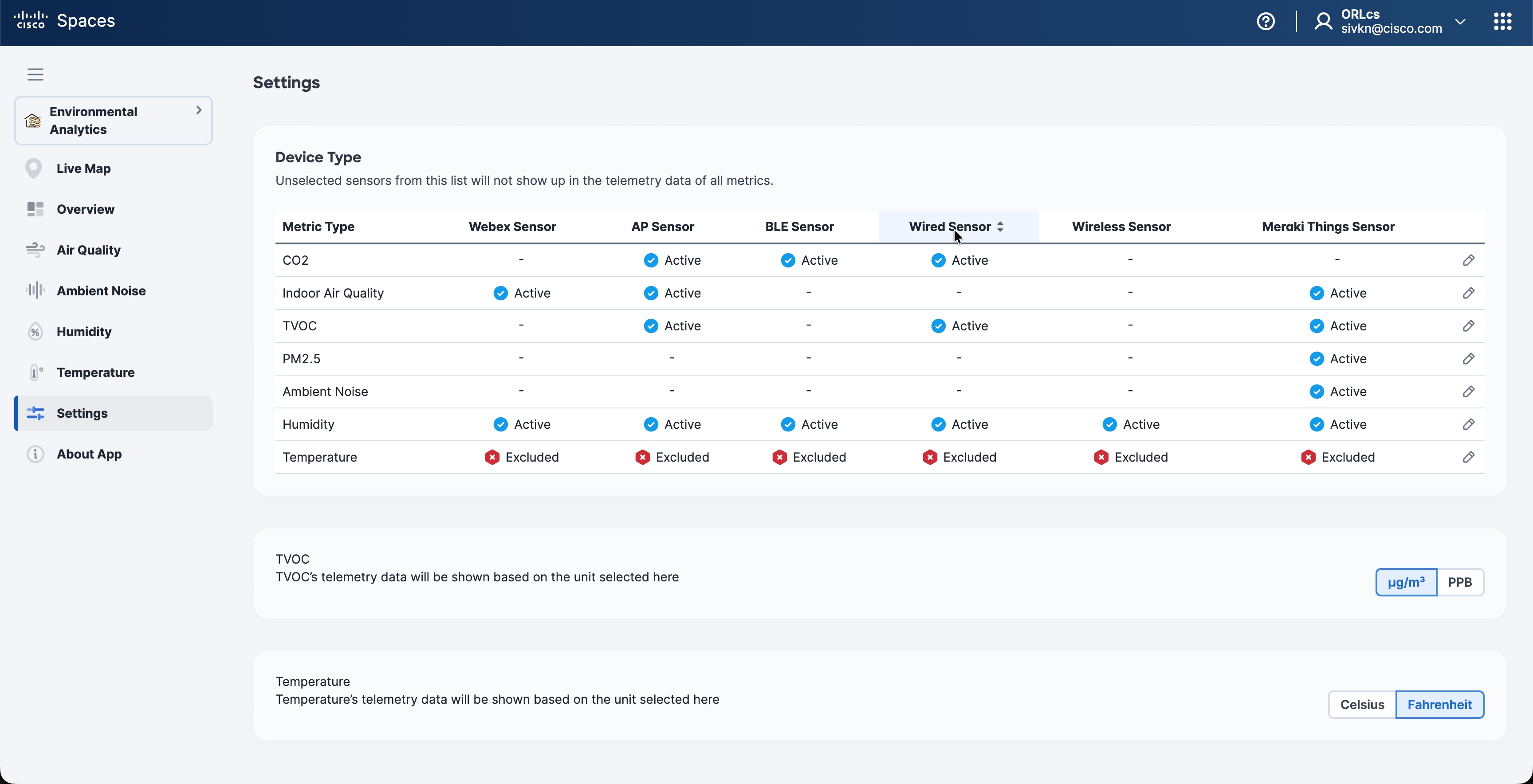
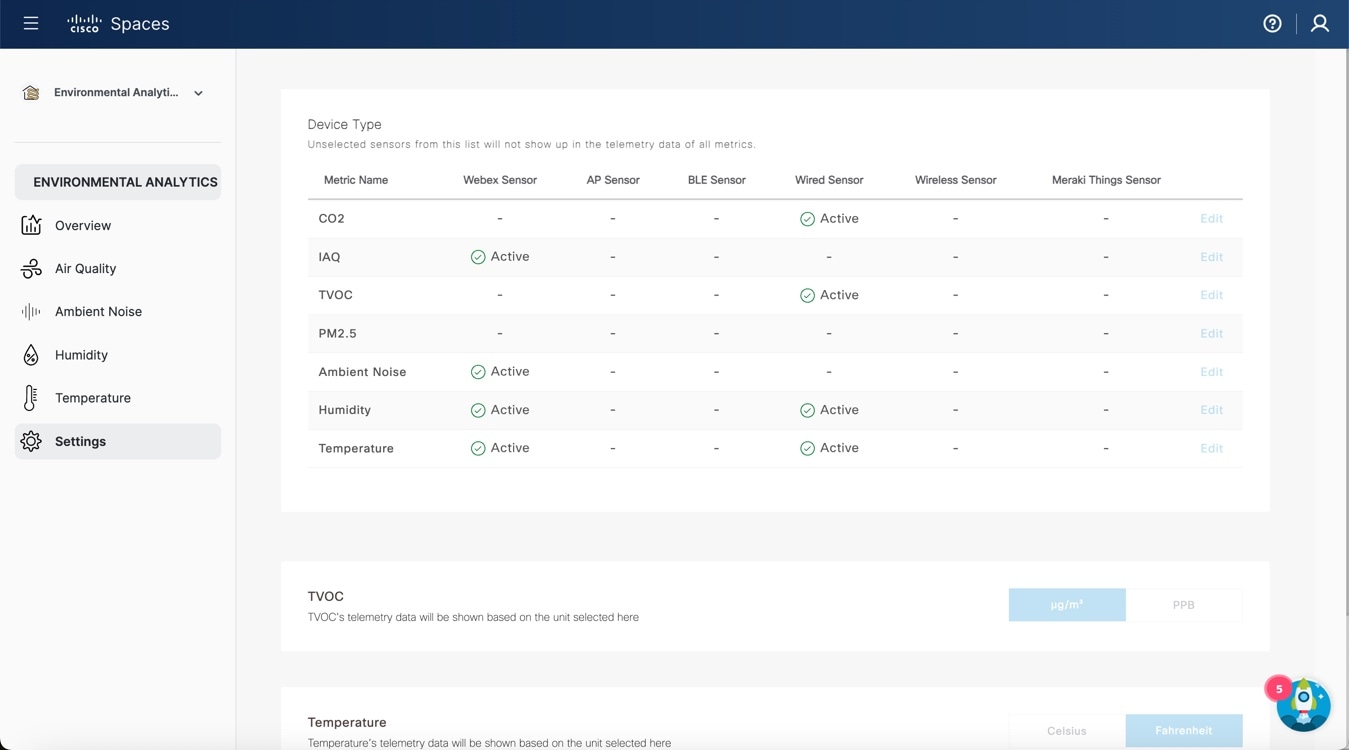
The Environmental Analytics Settings window is displayed with the telemetry metrics of all sensor devices.

Figure 8. Settings

Step 3

In the Device Type section, view the following metrics:

  • CO₂

  • IAQ

  • TVOC

  • PM2.5

  • Ambient Noise

  • Humidity

  • Temperature

Step 4

For each metric, view the following sensor details:

  • Webex Sensor

  • AP Sensor

  • BLE Sensor

  • Wired Sensor

  • Wireless Sensor

  • Meraki Things Sensor


Note


To view the supported telemetry types, refer to Supported Telemetry Types.


Step 5

Click Edit against the corresponding metric name.

Step 6

Check or uncheck the check box for the required sensor and click Save.

Click Cancel to discard the changes, if required.

Step 7

Click µg/m³ or PPB to set the unit for TVOC telemetry data.

The selected unit is highlighted in a blue background.

Step 8

Click Celsius or Fahrenheit to set the unit for temperature telemetry data.

The selected unit is highlighted in a blue background.


Supported Telemetry Types

The telemetry types supported for each device type are:

Table 3. Sensor and Supported Telemetry Types

Device Type

Supported Telemetry Types

Cisco Webex

  • Temperature

  • Ambient Noise

  • Humidity

  • IAQ

Wired

  • Temperature

  • Humidity

  • CO₂

  • TVOC

Access Point

  • Temperature

  • Humidity

  • CO₂

  • TVOC

  • IAQ

Wireless

  • Temperature

  • Humidity

BLE

  • Temperature

  • Humidity

  • CO₂

Meraki Things

  • Temperature

  • Ambient Noise

  • Humidity

  • TVOC

  • IAQ

  • PM2.5

  • CO₂

View Air Quality Parameters

Before you begin

Use the Settings tab to configure the Air Quality parameters.

Procedure


Step 1

From the Dashboard drop-down list (left navigation pane of the Cisco Spaces Home page), choose Environmental Analytics.

The Environmental Analytics window is displayed.

Step 2

In the left navigation pane, click Air Quality.

The Air Quality window includes the tabs IAQ, CO2, TVOC, and PM2.5.

Step 3

Click the IAQ tab.

The IAQ data with value Below Moderate for the root level for the selected month is displayed.

Figure 9. Air Quality Parameters
  1. View these telemetry details:

    • Floor Name: Click the floor name to view the details in the Floor window. The Floor Details window is displayed.

    • Location Path: Displays the floor location path.

    • # of Workspaces: Displays the number of workspaces.

    • Max. IAQ: Displays the maximum IAQ level for the particular floor.

    • Avg. IAQ: Displays the average IAQ level for the particular floor.

    • Min IAQ: Displays the minimum IAQ level for the particular floor.

    • Sensor Violation Duration: Displays the duration of sensor violation.

  2. To view IAQ details of another floor location, from the Location drop-down list, select another location.

  3. To view IAQ details of another month, from the Month drop-down list, select another month.

Step 4

Click the CO2 tab.

  1. Click Setup Devices to configure devices to generate CO2 measurements.

  2. After devices are set, the floor data with CO₂ value as Below 1000 ppm is displayed.

  3. View the following telemetry details:

    • Floor Name: Click the floor name to view the details in the Floor window.

    • Location Path: Displays the floor location path.

    • # of Workspaces: Displays the number of workspaces.

    • Max. CO2: Displays the maximum CO₂ level for the particular floor.

    • Avg. CO2: Displays the average CO₂ level for the particular floor.

    • Min CO2: Displays the minimum CO₂ level for the particular floor.

    • Sensor Violation Duration: Displays the duration of sensor violation.

  4. To view CO2 details of another floor location, from the Location drop-down list, select another location.

  5. To view CO2 details of another month, from the Month drop-down list, select another month.

Step 5

Click the TVOC tab.

The floor data with TVOC value as Below 3000 µg/m³ is displayed.

  1. View the following telemetry details:

    • Floor Name: Click the floor name to view the details in the Floor window.

    • Location Path: Displays the floor location path.

    • # of Workspaces: Displays the number of workspaces.

    • Max. TVOC: Displays the maximum TVOC level for the particular floor.

    • Avg. TVOC: Displays the average TVOC level for the particular floor.

    • Min TVOC: Displays the minimum TVOC level for the particular floor.

    • Sensor Violation Duration: Displays the duration of sensor violation.

  2. To view TVOC details of another floor location, from the Location drop-down list, select another location.

  3. To view TVOC details of another month, from the Month drop-down list, select another month.

Step 6

Click the PM2.5 tab.

The floor data with PM2.5 value as Below 35 µg/m³ is displayed.

  1. View the following telemetry details:

    • Floor Name: Click the floor name to view the details in the Floor window.

    • Location Path: Displays the floor location path.

    • # of Workspaces: Displays the number of workspaces.

    • Max. PM2.5: Displays the maximum PM2.5 level for the particular floor.

    • Avg. PM2.5: Displays the average PM2.5 level for the particular floor.

    • Min PM2.5: Displays the minimum PM2.5 level for the particular floor.

    • Sensor Violation Duration: Displays the duration of sensor violation.

  2. To view PM2.5 details of another floor location, from the Location drop-down list, select another location.

  3. To view PM2.5 details of another month, from the Month drop-down list, select another month.

Step 7

(Optional) Use the following options if required:

  • Search: Use this field to search for the required floors.

  • Export: Use this option to export the environmental sensor telemetry details as a comma-separated values file.

  • Show Records: Use the drop-down to select the number of records to be displayed in the tab. Use the forward and backward arrows to navigate to the other page records.

Step 8

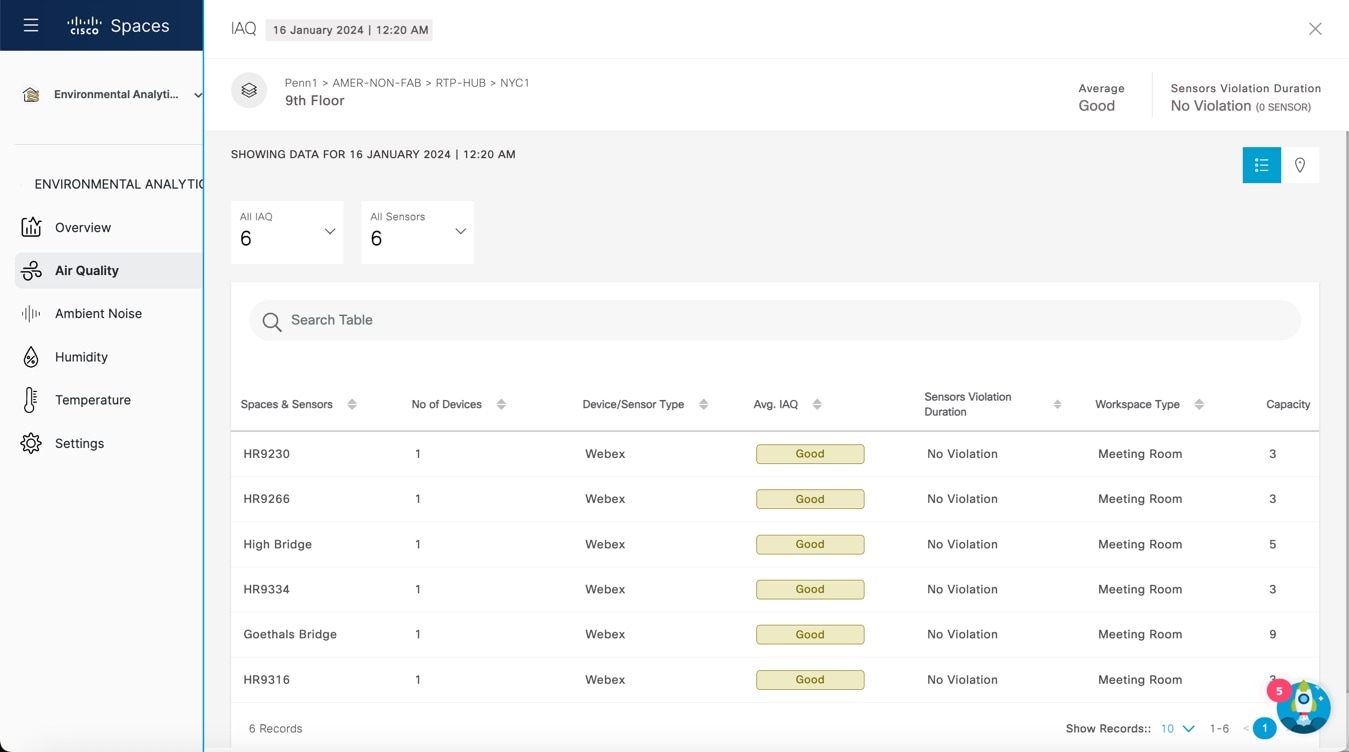
Click any floor name to view the sensor performance data for the selected floor in detail. For more information, refer to Viewing Sensor Data in Floor View.

Figure 10. Air Quality Parameters: Floor View

Step 9

To view detailed sensor data for the selected floor, click any area in the graph.

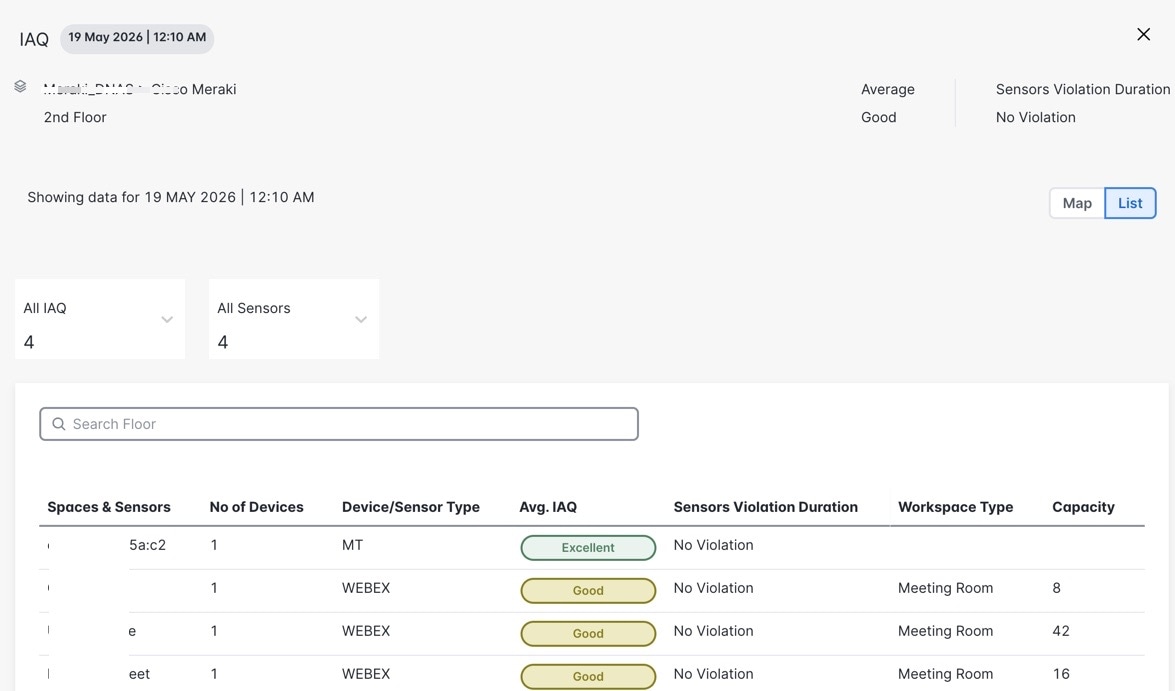
Figure 11. Sensor data

View Ambient Noise Parameters

Before you begin

Use the Settings tab to configure the Ambient Noise parameters.

Procedure


Step 1

From the Dashboard drop-down list (left navigation pane of the Cisco Spaces Home page), choose Environmental Analytics.

The Environmental Analytics window is displayed.

Step 2

In the left navigation pane, click Ambient Noise.

The floor data with Ambient Noise value Below 40 dBa for the selected month is displayed.

Step 3

In the window that is displayed, view the following telemetry details:

  • Floor Name: Click the floor name to view the details in the Floor window.

  • Location Path: Displays the floor location path.

  • # of Workspaces: Displays the number of workspaces.

  • Max. Ambient Noise: Displays the maximum Ambient Noise level for the particular floor.

  • Avg. Ambient Noise: Displays the average Ambient Noise level for the particular floor.

  • Min Ambient Noise: Displays the minimum Ambient Noise level for the particular floor.

  • Sensor Violation Duration: Displays the duration of sensor violation.

Step 4

(Optional) Use these options if required:

  • Search: Use this field to search for the required floors.

  • Export: Use this option to export the environmental sensor telemetry details as a comma-separated values file.

  • Show Records: Use the drop-down to select the number of records to be displayed in the tab. Use the forward and backward arrows to navigate to the other page records.

Step 5

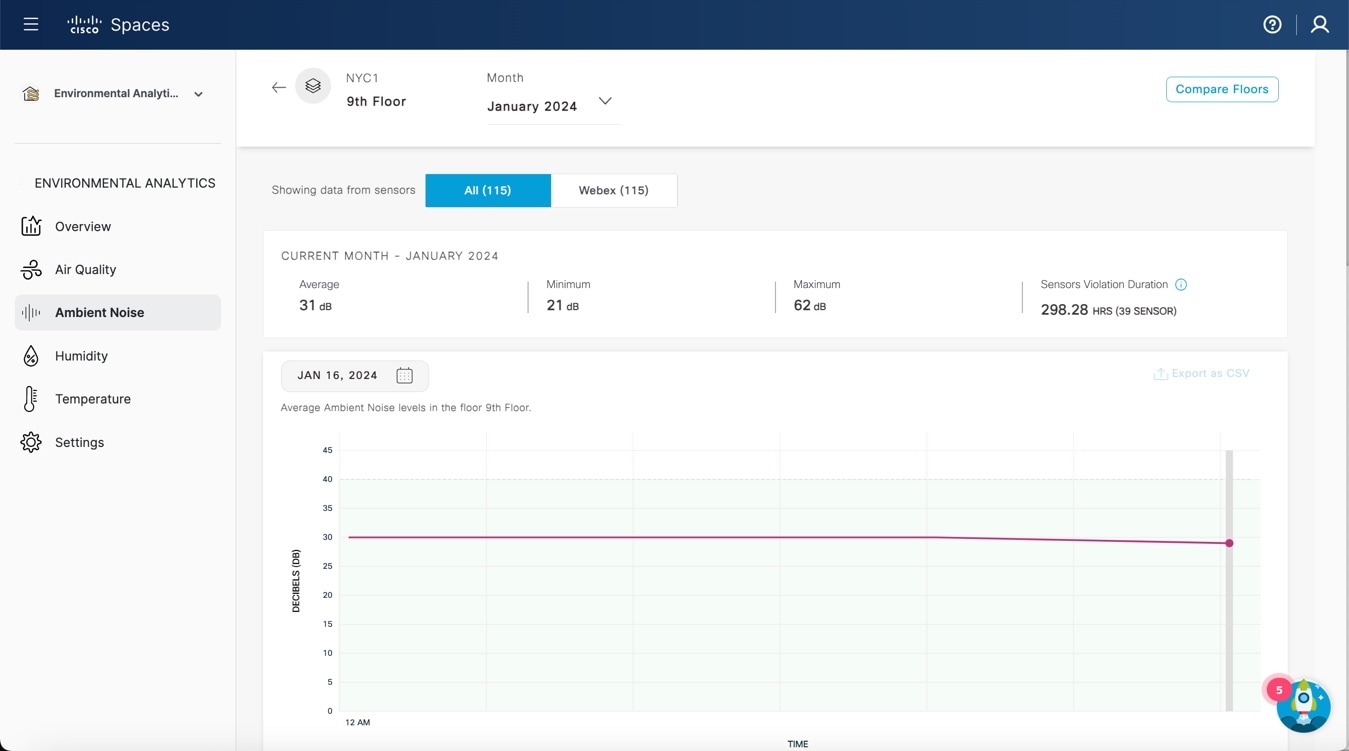
If you already clicked a floor name to view other sensor data in floor view, the Ambient Noise window is also displayed in Floor View. For more information, refer to Viewing Sensor Data in Floor View.

Figure 12. Ambient Noise: Floor View

Step 6

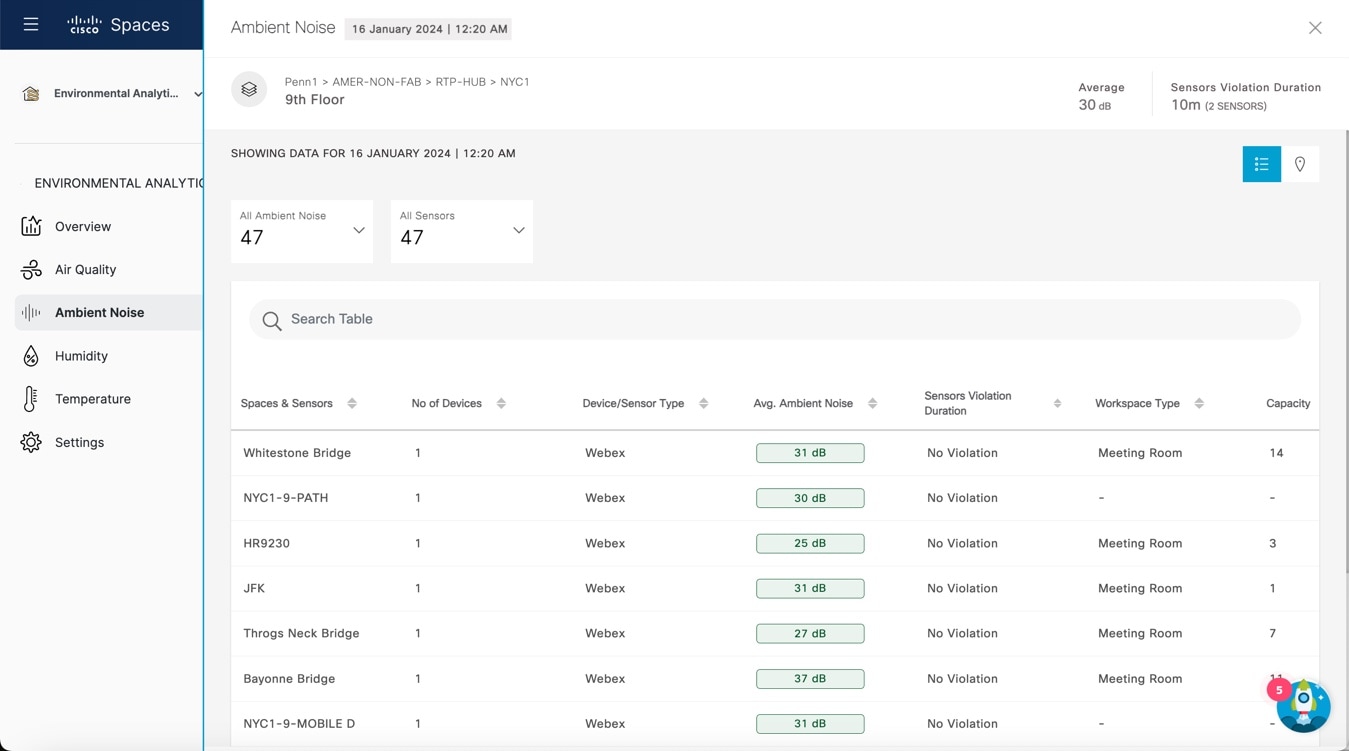
To view detailed sensor data for the selected floor, click any area in the graph.

Figure 13. Ambient Noise Sensor Data

View Humidity Parameters

Before you begin

Use the Settings tab to configure the Humidity parameters.

Procedure


Step 1

From the Dashboard drop-down list (left navigation pane of the Cisco Spaces Home page), choose Environmental Analytics.

The Environmental Analytics window is displayed.

Step 2

In the left navigation pane, click Humidity.

The floor data with Humidity value Between 30-60% for the selected month is displayed.

Step 3

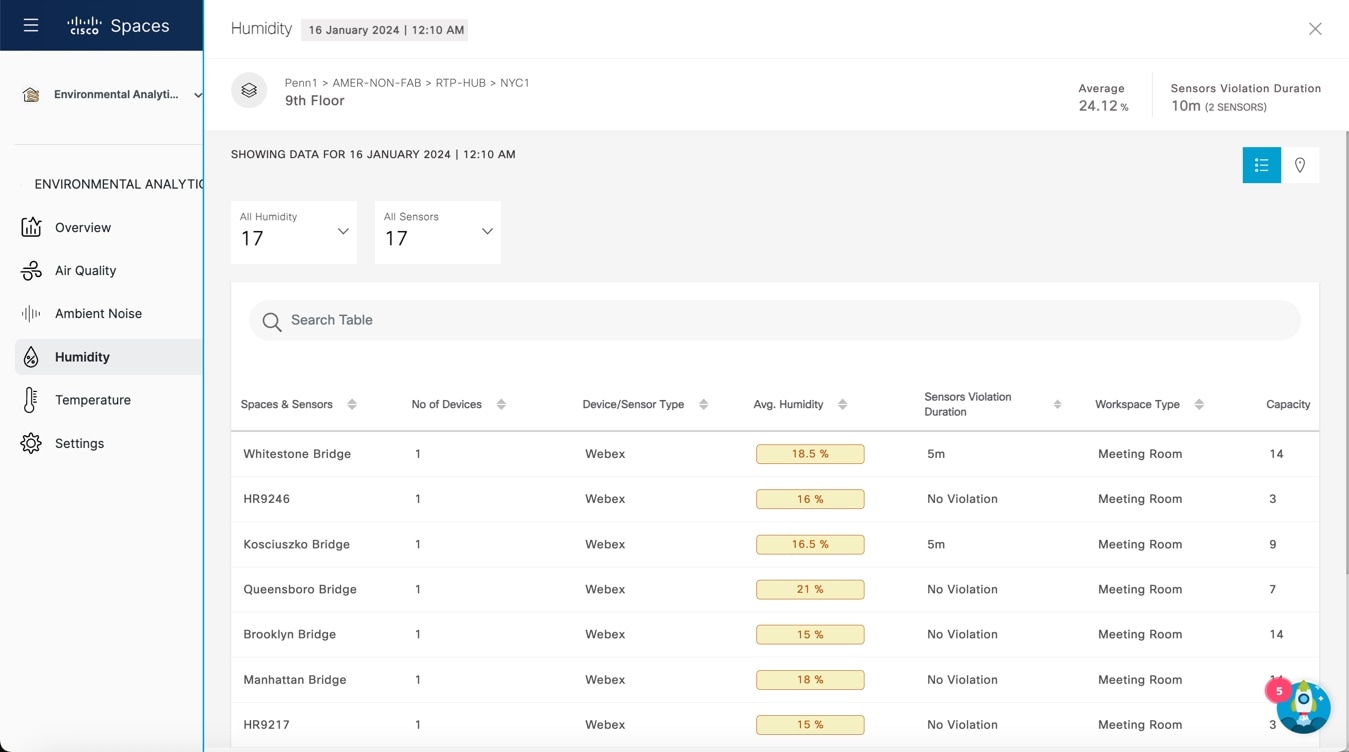
In the window that is displayed, view the following telemetry details:

  • Floor Name: Click the floor name to view the details in the Floor window.

  • Location Path: Displays the floor location path.

  • # of Workspaces: Displays the number of workspaces.

  • Max. Humidity: Displays the maximum Humidity level for the particular floor.

  • Avg. Humidity: Displays the average Humidity level for the particular floor.

  • Min Humidity: Displays the minimum Humidity level for the particular floor.

  • Sensor Violation Duration: Displays the duration of sensor violation.

Step 4

(Optional) Use these options if required:

  • Search: Use this field to search for the required floors.

  • Export: Use this option to export the environmental sensor telemetry details as a comma-separated values file.

  • Show Records: Use the drop-down to select the number of records to be displayed in the tab. Use the forward and backward arrows to navigate to the other page records.

Step 5

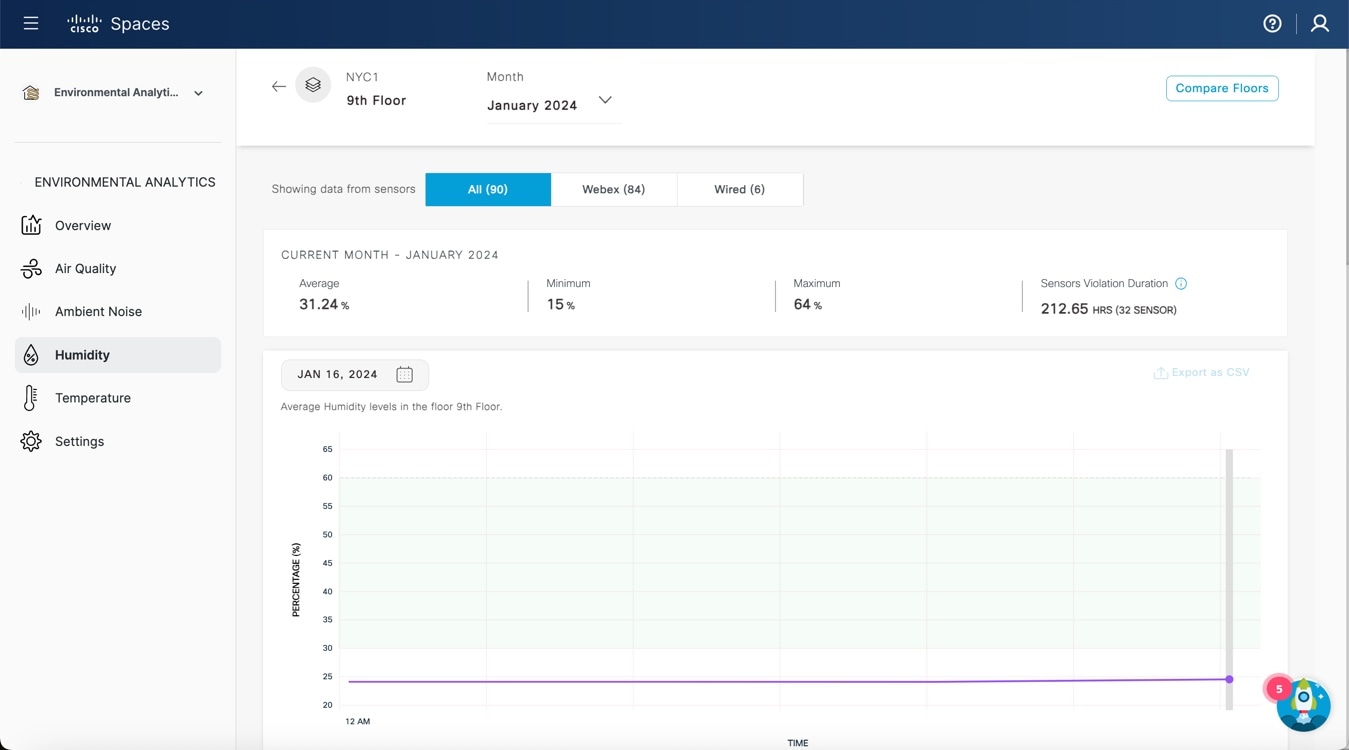
If you already clicked a floor name to view other sensor data in floor view, the Humidity window is also displayed in Floor View. For more information, refer to Viewing Sensor Data in Floor View.

Figure 14. Humidity: Floor View

Step 6

To view detailed sensor data for the selected floor, click any area in the graph.

Figure 15. Humidity Sensor Data

View Temperature Parameters

Before you begin

Use the Settings tab to configure the Temperature parameters.

Procedure


Step 1

From the Dashboard drop-down list (left navigation pane of the Cisco Spaces Home page), choose Environmental Analytics.

The Environmental Analytics window is displayed.

Step 2

In the left navigation pane, click Temperature.

The floor data with Temperature value Between 21-25°C for the selected month is displayed.

Step 3

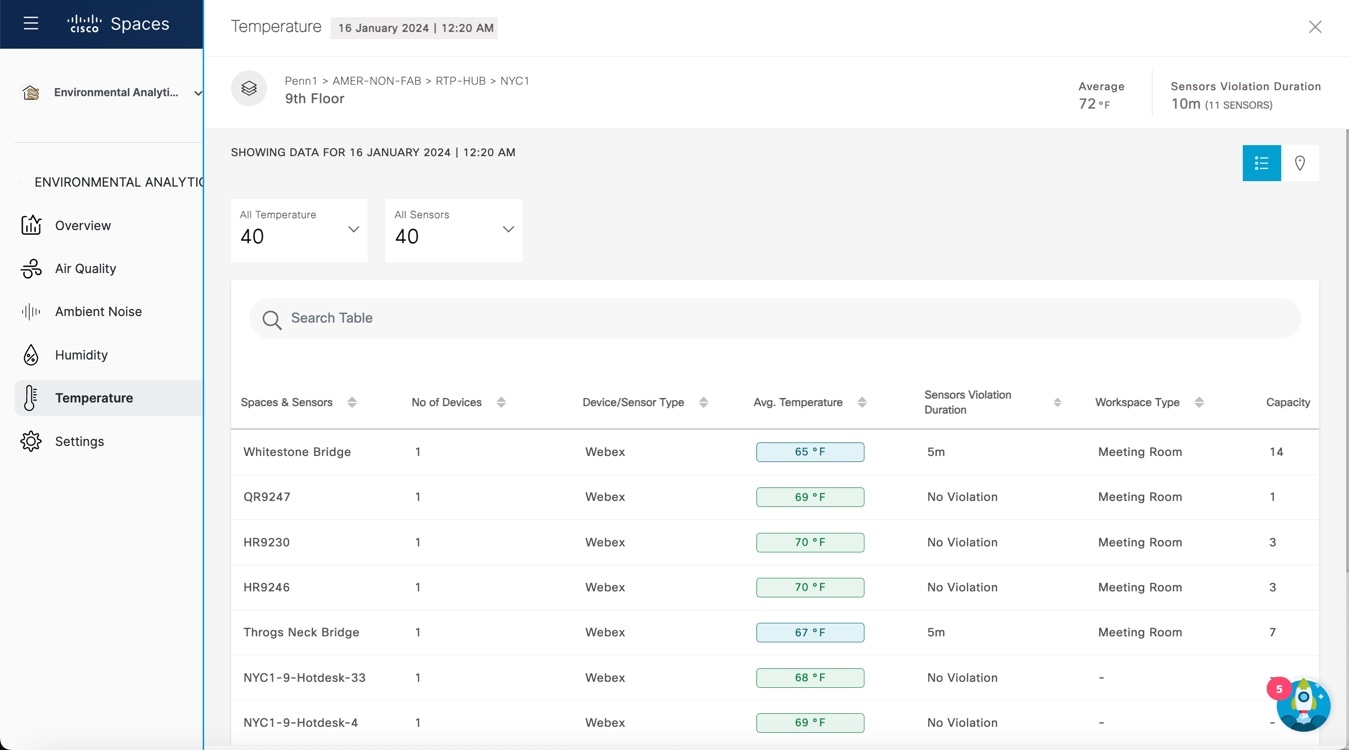
In the window that is displayed, view the following telemetry details:

  • Floor Name: Click the floor name to view the details in the Floor window.

  • Location Path: Displays the floor location path.

  • # of Workspaces: Displays the number of workspaces.

  • Max. Temperature: Displays the maximum Temperature level for the particular floor.

  • Avg. Temperature: Displays the average Temperature level for the particular floor.

  • Min Temperature: Displays the minimum Temperature level for the particular floor.

  • Sensor Violation Duration: Displays the duration of sensor violation.

Step 4

(Optional) Use the following options if required:

  • Search: Use this field to search for the required floors.

  • Export: Use this option to export the environmental sensor telemetry details as a comma-separated values file.

  • Show Records: Use the drop-down to select the number of records to be displayed in the tab. Use the forward and backward arrows to navigate to the other page records.

Step 5

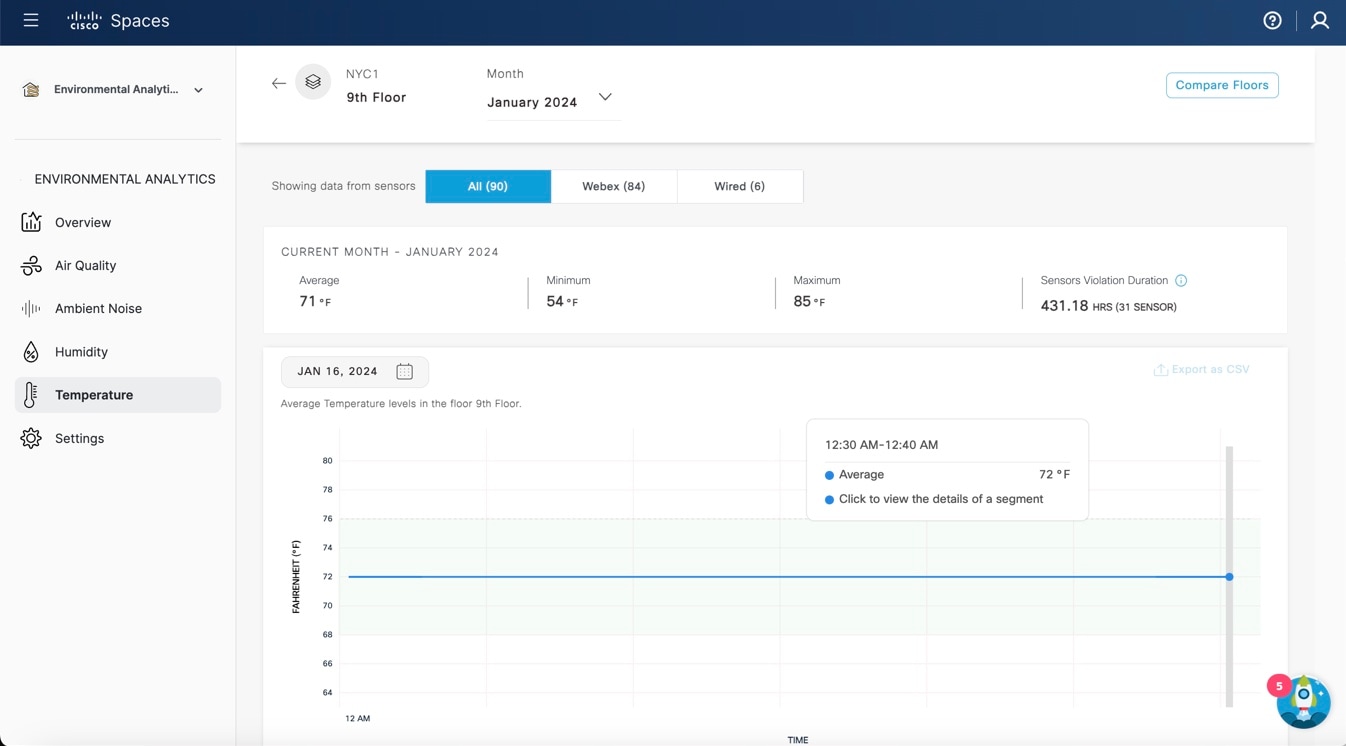
If you already click a floor name to view other sensor data in floor view, the Temperature window is also displayed in Floor View. For more information, refer to Viewing Sensor Data in Floor View.

Figure 16. Temperature: Floor View

Step 6

To view detailed sensor data for the selected floor, click any area in the graph.

Figure 17. Temperature Sensor Data

Viewing Sensor Data in Floor View

You can view the sensor data in floor view for Air Quality, Ambient Noise, Humidity, and Temperature.

Procedure


Step 1

From the Dashboard drop-down list (left navigation pane of the Cisco Spaces Home page), choose Environmental Analytics.

The Environmental Analytics window is displayed.

Step 2

In the left navigation pane, click any sensor data of your choice.

Step 3

In the sensor detail window that is displayed, click the floor name.

The Floor View window is displayed with the sensor performance data for the selected floor for the current month.

By default, the All option is selected and the window displays sensor performance data from all devices.

Click Meraki Things if you want to view the sensor performance data from Cisco Meraki.

Click Webex if you want to view the sensor performance data from Cisco Webex devices.

Step 4

For the selected sensor data, the following data is displayed in graphical format:

  • Current Month: Displays the information about sensors that violated the optimal range for a specific time. Click the graph to view the sensor data in detail.

  • Average levels in the floor: Displays the average levels in the selected floor in graphical format. Click the time range to view additional information. You can again click the graphical format to view the details of the segment.

  • Daily average, min & max levels in floor: Displays the daily average, minimum and maximum levels in the selected floor in graphical format. Click the time range to view additional information.

  • Cumulative Time in Violation: Displays the cumulative time in violation in graphical format.

  • By Hour of the Day: Displays the sensor performance data by an hour of the day.

  • By Day of the Week: Displays the sensor performance data by day of the week.

For example, for Air Quality sensor data, the following window is displayed:

Figure 18. Air Quality Sensor Data

Step 5

To view detailed sensor data for the selected floor, click any area in the graph.

Figure 19. Sensor data

Step 6

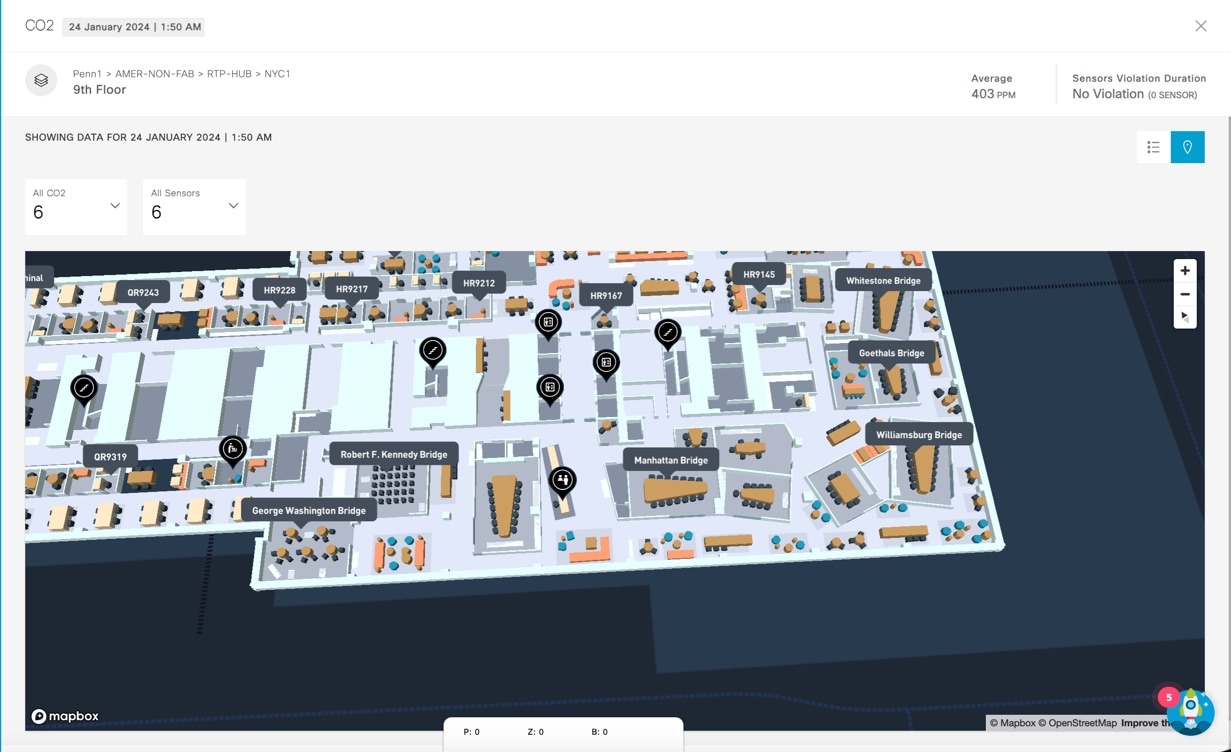
To view the sensor data in Rich Map view, click the Map.

The Floor View is displayed in Rich Maps.

Figure 20. Rich Maps View

Step 7

(Optional) To download the sensor metric as a CSV file, click Export as CSV.

Step 8

Click Compare Floors to open the Floor Comparison window to view the floor comparison data. For more information, refer to Compare Floors.

Step 9

Click the Close () icon to close the window.


Compare Floors

Procedure


Step 1

From the Dashboard drop-down list (left navigation pane of the Cisco Spaces Home page), choose Environmental Analytics.

The Environmental Analytics window is displayed.

Step 2

From the left navigation pane, select any sensor data of your choice.

Step 3

In the sensor detail window that is displayed, click the floor name.

The Floor View window is displayed with the sensor performance data. The data for the current month is displayed for the selected floor. By default, the All option is selected and the window displays sensor performance data from all devices. Click Webex if you need to display the sensor performance data from Cisco Webex devices.

Step 4

In the Floor View window, click Compare Floors.

The Floor Comparison pop-up window is displayed. By default, All is selected. Click Webex to view sensor data from Cisco Webex devices.

Figure 21. Floor Comparison

Step 5

View the floor comparison data from all the sensors. The floor comparison details such as average sensor trend and sensors in violation for the selected month is displayed.

Step 6

Hover your cursor over the graph to view additional sensor details.

Step 7

(Optional) From the Month drop-down list, select a different month to view the floor comparison data.