Search
The Search page allows users to locate assets across configured locations. Search results reflect the user role, category scope, and location scope configured in User Management.
Key features:
-
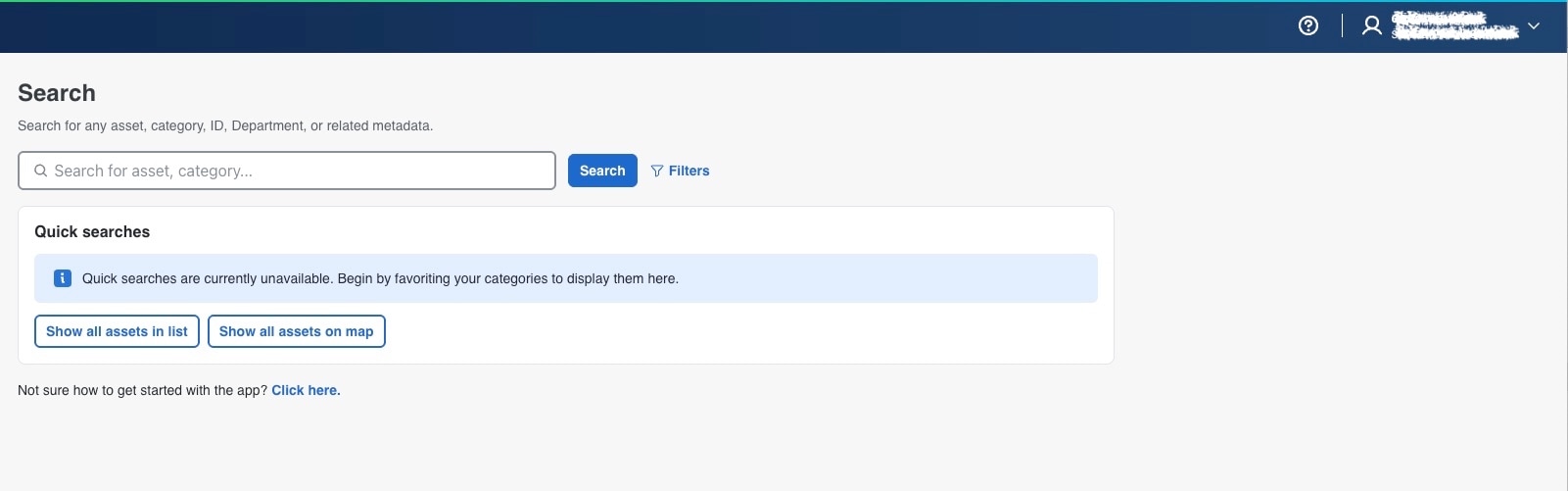
Search: Search by asset name, tag MAC address, category name, serial number, metadata, manufacturer, and labels.
-
Quick Searches: The Quick searches area displays frequently used asset searches based on your favorite categories. Use quick searches to open commonly used asset results without manually entering search criteria.

Note
Quick searches are available only after you mark one or more categories (up to five categories) as favorites. If no favorite categories are configured, the Quick searches area displays a message that quick searches are currently unavailable.
-
Filters: Use filters to search for assets by location, department, category, included labels, or excluded labels.
-
Show all assets in list: Displays all assets in a table format so that you can review asset name, MAC address, category, location, department, battery, labels, and last seen.
-
List: Use List view to compare asset records and operational attributes
-
Table settings icon: Displays Table density and Column settings. The available options are Compact, Comfy, and Spacious. Shows or hides columns in the asset table. You can also reorder columns by dragging them.
Note
You can pin up to four columns in the table setting.
-
-
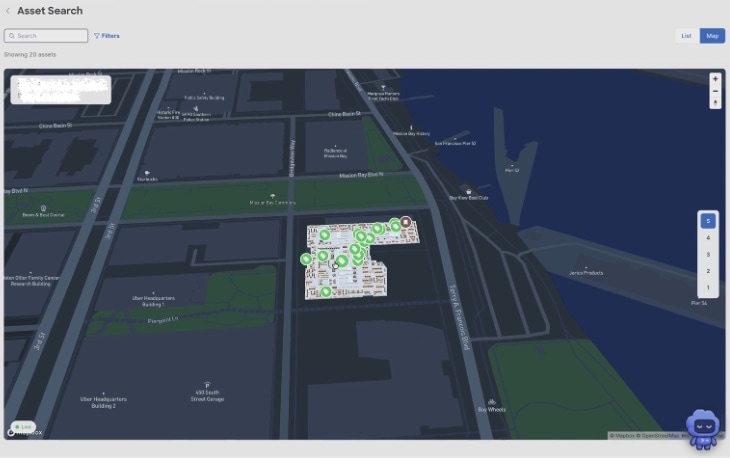
Show all assets on map: Displays all assets on the map so that you can review asset locations visually within the selected location context in real time.
-
Map: Use Map view to validate asset location in building, floor, department, or filtered location context.
-
 Feedback