Managing Cisco CMX Configuration

Overview of the Manage Service

The Cisco Connected Mobile Experiences (Cisco CMX) MANAGE service comprises the following tabs, which help you perform a variety of tasks to effectively manage the Cisco CMX configuration, including, but not restricted to those listed here:


Note

All the Manage service tasks can be performed only by users with corresponding user roles. For information on user roles, see User Roles.

Managing Perimeters and Zones on Location Maps

A perimeter is an all-inclusive zone where clients are always inside of this. The individual zones are inside the perimeter.


Note

In Cisco CMX Release 10.2.3, the ability to create and delete a perimeter on location maps is no longer available.


Viewing Campus, Building, Floor, and Zone Details

Procedure


Step 1

Log in to Cisco Mobile Connected Experiences (Cisco CMX).

Step 2

Choose MANAGE > Locations.

Step 3

In the left pane of the window that is displayed, click Campus, Building, Floor, or Zone depending on the area you want to view.

Items corresponding to the area selected are displayed as boxes.
Step 4

Click the curved arrow at the top-right corner of each item box to view details pertaining to that item.

This opens the Zone Editor map view, displaying a floor map.
Note 
The curved arrow at the top-right corner of a floor box is called the Go to map view arrow. This arrow is available on the box of items at any level. For example, for a building, this opens the first floor. For a campus, this opens the first floor of the first building. You can then switch to other buildings and floors in that campus.

Managing Tags

You can add tags to a campus, building, floor, or zone.

Procedure


Step 1

Log in to Cisco Mobile Connected Experiences (Cisco CMX).

Step 2

Choose MANAGE > Locations.

Step 3

From the right panel, choose the item for which you want to add the tag.

Step 4

Click the Tag icon at the top-right corner of the window.

The Location Tag Manager window is displayed with available tags.

Step 5

In the Create New Tag field, enter a new name for the tag and press Enter.

Step 6

(Optionaly) Click on any existing tag to see all the geo items that are tagged against it.


Creating an Inclusion or Exclusion Region

The Create Inclusion/Exclusion feature allows you to create inclusion and exclusion regions on a floor.
  • Inclusion regions define areas within a floor where wireless devices will be either inside or snapped on the boundary (due to weak coverage). There will be one inclusion region per floor only. When there is no inclusion region defined in the floor maps, Cisco CMX creates a default inclusion region that is the same as the floor dimension. We recommend having one inclusion region on a floor to correctly bound the clients on floor area.

  • Exclusion regions define areas within a floor which are inside an inclusion region. In an exclusion region, wireless devices will be ignored. There could be multiple exclusion regions per floor.

Defining inclusion and exclusion regions can help you focus Cisco CMX processing to just those areas of the map where you want to manage your wireless devices, and ignore others.

Procedure


Step 1

Log in to Cisco Connected Mobile Experiences (Cisco CMX).

Step 2

Choose Manage > Locations.

Step 3

In the left pane, click Floor.

Step 4

To go to the map view of the floor, click the arrow on the top right of the floor tile view. The Zone Editor window is displayed with a list of icons to the right.

Step 5

To add a new inclusion region:

  1. Click the + icon to create an inclusion region on the map. If you already have an inclusion region, creating a new inclusion region will overwrite the existing region.

  2. Double-click to finish creating the inclusion area. The inclusion region is displayed in green.

  3. In the Create a Inclusion dialog box, click Add.

To add an exclusion region, click the – icon and draw the exclusion area on the inclusion area.


Creating a Perimeter

Procedure


Step 1

Log in to Cisco Mobile Connected Experiences (Cisco CMX).

Step 2

Choose MANAGE > Locations.

Step 3

In the left pane of the window that is displayed, click Zone.

The zone is used for the analytics purpose.

The Zone Item boxes are displayed.
Step 4

Click the Subzone in the corresponding zone.

Step 5

In the Zone Editor window, click the CREATE A PERIMETER icon.

The cursor changes to a drawing tool.
Step 6

Click each point that you want to designate as a vertex of the perimeter. Double-click the last vertex point to complete marking the vertices of the perimeter and closing the perimeter.

When you double-click the last vertex point, the CREATE A PERIMETER dialog box opens.
Step 7

Click Add to add this perimeter to the floor.

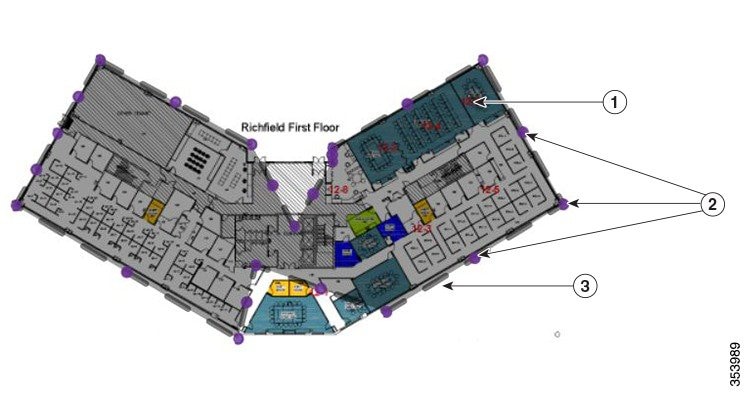
Figure 1. A Perimeter and its Vertices

1

Dark gray area indicating an area encircled by the perimeter.

3

Dark gray bar indicating the perimeter.

2

Purple indicating vertices of the perimeter.


Deleting a Perimeter

Procedure


Step 1

Log in to Cisco Mobile Connected Experiences (Cisco CMX).

Step 2

Choose MANAGE > Locations.

Step 3

In the left pane of the window that is displayed, click Zone.

The Zone Item boxes are displayed.
Step 4

Click the Subzone in the corresponding zone.

Step 5

In the Zone Editor window, click the Edit Perimeter icon.

Step 6

Click inside the perimeter to be deleted.

The perimeter will be highlighted in gray.
Step 7

Click the Trash icon.

Step 8

In the DELETE PERIMETER confirmation dialog box, click Confirm to delete the perimeter.


Editing a Perimeter

Procedure


Step 1

Log in to Cisco Mobile Connected Experiences (Cisco CMX).

Step 2

Choose MANAGE > Locations.

Step 3

In the left pane of the window that is displayed, click Zone.

The Zone Item boxes are displayed.
Step 4

Click the Subzone in the corresponding zone.

Step 5

In the Zone Editor window, click the Edit Perimeter icon.

Step 6

Click inside the perimeter that is to be edited.

The perimeter will be highlighted in gray and the vertices in purple.
Step 7

Drag the purple vertices to modify the shape of the perimeter.

Step 8

After you have the required shape, click outside the perimeter. This saves the new shape.


Creating a Zone

Procedure


Step 1

Log in to Cisco Mobile Connected Experiences (Cisco CMX).

Step 2

Choose MANAGE > Locations.

Step 3

In the left pane of the window that is displayed, click Zone.

The Zone Item boxes are displayed.
Step 4

Click the Subzone in the corresponding zone.

Step 5

In the Zone Editor window, click the Draw Polygon Zone icon.

The cursor will change to a drawing tool.
Step 6

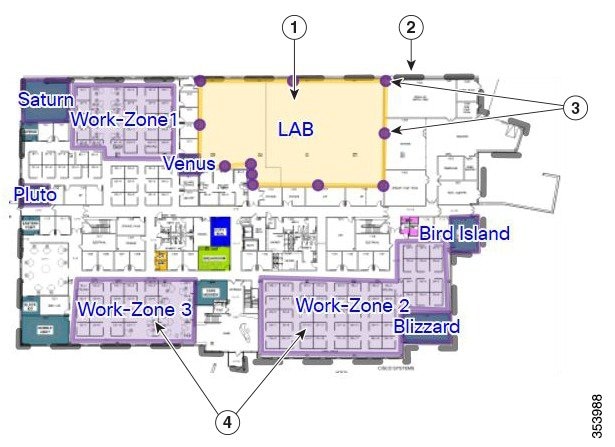
Click each point that you want to designate as a vertex of the perimeter. Double-click the last vertex point to complete marking the vertices of the perimeter and for closing the perimeter see the figure below.

When you double-click the last vertex point, the CREATE A NEW ZONE dialog box is displayed.
Step 7

Click Add to add this zone to the corresponding floor.

An Item pane pertaining to this zone is displayed on the right side of the window. You can add existing tags from the drop-down list, or add a new tag.
Note 
Zones cannot be outside the floor map and they cannot overlap. Overlapping zones can be created using Cisco Prime Infrastructure.
Figure 2. A Zone and its Vertices

1

A zone named Lab.

3

Purple indicating vertices of the zone.

2

Gray bar indicating the perimeter.

4

Other zones on the map.


Deleting a Zone

Procedure


Step 1

Log in to Cisco Mobile Connected Experiences (Cisco CMX).

Step 2

Choose MANAGE > Locations.

Step 3

In the left pane of the window that is displayed, navigate to the zone that you want to delete.

Step 4

Click the Trash icon.

The DELETE ZONE confirmation dialog box is displayed.
Step 5

Click Confirm.


Editing a Zone

Procedure


Step 1

Log in to Cisco Mobile Connected Experiences (Cisco CMX).

Step 2

Choose MANAGE > Locations.

Step 3

In the left pane of the window that is displayed, click Zone.

The Zone Item boxes are displayed.
Step 4

Click the Subzone in the corresponding zone.

Step 5

In the Zone Editor window, click the Gear icon to view the zone editing options.

Step 6

To change the shape of the zone, use the Pencil icon to reshape the zone by moving the vertices.

The DELETE ZONE confirmation dialog box is displayed.
Step 7

To move the zone, use the drag tool, denoted by the Hand icon, to drag the zone around. Click the Hand icon, move the cursor to the center of the zone, where it will change to an Arrow icon. You can then drag the zone.
Step 8

Click outside the zone to save your changes.

Note 
Zones cannot be outside the floor map and they cannot overlap. Overlapping zones can be created using Cisco Prime Infrastructure.

Managing Licenses

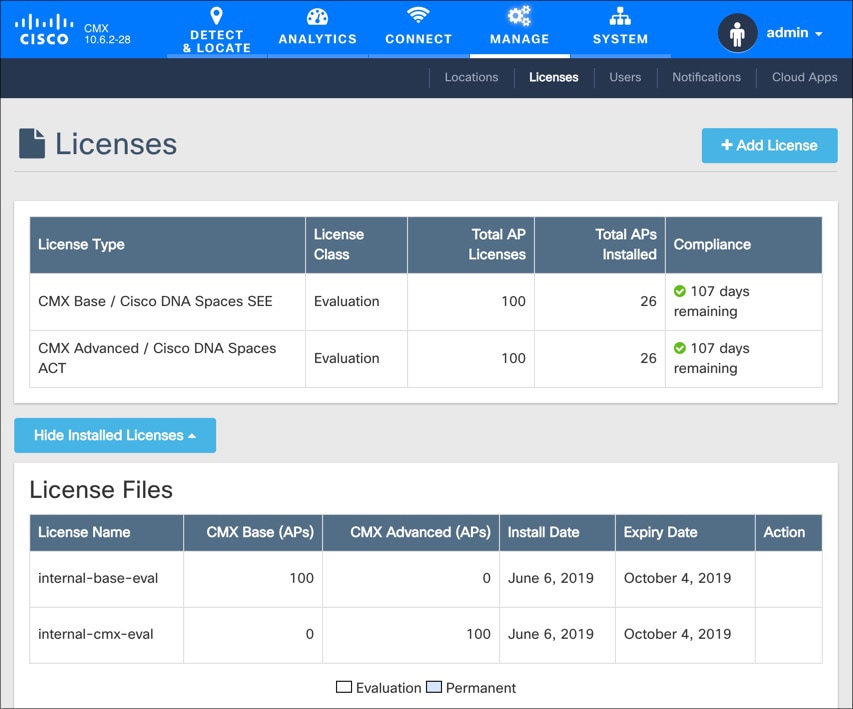
To view the list of licenses that your Cisco Connected Mobile Experiences (Cisco CMX) system has, log in to Cisco CMX and choose MANAGE > Licenses. The list of licenses is displayed in the Licenses window.

Figure 3. Licenses Window

Cisco CMX has the three license models:

  • CMX Default—Includes access to Cloud Apps (for enabling connection to Cloud applications) and License (for Base or Advanced License installation) features, MANAGE and SYSTEM services, and sending Northbound notifications.

  • CMX Base License—Includes RSSI Location Calculation, GUI access to DETECT, MANAGE, SYSTEM services.

  • CMX Advanced—Includes CMX Base features and Angle of arrival, CONNECT, PRESENCE ANALYTICS, and LOCATION ANALYTICS services, access to parttner stream, and access to Cisco CMX complete user interface.


    Note

    The Cisco CMX Base License no longer provides access to Cisco CMX Hyperlocation or Partner Stream. The Cisco CMX Advanced License is required to access these services. Cisco CMX Hyperlocation, Cisco CMX Connect, Cisco CMX Advance Location services migrated from CMX Base License to CMX Advance license will continue to work after upgrade from CMX 10.3.x release. However, an alert is generated every 24 hours for license upgrade. Any new Cisco CMX installation will require a CMX Advance license.

For information about the licenses required to operate Cisco CMX, see the Cisco CMX 10 Ordering and Licensing Guide.


Note

Cisco CMX comes with a 120-day full-functionality evaluation license. All the access points (APs) connected to Cisco CMX must be licensed.

Cisco CMX Release 10.3 supports High Availability. For more information, see Enabling High Availability for Cisco CMX.

CMX Evaluation licenses are not synchronized between Cisco CMX High Availability (HA) pairs. Once the evaluation license expires on the primary server, Cisco CMX HA will not invoke failover to the secondary server. You must add a permanent license to make the HA setup functional.

Cisco CMX permanent licenses will be synchronized between the primary and secondary servers in the CMX HA pair. You need not upload the permanent licenses on the secondary server.


Add a License

Procedure


Step 1

Log in to Cisco Mobile Connected Experiences (Cisco CMX).

Step 2

Choose MANAGE > Licenses.

Step 3

Click Add License.

The TERMS AND CONDITIONS dialog box is dispalyed.
Step 4

To accept the terms and conditions, enter your name, and then click Accept & Continue.

When you accept and proceed to install a certificate, a dialog box is displyed with the message indicating that you can use only the Analytics or Location features.

The UPLOAD LICENSE dialog box is displayed.
Step 5

Click Browse to select the corresponding license file, and then click Upload. Ensure to select a license file with the .LIC extension.

Note 

Cisco CMX uses a license file with .LIC extension. This file is obtained when an order is placed for any of the Cisco CMX per Acess Point SKUs, for example, L-AD-LS-1AP-N - CMX Advanced license for one access point.

The file is available as part of your licensing PAK and will be attached to an email from licensing. Extract the .LIC file to your system and upload to Cisco CMX when adding a new license.

Step 6

In the Licenses window, click See Installed Licenses to view the list of installed licenses. You can view the License Name, CMX Base (APs), CMX Advanced (APs), Install Date, and Expiry Date for the insatlled licenses.


Deleting a License

Procedure


Step 1

Log in to Cisco Mobile Connected Experiences (Cisco CMX).

Step 2

Choose MANAGE > Licenses.

Step 3

In the Licenses window, click See Installed Licenses to view the list of installed licenses.

Step 4

In the Action column adjacent the license you want to delete, click Delete.

The DELETE LICENSE dialog box is displayed.
Step 5

Click Delete License to proceed with the deletion.


Managing Users

Cisco Connected Mobile Experiences (Cisco CMX) is shipped with a default admin user account and password. An admin user can add, edit, and delete other users.

Adding a User

Procedure


Step 1

Log in to Cisco Mobile Connected Experiences (Cisco CMX).

Step 2

Choose MANAGE > Users.

The Users window, where all the current users are listed, is displayed.

Step 3

Click + New User at the bottom of the table.

The ADD NEW USER dialog box is displayed.
Step 4

Enter the details and select one or more roles for the user from the Roles drop-down list.

For information about the roles available for selection, see User Roles.
Note 

The password for the new user must be mimimum of eight characters.

Step 5

Click Submit.


User Roles

Your Cisco Connected Mobile Experiences (Cisco CMX) system comes with the following services, depending on whether or not you have the license for that service:

  • SYSTEM service (included with Cisco CMX base license)

  • MANAGE service (included with Cisco CMX base license)

  • DETECT & LOCATE service (included with Cisco CMX base license)

  • CONNECT service (included with Cisco CMX base license)

  • ANALYTICS service (provided only with Cisco CMX advanced license; not included with Cisco CMX base license)

When setting up users in Cisco CMX, you can select one or more roles for each user. Each role provides access privileges to one or more services, provided your license includes those services.

See the table below for a description of the access privileges associated with each role.

Table 1. User Roles and Associated Access Privileges

Role

Allows

Admin

Read/Write access to all the services

System

Read/Write access to the service

Manage

Read/Write access to the service

Location

Read/Write access to the service

Analytics

Read/Write access to the service

Connect

Read/Write access to the service

Connect Experiences

  • Read/Write access to Connect Experiences in the CONNECT & ENGAGE service
  • Read-only access to all the settings in the CONNECT & ENGAGE service

  • No access to the Dashboard in the CONNECT & ENGAGE service

Read Only

Read-only access to all the services


Note

  • A user can be allocated the System, Manage, Location, Analytics, and Connect roles. This allows the user to function like an admin user. Such nonadmin users can be deleted by admin users, but not vice-versa.

  • Only an admin user can delete another admin user.

  • An admin or Connect user has both read/write access to the Policy Plans. However, Connect Experience users only have Read access to the Policy plans page.


Changing the Default Admin Password

Procedure


Step 1

Log in to Cisco Mobile Connected Experiences (Cisco CMX).

Step 2

Choose MANAGE > Users.

The Users window, where new users can be added and the roles of existing users modified, is displayed.
Step 3

Click Edit in the Actions column adjacent the admin user.

This opens the EDIT USER dialog box for that admin user.
Step 4

Change the default factory-shipped admin password.

Step 5

Click Submit.


Editing User Information

Procedure


Step 1

Log in to Cisco Mobile Connected Experiences (Cisco CMX).

Step 2

Choose MANAGE > Users .

The Users window, where all the current users are listed, is displayed.
Step 3

Click Edit in the Actions column adjacent the user whose details you want to edit.

The EDIT USER dialog box is displayed.
Step 4

Edit the details of the user. Note that the username cannot be edited.

For information about user roles, see User Roles.
Step 5

Click Submit.


Deleting a User

Procedure


Step 1

Log in to Cisco Mobile Connected Experiences (Cisco CMX).

Step 2

Choose MANAGE > Users.

Step 3

Click Delete in the Actions column adjacent the user whose details you want to delete.

The DELETE USER confirmation dialog box is displayed.
Step 4

Click Delete User to proceed with the deletion.


Managing Notifications from Applications

You can set up notifications for your own applications and for third-party applications. The Notifications feature supports the following:

  • HTTP receiver

  • MAC address scrambling, which is enabled by default

  • Two message formats, JSON and XML

  • Alerts

  • Network configuration change notification

  • REST notification over HTTPS

The following sections describe the notifications-related tasks that you can perform:

Create a New Notification

Procedure


Step 1

Log in to Cisco Mobile Connected Experiences (Cisco CMX).

Step 2

Choose MANAGE > Notifications.

The Notifications window is displayed.
Step 3

Click New Notification.

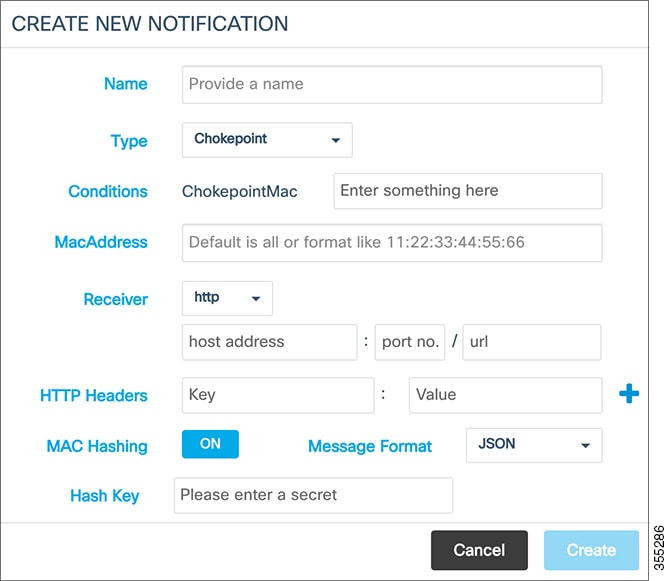
The CREATE NEW NOTIFICATION dialog box is displayed.
Figure 4. Create New Notification

This image is not available in preview/cisco.com

Step 4

Enter the following parameters to configure the new notification:

  • Name—Enter a name for the new notification name.

  • Type—From the Type drop-down list, choose the notification type.

    For a description of the available notification types, see the table below. When specifying the details, note that:

    • If a location hierarchy is selected, the hierarchy will be the specific area filter for that notification.

    • If a MAC address is entered, the MAC address will be a filter for that notification.

    Table 2. Notification Types

    Notification Type

    Used for

    Association

    Generating a notification when a client is associated or unassociated.

    Absence

    Generating a notification when a client is undetected for more than 15 minutes.

    Location Update

    Generating a notification when a device's location is being recalculated.

    The Location Update notification is based on the RSSI from the different APs that detect the device.

    In/Out

    Generating a notification when a device is detected as moving into or moving out of a specific area in the location hierarchy.

    Movement

    Generating a notification when a device moves more than a specified distance.

    Area Change

    Generating a notification when a device changes its location between campuses, buildings, or floors.

    Network Configuration Change

    Generating a notification when maps are changed.

    REST Notification over HTTPS

    Enabling REST notification over HTTPS.

    Passerby Detected

    Generating a notification when a client is detected as a passer-by client.

    Passerby Became Visitor

    Generating a notification when a client becomes a visitor.

    Visitor Went Away

    Generating a notification when a client is no longer a visitor for the current site.

    Site Entry Changed

    Generating a notification when a client has moved out of the current site.

  • Conditions—Depending on the notification type selected, the Conditions parameters are displayed. Enter the required conditions for the new notification.

    Note 
    • For some notifications types such as Association, Absence, and so on, you must provide Device Type as a condition parameter. The Device Type field on the Create New Notification window provides these options: All, RFID Tag, Client, BLE Tag, and Interferer. For notification types Area Change, In/Out, Location Update, and Movement, the Device Type condition has the following additional options: Rogue Client and Rogue AP.

    • For the In/Out notification type, if the In option is selected in the Condition field, this warning message is displayed: Please make sure to add 'Out' condition with same Hierarchy. Conversely, if the Out option is selected in the Condition field, this warning message is displayed: Please make sure to add 'In' condition with same Hierarchy.

    • For the Location Update, In/Out, and Movement notification type, choose the device status from the Status drop-down list. The association status for the client device are All, Probing Only, and Associated. This condition helps to filter the clients by their association status and sends notifications only for the filtered subset of client devices.

    • For the Location Update notification, Cisco CMX provides a new Status option for the Client device type. Use this option to filter notifications to either associated or probing devices. If the Status option is not selected, the default option (All) is considered, and then notifications are sent for both associated and probing clients.

    • To view In/Out notification details for all locations, we recommend that you configure seperate In/Out notifictions for each hierarchy created in the Activity Map window.

  • MacAddress—Enter the MAC address. The defaul is all.

  • Receiver—From the Receiver drop-down list, choose the receiver type as HTTP, HTTPS, or Email. For HTTP and HTTPS receiver, you must provide the host address, port number, and url.

  • HTTP Headers—Enter the HTTP header inputs for Key and Value. Click the plus icon to add more custom HTTP headers to the notification. You can add a maximum of three custom HTTP headers.

    Note 
    HTTP headers are manadatory for northbound notifications to connect to third party services.
  • MAC Hashing—Click to disable the MAC hashing. By deafault, MAC hashing is enabled.

  • Message Format—From the Message Format drop-down list, choose the format as JASON or XML.

  • Salt—Enter a secret hash key.

Step 5

Click Create. The new notification is created and displayed in the Notifications window.


Making Changes to Notifications


Note

If you are a non-admin user, you can make changes to only those notifications that were created by you. A non-admin user cannot make changes to notifications created by other users.

The following are the changes that you can make to notifications:

Enabling and Disabling a Notification

When a notification is created, it is enabled by default.

Procedure
  • To disable a notification, in the NOTIFICATIONS window, under the Status column adjacent the notification, click Enabled.

    The label changes to Disabled and the notification is disabled.
  • To enable a notification, in the NOTIFICATIONS window, under the Status column adjacent the notification, click Disabled.

    The label changes to Enabled and the notification is enabled.

Editing a Notification

Procedure

Step 1

To edit a notification, in the NOTIFICATIONS window, under the Actions column adjacent the notification, click Edit.

The EDIT NOTIFICATION dialog box is displayed.
Step 2

Edit the details of the notification, as required.

Note 
You cannot edit the name of the notification.

Viewing Northbound Notifications

You can now view northbound notifications from the Cisco CMX UI and CLI. To view Northbound Notifications:

Procedure

Step 1

Log in to Cisco Connected Mobile Experiences (Cisco CMX).

Step 2

Choose Manage > Notifications.

Step 3

Under the Actions column for an existing notification, click Details to view additional information about the notification.

You can also view the northbound notification details in the Edit Notifications window. Optionally, from the CLI, use the cmxctl metrics notification command to view the northbound notifications.


Viewing Northbound Notification Attributes

The following table lists the Northbound Notification attributes:

Table 3. Northbound Notification

Type

Description

Notification Type

What type of notification this output describes (For example, locationupdate)

Subscription Name

The name of the notification created in CMX (user provided)

Event ID

Unique for notification identification per event

Location Map Hierarchy

The Hierarchy string that shows campus, building, floor, and zone (if applicable)

Location Coordinate

XY location for the device

Geo Coordinate

GPS location for device, if GPS markers are set

Confidence Factor

Represents a square box of where the client should be, lower means better location accuracy

AP Mac Address

The AP that the client is connected to

Associated

is this device Associated or not

Username

The username of this Associated client if using 802.11x

IP address

If this client is associated, what IP address(es) are assigned to it, can include IPv4 and IPv6 addresses

SSID

The SSID of the client is Associated

Band

802.11 band the device is it connected to

Floor Id

Long value representing hieracrchy, would not use

Floor Ref Id

New to 10.3.1, represents a long for what hierarchy it is on (Floor Id might be rounded if the number is large enough due to a conversion from long to double), only is filled in for location update, recommended for use

Entity

What type of device is it, Client (normal devices), RFID Tag (these are devices that send a chirp on an interval), Interferers (Devices that are connected to APs or are APs that aren’t on the network controlled by a controller on this CMX)

Device Id

MAC address of device

Last Seen

Timestamp of packet last received from controller for this device

Raw Location

-

Area Global Id List

-

Tag Vendor Data

For RFID tags, information that was encoded in packets we received like battery life or something like that.

Manufacturer

Based on the first half of the MAC address of this device

Timestamp

When the notification generated

status

Refers to what the status of the device is - IDLE(0), AAA_PENDING(1), AUTHENTICATED(2),

ASSOCIATED(3), POWERSAVE(4), DISASSOCIATED(5), TO_BE_DELETED(6), PROBING(7),

BLACK_LISTED(8), WAIT_AUTHENTICATED(256), WAIT_ASSOCIATED(257);

Managing Proxy Settings for Notifications

In Cisco CMX, configure proxy settings for notifications that need to pass through specific proxy when sending notification to client devices. If proxy is set in Cisco CMX, you need to set the no_proxy variable for all notification addresses that need not go through the proxy.

Procedure

Step 1

To verify the current proxy settings, run the cmxos sysproxy show command.

The following is a sample output:
[cmxadmin@cmx-nortech ~]$ cmxos sysproxy show
USE_PROXY=1
HTTP_PROXY_URL=""
HTTPS_PROXY_URL=http://proxy.esl.cisco.com:80
FTP_PROXY_URL=""
NO_PROXY_LIST=192.0.2.1
Note 

The proxy variable required for CMX notifications is the HTTPS_PROXY_URL.If this variable is set and you are not getting the notification, follow the below steps to configure the no_proxy variable.

Step 2

To set the no_proxy variable, run the sysproxy no_proxy host name: port command, wherein the host name is domain associated with your host machine IP address, for example, cmxos sysproxy no_proxy 192.0.2.1:8000

To find out the domain name, run the host ip addresss command and identify the domain name pointer value.

If you have multiple domain values, enter all of them as comma seperated no_proxy values in the command, for example, cmxos sysproxy no_proxy no_proxy_value1, no_proxy_value2: port number .

For example, cmxos sysproxy no_proxy 192.0.2.1,example.com:8000

Step 3

Run the following commands to restart the agent and location services.cmxctl agent restart cmxctl location restart .

The notifications will be send to your client devices as per the notification type configuration. If the notificqation listener is outside the Cisco firewall, set proxy using the cmxos sysproxy http_proxy command. If the notification listener is within Cisco firewall, use the cmxos sysproxy no_proxy command to add all IP addresses that do not require a proxy setting.

The following table lists the commands used for setting proxy:

Table 4. Cisco CMX Proxy Setting Commands

Scenario

Cisco CMX Proxy Command

Cisco WSA Proxy Version

Squid Version - By default, uses web socket connection method.

McAfee Web Gateway Version

Northbound notifications with listener inside Cisco Firewall

cmxos sysproxy no_proxy 192.0.2.1

Proxy is not used

Proxy is not used

Proxy is not used

Northbound notifications with external listener in AWS cloud (outside of Cisco firewall)

To send to the cloud use the following:

http://ip address:9094/api/v1/notify

To check the cloud instance use the following REST API:

http://ip address:9094/api/v1/notifications

cmxos sysproxy http_proxy <hostname>:<port_number>

For example, cmxos sysproxy http_proxy example.com:80/

cmxctl agent restart

cmxctl location restart

Yes

Yes

Yes

BLE

(HTTPS, web socket: defaults, supports HTTP as well)

cmxos sysproxy https_proxy <hostname>:<port_number>

For example, cmxos sysproxy http_proxy example.com:80/

cmxctl agent restart

cmxctl location restart

Yes

Yes

Yes

Connect (SMS & FB)

(HTTP & HTTPS)

cmxos sysproxy https_proxy <hostname>:<port_number>

For example, cmxos sysproxy http_proxy example.com:80/

cmxctl agent restart

cmxctl location restart

Yes

Yes

Yes


Deleting a Notification


Caution

A notification delete action takes effect immediately without a delete confirmation dialog box being displayed.
Procedure

To delete a notification, in the NOTIFICATIONS window, in the Actions column adjacent the notification, click Delete. The notification is immediately deleted.


Managing Cisco CMX Cloud Apps

Cisco CMX helps to calculate location of any connected devices. These location information can be shared with various other CMX apps available as cloud services. Most of these cloud services are configured using a set of northbound notifications from Cisco CMX to the CMX application hosted on the cloud.


Note

An outbound proxy is required for connecting to the Cisco CMX applications. For more information, see Cisco CMX Cloud Proxy Configuration Guide. To setup outbound proxy, see Setting Up Outbound Proxy.


Before you begin

To get a Cisco CMX Beacon Management Cloud account and for all support regarding the Cisco CMX Cloud Beacon Management Service, contact beaconmanager-support@external.cisco.com.

Procedure


Step 1

Log in to Cisco Connected Mobile Experiences (Cisco CMX).

Step 2

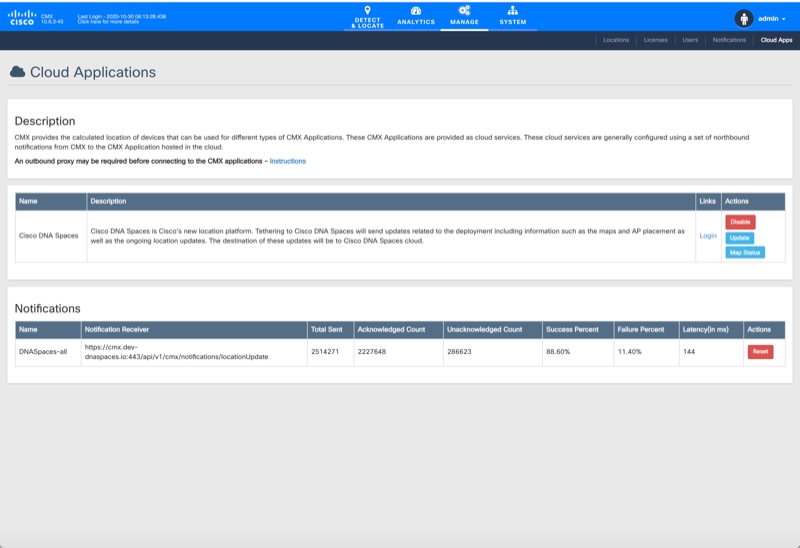
Choose MANAGE > Cloud Apps. The Cloud Application window displays cloud application name, description, documentation links, web interface login links, and enable/disable options Cloud Apps.

Figure 5. Cloud Apps
Step 3

Manage Cloud Apps using the available options. The Cloud Apps available are:

  • Cisco Workplace Analytics—Uses the technology you already have in place-your Cisco Wi-Fi network and third-party access secutity systems.

  • CMX Engage—A location intelligence, digital customer acquisition and multi-channel engagement platform that enables companies to connect, know, and engage with visitors at their physical business locations.

  • Cisco Operational Insights—A cloud based solution to manage assets within a location. This sokution helps to operationalize and benefit from better understanding of assests within an envirnoment.

  • Cisco Beacon Management—A comprehensive resource for detecting and monitoring BLE beacons/tags as well as managing CCX BLE devices within your network.

Step 4

Use the options available in the Links and Actions colum to access documentaion and connect with required Cloud App:

  • Documentation—Click to access the doumentation for the corresponding Cloud App.

  • Login—Click to log in to the required Cloud App.

  • Enable— To enable the cloud app, click the Enable option in the Actions column for the required cloud app.

    After you enable the Cloud App, you will be able to view the options to Update or Disable the same.

    Note 
    If you enabled Cloud App through Manage > Cloud Apps, Cisco CMX continues to send notifications to Cloud App even though the Cisco CMX license has expired. However, if you enabled Cloud App from Manage > Notification, Cisco CMX stops sending notifications to the Cloud App if Cisco CMX license is expired.

For example, for enabling Cisco Beacon Management, follow the below steps:

  1. In the Actions field, click Enable.

    Note 
    To enable Cisco Beacon Management service, you must have a Cisco CMX Cloud Beacon Center account. Cisco CMX Cloud Beacon Center is a subscription software delivered via the cloud. For more information about Cisco Beacon Center, see Cisco Beacon Center.
  2. In the pop-up window that is displayed, enter the token to enable Cisco Beacon Management.

    The token to enable Cisco Beacon Management can be obtained from Cisco Beacon Center service available in the Cisco CMX Cloud. In the Cisco CMX Cloud Beacon Center, the token information is displayed in the Setup tab under Beacons.

  3. Click Save & Enable.

    We recommend that you verify the outbound proxy configuration, Cisco WLC 8.7, and Cisco 4800 APs setup to successfully complete the cloud app enabling process.

For more information about enabling Cisco Operational Insights, see Operational Insight Configuration Guide. To get an Operational Insights cloud account and for all support regarding the Cisco Operational Insights service, contact opinsights-support@external.cisco.com.

Step 5

Use the Notifications section to view notification name, receiver details, total number of notifications sent, acknowledged notification count, unacknowledged notification count, success percent, failure percent, and latency.

Figure 6. Cloud Apps Notification
Note 
To reset a notification, click the Reset option in the Actions column againist each notification.

Setting Up Outbound Proxy

If your Cisco CMX on-premise setup requires a forward proxy for internet access, you must configure the proxy and restart your Cisco CMX services. Proxy setting is mandatory for Cisco CMX wants to communicate with Cloud.

For example, Cisco Beacon Management requires HTTP_PROXY and HTTPS_PROXY environment variables set as proxy and the NO_PROXY environment variable set to localhost.

Procedure


Step 1

Connect to CMX via SSH.

Step 2

To setup proxy, run the following commands:

cmxos sysproxy proxy http://<proxy><Port #>

cmxos sysproxy proxy https://<proxy><Port #>

cmxos sysproxy no_proxy localhost,company.com

Step 3

To stop and restart agent and Cisco CMX services, run the following commands:

cmxos stop -a

cmxctl agent start

cmxctl start


Managing Verticalization

Cisco CMX Analytics comes packaged with a report generator that can automatically generate reports with the most important metrics for specific businesses. By selecting a vertical, you can take advantage of predefined reports that can help you make informed decisions based on the vertical your network is set up for. This feature is called verticalization.

Customizing your vertical enables you to quickly generate valuable reports specific to the requirements of that vertical. The customized verticals can also be configured with the correct tags suitable to your vertical. CMX Analytics’ verticalization feature enables you to customize the names of your entities such that they are specific to a vertical. Depending on the vertical you choose, the CMX Analytics verticalization feature can generate customized reports.

The following are some of the verticals supported by Cisco CMX, along with the reports they contain:

  • Default—By default, Cisco CMX is packaged with Default vertical. If you want to configure another vertical, you must choose a vertical.

  • Retail
    • Store Type Popularity

    • Average Shopping Time

    • Most Popular Entrance

    • Most Popular Department

    • Department Transition

    • Footfall

  • Mall
    • Store Type Popularity

    • Average Shopping Time

    • Most Popular Entrance

    • Most Popular Restaurant

    • Department Transition

    • Footfall

  • Hospitality
    • Most Popular Restaurant

    • Connected Clients

    • Most Used Amenity

    • Local Correlation

    • Longest Used Amenity

    • Path Analysis

  • Education
    • Corridors vs Classroom

    • Connected Clients

    • Diners per Hall

    • Local Correlation

    • Library Time

    • Path Analysis

  • Healthcare
    • Visitor Count

    • Connected Clients

    • Busiest Department

    • Wait Times

    • Diners per Cafeteria

    • Path Analysis

  • Airport

    • Visitor Count

    • Average Waiting Time

    • Busiest Flights

    • Wait Times

    • Longest Used Amenity

    • Path Analysis

Queue Analytics

The Queue Analytics feature provides a breakdown of the average time spent in a queue. This feature allows you to select a queue start area and one or more queue end areas, enabling the computation of the average time taken (15 minutes, hour, day, week, month, or year) for devices to move from the start area to an end area.

Note

Currently, the Queue Analytics feature is supported only for the Airport vertical.


Procedure


Step 1

Log in to Cisco Mobile Connected Experiences (Cisco CMX).

Step 2

Choose MANAGE > Verticalization.

The Verticalization window displays with a list of the supported verticals.
Step 3

Select Airport vertical.

Depending on the selection, the Verticalization window is displayed with additional vertical information.

Step 4

Click Run Setup Wizard to start the verticalization process.

Step 5

In the Location Tags window, select Security as queue time tag and click Continue.

Step 6

In the Review Your Tag Selection window, verify the tag, and widgets, and click Save & Continue.

Step 7

Tag Security queue time tag to a desired zone, and click Review.

Step 8

Click Create a Report to create a report with the tag Security.

The Queue Time information is displayed in the report instead of Dwell Time.

Customizing Verticals

Customizing a vertical means changing the names of the entities in your vertical based on your business. You can optimize your vertical by customizing it to meet your specific needs. Customizing includes naming the hierarchy of your vertical, association of icons, building a tag library, and specifying tag locations.

Procedure


Step 1

Log in to Cisco Mobile Connected Experiences (Cisco CMX).

Step 2

Choose MANAGE > Verticalization.

The Verticalization window is displayed with a list of the supported verticals.
Step 3

Choose a vertical by clicking the icon corresponding to that vertical.

The customized widgets available for the chosen vertical are displayed.
Step 4

Click Run Setup Wizard.

The setup wizard displays the steps required to optimize the vertical and complete the customization.
Step 5

Click Get Started.

The Hierarchy Configuration window is displayed.
Step 6

Configure the hierarchy levels of your vertical. Follow the instructions on the Hierarachy Configuration window to configure hierarchy levels for Campus, Building, Floor, and Zone and select an icon. If you approve of the default hierarchy name and the associated icon, click Skip Step.

Step 7

Click Continue.

Step 8

Tags are used to categorize locations and devices. Click Continue to configure tagging.

Step 9

Depending on the vertical you select, the tags specific to that vertical are listed. Select the tags you want to create by clicking the button corresponding to that tag. The setup wizard creates the tags. Click Continue.

Step 10

Location tags can be applied to specific locations based on your hierarchy. The setup wizard iterates through the hierarchies in your vertical. Select the hierarchies that you want to tag by clicking the corresponding name. The right pane lists the Zone item name and a list of tags to choose from. Select the tags that are applicable to the Zone. Click Continue.

Step 11

Click Create a Report.

The Analytics Reports window is displayed with the list of customized wizards for your vertical.

Configuring Basic CMX Settings

The GUI allows you to set up maps, Cisco WLC, and mail server.

Procedure


Step 1

Log in to Cisco Mobile Connected Experiences (Cisco CMX).

Step 2

Click SYSTEM.

The SETUP ASSISTANT window is displayed.
Step 3

Click Next to set up the New UI Password.

The Maps and Controllers window is displayed.
Step 4

Choose either Default or the Advanced option.

  • In the Default window, provide Cisco Prime Infrastructure credentials such as Username, Password, and IP Address, and click Import Controllers and Maps. This imports the Controllers and maps from Cisco Prime Infrastructure.

  • In the Advanced window, provide the map and Cisco WLC information, and click Next.

Note 
If the Override checkbox is checked, the import will override the existing entries.
Step 5

In the Mail Server window that is displayed, enter the corresponding details.

Step 6

Click Next to complete the configuration.


Root User Changes

In releases prior to Cisco CMX 10.2, all the processes used the root user role. This has been changed in Cisco CMX 10.2 by introducing two new user roles: cmx and cmxadmin. The cmx user is a no-login user who owns all the processes, except postgres. The cmxadmin is the primary user who performs all the administrative tasks.

The root user is not disabled; this user can still be used for installation and debugging. You cannot directly log in to root through SSH or console. First you have log in as cmxadmin and then issue the su command to go to the root user level.


Caution

Do not use the root user account; unless explicitly directed to do so by the Cisco Technical Assistance Center team.