Performing Administrative Tasks

This chapter describes how to perform administrative tasks using Cisco CMX. Users who are assigned administration privileges can perform administrative tasks.

Cisco CMX User Accounts

Prior to Cisco CMX 10.2 all Cisco CMX processes ran under the Linux root user account. Cisco CMX 10.2 introduces two new user accounts (cmx and cmxadmin) to prevent any potential risks and secure the system.

  • root—Root user account. Users should not use this account.


    Note

    The password of the root account is now being set and maintained by the system owners, and no longer has a default password configured. This way, the account is still available for special-case installation and tackling debugging issues, and the root user will be owned by the end-user. Password recovery is accomplished through the use of the single user login process. For more information see Recovering Password.


  • cmx—A no login account that now owns all the CMX processes with the exception of postgress.

  • cmxadmin—Primary account used for the performance of all administrative tasks using CLI. User will sudo from this account to perform tasks requiring root-level access. This account is used to upgrade Cisco CMX 10.2 to a future release using GUI.

  • admin—Admin user account for configuring maps, and Cisco WLCs, and restart services using Cisco CMX Web UI.

  • normal user accounts—User-defined accounts.
Unlocking Users

You can unlock CMX access for a command line interface (CLI) or graphical user interface (GUI) user after they have been locked out, using the cmxctl users unlock command. For caveats and full details, refer to see the Release Notes for Cisco CMX at:

https://www.cisco.com/c/en/us/support/wireless/connected-mobile-experiences/products-release-notes-list.html

Before you begin

You must have root access credentials to modify these settings.

Procedure


Step 1

Connect to CMX via SSH, or through the console if FIPS or UCAPL is enabled.

Step 2

Enter one of the following commands to unlock a CMX user:

  • cmxctl users unlock cli username to unlock a CLI user.
  • cmxctl users unlock gui username to unlock a GUI user.

The user can log in again from the user interface you unlocked.

Recovering Password

Cisco CMX Release 10.2 uses a single user mode to reset the root and cmxadmin user passwords.

To enter into the single user mode you require:

  • A (non-SSH) console connection to the Cisco Mobility Services Engine (Cisco MSE).

  • A power-cycle of the Cisco MSE appliance

The GUI admin user password can be reset to the default of admin from the Cisco MSE CLI using the following command:

cmxctl users passwd username

You should know the cmxadmin user password for CLI access.

To reset the root or cmxadmin password, perform the following tasks:

Procedure


Step 1

Establish console access.

Step 2

Power on the Cisco MSE.

Step 3

Press the Up arrow key within 6 seconds of the first text appearing on screen.

Step 4

When the GRUB menu is displayed:

  1. Verify if the first entry is highlighted.

  2. Press the e key to edit.

Step 5

Use the Down arrow key to highlight the entry that begins with the word kernel.

  1. Press the e key to edit the entry.

  2. Press the space bar, type the word single , and then press Enter.

  3. Press the b key to boot the selected entry.

Step 6

After the system boots and you are at the # prompt:

  1. Enter passwd <username> and press Enter.

  2. When prompted, enter the new password for the user (root/cmxadmin) and press Enter.

  3. Re-enter the password to verify.

Step 7

Type reload and press Enter to reboot the system and load the Cisco CMX services.


Using FTP Commands for Cisco CMX

You can use File Transfer Protocol (FTP) commands for backing up and restoring data on Cisco CMX 10.x. We recommend you to follow the below best practice for data backup automation:

Procedure


Step 1

Setup a NAS Storage and mount it to your Cisco CMX box, for example, mount the storage to a local directory such as /mnt/nas.

Step 2

Write a script to execute the CMX backup program.

A sample backup script is as mentioned below:
#!/bin/sh
cd /mnt/nas/backups
ls -1tr cmx_backup* | head -n -3 | xargs -d '\n' rm -f --
cmxos backup --all --path /mnt/nas/backups --online
Step 3

Place the script at /home/cmxadmin/backup-cmx.sh.

Note 

We recommend you to remove previous backups to prevent running out of disk space on the NAS storage.

Step 4

Run the cmxos backup --all --path /mnt/nas/backups --online command.

Step 5

Add a cron entry to the cmxadmin user to execute the backup script, for example, run everyday at 1:05am, 5 1 * * * * /home/cmxadmin/backup-cmx.sh.


Backing Up Data

After you install and run Cisco CMX successfully, you can take a backup to avoid losing any data.

You may lose data on your CMX server, if:

  • The hard disk in your CMX server fails

  • The data on your CMX server is corrupted while upgrading

Therefore, backing up your data enables you to restore it to the original state. You can back up data on either /tmp or /opt partition. The /tmp folder is allocated 25 GB storage.

If Cisco CMX contains huge amount of saved data, the backup operation will take up extra disk space. In that case, you can consider the following:

  • Back up to an external drive if there is not enough space on the Cisco CMX server. You can perform this operation by plugging in a removable hard disk or a mounted hard disk.

  • After the backup operation, move the backup file (using scp) to a different server and remove it from the Cisco CMX server.

You can backup data such as location history, current client location, floor maps, and licenses.


Note

We recommend that you backup database, floormaps, license and setup components to be compliant with General Data Protection Regulation (GDPR).

The following components are included in the backup:

  • Database—Stores configuration data, such as, maps, controllers, location, and aggregated analytics data.

  • Cache—Stores analytics repeat visits.

  • Cassandra—Stores location history data and analytics raw visits.

  • Influxdb—Stores metrics data for systems.

  • Consul—Stores Consul configurations.

  • Floormaps—Stores floor images for UI display.

  • Licenses—Stores Cisco CMX license information.

  • Setup—Stores CMX setup data.

  • Conf—Stores node configurations.

Procedure


To perform a backup operation, run the cmxos backup command using the cmxadmin (non-root user) account.

You can include the -i (for example, cmxos backup -i database) parameter with the backup so that you can choose the components that you want to include in the backup.

The other backup options available are:

  • --all—Include influxdb in the backup. The default is without influxdb and only includes postgres and Cassandra data.

  • --path—Specify a location for the backup file. The default location is /tmp.

  • --online—Perform the backup without stopping cmx services.

  • --offline—Stop cmx services first and then perform the backup.

Note 
  • The destination directory for backup file requires rwx permission. When you specify a backup directory other than /tmp, ensure that the directory has "r/w/x" permission by user:cmx.

  • If High Availability is enabled on Cisco CMX, online backup is supported only on primary and not secondary. If High Availability is disabled, online and offline backups are supported on both primary and secondary.

The following is a sample output from the cmxos backup command:

[cmxadmin@test ~]$ cmxos backup
Please enter the path for backup file [/tmp]: /tmp
[17:01:30] Preparing for backup...
Data size 287388806
Available disk space 139165282304
Pre-backup took: 0.0118758678436 seconds
['database', 'cache', 'cassandra', 'influxdb', 'consul', 'floormaps', 'licenses' , 'setup', 'conf']
[17:01:30] Backup Database...
Backup database took: 1.15777993202 seconds
[17:01:32] Backup Cache...
Backup cache took: 0.383176088333 seconds
[17:01:32] Backup Cassandra...
Backup Cassandra DB took: 2.99715185165 seconds
[17:01:35] Backup InfluxDb...
Backup Influx DB took: 0.0846002101898 seconds
[17:01:35] Backup Consul...
Backup Consul took: 0.0185141563416 seconds
[17:01:35] Backup Floormaps...
Backup floor maps took: 0.000938892364502 seconds
[17:01:35] Backup licenses...
Backup licenses took: 0.000122785568237 seconds
[17:01:35] Backup setup...
Backup setup took: 0.000464200973511 seconds
[17:01:35] Backup node configuration...
Backup configuration took: 0.476609945297 seconds
[17:01:35] Creating tar file..
Post backup took: 16.3115179539 seconds
[17:01:52] Done Backup. Created backup file /tmp/cmx_backup_test.cisco.com_2015_07_28_17_01.tar.gz
[cmxadmin@test ~]$

What to do next

You can automate the backing up process. For more information, see Using FTP Commands for Cisco CMX.

Increasing the Hard Disk Space

You can increase the hard disk space if your Virtual Machine that runs Cisco CMX is run out of disk space for backup.

Procedure


Step 1

Stop all the Cisco CMX services by entering the following commands:

cmxctl stop

cmxctl stop -a

Step 2

Shutdown the virtual machine by entering the following command:

Shutdown –h now

Step 3

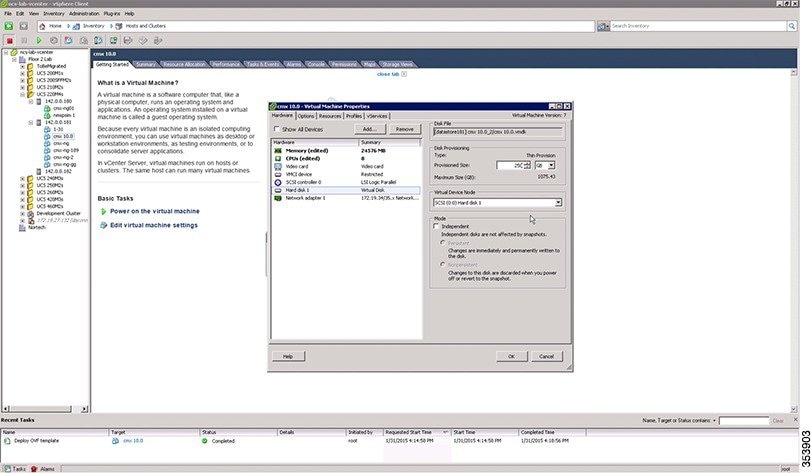
Edit the virtual machine settings and increase the hard disk space.

Note 
You cannot increase the hard disk space if the virtual machine was ever restored from snapshot.
Figure 1. Virtual Machine Settings
Step 4

Reboot the virtual machine.

After performing these steps, you can back up Cisco CMX.

You can enter the cmxctl status command to verify the status of CMX services. If any of the services is not running, you may need to restart it by entering the cmxctl restart <service name> command.


Restoring Data

After the backup, you can save the backup file in a safe location. If required, you can restore from this location.

To restore data, the Cisco CMX server must have free disk space which is 4 times the size of the backup file. If there is not enough disk space in the Cisco CMX server, you must increase the disk space. For more information, see Increasing the Hard Disk Space.


Note

When you restore data, if there is not enough disk space in the Cisco CMX server, try to untar the file from an external drive. The untarred files will be in binary format, which can be read by database servers. Restoring Cisco CMX data must be done on a device that has the same local time as the device from which the data is collected. Otherwise, you will not be able to correctly access the analytics data. In addition, the data will result in errors or zero values on reports.

Procedure


To restore the data, enter the cmxos restore command using the cmxadmin (non-root user) account.

You can include the -i (for example, cmxos restore -i database) parameter with the restore command so that you can choose the components that you want to restore.

The following is a sample output from the cmxos restore command:

[cmxadmin@test~]$ cmxos restore
Please enter the backup file path: /tmp/cmx_backup_test.cisco.com_2015_07_28_17_01.tar.gz
Please enter the path for untar backup file [/tmp]: /tmp
[17:08:54] Preparing for restore...
Restore size 27866720
Available disk space in /tmp is 139137040384
Available disk space is 139424529077
[17:08:54] Untarring backup file...
[17:08:55] Stopping all services...
Pre restore took: 26.4669179916 seconds
[17:09:21] Restoring Database...
Created database mse
Running command /usr/bin/sudo -u postgres  pg_restore -d mse -Fc /tmp/cmx_backup_test.cisco.com_2015_07_28_17_01/postgres/mse.dump
Restored database mse
Restarting database...
Restore database took: 18.3071520329 seconds
[17:09:39] Restoring Cache...
Stopping cache_6383...
Restarting cache_6383...
Stopping cache_6380...
Restarting cache_6380...
...............
Stopping cache_6382...
Restarting cache_6382...
Stopping cache_6379...
Restarting cache_6379...
Stopping cache_6381...
Restarting cache_6381...
Stopping cache_6378...
Restarting cache_6378...
Restore Cache took: 46.7663149834 seconds
[17:10:26] Restoring Cassandra...
Stopping Cassandra...
Starting casandra
Creating cassandra scehma
...............
Restore Cassandra took: 29.5983269215 seconds
[17:10:56] Restoring Influxdb...
Stopping Influxdb...
Restarting Influxdb...
Restore Influx DB took: 13.9934449196 seconds
[17:11:10] Restoring consul...
Restore Consul took: 0.761927843094 seconds
[17:11:10] Restoring floormaps...
Restore floor maps took: 0.0269021987915 seconds
[17:11:10] Restoring licenses...
Restore licenses took: 0.00019907951355 seconds
[17:11:10] Restoring setup...
Restore setup took: 0.000532150268555 seconds
[17:11:10] Running Post Restore Tasks...
[17:11:10] Migrating Schemas...
[17:11:11] Migrating Cassandra schemas...
[17:11:12] Restarting all services...
stopping cassandra
Post restore took: 6.64956212044 seconds
[17:11:17] Starting all services...
...............
[17:12:45] Done
$

Troubleshooting Cisco CMX Server Shutdown Problems

The Cisco CMX server shuts down all the services when disk space usage reaches 85 percent. If you encounter this issue, create additional disk space on your Cisco CMX server by deleting unnecessary files, if any, from the server. Run the cmxos clean find/normal command to find unnecessary files and delete it to free some disk space.

After you have sufficient space, you can choose to restart your Cisco CMX server by running the cmxctl start –a command, if required.