Shared Component Installation

Configure an Identity Provider (IdP)

To support SSO for the contact center solution, configure an Identity Provider (IdP) that is compliant with the Security Assertion Markup Language 2.0 (SAML v2) Oasis standard. The IdP stores user profiles and provides authentication services to the contact center solution.


Note


For a current list of supported Identity Provider products and versions, see the Contact Center Enterprise Compatibility Matrix.


This section provides sample configuration information for Microsoft AD FS.

Follow this sequence of tasks to configure the Identity Provider.

Sequence

Task

1

Install and Configure Active Directory Federation Services

2

Set Authentication Type. See Authentication Types.

Install and Configure Active Directory Federation Services

Follow Microsoft instructions and guidelines to install Microsoft Active Directory Federation Services (AD FS).

For example, see Active Directory Federation Services Overview at https://technet.microsoft.com/en-us/library/hh831502(v=ws.11).aspx


Note


Cisco IdS does not support AD FS Automatic Certificate Rollover. If the AD FS certificate gets rolled over, then re-establish the trust relationship between the IdS and AD FS.


Authentication Types

Cisco Identity Service supports form-based authentication of the Identity Provider.

For information on enabling form-based authentication in ADFS, see Microsoft documentation:

For Kerberos authentication to work, ensure to disable the form-based authentication.

Install and Configure Unified CCDM

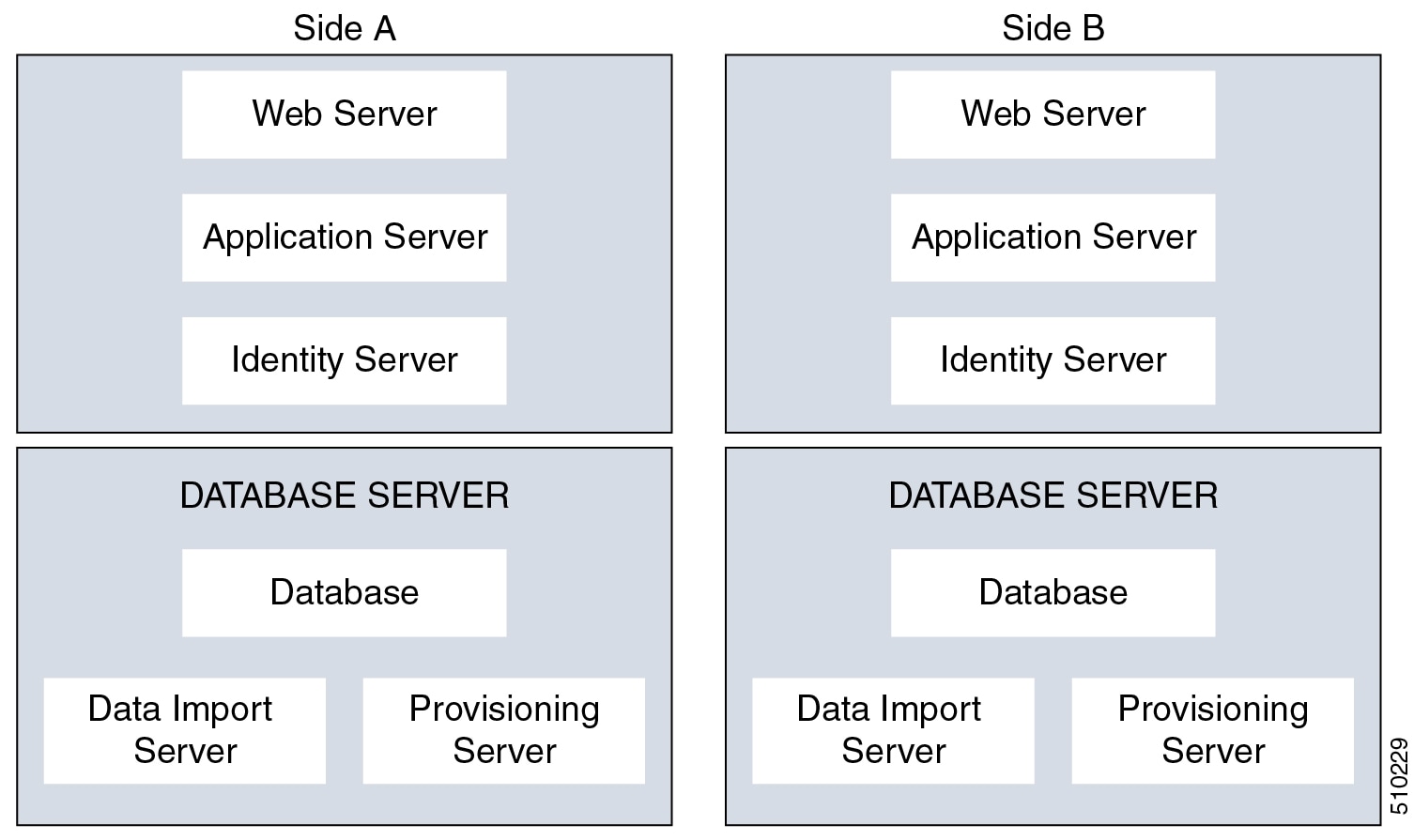
For Cisco HCS for Contact Center, implement a dual-tier (distributed) system, as shown in the following figure. This system keeps the Web/Application and Identity Components of the Unified CCDM separated from the database server components.

Figure 1. Unified CCDM Dual-Tier Deployment

For dual-sided systems, complete the installation of the Unified CCDM servers on side A, before you begin the installation on side B.

Common Procedures for Deploying Unified CCDM Servers

Configure Windows

Complete the following procedure to configure Windows on all the Unified CCDM servers.

Configure Windows Feature Requirements
Procedure

Step 1

Select Server Manager > Manage > Add Roles and Features.

Step 2

On the Before you begin page, click Next.

Step 3

On the Select Installation Type page, select the Role-based or feature-based installation option, then click Next.

Step 4

On the Select destination server page, select the Select a server from the server pool option, then click Next.

Step 5

On the Select server roles page, check the following check boxes:

  • Application Server

  • Select File and Storage Services > File and iSCSI Services and check the File Server check-box

  • Web Server (IIS)

Step 6

Click Next.

Step 7

On the Select features page, check the .Net Framework 4.5 Features check box, then click Next.

Step 8

On the Application server page, click Next.

Step 9

On the Select role services page, check the following check boxes:

  • .NET Framework 4.5

  • COM+ Network Access

  • Incoming Network Transactions

  • Outgoing Networking Transactions

  • TCP Port Sharing

  • Web Server (IIS) Support

  • Message Queuing Activation

  • Named Pipes Activation

  • TCP Activation

Step 10

Click Next.

Step 11

On the Web server roles (IIS) page, click Next.

Step 12

On the Select role services page, select the required role services, then click Next.

Step 13

Click Specify an alternate source path, then enter \sources\sxs this is available at Microsoft Windows Installer DVD or ISO. Click OK.

Step 14

Click Install.

Step 15

After installation, restart the server.


Turn off FIPS Compliance
Procedure

Step 1

Open the Local Security Policy application.

Step 2

Open the Local Policies folder, and then double-click Security Options to view the list of policies.

Step 3

Ensure that you disable the System cryptography: Use FIPS compliant algorithms for encryption, hashing, and signing policy.


Disable UAC

User Account Control (UAC) protects the operating system from malicious programs. When enabled, UAC may cause issues with the software used to install Unified CCDM. Disable UAC on all servers before you install the Unified CCDM. Complete the following procedure to disable UAC.

Procedure

Step 1

Select Start > Control Panel > System and Security > Action Center > Change User Account Control settings.

Step 2

Set UAC to Never Notify.

Step 3

Click OK.

Step 4

Restart your machine to commit to the new UAC settings.

You have now disabled UAC and are ready to install the Unified CCDM.

Note


Re-enable UAC after you complete the Unified CCDM installation.


Associate Unified CCDM Component Servers with Service Provider AD Domain

Complete the following procedure to associate the Unified CCDM Component servers with Service Provider AD Domain.

Procedure

Step 1

Sign in to the machine using a local administrator account.

Step 2

Select Start > Administrative Tools > Server Manager.

Step 3

Select Local Server in the left panel and click WORKGROUP to change system properties.

Step 4

In the Computer Name tab, click Change.

Step 5

Select the Domain option to change the member from Workgroup to Domain.

Step 6

Enter the fully qualified Service Provider domain name and click OK.

Step 7

In the Windows Security pop-up window, validate the domain credentials and click OK.

Step 8

After successful authentication, click OK.

Step 9

Reboot the server and sign in with domain credentials.


Configure Secondary Drive

DO THIS FOR Virtual Machines that require an additional hard drive to archive data.

Procedure

Step 1

Open Computer Management.

Step 2

Expand Storage in the left pane, click Disk Management.

Step 3

Right-click Disk 1 and choose Online.

Step 4

Right-click Disk 1 and choose Initialize Disk.

Step 5

In Initialize Disk pop up window, under Select disks. Check Disk 1 and choose MBR (Master Boot Record) under Use the following partition style for the selected disks pane. Click OK.

Step 6

Create a new disk partition as follows: right-click the disk you just initialized, choose New Simple Volume, and run the wizard.


Install the Diagnostic Framework for System CLI

Procedure

Step 1

To install the Diagnostic Framework component, start the Unified CCDM Installer, click Support Tools and select Diagnostic Framework.

The Domain Manager: Diagnostic Framework Install Shield Wizard window displays.

Step 2

Click Next to go through each window in turn.

Step 3

Accept the license agreement, then click Next.

Step 4

In the Certificate window, select the type of certificate installed with the Diagnostic Framework.

  • Self Signed: A new certificate will be generated by the installer. This type of certificate should be used only for lab or test deployments.
  • Trusted Certificate: An existing certificate, issued by a valid certificate server, will be associated at a later date. This option should be used for production deployments.

Step 5

Click Next.

Step 6

In the wsmadmin Password Information window, enter and confirm the password for the wsmadmin user, which is created to access the Unified System CLI tool. Click Next.

Step 7

In the Ready to Install the Program window, click Install.

Step 8

After installation, click Finish.

Step 9

Unmount the ISO image.


Configure SNMP Traps

Simple Network Management Protocol (SNMP) traps may be raised from Unified CCDM by configuring Windows to send selected events to an SNMP monitor. Configure Windows using a Windows utility called evntwin.exe. This utility converts events written to the Windows Event log into SNMP traps that are raised and forwarded by the Windows SNMP service to an SNMP management tool.

To configure SNMP traps for use with Unified CCDM, follow these steps:

Enable Windows SNMP Feature

Enabling the SNMP feature in Windows is required to configure the Windows event forwarding to SNMP. In the Unified CCDM servers, enable the SNMP feature as follows:

Procedure

Step 1

Select Server Manager > Manage > Add Roles and Features.

Step 2

On the Before you begin page, click Next.

Step 3

On the Select Installation Type page, select the Role-based or feature-based installation option, then click Next.

Step 4

On the Select destination server page, select the Select a server from the server pool option, then click Next.

Step 5

On the Select server roles page, click Next .

Step 6

On the Select features page, check the SNMP Service . Check the SNMP WMI Provider check box, then click Next.

Step 7

Click Install to complete the SNMP deployment.

Step 8

Close the Server Manager application.


Configure SNMP Service for Trap Forwarding

Configure the SNMP service to forward traps to the management tool, which is used to report and alert.

Procedure

Step 1

In the MMC console, select Files > Add/Remove Snap-in...

Step 2

From the Available Snap-ins list, select Services and click Add.

Step 3

In the Services dialog box, select Local computer and click Finish.

Step 4

Click OK.

The Services(Local) node will be added to the Console Root node.

Step 5

Select Services(Local) and in the Services(Local) tab that is displayed, right-click SNMP Services and then select Properties.

The SNMP Service Properties dialog box is displayed.

Step 6

In the Traps tab, in the Community Name field, enter public, then click Add to list.

Step 7

Click Add.

Step 8

In the SNMP Service Configuration dialog box, enter the hostname or IP address of the system, which receives the trap information—The server hosting the management agents or reporting and alerting tools. Click Add to add the trap destination.

Step 9

If there is more than one system, it is required to receive the trap information, configure SNMP services for the trap forwarding on all systems.

Step 10

Click OK.


Configure Windows Events to Forward to SNMP

Finally, use the evntwin.exe tool to configure the Windows events to be forwarded as SNMP traps. Any event that is raised in the Windows Event Log may be configured to generate an SNMP trap.

Procedure

Step 1

In the Run command, enter evntwin.exe.

Step 2

Select Custom, then click Edit.

Step 3

In the Event Sources list, expand the Application source to see the available Unified CCDM events. The Unified CCDM events and their uses are listed in the following table.

Event Source Description

Unified CCDM Application Server Monitoring

The core monitoring service for the application server—This posts connection change events to the event log.

Unified CCDM Data Import Server Monitoring

The data import service used for importing data from CCE etc.

Unified CCDM Partition Table Manager Monitoring

Connection monitoring for the partition manager service, which creates partitioning tables in the database.

Unified CCDM Provisioning Server Monitoring

Service used for provisioning changes on remote equipment, for example, CCE etc.

Unified CCDM Partition Table Manager

Core application service to create partitioning tables in the database.

X_ANALYTICALDATA, X_HIERARCHY, X_IMPORTER etc.

Individual services configured in Windows for Unified CCDM—These can be used for subscribing to standard service events. For example, start/stop events etc.

Step 4

Configure an event source for generating SNMP traps, select the event source, wait a few moments, then click Add once it is enabled. In the Properties window, specify the required trap properties, then click OK.

Step 5

After setting the required SNMP traps, click Apply.


Deploy Unified CCDM Database Server

Follow the procedure to install the Unified CCDM database server on side A and side B.

Before you begin

Download the OVA files. Use UCCE_12.5_Win2016_vmv13_v1.0 to deploy the Unified CCDM Database server.

Create a naming convention for the Unified CCDM Web server, as the hostname of the Unified CCDM Web server is required to install and configure the Unified CCDM Database server.


Note


Do not use hyphens in the server name.

Procedure


Step 1

Create Virtual Machine for the Unified CCDM Database server.

Step 2

Install Microsoft Windows server.

Step 3

Configure Windows.

Step 4

Associate Unified CCDM component servers with the service provider AD domain.

Step 5

Configure secondary drive.

Step 6

Install Microsoft SQL server.

Step 7

Configure Distributed Transaction Coordinator (DTC).

Step 8

Configure Windows Server Firewall for SQL Server.

Step 9

Install SQL Server Management Studio.

Step 10

Install the Unified CCDM Database server.

Note


Before installing the Unified CCDM Database server on side B, install the Unified CCDM Web server on side A.

Step 11

Add SQL sign-in for the Unified CCDM Web server.

Step 12

Install the Unified CCDM Portal Database.

Step 13

Install the diagnostic framework for the system CLI.

Step 14

Configure SNMP traps.

Note

 
  • Back up the SQL Server databases regularly and truncate the transaction logs to prevent them from becoming excessively large.

  • Schedule backups when there is no user activity.


Procedures for Deploying Unified CCDM Data Server

Configure DTC
Procedure

Step 1

Open the Component Services application.

Step 2

Expand Component Services > Computers > My Computer > Distributed Transaction Coordinator.

Step 3

Right click Local DTC and select Properties.

Step 4

Select the Security tab.

Step 5

In the Security tab, configure:

  1. Ensure that Security Settings has Network DTC Access checked, and Transaction Manager Communication has Allow Inbound and Allow Outbound checked.

  2. Set the Transaction Manager Communication to No Authentication Required.

  3. Click OK.


Configure Windows Server Firewall for SQL Server
Procedure

Step 1

Open the Server Manager application.

Step 2

Select Tools > Windows Firewall with Advanced Security and click Inbound Rules.

Step 3

In the Actions pane, click New Rule.

Step 4

Select Port as the rule type and click Next.

Step 5

Select TCP as the protocol and enter 1433 as the specific local ports, then Next.

Step 6

Select Allow the connection. Click Next.

Step 7

Select the profile options that are appropriate to your deployment and click Next.

Step 8

Enter a name for the rule and click Finish to create the rule.


Install Unified CCDM Database Server
Procedure

Step 1

Mount the Unified CCDM ISO image to the virtual machine.

Step 2

Double-click the ISO image.

Step 3

In the Cisco Unified CCDM Installation window, from the Server Installation list, select the Database server component.

System runs the prerequisite check.

Step 4

Ensure all the prerequisites are checked. After the prerequisite check, click Install.

Step 5

In the Domain Manager: Database Components - InstallShield wizard window, click Next.

Step 6

Accept the license agreement, then click Next.

Step 7

In the Cryptography Configuration window, enter and confirm the passphrase using 6 to 35 characters, then click Next.

This passphrase encrypts system passwords and must be identical across all servers within a cluster. Enter the same password in the Confirm Passphrase field.

Step 8

In the Configure Database window, configure:

  1. In the Catalog field, enter the name of the Unified CCDM database catalog. The default catalog name is Portal.

  2. In the Authentication field, select the authentication mode to connect to the Unified CCDM database.

    • Windows Authentication - This is the default authentication mode.

    • SQL Authentication - Select this option only if you are using a database server on a different domain. For this option, enter the SQL Server Username and Password.

  3. Click Next.

Step 9

In the Destination Folder window, accept the default location to install the database server, then click Next.

Step 10

In the Ready to Install Program window, click Install.

Step 11

After the installation, uncheck the Launch Database Management Utility check box. You can manually set up the database, later.

Step 12

Click Finish.

Note


Repeat the steps to set up the Unified CCDM Database server on Side B.


Install Unified CCDM Portal Database

Complete the following procedure to set up the database server:

Procedure

Step 1

Open Database Installer.

Step 2

On the Database Setup page, click Next.

Step 3

From the Database setup page, select Install a new database.

Step 4

Click Next.

Step 5

On the SQL Server Connection Details page, enter:

  1. In the Server Name field, enter the name of the Unified CCDM database server. The default server name is Local.

  2. From the Database Name drop-down list, enter the name of the Unified CCDM database catalog. The default database name is Portal.

  3. In the Authentication field, select the authentication mode to connect to the Unified CCDM database.

    • Windows Authentication - This is the default authentication mode.

    • SQL Authentication - Select this option only if you are using a database server on a different domain. For this option, enter the SQL Server Username and Password.

  4. Click Next.

Step 6

Click Test Connection to ensure the connection is established to the SQL Server, then click OK.

Step 7

Click Next.

Step 8

In the Optimize System Databases window, then click Next.

Step 9

For installation of the portal database server on Side B, check the Replicated Configuration check box.

  1. In the Setup Replication window, select Replicated Configuration and enter:

    • In the Share Name field, enter the name. The default share name is ReplData Folder.

    • In the Folder Path field, enter the path. The default path is C:\Program Files\Microsoft SQL Server\MSSQL13.MSSQLSERVER\MSSQL\repldata.

  2. Click Next.

Step 10

In the Configure the Location of Data Files window, for non-customized installation of SQL Server, accept the defaults and click Next. For the custom installation of SQL Server, configure the data files:

  1. Check the file group or file groups check box which you want to change.

  2. Browse the file group or file groups location.

  3. Enter the size for the selected file group or file groups.

    Note


    Uncheck the Set Initial Size to Max Size check box to specify the initial size.

  4. Click Update.

  5. Click Default to restore all file groups to default settings.

  6. Click Next.

Step 11

In the Configure Local Administrator Details window. Enter the password and confirm, then click Next.

Note

 
You cannot retrieve or reset the password.

Step 12

In the Configure SQL Server Agent Service Identity window, configure:

  1. In the Account Type field, enter the user account type. For a distributed installation, this must be a domain user account.

  2. In the User Name field, enter the user name. The default username is sql_agent_user.

  3. Optional, for a single sided single server system, check the Automatically create the user account if missing check box to automatically create a local user.

  4. Enter and confirm the password.

    Ensure that the password meets the system's complexity requirements.

  5. Click Next.

  • User Name - Enter the name of the user account. Default value is sql_agent_user. If you selected the Account Type as Domain, enter the domain user account name instead. If you have specified a domain user, you will need to prefix the user name with the domain name, followed by a backslash.

Step 13

In the Configure the Location of the Identity Database Data Files window, check all the file group check boxes to set the location, then click Next.

Step 14

In Ready to Install the database page, Click Next.

Step 15

In the Web Application Servers Network Service Configuration window, configure the following:

  • Domain - The network domain in which the web server is on, for example ACMEDOM.
  • Machine Name - The name of the machine, for example WEBSERVERA.
  • Click Add to add each Web Server to the list.
  • When all Web Servers have been added, click Next.

Step 16

In the Ready to install the Database window, click Next.

Step 17

Click Close.

Step 18

Start the following Unified CCDM services under the Windows services:

  • CCDM: Data Import Server

  • CCDM: Partition Table Manager

  • CCDM: Provisioning Server

Step 19

Repeat the steps to set up database for Unified CCDM Data Server on Side B.


Add SQL Login for Unified CCDM Web Server

In distributed deployment, create SQL logins to establish connection between the Unified CCDM web server and data server.

Procedure

Step 1

Log in to the Cisco Unified CCDM database server using domain administrator credentials.

Step 2

Open the SQL Server Management Studio window.

Step 3

Select Security > Logins.

Step 4

Right-click the Logins option and click New Logins.

Step 5

To add SQL logins for Side A and Side B Unified CCDM web servers, configure the following settings on the General page:

  1. In the Login Name field, enter the machine name. The default name is <DOMAIN>\<Unified CCDM-WEB SERVER HOSTNAME>$.

  2. Select the Windows Authentication unless you are connecting to a server on another domain.

  3. Set the Default language to English.

Step 6

On the Server Roles page, check the public and sysadmin check boxes.

Step 7

On the User Mapping page, configure the settings:

  1. From the Users Mapped to this Login options, check the Portal and IdSvr3Config check boxes.

  2. From the Database role membership for Portal options, check the portalapp_role, portalreporting_role, portalrs_role, and public check boxes to grant the portal login credentials.

  3. From the Database role membership for IdSvr3Config options, check the db_owner and public check boxes.

Step 8

Click OK.

Step 9

Repeat the steps to add SQL login for the Unified CCDM Web Servers for Side B.


Deploy Unified CCDM Web Server

Follow the procedure to install the Unified CCDM Web server on side A and side B.

Before you begin

Download the OVA files. Use UCCE_12.5_Win2016_vmv13_v1.0 to deploy the Unified CCDM Web server.


Note


Do not use hyphens in the server name.

Procedure


Step 1

Create Virtual Machine for the Unified CCDM Web server.

Step 2

Install Microsoft Windows Server.

Step 3

Configure Windows.

Step 4

Associate Unified CCDM component servers to respective service provider AD domain.

Step 5

Configure the secondary drive.

Step 6

Install the Unified CCDM Web server.

Note


Before installing Unified CCDM Web server on Side B, install the Unified CCDM Data server on Side B.

Step 7

Install the Unified CCDM Identity server on the Web server.

Note


Before installing Unified CCDM Identity Server, install the Unified CCDM Web Server and Data server.

Step 8

Install the diagnostic framework for the system CLI.

Step 9

Configure SNMP traps.


Install Unified CCDM Web Server

Complete the following procedure to install the App or Web server component:

Before you begin

Complete the Unified CCDM Data server installation.

Procedure

Step 1

Mount the Unified CCDM ISO image to the virtual machine.

Step 2

Double-click the ISO image.

Step 3

In the Cisco Unified CCDM Installation window, select App/Web Server and wait until it completes all prerequisite checks, then click Install.

Step 4

In the Domain Manager: Application Server Components - IntsallShield Wizard window, click Next.

Step 5

Accept the license agreement, then click Next.

Step 6

In the Cryptography Configuration window, enter and confirm the passphrase using 6 to 35 characters, then click Next.

This passphrase encrypts system passwords and must be identical across all servers within a cluster. Enter the same password in the Confirm Passphrase field.

Step 7

In the Destination Folder field, retain the default location, then click Next.

Step 8

In the Configure Database window:

  1. In the SQLServer Name field, enter the Side A database server hostname. The default option is valid only for the All-in-One deployment type.

    Note


    When you install the app or web server on Side B, enter the Side B database server hostname.

  2. From the Catalog Name list, select the name that is used while installing the Database Server component. The default value is Portal.

  3. In the Connect Using pane, select the appropriate sign-in option:

    • Windows authentication - This is a default option.

    • SQL Server authentication - Select this option only if you are using a database catalog on a different domain.

      Note


      For this option, enter the SQL Server Username and Password.

Step 9

In the Ready to Install the Program window, click Install. When the installation completes, click Finish.

Step 10

Click Yes to restart your system for the changes to take effect.


Note


In a dual-sided Unified CCDM deployment, repeat this installation for side B replication. Before installing side B, complete the side A installation for all the components.


Install CCDM Identity Server on Web Server

Complete the following procedure to install the Identity server on CCDM App or Web Server.

Procedure

Step 1

In the Cisco Unified CCDM Installation window, select Identity Server and wait for the prerequisite checks, click Install.

Step 2

In the Identity Server setup Wizard window, click Next.

Step 3

Accept the license agreement, then click Next.

Step 4

In the Destination Folder field, retain the default location for the Identity Server Installation, then click Next.

Step 5

Click Finish.


Configure Unified CCDM

Unified CCDM cluster configuration is to establish the communications channel between different Unified CCDM components. This configuration helps each Unified CCDM component to connect to the appropriate channels during failure.

Procedure


Step 1

Launch the Integrated Configuration Environment.

Step 2

Set up Unified CCDM Servers.

Step 3

Configure Replication.

Step 4

Obtain Digital Certificates.

Step 5

Log into Unified CCDM.


Procedures for Configuring Unified CCDM

Launch the Integrated Configuration Environment

Complete the following procedure to launch the Integrated Configuration Environment (ICE) in the Unified CCDM data server.

Procedure

Step 1

Open the Integrated Configuration Environment application.

Step 2

On the Database Connection page, enter:

  1. The Server Name field default value is current machine.

  2. In the Database Name field, accept the default value (Portal).

  3. In the Authentication field, accept the default value.

Step 3

Click Test to test the connection to the database server for the first time. If the test fails, check the Database Connection settings.

Step 4

Click OK to open the ICE.

When ICE starts, the Cluster Configuration tool is the default tool. You can use the Tool drop-down list in the toolbar to switch to other ICE tools.


Set up Unified CCDM Servers

Complete the following procedure to set up Unified CCDM servers.

Procedure

Step 1

Open the Integrated Configuration Environment application.

Step 2

In the Select Deployment Type window, select the Two Tier option, then click Next.

Step 3

In the Configure Redundancy window, select Dual-Sided system, then click Next.

Step 4

For the two-tier deployment, enter the number of web servers for each side. For dual-sided configurations, configure the equal number of app or web servers for each side of the system, then click Next.

Step 5

In the Configure Servers window, enter:

  1. In the Primary Server pane, enter the name and IP address of the primary database server.

  2. In the Secondary Server pane, enter the name and IP address of the secondary database server, then click Next.

Step 6

In the Configure Application Servers (1) window, enter:

  1. In the Primary Server pane, enter the name, IP address, and FQDN of the primary web server.

  2. In the Secondary Server pane, enter the name, IP address, and FQDN of the secondary web server, then click Next.

    Note


    Enter the FQDN in lowercase.

Step 7

In the Configure Database Connection window, enter:

  1. In the Catalog field, enter the name of the Unified CCDM Relational database. The default catalog name is Portal.

  2. In the Authentication field, select the authentication mode to connect to the Unified CCDM relational database.

    • Windows Authentication - This is the default authentication mode.

    • SQL Authentication - Select this option only if you are using a database server on a different domain. Enter the SQL Server username and password.

Step 8

Click Next.

Step 9

Optional, click Print to print the deployment summary.

Step 10

Verify deployment details, then click Next.

Displays a confirmation message.

Step 11

Click Exit.

Step 12

Click Save.


Configure Replication
Procedure

Step 1

Launch the Integrated Configuration Environment for Unified CCDM Database Server.

Step 2

From the Tool drop-down list, select Replication Manager.

The dual-sided Unified CCDM deployment, Replication Manager helps to replicate SQL Servers between Unified CCDM databases.

Step 3

Set up SQL Server replication for the Unified CCDM databases.

Step 4

Monitor the general health of SQL Server replication between Unified CCDM databases.


Setup
Procedure

Step 1

Click the Setup tab to see the replication setup details and configure or disable replication.

Step 2

In the CCDM Database Server Properties pane, check the Identity Database Replication Enabled check-box.

Step 3

In the Distributor Properties pane, retain the default values.

Note

 
The distributor is created on the Unified CCDM Database Subscriber Server.

Step 4

Click Configure to start the replication process.

Note


After replication, all the options are dimmed except Disable.


Monitor

The Monitor option monitors the general health of SQL Server Replication between Unified CCDM databases. The monitor can also start or stop various replication agents. This option shows the agent details only if SQL Server Replication is currently configured.

Procedure

Step 1

Click the Monitor tab.

Step 2

After Unified CCDM replication, top-left pane shows a list of Publishers and their publications.

Step 3

Select the Publication to see Subscriptions or Agents details.

The Agents tab lists Snapshot Agent, Log Reader Agent, and Queue Reader Agent that are available for the selected publication.

Step 4

In the Sessions in the 24 Hours pane, you can see the session details of the subscriptions or agents.

Step 5

In the Actions in selected session pane, shows the actions during the selected session and also provides the information about the agent's failure.

Note


You can start or stop the replication agents, select the Agents tab, right-click on the status of the agent and select Start or Stop.


Configuring SSL for Unified CCDM

Follow these steps, to configure SSL for the Unified CCDM web application:

Sequence

Task

1

Obtain Digital Certificate

2

Export the Certificate in PFX Format

3

Configure SSL for the Web Application
Obtain Digital Certificate

You can obtain a digital certificate in one of the following ways:

  • purchase from an external certificate authority, for public use

  • generate internally, for secure use within the issuing organization


Note


Use a digital certificate with a key length of at least 2048 bits. Some recent browsers may reject certificates with shorted key lengths.


If you do not already have a suitable certificate, you can request or generate one as follows:

  1. Open Internet Information Services (IIS) Manager and select the web server in the folder hierarchy.

  2. Select the Features View tab, and in the IIS group, click Server Certificates.

  3. Create a internal or external digital certificate.


Note


The Common Name is the application domain name. Ensure that you enter the Common Name exactly as it is specified. The Common Name is derived as follows:

  • For deployments with a registered address (including load-balanced deployments): enter the registered address, starting from www. For example, if your registered address is https://www.Unified CCDM.com, enter www.Unified CCDM.com.

  • For deployments with a single internal address (including load-balanced deployments): enter the part of the address after https://. For example, if your internal address is https://UnifiedCCDM.intranet.local, enter Unified CCDM.intranet.local

  • For deployments where the web servers will be accessed directly with no load-balancing: enter the fully qualified domain name of the server being configured. For example, webserver1.mydomain.com.


Request an External Certificate
Procedure

Step 1

In the Actions pane, select Create Certificate Request to display the Request Certificate dialog box.

Step 2

In the Common Name field, enter the application domain name as defined above.

Step 3

Complete the other fields as appropriate, and click Next.

Step 4

In the Cryptographic Service Provider Properties dialog box leave the default Cryptographic Service Provider.

Step 5

Select a bit length of at least 2048. Click Next.

Step 6

Specify a file name for the certificate, and then click Finish.

Step 7

When you receive the certificate from the certificate authority, repeat step 1 and step 2 above to show the Server Certificates and Action panes, and in the Action pane, select Complete Certificate Request.

Step 8

Enter the file name of the certificate, and a friendly name of your choice and click OK.


Generate an Internal Certificate
Procedure

Step 1

Select Create Domain Certificate in the Actions pane to display the Distinguished Name Properties dialog box.

Step 2

In the Common Name field, enter the application domain name as defined above.

Step 3

Complete the other fields as appropriate, and click Next.

Step 4

In the Online Certification Authority dialog box specify the Online Authority and a friendly name.

Step 5

Click Finish.


Export the Certificate in PFX Format
Procedure

Step 1

In IIS Manager, select the Features View tab, and in the IIS group, click on Server Certificates.

Step 2

Select the certificate in the Actions pane and click Export.

Step 3

In the Export Certificate dialog box, do the following:

  1. Enter a file name in the Export to field or click Browse to select the folder in which you want the exported certificate stored.

  2. If you want to protect the exported certificate with a password, enter a password in the Password field.

  3. Click OK.

The certificate is exported as a PFX file.

Configure SSL for the Web Application
Procedure

Step 1

In a web browser, navigate to https://<web-address>/SSLConfig, where <web-address> is the web address of your Unified CCDM deployment.

Example:

For example, if your web address is https://Unified CCDM.intranet.local, enter https://UnifiedCCDM.intranet.local/SSLConfig.

Step 2

In the Authentication dialog box, enter the user name and password of a Windows domain user with administrator rights on the domain.

Step 3

On the SSL Certificate Configuration page, click Choose File and browse to the PFX file you created in the previous section. Click Open to select the file.

Step 4

If the PFX file is password-protected, enter the password in Password field. If not, leave Password field empty.

Step 5

Click Upload to start the SSL configuration.

When the SSL configuration is complete, the following message is shown:

SSL Configuration Complete.


Login to Unified CCDM
Procedure

Step 1

To access the Unified CCDM portal, enter https://<webserver FQDN>/Portal in browser.

This displays the Unified CCDM web page.

Step 2

To sign in to a new system, use Administrator' as the username and enter the password you entered when you installed Unified CCDM.


Install and Configure Unified Communication Domain Manager

Cisco HCS for Contact Center, implements the VOS-based—Unified Communication Domain Manager multinode deployment. In this deployment, install four (or more) Unified instances and two (or more) WebProxy instances. These instances are clustered and split over two different geographical locations to provide high availability and disaster recovery.
  • A WebProxy role installs only the front-end web server together with an ability to distribute load among multiple middleware nodes.
  • A Unified node comprises of application and database roles on a single node.
  • WebProxy and Unified nodes can be contained in separate firewalled networks.
  • Database synchronization takes places between all database roles, therefore it provides disaster recovery and high availability.
  • All nodes in the cluster are active.

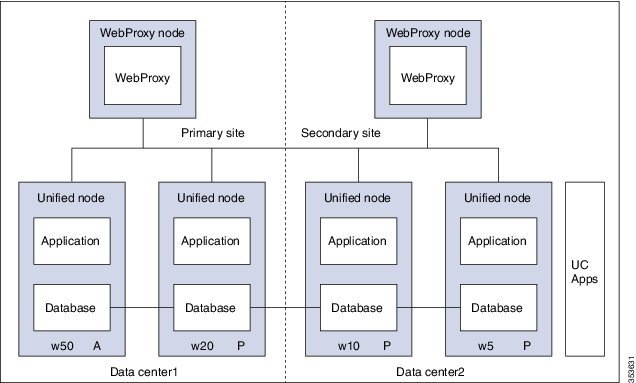
Following figure shows the multinode implementation of the Unified Communication Domain Manager:

Figure 2. Graphical Representation of Geo-Redundant Cluster


The functional roles of each node are:
  • WebProxy: It does load balancing across multiple application roles.
  • Application: It is a transactional business logic.
  • Database: It is a persistent data store.

Multinode Installation

Install a multinode consisting of either four or six Unified instances of and two WebProxy instances.

  • A WebProxy node installs only the front-end web server, with the ability to distribute load among multiple middleware nodes.

  • A Unified node consists of the Application and Database roles on one node. For geo-redundancy, there are two or four Unified nodes in the Primary Site and two Unified nodes in the Disaster Recovery (DR) Site in active-active setup.

    Cisco Hosted Collaboration Solution supports three configurations of Cisco Unified Communications Domain Manager 10.x+. These configurations provide the service provider with options for scale and Geo-Redundancy support.

    Configuration

    Number of Unified Nodes

    Number of Proxy Nodes

    Supported Scale (# Subscribers)

    Geo-Redundancy (Y/N)

    Standalone CUCDM

    1

    0

    20,000

    NA

    Multi-Node CUCDM (across Data Centers)

    4

    2

    200,000

    Yes (Active-Active)

    6

    2

    200,000 Yes (Active-Passive)

    Multi-Node CUCDM (One Data Center)

    4

    2

    200,000

    No


Note


  • For geo-redundant Multinode Cluster deployment with six Unified Nodes, there are four Unified nodes in the Primary Site and two Unified nodes in the Disaster Recovery (DR) Site in active-standby setup.

  • Installation of the template and upgrade takes approximately two hours. You can follow the progress on the GUI transaction list.


Before you begin

If you received the product on DVD, extract the Unified CDM ISO to get the platform-install ISO and the Unified CDM template file.

If you selected electronic software delivery, use the link that you received to download the product ISO file. Mount the Unified CDM ISO to get the platform-install ISO and the Unified CDM template file.

Optionally, download or extract language pack template files to support languages other than English.

Procedure


Step 1

Install the WebProxy instances.

For each WebProxy instance, create a new VM using the platform-install OVA. Use the instructions shown in Create Virtual Machines from OVA Files. For role, select (3) WebProxy. Specify the appropriate data center (Primary/DR site) for each WebProxy instance.

Step 2

Install the Unified instances.

For each Unified instance, create a new VM using the platform-install OVA. Use the instructions shown in Create Virtual Machines from OVA Files. For role, select (2) Unified. Specify the appropriate data center (Primary/DR Site) for each Unified instance.

The following Unified nodes are required in the cluster:

  • One Unified node as the Primary node at the Primary site

  • One Unified node as the Secondary node at the Primary site

Note


For six Unified Node Multi Cluster deployment there are three Unified node as the Secondary node at the Primary site

  • Two Unified nodes as the Secondary nodes at the DR site

Step 3

Prepare each node to be added to the cluster. On each WebProxy and Unified node, except for the primary Unified node, run the cluster prepnode command.

Step 4

Add nodes to the cluster.

  1. Log in to the primary Unified node.

  2. Add the Unified and WebProxy nodes to the cluster with the cluster add <ip_addr> command.

  3. Verify the list of nodes in the cluster with the cluster list command.

Step 5

Add the network domain.

  1. Configure the domain with the cluster run all network domain <domain_name> command.

  2. Verify the configured network domain with the cluster run all network domain command.

    Each node shows the domain that you configured.
  3. Verify the DNS configuration with the cluster run all network dns command.

    Each node responds with the DNS server address.
  4. Attempt to contact each node in the cluster with the cluster run all diag ping <hostname> command.

  5. (Optional) Shut down all the nodes with the cluster run all system shutdown command. Take a snapshot of each node. Restart each node.

Step 6

Determine whether security updates are required by running the cluster run all security check command on each cluster.

Step 7

If at least one update is required for any cluster, run the cluster run all security update command on every cluster.

Step 8

Install VMware tools on each node.

  1. In vSphere, right-click the name of the appropriate VM.

  2. Select Guest > Install/Upgrade VMware Tools.

    If you are prompted to disconnect the mounted CD-ROM, click Yes.

  3. Log in to each node and run the app install vmware command.

Step 9

Configure the cluster.

  1. Provide a weight for each database server with the database weight add <database_ip> <priority> command.

    Use weights of 40, 30, 20, and 10 for the four Unified nodes and weights of 60, 50, 40, 30, 20, and 10 for the six Unified nodes. The higher the value, the more priority.

    For Multinode Cluster deployment with four Unified Nodes in a geo-redundant system containing two data center infrastructures in two physical locations the following weights are used:

    • Specify a weight of 40 for the Primary node at the Primary site

    • Specify a weight of 30 for the Secondary node at the Primary site

    • Specify weights of 20 and 10 for the Secondary nodes at the DR site

    For Multinode Cluster deployment with six Unified Nodes in a geo-redundant system containing two data center infrastructures in two physical locations the following weights are used:

    • Specify a weight of 60 for the Primary node at the Primary site

    • Specify a weight of 50 for the Secondary node at the Primary site

    • Specify a weight of 40 for the Secondary node at the Primary site

    • Specify a weight of 30 for the Secondary node at the Primary site

    • Specify weights of 20 and 10 for the Secondary nodes at the DR site

    Note


    For information on web weight used for Web Proxy node, refer Cisco Unified Communications Domain Manager Best Practices Guide.

  2. Select a Primary Unified node and set it up as the Primary Unified node with the following command: cluster provision primary <IP address of primary database node>.

    Allow approximately 2 hours for the operation to complete for two WebProxy and four Unified nodes.

    If no primary node exists, you are prompted to select a node to be the primary node.

  3. When provisioning is complete, verify the status of the cluster with the cluster status command.

    If a service is down, run the cluster run <node_ip> app start command to restart the service.

  4. (Optional) If required, set the web weights configurations (Active-Active, Active-Standby, Standalone). From the primary Unified node, run the required web weight commands for the Web Proxy nodes. See Multi Data Center Deployments in the Cisco Unified Communications Domain Manager Best Practices Guide for detailed information.

  5. (Optional) If required, enable or disable Self-service or admin web services on the web proxy nodes. This may be required for security purposes.The commands must be run on the relevant web proxy node. It is not advisable to run the commands on a standalone system, but only on a cluster. The commands will automatically reconfigure and restart the nginx process, which results in some downtime. Request URLs to a disabled service will redirect the user to the active service.

    • To disable or enable admin or Self-service web services on the web proxy node: use web service disable <selfservice|admin> or web service enable <selfservice|admin> command.

    • To list web services on the web proxy node: use the web service list command.

  6. (Optional) Shut down all the nodes gracefully, snapshot and restart:

    1. From the selected primary Unified node, run cluster run notme system shutdown.

    2. From the selected primary Unified node, run system shutdown.

    3. Take a VMWare snapshot of each node and then remove any previous snapshot.

    4. Restart each node.

Step 10

Initialize the database and clear all data with the voss cleardown command on the primary database node.

Step 11

Import the template.

  1. Copy the template file to the primary Unified node with the scp <template_file> platform@<unified_node_ip_address>:media command.

  2. Log in to the primary Unified node and import the template with the app template media/<template_file> command.

    The following message appears: Services have been restarted. Please ignore any other messages to restart services. The template upgrade automatically restarts necessary applications.

  3. When prompted to set the sysadmin password, provide and confirm a password.

  4. When prompted to set the hcsadmin password, provide and confirm a password.

Step 12

(For Cisco Unified CDM 10.6(1) only) Install the Macro_Update.template file on secondary Unified nodes.

  1. Upload the new Macro_Update.template file to the media directory on the Unified CDM server via SFTP.

    1. From the VM console, enter sftp platform@<cucdm10 hostname>.

    2. Enter cd media.

    3. Enter put Macro_Update_xx.template.

  2. Enter the following command: app template media/Macro_Update_xx.template.

    The template installs on each secondary node in less than a minute.

Step 13

(Optional) Install language templates for languages other than English.

  1. Copy the language template file to any Unified node with the scp <language_template_file> platform@<unified_node_ip_address>:./media command.

  2. Log in to the Unified node and install the template with the app template media/<language_template_file> command.

    Example:

    For example, to install French, app template media/CUCDMLanguagePack_fr-fr.template.

Create Virtual Machines from OVA Files

You can import the OVA file into VMware vCenter Server. One OVA file is used to deploy all the functional roles. You choose the specific role when the installation wizard is run.

Procedure


Step 1

Sign in to vSphere to access the ESXi Host.

Step 2

Choose File > Deploy OVF Template.

Step 3

Choose Source, browse to the location of the .ova file, and click Next.

Step 4

On the Name and Location page, enter a Name for this server.

Step 5

Choose the resource pool in which to locate the VM.

Step 6

Choose the data store you want to use to deploy the new VM.

Step 7

On the Disk Format page, choose Thick provisioned Eager Zeroed format for the virtual disk format.

Note

 
In production environments, "thick provisioning" is mandatory. Thick provisioned Lazy Zero is also supported, but Thin provisioned is not supported.

Step 8

On the Network Mapping, choose your network on which this VM will reside.

Step 9

Do not select Power on after deployment.

Step 10

On the Ready to Complete page, click Finish to start the deployment.

Step 11

After the VM is created, verify the memory, CPU, and disk settings against the requirements shown in Multinode Cluster Hardware Specifications.

Step 12

Power on the VM.

Step 13

Select the following options in the installation wizard:

Option Option name Description
1 IP The IP address of the server.
2 netmask The network mask for the server.
3 gateway The IP address of the network gateway.
4 DNS The DNS server is optional. Ensure that the DNS server is capable of looking up all hostnames referred to, including NTP server and remote backup locations.
5 NTP The NTP server is mandatory to ensure that time keeping is accurate and synchronized among nodes in the same cluster.
6 hostname The hostname, not the fully qualified domain name (FQDN).
7 role
  • A WebProxy role installs only the front-end web server together with ability to distribute load among multiple middleware nodes.

  • An Application node is the main transaction processing engine and includes a web server which can operate by itself, or route transactions from a web node.

  • A Database node provides persistent storage of data.

  • A Standalone node consists of the Web, Application, and Database roles on one node.

  • A Unified node consists of the Web, Application, and Database roles on one node. On installation, the system needs to be clustered with other nodes and the cluster provisioned.

8 data center The system's geographic location (data center name, city, country that a customer can use to identify the system location). You cannot change this setting once set.
9 platform password Platform password must be at least eight characters long and must contain both uppercase and lowercase letters and at least one numeric or special character.
13 install Completes the installation configuration and installs .

When the installation of the OVA is complete, a sign-in prompt for the platform user is displayed.

What to do next

Return to Multinode Installation to complete the overall installation procedure.

Create the HCM-F Device

After you create the HCM-F device, data synchronization begins if there is a network connection and the NBI REST service is running on the HCM-F server.

Before you begin

  • Install and configure HCM-F. For more information, see the Cisco Hosted Collaboration Mediation Fulfillment Install and Configure Guide

    .
  • Verify that the NBI REST SDR Web Service is running

    1. Sign in to the HCM-F CLI as the user administrator.

    2. Run the utils service list command. Verify that the Cisco HCS NBI REST SDR Web Service is running.

    3. If not running, start it with the utils service start Cisco HCS NBI REST SDR Web Service command.

Procedure


Step 1

Sign in to as hcsadmin@sys.hcs.

Step 2

Create a new HCM-F instance:

  1. Select Device Management > HCM-F and click Add.

  2. Enter the HCM-F hostname.

  3. Enter the HCM-F administrator Username.

  4. Enter the HCM-F administrator Password.

  5. Select the HCM-F Version v10_0 from the drop-down list.

  6. Click Save.

Step 3

If the previous step fails:

  • Verify that HCM-F Hostname is correct

  • Verify that HCM-F administrator Username and administrator Password are correct

  • Verify that HCM-F Version is correct

  • Verify that the domain is set correctly using the CLI:

    1. ssh platform@<cucdm hostname>

    2. network domain

Step 4

After a couple of minutes, verify that the initial synchronization between and HCM-F is successful:

  1. Select Provider Management > Advanced > SDR Service Provider.

  2. The sync is successful if the default entry, "Service Provider Name", appears.


What to do next

If the initial sync is not working after following the previous steps, verify that the HCM-F REST API is working by browsing to the following: http://<hcmf_app_node_host>/sdr/rest/<hcmf_version>/entity/ServiceProvider. This command returns the JSON representation of the predefined service provider instance in the HCM-F Shared Data Repository (SDR). If you get an error, log in as the administrator on the HCM-F app node CLI and verify that the REST service is running:

To display the services, run the command: utils service list.

In the output, you see Cisco HCS NBI REST SDR Web Service[STARTED].

If this service is not started, start it with the command: utils service start Cisco HCS NBI REST SDR Web Service

For data sync failures, try importing the new HCM-F:

  1. Select Device Management > HCM-F and click the HCM-F device.

  2. Update the Hostname and click Save.

  3. Import the new HCM-F:

    1. Select Device Management > Advanced > Perform Actions.

    2. In the Action field, select Import.

    3. In the Device field, select the HCM-F server.

    4. Click Save and wait a few minutes.

  4. Check the provider under Provider Management > Advanced > SDR Service Provider.

Create a Provider


Note


In Cisco Unified CDM 10.6(2) or later, the provider name is set to the current service provider name in HCM-F. You can decouple the provider name in Cisco Unified CDM from the service provider name in HCM-F.


Procedure


Step 1

Log in to as hcsadmin@sys.hcs.

Step 2

Select Provider Management > Providers.

Step 3

Click Add.

Step 4

On the Service Provider Details tab, complete the following fields:

Field Description
Name

The name of the provider. This field is mandatory.

Note


Once you have saved the provider, you cannot change the provider name.

Note


Any spaces in the provider name are converted to underscores in the provider local administrator name and email, if Create Local Admin is checked.

Description

A description of the provider.

Domain Name

The domain of the provider. For example, provider.com. Used when creating the default local administrator so the administrator can sign in with an email ID such as ProviderAdmin@provider.com. This field is mandatory.

Create Local Admin

Controls whether a default local administrator is created.

Cloned Admin Role

The HCS default provider role used to create a new role prefixed with the provider name. The created provider role, shown in Default Admin Role field, is assigned to the default local administrator. This field appears only if Create Local Admin is checked.

Default Admin Role

The created provider role that is assigned to the default local administrator. This field is read only and appears only if Create Local Admin is checked.

Default Admin Password

The password to assign to the default local administrator. This mandatory field appears only if Create Local Admin is checked.

Repeat Default Admin Password

Confirm the default local administrator password. This mandatory field appears only if Create Local Admin is checked.

Step 5

On the Contact Information tab, enter address, email, and phone information as appropriate.

Step 6

Click Save.


The provider hierarchy node in , the Service Provider name in SDR, and optionally a default provider administrator are created.

Add Reseller

Procedure


Step 1

Login to the Cisco Unified Communications Domain Manager as the Provider admin. Enter provider admin’s email address as username, it is case sensitive.

Example:

<provider_name>Admin@<domain_name>.

Step 2

Navigate to Reseller Management > Resellers from the menu.

Step 3

Click Add.

Step 4

Provide necessary details in the following:

  1. Enter Name.

  2. Enter Description.

  3. Enter Domain Name.

  4. Check Create Local Admin check box.

  5. Keep the default values for Clone Admin role and Default Admin Role.

  6. Enter Default Admin password and confirm in Confirm password text box.

Step 5

Click Save.


What to do next

Integrate Unified Communication Domain Manager with the customer instance. For more information, see the Configuration Guide for Cisco Hosted Collaboration Solution for Contact Center at https://www.cisco.com/c/en/us/support/unified-communications/hosted-collaboration-solution-contact-center/tsd-products-support-series-home.html

Installing and Configuring Prime Collaboration Assurance and Analytics

To verify the supported version of Prime Collaboration Assurance and Analytics for this release of Cisco HCS, see the Contact Center Enterprise Compatibility Matrix at https://www.cisco.com/c/en/us/support/customer-collaboration/unified-contact-center-enterprise/products-device-support-tables-list.html.

For complete installation and configuration instructions, see the Cisco Prime Collaboration Assurance and Analytics Install and Upgrade Guide at https://www.cisco.com/c/en/us/support/cloud-systems-management/prime-collaboration/products-installation-guides-list.html.

The Cisco Prime Collaboration Quick Start Guide explains all aspects of installing and configuring Prime Collaboration Assurance in Advanced mode (so that you can select the Managed Service Provider deployment):

  • Licensing

  • Deployment models

  • Deploying OVAs

  • Configuring OVAs

  • Required post installation tasks


Important


  • The Prime Collaboration Assurance 12.1 and above MSP mode supports large and very large OVA. See the Cisco Prime Collaboration Assurance and Analytics Install and Upgrade Guide for detailed information.


Log in to Prime Collaboration

Invoke Prime Collaboration Assurance using the client browser.

To log in to the Prime Collaboration application:

Procedure


Step 1

Open a browser session from your machine. Specify the IP address of either Prime Collaboration Assurance application.

Step 2

Enter any one of the following: http://IP Address or https://IP Address.

Note


HTTPS is enabled by default for Prime Collaboration Assurance. Based on the browser you are using, one of the following appears:

  • In Windows Internet Explorer, the Certificate Error: Navigation Blocked window.

  • In Mozilla Firefox, the Untrusted Connection window.

These windows appear because Prime Collaboration uses a self-signed certificate.

Step 3

Remove the SSL certificate warning. See Removing SSL Certificate Warning at http://docwiki.cisco.com/wiki/troubleshooting_cisco_prime_collaboration

The Prime Collaboration login page appears.

Step 4

In the Prime Collaboration login page, you must log in as a globaladmin, using the same the credentials that you specified during the configuration.


Enabling HCM-F and Prime Collaboration Assurance to Communicate

The HCM-F versions compatible with Prime Collaboration Assurance is specified in the table. Prime Collaboration Assurance 11.6 and above version supports enhanced security.

To install the patch file for Prime Collaboration Assurance and Analytics use the link Download Software.

To install the .cop file on HCM-F use the link https://upload.cisco.com/cgi-bin/swc/fileexg/main.cgi.

See the Contact Center Enterprise Compatibility Matrix at https://www.cisco.com/c/en/us/support/customer-collaboration/unified-contact-center-enterprise/products-device-support-tables-list.html for details on the supported HCMF .cop file and PCA patch file.


Note


  • Different versions of Prime Collaboration Assurance running in the same environment are not supported.

  • HCM-F does not support uninstalling of ES files.

  • Cisco Hosted Collaboration Solution supports a single HCM-F with one or more PCA for monitoring customer and devices.


Install and Configure ASA Firewall and NAT

Cisco Adaptive Security Appliance (ASA) Firewall partitions a single ASA into multiple virtual devices that keeps customer traffic separate and secure, and also makes configuration easier. All customer traffic is first sent to the firewall before forwarding to the computer resources.

Setup ASA

To initiate the basic setup in Cisco ASA, access the command-line interface and configure the credentials.

Procedure


Step 1

Connect a PC to the console port using console cable. Connect to console using a terminal emulator and set 9600 baud, 8 data bits, no parity, 1 stop bit, no flow control.

Step 2

Press Enter.

Displays the following prompt:

hostname>

This indicates you are in user EXEC mode.

Step 3

Enter the following commands to access privileged EXEC mode:

hostname>enable
Password:
hostname#

Note

 
Default, password is blank. Press Enter key to continue.

Step 4

Enter the following commands to access the global configuration mode:

hostname#configure terminal
hostname(config)#

Step 5

Enter hostname command to configure the hostname:

Example:

hostname(config)#hostname CISCOASA
CISCOASA(config)#

Step 6

Enter enable passsword command to configure the password:

CISCOASA(config)#enable password <enter the password>

Example:

CISCOASA(config)#enable password Password1234
CISCOASA(config)#exit

Step 7

Enter the following commands to save configuration:

hostname# copy running-config startup-config

Configure Multiple Context Modes

Procedure


Step 1

Enable the multiple context modes.

Step 2

Enable the interfaces.

Step 3

Configure the security contexts.

Step 4

Optional, in configure mode, enter hostname(config)#mac-address auto command to assign the MAC addresses to the context interfaces automatically.

Step 5

Configure interfaces in the context.


Enable Multiple Context Modes

Procedure

Enter the following commands:

hostname#changeto system
hostname#configure terminal
hostname(config)#mode multiple

Note

 
After you enable the multiple context mode, optionally you can configure the classes for resource management. You need not to create classes for HCS as you can use the default class.

Enable Interfaces

Complete the following procedure to configure interfaces:

Procedure

Step 1

Navigate to interface management 0/0 and enter the following commands:

hostname(config)#interface management 0/0
hostname(config-if)#no shut

Step 2

Navigate to interface gigabitethernet 0/0 and enter the following commands:

hostname(config)#interface gigabitethernet 0/0 
hostname(config-if)#no shut

Configure Security Contexts

Complete the following procedure to configure security contexts:

Procedure

Step 1

Configure the admin context name in the global configuration mode:

hostname(config)#admin-context admin

Step 2

Navigate to the context admin:

hostname(config)#context admin

Step 3

Configure the admin context definitions:

hostname(config-ctx)#description admin Context for admin purposes
  1. Allocate interface management 0/0 for admin context.

    hostname(config-ctx)#allocate-interface management0/0 invisible
  2. Create admin.cfg in disk 0.

    hostname(config-ctx)#config-url disk0:/admin.cfg

Configure Interfaces in the Context

Complete the following procedure to configure interfaces in the admin context:

Procedure

Step 1

Navigate to admin context in configure mode:

hostname#changeto context admin

Step 2

Navigate to the interface management:

hostname/admin#configure terminal
hostname/admin(config)#interface management 0/0

Step 3

Enter a name for management interface of the admin context:

hostname/admin(config-if)#nameif management
Enter the IP address of the management interface:
hostname/admin(config-if)#ip address ip_address subnet_mask
hostname/admin(config-if)#exit
Example:
hostname/admin(config-if)#ip address 209.165.200.225 255.255.255.224

Step 4

Configure the following in global configuration mode to allow SSH to the admin context:

  1. Generate an RSA key pair that is required for SSH. The modulus size value is 1024.

    hostname/admin(config)#crypto key generate rsa modulus modulus_size
  2. Save the RSA keys to persistent flash memory.

    hostname/admin(config)#write memory
  3. Enables local authentication for SSH access.

    hostname/admin(config)#aaa authentication ssh console LOCAL
  4. Create a user in the local database for SSH access.

    hostname/admin(config)#username abcd password xxxx
  5. Enter the IP address of the management interface from which the ASA accepts SSH connections.

    hostname/admin(config)# ssh ip_address subnet_mask management
    Example:
    hostname/admin(config)# ssh 209.165.200.225 255.255.255.224 management
  6. Set the duration to idle SSH session before the ASA disconnects the session.

    hostname/admin(config)#ssh timeout 5
  7. Enable HTTPS server and default port is 443.

    hostname/admin(config)#http server enable
  8. Enter the same IP address of management interface to access through HTTPS.

    hostname/admin(config)# http server ip_address subnet_mask
  9. Enter Default Static Route.

    hostname/admin(config)# route management 0.0.0.0 0.0.0.0 ip_address 
    Example:
    hostname/admin(config)#http server 209.165.200.225 255.255.255.224
    hostname/admin(config)#route management 0.0.0.0 0.0.0.0 209.165.200.226

What to do next

Integrate Cisco ASA with the customer instance. For more information, see the Configuration Guide for Cisco Hosted Collaboration Solution for Contact Center at https://www.cisco.com/c/en/us/support/unified-communications/hosted-collaboration-solution-contact-center/tsd-products-support-series-home.html