Overview

This chapter contains the following topics:

Cisco UCS X410c M8 Compute Node Overview

The Cisco UCS X410c M8 Compute Node (UCSX-410C-M8) is a two-slot compute node that supports four CPU sockets for 6th Generation Intel® Xeon® Scalable Processors. Each compute node is exactly four CPUs.

The overall compute node consists of two distinct subnodes, a primary and a secondary.

  • The primary contains two CPUs (1 and 2), two heatsinks, and half of the DIMMs. All additional hardware components and supported functionality are supported through the primary, including the front and rear mezzanine hardware options, rear mezzanine bridge card, front panel, KVM, management console, and status LEDs.

  • The secondary contains two additional CPUs (3 and 4), two heatsinks, and the other half of the DIMMs. The secondary also contains a power adapter, which ensures that the electrical power is shared and distributed between the primary and secondary. The power adapter is not a customer-serviceable part.

Each Cisco UCS X410c M8 compute node supports the following:

  • Up to 16 TB of system memory using 64 DDR5 DIMMs. The DIMMs operate up to 6400 MHz with 1 DPC, and up to 5200 MHz with 2 DPC. Thirty-two DDR5 DIMMs are supported on the primary, and 32 DIMMs are supported on the secondary.

  • Supports 16 DIMMs per CPU, 8 channels per CPU socket, 2 DIMMs per channel. Memory Mirroring and RAS is supported.

  • Supported memory can be populated as 64 GB, 96 GB, 128 GB, or 256 GB DDR5 DIMMs.

  • One front mezzanine module which can support any of the following:

    • A front storage module, which supports multiple different storage device configurations:

    • Compute Pass Through Controller (UCSX-X10C-PT4F-D)

      • All NVMe configuration consisting of up to six U.3 NVMe Gen4 (x4 PCIe) SSDs in slots 1 through 6.

    • 24G Tri-mode M1 RAID controller (UCSX-RAID-M1L6)

      • A storage configuration consisting of up to six SAS/SATA or U3 NVMe drives is supported in slot 1 through 6. Mixture of RAID creation between SAS and SATA, SAS and U3 NVME, SATA and U3 NVMe are not allowed. U.3 NVMe drives are also supported with an integrated RAID mode as well as Direct attach mode for slot 5 and 6.

        • SAS: 12G, 24G in a x1 config

        • SATA: 6G in a x1 config

        • NVMe: Gen 4 in a x2 config

    • Pass Through Controller for E3.S drives (UCSX-X10C-PTE3), which supports up to nine hot-pluggable EDSFF E3.S NVMe drives.

    • The Compute Node front panel has a flexible configuration through the front mezzanine module option you ordered. The following options are supported: as documented in

      • Compute Node front panel with SAS/SATA/NVMe Drives

      • Compute Node front panel with U.3 NVMe Drives

      • Compute Node Font Panel with E3.S NVMe Drives.

      For additional information, see Drive Front Panels.

    For additional information, see Front Mezzanine Options.

  • 1 modular LAN on motherboard (mLOM) module or virtual interface card (VIC) supporting a maximum of 200G of aggregate traffic, 100G to each fabric, through a Cisco 5th Gen 100G mLOM/VIC. For more information, see mLOM and Rear Mezzanine Slot Support.

  • A boot-optimized mini-storage module. Two versions of mini-storage exist:

    • One version supports up to two M.2 SATA drives of up to 960GB each. This version supports an optional hardware RAID controller (RAID1).

    • One version supports up to two M.2 NVMe drives of up to 960GB each that are directly attached to CPU 1. This version does not support an optional RAID controller.

    Two options of mini-storage exist, one supporting up to two M.2 SATA drives with a MSTOR-RAID controller (UCSX-M2I-HWRD-FPS), and one supporting up to two M.2 NVMe drives direct attached to CPU1 through a Passthrough controller (UCSX-M2-PT-FPN).

  • Local console connectivity through a USB Type-C connector.

  • Up to 4 UCS X410c M8 compute nodes can be installed in a Cisco UCS X9508 modular system.

Compute Node Identification

Each Cisco UCS X410c M8 compute node features a node identification tag at the lower right corner of the primary node.
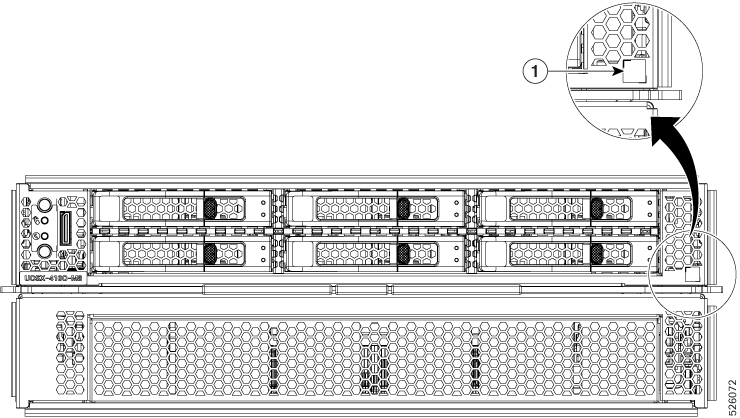
Illustration showing Compute Node Front Panel in the background with a close up of the node's QR code identifier in the foreground.

The node identification tag is a QR code that contains information that uniquely identifies the product, such as:
  • The Cisco product identifier (PID) or virtual identifier (VID)

  • The product serial number

The product identification tag applies to the entire compute node, both the primary and secondary.

You will find it helpful to scan the QR code so that the information is available if you need to contact Cisco personnel.

Compute Node Front Panel

The Cisco UCS X410c M8 front panel contains system LEDs that provide visual indicators for how the overall compute node is operating. An external connector is also supported.

Compute Node Front Panel
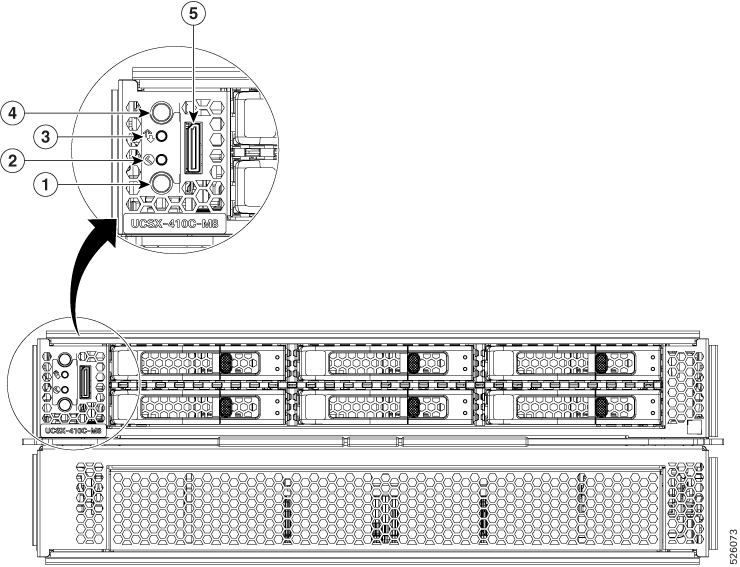
Illustration showing Compute Node Front Panel in the background with a close up of the node's LED cluster in the foreground.

1

Power LED and Power Switch

The LED provides a visual indicator about whether the compute node is on or off.

  • Steady green indicates the compute node is on.

  • Steady Amber indicates the compute node is in Standby power mode.

  • Off or dark indicates that the compute node is not powered on.

The switch is a push button that can power off or power on the compute node. See Front Panel Buttons.

2

System Health LED

A multifunction LED that indicates the state of the compute node.

  • Steady green indicates the compute node successfully booted to runtime and is in normal operating state.

  • Steady amber indicates that the compute node successfully booted but is in a degraded runtime state.

  • Blinking amber indicates that the compute node is in a critical state, which requires attention.

3

System Activity LED

The LED blinks to show whether data or network traffic is written to or read from the compute node. If no traffic is detected, the LED is dark.

The LED is updated every 10 seconds.

4

Locator LED/Switch

The LED provides a visual indicator that glows solid blue to identify a specific compute node.

The switch is a push button that toggles the Indicator LED on or off. See Front Panel Buttons.

5

External Connector (Oculink) that supports local console functionality.

Front Panel Buttons

The front panel has some buttons that are also LEDs. See Compute Node Front Panel.

  • The front panel Power button is a multi-function button that controls system power for the compute node.

    • Immediate power up: Quickly pressing and releasing the button, but not holding it down, causes a powered down compute node to power up.

    • Immediate power down: Pressing the button and holding it down 7 seconds or longer before releasing it causes a powered-up compute node to immediately power down.

    • Graceful power down: Quickly pressing and releasing the button, but not holding it down, causes a powered-up compute node to power down in an orderly fashion.

  • The front panel Locator button is a toggle that controls the Locator LED. Quickly pressing the button, but not holding it down, toggles the locator LED on (when it glows a steady blue) or off (when it is dark). The LED can also be dark if the compute node is not receiving power.

For more information, see Interpreting LEDs.

Drive Bays

Each Cisco UCS X410c M8 compute node has a front mezzanine slot that can support local storage drives of different types and quantities of 2.5-inch SAS, SATA, or U.3 drives and E3.S drives. Drive blank panels (UCSC-BBLKD-M8 or UCSC-E3SIT-F=) must cover all empty drive bays as appropriate.

For front a mezzanine module that supports SAS, SATA, or U.3 drives, the drive bays are numbered sequentially from 1 through 6 as shown.
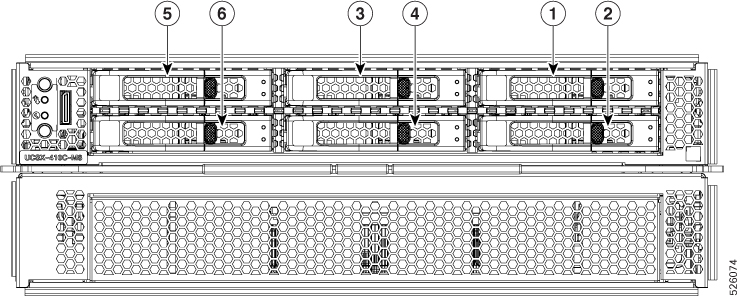
Figure 1. Front Loading Drives, SAS/SATA/U.3 NVMe
Illustration showing Compute Node Front Panel with callouts showing each of the six possible SAS, SATA, or U.3 NVMe drive installed

For front a mezzanine module that supports E3.S EDSFF NVMe drives, the drive bays are numbered sequentially from 1 through 9 as shown.

Figure 2. Front-Loading Drives, E3.S NVMe
Illustration showing Compute Node Front Panel with callouts showing each of the nine E3.S EDSFF NVMe drive installed
Drive Front Panels

The front drives are installed in the front mezzanine slot of the compute node. SAS/SATA and NVMe drives are supported.

Compute Node Front Panel with SAS/SATA/NVMe Drives

The compute node front panel contains the front mezzanine module, which can support a maximum of six SAS/SATA or U.3 NVMe drives. The drives have additional LEDs that provide visual indicators about each drive's status.

Figure 3. Drive LED Locations
Illustration showing Compute Node Front Panel in the background with callouts showing the drive LED locations on a SAS, SATA, or NVMe drive

1

Drive Health LED

2

Drive Activity LED

Compute Node Front Panel with U.3 NVMe Drives

The compute node front panel contains the front mezzanine module, which can support a maximum of six U.3 NVMe drives.

Compute Node Front Panel with E3.S NVMe Drives

The compute node front panel contains the front mezzanine module, which can support a maximum of nine E3.S NVMe PCIe Gen 5 1.92 TB drives in pass-through mode.
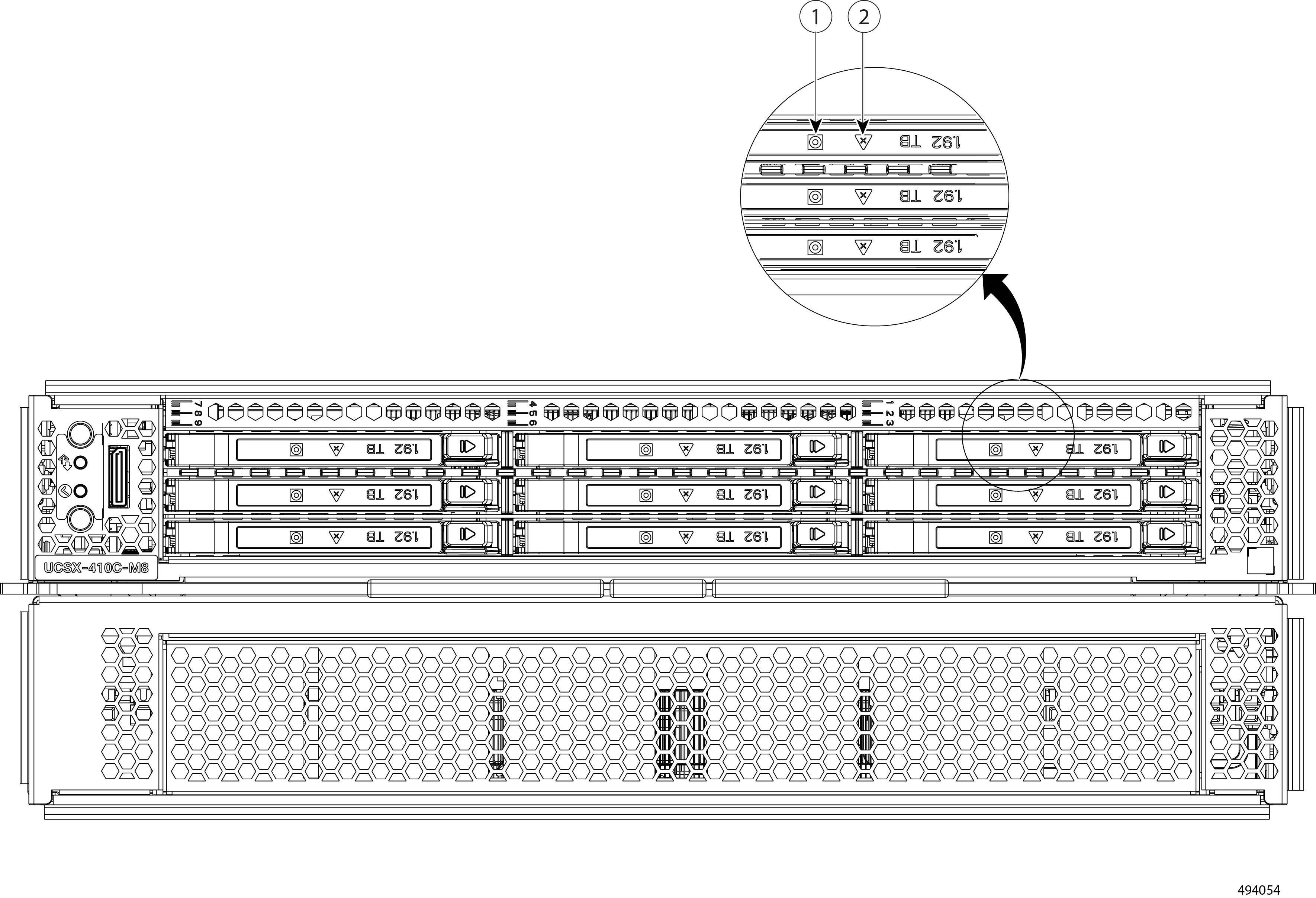
Illustration showing Compute Node Front Panel in the background with callouts showing the drive LED locations on a E3.S EDSFF NVMe drive in the foreground

1

Drive Activity LED

2

Drive Health LED

Local Console

The local console connector is a horizontal oriented OcuLink on the compute node faceplate.

The connector allows a direct connection to a compute node to allow operating system installation directly rather than remotely.

The connector terminates to a KVM dongle cable (UCSX-C-DEBUGCBL) that provides a connection into a Cisco UCS compute node. The cable provides connection to the following:

  • VGA connector for a monitor

  • Host Serial Port

  • USB port connector for a keyboard and mouse

With this cable, you can create a direct connection to the operating system and the BIOS running on a compute node. A KVM cable can be ordered separately. The cable doesn’t come with compute node’s accessary kit.

Figure 4. KVM Cable for Compute Nodes

Illustration showing the KVM cable used for X Series Compute Nodes and numbered callouts that identify the different connectors on the cable

1

Oculink connector to compute node

2

Host Serial Port

3

USB connector to connect to single USB 3.0 port (keyboard or mouse)

4

VGA connector for a monitor

Front Mezzanine Options

The Cisco UCS X410c M8 Compute Node supports front mezzanine module storage through SAS/SATA or NVMe SSDs. For more information, see Storage Options.

Storage Options

The compute node supports the following local storage options in the front mezzanine module.

Cisco UCS X10c Passthrough Module

The compute node supports the Cisco FlexStorage NVMe passthrough controller, which is a passthrough controller for NVMe drives only. This module supports:

  • Support up to six NVMe U.3 SSDs in slots 1 through 6

  • PCIe Gen3 and Gen4, x24 total lanes, partitioned as six x4 lanes

  • Drive hot plug is supported

  • Virtual RAID on CPU (VROC) is not supported, so RAID across NVME SSDs is not supported

Cisco UCS X10c E3.S Drive Front Mezzanine Module

As an option, the compute node can support a E3.S- drive based front mezzanine module, the Cisco UCS X10c E3.S Front Mezzanine Module.

Each Cisco UCS X10c front mezzanine drives module consists of the following components:

  • Up to nine E3.S 1T PCIe drives.

  • PCIe Gen5, x36 total lanes, partitioned as nine x4 lanes.


Note


Drive hot plug is supported.


For information about this hardware option, see the Cisco UCS X10c Pass Through Controller for E3.S Installation and Service Guide.

Cisco UCS 24G Tri-Mode M1 RAID Controller Module

This storage option:

  • Support up to six SAS/SATA/U.3 NVMe SSDs drives in slots 1 to 6 connected to the RAID controller at PCIe Gen4 and configurable with HW RAID.

  • PCIe Gen3 and Gen4, x8 lanes

  • Drive hot plug is supported

  • RAID support depends on the type of drives and how they are configured.

    • RAID is not supported in a mixture of SAS and SATA, SAS and U.3 NVMe drives, SATA and U.3 NVMe drives in the same RAID group.

    • The following RAID levels are supported across SAS/SATA and U.3 NVMe SSDs when the RAID group is either all SAS or all SATA drives or all U.3 NVMe drives: RAID 0, 1, 5, 6, 00, 10, and 50.

  • Support for drive slot 5 and 6 can be either Controller attached mode or direct attached mode. Only NVMe U.3 drives in drive slot 5 and 6 will become CPU attached in direct attach mode.

Storage-Free Option

If no front storage drives are required, Cisco offers a storage-free configuration consisting of a blank front mezzanine faceplate for the primary.

mLOM and Rear Mezzanine Slot Support

The following rear mezzanine and modular LAN on motherboard (mLOM) modules and virtual interface cards (VICs) are supported.

The following mLOM VICs are supported.

  • Cisco UCS VIC 15420 mLOM (UCSX- ML-V5Q50G) which supports:

    • Quad-Port 25G mLOM.

    • Occupies the compute node's modular LAN on motherboard (mLOM) slot.

    • Enables up to 50 Gbps of unified fabric connectivity to each of the chassis intelligent fabric modules (IFMs) for 100 Gbps connectivity per compute node.

  • Cisco UCS VIC 15230 mLOM (UCSX-ML-V5D200GV2), which supports:

    • x16 PCIE Gen 4 host interface to UCS X410c M8 compute node

    • Two or four KR interfaces that connect to Cisco UCS X Series Intelligent Fabric Modules (IFMs):

      • Two 100G KR interfaces connecting to the UCSX 100G Intelligent Fabric Module (UCSX-I-9108-100G)

      • Four 25G KR interfaces connecting to the Cisco UCSX 9108 25G Intelligent Fabric Module (UCSX-I-9108-25G)

The following modular network mezzanine cards are supported.

  • Cisco UCS VIC 15422 (UCSX-ME-V5Q50G) which supports:

    • Four 25G KR interfaces.

    • Can occupy the compute node's mezzanine slot at the bottom rear of the chassis.

    • An included bridge card extends this VIC's 2x 50 Gbps of network connections through IFM connectors, bringing the total bandwidth to 100 Gbps per fabric (for a total of 200 Gbps per compute node).


Note


Although not an mLOM or rear mezzanine card, the UCS VIC 15000 bridge connector (UCSX-V5-BRIDGE-D) is required to connect the Cisco VIC 15420 mLOM and Cisco VIC 15422 rear mezzanine card on the compute node.


System Health States

The compute node's front panel has a System Health LED, which is a visual indicator that shows whether the compute node is operating in a normal runtime state (the LED glows steady green). If the System Health LED shows anything other than solid green, the compute node is not operating normally, and it requires attention.

The following System Health LED states indicate that the compute node is not operating normally.

System Health LED Color

Compute Node State

Conditions

Solid Amber

Degraded

  • Power supply redundancy lost

  • Intelligent Fabric Module (IFM) redundancy lost

  • Mismatched processors in the system. This condition might prevent the system from booting.

  • Faulty processor in a dual processor system. This condition might prevent the system from booting.

  • Memory RAS failure if memory is configured for RAS

  • Failed drive in a compute node configured for RAID

Blinking Amber

Critical

  • Boot failure

  • Fatal processor or bus errors detected

  • Fatal uncorrectable memory error detected

  • Lost both IFMs

  • Lost both drives

  • Excessive thermal conditions

Interpreting LEDs

Table 1. Compute Node LEDs

LED

Color

Description

Compute Node Power

(callout 1 on the Chassis Front Panel)

Small icon of the Compute Node Power LED. The icon is in the LED column of the Compute Node LEDs table.

Off

Power off.

Green

Normal operation.

Amber

Standby.

Compute Node Activity

(callout 2 on the Chassis Front Panel)

Small icon of the Compute Node Activity LED. The icon is in the LED column of the Compute Node LEDs table.

Off

None of the network links are up.

Green

At least one network link is up.

Compute Node Health

(callout 3 on the Chassis Front Panel)

Small icon of the Compute Node Health LED. The icon is in the LED column of the Compute Node LEDs table.

Off

Power off.

Green

Normal operation.

Amber

Degraded operation.

Blinking Amber

Critical error.

Compute Node Locator

LED and button

(callout 4 on the Chassis Front Panel)

Small icon of the Compute Node Locator LED. The icon is in the LED column of the Compute Node LEDs table.

Off

Locator not enabled.

Blinking Blue 1 Hz

Locates a selected compute node—If the LED is not blinking, the compute node is not selected.

You can initiate the LED in UCS Intersight or by pressing the button, which toggles the LED on and off.

Table 2. Drive LEDs, SAS/SATA

Activity/Presence LEDSmall icon of the Drive Activity/Presence LED. The icon is in the Activity/Presence LED column heading of the Drive LEDs, SAS/SATA table.

Status/Fault LED

Small icon of the Drive Status/Fault LED. The icon is in the Status/Fault LED column heading of the Drive LEDs, SAS/SATA table.

Description

Off

Off

Drive not present or drive powered off

On (glowing solid green)

Off

Drive present, but no activity or drive is a hot spare

Blinking green, 4HZ

Off

Drive present and drive activity

Blinking green, 4HZ

Blinking amber, 4HZ

Drive Locator Indicator

On (glowing solid green)

On (glowing solid amber)

Failed or faulty drive

Blinking green, 1HZ

Blinking amber, 1HZ

Drive rebuild or copyback operation in progress

On (glowing solid green)

Two 4HZ amber blinks with a ½ second pause

Predict Failure Analysis (PFA)

Table 3. Drive LEDs, NVMe (VMD Disabled)

Activity/Presence LEDSmall icon of the Drive Activity/Presence LED. The icon is in the Activity/Presence LED column heading of the Drive LEDs, NVMe (VMD Disabled) table.

Status/Fault LED

Small icon of the Drive Status/Fault LED. The icon is in the Status/Fault LED column heading of the Drive LEDs, NVMe (VMD Disabled) table.

Description

Off

Off

Drive not present or drive powered off

On (glowing solid green)

Off

Drive present, but no activity

Blinking green, 4Hz

Off

Drive present and drive activity

Blinking green, 4Hz

Blinking amber, 4Hz

Drive Locator Indicator

N/A

N/A

Failed or faulty drive

N/A

N/A

Drive Rebuild

Table 4. Drive LEDs, NVMe (VMD Enabled)

Activity/Presence LEDSmall icon of the Drive Activity/Presence LED. The icon is in the Activity/Presence LED column heading of the Drive LEDs, NVMe (VMD Enabled) table.

Status/Fault LED

Small icon of the Drive Status/Fault LED. The icon is in the Status/Fault LED column heading of the Drive LEDs, NVMe (VMD Enabled) table.

Description

Off

Off

Drive not present or drive powered off

On (glowing solid green)

Off

Drive present, but no activity

Blinking green, 4HZ

Off

Drive present and drive activity

Blinking green, 4HZ

Blinking amber, 4HZ

Drive Locate indicator or drive prepared for physical removal

N/A

N/A

Failed or faulty drive

N/A

N/A

Drive Rebuild