- Preface
- New and Changed Information
- Overview
- Using the Cisco NX-OS Setup Utility
- Using PowerOn Auto Provisioning
- Understanding the Command-Line Interface
- Configuring Terminal Settings and Sessions
- Basic Device Management
- Using the Device File Systems, Directories, and Files
- Working with Configuration Files
- Configuring CDP
- Configuring NTP
- Managing System Hardware
- Managing Modules
- Index
Using PowerOn Auto Provisioning
This chapter describes how to deploy and use PowerOn Auto Provisioning (POAP) for the Cisco MDS 9148, 9148S, and 9396S Multilayer Fabric Switches.
This chapter contains the following sections:
- Network Requirements for POAP
- Setting Up the Network Environment to Use POAP
- Configuring a Switch Using POAP
- Verifying the Device Configuration
- Guidelines and Limitations for POAP
Network Requirements for POAP
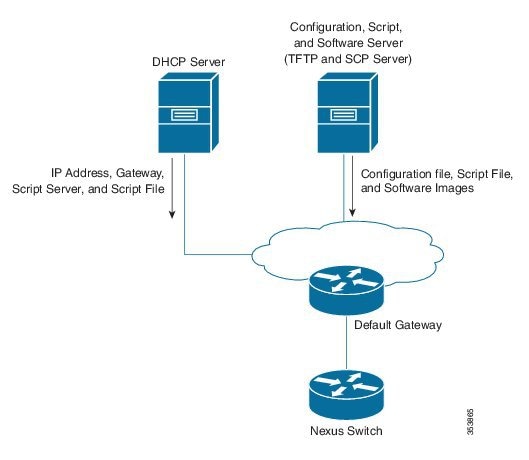
POAP requires the following network infrastructure:
-
A DHCP server to bootstrap the interface IP address, gateway address, and TFTP address.
-
A TFTP/SCP server that contains the configuration script used to automate the software image installation and configuration process.
-
One or more servers that contains the desired software images and configuration files.
Setting Up the Network Environment to Use POAP
POAP Process
The POAP process has the following phases:
Within these phases, other process and decision points occur. The following illustration shows a flow diagram of the POAP process.

Power-Up Phase
When you power up a switch for the first time, it loads the software image that is installed at manufacturing and tries to find a configuration file from which to boot. When a configuration file is not found, POAP mode starts.
During startup, a prompt appears asking if you want to abort POAP and continue with a normal setup. You can choose to exit or continue with POAP.
 Note | No user intervention is required for POAP to continue. The prompt that asks if you want to abort POAP remains available until the POAP process is complete. |
If you exit POAP mode, you enter the normal interactive setup script. If you continue in POAP mode, all the front-panel interfaces are set up in the default configuration.
DHCP Discovery Phase
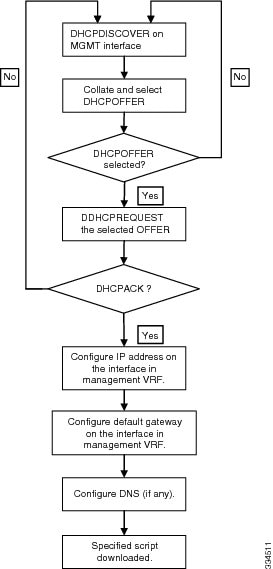
The switch sends out DHCP discover messages on the MGMT interface that solicits DHCP offers from the DHCP server or servers. (See the following figure.) The DHCP client on the Cisco MDS switch uses the switch serial number in the client-identifier option to identify itself to the DHCP server. The DHCP server can use this identifier to send information, such as the IP address and script filename, back to the DHCP client.
POAP requires a minimum DHCP lease period of 3600 seconds (1 hour). POAP checks the DHCP lease period. If the DHCP lease period is set to less than 3600 seconds (1 hour), POAP does not complete the DHCP negotiation.
-
TFTP server name or TFTP server address—The DHCP server relays the TFTP server name or TFTP server address to the DHCP client. The DHCP client uses this information to contact the TFTP server to obtain the script file.
-
Bootfile name—The DHCP server relays the bootfile name to the DHCP client. The bootfile name includes the complete path to the bootfile on the TFTP server. The DHCP client uses this information to download the script file.
When multiple DHCP offers that meet the requirement are received, an offer is randomly chosen. The device completes the DHCP negotiation (request and acknowledgment) with the selected DHCP server, and the DHCP server assigns an IP address to the switch. If a failure occurs in any of the subsequent steps in the POAP process, the IP address is released back to the DHCP server.
If no DHCP offers meet the requirements, the switch does not complete the DHCP negotiation (request and acknowledgment) and an IP address is not assigned.
Script Execution Phase
After the device bootstraps itself using the information in the DHCP acknowledgment, the script file is downloaded from the TFTP server.
The switch runs the configuration script, which downloads and installs the software image and downloads a switch-specific configuration file.
However, the configuration file is not applied to the switch at this point, because the software image that currently runs on the switch might not support all of the commands in the configuration file. After the switch reboots, it begins running the new software image, if an image was installed. At that point, the configuration is applied to the switch.
Note | If the script execution fails, the DHCP discovery starts again. |
Post-Installation Reload Phase
The switch restarts and applies (replays) the configuration on the upgraded software image. Afterward, the switch copies the running configuration to the startup configuration.
Configuring a Switch Using POAP
Make sure that the network environment is set up to use POAP. For more information, see the Setting Up the Network Environment to Use POAP section immediately preceeding this section.
1. Install the switch in the network.
2. Power on the switch.
3. (Optional) If you want to exit POAP mode and enter the normal interactive setup script, enter y (yes).
DETAILED STEPS
| Step 1 | Install the switch in the network. |
| Step 2 | Power on the
switch.
If no configuration file is found, the switch boots in POAP mode and displays a prompt that asks if you want to abort POAP and continue with a normal setup. No entry is required to continue to boot in POAP mode. |
| Step 3 | (Optional) If
you want to exit POAP mode and enter the normal interactive setup script, enter
y (yes).
The switch boots, and the POAP process begins. For more information, see the POAP Process section. |
What to Do Next
Verify the configuration.
Verifying the Device Configuration
To verify the configuration after bootstrapping the device using POAP, use one of the following commands:
|
Command |
Purpose |
|---|---|
|
show running-config |
Displays the running configuration. |
|
show startup-config |
Displays the startup configuration. |
For detailed information about the fields in the output from these commands, see the Cisco MDS 9000 Family Command Reference.
Guidelines and Limitations for POAP
The POAP configuration guidelines and limitations are as follows:
-
The software image for the Cisco MDS 9000 Series switches, including the Cisco MDS 9396S Multilayer Fabric Switch, must support POAP for this feature to function.
-
POAP does not support provisioning of the switch after it has been configured and is operational. Only auto-provisioning of a switch with no startup configuration is supported.
-
Important POAP updates are logged in the syslog and are available from the serial console.
-
Critical POAP errors are logged to the bootflash. The filename format is date-time_poap_PID_[init,1,2].log, where date-time is in the YYYYMMDD_hhmmss format and PID is the process ID.
-
Script logs are saved in the bootflash directory. The filename format is date-time_poap_PID_script.log, where date-time is in the YYYYMMDD_hhmmss format and PID is the process ID.
You can configure the format of the script log file. Script file log formats are specified in the script. The template of the script log file has a default format; however, you can choose a different format for the script execution log file.
-
The POAP feature does not require a license and is enabled by default.
Note
POAP is not supported through DCNM (Data Center Network Management).
 Feedback