- Preface
- New and Changed Information
- Overview
- Using the Cisco NX-OS Setup Utility
- Using PowerOn Auto Provisioning
- Understanding the Command-Line Interface
- Configuring Terminal Settings and Sessions
- Basic Device Management
- Using the Device File Systems, Directories, and Files
- Working with Configuration Files
- Configuring CDP
- Configuring NTP
- Managing System Hardware
- Managing Modules
- Index
Managing System Hardware
This chapter provides details on how to manage system hardware other than services and switching modules and how to monitor the health of the switch.
- Displaying Switch Hardware Inventory
- Displaying the Switch Serial Number
- Displaying Power Usage Information
- Power Supply Modes
- About Crossbar Management
- About Module Temperature Monitoring
- About Fan Modules
- About Clock Modules
- Displaying Environment Information
- Default Settings
Displaying Switch Hardware Inventory
Use the show inventory command to view information on the field replaceable units (FRUs) in the switch, including product IDs, serial numbers, and version IDs. The following example shows the show inventory command output:
switch# show inventory
NAME: "Chassis",  DESCR: "MDS 9506 chassis"
PID: DS-C9506            ,  VID: 0.104,  SN: FOX0712S00T

NAME: "Slot 3",  DESCR: "2x1GE IPS, 14x1/2Gbps FC Module"
PID: DS-X9302-14K9       ,  VID: 0.201,  SN: JAB081405AF

NAME: "Slot 4",  DESCR: "2x1GE IPS, 14x1/2Gbps FC Module"
PID: DS-X9302-14K9       ,  VID: 0.201,  SN: JAB081605A5

NAME: "Slot 5",  DESCR: "Supervisor/Fabric-1"
PID: DS-X9530-SF1-K9     ,  VID: 4.0,  SN: JAB0747080H

NAME: "Slot 6",  DESCR: "Supervisor/Fabric-1"
PID: DS-X9530-SF1-K9     ,  VID: 4.0,  SN: JAB0746090H

NAME: "Slot 17",  DESCR: "MDS 9506 Power Supply"
PID: DS-CAC-1900W        ,  VID: 1.0,  SN: DCA07216052

NAME: "Slot 19",  DESCR: "MDS 9506 Fan Module"
PID: DS-6SLOT-FAN        ,  VID: 0.0,  SN: FOX0638S150
switch# show hardware
Cisco Storage Area Networking Operating System (NX-OS) Software
TAC support: http://www.cisco.com/tac
Copyright (c) 2003-2004 by Cisco Systems, Inc. All rights reserved.
The copyright for certain works contained herein are owned by
Cisco Systems, Inc. and/or other third parties and are used and
distributed under license.

Software
  BIOS:      version 1.0.8
  loader:    version 1.1(0.114)
  kickstart: version 1.3(4a)
  system:    version 1.3(4a)

  BIOS compile time:       08/07/03
  kickstart image file is: bootflash:///boot-17r
  kickstart compile time:  10/25/2010 12:00:00
  system image file is:    bootflash:///isan-17r
  system compile time:     10/25/2020 12:00:00

Hardware
  RAM 1024592 kB

  bootflash: 1000944 blocks (block size 512b)
  slot0:           0 blocks (block size 512b)

  172.22.90.21 uptime is 7 days 4 hours 48 minute(s) 2 second(s)

  Last reset at 272247 usecs after Thu Sep 11 21:47:05 1980
    Reason: Reset Requested by CLI command reload
    System version: 1.3(4a)

This supervisor carries Pentium processor with 1024592 kB of memory
Intel(R) Pentium(R) III CPU at family with 512 KB L2 Cache
Rev: Family  6, Model  11 stepping  1

512K bytes of non-volatile memory.
1000944 blocks of internal bootflash (block size 512b)

--------------------------------
Chassis has 9 slots for Modules
--------------------------------

Module in slot 1 is empty

Module in slot 2 is empty

Module in slot 3 is empty

Module in slot 4 is empty

Module in slot 5 is ok
  Module type is "Supervisor/Fabric-1"
  No submodules are present
  Model number is DS-X9530-SF1-K9
  H/W version is 1.0
  Part Number is 73-7523-06
  Part Revision is A0
  Manufacture Date is Year 6 Week 47
  Serial number is JAB064705E1
  CLEI code is CNP6NT0AAA

Module in slot 6 is empty

Module in slot 7 is empty

Module in slot 8 is empty

Module in slot 9 is empty

---------------------------------------
Chassis has 2 Slots for Power Supplies
---------------------------------------

PS in slot A is ok
  Power supply type is "1153.32W 110v AC"
  Model number is WS-CAC-2500W
  H/W version is 1.0
  Part Number is 34-1535-01
  Part Revision is A0
  Manufacture Date is Year 6 Week 16
  Serial number is ART061600US
  CLEI code is

PS in slot B is ok
  Power supply type is "1153.32W 110v AC"
  Model number is WS-CAC-2500W
  H/W version is 1.0
  Part Number is 34-1535-01
  Part Revision is A0
  Manufacture Date is Year 5 Week 41
  Serial number is ART0541003V
  CLEI code is

----------------------------------
Chassis has one slot for Fan Module
----------------------------------

  Fan module is ok
  Model number is WS-9SLOT-FAN
  H/W version is 0.0
  Part Number is 800-22342-01
  Part Revision is
  Manufacture Date is Year 0 Week 0
  Serial number is
  CLEI code is
Displaying the Switch Serial Number
You can display the serial number of your Cisco MDS 9000 Family switch by looking at the serial number label on the back of the chassis (next to the power supply), or by using the show sprom backplane 1 command.
switch# show sprom backplane 1
DISPLAY backplane sprom contents:
Common block:
 Block Signature : 0xabab
 Block Version   : 2
 Block Length    : 156
 Block Checksum  : 0x106f
 EEPROM Size     : 512
 Block Count     : 3
 FRU Major Type  : 0x6001
 FRU Minor Type  : 0x0
 OEM String      : Cisco Systems, Inc.
 Product Number  : DS-C9506
 Serial Number   : FOX0712S007
 Part Number     : 73-8697-01
 Part Revision   : 01
 Mfg Deviation   : 0
 H/W Version     : 0.1
 Mfg Bits        : 0
 Engineer Use    : 0
 snmpOID         : 9.12.3.1.4.26.0.0
 Power Consump   : 0
 RMA Code        : 0-0-0-0
Chassis specific block:
...
 Note | If you are installing a new license, use the show license host-id command to obtain the switch serial number. For more information, see the Cisco MDS 9000 Family NX-OS Software Licensing Guide. |
Displaying Power Usage Information
Use the show environment power command to display the actual power usage information for the entire switch. In response to this command, power supply capacity and consumption information is displayed for each module.
Note | In a Cisco MDS 9500 Series switch, power usage is reserved for both supervisors regardless of whether one or both supervisor modules are present. |
switch# show environment power

-----------------------------------------------------
PS  Model                Power     Power       Status
                         (Watts)   (Amp @42V)
-----------------------------------------------------
1   DS-CAC-2500W         1153.32   27.46       ok
2   WS-CAC-2500W         1153.32   27.46       ok

Mod Model                Power     Power       Power     Power       Status
                         Requested Requested   Allocated Allocated
                         (Watts)   (Amp @42V)  (Watts)   (Amp @42V)
--- -------------------  -------   ----------  --------- ----------  ----------
1    DS-X9032            199.92    4.76        199.92    4.76        powered-up
4    DS-X9032            199.92    4.76        199.92    4.76        powered-up
5    DS-X9530-SF1-K9     126.00    3.00        126.00    3.00        powered-up
6    DS-X9530-SF1-K9     126.00    3.00        126.00    3.00        powered-up
9    DS-X9016            220.08    5.24        220.08    5.24        powered-up

Power Usage Summary:
--------------------

Power Supply redundancy mode:                   redundant

Total Power Capacity                            1153.32  W

Power reserved for Supervisor(s)[-]             252.00  W
Power reserved for Fan Module(s) [-]            0.00    W
Power currently used by Modules[-]              619.92  W

                                                -------
Total Power Available                           281.40   W
                                                -------
Power Supply Modes
Switches in the MDS 9000 Family have two redundant power supply slots. The power supplies can be configured in either redundant or combined mode.
-
Redundant mode—Uses the capacity of one power supply only. This is the default mode. In case of power supply failure, the entire switch has sufficient power available in the system.
-
Combined mode—Uses the combined capacity of both power supplies. In case of power supply failure, the entire switch can be shut down (depends on the power used) causing traffic disruption. This mode is seldom used, except in cases where the switch has two low power supply capacities but a higher power usage.
Note | The chassis in the Cisco MDS 9000 Family uses 1200 W when powered at 110 V, and 2500 W when powered at 220 V. |
Configuration Guidelines for Power Supplies
When configuring power supplies follow these guidelines:
-
When power supplies with different capacities are installed in the switch, the total power available differs based on the configured mode, either redundant or combined:
-
Redundant mode—The total power is the lesser of the two power supply capacities. For example, suppose you have the following usage figures configured:
Power supply 1 = 2500 W
Additional power supply 2 = not used
Current usage = 2000 W
Current capacity = 2500 W
Then the following three scenarios will differ as specified:
Scenario 1: If 1800 W is added as power supply 2, then power supply 2 is
            shut down.
Reason: 1800 W is less than the usage of 2000 W.

Scenario 2: If 2200 W is added as power supply 2, then the current capacity
            decreases to 2200 W.
Reason: 2200 W is the lesser of the two power supplies.

Scenario 3: If 3000 W is added as power supply 2, then the current capacity
            value remains at 2500 W.
Reason: 2500 W is the lesser of the two power supplies.
This table describes the actions for the scenarios.
Table 1 Redundant Mode Power Supply ScenariosScenario Power Supply 1 (Watts) Current Usage (Watts) Insertion of Power Supply 2 (Watts) New Capacity (Watts) Action Taken by Switch 1 2500 2000 1800 2500 Power supply 2 is shut down. 2 2500 2000 2200 2200 Capacity becomes 2200 W. 3 2500 2000 3300 2500 Capacity remains the same. -
Combined mode—The total power is twice the lesser of the two power supply capacities.
For example, suppose you have the following usage figures configured:
Power supply 1 = 2500 W
Additional Power supply 2 = not used
Current Usage = 2000 W
Current capacity = 2500 W
Then the following three scenarios will differ as specified:
Scenario 1: If 1800 W is added as power supply 2, then the capacity
            increases to 3600 W.
Reason: 3600 W is twice the minimum (1800 W).

Scenario 2: If 2200 W is added as power supply 2, then the current
            capacity increases to 4400 W.
Reason: 4400 W is twice the minimum (2200 W).

Scenario 3: If 3000 W is added as power supply 2, then the current
            capacity increases to 5000 W.
Reason: 5000 W is twice the minimum (2500 W).
This table describes how these scenarios differ.
Table 2 Combined Mode Power Supply ScenariosScenario Power Supply 1 (W) Current Usage (W) Insertion of Power Supply 2 (W) New Capacity (W) Action Taken by 1 2500 2000 1800 3600 Power is never shut down. The new capacity is changed. 2 2500 2000 2200 4400 3 2500 2000 3300 5000
-
-
When you change the configuration from combined to redundant mode and the system detects a power supply that has a capacity lower than the current usage, the power supply is shut down. If both power supplies have a lower capacity than the current system usage, the configuration is not allowed.
Scenario 1: You have the following usage figures configured:

Power supply 1 = 2500 W
Additional Power supply 2 = 1800 W
Current Usage = 2000 W
Current mode = combined mode (so current capacity is 3600 W)

You decide to change the switch to redundant mode. Then power supply 2 is
shut down.

Reason: 1800 W is the lesser of the two power supplies and
        it is less than the system usage.

Scenario 2: You have the following usage figures configured:

Power supply 1 = 2500 W
Additional Power supply 2 = 2200 W
Current Usage = 2000 W
Current mode = combined mode (so current capacity is 4400 W).

You decide to change the switch to redundant mode. Then the current capacity
decreases to 2200 W.

Reason: 2200 W is the lesser of the two power supplies.

Scenario 3: You have the following usage figures configured:

Power supply 1 = 2500 W
Additional Power supply 2 = 1800 W
Current Usage = 3000 W
Current mode = combined mode (so current capacity is 3600 W).

You decide to change the switch to redundant mode. Then the current capacity
decreases to 2500 W and the configuration is rejected.

Reason: 2500 W is less than the system usage (3000 W).
This table describes these scenarios.
Table 3 Combined Mode Power Supply ScenariosScenario Power Supply 1 (W) Current Mode Current Usage (W) Power Supply 2 (W) New Mode New Capacity Action Taken by Switch 1 2500 combined 2000 1800 N/A 3600 This is the existing configuration. 2500 N/A 2000 1800 redundant 2500 Power supply 2 is shut down. 2 2500 combined 2000 2200 N/A 4400 This is the existing configuration 2500 N/A 2000 2200 redundant 2200 The new capacity is changed. 3 2500 combined 3000 1800 N/A 3600 This is the existing configuration 2500 N/A 3000 1800 redundant N/A Rejected, so the mode reverts to combined mode.
Configuring the Power Supply Mode
You can configure power supply modes.
1.
configure
terminal
2.
power
redundancy-mode
{combined |
insrc-redundant
|
ps-redundant
|redundant}
3.
(Optional)
show environment
power
4.
(Optional)
copy running-config
startup-config
DETAILED STEPS
About Crossbar Management
Cisco MDS NX-OS software supports three types of hardware for the Cisco MDS 9500 Series Directors: Generation 1, Generation 2, and Generation 3.
Generation 3 includes the following:
-
48-port 8-Gbps Fibre Channel switching module
-
24-port 8-Gbps Fibre Channel switching module
-
4/44-port 8-Gbps Host-Optimized Fibre Channel module
-
Cisco MDS 9513 Fabric-2 Crossbar Switching module
Note | The new software features in Cisco MDS NX-OS Release 4.1(1b) and later are not supported in the Generation 1 hardware. |
Note | The Cisco MDS NX-OS software does not support the following hardware: Supervisor-1 module, the IPS-4 and IPS-8 storage modules, the Cisco MDS 9216 switch, the Cisco MDS 9216A switch, the Cisco MDS 9020 switch, the Cisco MDS 9120 switch, and the Cisco MDS 9140 switch. |
Generation 2 hardware includes the following:
-
Cisco MDS 9513 Director chassis
-
Supervisor-2 module
-
MSM-18/4 Multiservice Storage module
-
Cisco MDS 9222i Module-1 module
-
48-port 4-Gbps Fibre Channel switching module
-
24-port 4-Gbps Fibre Channel switching module
-
12-port 4-Gbps Fibre Channel switching module
-
4-port 10-Gbps Fibre Channel switching module
The Cisco MDS NX-OS software on the Cisco MDS 9500 Series Directors supports the following types of crossbars:
-
Integrated crossbar—Located on the Supervisor-1 and Supervisor-2 modules. The Cisco MDS 9506 and 9509 Directors only use integrated crossbars.
-
External crossbar—Located on an external crossbar switching module. Cisco MDS 9513 Directors require external crossbar modules.
Generation 1 hardware includes the following:
-
Cisco MDS 9506 and 9509 Director chassis
-
Supervisor-1 module
-
32-port 2-Gbps Fibre Channel switching module
-
16-port 2-Gbps Fibre Channel switching module
-
8-port IP Storage Services (IPS-8) module
-
4-port IP Storage Services (IPS-4) module
-
Storage Services Module (SSM)
-
14/2-port Multiprotocol Services (MPS-14/2) module
Operational Considerations when Removing Crossbars
You can mix and match Generation 1 and Generation 2 hardware on the Cisco MDS 9500 Series Directors running Cisco MDS NX-OS software without compromising the integrity and availability of your SANs based on Cisco MDS 9500 Series Directors.
To realize these benefits, you must gracefully shutting down the crossbars and consider the backward compatibility of the Generation 1 modules.
- Gracefully Shutting Down a Crossbar
- Provideing Backward Compatibility for Generation 1 Modules in Cisco MDS 9513 Directors
Gracefully Shutting Down a Crossbar
You must perform a graceful shutdown of a crossbar (integrated or external) before removing it from the MDS 9500 Series Director.
-
You must enter the EXEC mode out-of-service xbar command for a graceful shutdown of external crossbar modules in a Cisco MDS 9513 Director.
out-of-service xbar slot
slot indicates the external crossbar module slot number.
Note
To reactivate the external crossbar module, you must remove and reinsert or replace the crossbar module.
-
You must enter the EXEC mode out-of-service module command for a graceful shutdown of integrated crossbars on the supervisor module in a Cisco MDS 9506 or 9509 Director.
out-of-service module slot
slot indicates the chassis slot number on either the Supervisor-1 module or the Supervisor-2 module in which the integrated crossbar resides.
Note
To reactivate the integrated crossbar, you must remove and reinsert or replace the Supervisor-1 module or Supervisor-2 module.

Caution
Taking the crossbar out-of-service may cause a supervisor switchover.
Provideing Backward Compatibility for Generation 1 Modules in Cisco MDS 9513 Directors
To provide backward compatibility for a Generation 1 module in a Cisco MDS 9513 chassis, the active and backup Supervisor-2 modules are associated to a specific crossbar module. The Supervisor-2 module in slot 7 is associated with crossbar module 1, and Supervisor-2 module in slot 8 is associated with crossbar module 2. You must plan for the following operational considerations before removing crossbar modules:
-
Whenever a crossbar module associated with the active Supervisor-2 module goes offline or is brought online in a system that is already online, a stateful supervisor switchover occurs. This switchover does not disrupt traffic. Events that cause a crossbar module to go offline include the following:
-
Supervisor-2 module switchovers do not occur if the crossbar switching module associated with the backup Supervisor-2 module goes offline.
Note | Supervisor-2 module switchovers do not occur when removing crossbar switch modules on a Cisco MDS 9513 that has only Generation 2 modules installed. |
About Module Temperature Monitoring
Built-in automatic sensors are provided in all switches in the Cisco MDS 9000 Family to monitor your switch at all times.
Each module (switching and supervisor) has four sensors: 1 (outlet sensor), 2 (intake sensor), 3 (onboard sensor), and 4 (onboard sensor). Each sensor has two thresholds (in degrees Celsius): minor and major.
Note | A threshold value of –127 indicates that no thresholds are configured or applicable. |
-
Minor threshold—When a minor threshold is exceeded, a minor alarm occurs and the following action is taken for all four sensors:
-
Major threshold—When a major threshold is exceeded, a major alarm occurs and the following action is taken:
-
For sensors 1, 3, and 4 (outlet and onboard sensors):
System messages are displayed.
Call Home alerts are sent (if configured).
SNMP notifications are sent (if configured).
-
For sensor 2 (intake sensor):
If the threshold is exceeded in a switching module, only that module is shut down.
If the threshold is exceeded in an active supervisor module with HA-standby or standby present, only that supervisor module is shut down and the standby supervisor module takes over.
If you do not have a standby supervisor module in your switch, you have an interval of 2 minutes to decrease the temperature. During this interval the software monitors the temperature every five (5) seconds and continuously sends system messages as configured.

Tip
To realize the benefits of these built-in automatic sensors on any switch in the Cisco MDS 9500 Series, we highly recommend that you install dual supervisor modules. If you are using a Cisco MDS 9000 Family switch without dual supervisor modules, we recommend that you immediately replace the fan module if even one fan is not working.
-
Displaying Module Temperatures
Use the show environment temperature command to display temperature sensors for each module.
This example shows the temperature information for Generation 1 hardware.
switch# show environment temperature
---------------------------------------------------------------
Module   Sensor   MajorThresh   MinorThres   CurTemp     Status
                  (Celsius)     (Celsius)    (Celsius)
---------------------------------------------------------------
2        Outlet   75            60           35          ok
2        Intake   65            50           33          ok

5        Outlet   75            60           44          ok
5        Intake   65            50           36          ok

6        Outlet   75            60           42          ok
6        Intake   65            50           35          ok

7        Outlet   75            60           33          ok
7        Intake   65            50           30          ok

9        Outlet   75            60           34          ok
9        Intake   65            50           39          ok
This example shows the temperature information for Generation 1 hardware.
switch# show environment temperature
---------------------------------------------------------------
Module   Sensor   MajorThresh   MinorThres   CurTemp     Status
                  (Celsius)     (Celsius)    (Celsius)
---------------------------------------------------------------
1        Outlet1  75            60           33          ok
1        Outlet2  65            50           30          ok
1        Intake1  65            50           30          ok
1        LcFwdUp  65            50           35          ok
1        LcFwdDn  65            50           39          ok
1        FC-MAC   65            50           34          ok

6        Outlet1  75            60           33          ok
6        Outlet2  65            50           30          ok
6        Intake1  65            50           30          ok
6        Crosbar  65            50           35          ok
6        Arbiter  65            50           39          ok
6        CPU      65            50           34          ok
About Fan Modules
Hot-swappable fan modules (fan trays) are provided in all switches in the Cisco MDS 9000 Family to manage airflow and cooling for the entire switch. Each fan module contains multiple fans to provide redundancy. The switch can continue functioning in the following situations:
-
One or more fans fail within a fan module—Even with multiple fan failures, switches in the Cisco MDS 9000 Family can continue functioning. When a fan fails within a module, the functioning fans in the module increase their speed to compensate for the failed fan(s).
-
The fan module is removed for replacement—The fan module is designed to be removed and replaced while the system is operating without presenting an electrical hazard or damage to the system. When replacing a failed fan module in a running switch, be sure to replace the new fan module within five minutes.
Note | If one or more fans fail within a fan module, the Fan Status LED turns red. A fan failure could lead to temperature alarms if not corrected immediately. |
The fan status is continuously monitored by the Cisco MDS NX-OS software. In case of a fan failure, the following action is taken:
-
System messages are displayed.
-
Call Home alerts are sent (if configured).
-
SNMP notifications are sent (if configured).
Use the show environment fan command to display the fan module status.
This example shows the chassis fan information.
switch# show environment fan
------------------------------------------------------
Fan             Model                Hw         Status
------------------------------------------------------
Chassis         DS-9SLOT-FAN         1.2        ok
PS-1            --                   --         ok
PS-2            --                   --         absent
The possible Status field values for a fan module on the Cisco MDS 9500 Series switches are as follows:
-
If the fan module is operating properly, the status is ok.
-
If the fan is physically absent, the status is absent.
-
If the fan is physically present but not working properly, the status is failure.
On the Cisco MDS 9513 Director, the front fan module has 15 fans. If the front fan module (DS-13SLT-FAN-F) State field contains "failure" in the show environment fan command output, it also displays the numbers of the failing fans.
This example shows a Cisco MDS 9513 front fan module failure.
switch# show environment fan
------------------------------------------------------
Fan             Model                Hw         Status
------------------------------------------------------
Chassis         DS-13SLT-FAN-F       0.3        failure 3 5 6 13
Chassis         DS-13SLT-FAN-R       0.3        ok
PS-1            --                   --         ok
PS-2            --                   --         ok
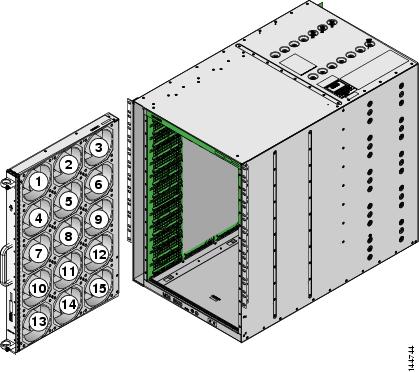
The rear fan module (DS-13SLT-FAN-R) on the Cisco MDS 9513 Director has only two fans. If a fan in the rear fan module fails, the State field in the show environment fan command output only displays "failure" and not the failing fan number.
This example shows a fan module failure on a Cisco MDS 9513 Director.
switch# show environment fan
------------------------------------------------------
Fan             Model                Hw         Status
------------------------------------------------------
Chassis         DS-13SLT-FAN-F       0.3        ok
Chassis         DS-13SLT-FAN-R       0.3        failure
PS-1            --                   --         ok
PS-2            --                   --         ok
About Clock Modules
All switches in the Cisco MDS 9000 Family have two clock modules: Module A (primary) and Module B (redundant). The clock modules are designed, tested, and qualified for mission-critical availability with a mean time between failures (MTBF) of 3,660,316 hours. This translates to a potential failure every 365 years. Additionally, Cisco MDS 9000 Family switches are designed to automatically switch to the redundant clock module should the active clock module fail.
Tip | We recommend that you replace a failed clock module during a maintenance window. |
Use the show environment clock command to display the status for both clock modules.
This example shows clock module information.
switch# show environment clock
----------------------------------------------------------
Clock           Model                Hw         Status
----------------------------------------------------------
A               DS-C9500-CL          0.0        ok/active
B               DS-C9500-CL          0.0        ok/standby
Displaying Environment Information
Use the show environment command to display all environment-related switch information.
switch# show environment
Clock:
----------------------------------------------------------
Clock           Model                Hw         Status
----------------------------------------------------------
A               Clock Module         1.0        ok/active
B               Clock Module         1.0        ok/standby

Fan:
------------------------------------------------------
FAN             Model                Hw         Status
------------------------------------------------------
Chassis         DS-2SLOT-FAN         0.0        ok
PS-1            --                   --         ok
PS-2            --                   --         absent
Temperature:
---------------------------------------------------------------
Module   Sensor   MajorThresh   MinorThres   CurTemp     Status
                  (Celsius)     (Celsius)    (Celsius)
---------------------------------------------------------------
1        1        75            60           32          ok
1        2        65            50           32          ok
1        3        -127          -127         43          ok
1        4        -127          -127         39          ok
Power Supply:
-----------------------------------------------------
PS  Model                Power     Power       Status
                         (Watts)   (Amp @42V)
-----------------------------------------------------
1   PWR-950-AC           919.38    21.89       ok
2                        --        --          absent
Mod Model                Power     Power       Power     Power       Status
                         Requested Requested   Allocated Allocated
                         (Watts)   (Amp @42V)  (Watts)   (Amp @42V)
--- -------------------  -------   ----------  --------- ----------  ----------
1    DS-X9216-K9-SUP     220.08    5.24        220.08    5.24        powered-up
Power Usage Summary:
--------------------
Power Supply redundancy mode:                   redundant
Total Power Capacity                            919.38   W
Power reserved for Supervisor(s)[-]             220.08   W
Power reserved for Fan Module(s)[-]             0.00     W
Power currently used by Modules[-]              0.00     W
                                                -------
Total Power Available                           699.30   W
                                                -------
Default Settings
| Parameter | Default Setting |
|---|---|
| Power supply mode | Redundant mode. |
 Feedback