Troubleshooting
This section contains the following topics:
■ Resetting the Switch to the Factory Default Settings
■Finding the Switch Serial Number
Diagnosing Problems
The switch LEDs provide troubleshooting information about the switch. They show POST failures, port-connectivity problems, and overall switch performance. You can also get statistics from the device manager, the CLI, or an SNMP workstation. See the software configuration guide, the switch command reference guide on Cisco.com, or the documentation that came with your SNMP application for details.
The following topics contain approaches to diagnosing problems:
Switch POST Results
See the Verifying Switch Operation for information on POST.
Note: POST failures are usually fatal. Contact your Cisco technical support representative if your switch does not pass POST.
Switch LEDs
Look at the port LEDs information when troubleshooting the switch. See the LEDs for a description of the LED colors and their meanings.
Switch Connections
■Ethernet and Fiber-Optic Cables
Bad or Damaged Cable
Always examine the cable for marginal damage or failure. A cable might be just good enough to connect at the physical layer, but it could corrupt packets as a result of subtle damage to the wiring or connectors. You can identify this problem because the port has many packet errors or it constantly flaps (loses and regains link).
■Exchange the copper or fiber-optic cable with a known good cable.
■Look for broken or missing pins on cable connectors.
■Rule out any bad patch panel connections or media converters between the source and the destination. If possible, bypass the patch panel, or eliminate media converters (fiber-optic-to-copper).
■Try the cable in another port to see if the problem follows the cable.
Ethernet and Fiber-Optic Cables
Ensure that you have the correct cable:
■For Ethernet, use Category 3 copper cable for 10 Mb/s UTP connections. Use either Category 5, Category 5e, or Category 6 UTP for 10/100 or 10/100/1000 Mb/s connections.
■Verify that you have the correct fiber-optic cable for the distance and port type. Make sure that the connected device ports match and use the same type encoding, optical frequency, and fiber type.
■Determine if a copper crossover cable was used when a straight-through was required or the reverse. Enable auto-MDIX on the switch, or replace the cable. See Table 2-1 for recommended Ethernet cables.
Link Status
Verify that both sides have link. A broken wire or a shutdown port can cause one side to show link even though the other side does not have link.
A port LED that is on does not guarantee that the cable is functional. It might have encountered physical stress, causing it to function at a marginal level. If the port LED does not turn on:
■Connect the cable from the switch to a known good device.
■Ensure that both ends of the cable are connected to the correct ports.
■Verify that both devices have power.
■Verify that you are using the correct cable type. See the Connector and Cable Specifications for information.
■Look for loose connections. Sometimes a cable appears to be seated but is not. Disconnect the cable, and then reconnect it.
10/100 and 10/100/1000 Port Connections
A port appears to malfunction:
■Verify the status of all ports. See Table 8 for descriptions of the LEDs and their meanings.
■Use the show interfaces privileged EXEC command to see if the port is error-disabled, disabled, or shut down. Re-enable the port if necessary.
■Verify the cable type. See Connector and Cable Specifications.
10/100 PoE+ Port Connections
A powered device connected to a PoE+ port does not receive power:
■Verify the status of all the ports. See Table 8 for descriptions of the LEDs and their meanings.
■Use the show interfaces privileged EXEC command to see if the port is error-disabled, disabled, or shutdown. Re-enable the port if necessary.
■Verify the cable type. Many legacy powered devices, including older Cisco IP phones and access points that do not fully support IEEE 802.3af or IEEE 802 (PoE and PoE+ standards) might not support PoE or PoE+ when connected to the switch by a crossover cable. Replace the crossover cable with a straight-through cable.
Caution: Non-compliant cabling or powered devices can cause a PoE or PoE+ port fault. Use only compliant cabling to connect Cisco prestandard IP Phones, and wireless access points, IEEE 802.3af or IEEE 802.3at-compliant devices.
SFP Modules
Use only Cisco SFP modules. Each Cisco module has an internal serial EEPROM that is encoded with security information. This encoding verifies that the module meets the requirements for the switch.
■Inspect the SFP module. Exchange the suspect module with a known good module.
■Verify that the module is supported on this platform. (The switch release notes on Cisco.com list the SFP modules that the switch supports.)
■Use the show interfaces privileged EXEC command to see if the port or module is error-disabled, disabled, or shutdown. Re-enable the port if needed.
■Ensure that all fiber-optic connections are clean and securely connected.
Interface Settings
Verify that the interface is not disabled or powered off. If an interface is manually shut down on either side of the link, it does not come up until you re-enable the interface. Use the show interfaces privileged EXEC command to see if the interface is error-disabled, disabled, or shut down on either side of the connection. If needed, re-enable the interface.
Ping End Device
Ping from the directly connected switch first, and then work your way back port by port, interface by interface, trunk by trunk, until you find the source of the connectivity issue. Make sure that each switch can identify the end device MAC address in its Content-Addressable Memory (CAM) table.
Spanning Tree Loops
STP loops can cause serious performance issues that look like port or interface problems.
A unidirectional link can cause loops. It occurs when the traffic sent by the switch is received by the neighbor, but the traffic from the neighbor is not received by the switch. A broken cable, other cabling problems, or a port issue could cause this one-way communication.
You can enable UniDirectional Link Detection (UDLD) on the switch to help identify unidirectional link problems. For information about enabling UDLD on the switch, see the “Understanding UDLD” section in the switch software configuration guide on Cisco.com.
Switch Performance
■Speed, Duplex, and Auto-Negotiation
Speed, Duplex, and Auto-Negotiation
Port statistics that show a large amount of alignment errors, Frame Check Sequence (FCS), or late collisions errors, might mean a speed or duplex mismatch.
A common issue occurs when duplex and speed settings are mismatched between two switches, between a switch and a router, or between the switch and a workstation or server. Mismatches can happen when manually setting the speed and duplex or from auto-negotiation issues between the two devices.
To maximize switch performance and to ensure a link, follow one of these guidelines when changing the duplex or the speed settings.
■Let both ports autonegotiate both speed and duplex.
■Manually set the speed and duplex parameters for the interfaces on both ends of the connection.
■If a remote device does not autonegotiate, use the same duplex settings on the two ports. The speed parameter adjusts itself even if the connected port does not autonegotiate.
Auto-Negotiation and Network Interface Cards
Problems sometimes occur between the switch and third-party network interface cards (NICs). By default, the switch ports and interfaces autonegotiate. Laptops or other devices are commonly set to autonegotiate, yet sometimes issues occur.
To troubleshoot auto-negotiation problems, try manually setting both sides of the connection. If this does not solve the problem, there could be a problem with the firmware or software on the NIC. You can resolve this by upgrading the NIC driver to the latest version.
Cabling Distance
If the port statistics show excessive FCS, late-collision, or alignment errors, verify that the cable distance from the switch to the connected device meets the recommended guidelines. See the Cables and Adapters.
Resetting the Switch to the Factory Default Settings
Note: Resetting the switch deletes the current configuration and reboots the switch.
To reset the switch to the factory default settings:
1. At the switch prompt, enter enable, and press Return or Enter.
2. At the Privileged EXEC prompt, switch #, enter setup and press Return or Enter.
The switch displays the prompt to run the initial configuration dialog. See the Configuring the Switch with the CLI Setup Program.
Finding the Switch Serial Number
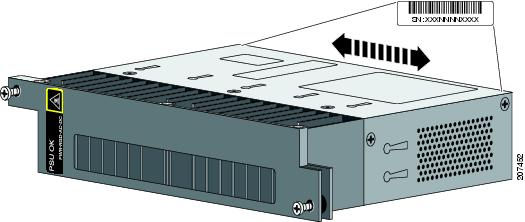
If you contact Cisco Technical Assistance, you need to know the switch serial number. Figure 52 and Figure 53 show the serial number locations. You can also use the show version privileged EXEC command to see the switch serial number.
Figure 52 Serial Number Location for Cisco CGS-2520-24TC and CGS-2520-16S-8PC Switches
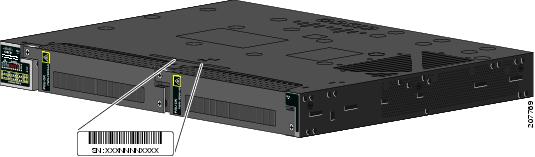
Figure 53 Serial Number Location for the Power Supply Modules
 Feedback