Enable SAML SSO for Management Center Using Duo
Is this Guide for You?
This guide helps network administrators configure Security Assertion Markup Language (SAML) Single Sign-On (SSO) in Firewall Management Center with Duo as the Identity Provider (IdP).
Overview of SAML SSO in Firewall Management Center
When you enable SSO in Firewall Management Center, the login page displays an SSO link. Users with SSO access can click this link to sign in through their IdP, in this case, Duo, instead of entering a username and password in the Firewall Management Center login page. After Duo authenticates the user, they are redirected back to the Firewall Management Center web interface and are automatically logged in. Firewall Management Center does not require a direct network connection to Duo because all communication between Firewall Management Center and Duo occurs through the user’s browser.
In a multitenant Firewall Management Center, you can configure SSO to assign SAML users to specific subdomains. This configuration must be done at the global domain level. If there is a mismatch between the roles in Duo and Firewall Management Center, the default role, which is that of a security analyst, is assigned to the user. With this default role, a user has access to all domains.
System Requirements
Table 1 lists the platforms and versions for this feature and the example provided in this document.
|
Product |
Version |
Version used in this guide |
|---|---|---|
|
Cisco Secure Firewall Management Center |
6.7 or later |
10.0 |
|
Cisco Secure Firewall Threat Defense |
6.7 or later |
10.0 |
|
Duo Admin Panel |
— |
Duo 75 |
Prerequisites for Configuring Duo for SSO in Firewall Management Center
-
Ensure that you have a Duo administrator account.
-
Log in to Duo Admin Panel at https://admin.duosecurity.com/login using your Duo administrator account credentials.
-
Complete two-factor authentication.
-
Download Duo Mobile on user's device for two-factor authentication.
-
Ensure that Firewall Management Center can reach the Duo IdP.
Guidelines for Using Duo to Enable SAML SSO in Firewall Management Center
Guidelines
-
Only users with the administrator role authenticated internally or by LDAP or RADIUS can configure SSO.
-
In Firewall Management Center high-availability configurations, ensure that you follow these guidelines:
-
Since SSO configuration is not synchronized between the members of the high availability pair, you must configure SSO separately on each member of the pair.
-
Both Firewall Management Centers in a high-availability pair must use the same IdP for SSO. You must configure a service provider application in Duo for each Firewall Management Center configured for SSO.
-
Before a user can use SSO to access the secondary Firewall Management Center for the first time, that user must first use SSO to log into the primary Firewall Management Center at least once.
-
-
Do not configure SSO in deployments using CC mode.
Limitations
-
Firewall Management Center can support SSO with only one SSO provider at a time—you cannot configure the Firewall Management Center to use, for instance, both Duo and Okta for SSO.
-
Firewall Management Center does not support SSO initiated from Duo.
-
Firewall Management Center does not support logging in with CAC credentials for SSO accounts.
Workflow for Enabling SAML SSO in Firewall Management Center Using Duo
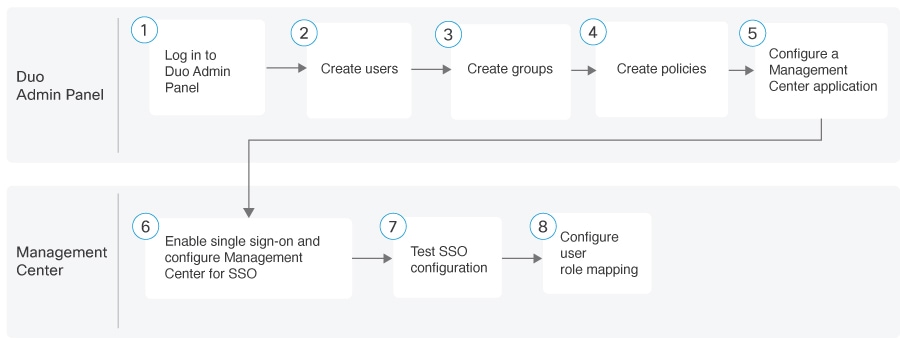
|
Step |
Task |
More Information |
|---|---|---|
|
1 |
Log in to Duo Admin panel. |
— |
|
2 |
Create users in Duo. |
|
|
3 |
Create groups in Duo. |
|
|
4 |
Create policies in Duo. |
|
|
5 |
Configure a Firewall Management Center application in Duo. |
|
|
6 |
Enable SSO and configure Firewall Management Center for SSO. |
|
|
7 |
Test SSO configuration in Firewall Management Center. |
— |
|
8 |
Configure user role mapping in Firewall Management Center. |
Create a User in Duo
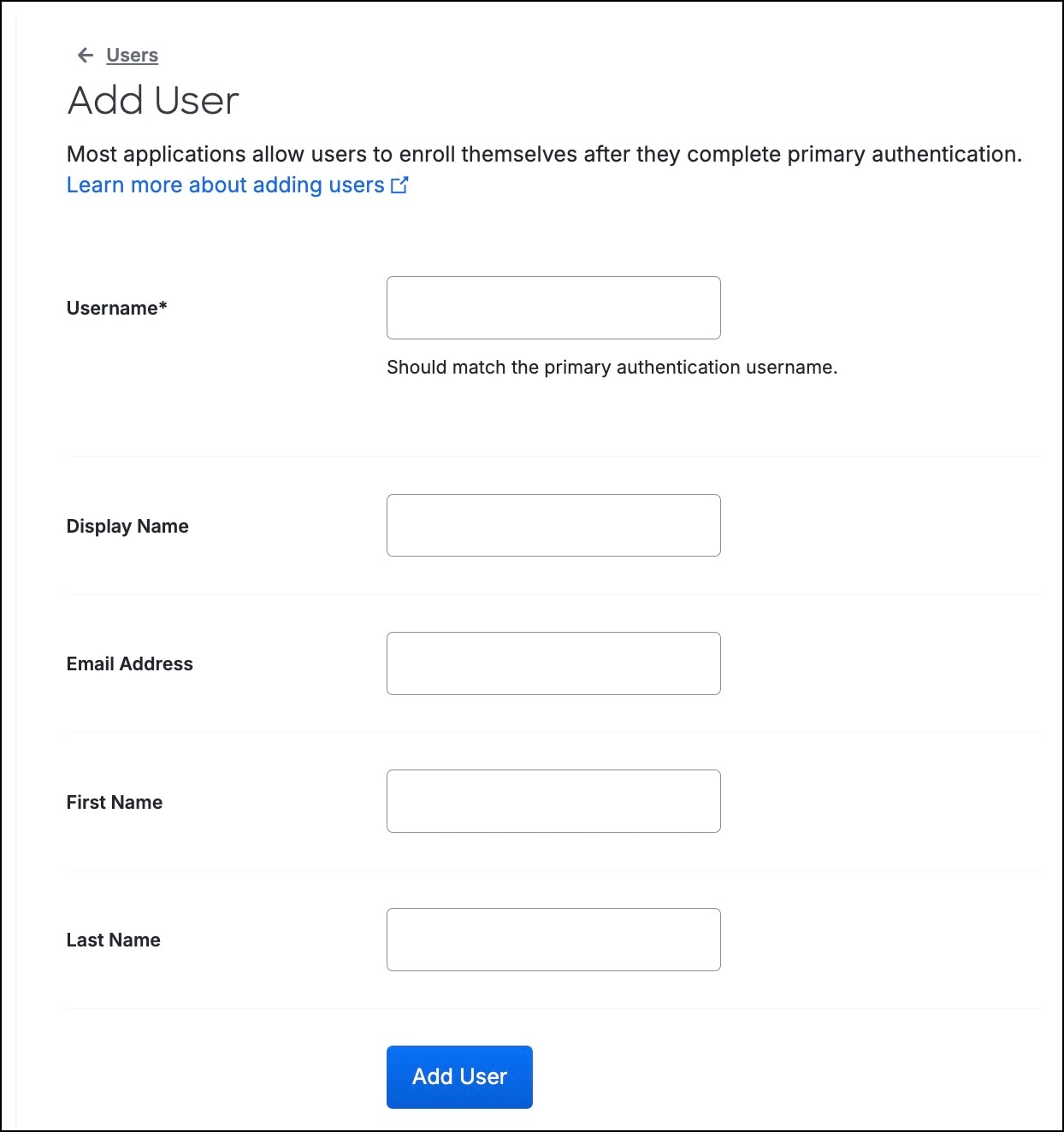
You must create Duo user accounts from the Duo Admin panel. These user accounts allow your end-users to log in to Duo-protected services and applications with two-factor authentication.
Procedure
|
Step 1 |
From the Duo Admin panel, choose Users > Users. |
|
Step 2 |
Click Add user.
|
|
Step 3 |
In the Username field, enter the username. |
|
Step 4 |
In the Display Name field, enter the user's display name. |
|
Step 5 |
In the Email Address field, enter the user's email address. |
|
Step 6 |
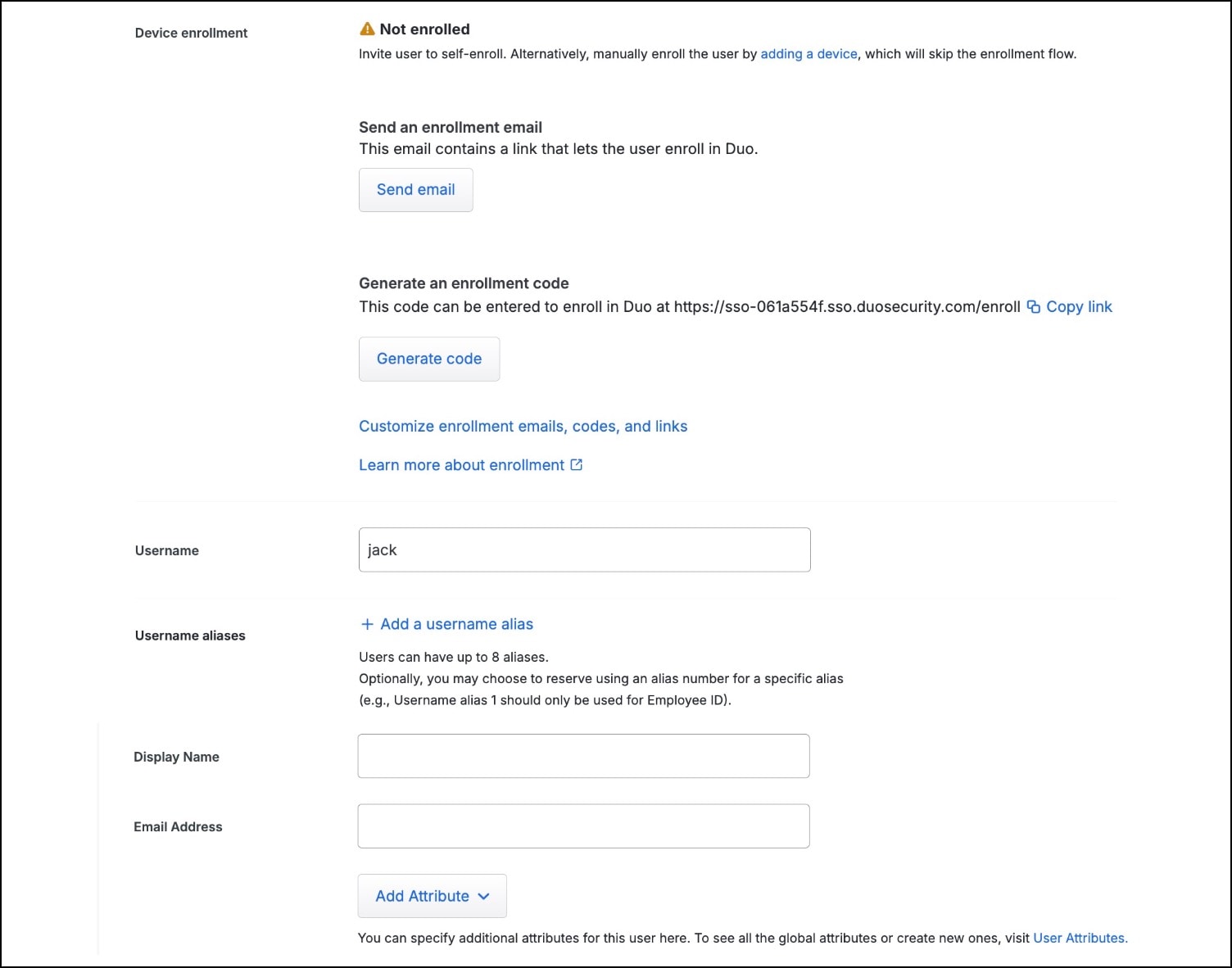
Click Add User The user is created and you enter the edit mode for the user. |
|
Step 7 |
In Device enrollment, click Send email. This email contains a link that lets the user enroll in Duo.
|
|
Step 8 |
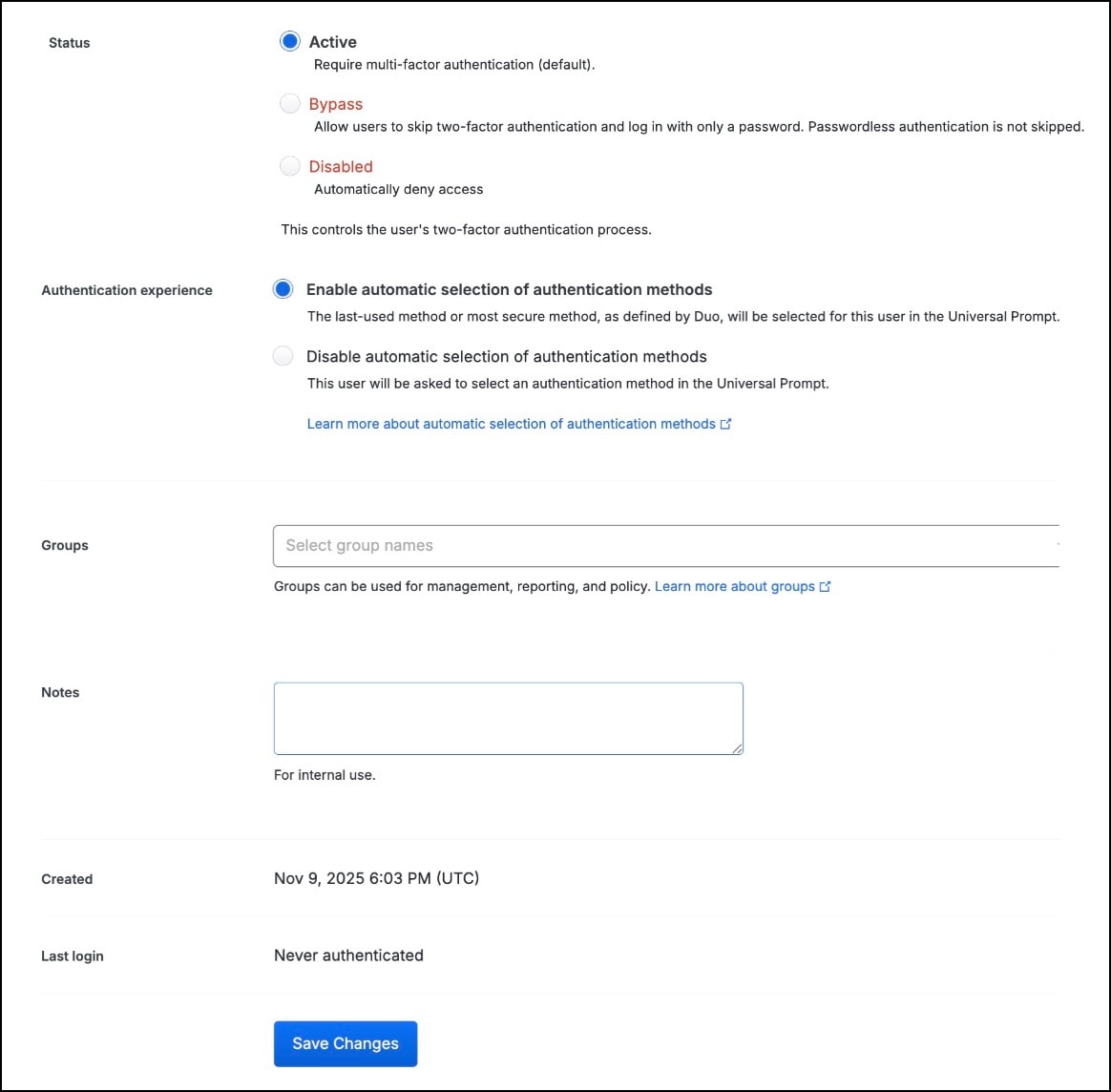
In Status, click the Active radio button to require multi-factor authentication (MFA) for the user.
|
|
Step 9 |
Click Save Changes. The user gets an email from Duo Security to set up a user account for Duo. The user must click the link in the email to create an account. |
Create a Group in Duo
You can use groups to organize and manage users in Duo.
In this example, we create a group, and associate it with the Firewall Management Center application, and configure it such that only users who are members of the group can get authenticated in Firewall Management Center.
Procedure
|
Step 1 |
From the Duo Admin panel, choose Users > Groups. |
|
Step 2 |
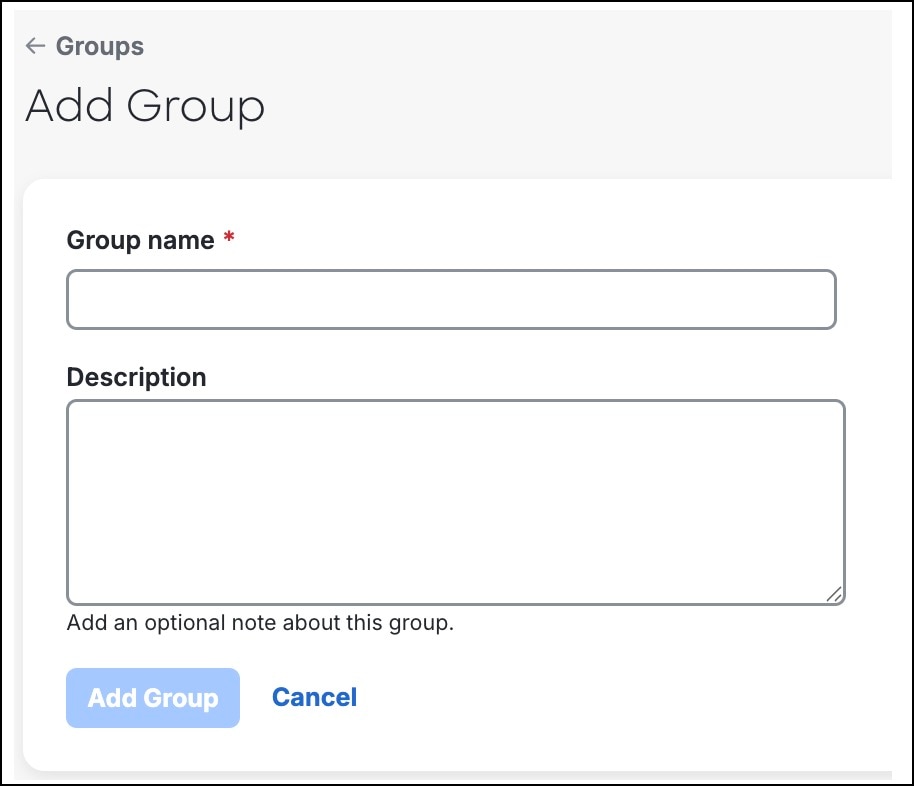
Click +Add group.
|
|
Step 3 |
In the Group name field, enter the group name. |
|
Step 4 |
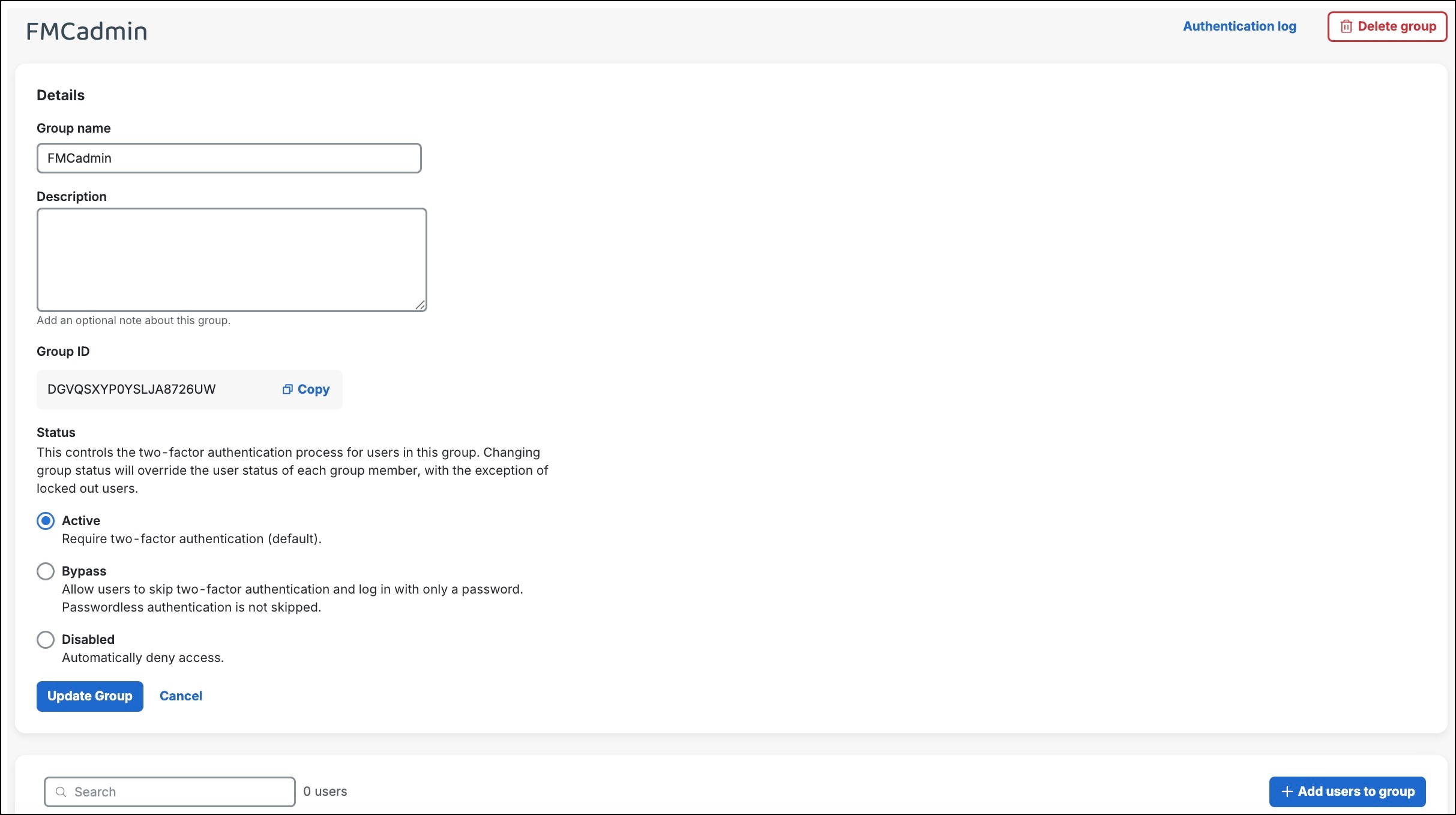
Click Add Group. The group gets created and you enter the edit mode for the group.
|
|
Step 5 |
In Status, click Active to require two-factor authentication for all users in the group. |
|
Step 6 |
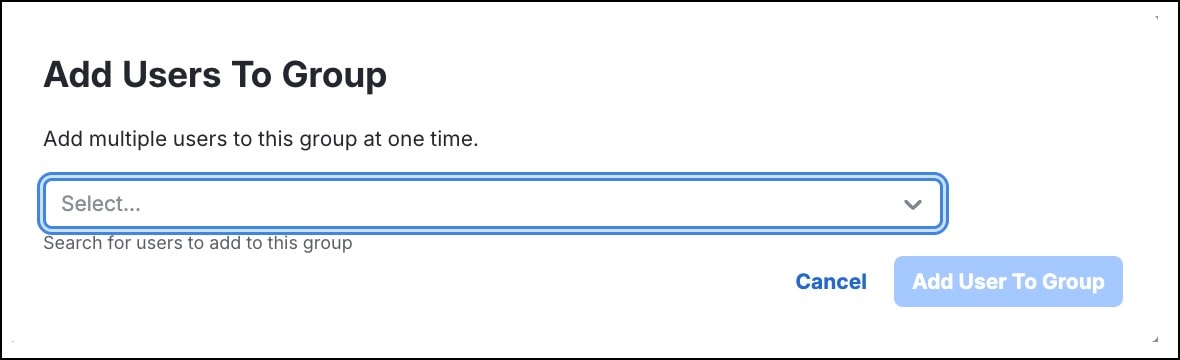
Click +Add users to group. |
|
Step 7 |
In the Add Users To Group dialog box, choose one or more users from the drop-down list.
|
|
Step 8 |
Click Add User To Group. The groups are listed in the Groups page. In our example, the groups are:
|
Create a Policy
You can create policies and assign them to groups to control how your users get authenticated.
Procedure
|
Step 1 |
From the Duo Admin panel, choose Policies > Policies. |
|
Step 2 |
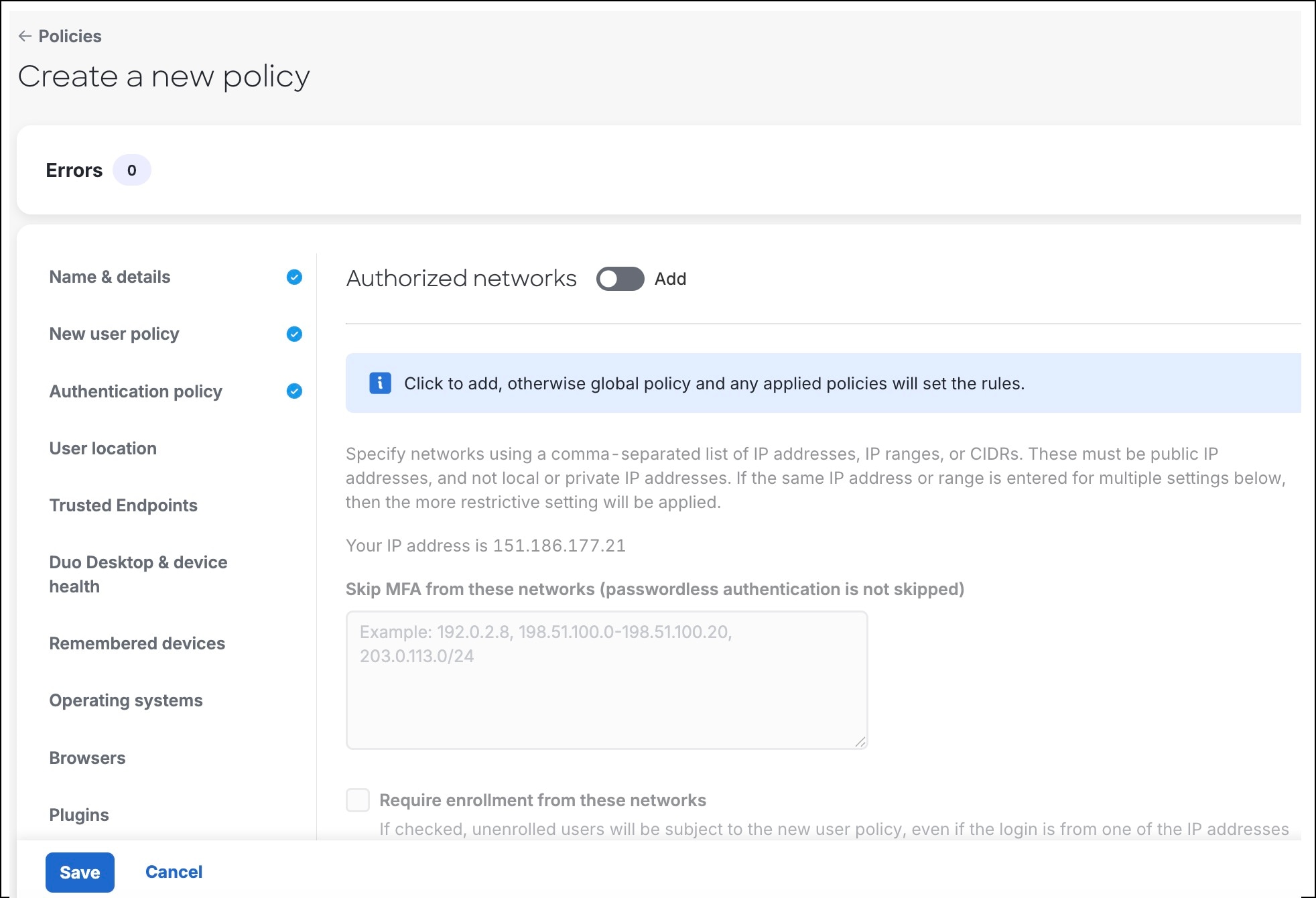
Click +Add Policy. The Create a new policy dialog box is displayed with rules in the left pane.
|
|
Step 3 |
Choose the required rules from the left pane. The parameters corresponding to these rules are displayed on the right pane. |
|
Step 4 |
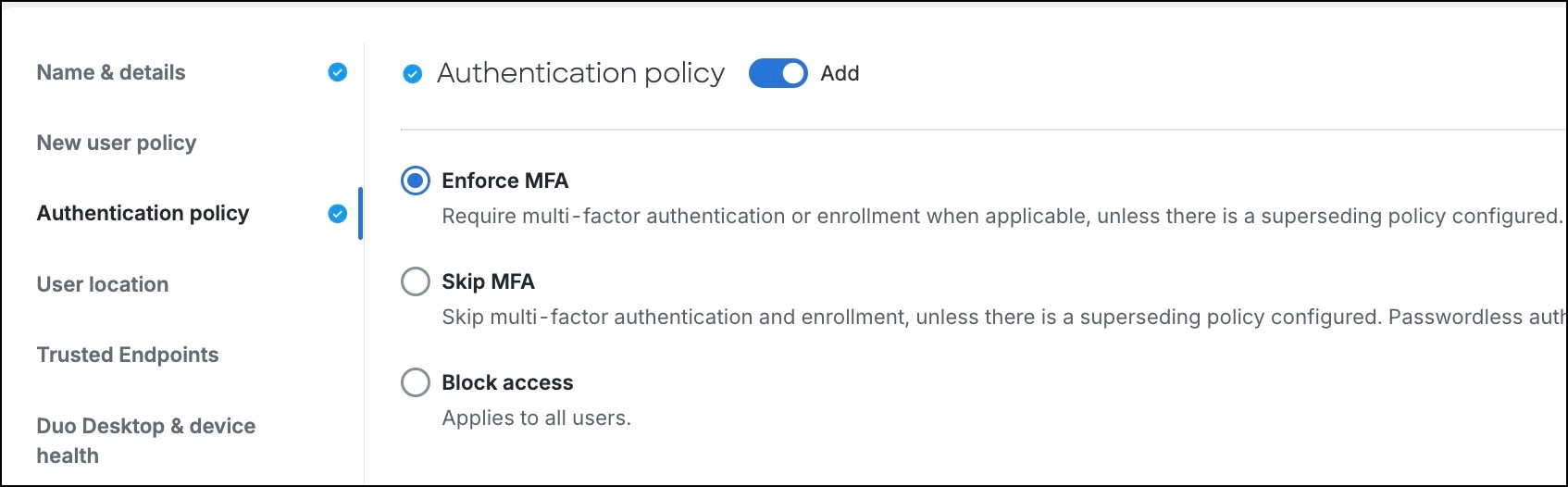
Configure rules to enable your company's user authentication requirements. By selecting Enforce MFA, the Authentication policy in this example requires all users to use MFA.
|
|
Step 5 |
Click Save. |
Create a Firewall Management Center Application in Duo
To enable SAML SSO for Firewall Management Center with Duo, create a Firewall Management Center application in Duo.
Procedure
|
Step 1 |
From the Duo Admin panel, choose Applications > Applications. |
||
|
Step 2 |
Click + Add application. |
||
|
Step 3 |
Search for Generic SAML Service Provider in the Application Catalog in the search bar. |
||
|
Step 4 |
Click + Add. |
||
|
Step 5 |
Click the Single Sign-On tab. |
||
|
Step 6 |
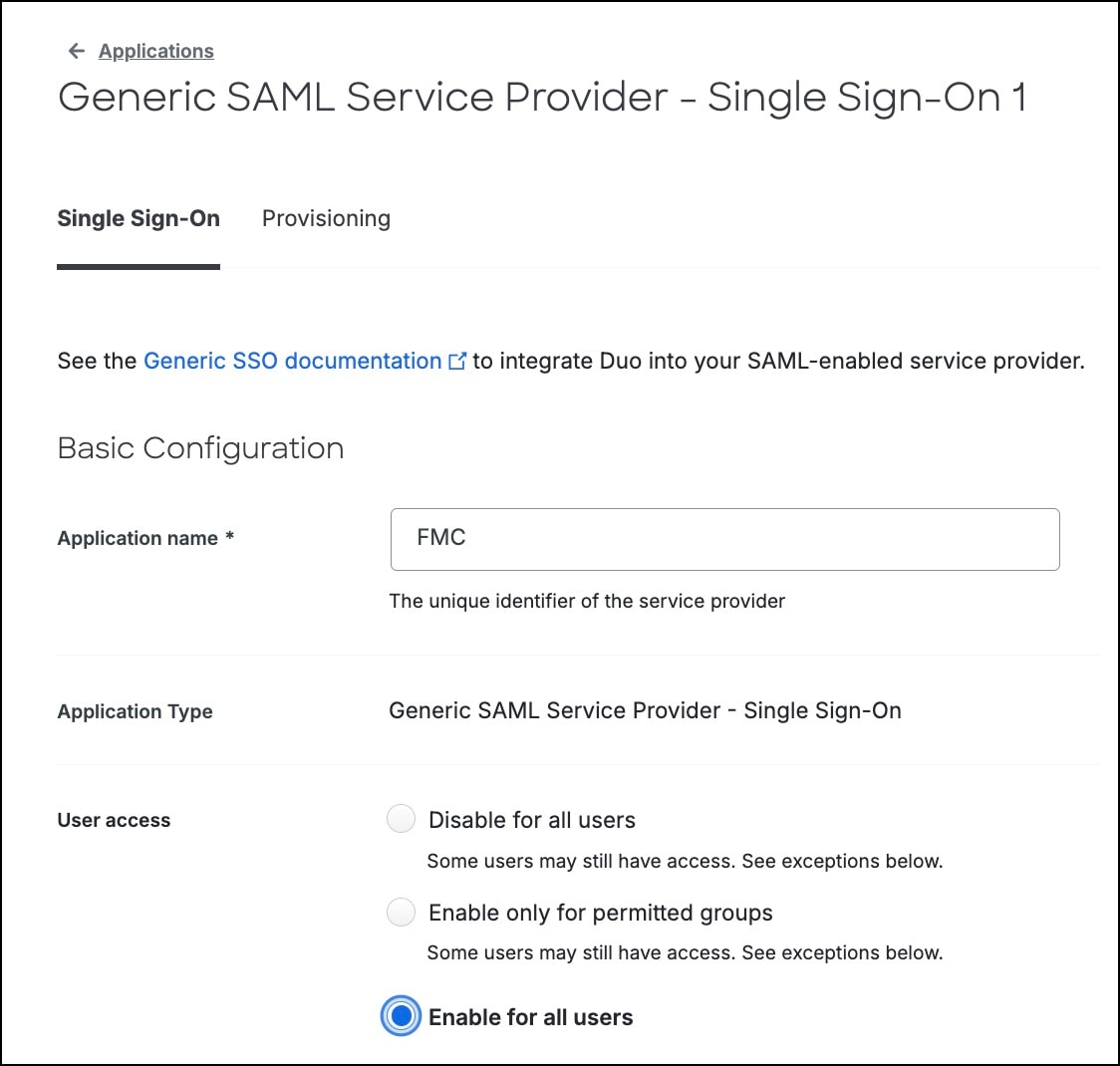
In the Application name field, enter a name of the application. |
||
|
Step 7 |
In User access, click the Enable for all users or the Enable only for permitted groups radio button.
|
||
|
Step 8 |
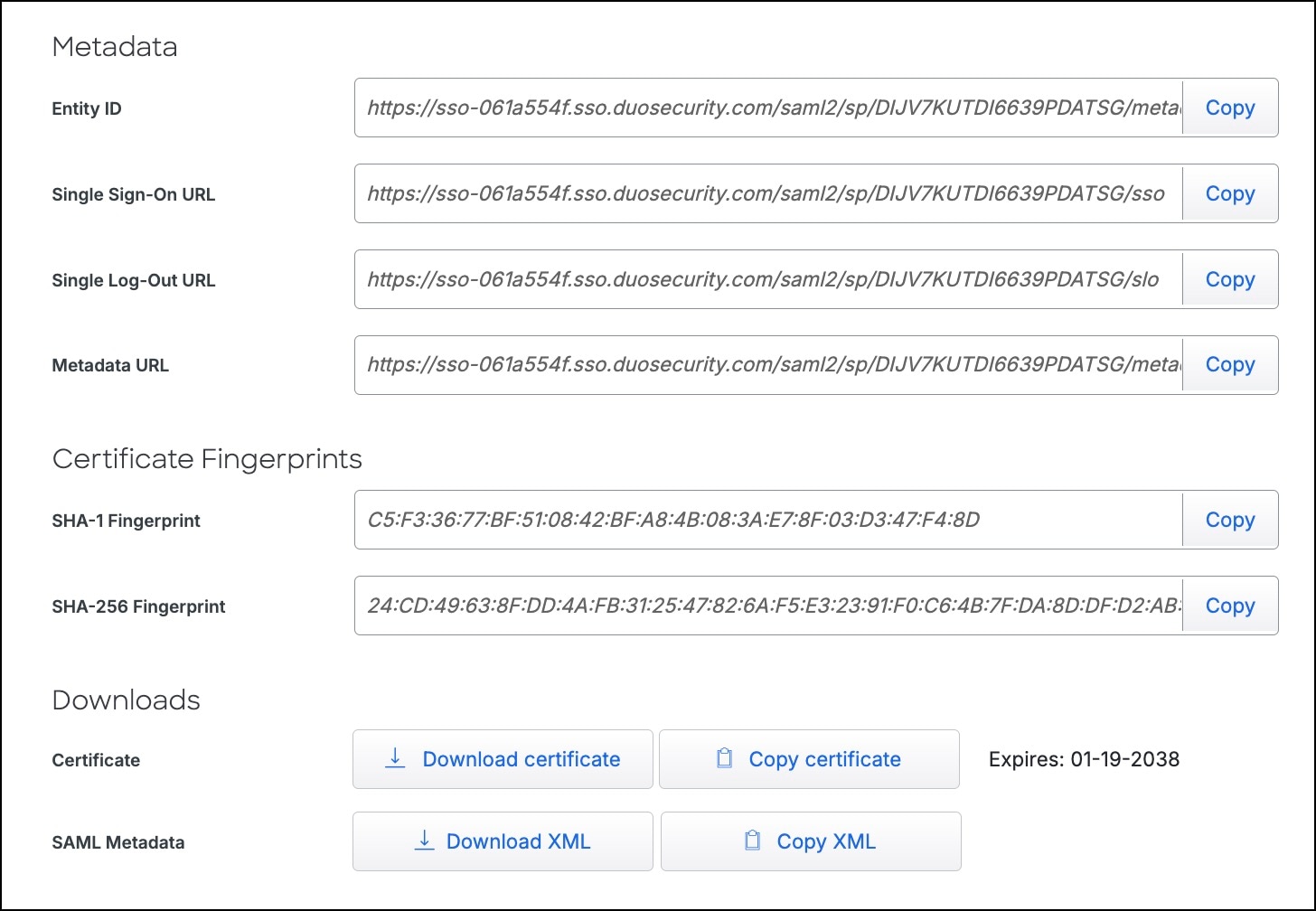
In Metadata, the Entity ID, Single-Sign-On URL, and Metadata URL fields are auto-populated.
|
||
|
Step 9 |
Click Download XML to download this metadata information. You need to upload this XML to configure Duo metadata in Step 5 in Configure Firewall Management Center for Duo SSO. |
||
|
Step 10 |
In the Entity ID field, enter the FQDN or IP address of the Firewall Management
Center and append the |
||
|
Step 11 |
In the Assertion Consumer Service (ACS) URL field, enter the FQDN or IP address of the Firewall Management
Center and append the
|
||
|
Step 12 |
Configure Role attributes.
|
||
|
Step 13 |
In Policy, click Apply a policy to group of users. |
||
|
Step 14 |
Click Save. |


Configure Firewall Management Center for Duo SSO
Enable SSO on Firewall Management Center and configure the SSO parameters and user role mapping.
Before you begin
Create a Firewall Management Center service provider application in the Duo Admin panel. For more information, see Create a Firewall Management Center Application in Duo.
Procedure
|
Step 1 |
From Firewall Management Center, choose Administration > Users > Single Sign-On. |
|
Step 2 |
Click the Single Sign-On (SSO) Configuration toggle button to enable SSO. |
|
Step 3 |
Click Configure SSO. |
|
Step 4 |
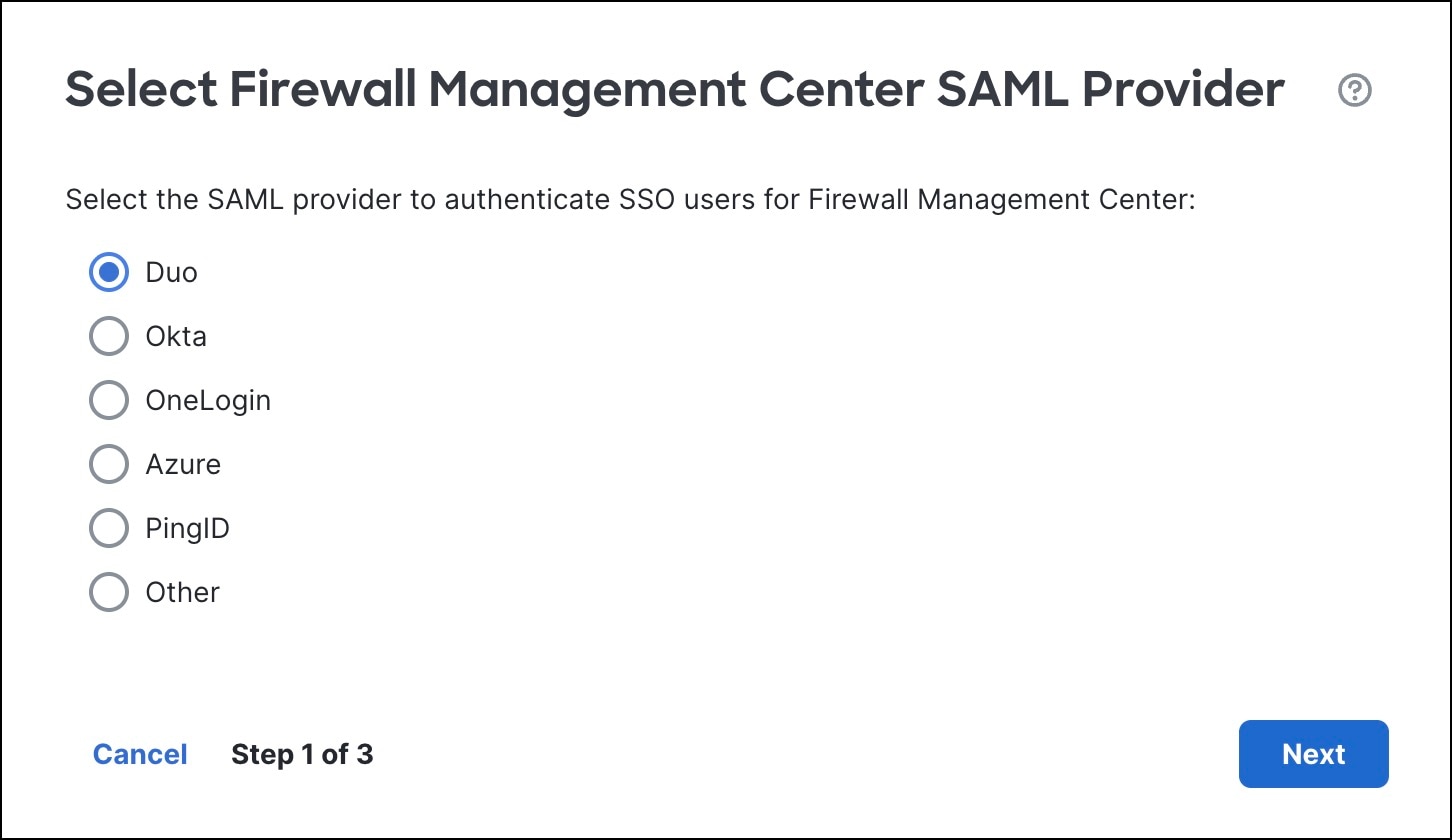
In the Select Firewall Management Center SAML Provider dialog box, click the Duo radio button and click Next.
|
|
Step 5 |
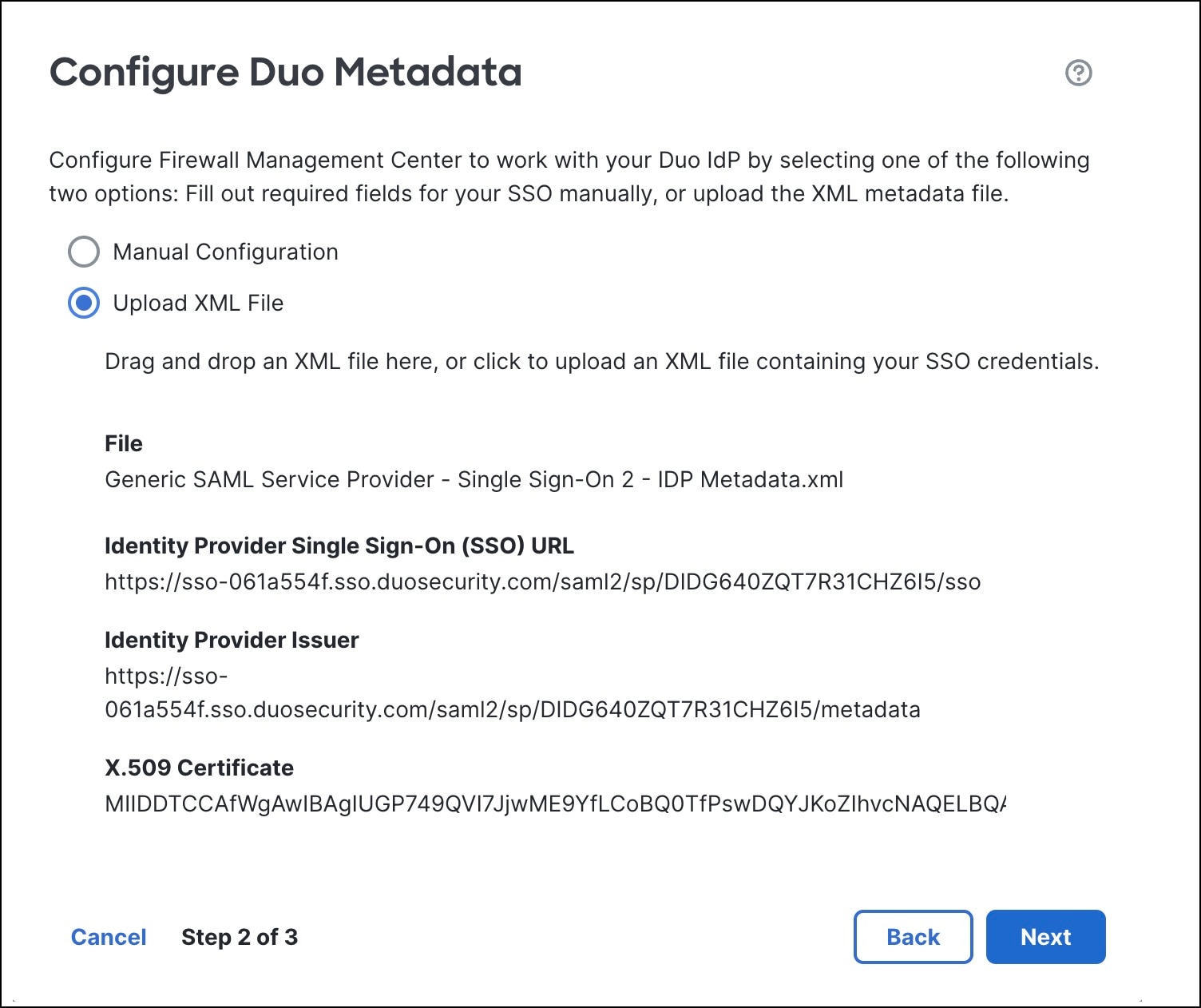
In the Configure Duo Metadata dialog box, click the Upload XML File radio button to upload the metadata file for Duo. This XML file is the metadata XML file that you downloaded from Duo in Step 9 in Create a Firewall Management Center Application in Duo. After you upload the XML file, the metadata gets auto-populated in the Configure Duo Metadata dialog box.
|
|
Step 6 |
Click Next. |
|
Step 7 |
Verify the Duo metadata and click Save. |
|
Step 8 |
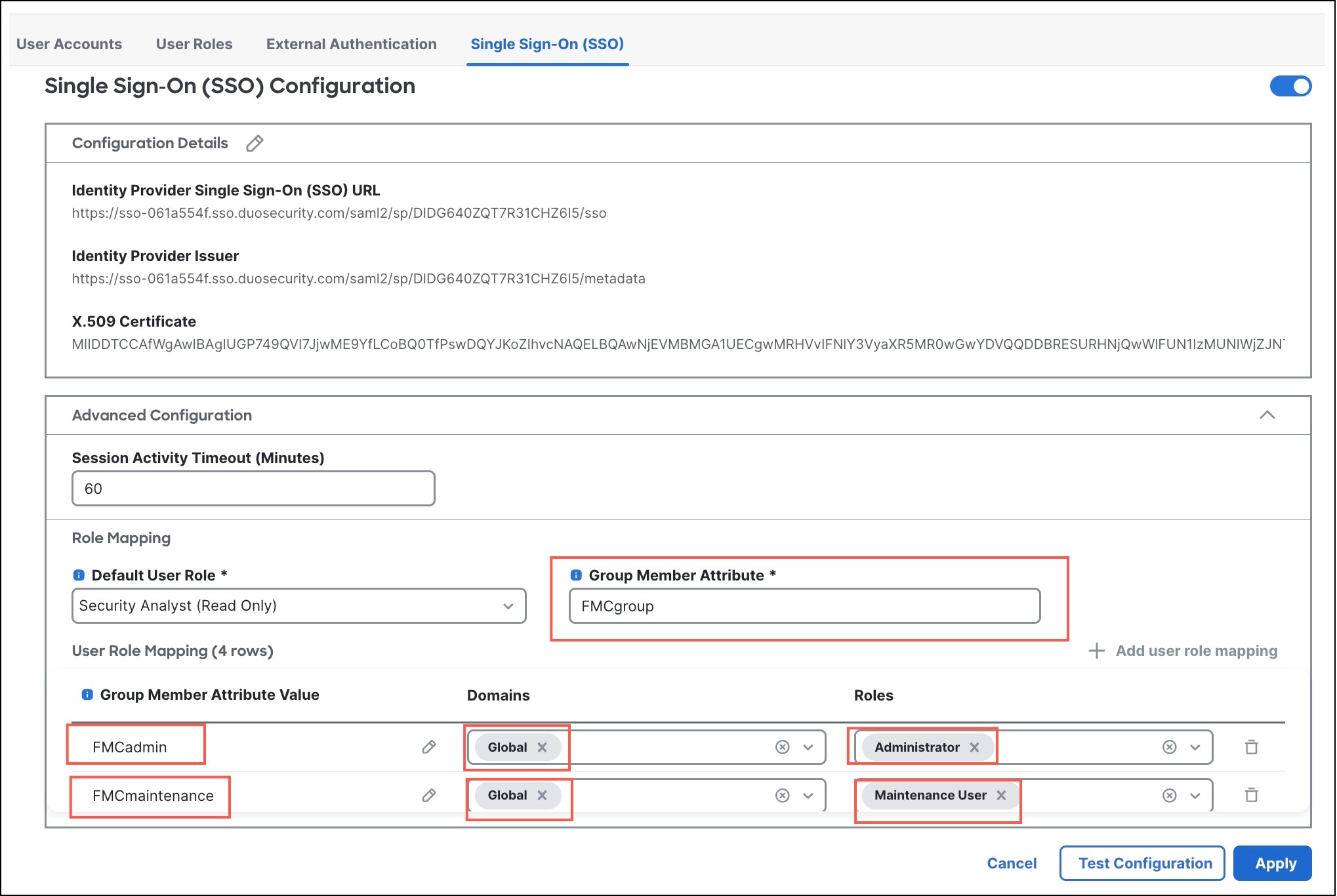
Expand Advanced Configuration.
|
|
Step 9 |
From the Default User Role drop-down list, choose a default Firewall Management Center user role to be assigned if there are no other roles configured. |
|
Step 10 |
In the Group Member Attribute field, enter the Attribute name configured in Duo for Firewall Management Center role mapping of users or groups (Step 12a in Create a Firewall Management Center Application in Duo). In this example, the group member attribute is FMCgroup. |
|
Step 11 |
Configure one or more user role mappings and associate them to one or more domains: |
Validate SAML SSO in Firewall Management Center Using Duo
Log in to Firewall Management Center using SSO
-
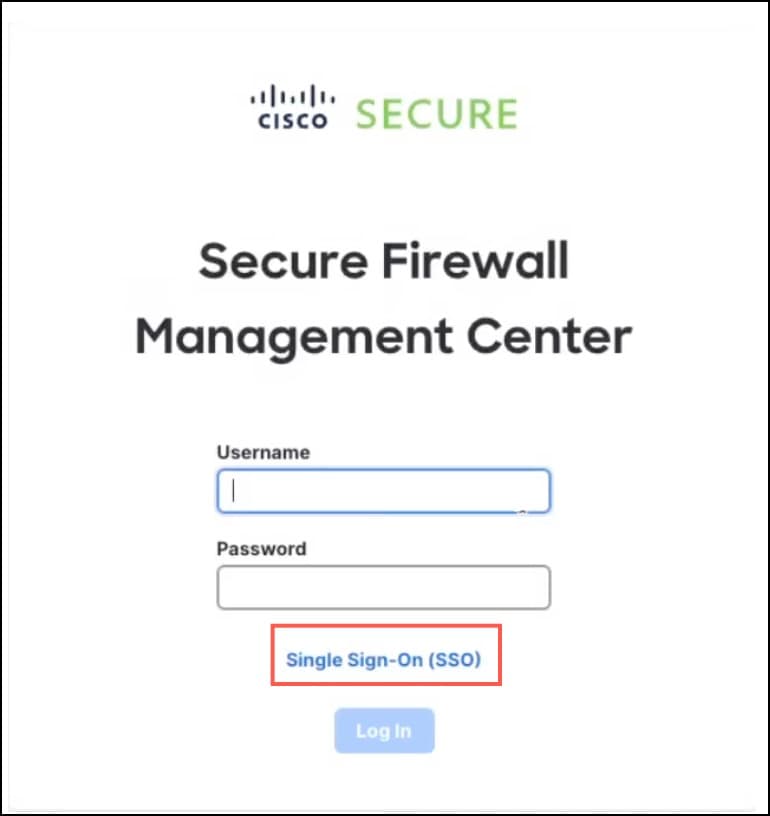
Click the Single Sign-On (SSO) link in the login page of the Firewall Management Center web interface.
-
Enter your email address in Duo Security for two-factor authentication.
-
Click Next to get the push notification on your Duo mobile application in your mobile device.
-
Log in to the Firewall Management Center web interface after the two-factor authentication.
Your Firewall Management Center role and domain depends on the user role mapping in Duo. Each Firewall Management Center role is mapped to a group in Duo.
View users in Firewall Management Center
As an administrator, you can verify the users who have logged in to Firewall Management Center using SSO.
-
Log in to the Firewall Management Center with your admin credentials.
-
Choose Administration > Users > User Accounts.
View audit logs in Firewall Management Center to monitor user activity
Firewall Management Center logs audit information about user activity as audit logs. To view these logs, choose Events & Logs > Analysis > Audit Logs.
Troubleshoot SAML SSO in Firewall Management Center
-
Symptom: User is unable to log in to Firewall Management Center.
Resolution: Verify the connectivity between Firewall Management Center and Duo.
-
Symptom: User is unable to log in to the correct domain in Firewall Management Center.
Resolution: Verify the user role mapping in Firewall Management Center and Duo.
-
Symptom: Server Error message is displayed in the Firewall Management Center Single Sign-On (SSO) page.
Resolution: Verify the connectivity between Firewall Management Center and Duo. If problem persists, contact Cisco TAC.
 Feedback