Getting Started with Intrusion Policies

The following topics explain how to get started with intrusion policies:

Intrusion Policy Basics

Intrusion policies are defined sets of intrusion detection and prevention configurations that inspect traffic for security violations and, in inline deployments, can block or alter malicious traffic. Intrusion policies are invoked by your access control policy and are the system’s last line of defense before traffic is allowed to its destination.

At the heart of each intrusion policy are the intrusion rules. An enabled rule causes the system to generate intrusion events for (and optionally block) traffic matching the rule. Disabling a rule stops processing of the rule.

The system delivers several base intrusion policies, which enable you to take advantage of the experience of the Talos Intelligence Group. For these policies, Talos sets intrusion and preprocessor rule states (enabled or disabled), as well as provides the initial configurations for other advanced settings.


Tip


System-provided intrusion and network analysis policies are similarly named but contain different configurations. For example, the Balanced Security and Connectivity network analysis policy and the Balanced Security and Connectivity intrusion policy work together and can both be updated in intrusion rule updates. However, the network analysis policy governs mostly preprocessing options, whereas the intrusion policy governs mostly intrusion rules.


If you create a custom intrusion policy, you can:

  • Tune detection by enabling and disabling rules, as well as by writing and adding your own rules.

  • Use Cisco recommendations to associate the operating systems, servers, and client application protocols detected on your network with rules specifically written to protect those assets.

  • Configure various advanced settings such as external alerting, sensitive data preprocessing, and global rule thresholding.

  • Use layers as building blocks to efficiently manage multiple intrusion policies.

In an inline deployment, an intrusion policy can block and modify traffic:

  • Drop rules can drop matching packets and generate intrusion events. To configure an intrusion or preprocessor drop rule, set its state to Drop and Generate Events.

  • Intrusion rules can use the replace keyword to replace malicious content.

For intrusion rules to affect traffic, you must correctly configure drop rules and rules that replace content, as well as correctly deploy managed devices inline, that is, with inline interface sets. Finally, you must enable the intrusion policy’s drop behavior, or Drop when Inline setting.

When tailoring your intrusion policy, especially when enabling and adding rules, keep in mind that some intrusion rules require that traffic first be decoded or preprocessed in a certain way. Before an intrusion policy examines a packet, the packet is preprocessed according to configurations in a network analysis policy. If you disable a required preprocessor, the system automatically uses it with its current settings, although the preprocessor remains disabled in the network analysis policy web interface.


Caution


Because preprocessing and intrusion inspection are so closely related, the network analysis and intrusion policies examining a single packet must complement each other. Tailoring preprocessing, especially using multiple custom network analysis policies, is an advanced task.


After you configure a custom intrusion policy, you can use it as part of your access control configuration by associating the intrusion policy with one or more access control rules or an access control policy’s default action. This forces the system to use the intrusion policy to examine certain allowed traffic before the traffic passes to its final destination. A variable set that you pair with the intrusion policy allows you to accurately reflect your home and external networks and, as appropriate, the servers on your network.

Note that by default, the system disables intrusion inspection of encrypted payloads. This helps reduce false positives and improve performance when an encrypted connection matches an access control rule that has intrusion inspection configured.

License Requirements for Intrusion Policies

Threat Defense License

IPS

Requirements and Prerequisites for Intrusion Policies

Model support

Any.

Supported domains

Any

User roles

  • Admin

  • Intrusion Admin

Managing Intrusion Policies

On the Intrusion Policy page (Policies > Access Control heading > Intrusion) you can view your current custom intrusion policies, along with the following information:

  • the time and date the policy was last modified (in local time) and the user who modified it

  • whether the Drop when Inline setting is enabled, which allows you to drop and modify traffic in an inline deployment. An inline deployment could be configurations that are deployed to devices using routed, switched, or transparent interfaces, or inline interface pairs.

  • which access control policies and devices are using the intrusion policy to inspect traffic

  • whether a policy has unsaved changes, as well as information about who (if anyone) is currently editing the policy

Procedure


Step 1

Choose Policies > Access Control heading > Intrusion.

Step 2

Manage your intrusion policy:


Custom Intrusion Policy Creation

When you create a new intrusion policy you must give it a unique name, specify a base policy, and specify drop behavior.

The base policy defines the intrusion policy’s default settings. Modifying a setting in the new policy overrides—but does not change—the settings in the base policy. You can use either a system-provided or custom policy as your base policy.

Creating a Custom Snort 2 Intrusion Policy

Procedure


Step 1

Choose Policies > Access Control heading > Intrusion.

Step 2

Click Create Policy. If you have unsaved changes in another policy, click Cancel when prompted to return to the Intrusion Policy page.

Ensure the Intrusion Policies tab is selected.

Step 3

Enter a unique Name and, optionally, a Description.

Step 4

Choose the Inspection Mode.

The selected action determines whether intrusion rules block and alert (Prevention mode) or only alert (Detection mode).

Step 5

Choose the initial Base Policy.

You can use either a system-provided or another custom policy as your base policy.

Step 6

Click Save.

The new policy has the same settings as its base policy.


Editing Snort 2 Intrusion Policies

Procedure


Step 1

Choose Policies > Access Control heading > Intrusion.

Step 2

Ensure the Intrusion Policies tab is selected.

Step 3

Click Snort 2 Version next to the intrusion policy you want to configure.

Step 4

Edit your policy:

Step 5

To save changes you made in this policy since the last policy commit, choose Policy Information, then click Commit Changes.

If you leave the policy without committing changes, changes since the last commit are discarded if you edit a different policy.


Intrusion Policy Changes

When you create a new intrusion policy, it has the same intrusion rule and advanced settings as its base policy.

The system caches one intrusion policy per user. While editing an intrusion policy, if you choose any menu or other path to another page, your changes stay in the system cache even if you leave the page.

Access Control Rule Configuration to Perform Intrusion Prevention

An access control policy can have multiple access control rules associated with intrusion policies. You can configure intrusion inspection for any Allow or Interactive Block access control rule, which permits you to match different intrusion inspection profiles against different types of traffic on your network before it reaches its final destination.

Whenever the system uses an intrusion policy to evaluate traffic, it uses an associated variable set. Variables in a set represent values commonly used in intrusion rules to identify source and destination IP addresses and ports. You can also use variables in intrusion policies to represent IP addresses in rule suppressions and dynamic rule states.


Tip


Even if you use system-provided intrusion policies, Cisco strongly recommends you configure the system’s intrusion variables to accurately reflect your network environment. At a minimum, modify default variables in the default set.


Understanding System-Provided and Custom Intrusion Policies

Cisco delivers several intrusion policies with the system. By using system-provided intrusion policies, you can take advantage of the experience of the Talos Intelligence Group. For these policies, Talos sets intrusion and preprocessor rule states, as well as provides the initial configurations for advanced settings. You can use system-provided policies as-is, or you can use them as the base for custom policies. Building custom policies can improve the performance of the system in your environment and provide a focused view of the malicious traffic and policy violations occurring on your network.

Connection and Intrusion Event Logging

When an intrusion policy invoked by an access control rule detects an intrusion and generates an intrusion event, it saves that event to the Secure Firewall Management Center. The system also automatically logs the end of the connection where the intrusion occurred to the Secure Firewall Management Center database, regardless of the logging configuration of the access control rule.

Access Control Rule Configuration and Intrusion Policies

The number of unique intrusion policies you can use in a single access control policy depends on the model of the target devices; more powerful devices can handle more. Every unique pair of intrusion policy and variable set counts as one policy. Although you can associate a different intrusion policy-variable set pair with each Allow and Interactive Block rule (as well as with the default action), you cannot deploy an access control policy if the target devices have insufficient resources to perform inspection as configured.

Configuring an Access Control Rule to Perform Intrusion Prevention

You must be an Admin, Access Admin, or Network Admin to perform this task.


Caution


Changing the total number of intrusion policies used by an access control policy restarts the Snort process when you deploy configuration changes, temporarily interrupting traffic inspection. Whether traffic drops during this interruption or passes without further inspection depends on how the assigned device handles traffic. You change the total number of intrusion policies by adding an intrusion policy that is not currently used, or by removing the last instance of an intrusion policy. You can use an intrusion policy in an access control rule, as the default action, or as the default intrusion policy.


Procedure


Step 1

In the access control policy editor, create a new rule or edit an existing rule.

Step 2

Ensure the rule action is set to Allow, Interactive Block, or Interactive Block with reset.

Step 3

Click Inspection.

Step 4

Choose a system-provided or custom Intrusion Policy, or choose None to disable intrusion inspection for traffic that matches the access control rule.

Step 5

If you want to change the variable set associated with the intrusion policy, choose a value from the Variable Set drop-down list.

Step 6

Click Save to save the rule.

Step 7

Click Save to save the policy.


Drop Behavior in an Inline Deployment

If you want to assess how your configuration would function in an inline deployment (that is, where relevant configurations are deployed to devices using routed, switched, or transparent interfaces, or inline interface pairs) without actually affecting traffic, you can disable drop behavior. In this case, the system generates intrusion events but does not drop packets that trigger the drop rules. When you are satisfied with the results, you can enable drop behavior.

Note that in passive or inline deployments in tap mode, the system cannot affect traffic regardless of the drop behavior. In a passive deployment, rules set to Drop and Generate Events behave identically to rules set to Generate Events. The system generates intrusion events but cannot drop packets.


Note


Suppose a file Block action causes a Block or Pending file policy verdict on a packet, and later, an IPS event is generated on the same packet. In that case, the IPS event is marked as Dropped instead of Would have dropped even if the IPS policy is in detection mode (IDS).


Note


To block the transfer of malware over FTP, you must not only correctly configure malware defense, but also enable Drop when Inline in your access control policy’s default intrusion policy.


When you view intrusion events, workflows can include the inline result, which indicates whether traffic was actually dropped, or whether it only would have dropped.

Setting Drop Behavior in an Inline Deployment

Procedure


Step 1

Choose Policies > Access Control heading > Intrusion.

Step 2

Click Snort 2 Version next to the policy you want to edit.

If View (View button) appears instead, the configuration belongs to an ancestor domain, or you do not have permission to modify the configuration.

Step 3

Set the policy’s drop behavior:

  • Check the Drop when Inline check box to allow intrusion rules to affect traffic and generate events.

  • Clear the Drop when Inline check box to prevent intrusion rules from affecting traffic while still generating events.

Step 4

Click Commit Changes to save changes you made in this policy since the last policy commit.

If you leave the policy without committing changes, changes since the last commit are discarded if you edit a different policy.


What to do next

  • Deploy configuration changes.

Drop Behavior in a Dual System Deployment

When there are two systems connected back to back in a network, it is normal to see the first system drop events and still record a drop or "would have dropped" event on the second system. The first system decides to drop the packets by the time it scans the last packet of the file, while the second system also investigates and identifies the traffic as "to be dropped".

For example, a 5 packet HTTP GET request whose first packet triggers a rule is blocked by the first system and only the last packet is dropped. The second system receives only 4 packets and the connection gets dropped, but when the second system finally flushes the partial GET request while it is pruning the session, it triggers the same rule with "would have dropped" as the inline result.

Intrusion Policy Advanced Settings

An intrusion policy’s advanced settings require specific expertise to configure. The base policy for your intrusion policy determines which advanced settings are enabled by default and the default configuration for each.

When you choose Advanced Settings in the navigation panel of an intrusion policy, the policy lists its advanced settings by type. On the Advanced Settings page, you can enable or disable advanced settings in your intrusion policy, as well as access advanced setting configuration pages. An advanced setting must be enabled for you to configure it.

When you disable an advanced setting, the sublink and Edit link no longer appear, but your configurations are retained. Note that some intrusion policy configurations (sensitive data rules, SNMP alerts for intrusion rules) require enabled and correctly configured advanced settings.

Modifying the configuration of an advanced setting requires an understanding of the configuration you are modifying and its potential impact on your network.

Specific Threat Detection

The sensitive data preprocessor detects sensitive data such as credit card numbers and Social Security numbers in ASCII text.

Note that other preprocessors that detect specific threats (back orifice attacks, several portscan types, and rate-based attacks that attempt to overwhelm your network with excessive traffic) are configured in network analysis policies.

Intrusion Rule Thresholds

Global rule thresholding can prevent your system from being overwhelmed with a large number of events by allowing you to use thresholds to limit the number of times the system logs and displays intrusion events.

External Responses

In addition to the various views of intrusion events in the web interface, you can enable logging to system log (syslog) facilities or send event data to an SNMP trap server. Per policy, you can specify intrusion event notification limits, set up intrusion event notification to external logging facilities, and configure external responses to intrusion events.

Note that in addition to these per-policy alerting configurations, you can globally enable or disable email alerting on intrusion events for each rule or rule group. Your email alert settings are used regardless of which intrusion policy processes a packet.

Optimizing Performance for Intrusion Detection and Prevention

If you want the system to perform intrusion detection and prevention but do not need to take advantage of discovery data, you can optimize performance by disabling new discovery as described below.

Before you begin

To perform this task, you must have one of the following user roles:

  • Admin, Access Admin, or Network Admin for access control.

  • Admin or Discovery Admin for network discovery.

Procedure


Step 1

Modify or delete rules associated with the access control policy deployed at the target device. None of the access control rules associated with that device can have user, application, or URL conditions; see Create and edit access control rules.

Step 2

Delete all rules from the network discovery policy for the target device; see Configuring Network Discovery Rules.

Step 3

Deploy the changed configuration to the target device; see Deploy Configuration Changes.


Tuning Intrusion Policies Using Rules

The following topics explain how to use rules to tune intrusion policies:

Intrusion Rule Tuning Basics

You can use the Rules page in an intrusion policy to configure rule states and other settings for shared object rules, standard text rules, and preprocessor rules.

You enable a rule by setting its rule state to Generate Events or to Drop and Generate Events. Enabling a rule causes the system to generate events on traffic matching the rule. Disabling a rule stops processing of the rule. You can also set your intrusion policy so that a rule set to Drop and Generate Events in an inline deployment generates events on, and drops, matching traffic. In a passive deployment, a rule set to Drop and Generate Events just generates events on matching traffic.

You can filter rules to display a subset of rules, enabling you to select the exact set of rules where you want to change rule states or rule settings.

When an intrusion rule or rule argument requires a disabled preprocessor, the system automatically uses it with its current configuration even though it remains disabled in the network analysis policy’s web interface.

Intrusion Rule Types

An intrusion rule is a specified set of keywords and arguments that the system uses to detect attempts to exploit vulnerabilities in your network. As the system analyzes network traffic, it compares packets against the conditions specified in each rule, and triggers the rule if the data packet meets all the conditions specified in the rule.

An intrusion policy contains:

  • intrusion rules, which are subdivided into shared object rules and standard text rules

  • preprocessor rules, which are associated with a detection option of the packet decoder or with one of the preprocessors included with the system

The following table summarizes attributes of these rule types:

Table 1. Intrusion Rule Types

Type

Generator ID (GID)

Snort ID (SID)

Source

Can Copy?

Can Edit?

shared object rule

3

lower than 1000000

Talos Intelligence Group

yes

limited

standard text rule

1

(Global domain or legacy GID)

lower than 1000000

Talos

yes

limited

1000 - 2000

(descendant domain)

1000000 or higher

Created or imported by user

yes

yes

preprocessor rule

decoder- or preprocessor- specific

lower than 1000000

Talos

no

no

1000000 or higher

Generated by the system during option configuration

no

no

You cannot save changes to any rule created by Talos, but you can save a copy of a modified rule as a custom rule. You can modify either variables used in the rule or rule header information (such as source and destination ports and IP addresses).

For the rules it creates, Talos assigns default rule states in each default intrusion policy. Most preprocessor rules are disabled by default and must be enabled if you want the system to generate events for preprocessor rules and, in an inline deployment, drop offending packets.

In a multidomain deployment, the system prepends a domain number to the SID of any custom rule created in or imported into a descendant domain. For example, a rule added in the Global domain would have a SID of 1000000 or greater, and rules added in descendant domains would have SIDs of [domain number]000000 or greater.

License Requirements for Intrusion Rules

Threat Defense License

IPS

Requirements and Prerequisites for Intrusion Rules

Model support

Any.

Supported domains

Any

User roles

  • Admin

  • Intrusion Admin

Viewing Intrusion Rules in an Intrusion Policy

You can adjust how rules are displayed in the intrusion policy, and can sort rules by several criteria. You can also display the details for a specific rule to see rule settings, rule documentation, and other rule specifics.

Procedure


Step 1

Choose Policies > Access Control heading > Intrusion.

Step 2

Click Snort 2 Version next to the policy you want to edit.

If View (View button) appears instead, the configuration belongs to an ancestor domain, or you do not have permission to modify the configuration.

Step 3

Click Rules under Policy Information in the navigation panel.

Step 4

While viewing the rules, you can:


Intrusion Rules Page Columns

The Intrusion Rules page uses the same icons in its menu bar and column headers. For example, the Rule State menu uses the same Generate Events as the Rule State column in the rule listing.

Table 2. Rules Page Columns

Heading

Description

GID

Integer that indicates the Generator ID (GID) for the rule.

SID

Integer that indicates the Snort ID (SID), which acts a unique identifier for the rule.

For custom rules, the SID is 1000000 or higher.

Message

Message included in events generated by this rule, which also acts as the name of the rule.

Generate Events

The rule state for the rule:

  • Drop and Generate Events

  • Generate Events

  • Disabled

Note the icon for a disabled rule is a dimmed version of the icon for a rule that is set to generate events without dropping traffic. Also, clicking the rule state icon for a rule allows you to change the rule state.

Cisco Recommended rule state

Cisco recommended rule state for the rule.

Event Filter

Event filter, including event thresholds and event suppression, applied to the rule.

Dynamic state

Dynamic rule state for the rule, which goes into effect if specified rate anomalies occur.

Errors (error icon)

Alerts configured for the rule (currently SNMP alerts only).

Comment (comment icon)

Comments added to the rule.

You can also use the layer drop-down list to switch to the Rules page for other layers in your policy. Note that, unless you add layers to your policy, the only editable views listed in the drop-down list are the policy Rules page and the Rules page for a policy layer that is originally named My Changes; note also that making changes in one of these views is the same as making the changes in the other. The drop-down list also lists the Rules page for the read-only base policy.

Intrusion Rule Details

You can view rule documentation, Cisco recommendations, and rule overhead from the Rule Detail view. You can also view and add rule-specific features.

Table 3. Rule Details

Item

Description

Summary

The rule summary. For rule-based events, this row appears when the rule documentation contains summary information.

Rule State

The current rule state for the rule. Also indicates the layer where the rule state is set.

Cisco Recommendation

If Cisco recommendations have been generated, an icon that represents the recommended rule state; see Intrusion Rules Page Columns. If the recommendation is to enable the rule, the system also indicates the network assets or configurations that triggered the recommendation.

Rule Overhead

The rule’s potential impact on system performance and the likelihood that the rule might generate false positives. Local rules do not have an assigned overhead, unless they are mapped to a vulnerability.

Thresholds

Thresholds currently set for this rule, as well as the facility to add a threshold for the rule.

Suppressions

Suppression settings currently set for this rule, as well as the facility to add suppressions for the rule.

Dynamic State

Rate-based rule states currently set for this rule, as well as the facility to add dynamic rule states for the rule.

Alerts

SNMP alerts set for this rule, as well as the facility to add an alert for the rule.

Comments

Comments added to this rule, as well as the facility to add comments for the rule.

Documentation

The rule documentation for the current rule, supplied by the Talos Intelligence Group. Optionally, click Rule Documentation to view more-specific rule details.

Viewing Intrusion Rule Details

Procedure

Step 1

Choose Policies > Access Control heading > Intrusion.

Step 2

Click Snort 2 Version next to the policy you want to edit.

If View (View button) appears instead, the configuration belongs to an ancestor domain, or you do not have permission to modify the configuration.

Step 3

On the navigation pane, click Rules.

Step 4

Click the rule whose rule details you want to view, then click Show details at the bottom of the page.

Rule details appear, as described in Intrusion Rule Details.

Step 5

From the rule details, you can configure:


Setting a Threshold for an Intrusion Rule

You can set a single threshold for a rule from the Rule Detail page. Adding a threshold overwrites any existing threshold for the rule.

Note that a Revert appears in a field when you enter an invalid value; click it to revert to the last valid value for that field or to clear the field if there was no previous value.

Procedure

Step 1

From an intrusion rule’s details, click Add next to Thresholds.

Step 2

From the Type drop-down list, choose the type of threshold you want to set:

  • Choose Limit to limit notification to the specified number of event instances per time period.
  • Choose Threshold to provide notification for each specified number of event instances per time period.
  • Choose Both to provide notification once per time period after a specified number of event instances.

Step 3

From the Track By drop-down list, choose Source or Destination to indicate whether you want the event instances tracked by source or destination IP address.

Step 4

In the Count field, enter the number of event instances you want to use as your threshold.

Step 5

In the Seconds field, enter a number that specifies the time period, in seconds, for which event instances are tracked.

Step 6

Click OK.

Tip


The system displays an Event Filter next to the rule in the Event Filtering column. If you add multiple event filters to a rule, the system includes an indication of the number of event filters.


Setting Suppression for an Intrusion Rule

You can set one or more suppressions for a rule in your intrusion policy.

Note that a Revert appears in a field when you type an invalid value; click it to revert to the last valid value for that field or to clear the field if there was no previous value.

Procedure

Step 1

From an intrusion rule’s details, click Add next to Suppressions.

Step 2

From the Suppression Type drop-down list, choose one of the following options:

  • Choose Rule to completely suppress events for a selected rule.
  • Choose Source to suppress events generated by packets originating from a specified source IP address.
  • Choose Destination to suppress events generated by packets going to a specified destination IP address.

Step 3

If you chose Source or Destination for the suppression type, in the Network field enter the IP address, an address block, or a comma-separated list comprised of any combination of these.

If the intrusion policy is associated with the default action of an access control policy, you can also specify or list a network variable in the default action variable set.

Step 4

Click OK.

Tip


The system displays an Event Filter next to the rule in the Event Filtering column next the suppressed rule. If you add multiple event filters to a rule, a number over the filter indicates the number of filters.


Setting a Dynamic Rule State from the Rule Details Page

You can set one or more dynamic rule states for a rule. The first dynamic rule state listed has the highest priority. When two dynamic rule states conflict, the action of the first is carried out.

Dynamic rule states are policy-specific.

Note that a Revert appears in a field when you enter an invalid value; click it to revert to the last valid value for that field or to clear the field if there was no previous value.

Procedure

Step 1

From an intrusion rule’s details, click Add next to Dynamic State.

Step 2

From the Track By drop-down list, choose an option to indicate how you want the rule matches tracked:

  • Choose Source to track the number of hits for that rule from a specific source or set of sources.
  • Choose Destination to track the number of hits for that rule to a specific destination or set of destinations.
  • Choose Rule to track all matches for that rule.

Step 3

If you set Track By to Source or Destination, enter the IP address of each host you want to track in the Network field.

Step 4

Next to Rate, specify the number of rule matches per time period to set the attack rate:

  • In the Count field, specify the number of rule matches you want to use as your threshold.
  • In the Seconds field, specify the number of seconds that make up the time period for which attacks are tracked.

Step 5

From the New State drop-down list, choose the new action to be taken when the conditions are met.

Step 6

Enter a value in the Timeout field.

After the timeout occurs, the rule reverts to its original state. Enter 0 to prevent the new action from timing out.

Step 7

Click OK.

Tip


The system displays a dynamic state () next to the rule in the Dynamic State column. If you add multiple dynamic rule state filters to a rule, a number over the filters indicates the number of filters.

Setting an SNMP Alert for an Intrusion Rule

You can set an SNMP alert for a rule from the Rule Detail page.

Procedure

From an intrusion rule’s details, click Add SNMP Alert next to Alerts.

Tip


The system displays an alert Errors (error icon) next to the rule in the Alerting column. If you add multiple alerts to a rule, the system includes an indication of the number of alerts.


Adding a Comment to an Intrusion Rule
Procedure

Step 1

From an intrusion rule’s details, click Add next to Comments.

Step 2

In the Comment field, enter the rule comment.

Step 3

Click OK.

Tip


The system displays a Comment (comment icon) next to the rule in the Comments column. If you add multiple comments to a rule, a number over the comment indicates the number of comments.

Step 4

To delete a rule comment, click Delete in the rule comments section. You can only delete a comment if the comment is cached with uncommitted intrusion policy changes.


What to do next
  • Deploy configuration changes.

Intrusion Rule Filters in an Intrusion Policy

You can filter the rules you display on the Rules page by a single criteria, or a combination of one or more criteria.

Rule filter keywords help you find the rules for which you want to apply rule settings, such as rule states or event filters. You can filter by a keyword and simultaneously select the argument for the keyword by selecting the argument you want from the Rules page filter panel.

Intrusion Rule Filters Notes

The filter you construct is shown in the Filter text box. You can click keywords and keyword arguments in the filter panel to construct a filter. When you choose multiple keywords, the system combines them using AND logic to create a compound search filter. For example, if you choose preprocessor under Category and then choose Rule Content > GID and enter 116, you get a filter of Category: “preprocessor” GID:”116”, which retrieves all rules that are preprocessor rules and have a GID of 116.

The Category, Microsoft Vulnerabilities, Microsoft Worms, Platform Specific, Preprocessor, and Priority filter groups allow you to submit more than one argument for a keyword, separated by commas. For example, you can choose os-linux and os-windows from Category to produce the filter Category:"os-windows,os-linux", which retrieves any rules in the os-linux category or in the os-windows category.

To show the filter panel, click the Show icon.

To hide the filter panel, click the Hide icon.

Intrusion Policy Rule Filters Construction Guidelines

In most cases, when you are building a filter, you can use the filter panel to the left of the Rules page in the intrusion policy to choose the keywords/arguments you want to use.

Rule filters are grouped into rule filter groups in the filter panel. Many rule filter groups contain sub-criteria so that you can more easily find the specific rules you are looking for. Some rule filters have multiple levels that you can expand to drill down to individual rules.

Items in the filter panel sometimes represent filter type groups, sometimes represent keywords, and sometimes represent the argument to a keyword. Note the following:

  • When you choose a filter type group heading that is not a keyword (Rule Configuration, Rule Content, Platform Specific, and Priority), it expands to list the available keywords.

    When you choose a keyword by clicking on a node in the criteria list, a pop-up window appears, where you supply the argument you want to filter by.

    If that keyword is already used in the filter, the argument you supply replaces the existing argument for that keyword.

    For example, if you click Drop and Generate Events under Rule Configuration > Recommendation in the filter panel, Recommendation:"Drop and Generate Events" is added to the filter text box. If you then click Generate Events under Rule Configuration > Recommendation, the filter changes to Recommendation:"Generate Events".

  • When you choose a filter type group heading that is a keyword (Category, Classifications, Microsoft Vulnerabilities, Microsoft Worms, Priority, and Rule Update), it lists the available arguments.

    When you choose an item from this type of group, the argument and the keyword it applies to are immediately added to the filter. If the keyword is already in the filter, it replaces the existing argument for the keyword that corresponds to that group.

    For example, if you click os-linux under Category in the filter panel, Category:"os-linux" is added to the filter text box. If you then click os-windows under Category, the filter changes to Category:"os-windows".

  • Reference under Rule Content is a keyword, and so are the specific reference ID types listed below it. When you choose any of the reference keywords, a pop-up window appears, where you supply an argument and the keyword is added to the existing filter. If the keyword is already in use in the filter, the new argument you supply replaces the existing argument.

    For example, if you click Rule Content > Reference > CVE ID in the filter panel, a pop-up window prompts you to supply the CVE ID. If you enter 2007, then CVE:”2007” is added to the filter text box. In another example, if you click Rule Content > Reference in the filter panel, a pop-up window prompts you to supply the reference. If you enter 2007, then Reference:”2007” is added to the filter text box.

  • When you choose rule filter keywords from different groups, each filter keyword is added to the filter and any existing keywords are maintained (unless overridden by a new value for the same keyword).

    For example, if you click os-linux under Category in the filter panel, Category:"os-linux" is added to the filter text box. If you then click MS00-006 under Microsoft Vulnerabilities, the filter changes to Category:"os-linux" MicrosoftVulnerabilities:"MS00-006".

  • When you choose multiple keywords, the system combines them using AND logic to create a compound search filter. For example, if you choose preprocessor under Category and then choose Rule Content > GID and enter 116, you get a filter of Category: “preprocessor” GID:”116”, which retrieves all rules that are preprocessor rules and have a GID of 116.

  • The Category, Microsoft Vulnerabilities, Microsoft Worms, Platform Specific, and Priority filter groups allow you to submit more than one argument for a keyword, separated by commas. For example, you can choose os-linux and os-windows from Category to produce the filter Category:"os-windows,app-detect", which retrieves any rules in the os-linux category or in the os-windows category.

The same rule may be retrieved by more than one filter keyword/argument pair. For example, the DOS Cisco attempt rule (SID 1545) appears if rules are filtered by the dos category, and also if you filter by the High priority.


Note


The Talos Intelligence Group may use the rule update mechanism to add and remove rule filters.


Note that the rules on the Rules page may be either shared object rules (generator ID 3) or standard text rules (generator ID 1, Global domain or legacy GID; 1000 - 2000, descendant domains). The following table describes the different rule filters.

Table 4. Rule Filter Groups

Filter Group

Description

Multiple Argument Support?

Heading is...

Items in List are...

Rule Configuration

Finds rules according to the configuration of the rule.

No

A grouping

keywords

Rule Content

Finds rules according to the content of the rule.

No

A grouping

keywords

Category

Finds rules according to the rule categories used by the rule editor. Note that local rules appear in the local sub-group.

Yes

A keyword

arguments

Classifications

Finds rules according to the attack classification that appears in the packet display of an event generated by the rule.

No

A keyword

arguments

Microsoft Vulnerabilities

Finds rules according to Microsoft bulletin number.

Yes

A keyword

arguments

Microsoft Worms

Finds rules based on specific worms that affect Microsoft Windows hosts.

Yes

A keyword

arguments

Platform Specific

Finds rules according to their relevance to specific versions of operating systems.

Note that a rule may affect more than one operating system or more than one version of an operating system. For example, enabling SID 2260 affects multiple versions of Mac OS X, IBM AIX, and other operating systems.

Yes

A keyword

arguments

Note that if you pick one of the items from the sub-list, it adds a modifier to the argument.

Preprocessors

Finds rules for individual preprocessors.

Note that you must enable preprocessor rules associated with a preprocessor option to generate events and, in an inline deployment, drop offending packets for the option when the preprocessor is enabled.

Yes

A grouping

sub-groupings

Priority

Finds rules according to high, medium, and low priorities.

The classification assigned to a rule determines its priority. These groups are further grouped into rule categories. Note that local rules (that is, rules that you import or create) do not appear in the priority groups.

Yes

A keyword

arguments

Note that if you pick one of the items from the sub-list, it adds a modifier to the argument.

Rule Update

Finds rules added or modified through a specific rule update. For each rule update, view all rules in the update, only new rules imported in the update, or only existing rules changed by the update.

No

A keyword

arguments

Intrusion Rule Configuration Filters

You can filter the rules listed in the Rules page by several rule configuration settings. For example, if you want to view the set of rules whose rule state does not match the recommended rule state, you can filter on rule state by selecting Does not match recommendation.

When you choose a keyword by clicking on a node in the criteria list, you can supply the argument you want to filter by. If that keyword is already used in the filter, the argument you supply replaces the existing argument for that keyword.

For example, if you click Drop and Generate Events under Rule Configuration > Recommendation in the filter panel, Recommendation:"Drop and Generate Events" is added to the filter text box. If you then click Generate Events under Rule Configuration > Recommendation, the filter changes to Recommendation:"Generate Events".

Intrusion Rule Content Filters

You can filter the rules listed in the Rules page by several rule content items. For example, you can quickly retrieve a rule by searching for the rule’s SID. You can also find all rules that inspect traffic going to a specific destination port.

When you select a keyword by clicking on a node in the criteria list, you can supply the argument you want to filter by. If that keyword is already used in the filter, the argument you supply replaces the existing argument for that keyword.

For example, if you click SID under Rule Content in the filter panel, a pop-up window appears, prompting you to supply a SID. If you type 1045, then SID:”1045”is added to the filter text box. If you then click SID again and change the SID filter to 1044, the filter changes to SID:”1044”.

Table 5. Rule Content Filters

This filter...

Finds rules that...

Message

contain the supplied string in the message field.

SID

have the specified SID.

GID

have the specified GID.

Reference

contain the supplied string in the reference field. You can also filter by a specific type of reference and supplied string.

Action

start with alert or pass.

Protocol

include the selected protocol.

Direction

are based on whether the rule includes the indicated directional setting.

Source IP

use the specified addresses or variables for the source IP address designation in the rule. You can filter by a valid IP address, a CIDR block/prefix length, or using variables such as $HOME_NET or $EXTERNAL_NET.

Destination IP

use the specified addresses or variables for the source IP address designation in the rule. You can filter by a valid IP address, a CIDR block/prefix length, or using variables such as $HOME_NET or $EXTERNAL_NET.

Source port

include the specified source port. The port value must be an integer between 1 and 65535 or a port variable.

Destination port

include the specified destination port. The port value must be an integer between 1 and 65535 or a port variable.

Rule Overhead

have the selected rule overhead.

Metadata

have metadata containing the matching key value pair. For example, type metadata:”service http” to locate rules with metadata relating to the HTTP application protocol.

Intrusion Rule Categories

The system places rules in categories based on the type of traffic the rule detects. On the Rules page, you can filter by rule category, so you can set a rule attribute for all rules in a category. For example, if you do not have Linux hosts on your network, you could filter by the os-linux category, then disable all the rules showing to disable the entire os-linux category.

You can hover your pointer over a category name to display the number of rules in that category.


Note


The Talos Intelligence Group may use the rule update mechanism to add and remove rule categories.


Intrusion Rule Filter Components

You can edit your filter to modify the special keywords and their arguments that are supplied when you click on a filter in the filter panel. Custom filters on the Rules page function like those used in the rule editor, but you can also use any of the keywords supplied in the Rules page filter, using the syntax displayed when you select the filter through the filter panel. To determine a keyword for future use, click on the appropriate argument in the filter panel on the right. The filter keyword and argument syntax appear in the filter text box. Remember that comma-separated multiple arguments for a keyword are only supported for the Category and Priority filter types.

You can use keywords and arguments, character strings, and literal character strings in quotes, with spaces separating multiple filter conditions. A filter cannot include regular expressions, wild card characters, or any special operator such as a negation character (!), a greater than symbol (>), less than symbol (<), and so on. When you type in search terms without a keyword, without initial capitalization of the keyword, or without quotes around the argument, the search is treated as a string search and the category, message, and SID fields are searched for the specified terms.

Except for the gid and sid keywords, all arguments and strings are treated as partial strings. Arguments for gid and sid return only exact matches.

Each rule filter can include one or more keywords in the format:


keyword:”argument

where keyword is one of the keywords in the intrusion rule filter groups and argument is enclosed in double quotes and is a single, case-insensitive, alphanumeric string to search for in the specific field or fields relevant to the keyword. Note that keywords should be typed with initial capitalization.

Arguments for all keywords except gid and sid are treated as partial strings. For example, the argument 123 returns "12345", "41235", "45123", and so on. The arguments for gid and sid return only exact matches; for example, sid:3080 returns only SID 3080.

Each rule filter can also include one or more alphanumeric character strings. Character strings search the rule Message field, Snort ID (SID), and Generator ID (GID). For example, the string 123 returns the strings "Lotus123", "123mania", and so on in the rule message, and also returns SID 6123, SID 12375, and so on. You can search for a partial SID by filtering with one or more character strings.

All character strings are case-insensitive and are treated as partial strings. For example, any of the strings ADMIN, admin, or Admin return "admin", "CFADMIN", "Administrator" and so on.

You can enclose character strings in quotes to return exact matches. For example, the literal string "overflow attempt" in quotes returns only that exact string, whereas a filter comprised of the two strings overflow and attempt without quotes returns "overflow attempt", "overflow multipacket attempt", "overflow with evasion attempt", and so on.

You can narrow filter results by entering any combination of keywords, character strings, or both, separated by spaces. The result includes any rule that matches all the filter conditions.

You can enter multiple filter conditions in any order. For example, each of the following filters returns the same rules:

  • url:at login attempt cve:200

  • login attempt cve:200 url:at

  • login cve:200 attempt url:at

Intrusion Rule Filter Usage

You can select predefined filter keywords from the filter panel on the left side of the Rules page in the intrusion policy. When you select a filter, the page displays all matching rules, or indicates when no rules match.

You can add keywords to a filter to further constrain it. Any filter you enter searches the entire rules database and returns all matching rules. When you enter a filter while the page still displays the result of a previous filter, the page clears and returns the result of the new filter instead.

You can also type a filter using the same keyword and argument syntax supplied when you select a filter, or modify argument values in a filter after you select it. When you type in search terms without a keyword, without initial capitalization of the keyword, or without quotes around the argument, the search is treated as a string search and the category, message, and SID fields are searched for the specified terms.

Setting a Rule Filter in an Intrusion Policy

You can filter the rules on the Rules page to display a subset of rules. You can then use any of the page features, including choosing any of the features available in the context menu. This can be useful, for example, when you want to set a threshold for all the rules in a specific category. You can use the same features with rules in a filtered or unfiltered list. For example, you can apply new rule states to rules in a filtered or unfiltered list.

All filter keywords, keyword arguments, and character strings are case-insensitive. If you click an argument for a keyword already in the filter, it replaces the existing argument.

Procedure

Step 1

Choose Policies > Access Control heading > Intrusion.

Step 2

Click Snort 2 Version next to the policy you want to edit.

If View (View button) appears instead, the configuration belongs to an ancestor domain, or you do not have permission to modify the configuration.

Step 3

Construct a filter using any of the following methods, separately or in combination:

  • Enter a value in the Filter text box, and press Enter.
  • Expand any of the predefined keywords. For example, click Rule Configuration.
  • Click a keyword, and specify an argument value if prompted. For example:
    • Under Rule Configuration, you could click Rule State, choose Generate Events from the drop-down-list, and click OK.

    • Under Rule Configuration, you could click Comment, enter the string of comment text to filter by, and click OK.

    • Under Category, you could click app-detect, which the system uses as the argument value.

  • Expand a keyword, and click an argument value. For example, expand Rule State and click Generate Events.

Intrusion Rule States

Intrusion rule states allow you to enable or disable the rule within an individual intrusion policy, as well as specify which action the system takes if monitored conditions trigger the rule.

The Talos Intelligence Group sets the default state of each intrusion and preprocessor rule in each default policy. For example, a rule may be enabled in the Security over Connectivity default policy and disabled in the Connectivity over Security default policy. Talos sometimes uses a rule update to change the default state of one or more rules in a default policy. If you allow rule updates to update your base policy, you also allow the rule update to change the default state of a rule in your policy when the default state changes in the default policy you used to create your policy (or in the default policy it is based on). Note, however, that if you have changed the rule state, the rule update does not override your change.

When you create an intrusion rule, it inherits the default states of the rules in the default policy you use to create your policy.

Intrusion Rule State Options

In an intrusion policy, you can set a rule’s state to the following values:

Generate Events

You want the system to detect a specific intrusion attempt and generate an intrusion event when it finds matching traffic. When a malicious packet crosses your network and triggers the rule, the packet is sent to its destination and the system generates an intrusion event. The malicious packet reaches its target, but you are notified via the event logging.

Drop and Generate Events

You want the system to detect a specific intrusion attempt, drop the packet containing the attack, and generate an intrusion event when it finds matching traffic. The malicious packet never reaches its target, and you are notified via the event logging.

Note that rules set to this rule state generate events but do not drop packets in a passive deployment. For the system to drop packets, Drop when Inline must also be enabled (the default setting) in your intrusion policy and you must deploy your device inline.

Disable

You do not want the system to evaluate matching traffic.


Note


Choosing either the Generate Events or Drop and Generate Events options enables the rule. Choosing Disable disables the rule.

Cisco strongly recommends that you do not enable all the intrusion rules in an intrusion policy. The performance of your managed device is likely to degrade if all rules are enabled. Instead, tune your rule set to match your network environment as closely as possible.


Setting Intrusion Rule States

Intrusion rule states are policy-specific.

Procedure

Step 1

Choose Policies > Access Control heading > Intrusion.

Step 2

Click Snort 2 Version next to the policy you want to edit.

If View (View button) appears instead, the configuration belongs to an ancestor domain, or you do not have permission to modify the configuration.

Tip


This page indicates the total number of enabled rules, the total number of enabled rules set to Generate Events, and the total number set to Drop and Generate Events. Note also that in a passive deployment, rules set to Drop and Generate Events only generate events.

Step 3

Click Rules immediately under Policy Information in the navigation panel.

Step 4

Choose the rule or rules where you want to set the rule state.

Step 5

Choose one of the following:

  • Rule State > Generate Events
  • Rule State > Drop and Generate Events
  • Rule State > Disable

Step 6

To save changes you made in this policy since the last policy commit, click Policy Information in the navigation panel, then click Commit Changes.

If you leave the policy without committing changes, changes since the last commit are discarded if you edit a different policy.


What to do next
  • Deploy configuration changes.

Intrusion Event Notification Filters in an Intrusion Policy

The importance of an intrusion event can be based on frequency of occurrence, or on source or destination IP address. In some cases you may not care about an event until it has occurred a certain number of times. For example, you may not be concerned if someone attempts to log into a server until they fail a certain number of times. In other cases, you may only need to see a few occurrences to know there is a widespread problem. For example, if a DoS attack is launched against your web server, you may only need to see a few occurrences of an intrusion event to know that you need to address the situation. Seeing hundreds of the same event only overwhelms your system.

Intrusion Event Thresholds

You can set thresholds for individual rules, per intrusion policy, to limit the number of times the system logs and displays an intrusion event based on how many times the event is generated within a specified time period. This can prevent you from being overwhelmed with a large number of identical events. You can set thresholds per shared object rule, standard text rule, or preprocessor rule.

Intrusion Event Thresholds Configuration

To set a threshold, first specify the thresholding type.

Table 6. Thresholding Options

Option

Description

Limit

Logs and displays events for the specified number of packets (specified by the Count argument) that trigger the rule during the specified time period. For example, if you set the type to Limit, the Count to 10, and the Seconds to 60, and 14 packets trigger the rule, the system stops logging events for the rule after displaying the first 10 that occur within the same minute.

Threshold

Logs and displays a single event when the specified number of packets (specified by the Count argument) trigger the rule during the specified time period. Note that the counter for the time restarts after you hit the threshold count of events and the system logs that event. For example, you set the type to Threshold, Count to 10, and Seconds to 60, and the rule triggers 10 times by second 33. The system generates one event, then resets the Seconds and Count counters to 0. The rule then triggers another 10 times in the next 25 seconds. Because the counters reset to 0 at second 33, the system logs another event.

Both

Logs and displays an event once per specified time period, after the specified number (count) of packets trigger the rule. For example, if you set the type to Both, Count to two, and Seconds to 10, the following event counts result:

  • If the rule is triggered once in 10 seconds, the system does not generate any events (the threshold is not met)

  • If the rule is triggered twice in 10 seconds, the system generates one event (the threshold is met when the rule triggers the second time)

  • If the rule is triggered four times in 10 seconds, the system generates one event (the threshold is met when the rule triggers the second time, and following events are ignored)

Next, specify tracking, which determines whether the event threshold is calculated per source or destination IP address.

Table 7. Thresholding IP Options

Option

Description

Source

Calculates event instance count per source IP address.

Destination

Calculates event instance count per destination IP address.

Finally, specify the number of instances and time period that define the threshold.

Table 8. Thresholding Instance/Time Options

Option

Description

Count

The number of event instances per specified time period per tracking IP address required to meet the threshold.

Seconds

The number of seconds that elapse before the count resets. If you set the threshold type to limit, the tracking to Source IP, the count to 10, and the seconds to 10, the system logs and displays the first 10 events that occur in 10 seconds from a given source port. If only 7 events occur in the first 10 seconds, the system logs and displays those; if 40 events occur in the first 10 seconds, the system logs and displays 10, then begins counting again when the 10-second time period elapses.

Note that you can use intrusion event thresholding alone or in any combination with rate-based attack prevention, the detection_filter keyword, and intrusion event suppression.


Tip


You can also add thresholds from within the packet view of an intrusion event.


Adding and Modifying Intrusion Event Thresholds

You can set a threshold for one or more specific rules in an intrusion policy. You can also separately or simultaneously modify existing threshold settings. You can set a single threshold for each. Adding a threshold overwrites any existing threshold for the rule.

You can also modify the global threshold that applies by default to all rules and preprocessor-generated events associated with the intrusion policy.

A Revert appears in a field when you enter an invalid value; click it to revert to the last valid value for that field or to clear the field if there was no previous value.


Tip


A global or individual threshold on a managed device with multiple CPUs may result in a higher number of events than expected.


Procedure

Step 1

Choose Policies > Access Control heading > Intrusion.

Step 2

Click Snort 2 Version next to the policy you want to edit.

If View (View button) appears instead, the configuration belongs to an ancestor domain, or you do not have permission to modify the configuration.

Step 3

Click Rules immediately under Policy Information in the navigation pane.

Step 4

Choose the rule or rules where you want to set a threshold.

Step 5

Choose Event Filtering > Threshold.

Step 6

Choose a threshold type from the Type drop-down list.

Step 7

From the Track By drop-down list, choose whether you want the event instances tracked by Source or Destination IP address.

Step 8

Enter a value in the Count field.

Step 9

Enter a value in the Seconds field.

Step 10

Click OK.

Tip


The system displays an Event Filter next to the rule in the Event Filtering column. If you add multiple event filters to a rule, a number over the filter indicates the number of event filters.

Step 11

To save changes you made in this policy since the last policy commit, click Policy Information, then click Commit Changes.

If you leave the policy without committing changes, changes since the last commit are discarded if you edit a different policy.


What to do next
  • Deploy configuration changes.

Viewing and Deleting Intrusion Event Thresholds

You may want to view or delete an existing threshold setting for a rule. You can use the Rules Details view to display the configured settings for a threshold to see if they are appropriate for your system. If they are not, you can add a new threshold to overwrite the existing values.

Note that you can also modify the global threshold that applies by default to all rules and preprocessor-generated events logged by the intrusion policy.

Procedure

Step 1

Choose Policies > Access Control heading > Intrusion.

Step 2

Click Snort 2 Version next to the policy you want to edit.

If View (View button) appears instead, the configuration belongs to an ancestor domain, or you do not have permission to modify the configuration.

Step 3

Click Rules immediately under Policy Information in the navigation pane.

Step 4

Choose the rule or rules with a configured threshold you want to view or delete.

Step 5

To remove the threshold for each selected rule, choose Event Filtering > Remove Thresholds.

Step 6

Click OK.

Step 7

To save changes you made in this policy since the last policy commit, click Policy Information, then click Commit Changes.

If you leave the policy without committing changes, changes since the last commit are discarded if you edit a different policy.


What to do next
  • Deploy configuration changes.

Intrusion Policy Suppression Configuration

You can suppress intrusion event notification when a specific IP address or range of IP addresses triggers a specific rule or preprocessor. This is useful for eliminating false positives. For example, if you have a mail server that transmits packets that look like a specific exploit, you might suppress event notification for that event when it is triggered by your mail server. The rule triggers for all packets, but you only see events for legitimate attacks.

Intrusion Policy Suppression Types

Note that you can use intrusion event suppression alone or in any combination with rate-based attack prevention, the detection_filter keyword, and intrusion event thresholding.


Tip


You can add suppressions from within the packet view of an intrusion event. You can also access suppression settings by using the right-click context menu on the intrusion rules editor page (Objects > Intrusion Rules) and on any intrusion event page (if the event was triggered by an intrusion rule).


Suppressing Intrusion Events for a Specific Rule

You can suppress intrusion event notification for a rule or rules in your intrusion policy. When notification is suppressed for a rule, the rule triggers but events are not generated. You can set one or more suppressions for a rule. The first suppression listed has the highest priority. When two suppressions conflict, the action of the first is carried out.

Note that a Revert appears in a field when you enter an invalid value; click it to revert to the last valid value for that field or to clear the field if there was no previous value.

Procedure

Step 1

Choose Policies > Access Control heading > Intrusion.

Step 2

Click Snort 2 Version next to the policy you want to edit.

If View (View button) appears instead, the configuration belongs to an ancestor domain, or you do not have permission to modify the configuration.

Step 3

Click Rules immediately under Policy Information in the navigation panel.

Step 4

Choose the rule or rules for which you want to configure suppression conditions.

Step 5

Choose Event Filtering > Suppression.

Step 6

Choose a Suppression Type.

Step 7

If you chose Source or Destination for the suppression type, in the Network field enter the IP address, address block, or variable you want to specify as the source or destination IP address, or a comma-separated list comprised of any combination of these.

Step 8

Click OK.

Tip


The system displays an Event Filter next to the rule in the Event Filtering column next the suppressed rule. If you add multiple event filters to a rule, a number over the filter indicates the number of event filters.

Step 9

To save changes you made in this policy since the last policy commit, click Policy Information, then click Commit Changes.

If you leave the policy without committing changes, changes since the last commit are discarded if you edit a different policy.


What to do next
  • Deploy configuration changes.

Viewing and Deleting Suppression Conditions

You may want to view or delete an existing suppression condition. For example, you can suppress event notification for packets originating from a mail server IP address because the mail server normally transmits packets that look like exploits. If you then decommission that mail server and reassign the IP address to another host, you should delete the suppression conditions for that source IP address.

Procedure

Step 1

Choose Policies > Access Control heading > Intrusion.

Step 2

Click Snort 2 Version next to the policy you want to edit.

If View (View button) appears instead, the configuration belongs to an ancestor domain, or you do not have permission to modify the configuration.

Step 3

Click Rules immediately under Policy Information in the navigation panel.

Step 4

Choose the rule or rules for which you want to view or delete suppressions.

Step 5

You have the following choices:

  • To remove all suppression for a rule, choose Event Filtering > Remove Suppressions.
  • To remove a specific suppression setting, click the rule, then click Show details. Expand the suppression settings and click Delete next to the suppression settings you want to remove.

Step 6

Click OK.

Step 7

To save changes you made in this policy since the last policy commit, click Policy Information, then click Commit Changes.

If you leave the policy without committing changes, changes since the last commit are discarded if you edit a different policy.


What to do next
  • Deploy configuration changes.

Dynamic Intrusion Rule States

Rate-based attacks attempt to overwhelm a network or host by sending excessive traffic toward the network or host, causing it to slow down or deny legitimate requests. You can use rate-based prevention to change the action of a rule in response to excessive rule matches for specific rules.

You can configure your intrusion policies to include a rate-based filter that detects when too many matches for a rule occur in a given time period. You can use this feature on managed devices deployed inline to block rate-based attacks for a specified time, then revert to a rule state where rule matches only generate events and do not drop traffic.

Rate-based attack prevention identifies abnormal traffic patterns and attempts to minimize the impact of that traffic on legitimate requests. You can identify excessive rule matches in traffic going to a particular destination IP address or addresses or coming from a particular source IP address or addresses. You can also respond to excessive matches for a particular rule across all detected traffic.

In some cases, you may not want to set a rule to the Drop and Generate Events state because you do not want to drop every packet that matches the rule, but you do want to drop packets matching the rule if a particular rate of matches occurs in a specified time. Dynamic rule states let you configure the rate that should trigger a change in the action for a rule, what the action should change to when the rate is met, and how long the new action should persist.

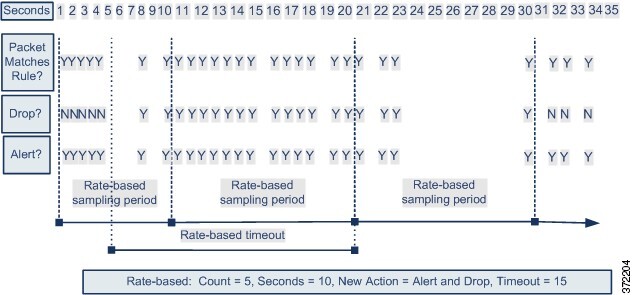
The following diagram shows an example where an attacker is attempting to access a host. Repeated attempts to find a password trigger a rule which has rate-based attack prevention configured. The rate-based settings change the rule attribute to Drop and Generate Events after rule matches occur five times in a 10-second span. The new rule attribute times out after 15 seconds.

After the timeout, note that packets are still dropped in the rate-based sampling period that follows. If the sampled rate is above the threshold in the current or previous sampling period, the new action continues. The new action reverts to Generate Events only after a sampling period completes where the sampled rate was below the threshold rate.


Diagram demonstrating rate-based filtering.

Dynamic Intrusion Rule State Configuration

In the intrusion policy, you can configure a rate-based filter for any intrusion or preprocessor rule. The rate-based filter contains three components:

  • the rule matching rate, which you configure as a count of rule matches within a specific number of seconds

  • a new action to be taken when the rate is exceeded, with three available actions: Generate Events, Drop and Generate Events, and Disable

  • the duration of the action, which you configure as a timeout value

Note that when started, the new action occurs until the timeout is reached, even if the rate falls below the configured rate during that time period. When the timeout is reached, if the rate has fallen below the threshold, the action for the rule reverts to the action initially configured for the rule.

You can configure rate-based attack prevention in an inline deployment to block attacks, either temporarily or permanently. Without rate-based configuration, rules set to Generate Events do generate events, but the system does not drop packets for those rules. However, if the attack traffic matches rules that have rate-based criteria configured, the rate action may cause packet dropping to occur for the period of time that the rate action is active, even if those rules are not initially set to Drop and Generate Events.


Note


Rate-based actions cannot enable disabled rules or drop traffic that matches disabled rules.


You can define multiple rate-based filters on the same rule. The first filter listed in the intrusion policy has the highest priority. Note that when two rate-based filter actions conflict, the action of the first rate-based filter is carried out.

Setting a Dynamic Rule State from the Rules Page

You can set one or more dynamic rule states for a rule. The first dynamic rule state listed has the highest priority. When two dynamic rule states conflict, the action of the first is carried out.

Dynamic rule states are policy-specific.

A Revert appears in a field when you enter an invalid value; click it to revert to the last valid value for that field or to clear the field if there was no previous value.


Note


Dynamic rule states cannot enable disabled rules or drop traffic that matches disabled rules.


Procedure

Step 1

Choose Policies > Access Control heading > Intrusion.

Step 2

Click Snort 2 Version next to the policy you want to edit.

If View (View button) appears instead, the configuration belongs to an ancestor domain, or you do not have permission to modify the configuration.

Step 3

Click Rules immediately under Policy Information in the navigation pane.

Step 4

Choose the rule or rules where you want to add a dynamic rule state.

Step 5

Choose Dynamic State > Add Rate-Based Rule State.

Step 6

Choose a value from the Track By drop-down list.

Step 7

If you set Track By to Source or Destination, enter the address of each host you want to track in the Network field. You can specify a single IP address, address block, variable, or a comma-separated list comprised of any combination of these.

Step 8

Next to Rate, specify the number of rule matches per time period to set the attack rate:

  • Enter a value in the Count field.

  • Enter a value in the Seconds field.

Step 9

From the New State drop-down list, specify the new action to be taken when the conditions are met.

Step 10

Enter a value in the Timeout field.

After the timeout occurs, the rule reverts to its original state. Specify 0 or leave the Timeout field blank to prevent the new action from timing out.

Step 11

Click OK.

Tip


The system displays a Dynamic State next to the rule in the Dynamic State column. If you add multiple dynamic rule state filters to a rule, a number over the filter indicates the number of filters.

Tip


To delete all dynamic rule settings for a set of rules, choose the rules on the Rules page, then choose Dynamic State > Remove Rate-Based States. You can also delete individual rate-based rule state filters from the rule details for the rule by choosing the rule, clicking Show details, then clicking Delete by the rate-based filter you want to remove.

Step 12

To save changes you made in this policy since the last policy commit, click Policy Information, then click Commit Changes.

If you leave the policy without committing changes, changes since the last commit are discarded if you edit a different policy.


What to do next
  • Deploy configuration changes.

Adding Intrusion Rule Comments

You can add comments to rules in your intrusion policy. Comments added this way are policy-specific; that is, comments you add to a rule in one intrusion policy are not visible in other intrusion policies. Any comments you add can be seen in the Rule Details view on the Rules page for the intrusion policy.

After you commit the intrusion policy changes containing the comment, you can also view the comment by clicking Rule Comment on the rule Edit page.

Procedure


Step 1

Choose Policies > Access Control heading > Intrusion.

Step 2

Click Snort 2 Version next to the policy you want to edit.

If View (View button) appears instead, the configuration belongs to an ancestor domain, or you do not have permission to modify the configuration.

Step 3

Click Rules immediately under Policy Information in the navigation panel.

Step 4

Choose the rule or rules where you want to add a comment.

Step 5

Choose Comments > Add Rule Comment.

Step 6

In the Comment field, enter the rule comment.

Step 7

Click OK.

Tip


The system displays a Comment (comment icon) next to the rule in the Comments column. If you add multiple comments to a rule, a number over the comment indicates the number of comments.

Step 8

Optionally, delete a rule comment by clicking Delete next to the comment.

You can only delete a comment if the comment is cached with uncommitted intrusion policy changes. After intrusion policy changes are committed, the rule comment is permanent.

Step 9

To save changes you made in this policy since the last policy commit, click Policy Information, then click Commit Changes.

If you leave the policy without committing changes, changes since the last commit are discarded if you edit a different policy.


What to do next

  • Deploy configuration changes.

Tailoring Intrusion Protection to Your Network Assets

The following topics describe how to use Cisco recommended rules:

About Cisco Recommended Rules

You can use intrusion rule recommendations to associate the operating systems, servers, and client application protocols detected on your network with rules specifically written to protect those assets. This allows you to tailor your intrusion policy to the specific needs of your monitored network.

The system makes an individual set of recommendations for each intrusion policy. It typically recommends rule state changes for standard text rules and shared object rules. However, it can also recommend changes for preprocessor and decoder rules.

When you generate rule state recommendations, you can use the default settings or configure advanced settings. Advanced settings allow you to:

  • Redefine which hosts on your network the system monitors for vulnerabilities

  • Influence which rules the system recommends based on rule overhead

  • Specify whether to generate recommendations to disable rules

You can also choose either to use the recommendations immediately or to review the recommendations (and affected rules) before accepting them.

Choosing to use recommended rule states adds a read-only Cisco Recommendations layer to your intrusion policy, and subsequently choosing not to use recommended rule states removes the layer.

You can schedule a task to generate recommendations automatically based on the most recently saved configuration settings in your intrusion policy.

The system does not change rule states that you set manually:

  • Manually setting the states of specified rules before you generate recommendations prevents the system from modifying the states of those rules in the future.

  • Manually setting the states of specified rules after you generate recommendations overrides the recommended states of those rules.


    Tip


    The intrusion policy report can include a list of rules with rule states that differ from the recommended state.


While displaying the recommendation-filtered Rules page, or after accessing the Rules page directly from the navigation panel or the Policy Information page, you can manually set rule states, sort rules, and take any of the other actions available on the Rules page, such as suppressing rules, setting rule thresholds, and so on.


Note


The Talos Intelligence Group determines the appropriate state of each rule in the system-provided policies. If you use a system-provided policy as your base policy, and you allow the system to set your rules to the Cisco recommended rule state, the rules in your intrusion policy match the settings recommended by Cisco for your network assets.


Default Settings for Cisco Recommendations

When you generate Cisco recommendations, the system searches your base policy for rules that protect against vulnerabilities associated with your network assets, and identifies the current state of rules in your base policy. The system then recommends rule states and, if you choose to, sets the rules to the recommended states.

The system performs the following basic analysis to generate recommendations:

Table 9. Rule State Recommendations Based on Vulnerabilities
Rule Protects Discovered Assets? Base Policy Rule State Recommend Rule State

Yes

Disabled

Generate Events

Generate Events

Generate Events

Drop and Generate Events

Drop and Generate Events

No

Any

Disabled

Note the following in the table:

  • If a rule is disabled in the base policy, or set to Generate Events, the recommended state is always Generate Events.

    For example, if the base policy is No Rules Active, in which all rules are disabled, there will be no recommendations to Drop and Generate Events.

  • Recommendations to Drop and Generate Events are made only for rules already set to Drop and Generate Events in the base policy.

    If you want a rule to be set to Drop and Generate events and the rule was disabled or set to Generate Events in the base policy, you must manually reset the rule state.

When you generate recommendations without changing the advanced settings for Cisco recommended rules, the system recommends rule state changes for all hosts in your entire discovered network.

By default, the system generates recommendations only for rules with low or medium overhead, and generates recommendations to disable rules.

The system does not recommend a rule state for an intrusion rule that is based on a vulnerability that you disable using the Impact Qualification feature.

The system always recommends that you enable a local rule associated with a third-party vulnerability mapped to a host.

The system does not make state recommendations for unmapped local rules.

Advanced Settings for Cisco Recommendations

Include all differences between recommendations and rule states in policy reports

By default, an intrusion policy report lists the policy's enabled rules, that is, rules set to either Generate Events or Drop and Generate Events. Enabling the Include all differences option also lists the rules whose recommended states differ from their saved states.

Networks to Examine

Specifies the monitored networks or individual hosts to examine for recommendations. You can specify a single IP address or address block, or a comma-separated list comprised of either or both.

Lists of addresses within the hosts that you specify are linked with an OR operation except for negations, which are linked with an AND operation after all OR operations are calculated.

If you want to dynamically adapt active rule processing for specific packets based on host information, you can also enable adaptive profile updates.

Recommendation Threshold (By Rule Overhead)

Prevents the system from recommending or automatically enabling intrusion rules with a higher overhead than the threshold you choose.

Overhead is based on the rule’s potential impact on system performance and the likelihood that the rule may generate false positives. Permitting rules with higher overhead usually results in more recommendations, but can affect system performance. You can view the overhead rating for a rule in the rule detail view on the intrusion Rules page.

Note that the system does not factor rule overhead into recommendations to disable rules. Also, local rules are considered to have no overhead, unless they are mapped to a third-party vulnerability.

Generating recommendations for rules with the overhead rating at a particular setting does not preclude you from generating recommendations with different overhead, then generating recommendations again for the original overhead setting. You get the same rule state recommendations for each overhead setting each time you generate recommendations for the same rule set, regardless of the number of times you generate recommendations or how many different overhead settings you generate with. For example, you can generate recommendations with overhead set to medium, then to high, then finally to medium again; if the hosts and applications on your network have not changed, both sets of recommendations with overhead set to medium are then the same for that rule set.

Accept Recommendations to Disable Rules

Specifies whether the system disables intrusion rules based on Cisco recommendations.

Accepting recommendations to disable rules restricts your rule coverage. Omitting recommendations to disable rules augments your rule coverage.

Generating and Applying Cisco Recommendations

Starting or stopping use of Cisco recommendations may take several minutes, depending on the size of your network and intrusion rule set.

Before you begin

  • Cisco recommendations have the following requirements:

    • Threat Defense LicenseIPS

    • User rolesAdmin or Intrusion Admin

  • Configure a network discovery policy before you begin with the steps. Configure the network discovery policy to define internal hosts so that the Cisco recommendations are suitable.

Procedure


Step 1

In the Snort 2 intrusion policy editor's navigation pane, click Cisco Recommendations.

Step 2

(Optional) Configure advanced settings; see Advanced Settings for Cisco Recommendations.

Step 3

Generate and apply recommendations.

  • Generate and Use Recommendations—Generates recommendations and changes rule states to match. Only available if you have never generated recommendations.
  • Generate Recommendations—Regardless of whether you are using recommendations, generates new recommendations but does not change rule states to match.
  • Update Recommendations—If you are using recommendations, generates recommendations and changes rule states to match. Otherwise, generates new recommendations without changing rule states.
  • Use Recommendations—Changes rule states to match any unimplemented recommendations.
  • Do Not Use Recommendations—Stops use of recommendations. If you manually changed a rule's state before you applied recommendations, the rule state returns to the value you gave it. Otherwise, the rule state returns to its default value.

When you generate recommendations, the system displays a summary of the recommended changes. To view a list of rules where the system recommends a state change, click View next to the newly proposed rule state.

Step 4

Evaluate and adjust the recommendations you implemented.

Even if you accept most Cisco recommendations, you can override individual recommendations by setting rule states manually; see Setting Intrusion Rule States.

Step 5

To save changes you made in this policy since the last policy commit, click Policy Information, then click Commit Changes.

If you leave the policy without committing changes, changes since the last commit are discarded if you edit a different policy.


What to do next

  • Deploy configuration changes.

Script Detection

The script detection prevents the Snort blocks-too-late intrusion failures with a partial inspection. When HTML files are transferred between a client and a server, these files can contain malicious scripts, such as JavaScript, to initiate an attack. When such malicious scripts are found, the partial inspection allows any IPS rule to match on the malicious script, and the inspector flushes that data segment through inspection and detection. The malicious file never reaches its destination. This feature supports both HTTP/1 and HTTP/2 traffic.

This feature is always enabled by default. To turn it off, set http_inspect.script_detection=true to false.