Cable and Onboard the Firewall

Cable and onboard the firewall to Security Cloud Control.

Cable the firewall

  • For the Secure Firewall 1220, install SFPs into Ethernet 1/9 and 1/10—They are 1/10-Gb SFP+ ports that require SFP/SFP+ modules.

  • See the hardware installation guide for more information.

  • If you use zero-touch provisioning, do not cable both the outside and the Management interface. This guide covers management on the outside interface, but you may want to use zero-touch provisioning on Management with high availability. If you use zero-touch provisioning on outside and want to use high availability, you will have to change the outside IP address to a static address after registration.
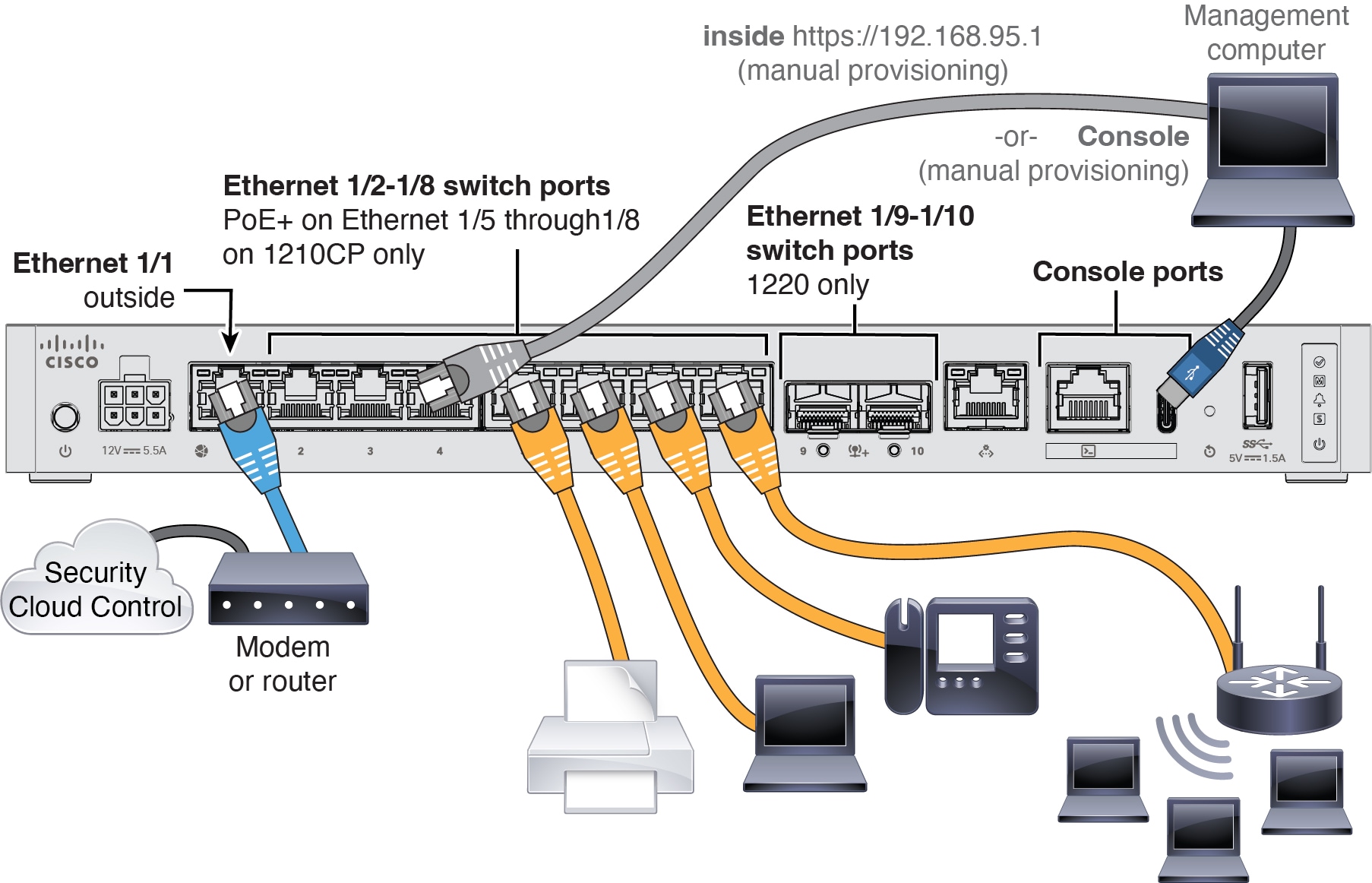
Cabling for Security Cloud Control

Onboard the Firewall to Security Cloud Control

Onboard the firewall using zero-touch provisioning or manual provisioning. Log into Security Cloud Control at https://security.cisco.com.

Onboard the Firewall with Zero-Touch Provisioning

Onboard the Firewall Threat Defense using zero-touch provisioning and the device serial number.

Before you begin

  • Obtain your device's serial number.

    • If you have the shipping box, you can see the serial number on the label.

    • The serial number is on a label on the back.

    • If you have console access, in FXOS, enter show chassis detail . Note that the correct serial number is called Serial (SN). Do not use the PCB Serial Number. At the Firewall Threat Defense CLI, enter show inventory (not show serial-number , which shows the PCB serial number). Be careful not to disable zero-touch provisioning by entering certain settings at the Firewall Threat Defense startup script.

  • Check your LEDs to make sure the firewall is ready for registration.

    Table 1. Zero-Touch Provisioning: Managed (M) LED behavior

    M LED

    Description

    Time after firewall powered on (minutes:seconds)

    Slow flashing green

    Connected to the Cisco cloud and ready for onboarding

    15:00 - 30:00

    Alternating green and amber

    (error condition)

    Failed to connect to the Cisco cloud

    15:00 - 30:00

    Solid green

    Onboarded

    20:00 - 45:00

Procedure


Step 1

In the Security Cloud Control navigation menu, click Manage > Security Devices, then click the blue plus button (plus sign) to Onboard a device.

Step 2

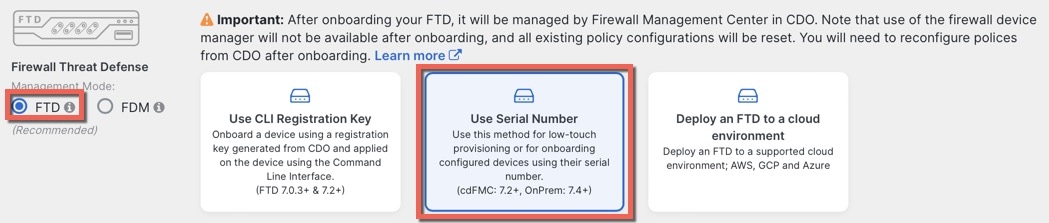
Select the FTD tile.

Step 3

Under Management Mode, be sure FTD is selected.

At any point after selecting FTD as the management mode, you can click Manage Smart License to enroll in or modify the existing smart licenses available for your device. See Obtain licenses to see which licenses are available.

Step 4

Select Use Serial Number as the onboarding method.

Figure 1. Use Serial Number
Use Serial Number

Step 5

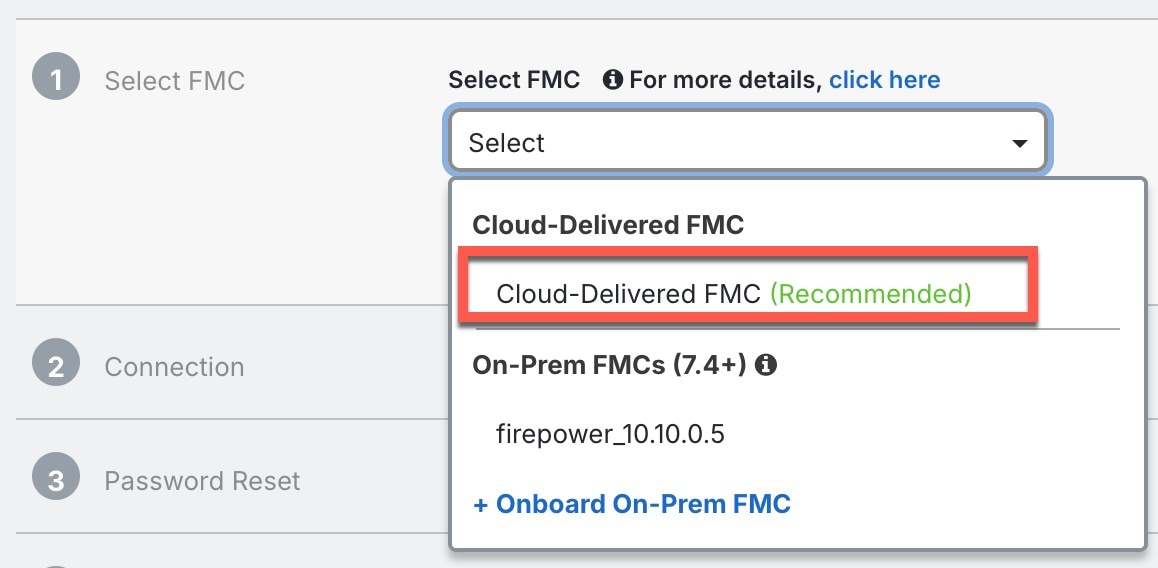
In Select FMC, choose the Cloud-Delivered FMC > Cloud-Delivered FMC from the list, and click Next.

Figure 2. Select FMC
Select FMC

Step 6

In the Connection area, enter the Device Serial Number and the Device Name and then click Next.

Figure 3. Connection
Connection

Step 7

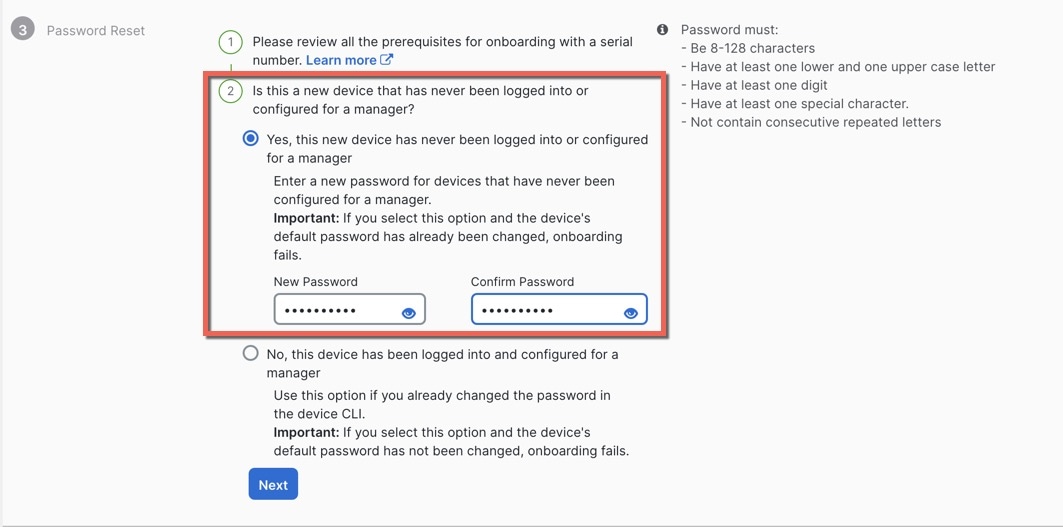
In Password Reset, click Yes.... Enter a new password and confirm the new password for the device, then click Next.

For zero-touch provisioning, the device must be brand new or has been reimaged.

Note


If you logged into the device and reset the password, and you did not change the configuration in a way that would disable zero-touch provisioning, then you should choose the No... option. There are a number of configurations that disable zero-touch provisioning provisioning, so we don't recommend logging into the device unless you need to, for example, to perform a reimage.

Figure 4. Password Reset
Password Reset

Step 8

For the Policy Assignment, use the drop-down menu to choose an access control policy for the device. If you have no policies configured, choose the Default Access Control Policy.

Figure 5. Policy Assignment
Policy Assignment

Step 9

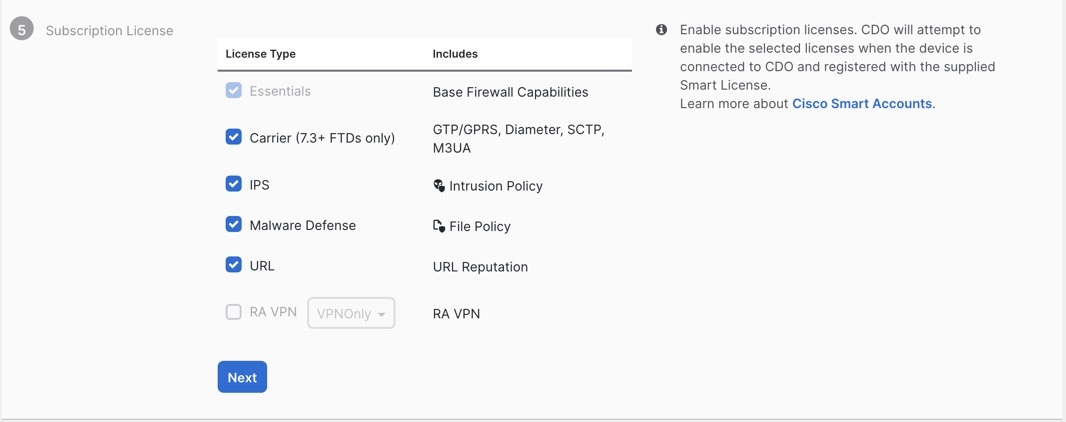
For the Subscription License, check each of the feature licenses you want to enable. Click Next.

Figure 6. Subscription License
Subscription License

Step 10

(Optional) Add labels to your device to help sort and filter the Security Devices page. Enter a label and select the blue plus button (plus sign). Labels are applied to the device after it's onboarded to Security Cloud Control.

Figure 7. Done
Done

What to do next

From the Security Devices page, select the device you just onboarded and select any of the option listed under the Management pane located to the right.

Onboard the Firewall with Manual Provisioning

Onboard the firewall using a CLI registration key.

Procedure


Step 1

In the Security Cloud Control navigation menu, click Manage > Security Devices, then click the blue plus button (plus sign) to Onboard a device.

Step 2

Click the FTD tile.

Step 3

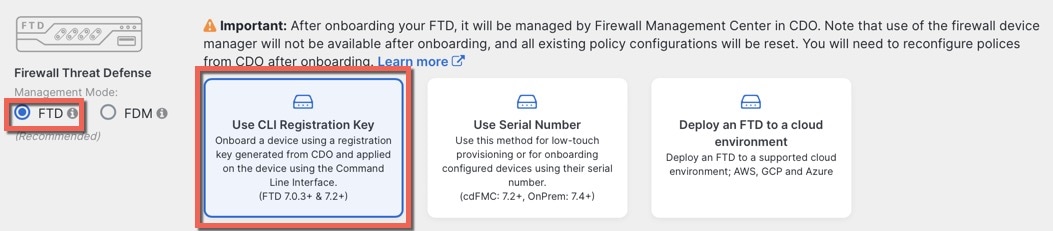
Under Management Mode, be sure FTD is selected.

Step 4

Select Use CLI Registration Key as the onboarding method.

Figure 8. Use CLI Registration Key
Use CLI Registration Key

Step 5

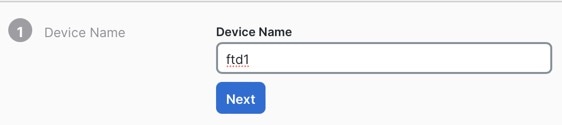
Enter the Device Name and click Next.

Figure 9. Device Name
Device Name

Step 6

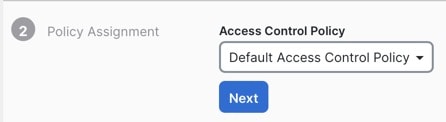
For the Policy Assignment, use the drop-down menu to choose an access control policy for the device. If you have no policies configured, choose the Default Access Control Policy.

Figure 10. Access Control Policy
Access Control Policy

Step 7

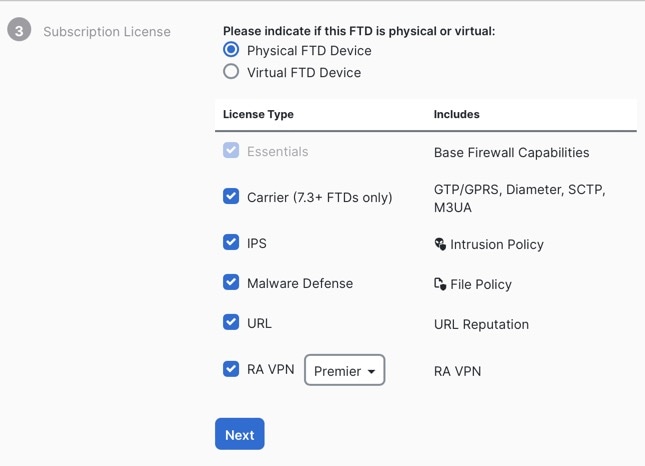
For the Subscription License, click the Physical FTD Device radio button, and then check each of the feature licenses you want to enable. Click Next.

Figure 11. Subscription License
Subscription License

Step 8

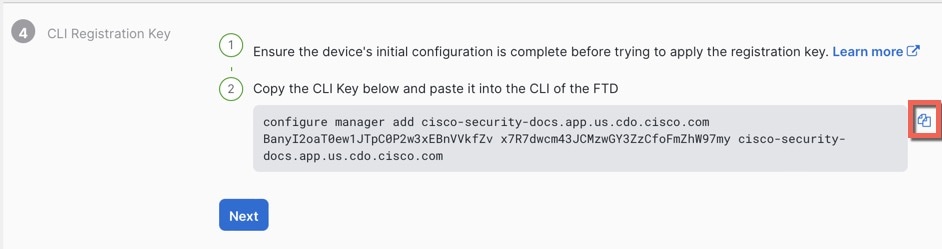
For the CLI Registration Key, Security Cloud Control generates a command with the registration key and other parameters. You must copy this command and use it in the intial configuration of the Firewall Threat Defense.

Figure 12. CLI Registration Key
CLI Registration Key

configure manager add Security Cloud Control_hostname registration_key nat_id display_name

Complete initial configuration at the CLI or using the Firewall Device Manager:

  • Initial Configuration: CLI—Copy this command at the Firewall Threat Defense CLI after you complete the startup script.

  • Initial Configuration: Device Manager—Copy the scc_hostname , registration_key , and nat_id parts of the command into the Management Center/Security Cloud Control Hostname/IP Address, Management Center/Security Cloud Control Registration Key, and NAT ID fields.

Example:

Sample command for CLI setup:


configure manager add account1.app.us.scc.cisco.com KPOOP0rgWzaHrnj1V5ha2q5Rf8pKFX9E
Lzm1HOynhVUWhXYWz2swmkj2ZWsN3Lb account1.app.us.scc.cisco.com

Sample command components for GUI setup:

Figure 13. configure manager add command components
configure manager add command components

Step 9

Click Next in the onboarding wizard to start registering the device.

Step 10

(Optional) Add labels to your device to help sort and filter the Security Devices page. Enter a label and select the blue plus button (plus sign). Labels are applied to the device after it's onboarded to Security Cloud Control.

Figure 14. Done
Done

Perform Initial Configuration (Manual Provisioning)

For manual provisioning, perfom initial configuration of the firewall using the Secure Firewall Device Manager or using the CLI.

Initial Configuration: Device Manager

Using this method, after you register the firewall, the following interfaces will be preconfigured in addition to the Management interface:

  • Ethernet 1/1—outside, IP address from DHCP, IPv6 autoconfiguration

  • VLAN1inside, 192.168.95.1/24

  • Default route—Obtained through DHCP on the outside interface

  • Additional interfaces—Any interface configuration from the Firewall Device Manager is preserved.

Other settings, such as the DHCP server on inside, access control policy, or security zones, are not preserved.

Procedure


Step 1

Connect your computer to the inside interface (Ethernet 1/2 through 1/8 or for the Secure Firewall 1220, 1/2 through 1/10).

Step 2

Log into the Firewall Device Manager.

  1. Go to https://192.168.95.1.

  2. Log in with the username admin and the default password Admin123.

  3. You are prompted to read and accept the General Terms and change the admin password.

Step 3

Use the setup wizard.

Figure 15. Device Setup
Device Setup

Note


The exact port configuration depends on your model.

  1. Configure the outside and management interfaces.

    Figure 16. Connect firewall to internet
    Connect firewall to internet
    1. Outside Interface Address—Use a static IP address if you plan for high availability. You cannot configure PPPoE using the setup wizard; you can configure PPPoE after you complete the wizard.

    2. Management Interface—The Management interface settings are used even though you are using manager access on the outside interface. For example, management traffic that is routed over the backplane through the outside interface will resolve FQDNs using these Management interface DNS servers, and not the outside interface DNS servers.

      DNS Servers—The DNS server for the system's management address. The default is the OpenDNS public DNS servers. These will probably match the outside interface DNS servers you set later since they are both accessed from the outside interface.

      Firewall Hostname

  2. Configure the Time Setting (NTP) and click Next.

    Figure 17. Time Setting (NTP)
    Connect firewall to internet
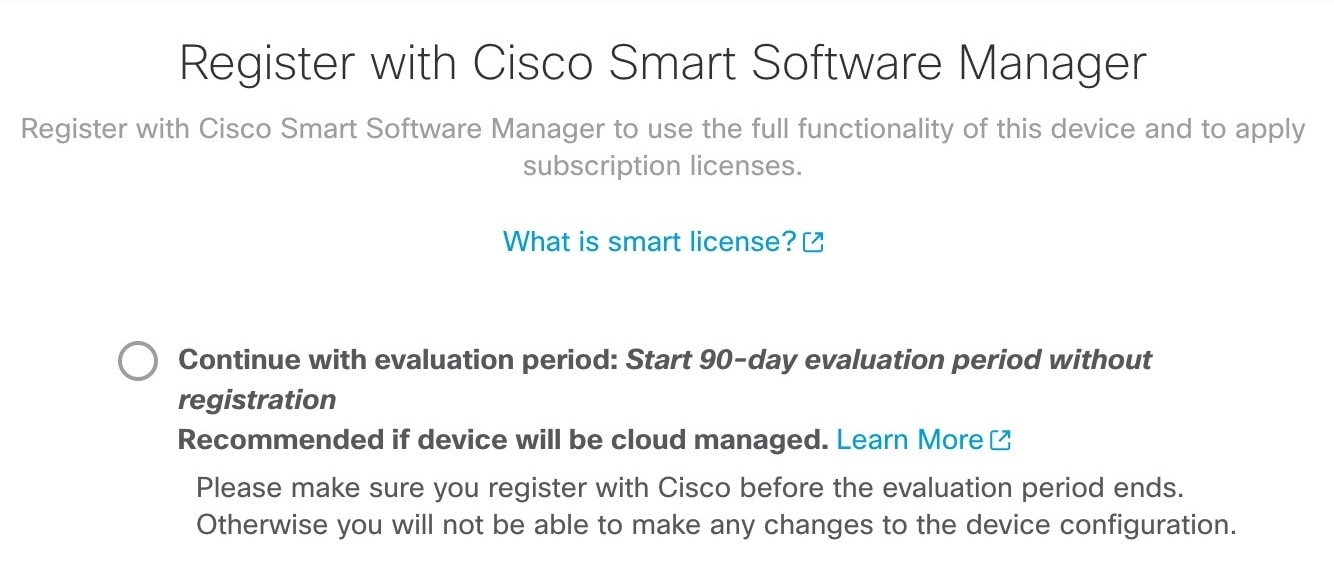
  3. Select Start 90 day evaluation period without registration.

    Connect firewall to internet

    Do not register the Firewall Threat Defense with the Smart Software Manager; all licensing is performed on the Security Cloud Control.

  4. Click Finish.

    Figure 18. What's Next
    Connect firewall to internet
  5. Choose Standalone Device, and then Got It.

Step 4

If you want to configure additional interfaces, choose Device, and then click the link in the Interfaces summary.

Step 5

Register with the Security Cloud Control by choosing Device > System Settings > Central Management and clicking Proceed

Configure the Management Center/SCC/Details.

Note


Older versions may show "CDO" instead of "SCC."

Figure 19. Management Center/SCC Details
Management Center/CDO Details
  1. For Do you know the Management Center/SCC Hostname or IP address, click Yes.

    Security Cloud Control generates the configure manager add command. See Onboard the Firewall with Manual Provisioning to generate the command.

    configure manager add _hostname registration_key nat_id display_name

    Example:

    Figure 20. configure manager add command components
    configure manager add command components
  2. Copy the cdo_hostname , registration_key , and nat_id parts of the command into the following fields:

    • Management Center/SCC Hostname/IP Address

    • Management Center/SCC Registration Key

    • NAT ID

Step 6

Configure the Connectivity Configuration.

  1. Specify the Threat Defense Hostname.

    This FQDN will be used for the outside interface.

  2. Specify the DNS Server Group.

    Choose an existing group, or create a new one. The default DNS group is called CiscoUmbrellaDNSServerGroup, which includes the OpenDNS servers.

    To retain the outside DNS server setting after registration, you need to re-configure the DNS Platform Settings in the Firewall Management Center.

  3. For the Management Center/SCC Access Interface, click Data Interface, and then choose outside.

Step 7

(Optional) Click Add a Dynamic DNS (DDNS) method.

DDNS ensures the Firewall Management Center can reach the Firewall Threat Defense at its FQDN if the Firewall Threat Defense's IP address changes.

Step 8

Click Connect.

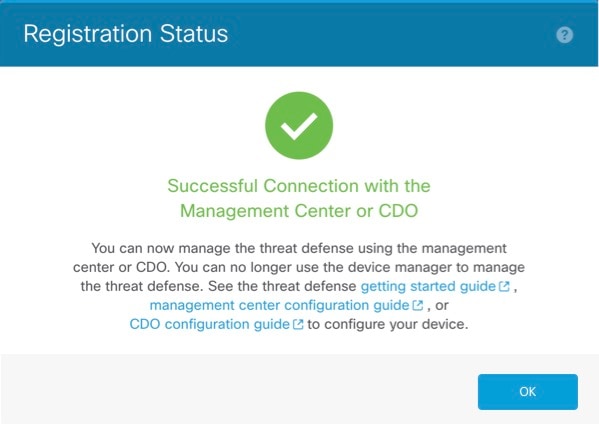
The Registration Status dialog box shows the current status of the Security Cloud Control registration.

Figure 21. Successful Connection
Successful Connection

Step 9

After the Saving Management Center/SCC Registration Settings step on the status screen, go to the Security Cloud Control and add the firewall. See Onboard the Firewall with Manual Provisioning.


Initial Configuration: CLI

Set the dedicated Management IP address, gateway, and other basic networking settings using the CLI setup script.

Procedure


Connect to the console port and access the Firewall Threat Defense CLI. See Access the Firewall Threat Defense CLI.