
Understanding Check failures
Overview
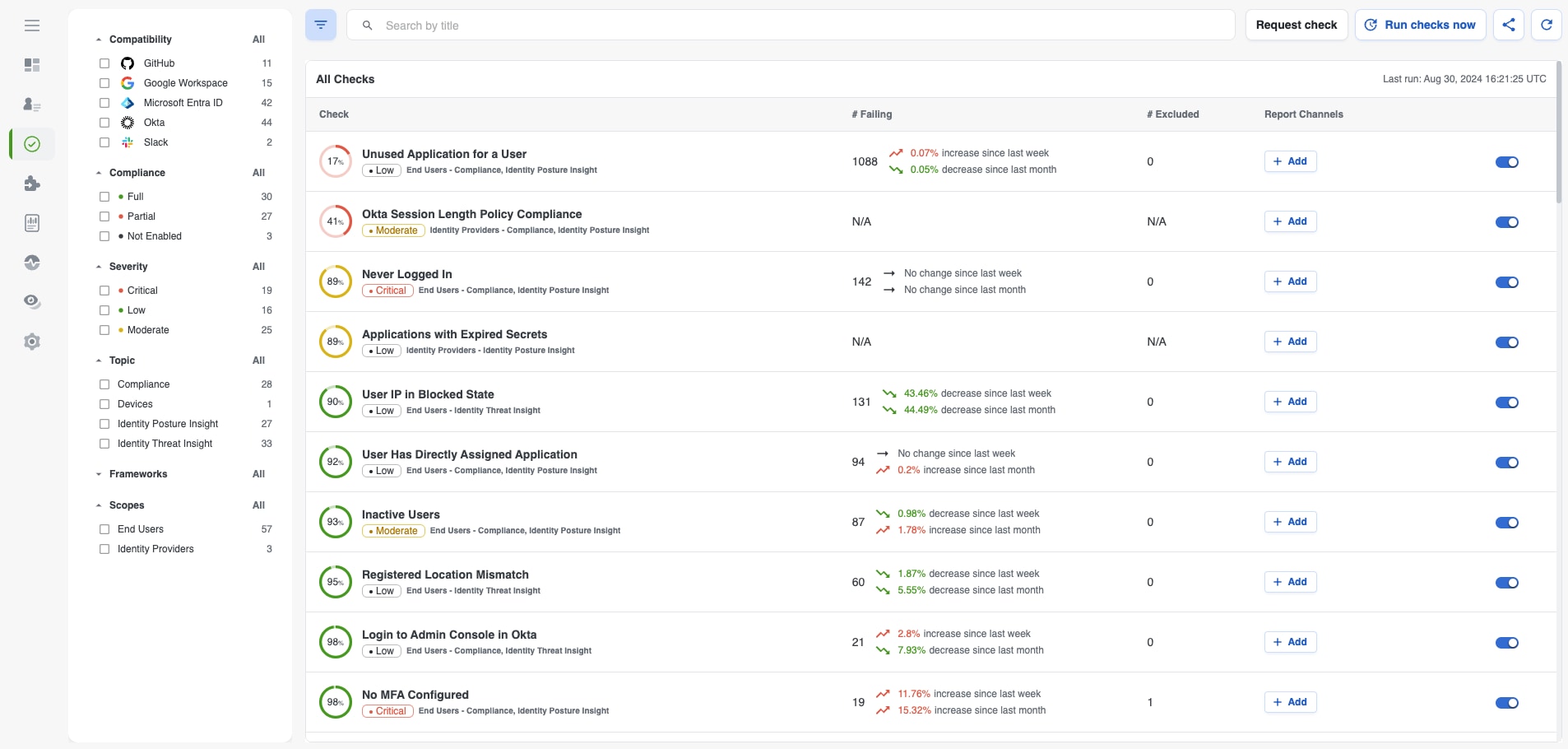
The Checks page provides high level information about all checks across all users in your environment, along with several filters, to quickly understand the state of your environment and assess potential areas in need of attention.
The Checks page shows the full list of checks that are compatible with the identity data sources that are connected in your tenant. The checks in the table are ordered by compliance, from lowest to highest compliance, starting with the checks that have the most users failing. Checks that are in full compliance can be found towards the bottom of the list.
The Checks page is different than the User 360 Checks tab, which only shows information about a given user's check failures, and from the Check Result page, which only shows information about a specific check failure.
To dive into a specific check failure and review the full list of failing users, click on any part of the row of the check you are interested in exploring.
This section covers:
- Different types of checks: posture vs threat, state based vs event based, and near time vs scheduled
- Definitions of the elements in the table
- Checks page actions
The full list of available checks can be found here. Read more about the information presented and actions available on the Check Results page here.
Different Types of Checks
Posture Insight checks vs Threat Insight checks
When looking at the available checks in the platform, you may notice that some checks are marked as Identity Posture Insight checks, while others are marked as Identity Threat Insight checks. Posture based checks highlight ways to improve your organization's identity security hygiene, while Threat based checks draw attention to potentially risky behavior that your end users, or someone pretending to be your end users, may be engaging in. It is important to address your posture based issues as this ensures decreases the potential risk of every threat that comes in.
State based checks vs Event based checks
Behind the scenes, Cisco Identity also categorizes checks as either state based or event based to retain and display a user's check history.
State based checks are those which are calculated on static entitlement information such as - Is the user active? Does the user have MFA configured? Does the user have unused applications? Is the user sharing an authenticator with another user? etc. Based on the response, a state based check will fail and will remain failing until the response changes.
Event based checks are those which rely on event data where a user, or someone pretending to be a user, engages in a particular activity that triggers the check failure. Examples of event based checks are - Weak MFA was used to successfully sign in, IP Threat Detected, Personal VPN usage, Impossible Travel, etc.
If a user has multiple unique events that trigger an event based check failure, event based checks will display the 'Observations' on a given User's Check tab, to keep a record of the individual events that caused the failure, rather than consolidating all the information into one check failure. For example, a particular user fails the New Country for Tenant check yesterday because of a login in from Croatia, and tomorrow because of a login from Uruguay. Each event would be recorded as an individual failing observation for this particular user.
Event based checks will continue to fail for a given user for 7 days, until no new observations are noted. After 7 days, if no new observations have been noted for that check for the given user, the check failure will expire and mitigate itself so the user will no longer appear in the list of failing checks. The check failure will move to the Resolved Checks table of the given user's Checks tab in the User 360. However, if a new observation is noted for that check for the given user within the 7 day window, the user will continue to fail the check. The list of observations and the associated explainability can also be seen in the User 360 Checks tab.
Note: Observations are only noted on Event based checks. State based checks do not have observations as the check failure logic does not rely on event data
Near Time Compatible checks vs Scheduled checks
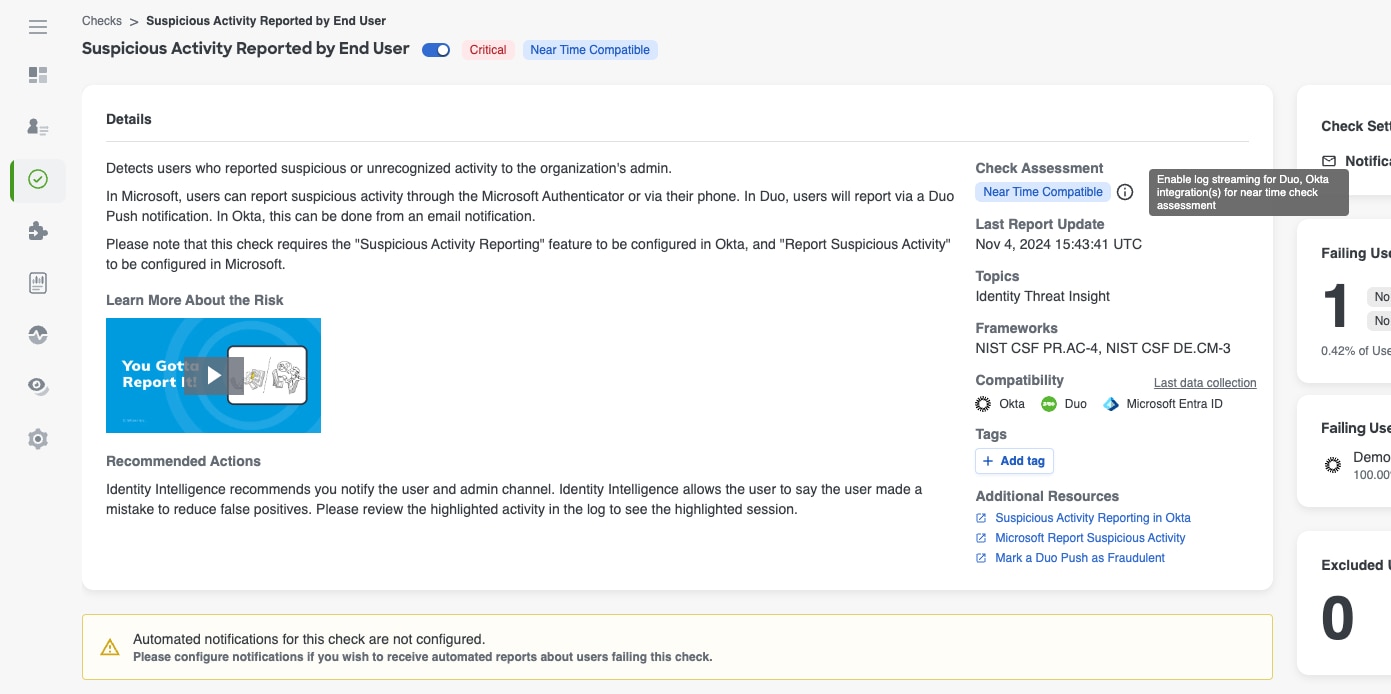
You may notice that certain checks have an additional field in the Check Details section called Check Assessment which distinguishes the checks that are "Near Time Compatible". If log streaming is enabled for the compatible sources and the check is "Near Time Compatible", the data collection and analysis for that check will occur multiple times throughout the day. Checks that are not Near Time Compatible are "Scheduled" and will follow the standard 24 hour data collection process that runs at the configured time for your tenant.
You can read more about Near Time compatible checks in the Check Details section of the Reviewing Check Results documentation.
All Checks table
The section below details the fields that appear in the table, as well as the definition of each field:
Check Compliance
The percent compliance of a given check, where 100% represents full compliance (0 users failing). Calculated by # of users failing a given check compared to # of users in Protected Population
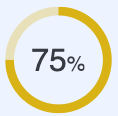
Note: If check compliance is 0% and Users column in the Checks table is N/A, this indicates the check is evaluated against data sources, not end users, and has at least 1 item failing
Check
The name of a given check The severity of the checkThe scope of who is being evaluated against the check (end user or Identity Provider) The names of any relevant frameworks or topics related to the check Any custom tags applied to a check, if present
# Failing
The total number of users currently failing a given check The percentage change (increase or decrease) in number of users failing a given check over the last 7 days and 30 days
# Excluded
The total number of users excluded from a given check
Report Channels
If a Notification Target has not been configured for a given check, an Add button is displayed in this column. Select the Add button to open a modal to choose from existing notification targets, or, if no notification targets are configured in your environment, it will say "No notification targets found". Click the Add Notification Target button to go to Integrations and configure one If one Notification Target has been configured for a given check, you will see the name of the configured notification target and an icon for the target type (Slack icon, email icon, etc) If multiple Notification Targets have been configured on the same given check, this column will say 'Multiple Channels' To modify or add Notification Targets to a given check that already has one or more targets configured, click on the Pencil icon next to the target name to make changes
Enabled
If a check is enabled, this check will be evaluated again the users in your protected population. A blue toggle to the right indicates a check is enabled If a check is disabled, users will not be evaluated against this check. A grey toggle to the left indicates a check is disabled By default, all checks are enabled. To disable a check, toggle the switch either from this column in the Checks table or from the specific Check page

Checks page general actions
This section describes the high level actions you can perform on the Checks page. Click through the tabs below to learn more about how to utilize each feature.
Filter
Filters
The Checks page is filterable by a number of attributes, enabling you to slice and dice all Checks based on certain parameters that are important to you. You can see all the available basic filters on the left hand side of the Checks page.
To enable a filter, click the check box for the attribute you would like to filter by. The applied filters will be added to the search bar. Distinct filters are separated by an AND operator. Within a given filter, selecting more than one value will separate the values with an OR operator (ie: Moderate OR Low).
To remove a filter, you can either deselect the attribute from the filters list on left hand side of the Checks page, or click the X on the right hand side of the filter box that is in the search bar.
After you have selected your filters, the filters are retained as you navigate between different areas within the platform.
Search
Search for checks
Use the search bar above the Checks table to search based on keywords in Check titles
If you have searched on a particular parameter, the search criteria is retained as you navigate between different tabs within the platform
To clear the search bar click the X on the right most side of the search bar
Run Checks Now
Run Checks Now If you have made changes to the configuration settings of state based checks, clicking this button will re-run the state based checks so that you can see which users are failing based on the updated check configuration criteria.
If you have made changes to the configuration settings of event based checks, clicking this button will not show you updated results based on your new settings. To see any new users who are failing the check based on your configuration setting changes, you need to go to the Integrations page and trigger a data collection for the desired data source. Note: Manually collecting new data will not remove previously failing users that no longer fail under the updated settings from the list of failing users
Share
Share URL
For easy sharing, use the Share button on the right side of the search bar. The Share button copies a link, with the applied filters and selected columns, that can be pasted, bookmarked or shared with anyone who has the appropriate access to your Cisco Identity tenant

Refresh
Refresh
Use the Refresh button on the right side of the search bar to refresh check data

Reviewing Check Results
From the Checks page, you can dive into a specific check to read about the check and the failure criteria used to evaluate users, review the recommended remediation actions, see the full list of users currently failing that check and why each user is failing, modify check settings, configure notification settings, and more.
To explore a specific check further, click on either the desired check name, or any part of that row (excluding the "Report Channels" and "Enabled" columns) to see the Check Results page.
The Check Results page is broken into multiple components:
- Check Details
- Failing Users list
- Reviewing individual user failures
- Check Settings, including customization and notification settings
-
Failing User count widgets
Check Details
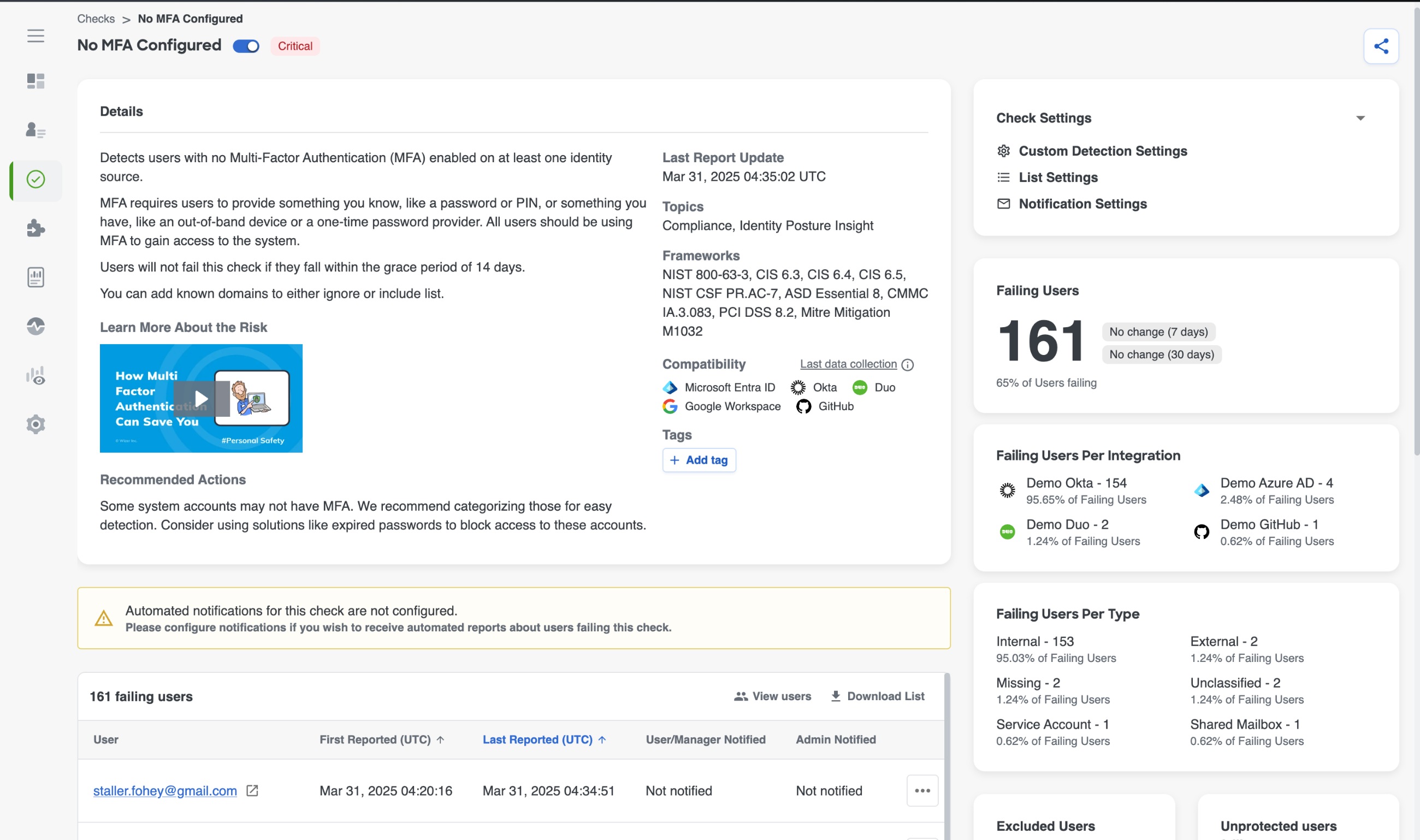
The Check Details provides high level information about the specific check you are reviewing and encompasses the full block of information that you see on the top of the Check Results page. While the information available will vary from check to check, the format is the same across all checks.
The severity level of each check can be seen next to the Check name, right above the Check Details block.
On the left side of the Check Details block you will see:
- Check Description - Information about what a given check is detecting, the logic used to determine which users will fail the check, the potential risk to your organization, etc
- Some checks will have a sub-section within the description called Learn more about the risk with a short 1-2 minute educational video explaining the risk of this behavior and why it is important to remediate this failure. If check notifications are set up to contact the failing end user, in certain cases (such as the "No MFA Configured" check), the message sent to end users will include the associated video to teach them about the risk and encourage them to take the necessary action to remediate the problem
- Recommended Actions - Information on how you can remediate a given check failure, investigate the problem, and/or improve internal processes or policies to prevent users from failing this check in the future
On the right side of the Check Details block you will see:
- Last Report Update (UTC) - The date and time the system last processed identity source data and ran the user analysis for a given check. Hover over this value to see a tooltip with the local time
- Topics & Frameworks - Topics lists the category that a given check falls into (threat, posture, compliance). Frameworks lists different security frameworks and guidelines, such as NIST, MITRE \&TTACK, CIS, etc, associated with a given check. Both of these fields are available as filters on the Checks page
- Compatibility - Shows which identity data sources work for a given check. All compatible data sources are visible, even if they are not configured for your tenant
- Tags - Tags can be added to a check for additional custom categorization. Any tags that are applied to a check will be visible in the Check Details block, and can also be used as a filter on the Checks page. Tags are visible to all users with platform access
- To apply a tag to a check, click the +Add Tag button in the Check Details block, enter the desired tag name and save
- To remove an existing tag, click the X in the desired tag label in the Check Details block
- Check Assessment (not available for all checks) - Certain checks are "Near Time Compatible", which means that if log streaming is enabled, the data collection and analysis for this check occurs multiple times a day rather than following the standard 24 hour data collection process. If a check is Near Time Compatible, this field will be visible in the Check Details block.
- Log streaming is available for certain integration sources including Okta, Azure and Duo. Configure log streaming to receive notifications about these checks in Near Time.
- Certain integrations are only Near Time Compatible with certain checks (ie: a check may be near time compatible for Okta and Duo but not Azure)
- Hover over the tooltip next to the Near Time label to see which data sources need log/event streaming enabled to start getting near time assessments for this check. Any data sources that already have streaming enabled will not appear in the tooltip
- Additional resources (not available for all checks) - Some checks will have links to external sites with information related to a given check, such as relevant documentation from compatible data sources on data definitions or related configuration instructions, security framework detailed descriptions, etc where you can learn more about the security risk or how to remediate an issue
Failing Users List
Under the Check Details block is the list of users currently failing a given check. From this table you can review the users failing a given check, as well as dive into the 'Check Explainability' to learn more about why a specific user failed the check.
Directly above the column headers, you can see a count of the number of failing users and 2 buttons - View Users and Download List.
- View Users will take you to the Users page, pre-filtered on the given failing check, so you can see all the users failing that check
- Download List will export the list of failing users, and the columns from the table, to a CSV file. It also does include the check explainability for the failing users
Note: If there are more than 1,000 users failing a given check, you will see a button that says View Users which will take you to the Users page, where you can see all failing users and utilize the filters to narrow down to smaller, more manageable groups of users.
The table of failing users contains the following fields :
User
The user key of the failing user Clicking on a user's name will take to you their User 360 Checks tab
First Reported (UTC)
The date and time the user was reported for failing a given check for the first time To sort by this column value, click the First Reported column header to switch between ascending and descending order
Last Reported (UTC)
The date and time the user was most recently reported for failing a given check or having a new observation recorded for that check By default, the list of failing users is sorted in descending order (newest to oldest) on Last Reported. To sort by this column value, click the First Reported column header to switch between ascending and descending order
Admin Notified
The number of times a notification was sent to admins about a given user failing a given check, the notification method used as an icon (slack logo, email icon, etc) and the last date and time a notification was sent for a given user If notifications are not configured for a given check, this column will say 'Not Notified'
User/Manager Notified
Not supported for all checks. If a check is not compatible with end user/manager notifications, this column will not be visibleThe number of times a notification was sent to an end user and/or end user manager about the user failing a given check, the notification method used as an icon (slack logo, email icon, etc) and the last date and time a notification was sent for the given user If end user/manager notifications are compatible with a given check but are not configured, this column will say 'Not Notified'
Non-user based checks
For Identity Provider checks, like Okta Session Length Policy Compliance or Apps with Expired Secrets, the check is evaluated against the integration instance, rather than end users so you will not see a table with failing users. On these checks, you will see Failing Instances, which lists the failing identity data source(s), and additional relevant data items, such as app display names, policy names, etc., that require remediation. You can filter for Identity Provider checks on the Checks page, under the Scopes filter.
Customize Check Settings
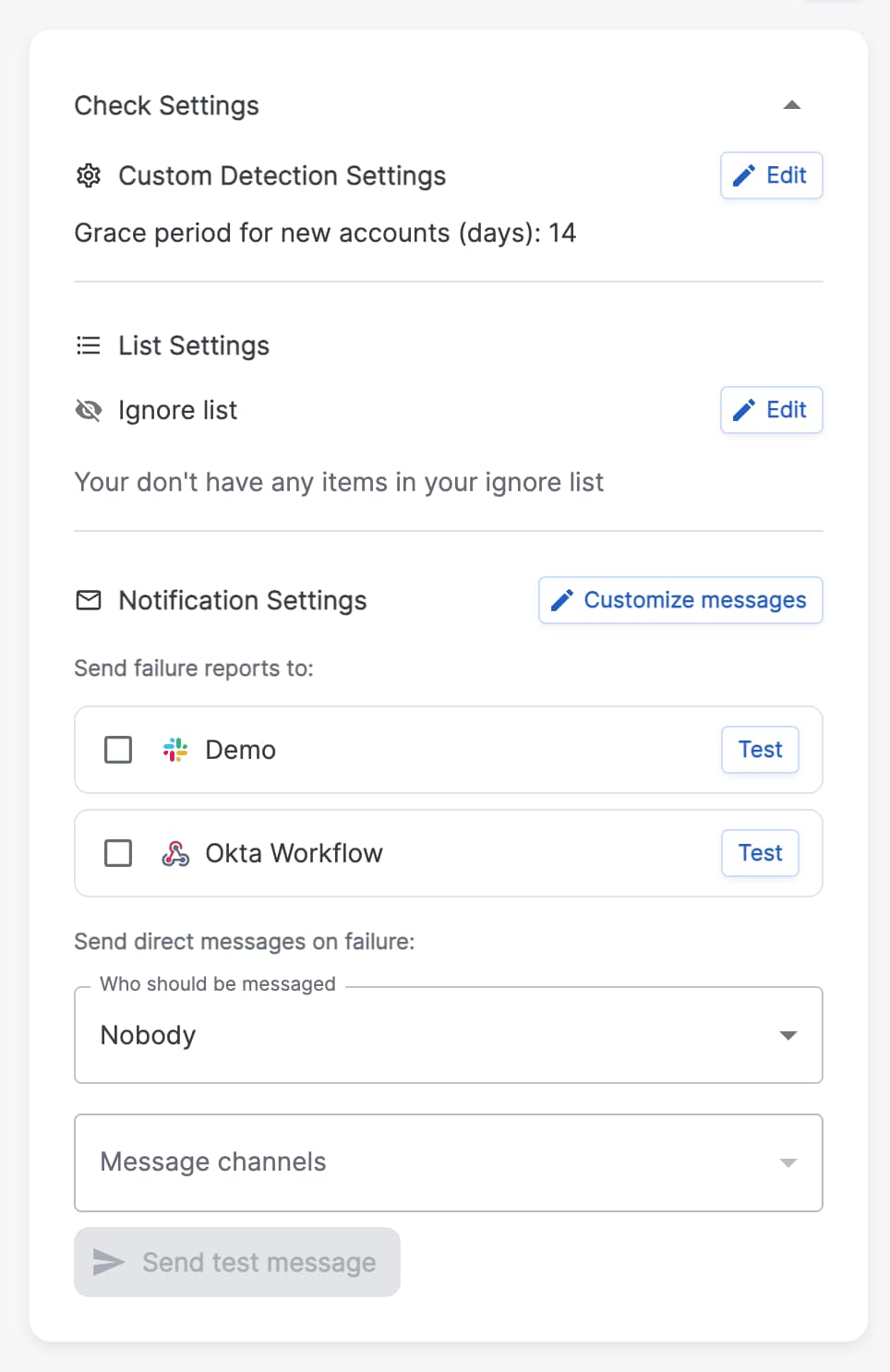
On the right hand side of the Check Results page, next to the Check Details block, you will find a Check Settings block, that is collapsed by default. Click the down-arrow in the top right of this widget to expand it so that you can review or modify the check's settings.
Detailed information about the different check settings available, and how to use them, can be found in our Customizing Checks article.
Diving deeper into a check failure
Just like on the User 360 Checks Tab, for each failing check, you can click in and view more information about that particular failing check, along with the most important context, such as the actions that contributed to the user failing a given check and high level context about that user. This is called the 'check explainability'.
The explainability available will vary from check to check based on what information or context is most relevant for a particular check, and can include information such as such as user title, failing data source, factor type, application accessed, IP address used, etc.
To review the check explainability for a specific user from the Check Results page you can either:
- select anywhere in the blank space in the row related to the specific user you'd like to dig into
- select the blue icon (3 lines and an arrow) at the end of the row for the specific user
Both methods will open a side panel from the right side of the page with the explainability information for that user. To close the side panel, click the X in the top right corner of the panel, or click anywhere outside of side panel.

For event based checks, within the explainability panel, you can jump directly to a given user's Activity tab to get more information by either clicking the View in Activity button to navigate to the Activity tab pre-filtered on all events related to that check failure, or clicking on a See in Context button to go to the Activity tab pre-filtered on events that occurred in the hour directly before and after the check failure.
Additionally, If you click a given user's user key from the table, you will go to that user's User 360 Checks tab, where you can see all the checks the user is failing, review the check explainability, and see the observation history for a check (for event based checks).
Available Actions
From the failing users list, you can also take a few different actions using the 3-dot button on the right side of the row for a given failing user. The actions available are:
- Send notification - Sends a one-off notification about a given user's failure to a configured notification channel for Cisco Identity admins, or the end user/manager if compatible. Notification targets must be configured to use this functionality
- View Logs - Takes you to a given user's User 360 Activity tab, pre-filtered on the check failure
- Exclude from Check - Removes the user from the list of check failures and stops them from being evaluated against a given check for the specified time frame. Check will appear in Resolved Checks table in Checks tab of User 360
- Mark as Interesting and Mark as Normal - Note: Only available for event based checks_._ Marking a user's check failure or observation as either interesting or normal behavior will mitigate the failed check for that occurrence for that user and move it to the Resolved table in Checks tab of given user's User 360
Failing Users widgets
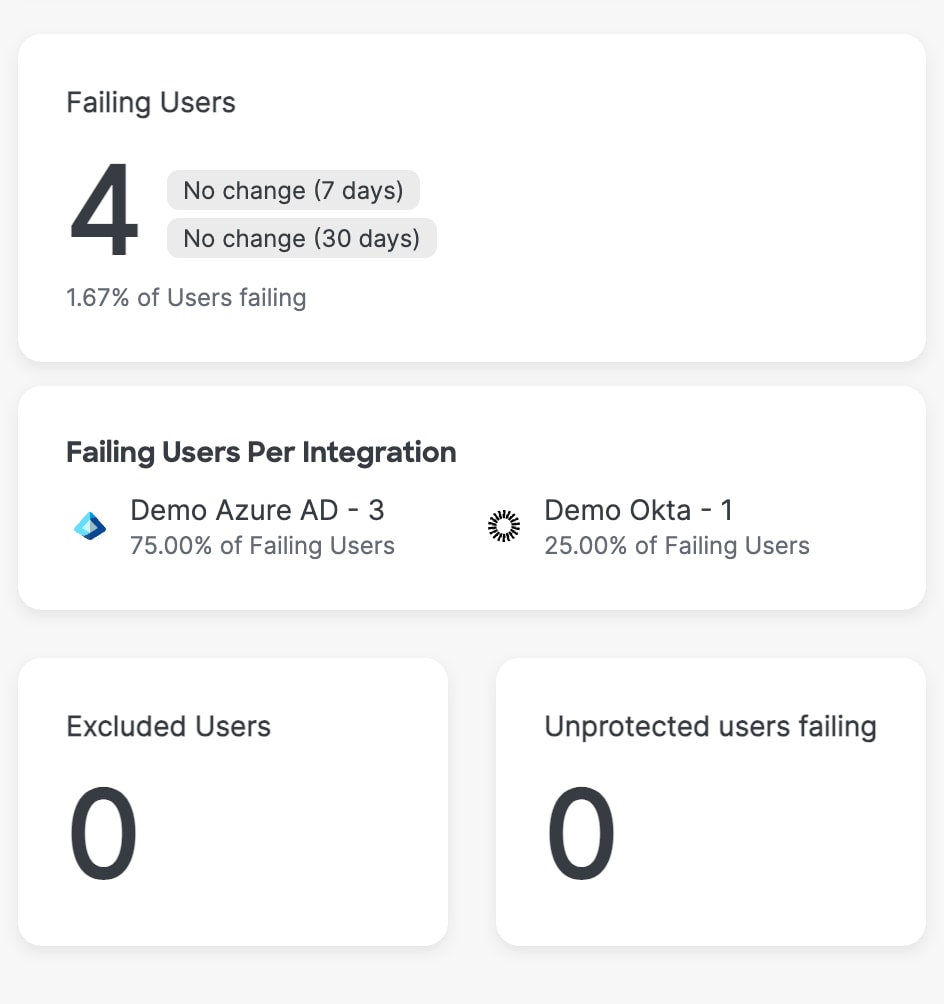
There are a few widgets on every Check Results page that can be useful to get a high level understanding of the users failing a given check
Failing Users
The number of users currently failing the check, as well as the percentage of users failing compared to the total number of users in your environment. This widget is available on all checks, though it may be replaced with a compliance score for provider based checks.
Within this widget, you can also see how the number of failing users has changed over the last 7 and 30 days expressed as a percent change. Large increases to either of these numbers may indicate something worth investigating such as an active attack, a policy misconfiguration, etc.
Failing Users Per Integration
The number and percentage of users currently failing a given check, broken down by which identity data source is causing a user to fail. Focusing on a specific Provider can help with prioritizing user failures stemming from the identity source that is more important for you on a particular check. This widget is not available on all checks.
For example, a user with an account in both Duo and Azure may fail the No MFA Configured check because they have MFA configured in Duo, but not in Azure. In this case, the user would be counted under the Azure integration count.
To see which users are failing because of a given source, click on the data source within this widget, which will take you to the Users page, pre-filtered on that specific check and the selected integration. Note: If a user is failing under more than one source, they will be counted under all applicable sources
Failing Users Per Type
The number and percentage of users currently failing a given check, broken down by their Cisco Identity User Type. Focusing on a specific User Types makes it easier to prioritize user failures based on who the users are. This widget is available on all checks except for Provider based checks.
For example, an internal User failing the No MFA Configured check is more important to address than an external user failing the same check.
To see which users are categorized under a particular user type, click on the user type within this widget, which will take you to the Users page, pre-filtered on that specific check and the selected user type.
Excluded Users
The total of number of users who have been excluded from a given check, either temporarily or permanently. This widget is available on all checks, except for provider based checks.
Click the number of users in the Excluded Users widget to go to the Users page, pre-filtered on that specific check and excluded users, to review which users have been excluded from a check. Click on a specific user and navigate to their User 360 Checks Tab to see more details about the user's exclusion, or to re-include the user in a check if needed.
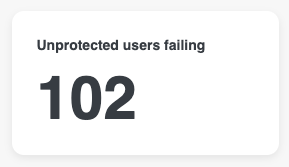
Unprotected users failing
The total number of users who are not currently in your designated Protected Population that would be failing this check if they were part of the protected population. This data can be useful to determine if your protected population may be configured in way that is leading to unintended results.
By default, tenants do not have a protected population configured. Click the link above to read our documentation about setting and modifying your protected population.
This widget is available on all checks, except for provider based checks.
Customizing Checks
Overview
Each organization has a unique way of working - from different user onboarding/offboarding processes to tailor-made security policies and risk tolerances to approved workplace tools. What may be very concerning behavior to one company may be typical behavior for another, because of industry, size, maturity level, past experience, etc.
Cisco Identity knows that identity security does not have a 'one-size fits all' solution, which is why most checks can be tuned and customized to better align to your organization's way of working so you can focus on what matters most to your team.
On the right hand side of the Check Results page, next to the Check Details block, you will find a Check Settings block, that is collapsed by default. Click the down-arrow in the top right of this widget to expand it so that you can review or modify the check's settings.
This article will describe the different types of check settings available, and how you can best utilize them.
Custom Detection Settings
Many checks in Cisco Identity can be tuned via the Custom Detection Settings to better align with your organization's risk tolerance, policies, and/or procedures. These settings could be numerical values that you increase or decrease to make the check evaluation criteria more or less strict, or it could be toggles to include or exclude event types, groups of known IP addresses, etc.
All custom detection settings will have a default value configured that can be modified as needed. To change a check's settings:
- Open the Check Settings widget by selecting the down arrow to expand the widget
- Select the Edit button in the Custom Detection Settings section of the Check Settings widget to open a settings modal where you can make the desired changes
- Note: If this section does not exist, it means the check does not have configurable settings available
-
Once you are done, select Save changes within the modal. The modal will then close
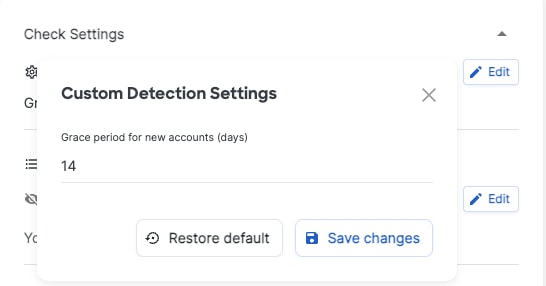
If you would ever like to revert back to the default settings - follow Steps 1 and 2 above. From within the settings modal, select the Restore Default button and then select Save changes
List Settings
Like Custom Detection Settings, List Settings should be used to better align check detections to your organization's risk tolerance, policies, and/or procedure based on what is and isn't allowed.
There are several checks in Cisco Identity that have the option to configure List Settings. All List Settings work as allow or block lists, although they are sometimes called differently (e.g: Ignore List, Include list, etc). What can be added to an allow or block list will vary depending on the context of the check. For example, in some checks you can allow or block specific countries, whereas in other checks you may be able to allow or block certain applications, domains, etc.
Many checks have a default allow and/or block list that can be modified as needed. If two list options are visible on a check (Allow/Block, Include/Exclude, etc), Cisco Identity can only use one of the two options to impact the detection logic (ie: cannot allow certain items AND block other items). To modify the list:
-
Open the Check Settings widget by selecting the down arrow to expand the widget. If a List already has values configured, you will see a count of values under the List name (ie: 10 items). Select the down arrow next to the count of items to see what values are already configured Note: If this section does not exist, it means the check does not have configurable list settings available
-
Select the Edit button in the List Setting section of the Check Settings widget to open the list where you can make changes. Note: If there is more than one List type available (ie: Allow and Block), be sure to select the Edit button that corresponds to the section you would like to modify. Remember that Cisco Identity can only use one list so make sure there are only settings configured under one of the 2 list types
-
To add a new item to a list, select the Add button to open a modal where you can either select from a dropdown of existing options, or enter free text values
- To remove an existing item from a list, find the item you'd like to remove within the list and select the Garbage can icon next to the given value
- Once you are done making changes to a given list, select Save. You can only edit one list type at a time, so if needed - navigate to the next list type to make any changes in the same way
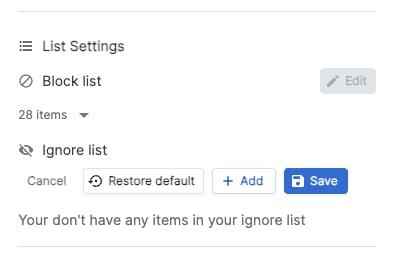
If custom items have been added to a list, these will be denoted with an icon and a tooltip (visible on hover) as shown in the screenshots below. If an item does not have an icon, this indicate that this item was part of the default settings. If an admin removes a a default item, and manually re-adds it, it will also appear as a custom setting.
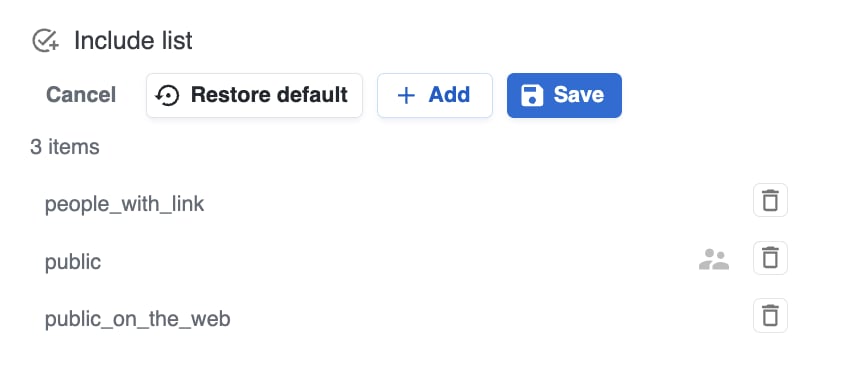
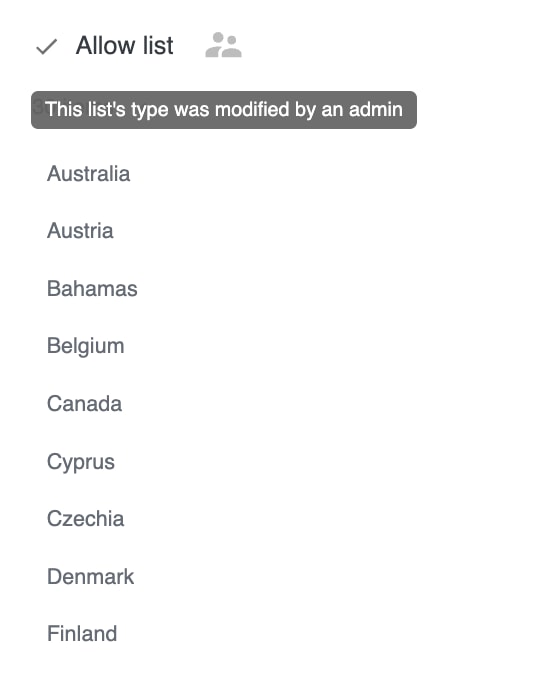
If you would ever like to revert back to the default settings - follow Steps 1 and 2 above, select the Restore Default button and then select Save.
Why does the number of failing users stay the same after I change a check's settings?
When you modify a check's custom detection settings or list settings, the user failure results for the check will not update immediately. When the tenant's next data collection runs, the results for most checks will update automatically. If needed, you can trigger a manual data collection for each integration on the Integrations page to see updated results for state based checks.
You may also notice after making a change to the custom detection or list settings of event based checks, that there are still users failing based on previous check settings. This is because of Cisco Identity's data processing mechanisms and because users failing event based checks will continue to fail for 7 days, until no new observations are noted. If there are users failing a check based on previous settings, and not new settings, you can remove these users from the list with the Mark as normal behavior triage action.
Notification Settings
Every check in Cisco Identity will have a Notification Settings area in the Check Settings widget. We highly recommend utilizing check notifications to closely monitor the user failures for the checks that are most critical to your organization to ensure that you are not missing anything critical, and so that you do not need to log into the Cisco Identity platform daily to review new check failures.
Advice on how to adopt and incorporate Notifications can be found below, under the Best Practices for Notifications header
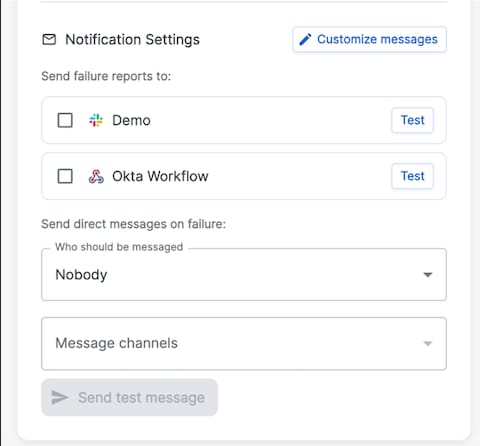
Once you have configured at least one notification target, you can use the notification settings to Send failure reports to the desired notification target by selecting your desired notification target. You can select more than one notification target for a given check if needed.
Certain checks can also be configured to Send direct messages on failures to end users, and/or end user managers (if manager data is available). If you do not see an area to Send direct messages on failures in the Notifications Settings section, it means this functionality is not available for the given check.
Use the Customize messages button to open a modal where you can write custom check descriptions or recommended actions that will be included in the admin notifications, or custom messages to send to failing end users and/or managers. You can also use this modal to Test both notification types to ensure that your custom message looks and works as intended.
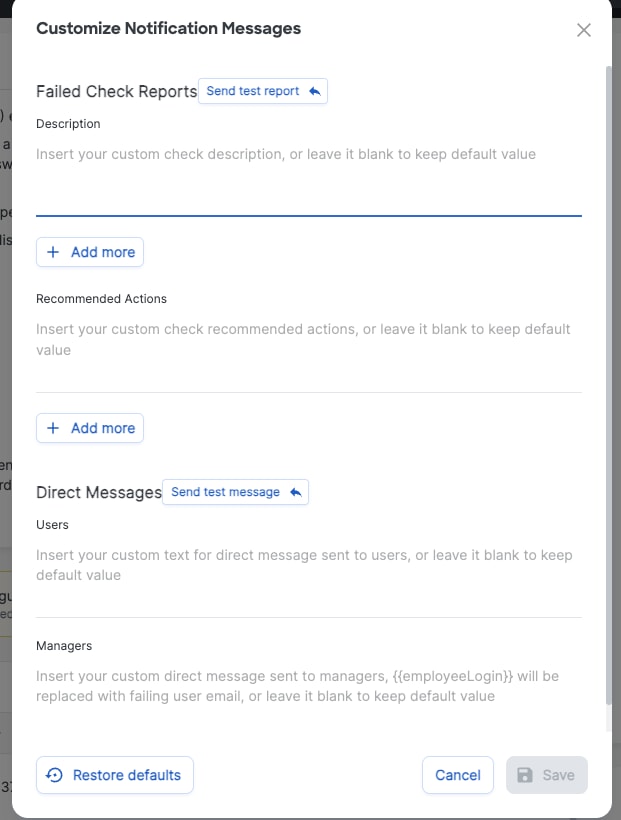
Best Practices for Notifications
Notification targets should be configured based on where you and your team work together - whether that be shared channels in Slack, Webex, Teams or distribution lists via email.
When first starting out with Cisco Identity, we highly recommend setting up failure report notifications for a small handful of checks only to start (3-5 checks), so that you and your team can get used to receiving the alerts, get comfortable with the amount of alerts sent, and start developing investigation and/or mitigation operationalization processes for the check failure reports. Once you are comfortable, you can begin to add notification targets to additional checks where needed.
Typically, we also recommend starting with notifications for Threat based checks that your organization is concerned about and would like to monitor/investigate failures regularly. If there are Posture based checks you are interested in monitoring - be sure that the number of currently failing users is reasonable and actionable before configuring notification settings or you will overwhelm yourself with alerts. For example, if you have 200 users failing the Inactive Users check, we'd first recommend cleaning up these users as much as possible (ideally 10-20 users still failing). Once there are only a few users left failing the check, only should you turn on the notifications for this check to ensure that the number of failing users does not slowly increase to a point where clean up needs to become a bigger project.
If you would like to utilize end user notifications, be sure to inform end users/managers that they may be receiving these alerts and where they can find out more information or support if needed. If you would like these notifications to come from your own domain, which can reduce some end user confusion, you can do so with our Mailgun or SendGrid integrations.
Disable checks
If there are checks that your organization does not care about, you can "turn off", or disable, the check entirely to stop evaluating all users against this check.
The Disable Check toggle can be found in two places:
- The Check results page, right next to the check name
- The Failing Checks page, in the furthest right column of each row
To disable a check, switch the toggle to Disable. Once a check is disabled, the toggle will be grey. To enable a check, switch the toggle to Enable. Once a check is enabled, the toggle will be blue.
Disabling or enabling a check will go into effect immediately.

Unprotected users failing
Another way you can adjust checks is through the Protected Population. This is a drastic measure, as adjusting the groups that are or are not included in the Protected Population will impact ALL of your checks.
By default, tenants do not have a protected population configured. Click the link above to read our documentation about setting and modifying your protected population.
You can see how many unprotected users are failing a specific check in a widget on the left of the Check Results page. This data can be useful to determine if your protected population may be configured in way that is leading to unintended results.
Cisco Identity Checks
Cisco Identity provides two categories of insights: identity threat detection and identity posture management. More information about the different types of checks can be found in the Understanding Check Failures overview.
Navigate to the relevant section or search for a specific area of interest using either the left hand navigation menu or the list below. Click on any detection to read more information about what criteria is used to fail a user for a specific check, which data sources are compatible with each check, as well as recommendations to remediate and customizable settings.
Identity Posture Management
Access from Denied Territories
Agentic Application Reuse
Allow/Block Email Logins
Application Login Bypasses SSO
Applications with Expired Secret
HRIS Discrepancies
Cisco Identity Client Secret Expiring Soon
Inactive Account Probing
Inactive Guest Users
Inactive Users
Kerberoastable Accounts
Missing Value in Mandatory Field
Never Logged In
No MFA Configured
No Strong MFA Configured
Non-Human Identity Password Expiration Failure
Non-Human Identities with No MFA Configured
Okta Long Running Sessions
Okta Session Length Policy Compliance
Personal VPN Usage
Provider User Type Missing
Rate Limit Alert
Role Assigned to Azure Cloud Only Account
Service Account Reuse
Shared Mailbox Sign In Enabled
Slack User Inconsistencies
Telecom MFA Limit Reached
Unmanaged Devices Access
Unused Application for a User
Upcoming App Key Expiration
User Authorized to Bypass MFA
User Has Directly Assigned Application
User in IDP but not in HRIS
User Password Expiration Failure
User Stuck in Non-Functional State
User Sharing Authenticators
Weak MFA Was Used to Successfully Sign In
Identity Threat Detection
A Bypass Code Was Used To Successfully Sign In
Access From Dormant Account
Access From Dormant Non-Human Identity
Accounts With Unusually High Activity
Active Account under Heavy Attack
Activity From Untrustworthy ISP
Admin Impersonation in Okta
Admin Role Assigned to User
Admin Role Assigned to Non-Human Identity
Authenticator Registration Anomalies
Break-Glass Account Successful Sign In
Code Exfiltration By Guest Account
Compromised Sessions
Google Drive File with Excessive Sharing Permissions
Impossible Travel
IP Threat Detected
Login to Admin Console
MFA Flood
Microsoft Entra ID Admin Activity Anomaly
New Country for Tenant
New IdP Created
Non-Human Identity with Interactive Browser Access
Okta Admin Activity Anomaly
Rare Browser Activity
Registered Location Mismatch
Risky Parallel Sessions
Service Account Successful Sign In
Service Principal Risk Detected
Shared Mailbox Successful Sign In
Sign In Threat Detected
Sign-in from Recently Created IdP
Successful Access from a Previously Only Failing IP
Super Admin Login to Google
Suspicious Activity Reported by End User
Unusual Repo Access
User Lock Out Risk Detected
User Trust Level Alert
Users With Defined Email Forward Rules
Users with New Email Forward Rules
Weak MFA Manually Activated and Utilized
Identity Posture Management Checks
Use the left hand menu bar or see the list of Posture Management Checks below.
Access from Denied Territories
Detects successful logins from territories restricted because of embargoes or other government regulations, or where the network's ASN country is restricted regardless of IP address's reported location. This check applies to employees and external entities, including third parties and contractors.
The default list of restricted territories is based on the Office of Foreign Assets Control's guidelines and can be customized via Custom Detection Settings to align with your organization's specific requirements.
Recommended Actions
Audit the user's recent activity for any suspicious behavior, data access, or configuration changes. Contact the user directly through a trusted channel (not email) to confirm that the login was authorized. If the login was not legitimate, immediately revoke all active sessions and reset the user's credentials.
If the access was legitimate, document the business justification for accessing corporate resources from a restricted territory. Implement preventative measures to reduce risk from high-risk or non-business-related regions by configuring firewall rules, applying location-based access policies, and enabling identity provider settings (such as Duo Risk-Based Authentication) to block access or require additional verification for logins from restricted territories or unapproved geographic locations.
Default Check Settings
Block List: 14 items
Compatibility
Microsoft Entra ID
Okta
Duo
Salesforce
GitHub
AWS
OpenAI
Agentic Application Reuse
Reusing agents where a single account is shared across multiple services, applications, or even environments poses significant security risks. This practice can lead to permission sprawl, exposing accounts with sometimes elevated privileges to a broader attack surface.
Additionally, it complicates auditing and troubleshooting by obscuring the source of specific actions or issues. Detecting and mitigating agentic reuse helps maintain a secure, auditable, and well-managed environment.
This check will evaluate the activity of an account between 10 and 100 days ago, during which the account was active for at least 0 days. These values can be configured in the check settings.
The check will alert when the account's risk score is above 100. The score is bucketed into three categories: Low (80-94), Medium (95-99), and High (100). The threshold for alerting can also be configured in the check settings.
Recommended Actions
If you do not recognize or expect the IP, ISP or user agent being used by the account, contact the account owner to confirm that this is legitimate activity. If there is doubt, you should treat the account as compromised and rotate any passwords, keys or other credentials associated with the account.
Create unique agents for each application or service that you need such an account for and implement the least privileged permissions for each of them. You should also regularly audit these accounts to make sure they are still necessary and remove any unused or orphaned accounts.
Default Settings
Evaluation Period (days): 100
Minimum Account Age for Evaluation (days): 10
Minimum Historical Active Days (days): 0
Risk Score Alert Threshold (percentage): 100
Compatibility
Okta
Allow/Block Email Logins
Detects accounts using email domains that are on your block list, not on your allow list, or that appear across fewer than 5 (configurable) accounts in the last 30 days. You can toggle between using a block list or an allow list, and enable auto-discovery of rare domains to flag uncommon email providers without manual list maintenance. An ignore list is available to suppress alerts for known-good domains.
Recommended Actions
Depending on your security posture, consider deleting users using emails with those domains and exploring why you have them in the system.
Default Check Settings
Auto-Discovery of Rare Domains: enabled
Rare Domain Occurrence Threshold (Past 30 Days): 5
Compatibility
Microsoft Entra ID
Okta
GitHub
AWS
Duo
Slack
Google Workspace
Salesforce
Auth0
Application Login Bypasses SSO
Detects users logging in to an application directly instead of SSO. Preventing logins with a username and password ensures that users cannot bypass your SSO system.
Recommended Actions
Users should only be logging in to an application directly if this is an administrative initiative to respond to an SSO outage or other problem. If this is not the case, please open a security ticket to investigate.
Compatibility
Salesforce
Snowflake
Applications with Expired Secret
Detects applications with expired API keys or passwords.
Recommended Actions
Remove expired secrets from the corresponding Entra ID applications.
Compatibility
Microsoft Entra ID, Okta
Attack Path Alert
The Attack Path Alert check identifies identities that appear in attack path findings ingested from BloodHound Enterprise. Attack paths represent sequences of relationships and permissions that could allow lateral movement or privilege escalation to reach high-value targets. When triggered, this check highlights users who may be positioned to reach sensitive assets through one or more discovered paths.
Recommended actions Validate the attack path details and remove excessive privileges or risky relationships involved in the path. Prioritize users with high impact or exposure, especially those connected to privileged roles or critical assets.
Check settings You can adjust the check settings to filter out some attack paths based on severity to reduce noise and focus on higher-risk findings.
Compatibility BloodHound Enterprise
Entra ID Long Running Sessions
Detects users with long-running sessions in Entra ID, defined as more than 90 days (configurable). Only alerts on sessions that don't have any authentication record in the last 30 days (configurable). Extremely long sessions without re-authentication pose a security threat and can increase the chance of session hijacking.
Recommended Actions
Clear the end user sessions to require re-authentication. We recommend setting "Maximum Entra ID session lifetime" to 16 hours (one working day) and "Expire session after user has been idle on Entra ID for" to 2 hours.
Default Check Settings
Session Length Threshold Days: 90
Days Since Last Recorded Authentication: 30
Compatibility
Microsoft Entra ID
HRIS Discrepancies
Detects users with the manager or email address not in sync between your HRIS (Human Resources Information System) and IDP (Identity Provider). This helps maintain accurate and up-to-date records, enabling smooth workflow and good hygiene.
Recommended Actions
We recommend correcting any inconsistencies.
Compatibility
Workday
HRIS Upload
Inactive Account Probing
Identifies users who experience a sudden surge in failed login attempts after an extended period of inactivity, which could indicate a potential account takeover attempt.
A user will fail this check if they have been inactive for 30 (configurable) or more days and encounter at least 2 (configurable) account probing attempt(s).
Recommended Actions
Check if the username was in any known data breaches. Prioritize investigating and remediating users without MFA enabled on their accounts, as they are at the highest risk. If an attacker successfully guesses or obtains their password, they can gain access without needing a second form of authentication.
To remediate, start by initiating an access review with the user’s manager to confirm whether the dormant account is still needed. If the probed account is no longer required, deprovision it at the identity source. If the account is still needed (ex: user on leave), disable it at the identity source.
If the probed account is no longer required, deprovision it at the identity source. If the account is still needed (ex: user on leave), disable sign-in's at the identity source.
Otherwise, continue monitoring the account for activity and suspend it after a grace period if inactivity persists. Investigate the source(s) of failed login attempts and update geo-blocking rules if needed.
Default Check Settings
Number of days of inactivity: 30
Account probing threshold: 2
Compatibility
Duo
Microsoft Entra ID
Okta
Google Workspace
Inactive Guest Users
Detects guest accounts that have long periods of inactivity. These accounts are often targeted by adversaries as they do not have the same scrutiny as internal accounts. Most compliance frameworks require you to assess and purge these users promptly. A Microsoft Entra ID (Azure AD) business-to-business (B2B) collaboration user's UserType = Guest. A user will fail this check if they have a guest account that has been inactive for more than 30 days.
Recommended Actions
First, assess the users' security posture. We can also determine if users have conditional access and MFA enabled. We recommend deleting these users on a schedule, as they are easy to re-invite.
To delete users in Microsoft Entra ID, you can select "Delete User" from the "Actions" button in User profiles.
Default Check Settings
Number of days: 30
Compatibility
Microsoft Entra ID
Okta
Workday
Slack
GitHub
Inactive Users
Detects users who are enabled (Active status) and who have not successfully authenticated for more than 30 days.
Dormant accounts carry unnecessary financial and information security risk for your organization. These users might consume application licenses without using them. By leaving standing entitlements in place that are not needed or not used on a regular basis, attackers may be able to use a dormant account to gain access to sensitive systems and data.
Recommended Actions
Trigger an access review with the user’s manager to verify that the dormant account still needs access. If not needed, deprovision the account immediately. Otherwise, continue monitoring the account for activity and deprovision after a grace period. By reducing the number of accounts and adopting a least privilege model, organizations can reduce their attack surface.
Default Check Settings
Number of days:30
Compatibility
Microsoft Entra ID
Okta
Salesforce
GitHub
Google Workspace
AWS
Duo
Snowflake
Weak Network Authentication Method
Detects users authenticating to Cisco ISE using weak or cleartext authentication protocols such as PAP, CHAP, MSCHAPv1, or EAP-MD5. These protocols transmit credentials with minimal protection, making them vulnerable to interception and replay attacks. Certificate-based methods like EAP-TLS or PEAP provide significantly stronger security.
Recommended Actions
Configure ISE authentication policies to require EAP-TLS, PEAP, or EAP-FAST for all network access. Disable PAP, CHAP, MSCHAPv1, and EAP-MD5 in the allowed protocols configuration for your policy sets. Investigate whether the weak authentication is caused by legacy devices that cannot support stronger protocols and plan their replacement.
Compatibility
Cisco ISE
Kerberoastable Accounts
Detects Active Directory accounts with a non-empty Service Principal Name (SPN) attribute, making them vulnerable to Kerberoasting.
Kerberoastable accounts expose encrypted service tickets that attackers can obtain and crack offline without triggering account lockout controls. If compromised, these accounts may be abused to access critical services, enable lateral movement, or escalate privileges.
Recommended Actions
Remove unnecessary SPNs and review why each SPN is required.
Rotate affected account credentials and consider moving service accounts to gMSA where possible.
Enforce strong password policies and prioritize monitoring of high-privilege accounts.
Additional Resources
MITRE ATT\&CK T1558.003: Kerberoasting
Compatibility
Microsoft Active Directory
Missing Value in Mandatory Field
Details
Some account profile fields that you have defined as mandatory are missing values for some users.
This can happen if the field was created or made mandatory after the user profile already existed.
Missing values for mandatory fields can prevent IAM automation and security systems from working as intended.
Recommended Actions
We recommend reviewing if the field should really be mandatory and, if it is, to fill in the value for impacted users.
Compatibility
Okta
Never Logged In
Detects accounts that were created but never successfully used to log in. Attackers may exploit these unused accounts to register their own MFA factors, potentially bypassing authentication controls and gaining unauthorized access.
A user will fail this check if they have not logged in 7 (configurable) days after an account was created. If needed, adjust the new account grace period in Custom Detection Settings to align with your organization's procedures.
Recommended Actions
Trigger an access review with the user’s manager to verify that the unused account is still necessary. If not needed, suspend the account immediately. Otherwise, reset the account and direct the manager to onboard the user correctly.
Default Check Settings
Number of days: 7
Compatibility
Duo
Google Workspace
Microsoft Entra ID
Okta
Salesforce
Snowflake
OpenAI
NHI with Deprovisioned Owners
Non-Human Identities that are assigned to at least one owner that is deprovisioned present a security and posture risk. When an owner of an NHI leaves they may take sensitive credentials relating to the NHI with them. This leaves an open vulnerability in your environment that can be exploited by a disgruntled employee or bad actor to gain access to your systems.
Recommended Actions
When an owner leaves you should review if the NHI is still necessary. If the NHI is no longer necessary then it should be deprovisioned. If the NHI is still necessary then you should review all of the credentials like passwords, authenticators, and API keys tied to it and recycle them so that the ones present while the departed owner was here are no longer valid. You should also review the list of owners of the NHI to make sure it is still accurate.
Compatibility
Microsoft Active Directory
Microsoft Entra ID
NHI with No Owners Assigned
Non-Human Identities should always have an owner assigned. This is critical for keeping track of the accountable person for every identity and for auditability and compliance. It is also important to know who in your organization has the ability to shut down the NHI if the need arises.
Recommended Actions
Attempt to identify individual people in your organization that are responsible for each NHI and assign them as owners in the attributes that determine the owner in your integration(s). If you are unable to locate an owner for an identity you should consider deprovisioning it.
Compatibility
Microsoft Active Directory
Microsoft Entra ID
No MFA Configured
Detects users who do not have Multi-Factor Authentication (MFA) enabled for at least one of their identity sources.
These users are more vulnerable to data breaches and system compromises, making it critical to address these gaps. All users should be using MFA to gain access to the system.
Users will not fail this check if they fall within the grace period of 14 days (configurable), or if they have a federated account.
If needed, adjust the new account grace period in Custom Detection Settings to align with your organization's procedures. This could increase the accuracy and actionability of check results.
Recommended Actions
Enforce and enable MFA on all identity sources, even if they are not the primary IdP or MFA provider. This ensures that misconfigurations don't allow users to bypass MFA by signing in through alternate identity sources.
Identify accounts with valid reasons to be exempt from MFA or those with mitigating controls in place. Document these accounts in an external system for easier tracking and detection.
For exempt accounts, apply temporary exclusions to resolve failures, then periodically review those accounts to assess and update their status, as needed.
Default Check Settings:
Grace period for new accounts (days): 14
Compatibility
Microsoft Entra ID
Okta
Google Workspace
Duo
GitHub
No Strong MFA Configured
Detects accounts where every active multi-factor authentication method is a weak form of verification, such as SMS codes, email one-time passwords, or voice calls, leaving them more vulnerable to interception and SIM-swapping attacks than accounts protected by stronger authentication methods. Accounts where the identity source is managed through a federated provider or Okta accounts where all weak factors are designated as recovery methods only, are excluded from this check.
The National Institute of Standards and Technology (NIST) recommends using authenticator apps or cryptographic solutions such as Duo Verified Push or Passwordless, Google Authenticator, Okta Verify, or Microsoft Authenticator, as well as hardware security keys, as strong second factors.
Recommended Actions
Encourage users to replace weak authentication methods with a stronger alternative such as an authenticator app or hardware security key, prioritizing accounts with access to critical systems and administrative privileges. Where a user has a legitimate reason to remain on a weaker method, document the exception and consider providing a physical hardware security key as a more secure fallback option.
Compatibility
Microsoft Entra ID
Okta
Duo
Non-Human Identities with No MFA Configured
Detects non-human identities (NHIs), such as Service Accounts or Shared Mailboxes, that do not have Multi-Factor Authentication (MFA) enabled on all compatible identity sources.
MFA requires an account owner to provide something they know, like a password or PIN, or something they have, like an out-of-band device or a one-time password provider. Organizations should require all NHIs to configure and utilize MFA when accessing the system to protect these accounts against possible attacks, especially since they often have elevated privileges or access to critical resources.
NHIs will not fail this check if they fall within the grace period of 1 day(s).
You can add known NHI domains and logins to either an ignore or include list.
Recommended Actions
Enforce and enable MFA on non-human identities whenever possible. Appropriately categorize NHIs that intentionally lack MFA configuration for easy detection and consider implementing other solutions, such as expired passwords, to block access to NHIs that cannot have MFA configured.
Shared Mailboxes that are failing this check have interactive sign-in's enabled. We recommend blocking interactive sign-in's for these mailbox accounts to eliminate the need for a second form of authentication to secure them.
Default Check Settings
Grace period for new accounts (days): 1
Compatibility
Microsoft Entra ID, Okta, Duo, Google Workspace, GitHub
Non-Human Identity Password Expiration Failure
Non-Human Identities (NHIs) will fail this check if they have not reset their password for 180 days. If needed, adjust the password reset grace period in Custom Detection Settings to align with your organization's procedures. This could increase the accuracy and actionability of check results.
Relying in static, credential-based authentication methods (such as long-lived API keys or passwords) is discouraged because these credentials can be exposed in breaches, code repositories, or logs
Recommended Actions
Cloud providers often offer credential-less authentication methods (such as intra-cloud access using instance profiles or OIDC federation). It is recommended to use those methods when they are available.
If you are unable to use credential-less authentication methods for reasons such as legacy support, you should enforce a regular credential rotation policy.
Default Settings:
Reset password timeframe (days): 180
Compatibility
Microsoft Entra ID, Okta
Okta Long Running Sessions
Detects users with long-running sessions in Okta, defined as more than 7 days. Extremely long sessions without re-authentication pose a security threat and can increase the chance of session hijacking.
Recommended Actions
Clear the end user sessions to require re-authentication.
Review your Okta session lifetime policies and consider setting a maximum session lifetime of 16 hours with a 2-hour idle timeout to reduce the risk of session hijacking from long-lived sessions.
Compatibility
Okta
Okta Session Length Policy Compliance
Detects if any of your active Okta authentication policies do not have a maximum session lifetime value OR if the session idle expiration value is greater than 120 minutes.
Okta authentication policies should have a maximum session length configured to prevent extremely long sessions without re-authentication. Similarly, the session idle time should be set to an appropriate value for your organizational policies.
Enforcing session timeouts for idle and maximum session lifetime is an important security control for mitigating attacks such as session hijacking.
Recommended Actions
Validate your Okta authentication policy settings.
We recommend setting "Maximum Okta session lifetime" to 16 hours (one working day) and "Expire session after user has been idle on Okta for" to 2 hours.
Note - in Okta Identity Engine deployments, the Maximum Okta global session lifetime setting has moved to the Global Security Policy section and is configured within the policy rules. See this article.
Configure this insight session idle value to match your Okta session policies.
Default Check Settings
Session expiration timeframe (min): 120
Compatibility
Okta
Cisco Identity Client Secret Expiring Soon
The Client Secret key for the Cisco Identity Application in Entra ID (formerly Azure AD) will expire in 90 days or less. If the key expires, Cisco Identity will not be able to collect data.
Recommended Actions
Please issue a new Client Secret and update the Integration in Cisco Identity with the new key.
Default Check Settings
App expiration warning window (days): 90
Compatibility
Entra ID
update-the-microsoft-entra-id-api-app-client-secret
Personal VPN Usage
Detects users logging in from personal VPNs, which can obscure network visibility by evading firewalls to bypass security and policy enforcement. Users will fail this check if 5 or more activities are performed from this VPN.
Recommended Actions
If private VPN usage is against corporate policies, verify private VPN usage with the account and clarify the access policies.
Default Check Settings
Number of Activities from Personal VPN:5
Compatibility
Microsoft Entra ID
Okta
Google Workspace
Salesforce
Duo
Rate Limit Alert
Detects users with a rate limit violation. Okta has several rate-limiting functions for API. In this check, we alert on system.org.rate_limit.violation and core.concurrency.org.limit.violation and we share which users contributed to the rate violation.
Recommended Actions
In most cases, these are service accounts from services that require tuning, such as Cisco Identity, Datadog, or Workday. Please check your organizational rate limits based on Okta API rate limit categories.
Consider the following actions: (1) Contact support of Okta to increase rate limit if the operation is required, (2) Contact support of product to see if events can be tuned, (3) Consider moving to EventBridge to collect events.
Compatibility
Okta
Role Assigned to Azure Cloud Only Account
Detects if an account is assigned applications and permissions in Microsoft Entra ID, but not Active Directory. Because termination processes start with Active Directory, former employees can retain access to applications in Microsoft Entra ID via these disconnected accounts that exist only in Entra ID.
Recommended Actions
We recommend verifying why the role has been assigned to the account.
Compatibility
Microsoft Entra ID
Service Account Reuse
Reusing service accounts where a single account is shared across multiple services, applications, or even environments poses significant security risks. This practice can lead to permission sprawl, exposing accounts with sometimes elevated privileges to a broader attack surface.
Additionally, it complicates auditing and troubleshooting by obscuring the source of specific actions or issues. Detecting and mitigating service account reuse helps maintain a secure, auditable, and well-managed environment.
This check will evaluate the activity of an account between 10 and 100 days ago, during which the account was active for at least 0 days. These values can be configured in the check settings.
The check will alert when the account's risk score is above 100. The score is bucketed into three categories: Low (80-94), Medium (95-99), and High (100). The threshold for alerting can also be configured in the check settings.
Recommended Actions
If you do not recognize or expect the IP, ISP or user agent being used by the account, contact the account owner to confirm that this is legitimate activity. If there is doubt, you should treat the account as compromised and rotate any passwords, keys or other credentials associated with the account.
Create unique service accounts for each application or service that you need such an account for and implement the least privileged permissions for each of them. You should also regularly audit these accounts to make sure they are still necessary and remove any unused or orphaned accounts.
Default Settings
Evaluation Period (days): 100
Minimum Account Age for Evaluation (days): 10
Minimum Historical Active Days (days): 0
Risk Score Alert Threshold (percentage): 100
Compatibility
Okta
Shared Mailbox Sign In Enabled
Detects Microsoft 365 (M365) shared mailboxes that have interactive login enabled.
Many people believe that shared mailboxes can never be logged into and are surprised to learn that when an M365 shared mailbox is created, sign-in capabilities are actually enabled by default. Adversaries target these accounts as they typically do not have MFA configured. If they gain access to a shared mailbox, they may assign additional user permissions to the root inbox or other mailbox folders, allowing them to utilize any other account in the tenant to maintain access to the target user's mail folders.
Recommended Actions
Review if this mailbox is meant to have interactive logins.
If there is any unexpected behavior, adjust the mailbox's settings in the Microsoft 365 admin center to block sign-in for the shared mailbox account.
Compatibility
Microsoft Entra ID
Slack User Inconsistencies
Detects if Slack has users defined that are not defined in the IDP.
Recommended Actions
Consider migrating users to guests with an expiry or to a Slack connection.
Compatibility
Slack
Microsoft Entra ID
Okta
Google Workspace
Telecom MFA Limit Reached
Detects users that have hit a limit on verification phone calls or text codes during sign-in.
Recommended Actions
If the problem repeats periodically, encourage users to move to an app or an external authenticator. If that is not possible due to local or business regulations, consider using an external provider like Duo.
Compatibility
Microsoft Entra ID
Unmanaged Devices Access
Detects users logging in from an unmanaged device in the last 7 days. For closer inspection, Cisco Identity will give an indication of the event, IP address, if the device was managed.
Recommended Actions
We recommend directly alerting the users to recommend using their managed devices. If the behavior persists, consider alerting their manager.
Default Check Settings
Number of days:7
Compatibility
Microsoft Entra ID
Duo
Applications with Limited Adoption
Detects applications that have been used by less than 90% (customizable) of the assigned users within 30 days(customizable), as configured in the check settings. Removing user access reduces unnecessary access and risk in case of account compromise, improves security posture, and can save licensing costs.
Recommended Actions
Before revoking access to a particular application, inform the assigned user(s), or their manager, that the app is not utilized and make sure the application is no longer needed. Remove access at the identity source where user access to the application is managed. If the app utilization rate is very low, consider decommissioning it entirely.
If you have many applications failing this check, focus on addressing impacted sensitive applications first. To do so, go to Applications and toggle to select the desired apps as sensitive, then update the check's settings here to only consider sensitive apps.
Configurable Check Settings and Default Settings
Only sensitive apps: false
App usage timeframe: 30
Ignore bookmark apps: true
Utilization threshold: 90
Ignore List: empty
Include List: empty
Compatibility
Microsoft Entra ID
Okta
Duo
Upcoming App Key Expiration
Detects applications with keys about to expire. Prior warning of key expirations can help to avoid downtime and loss of productivity.
Applications will fail this check when keys will expire in less than 90 days.
Recommended Actions
We recommend to either renew the keys or to explore migrating off these applications and notifying the users.
Default Check Settings
App expiration warning window (days): 90
Compatibility
Microsoft Entra ID, Okta
User Account Expired
Detects user accounts whose account expiration date has passed. Expired accounts that still exist in the directory can indicate stale access that should be removed, extended with justification, or otherwise reviewed.
Recommended Actions
Confirm whether the account should be deprovisioned or whether its expiration should be extended for a legitimate business reason. Review group memberships, privileges, and any connected services before restoring access. Remove or disable unused expired accounts to reduce unnecessary identity exposure.
Compatibility
Microsoft Active Directory
User Account Locked Out
Detects user accounts that are currently locked out. Locked out accounts can indicate repeated failed authentication attempts, password spray activity, or accounts that require administrative review before access is restored.
Recommended Actions
Investigate whether the lockout was caused by user error, stale credentials, or suspicious authentication activity. If compromise is suspected, reset or rotate the password before unlocking the account. Review affected systems and cached credentials that may still be attempting to authenticate with old passwords.
Compatibility
Microsoft Active Directory
User Authorized to Bypass MFA
Identifies when a user is exempt from using Multi-Factor Authentication (MFA) because of the configuration/settings of a newly assigned policy. Duo users who have been assigned Bypass status or placed in a Bypass Group will also fail this check. These failures can highlight unintended consequences of a particular policy, or may indicate anomalous admin behavior if there is no legitimate reason for the change.
Although there might be valid reasons for certain users to bypass MFA, these configurations should be used sparingly to minimize security risks because they make the impacted accounts much easier to compromise. Leaving Duo users in Bypass for extended periods is highly discouraged as they are never required to use additional authentication methods at log in and will skip all policies meant to govern access, including Trusted Endpoint.
Recommended Actions
Contact the admin who made the change to validate that this action was legitimate. Review that this change is appropriate for a given user's situation and if relevant, confirm that the admin has a plan in place to update the user accordingly as soon as possible.
If there are many users failing this check, review internal operating procedures that allow for this change and consider configuring role based access within your systems to limit who can make these changes if possible. If not, consider modifying related organizational processes to prevent these events from happening regularly.
Compatibility
Duo
Applications with Directly Assigned Users
Detects applications that violate security best practices by having access directly assigned to individual users instead of being managed through group assignments.
Direct app entitlements cause various security and operational issues for organizations. It can lead to inconsistent permissions or "permission drift", where access levels vary across users with similar jobs or roles, creating security gaps. Operational challenges can also arise as both manual and automated onboarding, offboarding and cross-boarding processes are more prone to errors when there are direct app assignments, as they can be easily overlooked or forgotten, or cause breakdowns with automated workflows. This practice can also create compliance issues, as fragmented visibility makes it difficult to identify which users have what level of access to each app, making it harder and more time consuming to maintain audit trails and regularly conduct required access reviews with accurate results.
Recommended Actions
Review each flagged application and its directly assigned users to assess current access patterns. Evaluate whether appropriate groups already exist for these users based on their role or department. If suitable groups are already assigned to the given app, add each impacted user to the relevant group. If no appropriate groups exist, create new groups organized by job function, department, access requirements, etc, add the relevant user(s) to the group and assign the group(s) to the app.
When migrating access, add users to appropriate security groups first, then remove direct user assignments only after confirming group-based access is working to prevent access interruption. Consider removing access entirely for dormant accounts or users who haven't recently used the app.
If many apps are failing this check, focus on addressing sensitive apps first by marking them as such using the toggle on the Applications page and then updating the check's detection settings to consider sensitive apps only. This approach will allow you to focus on resolving issues with your organization's most critical apps first, before addressing issues with other apps.
Custom Detection Settings and Default Settings
Check only sensitive apps: false
Ignore List:
active_directoryldap_sun_one
Compatibility
Microsoft Entra ID
Okta
User in IDP but not in HRIS
Detects users defined in your IDP that your HR Information System (HRIS) cannot find.
Recommended Actions
We recommend removing these users. If the account is currently showing activity, we recommend contacting the manager.
Compatibility
Workday
HRIS Upload
User Password Expiration Failure
Among others, long-lasting active SSO session can cause accounts not to reset their passwords. Users will fail this check if they have not reset their password for 180 days.
Recommended Actions
We recommend enforcing a password reset for these users.
Default Check Settings
Reset password timeframe (days):180
Compatibility
Microsoft Entra ID
Okta
User Password Expired
Detects user accounts whose password is currently expired. This check identifies the account's current password-expired state. It is different from password rotation policy checks that look for long password age or missing resets over time.
Recommended Actions
Confirm whether the account is still needed and reset the password if access should remain active. Investigate stale, unmanaged, or abandoned accounts that remain in an expired state. For sensitive accounts, review recent activity before restoring access.
Compatibility
Microsoft Active Directory
User Password Never Expires
Detects user accounts configured so their password never expires. Long-lived passwords increase the window for credential theft, reuse, and offline cracking, especially for privileged or service-connected accounts.
Recommended Actions
Disable Password Never Expires where possible and align the account with your standard password rotation policy. Review the account's privileges and rotate the password if its long-lived credential may have been broadly exposed.
Compatibility
Microsoft Active Directory
User Password Not Required
Detects user accounts configured to not require a password. Accounts without a required password can be authenticated without credentials, creating a trivial path for unauthorized access.
Recommended Actions
Enable the password requirement for all affected accounts. Set a strong password on any account that previously had none. Review recent activity on affected accounts for signs of unauthorized access.
Compatibility
Microsoft Active Directory
User Has Reversible Password Encryption
Detects user accounts configured to store passwords using reversible encryption. Reversible encryption stores passwords in a form that can be decrypted to plaintext, making them functionally equivalent to storing passwords in cleartext and exposing them to credential theft if the directory is compromised.
Recommended Actions
Disable the "Store password using reversible encryption" setting on affected accounts unless required by a specific application. Identify and eliminate the application dependency that requires reversible encryption, then disable the setting. Rotate the password after disabling reversible encryption to ensure the previously stored plaintext-equivalent value is no longer valid.
Compatibility
Microsoft Active Directory
User Stuck in Non-functional State
Detects users who have been in a non-functional state for more than 14 days. Functional statuses include Active, Deprovisioned, and Suspended.
Recommended Actions
We recommend removing these users.
Default Check Settings
Number of days: 14
Compatibility
Okta
User Type Missing
Detects users with the “Cisco Identity Type” set as missing or unclassified.
Your HRIS and IDP allow you to categorize users by type. We highly recommend using this feature to create accurate sub-populations, which can be highly beneficial when operationalizing other checks or conducting user investigations. Guests, Service Accounts, and API users are most likely to be missing a user type.
If an HRIS is present, it will be used to determine the user type first and then the IDP will be used as a fallback.
Recommended Actions
Log into your HRIS's and/or IDP's admin console and update the users with missing types. Ensure that your user-creation process includes type assignments.
Compatibility
Microsoft Entra ID
Okta
Users Sharing Authenticators
Detects users whose phone number-based authenticators or Okta hardware security keys are registered to multiple accounts, which reduces individual accountability and can allow a single compromised or shared device to be used to access more than one identity.
Users should not share authentication credentials and should have their own dedicated authenticator so that a compromised or stolen device cannot be used to gain unauthorized access across multiple accounts within your organization.
Recommended Actions
Review the failing users to determine whether the shared authenticator represents an unintentional security gap or a known legitimate case, such as an admin account sharing with its associated day-to-day account. Link any accounts with a legitimate sharing need in Cisco Identity so that these accounts will no longer fail the check, as linked accounts are treated as intentionally associated.
For all other cases, remove the shared authenticator from the additional accounts and contact the affected users. If a large number of users are failing this check, review your account onboarding process to ensure new accounts are not being provisioned with a shared or generic phone number or hardware security key.
Compatibility
Okta
Duo
Microsoft Entra ID
Weak MFA Was Used To Successfully Sign In
Weak forms of multi-factor authentication (MFA) were used. Such methods could include SMS and voice calls, which are susceptible to attacks.
For Okta Identity Engine environments, accounts utilizing weak factors that are solely defined as recovery methods are excluded from this check.
Recommended Actions
Encourage your users to enroll and authenticate with more secure factors whenever possible. The National Institute of Standards and Technology (NIST) recommends using cryptographic solutions like Duo Security, Google Authenticator, Okta Verify, Microsoft Authenticator, or one-time passwords. If those methods aren't viable for your organization, consider tagging users with administrative privileges in critical services like Okta and Workday, and giving them physical authentication solutions like YubiKey.
Compatibility
Microsoft Entra ID
Okta
Duo
Identity Threat Detection Insights
Use the left hand menu bar or see the list of Threat Detection Checks below.
A Bypass Code Was Used To Successfully Sign In
Detects use of bypass codes to sign in instead of MFA. Bypass codes are issued when a user has lost their phone or asks for temporary access. Users should not be assigned bypass codes or run in bypass mode.
Recommended Actions
Open a ticket to investigate if the use of bypass code was legitimate. Revoke the bypass code if possible and consider updating internal policies to block bypass codes with no expiration date or usage count.
Compatibility
Duo
Microsoft Entra ID
Access From Dormant Account
Detects Priority Accounts who have successfully signed in via one or more integration instances in the last 1 day(s) [default setting] despite not having a successful sign in across all integration instances in the last 30 days [default setting]. New accounts that were created in the last 7 days [default] will not be evaluated against this check. Accounts from newly configured integration instances will also not be evaluated against this check for 7 days.
Adversaries often target dormant accounts that belong to users who no longer work at a victim organization, but whose accounts still have access to the system.
If a malicious actor gains access to a dormant account, they can access whatever the user previously had access to and/or make changes to the account to maintain persistence in the environment.
Since these accounts are dormant, the true account owner will not notice that a password or MFA factor is no longer working properly and the adversary can stay in the system undetected.
Recommended Actions
Please investigate to ensure this sign in is legitimate. If the account should no longer be in use, delete the account.
Consider reviewing the list of failing users on a weekly basis or setting up a notification target to receive alerts on new failures.
Default Check Settings
Number of days inactive: 30 days Evaluation period for successful sign in: 1 days
Compatibility
AWS
Duo
Github
Google Workspace
Microsoft Entra ID
Okta
Salesforce
Access From Dormant Non-Human Identity
Detects non-human identities (NHIs) who have successfully signed in via one or more integration instances in the last 1 day(s) despite not having a successful sign in across all integration instances in the last 30 days. New accounts that were created in the last 30 days will not be evaluated against this check. Accounts from newly configured integration instances will also not be evaluated against this check for 7 days.
Adversaries often target improperly off-boarded NHI that still have access to the system.
If a malicious actor gains access to a dormant account, they can access whatever the NHI previously had access to and/or make changes to the account to maintain persistence in the environment.
Since these NHIs are dormant, the account owner may not notice that a password or MFA factor is no longer working properly, and the adversary can stay in the system undetected.
Recommended Actions
Please investigate to ensure this sign in is legitimate. If the account should no longer be in use, delete the account in the identity source as soon as possible.
Consider reviewing the list of failing users on a weekly basis or setting up a notification target to receive alerts on new failures.
Default Settings:
Number of days: 30
Evaluation period: 1
Compatibility
AWS, Microsoft Entra ID, Duo, GitHub, Google Workspace, Okta, Salesforce
Accounts With Unusually High Activity
Detects accounts with unusually high daily sign-in events, which can indicate unauthorized or malicious activity or the presence of a service account. An account will fail this check if Cisco Identity detects more than 1,000 sign-in events per day.
Recommended Actions
Tag known service accounts and machine identities appropriately within your Identity Provider so that Cisco Identity can correctly classify accounts. Investigate the spike to determine what application is generating the activity and if that behavior is legitimate and expected or problematic - such as if a human account is being used to run automated actions or scripts that should only be done by machine identities.
Default Check Settings
Events per day: 1,000
Compatibility
Microsoft Entra ID
Okta
Duo
Google Workspace
Snowflake
Active Account Under Heavy Attack
Detects login attempts from an IP address associated with probing attempts against other accounts in the organization. A user will fail this check if Cisco Identity detects more than 5 probing attempts.
Recommended Actions
Contact the end user to verify the origin of the actions. If you cannot verify the login, log the user out.
Default Check Settings
Minimum Number of Probing IP Addresses: 5
Evaluation Period (Days): 7
Compatibility
Microsoft Entra ID
Okta
Duo
Google Workspace
Activity From Untrustworthy ISP
Detects logins from new Internet Service Providers (ISPs), considering activity within the last 90 days, that have low trust scores or are not common ISP domains for your organization. Trust score is based on enrichment services and Tranco Top 1M list. ISPs are considered new for 7 days (configurable in check settings).
Recommended Actions
Verify the origin of the action with the account.
Default Check Settings
Number of days threshold to regard ISP as new: 7 days
Compatibility
Microsoft Entra ID
Okta
Duo
Google Workspace
Salesforce
Snowflake
Admin Impersonation in Okta
Detects admin impersonation in Okta sessions. Okta allows impersonation for support use cases, but this can be targeted by attackers who can then impersonate other legitimate users.
Recommended Actions
Please contact your Okta administrator to ensure the account is authorized to impersonate a user session.
We recommend Okta admins share a Teams/Slack channel and attest that the work was sanctioned, preferably with a ticket.
If the user impersonation session is not legitimate, ensure the target user is returned to a good state and start a security incident.
Compatibility
Okta
Admin Role Assigned to Non-Human Identity
Detects when a non-human identity (NHI) is assigned an administrator role, which can indicate malicious activity or unauthorized elevated privileges.
Recommended Actions
Ensure the admin assignment for the given NHI(s) is legitimate. If the target should not be an administrator or should not be assigned that role, remove the permissions from the account, revoke it's access, and open a ticket to start an investigation.
Compatibility
Okta, GitHub, Microsoft Entra ID, Duo
Admin Role Assigned to User
Detects when a user is assigned an administrator role. It can indicate malicious activity and elevated privileges if this is not legitimate.
Recommended Actions
Ensure this assignment was legitimate. If the target should not be an administrator or should not be assigned that role, please start an investigation and create a ticket.
Compatibility
Duo
Okta
GitHub
Microsoft EntraID
AppOmni High Severity Alert
Detects high and critical severity threat alerts from AppOmni’s ACES (AppOmni Cloud Security) detection engine.
When this check fails, Cisco Identity has received an AppOmni alert indicating potentially malicious identity activity (for example, activity consistent with session hijacking or SSO bypass) associated with one or more users.
Adversaries commonly attempt to obtain valid sessions or bypass normal authentication controls to access applications without triggering traditional sign-in based detections. High/critical severity signals from AppOmni can indicate elevated risk of account compromise and should be investigated promptly.
Recommended Actions
- Review the alert details to understand the type and scope of the detected threat.
- Investigate the user’s recent activity in the affected SaaS application(s).
- If the alert suggests account compromise, consider resetting the user’s credentials and revoking active sessions.
- For privilege escalation alerts, validate that the permission changes were expected and authorized.
- Contact the end user to confirm whether the flagged activity is legitimate.
Compatibility: AppOmni
Authenticator Registration Anomalies
Detects when a user has registered a new authentication device with an operating system (OS) that differs from the previous authentication device's operating system, which may indicate malicious intent. A new authentication device that has a different OS type (iOS vs Android), an older OS version, and/or an OS that is unknown or unusual (non iOS/Android/Windows OS, etc) will lead to a user failing this check.
New accounts created in the last grace period of 7 days will not be evaluated against this check.
Attackers will often enroll authentication devices that are in their possession on the compromised end user's account to successfully pass potential MFA controls.
In some cases, MFA self-enrollment processes may require only a username and password to enroll the account's first device or to enroll an authentication device on an inactive account, making it easy for attackers to take over and control an end user account and retain access your environment.
Recommended Actions
Please verify the origin and nature of this authentication registration with the end user.
If the events do not appear to be from the appropriate end user, kill the sessions, remove the device as an allowed factor and take other remediation measures as necessary to keep the attacker from re-enabling the device or accessing the account again.
Default Check Settings
Grace period for new accounts (days): 7
Compatibility
Duo
Microsoft Entra ID
Okta
Microsoft Entra ID Admin Activity Anomaly
Detects unusual administrative activity in Microsoft Entra ID by flagging accounts that either perform an action type for the first time, or apply changes to 10 or more targets within 10 minutes, measured against a 90-day behavioral baseline. If needed, exclude specific activity categories or adjust event or timeframe thresholds in Custom Detection Settings to reduce alerts from known high-volume administrative workflows in your environment.
Adversaries may create or modify an account to maintain access to victim systems or modify the configuration settings to evade defenses or escalate the privileges of the compromised account.
Recommended Actions
Verify with the account holder whether the flagged actions were intentional, as these alerts can sometimes reflect normal business lifecycle events such as bulk onboarding, offboarding, and scheduled migrations, or can highlight unexpected results of a desired configuration change.
If the activity is unrecognized or was not clearly authorized, suspend the account immediately and end all active sessions. Review the full list of affected targets (users, groups, apps, roles and policies), prioritizing changes that expand access or weaken controls, to determine the impact and whether any changes need to be reversed or escalated to affected business owners.
Refer to the Admin Activity Anomaly Insights Explained section below for more detailed information and remediation recommendations for this check.
Default Check Settings
Number Of Distinct Targets: 10
Timeframe in minutes: 10
Ignore List: Blank
Compatibility
Microsoft Entra ID
Use Cases
- An identity engineer performs a large remediation or migration, updating many users, groups, applications, or policies in a short period as part of legitimate business work.
- A compromised administrator account begins changing roles, memberships, applications, or policies across several targets, creating persistent backdoor access that survives a forced password reset of the original compromised account.
- A support or security administrator successfully performs a category of Microsoft Entra administrative action for the first time, making the behavior unusual enough to warrant business review.
- An automated provisioning script running under a user account rather than a designated service account exceeds the target threshold, generating a false positive that still warrants security team review and documentation.
Real-World Incidents
Scattered Spider / MGM Resorts — September 2023 Attackers social-engineered IT help desks into resetting MFA on privileged admin accounts, then immediately made bulk changes to disable authentication requirements for targeted accounts and register fraudulent Identity Providers granting broad impersonation access across all connected applications. BleepingComputer, Sep 2023
APT29 Device Code Phishing — Microsoft 365 / Entra ID, September 2025 Russia's APT29 used malicious OAuth device code flows to obtain persistent admin-scoped tokens for victim Microsoft 365 tenants, then performed first-time administrative actions including application registration and permission scope modifications that no legitimate user had ever previously executed in those environments. BleepingComputer, Sep 2025
Admin Activity Anomaly Insights Explained
Overview
Cisco Identity provides insights into anomalous user behavior for both Azure AD and Okta platforms. The intention is to highlight unusual activity that may be indicators of either privilege escalation or other invasive/evasive tactics used by threat actors within an environment.
The anomalous behavior can include a variety of different actions. This articles provides an understanding of the different categories. The core criteria to trigger this insight is the following:
- A user performing an administrative action (defined below) that they have not previously done over the past 90 days
- A user taking a high velocity of administrative actions in a short period of time (configurable, see below)
Configuration
For high velocity admin actions, the default configuration is 10 targets or objects (users, groups, devices) in 10 minutes, as mentioned above under "Default Check Settings". This is configurable via the Check Settings.
For Entra ID environments, the check is based on events collected from Entra ID Directory Audits. Cisco Identity specifically references and presents events and notifications for this check based on the category field from the directoryAudit resource type, which indicates the resource category that is targeted by the activity.
For example: UserManagement, GroupManagement, ApplicationManagement, RoleManagement.
Recommendations for User Activity Anomaly Events
From a security and governance perspective, anomalous admin actions and activity - both rare actions or bulk actions taken against a large number of objects - should be reviewed and confirmed with either:
- Known normal behavior for that end user within the platform
- A service ticket, request, or temporary privilege escalation that explains and justified the actions taken
Check failure events can be marked as Suspicious or Normal Behavior to log the result of an investigation within the Cisco Identity platform either on the Failing Check page or on a given user's Checks tab in the User 360. These two feedback options are also available directly in your messaging system, if you have configured the check to send alerts to tools such as Slack, Teams or Webex, your selected response will be sent back to the Cisco Identity platform.
These triage responses not only mitigate the user so that they are no longer failing the check but also provide the Data team for Cisco Identity with valuable insight to enhance the accuracy of the platform and it's detections.
Break-Glass Account Successful Sign In
Detects when someone has used a Break-Glass account to successfully log in. Cisco Identity automatically identifies these accounts based on common emergency account naming patterns, but additional accounts should be manually added to the "Include" list via the check settings to ensure all critical Break-Glass accounts are properly monitored.
Most identity providers (IdP) advise creating Break-Glass accounts to prevent accidental lock outs from the organization's IdP. However, it is for this reason that Break-Glass accounts also pose significant risk to an organization, as they must have elevated privileges (admins) and may not always be protected with MFA. It is critical to monitor the usage of these types of accounts to verify that they are only being utilized for testing purposes or during an emergency.
Recommended Actions
Verify if the sign-in activity for the failing Break-Glass account(s) was for a legitimate reason. If the account was compromised or suspected to be, change the password for this account and ensure that MFA or SSPR are not linked to any individual user's device or personal details.
Organizations are highly recommended to routinely audit the security configuration of these emergency accounts, as well as the users who have access to the account's log-in credentials. To increase the security of Break-Glass accounts, consider enabling MFA on the account if possible, or regularly rotate the account password/key so that users who have left your organization to not maintain access to this account.
Be sure to enable a notification target on this check to receive alerts when a successful sign-in occurs or log into Cisco Identity on a weekly basis to review the results.
Compatibility
Microsoft Entra ID, Okta, Duo, Google Workspace, Salesforce
Code Exfiltration By Guest Account
Detects external accounts that have recently been created and have successfully downloaded a repository. Such activity could potentially indicate an attempt to exfiltrate data. If an external user's account was created within the past 7 days and they download a repository, they will fail this check.
Recommended Actions
Please contact the user that invited the external account, or their manager, to verify the origin of the actions.
Default Check Settings
Number Of Days Between Invite Sent And Download: 7
Compatibility
GitHub
Compromised Session
Detects stolen web application session cookies by identifying the same active session being used from two or more distinct IP address-user agent pairs, which is a strong indicator that the session credential has been compromised and replayed by an unauthorized party. Sessions lasting more than 7 days, coming from managed devices or those originating only from commonly-used IP addresses are not considered in the detection logic to improve result fidelity.",If needed, you can exclude known good IP ranges via the Custom Detection Settings to reduce noise from trusted locations and improve the actionability of the results.
Recommended Actions
Revoke all active sessions for the affected user so that they can no longer be used and contact them to determine whether they recognize the devices or locations shown in the alert. Review recent activity logs, particularly those involving customer data, finance tools, identity settings or privileged apps, for any unauthorized actions taken during the suspicious session window as these will have the largest business impact if the session was misused. If malicious activity is confirmed, suspend the account, reset its credentials and validate MFA protections.
Enable "Enforce device binding for creating sessions" in your identity provider settings, which ties each session credential to the specific device used at login and prevents it from being replayed from any other location to reduce the likelihood of compromised sessions in the future.
Default Check Settings
Exclude Known Good IPs: False
Compatibility
Okta
Duo
Microsoft Entra ID
Use Cases
- An adversary-in-the-middle phishing proxy intercepts an employee's Okta session token and replays it from a foreign IP address while the legitimate session remains simultaneously active.
- A shared workstation, remote support flow, or unattended browser leaves a valid session available, and another employee reuses that same signed-in access to export critical data from sensitive business systems from a separate location.
- Malware installed on a corporate endpoint extracts live browser session cookies and reuses them on attacker-controlled infrastructure in another region, bypassing MFA entirely because the session is already authenticated.
Real-World Incidents
Okta Support System Breach — February 2024 Attackers stole session cookies from customer-uploaded diagnostic files and hijacked active Okta admin sessions at 1Password, BeyondTrust, and Cloudflare - all replayed from IP addresses and devices those accounts had never used before. Within Cloudflare, the attackers accessed internal Atlassian tools from attacker-controlled devices, going undetected for 9 days before lateral movement was identified. BleepingComputer, Feb 2024
Storm-2372 Device Code Phishing Campaign — February 2025 Microsoft described token theft and subsequent access to organizational resources after device code phishing. Stolen tokens were reused from attacker-controlled infrastructure while legitimate user sessions remained active, producing the kind of overlapping authenticated activity this check is designed to surface. Microsoft Security Blog, Feb 2025
Duo Sign In Threat Detected
Detects successful user sign-ins associated with a Duo threat event, which may indicate unauthorized access.
Recommended Actions
Investigate this suspicious sign-in to confirm the account is not compromised. If the user is compromised, consider killing all sessions and add the user to a quarantine group.
Compatibility
Duo
Google Drive File with Excessive Sharing Permissions
Detects when a user has enabled overly permissive sharing settings on a Google Drive file, which can lead to unintended data exposure or unauthorized access of sensitive organizational data and information.
Recommended Actions
Contact the end user directly to ask them to update the file's settings immediately and remind them about your organization's data and information sharing policies.
Ask your Google Admin to update the default file sharing settings or disable external sharing completely.
Default Check Settings
Include List: 2 items (`people_with_link`, `public_on_the_web`)
Compatibility
Google Workspace
Impossible Travel
Compares the IP geolocation of sign-in events for a user and raises a warning if they seem to have traveled between those places faster than what is physically possible. Cisco Identity correlates information across IdPs and enriches this with external IP data to give the most accurate analysis of impossible travel.
This check takes into account user device history. If both devices involved in the anomalous travel sign-in events are known or previously seen, the user will not fail the check for those events.
User accounts failing this check may be compromised.
Recommended Actions
Please verify the origin and nature of the sign-in events. If the events do not appear to be from the appropriate end user, terminate the sessions and take other remediation measures as necessary.
Default Check Settings
Exclude known good IPs: false
Ignore list: 7 items
Compatibility
Okta
Entra ID
Duo
Salesforce
Leaked User Credentials Detected
Detects users with exposed credentials that appear in known data breach databases or dark web credential markets, as reported directly by the connected identity providers. This can indicate that either a user's own credentials may be compromised or that they are using common credentials, such as 'password', which are often found on exposed credential lists.
Compromised credentials enable unauthorized access through credential stuffing, where attackers use a valid stolen password to gain access to users' personal and corporate accounts and applications without triggering typical security controls.
Recommended Actions
Revoke all active sessions for the affected user and force an immediate password reset through the identity provider to ensure the compromised credential can no longer be used. Educate the user on the risks of reusing similar passwords across business and personal services.
Review recent login history and account activity for signs of unauthorized access, especially around sensitive apps, customer records, finance systems, or support tools, that may have occurred before the alert was generated so any misuse tied to the exposed credential is contained quickly. Pay particular attention for events from unfamiliar geographic locations, or unrecognized devices.
Require complex, unique passwords and strong multi-factor authentication methods to protect accounts even if future credentials are compromised. Ensure your organization is leveraging any functionality available within its Identity Provider(s) to block users from creating accounts using compromised credentials and automatically logs out and forces password resets upon detection of breached credentials.
Compatibility
Microsoft Entra ID
Okta
Duo
Use Cases
- An employee reuses their corporate password on a personal website that later suffers a breach, and the identity provider matched that exposed password to the employee's business account.
- Credential-stealing malware on a personal device captures corporate login credentials that later appear listed for sale on a dark web marketplace, triggering the identity provider's risk detection for the associated account.
Real-World Incidents
Snowflake Customer Breaches — May 2024 Infostealer-harvested credentials were used to access over 160 companies' Snowflake environments with no MFA in place. Victims included AT\&T, Ticketmaster, and Santander, with hundreds of millions of records stolen and significant ransom demands made. BleepingComputer, May 2024
Change Healthcare — February 2024 Stolen Citrix portal credentials with no MFA enabled allowed ALPHV/BlackCat ransomware operators to access Change Healthcare's systems undetected for 9 days, ultimately exposing the health records of approximately 190 million Americans. BleepingComputer, Apr 2024
ADT Breach via Stolen Credentials — October 2024 Attackers accessed ADT systems using stolen credentials from a third-party business partner, demonstrating how credential exposure at one organization can cascade into breaches at connected parties. BleepingComputer, Oct 2024
Login to Admin Console
Detects users logging into the admin console in the last week.
Recommended Actions
Please track if you see someone you do not know or appears suspicious.
Consider reviewing the list on a weekly basis or connecting to the digest email.
Compatibility
Duo
Okta
MFA Flood
Detects potential MFA flood attacks. After attackers acquire account credentials, they may abuse the automatic generation of push notifications to MFA services (such as Duo Push, Microsoft Authenticator, Okta) to have the user grant access to their account.
A user will fail this check if they have failed 5 or more authentications within a 2 minute timeframe.
Recommended Actions
Check with the user if the failed login attempts were initiated by the user.
Check for suspicious access to applications in the period after the MFA flood attack.
Check if the username was in any known data breaches and update the account password if needed.
Default Check Settings
Number of failed authentications:5
Timeframe minutes:2
Compatibility
Duo
Microsoft Entra ID
Okta
New Country for Tenant
Detects users successfully logging in, starting sessions, or authenticating from new locations with no operation, which may indicate an account takeover attempt.
A user will fail this check if they have any anomalous activities in the past 24 hours.
A new country is defined as one that has not been associated with a login in more than 180 days.
To reduce false positive alerts, accounts that were created less than 3 days prior to the check run are excluded. Access from a managed device will be excluded for customers with Microsoft Entra ID with Intune.
Recommended Actions
We recommend contacting the end user to verify the origin of the actions.
Default Check Settings:
Anomalous activities period (hours): 24
Compatibility
Microsoft Entra ID
Okta
Duo
Salesforce
GitHub
AWS
New IDP Created
Detects when an administrator configures an additional identity provider.
While this may be a legitimate new creation (such as the creation of a test IDP), if an attacker were able to perform this action it would enable them to access applications on behalf of others users. Logins to this identity provider will be monitored via the "Sign-in from Recently Created IDP" check.
Recommended Actions
Please confirm this is a known and expected event. If not, escalate immediately.
Compatibility
Okta
New MFA Method for Tenant
Detects users who successfully authenticate with an MFA method that has not been observed in your organization in the previous 90 days. The check suppresses methods used by more than 30 distinct accounts during the recent activity window.
A previously unseen MFA method may indicate a policy change, a new device type being enrolled, or an adversary registering their own authenticator after compromising an account.
Recommended Actions
Review the authentication event and confirm the method is expected for this user. If the method is unexpected, investigate recent account activity and authentication policy changes.
Default Check Settings
Evaluation Window Days: 7
Lookback Days: 90
Prevalence Window Days: 7
Max Distinct Accounts Using Method: 30
Compatibility
Duo
Non-Human Identity with Interactive Browser Access
Detects non-human identities (NHIs) accessing resources using interactive browsers.
Interactive browser access by NHIs is rare and a risk factor for non-interactive accounts. This anomalous behavior should be investigated.
Recommended Actions
Please review the associated activity of the NHI(s) failing this check. Evaluate the account's behavior for signs of other security anomalies, such as interactive logins, new locations, or login failures.
Compatibility
Microsoft Entra ID, Okta, Duo, GitHub, Salesforce, AWS
Okta Admin Activity Anomaly
Detects unusual administrative activity in Okta by flagging accounts that either perform an action type for the first time or apply changes to 10 or more targets within 10 minutes, measured against a 90-day behavioral baseline. If needed, exclude specific activity categories or adjust event or timeframe thresholds in Custom Detection Settings to reduce alerts from known high-volume administrative workflows in your environment.
Adversaries may create or modify an account to maintain access to victim systems or modify the configuration settings to evade defenses or escalate the privileges of the compromised account.
Recommended Actions
Verify with the account holder whether the flagged actions were intentional, as these alerts can sometimes reflect normal business lifecycle events such as bulk onboarding, offboarding, and scheduled migrations, or can highlight unexpected results of a desired configuration change.
If the activity is unrecognized or was not clearly authorized, suspend the account immediately and end all active sessions. Review the full list of affected targets (users, groups, apps, roles and policies), prioritizing changes that expand access or weaken controls, to determine the impact and whether any changes need to be reversed or escalated to affected business owners.
Refer to the Admin Activity Anomaly Insights Explained section below for more detailed information and remediation recommendations for this check.
Default Check Settings
Number of distinct targets: 10
Timeframe in minutes:10
Ignore List: Blank
Compatibility
Okta
Use Cases
- An identity engineer performs a large remediation or migration, updating many users, groups, applications, or policies in a short period as part of legitimate business work.
- A compromised administrator account begins changing roles, memberships, applications, or policies across several targets, creating persistent backdoor access that survives a forced password reset of the original compromised account.
- A support or security administrator successfully performs a category of Okta administrative action for the first time, making the behavior unusual enough to warrant business review.
- An automated provisioning script running under a user account rather than a designated service account exceeds the target threshold, generating a false positive that still warrants security team review and documentation.
Real-World Incidents
Scattered Spider / MGM Resorts — September 2023 Attackers social-engineered IT help desks into resetting MFA on Okta Super Admin accounts, then immediately made bulk changes to disable authentication requirements and register fraudulent Identity Providers, granting attacker-controlled impersonation access to every application in the environment. BleepingComputer, Sep 2023
Okta Support System Breach — October 2023 After hijacking admin sessions through stolen session tokens, attackers performed administrative reconnaissance actions — including user enumeration and tenant configuration probing — that those accounts had never previously executed, a pattern that first-time action detection would have surfaced immediately. BleepingComputer, Oct 2023
Admin Activity Anomaly Insights Explained
Overview
Cisco Identity provides insights into anomalous user behavior for both Azure AD and Okta platforms. The intention is to highlight unusual activity that may be indicators of either privilege escalation or other invasive/evasive tactics used by threat actors within an environment.
The anomalous behavior can include a variety of different actions. This articles provides an understanding of the different categories. The core criteria to trigger this insight is the following:
- A user performing an administrative action (defined below) that they have not previously done over the past 90 days
- A user taking a high velocity of administrative actions in a short period of time (configurable, see below)
Configuration
For high velocity admin actions, the default configuration is 10 targets or objects (users, groups, devices) in 10 minutes, as mentioned above under "Default Check Settings". This is configurable via the Check Settings.
Okta User Anomaly Categories
For Okta, the insight details are based on events that are consumed via the Okta System Log. The specific attribute referenced is the Okta eventType.
Because Okta presents a large number of event types, Cisco Identity aggregates similar or related events into different categories of actions, as shown in the table below. Each of these categories represent actions that, when taken by users who do not normally perform them, should be reviewed by the Security team:
| Category | Event types |
|---|---|
| okta_custom_admin_role_operations | 'iam.role.create', 'iam.role.delete', 'iam.role.permissions.delete', 'iam.role.permissions.add', 'iam.resourceset.bindings.add', 'iam.resourceset.bindings.delete' |
| okta_resourceset_operations | 'iam.resourceset.create', 'iam.resourceset.delete', 'iam.resourceset.resources.add', 'iam.resourceset.resources.delete' |
| okta_device_operations | 'device.enrollment.create', 'device.lifecycle.activate', 'device.lifecycle.deactivate', 'device.lifecycle.delete', 'device.lifecycle.suspend', 'device.lifecycle.unsuspend' |
| okta_admin_role_operations | 'group.privilege.grant', 'user.account.privilege.grant', 'group.privilege.revoke', 'user.account.privilege.revoke' |
| okta_api_token_operation | 'system.api_token.create', 'system.api_token.revoke' |
| okta_application_operations | 'application.lifecycle.update', 'application.lifecycle.delete', 'application.lifecycle.deactivate' |
| okta_application_sign_on_policy_operations | 'zone.deactivate', 'zone.delete', 'zone.remove_blacklist' |
| okta_policy_operations | 'policy.lifecycle.update', 'policy.lifecycle.delete', 'policy.lifecycle.overwrite', 'policy.lifecycle.deactivate' |
| okta_policy_rule_operations | 'policy.rule.update', 'policy.rule.delete', 'policy.rule.deactivate' |
| rare_mfa_operations | 'user.mfa.factor.update', 'system.mfa.factor.deactivate', 'user.mfa.attempt_bypass', 'user.mfa.factor.deactivate', 'user.mfa.factor.reset_all' |
| okta_account_session_impersonation | 'user.session.impersonation.extend', 'user.session.impersonation.grant', 'user.session.impersonation.initiate', 'user.session.impersonation.end', 'user.session.impersonation.revoke' |
| okta_config_management | 'security.authenticator.lifecycle.activate', 'security.authenticator.lifecycle.activate', 'security.authenticator.lifecycle.deactivate', 'security.authenticator.lifecycle.update', 'security.device.temporarily_disable_blacklisting', 'security.threat.configuration.update', 'security.request.blocked', 'security.zone.make_blacklist', 'security.zone.remove_blacklist' |
Recommendations for User Activity Anomaly Events
From a security and governance perspective, anomalous admin actions and activity - both rare actions or bulk actions taken against a large number of objects - should be reviewed and confirmed with either:
- Known normal behavior for that end user within the platform
- A service ticket, request, or temporary privilege escalation that explains and justified the actions taken
Check failure events can be marked as Suspicious or Normal Behavior to log the result of an investigation within the Cisco Identity platform either on the Failing Check page or on a given user's Checks tab in the User 360. These two feedback options are also available directly in your messaging system, if you have configured the check to send alerts to tools such as Slack, Teams or Webex, your selected response will be sent back to the Cisco Identity platform.
These triage responses not only mitigate the user so that they are no longer failing the check but also provide the Data team for Cisco Identity with valuable insight to enhance the accuracy of the platform and it's detections.
Okta Sign In Threat Detected
Detects users with recent Okta threat-detection sign-in events that may indicate suspicious access.
Recommended Actions
Investigate these suspicious sign-in events to verify whether the account has been compromised. If compromise is confirmed, consider killing all sessions and add the user to a quarantine group.
Compatibility
Okta
Rare Browser Activity
Detects users logging in from rare and unusual browsers that are on your blocklist, or not on your allow list.
Rare browser activity can be a security issue due to the latency of applying patches to those browsers. It also may indicate that a specific browser differs from what is typically utilized by the actual end user, which could highlight anomalous behavior that should be investigated.
Device prevalence is determined by looking at all successful events over 90 days across all connected integration instances, and automatically excludes any events where the browser, user agent or OS is 'Null' or 'Empty'. The 'Device prevalence threshold' setting uses a percentage of events coming from a particular browser to determine what is or isn't considered rare by the Auto-discovery setting.
The Auto-discovery setting, which is enabled by default, will detect rare browsers if the device prevalence is less than 0.5% [default] times in the last 7 days.
Recommended Actions
Please review the activity of users tracked with a rare browser. Evaluate the user alongside other security anomalies like new locations or login failures. You can exclude this user from the check or add the browser to your allowed list.
Check Settings & Defaults
Auto-Discovery of Rare Browsers: true
Device Prevalence Threshold (Past 7 Days): 0.5
Blocklist: 28
Ignore List: empty
Compatibility
AWS
Duo
GitHub
Microsoft Entra ID
Okta
Salesforce
Registered Location Mismatch
Detects when an account's activity regularly comes from a location that differs from the registered location listed on the IDP or HRIS.
A user's working location is determined by evaluating the account's successful sign in activity over the past 90 days. User Location Prevalence is the ratio between a user's working location activity and their total successful sign in activity from any location over the past 90 days.
Recommended Actions
Please consider updating the registered location within HRIS or IDP if inaccurate, or speak to the employee about where they are regularly working from.
Default Check Settings
Include Remote Employees: False
Include Hosting Events: True
User Location Prevalence Threshold (Percentage): 51
Compatibility
Okta
Microsoft Entra ID
Risky Parallel Sessions
Detects users that have different session IDs in a one-minute timeframe from at least two unique user agents and two unique IPs where not all IPs are common for the integration.
Running parallel sessions is not high risk on its own, but is not common outside of IT.
Recommended Actions
Please verify the users with sessions running in parallel are from IT/InfoSec teams.
Compatibility
Microsoft Entra ID
Okta
Service Account Successful Sign In
Detects service accounts with interactive logins in the last week. Service Accounts are usually used for backend to backend communication and are not supposed to have sign-ins.
Recommended Actions
Please track if this sign-in is legitimate. Consider reviewing the list on a weekly basis or connecting to the digest email.
Custom Detection Settings
Exclude known good ips: false
Compatibility
AWS
Microsoft Entra ID
Duo
GitHub
Google Workspace (GCP)
Okta
Salesforce
Service Principal Risk Detected
Detects any identified suspicious actions related to service principal accounts in Microsoft Entra ID (formerly Azure AD).
The allowlist may be configured under Check Settings to focus on specific severity levels, enabling you to reduce the associated noise.
Recommended Actions
Please investigate this suspicious activity to confirm that the account is not compromised. If the service principal is compromised, consider blocking access to the account and
remediating risky workload identities.
Compatibility
Microsoft Entra ID
Shared Mailbox Successful Sign In
Detects Microsoft 365 (M365) shared mailboxes with successful interactive logins in the last 7 days. Many people believe that shared mailboxes can never be logged into and are surprised to learn that when an M365 shared mailbox is created, sign in capabilities are actually enabled by default. Adversaries target these accounts as they typically do not have MFA configured. If they gain access to a shared mailbox, they may assign additional user permissions to the root inbox or other mailbox folders, allowing them to utilize any other account in the tenant to maintain access to the target user's mail folders.
Recommended Actions
Review if this was a legitimate login and if this mailbox is meant to have interactive logins.
If there is any unexpected behavior, adjust the mailbox's settings in the Microsoft 365 admin center to block sign-in for the shared mailbox account.
Default Settings:
Evaluation Period (Days): 7
Compatibility
Microsoft Entra ID
Sign-in from Recently Created IDP
Detects when an administrator successfully signs in into a newly created identity provider.
While this may be a legitimate action (such as logging in to a test IDP), if an attacker were able to perform this action it would enable them to access applications on behalf of others users.
Recommended Actions
Please confirm this is a known and expected event. If not, escalate immediately.
Compatibility
Okta
Default Detection Settings
Number of days since idp created: 90
Sign In Threat Detected
Detects successful user sign-ins associated with a Microsoft Entra ID Risk User event, which may indicate unauthorized access.
The allowlist may be configured under Check Settings to focus on specific severity levels, enabling you to reduce the associated noise.
See also: Duo Sign In Threat Detected | Okta Sign In Threat Detected
Recommended Actions
Please investigate this suspicious sign-in to confirm the account is not compromised. If the user is compromised, consider killing all sessions and add the user to a quarantine group.
Compatibility
Microsoft Entra ID
Successful Access from a Previously Only Failing IP
Detects successful logins from an IP address that has only produced failed login attempts against accounts in your org over the last 30 days. A user will fail this check if a successful login occurs within the last 7 days from an IP that was previously associated only with failures. IP addresses are assessed using a risk-based scoring model that weighs both the volume and behavioral pattern of failed attempts.
Recommended Actions
Contact the end user to verify whether they recognize the successful login. If it cannot be confirmed as legitimate, revoke all active sessions, reset the account credentials, and review recent activity for unauthorized actions.
Compatibility
Microsoft Entra ID
Okta
Duo
Google Workspace
Super Admin Login to Google
Detects logins to Super Admin accounts in Google.
Recommended Actions
Please make sure that this access is legitimate. Consider having a notification channel and confirming by users who made the access.
Compatibility
Google Workspace
Suspicious Activity Reported by End User
Detects users who reported suspicious or unrecognized activity to the organization’s admin.
In Microsoft, users can report suspicious activity through the Microsoft Authenticator or via their phone. In Duo, users will report via a Duo Push notification. In Okta, this can be done from an email notification.
Please note that this check requires the "Suspicious Activity Reporting" feature to be configured in Okta, and "Report Suspicious Activity" to be configured in Microsoft.
Recommended Actions
Cisco Identity recommends you notify the user and admin channel. Cisco Identity allows the user to say the user made a mistake to reduce false positives. Please review the highlighted activity in the log to see the highlighted session.
Compatibility
Okta
Duo
Microsoft Entra ID
Unusual Repo Access
Description
Identifies users who engaged in atypical patterns of behaviour within Github, including accessing 10 repos in 1 day (customizable check config).
Recommended Actions
Investigate the user's activity to determine what was accessed and if the user should be accessing these repos.
Default Settings
Period in Days When User Accessed Repos: 1
Unusual Number of Repos Accessed: 10
Github Actions Considered
The following Github actions are considered when reviewing the audit logs for access to a repo:
pull_request_review.submitpull_request.create_review_requestpull_request.createpull_request.mergeprotected_branch.rejected_ref_updateprotected_branch.policy_overridepull_request.closepull_request_review.dismisspull_request.ready_for_reviewpull_request.rebaserepo.update_actions_settingsissue_comment.updaterepo.change_merge_settingrepository_vulnerability_alert.resolveactions_cache.deletehook.createpull_request_review_comment.deletepull_request.remove_review_requestrepo.createrepo.download_zippull_request.converted_to_draftrepository_vulnerability_alert.createhook.destroypull_request_review.deleterepo.destroyhook.config_changedteam.add_repositoryissue_comment.destroypackages.package_version_publishedworkflows.approve_workflow_jobrepository_dependency_graph.enablerepository_vulnerability_alerts.enablerequired_status_check.createrepo.rename_branchpull_request.reopenteam.update_repository_permissionrepo.add_memberenvironment.create_actions_variableprotected_branch.createartifact.destroyrepo.update_default_branchenvironment.add_protection_rulerepo.update_actions_secretmerge_queue.pull_request_dequeuedrequired_status_check.destroyrepo.create_actions_secretenvironment.update_protection_ruleprotected_branch.dismissal_restricted_users_teamsenvironment.create_actions_secretworkflows.disable_workflowenvironment.deleteprotected_branch.update_namepull_request.indirect_mergerepo.renameenvironment.createrepository_secret_scanning_push_protection.disableprotected_branch.update_required_status_checks_enforcement_levelworkflows.enable_workflowrepository_invitation.createrepo.transferprotected_branch.update_pull_request_reviews_enforcement_levelprotected_branch.update_admin_enforcedrepo.transfer_outgoingrepo.remove_memberrepository_invitation.acceptrepository_secret_scanning.disablerepository_ruleset.updaterepo.create_actions_variablediscussion_comment.updateprotected_branch.update_require_code_owner_reviewrepo.archivedrepo.remove_actions_secretrepo.accessenvironment.update_actions_variableprotected_branch.destroyenvironment.update_actions_secretenvironment.remove_protection_ruleprotected_branch.authorized_users_teamsrepository_projects_change.disableteam.remove_repositoryenvironment.remove_actions_variablerepo.update_memberprotected_branch.update_required_approving_review_countprotected_branch.update_lock_branch_enforcement_levelprotected_branch.dismiss_stale_reviewsrepository_vulnerability_alert.reintroduceprotected_branch.branch_allowancesrepo.add_topicrepository_ruleset.createorg.add_outside_collaboratorpackages.package_deletedrepository_vulnerability_alerts.disableworkflows.reject_workflow_jobrepo.remove_actions_variablerepository_invitation.cancelenvironment.remove_actions_secretrepo.pages_sourcerepository_vulnerability_alert.dismissorg.codespaces_trusted_repo_access_grantedcommit_comment.destroyrepo.unarchivedprotected_branch.update_require_last_push_approvalrepo.register_self_hosted_runnercommit_comment.updaterepo.update_actions_variableprotected_branch.update_strict_required_status_checks_policyrepo.pages_privaterepo.pages_createpackages.package_version_deletedrepo.update_actions_access_settingshook.active_changedrepository_ruleset.destroyrepo.pages_https_redirect_enabledrepo.pages_cnamerepo.remove_self_hosted_runnermerge_queue.update_settingsrepo.create_integration_secretmerge_queue.queue_clearedrepo.pages_destroydiscussion_comment.destroyrepository_projects_change.enablemerge_queue.pull_request_queue_jumprepository_vulnerability_alerts.authorized_users_teamspublic_key.createhook.events_changedpublic_key.verifypublic_key.deleterepo.actions_enabledproject.closepublic_key.updaterepo.pages_https_redirect_disabledrepository_image.createrepo.remove_topicprotected_branch.update_allow_force_pushes_enforcement_levelrepo.restorerepo.set_default_workflow_permissionsrepo.set_fork_pr_workflows_policyrepo.set_workflow_permission_can_approve_prprotected_branch.update_merge_queue_enforcement_levelrepo.advanced_security_enabledrepository_image.destroyrepository_secret_scanning.enable
User Lock Out Risk Detected
Detects Duo users who are locked out but have successfully accessed other resources/systems, or users with multiple Duo accounts where only some are locked out. Duo's lock out feature can be a very powerful remediation tool when investigating potentially malicious user activity. However, locking users out of Duo can also unintentionally revert users to the access and authentication requirements of other systems, like your identity provider (IdP), allowing them to circumvent the intended security and MFA policies configured in Duo.
Additionally, locked out users attempting to regain access are more susceptible to phishing or social engineering attacks (which may have triggered the initial lock out) and may resort to less secure MFA alternatives or credential sharing, making it easier to successfully compromise a targeted account.
Recommended Actions
Review the policy that enabled the account(s) to successfully access resources despite being locked out in Duo, and understand how the relevant policies work across Duo and the affected system(s). Make any necessary policy configuration changes to ensure that the resource is properly protected by Duo policies and that there are no unintended loopholes, or enforce strong forms of MFA for that resource in the affected system. For users with lock out status discrepancies across multiple Duo accounts, investigate each of the user's Duo account to determine if there was any concerning behavior, then assign the appropriate status to all of the user's accounts.
Compatibility
Duo
User Trust Level Alert
Detects the riskiest users in your organization, based on their User Trust Level, that should be prioritized for investigation. User Trust Levels evaluate the likelihood that a given account's actions pose a risk to a system or organization, by combining multiple data points - such as account metadata, behavioral patterns, device usage, location, and historical activity - to assign a user's Trust Level.
The Trust Level allows you to quickly and easily identify these concerning accounts so that you can investigate with urgency and remediate the situation as quickly as possible, reducing the attack timeframe or possibly preventing an attacker from successfully compromising a targeted account.
Recommended Actions
Prioritize the investigation of the user(s) and their associated risky events to confirm that the account is not compromised. If the user is compromised, consider killing all sessions, resetting the user's password and factors, and/or adding the user to a quarantine group with limited access in your identity provider.
Default Detection Settings
Include Questionable Trust Level users: false
Compatibility
All providers
Users With Defined Email Forward Rules
Detects users that have email forwarding rules defined.
Email forwarding is mostly harmless and comes from the need to deal with life changes and organizational shifts. However, this is also a known bad pattern for people knowing they are about to change jobs and is a cause of data loss.
You can add known domains to the ignore list.
Recommended Actions
Please check if the forward rule is legitimate, for example, contractors and managers, or a potential data loss issue.
Compatibility:
Microsoft Entra ID
Users With New Email Forward Rules
Detects users that have new email forwarding rules within the last 7 days.
Email forwarding is mostly harmless and comes from the need to deal with life changes and organizational shifts. However, this is also a known bad pattern for people knowing they are about to change jobs and is a cause of data loss.
Recommended Actions
Please check if the forward rule is legitimate, for example, contractors and managers, or a potential data loss issue.
Default Check Settings
Number of days: 7
Compatibility
Google Workspace
Weak MFA Manually Activated and Utilized
Alerts on successful access via a newly registered SMS factor (that was not configured by the end user directly). A common account takeover pattern adversaries use involves leveraging social-engineering techniques to fool service desk representatives into changing a targeted account's MFA method to a factor that is controlled by the adversary, such as an SMS phone number.
Recommended Actions
Confirm with the end user that they had requested a change to their MFA and that this is a phone number that they recognize.
Default Check Settings
Evaluation period days: 7
Exclude good known IPs: false
Compatibility
Okta
Microsoft Entra ID
IP Threat Detected
Detects users logging in from suspicious IP addresses. Only successful sign in events from these IPs are considered to reduce false positives.
IP addresses have a reputation, which is similar to a credit score, that is based on its association with known bad behavior or potential risk, such as if it ever hosted malware, phishing sites, or spam. The riskier the address, the worse its reputation. Like a credit score, its reputation takes a while to clear.
Known IPs and allowed domains can be configured under Check Settings to increase the accuracy of the check results.
Cisco Identity uses an up-to-date risk service to notify customers when a user logs in from a marked address. See the documentation for the complete list of markers.
Recommended Actions
We recommend contacting the end user to purge the machine originating the traffic. Implement any necessary controls to block access from the malicious or unwanted IP address.
Default Check Settings
Exclude known good ips: true
Compatibility
Microsoft Entra ID
Okta
Duo
Google Workspace
Salesforce
Snowflake
IP Threat
Overview
The Cisco Identity check for potentially suspicious IP traffic is available via the IP Threat Detected Check.
Goal
This document provides an overview of the IP Threat Detected feature and its benefits.
Audience
This document is intended for identity security analysts and IAM administrators responsible for reviewing and investigating user identity behavior and system access details.
IP Threat Detected Check
The IP Threat Detected feature integrates IP threat intelligence from the Brightcloud service and cross-references it with IP traffic data from Cisco Identity user identity data feeds, such as IDPs like Okta and Azure AD.
This feature can be accessed by clicking the Checks menu option in the left-hand vertical menu and then clicking the IP Threat Detected check.
Note - the display order of the Checks will move according to percentage failing and severity. To find the IP Threat check quickly, filter by the Security category.
Within the Check details page, a description is provided, as well as the number of users failing this check and the number of user excluded from the check.
Click View In Users List to see a list of those users failing this check.
Filtering IP Threat Categories
From the Cisco Identity Users page, the IP Threat filter in the lower left section can be used to include or exclude specific types of IP threat categories in the user list.
To remove the filter, simply click the 'x' for that filter field.
Investigating IP Threats for a User
For a given user with a failed IP Threat check, click the User object and on the Overview tab, scroll down to the Active IP Addresses tile.
If the user has a long list of different IP address activity, you may need to scroll down this list, until you find one or more entries that has been tagged by the IP reputation service.
To see the specific user events correlated with this IP, click on the IP address in question.
Types of IP Threats and Suggested Remediation
The IP reputation service provides the following categories of IP threat classification. For purposes of investigation and incident response, we have grouped the categories into themes based on likely remediation steps.
Endpoint Compromise Indicated
The following categories of IP threat alert indicate the possibility of malicious software being present on a particular endpoint.
- Windows Exploits - Active IP addresses offering or distributing malware, shell code, rootkits, worms or viruses.
- Web Attacks - Cross site scripting, iFrame injection, SQL injection, cross domain injection or domain password brute force.
- Botnets - Botnet C\&C channels and infected zombie machines controlled by bot master.
- Scanners - All reconnaissance such as probes, host scan, domain scan and password brute force.
- Denial of Service - Inbound DOS, DDOS, anomalous SYN flood, anomalous traffic detection.
- Phishing - IP addresses hosting phishing sites and other kinds of fraud activities such as Ad Click Fraud or Gaming Fraud
- Package - Catch-all category that contains all other types.
Remediation - We suggest investigating the endpoint in question promptly to confirm that no malicious software is residing on it.
Spam Source
Spam source IP tags include behavior tunneling spam messages through proxy, anomalous SMTP activities, and forum spam activities.
In some cases, a user present on a particular network or ISP can get included with this tag, if the network was previously hosting spam-related activity. This can be common with less regulated or monitored ISPs.
Remediation - We suggest investigating the endpoint in question promptly to confirm that no malicious software is residing on it.
Network Proxy Activity
In many organizations, using commercial VPNs or proxy services to access corporate resources is against security policy and also represents a data security risk.
- Proxy / Cloud Provider- IP addresses providing proxy and anonymization services. This category also includes TOR anonymizer IP addresses
- TOR Proxy - IP addresses acting as exit nodes for the Tor Network. Exit nodes are the last point along the proxy chain and make a direct connection to the originator’s intended destination
Remediation - We suggest investigating the end user activity and contacting them to confirm their use of these non-corporate services.
Mobile Threats
Mobile threats represent a specific form of activity from IP addresses representing known malicious and unwanted mobile applications.
Remediation - We suggest investigating the mobile device and if possible wiping or resetting it, or barring it from corporate use.