Install the Virtual Center

To install Center, follow these steps:

  1. Retrieve the installation file.

  2. Create a virtual machine.

    • For VMware ESXi: Create a virtual machine and deploy the OVA file.

    • For Microsoft Hyper-V: Create a virtual machine, configure the disk size, and map the required network interfaces.

    • For Nutanix: Import the OVA file in Nutanix via PRISM Central.

  3. Configure the Cisco Cyber Vision Center to finalize the installation.

Retrieve the installation file

Before starting the VM installation, you must retrieve the virtual machine installation ova file.

To retrieve the virtual machine installation file:

Procedure


Step 1

Access Software Download platform.

Step 2

Download the latest OVA file for your hypervisor. OVA files with the DPI option are also available.

To verify that the file you just downloaded is healthy, it is recommended to use the SHA512 checksum provided by .

To do so (Windows users):

Step 3

Access download page.

Step 4

Download the file.

Step 5

Open a shell prompt such as Windows Powershell and use the following command to retrieve the file checksum:

Get-FileHash .\CiscoCyberVision-<TYPE>-<VERSION>.<EXT> -Algorithm SHA512 | Format-List

Step 6

In the download page, mouse over the file and copy the SHA512 checksum.
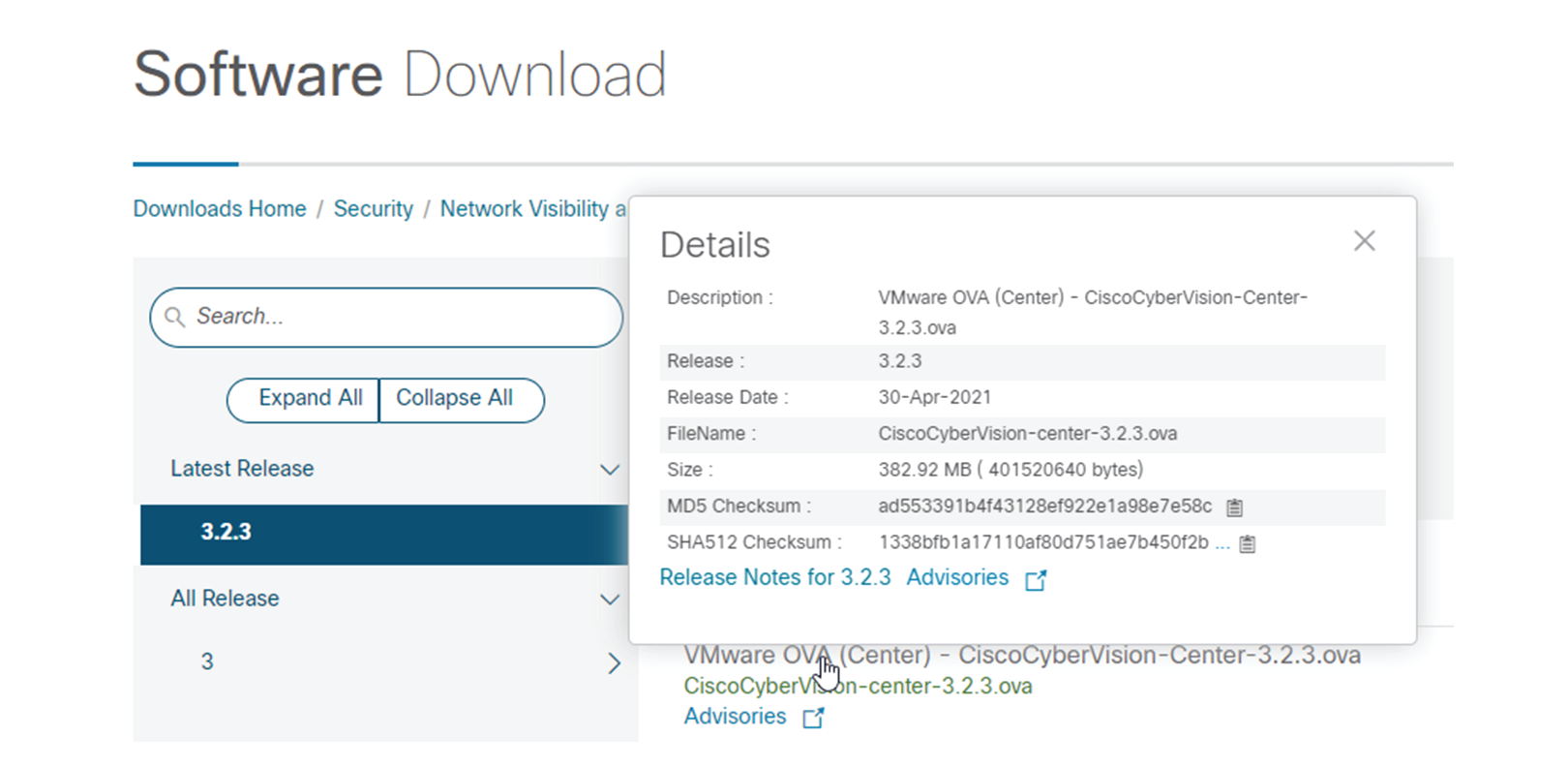
Step 7

Compare both checksums.

  • If both checksums are identical it means the file is healthy.

  • If the checksums do not match try to download the file again.

  • If, after downloading the file again the checksums still don’t match, please contact support.


ESXi

Create a Virtual Machine

Before taking the steps below to create a VM on ESXi, you must set two network interfaces (the Administration and the Collection network interfaces), and a third if deploying a Center with DPI (the DPI network interface), accordingly to the infrastructure of the network. To do so, refer to VMware ESXi documentation.

To create the Virtual Machine and deploy :

Procedure


Step 1

Login to VMware ESXi.

Step 2

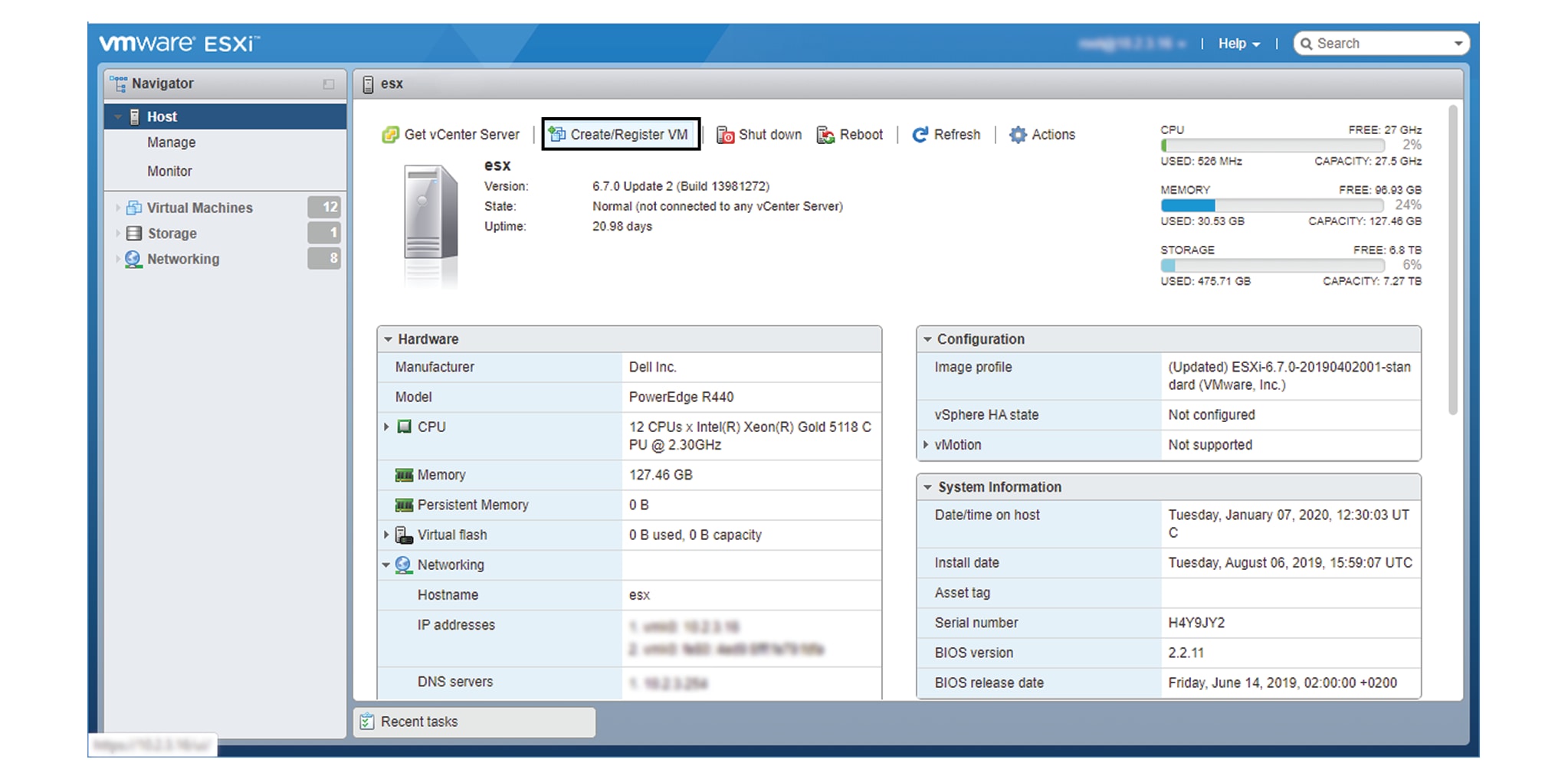
Click Create/Register VM.

The wizard to create a new virtual machine opens.

Step 3

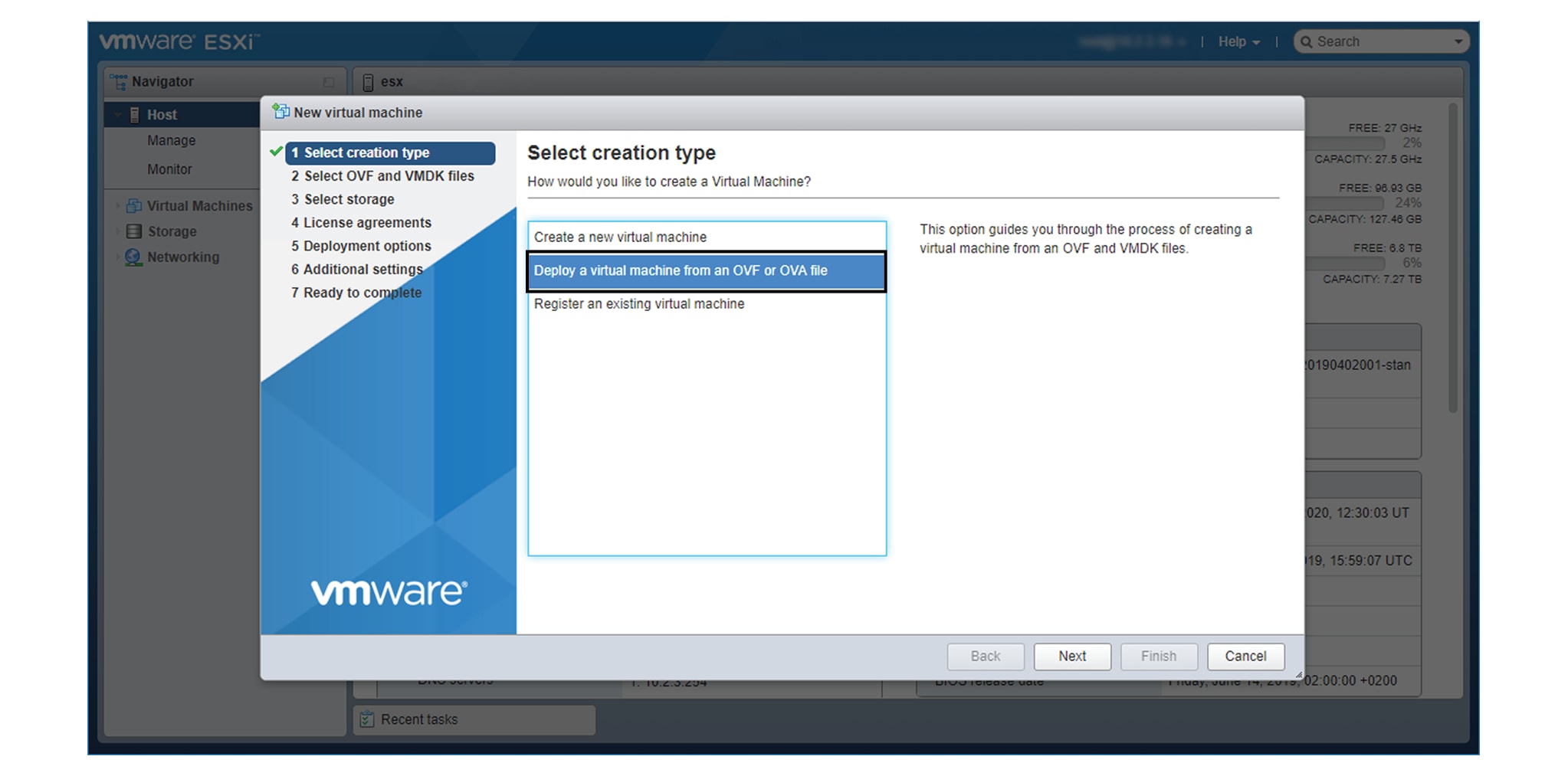
Click Deploy a virtual machine from an OVF or OVA file.

Step 4

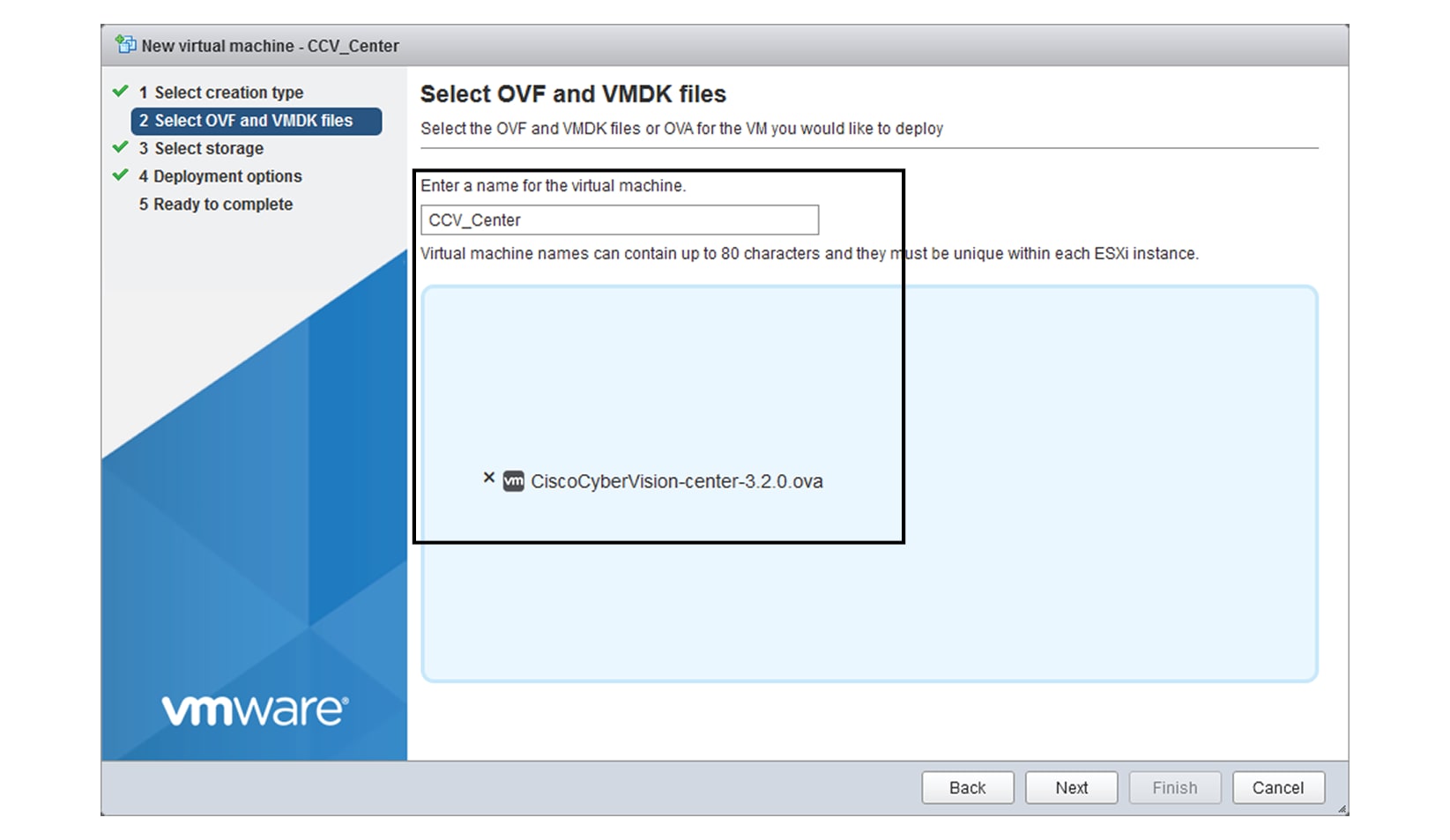
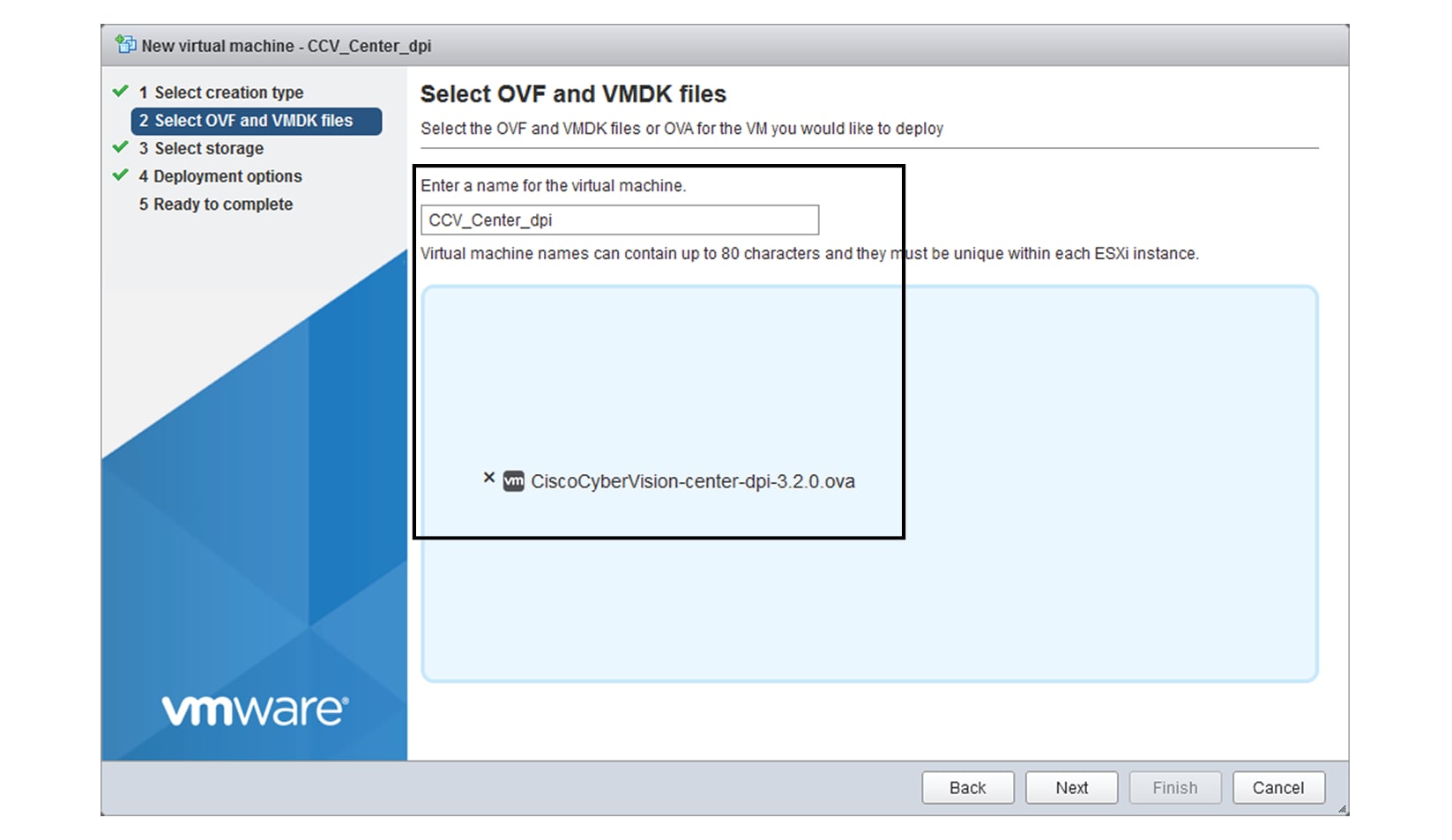
Give a name to the virtual machine and select the OVA file. Select the DPI OVA file to enable the sensor function on the Center VM.

Step 5

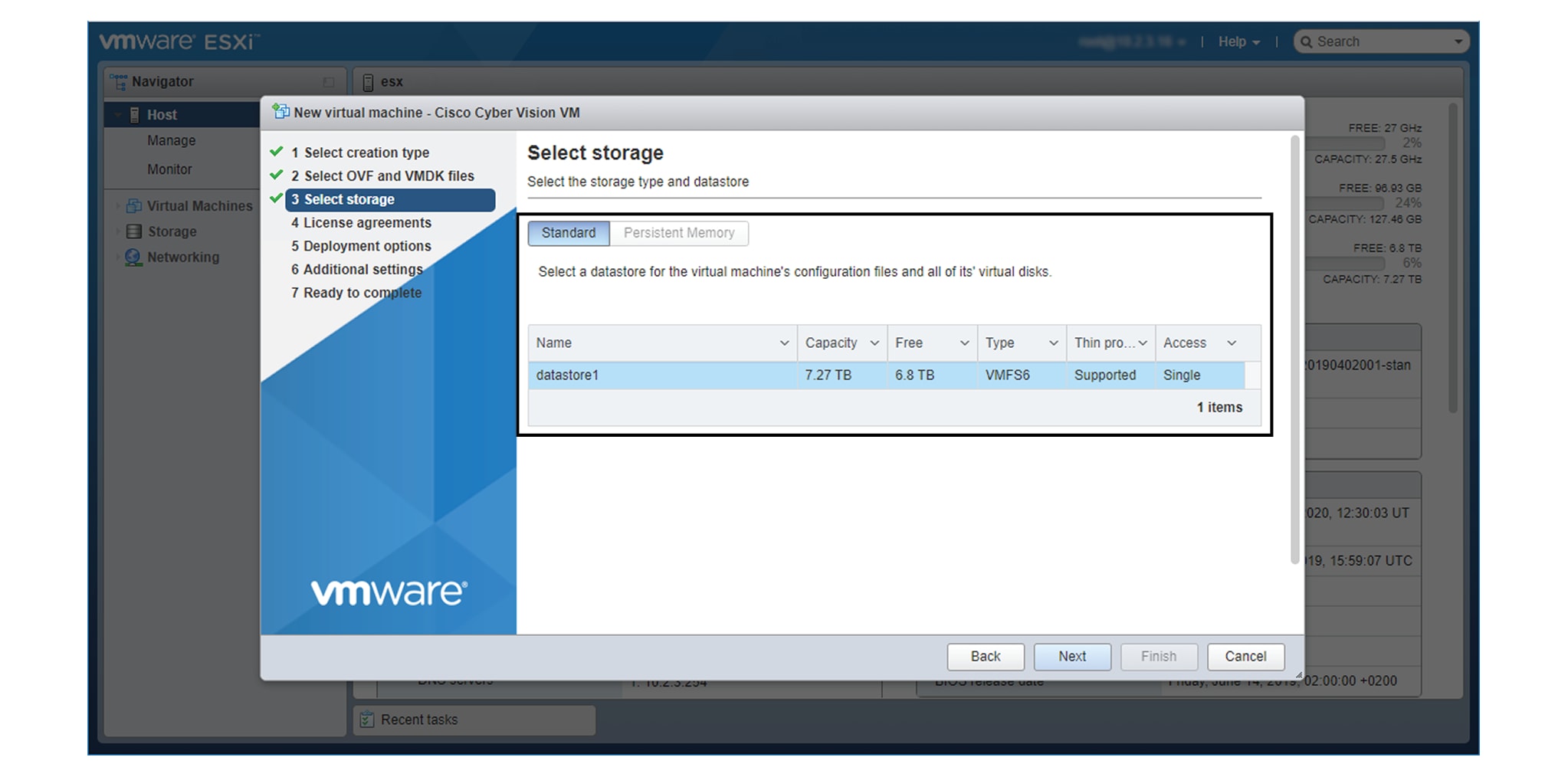
Select a disk with sufficient storage. Refer to Installation Prerequisites.

Step 6

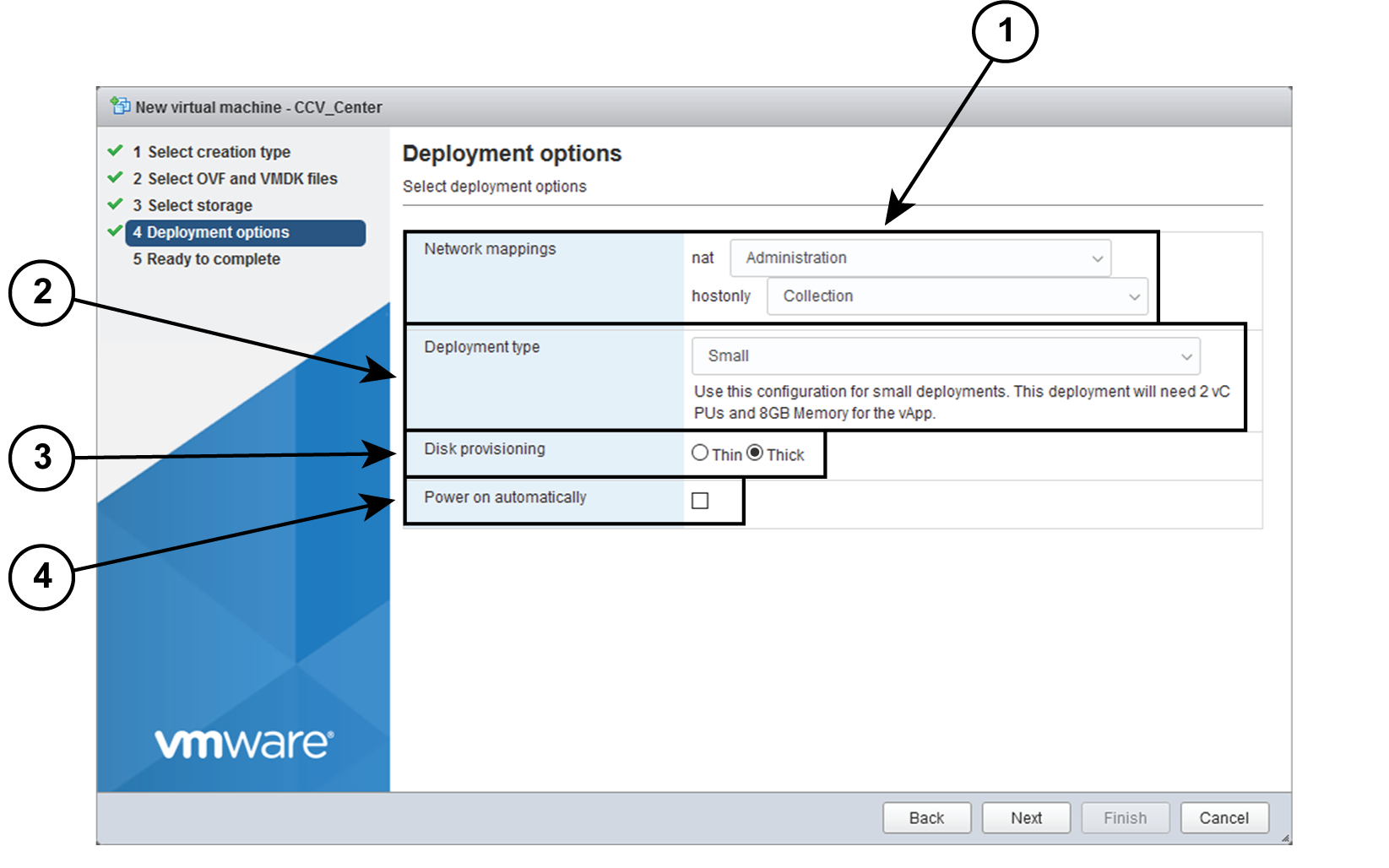
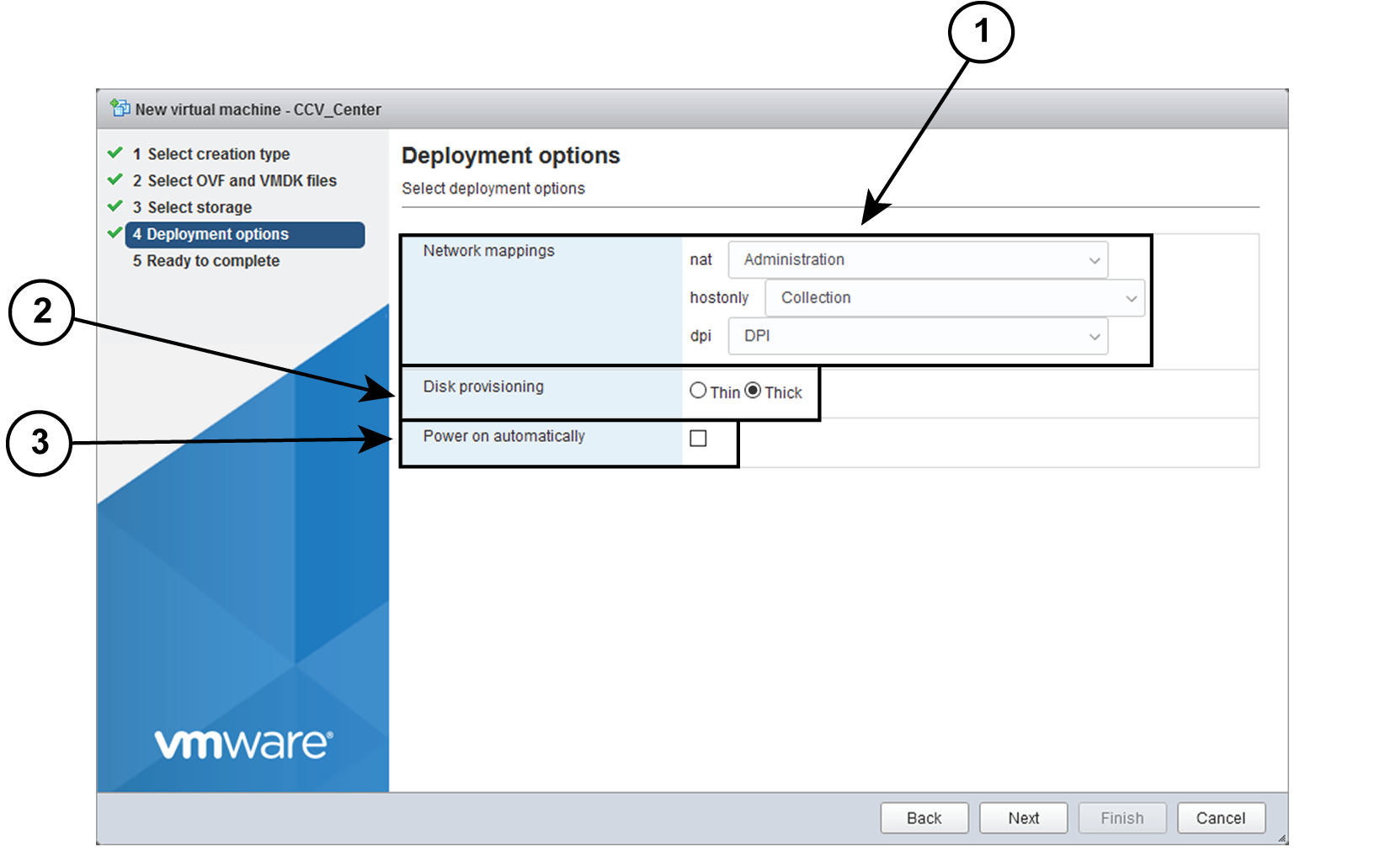
Map the network interfaces you have previously created to the VM's ports (1), as shown below:

  • The Administration network interface as eth0.

  • The Collection network interface as eth1.

  • If deploying a Center with DPI, the DPI network interface as eth2.

Step 7

Set disk provisioning as Thin (2).

Step 8

Set the Deployment type as Small, Medium or Large (3). The deployment size for an OVA DPI file is Large by default.

Small: Intel Xeon, 8 cores, 16GB RAM

Medium: Intel Xeon, 10 cores, 32GB RAM

Large: Intel Xeon, 16 cores, 64GB RAM

Step 9

Disable the virtual machine's automatic start (4).

Step 10

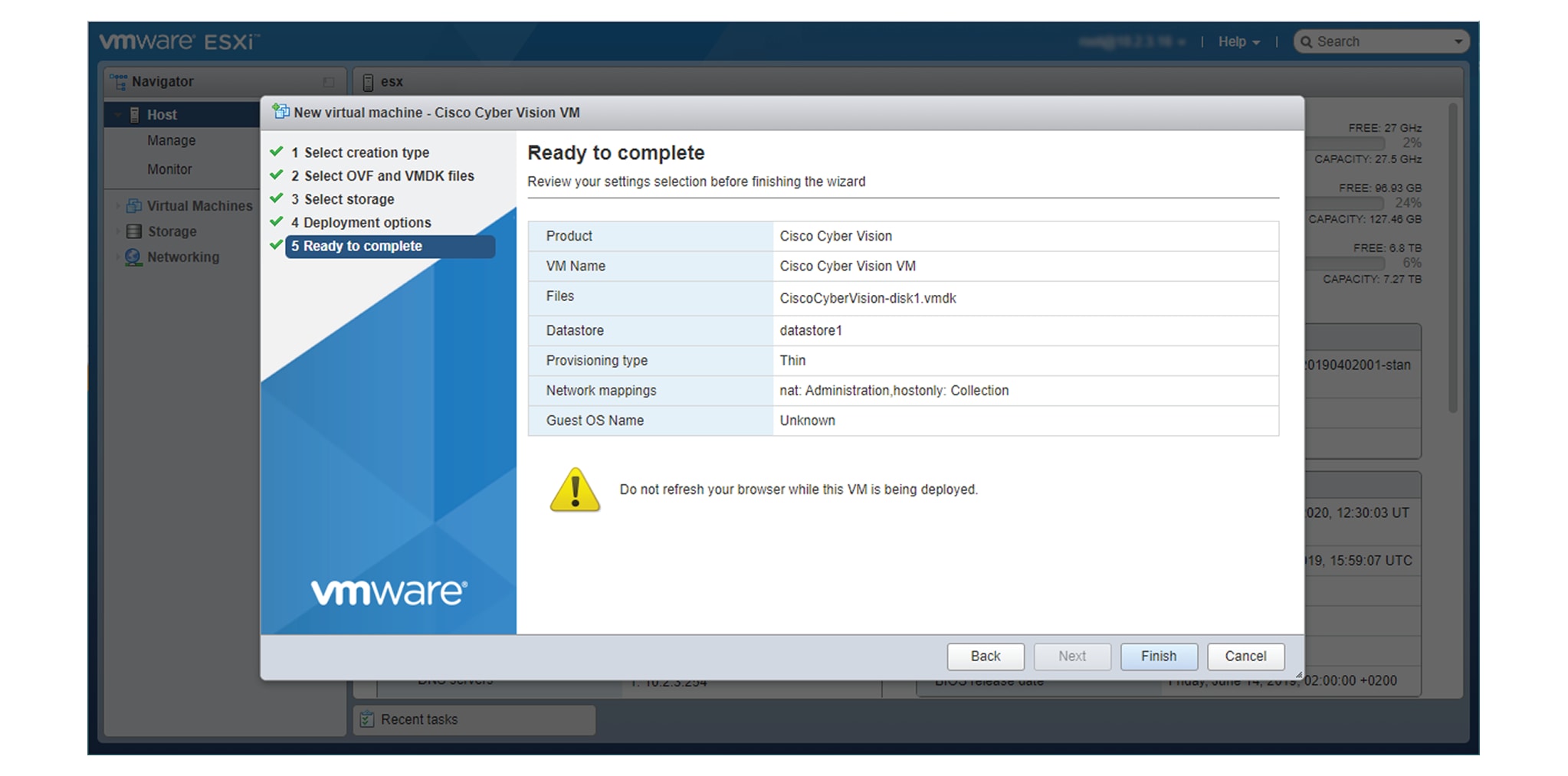
Check the new VM's settings before clicking Finish.

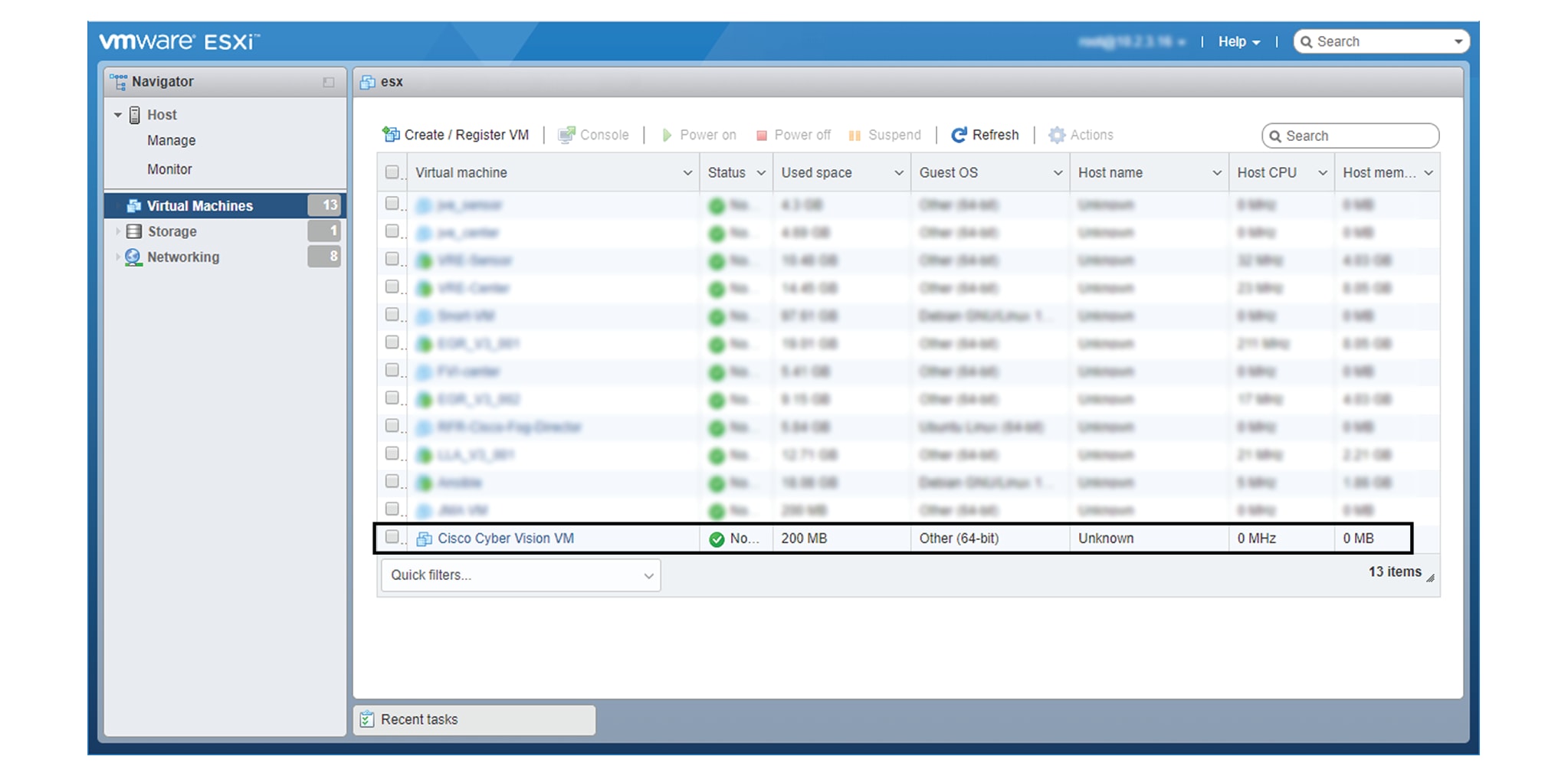
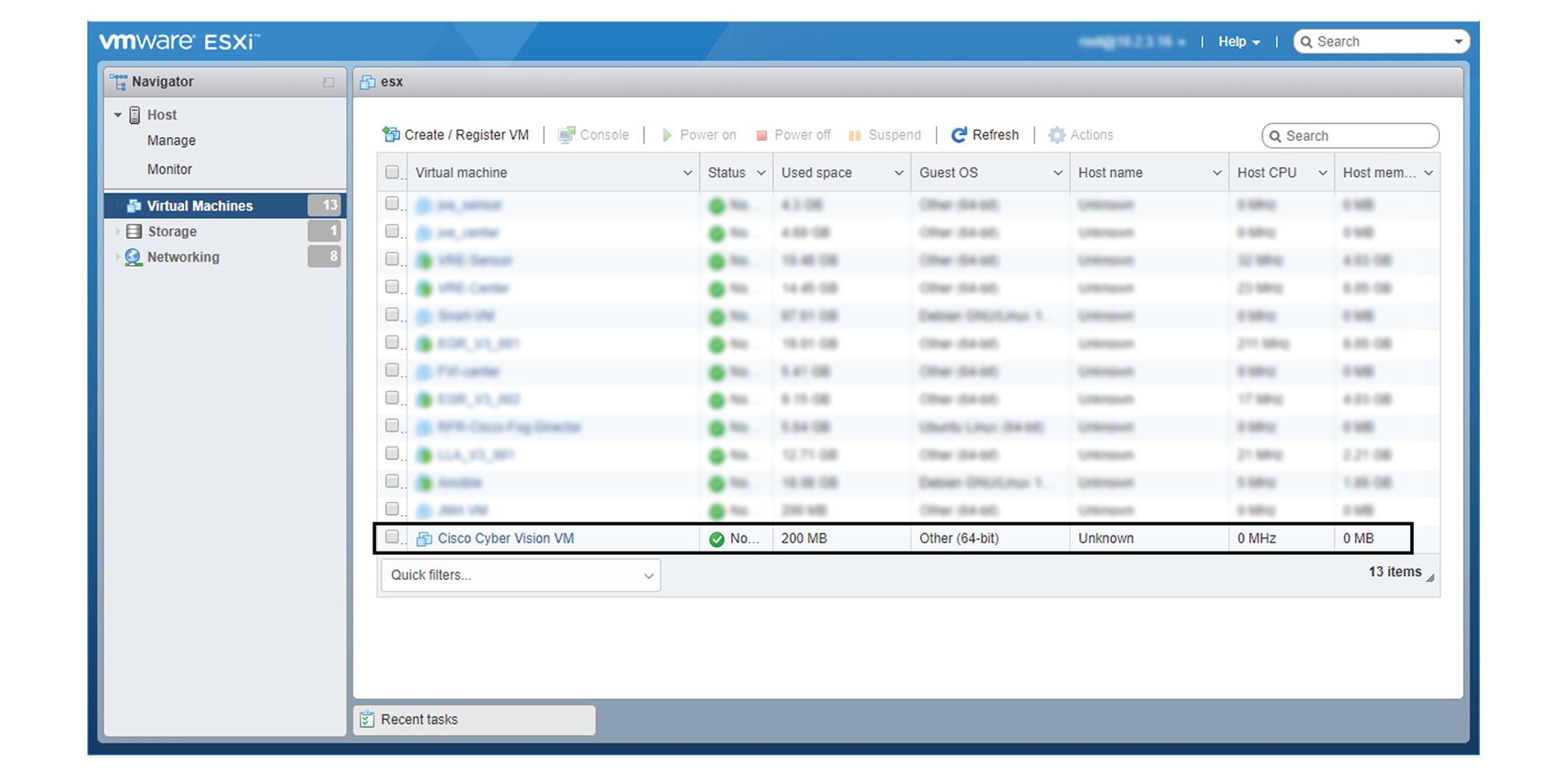
Your new VM is displayed in the virtual machine list.


Boot the Virtual Machine

After creating the VM, you can proceed to its first boot.

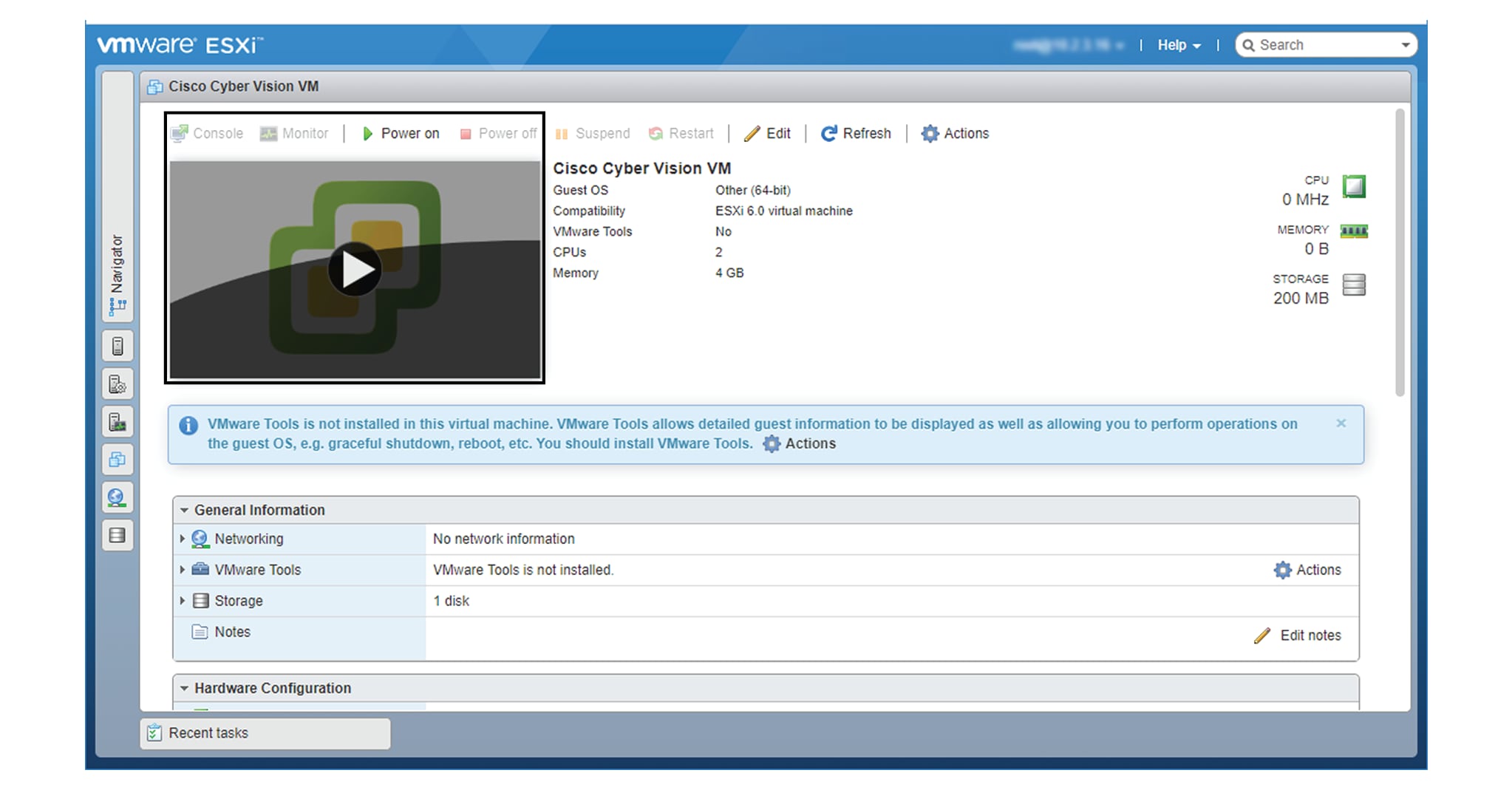
  1. Click the VM in the list.

  2. Power on the VM.

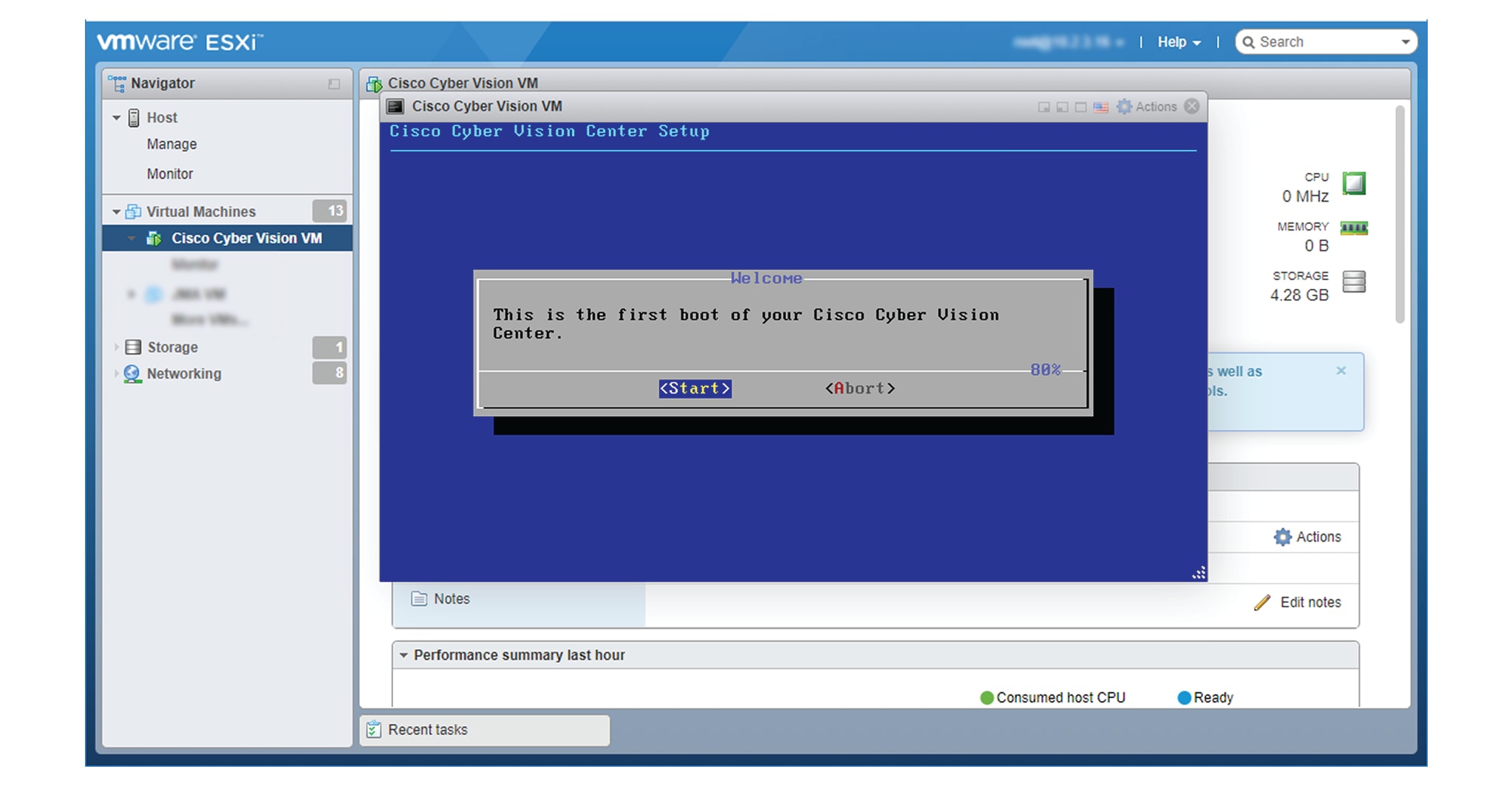
  3. Wait a few moments for the VM initiation to complete. The following screen is displayed:

  4. Press Ctrl+Alt to retrieve the control of your keyboard and mouse.

    The Virtual Center is now ready for basic configuration.

Hyper-V

Create a Virtual Machine

To create a new VM:

Procedure


Step 1

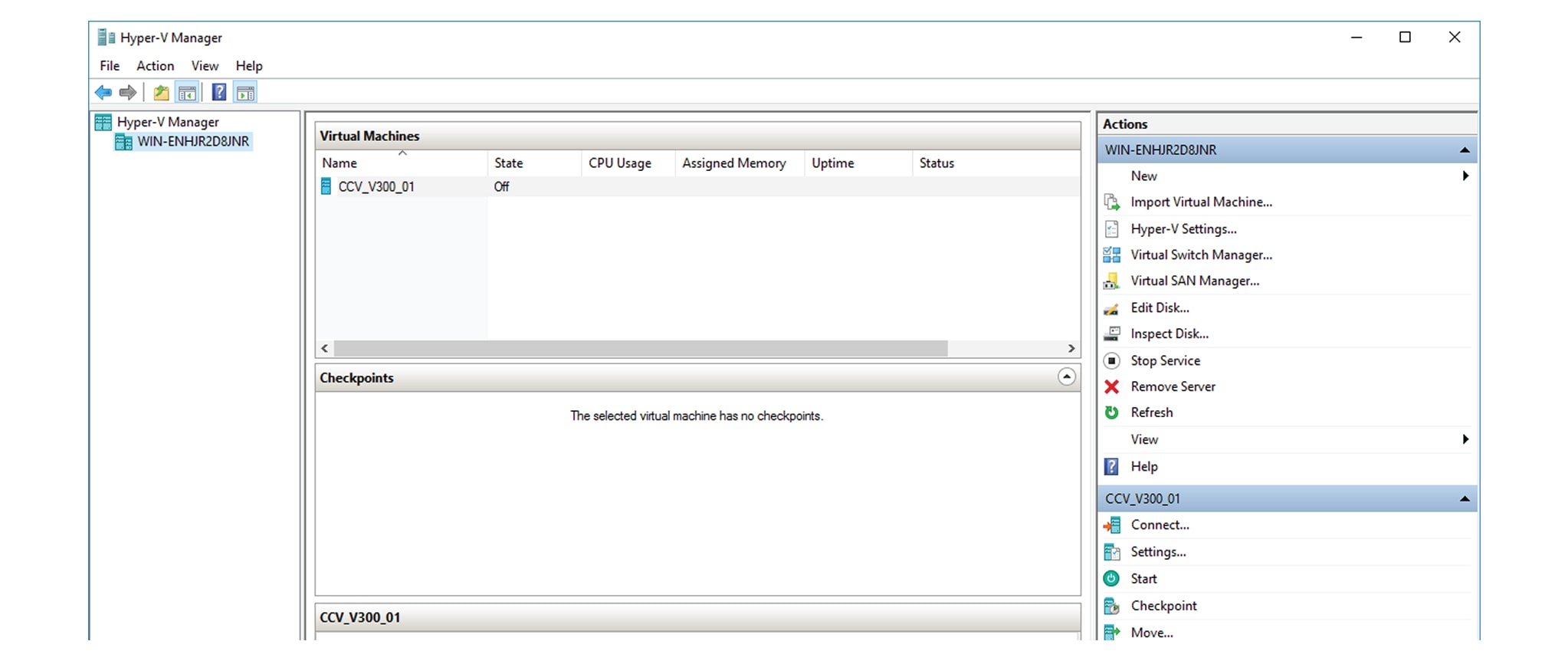
Open Hyper-V Manager.

The following home screen appears:

Step 2

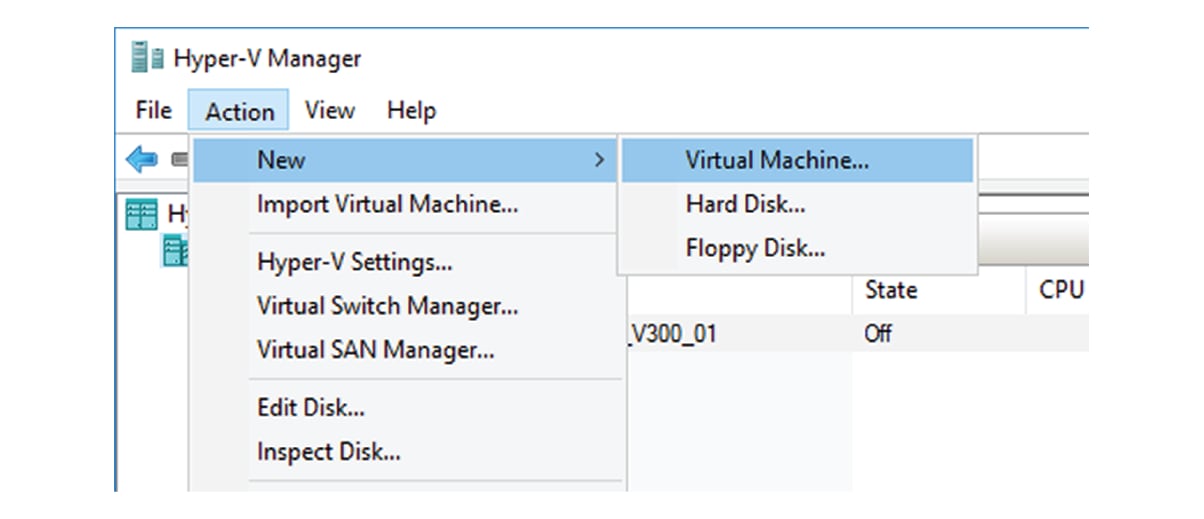
Access the New Virtual Machine Wizard by clicking Action > New > Virtual Machine.

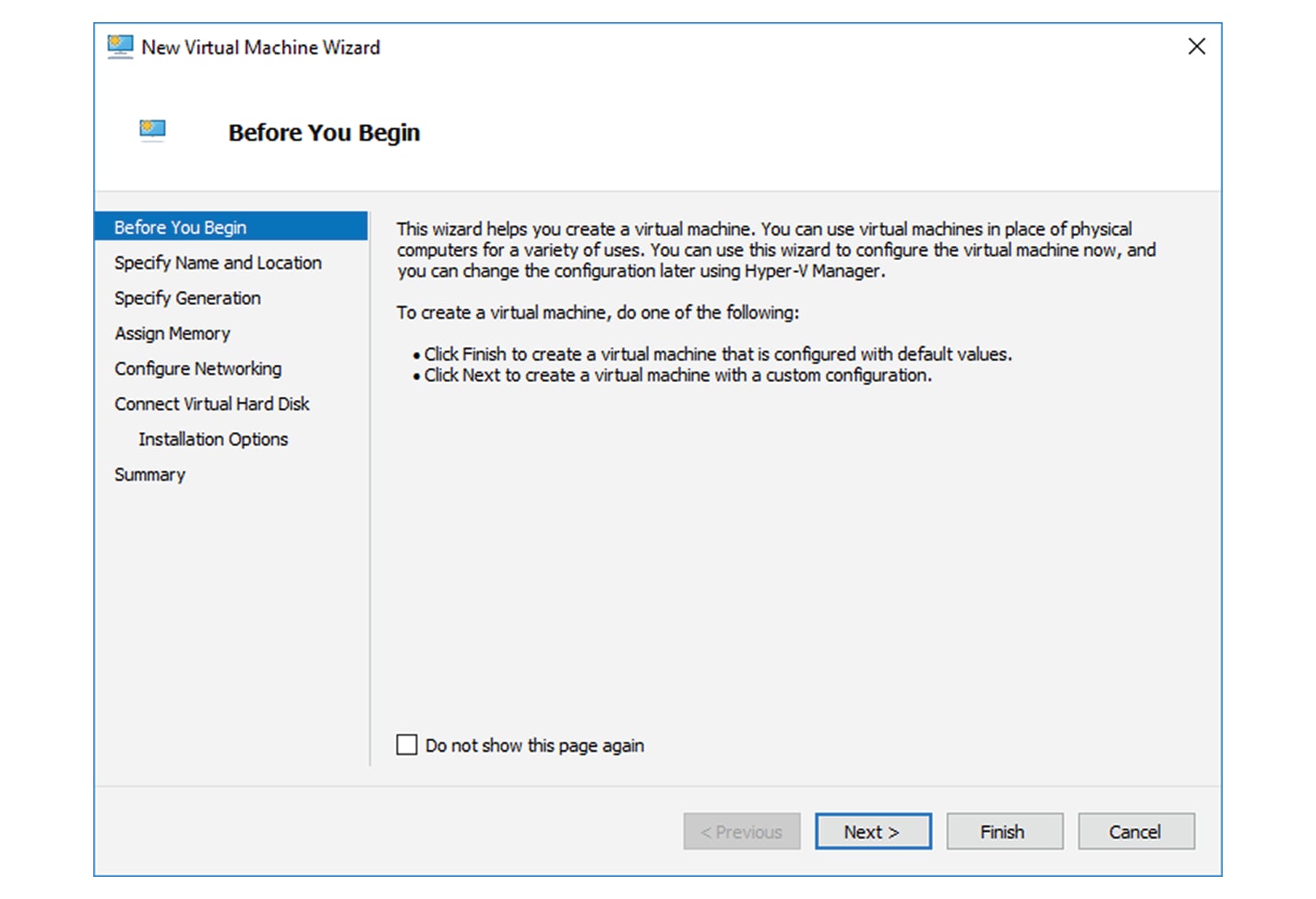
The New Virtual Machine Wizard is displayed.

Step 3

Click Next to start.

Step 4

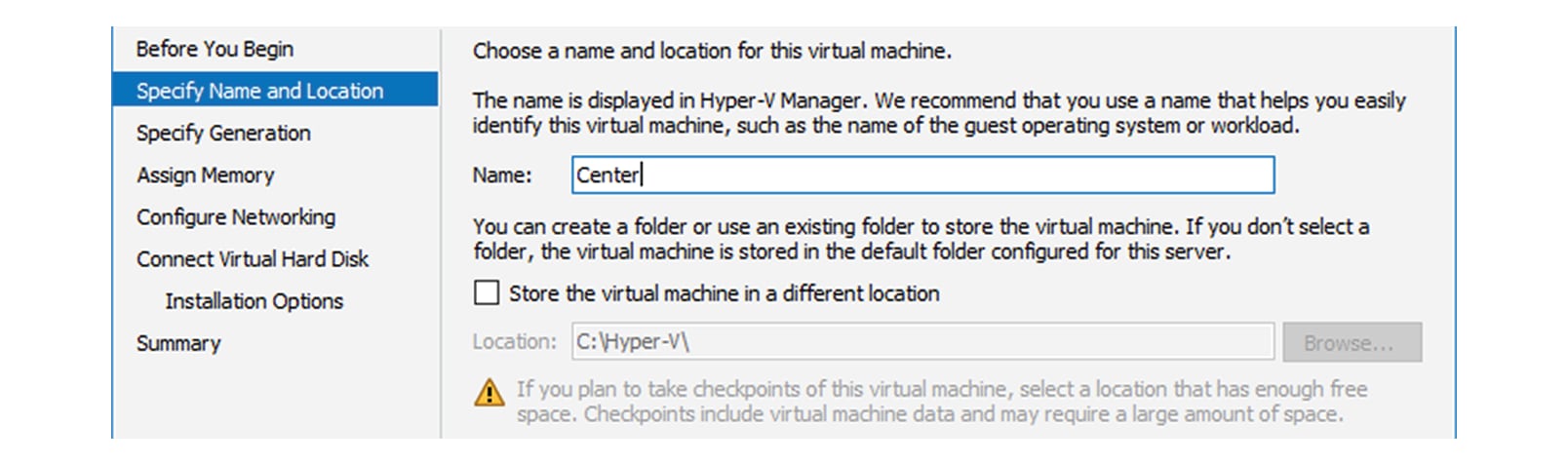
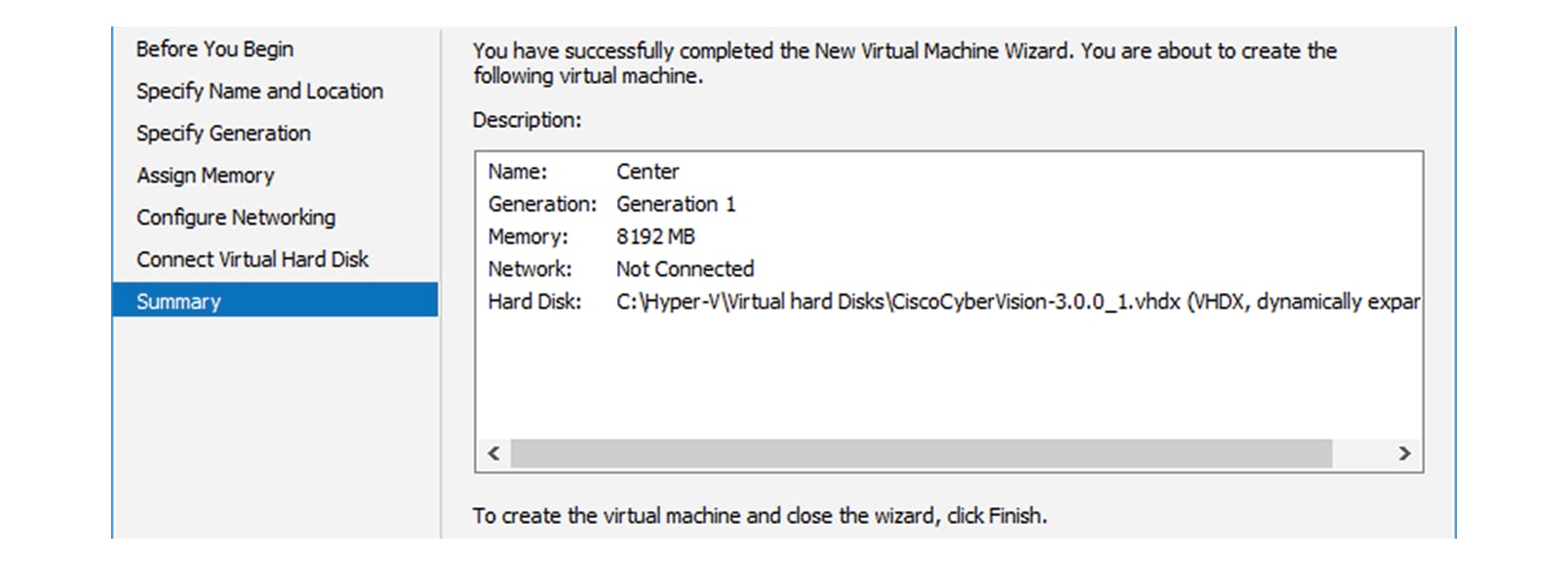
Give the new VM a name (e.g. 'Center').

Step 5

If necessary, give the Virtual Center a different location on the server than the one set by default. In any case, the location chosen must have enough remaining space in case you plan to create snapshots (i.e. VM backups).

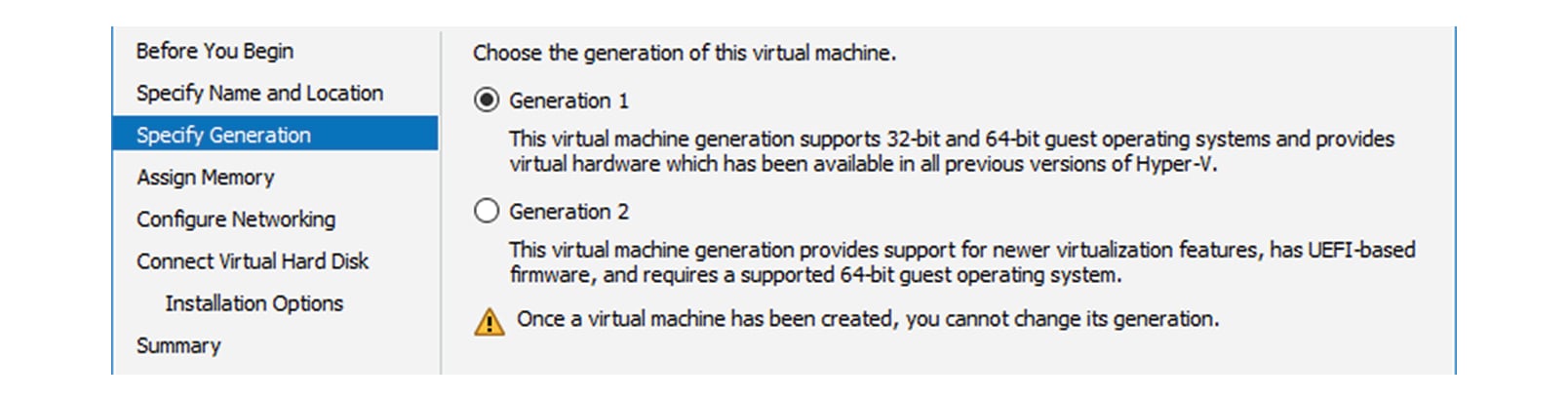
Step 6

Set the VM as Generation 1.

Step 7

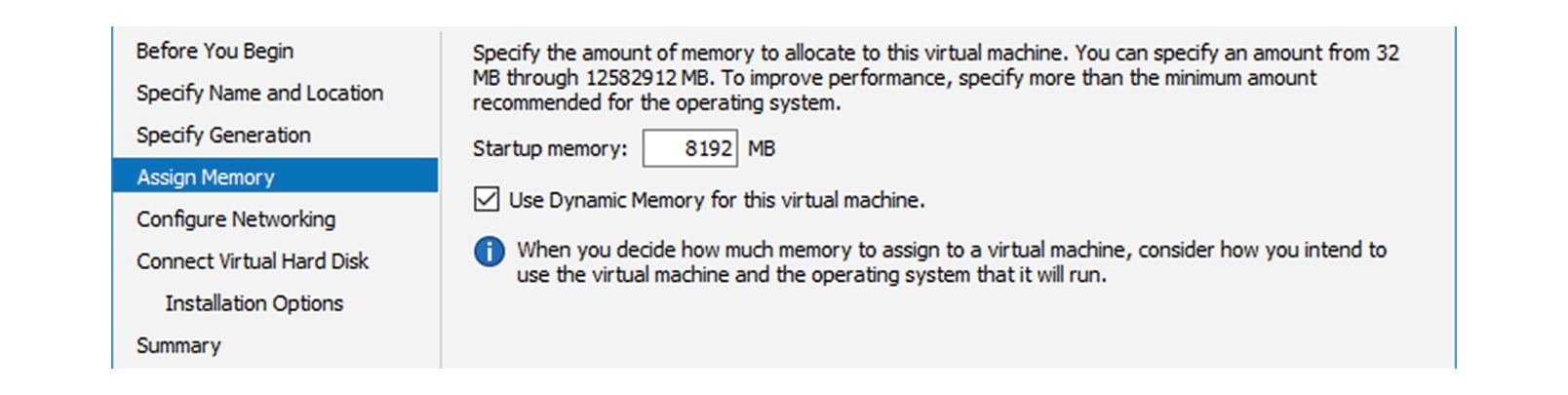
Assign memory to the VM.

Note

 
The minimum configuration required is 8192 MB.

Step 8

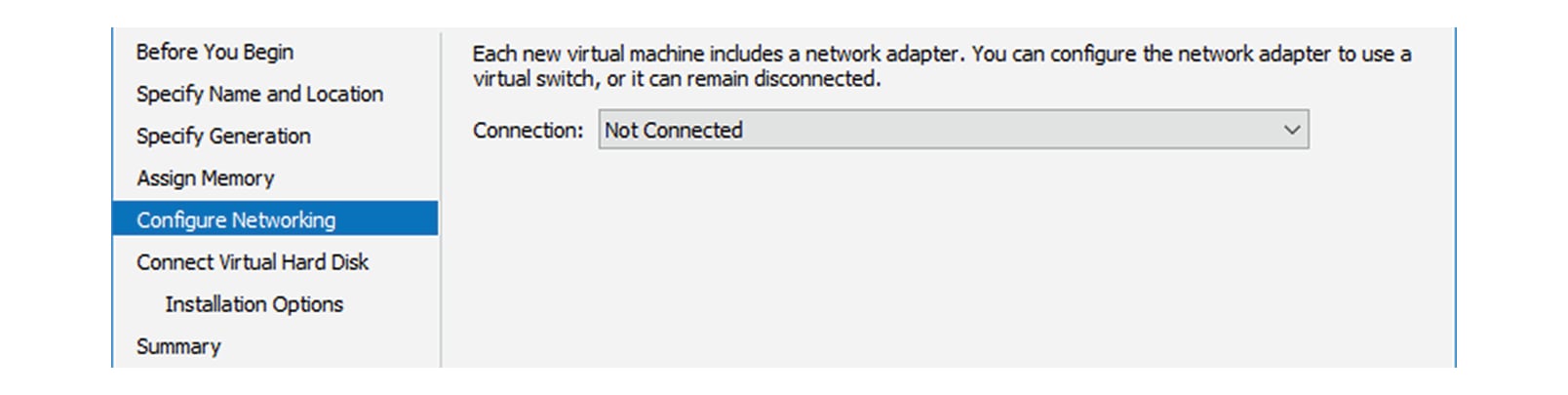
Leave the network connection disconnected.

Step 9

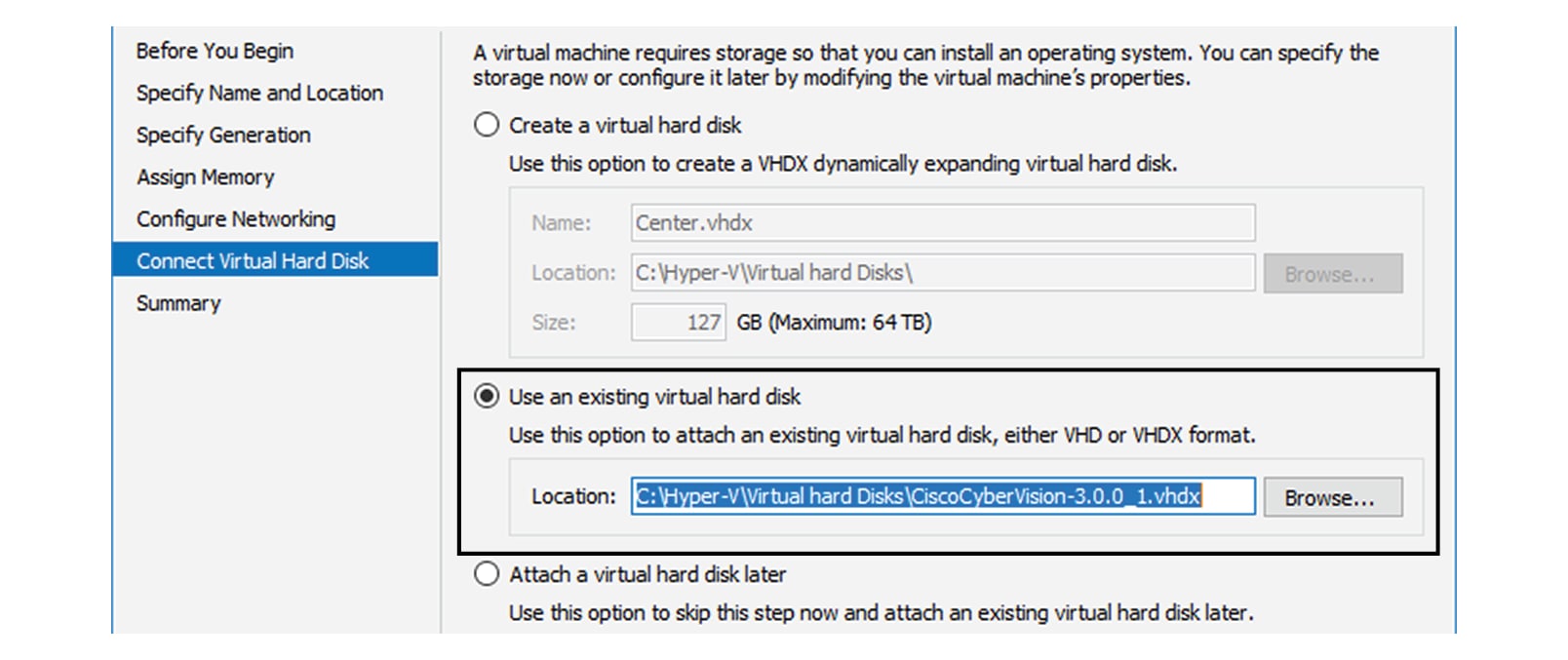
Select 'Use an existing hard disk' and choose the VHDX file.

Step 10

Click 'Finish' to create the VM and close the wizard.

The Virtual Center created is displayed inside Hyper-V Manager home screen.


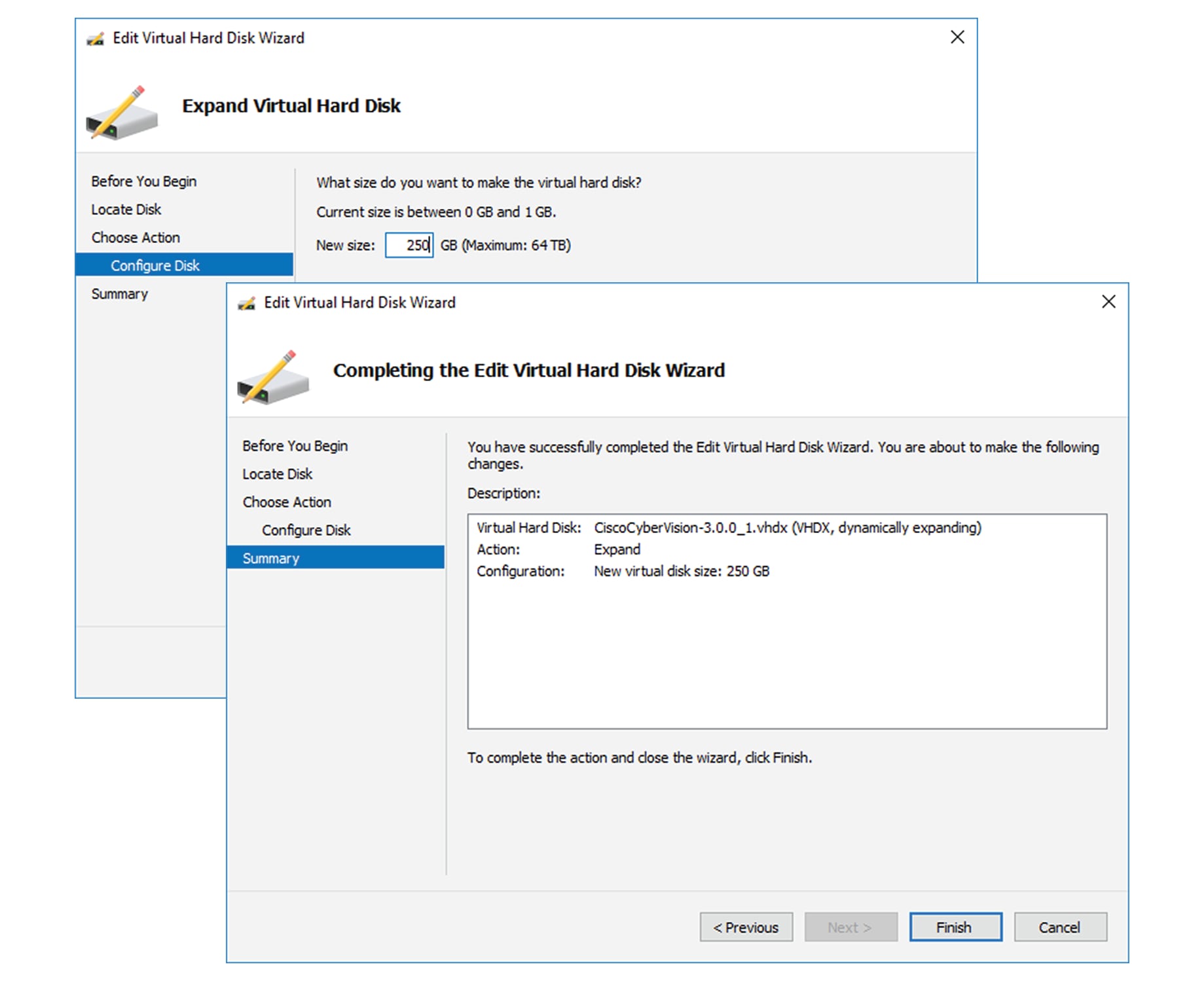
Configure the disk size

To configure the disk size:

Procedure


Step 1

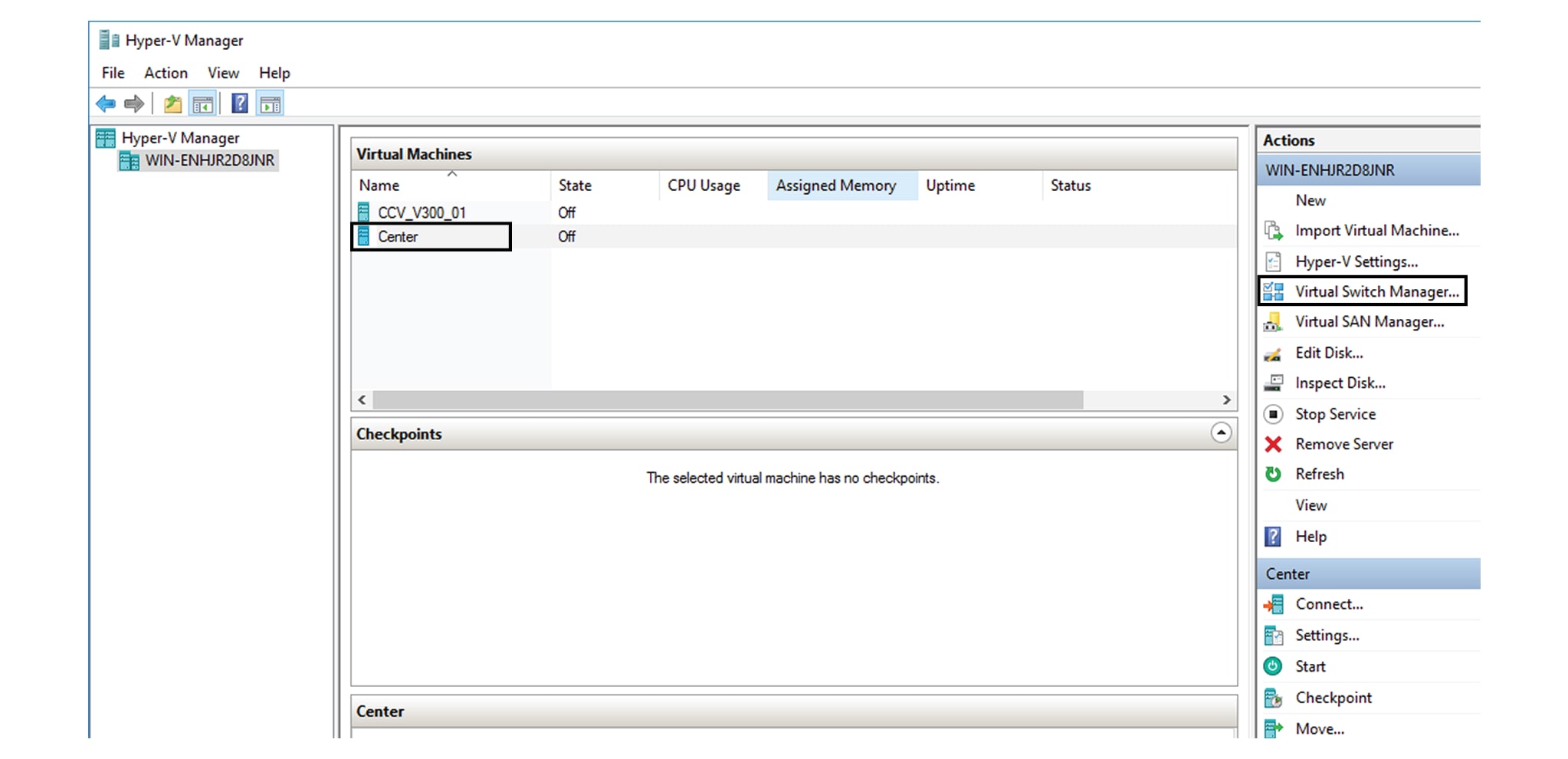
In the Hyper-V Manager select the Center.

Step 2

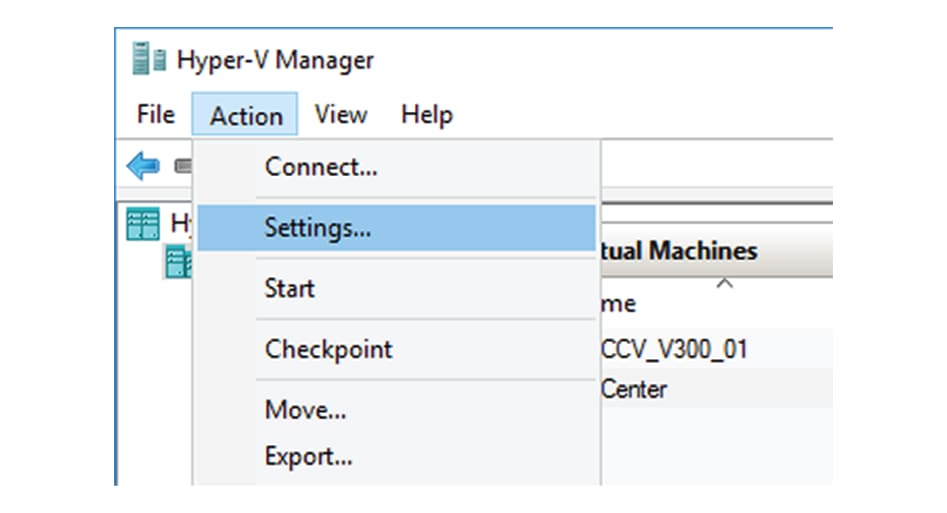
Click Action > Settings.

Step 3

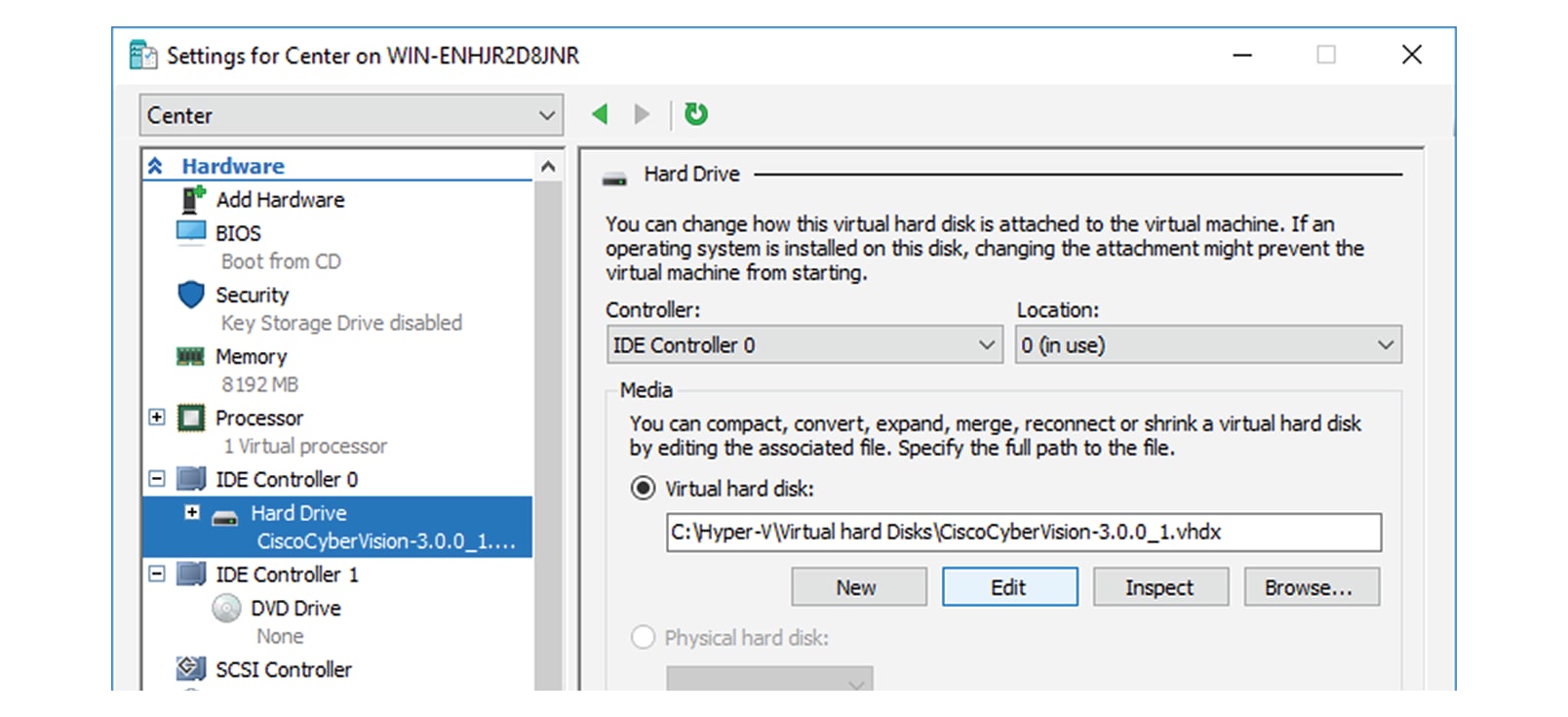
Click Hard Drive, then Edit.

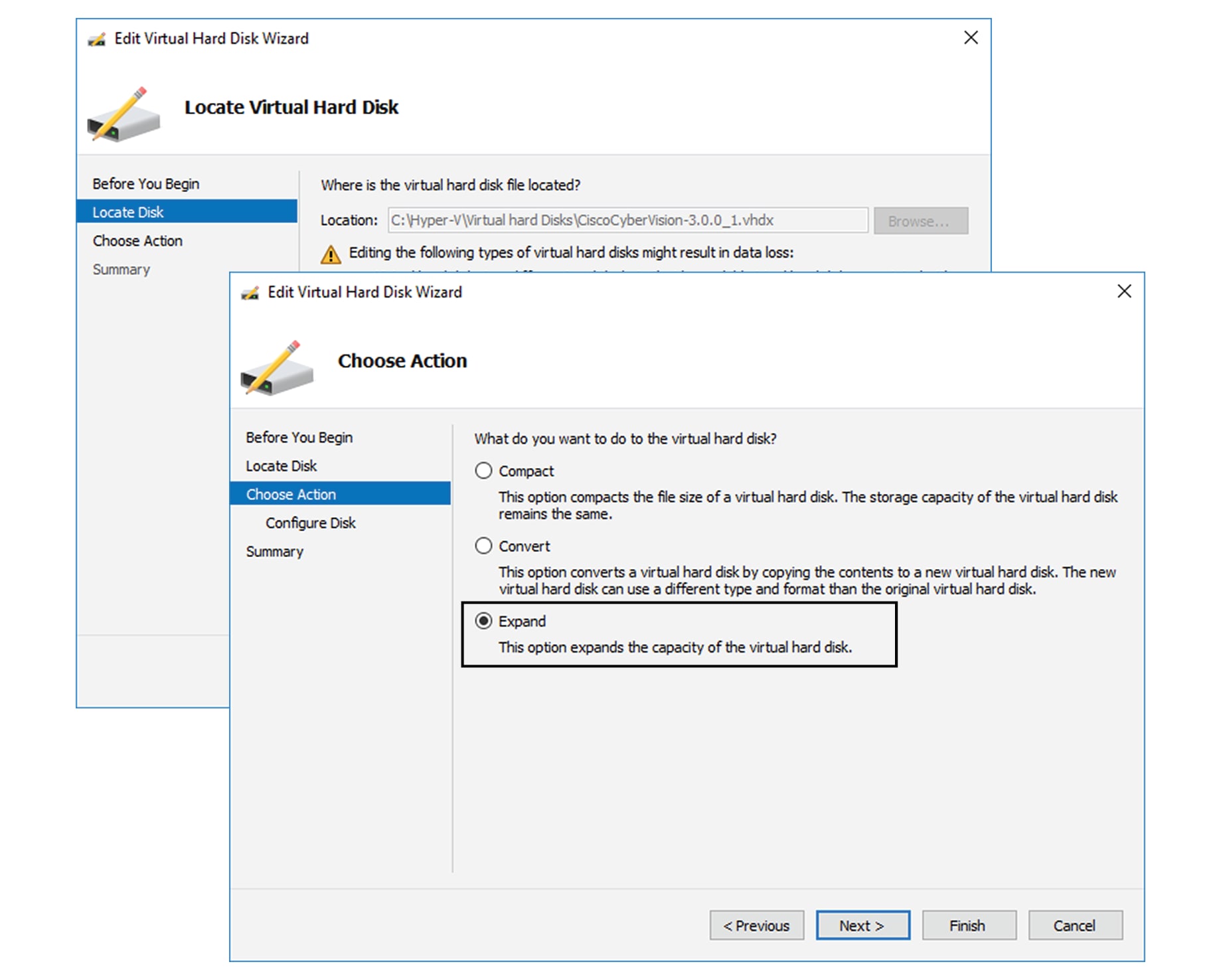
The Edit Virtual Hard Disk Wizard displays.

Step 4

Click Next to proceed until the Choose Action tab.

Step 5

As you are on the Choose Action tab select the Expand option.

Step 6

Configure a new size for the virtual hard disk.

It is recommended:

  • that you set the minimum size at 100GB for a demo installation with small amounts of data.

  • that you set the minimum size at 250GB for a cartography.

  • that you set the minimum size at 800GB for a Center with sync or 1.5TB for a Global Center for a production environment.

    The size you set here is a minimum. The virtual drive will expand as data is written on the virtual disk.

Step 7

Click Finish.


Create the network interfaces

To create the Admin and Collection network interfaces:

Procedure


Step 1

Select the Center.

Step 2

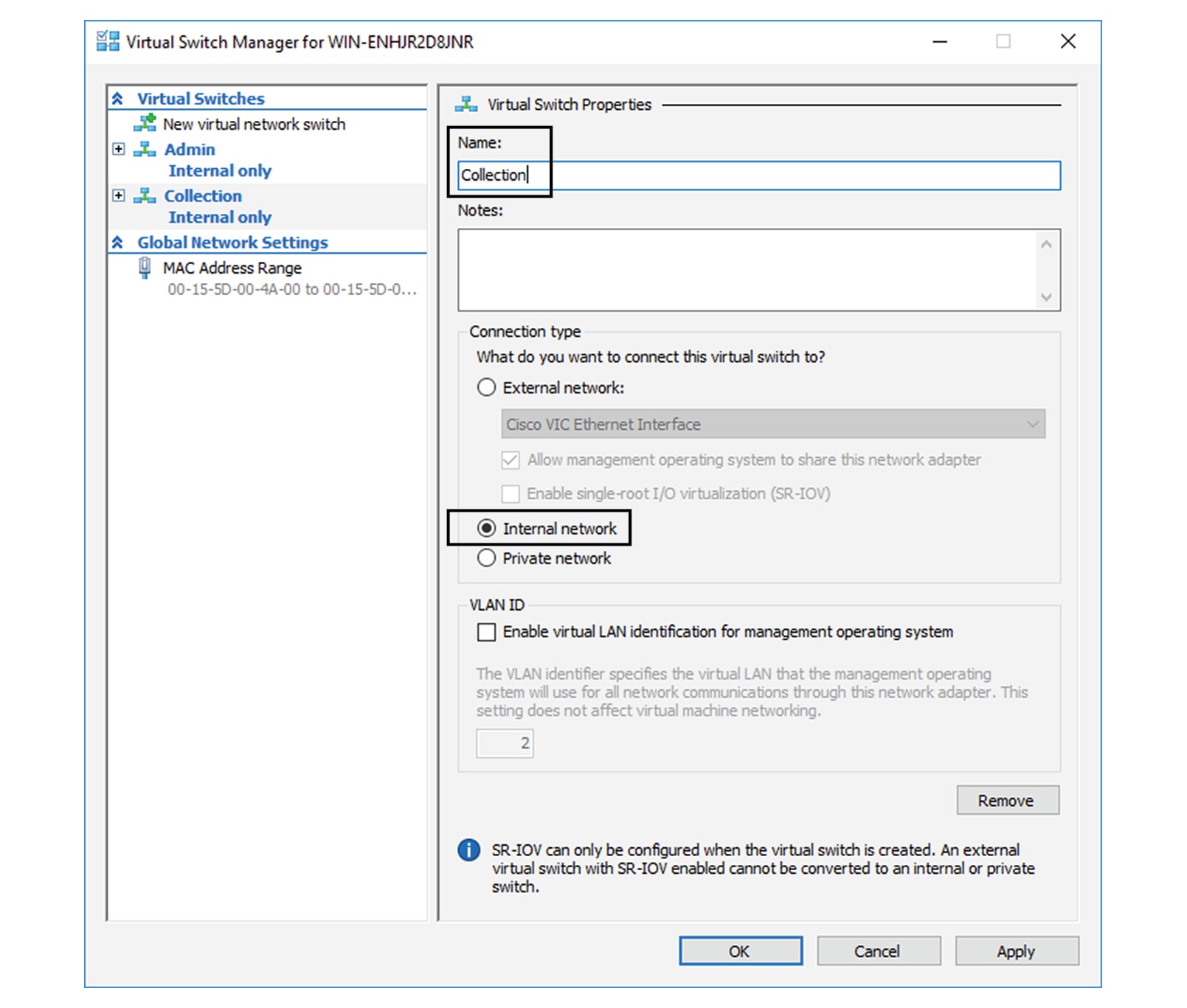
On the Actions menu, open the Virtual Switch Manager.

The Virtual switch manager opens.

Step 3

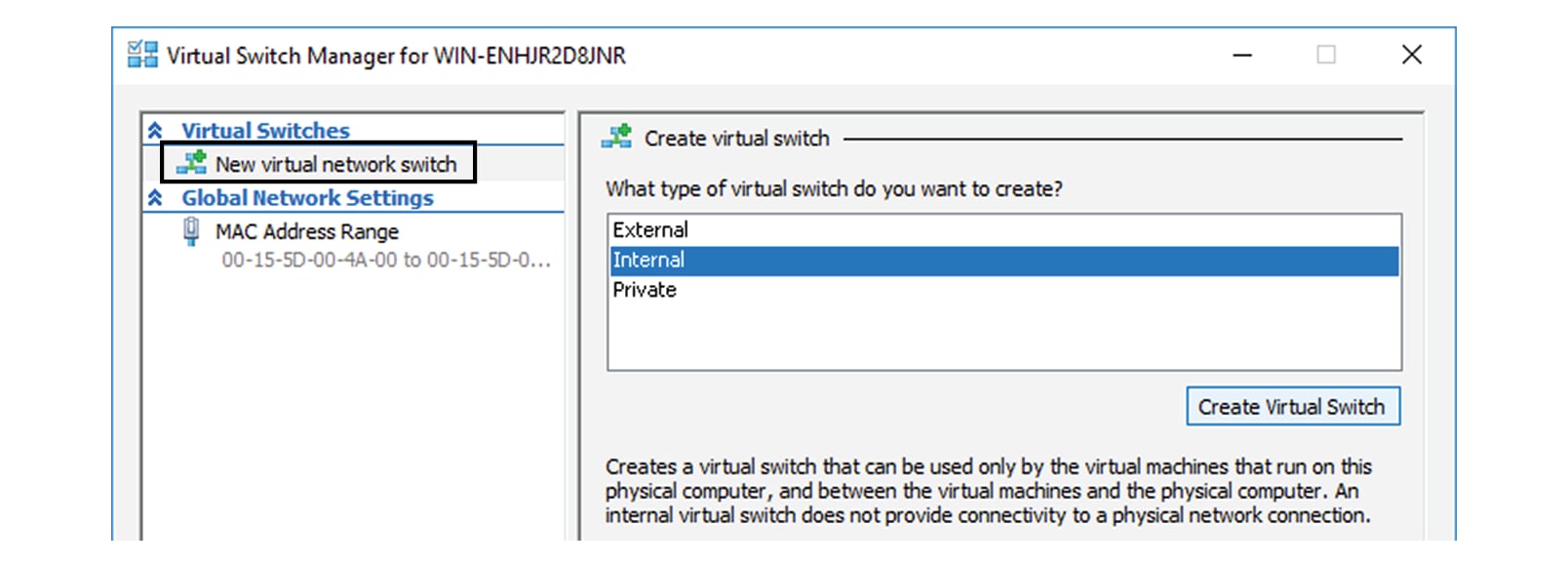
Click 'New virtual network switch'.

Step 4

The new virtual switch displays.

Step 5

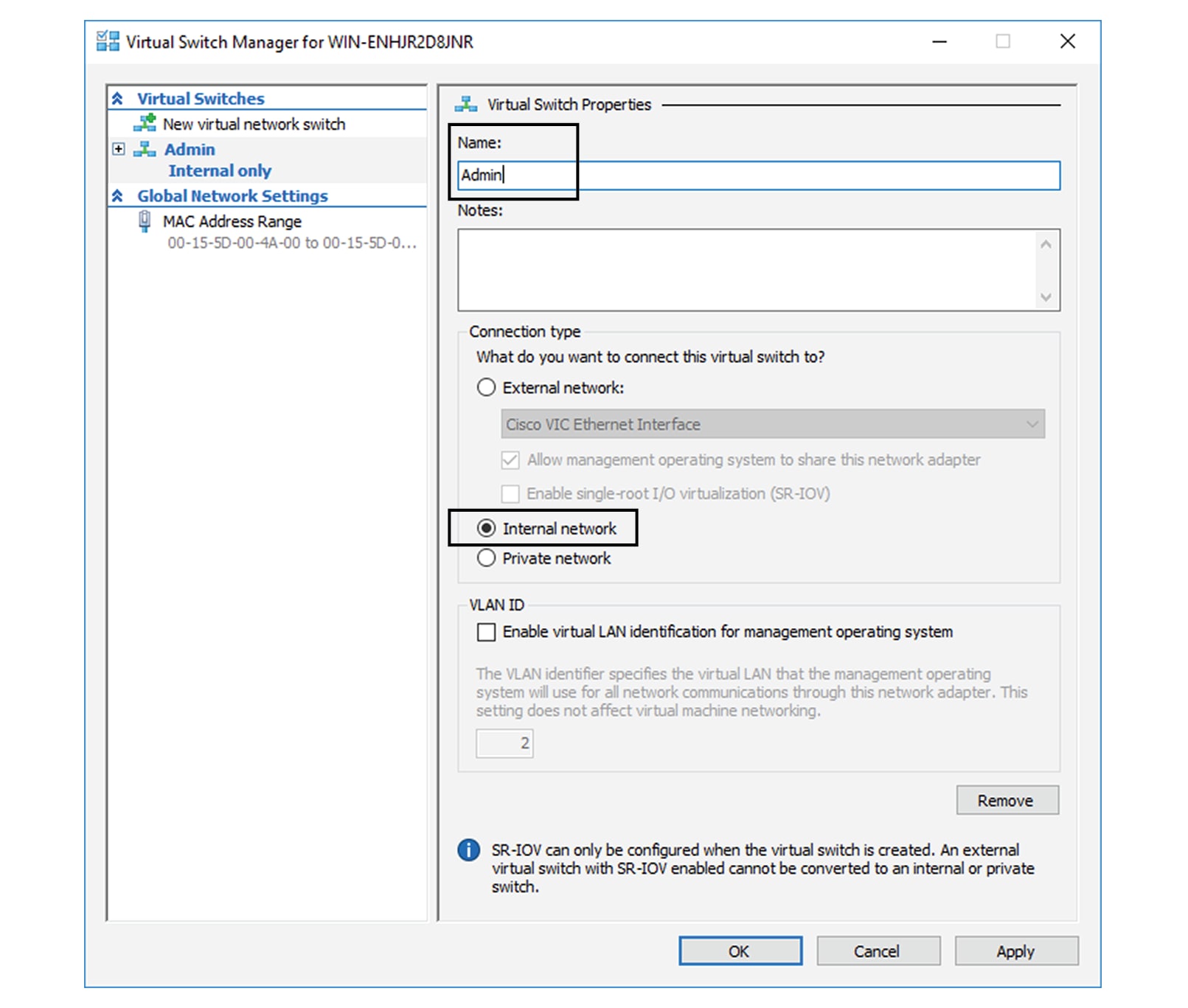
Name it 'Admin'.

Step 6

Select 'Internal network'.

Step 7

Create a second virtual switch and name it 'Collection'.

Step 8

Select 'Internal network'.


Map the network interfaces

To add a network card:

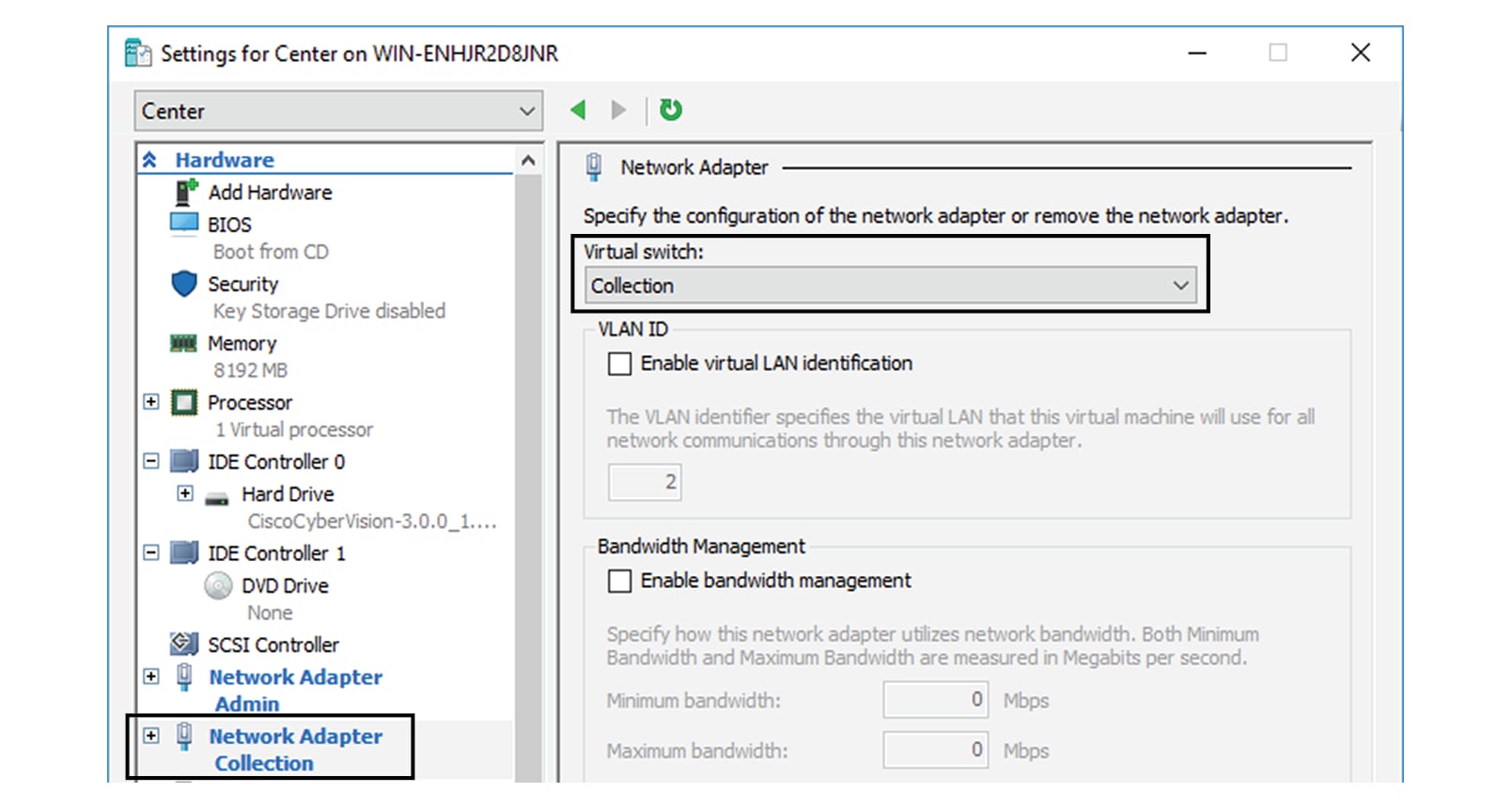
ICS CyberVision needs two network adapters (i.e. network card) to which the Admin and Collection network interfaces will be assigned. Each new VM includes a network card when created which is available within the hardware list. Therefore, you need to create another one during this step.

Procedure


Step 1

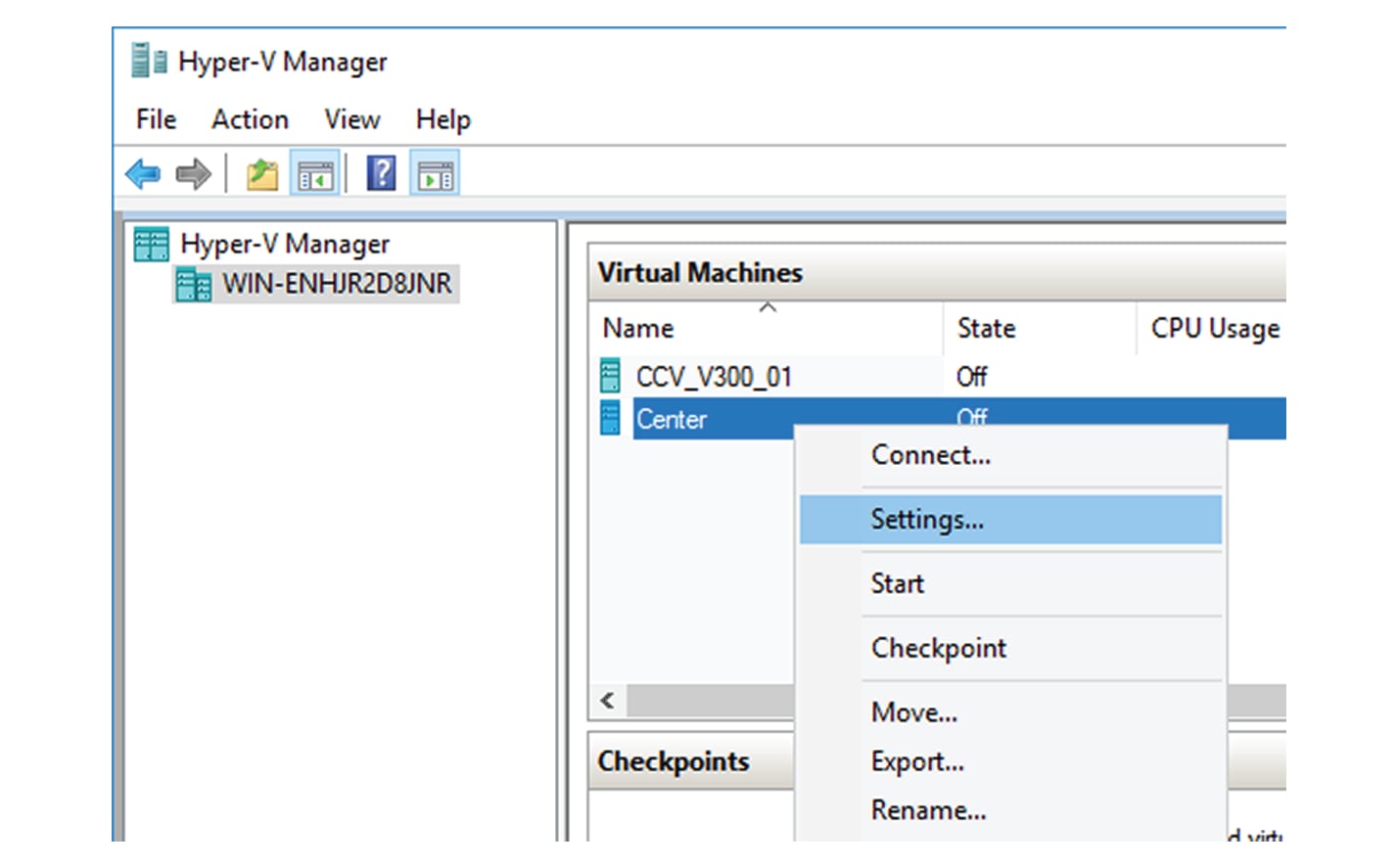
Right click the Center and click again 'Settings'.

The settings window for the Virtual Center is displayed.

Step 2

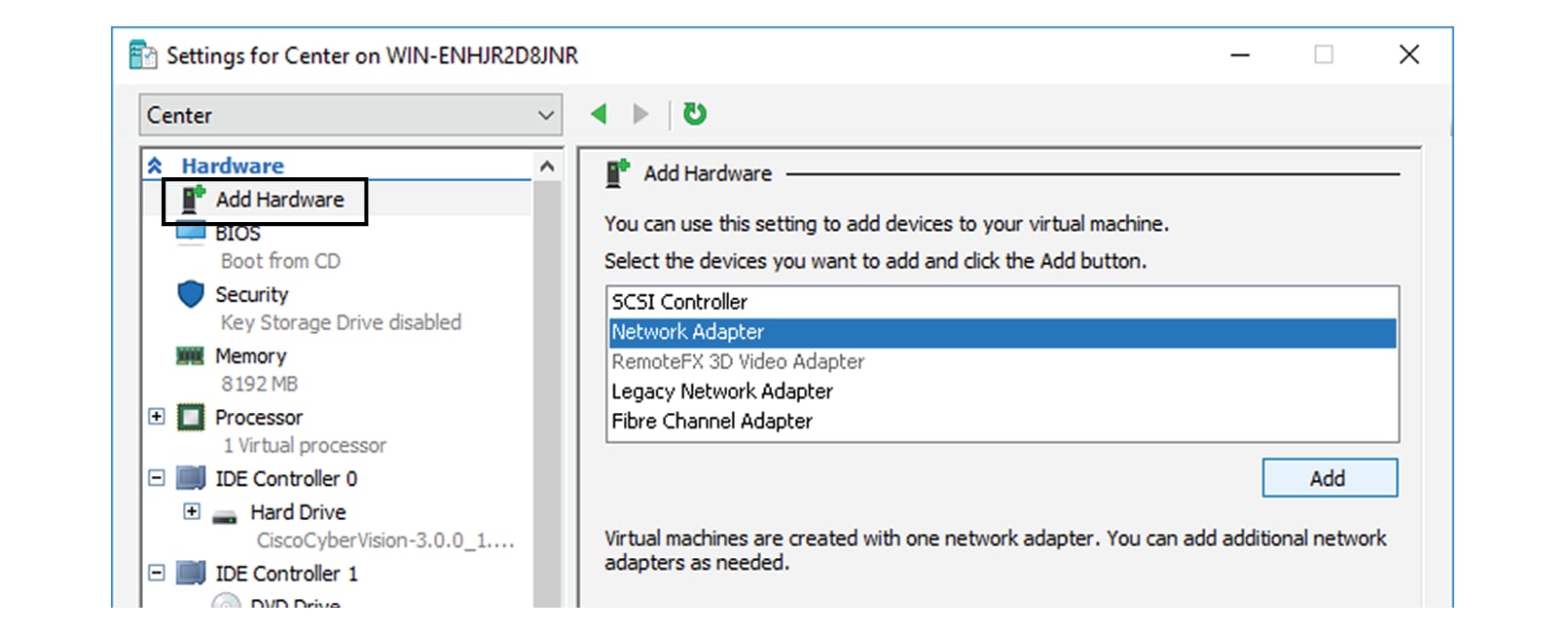
Click 'Add Hardware'.

Step 3

Select 'Network Adapter'.

Step 4

Click 'Add'.

The second network adapter needed is created. Now you need to map each network adapter to a Virtual Switch.

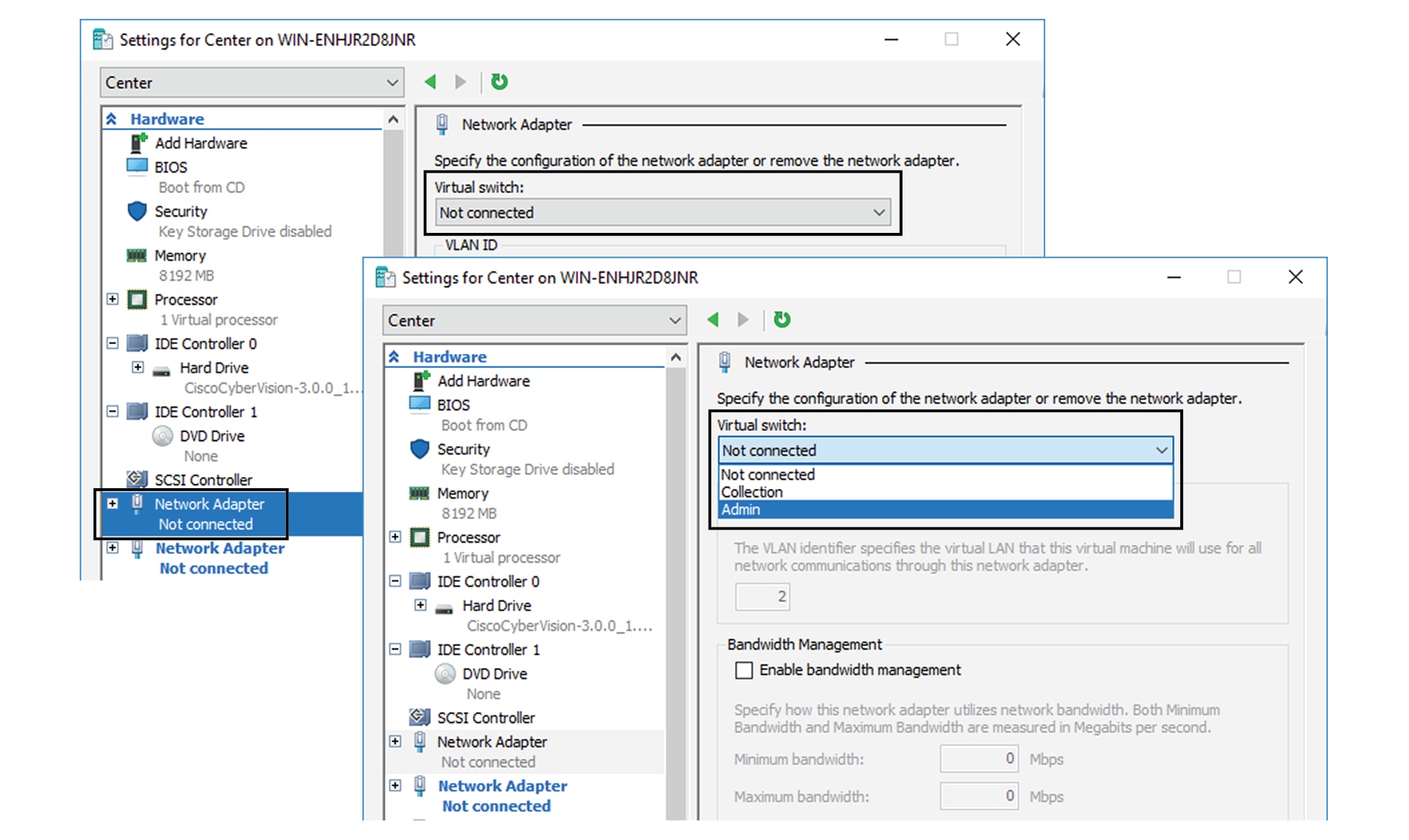
To proceed to the network mapping:

Step 5

Select the first network adapter.

Step 6

Select 'Admin' as Virtual Switch.

Note

 
You must configure network interfaces in order of appearance inside the network list to avoid confusion:
  • The first network card as the Administration network interface (eth0).

  • The second one as the Collection network interface (eth1).

Step 7

Repeat the previous action for the second network adapter and select 'Collection' as Virtual Switch.


Boot the Virtual Machine

You can now proceed to the Virtual Center first boot.

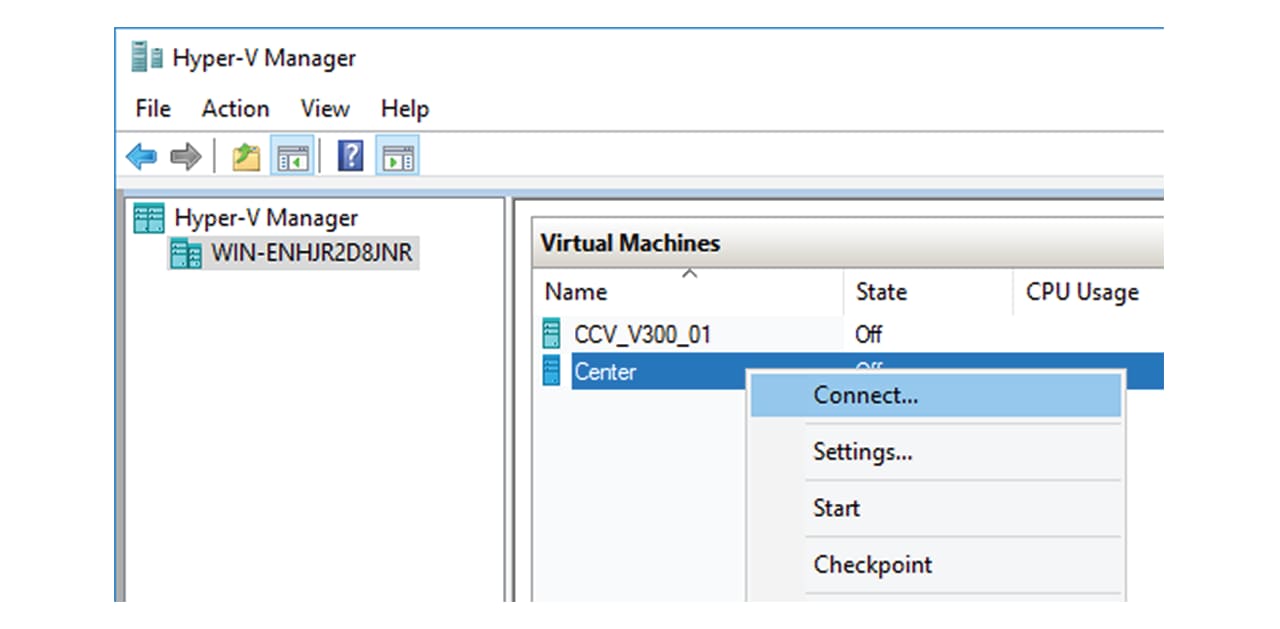
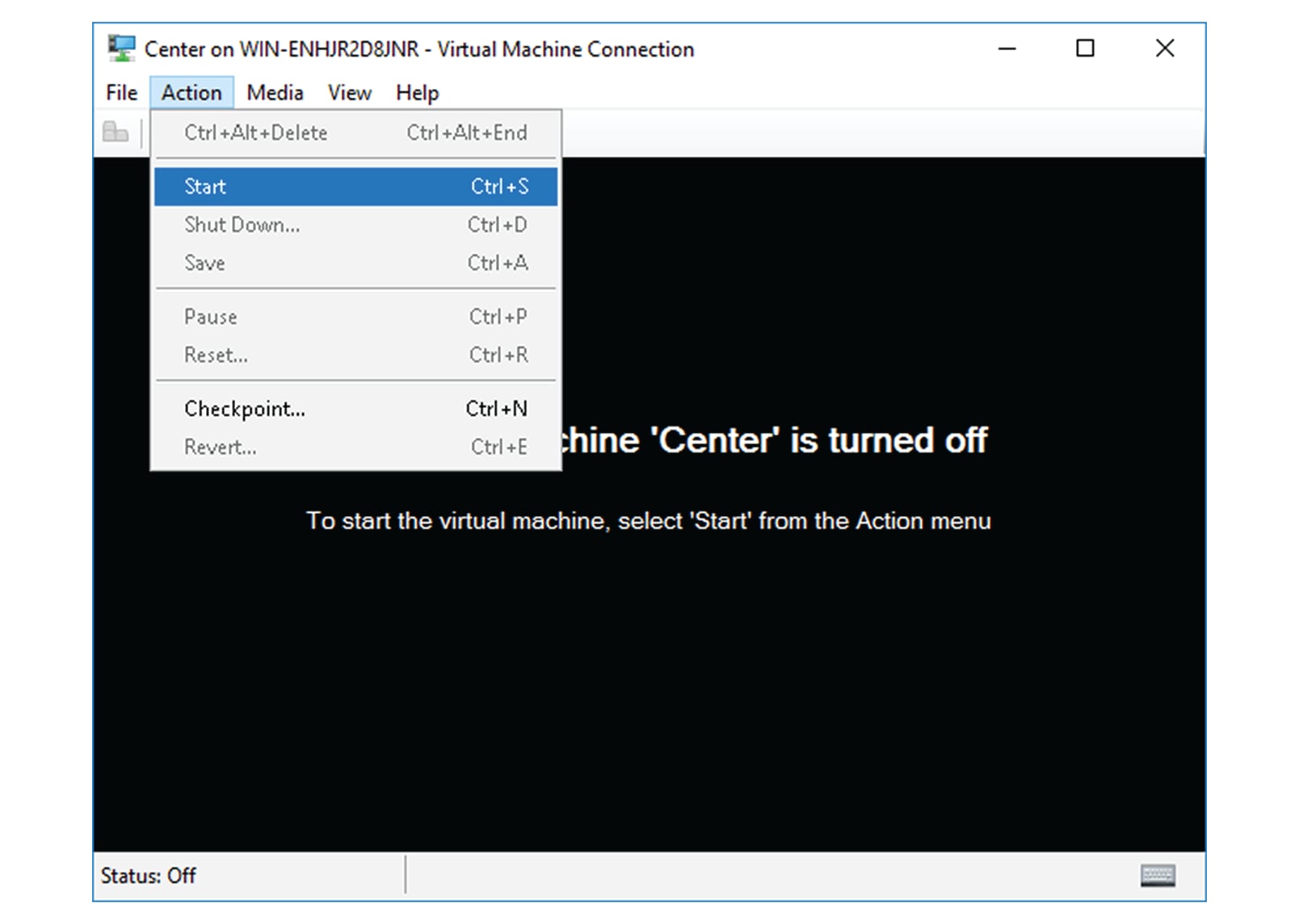
  1. Click Center on Hyper-V Manager and click 'Connect'.

  2. Start the Virtual Center.

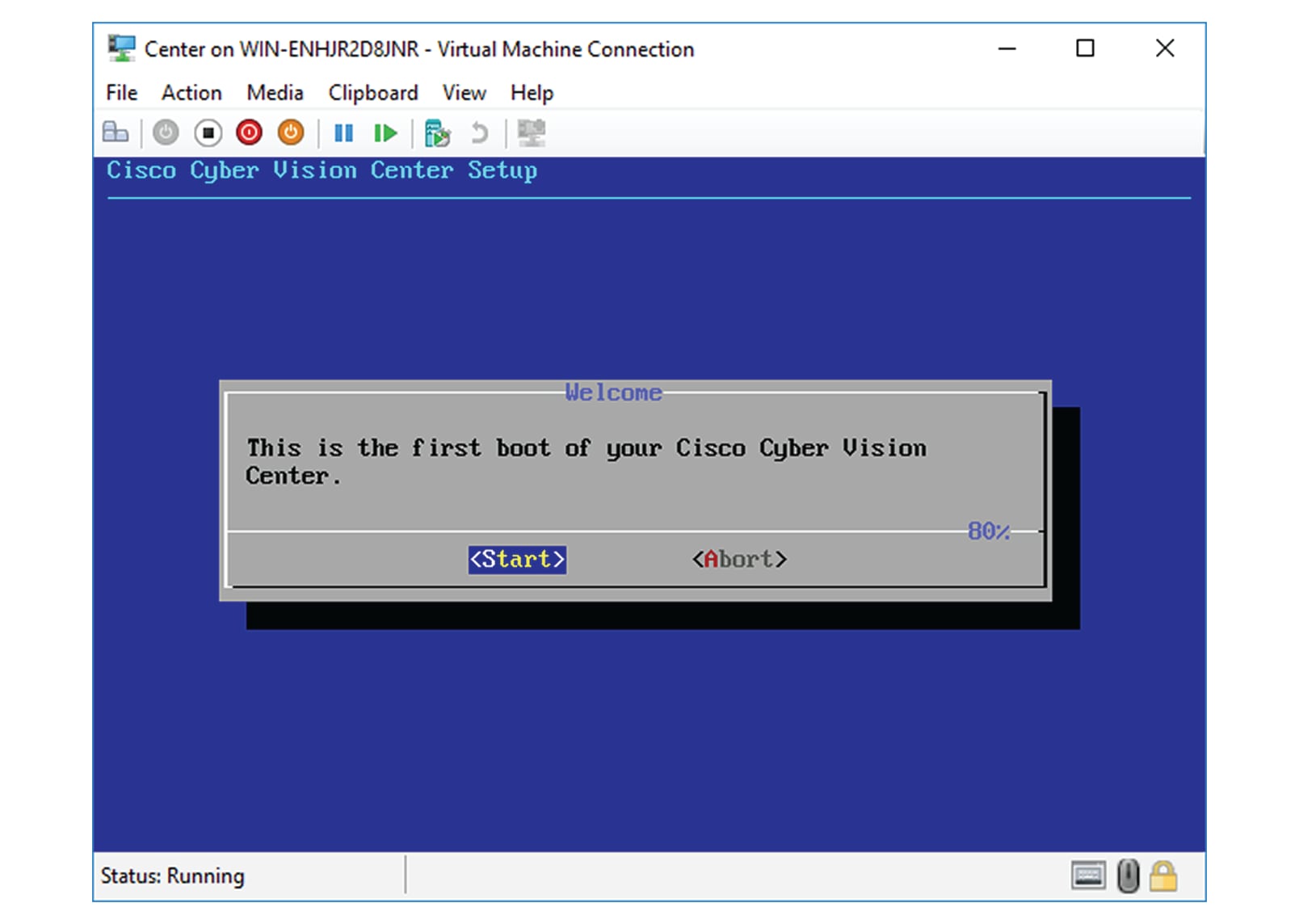
    Once the VM configuration completed successfully, the following screen appears:


    Note


    To retrieve the control of your keyboard and mouse, press Ctrl+Alt.

The Virtual Center is now ready for basic configuration.


Note


Keeping your Virtual environment safe and clean. Once the VM first boot has completed successfully, recommends to shut down the Virtual Center and delete the Virtual Disk from Hyper-V hardware list. Keeping interfaces to the minimum lowers possible access doors for attackers.

Nutanix

Create Virtual Machines

Before creating a virtual machine for on Nutanix, configure the required network interfaces based on your network infrastructure.

  • Administration network interface: This is essential for managing your VM.

  • Collection network interface: This interface is used for data collection.

  • DPI network interface: If you're deploying a Center with Deep Packet Inspection (DPI) capabilities, you'll also need to set up a dedicated DPI network interface.

For detailed guidance on setting up the network interfaces, refer to the official Nutanix documentation.

Procedure


Step 1

Log in to the Nutanix Prism Central as an administrator.

Step 2

On the left sidebar, select Compute > OVAs.

All your uploaded OVA files are listed in the right pane. To upload a new one, click Upload OVA.

Step 3

Select an OVA file by checking the box next to its name. Then, click the Actions menu and choose Deploy as VM.

The deployment wizard guides you through these configuration stages for your VM: Configuration, Resources, Management, and Review.

Step 4

In the Configuration stage:

  1. Enter a name for the VM in the Name field and optionally enter a description in the Description field.

  2. Enter the hardware details in the VM Properties section, and click Next. For more details, see the Installation Prerequisites.

Step 5

In the Resources stage:

  1. In the Disks section, modify the disk size to suit your requirements. The default value is 250 GB. For more details, see the "Virtual Machine Sizing" section in Installation Prerequisites.

  2. In the Networks section, configure a VLAN for the management and collection interfaces.

Step 6

In the Management stage:

  1. (Optional) Enable the default storage policy by checking Enable Default Storage Policy. This allows you to manage the storage configurations across all VM disks.

  2. Select your timezone from the Timezone drop-down list, and click Next.

Step 7

In the Review stage:

  1. Review the settings and modify them if required by clicking Edit next to the section you want to modify.

  2. Click Create VM.

The new VM is listed under Compute > VMs.

Step 8

(Optional) To modify VM settings at any time, select the VM and choose Update from the Action drop-down list.


Boot Virtual Machines

This section guides you to start the VM in Nutanix Prism Central to configure the Cisco Cyber Vision Center for initial setup.

Procedure


Step 1

Log in to the Nutanix Prism Central.

Step 2

On the left sidebar, select Compute > VMs.

Step 3

On the right pane, select the VM you want to boot, and choose Power Operations > Power On from the Actions menu.

Step 4

Wait a few moments for the VM initiation to complete.


A green dot appears to the left of the VM name, indicating that the VM is powered on.