Cisco S190 Web Security Appliance
Rear Panel Ports
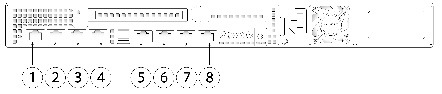
Figure 8-1 shows the rear panel ports of the Cisco S190 Web Security Appliance. The model shown below has one power supply. It is also available with an optional second power supply.
Figure 8-1 Cisco S190 Web Security Appliance Rear Panel Ports
|
|
|
|
1 |
Proxy port 1 |
Connect proxy port P1 to the network for both incoming and outgoing traffic. |
2 |
Proxy port 2 |
When both proxy ports P1 and P2 are enabled, you must connect P1 to the internal network and P2 to the Internet. P1 and P2 can connect to L4 switch, WCCP router, or network switch. |
3 |
Traffic Monitor port 1 |
Traffic monitor port T1 for Duplex Ethernet tap: One cable for all incoming and outgoing traffic. |
4 |
Traffic Monitor port 2 |
Traffic monitor port for Simplex Ethernet tap: One cable for all packets destined for the internet (T1), and one cable for all packets coming from the Internet (T2). |
5 |
RPC |
Port that is used for RPC. The RPC port speed is configured statically to 100 mbps and full-duplex mode without autonegotiation. Without autonegotiation, the RPC port fails to connect properly and cannot be used. |
6 |
Console |
Console port that directly connects a computer to the appliance. |
7 |
Management interface 1 |
Gigabit Ethernet interface that is restricted to management use only. |
8 |
Management interface 2 |
The secondary Management Port. This Gigabit Ethernet interface cannot be used. |
Using Status LEDs and Buttons for Maintenance
This section describes the location and meaning of LEDs and buttons and includes the following topics:
Front Panel LEDs
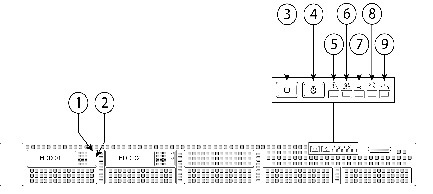
Figure 8-2 shows the front panel LEDs. Table 8-1 defines the LED states.
Figure 8-2 Cisco S190 Web Security Appliance Front Panel LEDs
|
|
Hard drive fault LED |
|
Fan status LED |
|
|
Hard drive activity LED |
|
Temperature status LED |
|
|
Power button/power status LED |
|
Power supply status LED |
|
|
Identification button/LED |
|
Network link activity LED |
|
|
System status LED |
|
|
Table 8-1 Front Panel LEDs, Definitions of States
|
|
|
1 |
Hard drive fault |
- Off—The hard drive is operating properly.
- Amber—Drive fault detected.
- Amber, blinking—The device is rebuilding.
- Amber, blinking with one-second interval—Drive locate function activated.
|
2 |
Hard drive activity |
- Off—There is no hard drive in the hard drive tray (no access, no fault).
- Green—The hard drive is ready.
- Green, blinking—The hard drive is reading or writing data.
|
3 |
Power button/LED |
- Off—There is no AC power to the appliance.
- Amber—The appliance is in standby power mode. Power is supplied only to the Baseboard Management Controller (BMC) and some motherboard functions which enable you to use remote power commands.
- Green—The appliance is in main power mode. Power is supplied to all appliance components.
|
4 |
Unit identification |
- Off—The unit identification function is not in use.
- Blue—The unit identification function is activated.
|
5 |
System status |
- Green—The appliance is running in normal operating condition.
- Green, blinking—The appliance is performing system initialization and memory check.
- Amber, steady—The appliance is in a degraded operational state. For example:
– Power supply redundancy is lost. Power supply redundancy is lost. – CPUs are mismatched. – At least one CPU is faulty. – At least one DIMM is faulty. – At least one drive in a RAID configuration failed.
- Amber, blinking—The appliance is in a critical fault state. For example:
– Boot failed. – Fatal CPU and/or bus error is detected. – The appliance is in an over-temperature condition. |
6 |
Fan status |
- Green—All fan modules are operating properly.
- Amber, steady—One or more fan modules breached the critical threshold.
- Amber, blinking—One or more fan modules breached the non-recoverable threshold.
|
7 |
Temperature status |
- Green—The appliance is operating at normal temperature.
- Amber, steady—One or more temperature sensors breached the critical threshold.
- Amber, blinking—One or more temperature sensors breached the non-recoverable threshold.
|
8 |
Power supply status |
- Green—All power supplies are operating normally.
- Amber, steady—One or more power supplies are in a degraded operational state.
- Amber, blinking—One or more power supplies are in a critical fault state.
|
9 |
Network link activity |
- Off—The Ethernet link is idle.
- Green—One or more Ethernet LOM ports are link-active, but there is no activity.
- Green, blinking—One or more Ethernet LOM ports are link-active, with activity.
|
Rear Panel LEDs and Buttons
The rear panel has the following LEDs and buttons that can be used to maintain the appliance:
- Power supply AC status LED—Located on the bottom left of each power supply.
- Data/Management port link speed LED—Located to the left of each Data or Management port.
- Data/Management port link status LED—Located to the right of each Data or Management port.
- Unit Identification button/LED—Located to the right of the VGA video port (DB-15).
Table 8-2 defines the LED states.
Table 8-2 Rear Panel LEDs, Definitions of States
|
|
|
Power supply status |
- Off—No AC input (12 V main power off, 12 V standby power off).
- Green, blinking—12 V main power off; 12 V standby power on.
- Green, solid—12 V main power on; 12 V standby power on.
- Amber, blinking—Warning detected but 12 V main power on.
- Amber, solid—Critical error detected; 12 V main power off.
|
Data/Management port link speed |
- Off—Link speed is 10 Mbps.
- Amber—Link speed is 100 Mbps.
- Green—Link speed is 1 Gbps.
|
Data/Management port link status |
- Off—No link is present.
- Green—Link is active.
- Green, blinking—Traffic is present on the active link.
|
Rear unit identification |
- Off—The unit identification LED is not in use.
- Blue—The unit identification LED is activated.
|
Summary of Features
Table 8-3 lists the features of the Cisco S190 Web Security Appliance.
.
Table 8-3 Cisco S190 Web Security Appliance Features
|
|
|
Chassis |
One rack-unit (1RU) chassis |
Processors |
One E5–2609 v3 processor |
Memory |
One 8-GB DDR4-2133 DIMM |
Multi-bit error protection |
Multi-bit error protection is supported. |
RPC |
You can access RPC through a 1-Gb dedicated port. The RPC port speed is configured statically to 100 mbps and full-duplex mode without autonegotiation. Without autonegotiation, the RPC port fails to connect properly and cannot be used. |
Proxy ports |
Two 1-Gb BASE-T Ethernet LAN ports |
Traffic monitoring ports |
Two 1-Gb BASE-T Ethernet LAN port |
Management I/O |
Supported connectors:
- One 1-Gb BASE-T Ethernet LAN ports
- One RS-232 serial port
|
Power |
One or two 770 W AC power supplies |
Power consumption |
1313 BTU/hr or 2626 BTU/hr |
Cooling |
Six fan modules for front-to-rear cooling |
Storage |
Two 600-GB hard disk drives (2.5” 10K SAS 4Kn) are installed into front-panel drive bays that provide hot-swappable access for SAS drives. Note The drives with the PID CCS-HDD-600GB-RV-A are 1.8 TB, but have been partitioned to 600 GB of usable space. |
Disk management
(RAID) |
Dedicated internal riser for a PCIe-style Cisco modular RAID controller card |
 フィードバック