Configuring the Card Mode

This chapter lists the supported configurations and the procedures to configure the card mode on the line cards.


Note


Unless otherwise specified, “line cards” refers to 1.2T and 1.2TL line cards.

1.2T line cards

This section describes the supported card modes, card configurations, and procedures to configure the card modes on the 1.2T line card.

A 1.2T line card
  • supports both module and slice configurations,

  • provides flexible trunk and client port assignment.

Port details:

The line cards are equipped with trunk and client ports:

  • Two trunk ports (0 and 1), and

  • 12 client ports (2 through 13).

Configuration modes

You can configure the line cards in these two modes:

  • Muxponder mode: both trunk ports are configured with the same trunk rate. The client-to-trunk mapping is sequential.

  • Muxponder slice mode: the client-to-trunk mapping is fixed.

This table lists the client ports assigned to each trunk for the 1.2T card in muxponder slice mode.

Table 1. Client-to-trunk mapping for muxponder slice mode

Card

Trunk 0 client ports

Trunk 1 client ports

1.2T

2 to 7

8 to 13

Supported data rates on the 1.2T line card

The 1.2T line card supports these data rates.

This table shows the client and trunk ports that are enabled on these muxponders for the 100GE and OTU4 data rates.

  • Muxponder

  • Muxponder slice 0

  • Muxponder slice 1

Table 2. Data rates for muxponder and muxponder slice 0 and slice 1 mode configuration

Trunk data rate

Client data rate (100GE, OTU4)

Muxponder mode

Muxponder slice mode

Trunk ports

Client ports

Client ports for trunk 1

Client ports for trunk 0

100

100GE, OTU4

0

2

8

2

200

100GE, OTU4

0, 1

2, 3, 4, 5

8, 9

2, 3

300

100GE, OTU4

0, 1

2, 3, 4, 5, 6, 7

8, 9, 10

2, 3, 4

400

100GE, OTU4

0, 1

2, 3, 4, 5, 6, 7, 8, 9

8, 9, 10, 11

2, 3, 4, 5

500

100GE, OTU4

0, 1

2, 3, 4, 5, 6, 7, 8, 9, 10, 11

8, 9, 10, 11, 12

2, 3, 4, 5, 6

600

100GE, OTU4

0, 1

2, 3, 4, 5, 6, 7, 8, 9, 10, 11, 12, 13

8, 9, 10, 11, 12, 13

2, 3, 4, 5, 6, 7

All configurations can be accomplished by using appropriate values for client bitrate and trunk bitrate parameters of the hw-module command.

This table shows the trunk parameter ranges for the 1.2T line card.

Table 3. Trunk parameter range for the 1.2T line card

Trunk payload

FEC

Min BPS

Max BPS

Min GBd

Max GBd

50G

15%

1

1.3125

24.0207911

31.5272884

50G

27%

1

1.4453125

24.0207911

34.7175497

100G

15%

1

2.625

24.0207911

63.0545768

100G

27%

1

2.890625

24.0207911

69.4350994

150G

15%

1.3203125

3.9375

24.0207911

71.6359689

150G

27%

1.453125

4.3359375

24.0207911

71.6749413

200G

15%

1.7578125

5.25

24.0207911

71.7420962

200G

27%

2

4.40625

31.51

69.43

250G

15%

2.1953125

6

26.2727403

71.8059237

250G

27%

2.4140625

6

28.9312914

71.9068991

300G

15%

2.6328125

6

31.5272884

71.8485385

300G

27%

2.8984375

6

34.7175497

71.8681352

350G

15%

3.0703125

6

36.7818364

71.8790086

350G

27%

3.3828125

6

40.503808

71.8404724

400G

15%

3.5078125

6

42.0363845

71.9018782

400G

27%

3.8671875

6

46.2900663

71.8197392

450G

15%

3.9453125

6

47.2909326

71.9196757

450G

27%

4.34375

6

52.0763245

71.9327648

500G

15%

4.3828125

6

52.5454806

71.93392

500G

27%

4.8281250

6

57.8625828

71.9068991

550G

15%

4.8203125

6

57.8000287

71.9455787

550G

27%

5.3125

6

63.6488411

71.88575

600G

15%

5.2578125

-

-

71.9552971

Trunk Payload

FEC

Min BPS

Max BPS

Min GBd

Max GBd

100G

15%

1

2.625

24.0207911

63.0545768

100G

27%

1

2.890625

24.0207911

69.4350994

150G

15%

1.3203125

3.9375

24.0207911

71.6359689

150G

27%

1.453125

4.3359375

24.0207911

71.6749413

200G

15%

2

4

31.5272884

63.0545768

200G

27%

2

4.40625

31.51664088

69.43509943

250G

15%

2.1953125

4.5

35.0303204

71.8059237

250G

27%

2.4140625

4.5

38.5750552

71.9068991

300G

15%

2.6328125

4.5

42.0363845

71.8485385

300G

27%

2.8984375‬

4.5

46.2900662857142

71.86813526

350G

15%

3.0703125

4.5

49.0424486

71.8790086

350G

27%

3.3828125

4.5

54.0050773

71.8404724

400G

15%

3.5078125

4.5

56.0485127

71.9018782

400G

27%

3.8671875

4.5

61.72008838

71.81973921

You can configure the sub 50G or coupled mode on the 1.2T line card only in the muxponder mode.

This table shows the port configuration for the supported data rates in the muxponder mode.

Table 4. Supported data rates for muxponder mode

Trunk data rate (per trunk)

Total configured data rate

Trunk ports

Client ports for trunk 0 (100G)

Shared client port (50G per trunk)

Client ports for trunk 1 (100G)

50G

100G

0, 1

-

2

-

150G

300G

0, 1

2

3

4

350G

700G

0, 1

2, 3, 4

5

6, 7, 8

450G

900G

0, 1

2, 3, 4, 5

6

7, 8, 9, 10

550G

1.1T

0, 1

2, 3, 4, 5, 6

7

8, 9, 10, 11, 12

The 1.2T line card supports an alternate port configuration for Sub 50G (split client port mapping) that you can configure using CLI.

This table shows the port configuration for the supported data rates in the split client port mapping mode.

Table 5. Supported data rates for split client port mapping mode

Trunk data rate (per trunk)

Total configured data rate

Trunk ports

Client ports for trunk 0 (100G)

Shared client port (50G per trunk)

Client ports for trunk 1 (100G)

50G

100G

0, 1

-

7

-

150G

300G

0, 1

2

7

8

250G

500G

0, 1

2, 3

7

8, 9

350G

700G

0, 1

2, 3, 4

7

8, 9, 10

450G

900G

0, 1

2, 3, 4, 5

7

8, 9, 10, 11

550G

1.1T

0, 1

2, 3, 4, 5, 6

7

8, 9, 10, 11, 12


Note


In all x50G configurations, client traffic on the middle port is affected with ODUK-BDI and LF alarms after the power cycle or link flap on the trunk side. This issue is raised when the two network lanes work in coupled mode and move from low to high power. To solve this issue, create a new frame either at the near-end or far-end by performing shut or no shut of the trunk ports.


Coupled mode restrictions

These restrictions apply to the coupled mode configuration:

  • Both trunk ports must be configured with the same bits-per-symbol or baud rate. Both must be sent over the same fiber and direction.

  • The chromatic dispersion must be configured to the same value for both trunk ports.

  • When trunk internal loopback is configured, you must configure it on both trunk ports. If you configure internal loopback only on one trunk, traffic loss occurs.

  • Fault on a trunk port of a coupled pair may cause errors on all clients including those running only on the unaffected trunk port.

Configure split client port mapping

Use this task to configure the trunk port to client port mapping for sub 50G data ratesin the default mode or in the split client port mapping mode.

Procedure

SUMMARY STEPS

  1. Perform any of these steps to configure or remove the split client port mapping mode:
    • To configure the trunk port to client port mapping for sub 50G configuration in the split client port mapping mode, run the split-client-port-mapping command.
      Example:
      
      RP/0/RP0/CPU0:ios#configure
      RP/0/RP0/CPU0:ios(config)#hw-module location 0/1/NXR0 mxponder
      RP/0/RP0/CPU0:ios(config-hwmod-mxp)#split-client-port-mapping
      RP/0/RP0/CPU0:ios(config-hwmod-mxp)#commit
      RP/0/RP0/CPU0:ios(config-hwmod-mxp)#end
    • To remove the split client port-mapping configuration, run the no split-client-port-mapping command.
      Example:
      
      RP/0/RP0/CPU0:ios#configure
      RP/0/RP0/CPU0:ios(config)#hw-module location 0/1/NXR0 mxponder
      RP/0/RP0/CPU0:ios(config-hwmod-mxp)#no split-client-port-mapping
      RP/0/RP0/CPU0:ios(config-hwmod-mxp)#commit
      RP/0/RP0/CPU0:ios(config-hwmod-mxp)#end
  2. Run the commit command to apply the changes.
  3. Verify the port mapping using the show hw-module location location mxponder command.

DETAILED STEPS


Step 1

Perform any of these steps to configure or remove the split client port mapping mode:

  • To configure the trunk port to client port mapping for sub 50G configuration in the split client port mapping mode, run the split-client-port-mapping command.
    Example:
    
    RP/0/RP0/CPU0:ios#configure
    RP/0/RP0/CPU0:ios(config)#hw-module location 0/1/NXR0 mxponder
    RP/0/RP0/CPU0:ios(config-hwmod-mxp)#split-client-port-mapping
    RP/0/RP0/CPU0:ios(config-hwmod-mxp)#commit
    RP/0/RP0/CPU0:ios(config-hwmod-mxp)#end
  • To remove the split client port-mapping configuration, run the no split-client-port-mapping command.
    Example:
    
    RP/0/RP0/CPU0:ios#configure
    RP/0/RP0/CPU0:ios(config)#hw-module location 0/1/NXR0 mxponder
    RP/0/RP0/CPU0:ios(config-hwmod-mxp)#no split-client-port-mapping
    RP/0/RP0/CPU0:ios(config-hwmod-mxp)#commit
    RP/0/RP0/CPU0:ios(config-hwmod-mxp)#end

Step 2

Run the commit command to apply the changes.

Example:


RP/0/RP0/CPU0:ios(config-hwmod-mxp)#commit
RP/0/RP0/CPU0:ios(config-hwmod-mxp)#end

Step 3

Verify the port mapping using the show hw-module location location mxponder command.

Example:

This example shows how to verify the split client port-mapping configuration.


RP/0/RP0/CPU0:ios#show hw-module location 0/1/NXR0 mxponder
Location:             0/1/NXR0
Client Bitrate:       100GE
Trunk  Bitrate:       450G
Status:               Provisioning In Progress
LLDP Drop Enabled:    FALSE
ARP Snoop Enabled:    FALSE
Client Port                     Mapper/Trunk Port          CoherentDSP0/1/0/0   CoherentDSP0/1/0/1
Traffic Split Percentage
HundredGigECtrlr0/1/0/2         ODU40/1/0/0/1                         100                        0
HundredGigECtrlr0/1/0/3         ODU40/1/0/0/2                         100                        0
HundredGigECtrlr0/1/0/4         ODU40/1/0/0/3                         100                        0
HundredGigECtrlr0/1/0/5         ODU40/1/0/0/4                         100                        0
HundredGigECtrlr0/1/0/7         ODU40/1/0/0/5                          50                       50
HundredGigECtrlr0/1/0/8         ODU40/1/0/1/1                           0                      100
HundredGigECtrlr0/1/0/9         ODU40/1/0/1/2                           0                      100
HundredGigECtrlr0/1/0/10        ODU40/1/0/1/3                           0                      100
HundredGigECtrlr0/1/0/11        ODU40/1/0/1/4                           0                      100

The split client port mapping is configured.

This is a sample in which split-client-port-mapping is configured with a 450G trunk payload.


RP/0/RP0/CPU0:ios#configure
RP/0/RP0/CPU0:ios(config)#hw-module location 0/1/NXR0 mxponder
RP/0/RP0/CPU0:ios(config-hwmod-mxp)#split-client-port-mapping
RP/0/RP0/CPU0:ios(config-hwmod-mxp)#commit
RP/0/RP0/CPU0:ios(config-hwmod-mxp)#end

This is a sample in which split-client-port-mapping is removed.


RP/0/RP0/CPU0:ios#configur
RP/0/RP0/CPU0:ios(config)#hw-module location 0/1/NXR0 mxponder
RP/0/RP0/CPU0:ios(config-hwmod-mxp)#no split-client-port-mapping
RP/0/RP0/CPU0:ios(config-hwmod-mxp)#commit
RP/0/RP0/CPU0:ios(config-hwmod-mxp)#end

Configure the card mode

Use this task to configure the 1.2T line card in the module (muxponder) or slice configuration (muxponder slice), specifying its client and trunk data rates.

Procedure


Step 1

Configure the client and trunk rates for the muxponder at the specified location.

  • hw-module location location mxponder client-rate {100GE | OTU4}

  • hw-module location location mxponder trunk-rate {50G | 100G150G | 200G | 250G | 300G | 350G | 400G | 450G | 500G | 550G | 600G }

Example:

This is a sample in which the card is configured in the muxponder mode with a 550G trunk payload.


RP/0/RP0/CPU0:ios#config
Tue Oct 15 01:24:56.355 UTC
RP/0/RP0/CPU0:ios(config)#hw-module location 0/1/NXR0 mxponder client-rate 100GE
RP/0/RP0/CPU0:ios(config)#hw-module location 0/1/NXR0 mxponder trunk-rate 550G
RP/0/RP0/CPU0:ios(config)#commit

This is a sample in which the card is configured in the muxponder mode with a 500G trunk payload.


RP/0/RP0/CPU0:ios#config
Sun Feb 24 14:09:33.989 UTC
RP/0/RP0/CPU0:ios(config)#hw-module location 0/2/NXR0 mxponder client-rate OTU4
RP/0/RP0/CPU0:ios(config)#hw-module location 0/2/NXR0 mxponder trunk-rate 500G
RP/0/RP0/CPU0:ios(config)#commit

Step 2

Use these commad to configure the client data rates and trunk data rates of the card in the muxponder slice mode.

  • configure hw-module location location mxponder-slice mxponder-slice-number client-rate { 100GE|OTU4}

  • hw-module location location mxponder-slice trunk-rate { 100G | 200G | 300G | 400G | 500G | 600G }

Example:

This is a sample in which the card is configured in the muxponder mode with a 550G trunk payload.


RP/0/RP0/CPU0:ios#config
Tue Oct 15 01:24:56.355 UTC
RP/0/RP0/CPU0:ios(config)#hw-module location 0/1/NXR0 mxponder client-rate 100GE
RP/0/RP0/CPU0:ios(config)#hw-module location 0/1/NXR0 mxponder trunk-rate 550G
RP/0/RP0/CPU0:ios(config)#commit

This is a sample in which the card is configured in the muxponder mode with a 500G trunk payload.


RP/0/RP0/CPU0:ios#config
Sun Feb 24 14:09:33.989 UTC
RP/0/RP0/CPU0:ios(config)#hw-module location 0/2/NXR0 mxponder client-rate OTU4
RP/0/RP0/CPU0:ios(config)#hw-module location 0/2/NXR0 mxponder trunk-rate 500G
RP/0/RP0/CPU0:ios(config)#commit

This is a sample in which the card is configured in the muxponder slice 0 mode with a 500G trunk payload.


RP/0/RP0/CPU0:ios#config
RP/0/RP0/CPU0:ios(config)#hw-module location 0/1/NXR0 mxponder-slice 0 client-rate 100GE
RP/0/RP0/CPU0:ios(config)#hw-module location 0/1/NXR0 mxponder-slice 0 trunk-rate 500G
RP/0/RP0/CPU0:ios(config)#commit

This is a sample in which the card is configured in the muxponder slice 1 mode with a 400G trunk payload.


RP/0/RP0/CPU0:ios#config
RP/0/RP0/CPU0:ios(config)#hw-module location 0/1/NXR0 mxponder-slice 1 client-rate 100GE
RP/0/RP0/CPU0:ios(config)#hw-module location 0/1/NXR0 mxponder-slice 1 trunk-rate 400G
RP/0/RP0/CPU0:ios(config)#commit

This is a sample in which the card is configured with mixed client rates in the muxponder slice mode.


RP/0/RP0/CPU0:ios#configure
Mon Mar 23 06:10:22.227 UTC
RP/0/RP0/CPU0:ios(config)#hw-module location 0/1/NXR0 mxponder-slice 0 client-rate OTU4 trunk-rate 500G 
RP/0/RP0/CPU0:ios(config)#hw-module location 0/1/NXR0 mxponder-slice 1 client-rate 100GE trunk-rate 500G
RP/0/RP0/CPU0:ios(config)#commit

Verify the 1.2T line card configuration

Use this task to verify the configured settings of the 1.2T line card in either muxponder or muxponder slice mode.

Procedure

Use the show hw-module location <location> mxponder command to verify the card configuration.

Example:

RP/0/RP0/CPU0:ios#show hw-module location 0/2/NXR0 mxponder
Fri Mar 15 11:48:48.344 IST

Location:             0/2/NXR0
Client Bitrate:       100GE
Trunk  Bitrate:       500G
Status:               Provisioned
LLDP Drop Enabled:    FALSE
Client Port            Mapper/Trunk Port   CoherentDSP0/2/0/0  CoherentDSP0/2/0/1
                     Traffic Split Percentage

HundredGigECtrlr0/2/0/2  ODU40/2/0/0/1                100                   0
HundredGigECtrlr0/2/0/3  ODU40/2/0/0/2                100                   0
HundredGigECtrlr0/2/0/4  ODU40/2/0/0/3                100                   0
HundredGigECtrlr0/2/0/5  ODU40/2/0/0/4                100                   0
HundredGigECtrlr0/2/0/6  ODU40/2/0/0/5                100                   0
HundredGigECtrlr0/2/0/7  ODU40/2/0/1/1                  0                 100
HundredGigECtrlr0/2/0/8  ODU40/2/0/1/2                  0                 100
HundredGigECtrlr0/2/0/9  ODU40/2/0/1/3                  0                 100
HundredGigECtrlr0/2/0/10 ODU40/2/0/1/4                  0                 100
HundredGigECtrlr0/2/0/11 ODU40/2/0/1/5                  0                 100

This is a sample output of the coupled mode configuration where the shared client port is highlighted.

RP/0/RP0/CPU0:ios#show hw-module location 0/1/NXR0 mxponder
Tue Oct 15 01:25:57.358 UTC

Location:             0/1/NXR0
Client Bitrate:       100GE
Trunk  Bitrate:       550G
Status:               Provisioned
LLDP Drop Enabled:    FALSE
Client Port           Mapper/Trunk Port    CoherentDSP0/1/0/0 CoherentDSP0/1/0/1
                   Traffic Split Percentage

HundredGigECtrlr0/1/0/2    ODU40/1/0/0/1             100                   0
HundredGigECtrlr0/1/0/3    ODU40/1/0/0/2             100                   0
HundredGigECtrlr0/1/0/4    ODU40/1/0/0/3             100                   0
HundredGigECtrlr0/1/0/5    ODU40/1/0/0/4             100                   0
HundredGigECtrlr0/1/0/6    ODU40/1/0/0/5             100                   0
HundredGigECtrlr0/1/0/7    ODU40/1/0/0/6              50                  50
HundredGigECtrlr0/1/0/8    ODU40/1/0/1/1               0                 100
HundredGigECtrlr0/1/0/9    ODU40/1/0/1/2               0                 100
HundredGigECtrlr0/1/0/10   ODU40/1/0/1/3               0                 100
HundredGigECtrlr0/1/0/11   ODU40/1/0/1/4               0                 100
HundredGigECtrlr0/1/0/12   ODU40/1/0/1/5               0                 100

This is a sample output of all the muxponder slice 0 configurations.


RP/0/RP0/CPU0:ios#show hw-module location 0/1/NXR0 mxponder-slice  0
Fri Mar 15 06:04:18.348 UTC

Location:             0/1/NXR0
Slice ID:             0
Client Bitrate:       100GE
Trunk  Bitrate:       500G
Status:               Provisioned
LLDP Drop Enabled:    FALSE
Client Port                     Mapper/Trunk Port          CoherentDSP0/1/0/0
                                Traffic Split Percentage

HundredGigECtrlr0/1/0/2         ODU40/1/0/0/1                      100
HundredGigECtrlr0/1/0/3         ODU40/1/0/0/2                      100
HundredGigECtrlr0/1/0/4         ODU40/1/0/0/3                      100
HundredGigECtrlr0/1/0/5         ODU40/1/0/0/4                      100
HundredGigECtrlr0/1/0/6         ODU40/1/0/0/5                      100

This is a sample output of all the muxponder slice 1 configurations.


RP/0/RP0/CPU0:ios#show hw-module location 0/1/NXR0 mxponder-slice 1
Fri Mar 15 06:11:50.020 UTC

Location:             0/1/NXR0
Slice ID:             1
Client Bitrate:       100GE
Trunk  Bitrate:       400G
Status:               Provisioned
LLDP Drop Enabled:    TRUE
Client Port                     Mapper/Trunk Port          CoherentDSP0/1/0/1
                                Traffic Split Percentage

HundredGigECtrlr0/1/0/8         ODU40/1/0/1/1                      100
HundredGigECtrlr0/1/0/9         ODU40/1/0/1/2                      100
HundredGigECtrlr0/1/0/10        ODU40/1/0/1/3                      100
HundredGigECtrlr0/1/0/11        ODU40/1/0/1/4                      100

This is a sample output of the muxponder slice 1 configuration with client configured as OTU4.

RP/0/RP0/CPU0:ios#sh hw-module location 0/0/NXR0 mxponder-slice 1                                                            
Wed Mar 11 13:59:11.073 UTC 

Location:             0/0/NXR0
Slice ID:             1  
Client Bitrate:       OTU4
Trunk  Bitrate:       200G
Status:               Provisioned
Client Port                     Peer/Trunk Port            CoherentDSP0/0/0/1  
                              Traffic Split Percentage
OTU40/0/0/8                     ODU40/0/0/1/1                      100
OTU40/0/0/9                     ODU40/0/0/1/2                      100

This is a sample to verify the mixed client rate configuration in the muxponder slice mode.


RP/0/RP0/CPU0:ios#show hw-module location 0/1/NXR0 mxponder
Mon Mar 23 06:20:22.227 UTC

Location:             0/1/NXR0
Slice ID:             0
Client Bitrate:       OTU4
Trunk  Bitrate:       500G
Status:               Provisioned
Client Port                     Peer/Trunk Port            CoherentDSP0/1/0/0   
                                Traffic Split Percentage

OTU40/1/0/2                     ODU40/1/0/0/1                      100
OTU40/1/0/3                     ODU40/1/0/0/2                      100
OTU40/1/0/4                     ODU40/1/0/0/3                      100
OTU40/1/0/5                     ODU40/1/0/0/4                      100
OTU40/1/0/6                     ODU40/1/0/0/5                      100


Location:             0/1/NXR0
Slice ID:             1
Client Bitrate:       100GE
Trunk  Bitrate:       500G
Status:               Provisioned
LLDP Drop Enabled:    FALSE
ARP Snoop Enabled:    FALSE
Client Port                     Mapper/Trunk Port          CoherentDSP0/1/0/1   
                                Traffic Split Percentage

HundredGigECtrlr0/1/0/8         ODU40/1/0/1/1                         100
HundredGigECtrlr0/1/0/9         ODU40/1/0/1/2                         100
HundredGigECtrlr0/1/0/10        ODU40/1/0/1/3                         100
HundredGigECtrlr0/1/0/11        ODU40/1/0/1/4                         100
HundredGigECtrlr0/1/0/12        ODU40/1/0/1/5                         100

Clear alarm statistics

Use this task to clear alarm statistics on the optics or coherent DSP controller.

Procedure


Run the clear counters controller controllertype R/S/I/P command to clear alarm statistics on the optics or coherent DSP controller.

Example:

This is a sample in which the alarm statistics are cleared on the coherent DSP controller.


RP/0/RP0/CPU0:ios#show controller coherentDSP 0/1/0/0
Tue Jun 11 05:15:12.540 UTC

Port                                            : CoherentDSP 0/1/0/0
Controller State                                : Up
Inherited Secondary State                       : Normal
Configured Secondary State                      : Normal
Derived State                                   : In Service
Loopback mode                                   : None
BER Thresholds                                  : SF = 1.0E-5  SD = 1.0E-7
Performance Monitoring                          : Enable

Alarm Information:
LOS = 1 LOF = 1 LOM = 0
OOF = 1 OOM = 1 AIS = 0
IAE = 0 BIAE = 0        SF_BER = 0
SD_BER = 2      BDI = 2 TIM = 0
FECMISMATCH = 0 FEC-UNC = 0
Detected Alarms                                 : None

Bit Error Rate Information
PREFEC  BER                                     : 8.8E-03
POSTFEC BER                                     : 0.0E+00

TTI :
        Remote hostname                         : P2B8
        Remote interface                        : CoherentDSP 0/1/0/0
        Remote IP addr                          : 0.0.0.0

FEC mode                                        : Soft-Decision 15

AINS Soak                                       : None
AINS Timer                                      : 0h, 0m
AINS remaining time                             : 0 seconds
RP/0/RP0/CPU0:ios#clear counters controller coherentDSP 0/1/0/0
Tue Jun 11 05:17:07.271 UTC
All counters are cleared
RP/0/RP0/CPU0:ios#show controllers coherentDSP 0/1/0/1
Tue Jun 11 05:20:55.199 UTC

Port                                            : CoherentDSP 0/1/0/1
Controller State                                : Up
Inherited Secondary State                       : Normal
Configured Secondary State                      : Normal
Derived State                                   : In Service
Loopback mode                                   : None
BER Thresholds                                  : SF = 1.0E-5  SD = 1.0E-7
Performance Monitoring                          : Enable

Alarm Information:
LOS = 0 LOF = 0 LOM = 0
OOF = 0 OOM = 0 AIS = 0
IAE = 0 BIAE = 0        SF_BER = 0
SD_BER = 0      BDI = 0 TIM = 0
FECMISMATCH = 0 FEC-UNC = 0
Detected Alarms                                 : None

Bit Error Rate Information
PREFEC  BER                                     : 1.2E-02
POSTFEC BER                                     : 0.0E+00

TTI :
        Remote hostname                         : P2B8
        Remote interface                        : CoherentDSP 0/1/0/1
        Remote IP addr                          : 0.0.0.0

FEC mode                                        : Soft-Decision 15

AINS Soak                                       : None
AINS Timer                                      : 0h, 0m
AINS remaining time                             : 0 seconds

Regeneration mode

In an optical transmission system, 3R regeneration helps extend the reach of the optical communication links by reamplifying, reshaping, and retiming the data pulses.

Regeneration helps to correct any distortion of optical signals by converting it to an electrical signal, processing that electrical signal, and then retransmitting it again as an optical signal.

In Regeneration (Regen) mode, the OTN signal is received on a trunk port and the regenerated OTN signal is sent on the other trunk port of the 1.2T line card and the other way round. In this mode, only the trunk optics controller and coherentDSP controllers are created.

Regeneration can be configured only on the 1.2T line card.

Configure the card in Regen mode

Use this task to configure the regeneration mode on the 1.2T line card. The supported trunk rates are 100G to 600G in multiples of 100G.

Procedure

Step 1

Run the hw-module location location regen trunk-rate command to configure the regeneration mode on the 1.2T card.

Example:

The is a sample to configure the regeneration mode on the 1.2T line card with the trunk-rate 300.


RP/0/RP0/CPU0:ios#configure
RP/0/RP0/CPU0:ios(config)#hw-module location 0/0/NXR0 
RP/0/RP0/CPU0:ios(config-hwmod)#regen
RP/0/RP0/CPU0:ios(config-regen)#trunk-rate 300

Step 2

Commit and exit the configuration.

Example:

RP/0/RP0/CPU0:ios(config-regen)#commit
RP/0/RP0/CPU0:ios(config-regen)#exit

Verify the Regen mode

Use this task to verify the regeneration mode configuration.

Procedure

Run the show hw-module location location regen command to verify the regen mode.

Example:

RP/0/RP0/CPU0:ios#show hw-module location 0/0 regen
Mon Mar 25 09:50:42.936 UTC
Location:             0/0/NXR0
Trunk  Bitrate:       400G
Status:               Provisioned
East Port 	            West Port
CoherentDSP0/0/0/0      CoherentDSP0/0/0/1

The terms, East Port and West Port are used to represent OTN signal regeneration at the same layer.


Configure the BPS

This section provides instructions for configuring the Bits-Per-Symbol (BPS) parameter and viewing BPS and baud rate ranges on supported optical interfaces.

The bits-per-symbol parameter allows you to configure the modulation format on optical interfaces. This setting directly affects the spectral efficiency and data rate on a per-wavelength basis.

Supported baud rates are shown in the table.
Table 6. Supported baud rates

Traffic rate

Minimum baud rate

Maximum baud rate

400

43.34518

130.4647

600

59.53435

148.0555

800

79.37913

148.0555

1000

99.22392

148.0555

Use this task to configure BPS value to 3.4375 on the 1.2T line cards to support 300G trunk configurations on 75 GHz networks.

Procedure


Step 1

Run the controller optics R/S/I/P bits-per-symbol value command to configure the BPS to 3.4375 on the 1.2T line cards. This configuration supports 300G trunk configurations on 75 GHz networks.

Example:

This is a sample in which the BPS is configured to 3.4375.


RP/0/RP0/CPU0:ios#configure
Wed Mar 27 14:12:49.932 UTC
RP/0/RP0/CPU0:ios(config)#controller optics 0/3/0/0 bits-per-symbol 3.4375
RP/0/RP0/CPU0:ios(config)#commit

Step 2

Run these commands to view the BPS and baud for a specific range.

  • show controller optics R/S/I/P bps-range bps-range | include data-rate | include fec-type

  • show controller optics R/S/I/P baud-rate-range baud-range | include data-rate | include fec-type

Example:


RP/0/RP0/CPU0:ios#show controllers optics 0/3/0/0 bps-range 3 3.05 | include 300G | include SD27
Thu Mar 28 03:01:39.751 UTC
300G            SD27            3.0000000       69.4350994
300G            SD27            3.0078125       69.2547485
300G            SD27            3.0156250       69.0753320
300G            SD27            3.0234375       68.8968428
300G            SD27            3.0312500       68.7192736
300G            SD27            3.0390625       68.5426174
300G            SD27            3.0468750       68.3668671

Example:


RP/0/RP0/CPU0:ios#show controllers optics 0/3/0/0 baud-rate-range 43 43.4 | include 300G | include SD27
Thu Mar 28 03:12:36.521 UTC
300G            SD27            4.8046875       43.3545986
300G            SD27            4.8125000       43.2842178
300G            SD27            4.8203125       43.2140651
300G            SD27            4.8281250       43.1441394
300G            SD27            4.8359375       43.0744397
300G            SD27            4.8437500       43.0049648

Trunk rates and BPSK modulation

Trunk rates on the 1.2T line cards can be configured to 50G, 100G, and 150G to support Binary Phase-Shift Keying (BPSK) modulation.

This configuration optimizes the efficiency of carrying information over radio signals.

Supported trunk rates and BPSK modulation

This table lists the trunk rates with the supported BPSK modulation:

Table 7. Trunk rates with the supported BPSK modulation

Trunk rate

BPSK modulation

50G

1 to 1.4453125

100G

1 to 2.890625

150G

1.453125 to 4.3359375

Configure trunk rate for BPSK modulation

Use this task to configure the trunk rate for BPSK modulation.

Procedure

Run the configurehw-module location location mxponder trunk-rate {50G | 100G | 150G}command to configure the trunk rate for BPSK modulation.

Example:

This example shows how to configure trunk rate to 50G:


RP/0/RP0/CPU0:(config)#hw-module location 0/0/NXR0 mxponder
RP/0/RP0/CPU0:(config-hwmod-mxp)#trunk-rate 50G 
RP/0/RP0/CPU0:(config-hwmod-mxp)#commit    

View BPSK trunk rate ranges

Determine the trunk rate configured for BPSK modulation on network hardware.

Use this task to verify modulation settings or to troubleshoot device performance. It displays the current trunk rate for BPSK modulation.
Procedure

Run the show command to view the trunk rate configured for BPSK modulation.

Example:

RP/0/RP0/CPU0:ios(hwmod-mxp)#show hw-module location 0/0/NXR0 mxponder                                                                                
Tue Feb 25 11:13:41.934 UTC                                                                                                                                    
Location:             0/0/NXR0
Client Bitrate:       100GE
Trunk  Bitrate:       50G  
Status:               Provisioned
LLDP Drop Enabled:    FALSE                   
ARP Snoop Enabled:    FALSE                   
Client Port                     Mapper/Trunk Port          CoherentDSP0/0/0/0   CoherentDSP0/0/0/1      
                                Traffic Split Percentage                                                

HundredGigECtrlr0/0/0/2         ODU40/0/0/0                            50                       50


RP/0/RP0/CPU0:ios#show controllers optics 0/0/0/0
Thu Mar  5 07:12:55.681 UTC                          
Controller State: Up 
Transport Admin State: In Service 
Laser State: On 
LED State: Green   
 Optics Status    
         Optics Type:  DWDM optics
         DWDM carrier Info: C BAND, MSA ITU Channel=61, Frequency=193.10THz,
         Wavelength=1552.524nm                                              

         Alarm Status:
         -------------
         Detected Alarms: None


         LOS/LOL/Fault Status:

         Alarm Statistics:

         -------------
         HIGH-RX-PWR = 0            LOW-RX-PWR = 2          
         HIGH-TX-PWR = 0            LOW-TX-PWR = 0          
         HIGH-LBC = 0               HIGH-DGD = 0            
         OOR-CD = 0                 OSNR = 0                
         WVL-OOL = 0                MEA  = 0                
         IMPROPER-REM = 0                                   
         TX-POWER-PROV-MISMATCH = 0                         
         Laser Bias Current = 0.0 %                         
         Actual TX Power = 1.97 dBm                         
         RX Power = 1.58 dBm                                
         RX Signal Power = 0.60 dBm                         
         Frequency Offset = 386 MHz                         

         Performance Monitoring: Enable 

         THRESHOLD VALUES
         ----------------

         Parameter                 High Alarm  Low Alarm  High Warning  Low Warning
         ------------------------  ----------  ---------  ------------  -----------
         Rx Power Threshold(dBm)          4.9      -12.0           0.0          0.0
         Tx Power Threshold(dBm)          3.5      -10.1           0.0          0.0
         LBC Threshold(mA)                N/A        N/A          0.00         0.00

         Configured Tx Power = 2.00 dBm
         Configured CD High Threshold = 180000 ps/nm
         Configured CD lower Threshold = -180000 ps/nm
         Configured OSNR lower Threshold = 0.00 dB
         Configured DGD Higher Threshold = 180.00 ps
         Baud Rate =  34.7175521851 GBd
         Bits per Symbol = 1.0000000000  bits/symbol
         Modulation Type: BPSK
         Chromatic Dispersion -9 ps/nm
         Configured CD-MIN -180000 ps/nm  CD-MAX 180000 ps/nm
         Polarization Mode Dispersion = 0.0 ps
         Second Order Polarization Mode Dispersion = 125.00 ps^2
         Optical Signal to Noise Ratio = 34.60 dB
         SNR = 20.30 dB
         Polarization Dependent Loss = 0.20 dB
         Polarization Change Rate = 0.00 rad/s
         Differential Group Delay = 2.00 ps
         Filter Roll Off Factor : 0.100
         Rx VOA Fixed Ratio : 15.00 dB
         Enhanced Colorless Mode : 0
         Enhanced SOP Tolerance Mode : 0
         NLEQ Compensation Mode : 0
         Cross Polarization Gain Mode : 0
         Cross Polarization Weight Mode : 0
         Carrier Phase Recovery Window : 0
         Carrier Phase Recovery Extended Window : 0
AINS Soak                : None
AINS Timer               : 0h, 0m
AINS remaining time      : 0 seconds


QXP cards

Table 8. Feature History

Feature Name

Release Information

Description

NCS1K4-QXP-K9 Line Card Support on NCS 1014

Cisco IOS XR Release 24.1.1

NCS1K4-QXP-K9 line card delivers low cost 100G and 400G DWDM transmission with ZR+ optics on a router. This line card can be used in both traditional Optical Networking solution and in Routed Optical Networking solution. This line card has 16 pluggable ports with eight QSFP-DD client ports and eight QSFP-DD trunk ports.

For more information about the NCS1K4-QXP-K9 card, see the datasheet.

The NCS1K4-QXP-K9 3.2T QSFP-DD DCO Transponder Line Card has eight client ports (QSFP-DD) and eight trunk ports (QSFP-DD ZR+). Each line card supports up to 3.2 Tbps traffic. The client rates that are supported are 400GE, 4x100GE, and 100GE Ethernet only. The modulation formats supported are 16 QAM for 400GE Txp/4x100GE Mxp.

The QXP line card provides up to 16 QSFP-DD ports (eight QSFP-DD client ports and eight QSFP-DD trunk ports). The supported operating modes are:

  • 400GE-TXP

  • 4X100GE MXP

  • 2x100GE MXP

The QXP card has 8 slices. Each slice consists of one client and one trunk port with a slice capacity of 400G. The total capacity is 3.2T.

Table 9. Slice and port mapping on the QXP card

Slice

Trunk port

Client port

0

0

1

1

2

3

2

4

5

3

6

7

4

8

9

5

10

11

6

12

13

7

14

15


Note


  • When you use OPENROADM trunk mode by configuring the trunk-mode OR command, use only alternate slices on the QXP card. Either use slices 0, 2, 4, 6 or 1, 3, 5, 7.

  • QDD-400G-ZR-S pluggable module supports FEC mode CFEC only.

  • QDD-400G-ZR-S pluggable module operates only as an Ethernet transponder.


Supported data rates for QXP card

This table shows the client and trunk ports that are enabled for transponder and muxponder modes.

Operating mode

Card support

Client data rate

Client optics

Trunk ports

Client ports

400GE-TXP QXP Card 400G
  • QDD-400G-DR4-S

  • QDD-400G-FR4-S

  • QDD-400-AOCxM

0,2,4,6,8,10,12,14 1,3,5,7,9,11,13,15
4X100GE MXP QXP Card 4X100G Break out
  • QDD-400G-DR4-S

  • QDD-4X100G-LR-S

0,2,4,6,8,10,12,14 1,3,5,7,9,11,13,15

2X100GE MXP

QXP Card

2X100G Break out

  • QDD-400G-DR4-S

  • QDD-4X100G-LR-S

0,2,4,6,8,10,12,14 1,3,5,7,9,11,13,15

DAC supported modes for NCS1K4-QXP-K9 card

DAC support is enabled on the NCS1K4-QXP-K9 card for 2x100G, 4x100G, and 400G operating modes.

This table provides the details of the respective DAC rates for the different trunk rates for NCS1K4-QXP-K9 card.

Table 10. DAC supported data rates for NCS1K4-QXP-K9 card

Trunk rate

Modulation format

Default value

Modified DAC supported

200G

QPSK

1x1

1x1.50

200G

8QAM

1x1.25

N/A

200G

16-QAM

1x1.25

N/A

400G

16-QAM

1x1

1x1.50

This example changes the DAC rate to 1x1.5 on an optics controller.


RP/0/RP0/CPU0:ios(config)#controller optics 0/0/0/0
RP/0/RP0/CPU0:ios(config-Optics)#dac-Rate 1x1.50
RP/0/RP0/CPU0:ios(config-Optics)#commit

Note


  • Changing the DAC turns the laser Off and then back on for the optics. This is a traffic impacting operation.

  • The DAC rate configuration must match on both ends of a connection.


Configure 400G transponder mode

Use this task to configure and provision the 400G transponder mode.

Procedure


Run the hw-module location location mxponder-slice slice-number trunk-rate 400G trunk-mode [ZR | OR] client-port-rate port-number client-type 400 GE to configure and provision 400G TXP.

Example:

This is a sample configuration for setting up a 400G TXP.


RP/0/RP0/CPU0:ios#configure
Tue Apr 11 19:29:20.132 UTC
RP/0/RP0/CPU0:ios(config)#hw-module location 0/1 mxponder-slice 0 
RP/0/RP0/CPU0:ios(config-hwmod-mxp)#trunk-rate 100G
RP/0/RP0/CPU0:ios(config-hwmod-mxp)#client-port-rate 1 client-type 100GE

This is a sample output of show hw-module location location mxponder-slice slice-number when configured in 100G Transponder Mode.


RP/0/RP0/CPU0:ios#sh hw-module location 0/0 mxponder-slice 0
Sat Jun 25 21:58:15.417 UTC
Location:             0/0
Slice ID:             0
Client Bitrate:       100GE
Trunk  Bitrate:       100G
Status:               Provisioned
LLDP Drop Enabled:    FALSE
ARP Snoop Enabled:    FALSE
Client Port                     Mapper/Trunk Port          CoherentDSP0/0/0/0   
                                Traffic Split Percentage

HundredGigECtrlr0/0/0/1                  -                            100

Note


The trunk-mode command allows you to choose between OTN and ethernet traffic on the trunk port.


Configure 400G muxponder mode

Use this task to configure and provision a 400G MXP.

Procedure


Run the hw-module location location mxponder-slice slice-number trunk-rate 400G client-port-rateport-number lane lane-number client-type 100GE to configure and provision 400G MXP.

Example:

The is a sample to configure a 400G MXP.


RP/0/RP0/CPU0:ios#configure
Tue Apr 11 19:29:20.132 UTC
RP/0/RP0/CPU0:ios(config)#hw-module location 0/0 mxponder-slice 0
RP/0/RP0/CPU0:ios(config-hwmod-mxp)#trunk-rate 400G
RP/0/RP0/CPU0:ios(config-hwmod-mxp)#client-port-rate 1 lane 1 client-type 100GE
RP/0/RP0/CPU0:ios(config-hwmod-mxp)#client-port-rate 1 lane 2 client-type 100GE
RP/0/RP0/CPU0:ios(config-hwmod-mxp)#client-port-rate 1 lane 3 client-type 100GE
RP/0/RP0/CPU0:ios(config-hwmod-mxp)#client-port-rate 1 lane 4 client-type 100GE

This is a sample output of show hw-module location location mxponder-slice slice-number when configured in 400G MXP Mode.


RP/0/RP0/CPU0:ios#sh hw-module location 0/3 mxponder-slice 1
Sat Jun 25 23:03:20.823 UTC
Location: 0/3
Slice ID: 1
Client Bitrate: 100GE
Trunk Bitrate: 400G
Status: Provisioned
LLDP Drop Enabled: FALSE
ARP Snoop Enabled: FALSE
Client Port Mapper/Trunk Port CoherentDSP0/3/0/2
Traffic Split Percentage
HundredGigECtrlr0/3/0/3/1 - 100
HundredGigECtrlr0/3/0/3/2 - 100
HundredGigECtrlr0/3/0/3/3 - 100
HundredGigECtrlr0/3/0/3/4 - 100

Configure 2x100G muxponder mode

Use this task to configure and provision 2x100G MXP.

Procedure


Run the hw-module location location mxponder-slice slice-number trunk-rate 200G client-port-rateport-number lane lane-number client-type 100GE to configure 2x100G MXP.

Example:

This is a sample to configure 2x100G MXP.


RP/0/RP0/CPU0:ios#configure
Tue Apr 11 19:29:20.132 UTC
RP/0/RP0/CPU0:ios(config)#hw-module location 0/0 mxponder-slice 0 
RP/0/RP0/CPU0:ios(config-hwmod-mxp)#trunk-rate 200G
RP/0/RP0/CPU0:ios(config-hwmod-mxp)#client-port-rate 1 lane 1 client-type 100GE 
RP/0/RP0/CPU0:ios(config-hwmod-mxp)#client-port-rate 1 lane 2 client-type 100GE 

This is a sample output of show hw-module location location mxponder-slice slice-number when configured in 2x100G MXP mode.


RP/0/RP0/CPU0:ios#sh hw-module location 0/3 mxponder-slice 1
Sat Jun 25 23:03:20.823 UTC

Location:             0/3
Slice ID:             1
Client Bitrate:       100GE
Trunk  Bitrate:       200G
Status:               Provisioned
LLDP Drop Enabled:    FALSE
ARP Snoop Enabled:    FALSE
Client Port                     Mapper/Trunk Port          CoherentDSP0/3/0/2   
                                Traffic Split Percentage

HundredGigECtrlr0/3/0/3/1                -                            100
HundredGigECtrlr0/3/0/3/2                -                            100

Cisco 400G QSFP-DD high-power (Bright ZR+) optical module support on QXP card

QXP card supports Cisco 400G QSFP-DD High-Power (Bright) optical modules.

  • DP04QSDD-HK9 operates as Ethernet or OTN transponder.

  • DP04QSDD-HE0 operate only as an Ethernet transponder.

Table 11. Operating modes supported for Bright ZR+ pluggable modules on QXP card

Operating mode

Modulation

FEC

4x100GE MXP

16-QAM

CFEC

4x100GE MXP

16-QAM

OFEC

2x100GE MXP

QPSK

OFEC

400GE TXP

16-QAM

CFEC

400GE TXP

16-QAM

OFEC

Configure OTN and Ethernet data path on the Bright ZR plus pluggable optical modules

Use this task to configure the OTN and Ethernet data path on Bright ZR+ pluggable optical modules.

Procedure

Step 1

Run the hw-module location location mxponder-slice slice-number trunk-mode OR client-raterate to configure OTN data path on the Bright ZR+ pluggable optical modules. The trunk-mode OR refers to OpenROADM.

Example:

This is a sample to configure a 4x100G OTN trunk on a Bright ZR+ pluggable.


RP/0/RP0/CPU0:ios#configure
Tue Apr 11 19:29:20.132 UTC
RP/0/RP0/CPU0:ios(config)#hw-module location 0/0
RP/0/RP0/CPU0:ios(config-hwmod)#mxponder-slice 4
RP/0/RP0/CPU0:ios(config-hwmod-mxp)#trunk-mode OR
RP/0/RP0/CPU0:ios(config-hwmod-mxp)#trunk-rate 400G
RP/0/RP0/CPU0:ios(config-hwmod-mxp)#  client-port-rate 9 lane 1 client-type 100GE
RP/0/RP0/CPU0:ios(config-hwmod-mxp)#  client-port-rate 9 lane 2 client-type 100GE
RP/0/RP0/CPU0:ios(config-hwmod-mxp)#  client-port-rate 9 lane 3 client-type 100GE
RP/0/RP0/CPU0:ios(config-hwmod-mxp)#  client-port-rate 9 lane 4 client-type 100GE

Step 2

Run the hw-module location location mxponder-slice slice-number trunk-mode ZR client-rate rate to configure Ethernet data path on the Bright ZR+ pluggable optical modules.

Example:

This is a sample to configure an Ethernet trunk on a Bright ZR+ pluggable.

RP/0/RP0/CPU0:ios#configure
Tue Apr 11 19:29:20.132 UTC
RP/0/RP0/CPU0:ios(config)#hw-module location 0/0
RP/0/RP0/CPU0:ios(config-hwmod)#mxponder-slice 4
RP/0/RP0/CPU0:ios(config-hwmod-mxp)#trunk-mode ZR
RP/0/RP0/CPU0:ios(config-hwmod-mxp)#trunk-rate 400G

This is a sample configuration to set 0dBm transmit power on a Bright ZR+ pluggable.

RP/0/RP0/CPU0:ios#configure
RP/0/RP0/CPU0:ios(config)#controller optics 0/0/0/2
RP/0/RP0/CPU0:ios(config-Optics)#transmit-power 0
Thu Mar  9 13:02:30.662 UTC
WARNING! Changing TX power can impact traffic
RP/0/RP0/CPU0:ios(config-Optics)#commit 
Thu Mar  9 13:02:31.566 UTC

The is a sample output of the show controllers optics command, with the transmit power set to 0 dBm.

RP/0/RP0/CPU0:ios#show controllers optics 0/0/0/8
Thu Apr 13 13:54:33.163 UTC
 Controller State: Up
 Transport Admin State: In Service
 Laser State: On
 LED State: Green
 Optics Status
         Optics Type:  QSFP-DD DWDM
         DWDM carrier Info: C BAND, MSA ITU Channel=49, Frequency=193.70THz,
         Wavelength=1547.715nm
         Alarm Status:
         -------------
         Detected Alarms: None
         LOS/LOL/Fault Status:
         Alarm Statistics:
         -------------
         HIGH-RX-PWR = 0            LOW-RX-PWR = 4
         HIGH-TX-PWR = 0            LOW-TX-PWR = 1
         HIGH-LBC = 0               HIGH-DGD = 0
         OOR-CD = 0                 OSNR = 4
         WVL-OOL = 0                MEA  = 0
         IMPROPER-REM = 0
         TX-POWER-PROV-MISMATCH = 0
         Laser Bias Current = 0.0 %
         Actual TX Power = 0.00 dBm
         RX Power = -10.50 dBm
         RX Signal Power = -10.35 dBm
         Frequency Offset = 199 MHz

         Performance Monitoring: Enable

         THRESHOLD VALUES
         ----------------

         Parameter                 High Alarm  Low Alarm  High Warning  Low Warning
         ------------------------  ----------  ---------  ------------  -----------
         Rx Power Threshold(dBm)          3.0      -24.5           0.0          0.0
         Tx Power Threshold(dBm)          0.0      -16.0           0.0          0.0
         LBC Threshold(mA)                N/A        N/A          0.00         0.00

         LBC High Threshold = 90 %
         Configured Tx Power = 0.00 dBm
         Configured CD High Threshold = 52000 ps/nm
         Configured CD lower Threshold = -52000 ps/nm
         Configured OSNR lower Threshold = 21.10 dB
         Configured DGD Higher Threshold = 67.00 ps

Note


DP04QSDD-HK9 operates as Ethernet or OTN transponder. DP04QSDD-HE0 operate only as an Ethernet transponder. DP04QSDD-HE0 support only trunk-mode ZR. Configuring trunk-mode OR on the DP04QSDD-HE0 pluggable raises the MEA alarm.


2.4T and 2.4TX card modes

This section helps you familiarize with the different card modes available in the 2.4T and 2.4TX cards , their corresponding data rates, baud rate of each data rate, and the step-by-step procedure to configure line card in muxponder modes with the QDD-4x100GE and QDD-400GE pluggables.

Available card modes

The 2.4T and 2.4TX line cards have two trunk ports (0 and 7) and six client ports (from 1 to 6) each. You can configure the line card in:

  • Muxponder slice: You can configure each trunk port independent of the other with different trunk rates. The client-to-trunk mapping is fixed. For Trunk 0, the client ports are 1 to 3. For Trunk 7, the client ports are 4 to 6.

  • Muxponder: You can configure both trunk ports with the same trunk rate. The client-to-trunk mapping is fixed.


    Note


    The 2.4T card does not support muxponder mode.


2.4T and 2.4TX card trunk pluggables and datarates

Coherent Interconnect Module 8

The 2.4T and 2.4TX cards support Coherent Interconnect Module 8 (CIM8) pluggables as trunk pluggables.

The Coherent Interconnect Module 8 (CIM8) is a pluggable, high-capacity multi-haul transceiver. The module can operate at line rates between 400G and 1200G in 100G increments. It utilizes a single optical carrier for both C-band and L-band operations.

CIM8-C-K9

CIM8-C-K9 is the C-band Coherent Interconnect module 8.

The frequency range supported on a 50 GHz or 100 MHz flex grid is from 1912500 to 1961000. Any frequency outside this range will trigger a "Port Pluggable Module Mismatched With Pre-Provisioned PPM" alarm, causing the link to go down.

The default frequency is 193.10 THz.

CIM8-CE-K9

CIM8-CE-K9 includes a pre-amplifier (EDFA).

The frequency range supported on a 50 GHz or 100 MHz flex grid is from 1912500 to 1961000. Any frequency outside this range will trigger a "Port Pluggable Module Mismatched With Pre-Provisioned PPM" alarm, causing the link to go down.

Due to the inclusion of the pre-amplifier, the optical performance is enhanced compared to the CIM8-C-K9, enabling longer reach.

CIM8-LE-K9

This variant of the CIM8 supports the L-band spectrum and includes a pre-amplifier (EDFA).

The frequency range supported on a 100 MHz flex grid is from 1861500 to 1909250.Any frequency outside this range triggers a "Port Pluggable Module Mismatched With Pre-Provisioned PPM" alarm, causing the link to go down.

There is no default frequency for the CIM8-LE-K9. You must configure the frequency for the laser to be activated.

In Release 24.3.1 and later releases, if a C-band CIM8 is replaced with an LE CIM8 and the frequency is configured within the specified range, the traffic should resume seamlessly.

PID

Frequency range supported

Default frequency
CIM8-C-K9

1912500 to 1961000

193.10 THz
CIM8-CE-K9

1912500 to 1961000

193.10 THz
CIM8-LE-K9

1861500 to 1909250

No default frequency

This table shows the different pluggables and datarates that each pluggable supports.

PID

Cards supported

Supported rates
CIM8-C-K9 2.4T and 2.4TX 400G, 500G, 600G, 700G, 800G, 900G, 1000G, 1100G, 1200G
CIM8-CE-K9 2.4TX 400G, 500G, 600G, 700G, 800G, 900G, 1000G, 1100G, 1200G
CIM8-LE-K9 2.4TX 400G, 500G, 600G, 700G, 800G, 900G, 1000G

Muxponder slice mode for 2.4T and 2.4TX cards

This section details the slice and ports supported on the 2.4T and 2.4TX cards.

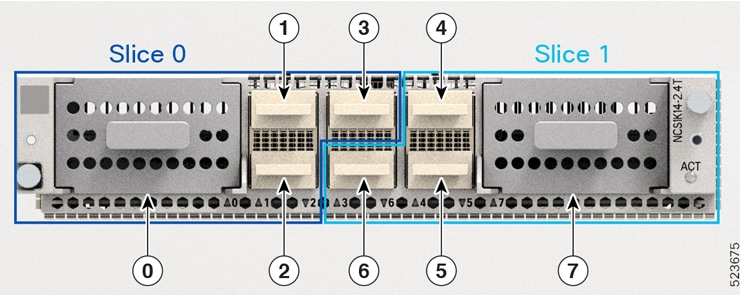
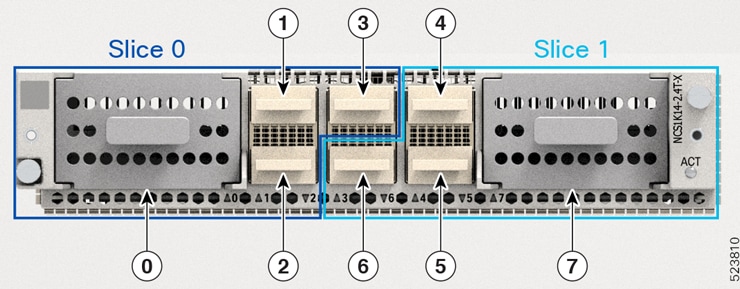
The line card is divided into two slices, namely, Slice 0 and Slice 1. Each slice contains a trunk port and three client ports. In this mode, the trunk ports operate independently, carrying different data rates. The slices enable the card to function as two different modules. For example, if you set the trunk as 400 G for Slice 0 and 600 G for Slice 1, then Trunk 0 delivers 400 G and Trunk 7 delivers 600 G.

Figure 1. 2.4T lne card slices and ports
2.4TX
Figure 2. line card slices and ports
Table 12. Client-to-trunk mapping in slice 0 and slice 1 modes

Slice 0

Slice 1

Trunk port

Client ports

Trunk port

Client ports

0

1, 2, 3

7

4, 5, 6

Data rate capabilities for 2.4T and 2.4TX cards in muxponder slice mode

The 2.4T and 2.4TX line cards support various trunk rates.
This table shows the releases from which the 2.4T and 2.4TX cards started supporting each trunk rate.
Table 13. Release-wise trunk rates supported by the 2.4T and 2.4TX cards

Trunk rate (G)

2.4T

2.4TX

400

7.11.1

24.1.1

500

24.1.1

600

7.11.1

24.1.1

700

-

24.2.1

800

7.11.1

24.1.1

900

-

24.2.1

1000

7.11.1

24.1.1

1100

-

24.2.1

1200

-

24.1.1

Recommended trunk parameters in the 2.4T and 2.4TX cards

This section details the baud rate range for each trunk rate in the 2.4T and 2.4TX cards.
Baud rate ranges for each trunk rate in the 2.4T card

The 2.4T card carries signals at different trunk rates, with each trunk rate operating within a baud rate range.

In the Baud Rate Ranges for Each Trunk Rate in the 2.4T card table, you can find the recommended baud rate ranges to maintain the signal health for each trunk rate in the network.

Data rate per trunk (G)

Minimum baud rate (GBd)

Maximum baud rate (GBd)

400

43.34518

130.4647

500

49.61196

147.7235

600

59.53435

148.0555

700

69.45674

147.8182

800

79.37913

148.0555

900

89.30152

147.8709

1000

99.22392

148.0555

1100

109.1463

148.2068

1200

119.0687

148.0555

Data rate per trunk (G)

Minimum baud rate (GBd)

Maximum baud rate (GBd)

400

43.34518

130.4647

500

49.61196

147.7235

600

59.53435

148.0555

700

69.45674

147.8182

800

79.37913

148.0555

900

89.30152

147.8709

1000

99.22392

148.0555

1100

109.1463

148.2068

1200

119.0687

148.0555

Baud rate and bit rate range for each trunk rate in the 2.4TX card

The 2.4TX card carries trunk signals at different data rates. Each trunk data rate operates in a default baud rate. However, you can customize the baud rate within the recommended baud rate range based on your deployment scenario. To customize baud rate, see.

In the Baud Rate and Bit Rate Range for Each Trunk Rate in the 2.4TX Card table, you can find the recommended baud rate ranges to maintain the signal health for each trunk rate in the network. The table also features the bit per second information for the respective baud rates.

Table 14. Baud rate and bit rate range for each trunk rate in the 2.4TX card

Trunk data rate per trunk (G)

Minimum baud r ate (GBd)

Maximum baud rate (GBd)

Default baud rate (GBd)

Minimum bit per second (bps)

Maximum bit per second (bps)

400

43.34518

130.4647

127.931418

2.1

4.1

500

49.61196

147.7235

137.8340588

2.5

5

600

59.53435

148.0555

137.738007

2.8

5.1

700

69.45674

147.8182

138.08166

3.2

5

800

79.37913

148.0555

137.978388

3.5

5.1

900

89.30152

147.8709

137.89817

3.8

5.2

1000

99.22392

148.0555

137.834059

4.3

5.3

1100

109.1463

148.2068

137.78165

4.7

5.3

1200

119.0687

148.0555

137.738007

5.3

5.7

Customize baud rates

Customizing baud rates is to enable users to adjust the default baud rates for the 2.4T and 2.4TX cards, particularly when operating in muxponder mode. This customization allows for optimization of network bandwidth based on specific deployment scenarios and ensures that the baud rates align with the available bandwidth in the network.

The muxponder mode enables the 2.4T and 2.4TX cards to carry signals in default baud rates when you set up the trunk rate. However, you can customize the baud rates for each trunk rate based on the bandwidth in the network.

Use this task to customize the baud rates within the recommended range as per your deployment scenario.

Before you begin

  • Install these pluggable modules as required.

    • QDD-4x100G

    • QDD-400G

  • Enter the Cisco IOS XR configuration mode.

Procedure

Step 1

Locate the trunk optics controller for the 2.4T and 2.4TX cards.

Example:
RP/0/RP0/CPU0:ios(config)# controller optics 0/0/0/7

Step 2

Enter baud rate.

Example:
RP/0/RP0/CPU0:ios(config-Optics)# baud-rate 120.0000

Step 3

Save the changes.

Example:
RP/0/RP0/CPU0:ios(config-Optics)#commit

Client pluggables for configuring muxponder slice modes

This section provides details about the client pluggable combinations that you need to set up the client rate for each trunk rate in slice 0 and slice 1.

Pluggable combinations in muxponder slice modes

The client data rates and ports differ for each trunk rate in the muxponder slice 0 (Trunk 0) and muxponder slice 1 (Trunk 1) configurations. However, the type of client pluggable modules stays the same for both slice modes.


Note


The 2x 100 GE client rate is supported only on 2.TX cards.


Table 15. Trunk rate and client pluggable combinations for Slices 0 and Slice 1

Trunk rate (G) per trunk

Card support

Client rate

Client pluggable

Client ports

Slice 0

Slice 1

400

2.4T, 2.4TX

2x 100 GE

400 GE

QDD-400G 1

1

4

2x 100 GE

4x 100 GE

QDD-4x100G2

500

2.4T, 2.4TX

2x 100 GE

400 GE + 1x 100 GE

QDD-400G 1+ QDD-4x100G2

1, 2

4, 5

5x 100 GE

2x QDD-4x100G2

600

2.4T, 2.4TX

400 GE + 2x 100 GE

QDD-400G 1 + QDD-4x100G2

1, 2

4, 5

6x 100 GE

2x QDD-4x100G2

700

2.4T, 2.4TX

2x 100 GE

400 GE + 3x 100 GE

QDD-400G 1 + QDD-4x100G2

1, 2

4, 5

7x 100 GE

2x QDD-4x100G2

800

2.4T, 2.4TX

2x 100 GE

2x 400 GE

2x QDD-400G 1

1, 2

4, 5

400 GE + 4x 100 GE

QDD-400G 1 + QDD-4x100G2

8x 100 GE

2x QDD-4x100G2

900

2.4T, 2.4TX

2x 100 GE

2x 400 GE + 1x 100 GE

QDD-400G 1 + QDD-4x100G2

1, 2, 3

4, 5, 6

400 GE + 5x 100 GE

QDD-400G 3 + QDD-4x100G4

9x 100 GE 3x QDD-4x100G2

1000

2.4T, 2.4TX

2x 100 GE

2x 400GE + 2x 100 GE

2x QDD-400G 1 + 2x QDD-4x100G2

1, 2, 3

4, 5, 6

10x 100 GE

3x QDD-4x100G2

1100

2.4TX

2x 100 GE

2x 400 GE + 3x 100 GE

2x QDD-400G 1 + QDD-4x100G2

1, 2, 3

4, 5, 6

400 GE + 7x 100 GE

2x QDD-400G 1 + QDD-4x100G2

11x 100 GE

3x QDD-4x100G2

1200

2.4TX

3x 400 GE

3x QDD-400G 1

1, 2, 3

4, 5,6

2x 400 GE + 4x 100 GE

2x QDD-400G 1 + QDD-4x100G2

400 GE + 8x 100 GE

QDD-400G 1 + 2x QDD-4x100G2

12x 100 GE

3x QDD-4x100G2

6x 2X100 GE

6x QDD-2X100-CWDM4-S

1, 2, 3, 4, 5, 6

6x QDD-2X100-LR4-S

1 QDD-400G refers to QDD-400G-FR4-S, QDD-400G-LR4-S, QDD-400G-AOCxM, and QDD-400G-DR4-S pluggable modules.
2 QDD-4x100G refers to QDD-4X100G-LR-S, QDD-4X100G-FR-S, and QDD-400G-DR4-S pluggable modules.

Make sure you use the appropriate values for client bitrate and trunk bitrate parameters when configuring the Muxponder slide mode using the hw-module command.

Set up the client and trunk rate in the muxponder slice mode for 2.4T and 2.4TX cards

Set up the client and trunk rate in the muxponder slice mode for the 2.4T and 2.4TX cards to configure these cards to handle specific data rates for both the aggregated trunk and individual client ports.

Use this task to set up the client and trunk rate in the muxponder slice mode for the 2.4T and 2.4TX cards.

This task considers that you are setting up the 600-G data rate in one of the trunk ports of the 2.4T and 2.4TX cards. This scenario requires you to set the client rate for the client ports. Based on the client pluggable that you use, the client rate can change to 400-GE client, 100-GE client, or mixed client.

For more information on the the data rate on each client port, see Client pluggables for configuring muxponder slice modes .

Before you begin

  • Install these pluggables as required.

    • QDD-400G

    • QDD-4x100G

Procedure

Step 1

Specify the card location.

Example:
RP/0/RP0/CPU0:ios(config)#hw-module location 0/1/NXR0

Step 2

Configure the 2.4T or 2.4TX line card in the muxponder slice mode.

For Trunk 0 port, enter the muxponder-slice 0 mode.

Example:
RP/0/RP0/CPU0:ios(config)# mxponder-slice 0

For Trunk 1 port, enter the muxponder-slice 1 mode.

Example:
RP/0/RP0/CPU0:ios(config)# mxponder-slice 1

Note


You can configure both muxponder slice 0 and slice 1 modes when needed.

For more information on how to configure muxponder slice mode with QDD-4x100GE and QDD-4x100GE pluggables, see the hw-module command.

Step 3

Set up the trunk rate for the 2.4T or 2.4TX card.

Example:
RP/0/RP0/CPU0:ios(config-hwmod-mxp)#trunk-rate 600G

Step 4

Set up the client rate based on the pluggables that you use.

For the QDD-400G pluggable, run this command.

Example:

RP/0/RP0/CPU0:ios(config-hwmod-mxp)#
client-port-rate 1 client-type 400GE
RP/0/RP0/CPU0:ios(config-hwmod-mxp)#
client-port-rate 2 client-type 400GE

For the QDD-4x100G pluggable, run this command.

Example:

RP/0/RP0/CPU0:ios(config-hwmod-mxp)#
client-port-rate 1 lane 1 client-type 100GE
RP/0/RP0/CPU0:ios(config-hwmod-mxp)#
client-port-rate 1 lane 2 client-type 100GE
RP/0/RP0/CPU0:ios(config-hwmod-mxp)#
client-port-rate 1 lane 3 client-type 100GE
RP/0/RP0/CPU0:ios(config-hwmod-mxp)#
client-port-rate 1 lane 4 client-type 100GE
RP/0/RP0/CPU0:ios(config-hwmod-mxp)#
client-port-rate 2 lane 1 client-type 100GE
RP/0/RP0/CPU0:ios(config-hwmod-mxp)#
client-port-rate 2 lane 2 client-type 100GE

Note


Use the lane keyword to set up the 100-GE client rate in the client ports.

For the mixed client pluggable, use the combination of the QDD-400G and QDD-4x100G commands.

Step 5

Save the configuration and exit the muxponder slice mode.

Example:
Command

RP/0/RP0/CPU0:ios(config-hwmod-mxp)#
commit
RP/0/RP0/CPU0:ios(config-hwmod-mxp)#
exit
RP/0/RP0/CPU0:ios(config)#
exit

Step 6

Verify the 600-G data rate that you set up.

This sample shows the 600-G data rate ( Trunk Bitrate: 600G ) set up in client ports 1 ( FourHundredGigECtrlr0/1/0/1 ) and 2 with breakout lanes 1 and 2 ( HundredGigECtrlr0/1/0/2/1 and HundredGigECtrlr0/1/0/2/2 ) using 400-GE and 100-GE client type pluggables ( Client Bitrate: MIXED ) in muxponder slice 0 ( Slice ID: 0 ).

Example:

RP/0/RP0/CPU0:ios#show hw-module location 0/1/NXR0 mxponder-slice 0
Thu Nov 16 15:41:25.720 UTC
Location:             0/1/NXR0
Slice ID: 0 Client Bitrate: MIXED Trunk Bitrate: 600G
Status:               Provisioned
LLDP Drop Enabled:    FALSE
ARP Snoop Enabled:    FALSE
Client Port                     Mapper/Trunk Port          CoherentDSP0/1/0/0
Traffic Split Percentage
FourHundredGigECtrlr0/1/0/1 ODU-FLEX0/1/0/0/1 100 
   HundredGigECtrlr0/1/0/2/1 ODU-FLEX0/1/0/0/2/1 100 
   HundredGigECtrlr0/1/0/2/2 ODU-FLEX0/1/0/0/2/2 100

This sample shows the 600-G data rate ( Trunk Bitrate: 600G ) set up in client ports 0 with breakout lanes 1 to 4 ( HundredGigECtrlr0/1/0/1/1 to HundredGigECtrlr0/1/0/1/4 ) and 1 ( HundredGigECtrlr0/1/0/2/1 ) using 100-GE client type pluggable ( Client Bitrate: 100GE ) in muxponder slice 0 ( Slice ID: 0 ).

Example:

RP/0/RP0/CPU0:ios#show hw-module location 0/1/NXR0 mxponder-slice 0
Thu Nov 16 16:06:57.575 UTC
Location:             0/1/NXR0
Slice ID: 0 Client Bitrate: 100GE Trunk Bitrate: 600G
Status:               Provisioned
LLDP Drop Enabled:    FALSE
ARP Snoop Enabled:    FALSE
Client Port           Mapper/Trunk Port          CoherentDSP0/1/0/0
Traffic Split Percentage
HundredGigECtrlr0/1/0/1/1 ODU-FLEX0/1/0/0/1/1 100 
   HundredGigECtrlr0/1/0/1/2 ODU-FLEX0/1/0/0/1/2 100 
   HundredGigECtrlr0/1/0/1/3 ODU-FLEX0/1/0/0/1/3 100 
   HundredGigECtrlr0/1/0/1/4 ODU-FLEX0/1/0/0/1/4 100 
   HundredGigECtrlr0/1/0/2/1 ODU-FLEX0/1/0/0/2/1 100 
   HundredGigECtrlr0/1/0/2/2 ODU-FLEX0/1/0/0/2/2 100

Set up 2x100G clients in 1200G trunk rate in the muxponder slice mode for 2.4TX card

Use this task to set up 2x100G client pluggables in 1200G trunk rate in the muxponder slice mode for the 2.4TX card.

For more information on the data rate on each client port, see Client pluggables for configuring muxponder slice modes.

Before you begin
  • Install either of these pluggables in all 6 client ports.

    • QDD-2X100-CWDM4-S

    • QDD-2X100-LR4-S

Procedure

Step 1

Specify the card location.

Example:
RP/0/RP0/CPU0:ios(config)#hw-module location 0/1/NXR0

Step 2

Configure the 2.4TX line cards in the muxponder slice mode.

For 6x2x100pluggables in 1200G trunk mode all client ports are in slice 0. Enter the muxponder-slice 0 mode.

Example:
RP/0/RP0/CPU0:ios(config)#mxponder-slice 0

Step 3

Set up the trunk rate for the 2.4TX cards.

Example:
RP/0/RP0/CPU0:ios(config-hwmod-mxp)#trunk-rate 1200G

Step 4

Set up the client rate.

For the 2X100G pluggables, run this command.

Example:
RP/0/RP0/CPU0:ios(config-hwmod-mxp)#client-rate 100GE 

Step 5

Save the configuration and exit the muxponder slice mode.

Example:
Command

RP/0/RP0/CPU0:ios(config-hwmod-mxp)#commit
RP/0/RP0/CPU0:ios(config-hwmod-mxp)#exit
RP/0/RP0/CPU0:ios(config)#exit

Step 6

Verify the data rate that you set up.

This sample shows the 1200G data rate set up in all 12 client ports.

Example:

RP/0/RP0/CPU0:ios#show hw-module location 0/2/NXR0 mxponder-slice 0
Thu Nov 16 15:41:25.720 UTC
Location:             0/2/NXR0
Slice ID:             0
Client Bit100GE
Trunk  Bitrate:       1200G
Status:               Provisioned
rate:       LLDP Drop Enabled:    FALSE
ARP Snoop Enabled:    FALSE
Client Port                     Mapper/Trunk Port          CoherentDSP0/2/0/0   
                                Traffic Split Percentage

HundredGigECtrlr0/2/0/1/1       ODU-FLEX0/2/0/0/1                             100
HundredGigECtrlr0/2/0/1/5       ODU-FLEX0/2/0/0/2                             100
HundredGigECtrlr0/2/0/2/1       ODU-FLEX0/2/0/0/3                             100
HundredGigECtrlr0/2/0/2/5       ODU-FLEX0/2/0/0/4                             100
HundredGigECtrlr0/2/0/3/1       ODU-FLEX0/2/0/0/5                             100
HundredGigECtrlr0/2/0/3/5       ODU-FLEX0/2/0/0/6                             100
HundredGigECtrlr0/2/0/4/1       ODU-FLEX0/2/0/0/7                             100
HundredGigECtrlr0/2/0/4/5       ODU-FLEX0/2/0/0/8                             100
HundredGigECtrlr0/2/0/5/1       ODU-FLEX0/2/0/0/9                             100
HundredGigECtrlr0/2/0/5/5       ODU-FLEX0/2/0/0/10                            100
HundredGigECtrlr0/2/0/6/1       ODU-FLEX0/2/0/0/11                             100
HundredGigECtrlr0/2/0/6/5       ODU-FLEX0/2/0/0/12                            100

Muxponder mode for 2.4TX card

The muxponder mode enables the 2.4TX card to split wavelengths in specific client ports between the two trunk ports. In the slice mode, the client ports that support wavelength splitting act the same as other client ports. However, in the muxponder mode, the 2.4TX card activates the split client ports. The shared client ports are client port 2 for 600G and client port 3 for 1000G.

How muxponder mode splits 400GE and 4x100GE client traffic

This use case explains the wavelength splitting for 600G trunk rate.

For 600G trunk rate, you must configure client port 1, 2, and 4 as 400GE or 4x100GE. Trunk 0 receives 400GE from port 1. Trunk 7 receives 400GE from port 4. As per split client configuration, port 2 gives 200GE to Trunk 0 and another 200GE to Trunk 7. In this way, both trunk ports deliver 600G trunk rate each.

Recommended connections for point-to-point topology in muxponder mode

  • Connect the port 0 and port 7 in the near end node to their respective port 0 and port 7 in the far end node.

  • Make sure the optic fibers connected to trunk ports 0 and 7 are the same length. The difference must be less than 500 m; otherwise, you'll lose traffic on the split port.

Data rate capabilities for the 2.4TX card card

Table 16. Feature History

Feature Name

Release Information

Description

Additional Muxponder Mode Trunk Rates for the NCS1K14-2.4T-X-K9 Line Card

Cisco IOS XR Release 24.3.1

The NCS1K14-2.4T-X-K9 line card now supports additional trunk rates of 500G and 900G in muxponder mode, enhancing flexibility and optimizing pluggable count alongside the existing 600G and 1000G rates.

To outline the data rate capabilities of the 2.4TX card card.

The 2.4TX card card supports different trunk rates.

Table 17. Release-wise trunk rates supported by the 2.4TX card cards

Trunk rate (G)

Release introduced

500

24.3.1

600

24.1.1

900G

24.3.1

1000G

24.1.1


Note


For 600G and 1000G trunk rates, in R24.1.1, the shared client port supports only 400GE client and from R24.3.1, the shared client port supports both 400GE and 4x100GE clients.


Client pluggables for configuring 2.4TX muxponder mode

Table 18. Feature History

Feature Name

Release Information

Description

100GE Channel Support for the 600G and 1000G Trunk Rate in NCS1K14-2.4T-X-K9 Muxponder Mode

Cisco IOS XR Release 24.3.1

The NCS1K14-2.4T-X-K9 line card now allows 100G breakout client support for 600G and 1000G trunk rate in muxponder mode. It features 4x100GE breakout channels in shared client ports, enabling easy integration with existing 100G networks using QDD-4X100G-LR-S, QDD-4X100G-FR-S, and QDD-400G-DR4-S pluggable modules. These channels offer high density and bandwidth efficiency without extra costs.

This section provides details about the client pluggable combinations that you need to set up the client rate for each trunk rate.

Client pluggable combinations in muxponder mode

The 2.4TX card muxponder mode supports various trunk rate per trunk with different client pluggable combinations.


Note


From R24.3.1, the 2.4TX card supports 100GE client traffic in the shared client port for both 600G and 1000G trunk rates.


The client channel rate in the table refers to both the total client rate and the client rate per channel in the client ports. For example, 2x 400GE + 2x 100GE indicates that the client traffic consists of two channels at 400GE each and two channels at 100GE each.

Table 19. 2.4TX card muxponder mode port configurations

Trunk rate (G) per trunk

Total configured trunk rate (G)

Client channel rate

Client pluggable

Shared client port

Client ports

500

1000

2x 400GE + 2x 100GE

2x QDD-400G + 1x QDD-4x100G

2

1, 4

1x 400GE + 6x 100GE

1x QDD-400G + 2x QDD-4x100G

10x 100GE

3x QDD-4x100G

600

1200

3x 400GE

3x QDD-400G

2

1, 4

2x 400GE + 4x 100GE

2x QDD-400G + 1x QDD-4x100G

1x 400GE + 8x 100GE

1x QDD-400G + 2x QDD-4x100G

900

1800

4x 400GE + 2x 100GE

4x QDD-400G + 1x QDD-4x100G

3

1, 2, 4, 5

3x 400GE + 6x 100GE

3x QDD-400G + 2x QDD-4x100G

2x 400GE + 10x 100GE

2x QDD-400G + 3x QDD-4x100G

1x 400GE + 14x 100GE

1x QDD-400G + 4x QDD-4x100G

18x 100GE

5x QDD-4x100G

1000

2000

5x 400GE

5x QDD-400G

3

1, 2, 4, 5

4x 400GE + 4x 100GE

4x QDD-400G + 1x QDD-4x100G

3x 400GE + 8x 100GE

3x QDD-400G + 2x QDD-4x100G

2x 400GE + 12x 100GE

2x QDD-400G + 3x QDD-4x100G

1x 400GE + 16x 100GE

1x QDD-400G + 4x QDD-4x100G

Understanding client rates per client port for each trunk rate

This table shows the sample client rate per client port for each trunk rate. This simplified matrix helps you understand the traffic flow in each client port. It also indicates the number of channels that each client port uses to deliver the client traffic. The type of pluggable module inserted in the shared client port determines the traffic rate through breakout and non-breakout channels.

You can customize the configuration by mixing and matching the client pluggable modules according to your requirements.

Table 20. Client rate traffic per trunk rate and client pluggable combinations

Trunk rate (G) per trunk

Client pluggable

Client rate (GE) per trunk 0 client ports

Client rate (GE) per shared client ports

Client rate (GE) per trunk 1 client ports

1 2 2

3

4

5

6

500

2x QDD-400G + 1x QDD-4x100G

400

-

2x 100

-

400

-

-

1x QDD-400G + 2x QDD-4x100G

400

-

2x 100 1

-

4x 100

-

-

3x QDD-4x100G

4x 100

-

2x 100 1

-

4x 100

-

-

600

3x QDD-400G

400

-

400 - 400

-

-

2x QDD-400G + 1x QDD-4x100G

400

-

4x 100 1

-

400

-

-

1x QDD-400G + 2x QDD-4x100G + 3x QDD-4x100G

400

-

4x 100 1

-

4x 100

-

-

900

4x QDD-400G + 1x QDD-4x100G

400

400

-

2x 100 1

400

400

-

3x QDD-400G + 2x QDD-4x100G

400

400

-

2x 100 1

400

4x 100

-

2x QDD-400G + 3x QDD-4x100G

400

400

-

2x 100 1

4x 100

4x 100

-

1x QDD-400G + 4x QDD-4x100G

400

4x 100

-

2x 100 1

4x 100

4x 100

-

5x QDD-4x100G

4x 100

4x 100

-

2x 100 1

4x 100

4x 100

-

1000

5x QDD-400G

400

400

-

400

400

400

-

4x QDD-400G + 1x QDD-4x100G

400

400

-

4x 100

400

400

-

3x QDD-400G + 2x QDD-4x100G

400

400

-

4x 100

400

4x 100

-

2x QDD-400G + 3x QDD-4x100G

400

400

-

4x 100

4x 100

4x 100

-

1x QDD-400G + 4x QDD-4x100G + 5x QDD-4x100G

400

4x 100

-

4x 100

4x 100

4x 100

-

3 In this shared port, the pluggable capacity is 400GE or 4x 100GE, but, for this trunk rate, the 2.4TX card card consumes only 2x 100GE client data.

Set up the client and trunk rate in the muxponder mode for the 2.4TX card

Use this task to configure a trunk rate in muxponder mode for the 2.4TX card card.


Note


This task considers that you’re setting up the 600G trunk rate in the muxponder mode for the 2.4TX card card. The commands and output shown are for 600G trunk rate. The commands and output change for other trunk rates.


This task uses a mix of client pluggable modules. For this task, the card has:

  • QDD-4x100G pluggable in shared client port 2, and

  • QDD-400G pluggable in client ports 1 and 4


Note


For the 600G trunk rate, the split port supports both 400GE and 4x100GE. For more information on required pluggable modules for other trunk rates, see Client pluggables for configuring 2.4TX muxponder mode .


Before you begin

  • Install the pluggables as required.

    • QDD-400G

    • QDD-4x100G

Procedure

Step 1

Specify the card location.

Example:
RP/0/RP0/CPU0:ios(config)# hw-module location 0/1/NXR0

Step 2

Enter the muxponder card mode.

Example:
RP/0/RP0/CPU0:ios(config-hwmod)#mxponder

Step 3

Set up the trunk rate.

Example:
RP/0/RP0/CPU0:ios(config-hwmod-mxp)# trunk-rate 600G

Step 4

Set up the client rate for the QDD-400G and QDD-4x100G pluggable modules.

Example:

RP/0/RP0/CPU0:ios(config-hwmod-mxp)#
client-port-rate 1 client-type 400GE
// QDD-400G pluggable in client port 1 
RP/0/RP0/CPU0:ios(config-hwmod-mxp)#
client-port-rate 2 lane 1 client-type 100GE
// Enter lane for the QDD-4x100G pluggable in client port 2
 RP/0/RP0/CPU0:ios(config-hwmod-mxp)#
 client-port-rate 2 lane 2 client-type 100GE
// Enter lane for the QDD-4x100G pluggable in client port 2
  RP/0/RP0/CPU0:ios(config-hwmod-mxp)#
 client-port-rate 2 lane 3 client-type 100GE
// Enter lane for the QDD-4x100G pluggable in client port 2
 RP/0/RP0/CPU0:ios(config-hwmod-mxp)#
 client-port-rate 2 lane 4 client-type 100GE
// Enter lane for the QDD-4x100G pluggable in client port 2
 RP/0/RP0/CPU0:ios(config-hwmod-mxp)#
 client-port-rate 4 client-type 400GE  
 

Note


Use the lane keyword to set up the 100GE client rate in the client ports.

Step 5

Save the configuration and exit the muxponder mode.

Example:

RP/0/RP0/CPU0:ios(config-hwmod-mxp)#
commit
RP/0/RP0/CPU0:ios(config-hwmod-mxp)#
exit
// Exits muxponder mode
RP/0/RP0/CPU0:ios(config)#
exit
// Exits configuration moder

Step 6

Verify the 600G mixed client rate configured for the 2.4TX card muxponder mode.

This sample shows the 600G data rate ( Trunk Bitrate: 600G ) set up in client ports 1 and 4 ( FourHundredGigECtrlr0/2/0/1 and FourHundredGigECtrlr0/2/0/4 ) and split client port 2 with breakout lanes 1 to 4 ( HundredGigECtrlr0/2/0/2/1 to HundredGigECtrlr0/2/0/2/4 ).

Example:

RP/0/RP0/CPU0:ios# show hw-module location 0/2/NXR0 mxponder
Location:             0/2/NXR0
Client Bitrate: MIXED Trunk Bitrate: 600G
Status:               Provisioned
LLDP Drop Enabled:    FALSE
ARP Snoop Enabled:    FALSE
Client Port                     Mapper/Trunk Port          CoherentDSP0/2/0/0   CoherentDSP0/2/0/7      
Traffic Split Percentage
FourHundredGigECtrlr0/2/0/1     ODU-FLEX0/2/0/0/1                             100                        0

HundredGigECtrlr0/2/0/2/1 ODU-FLEX0/2/0/0/2/1 100 0 
HundredGigECtrlr0/2/0/2/2 ODU-FLEX0/2/0/0/2/2 100 0 
HundredGigECtrlr0/2/0/2/1 ODU-FLEX0/2/0/7/2/3 0 100 
HundredGigECtrlr0/2/0/2/2 ODU-FLEX0/2/0/7/2/4 0 100
FourHundredGigECtrlr0/2/0/4     ODU-FLEX0/2/0/7/4                               0                      100

800GE support in bundle configuration mode on 2.4TA cards

A 800GE client port is a high-bandwidth Ethernet interface that

  • is internally divided into eight 100GE sub-channels (8x100GE),

  • distributes the 100GE sub-channels across two trunk ports, Port 0 and Port 7, and

  • is configured in muxponder mode using the hw-module location configuration commands on 2.4TA line cards.

Table 21. Feature history

Feature name

Release information

Feature description

800GE support in Bundle Configuration mode for NCS1K14-2.4T-A-K9 line card

Cisco IOS XR Release 26.2.1

The NCS1K14-2.4T-A-K9 line card now supports the 800GE client rate in muxponder mode, paired with the 400G, 600G, and 1200G trunk rates. In this mode, the 800GE client is split as 8x100GE and the sub-channels are carried over the two trunk ports, Port 0 and Port 7.

This support increases bandwidth flexibility and optimizes port utilization for high-speed client traffic.

Supported line card and trunk rates

The 800GE client rate in muxponder mode is supported on NCS1K14-2.4T-A-K9 line card.

The 800GE client rate in muxponder mode is supported with these trunk rates:

  • 400G

  • 600G

  • 1200G

Table 22. 2.4TA bundle mode configurations for 800GE client

Trunk rate (G) per trunk

Total configured trunk rate (G)

Client channel rate

Client pluggable

Split port

Client ports

400

800

1x 800GE (8x 100GE)

1x QDD-8X100

2

Clients: 2

Trunks: 0, 7

600

1200

1x 800GE + 1x 400GE (12x 100GE)

1x QDD-8X100 + 1x QDD-4X100

2

Clients: 2, 4

Trunks: 0, 7

1200

2400

3x 800GE

3x QDD-8X100

6

Clients: 2, 5, 6

Trunks: 0, 7


Note


Ethernet PRBS and idle frame insertion are not supported for the 800GE split configuration in muxponder mode.


Configure 800GE in bundle mode on 2.4TA cards

Set up the 800GE client ports and the corresponding trunk rate in muxponder mode so that the 800GE client is split as 8x100GE and the sub-channels are carried over the two trunk ports, Port 0 and Port 7.

Use this task when configuring or reconfiguring line cards that require multiplexed client and trunk rates on 2.4TA hardware.

Before you begin

  • Install the required client pluggables in the client ports that you plan to configure.

Follow these steps to configure the 800GE split client rate in muxponder mode.

Procedure

Step 1

Enter the hw-module location mxponder to specify the card location.

Example:

RP/0/RP0/CPU0:ios#configure
RP/0/RP0/CPU0:ios(config)#hw-module location 0/1/NXR0 mxponder
RP/0/RP0/CPU0:ios(config-hwmod-mxp)#

Step 2

Run the trunk-rate rate client-port-rate port client-type rate command and assign each client port to the 800GE or 400GE client type to configure the trunk rate.

Example:

This is a sample to configure 400G trunk rate with 800GE client in muxponder mode.


RP/0/RP0/CPU0:ios(config-hwmod-mxp)#trunk-rate 400G
RP/0/RP0/CPU0:ios(config-hwmod-mxp)#client-port-rate 2 client-type 800GE
Example:

This is a sample to configure 600G trunk rate with 800GE + 400GE clients in muxponder mode.


RP/0/RP0/CPU0:ios(config-hwmod-mxp)#trunk-rate 600G
RP/0/RP0/CPU0:ios(config-hwmod-mxp)#client-port-rate 2 client-type 800GE
RP/0/RP0/CPU0:ios(config-hwmod-mxp)#client-port-rate 4 client-type 400GE
Example:

This is a sample to configure 1200G trunk rate with three 800GE clients in muxponder mode.


RP/0/RP0/CPU0:ios(config-hwmod-mxp)#trunk-rate 1200G
RP/0/RP0/CPU0:ios(config-hwmod-mxp)#client-port-rate 2 client-type 800GE
RP/0/RP0/CPU0:ios(config-hwmod-mxp)#client-port-rate 5 client-type 800GE
RP/0/RP0/CPU0:ios(config-hwmod-mxp)#client-port-rate 6 client-type 800GE

Step 3

Commit the configuration to apply the changes.

Example:

RP/0/RP0/CPU0:ios(config-hwmod-mxp)#commit

Step 4

Run the show hw-module location location mxponder to verify the configuration.

Example:

RP/0/RP0/CPU0:ios#show hw-module location 0/0/NXR0 mxponder
Tue Jan 20 09:58:19.083 UTC

Location:             0/0/NXR0
Client Bitrate:       800GE
Trunk  Bitrate:       400G
Status:               Provisioned
LLDP Drop Enabled:    FALSE
ARP Snoop Enabled:    FALSE
Client Port                     Mapper/Trunk Port          CoherentDSP0/0/0/0   CoherentDSP0/0/0/7      
                                Traffic Split Percentage

EightHundredGigECtrlr0/0/0/2    ODU-FLEX0/0/0/0/2                              50                       50
      
             
RP/0/RP0/CPU0:ios#show hw-module location 0/0/NXR0 mxponder
Tue Jan 20 10:06:37.996 UTC

Location:             0/0/NXR0
Client Bitrate:       800GE
Trunk  Bitrate:       600G
Status:               Provisioned
LLDP Drop Enabled:    FALSE
ARP Snoop Enabled:    FALSE
Client Port                     Mapper/Trunk Port          CoherentDSP0/0/0/0   CoherentDSP0/0/0/7      
                                Traffic Split Percentage

EightHundredGigECtrlr0/0/0/2    ODU-FLEX0/0/0/0/2                              75                       25

RP/0/RP0/CPU0:ios#show hw-module location 0/0/NXR0 mxponder
Tue Jan 20 10:17:04.069 UTC

Location:             0/0/NXR0
Client Bitrate:       800GE
Trunk  Bitrate:       1200G
Status:               Provisioned
LLDP Drop Enabled:    FALSE
ARP Snoop Enabled:    FALSE
Client Port                     Mapper/Trunk Port          CoherentDSP0/0/0/0   CoherentDSP0/0/0/7      
                                Traffic Split Percentage

EightHundredGigECtrlr0/0/0/6    ODU-FLEX0/0/0/7/6                              50                       50 

Confirm that the client port shows the 800GE client bitrate, the trunk bitrate matches the configured trunk rate, and the client-to-trunk mapping is distributed across Port 0 and Port 7 .


The line card runs in muxponder mode with the configured 800GE client ports. The 800GE client traffic is split as 8x100GE and distributed across the Port 0 and Port 7 trunks according to the selected trunk rate.